


Have you ever uploaded a video and realized it's missing subtitles, leaving viewers struggling to understand the dialogue? Or perhaps you've spent hours manually transcribing a crucial lecture or business meeting, only to face errors and frustration? In today's digital landscape, where 85% of social media videos are watched on mute, automatic subtitles are no longer a luxury—they are a necessity for accessibility, engagement, and growth.
This comprehensive guide will walk you through the top 5 converters of 2025, ranging from free online tools to professional powerhouses, to help you find the perfect fit for your needs. Let's dive in and transform your videos into accessible, engaging, and professional content!
Table of Contents
Part 1: Tips for Selecting the Right Automatic Subtitle Generator
1 Accuracy and Language Support
The primary goal of an automatic subtitle generator is accuracy. Look for tools powered by advanced AI and speech recognition technology that can handle diverse accents, technical jargon, and varying audio qualities. For global reach, multi-language support is essential. Ensure the tool can accurately transcribe and generate subtitles in all the languages your audience speaks. High accuracy minimizes editing time and ensures your message is conveyed correctly.
2 Speed and Processing Mode
Consider your workflow needs. Cloud-based online tools offer fast processing and don't consume your local system resources, making them ideal for quick jobs and users with less powerful computers. They allow you to upload your MP4 and process it on remote servers. In contrast, desktop software (like UniConverter) processes files locally on your computer. This is often faster for large files as internet upload speeds don't limit it and keeps sensitive content offline, which is vital for confidential corporate or academic materials.
3 Ease of Use and Editing Interface
The initial AI transcription is rarely 100% perfect. A user-friendly editing interface is critical for making quick corrections. The best tools provide a dedicated editor that allows you to play the video back, listen to the audio, and easily correct any mistakes in the text, as well as fine-tune timestamps for perfect synchronization. A clunky or complicated editor can turn a time-saving tool into a time-consuming chore.
4 Output Customization and Format
While your primary goal is an SRT file, flexibility is a significant advantage. Check if the tool allows you to adjust subtitle formatting (font, color, position) before export for burned-in captions. Furthermore, support for other subtitle and transcription formats, such as VTT (for web video), TXT (for transcripts), or ASS (for advanced styling), adds tremendous value, making the tool versatile for various projects and platforms.
5 Cost and Limits
Be mindful of the pricing model. Many tools offer enticing free tiers, but often come with limitations, such as a cap on video length, watermarks on exports, or reduced features. Understand the cost structure—whether it's a pay-per-minute model, a monthly subscription, or a one-time purchase. Select a model that suits your budget and workload. A paid tool might be more cost-effective in the long run if you regularly handle long-form content.

Easy to Use MP4 to SRT Converter
Part 2: Best 5 MP4 to SRT Automatic Subtitle Generators
After extensive testing and research, we've curated the five best tools that excel at converting MP4 to SRT automatically. They are ranked based on their overall performance, feature set, and value for money.
1. UniConverter – Best All-Rounder for Quality & Control
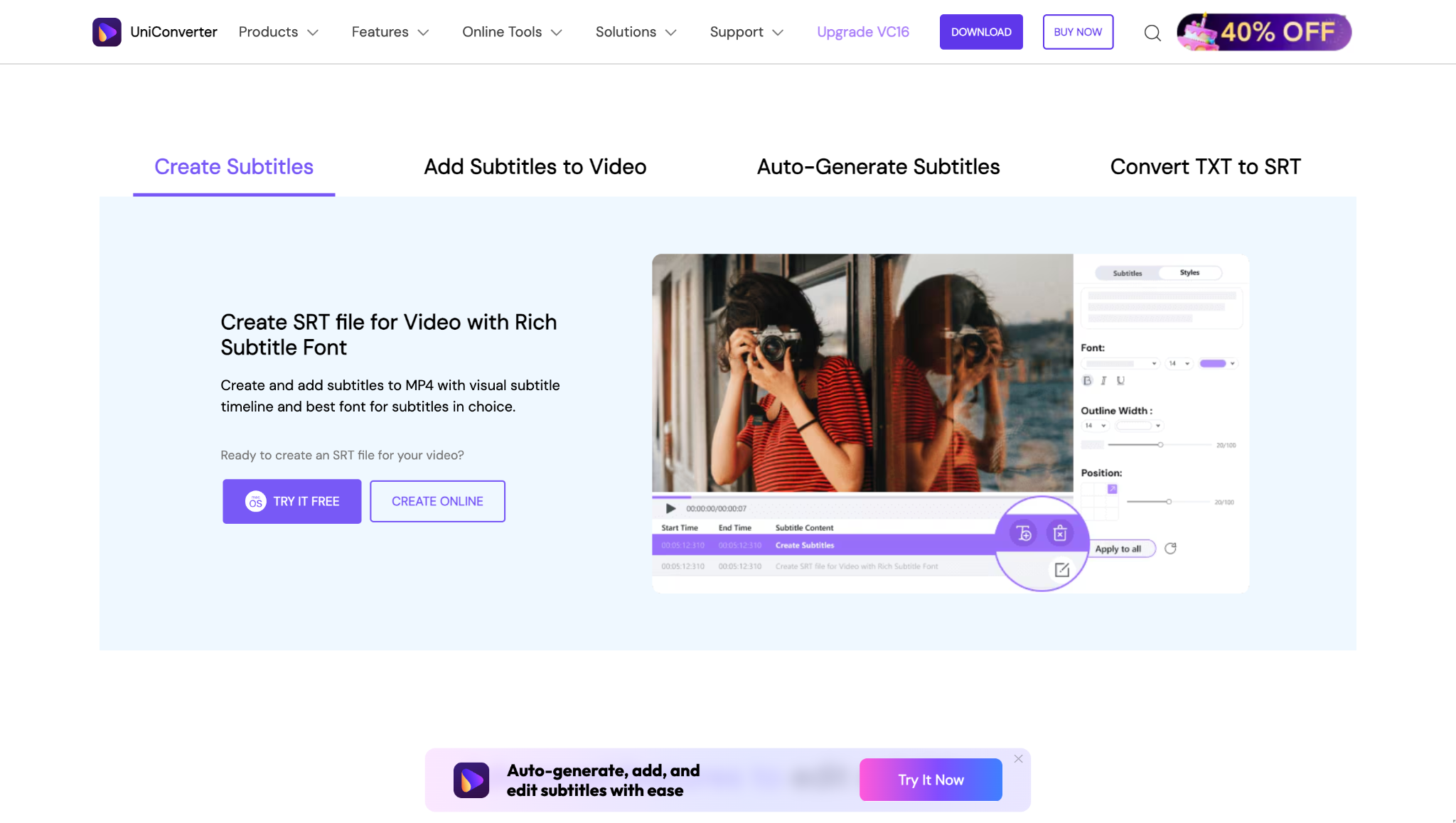
Key Features:
- High-Accuracy AI Transcription: Generates subtitles from MP4 to SRT with impressive accuracy in multiple languages.
- Advanced Subtitle Editor: Fine-tune text, correct errors, and adjust timestamps with frame-by-frame precision.
- Format Flexibility: Export subtitles as SRT, TXT, project file or burn them directly into the video with customizable fonts and styles.
- 100% Offline Processing: Your videos and data remain secure on your computer—no internet uploads required.
- Batch Processing: Convert multiple MP4 to subtitle files simultaneously, saving you significant time.
How to Generate SRT from MP4 with UniConverter:
Follow these three simple steps:
Step 1: Launch the Tool and Import Your MP4 Video
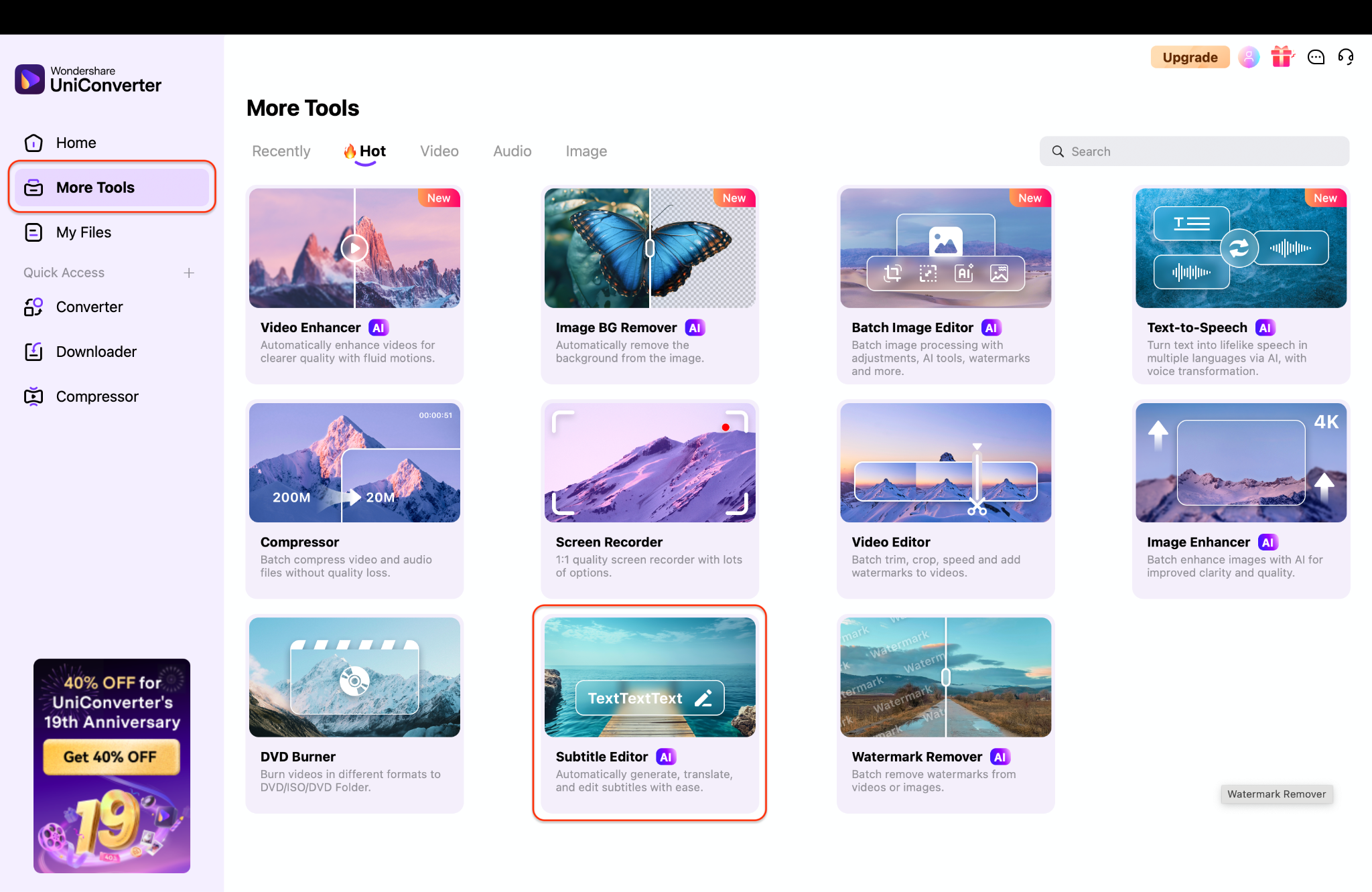
Download, install, and launch UniConverter. Navigate to the "More Tools" tab on the left sidebar. Find and click on the "AI Subtitle Editor" tool icon. In the new window, click "+Add Video" or drag and drop your MP4 video into the program.
Step 2: Generate and Edit Subtitles
Once your video is loaded, select the original language of the audio. Navigate to the AI Auto-Subtitles Generator and then click the "Generate" button. UniConverter's AI will now analyze the audio and create a transcript with timecodes. After processing, the subtitles will appear in a list. Use the built-in editor to play the video and correct any errors in the text or timing.
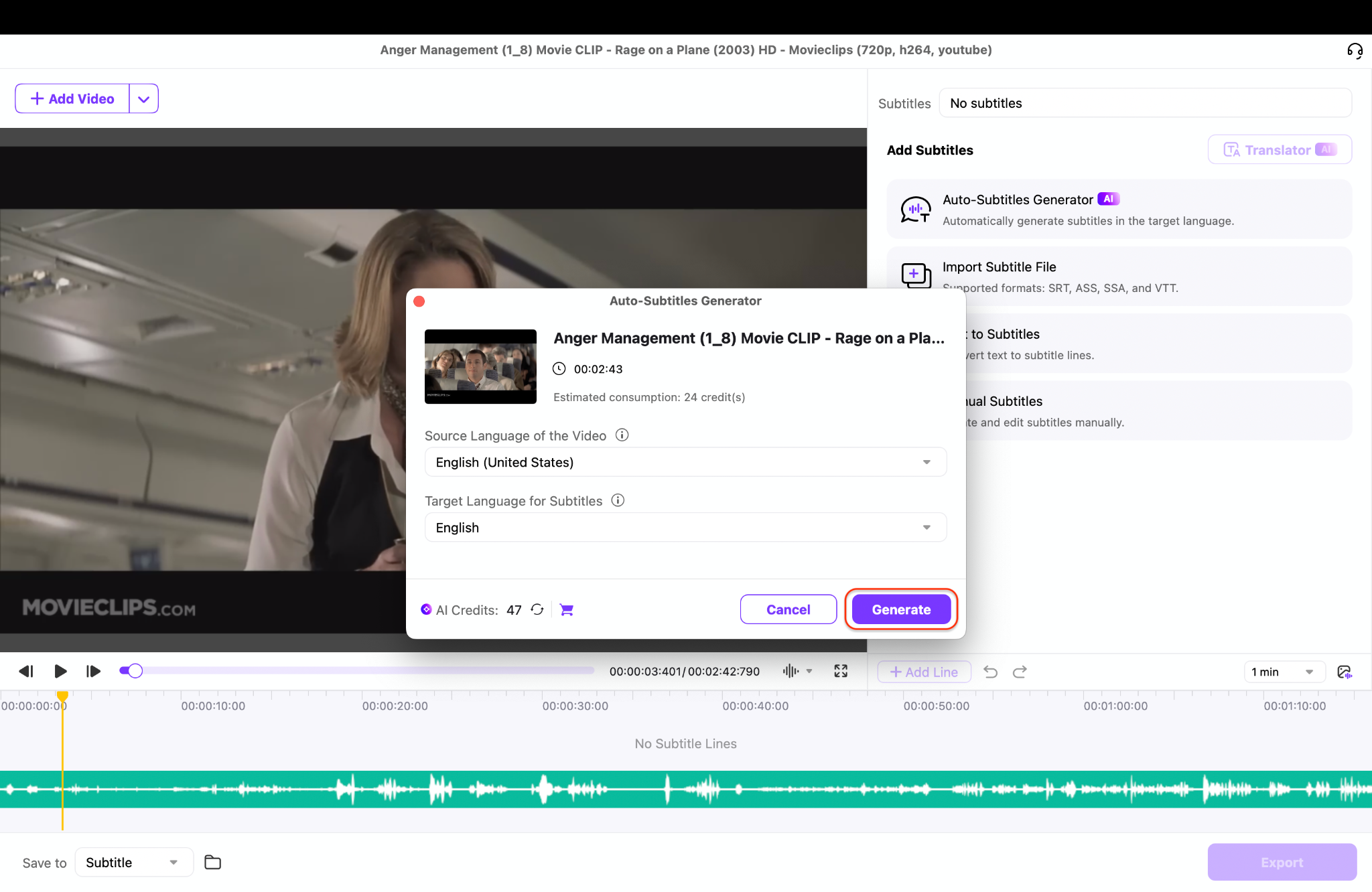
Note: The Manual Subtitles, Text to Subtitles, and Import Subtitle File features are also available, depending on your compatibility and ease of use.
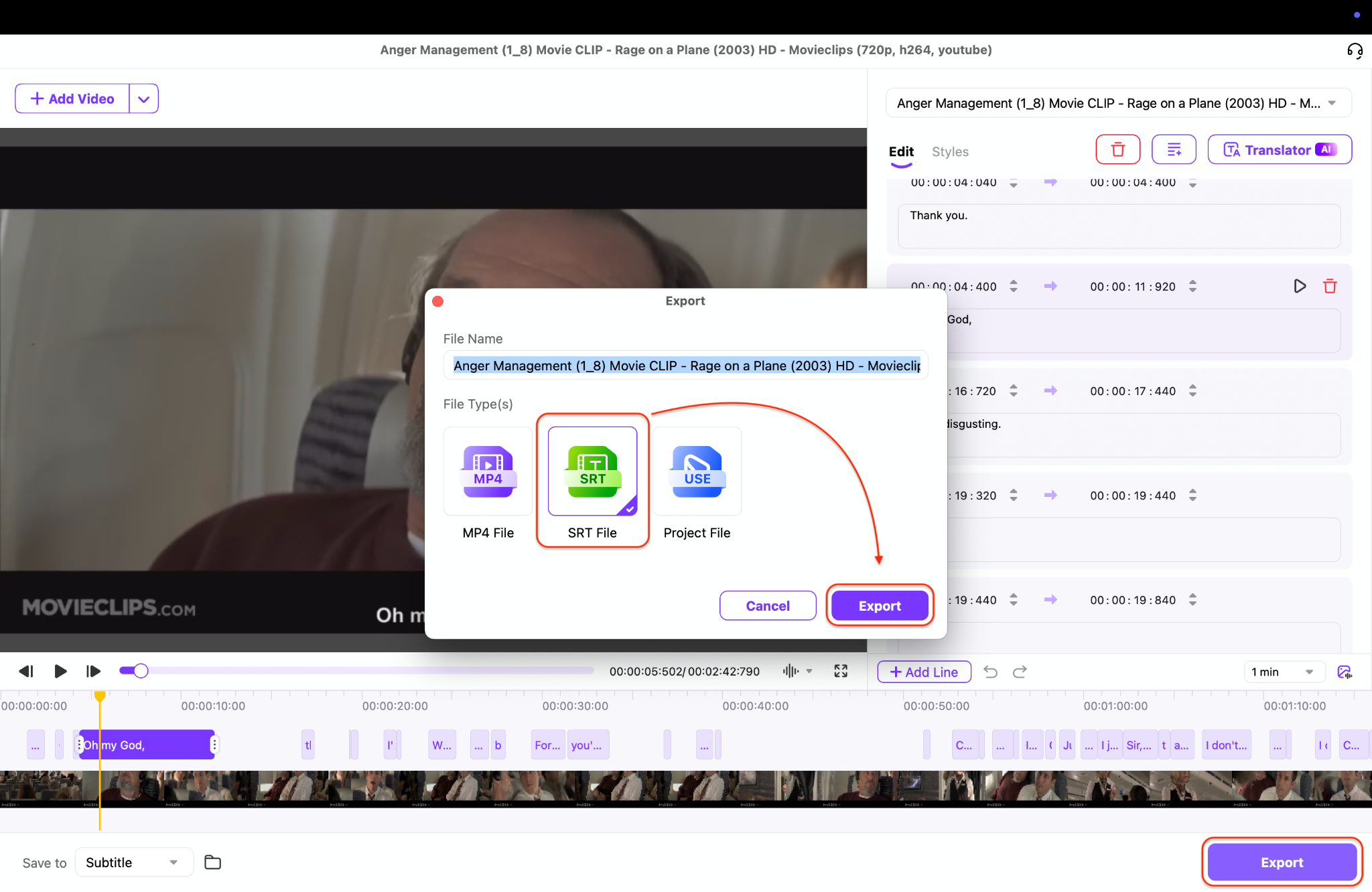
Step 3: Export Your SRT File
After editing, choose your export preference. To get your SRT file, select the "Export" option. Choose SRT File as the format and click "Export" to save the file to your computer. You can now use this file on any platform.
Supported OS: Windows and macOS.
2. VEED.IO – Best Web-Based Editor for Social Media
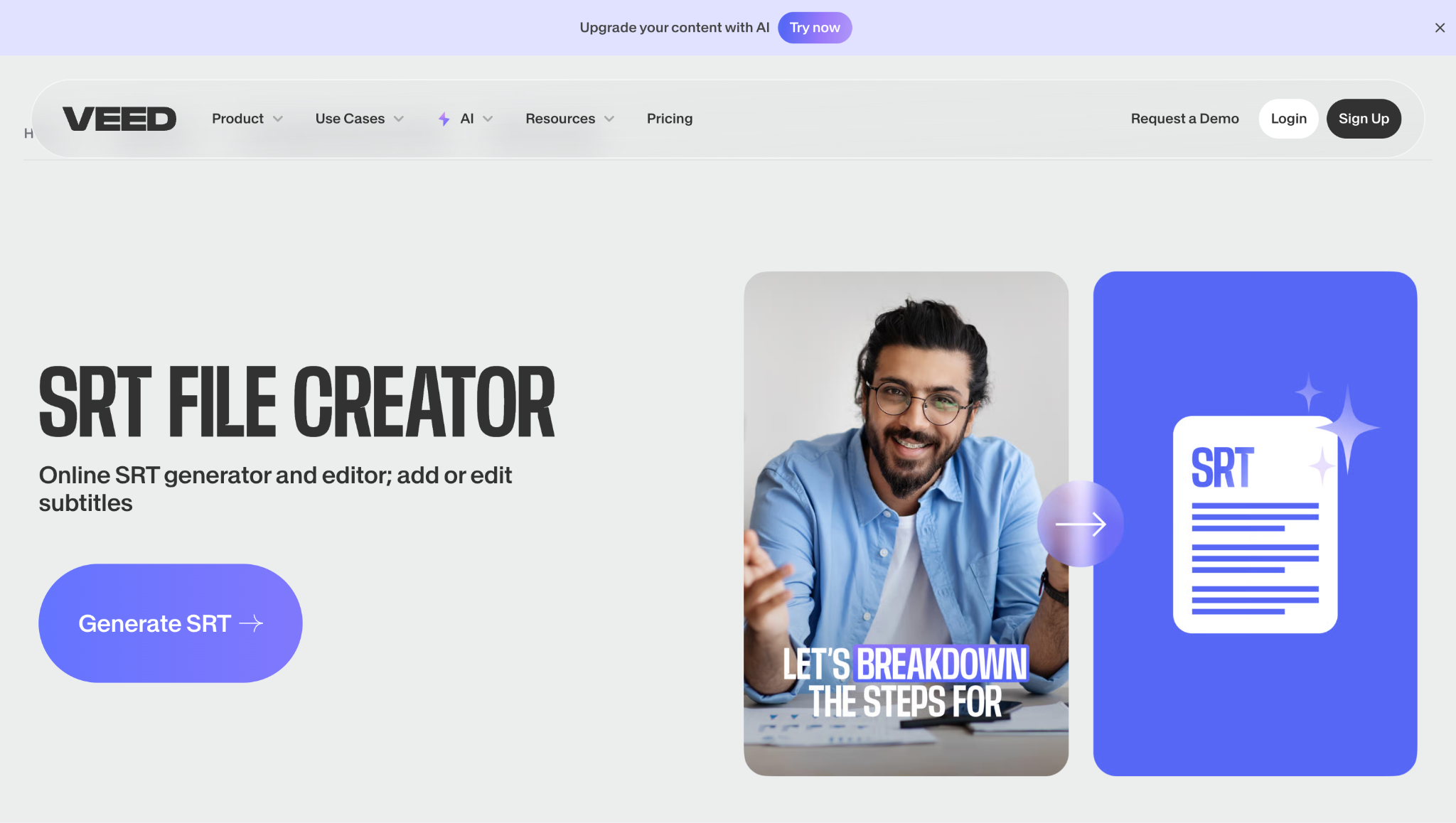
How to Use VEED.IO:
Step 1: Upload Your Video File
Navigate to the VEED.IO website using any modern browser and create a free account or log in. Once you're on the main dashboard, click the prominent "Upload Your Video" button to import the MP4 file directly from your computer. The platform will quickly process your upload, preparing it for the next step in your workflow.
Step 2: Generate and Refine Subtitles
From the left-hand editing menu, select the 'Subtitles' tool and then click on the 'Auto Transcribe' option. Choose the correct language spoken in your video's audio to ensure the highest transcription accuracy from the AI. After a brief processing time, the text will appear synchronized with your video, allowing you to play it back and use the intuitive editor to correct any errors in the transcription.
Step 3: Customize and Export Your File
With the text finalized, explore the styling options to change the font, color, size, and even add animations to your captions if you want them burned into the video. For a standalone subtitle file, click the 'Download' button and select 'Subtitles' to save a clean SRT file to your device. Alternatively, you can export the entire video with hardcoded, styled subtitles for immediate use on social media platforms.
Supported OS: Any modern web browser (Windows, Mac, Linux, ChromeOS).
3. Notegpt's Video to Text – Best for Long Lectures and Batch Processing
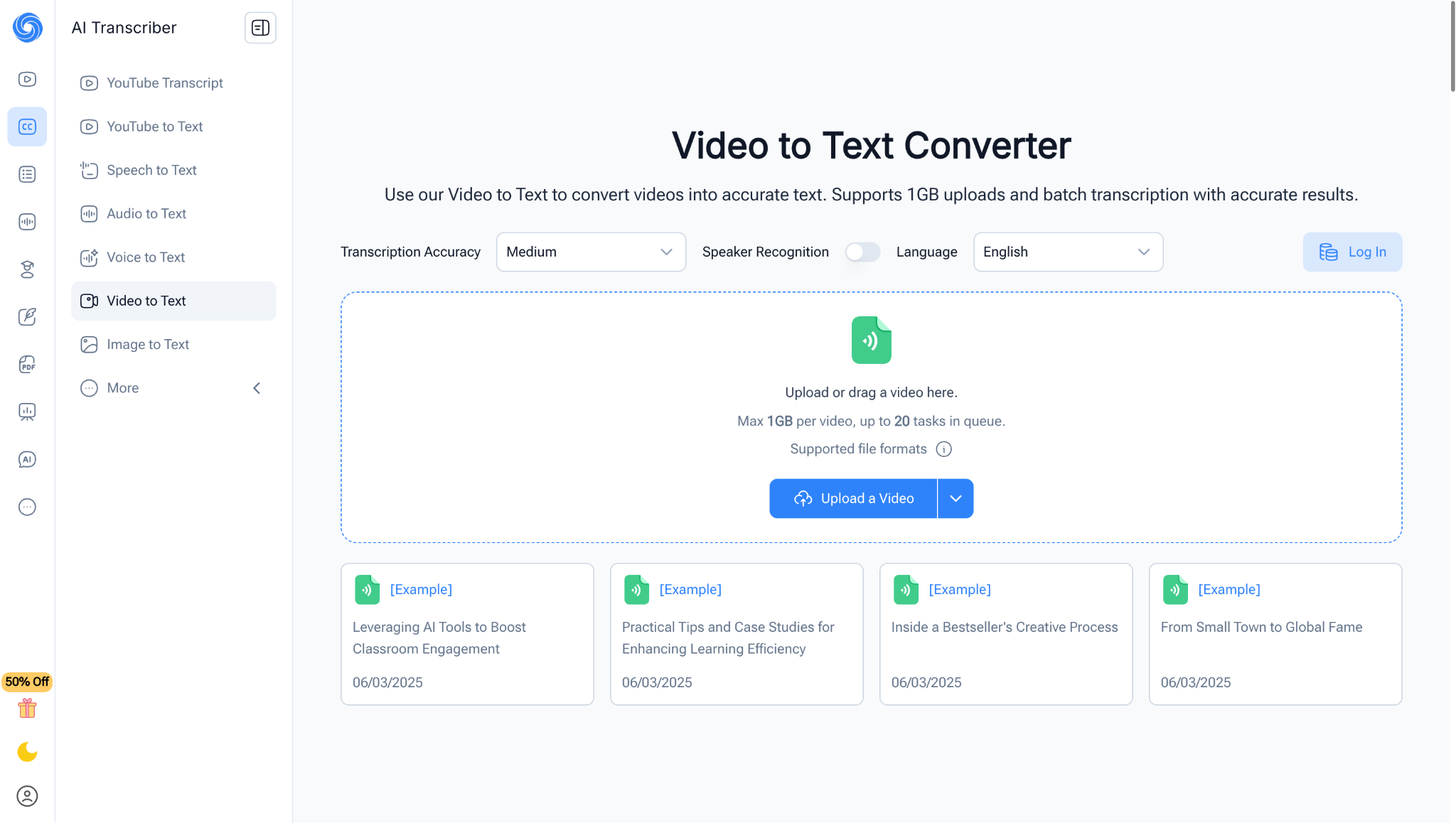
How to Use NoteGPT:
Step 1: Initiate Your Project and Upload
Start by visiting the NoteGPT website and signing in to your account to access the transcription dashboard. Click on 'New Transcription' or the equivalent upload button to begin, and then select your target MP4 video file from your computer; the tool also supports dragging and dropping files directly into the browser window for a quicker start.
Step 2: Process and Review the AI Transcript
After your file is uploaded, select the audio language and initiate the AI processing; the tool will automatically transcribe the speech, adding accurate timestamps throughout the lengthy content. Once complete, you will be presented with a full, searchable transcript that allows you to play the video, listen to specific segments, and correct any misinterpretations or errors in the text for perfect accuracy.
Step 3: Summarize and Download the Output
Leverage the AI-powered summary feature to automatically extract key points and action items from long lectures or meetings, creating a concise overview of the content. Finally, navigate to the export options and choose to download your work as a standard SRT subtitle file for video use, or as a plain text (TXT) document for notes and archives.
Supported OS: Any modern web browser.
4. Subtitle Tools – Best Free Online Converter
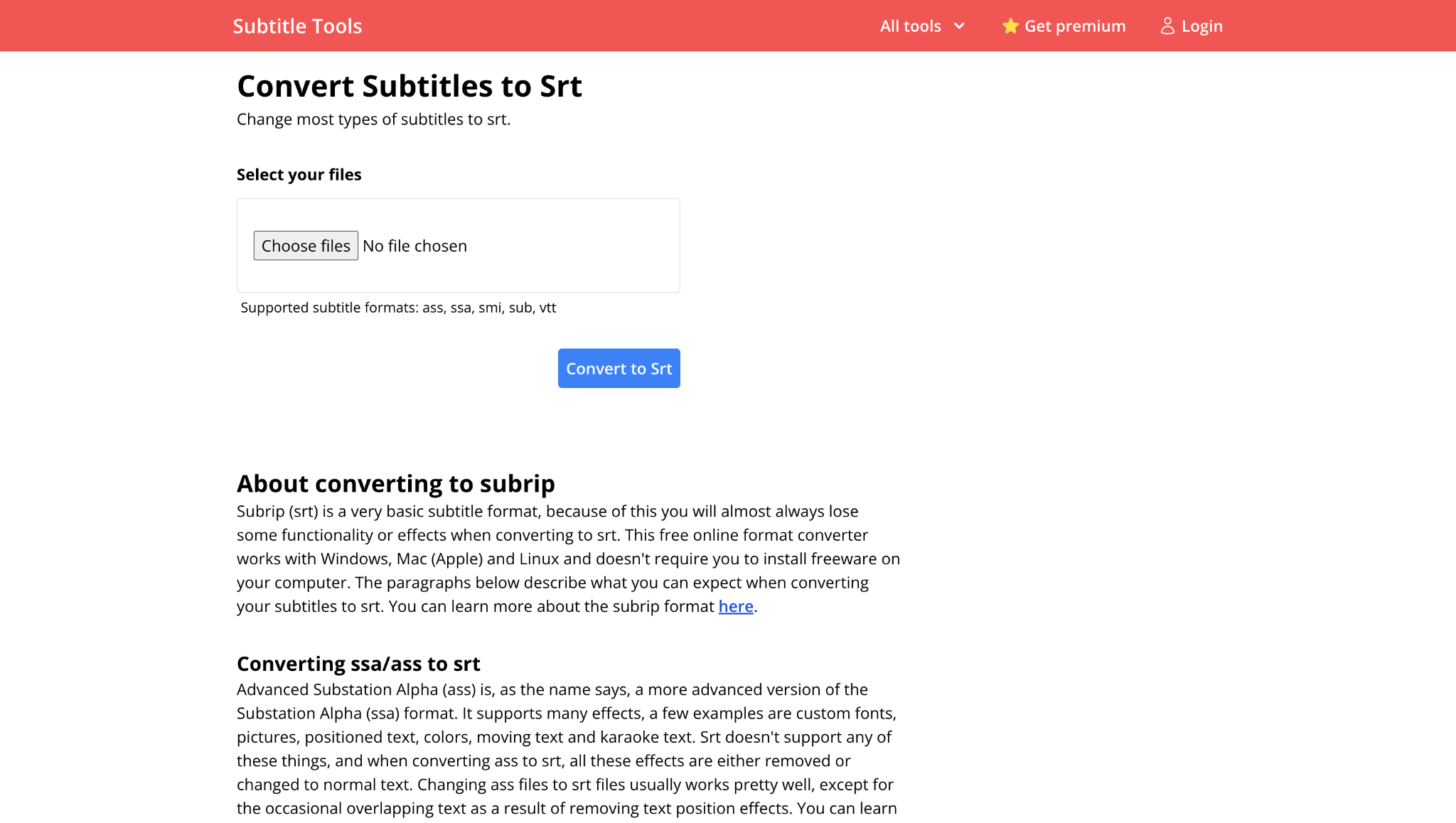
How to Use Subtitle Tools:
Step 1: Access the Converter and Select Files
Open your web browser and navigate to the Subtitle Tools website. Then, locate the specific format converter you need, such as "VTT to SRT". Click the "Choose Files" button to open a dialog window and navigate to the subtitle file on your computer that you wish to convert. The platform supports batch processing, allowing you to select multiple files at once for efficiency.
Step 2: Configure and Start the Conversion
Ensure you have selected the correct source and target formats (e.g., converting from ASS to SRT) before proceeding. Once your files are queued, click the "Convert" button to initiate the process. The tool will rapidly process each file through its system without requiring any complex settings or adjustments on your part.
Step 3: Download Your Converted SRT Files
After processing is complete, you will be presented with a download link for each successfully converted file. You can download each SRT file individually or, for batch conversions, select the option to download all files conveniently packaged in a single ZIP folder. Remember, this tool only converts existing subtitle files and cannot generate new text from video or audio.
Supported OS: Any modern web browser (Windows, Mac, Linux, ChromeOS).
Easy to Use MP4 to SRT Converter
5. Zamzar – Best Simple Online File Converter
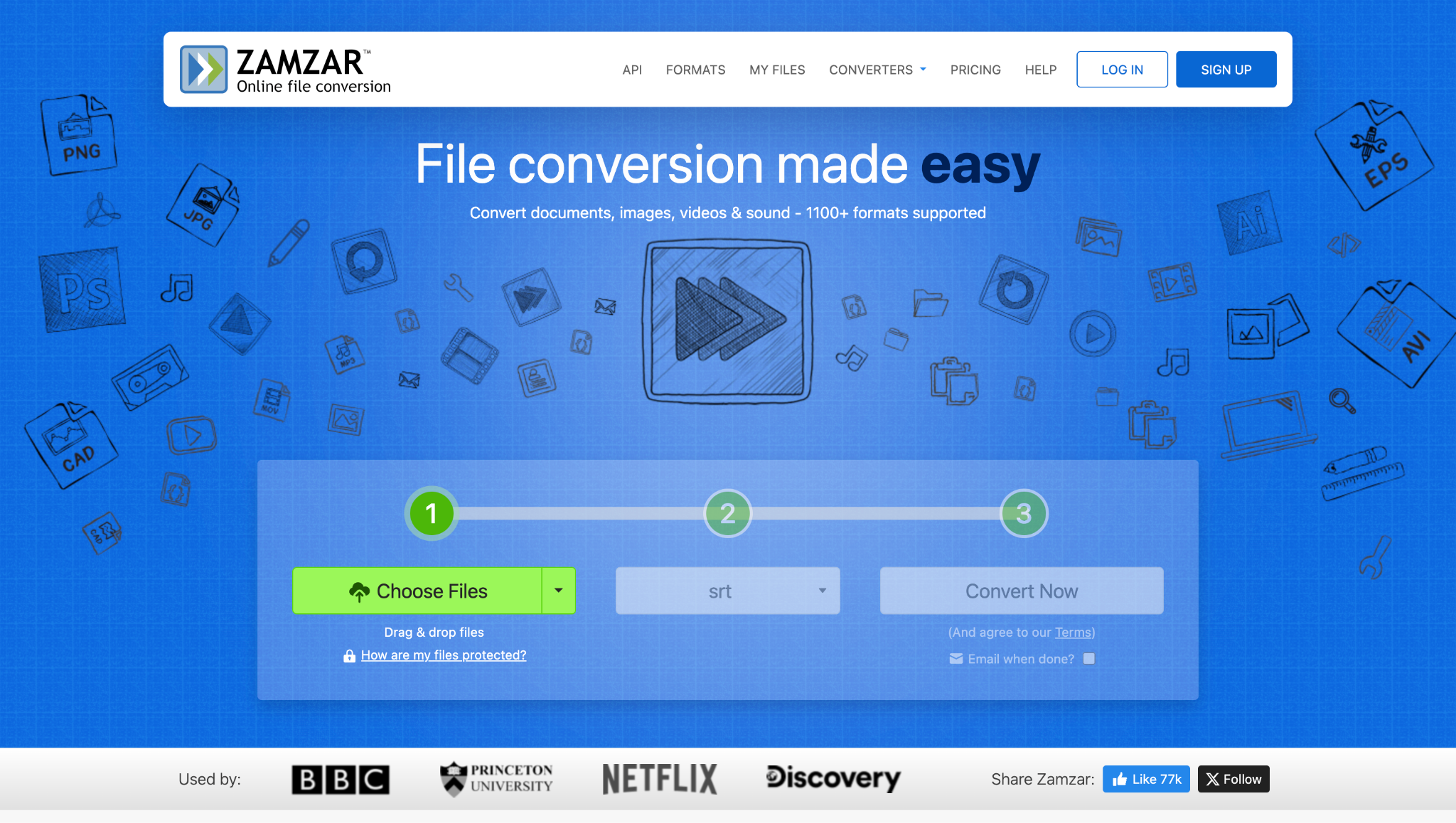
How to Use Zamzar:
Step 1: Upload Your Source MP4 File
Visit Zamzar.com and on the main page, click the "Add Files" button to select the MP4 video you want to convert from your local storage. You can also drag the file directly from your folder and drop it into the designated area on Zamzar's webpage for a quicker upload initiation.
Step 2: Select SRT as Your Target Format
After your file is uploaded, click the "Convert To" dropdown menu and scroll through the extensive list of formats, or use the search bar to find "SRT quickly". With SRT selected as your desired output, click the "Convert Now" button to submit your file to Zamzar's servers for processing; you will see a progress indicator during this stage.
Step 3: Download the Finished SRT File
Once the conversion is complete, a "Download" button will appear on the screen. Click it to save the new SRT file directly to your computer's designated download folder. Please note that files are only stored on Zamzar's servers for a limited period, so be sure to download your converted subtitle file promptly.
Supported OS: Any modern web browser.
Part 3: Quick Comparison Table for 5 MP4 to SRT Automatic Subtitle Generators
This table provides a clear, at-a-glance comparison to help you quickly identify the best tool for your specific needs.
| Tool |
Supported OS |
Multi-Language Subtitle Support |
Supported Subtitle Formats |
Processing Mode |
| UniConverter | Win, Mac | Yes | SRT, ASS, SSA, VTT, TXT | Desktop (Offline) |
| VEED.IO | Web | Yes | SRT, VTT, TXT | Online |
| NoteGPT | Web | Yes | SRT, TXT | Online |
| Subtitle Tools | Web | No | SRT, VTT, ASS, SMI, SUB | Online |
| Zamzar | Web | No | SRT | Online |
For Professionals & Power Users: UniConverter is the undisputed winner, offering offline processing, format flexibility, and powerful editing.
For Social Media Creators: VEED.IO is the best choice for creating stylish, animated captions directly on your videos.
For Students & Researchers: NoteGPT is ideal for transcribing long lectures and generating study notes with summaries.
For Simple File Conversion: Subtitle Tools (for subtitle files) and Zamzar (for direct MP4 to SRT) are quick, free online options.
Part 4: Top Use Cases for Auto-Generated Subtitles
Automatically generating subtitles from video is a game-changer across numerous fields. Here's how different professionals are leveraging this technology:
Content Creators
YouTubers, vloggers, and filmmakers utilize automatic SRT files to enhance SEO, increase watch time, and make their content accessible to a global audience, including non-native speakers and individuals with hearing impairments. This expands their reach and demonetization.
Educators and E-Learning
Instructors can quickly generate automatic subtitles for lecture recordings and training modules. This enhances comprehension for all students, provides searchable study materials, and meets accessibility standards for educational institutions.
Corporate Communications
Businesses use automatic captions for internal training videos, all-hands meetings, and external marketing content. This ensures clear communication across global teams and creates a more inclusive brand image.
Journalists and Researchers
Reporters and academics conducting interviews can use video to SRT converters to quickly create accurate transcripts. This allows for easy quoting, analysis, and fact-checking, saving countless hours of manual work.
Social Media Managers
With 85% of Facebook videos watched without sound, social media managers rely on tools that automatically caption video content to stop scrollers in their tracks and convey the message effectively without audio, leading to higher engagement rates on platforms like Instagram, TikTok, and Facebook.
Conclusion
In 2025, the ability to automatically convert MP4 to SRT is no longer optional—it's essential for content creators, educators, and professionals. An accurate SRT file generator ensures accessibility, improves SEO, and saves hours of manual transcription. While free online tools like VEED.IO and Zamzar are fine for short projects, they often lack consistency for larger workloads.
For professional video workflows, UniConverter delivers unmatched reliability with AI-powered conversion, precise editing, and multi-format export. Don't let transcription slow you down—embrace automation, enhance your reach, and create content that connects.
Easy to Use MP4 to SRT Converter
FAQs
-
1. What is an SRT file?
An SRT file (SubRip Subtitle) is a plain-text file that contains subtitle information along with precise timestamps indicating when each line of text should appear and disappear on the screen during a video. It's the most widely supported subtitle format in the world. -
2. Can I generate SRT subtitles for free?
Yes! Several tools, including VEED.IO, Subtitle Tools, and Zamzar, offer free tiers or are entirely free to use. However, they often come with limitations such as watermarks, file size caps, or length restrictions. For unlimited, professional use, a paid tool like UniConverter is a more cost-effective option. -
3. How accurate are automatic subtitle generators?
The accuracy of modern AI-powered tools is very high, often reaching 95% or higher for clear audio with a single speaker. However, accuracy can drop with poor audio quality, strong accents, technical jargon, or multiple people speaking simultaneously. This is why a good editing interface is crucial for quick corrections. -
4. What's the difference between burning in subtitles and using an SRT file?
Burning in (or hardcoding) subtitles means they are permanently rendered as part of the video image and cannot be turned off. An SRT file is a separate sidecar file that contains subtitle data. Players like VLC or platforms like YouTube can read this file and display the subtitles, which viewers can toggle on or off. Using an SRT file is preferred for flexibility and accessibility. -
5. Which is the best tool for converting long MP4 videos to SRT?
For long videos such as lectures, webinars, or meetings, NoteGPT is an excellent online option since it supports files up to 300MB. For the best performance and privacy with longer videos, UniConverter's desktop software is ideal, as it processes files offline without length restrictions.

