


Many websites need images in strict sizes for clear and safe uploads. This requirement applies to digital forms, national ID systems, and secure government service portals. That is why signature resize 300x80 tools appear so often during online submissions. A small and clear image helps avoid errors during online checks. Thus, simple photo resizer tools handle these signature size rules quickly for everyday users.
Therefore, this guide lists the top tools for resizing images with sharp, neat results. Each tool works on different devices and keeps your picture clean. With these options, anyone can resize images without losing important details.
In this article
Part 1. Why Would I Need a 300×80 Image?
Before using a 300×80 image converter, it helps to know why many sites prefer this size. The points below show how this small format keeps uploads smooth and stable across different platforms:
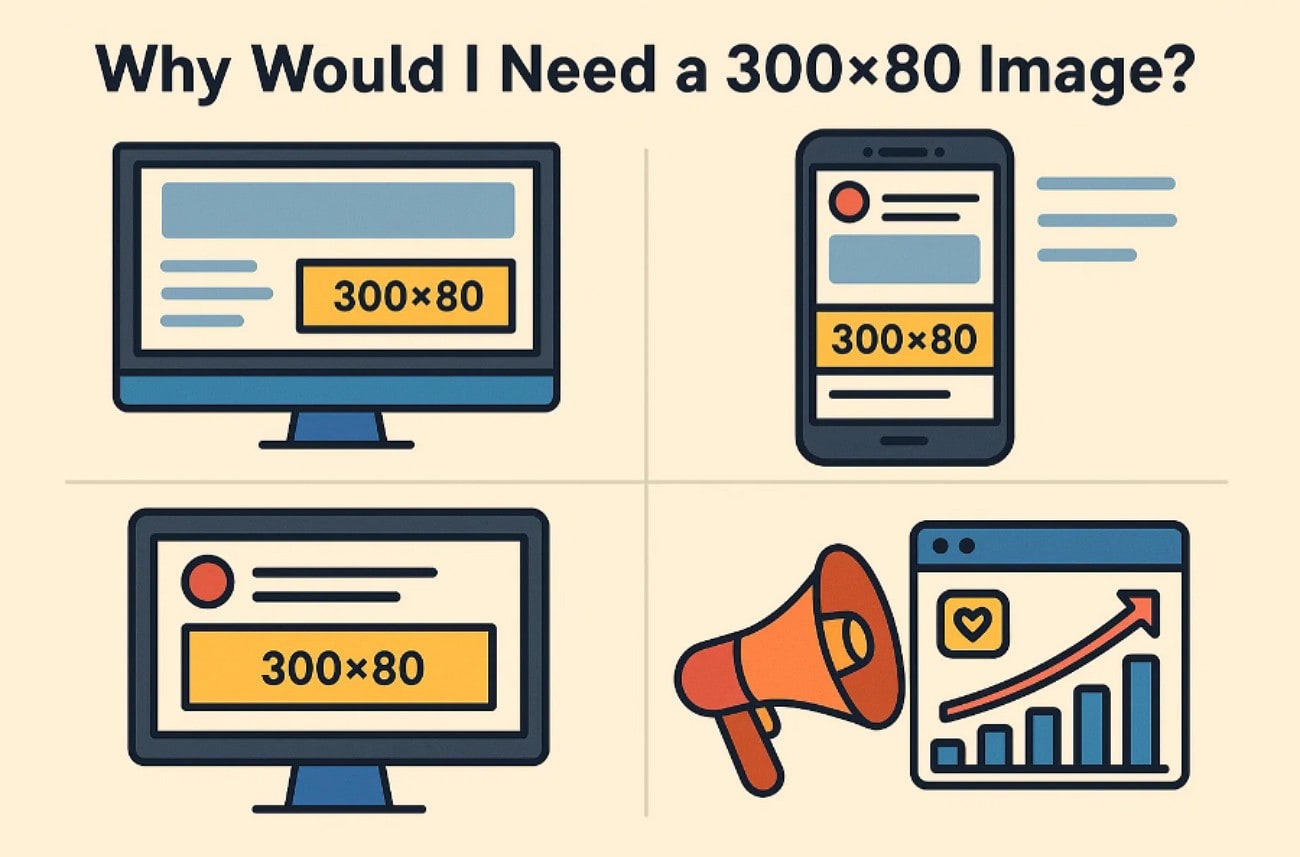
Signature Fit: Many digital forms need signatures that fit inside narrow fields. A 300×80 image keeps the signature clear and stops any unwanted stretching.
Logo Placement: Small logos often sit inside tight areas on cards or badges. A 300×80 layout keeps the logo neat and avoids extra empty space.
Fast Loading: Smaller images load faster during online uploads on busy servers. A compact 300×80 file reduces delays and stops failed submissions.
Format Consistency: Many portals want images that follow one fixed format for stability. Using 300×80 helps keep forms, reports, and receipts aligned correctly.
System Compatibility: Some portals reject large images because of strict size rules. A 300×80 picture meets common limits and prevents repeated upload errors.
Part 2. The Best 10 300x80 Image Resizers Online & Offline for All Devices 2025
Review the following best 300x80 image resizer tools to create images at 300x80 pixels efficiently:
1. Wondershare UniConverter
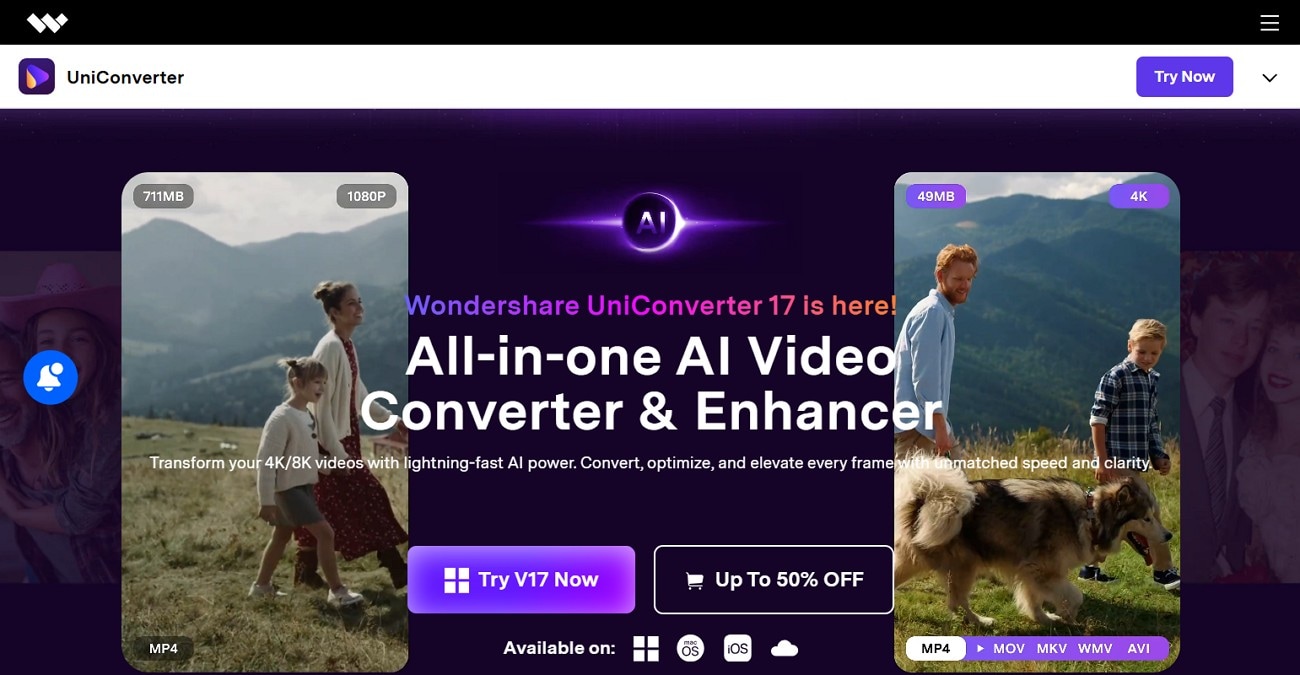
UniConverter works as a photo resizer that respects strict upload rules. It resizes signatures neatly, keeping each stroke clear for forms and portals. As a result, users avoid errors because every image matches the required dimensions. Lines stay sharp even after resizing, which protects small text and details. Some sites require strict 300x80 sizes, so users rely on a photo resizer 300x80.
Moreover, UniConverter helps users make clear logos that fit well in online spaces. The resize tool keeps shapes steady, so important parts never fade during edits. In addition, preview pages show the final look before users save each image file. Overall, this smooth setup helps users finish tasks quickly without having to repeat extra steps.
- Batch Process Support: Yes
- Starting Price: $3.33/month (billed yearly promo)
- Supported Device: Windows, Mac
- Offline Support: Yes
- Safety Review: 5/5
Key Features
- Signature Resize: Keeps handwritten signatures sharp while matching strict online form size limits.
- Format Converter: Let users change image format for ID uploads, signatures, forms, or web graphics.
- Preview Check: Shows the final image clearly before saving to prevent common upload errors.

Easy to Use 300×80 Pixels Image Resizer
2. Photobip
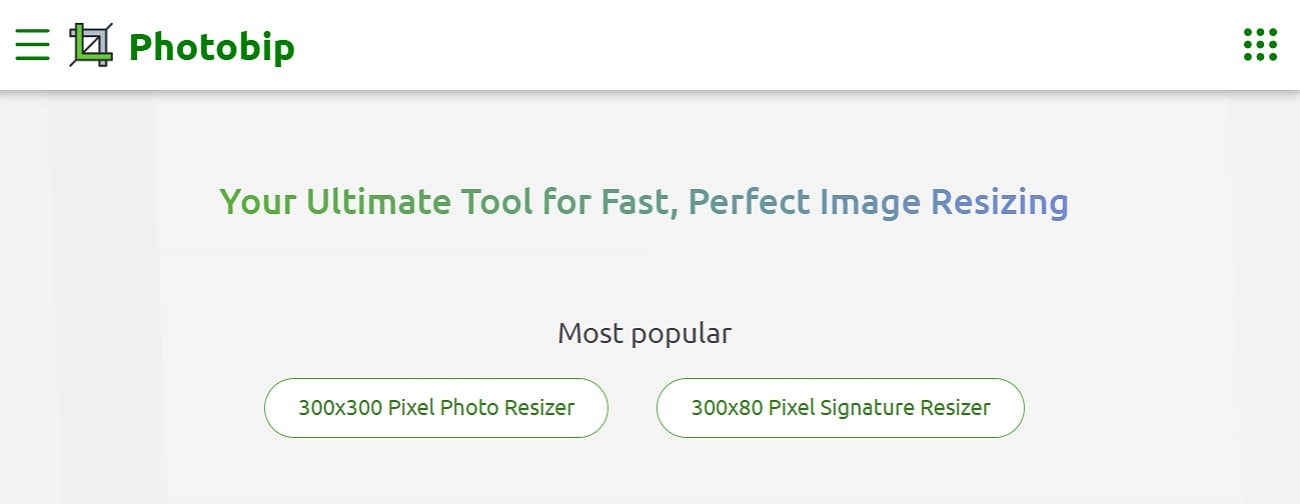
Many users choose this editor for fast filters, clean cropping, and simple color fixes. It also supports background removal and offers sliders for brightness and contrast. Moreover, beginners adjust small images for IDs or forms without confusion. Export settings remain stable across devices for consistent results. Therefore, these features make 300x80 image converter tasks easy to handle for most users.
- Batch Process Support: Yes
- Starting Price: Free (basic), $4.99/month (Pro)
- Supported Device: Web
- Offline Support: No
- Safety Review: 4.6/5
3. Bitable
Creating short videos becomes easier with ready-made scenes, motion graphics, and simple text tools. The platform lets users upload small logos for quick branding. Additionally, stock clips and audio options help complete projects faster. Team editing features let multiple members review, comment on, and update the same project in real time. As a result, creators use the photo resizer 300x80 before uploading overlays inside Biteable.
- Batch Process Support: Limited
- Starting Price: $15/month (Pro)
- Supported Device: Web
- Offline Support: No
- Safety Review: 4.5/5
4. Pixlr
Working in the browser allows users to edit photos without installing software. The tool includes layers, cutout brushes, sharpening options, and color sliders for clear results. Moreover, many people rely on it to fix lighting or to easily remove marks. Export presets also support small file sizes needed for forms or dashboards. Therefore, it is ideal for tasks that require an image resizer 300x80.
- Batch Process Support: No
- Starting Price: Free (basic), $1.99/month (Premium)
- Supported Device: Web, Windows, Mac, Mobile
- Offline Support: No
- Safety Review: 4.7/5
5. Kapwing
Online editing becomes straightforward with templates, trim controls, captions, and object removal. Creators adjust frames, add effects, and export image or video files quickly. Moreover, team access helps groups finish shared projects efficiently. Many platforms also require narrow banner sizes for consistent layouts. Therefore, users often prepare 300×80 graphics since Kapwing supports flexible custom dimensions.
- Batch Process Support: No
- Starting Price: Free (limited), $16/month (Pro)
- Supported Device: Web
- Offline Support: No
- Safety Review: 4.5/5
6. Canva
Designing posters, banners, and logos becomes simple with drag-and-drop tools, color options, and text controls. Users can duplicate layouts, adjust sizes, and export clean PNG or JPG files. Templates support ID cards, form headers, and small web graphics. Because many portals limit file weight, Canva helps users stay within strict rules similar to photo resizer 300x80 60 kb requirements.
- Batch Process Support: Yes
- Starting Price: Free (basic), $14.99/month (Pro)
- Supported Device: Web, iOS, Android
- Offline Support: No
- Safety Review: 4.7/5
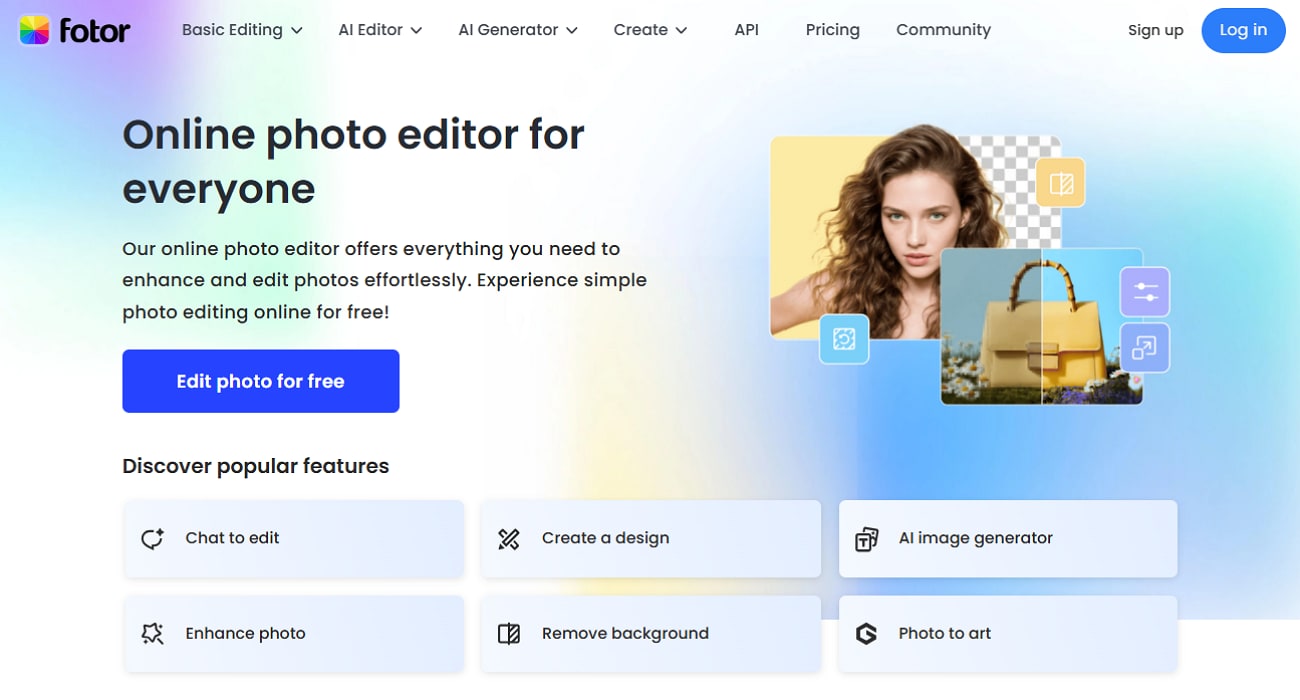
7. Fotor
Quick edits become easier through filters, portrait touch-ups, and basic lighting adjustments. Users can remove marks, fix shadows, and sharpen soft areas without advanced skills. The editor also helps create social graphics, covers, and small branding elements. Clean exports work well for portals that reject large images. These features make it useful for tasks matching the photo resizer 300x80 60kb guidelines.
- Batch Process Support: Partial
- Starting Price: $3.33/month (Pro)
- Supported Device: Web, Windows, Mac, Mobile
- Offline Support: No
- Safety Review: 4.6/5
Easy to Use 300×80 Pixels Image Resizer
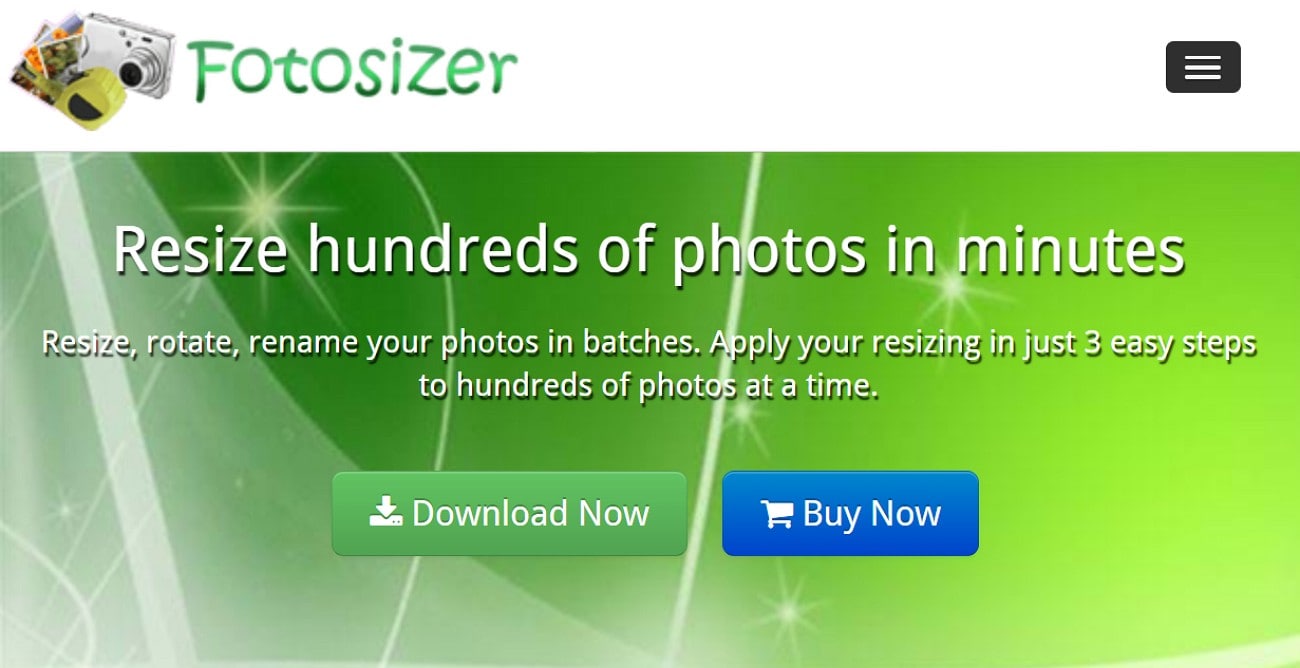
8. Fotosizer
Batch resizing becomes easy with sliders that adjust width, height, and file weight. The tool handles large groups of images quickly while keeping important details clear. Users export in JPG or PNG formats without losing sharpness. Since many online forms accept only narrow layouts, this tool is often used to resize a picture 300 x 80 for ID or signature fields.
- Batch Process Support: Yes
- Starting Price: $1.25/month
- Supported Device: Windows only
- Offline Support: Yes
- Safety Review: 4.5/5
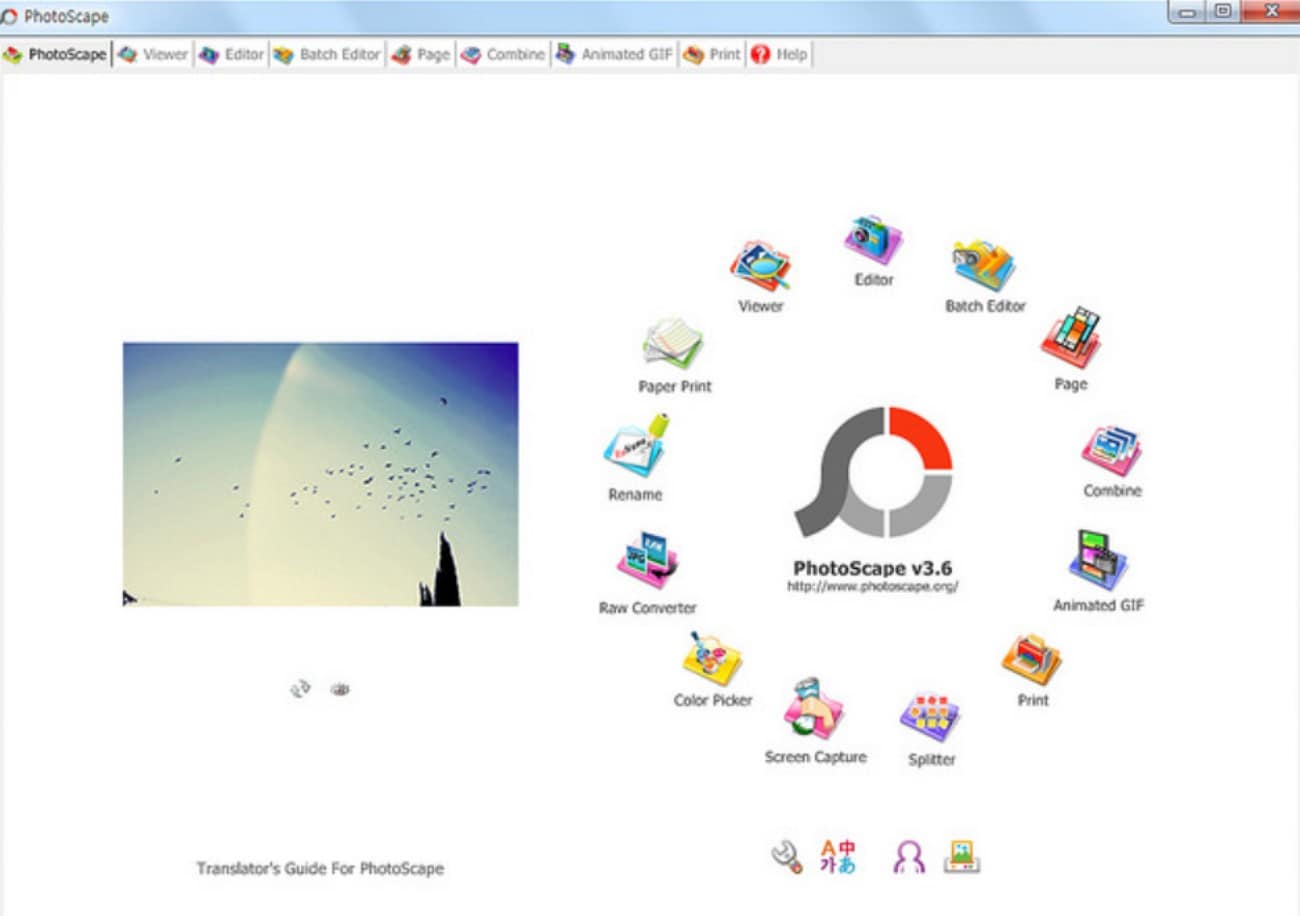
9. Photoscape
Editing many photos becomes simpler with batch tools, filters, and helpful correction options. Users crop with preset sizes, adjust lighting, or add frames when needed. The tool and combined tools help users organize images cleanly and maintain consistent layouts. Export settings create very small files suitable for IDs, forms, and school submissions. These functions make it effective for signature “resize 10 to 20 KB”.
- Batch Process Support: Yes
- Starting Price: Free
- Supported Device: Windows, Mac
- Offline Support: Yes
- Safety Review: 4.5/5
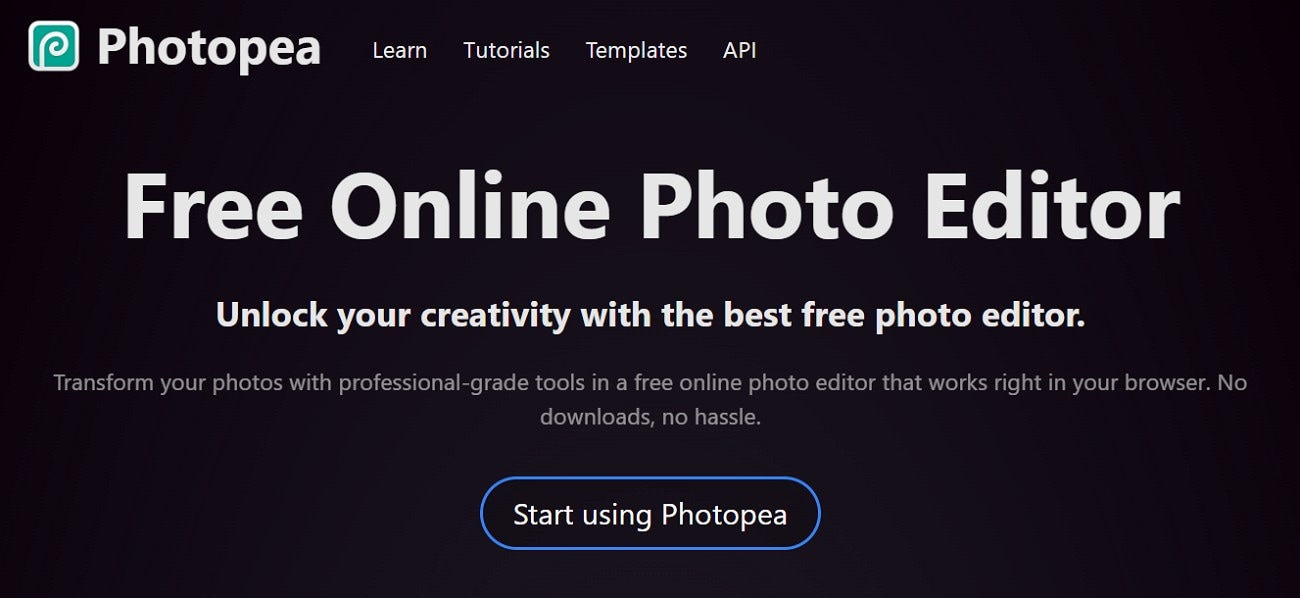
10.Photopea
Many users edit photos easily here because the browser tools are simple and fast. The editor supports layers and basic cut tools that help fix common image issues. Users also crop narrow pictures and adjust colors needed for small online forms. In addition, light export options keep images clear without raising file size much. These simple features help users finish tasks needing a 300x80 image converter.
- Batch Process Support: Yes
- Starting Price: $5/month (Premium)
- Supported Device: Web
- Offline Support: No
- Safety Review: 4.7/5
Part 3. At-a-Glance Comparison Table for Top 5 300x80 Image Resizers
Review the table below to choose the best 300x80 Image Resizers that suit your requirements perfectly:
| Tool | Supported Format | Unique Edge | Best For |
| Wondershare UniConverter | JPG, PNG, BMP, HEIC, and others | Signature-sharp resizing with strict size control + preview | Signatures, IDs, form uploads |
| Photobip | JPG, PNG | Fast filters and clean cropping with simple controls | Basic edits for IDs and forms |
| Biteable | JPG, PNG (as uploads) | Strong branding tools with easy overlays and motion graphics | Adding narrow banners or overlays |
| Pixlr | JPG, PNG, WebP, others | Powerful browser editing with high batch capacity | Quick fixes and online tasks |
| Kapwing | JPG, PNG | Flexible custom dimensions inside a full editor | Banners, headers, 300×80 graphics |
| Canva | JPG, PNG, SVG | Bulk Create for mass layout resizing. | Posters, headers, form graphics |
| Fotor | JPG, PNG, JPEG | Clean touch-ups with simple portrait/lens fixes | Social graphics and small branding |
| Fotosizer | JPG, PNG, BMP | Heavy batch processing with exact width-height sliders | Mass resizing for signatures |
| PhotoScape | JPG, PNG | Strong batch editor with preset crops and filters | School IDs, form images, small exports |
| Photopea | JPG, PNG, PSD, AI, more | Advanced browser editor with pro-level format support | Layer edits, narrow image crops |
Part 4. How to Easily Batch Resize 300x80 Images Offline
Adhere to the steps given below to resize 300x80 images offline with UniConverter:
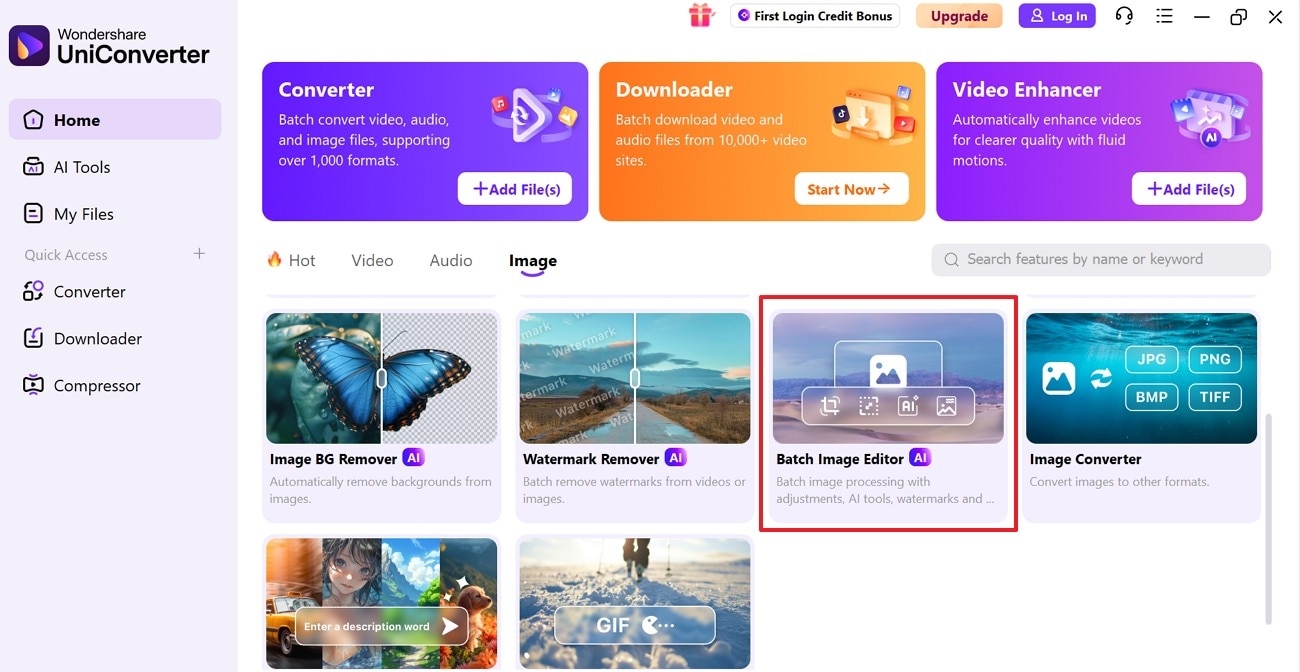
Step 1. Access the Batch Image Editor
Upon launching the tool, navigate to the “Batch Image Editor” tool on the home page to further access the editing window.
Step 2. Upload the Images to Proceed
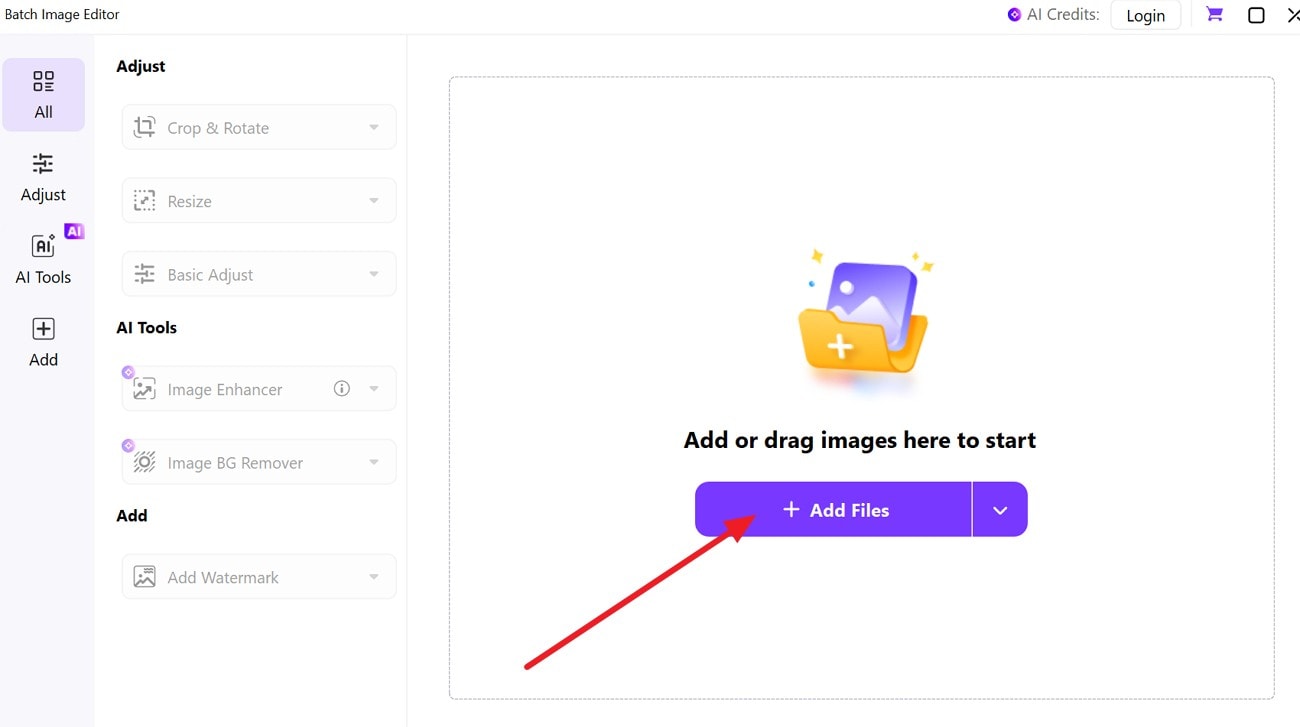
Next, click the “Add Files” button in the center panel to load your images into UniConverter. Moreover, you can drag and drop multiple images directly into the workspace to prepare them for batch resizing.
Step 3. Export the Resized Image
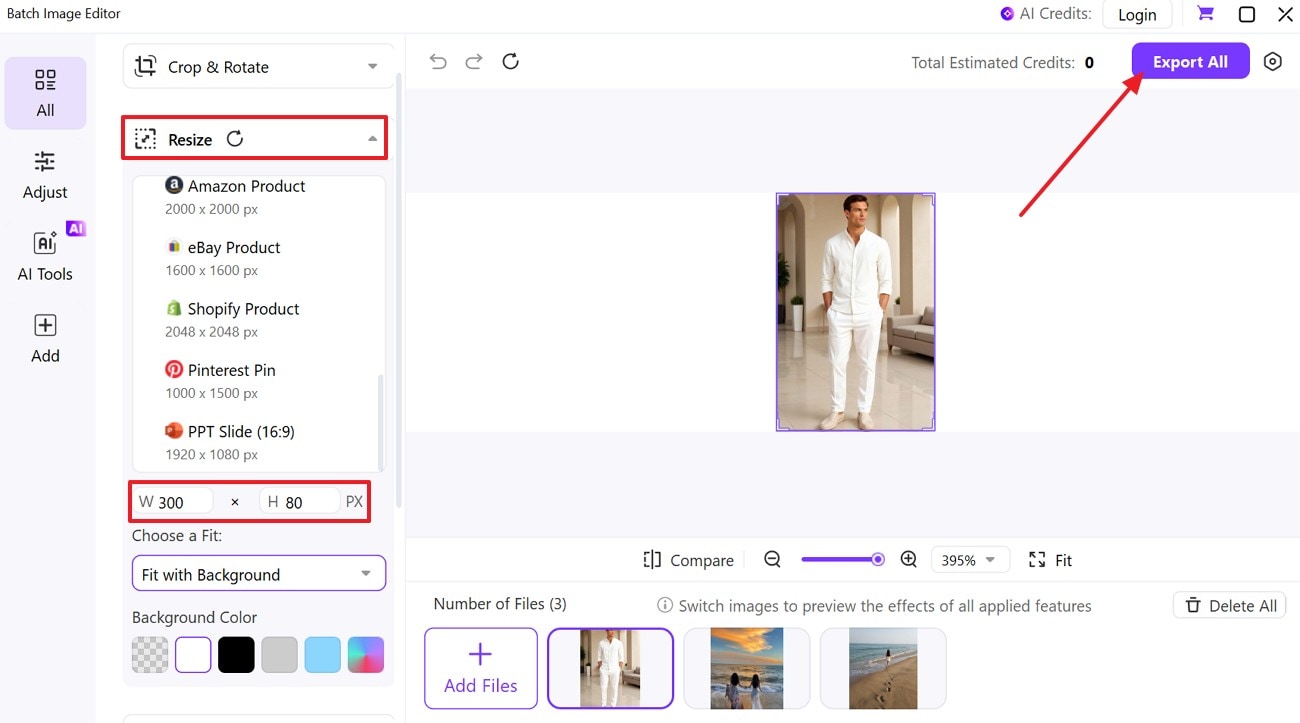
Afterwards, select “Resize” from the left panel, enter “W 300” and “H 80”, then preview the adjusted image. Once the settings are correct, click “Export All” to generate all resized files in a single batch.
Part 5. Best Practices for Resizing 300x80 Images
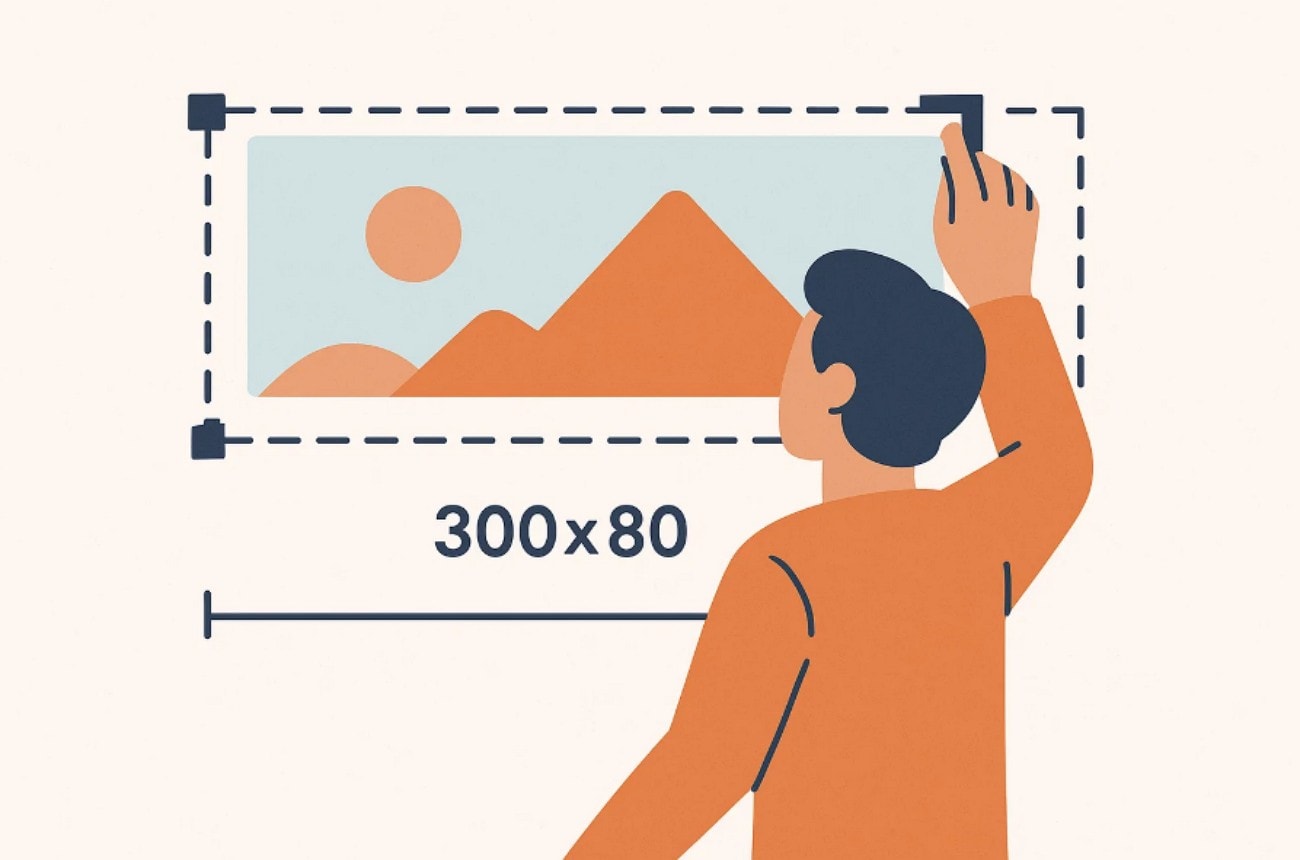
Before using any photo resizer 300x80 tool, follow these simple best practices to keep your images clean and ready for official uploads:
Clean Background: Use a white background to keep signatures sharp and avoid distracting visual noise. This contrast ensures digital systems detect your strokes clearly without unnecessary smudges.
Dark Ink: Choose a dark pen so every curve of your handwritten signature stays visible. Strong contrast helps scanners and websites read your signature accurately during submissions.
Correct Format: Use JPG for photographed signatures and PNG when working with transparent logo files. Choosing the right format keeps edges smooth and prevents unwanted distortion during resizing.
Quality Check: Always preview your 300×80 image before uploading to avoid pixelated signature issues. A simple check reduces errors and prevents repeated submissions on strict online portals.
Smart Enhancement: Use enhancers like UniConverter’s Face Enhancer to improve clarity in low-quality images. These tools refine strokes, boost sharpness, and reduce blur without harming the original content.
Conclusion
To conclude, an image resizer 300x80 helps signatures, logos, and narrow graphics meet strict upload rules without errors. Throughout the article, we explored the top tools, key features, batch steps, and best practices for preparing clean and stable images for safe submission. For quick processing, sharp results, and reliable offline resizing, UniConverter remains a natural and practical option.
Easy to Use 300×80 Pixels Image Resizer
FAQ
-
1. How do I resize an image to 300×80 without losing quality?
Use a reliable editor that maintains clarity while applying the exact pixel dimensions precisely. Export the final file using high-grade settings to preserve detail during every adjustment. -
2. Which file format works best for a 300×80 signature or logo?
Use JPG for photographed signatures needing smooth compression and stable online compatibility everywhere. Choose PNG for logos requiring transparency and clean edges across different digital platforms. -
3. Can I batch-resize multiple images to 300×80 at the same time?
Yes, most batch editors resize multiple images at once while maintaining image quality. Upload all images, apply dimensions once, and export clean files in one step. -
4. Why do some websites require signatures or logos in 300×80 dimensions?
Websites use strict dimensions to maintain consistent layouts across forms and verification systems. The fixed size reduces errors, improves readability, and supports fast automated processing everywhere. -
5. How can I prevent pixelation when converting images to a 300×80 size?
Start with a clear source image and apply resizing using proper proportion controls. Always preview results and enable high-quality export settings to reduce pixelation issues.

