


Have you ever uploaded a YouTube video only to see your thumbnail appear blurry, stretched, or completely different from what you designed? You’re not alone—creators across all levels struggle with mismatched sizes, confusing specs, and tools that don’t work well across devices.
This guide was built to eliminate that frustration. From understanding the perfect YouTube thumbnail dimensions to choosing the best resizers and the most reliable youtube thumbnail size converter tools for 2025, you’ll find everything neatly organized and easy to follow. You’ll also get an instant comparison table, expert tips to boost click-through rates, and answers to common questions creators often face. With this preface, consider your thumbnail problems officially solved.
In this article
Part 1: YouTube Thumbnail Specs
Creating the perfect YouTube thumbnail starts with understanding the correct dimensions, formats, and quality requirements. Even a small mistake—like the wrong aspect ratio or oversized file—can result in blurry, cropped, or rejected thumbnails. Let’s explore how these specifications ensure your thumbnails always appear crisp, accurate, and platform-ready, and why knowing how to resize youtube thumbnail properly can make all the difference:
- Recommended Resolution: YouTube’s officially recommended thumbnail size is 1280 × 720 pixels, which ensures your image stays crisp on every screen, from mobile devices to large TVs. This resolution keeps your visuals sharp and prevents blurry or stretched results.
- Correct Aspect Ratio (16:9): The ideal aspect ratio is 16:9, the same format used across YouTube’s player and previews. If your image isn’t in 16:9, YouTube may crop it awkwardly, cutting off important text or visuals.
- Minimum Width Requirement: Your thumbnail must be at least 640 pixels wide. Anything lower can look pixelated, especially in larger displays or on desktop.
- File Size Limit (Under 2MB): YouTube only accepts thumbnails smaller than 2MB. Larger images may fail to upload or compress poorly, causing quality loss.
- Supported File Formats: YouTube supports .JPG, .GIF, .BMP, and .PNG formats. JPG and PNG are the most common due to their balance of quality and size.
- Why Getting Specs Right Matters: Incorrect specs can lead to blurry, pixelated, cropped, or even rejected thumbnails. A properly sized, high-quality thumbnail improves clarity, boosts visibility, and significantly raises your click-through rate (CTR).
Quick Reference Table
| Setting | Recommended Value |
|---|---|
| Resolution | 1280 × 720 pixels |
| Aspect Ratio | 16:9 |
| Minimum Width | 640 pixels |
| File Size | Under 2 MB |
| File Formats | JPG, PNG, GIF, BMP |
Part 2: Best 10 YouTube Thumbnail Resizers for All Devices 2025
1. UniConverter — Best All-in-One Thumbnail Resizer (Windows & Mac)
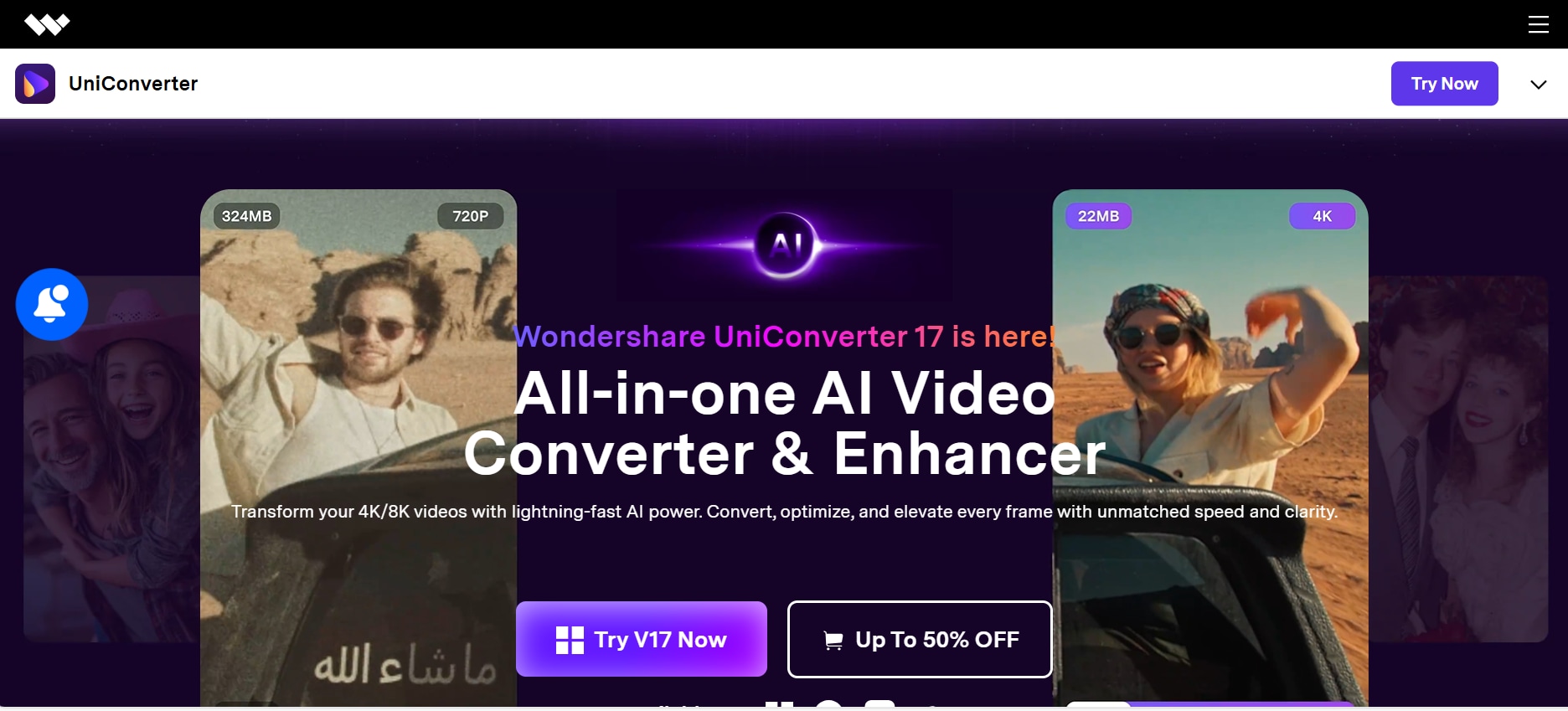
Wondershare UniConverter stands out as a powerful desktop tool that goes beyond video conversion—its built-in image resizer makes creating YouTube-ready thumbnails fast, accurate, and professional. With support for precise 1280×720 scaling, batch resizing, and format optimization, it ensures your thumbnail meets YouTube’s strict requirements without losing clarity. UniConverter also provides presets for social platforms, so you don’t need to remember specs manually. Its interface is clean, beginner-friendly, and optimized for creators who want consistent quality across devices. A bonus advantage is its YouTube Chrome Extension, which lets you grab video details and thumbnails instantly without switching tools. For creators who want speed and precision wrapped in one place, UniConverter is a top pick.
Simple Steps Guide (With Screenshot Placeholders)
Step 1: Install & Launch UniConverter
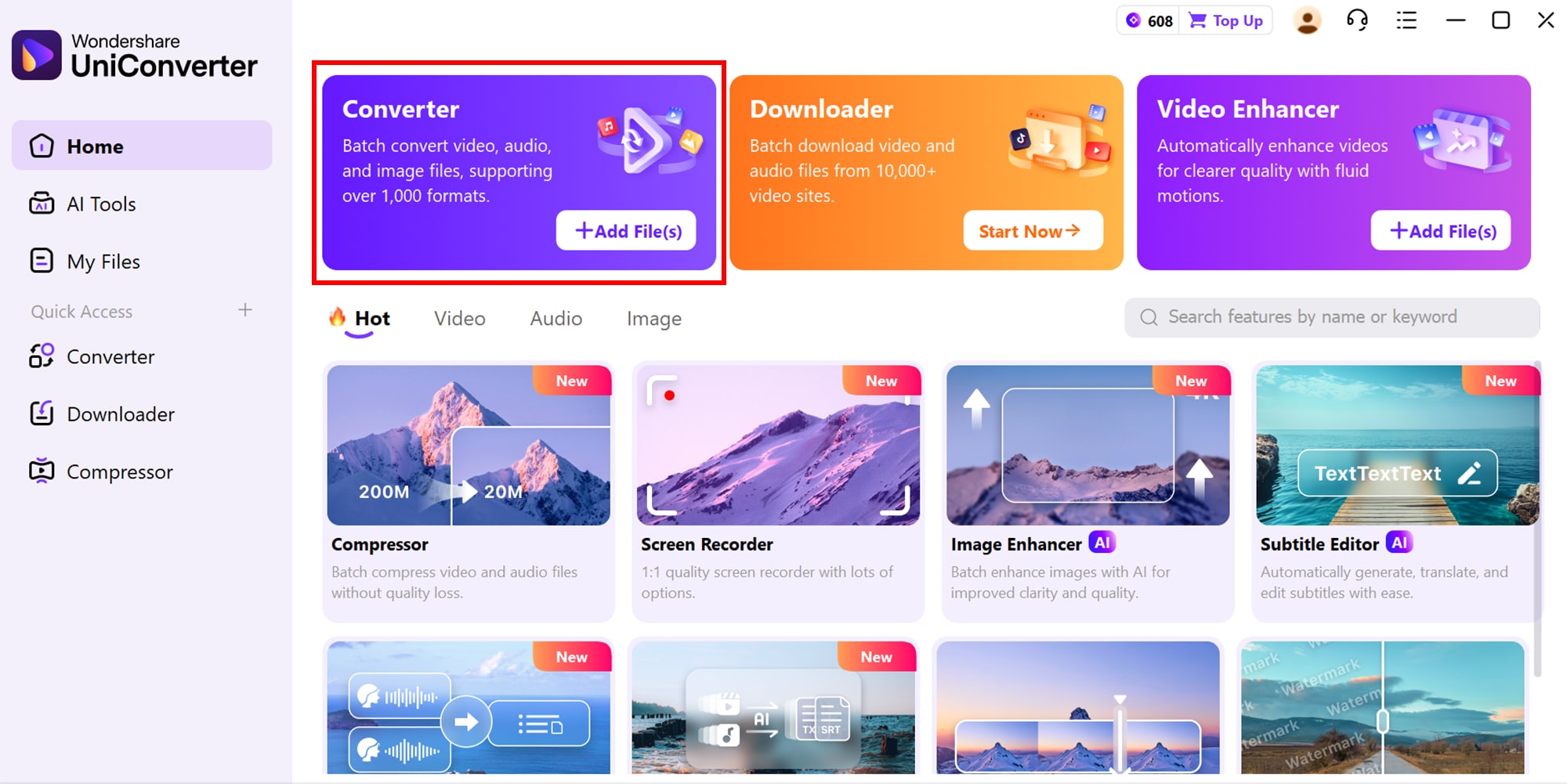
Begin by downloading and installing UniConverter on your computer. Once installed, open the program and navigate to the main dashboard. From the left panel, select Image Converter, which is the tool used for resizing thumbnails quickly.
Step 2: Upload Your Image & Set 1280×720 Size
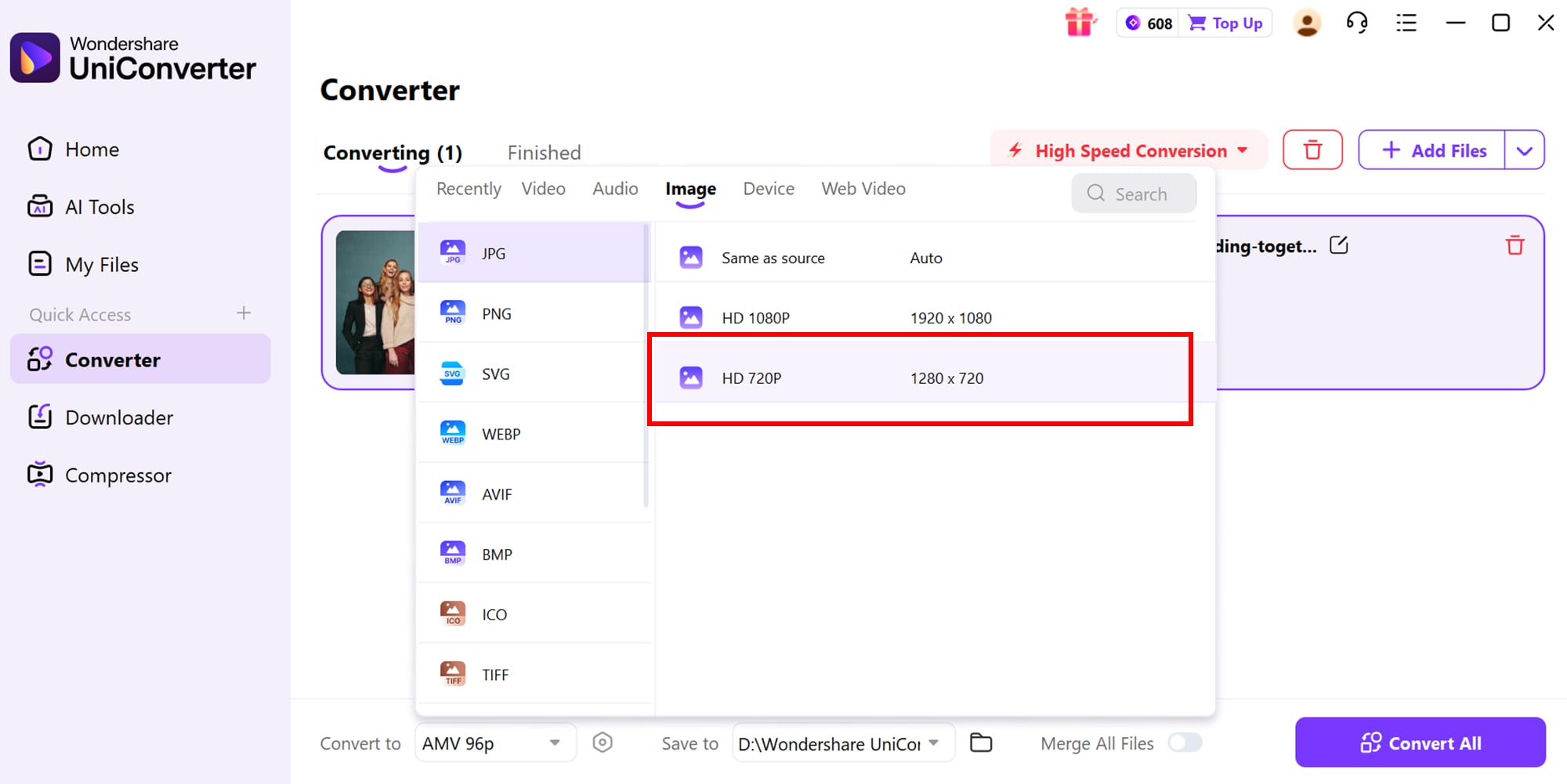
Click Add Files to upload the thumbnail you want to resize. In the output settings, manually set the width to 1280 px and the height to 720 px, ensuring the perfect 16:9 ratio. This guarantees your thumbnail is sharp, platform-ready, and fully compliant with YouTube specs.
Step 3: Choose Format & Export Your Thumbnail
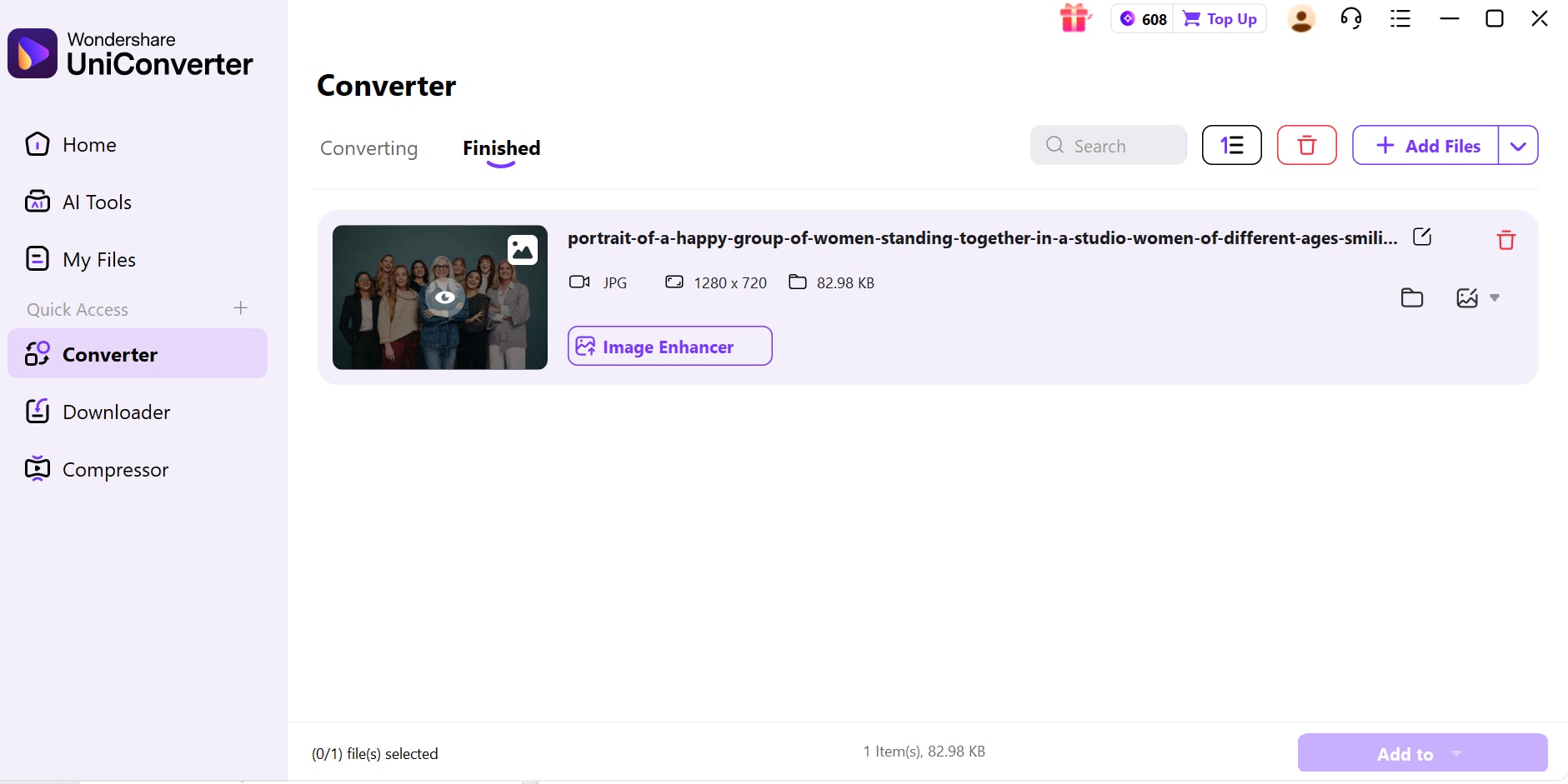
Select your preferred output format such as JPG or PNG. Once the settings look correct, click Start to export and save your optimized thumbnail. The tool processes instantly, giving you a clean, high-quality YouTube-ready thumbnail.
Pros
- Clean, creator-friendly UI
- Bulk image resizing
- Built-in format optimization
- Social media presets
- Supports high-quality PNG output
- Includes a YouTube Chrome Extension
Cons
- Paid tool with limited free features
- Software installation required
Safety Review: (4/5)
Starting Price: $29.99/year
Supported Devices: Windows, macOS

Easy to Use Batch YouTube Thumbnail Resizer
2. Adobe Photoshop (Advanced Editing & Resizing)
Adobe Photoshop remains a gold-standard tool for content creators who want total control over their YouTube thumbnails. Beyond basic resizing, this youtube thumbnail size converter allows precision cropping, layering, effects, and professional-grade text styling. Its preset canvas feature lets you instantly set your workspace to YouTube’s 1280×720 specs. The program is ideal for creators who prefer a desktop environment with deep editing flexibility. While Photoshop is powerful, it comes with a learning curve—especially for beginners transitioning from simpler tools. Still, its output quality, color accuracy, and scalability make it a go-to option for serious designers or YouTubers who want polished, brand-consistent results. Its Smart Objects system also preserves quality during multiple resizes, ensuring your thumbnails remain sharp throughout the editing process.
Pros
- World-class editing precision
- Perfect color accuracy
- Customizable canvas presets
- Supports all major image formats
- Layer-based editing for pro thumbnails
- Integrates with Adobe Fonts
Cons
- Expensive subscription
- Can overwhelm beginners
Safety Review: (5/5)
Starting Price: $22.99/month
Supported Devices: Windows, macOS
3. GIMP
GIMP is an advanced, open-source editor that allows creators to resize thumbnails with pixel-perfect accuracy. Its scaling tools preserve quality, making it suitable for YouTubers who want sharp, high-resolution images. GIMP supports layers, filters, masks, and color correction tools that help creators produce professional-grade visuals. While the interface looks older, the performance and depth of features rival many paid solutions. It also comes with a large plugin ecosystem, allowing users to add specialized resizing or sharpening functions. GIMP is ideal for creators who enjoy having total manual control over the editing process. Whether you’re adjusting proportions or enhancing clarity, GIMP delivers reliable results without costing a dime. Its custom keyboard shortcuts further streamline the workflow, making it easier to resize image for YouTube thumbnail and even prepare files for tools like a youtube thumbnail 2mb converter, helping creators optimize size and quality with ease.
Pros
- Completely free and open-source
- High-precision scaling tools
- Layer-based professional editing
- Plugin support for extra features
- Works offline
- No watermark on exports
Cons
- Dated interface
- Steeper learning curve for beginners
Safety Review: (4/5)
Starting Price: Free
Supported Devices: Windows, macOS, Linux
4. Canva
Canva makes thumbnail creation extremely simple with its drag-and-drop editor and instant 1280×720 resizing tool. Thousands of templates allow creators to design professional thumbnails even without graphic design experience. Its built-in alignment, branding kits, and font library help maintain consistent visual style. Canva’s cloud system ensures your designs sync across devices, giving you editing flexibility on desktop and mobile. It also supports multi-user collaboration for channels managed by teams. With smart filters, gradients, and animations, Canva enables beautiful, eye-catching thumbnail designs in minutes. For convenience, simplicity, and speed, Canva is one of the top online choices. Additionally, Canva’s Magic Design and AI-powered text suggestions help beginners create visually balanced thumbnails effortlessly. Its fast export options ensure your final design is perfectly optimized for YouTube without extra formatting steps, making it easier for creators to convert image to youtube thumbnail size without any hassle.

Pros
- User-friendly editor
- Large template library
- Auto-resize for YouTube
- Cloud storage & sync
- Team collaboration
- Huge font & graphic collection
Cons
- Many premium elements require Pro
- Requires stable internet
Safety Review: (4/5)
Starting Price: Free (Pro optional)
Supported Devices: Web, Windows App, Mac App
5. Fotor
Fotor is a lightweight online editor that offers quick resizing along with powerful enhancement tools. Its Resize feature instantly converts your images to YouTube’s recommended 1280×720 format. Fotor also includes advanced filters, HDR effects, and beauty retouch tools to improve the overall look of thumbnails. The interface is modern and intuitive, suitable for creators who want minimal complexity. Fotor’s cloud editing option ensures your progress is saved across devices. It also includes ready-made layouts for fast designs. This tool is ideal for creators who want a balance of simplicity and creativity in a browser. In addition, Fotor’s one-click enhancement tool helps beginners instantly improve lighting and sharpness without manual adjustments. Its flexible export settings allow you to fine-tune quality levels to meet YouTube’s file-size requirements, making it a convenient image resizer for youtube thumbnail for creators who want speed and quality.
Pros
- Clean, modern UI
- Great filters and adjustments
- HDR enhancement
- Quick resizing
- Cloud-based projects
- Offers design templates
Cons
- Some features require Pro
- Watermark on limited items
Safety Review: (3/5)
Starting Price: Free / Pro $8.99
Supported Devices: Web
6. Kapwing
Kapwing is an all-in-one online creator suite that includes a fast and accurate YouTube thumbnail resizer. Its intuitive interface makes scaling images effortless, while tools like background removal, filters, and text styling enhance thumbnail quality. Kapwing also syncs your projects to the cloud, giving you cross-device access. The platform includes a built-in content studio for video, memes, and GIFs—ideal for YouTubers who want multiple tools in one place. Auto-save protects your edits from accidental loss. Kapwing offers an excellent blend of simplicity and functionality for thumbnails. Its real-time collaboration feature allows multiple team members to edit the same project, making it ideal for creators working with editors or designers. Plus, Kapwing’s export optimization ensures that your final thumbnail loads quickly without losing detail, making it a reliable yt thumbnail resizer for users seeking speed and quality.
Pros
- Easy online resizing
- Modern UI
- Cloud syncing
- Supports all major formats
- Useful text and design tools
- No installation required
Cons
- Limited free exports
- Login required for some features
Safety Review: (4/5)
Starting Price: Free / Pro $16
Supported Devices: Web
7. Imageresizer.com
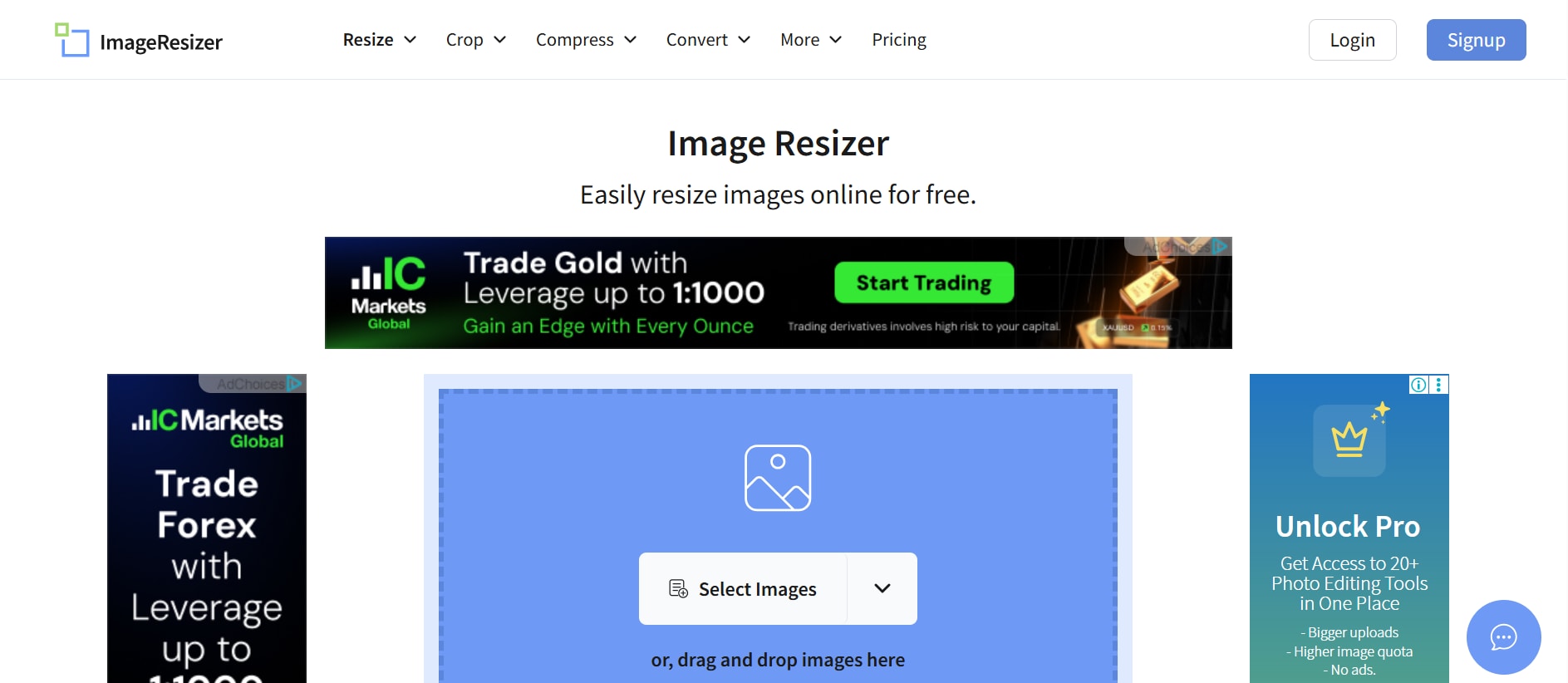
Imageresizer.com is a straightforward tool built purely for resizing, cropping, compressing, and optimizing images. It’s perfect for creators who want a fast solution without needing accounts, templates, or apps. The interface loads instantly and works smoothly on all browsers. It offers additional controls like background removal, rotation, and quality-level adjustments. Because it’s extremely lightweight, it’s ideal for quick edits or last-minute thumbnail fixes. ResizeImage.net also helps you maintain YouTube’s file size limit by offering accurate compression. Despite being basic, it's a reliable utility for fast tasks. Its drag-and-drop workflow makes it extremely convenient for beginners who prefer a no-fuss editing process. Plus, the tool supports bulk resizing, allowing creators to optimize multiple thumbnails in one go, making it especially useful when you need to resize image to youtube thumbnail quickly and efficiently.
Pros
- Completely free
- No signup required
- Fast loading
- Simple compression tools
- Works on any device
- Good for quick fixes
Cons
- No templates or design elements
- Not suitable for advanced editing
Safety Review: (3/5)
Starting Price: Free
Supported Devices: Web
8. PicsArt
PicsArt is a powerful mobile editing app designed for creators who prefer editing thumbnails on their phones. Its resize tool lets you set precise dimensions like 1280×720 with ease. The app features artistic effects, overlays, and stickers to enhance the appeal of your thumbnails. Advanced tools—like blending modes and layer-based editing—offer extra creative control. PicsArt's UI is smooth, touchscreen-optimized, and easy for beginners. It also comes with a large library of fonts suitable for YouTube thumbnail text. For on-the-go thumbnail creation, it’s one of the most versatile apps available. Additionally, its community-driven platform offers thousands of free templates and assets to inspire your designs. The app’s quick-export feature ensures your thumbnail is optimized and ready to upload within seconds, making it simple to convert image into youtube thumbnail size directly from your mobile device.
Pros
- Excellent mobile editing
- Huge filter and effect library
- Layer editing support
- High-resolution exports
- Great font selection
- Simple resizing tools
Cons
- Ads in free version
- Some features require subscription
Safety Review: (4/5)
Starting Price: Free / Gold $11.99
Supported Devices: Android, iOS
9. Snapseed — Professional Mobile Editor with Crisp Output
Snapseed, developed by Google, offers professional-grade editing tools that help creators achieve sharp, high-quality thumbnails. Its resizing feature ensures accurate dimensions without reducing clarity. Snapseed includes advanced tools such as Curves, Selective Adjust, Healing, and Lens Blur that allow detailed fine-tuning. The app is completely free and free of ads, providing a premium editing experience on mobile. The interface is minimalist and smooth, making edits quick and intuitive. Its powerful color correction tools improve brightness, contrast, and vibrancy—key elements of compelling thumbnails. For mobile creators who want precision and quality, Snapseed is unmatched. It also supports non-destructive editing, allowing you to tweak or reverse adjustments anytime. Plus, its ability to save custom editing presets helps creators maintain consistent branding across all thumbnails, making it a reliable option when you need to resize to youtube thumbnail with full control.
Pros
- Free and ad-free
- Professional-level tools
- High accuracy and clarity
- Smooth UI
- No watermarks
- Great for color correction
Cons
- No templates
- Limited text options
Safety Review: (5/5)
Starting Price: Free
Supported Devices: Android, iOS
10. Pixlr
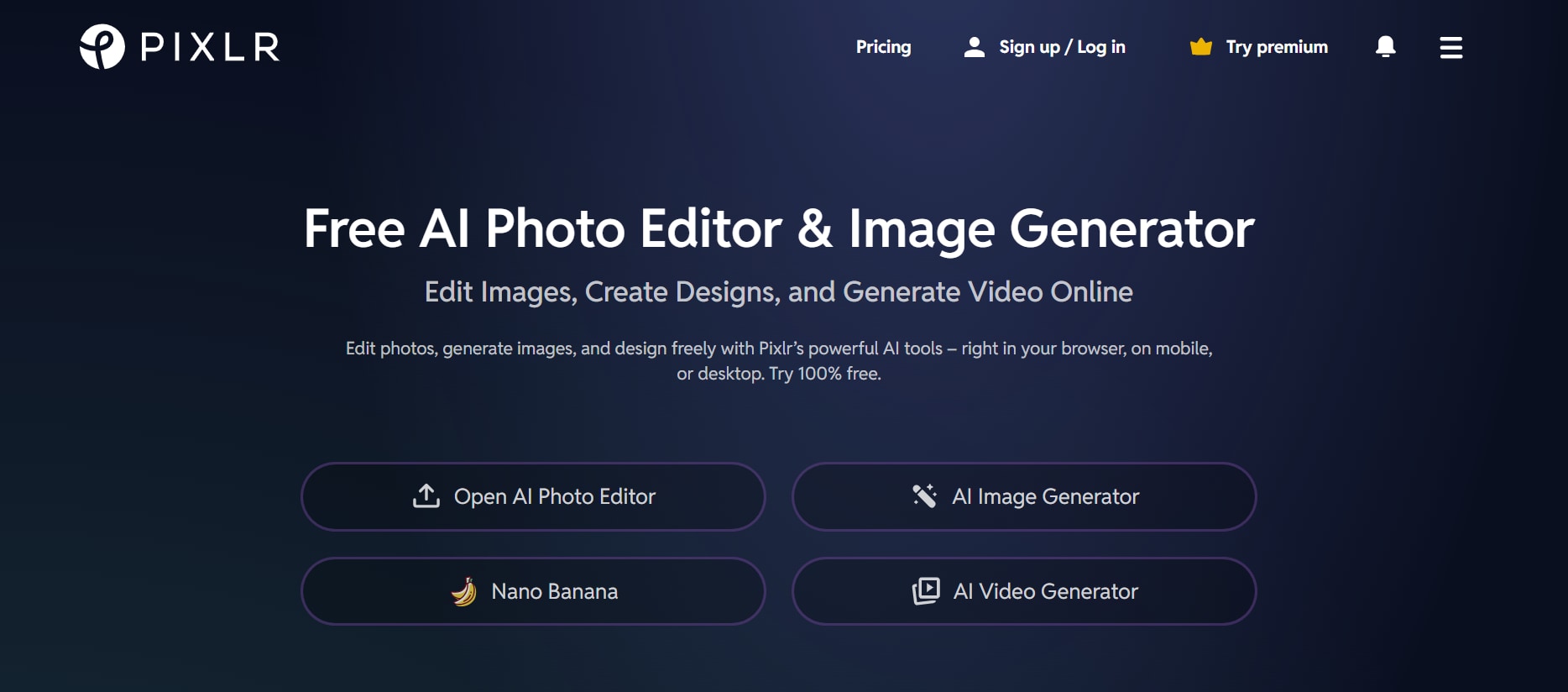
Pixlr is a versatile mobile editor that enables quick resizing while offering useful automatic enhancement tools. It supports exact YouTube dimensions and formats, making it easy to prepare thumbnails. Pixlr also includes overlays, borders, and text elements for customizing your visuals. Its AI-powered auto-fix tools instantly boost image clarity and lighting. The app’s interface is fast, responsive, and designed for smooth editing even on older devices. With Express and Advanced modes, users can choose between simple or more detailed editing workflows. Pixlr is perfect for creators needing lightweight but effective mobile tools. It also syncs easily across devices, allowing you to start editing on mobile and finish on desktop. Plus, its cloud-based system ensures your edits stay accessible wherever you log in, making it a great option when you need an image resize youtube thumbnail solution that’s fast and convenient.
Pros
- Lightweight and fast
- AI auto-enhance
- Good overlay and text tools
- Easy resizing
- Beginner-friendly
- Works well on older phones
Cons
- Ads in free version
- Syncing can be unstable
Safety Review: (3/5)
Starting Price: Free
Supported Devices: Android, iOS
Part 3: At a Glance Comparison Table of Best 10 YouTube Thumbnail Resizers
| App Name | Supported Formats | Unique Edge | Best For |
|---|---|---|---|
| Wondershare UniConverter | JPG, PNG, BMP, WEBP | Desktop-grade batch resizing + YouTube Chrome Extension | Creators needing fast, accurate, high-quality resizing |
| Canva | JPG, PNG | Easy drag-and-drop designs with templates | Beginners & quick thumbnail design |
| Adobe Express | JPG, PNG | Professional Adobe-grade visual editing | Designers needing creative control |
| Fotor | JPG, PNG | One-click image enhancement + resizing | Users wanting simple editing + resizing together |
| Kapwing | JPG, PNG, GIF | All-in-one online editor with fast resizing | Creators who work fully online |
| Pixlr | JPG, PNG | Lightweight editor with AI tools | Users with low-power devices or browser editing |
| Snappa | JPG, PNG | Ready-made YouTube thumbnail presets | Marketers creating thumbnails quickly |
| Photopea | JPG, PNG, PSD | Photoshop-like editing for free | Advanced users needing PSD-level controls |
| PicResize | JPG, PNG, GIF | Extremely fast bulk resizing | Users needing quick resizing without accounts |
| ResizePixel | JPG, PNG, WEBP | Resize + compress + convert in one screen | Users optimizing thumbnails for size + quality |
Easy to Use Batch YouTube Thumbnail Resizer
Part 4: Beyond Resizing: Pro Tips for a Killer Thumbnail
A perfectly sized thumbnail is only half the equation—what truly matters is how powerfully it captures attention. Before diving into the design principles, here are the key elements that separate an average thumbnail from a truly irresistible one:
Use High-Contrast Colors
High-contrast colors instantly grab attention and make your thumbnail stand out in a crowded feed. Bright pairings like yellow–black, white–red, or blue–orange help your visuals pop even on small screens. This contrast ensures your main subject, text, and background never blend together, boosting clarity and visibility.
Include a Close-Up Human Face With Emotion
People connect with people—especially expressive ones. Close-up faces showing emotions like shock, excitement, or curiosity trigger instant viewer interest. Emotional expressions create a story at first glance and make users want to click to learn more.
Add Bold, Easy-to-Read Text
Text should be short, sharp, and readable even on tiny mobile screens. Use bold fonts, strong outlines, and minimal wording. Your text should communicate the video’s core benefit in just 2–5 words.
Use a Consistent Branding Style
Consistency builds recognition. Stick to a signature color palette, font style, layout pattern, or border. Over time, viewers will recognize your videos instantly, increasing trust and click-through rate.
Conclusion
Creating the perfect YouTube thumbnail isn’t just about resizing—it’s about crafting a visual that instantly captures attention, communicates your message, and boosts your click-through rate. With the right dimensions, design techniques, and reliable tools, you can transform any image into a high-impact thumbnail that stands out across all devices.
Among the many tools available, Wondershare UniConverter remains one of the most efficient options thanks to its precise resizing engine, YouTube-friendly presets, and built-in Chrome extension for quick access. Whether you're a beginner or a seasoned creator, UniConverter ensures your thumbnails stay sharp, clean, and fully optimized. Combine the right specs with smart design choices, and you’ll have thumbnails that not only look great but also attract the views your content deserves—especially when you know how to resize youtube thumbnail correctly.
FAQs
-
1. Can resizing a thumbnail affect YouTube’s algorithm or ranking?
No, resizing itself doesn’t impact ranking, but a clear and appealing thumbnail can influence click-through rate (CTR). Higher CTR signals positive engagement, which may indirectly help your video perform better in YouTube’s recommendations. -
2. What is the best image format for preserving color accuracy in thumbnails?
PNG is often preferred because it maintains sharpness and color fidelity, especially for graphics with text or layered designs. It’s ideal when you want to preserve vibrancy without compression artifacts. -
3. Can I resize multiple thumbnails at once?
Yes, many modern tools support batch processing. If you regularly update or optimize older videos, batch resizing can save significant time and ensure consistent branding across your channel. -
4. How do I maintain quality when converting a large image to a thumbnail-sized image?
Always start with a high-resolution source image and use a tool that applies smart compression. Wondershare UniConverter, for example, uses intelligent optimization to resize without distorting or blurring fine details. -
5. Should I add borders or outlines to my thumbnails?
Borders can help your thumbnails stand out, especially if your content blends with YouTube’s default white background. Thin outlines in contrasting colors—like black, neon, or white—often increase visibility and improve small-screen readability.

