Images in HEIF format are often stored in Apple devices to reduce their file size without compromising the quality of the image. However, when you go to share with Android users or post to a site, you have a compatibility issue. Many image editors and platforms still don’t fully support HEIF, making it frustrating when you just want to preview or post a photo without glitches.
This is why you should change HEIF to PNG, since this format is commonly accepted and maintains excellent image quality. Whether you're a photographer exporting client images or simply backing up your iPhone photos, converting from HEIF to PNG is frequently a wise choice. This guide will lead you through optimal converters while offering advice to maintain image quality during the conversion.
In this article
Part 1. What is HEIF, and Why Convert HEIF to PNG?
High Efficiency Image Format (HEIF) is a contemporary format supported by Apple products to store high-resolution photos. It encourages enhanced performance, including various images and depth maps; therefore, it is more effective than conventional formats. Nonetheless, despite its benefits, it faces restricted compatibility since numerous platforms do not fully support it. This problem can be overcome when we convert HEIF to PNG because it is a lossless format.
| Format | Pros | Cons |
|---|---|---|
| HEIF (High Efficiency Image File Format) | Efficient compression reduces file size without significantly reducing image quality. Supports up to 16-bit color depth for richer tones and gradients. Can handle multiple frames like a lightweight video or GIF alternative. Supports live photos, image sequences, depth maps, and HDR metadata. |
Not fully supported on many older devices, browsers, or Windows systems without additional codecs. Based on HEVC (H.265), which may have patent or licensing restrictions. Some image editors don't natively support HEIF. |
| PNG (Portable Network Graphics) | Maintains original image quality, even after compression. Universally supported across all major platforms, browsers, and software. Full alpha channel support makes it ideal for graphics, icons, and web design. No licensing fees or proprietary concerns. |
File sizes are significantly bigger than HEIF for the same image quality. Does not support multiple frames unless extended to APNG, which isn't universally supported. Best for simpler images like logos or UI elements; not optimized for complex photographic data. |

Easy to Use HEIF to PNG Converter
Part 2. 5 Easy to Use HEIF to PNG Converters Online & Desktop
Before you enjoy the benefits of a universally compatible image format, you’ll need the right HEIF to PNG converter. In the next section, we’ll explore 5 simple online and desktop tools that make the conversion process quick and reliable:
1. UniConverter (Desktop)
UniConverter is the best option to convert HEIF to PNG, which lets you transform any format to up to 1000 formats. Upon conversion, it makes it possible to adjust photo dimensions and aspect ratio prior to export, as well as having exact control over width and height. The available option of improving image clarity up to 100% will be like ensuring that all details are clear and vivid, as they were before.
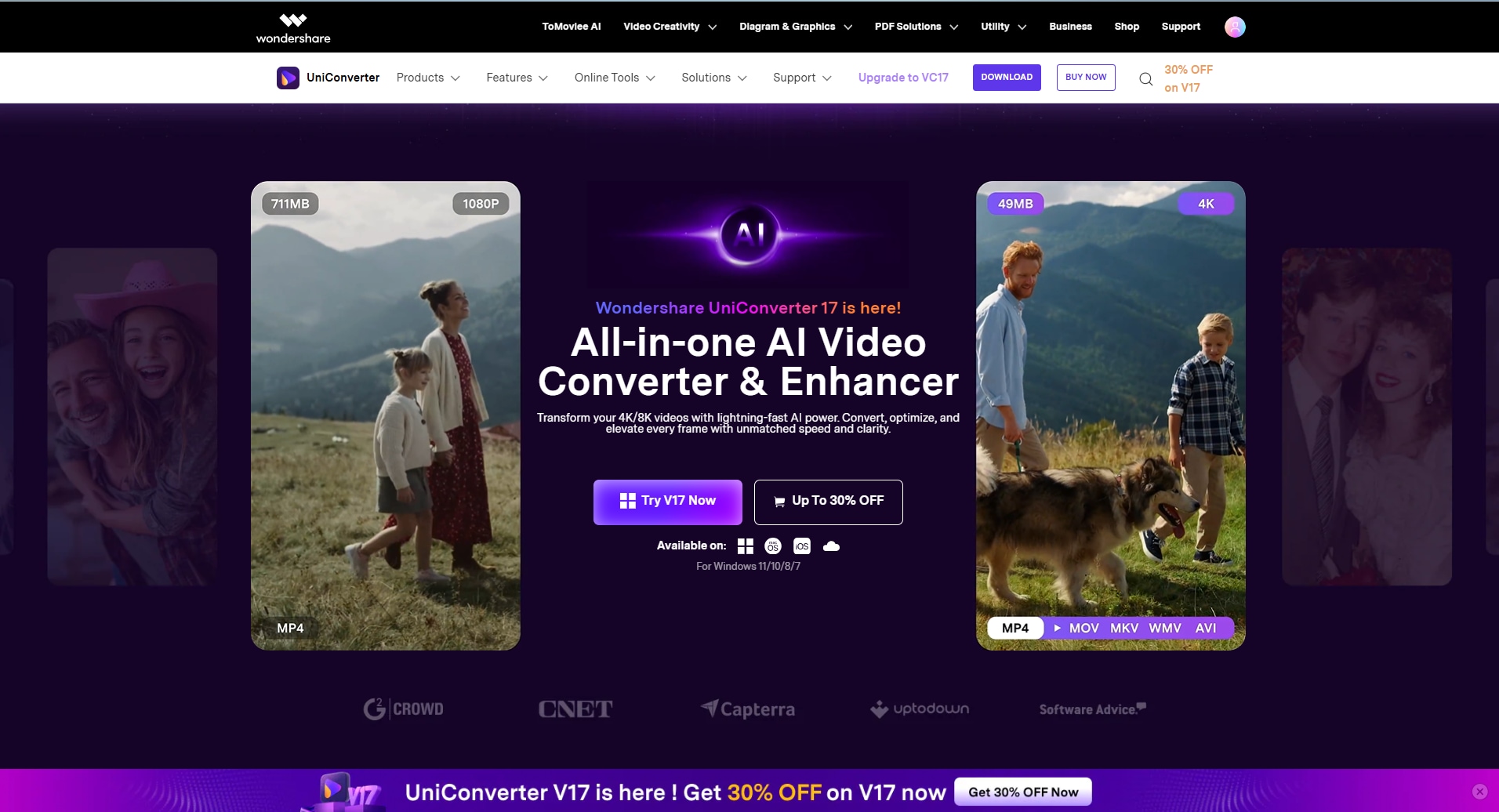
The tool enables users to preview the converted files before downloading to ensure they meet expectations. You can access it on Windows and macOS and via an online platform for quick no-install conversion. Apart from this, it allows you to choose the location of the file where you want to save it when you are exporting it to your device.
Key Features
- Preserves Quality: You can maintain the original image's resolution and detail during conversion for lossless results.
- Center Adjustment: It enables you to bring unaligned pictures to the center using one click, thus making it appear professional and straightened.
- Batch Conversion: Users can convert dozens or even hundreds of pictures at once with UniConverter without wasting their time and energy.
- Photo Edit: In a matter of seconds, flip photos horizontally or vertically to create a mirrored effect or tweak the composition.
- Image Resize: Easily batch resize for mainstream social media platforms like instagram, X, Pinterest,etc.
- High-Speed Converter: It works up to 130 times quicker on files relative to the regular converters, thus converting even in bulk takes only a few seconds.
A Complete Stepwise Guide to Convert Image Format With UniConverter
Now that you know the features of the best HEIF to PNG converter, you might want to know how to use it for conversion. The following section will cover a detailed stepwise guide to convert image formats with ease:
Step 1. Access the Home Tab and Choose the Image Converter Tool
Launch the tool on your device and go to its “Home” tab from the left panel. Then, press the “Image” tab and pick the “Image Converter” tool to start the process.

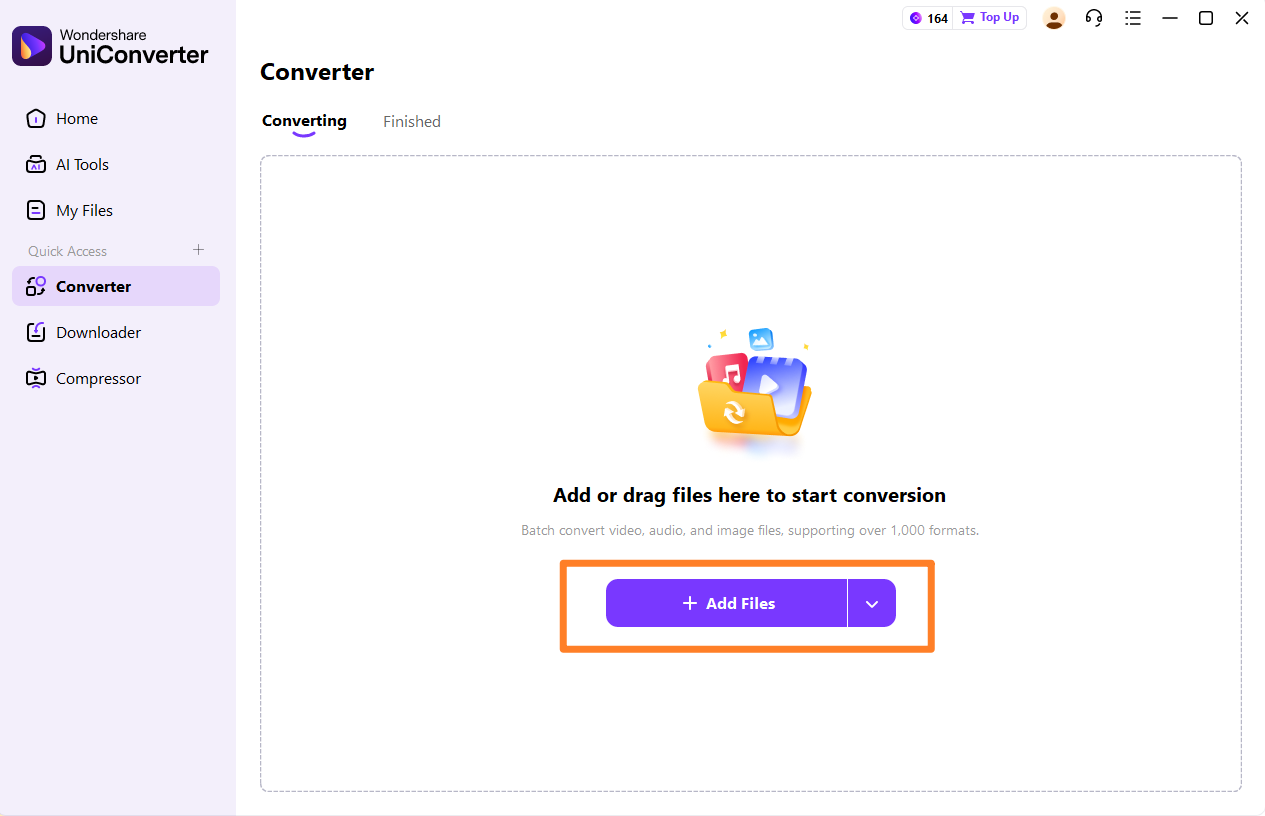
Step 2. Insert HEIF Picture For Conversion
From the next window, click the “Add or Drag Images Here to Start Conversion” button and add the image in HEIF format.
Step 3. Choose Target Conversion Format
Choose PNG or other target conversion format. You can also upload batches of images to convert in one time.
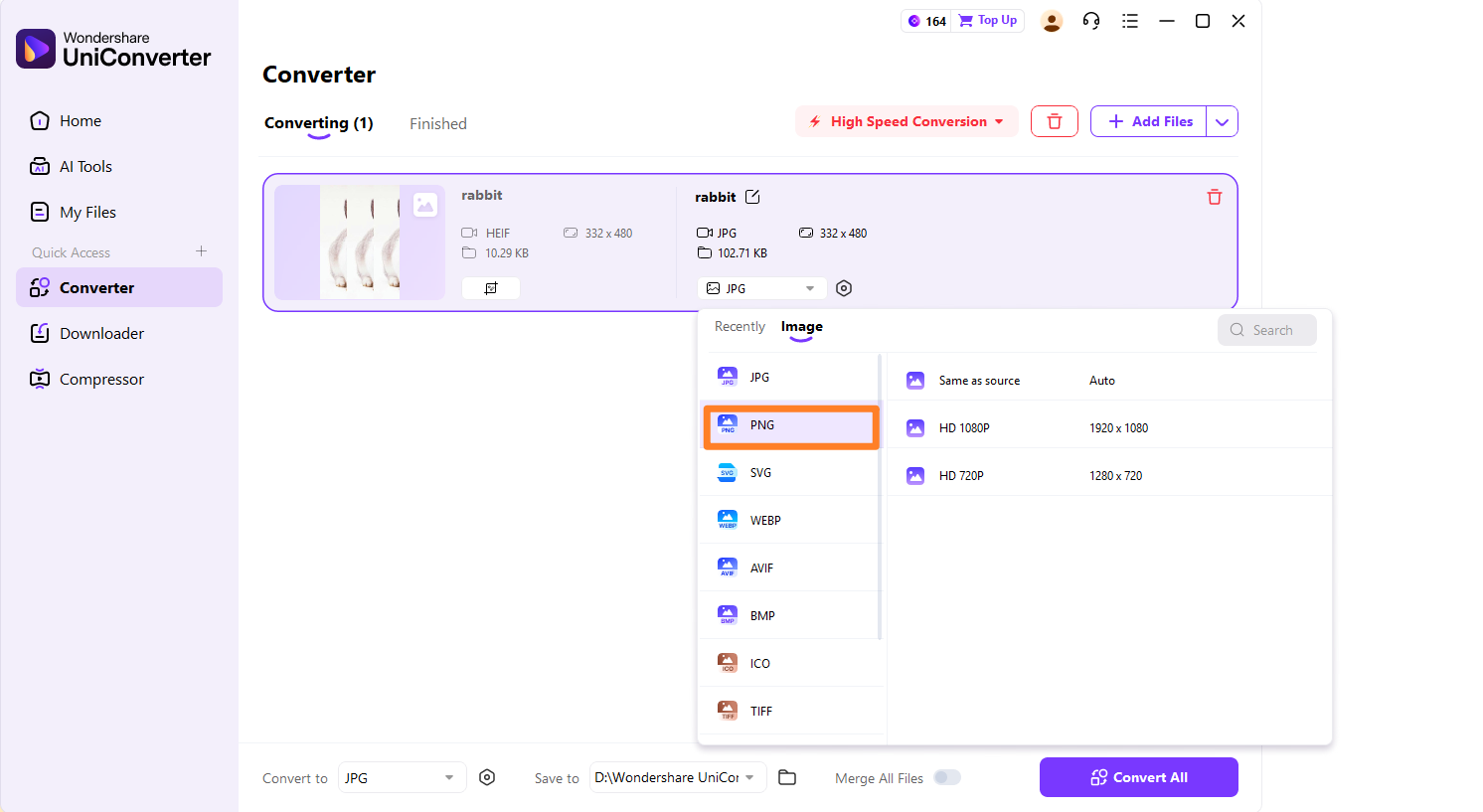
Step 4. Pick the PNG Format and Start the Conversion Process
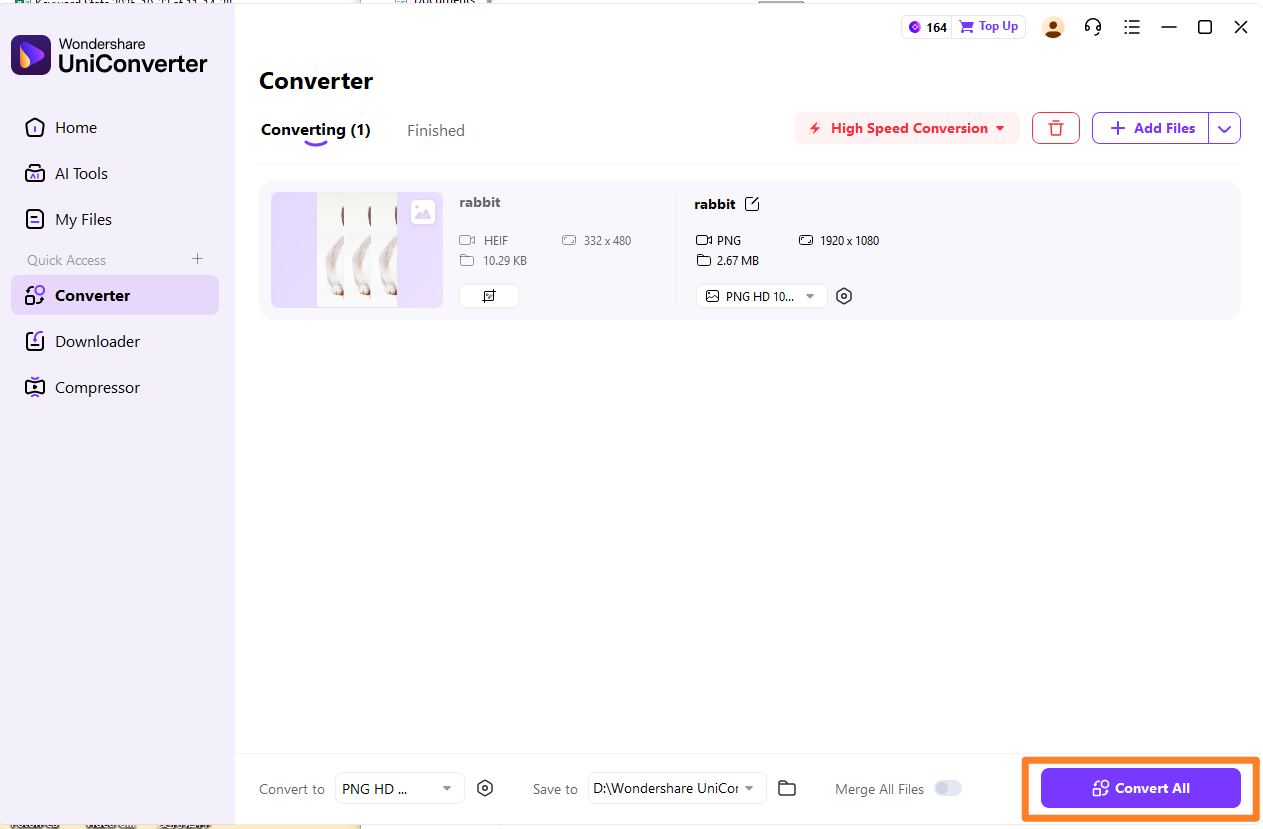
Afterwards, press the “Downward” arrow under the “Output” format section and choose the “PNG” format from the expanded list. When you are done, press the “Convert” or “Start All” button to begin the conversion process.
2. Freeconvert (Online)
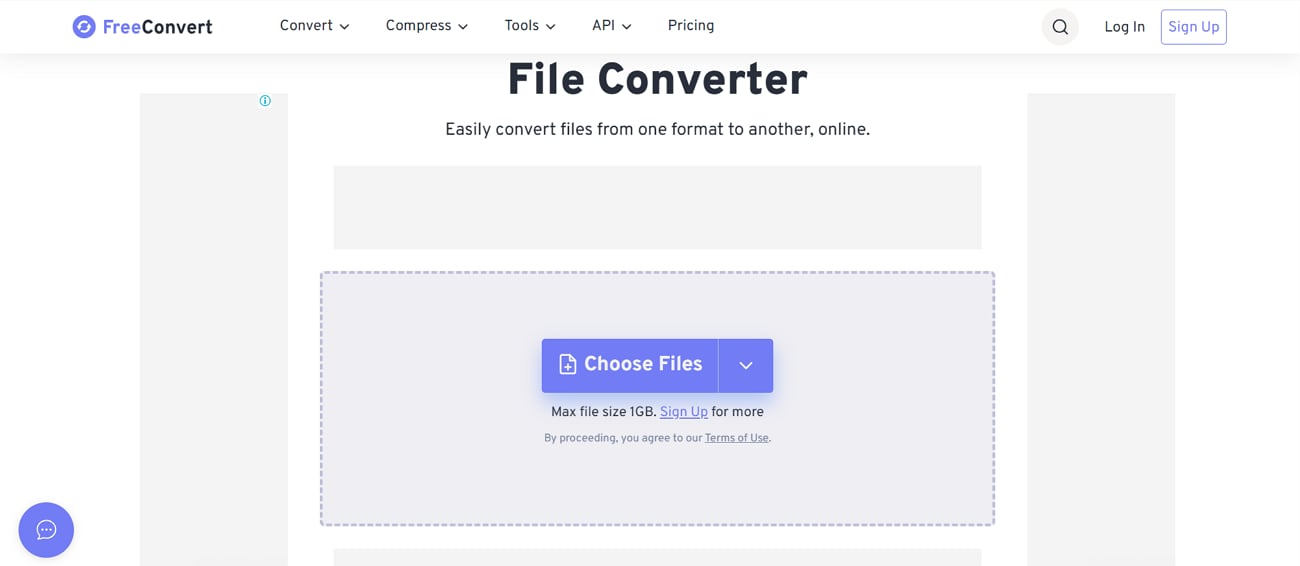
HEIF to PNG converter is safe and simple in that it operates on any web browser without sign-up. The platform has batch conversion features, which allow a user to upload a single file and convert it simultaneously with the others to ensure time is saved. The conversion allows advanced settings so one can adjust the output details of the images in terms of quality.
Key Features
- FreeConvert ensures privacy with 256-bit SSL encryption during transfers and automatically deletes uploaded files after a few hours.
- The tool has the cross-device compatibility factor and employs an open-source algorithm to sustain a high conversion quality.
- It goes beyond basic format conversion by supporting over 1,500 file types, including audio and documents.
- You can customize the conversion by adjusting the image size to match your exact needs for web publishing.
3. Cloudinary (Online)
To convert HEIF to PNG format, Cloudinary delivers an all-in-one media management that handles image and video assets from upload to transformation. It provides cloud-based APIs and SDKs with an intuitive dashboard so anyone can use it with ease. You can securely upload your file and URLs as well, giving you an easy conversion process. It lets you crop and resize with AI-powered batch or single edits.
Key Features
- Cloudinary is very fast because it delivers on any device, automatically selecting the most suitable file format and quality.
- You can protect your files with two-factor authentication and advanced encryption.
- The tool integrates video streaming, auto-transcoding, and AI captioning, supporting responsive design.
- For more than one conversion, it offers a batch processor to save your efforts while converting images in one go.
4. GIMP (Desktop)
This software simplifies the conversion process from HEIF to PNG through its robust internal file format support. Just open your HEIF file in recent versions of GIMP, like 2.10.22 or newer. Receiving a free way to convert iPhone or other HEIF images is not the only benefit of this workflow. Before saving, one can take advantage of all of the editing capabilities GIMP has to offer.
Key Features
- It is a powerful desktop image editor, well-known for advanced photo retouching and graphic design.
- GIMP is free in every sense as it is open-source, and it works on Windows, macOS, and Linux.
- You can perform batch conversion to handle large workflows, and it supports 1000 file formats.
- The software offers unmatched extensibility with hundreds of free plugins and scripts for automation and custom feature development.
5. Fotor (Online)
Another HEIF to PNG converter that is intuitive and efficient, working entirely within your browser without any installation or registration. You can convert any type of format, including HEIC, JPG, and more. It supports batch conversion, allowing you to change the format of up to 50 modern formats, which saves immense time. The tool preserves image quality during conversion and lets you adjust output settings for size and clarity.
Key Features
- It is an effective desktop image editor, which has a high reputation for complex photo retouching and graphic design.
- Foto’s advanced features include background removal to create transparent PNGs, straightforward resizing, and compression.
- Your uploads remain private and secure, as images are only processed for conversion and automatically deleted after completion.
- Using its AI face editor, smooth skin, remove blemishes, and apply makeup in images to make them perfect for uploading.
A Comprehensive Comparison Table of All the Tools
Now that you know all the tools, let’s explore a brief overview comparison table to help you decide which one to choose:
| Tool | Batch Conversion Support | Ads Density | File Size Limit | Conversion Speed | Platform Support |
|---|---|---|---|---|---|
| UniConverter | Yes – supports large-scale batch conversion both online and offline | None in the desktop app | No limit on Desktop | Very fast – up to 130× speed | Windows, macOS, and Online |
| FreeConvert | Yes – online batch support | Yes, ads on its interface | 1 GB per file (higher with premium) | Moderate – depends on file size & internet | Online only |
| Cloudinary | Yes – via API or SDK automation | None in paid plans | 100 MB max file size for images | High – server-side processing | Cloud platform with API access |
| GIMP | No native batch conversion (can script or use plugins) | No ads; open source | Limited by computer RAM; large files supported | Moderate – depends on hardware & file complexity | Windows, macOS, Linux |
| Fotor | Yes, batch converts up to 50 images at once | Minimal to moderate on free plan | Not clearly stated; practical batch up to 50 files | Fast for small to medium images | Windows, macOS, iOS, Android, Online |
Part 3. Quality Loss Prevention Tips for HEIF to PNG Conversion
Convert HEIF to PNG may appear to be a straightforward process; it is not always easy to get a quality conversion to PNG without undesired loss or artefacts. The following are some important guidelines to memorize in order to make sure that your pictures do not lose their richness and detail:
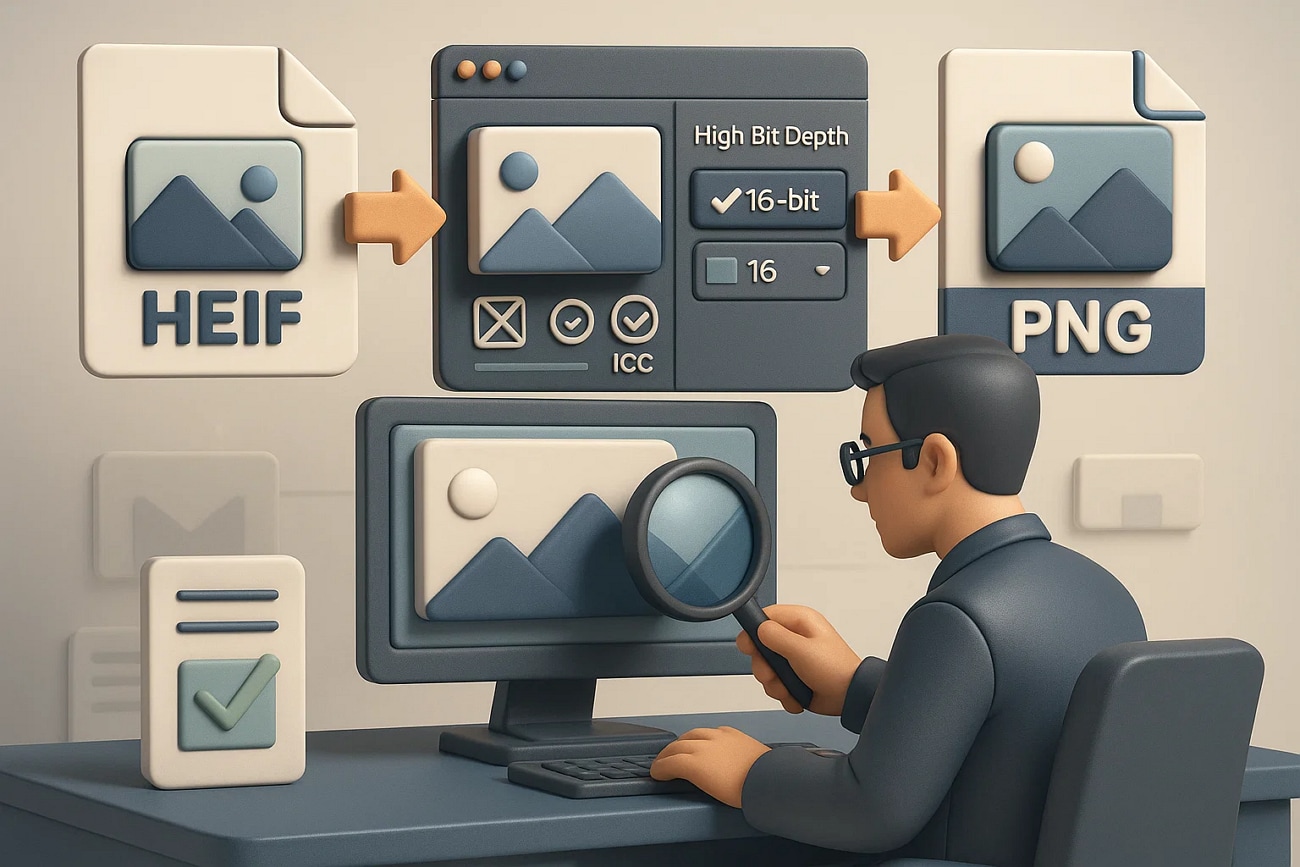
Choose Specific Output: Use 16 bits per channel PNG where possible, to maintain greater dynamic range and smoother gradients. This prevents visible banding and keeps subtle tonal transitions intact.
Use Trusted Tools: Select reliable converters that support high-bit-depth image processing. Many basic tools down sample to 8-bit automatically, which can cause unnecessary quality loss.
Avoid Compression Midway: Never save intermediate files in lossy formats like JPEG during the process. Work directly from the original HEIF to PNG, maintain full detail and color accuracy.
Keep Color Profiles: Ensure ICC color profiles and metadata remain embedded during conversion. This guarantees accurate color reproduction across devices and editing workflows.
Preview Before Finalizing: Whenever you are converting an image, make sure to zoom and examine thoroughly, then save. In case you have banding or artifacts, you can fix the settings and repeat the conversion.
Easy to Use HEIF to PNG Converter
Conclusion
To sum up, it is required to convert HEIF since it has issues with compatibility with a variety of devices. Switching to PNG ensures universal accessibility and maintains full image quality for editing or sharing. In this guide, we covered five practical tools, both online and Desktop, for converting HEIF to PNG. Among them, UniConverter stands out as the best for its speed and broad format support.
FAQs
-
1. Does converting HEIF to PNG increase file size significantly?
Yes, a HEIF to PNG converter is likely to make your files larger most of the time because more detail is going to be there in your images. However, note that PNG is a lossless format and has no fancy compression technology like HEIF. -
2. Can HEIF files contain more than just a single photo (like bursts or Live Photos)?
It can hold several images, like burst sequences or Apple’s Live Photos, within one file. Some converters let you choose which frame or image to extract during conversion. -
3. Will EXIF metadata (like camera settings or geolocation) be preserved in the PNG?
It depends on the converter; some EXIF data, like date, location, and camera settings, while others remove it. If keeping metadata matters, check the settings or documentation of your chosen tool. -
4. Can I automate batch HEIF-to-PNG conversions on macOS?
Yes, conversions can be automated in macOS Automator by using Terminal commands. Nevertheless, rather than such a complicated solution, you can just use Wondershare UniConverter to convert a batch of files quickly and easily.