Everyone loves snapping memorable photos, until a photobomber sneaks in and ruins that perfect shot. Whether it is at a family event or during a scenic trip, these unwelcome guests can be incredibly annoying and frustrating. You have probably experienced that moment when you are reviewing your photos later, only to discover a stranger lurking in the background of what should have been picture-perfect memories.
If you have also run into this problem, do not stress. There are easy ways to use a photobomber remover to rescue your pictures and keep your favorite moments photobomb-free, giving you back complete control over your photography.
In this article
Part 1. Method 1: Remove Photo Bombers With a Mobile App
YouCam Perfect is a popular photo editing app trusted by millions for its intuitive interface and a wide selection of powerful features, including an AI-powered object remover. With just a few taps, you can erase photo bombers, unwanted objects, and distractions while keeping your backgrounds looking seamless and natural. The app also offers background removal, image enhancement, trendy filters, and creative collage tools.

How to Remove Photo Bombers with YouCam Perfect
By following these simple steps, you can easily remove photo bombers:
Step 1: Download and open the app. Tap "Photo Edit" to upload your image.

Step 2: Upload the image and click "AI Removal."
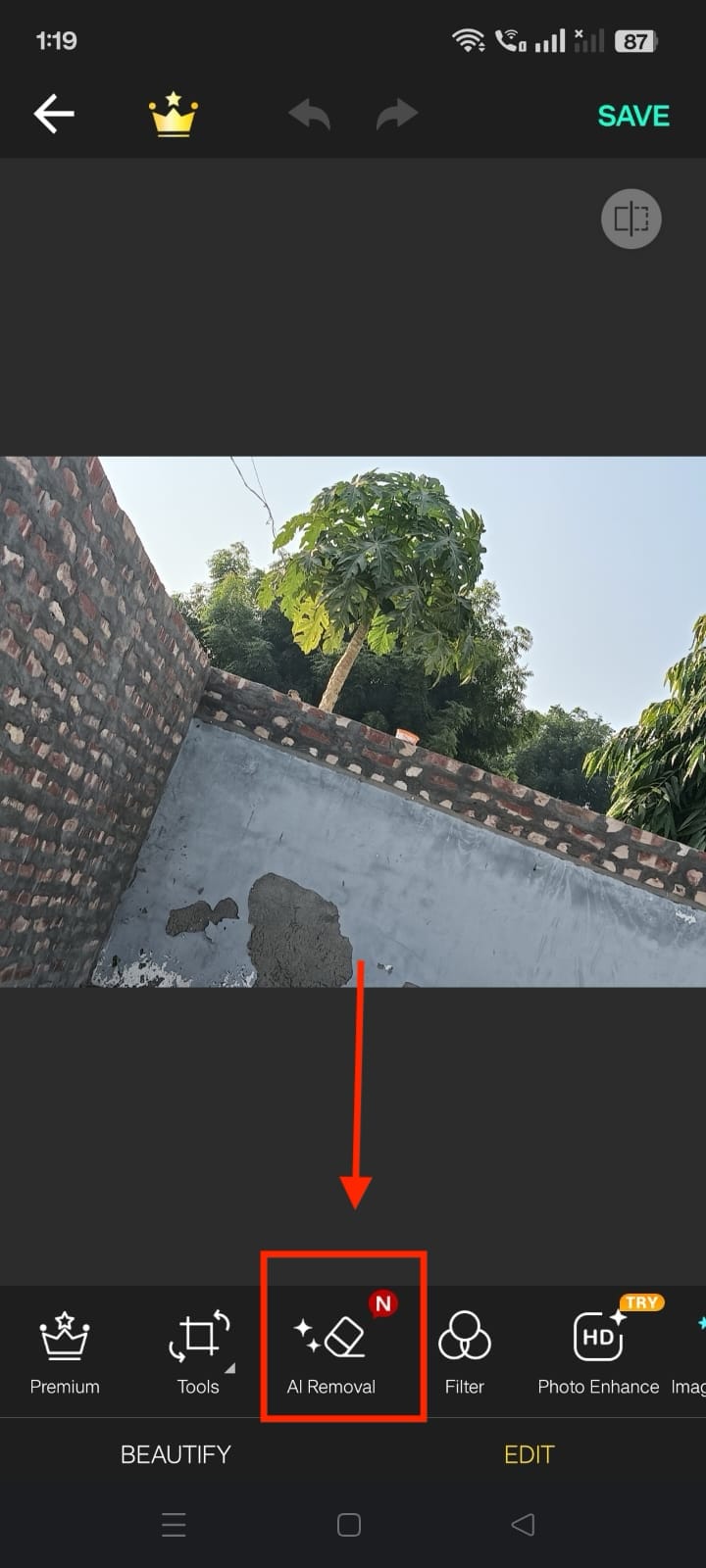
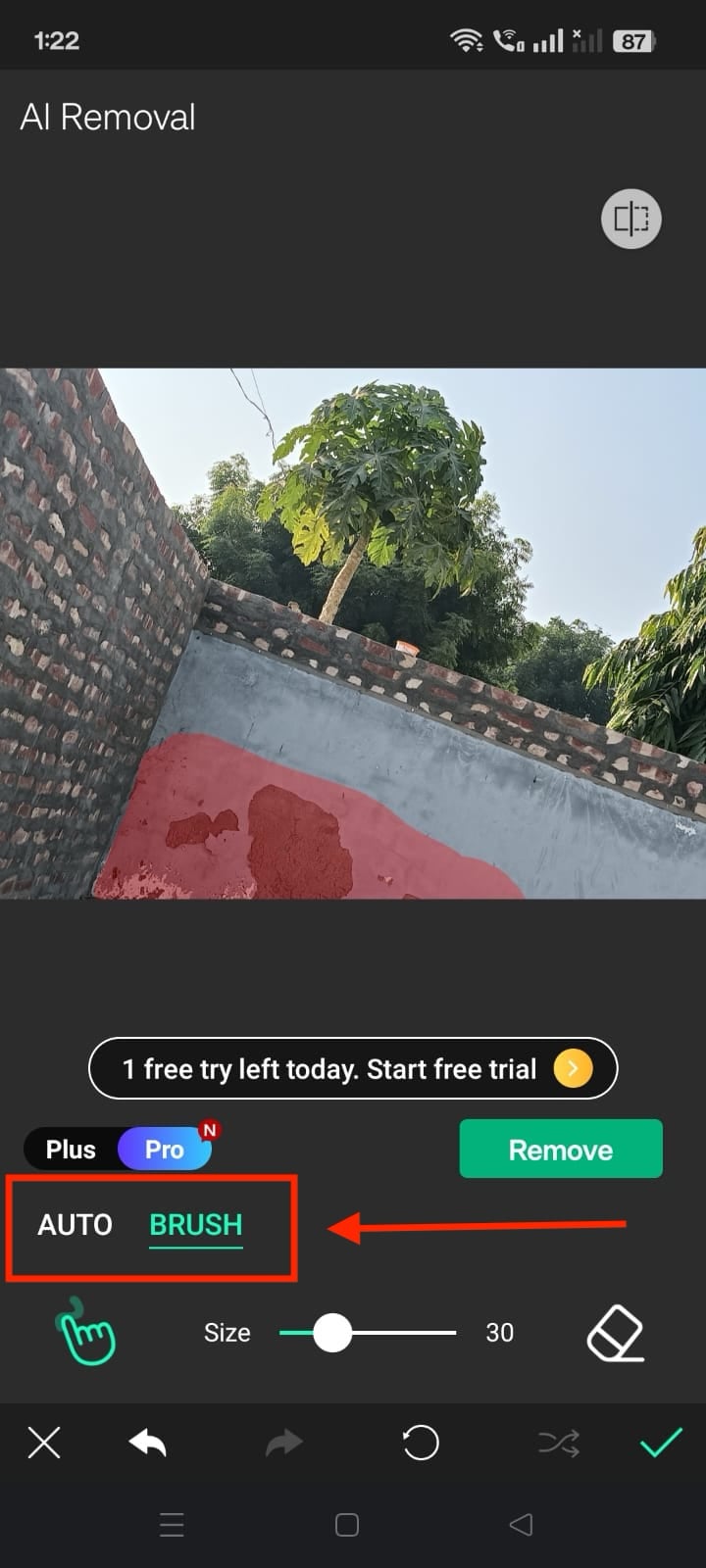
Step 3: You can remove the object manually by adjusting the brush size or clicking "Auto" to remove bombers automatically.
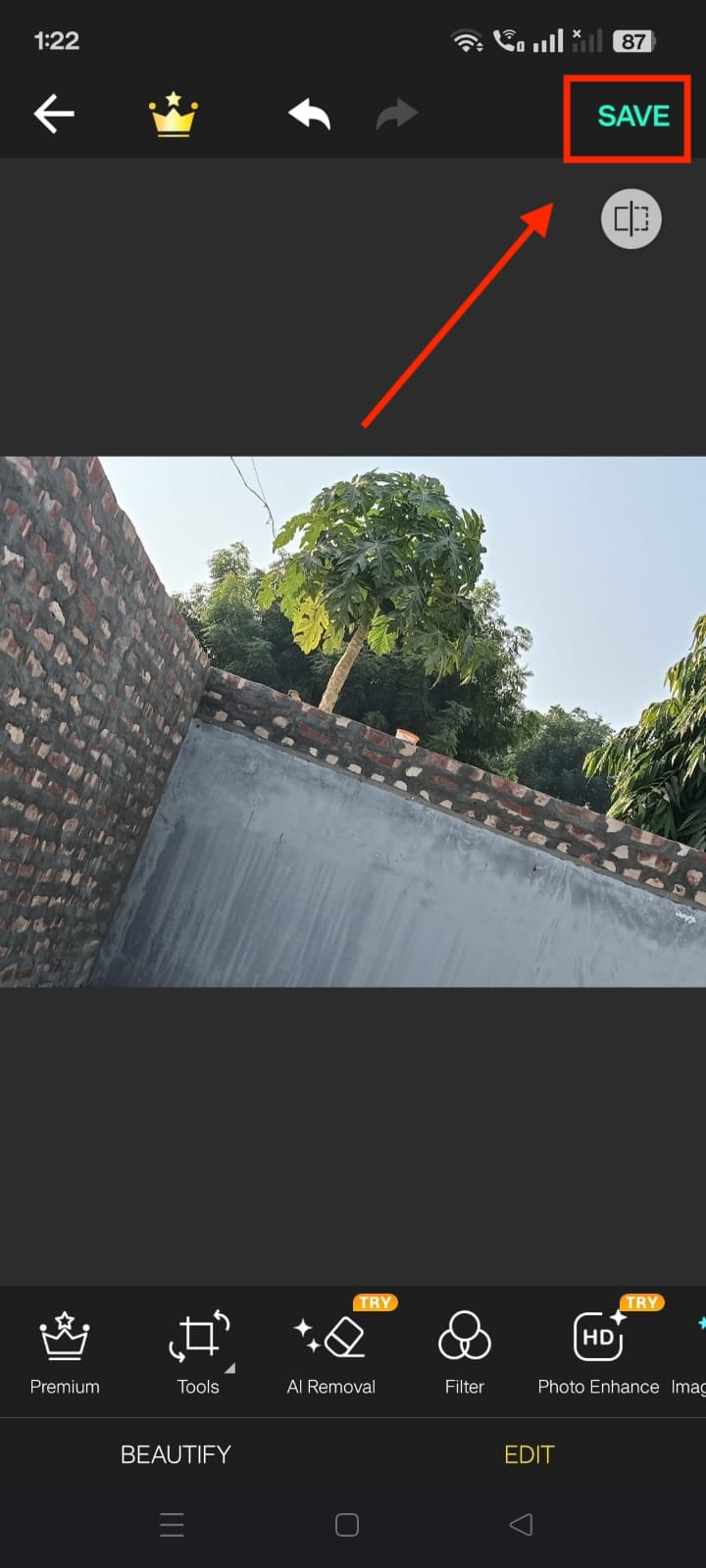
Step 4: Click the tick mark once editing is done and tap the "Save" button.
Best for: YouCam Perfect is best for anyone who wants quick and easy photo editing on their phone.

Super Easy to Use Photobomber Remover
Part 2. Method 2: Remove Photo Bombers With Online Photo Editors
Fotor is an easy-to-use online photo editor packed with multiple AI tools that make removing photo bombers a breeze. Its object remover quickly erases unwanted people and distractions and seamlessly blends the background for a clean and natural look.

How to Erase Photo Bomber with Fotor
By taking these simple steps, you can easily remove photo bombers with this online tool:
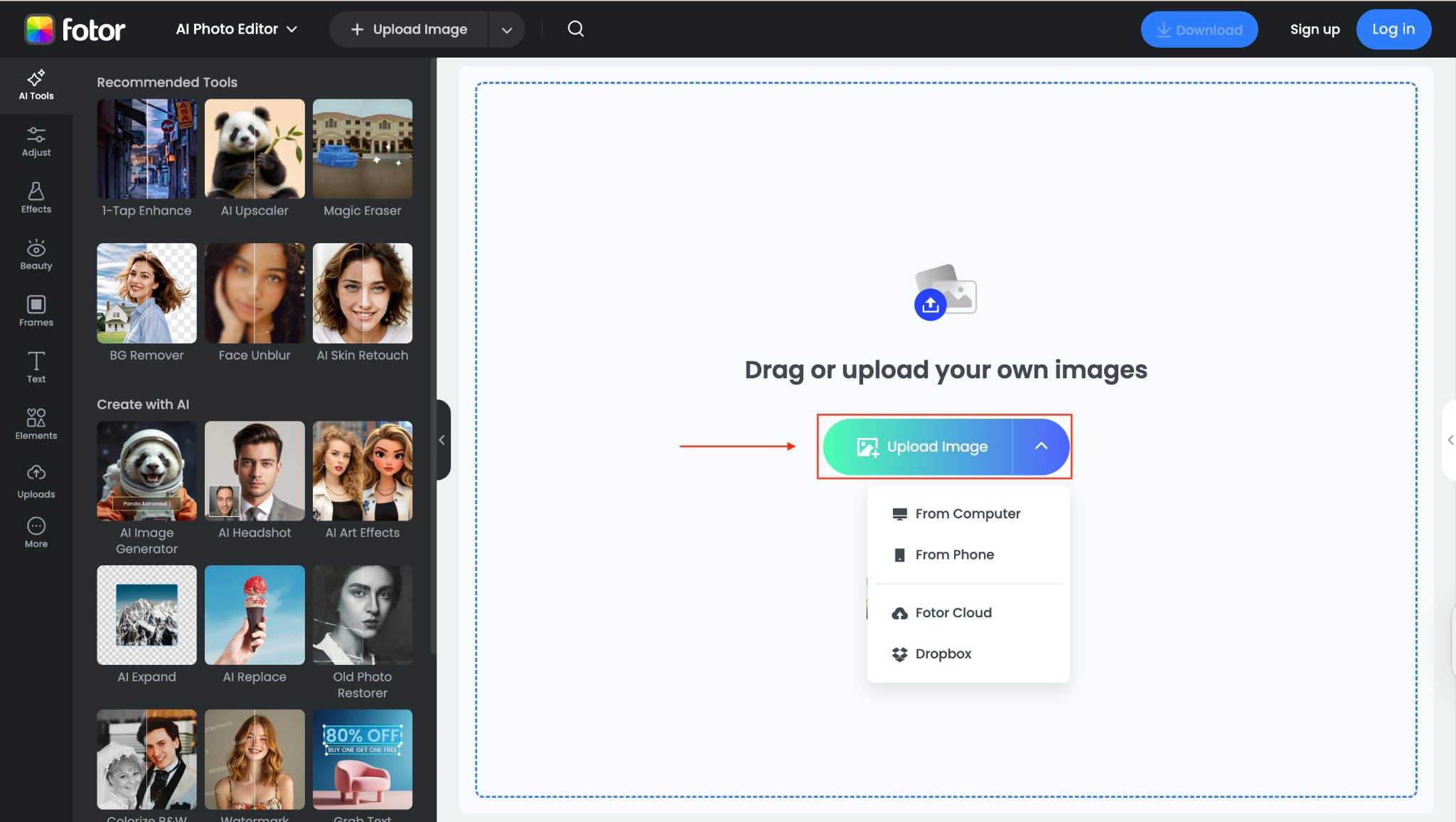
Step 1: On the homepage, click "Edit Photo for Free," and upload the image.
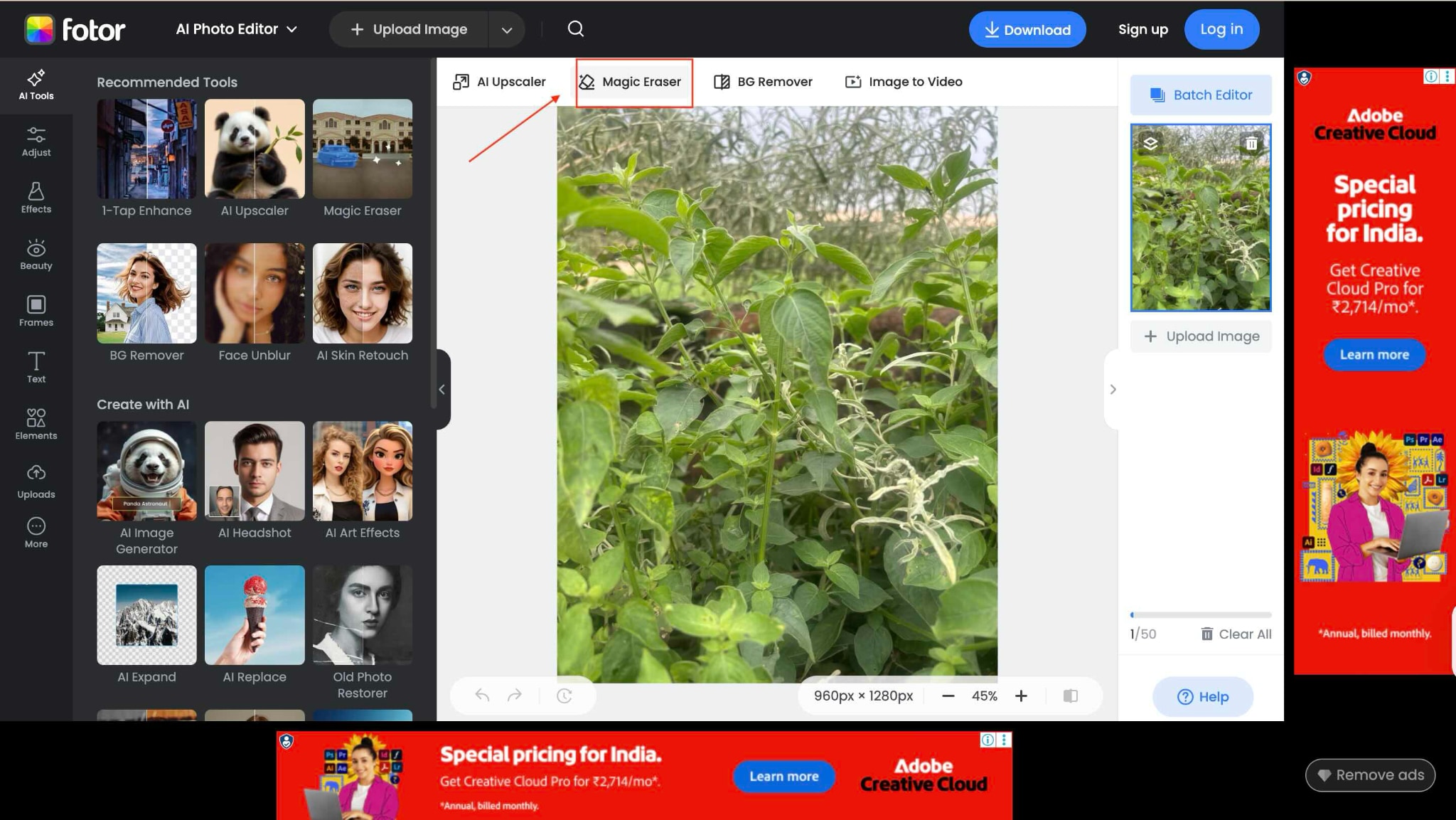
Step 2: After uploading the image, choose "Magic Eraser."
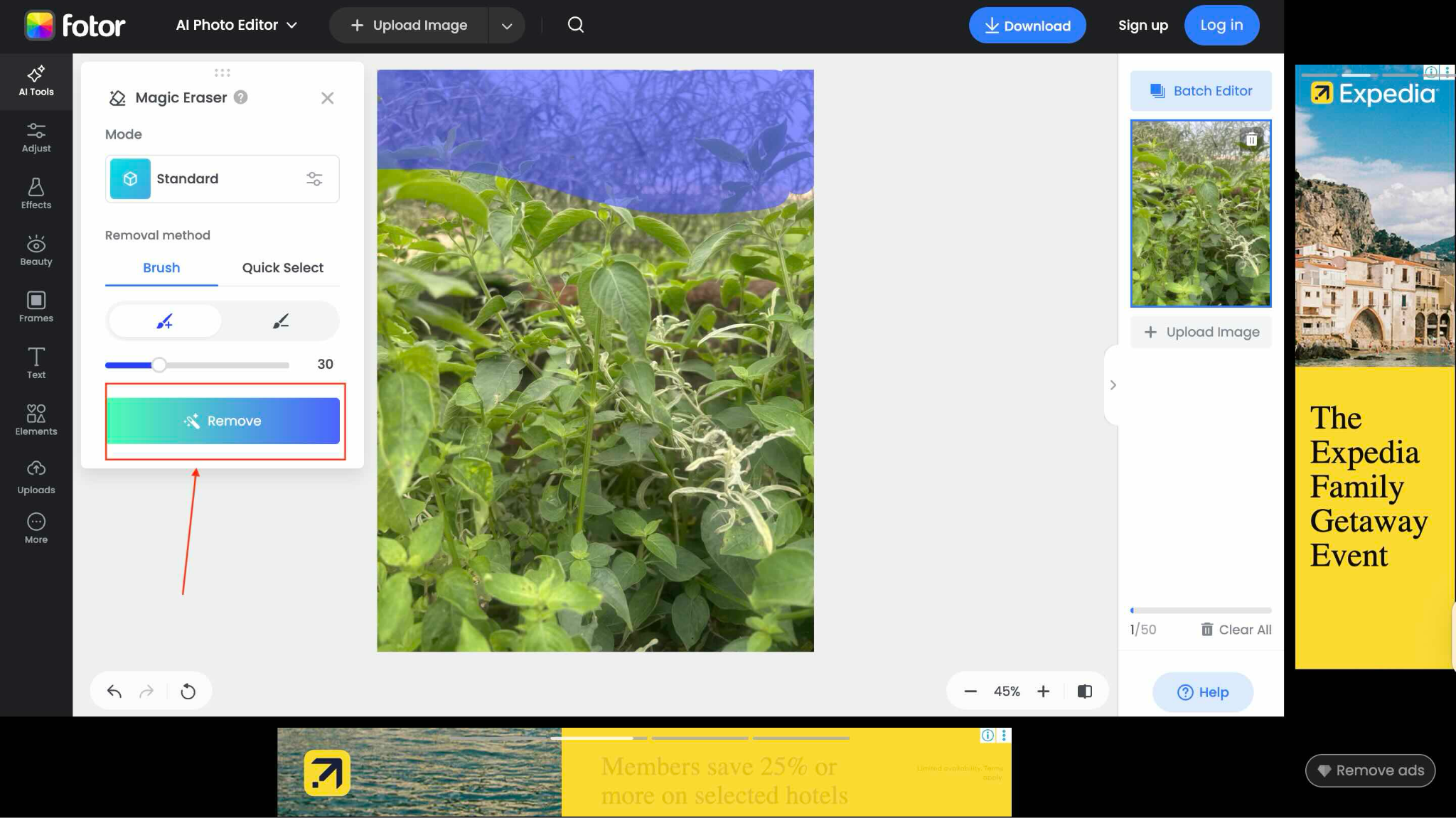
Step 3: Adjust the eraser size and remove the object that you want to remove from the image.
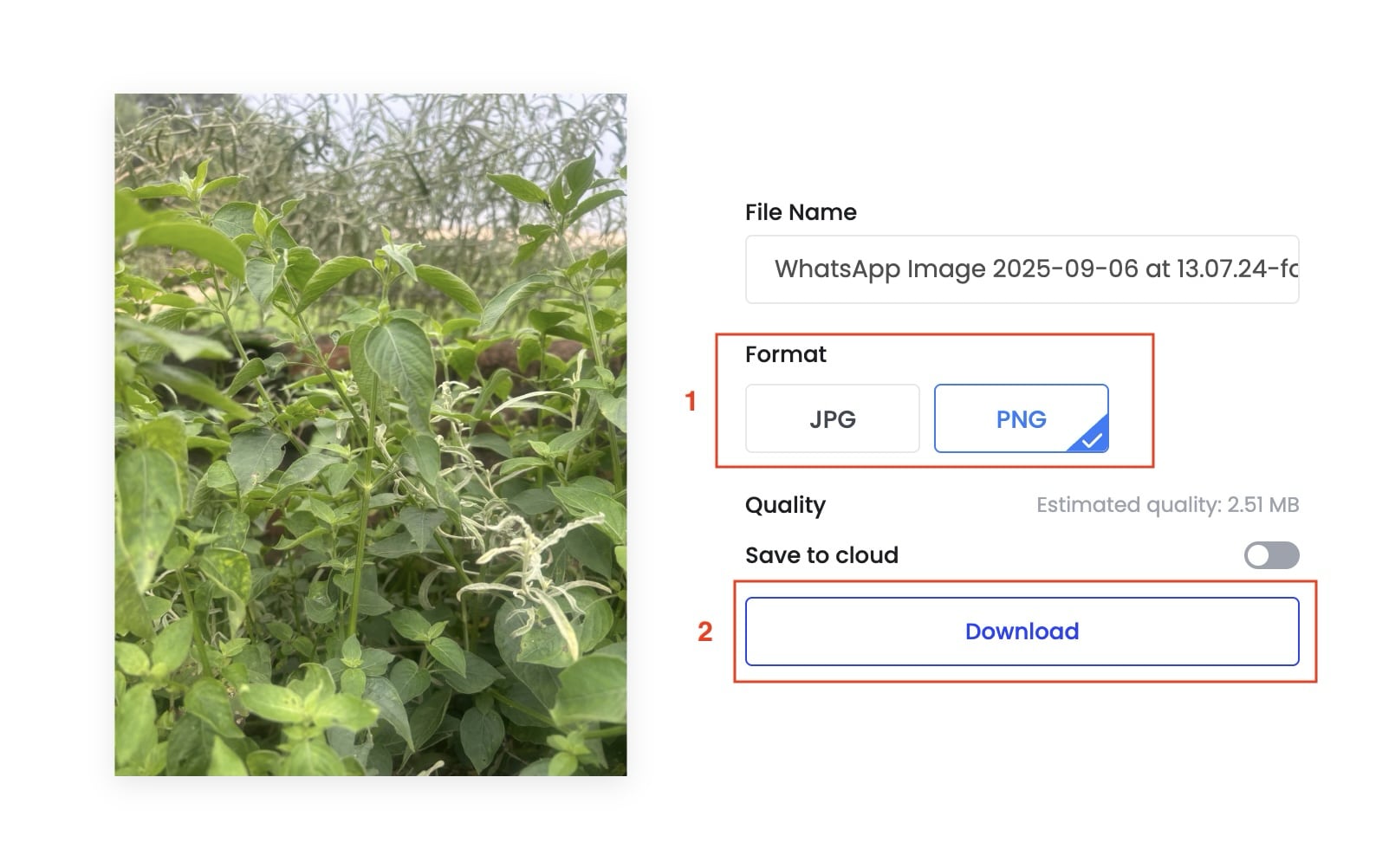
Step 4: Click the download button and save the image in JPG or PNG format.
Best for: Effortlessly removing photobombers and unwanted objects from images, even for beginners.
Part 3. Method 3: Remove Photo Bombers With AI Image Editor
Bylo.ai is an all-in-one AI image generator and editor that makes photo cleanup effortless. With its Nano Banana AI, you can instantly remove unwanted photobombers, logos, or distracting objects while keeping your photo natural and sharp. Beyond cleanup, Bylo.ai also offers powerful tools for style transfer, background swaps, and character edits all in one platform.

How to use Bylo AI to Remove a Photobomber from an Image
Take these simple steps to erase a photobomber:
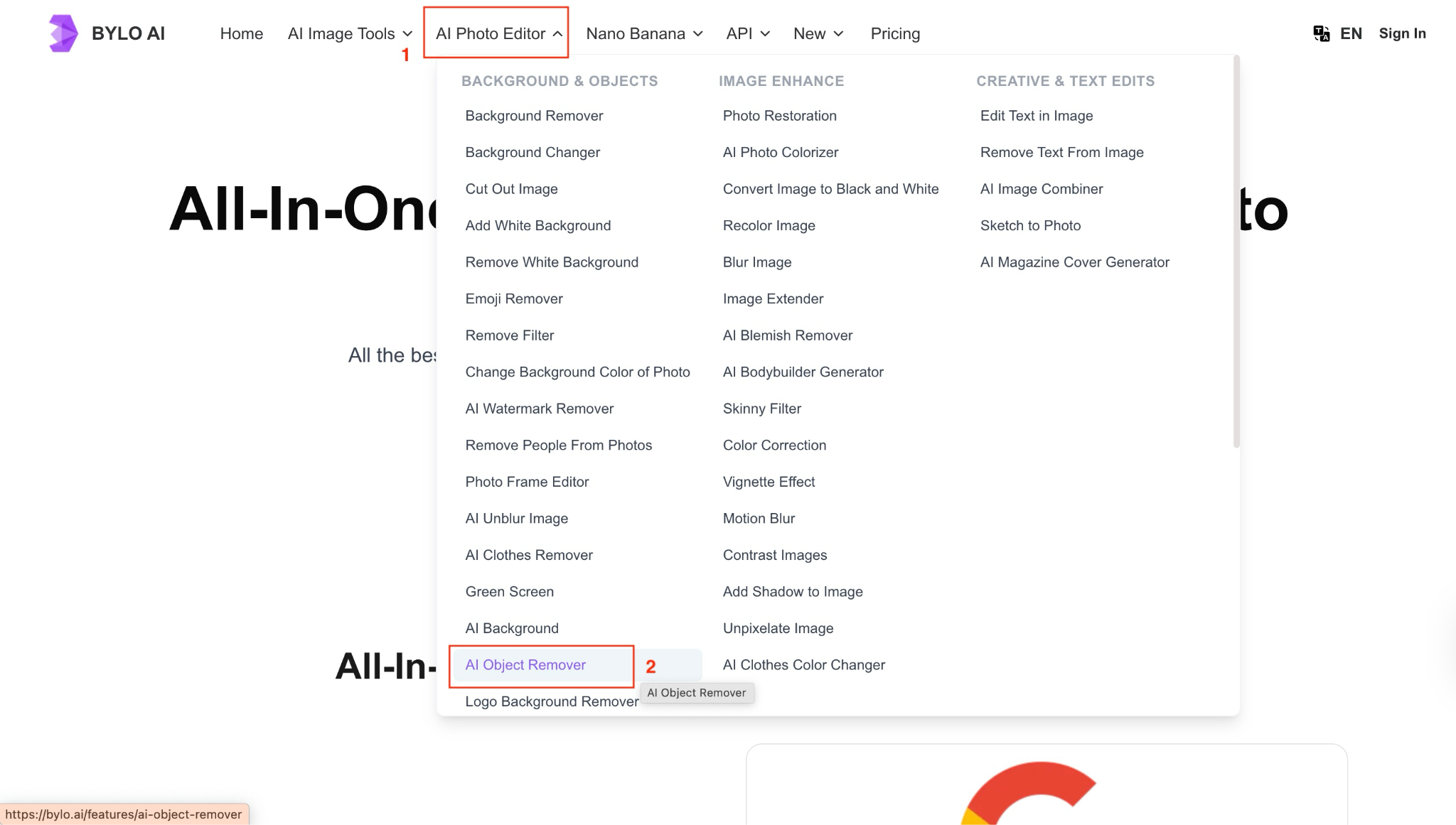
Step 1: On the homepage, click "AI Photo Editor," and choose "AI Object Remover."
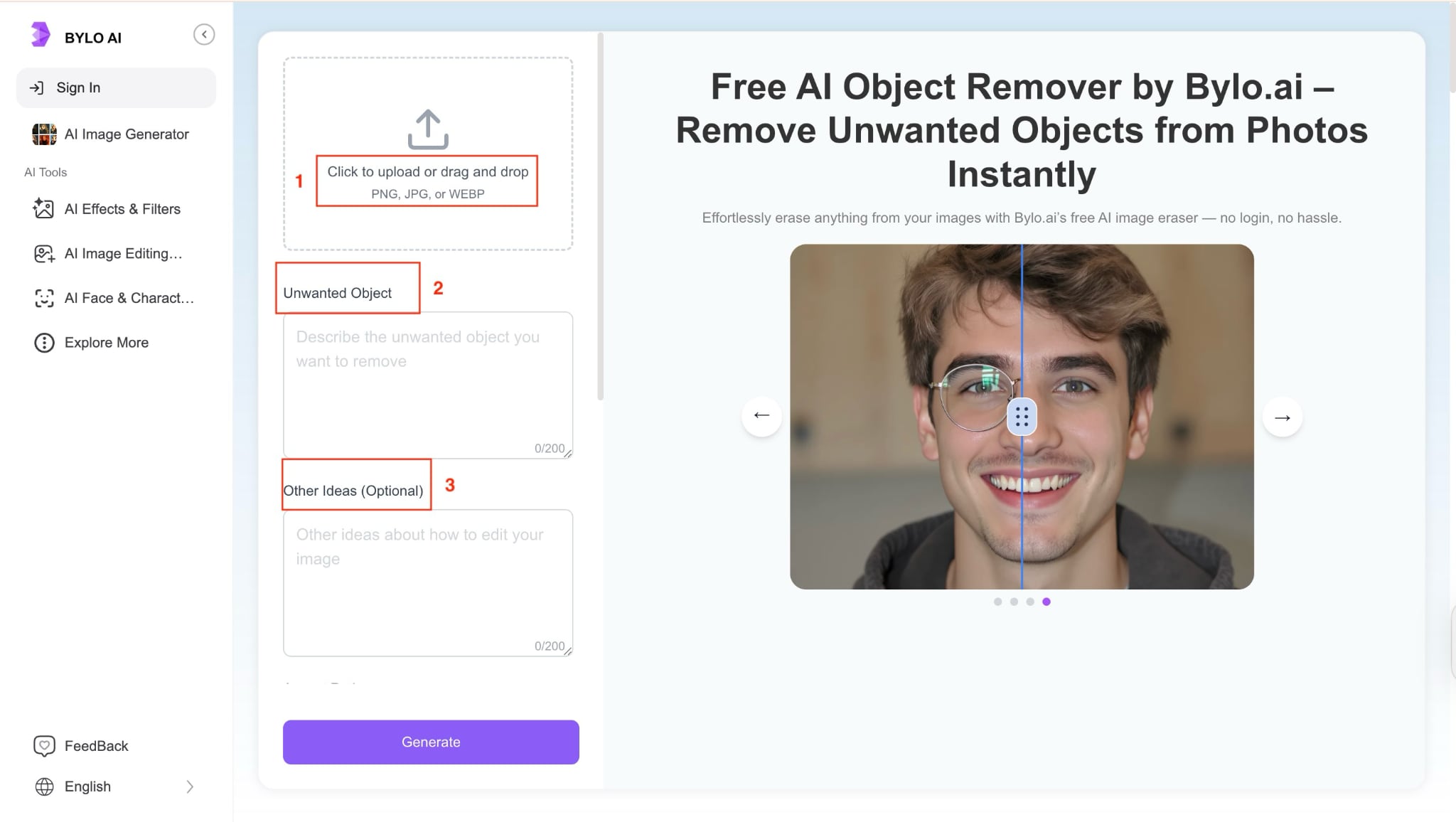
Step 2: Upload the image, describe the unwanted object, and give other ideas related to image editing.
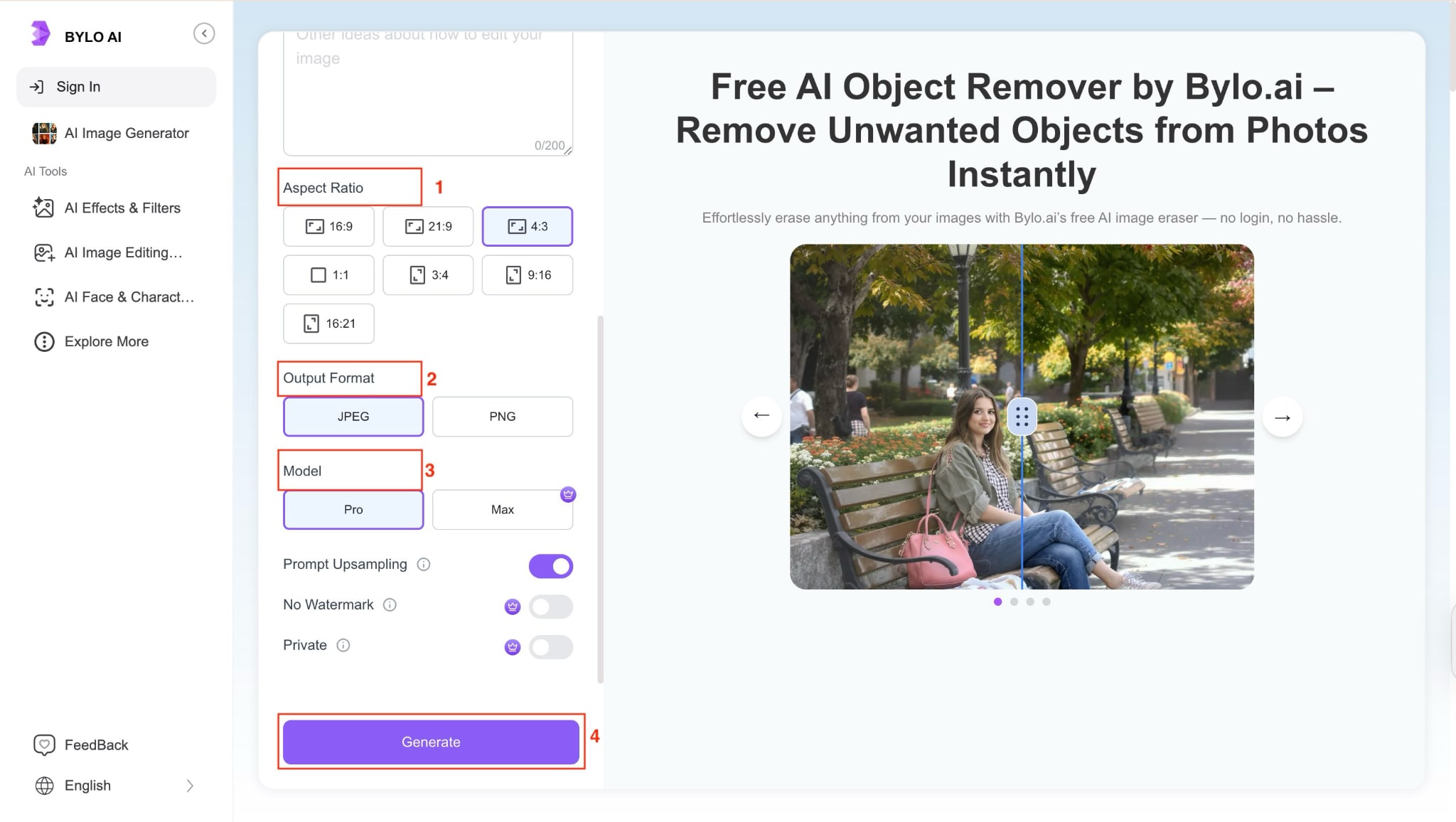
Step 3: Choose the Aspect ratio, output format, and model, and click the "Generate" button.
Best for: Quickly removing photo bombers and unwanted objects with AI precision.
Part 4. Bonus: How to Batch Remove Photo Bombers Easily
Wondershare UniConverter offers Watermark Remover, which makes removing watermarks from an image or video super easy. All you need to do is upload multiple images simultaneously, choose the unwanted area, and the magic is done. Apart from watermarks, you can also use it to along with the watermark remover feature, you can remove the background and add new content, create a thumbnail, and use the image enhancer for low-quality images. You can even use it to remove unwanted pimples from photos.

How to Remove Photo Bomber with Wondershare UniConverter
Take these simple steps to get a distraction-free image with one click:
Step 1: On the homepage, navigate to “Image > Watermark Remover.”
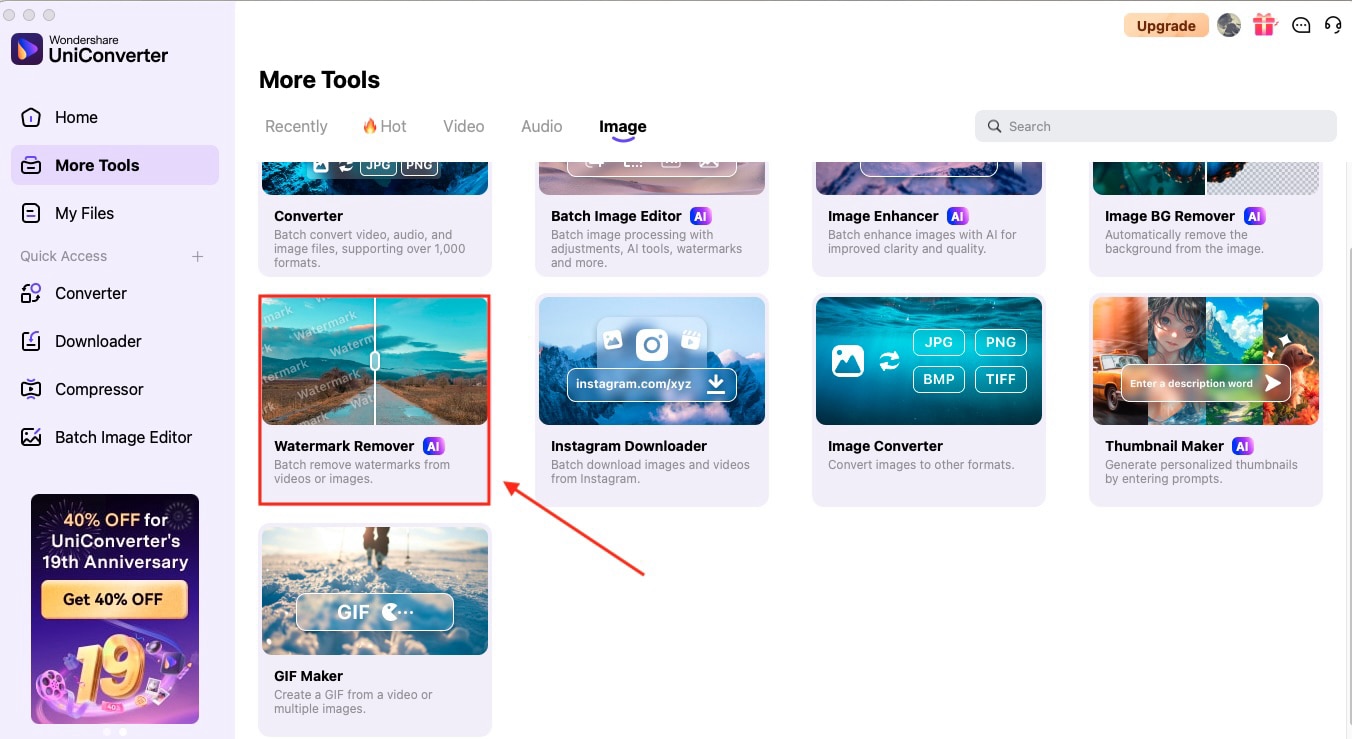
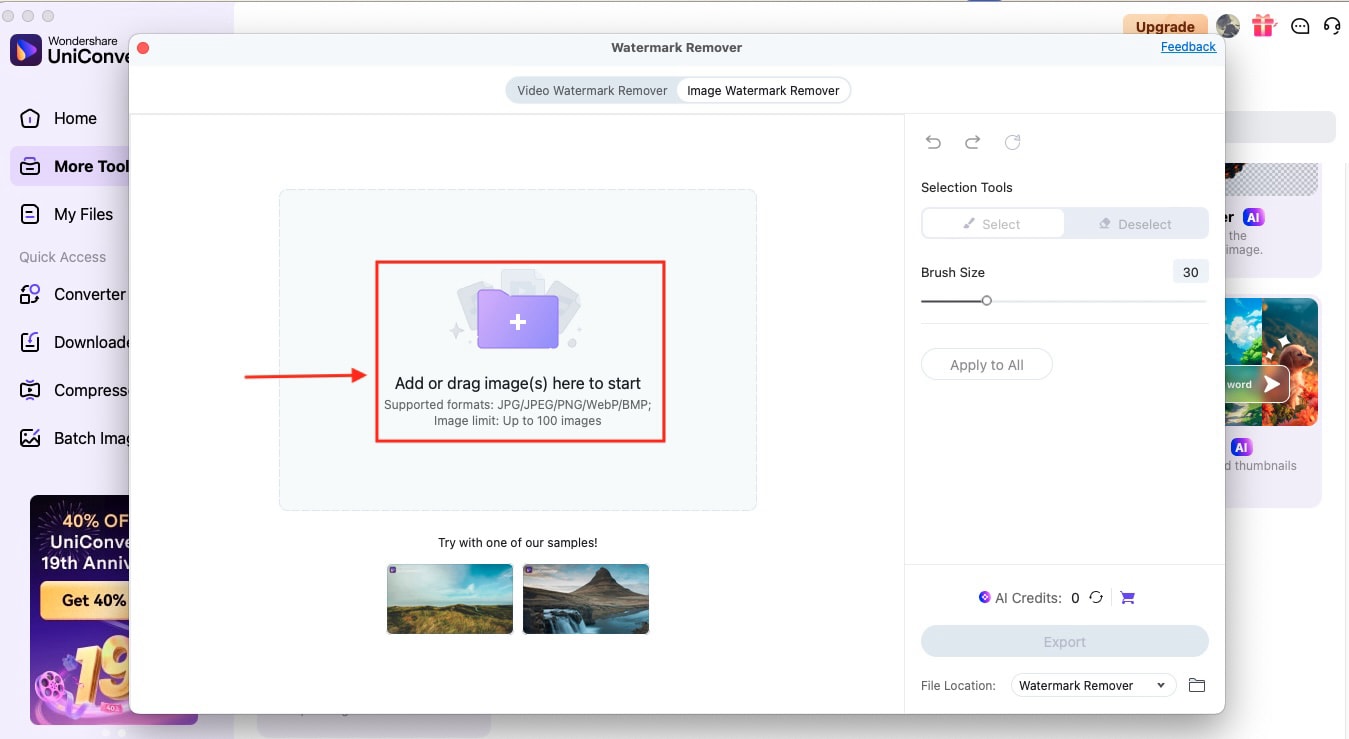
Step 2: Add or drag and drop the image. You can upload up to 100 images at once.
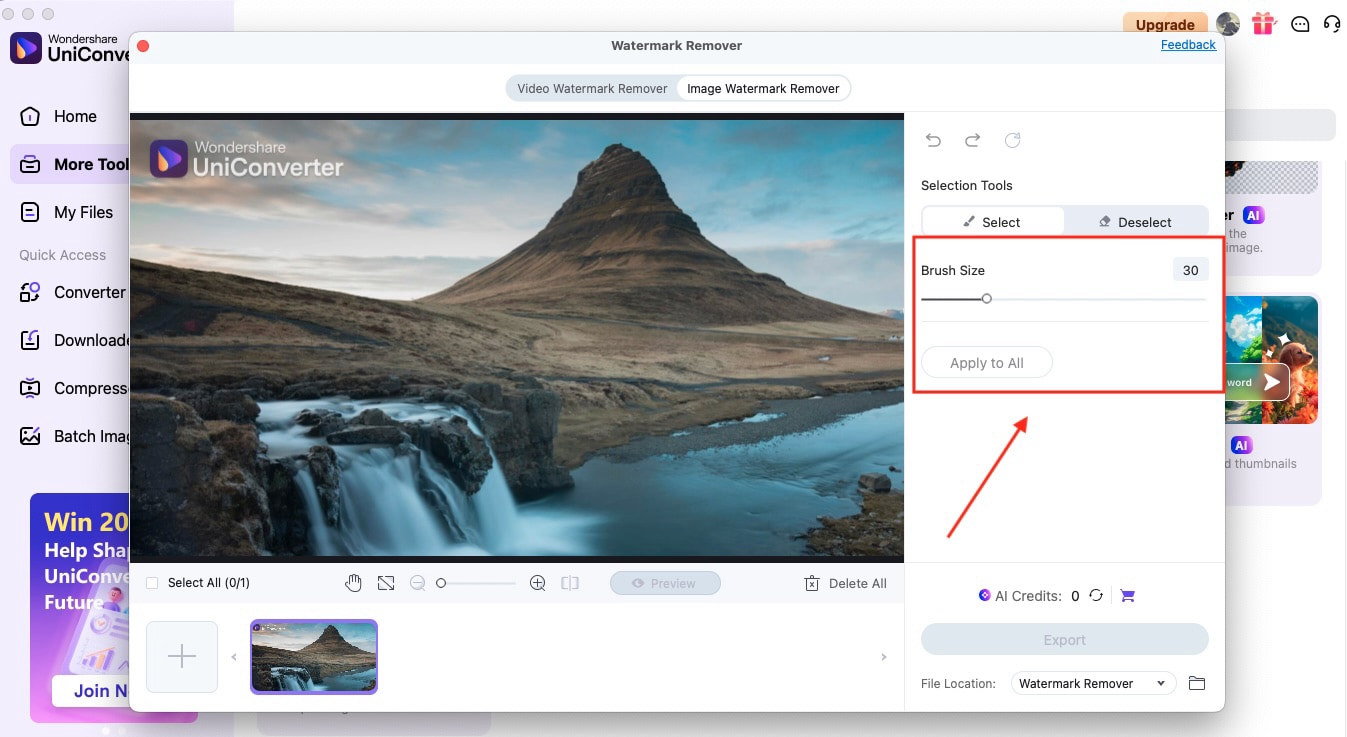
Step 3: Select the brush size and remove the unwanted object or watermark from the image.
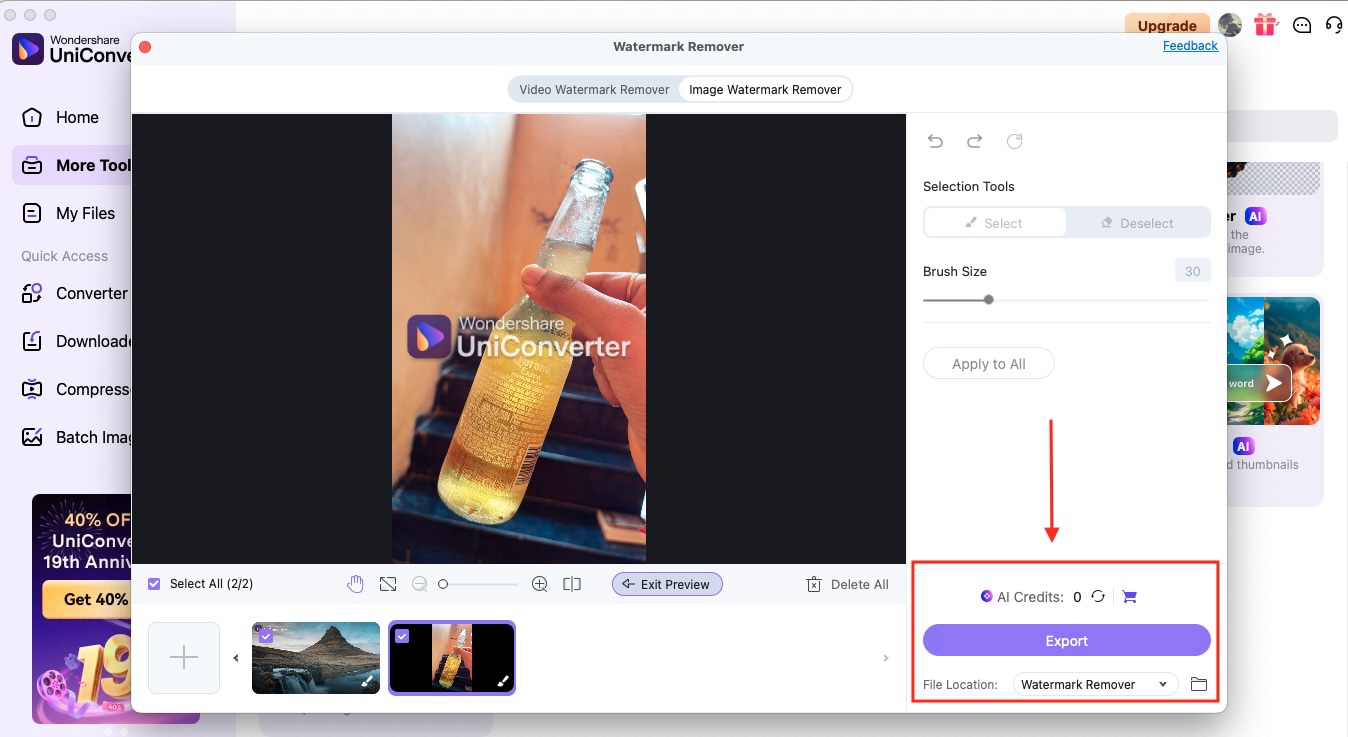
Step 4: Your images without the photo bomber are ready. Click on the “Export” button and save the final image.
Part 5. Understanding the Tech: How AI "Erases" People So Perfectly
Classic Healing/Clone Stamp tools work by copying existing pixels from one part of your image to another. When you use the clone stamp tool, it samples pixels from a source area and paints them over the target area. This method works well for simple textures, such as grass, sky, or water, but it can appear obvious when applied to complex backgrounds.
Generative AI tools take a completely different approach. Instead of just copying existing pixels, these tools analyze your entire image and create new pixels that match the context. They understand what should logically be behind the photoomber and generate realistic content to fill that space.
The AI considers factors like lighting, perspective, texture, and even architectural elements to create believable backgrounds. This is why AI-powered photobomber eraser tools often produce more natural-looking results, especially in complex scenes with buildings, crowds, or intricate patterns.
For example, if someone is standing in front of a brick wall, classic healing tools might create repetitive brick patterns that look unnatural. Generative AI, however, can create varied brick textures that match the lighting and perspective, making the removal virtually undetectable.
Conclusion
You no longer need to let photobombers ruin your perfect shots. Whether you choose mobile apps for quick on-the-go fixes, online editors for detailed control, or advanced AI tools for complex removals, there's a photobomber remover solution that fits your needs and skill level. The key is selecting the right tool for your specific situation and leveraging these powerful technologies to preserve your memories exactly as you want them.
Super Easy to Use Photobomber Remover
FAQs
-
1. What is a photobomber?
A photobomber is a person or object that unintentionally or intentionally appears in the background of your photo and often spoils the intended shot. -
2. Which mobile app is best for removing photobombers?
YouCam Perfect and PhotoDirector are among the best apps for removing photobombers. They offer fast, effective results and are free to use. -
3. Are online tools safe for editing?
Yes, reputable platforms like Fotor, Pixelcut, and Cleanup are safe for editing. -
4. What's the difference between clone tools and AI removers?
Clone tools copy nearby pixels to cover the unwanted area, while AI removers use machine learning to reconstruct entire backgrounds, making edits look more realistic. -
5. How can I batch remove photobombers from many photos?
Wondershare UniConverter and some advanced editors include batch editing features, which help quickly remove photobombers across multiple images.