


In 2025, flawless photos are just a few clicks away, thanks to a variety of free and easy-to-use tools designed to remove pimples and blemishes. Whether you're preparing images for social media, professional portfolios, or personal memories, you can easily enhance them. However, if you are still wondering how to use such options to remove a pimple from a photo, the following guide is for you.
In this article
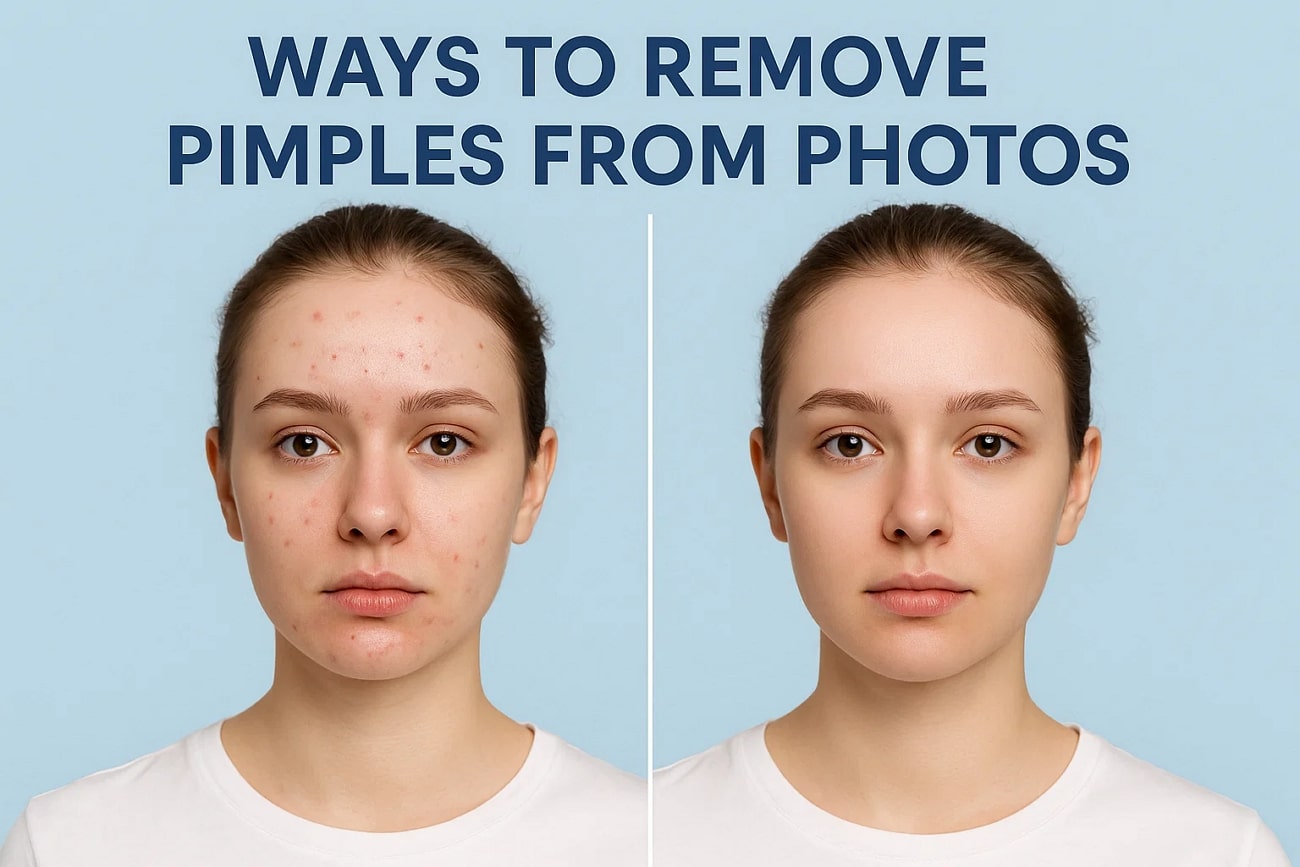
Part 1. Top 5 Free Pimple Remover Apps for Flawless Photos
Now, if you are eager to know how to remove wrinkles from a photo flawlessly, go through the following section:
1. UniConverter
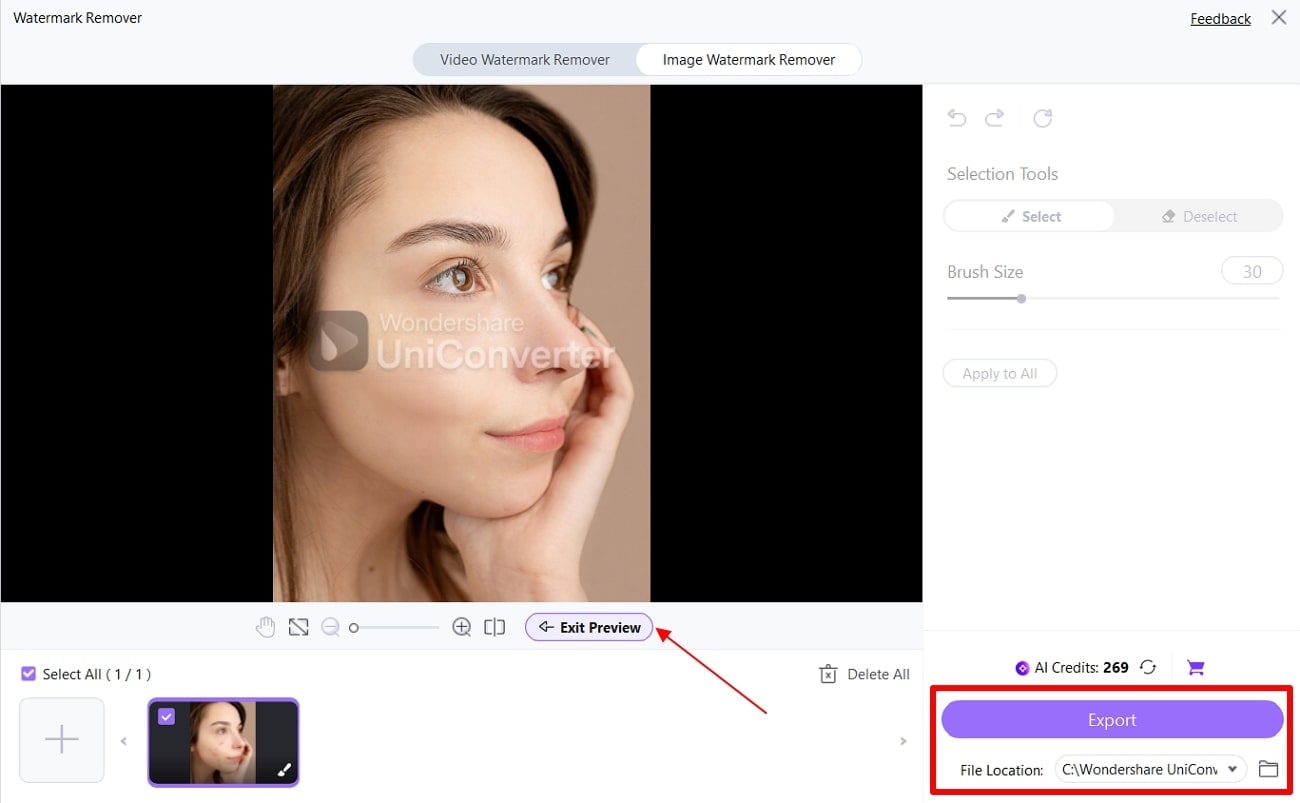
When talking about unique AI options, Wondershare UniConverter fills in the blank with its dedicated watermark removal function. To help remove pimples from photo with ease, the AI functionality within UniConverter works under a basic selection model. Through simple brushes, users can customize their photos and make them look fresh in no time.
UniConverter does not restricts itself to this basic pimple removal procedure but offers a wide range of media management features. With a support of a wide range of image and video formats, the tool can be used for conversion, compression, and several other procedures. Its batch processing ability helps you in performing various operations, including removing pimples from multiple photos.
Key Features
- Quality Assurance: The dedicated facility of pimple removal in UniConverter ensures maintaining the quality of the imported image after processing.
- AI Image Enhancer (Online): You can easily enhance the quality of your image using the associated AI models within UniConverter.
- Files Compressor(Online): For large file management, UniConverter allows its users to compress the file size while maintaining its quality.
Detailed Guide to Remove Pimples from Photos With UniConverter
Hereafter, knowing about its key features, if you are eager to use its watermark removal feature for removing pimples, then go ahead:
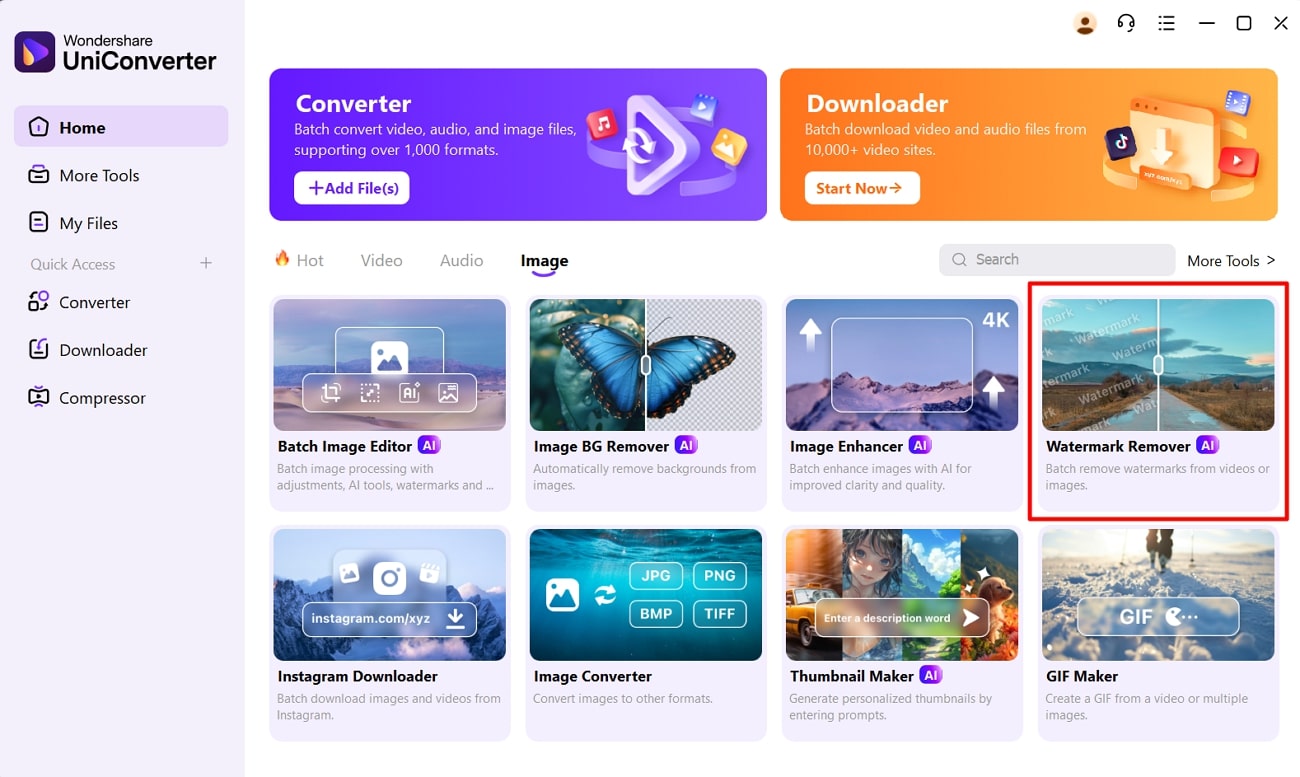
Step 1. Access the Tool and Select Watermark Removal
Upon entering UniConverter’s interface, navigate to the “Image” section and choose “Add Files” across “Watermark Remover” tool for initiating the process.
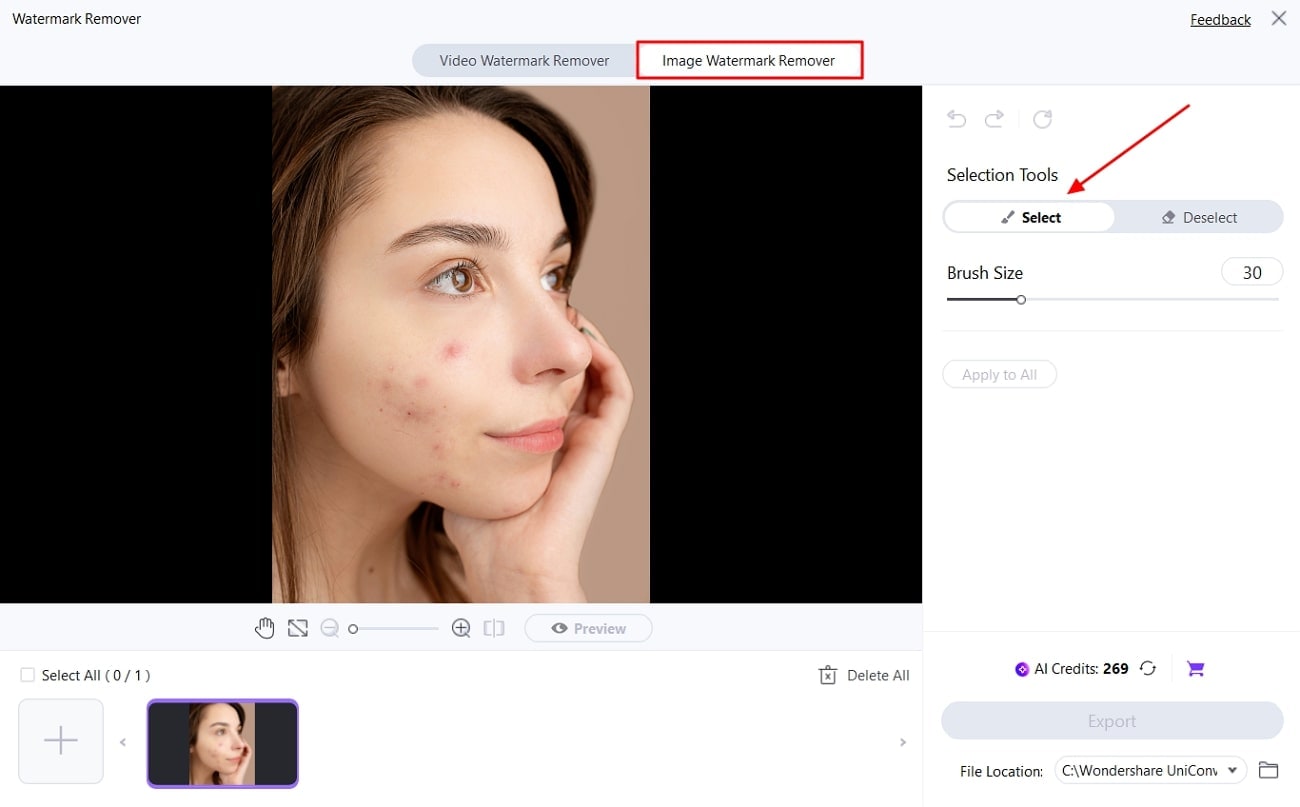
Step 2. Import the Image and Choose Image Watermark Removal
Within the “Image Watermark Remover” section, choose “Select” among the Selection Tools and mark all areas of pimples.
Step 3. Export the Pimple Removal Process
After selecting the area, use the “Preview” button to quickly perform the process and view the AI results. If satisfied, define your file location and click the “Export” button for concluding the watermark removal process.
2. Native Phone Editors (iOS & Android)
Best For: Casual pimple removing process with easy operations.
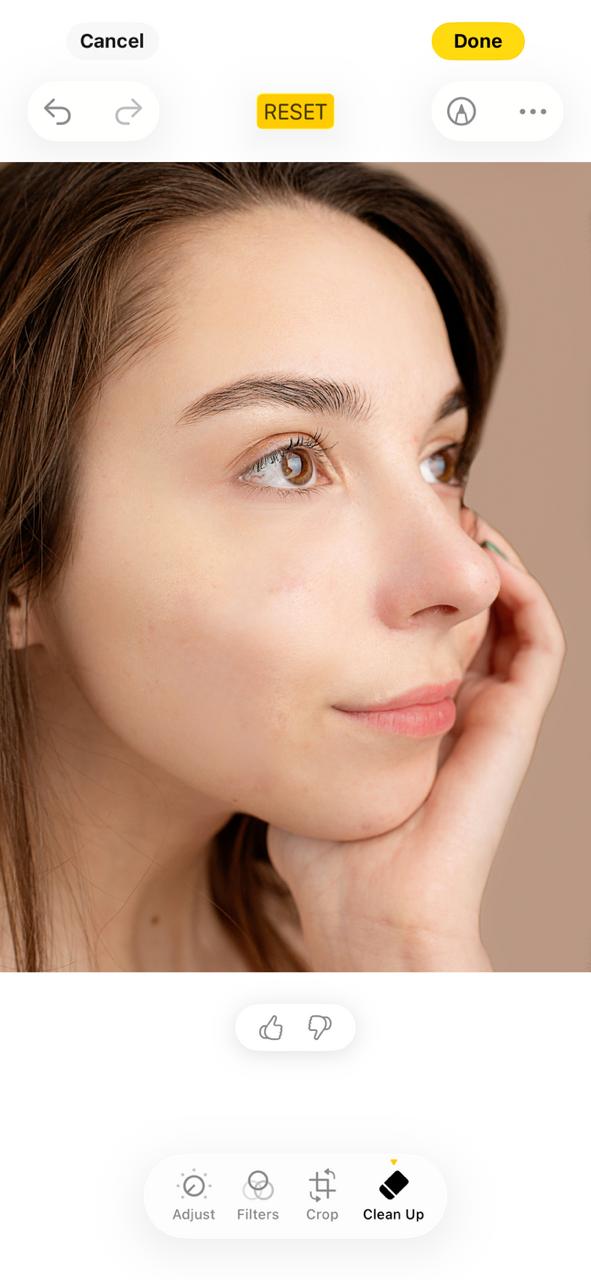
As an iOS or Android user, many dedicated AI functions are being introduced within their native editors, allowing them to remove blemishes from images. Taking an example of the native Photos App in iOS devices, the newly introduced “Clean Up” feature in the platform allows users to remove such elements from their photos through simple tap.
3. Social Media (like SnapChat) In-App Editing
Best For: On-the-Go editing across social media applications without shifting to other options.
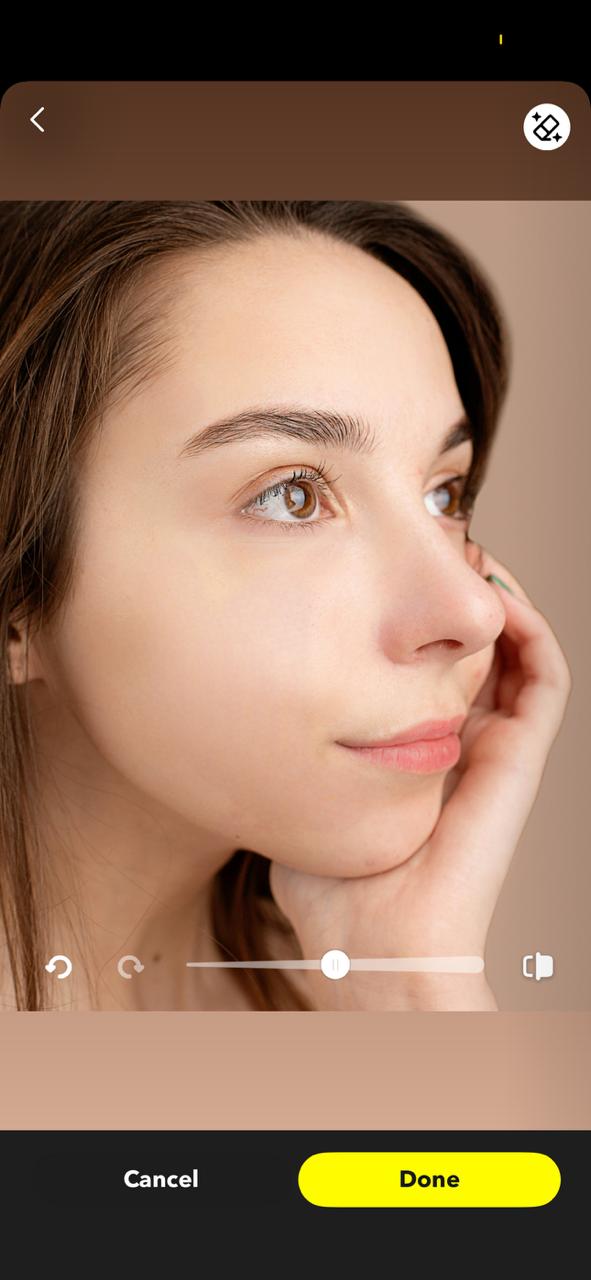
To your surprise, there are various social media platforms which are now offering basic photo/video editing facilities. Out of them, Snapchat has turned out to be a progressive option to remove pimples from a photo instantly. Its Magic Eraser tool utilizes AI to detect the uneven skin tone and remove blemishes. Instead of reaching out tools for this purpose, users can quickly make significant changes and post their photo instantly.
4. Fotor
Best For: Quick and easy photo retouching with online editing preference.
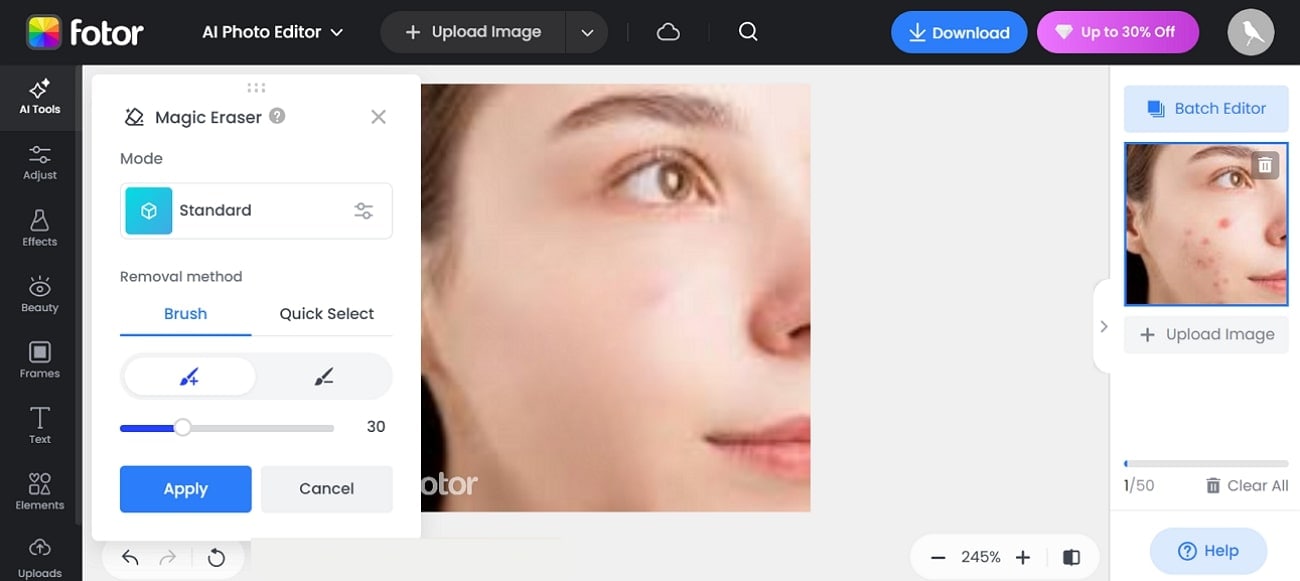
This pimple remover picture editor is designed to keep the natural skin texture intact while removing imperfections. Users need to simply upload their imperfect image and use Fotor’s Magic Eraser to remove the unwanted pimples from the skin. Furthermore, it also offers additional editing options like skin smoothing for future image enhancement.
5. Media.io
Best For: Users looking for a fully free, browser-based solution.
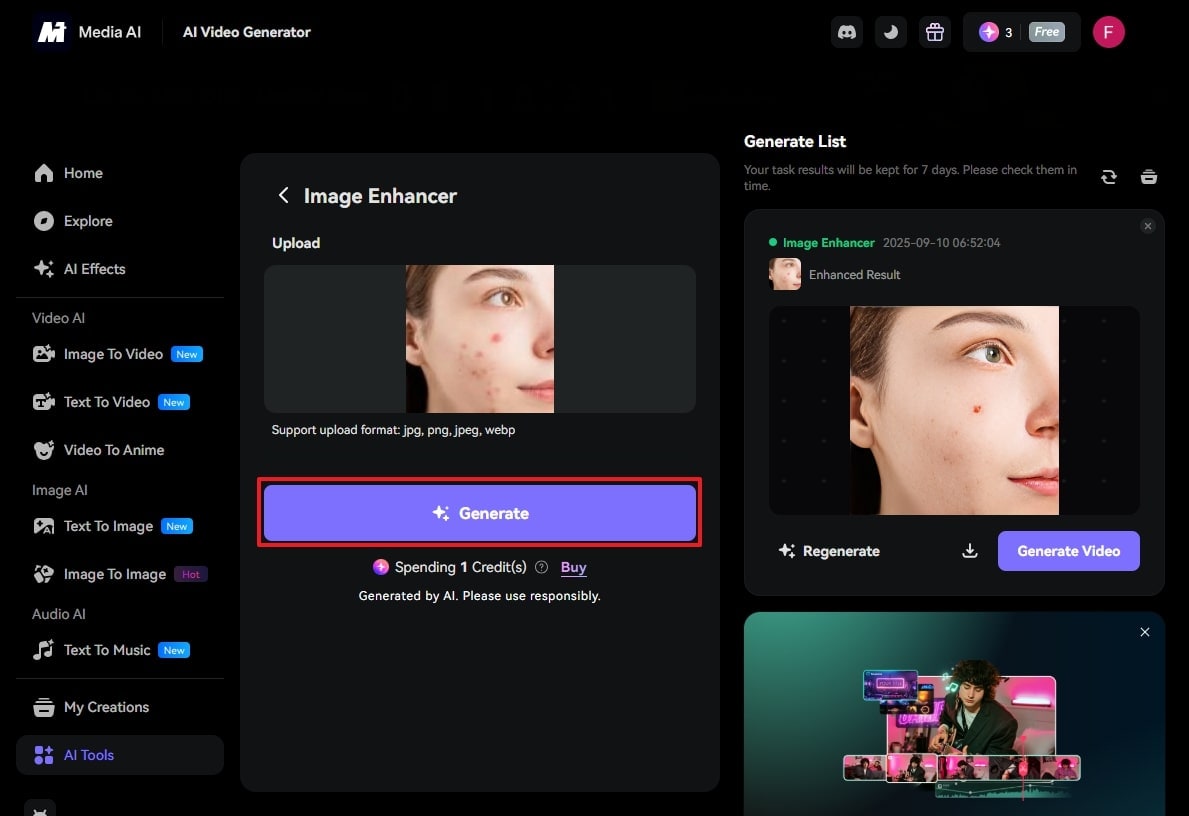
This tool uses AI to accurately detect and remove facial blemishes like pimples, acne, freckles, and sunburn spots. It provides a user-friendly interface as users simply upload their images, and it will remove blemishes in just one click. Media.io supports multiple file formats, including JPG, JPEG, PNG, and BMP. The foremost advantage of this editor removes pimple is its protection policy for images uploaded across the platform for processing.
Part 2. Quick Comparison Table of the Best 5 Free Pimple Removers for Photos
For your better understanding, here we have provided a detailed breakdown of the photo editors to remove pimples in the following section:
| Features | UniConverter | Native Phone Tool |
Snapchat (Social Media App) |
Fotor | Media.io |
| Supported Devices | Windows, Mac, Online | Specific Mobile Models | Android, iOS | Web, Android, iOS, Windows, Mac | Online |
| Batch Processing System | Yes | No | No | Limited batch (desktop app) | No |
| Ease of Use | User-friendly, AI-driven, drag-and-drop | Simple tap & clean interface; easy for quick fixes | Very simple with AI-powered filters and quick retouches | Intuitive AI tools plus manual options | One-click online AI removal |
| Effect Quality | High precision, pixel-level removal | Good for small blemishes; some limitations in complexity | Immediate but can be overly smooth; less precise | Natural skin texture retention, moderate control | Natural results; fully automated AI removal |
| Advanced Controls | Manual brush for detailed correction | Minimal manual control; mostly automatic | No manual brush; AI automatic | Manual brush size, multiple retouch tools | No manual edits, full automation |
| Offline Capability | Desktop app supports offline | Native iOS app - offline available | Requires app only | Online mostly; some offline app functionality | Requires the internet for online service |
| Additional Features | Video watermark and object removal | Video editing with retouch on Mac | Filters, stickers, and video editing | Skin smoothing, wrinkle removal, and teeth whitening | AI emphasizes blemish removal only |
| Photo Format Support | Wide video & image support | Standard image/video formats | Standard image/video formats | JPG, PNG, and others | JPG, PNG, BMP |
| Speed of Editing | Fast batch and individual processing | fast for simple touch-ups | Instant effect, real-time | Fast processing, slight delay on big files | Quick online, seconds per image |
| Learning Curve | Low to moderate | Low | Low | Low, beginner-friendly | Very low, zero skills needed |
| Privacy and Security | Local processing with the desktop option | Native app, strong privacy | Data usage depends on app policy | Depends on online or offline mode | Online service, good policy, but cloud upload is required |
Part 3. The Don’ts: Common Mistakes That Hold You Back
While you get rid of pimples, we have narrowed down some of the mistakes that you can consider, so go through the following section:
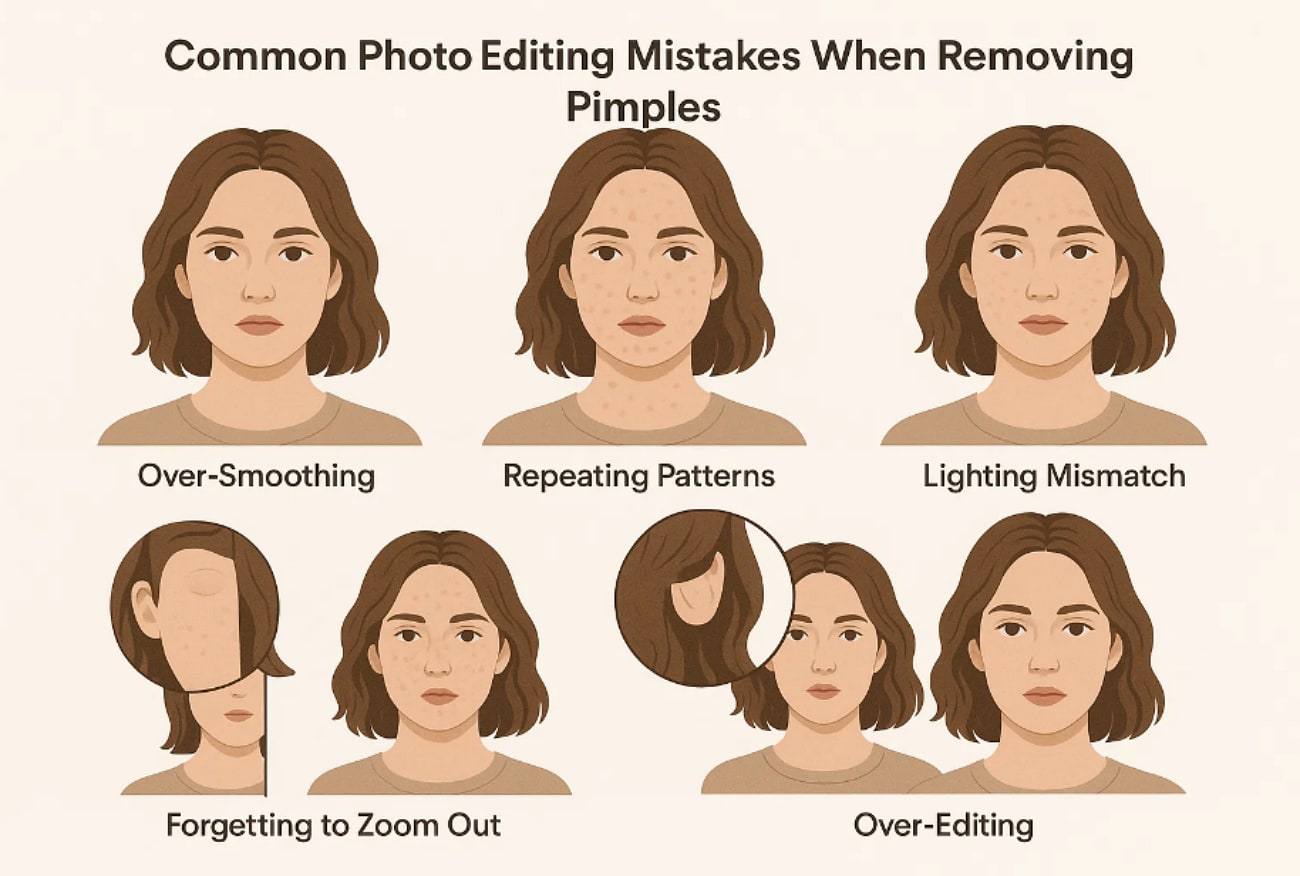
Over-Smoothing: Users should not apply heavy blur tools to remove pimples, which can result in pictures looking fake and plastic-looking eventually.
Creating Repeating Patterns: Using tools like Clone Stamp without re-sampling, frequent copies of the tool can create the same repetitive texture several times, which can result in an unnatural finish.
Ignoring Lighting: If you sample the wrong area with different lighting from the blemished area, it can lead to edited spots that are clearly visible.
Forgetting to Zoom Out: Sometimes you only see images when it's zoomed in, and it looks perfect there, but you forget to check it by zooming out, which turns the image grainy.
Try to Remove Every Single Imperfection: In many cases, people try to nullify even a single blemish on the face, but after doing this, the face starts looking artificial instantly.
Part 4. Bonus: How to One-Click Batch Smooth Your Skin in Photos
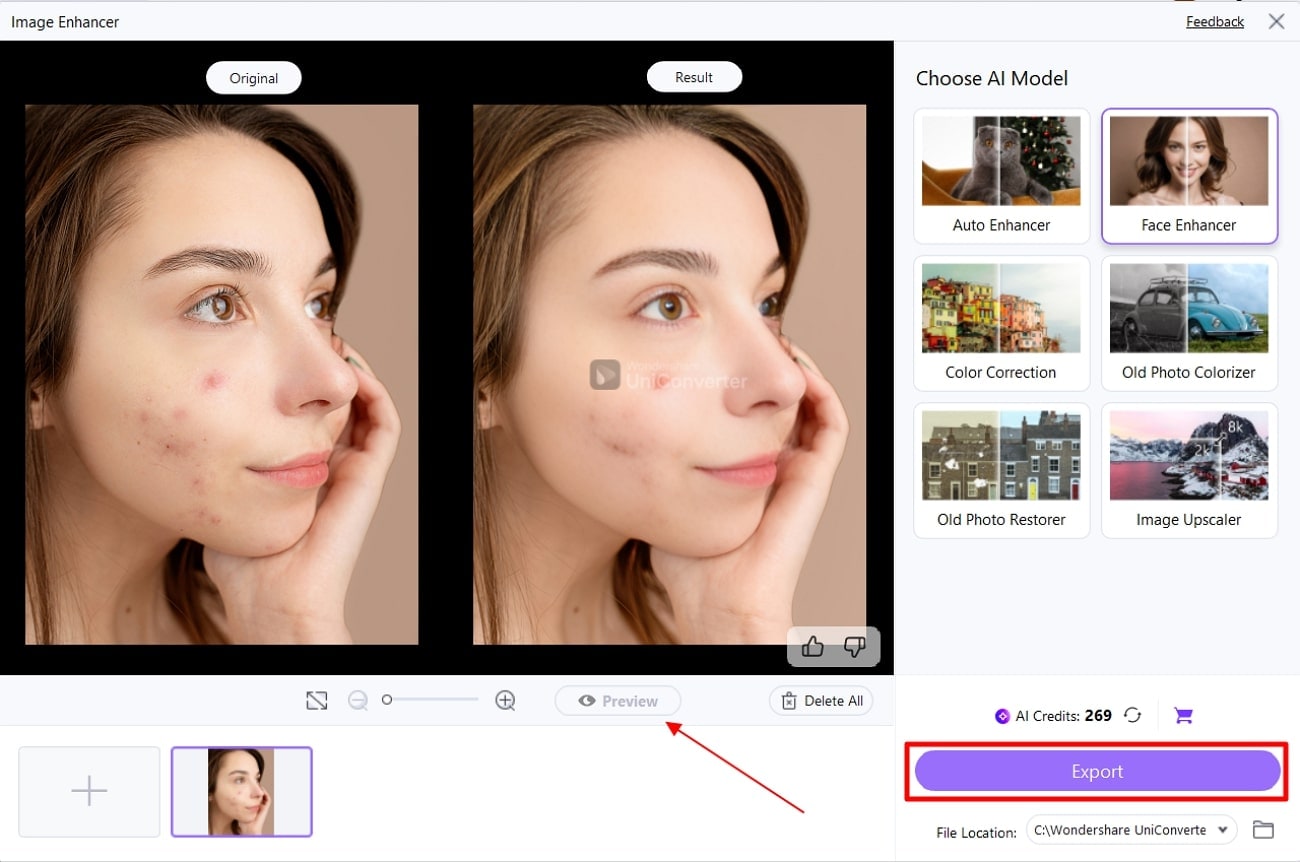
Besides the above-discussed tools, if you wish for an advanced pimple remover picture editor, UniConverter fulfils this position. This tool provides you with a specific "AI Image Enhancer" feature that efficiently detects faces in the image to remove blemishes. Within this model, there is a variety of options available that helps you enhance and upscale your images.
While enhancing images, you can utilize the batch processing system of UniConverter to smoothen out the skin across all the images at once. Designed for beginners, it provides an intuitive interface where you simply even-tone your skin without having any technical skills. After enhancing your image, it also lets you choose the desired location to save your generated outcome.
Expert Guide to Use UniConverter to Smoothen Your Skin
Now, if you are eager to know how to use UniConverter effectively to remove wrinkles from a photo, then follow the given steps:
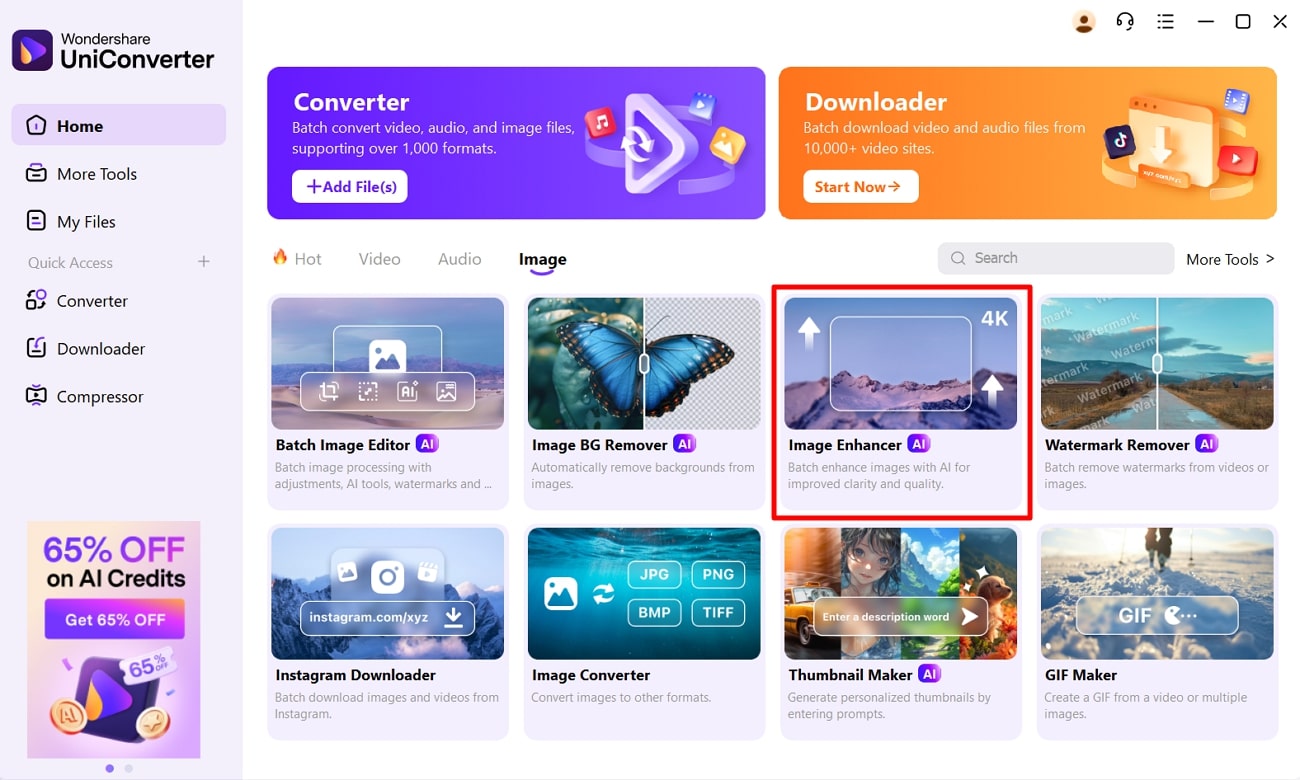
Step 1. Launch the Tool and Choose the Image Enhancer Tool
After entering the UniConverter app, click on the “Image” tab and select the “Image Enhancer” tool to get into the next interface.
Step 2. Import Your Desired Image to Enhance It
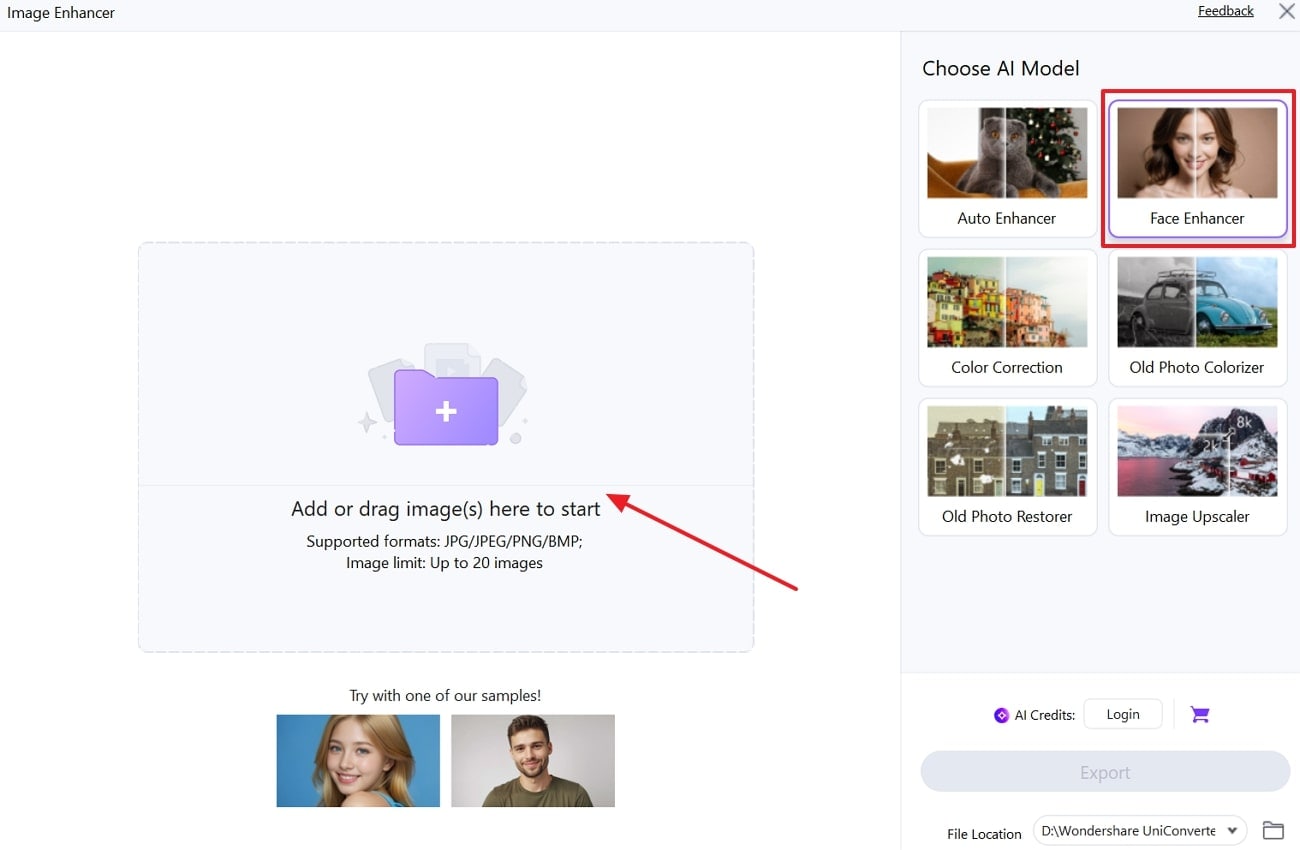
As you are navigated into a new window, add your images using the “Add Files” option and choose the “Face Enhancer” model from the right.
Step 3. Perform Face Enhancement and Export
With the AI model selected, use the “Preview” button to examine the generated results before downloading it using the “Export” button.
Conclusion
Summing up, in this article, we have discussed the efficient methods to remove pimples from photos instantly. However, among those tools, we found UniConverter at the top as it provides various AI models along with the face-enhancing model. We have also narrowed down some mistakes that you should avoid while removing blemishes with tools.
Frequently Asked Questions
-
1. How do these apps remove pimples and blemishes?
Most pimple remover picture editors use AI to distinguish pimples on the face. However, some tools require manual selection by using their Magic Eraser tool to remove unwanted areas. -
2. Can I remove pimples from photos online without downloading apps?
Yes, absolutely. Users can easily remove pimples and blemishes from their images by simply accessing any reliable web-based tool. There are many tools available, including Fotor, Media.io, and Aragon.ai, which are free to use. -
3. Will removing pimples affect the photo quality?
Image quality depends on the tool you are using for the removal of pimples. You should always opt for an advanced yet reliable tool that generates great results while not compromising image quality. -
4. Which tool is best for professional-level pimple removal?
There are numerous tools available worldwide catering to different audiences of both beginners and professionals. However, we recommend using UniConverter, which provides advanced features to upscale and refine your images.

