User Guide
How to use Wondershare UniConverter (originally Wondershare Video Converter
Ultimate)?
Learn the step-by-step guide below.

UniConverter User Guide
-
Get Started for Mac
-
Video Converter (Mac)
- How to Convert Videos to Any Format on Mac | UniConverter 18
- Convert DVD to Video | Wondershare UniConverter for Mac
- Mute Video | Wondershare UniConverter for Mac
- Add Audio to Video | Wondershare UniConverter for Mac
- Convert 4K and 8K Videos | Wondershare UniConverter for Mac
- Batch Convert Video Formats | Wondershare UniConverter for Mac
- Convert Videos to MP3 | Wondershare UniConverter for Mac
- Convert Videos to GIF | Wondershare UniConverter for Mac
- Convert SDR Video to HDR | Wondershare UniConverter For Mac
- Convert Video to Image Sequence | Wondershare UniConverter for Mac
-
Audio Converter (Mac)
-
Video Compressor (Mac)
-
Downloader (Mac)
-
Screen Recorder (Mac)
-
Merger (Mac)
-
DVD Burner (Mac)
-
Media Player (Mac)
-
Video Editor (Mac)
- Trim Video | Wondershare UniConverter for Mac
- Add Watermark | Wondershare UniConverter for Mac
- Crop Video | Wondershare UniConverter for Mac
- Apply Effect | Wondershare UniConverter for Mac
- Add Subtitle | Wondershare UniConverter for Mac
- Audio Track Volume | Wondershare UniConverter for Mac
- How to Edit Video - Wondershare UniConverter for Mac
- Auto Video Cutter | Wondershare UniConverter for Mac
-
Tools (Mac)
- Transfer | Wondershare UniConverter for Mac
- Image Converter | Wondershare UniConverter for Mac
- GIF Maker | Wondershare UniConverter for Mac
- Fix Media Metadata | Wondershare UniConverter for Mac
- CD Converter | Wondershare UniConverter for Mac
- CD Burner | Wondershare UniConverter for Mac
- VR Converter | Wondershare UniConverter for Mac
- Subtitle Editor | Wondershare UniConverter for Mac
- How to Remove Watermarks, Subtitles & Objects from Videos on Mac
- Smart Trimmer | Wondershare UniConverter for Mac
- Background Remover | Wondershare UniConverter for Mac
- Auto Crop Video | Wondershare UniConverter for Mac
- AI Portrait | Wondershare UniConverter for Mac
- Intro & Outro | Wondershare UniConverter for Mac
- Vocal Remover | Wondershare UniConverter for Mac
- Noise Remover | Wondershare UniConverter for Mac
- MP3 Cutter | Wondershare UniConverter for Mac
- Video Stabilization | Wondershare UniConverter for Mac
- AI Image Enhancer | Wondershare UniConverter for Mac
- AI Script Generator | Wondershare UniConverter for Mac
- AI Thumbnail Maker | Wondershare UniConverter for Mac
- How to Enhance Video Quality with AI on Mac | UniConverter
- Auto Highlight | Wondershare UniConverter for Mac
- Remove Watermark | Wondershare UniConverter for Mac
- AI Subtitle Translator | Wondershare UniConverter for Mac
- Text To Speech | Wondershare UniConverter for Mac
- AI Voice Changer | Wondershare UniConverter for Mac
- How to Upscale Image | Wondershare UniConverter for Mac
- How to Crop Image | Wondershare UniConverter for Mac
- How to Rotate Image | Wondershare UniConverter for Mac
- How to Resize Image | Wondershare UniConverter for Mac
- Anime Enhancement | Wondershare UniConverter for Mac
- How to Enhance Faces in Videos with AI | UniConverter for Mac
- Adjust Speed of TTS Audio | Wondershare UniConverter for Mac
- Voice Clone | Wondershare UniConverter for Mac
- Smart Summarizer on Mac| Wondershare UniConverter for Windows
- AI Video Blur for Mac: Blur Faces & Moving Objects in Videos
- AI Media Agent | Wondershare UniConverter for Mac
FAQs
Video/Audio Solutions
How to Enhance Faces in Videos on Mac with AI
Part 1: Introduction
Blurry faces, missed focus, and partial occlusion can make portrait videos appear unclear. Wondershare UniConverter 18 for Mac uses upgraded generative AI Face Enhancement to improve facial clarity and recover natural-looking details. The enhanced algorithm also helps maintain facial consistency across frames, reducing flickering and unwanted detail changes in challenging footage. Whether you are working with family videos, interviews, or older recordings, follow this guide to enhance faces in videos on your Mac.
Part 2: How to Enhance Faces in Videos with UniConverter 18 for Mac
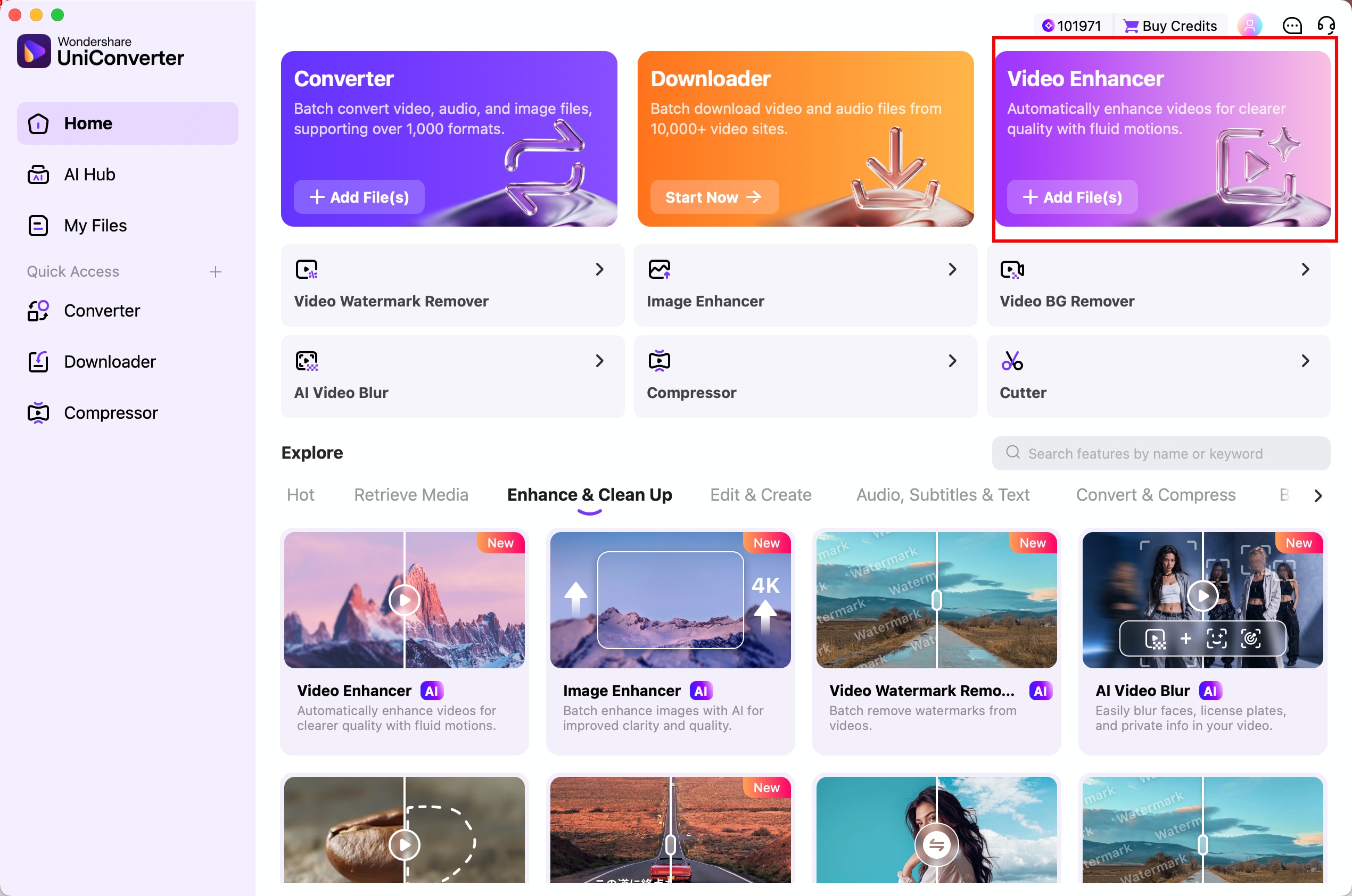
Step 1 Launch Video Enhancer on Mac.
Open Wondershare UniConverter 18 on your Mac and select Video Enhancer from the Home screen. This opens the dedicated workspace for improving video quality with AI.
Step 2 Select Face Enhancement and add your video.
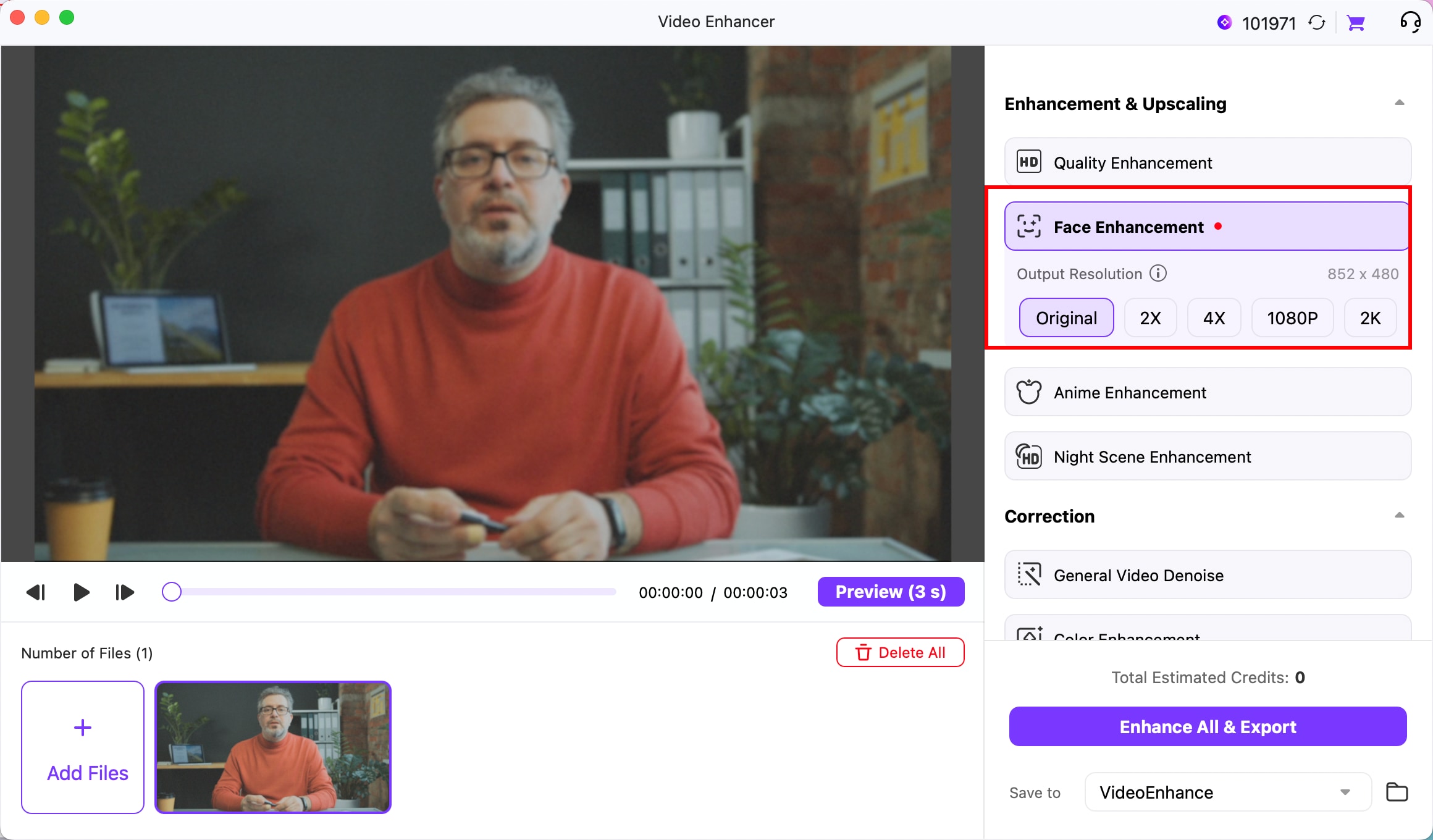
In the Video Enhancer interface, locate Face Enhancement under Enhancement & Upscaling. Select this feature to improve blurry or low-quality faces in your video. Then click Add Files to import a supported portrait video from your Mac.
Step 3 Adjust the output resolution and preview the enhancement.
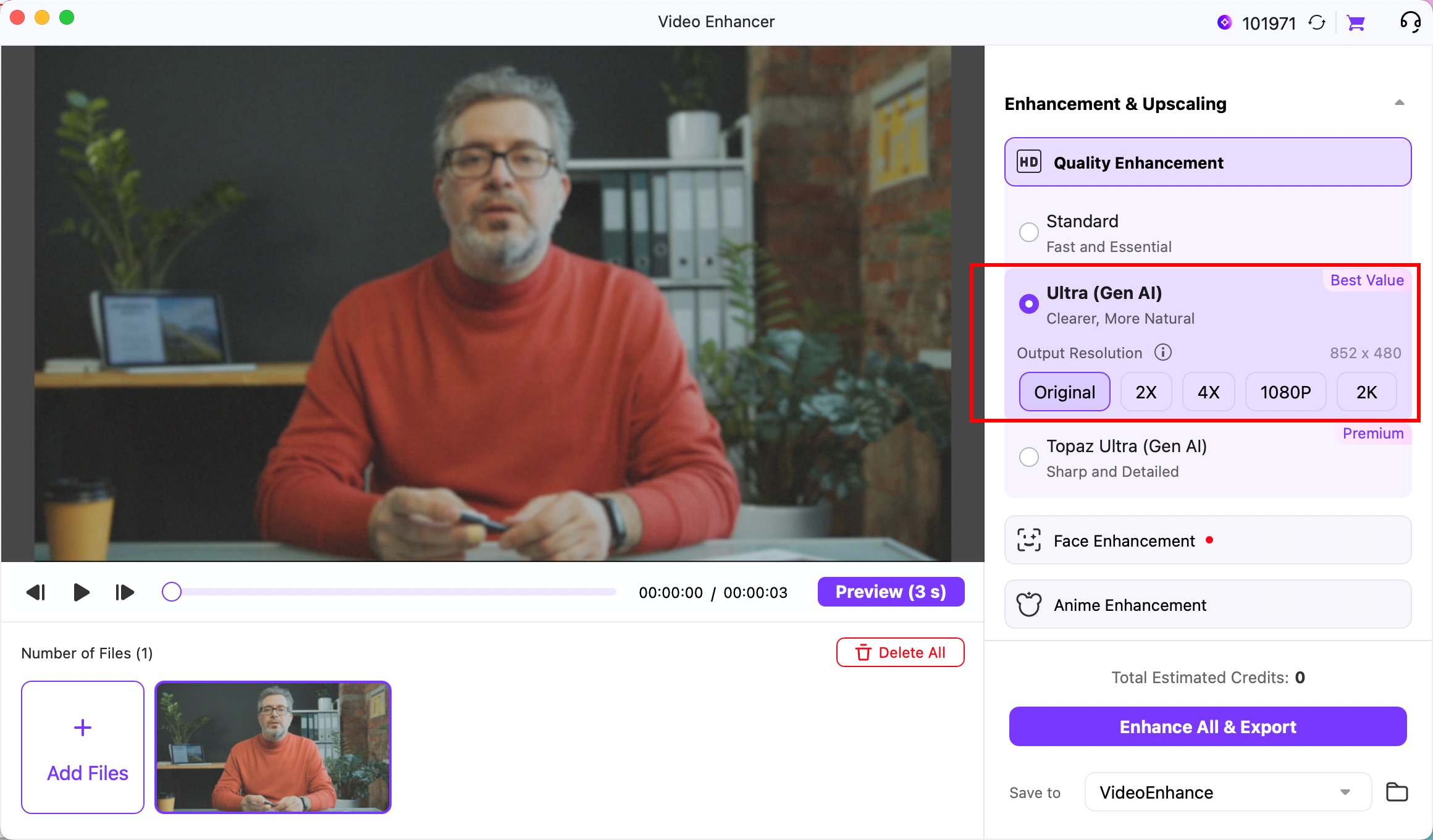
After importing your video, choose the available Output Resolution under Face Enhancement. Options include Original, 2X, 4X, 1080P, and 2K. Select the resolution that best suits your output requirements.
Face Enhancement uses generative AI to help restore facial details and improve the appearance of blurred or partially obscured faces. Click Preview (3 s) to generate a short enhanced preview before processing the full video.
Step 4 Review the original and enhanced video.
Once the preview is ready, compare the Original and Result views to evaluate the improvement in facial clarity. Pay attention to fine details around the eyes, hair, skin, and facial contours. Play the preview to check whether facial details remain consistent across frames.
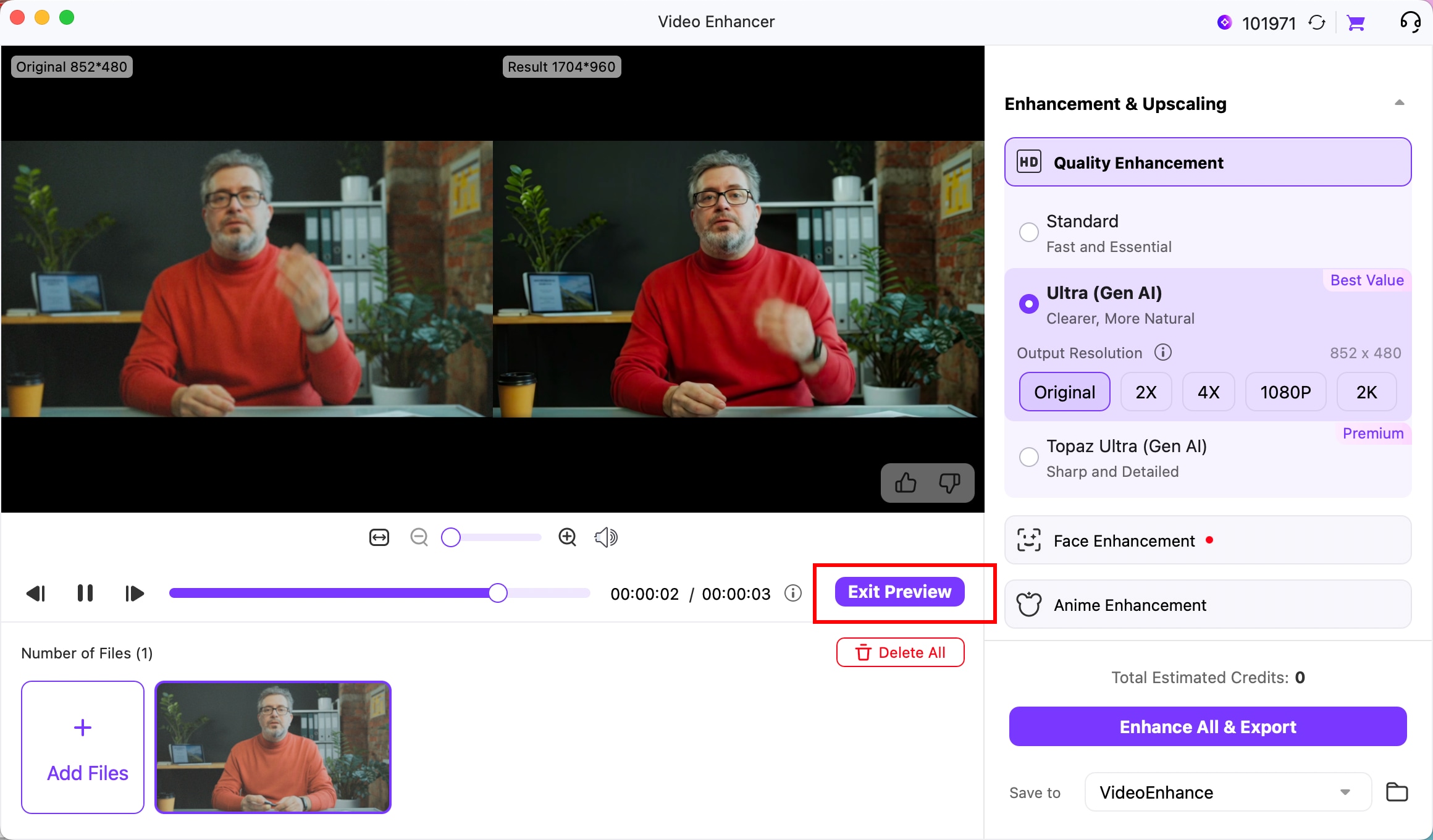
If the results meet your expectations, click Exit Preview to return to the enhancement workspace.
Note: Enhancement quality depends on the original footage. Videos with severe blur, extensive facial occlusion, or rapid movement may produce varying results.
Step 5 Enhance and export your video.
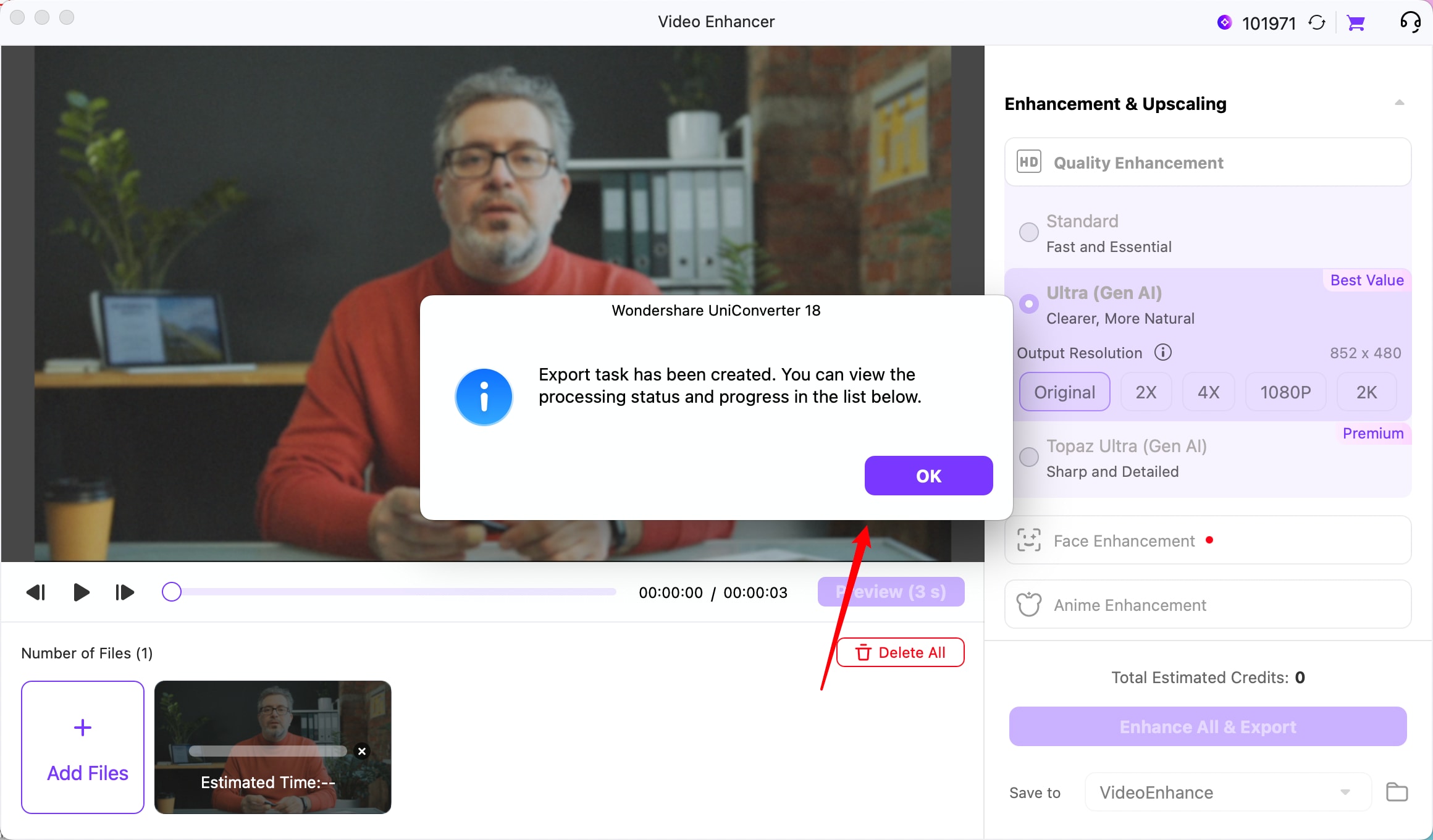
Choose your preferred output folder under Save to, then click Enhance All & Export to process the video. UniConverter 18 for Mac creates an enhancement task and displays a notification when the export process begins. Click OK to dismiss the notification.
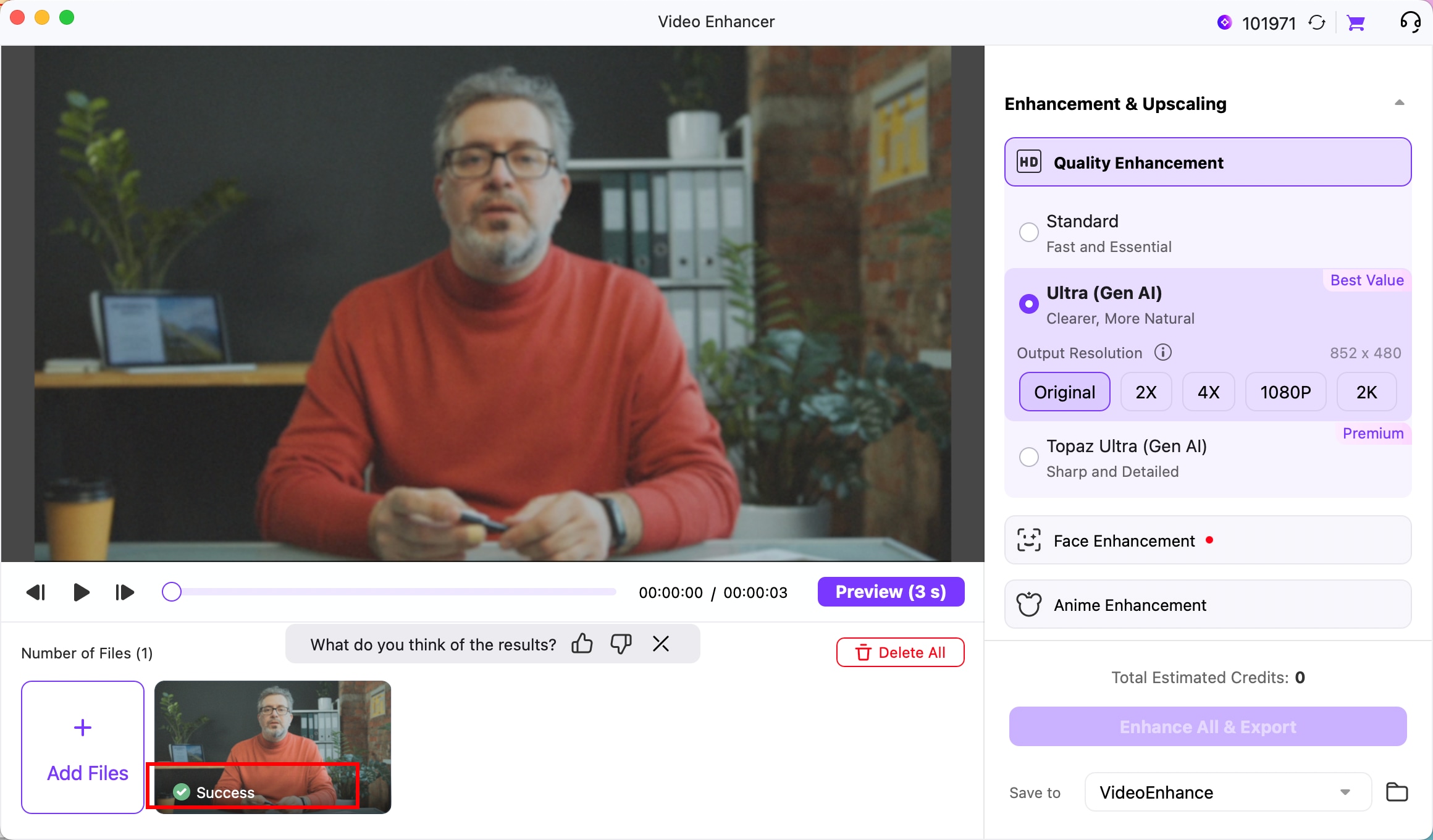
Wait for UniConverter to finish enhancing your video. Once processing is complete, a Success indicator appears on the video thumbnail. You can then open the selected output folder to access your enhanced video.
 print
print