User Guide
How to use Wondershare UniConverter (originally Wondershare Video Converter
Ultimate)?
Learn the step-by-step guide below.

UniConverter User Guide
-
Get Started for Mac
-
Video Converter (Mac)
- How to Convert Videos to Any Format on Mac | UniConverter 18
- Convert DVD to Video | Wondershare UniConverter for Mac
- Mute Video | Wondershare UniConverter for Mac
- Add Audio to Video | Wondershare UniConverter for Mac
- Convert 4K and 8K Videos | Wondershare UniConverter for Mac
- Batch Convert Video Formats | Wondershare UniConverter for Mac
- Convert Videos to MP3 | Wondershare UniConverter for Mac
- Convert Videos to GIF | Wondershare UniConverter for Mac
- Convert SDR Video to HDR | Wondershare UniConverter For Mac
- Convert Video to Image Sequence | Wondershare UniConverter for Mac
-
Audio Converter (Mac)
-
Video Compressor (Mac)
-
Downloader (Mac)
-
Screen Recorder (Mac)
-
Merger (Mac)
-
DVD Burner (Mac)
-
Media Player (Mac)
-
Video Editor (Mac)
- Trim Video | Wondershare UniConverter for Mac
- Add Watermark | Wondershare UniConverter for Mac
- Crop Video | Wondershare UniConverter for Mac
- Apply Effect | Wondershare UniConverter for Mac
- Add Subtitle | Wondershare UniConverter for Mac
- Audio Track Volume | Wondershare UniConverter for Mac
- How to Edit Video - Wondershare UniConverter for Mac
- Auto Video Cutter | Wondershare UniConverter for Mac
-
Tools (Mac)
- Transfer | Wondershare UniConverter for Mac
- Image Converter | Wondershare UniConverter for Mac
- GIF Maker | Wondershare UniConverter for Mac
- Fix Media Metadata | Wondershare UniConverter for Mac
- CD Converter | Wondershare UniConverter for Mac
- CD Burner | Wondershare UniConverter for Mac
- VR Converter | Wondershare UniConverter for Mac
- Subtitle Editor | Wondershare UniConverter for Mac
- How to Remove Watermarks, Subtitles & Objects from Videos on Mac
- Smart Trimmer | Wondershare UniConverter for Mac
- Background Remover | Wondershare UniConverter for Mac
- Auto Crop Video | Wondershare UniConverter for Mac
- AI Portrait | Wondershare UniConverter for Mac
- Intro & Outro | Wondershare UniConverter for Mac
- Vocal Remover | Wondershare UniConverter for Mac
- Noise Remover | Wondershare UniConverter for Mac
- MP3 Cutter | Wondershare UniConverter for Mac
- Video Stabilization | Wondershare UniConverter for Mac
- AI Image Enhancer | Wondershare UniConverter for Mac
- AI Script Generator | Wondershare UniConverter for Mac
- AI Thumbnail Maker | Wondershare UniConverter for Mac
- How to Enhance Video Quality with AI on Mac | UniConverter
- Auto Highlight | Wondershare UniConverter for Mac
- Remove Watermark | Wondershare UniConverter for Mac
- AI Subtitle Translator | Wondershare UniConverter for Mac
- Text To Speech | Wondershare UniConverter for Mac
- AI Voice Changer | Wondershare UniConverter for Mac
- How to Upscale Image | Wondershare UniConverter for Mac
- How to Crop Image | Wondershare UniConverter for Mac
- How to Rotate Image | Wondershare UniConverter for Mac
- How to Resize Image | Wondershare UniConverter for Mac
- Anime Enhancement | Wondershare UniConverter for Mac
- How to Enhance Faces in Videos with AI | UniConverter for Mac
- Adjust Speed of TTS Audio | Wondershare UniConverter for Mac
- Voice Clone | Wondershare UniConverter for Mac
- Smart Summarizer on Mac| Wondershare UniConverter for Windows
- AI Video Blur for Mac: Blur Faces & Moving Objects in Videos
- AI Media Agent | Wondershare UniConverter for Mac
FAQs
Video/Audio Solutions
AI Video Blur for Mac: How to Blur Faces and Moving Objects in Videos
Part 1: Introduction
Wondershare UniConverter 18 helps you blur faces and moving objects in videos on Mac to protect privacy and hide sensitive information. Its AI Video Blur tool offers two modes: AI Face Blur automatically detects faces for selective blurring, while Object Tracking Blur follows manually selected moving targets, such as license plates, to keep them blurred as they move.
You can customize the blur effect with different styles and settings, including Strength, Feather, and Opacity. Follow the steps below to blur faces and moving objects using UniConverter 18 on Mac.
Part 2: How to Blur Faces in Videos on Mac
Step 1: Open AI Video Blur
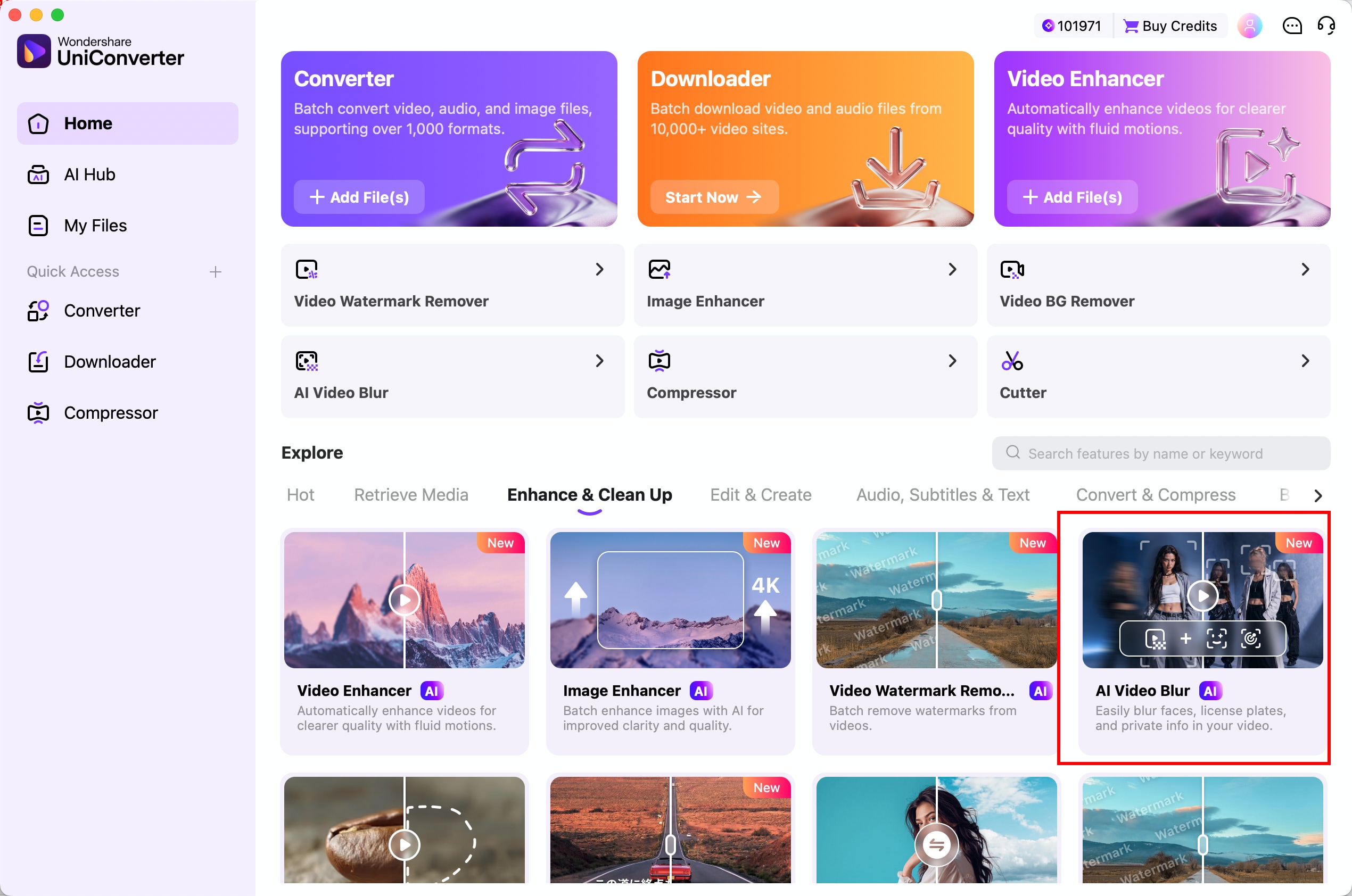
Launch Wondershare UniConverter 18 on your Mac. On the Home screen, go to Enhance & Clean Up and select AI Video Blur.
Step 2: Select AI Face Blur and Import a Video
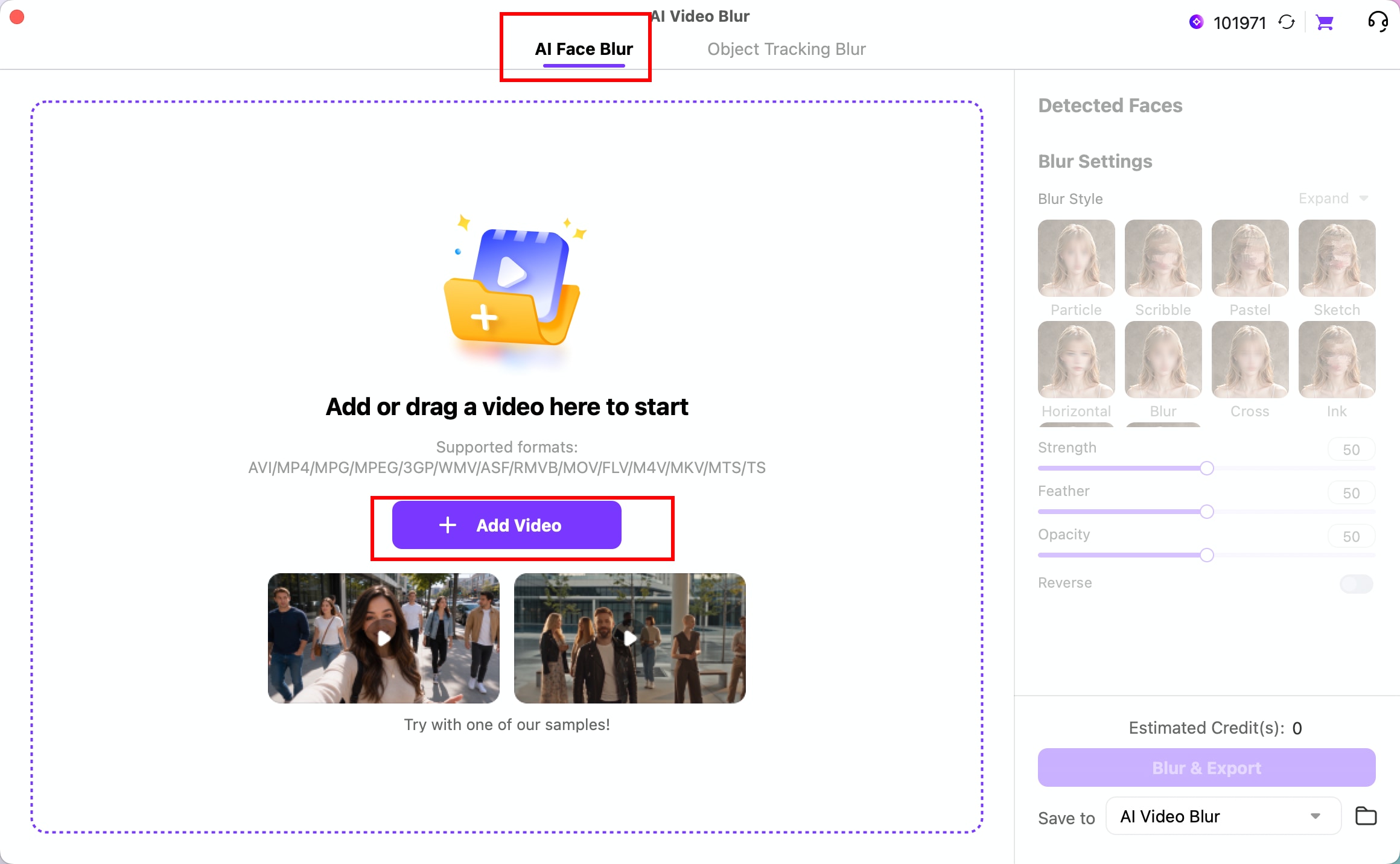
In the AI Video Blur window, select AI Face Blur and click Add Video to import your video. You can also drag and drop a supported video file into the workspace.
Step 3: Detect Faces and Choose a Blur Style
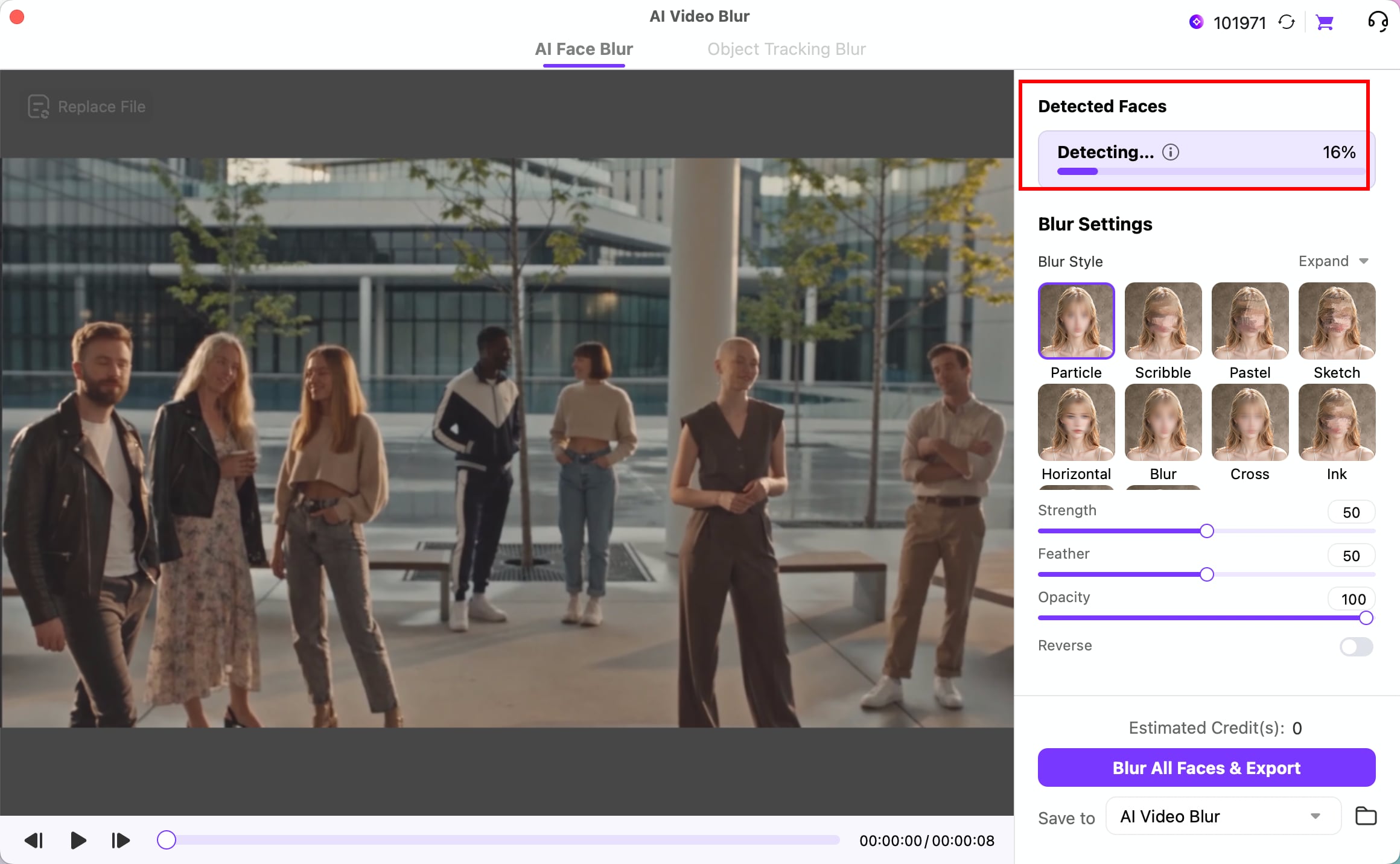
After importing the video, UniConverter automatically analyzes the footage and detects faces. You can monitor the detection progress under Detected Faces. Once detection is complete, select the faces you want to blur or deselect any faces you want to keep visible.
Under Blur Settings, choose a Blur Style, such as Particle, Scribble, Pastel, Sketch, Horizontal, Blur, Cross, or Ink. Adjust Strength to control how strongly the selected faces are obscured.
Step 4: Adjust Face Blur Settings and Export
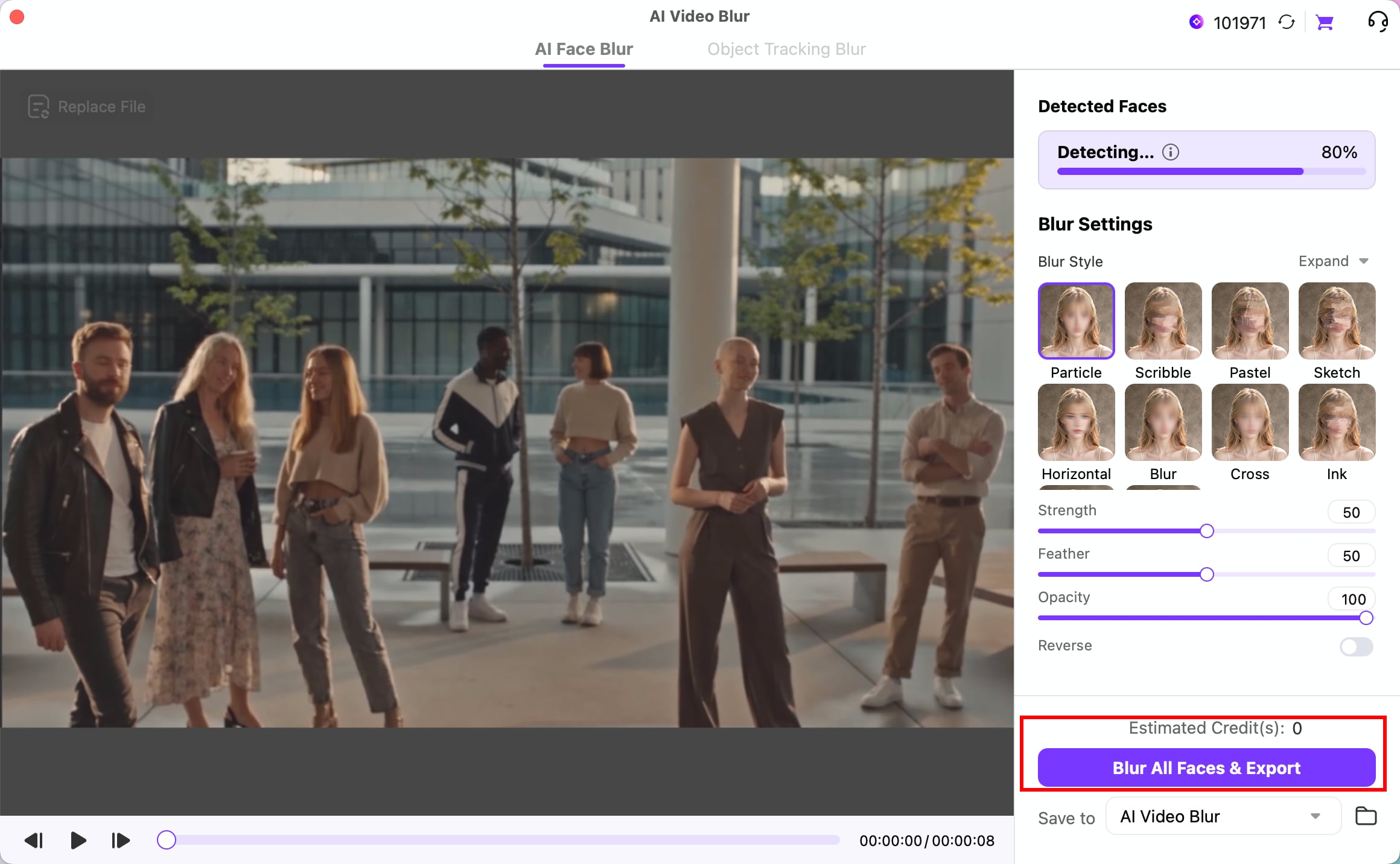
Fine-tune the effect using Strength, Feather, and Opacity. Strength controls blur intensity, Feather softens the edges of the blurred area, and Opacity adjusts the visibility of the effect. You can also enable Reverse to change which area is blurred.
Review the blur effect and choose a destination under Save to. Once you have selected the faces you want to hide, click Blur & Export to save the processed video. You can also use Blur All Faces & Export to blur every detected face without selecting them individually.
Part 3: How to Blur Moving Objects in Videos on Mac
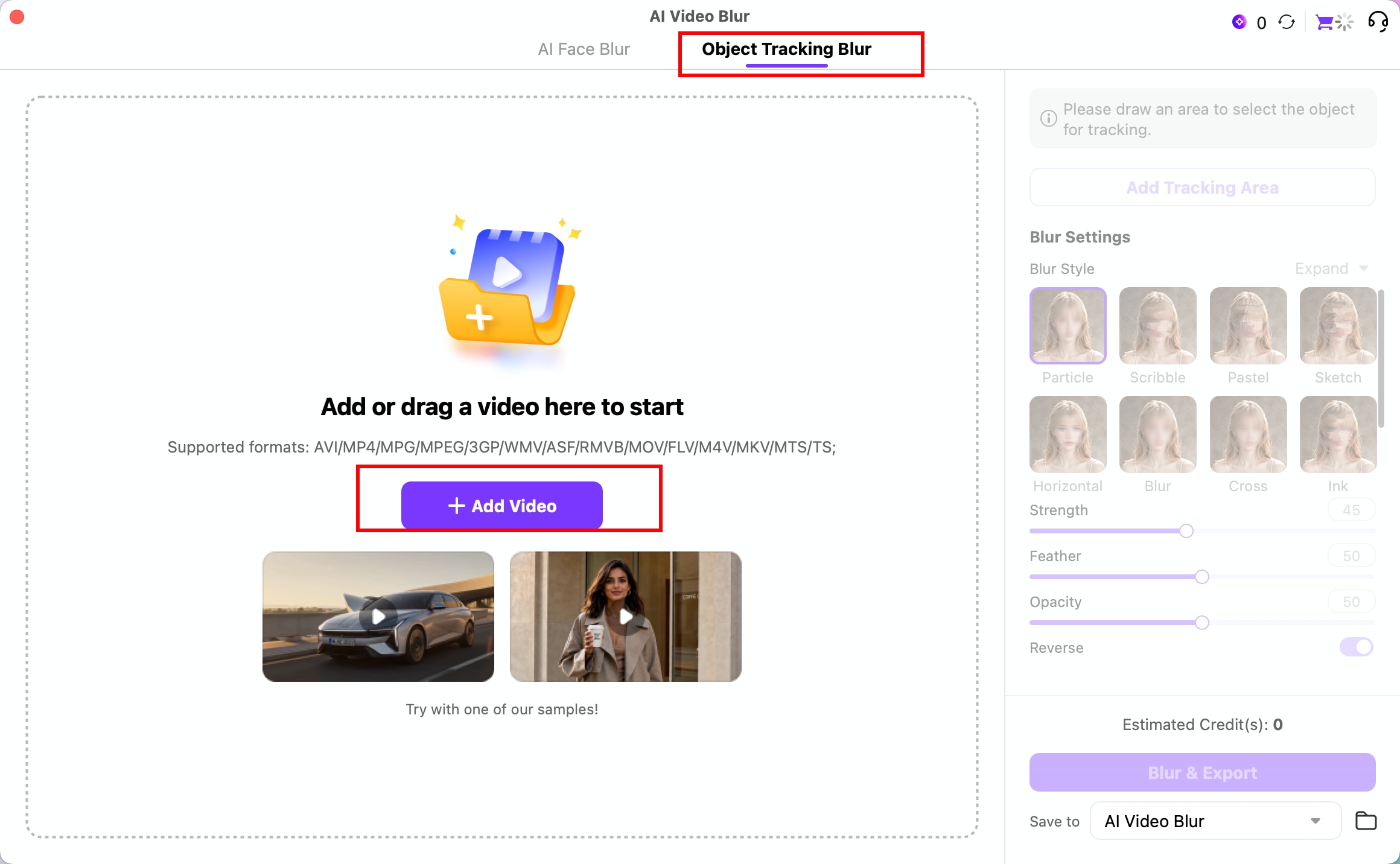
Step 5: Select Object Tracking Blur
Open AI Video Blur and switch to the Object Tracking Blur tab. Click Add Video to import a video containing the moving object you want to hide. You can also drag and drop a supported video file into the workspace.
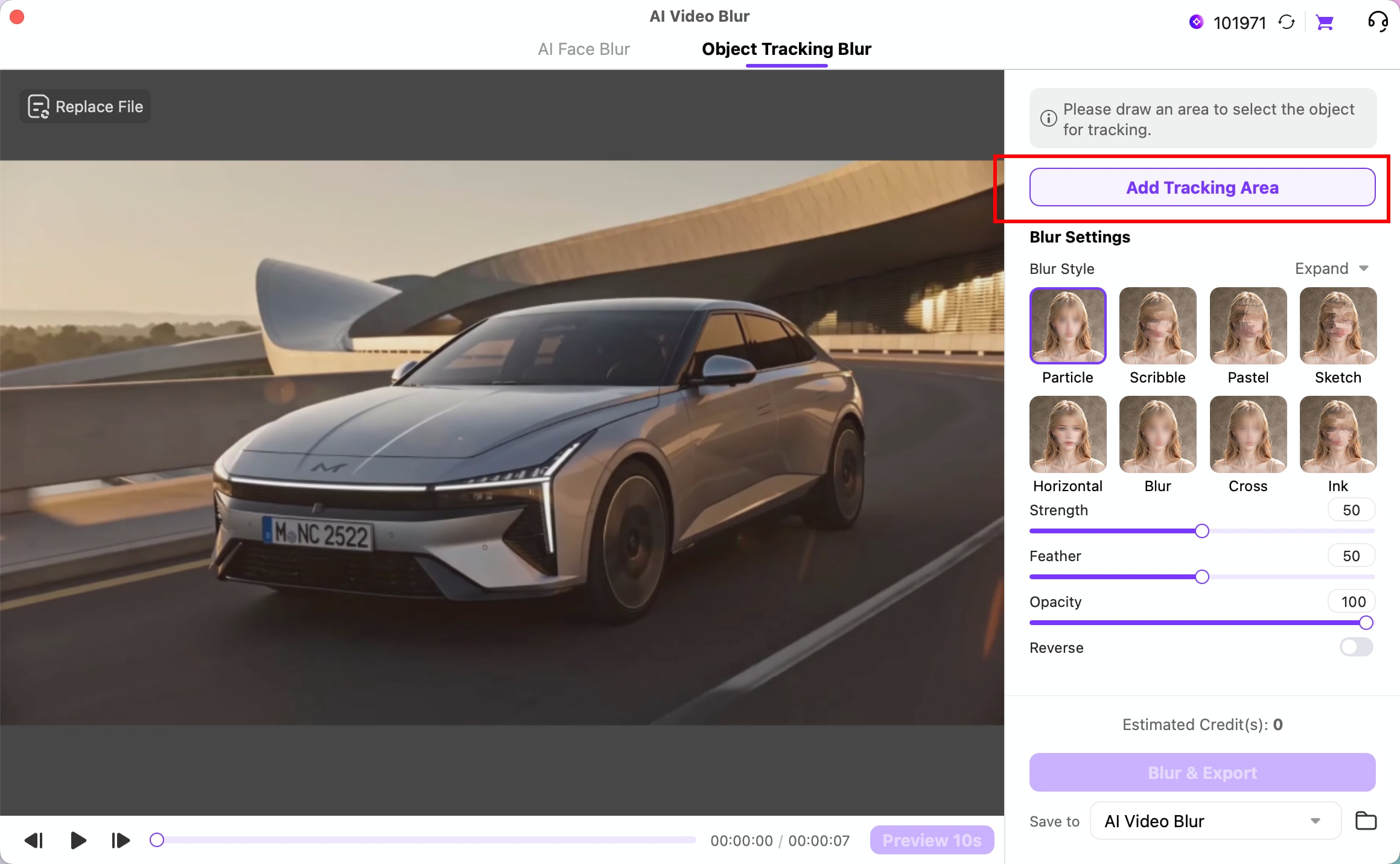
Step 6: Add a Tracking Area
After importing the video, click Add Tracking Area and draw a box around the object you want to blur, such as a vehicle's license plate. UniConverter uses object tracking to follow the selected target as it moves through the video.
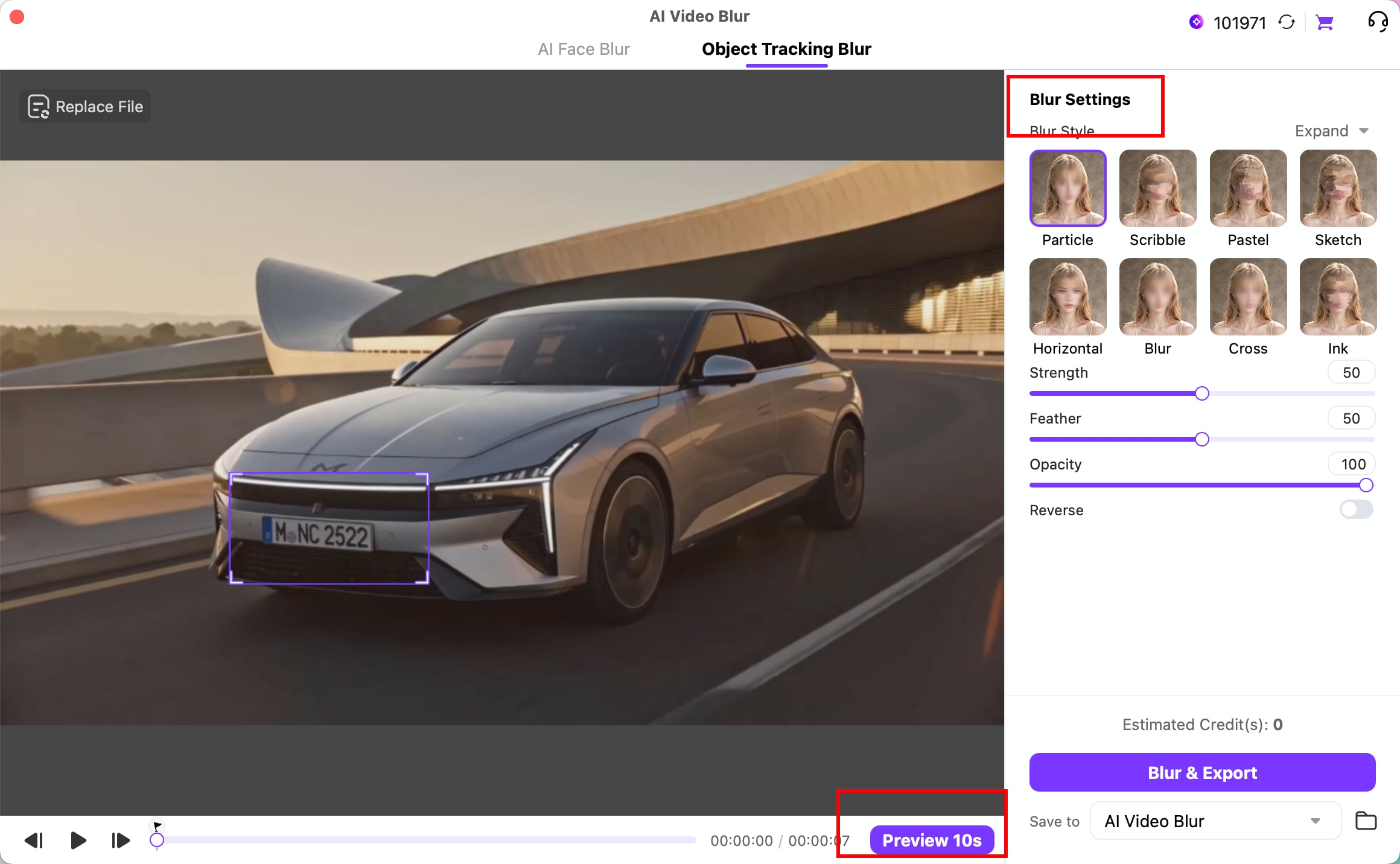
Step 7: Customize the Blur Effect and Preview
Under Blur Settings, select a Blur Style, such as Particle, Blur, or Cross. Adjust Strength, Feather, and Opacity to customize the effect. You can also use Reverse to change which area is blurred.
Click Preview 10s to check how the blur follows the selected object during playback. Review the preview to make sure the moving target remains obscured.
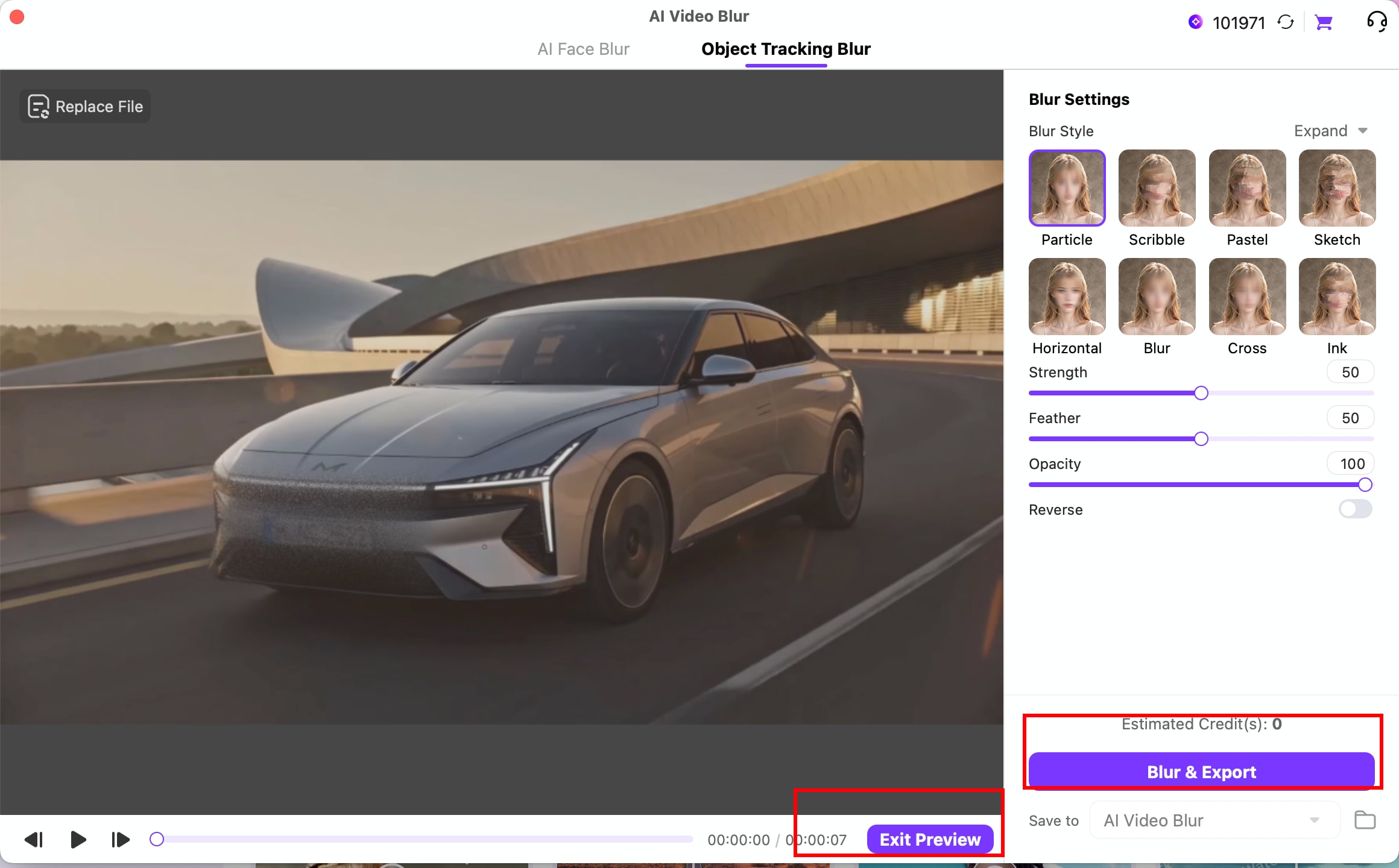
Step 8: Review the Tracking Result and Export
Review the preview to check that the blur stays on the selected object as it moves. Click Exit Preview when finished, choose an output folder under Save to, and click Blur & Export to save the processed video on your Mac.
 print
print