User Guide
How to use Wondershare UniConverter (originally Wondershare Video Converter
Ultimate)?
Learn the step-by-step guide below.

UniConverter User Guide
-
Get Started for Mac
-
Video Converter (Mac)
- Convert Videos to Any Format | Wondershare UniConverter for Mac
- Convert DVD to Video | Wondershare UniConverter for Mac
- Mute Video | Wondershare UniConverter for Mac
- Add Audio to Video | Wondershare UniConverter for Mac
- Convert 4K and 8K Videos | Wondershare UniConverter for Mac
- Batch Convert Video Formats | Wondershare UniConverter for Mac
- Convert Videos to MP3 | Wondershare UniConverter for Mac
- Convert Videos to GIF | Wondershare UniConverter for Mac
- Convert SDR Video to HDR | Wondershare UniConverter For Mac
- Convert Video to Image Sequence | Wondershare UniConverter for Mac
-
Audio Converter (Mac)
-
Video Compressor (Mac)
-
Downloader (Mac)
-
Screen Recorder (Mac)
-
Merger (Mac)
-
DVD Burner (Mac)
-
Media Player (Mac)
-
Video Editor (Mac)
- Trim Video | Wondershare UniConverter for Mac
- Add Watermark | Wondershare UniConverter for Mac
- Crop Video | Wondershare UniConverter for Mac
- Apply Effect | Wondershare UniConverter for Mac
- Add Subtitle | Wondershare UniConverter for Mac
- Audio Track Volume | Wondershare UniConverter for Mac
- How to Edit Video - Wondershare UniConverter for Mac
- Auto Video Cutter | Wondershare UniConverter for Mac
-
Tools (Mac)
- Transfer | Wondershare UniConverter for Mac
- Image Converter | Wondershare UniConverter for Mac
- GIF Maker | Wondershare UniConverter for Mac
- Fix Media Metadata | Wondershare UniConverter for Mac
- CD Converter | Wondershare UniConverter for Mac
- CD Burner | Wondershare UniConverter for Mac
- VR Converter | Wondershare UniConverter for Mac
- Subtitle Editor | Wondershare UniConverter for Mac
- Watermark Editor | Wondershare UniConverter for Mac
- Smart Trimmer | Wondershare UniConverter for Mac
- Background Remover | Wondershare UniConverter for Mac
- Auto Crop Video | Wondershare UniConverter for Mac
- AI Portrait | Wondershare UniConverter for Mac
- Intro & Outro | Wondershare UniConverter for Mac
- Vocal Remover | Wondershare UniConverter for Mac
- Noise Remover | Wondershare UniConverter for Mac
- MP3 Cutter | Wondershare UniConverter for Mac
- Video Stabilization | Wondershare UniConverter for Mac
- AI Image Enhancer | Wondershare UniConverter for Mac
- AI Script Generator | Wondershare UniConverter for Mac
- AI Thumbnail Maker | Wondershare UniConverter for Mac
- AI Video Enhancer | Wondershare UniConverter for Mac
- Auto Highlight | Wondershare UniConverter for Mac
- Remove Watermark | Wondershare UniConverter for Mac
- AI Subtitle Translator | Wondershare UniConverter for Mac
- Text To Speech | Wondershare UniConverter for Mac
- AI Voice Changer | Wondershare UniConverter for Mac
- How to Upscale Image | Wondershare UniConverter for Mac
- How to Crop Image | Wondershare UniConverter for Mac
- How to Rotate Image | Wondershare UniConverter for Mac
- How to Resize Image | Wondershare UniConverter for Mac
- Anime Enhancement | Wondershare UniConverter for Mac
- Face Enhancement | Wondershare UniConverter for Mac
- Adjust Speed of TTS Audio | Wondershare UniConverter for Mac
- Voice Clone | Wondershare UniConverter for Mac
- Smart Summarizer on Mac| Wondershare UniConverter for Windows
FAQs
Video/Audio Solutions
User Guide: Smart Summarizer
Part 1: Introduction
Smart Summarizer is a powerful AI tool designed to quickly transcribe and summarize videos, whether they are recordings from your computer or content from YouTube. It automatically converts spoken words into text and identifies key points, making it easy to grasp the main ideas without watching the entire video. With multi-language support and context-aware AI, it produces concise, accurate summaries that save time for students, professionals, and content creators alike. This feature streamlines information extraction, turning long videos into actionable insights in just minutes.
Part 2: Guide
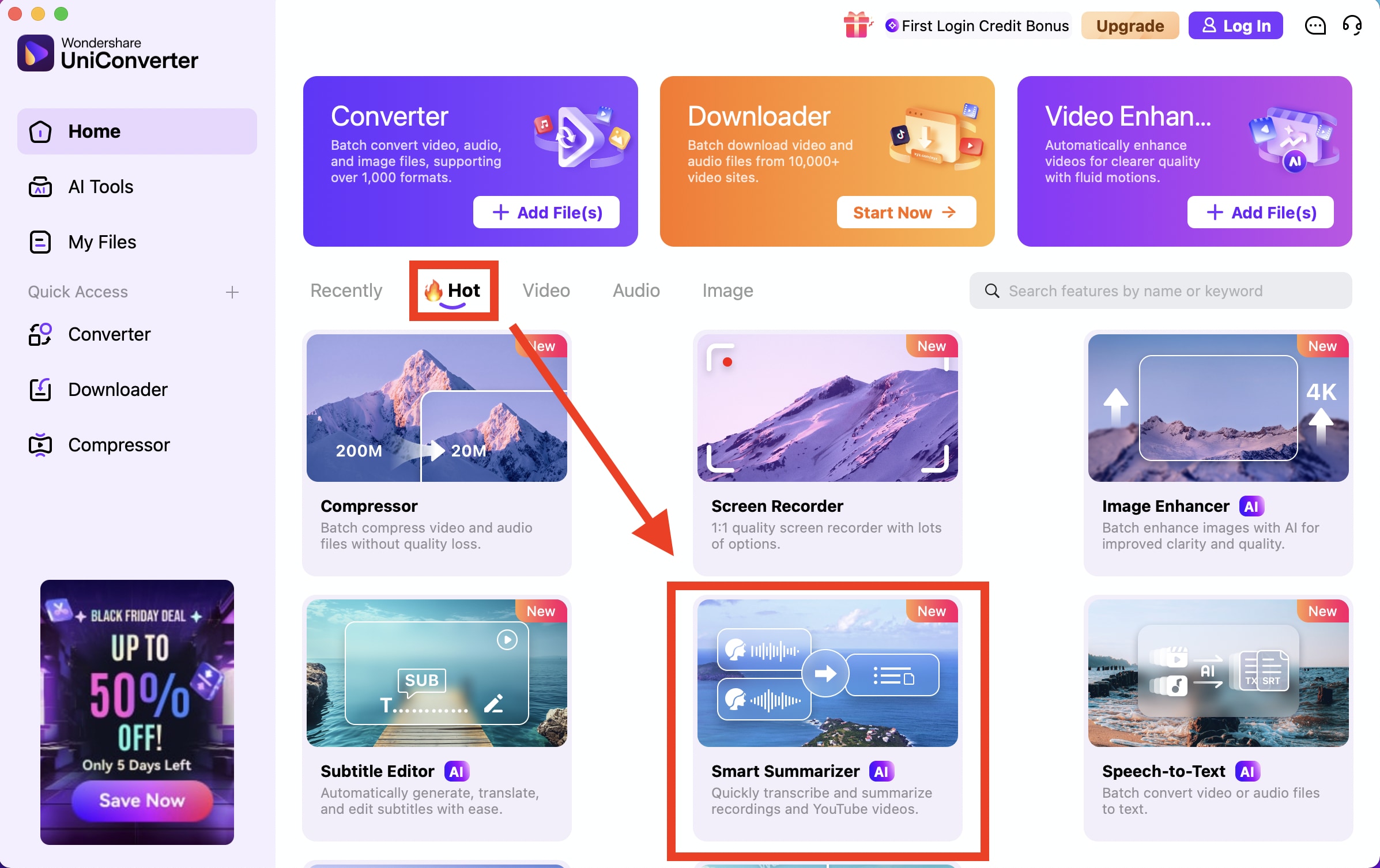
Step 1: Launch the Smart Summarizer Tool
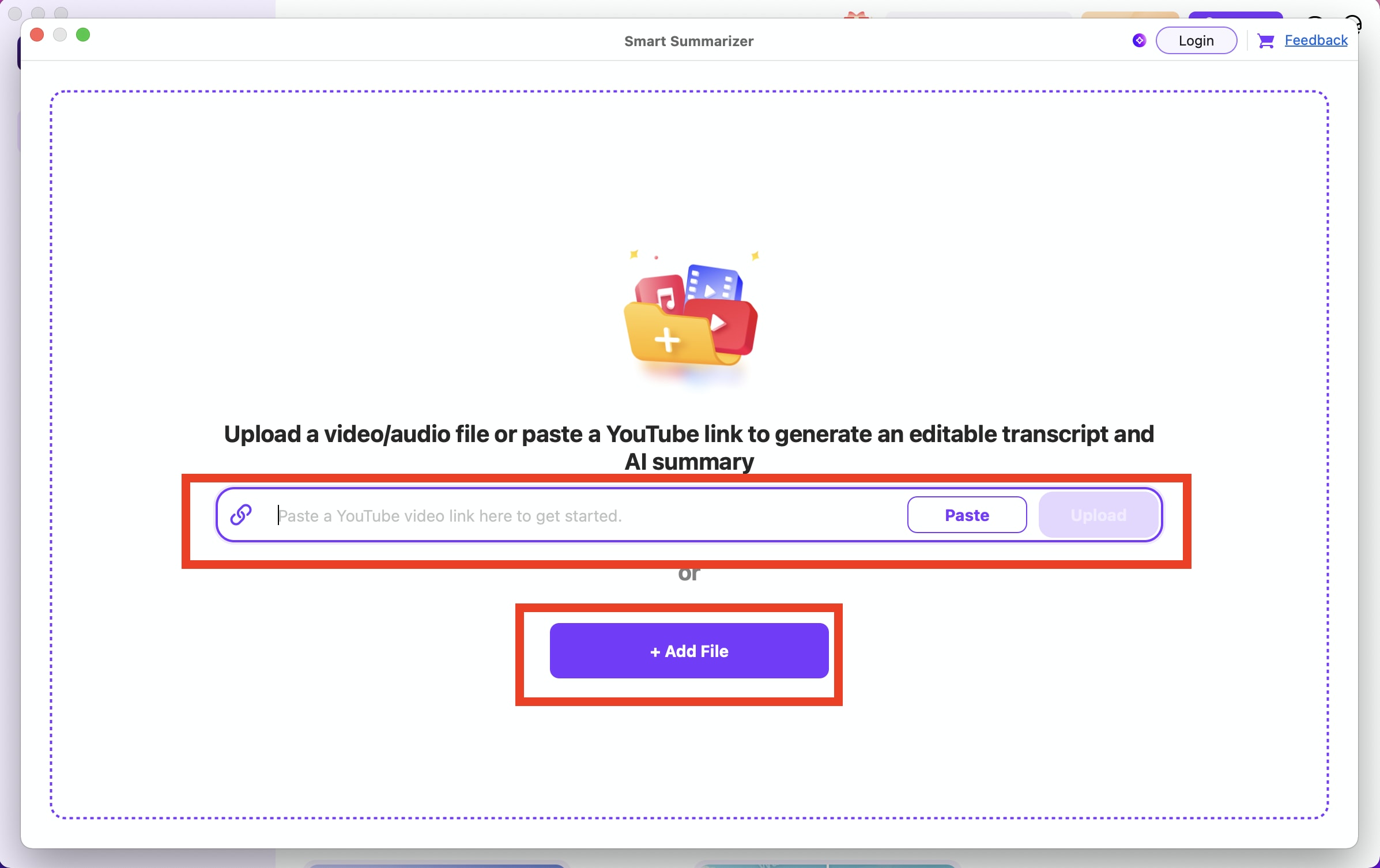
Download and install UniConverter. First, open Wondershare UniConverter on your computer and navigate to the Toolbox section in the sidebar. In the Toolbox, locate and click on AI Video Summarizer to launch the smart summarization tool. When the summarizer window opens, you’ll be presented with options to either paste a YouTube URL or upload a local video file from your system, giving you full flexibility depending on the source of your video.
Step 2: Upload and Analyze Your Video
Once your video is uploaded or linked, click on the “Generate” button to let UniConverter begin analyzing the content. The AI will transcribe the audio and apply context-aware models to identify the most important themes and insights. It doesn’t just pick out spoken words—it understands the meaning behind them and extracts key takeaways rather than raw dialogue. The processing is fast and efficient, largely thanks to optimized algorithms designed for quick summarization without sacrificing depth.
Step 3: Choose Language Settings
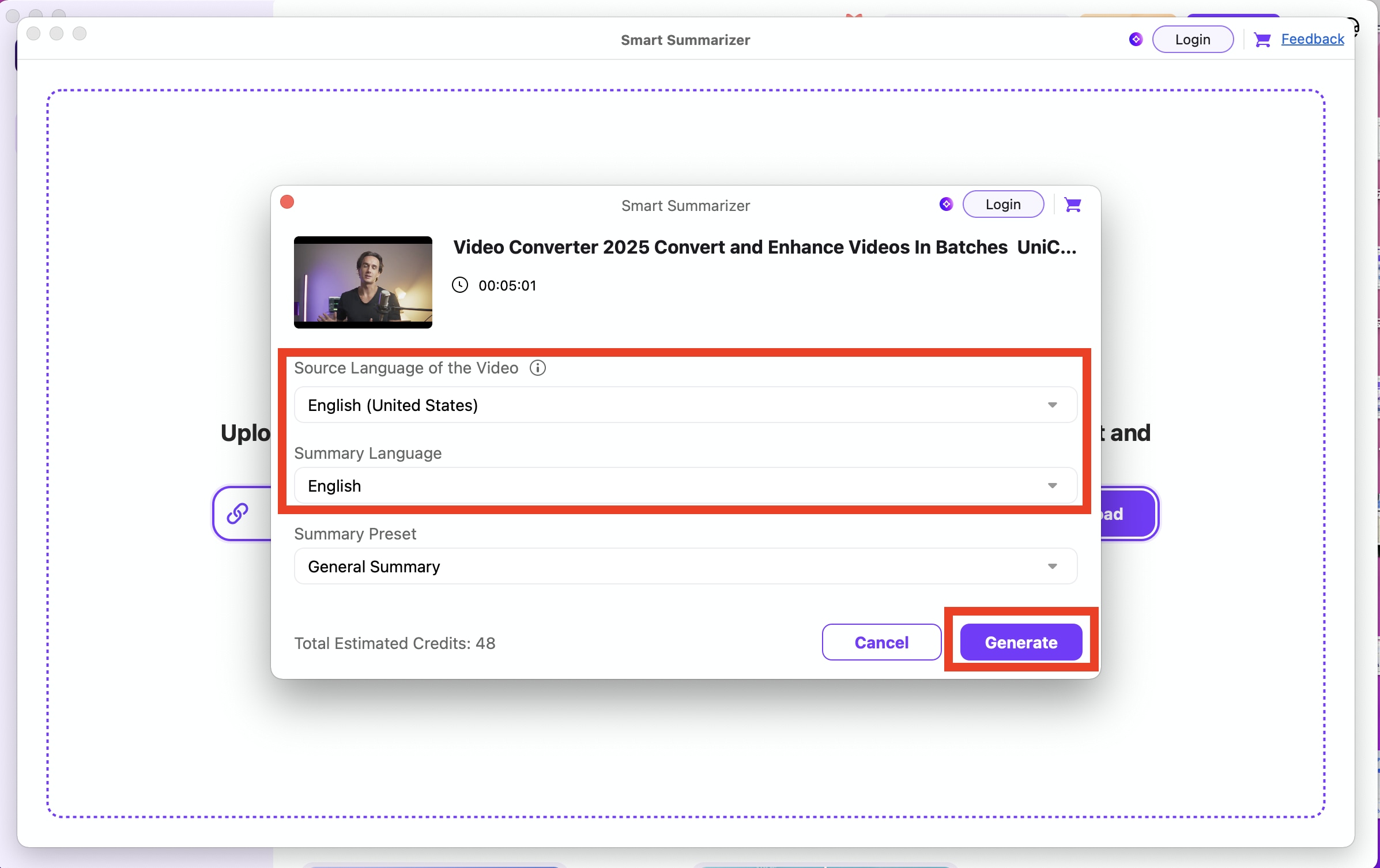
Choose source languege, summary language and other summary preset based on your actual need, and click 'Generate' button.
Step 4: Review and Edit the Summary
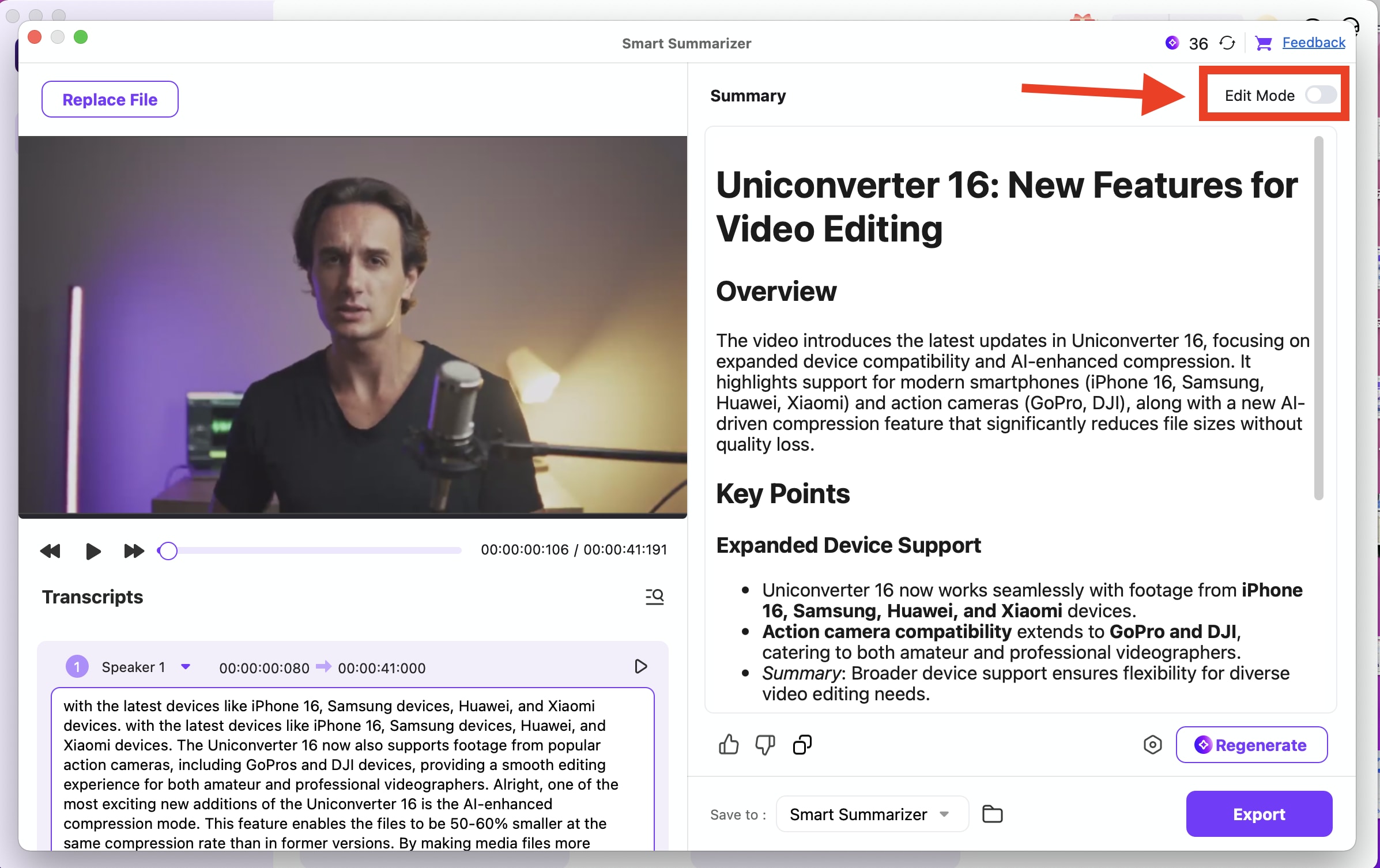
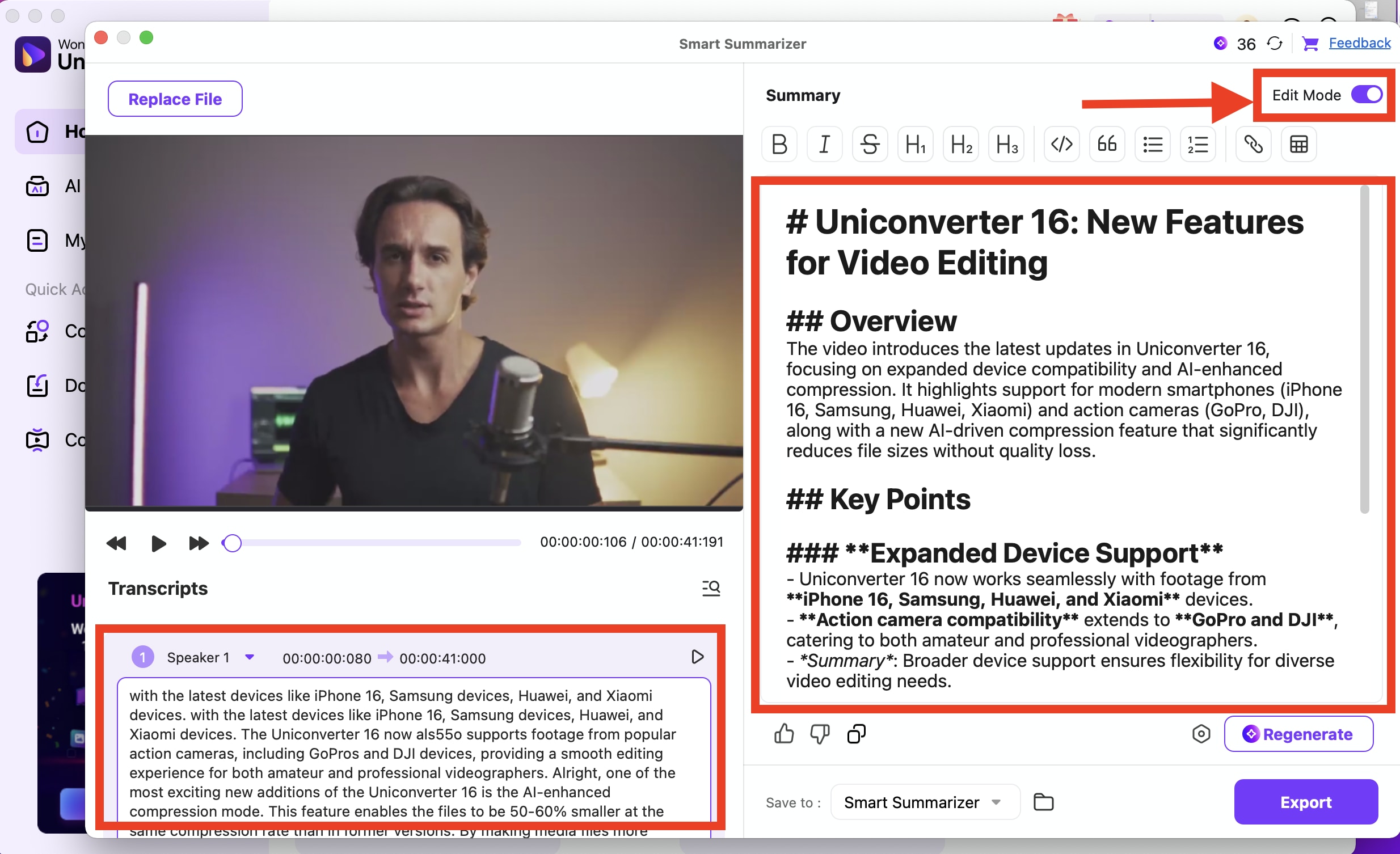
After the AI has analyzed the content, you’ll see a full transcript and a generated summary inside the interface. Here, you have the freedom to manually refine both: you can edit the text, remove parts you don’t need, or rearrange sentences to better suit your purpose. This editable feature ensures that the summary aligns with how you want to consume or present the video’s ideas.
Step 4: Export Your Summary
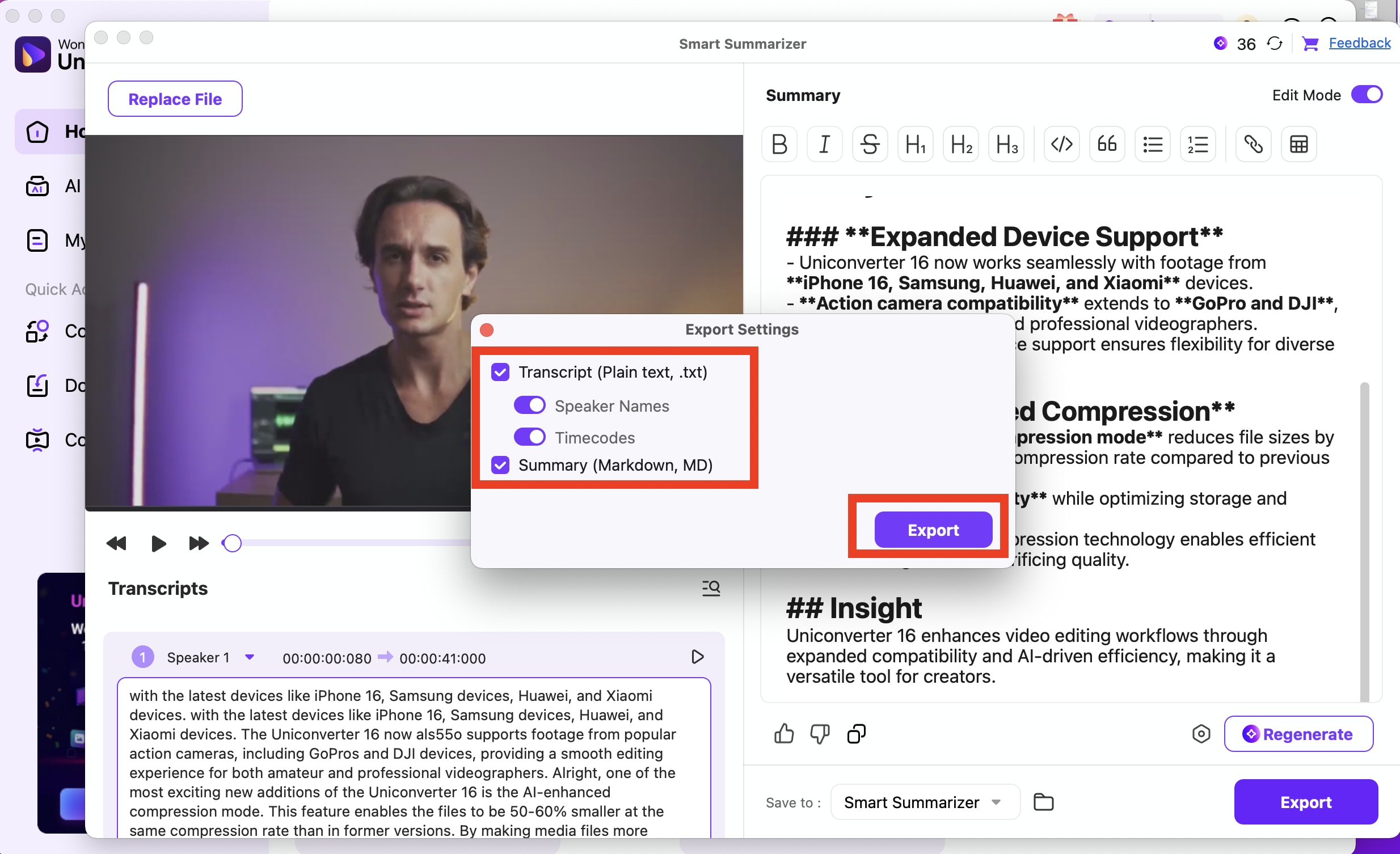
Finally, when you're happy with the summary, click the Export button to save your work. UniConverter offers multiple export options, including Markdown, which is super useful for note-taking or documentation, and plain text or Word documents if you want to share or print. Before exporting, you can also choose where to save the file on your computer, making it easy to integrate the summary into your workflow.
 print
print