User Guide
How to use Wondershare UniConverter (originally Wondershare Video Converter
Ultimate)?
Learn the step-by-step guide below.

UniConverter User Guide
-
Get Started for Mac
-
Video Converter (Mac)
- How to Convert Videos to Any Format on Mac | UniConverter 18
- Convert DVD to Video | Wondershare UniConverter for Mac
- Mute Video | Wondershare UniConverter for Mac
- Add Audio to Video | Wondershare UniConverter for Mac
- Convert 4K and 8K Videos | Wondershare UniConverter for Mac
- Batch Convert Video Formats | Wondershare UniConverter for Mac
- Convert Videos to MP3 | Wondershare UniConverter for Mac
- Convert Videos to GIF | Wondershare UniConverter for Mac
- Convert SDR Video to HDR | Wondershare UniConverter For Mac
- Convert Video to Image Sequence | Wondershare UniConverter for Mac
-
Audio Converter (Mac)
-
Video Compressor (Mac)
-
Downloader (Mac)
-
Screen Recorder (Mac)
-
Merger (Mac)
-
DVD Burner (Mac)
-
Media Player (Mac)
-
Video Editor (Mac)
- Trim Video | Wondershare UniConverter for Mac
- Add Watermark | Wondershare UniConverter for Mac
- Crop Video | Wondershare UniConverter for Mac
- Apply Effect | Wondershare UniConverter for Mac
- Add Subtitle | Wondershare UniConverter for Mac
- Audio Track Volume | Wondershare UniConverter for Mac
- How to Edit Video - Wondershare UniConverter for Mac
- Auto Video Cutter | Wondershare UniConverter for Mac
-
Tools (Mac)
- Transfer | Wondershare UniConverter for Mac
- Image Converter | Wondershare UniConverter for Mac
- GIF Maker | Wondershare UniConverter for Mac
- Fix Media Metadata | Wondershare UniConverter for Mac
- CD Converter | Wondershare UniConverter for Mac
- CD Burner | Wondershare UniConverter for Mac
- VR Converter | Wondershare UniConverter for Mac
- Subtitle Editor | Wondershare UniConverter for Mac
- How to Remove Watermarks, Subtitles & Objects from Videos on Mac
- Smart Trimmer | Wondershare UniConverter for Mac
- Background Remover | Wondershare UniConverter for Mac
- Auto Crop Video | Wondershare UniConverter for Mac
- AI Portrait | Wondershare UniConverter for Mac
- Intro & Outro | Wondershare UniConverter for Mac
- Vocal Remover | Wondershare UniConverter for Mac
- Noise Remover | Wondershare UniConverter for Mac
- MP3 Cutter | Wondershare UniConverter for Mac
- Video Stabilization | Wondershare UniConverter for Mac
- AI Image Enhancer | Wondershare UniConverter for Mac
- AI Script Generator | Wondershare UniConverter for Mac
- AI Thumbnail Maker | Wondershare UniConverter for Mac
- How to Enhance Video Quality with AI on Mac | UniConverter
- Auto Highlight | Wondershare UniConverter for Mac
- Remove Watermark | Wondershare UniConverter for Mac
- AI Subtitle Translator | Wondershare UniConverter for Mac
- Text To Speech | Wondershare UniConverter for Mac
- AI Voice Changer | Wondershare UniConverter for Mac
- How to Upscale Image | Wondershare UniConverter for Mac
- How to Crop Image | Wondershare UniConverter for Mac
- How to Rotate Image | Wondershare UniConverter for Mac
- How to Resize Image | Wondershare UniConverter for Mac
- Anime Enhancement | Wondershare UniConverter for Mac
- How to Enhance Faces in Videos with AI | UniConverter for Mac
- Adjust Speed of TTS Audio | Wondershare UniConverter for Mac
- Voice Clone | Wondershare UniConverter for Mac
- Smart Summarizer on Mac| Wondershare UniConverter for Windows
- AI Video Blur for Mac: Blur Faces & Moving Objects in Videos
- AI Media Agent | Wondershare UniConverter for Mac
FAQs
Video/Audio Solutions
AI Media Agent for Mac: How to Convert Media Files with AI
Part 1: Introduction
AI Media Agent uses natural language instructions to help you convert and adapt media files on Mac for different formats, devices, and output requirements.
Wondershare UniConverter's AI Media Agent analyzes your local media files, interprets your instructions, plans the required processing tasks, and uses UniConverter tools to carry them out. It supports batch media adaptation and checks processing outcomes against your requested requirements, reducing repetitive manual setup.
Part 2: Guides
Step 1: Open AI Media Agent
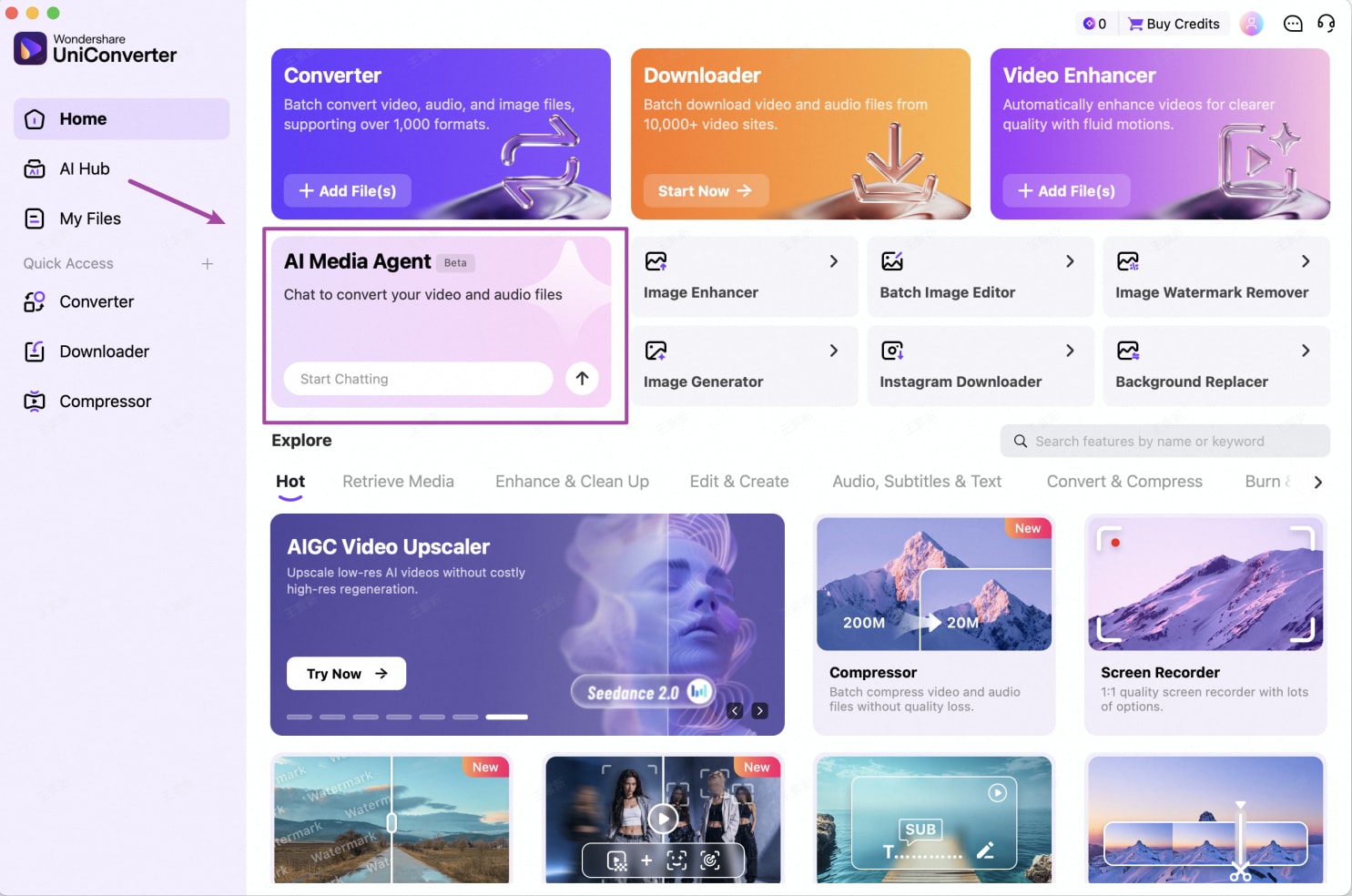
Launch Wondershare UniConverter on your Mac and locate AI Media Agent on the Home screen. Click the AI Media Agent card or its Start Chatting field to open the chat interface.
Step 2: Add a File and Describe Your Task
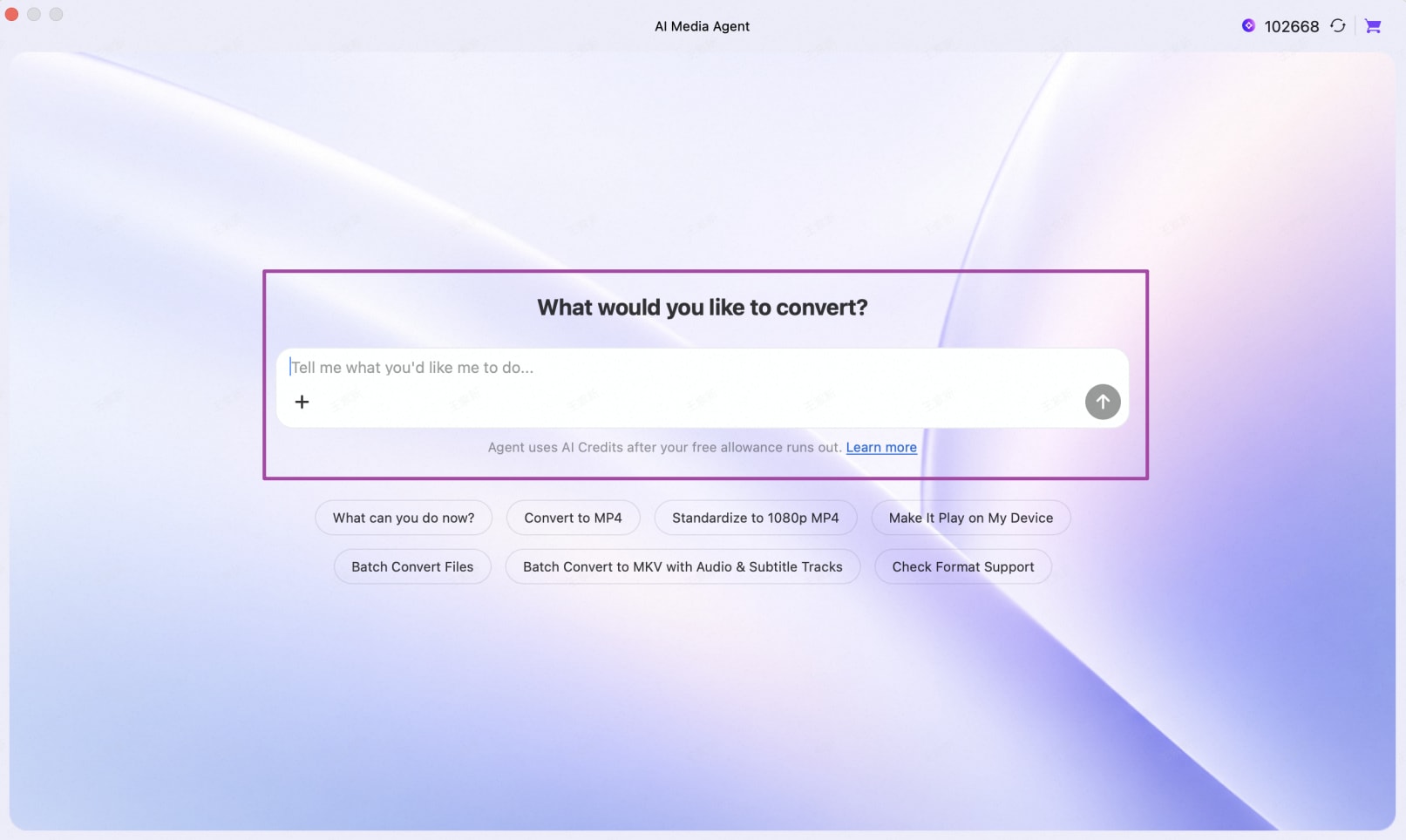
In the chat window, click the + icon to attach a local media file. Enter your request in natural language, or select one of the suggested prompts. For this example, attach a video and enter Convert to MP4. Click the Send button (up-arrow icon) to submit the task.
Step 3: Review and Approve the Task
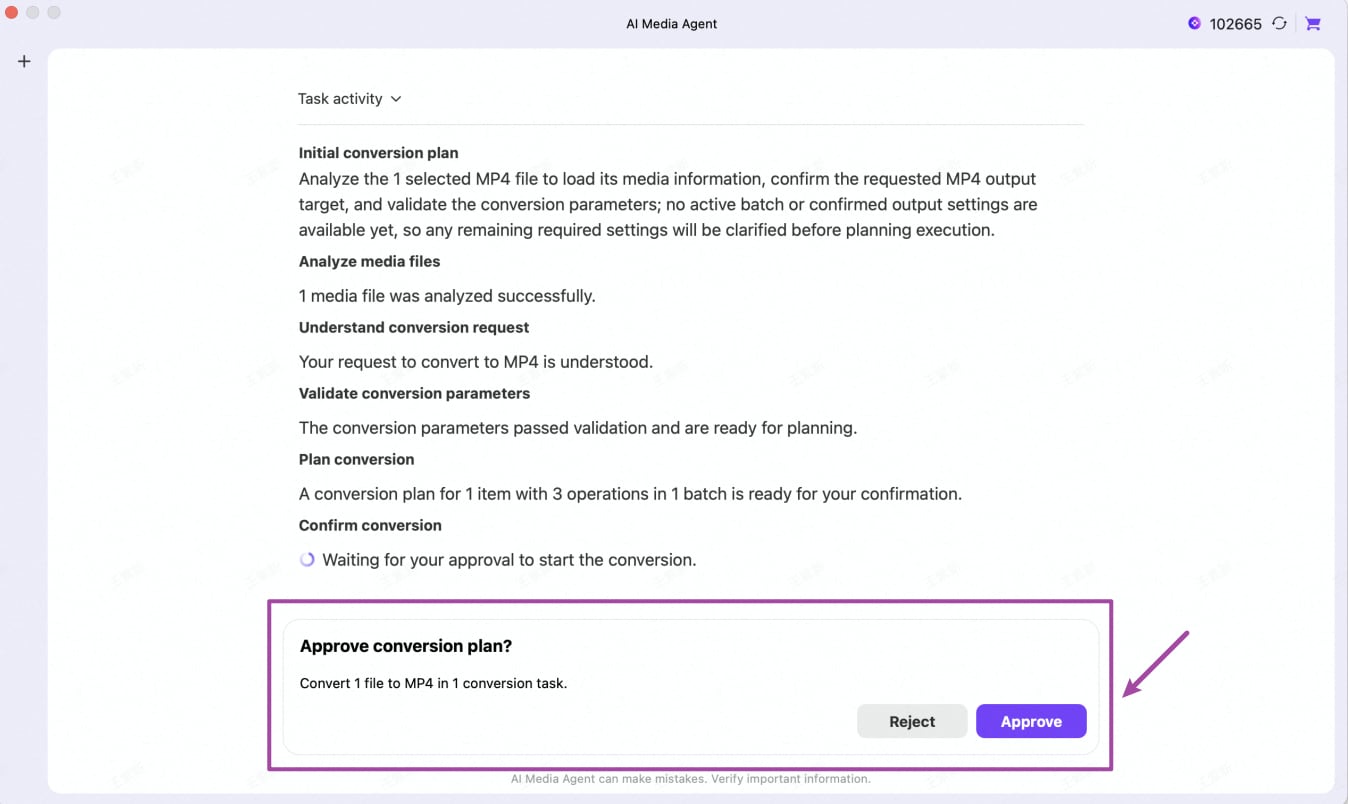
AI Media Agent analyzes the selected file, interprets your conversion request, validates the required parameters, and prepares a conversion plan.
When the Approve conversion plan? panel appears, review the proposed task and click Approve to start the conversion, or Reject if you do not want to proceed.
Step 4: Monitor the Conversion
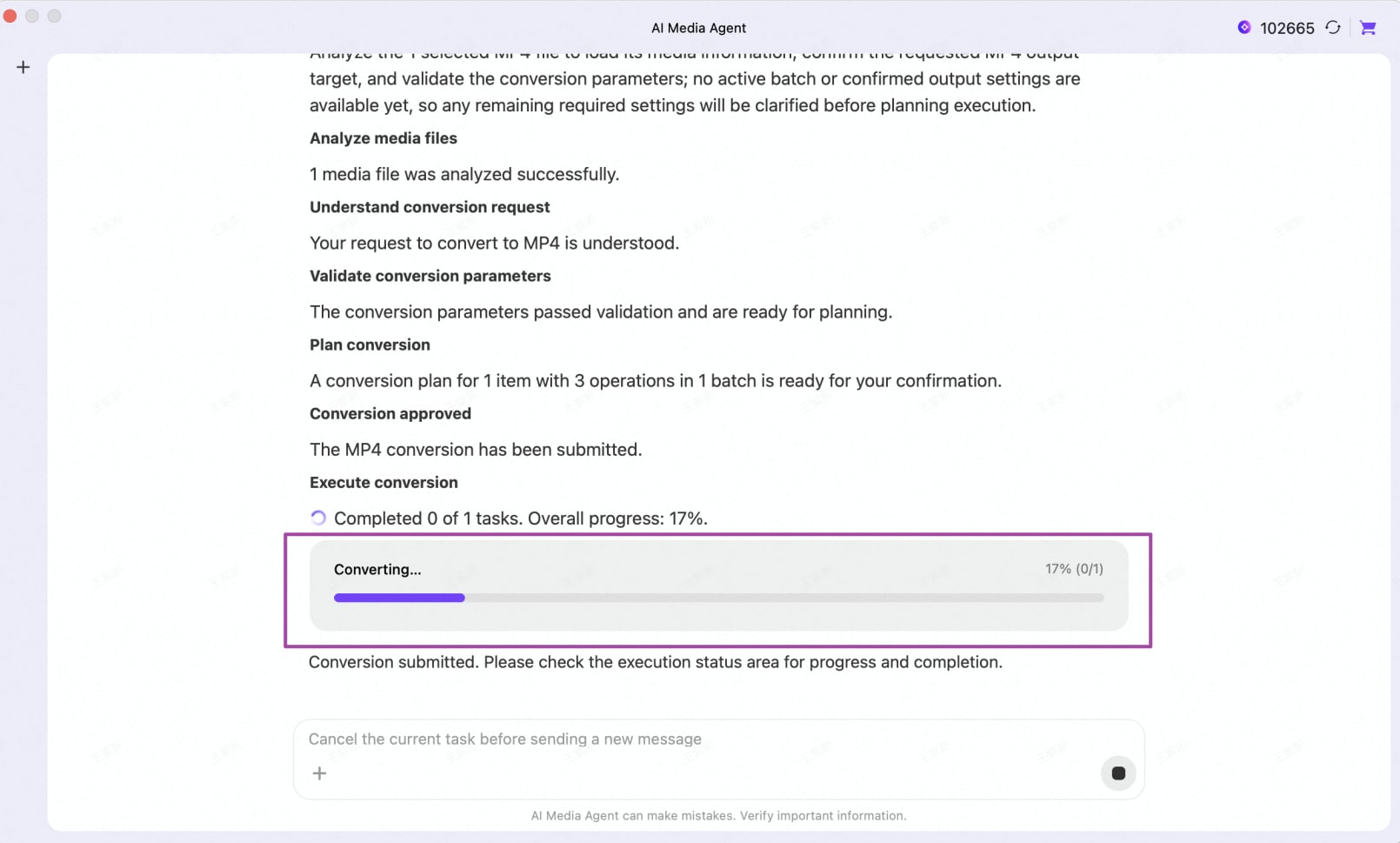
After approval, AI Media Agent submits the conversion task. Follow the activity details and progress bar in the chat interface to monitor the conversion.
The progress display shows the current processing status and overall task completion percentage.
Step 5: Open the Converted File
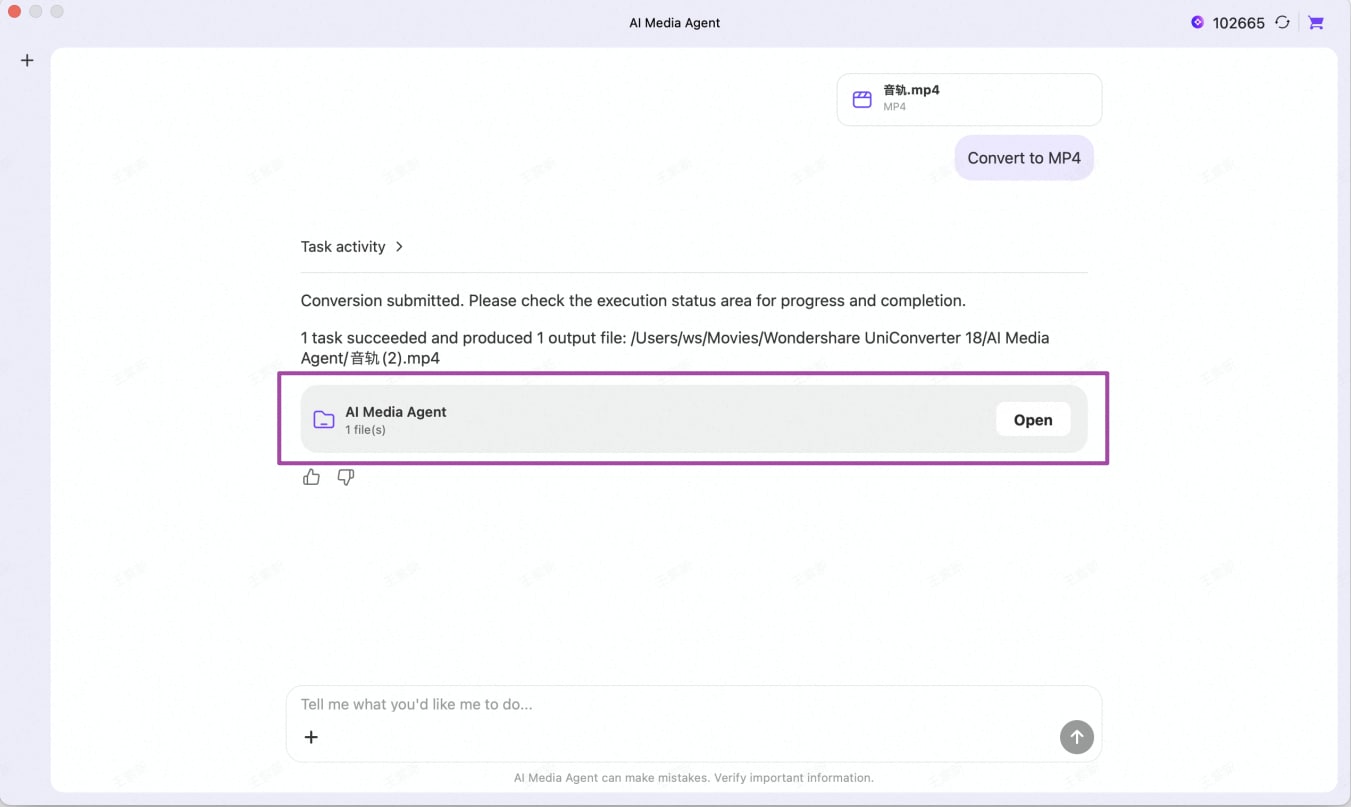
When processing finishes, AI Media Agent displays the task result and output location. Check the completion details, then click Open to access the output folder on your Mac and review the converted file.
 print
print