


For a professional photographer, working with hundreds of high-resolution images is a daily task. However, large data files can strain website performance and create problems for creators with limited internet access. Thankfully, many online tools have been introduced to ensure quicker load times and a seamless viewing experience by reducing image sizes.
Here, in this article, we will discuss the benefits and provide a step-by-step guide on how to reduce image pixel size using modern tools.
In this article
- How to Batch Reduce Image Pixel at Lossless Quality with UniConverter
- How to Minimize the Pixel of Photos While Keeping Clarity with an Online Tool
- How to Easily Decrease the Pixel Size of Pictures on iPhone or Android
- How to Easily Decrease the Pixel Size of Pictures on Chrome Extension
- Pitfalls to Avoid When Reducing Image Pixel Size
- Conclusion
- FAQs
Part 1. How to Batch Reduce Image Pixel at Lossless Quality with UniConverter
If you're a digital creator and your clients need high-definition image results with varying size dimensions, then you need to resize your image pixel size to make them web-friendly. To cater to this challenge, Wondershare UniConverter offers a batch processing tool that lets you process the bulk of images with no deterioration of image clarity.
One of the most prominent features of UniConverter is its collection of pre-designed aspect ratios. This feature allows creators to choose standard size dimensions to reduce image pixel sizes in a fast and easy way. Moreover, its advanced AI-powered technology instantly sharpens, denoises, and optimizes the pictures, giving users full control to enhance their photos with compression.
Salient Features of UniConverter
- The AI Image Enhancer tool removes flaws without impacting photo quality, even with reduced resolution.
- Its Image Converter tool allows content creators to effortlessly convert image sizes to many formats, such as JPG, PNG, and TIFF.
- Users may transform fuzzy and low-quality images using the Upscale feature without sacrificing pixel reduction or visual clarity.
- With UniConverter's Image Resizer tool, customers can select preset dimensions without losing photo quality.
- The Image Cropper tool offers both manual and preset crop options that enable users to define a specific crop region by specifying pixel details.
Step-by-Step Guide to Reduce Image Size Using Wondershare UniConverter
Given below are the simple and easy steps on how to minimize pixels in photos using UniConverter for creators according to their needs:
Step 1. Launch UniConverter and Import Your Media File
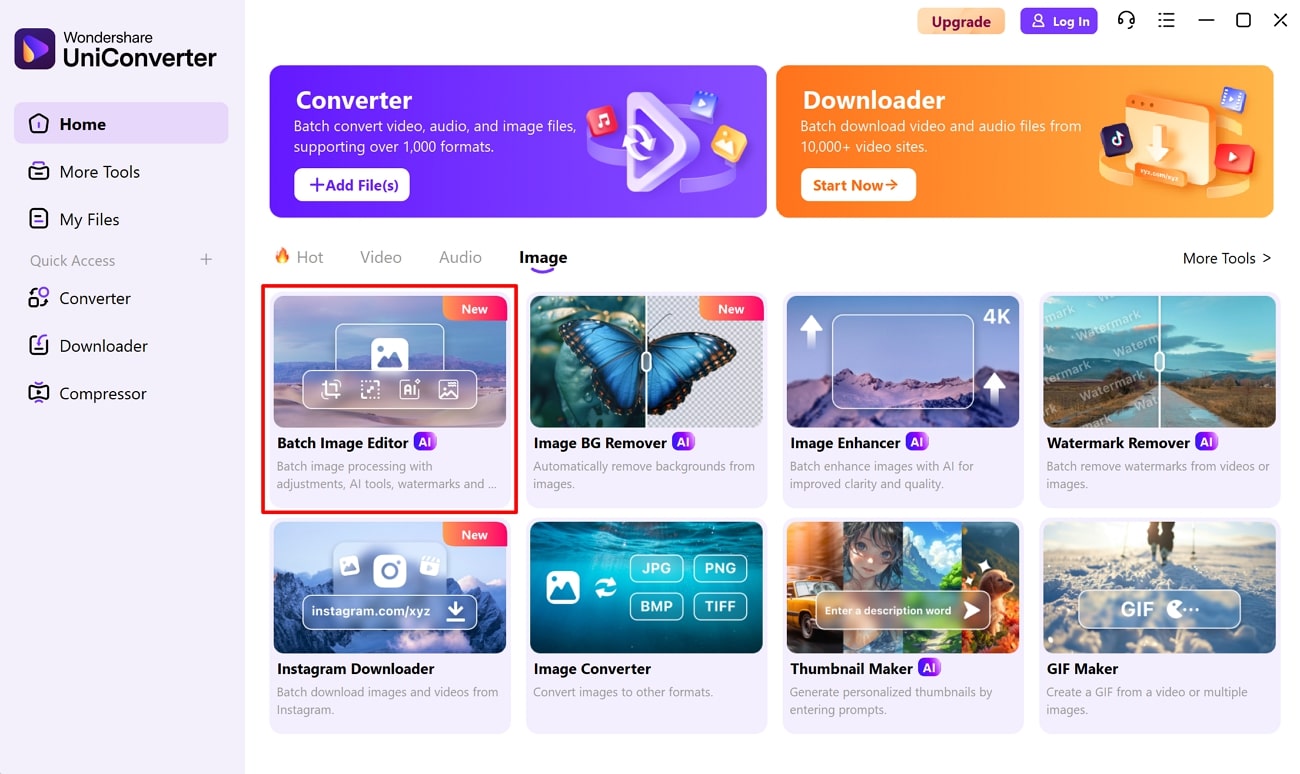
After initializing UniConverter, go to the “Batch Image Editor” feature from the homepage and click on the “+ Add Files” button to import your image(s).
Step 2. Access the Resize Option and Reduce Pixel Size
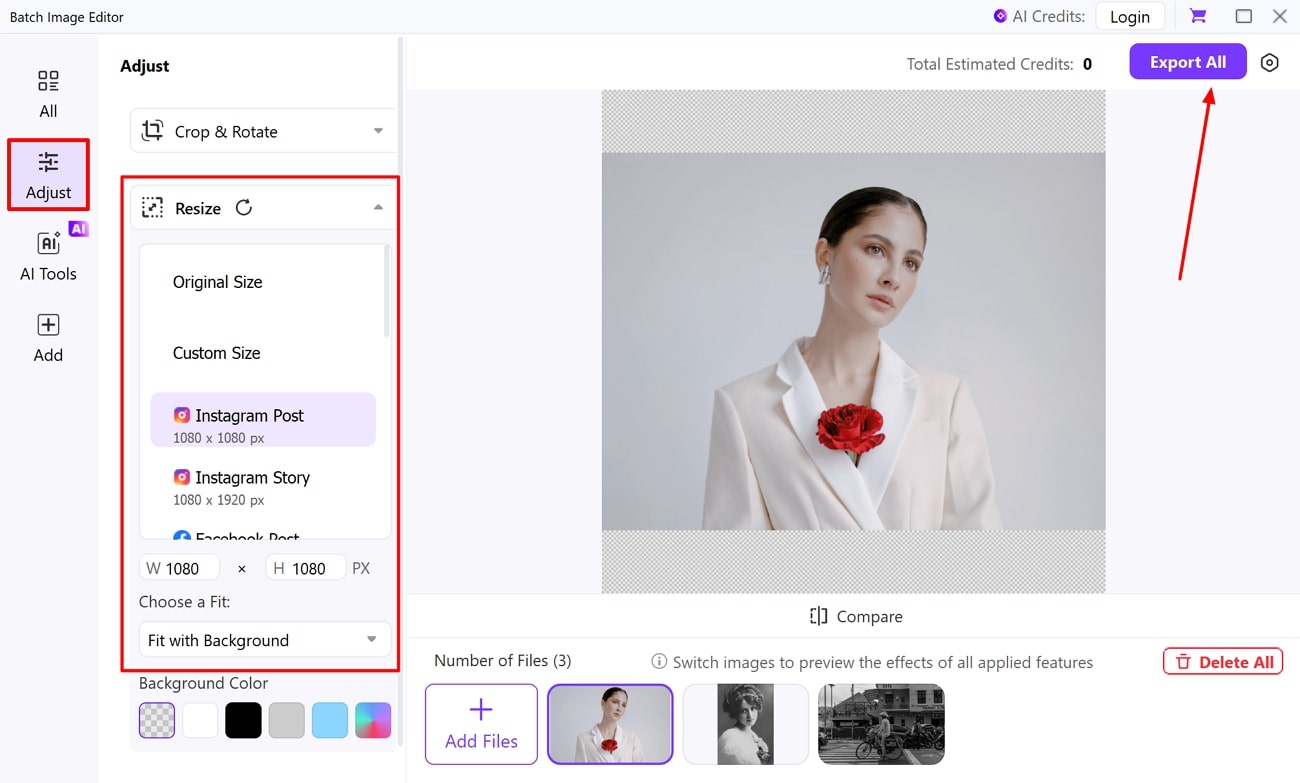
As the images are imported, lead into the “Adjust” section to navigate into the “Resize” menu. Look for the aspect ratio of your choice or manually adjust the width and height. On selecting the ratio, the images are automatically adjusted, which can be saved using the “Export All” button.

Easily Batch Reduce Image Pixel Size
Part 2. How to Minimize the Pixel of Photos While Keeping Clarity with an Online Tool
Reducing photo size is a difficult task for creators, especially when working with multiple photos for online sharing. Other online tools that are tailored for optimizing images to reduce the loading time are Shrink.Media is a simple and easy solution, specially designed to minimize photo pixels online by preserving photo quality. Follow the step-by-step instructions to reduce the file size of your images in the section below:
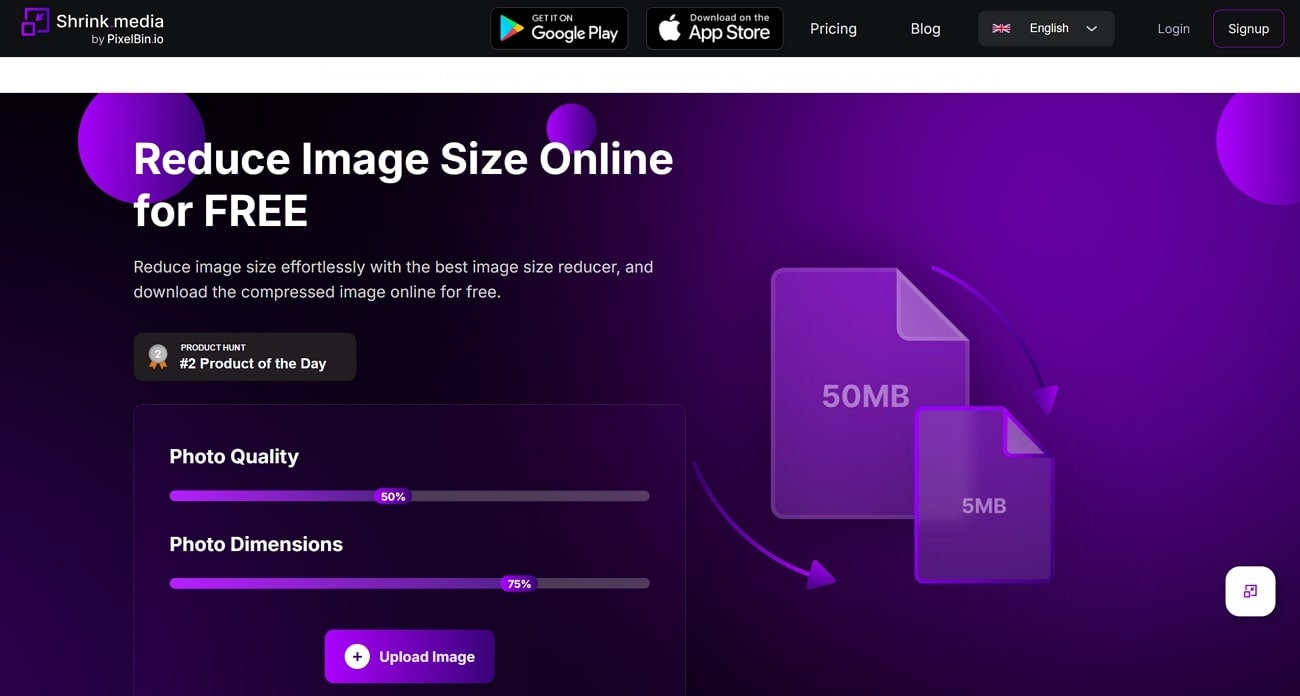
Step 1. Go to the homepage of Shrink.Media and click on the "Upload Image" button to upload the media file whose size you want to reduce.
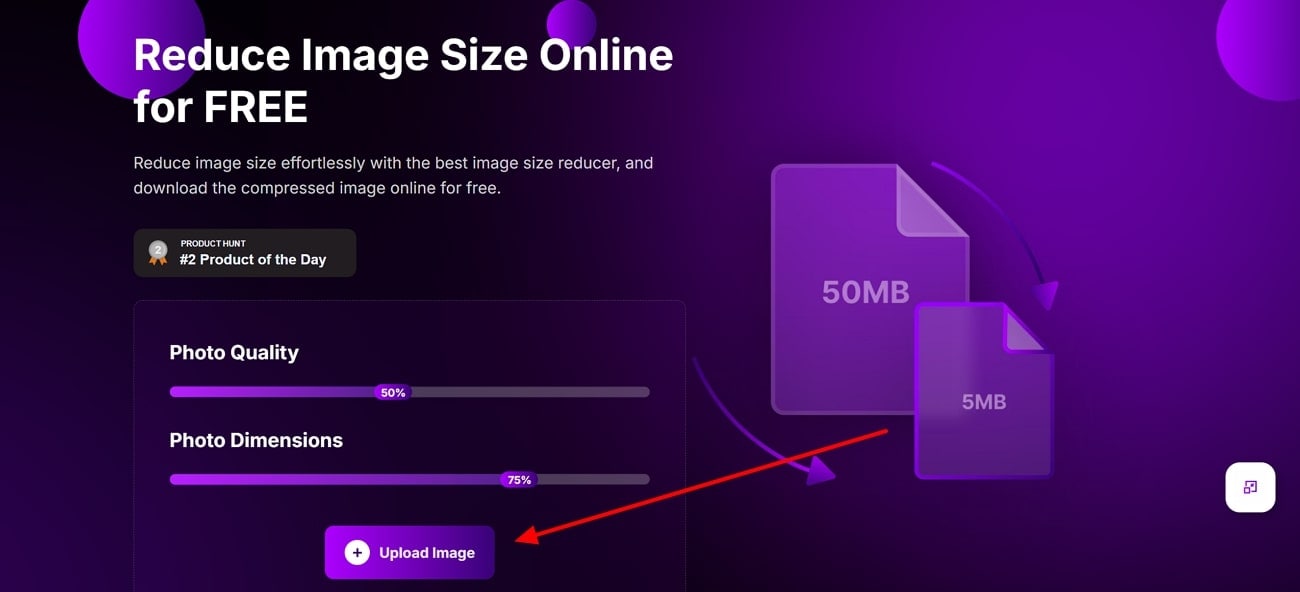
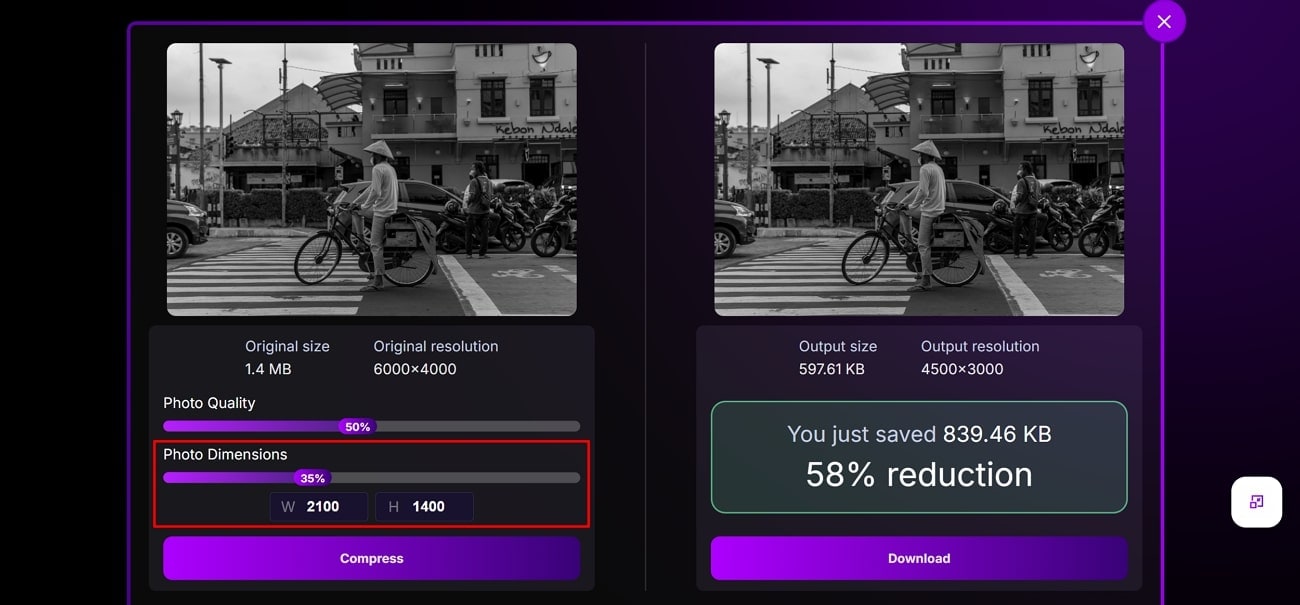
Step 2. After you are done uploading your image, drag the cursor on the “Photo Dimensions” slider to reduce the pixel size of the image. You may also select the dimension manually from the "W" and "H" tabs below the photo dimension sliders.
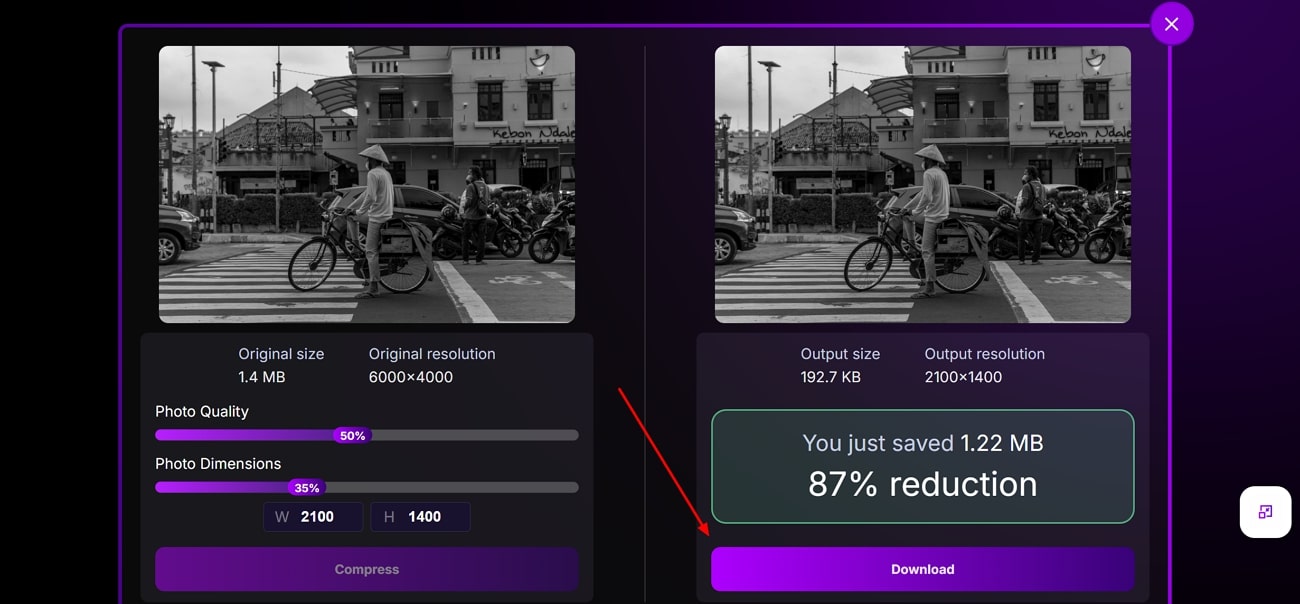
Step 3. Click on the "Compress" button, and once you are satisfied with the result, click on the "Download" button to save it to your computer.
Part 3. How to Easily Decrease the Pixel Size of Pictures on iPhone or Android
In this section, we will explore 2 methods to reduce image pixel size, making it easier for your mobile devices to access. Two highly reliable apps are mentioned below for both iPhone and Android to effectively reduce image sizes:
Method 1. Minimize Pixel Size on iPhone Using Image Size
Photo size is an important aspect when working with dozens of images, and reducing it is a better option to achieve faster uploads. For precise control over photo size, the Image Size app is a direct solution for iPhone users to reduce image pixels from the images in an easy and customized approach. In this method, we are discussing a step-by-step guide to reduce image size to ideal specifications:
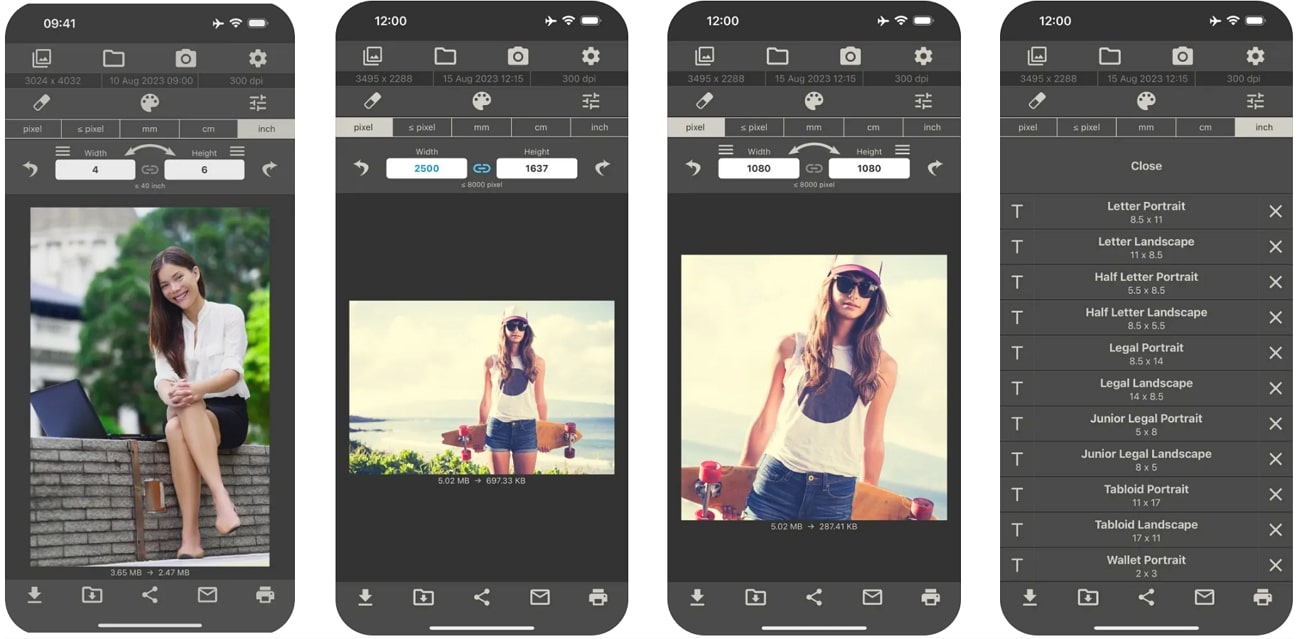
Step 1. In the first step, open the app on your iPhone and tap the "Image" icon to select the media from your gallery, and select the "Choose" button.
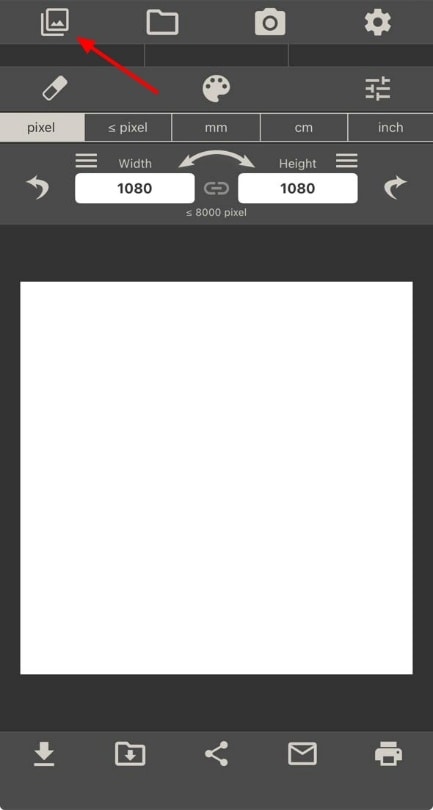
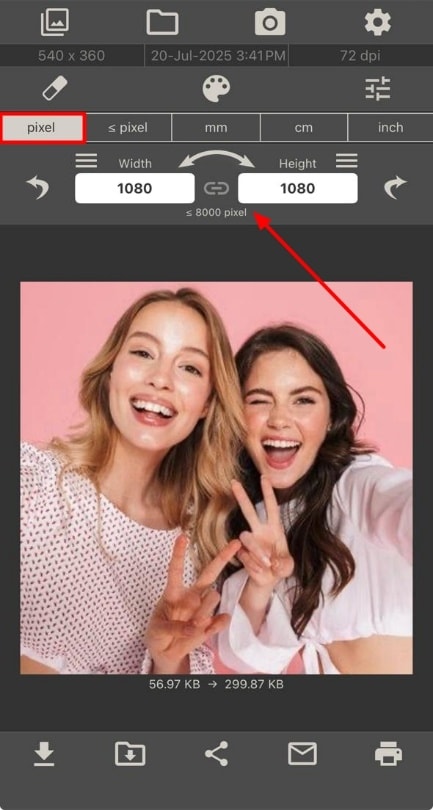
Step 2. After importing the media on the app interface, tap on the “Pixel” option from the top toolbar and select your desired dimension. You may also adjust image dimensions manually by tapping on the "Width" and “Height” buttons on the toolbar.
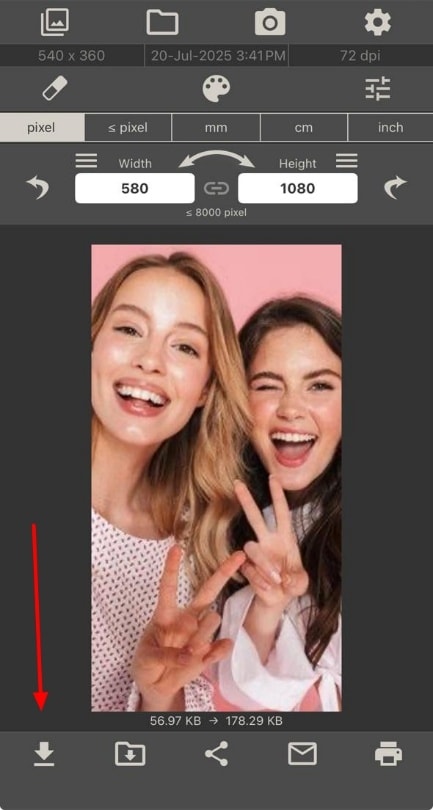
Step 3. Tap on the “Download” icon after you’re satisfied with your results to save your image to the phone's gallery.
Method 2. Reduce Image Pixel Size on Android Using Photo & Picture Resizer
For digital creators who constantly work with social media posts and content creation, a quick option to optimize image size is the Photo & Picture Resizer app. It offers minimized image distortion while converting the pixel dimensions, making it the best choice for regular digital photographers. To reduce picture pixels through this app, follow the instructions given in the section below:
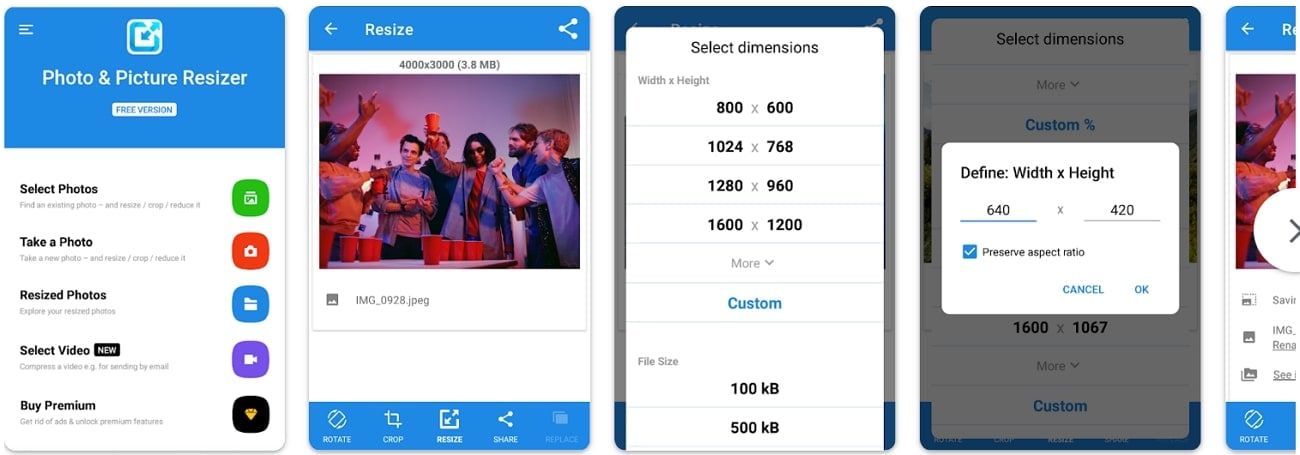
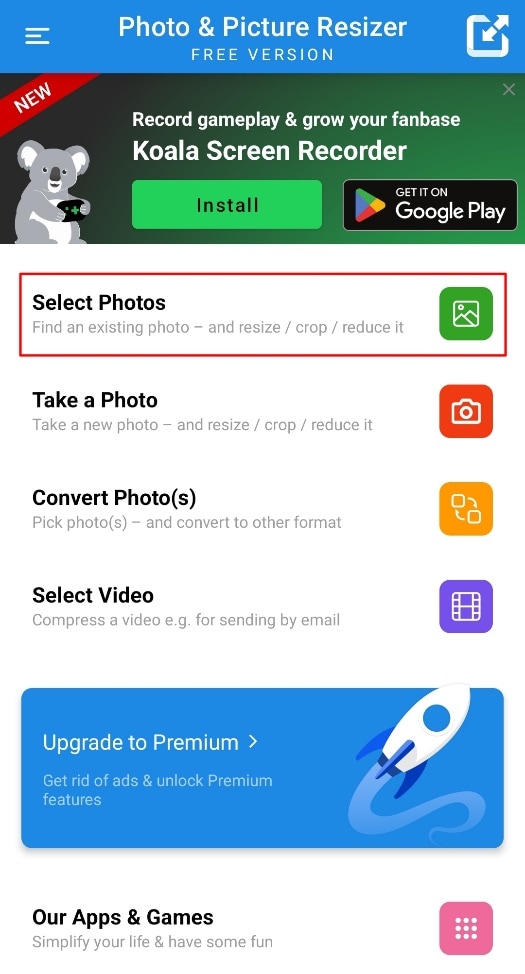
Step 1. Open the application on your device and tap on the “Select Photos” icon to import your media to resize the selected photo.
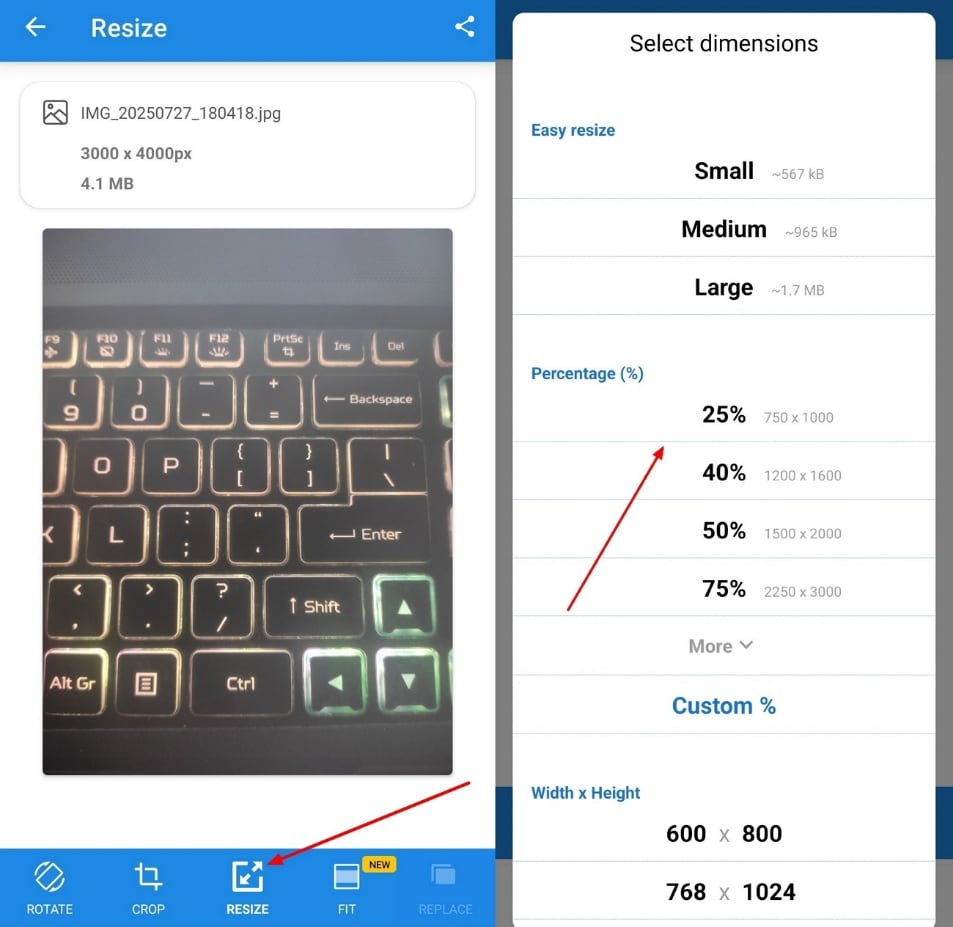
Step 2. Tap on the "Resize" icon present on the bottom toolbar, and from the “Select Dimensions” panel, choose a preset dimension or manually enter your custom pixel height and width.
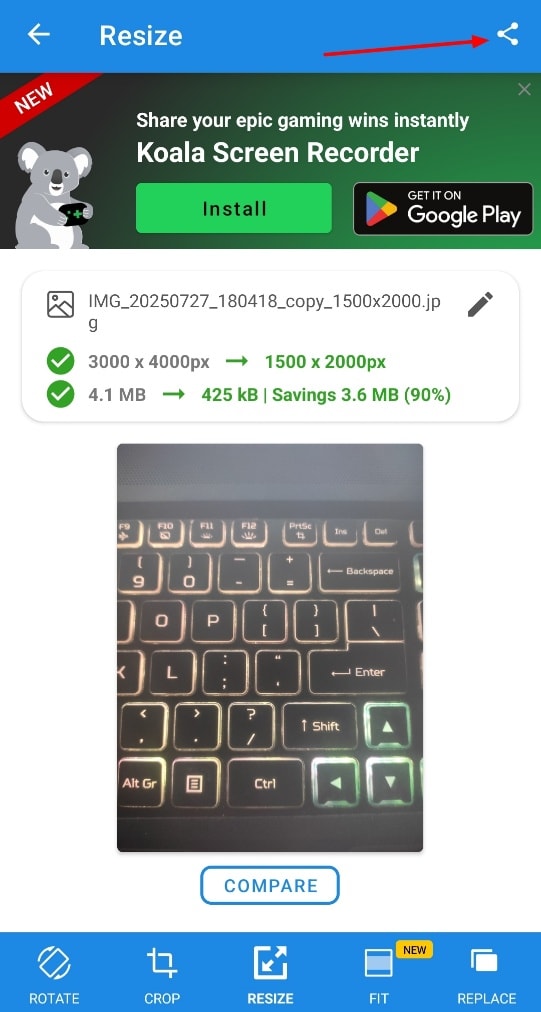
Step 3. The resized image is automatically saved on your mobile after processing. Tap on the "Share" icon that lets you share the resized images and directly export across different social media platforms.
Easily Batch Reduce Image Pixel Size
Part 4. How to Easily Decrease the Pixel Size of Pictures on Chrome Extension
With a Chrome extension, resizing images and reduce photo pixels is a hassle-free task because it does not require any external software or advanced skills. The Image Resizer Extension for Chrome offers a direct image rescaling option from your browser. It supports multiple formats and allows users to customize the pixel size within the browser. The following guide will help you understand how to decrease photo size through the Chrome extension:
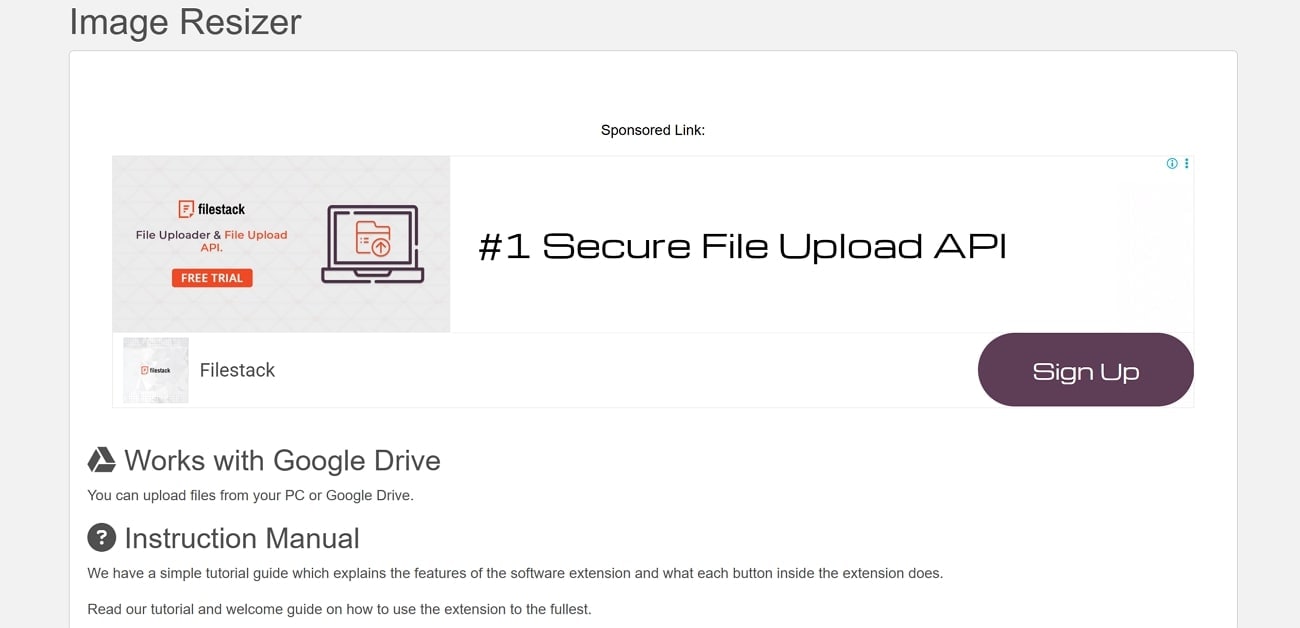
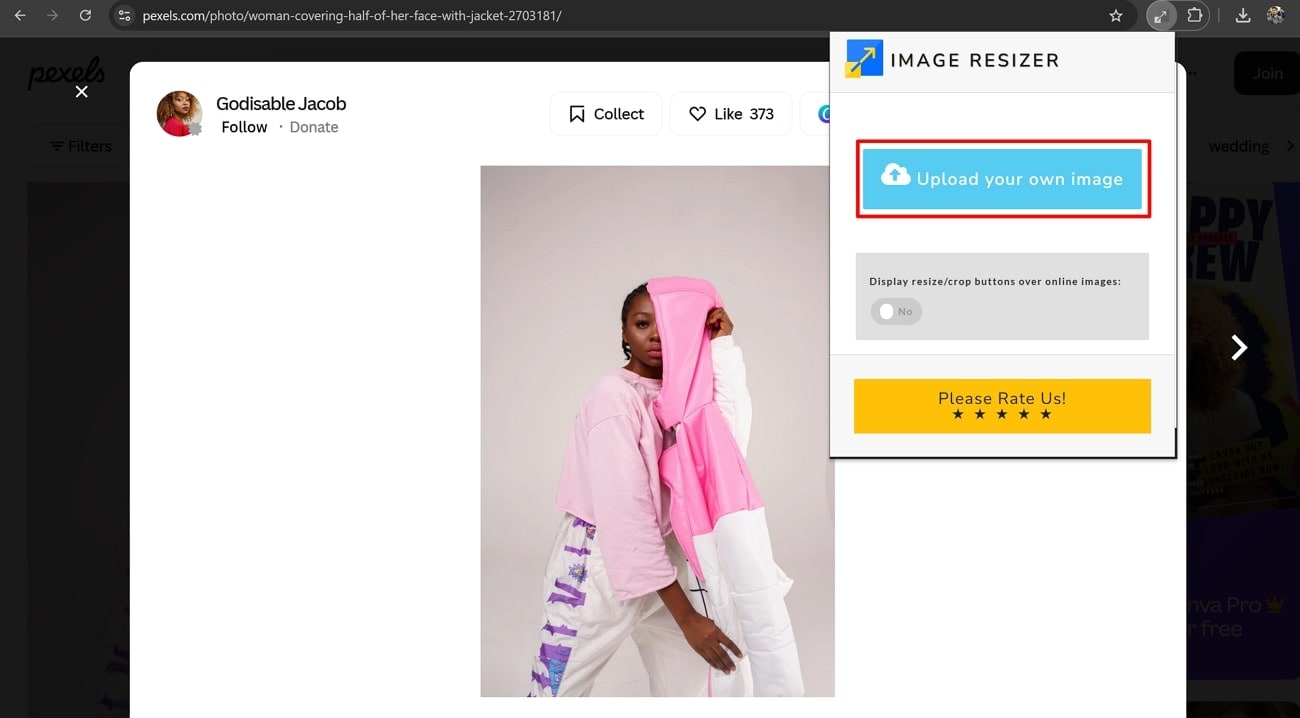
Step 1. From your browser, click on the “Image Resizer” icon in the Chrome extension bar and click on the “Upload Your Own Image” button to upload your media file.
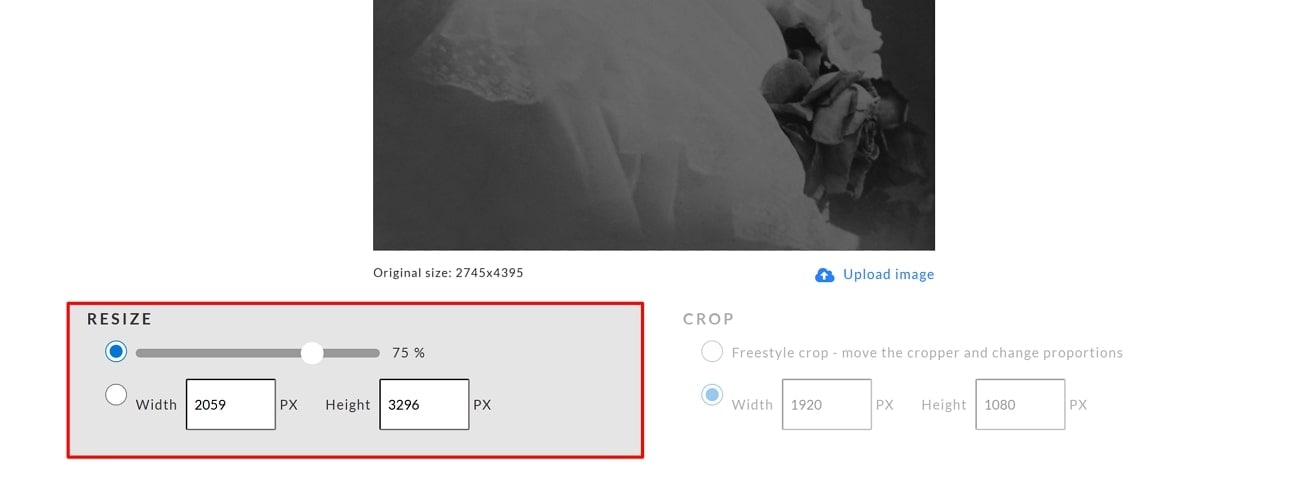
Step 2. Go to the “Resize” slider from the extension interface and drag it to adjust the required size for your image. You may also enter your image pixel size by clicking on the “Width” and "Height" tabs.
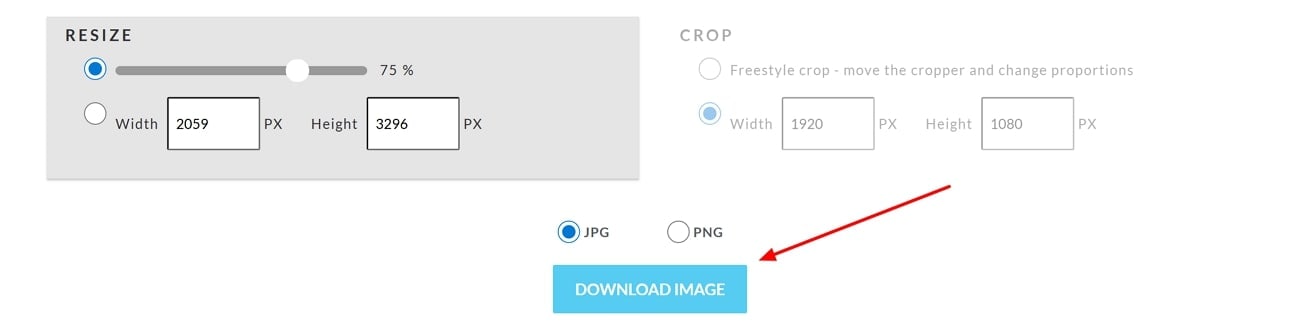
Step 3. After you have reviewed your preferred image format size, click on the “Download Image” button to save the image on your device.
Part 5. Pitfalls to Avoid When Reducing Image Pixel Size
Reducing picture size is an important technique for creators and professional artists to improve online performance and streamline workflow. However, some mistakes could result in the loss of important data files and a degradation in photo quality. To reduce the pixels of images, the following pitfalls should be avoided that lead to complications:
Over Compression
Over compression of photos causes blurriness and creates artifacts that lead to image deterioration.
Image Format Options
Some file types, such as JPEG, do not maintain image quality when resizing images, whereas others preserve details with less damage.
Larger Original Image File
Smaller-sized images can cause severe photo damage and over-pixelation when their size formats are extended.
Preview Before Export
While reducing the pixels, always look for the review option tool that can save from unnoticed picture impairment.
Conclusion
It is clear that the right tools and techniques are necessary when reducing photo pixels, either from your mobile phone, desktop, or using browser extensions. Among the solutions covered in the article, UniConverter is the best option to reduce the pixel size of photos with predefined aspect ratios while maintaining photo quality. Therefore, for creators looking for reliability and efficacy, UniConverter stands out as one of the best.
Easily Batch Reduce Image Pixel Size
Frequently Asked Questions
-
1. What is the pixel size of an image, and why do I need to reduce it?
Pixel size of image refers to its dimensions measured in pixels, also mentioned as width and height. Reducing the size is important for using the image across the web and save space when uploading it.. -
2. Does pixel size reduction always lead to image quality deterioration?
It is not necessary, as when you use tools like UniConverter to reduce pixels, they maintain photo quality and prevent it from blurriness. -
3. Can I avoid image distortion when resizing the image files?
Yes, you can avoid this by selecting the "Maintain Aspect Ratio" option that is available in most advanced tools such as UniConverter. This feature guarantees a balanced image scaling without stretching and distortion of images. -
4. Is it possible for creators to reduce the pixel size of multiple images at once?
Yes, easily convert several images with advanced online tools. However, UniConverter features the best option to resize and convert images in batches.

