


"Why won't this HEIC image open?" If you've ever asked this after transferring photos from your iPhone to a Windows PC or an online platform, you've met the HEIC problem. While great for saving space, this format is notoriously incompatible. The good news is that finding a top-tier HEIC to PNG converter online free is the instant solution you need. But with countless options, how do you choose the best free HEIC to PNG converter no watermark that also guarantees no quality loss?
This guide cuts through the noise. We've tested the leading tools to show you exactly how to convert HEIC to PNG for free while preserving perfect quality for editing, printing, or sharing. Discover the converters that offer blazing speed, bulk processing, and mobile-friendly interfaces, making them ideal for photographers, designers, and everyday users looking to simplify their digital life.
In this article
Part 1: Why Convert HEIC to PNG?
Overview of HEIC and PNG
HEIC (High Efficiency Image Container) is Apple’s default image format for iPhones and iPads since iOS 11. It delivers high-quality images with smaller file sizes compared to JPEG or PNG, making it storage-friendly. However, HEIC isn’t universally supported—many Windows PCs, older Android devices, web platforms, and certain apps can’t open it without extra software or plugins.
PNG (Portable Network Graphics) is a widely used, lossless image format that preserves image quality while being supported by virtually all devices, operating systems, and browsers. PNGs handle transparency well, making them ideal for design, editing, and publishing online.
Benefits of Converting HEIC to PNG
Device Compatibility
HEIC images may not display correctly on many Windows PCs, older Android devices, or non-Apple hardware. PNG ensures your images can be opened without special apps or converters, regardless of the device’s brand or age.
Platform Compatibility
Some web platforms, email services, and social media sites don’t support HEIC uploads. Converting to PNG guarantees smooth uploading, posting, and sharing across virtually all online platforms.
Editing Flexibility
Many photo editing tools—especially older or browser-based ones—struggle with HEIC files. PNG is universally supported in both free and professional editors, making it easier to adjust, crop, or enhance images.
Transparency Support
Unlike JPEG, PNG supports transparent backgrounds, which is crucial for graphic design, logo placement, and layering images without a white or colored box appearing behind them.
Quality Preservation
PNG uses lossless compression, meaning you can edit and re-save the file without degrading its quality. This makes it ideal for images that need to be reused or archived without losing detail.
Easier Archiving and Sharing
PNG’s wide compatibility means you can store your images for years without worrying about future format support. You can also send them via messaging apps, cloud storage, or USB without compatibility issues.
Part 2: Top Pain Points of HEIC to PNG Conversion
Converting HEIC files to PNG may sound simple, but users often run into frustrating limitations and unexpected trade-offs along the way. From file restrictions to privacy concerns, the process isn’t always as smooth as it should be—especially with free tools. Let’s explore the top pain points of HEIC to PNG conversion:
Batch Conversion Limits
Many free online converters restrict the number of files you can process at once, slowing down large-scale projects. This is especially frustrating for photographers or designers working with hundreds of images. It often forces users to repeat the upload–convert–download cycle multiple times. Paid plans usually lift these limits, but that defeats the “100% free” intent for casual users.
Watermarks and Licensing Restrictions
Some tools add watermarks to converted images or reserve full-quality output for paid users. Licensing restrictions may also limit how the converted files can be used commercially. This can be problematic if the image is meant for professional or public use. Users often have to double-check terms of service to ensure their work remains legally usable.
Loss of Transparency, Metadata, or Image Quality
Not all converters preserve image details perfectly. Transparency may be lost, EXIF metadata like capture date and camera settings can be stripped, and in rare cases, compression artifacts may appear. This can reduce the professional value of an image, especially for archival or legal documentation. For creative projects, losing transparency often means extra editing work later.
File Privacy Concerns with Online Tools
Uploading images to online services can raise security and privacy issues, especially if the files contain personal or confidential information. Not all platforms clearly state their data handling policies. Even when they claim to delete files after a set period, users have to trust that promise without direct verification. Sensitive work for clients or institutions may require offline alternatives.
Setup Friction on Windows
Opening HEIC files on Windows often requires installing extra software or Microsoft Store extensions before you can even view them. This adds steps and time to what should be a simple process. For less tech-savvy users, these extra steps can feel confusing and risky. It can also create version compatibility issues if extensions don’t match the user’s system setup.
Part 3: Best 5 Free HEIC to PNG Converters
1. Wondershare UniConverter (Online & Desktop)
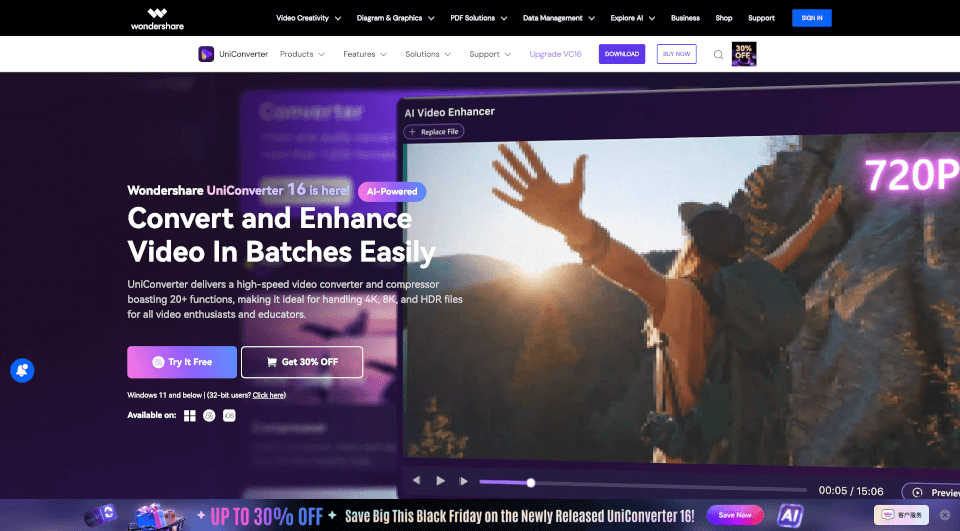
Wondershare UniConverter offers the flexibility of both a robust desktop app and a streamlined online converter for HEIC-to-PNG work. The desktop version supports batch conversion, advanced editing, and format customization, while the online tool delivers quick, browser-based functionality. It's ideal for users needing power and flexibility, from professionals to casual converters. The interface is intuitive, and conversions maintain high quality without watermarks. Whether you're offline or online, UniConverter ensures seamless workflow continuity.
Steps to Convert HEIC to PNG with UniConverter Online
Step 1: Sign Up & Import HEIC Files
Download, install, and launch Wondershare UniConverter’s desktop software. Select the Converter tab. Drag and drop your HEIC file into the interface, or click the “+” button to browse and upload it from your device. Clicking the “+” lets you easily select images stored on your computer.

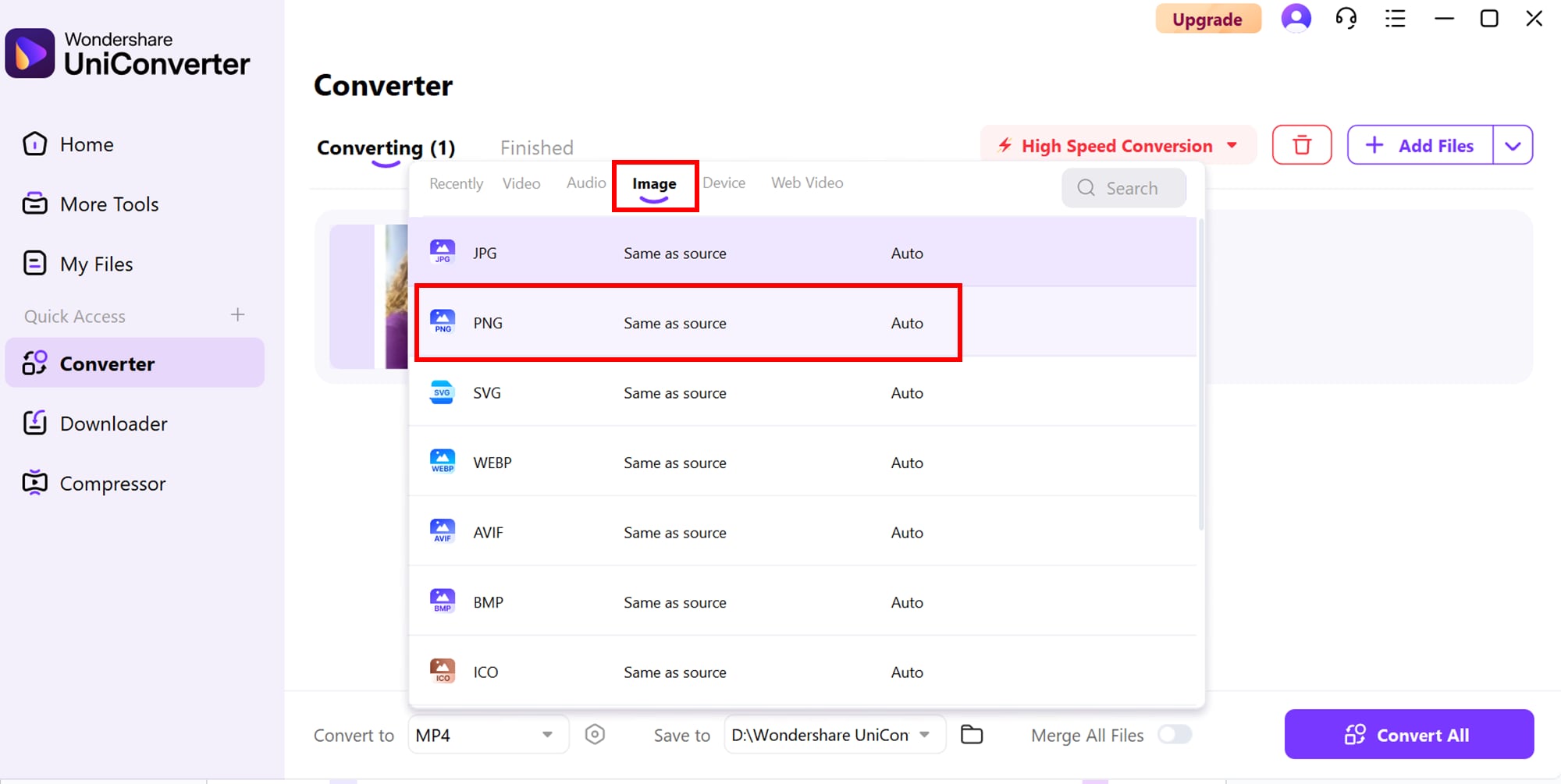
Step 2: Choose PNG as the Output Format
After uploading your image, click on it and pick PNG for the output. Maintain sharp visuals by aligning the conversion settings with your source file. The desktop version also allows batch conversion, so you can convert multiple HEIC files in one go.
Step 3: Download PNG File
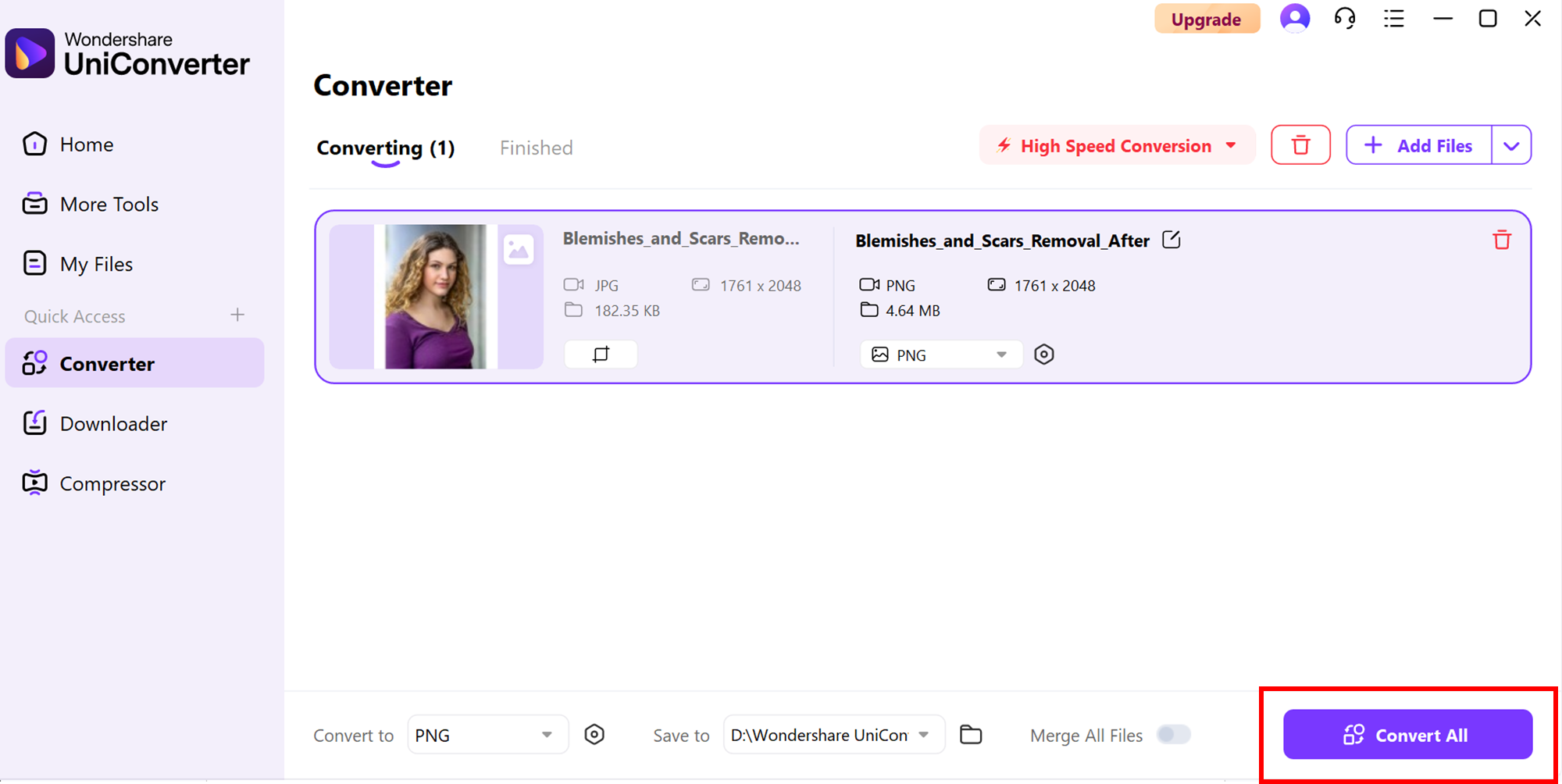
Click “Convert All” once your settings are confirmed. The moment the conversion ends, your PNG files are ready for quick download—so you can move forward without delay.
2. Convertio
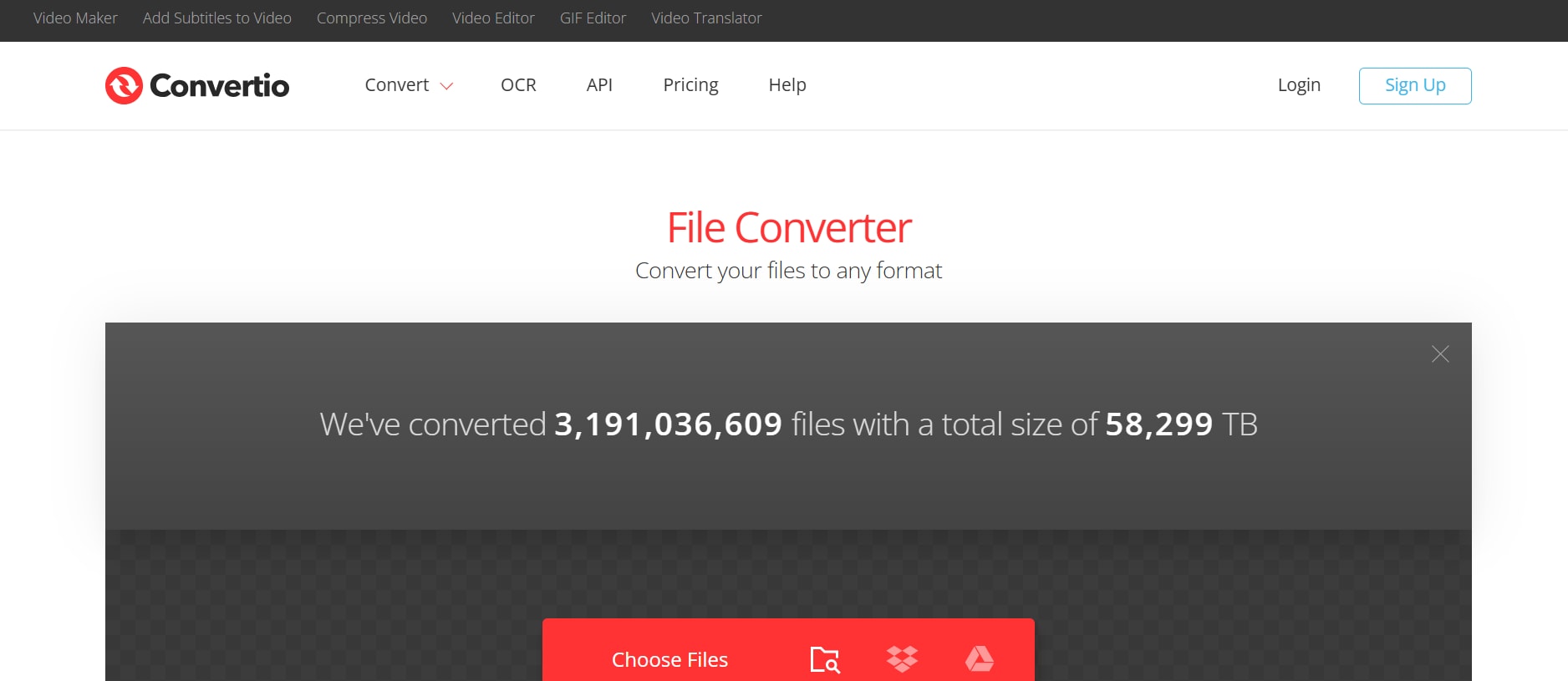
Convertio is a popular browser-based converter that transforms HEIC to PNG quickly and securely. With drag-and-drop simplicity and a clean interface, it’s ideal for one-off conversions or quick edits. The free tier allows files up to 100 MB, and users can upload from various sources like cloud storage or URLs. It also offers basic customization like resizing or format tweaks before download. This makes it a great choice for users who want fast results without fussing over advanced settings.
3. CloudConvert
CloudConvert provides advanced HEIC-to-PNG conversions directly in your browser, with options to tweak resolution, compression, and image quality. It supports batch processing and a wide range of file formats. The service is popular among professionals who need fine control over output while keeping workflows online. It integrates with Google Drive, Dropbox, and OneDrive for direct imports and exports. This makes it ideal for teams or individuals working across multiple devices and storage platforms.
4. Picflow
Picflow delivers a zero-friction HEIC-to-PNG conversion experience entirely within your browser. It emphasizes privacy—files are converted locally, so nothing is uploaded. This means you can work offline after the initial page load, avoiding internet delays or security concerns. Its lightweight nature makes it run well even on older hardware. For privacy-focused users or those with limited connectivity, it’s a fast, reliable choice.
5. Ezgif
Ezgif is a no-frills online tool for converting HEIC to PNG—no software downloads, no sign-ups, and no watermarks. It supports files up to 200 MB, making it useful for large images. While it’s best known for GIF editing, its image conversion tools are equally dependable. The platform loads quickly and handles conversions without unnecessary steps or pop-ups. It’s perfect for anyone who values speed and simplicity over fancy interfaces.
Here’s a clean comparison table for the five tools, covering batch processing support, file size limitations, and ads density:

Easy to Use HEIC to PNG Converter
Conclusion
Converting HEIC to PNG doesn’t have to be a complicated or costly task. Whether you need the advanced features and offline reliability of Wondershare UniConverter, the quick convenience of Convertio or CloudConvert, the privacy-first approach of Picflow, or the straightforward simplicity of Ezgif, there’s a free tool to match your priorities. Your choice should come down to factors like batch processing needs, file size limits, privacy concerns, and tolerance for ads.
For most users, combining a fast online option with a powerful offline tool provides the best balance of speed, flexibility, and security. With these five tools, you can ensure your images are always ready to share, edit, and publish—without worrying about format compatibility.
FAQs
-
1. What is the main difference between HEIC and PNG formats?
HEIC is a high-efficiency image format that saves storage space while maintaining quality, but it’s not universally supported. PNG is a lossless format compatible with almost all devices, platforms, and editing tools. -
2. Do online HEIC to PNG converters reduce image quality?
Most reputable converters maintain the original quality, especially when using lossless settings. However, some may compress images to speed up processing or fit free-tier limits. -
3. Can I convert HEIC to PNG without an internet connection?
Yes. Desktop tools like the Wondershare UniConverter desktop version allow offline conversions, keeping your files private and accessible without relying on the web. -
4. Are there any privacy risks with online converters?
Potentially. Online tools require uploading your files to a server, so it’s important to use services with clear privacy policies or choose in-browser/local conversion tools like Picflow. -
5. Is it possible to batch convert HEIC files to PNG for free?
Yes. Some free tools, such as Wondershare UniConverter and CloudConvert, support batch processing. However, free tiers may impose limits on file count or size per session.

