


Removing background from images can be very tricky and time-consuming, especially when you’re dealing with complex images. Nowadays, photographers, designers, and creative users use background remover software to remove unwanted background from images, as it enables them to achieve clean and high-definition results with less effort.
So, if you’re looking for reliable background remover software, you’re not alone. To help you out, we spent hours exploring various tools, and we’ve curated a list of the best 10 high-definition background removers that are effective and easy to use in 2026.
In this article
- How to Choose a High-Definition Background Remover?
- Quick Glance at the Best High-Definition Background Remover
- The Best 10 High-Resolution Background Remover
- Free vs Paid High-Definition Background Removers
- How to Remove Background With High-Quality (Step-by-Step)
- Tips for Getting the Best HD Background Removal Results
- Conclusion
- FAQs
Part 1: How to Choose a High-Definition Background Remover?
Here are some important factors to consider when choosing a high-definition background remover;
Essential Features in a Background Remover Tool
When choosing a high-definition background remover, the first thing you should evaluate is whether the tool offers the core features required for professional results. A reliable background remover should use advanced AI to accurately separate the subject from the background, even in challenging scenarios such as hair, fur, shadows, or transparent objects. It should also allow you to export images with transparent or customized backgrounds without degrading quality. These foundational features ensure that the tool can handle a wide range of image types while delivering clean, consistent results.
Processing Speed
The processing speed of a high-resolution background remover plays a critical role in determining how efficient your workflow will be. If a tool takes too long to process a single image, productivity can quickly suffer, especially when handling large volumes of images, such.
Batch Editing
Batch editing is another essential feature, especially if you frequently work with multiple images. Instead of removing backgrounds one image at a time, batch processing allows you to upload and edit dozens or even hundreds of images simultaneously. This feature can significantly reduce manual effort and turnaround time, making the background remover tool more efficient for professional and business use.
Image Size and Resolution
To achieve truly high-definition results, choose a background remover that supports large image sizes and high resolutions. Many lower-tier tools compress images or limit output resolution, which can result in a noticeable loss of detail. A professional-grade background remover should handle high-resolution inputs without forcing you to downscale your images. This ensures that the final output remains sharp and suitable for print, advertising, and high-quality digital displays.
Integrations
Integrations determine how well a background remover fits into your existing workflow. Tools that integrate with popular design software, content management systems, and eCommerce platforms allow you to remove backgrounds without constantly switching between applications. This seamless connectivity reduces repetitive tasks and improves efficiency.
Technical and Customer Support
This is often overlooked, but it’s also important to check whether the background remover has reliable technical and customer support. This is very crucial if you process a high volume of images.
If you encounter issues such as failed uploads, processing errors, or integration problems, responsive support can save you significant time and frustration. Tools like UniConverter Background Remover, Remove.bg, etc., that provide clear documentation, tutorials, and accessible support channels demonstrate a commitment to long-term usability.
Part 2: Quick Glance at the Best High-Definition Background Remover
If you don’t have time to dive into our comprehensive review, here is a quick side-by-side comparison of the 10 background remover tools introduced in this article.
| Tool | Platform | AI Auto Removal | Manual / Refinement Tools | Bulk Processing | Output Quality | Best For |
| Wondershare UniConverter Background Remover | Web / Desktop | ✔️ | ✔️ (manual touch-ups) | ✔️ | High | Quick edits + batch jobs |
| Remove.bg | Web / API / Plugins | ✔️ (one-click) | Limited | ✔️ (paid) | Very High | Fast automated results |
| Pixlr Background Remover | Web (browser) | ✔️ basic | ✔️ (editor) | Limited | Medium–High | Browser-based quick edits |
| Erase.bg | Web / Mobile | ✔️ (fast) | Minimal | ✔️ (supported) | High | Free/premium balance |
| Removal.ai | Web | ✔️ | ✔️ (refinement tools) | ✔️ (bulk) | High | E-commerce workflows |
| NoteGPT AI Background Remover | Web | ✔️ | Limited | ❌ | Medium–High | Quick simple removals |
| Adobe Express Background Remover | Web / App (Adobe ecosystem) | ✔️ (Firefly AI) | ✔️ (manual tools) | ❌ | High | Design workflows & templates |
| Foco Clipping | Web / Service | ✔️ (AI) | ✔️ (manual & pro clipping) | ✔️ | Very High | Complex product photos |
| InPixio | Web / Desktop | ✔️ | ✔️ (brush / refine) | ❌ | High | User-friendly manual control |
| ClipDrop | Web / Desktop / Mobile | ✔️ (advanced AI) | ✔️ extra AI enhancements | Limited | Very High | Creative and design workflows |
Part 3: The Best 10 High-Resolution Background Remover
1. Wondershare UniConverter
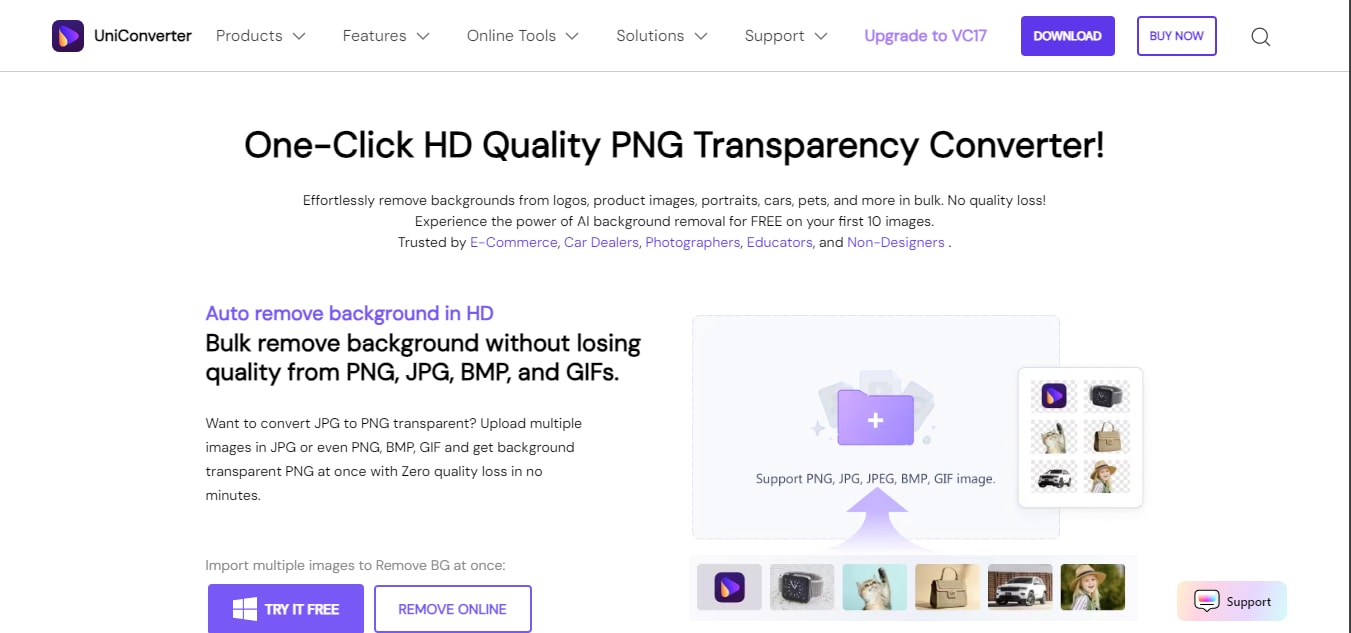
While UniCounverter is popular for its powerful video editing features, it also boasts a versatile background remover tool that enables you to remove backgrounds from images without compromising quality.
UniConverter’s Background Remover allows you to remove unwanted backgrounds from JPG, SVG, JPEG, and BMP images. And the best part? It supports batch processing, enabling you to remove backgrounds from multiple images efficiently. It also has a very intuitive user interface, making navigation seamless for users with any experience level.
Key features
Automatically remove background from images within a few clicks.
Replace the image background with a different color or a new image.
Supports multiple image formats.
It has a wide range of features for image editing, video conversion, DVD burning, and much more.

Remove High-Definition Image Background Without Quality Loss
2. Remove.bg
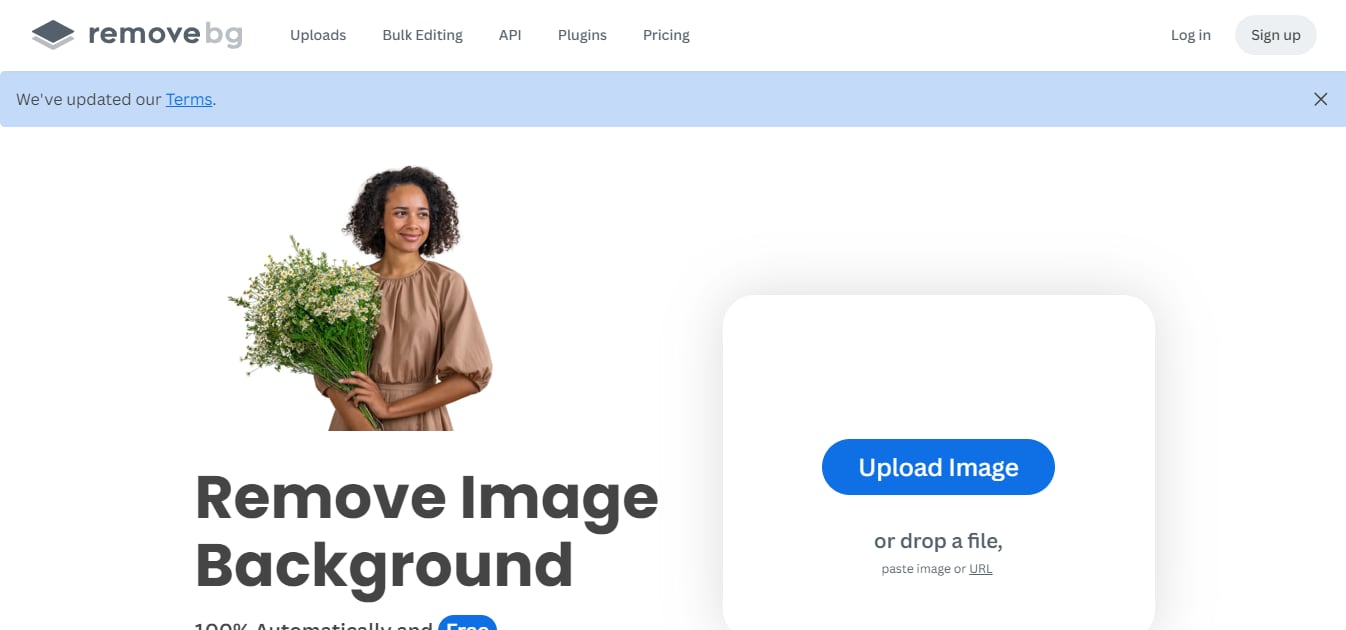
RemoveBG is a popular online image background removal software that excels at removing backgrounds from portrait images with high resolution - it handles it with precision. It allows you to change your image background to become transparent, white, or colored. And it supports bulk processing for managing a large volume of images without losing quality.
Also, supports both free and paid versions. The paid version allows you to access the tool fully and enjoy HD downloads. However, the free version has a limited number of images that can be processed, and it does not allow you to preview images with high resolution.
Key Features
Multi-platform support, including Windows, Mac, and Linux.
Supports integration with Canvas.
Add new backgrounds to images with high quality.
Best for the removal of background from profile photos and headshots.
3. Pixlr
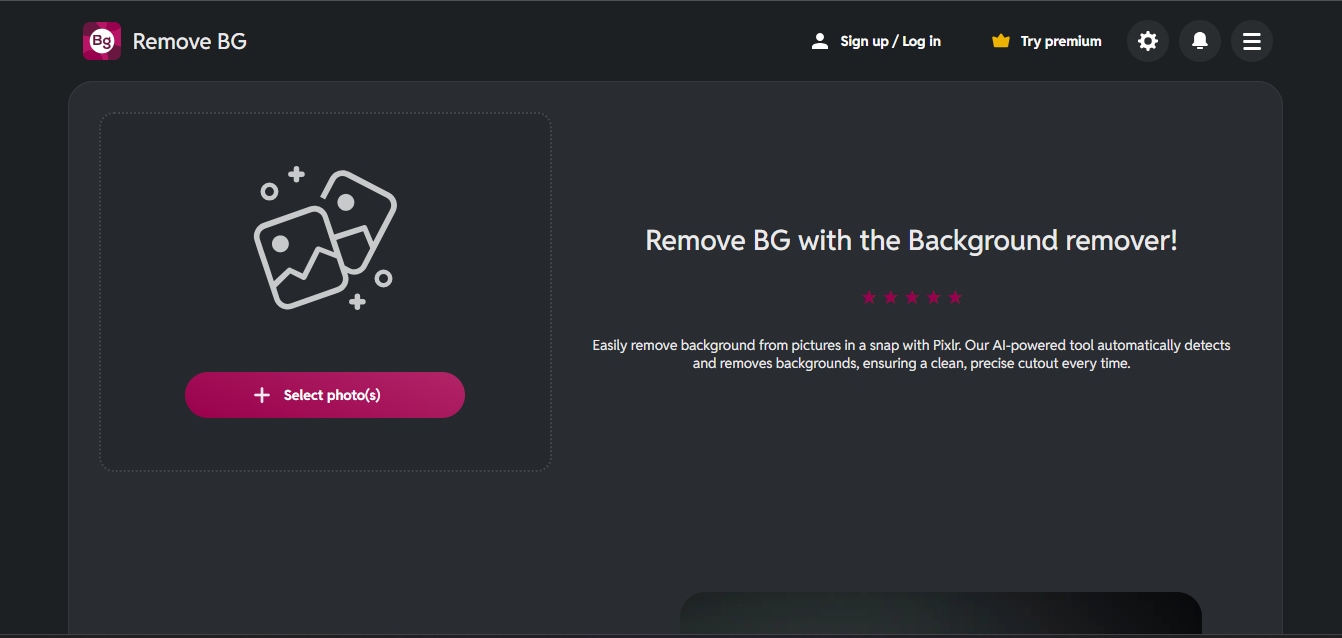
Pixlr Background Remover is another popular online tool designed to remove image backgrounds quickly and accurately.
This tool uses a powerful AI to automatically detect subjects and remove unwanted backgrounds within seconds. And it supports high-resolution images and integrates seamlessly with Pixlr’s broader photo-editing suite, allowing you to further refine images after background removal. Also, this tool has browser-based accessibility and an intuitive interface, making it a convenient choice for both beginners and professionals.
Key Features
AI-powered automatic background removal
Supports high-resolution image output
Browser-based tool with no installation required
Integration with Pixlr photo editing tools
4. Eras.bg
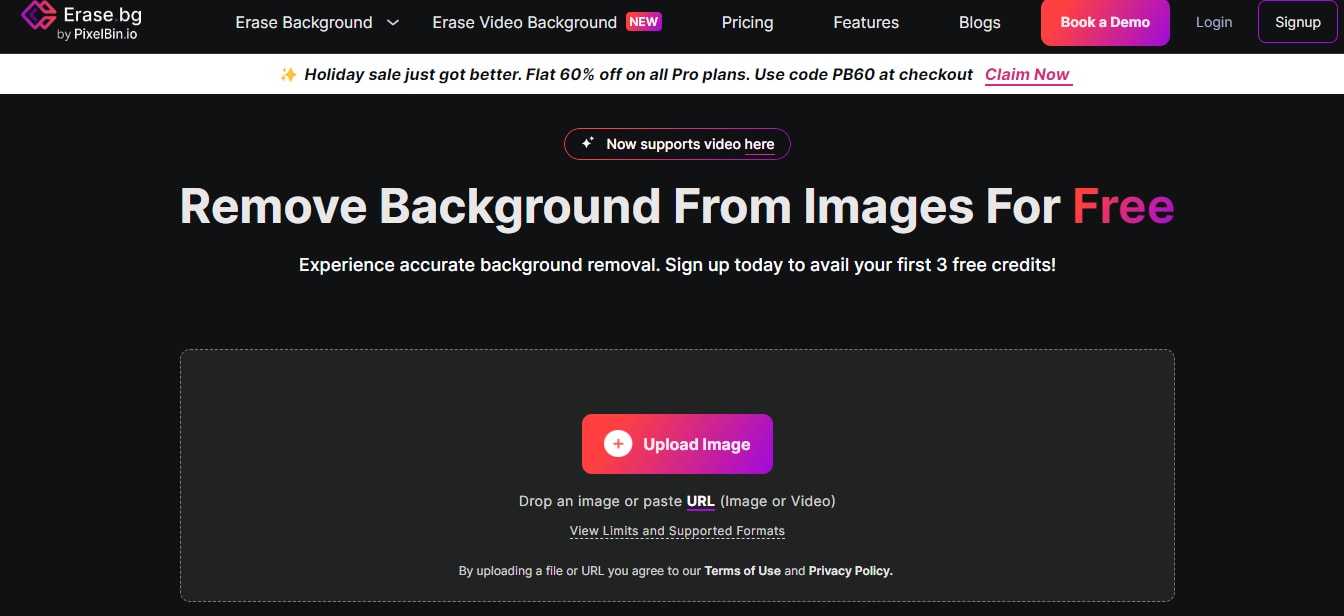
Erase.bg is a lightweight yet powerful background remover tool that focuses on speed and simplicity. Thanks to its powerful AI integration, it allows you to remove backgrounds from images within a few clicks while maintaining high-definition quality.
This tool supports the removal of background images from many popular image formats, including PNG, JPG, JPEG, and WEBP. And it works well for portraits, product images, and social media visuals. Also, no complex editing is required, making it a reliable choice for users at any level.
Key Features
One-click AI background removal
Supports JPG, PNG, and other common formats
Supports bulk image background removal.
Available on web and mobile platforms
5. Removal.ai

Removal.ai is a smart, AI-powered background remover designed to help you remove unwanted backgrounds from images quickly and accurately. If you’re working with product photos, portraits, or marketing visuals, this tool allows you to achieve clean, high-definition results without manual editing. You simply upload your image, and the AI automatically detects and removes the background while preserving fine details like hair and edges.
Additionally, Removal.ai supports multiple image formats and offers API integration, making it a great choice if you handle large volumes of images.
Key Features
AI-powered automatic background removal.
Supports high-resolution image downloads.
API access for bulk image processing.
Compatible with multiple image formats.
6. NoteGPT
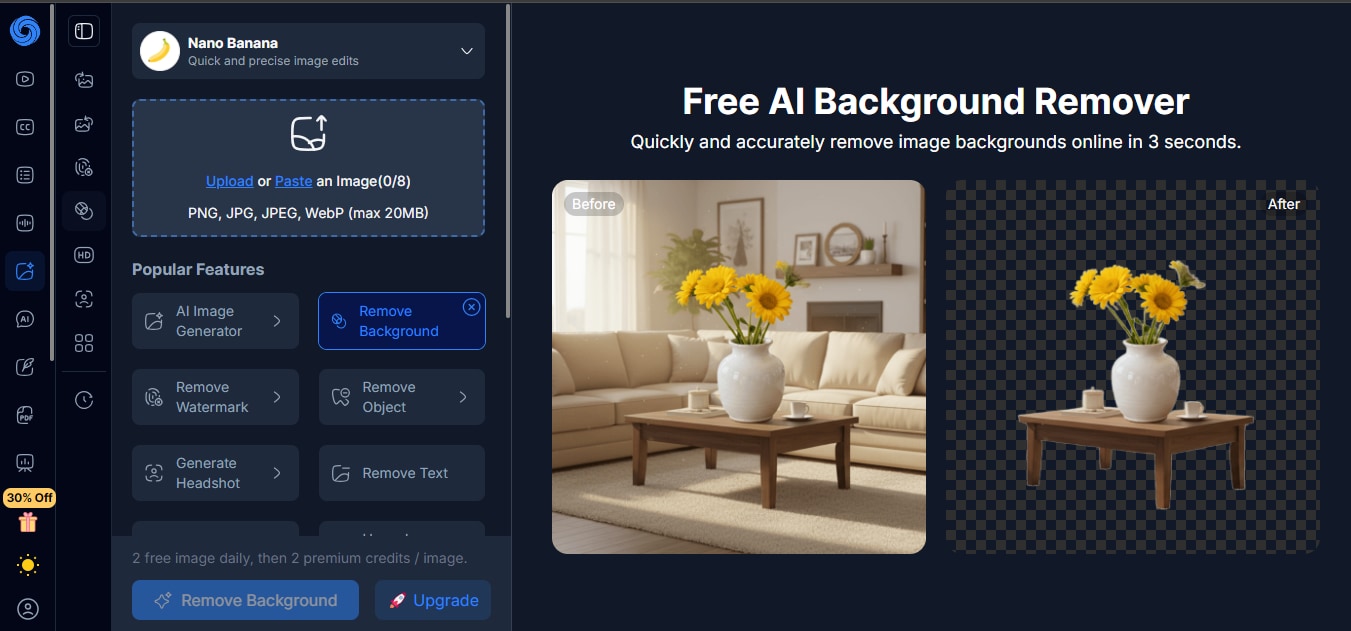
If you want a simple, no-frills tool that delivers quick and clean results, NoteGPT AI Background Remover is worth considering. You just have to upload your image and let the AI handle background detection automatically, saving you time on manual editing.
This tool works well for portraits, thumbnails, and basic product images, producing high-definition results suitable for digital use. And thanks to its straightforward design and web-based accessibility, you don’t need any advanced skills to remove backgrounds from images.
Key Features
One-click AI background removal.
Web-based tool with no installation required.
Maintains image clarity and resolution.
Optimized for portraits and simple visuals.
7. Adobe Express
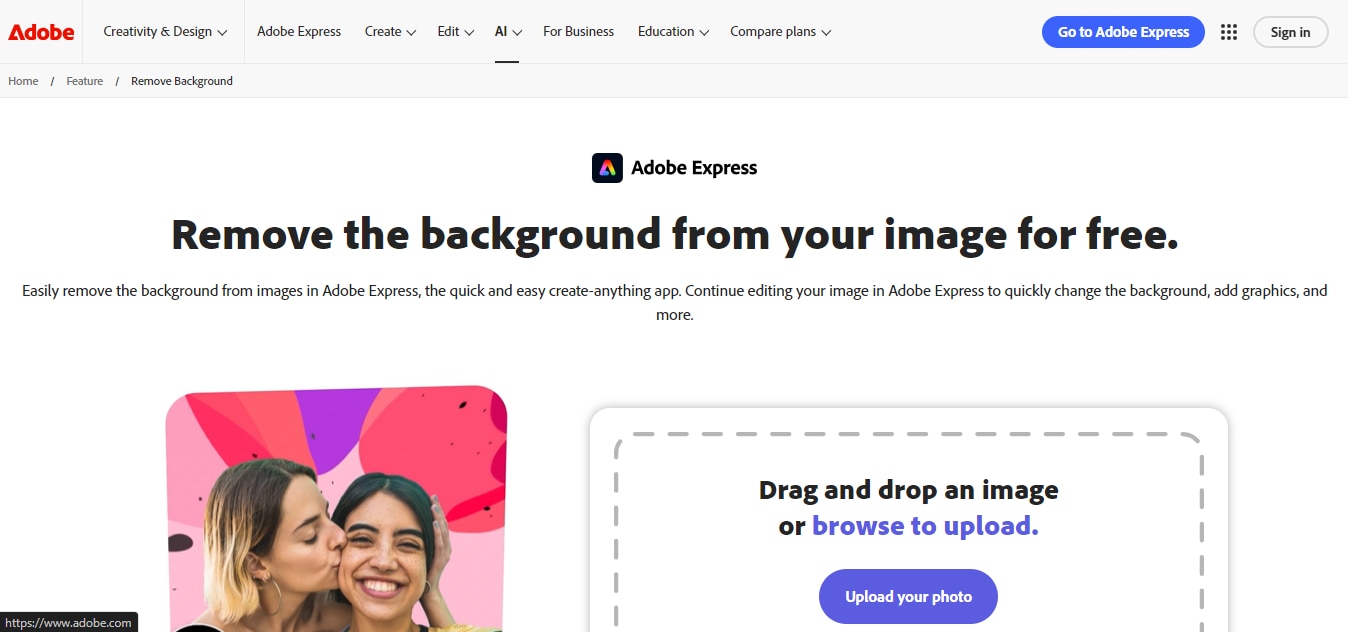
Adobe Express Background Remover is a reliable solution if you want professional-grade background removal backed by Adobe’s powerful AI technology. With this tool, you can remove backgrounds from images in just a few clicks while maintaining sharp, high-definition quality.
Moreover, this background remover works seamlessly with Adobe Express’s design features, allowing you to replace backgrounds, add text, and customize visuals for social media, marketing, or presentations.
Key Features
AI-powered background removal
Integration with Adobe Express design tools
High-definition image output
Cloud-based editing and storage
8. FocoClipping
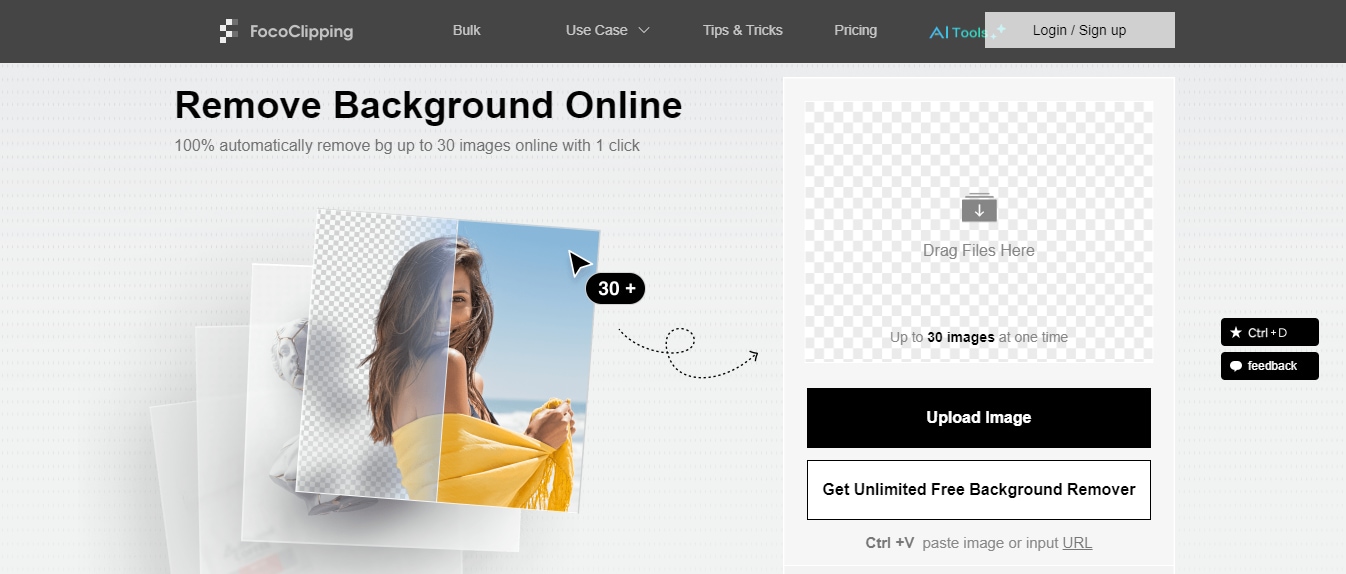
Foco Clipping is a professional background removal service designed to help you achieve precise and high-definition cutouts, especially for product and commercial images. If you work with eCommerce listings, marketing visuals, or bulk image editing, this tool offers both AI-powered automation and manual clipping path services. You can upload your images and choose between instant AI background removal or expert hand-edited results for more complex images. Foco Clipping supports high-resolution outputs and bulk processing, making it a reliable choice when accuracy and consistency matter. Its flexible pricing and quality control process make it suitable for businesses and professionals in 2026.
Key Features
Human-edited clipping paths for complex images.
AI-assisted background removal for faster turnaround.
Bulk image processing for commercial projects.
High-resolution output suitable for print and web.
9. Clipdrop

ClipDrop is an advanced AI-powered background remover that helps you remove backgrounds with impressive precision and speed.
With this tool, you can extract subjects from images while preserving fine details like shadows and textures.
One of the cool things about ClipDrop is that it works seamlessly across web, desktop, and mobile platforms, giving you flexibility no matter how you work. And in addition to background removal, you can access other AI-powered features such as image cleanup and relighting.
Key Features
Advanced AI subject extraction with realistic edges.
Built-in tools for cleanup and background replacement.
Cross-platform access (web, desktop, mobile).
High-definition exports for professional use.
10. Inpixio

InPixio is a user-friendly background remover designed to help you edit images effortlessly without advanced design skills. This tool enables you to remove unwanted backgrounds while maintaining high-definition quality. And it offers both automatic AI background removal and manual editing tools, which gives you more control over the final result.
InPxio works well for portraits, social media images, and personal projects. Also, its clean interface makes it very easy to navigate.
Key Features
AI-powered background removal with manual refinement.
Brush tools for precise edge correction.
Preserves image quality during export.
Built-in meme generator.
Part 4: Free vs Paid High-Definition Background Removers
Choosing between free and paid background removers can feel overwhelming, especially when many tools promise high-definition results. The right option depends on how often you edit images, the level of precision you need, and how important speed and automation are in your workflow. While free tools can handle basic tasks, premium options often provide better quality, flexibility, and professional features. Here is what you need to know;
Feature Comparison
When you compare free and paid tools, you’ll notice clear differences in functionality. Free versions usually offer basic one-click background removal and limited editing controls. However, paid tools often include advanced features like batch processing, manual refinements, high-resolution downloads, custom backgrounds, and workflow integrations. If you need deeper control or professional editing capabilities, premium tools tend to deliver a more complete experience.
Quality Differences
Paid tools stand out when it comes to quality. Free versions may compress images, limit resolution, or struggle with complex edges like hair or shadows, but premium tools typically use more advanced AI models and allow full-resolution exports without watermarks. If you want clean cutouts suitable for professional use, marketing campaigns, or print materials, paid tools usually provide more consistent results.
When Free Tools Are Enough
Free background removers can work well when you only need occasional edits or simple cutouts. If you’re creating social media graphics, personal projects, or quick visuals, a free tool may be all you need. They’re also useful for testing different platforms before committing to a subscription.
When Premium Tools Are Worth It
Premium tools become valuable when you handle large image volumes, need batch editing, or require high-definition outputs for business use. If you run an online store, manage client projects, or rely on image quality for branding, investing in a paid solution can save time and deliver more reliable results. Over time, the added efficiency and professional polish often justify the cost.
Part 5: How to Remove Background With High-Quality (Step-by-Step)
Now that you know the best tools to remove background from images, here is a comprehensive step-by-step guide on how to remove background with high-quality using UniConverter Background Remover.
Steps Guide on Using UniConverter to Remove High Definition Image Background
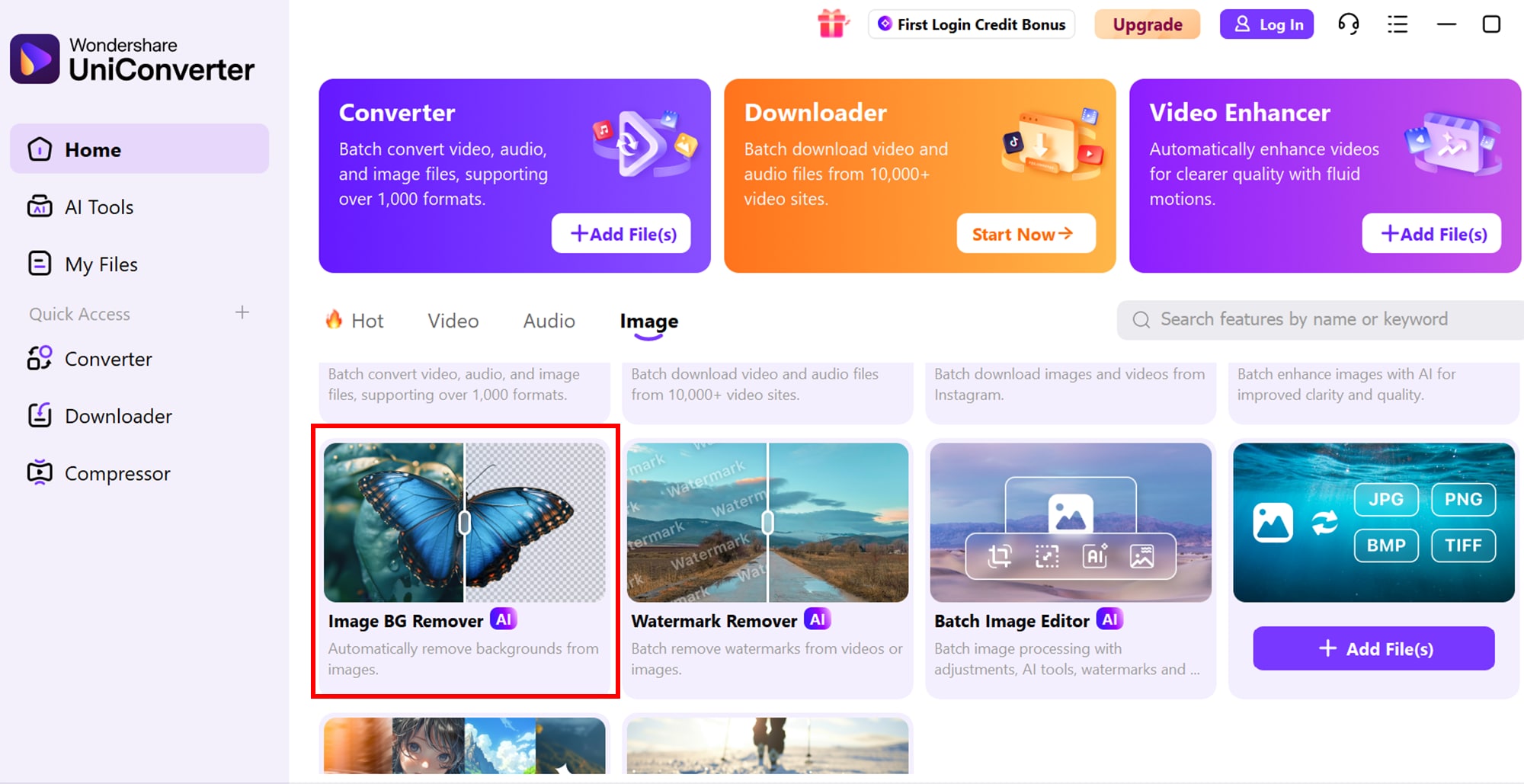
Step 1:Locate Image Background Remover
Launch UniConverter software on your Mac or PC. Select “Tools” from the left menu and choose “Background Remover.”
Step 2: Add Files to Process
Click on the “Add Files” icon and upload the “Image files” that you want to remove the background from.
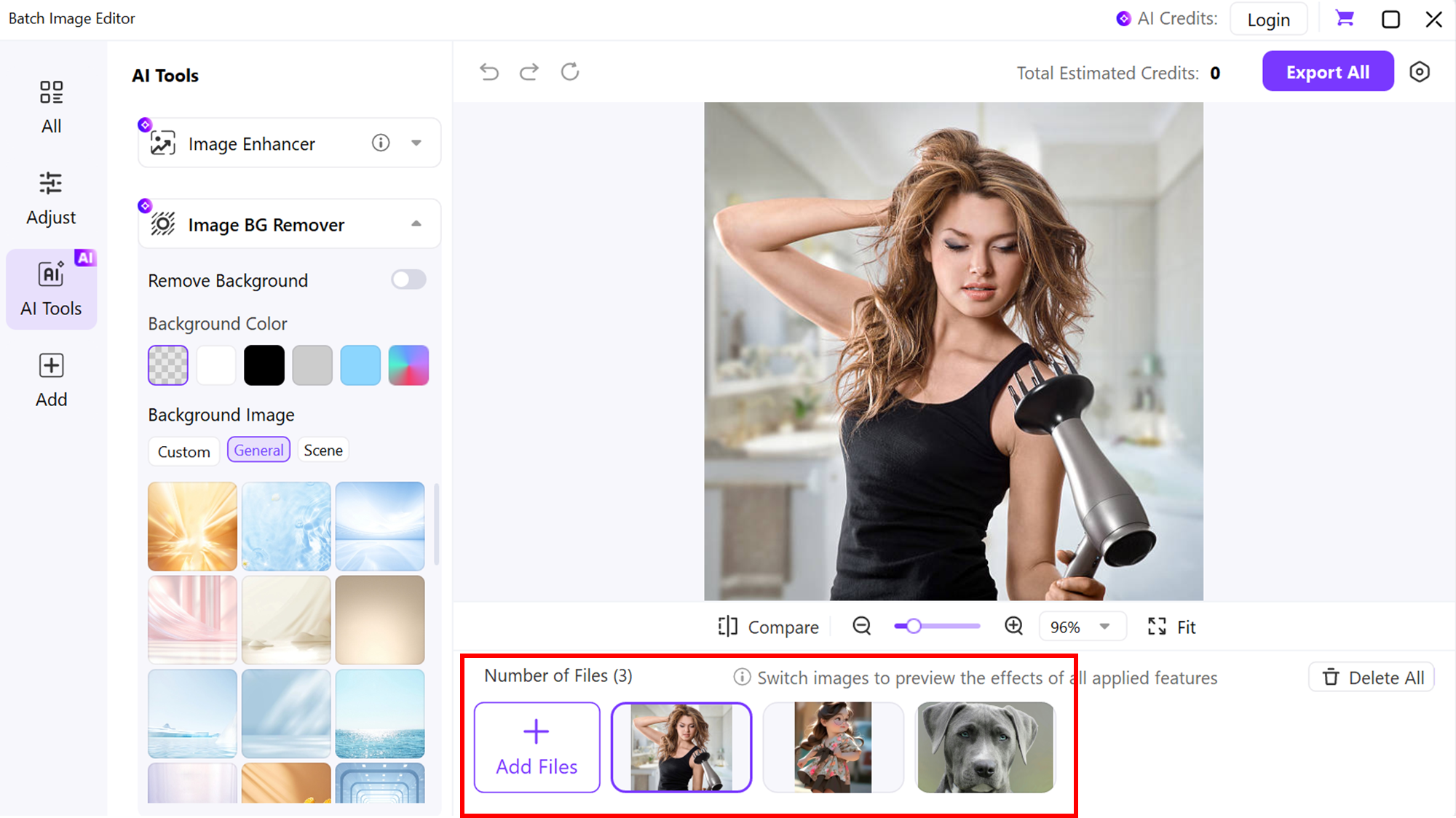
Step 3: Remove Image Background and Check
Click on the “Start” button to start processing and removing the background from the selected images.
Once the process is complete, the images will be saved to the folders selected in the File Location tab.
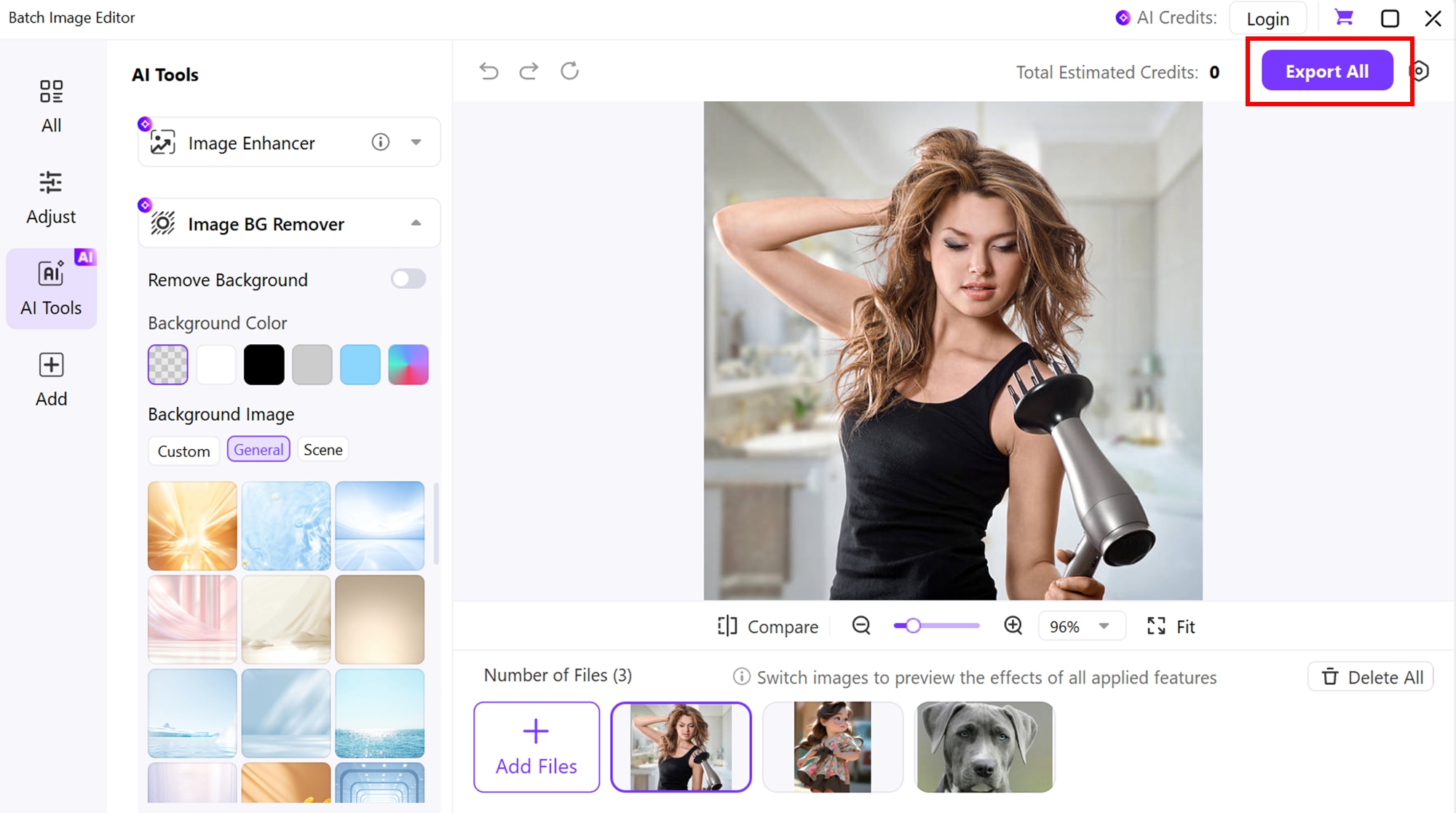
Part 6: Tips for Getting the Best HD Background Removal Results
Even the most advanced background remover won’t deliver perfect results if the original image isn’t set up properly. To get clean, high-definition cutouts, follow the tips below.
Use high-contrast images
Using high-contrast images makes it easier for background removal tools to clearly separate the subject from the background. When your subject stands out in color or brightness, the AI can detect edges more accurately and avoid cutting into important details. Try to choose backgrounds that differ clearly from your subject’s clothing, skin tone, or product color.
Proper lighting and sharp focus
Proper lighting and sharp focus are essential for high-definition results. Well-lit images reduce shadows and noise, which can confuse background detection. A sharp, in-focus subject allows the tool to preserve fine details like hair strands or object edges, resulting in a cleaner and more professional cutout.
Avoid busy backgrounds
Avoiding busy or cluttered backgrounds improves accuracy significantly. Complex backgrounds with patterns, similar colors, or overlapping objects make it harder for the software to identify the main subject. Whenever possible, shoot against a simple, solid-colored background to achieve smoother results.
Conclusion
Choosing the right high-definition background remover can make a noticeable difference in the quality and efficiency of your image editing workflow. But with so many background remover tools available online, it can be quite overwhelming to know which option to choose. This post has outlined the best high-resolution background remover tools in 2026. From UniConverter to Remove.bg, Pixlr Background Remover, etc.
Overall, keep in mind that free tools can be a great starting point for simple tasks, but premium solutions often deliver better accuracy, higher resolution, and features designed for professional use.
FAQs
-
1. What is the best high-definition background remover?
There is no single best tool for everyone, as the ideal choice depends on your needs. For fast, one-click results, tools like Remove.bg, Erase.bg, and ClipDrop offer effective HD background removal. If you need more precision and editing control, premium options such as Adobe Express, Foco Clipping, or Removal.ai provide higher-definition outputs. For bulk processing, tools with batch support like Wondershare UniConverter can save significant time. -
2. Can background removal be done without losing quality?
Yes. High-definition background removers are designed to preserve image resolution and detail, especially when working with high-quality source images. However, some free tools may compress files or limit output resolution, which can result in quality loss. -
3. Do HD background removers work with transparent objects?
They can, but results vary by tool. Advanced AI models are better at detecting subtle edges and transparency in objects such as glass, plastic, or sheer fabrics. Simpler or free tools may struggle, sometimes leaving halos or rough edges. -
4. Are AI background removers accurate?
AI background removers are highly accurate for common image types like portraits, product photos, and simple backgrounds. Modern AI analyzes colors, edges, and shapes to separate subjects automatically. That said, complex scenes, fine details like hair, or transparent and reflective surfaces may still require manual refinement.

