


Cropping photos is an essential task for anyone working with images—whether you're a photographer, content creator, or marketer. Cropping helps ensure your images are the right size and aspect ratio for social media, websites, or printing. It can also help you focus on important details while removing unwanted areas of the image. However, choosing the right cropping tool is crucial to ensure your images maintain quality after editing.
In this post, we’ll cover the top photo cropping tools for both Windows and Mac. We'll discuss how you can crop images effectively using these tools, and we’ll introduce UniConverter as a powerful solution for bulk cropping and enhancing your images. Let’s dive into the best options available for cropping your photos in 2025!
In this article
Part 1: 9 Best Tools to Crop Images on Win & Mac
Here’s a list of the 9 best photo cropping tools that work seamlessly on both Windows and Mac. These tools will help you crop and edit photos with ease, ensuring you get the best results for your projects.
1. UniConverter
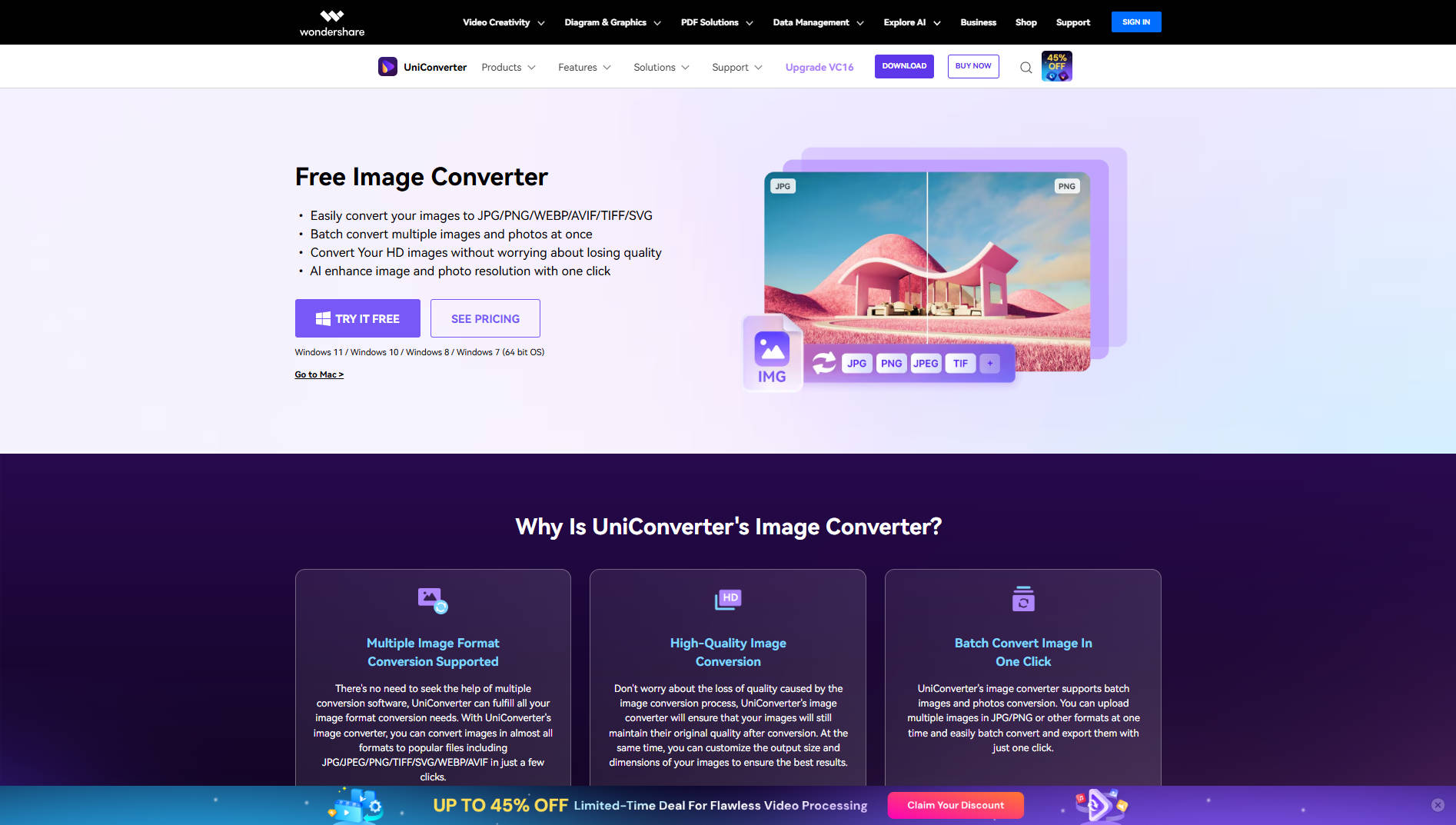
UniConverter is a powerful and versatile image cropping software that allows users to crop images without losing quality. Whether you need to crop for social media, presentations, or personal projects, UniConverter offers an easy-to-use interface for both beginners and professionals. It supports bulk processing, so you can crop multiple images at once, which is perfect for marketers and content creators who work with large volumes of images.
Key Features:
- Batch cropping for multiple images.
- Crop images by custom dimensions or aspect ratio.
- Retains original image quality after cropping.
- Built-in tools for resizing, sharpening, and format conversion.
Pros & Cons:
Step by Step Guide:
Step 1: Open UniConverter and go to the Image Converter section.
Step 2: Add your image, then click the Crop icon under the image preview.
Step 3: Adjust the crop area, then click OK and export the image.

Versatile Image Cropper at Lossless Quality
2. Adobe Photoshop
Adobe Photoshop is the industry standard when it comes to photo editing, and cropping is one of its many powerful features. Photoshop allows for precise cropping, and its crop and edit tools provide an unparalleled level of control over your images.

Key Features:
- Advanced cropping tools with adjustable aspect ratios.
- Non-destructive cropping with layers.
- Smart crop feature for automatic aspect ratio adjustment.
- Batch processing via Photoshop Actions.
Pros & Cons:
Step by Step Guide:
Step 1: Open your image in Photoshop.
Step 2: Select the Crop Tool from the toolbar (or press C).
Step 3: Drag to crop and press Enter to apply.
3.GIMP(GNU Image Manipulation Program)
GIMP is a free, open-source photo editor that provides powerful tools for cropping images. It’s widely used by both beginners and professionals who want to edit images without the cost of paid software. GIMP supports a range of cropping methods, including custom crop dimensions and aspect ratios.

Key Features:
- Customizable crop dimensions for all image sizes.
- Support for advanced editing features like filters and effects.
- Open-source and free to use.
- Cross-platform compatibility (Windows, Mac, Linux).
Pros & Cons:
Step by Step Guide:
Step 1: Open your image in GIMP.
Step 2: Choose the Crop Tool from the toolbox (Shift + C).
Step 3: Click and drag to select the crop area, then press Enter.
4. FastStone Image Viewer
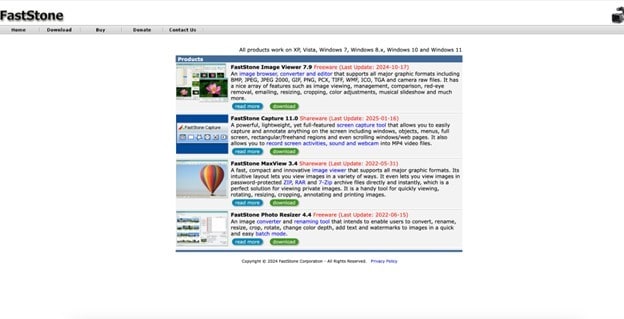
FastStone Image Viewer is a fast and lightweight image viewer that also provides editing tools like cropping. It supports a variety of formats and is ideal for those who need to crop images quickly without the need for heavy software.
Key Features:
- Easy-to-use cropping tool for basic image adjustments.
- Batch cropping support for multiple images.
- Fast processing and lightweight software.
- Supports a wide variety of file formats.
Pros & Cons:
Step by Step Guide:
Step 1: Open your image and press Ctrl + X to activate crop mode.
Step 2: Draw the crop area with your mouse.
Step 3: Click Crop Board > Crop to Selection and save.
5. Fotor
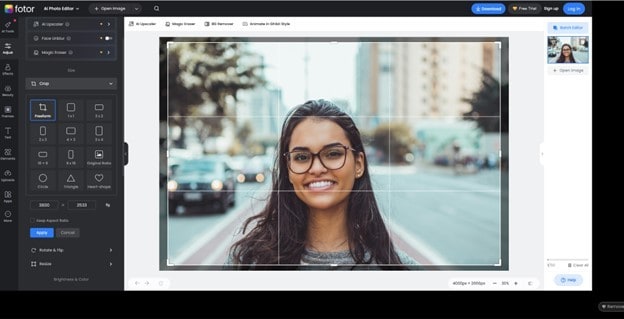
Fotor is a popular online image editing tool that also provides a robust photo crop editor. It allows for both simple cropping as well as advanced edits, making it perfect for users looking for an all-in-one solution for image editing and social media preparation.
Key Features:
- Easy-to-use cropping tool with customizable aspect ratios.
- Built-in photo enhancement tools like filters and effects.
- Free and premium versions available.
- Supports cloud-based image storage and sharing.
Pros & Cons:
Step by Step Guide:
Step 1: Upload your image to Fotor’s editor (online or app).
Step 2: Click Edit > Crop, then select or drag a cropping area.
Step 3: Click Apply, then Download or Save.
Versatile Image Cropper at Lossless Quality
6. XnConvert
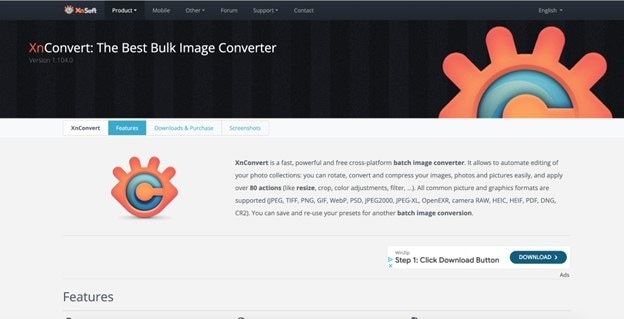
XnConvert is a free, open-source tool that allows users to crop images in bulk quickly. It supports over 500 image formats and offers a fast and straightforward way to crop and resize images.
Key Features:
- Batch cropping support for JPG, PNG, TIFF, and other formats.
- Customizable crop dimensions and aspect ratios.
- Lightweight, fast processing with minimal system requirements.
- Cross-platform support for Windows, Mac, and Linux.
Pros & Cons:
Step by Step Guide:
Step 1: Load your image(s) into the Input tab.
Step 2: Go to the Actions tab, click Add Action > Image > Crop.
Step 3: Set crop values, apply, then go to Output and convert.
7. Canva
Canva is a versatile online design tool that provides simple cropping tools for images. It’s not only great for cropping photos but also allows you to create designs with ease by adding text, shapes, and other elements.
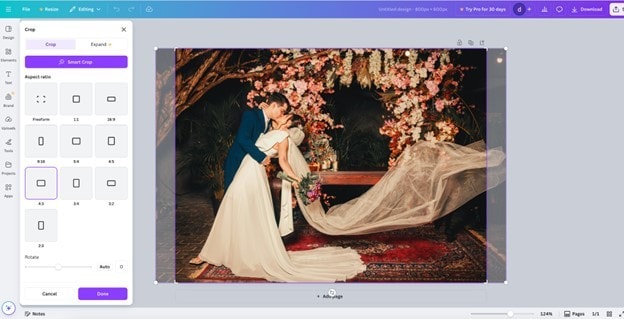
Key Features:
- Simple crop tool with preset aspect ratios.
- Drag-and-drop interface for ease of use.
- Multiple design features beyond cropping.
- Cloud-based with social media integration.
Pros & Cons:
Step by Step Guide:
Step 1: Upload or open your image in a design project.
Step 2: Click the image, then click Crop on the top toolbar.
Step 3: Adjust crop handles, click Done, and export.
8. PicResize
PicResize is a quick and easy tool for cropping and resizing images online. It supports batch processing, so you can crop multiple images at once. Its straightforward interface is perfect for those who need to quickly crop their photos for social media, websites, or personal use.
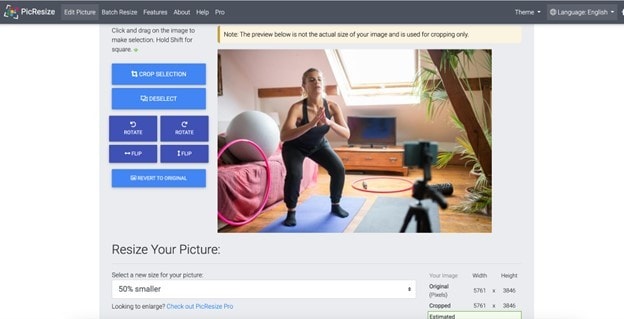
Key Features:
- Free online tool for cropping images by custom dimensions.
- Batch processing support for multiple images.
- Simple interface with fast processing.
- Allows resizing images alongside cropping.
Pros & Cons:
Step by Step Guide:
Step 1: Upload your image to the Picresize.
Step 2: Click Crop Menu, draw your area, and apply the crop.
Step 3: Choose your output format and click Save to Disk.
9. Adobe Express
Adobe Photoshop Express is a simplified version of Adobe’s flagship photo editing software. It offers cropping tools for quick adjustments to images, and it’s a great tool for users who need basic photo editing on the go.
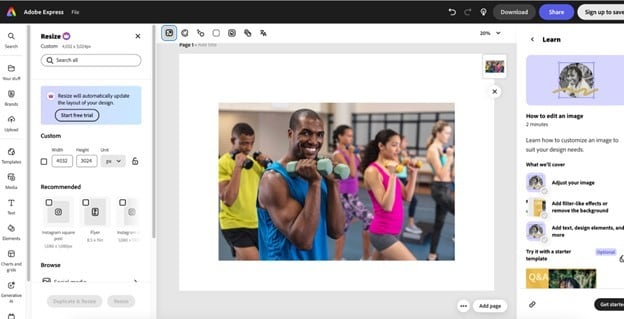
Key Features:
- Simple cropping tool for fast adjustments.
- Custom aspect ratios for different platforms.
- Cloud-based with sync for mobile and desktop.
- Offers basic filters and image enhancement options.
Pros & Cons:
Step by Step Guide:
Step 1: Upload your image to Adobe Express.
Step 2: Click Crop from the editing options.
Step 3: Choose a preset ratio or drag manually, then click Download.
Versatile Image Cropper at Lossless Quality
Part 2: How to Quickly Crop Images in Bulk
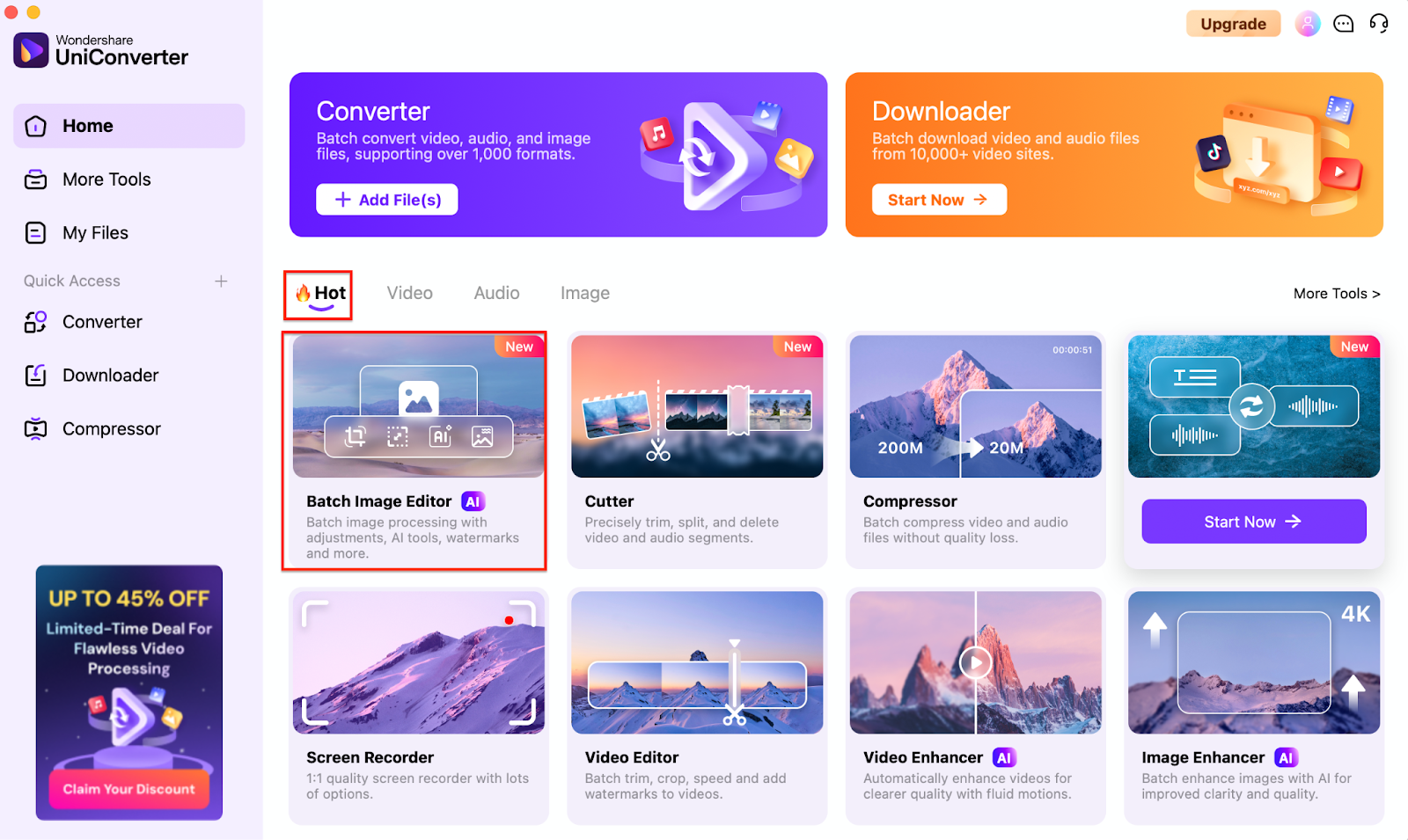
If you're working with a large set of images and need to crop them all to the same dimensions, UniConverter is an excellent choice. It allows you to crop multiple images in bulk, saving you time and ensuring consistency across your files. Follow these simple steps to crop images in bulk using UniConverter:
Step 1
Open UniConverter on your computer and navigate to the "Batch Image Editor" section. This is where you can start the bulk cropping process. Make sure the tool is up-to-date and ready to handle your image files.
Step 2
Click the "Add Files" button to upload all the images you want to crop. You can drag and drop multiple files at once, saving time if you have several images to edit. This step allows you to process several images in one go, avoiding the need for repetitive uploads.

Step 3
Select the crop tool and choose your preferred aspect ratio, such as 1:1 or custom dimensions. Drag the crop box over the image to define the area you want to retain. You can also adjust the crop position and size to fit your needs before applying it to all selected images.
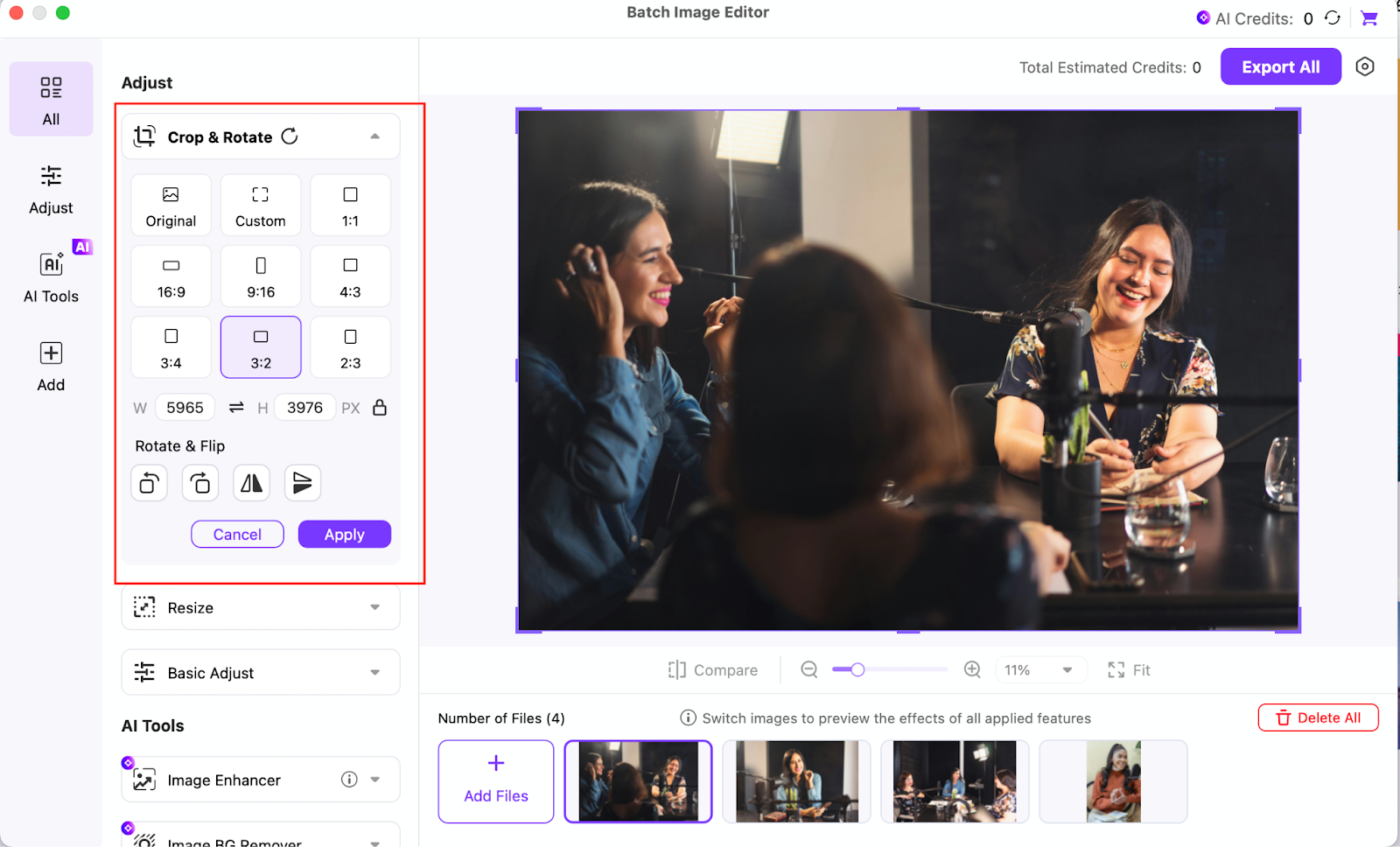
Step 4
Once satisfied with the cropping, click "Apply" to execute the changes. You’ll be able to preview the cropped images before finalizing the changes. After confirmation, click "Export All" to save the resized and cropped images in your desired format and location.
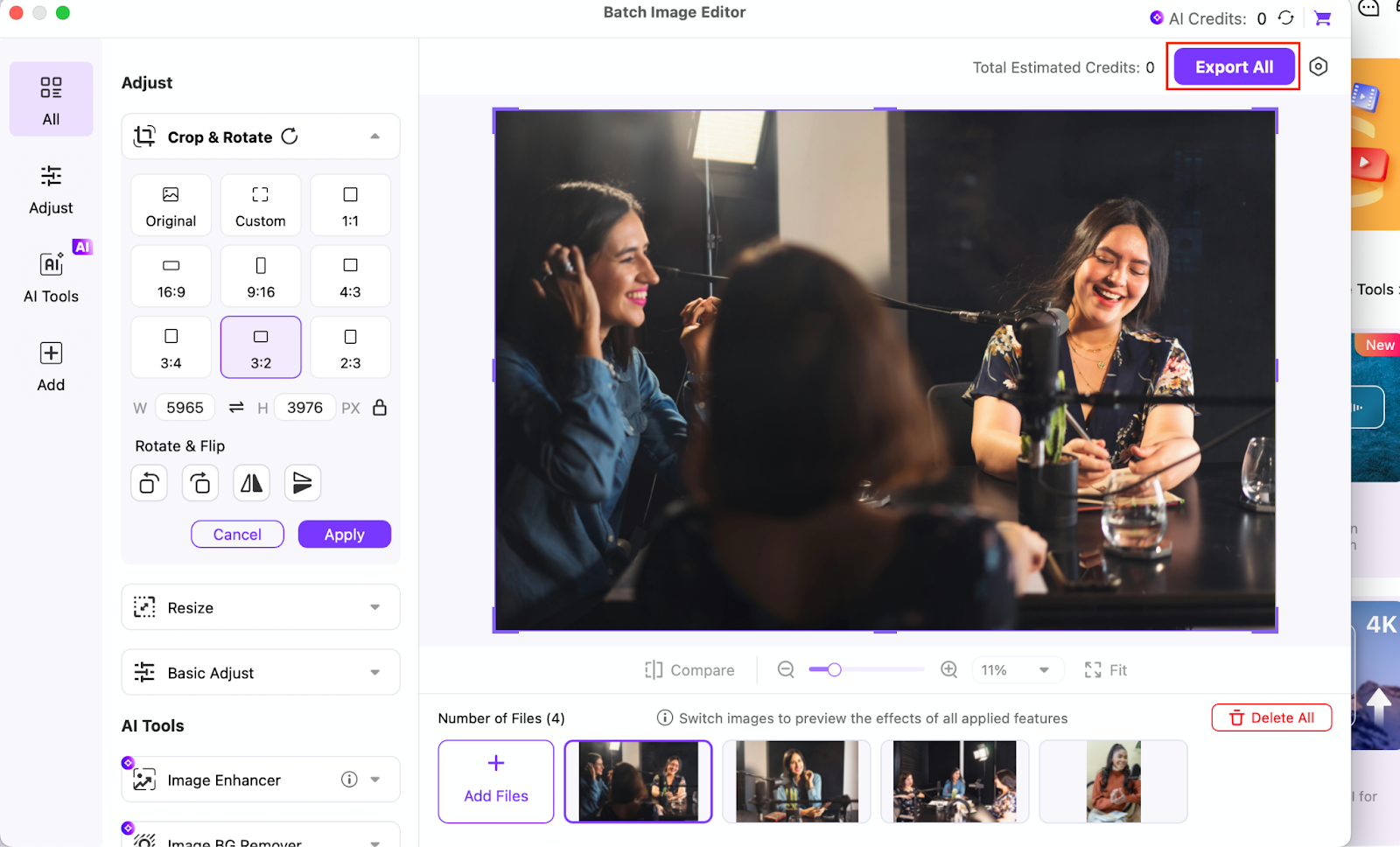
With these simple steps, you can crop images in bulk and ensure they’re ready for any project, whether it’s for social media, e-commerce, or personal use.
Part 3: Ways to Futher Edit Cropped Images
Once you’ve cropped your images, enhancing their quality is the next step to ensure they look professional and visually appealing. UniConverter provides several advanced tools to improve your cropped images and make them stand out even more. Here are a few solutions offered by UniConverter that can help you achieve better results:
Image Resizing
After cropping, you can easily adjust the size of your images to fit specific social media platforms, websites, or print. UniConverter lets you resize images without losing quality, ensuring your images remain sharp and clear.
Image Upscaler
If you’ve cropped a smaller image and want to enhance its details, UniConverter’s Image Upscaler tool allows you to upscale low-resolution images while preserving quality. This is especially useful for images you need in higher resolution for web use or printing.
Image Conversion
UniConverter allows you to convert your cropped images into different file formats, such as PNG, GIF, or TIFF. This flexibility ensures that your images are compatible with various platforms and media, whether it’s for social media posts or high-quality printing.
With these powerful tools, you can ensure that your cropped images not only fit your desired dimensions but also retain optimal quality, clarity, and detail for any platform or use case.
Conclusion
In conclusion, cropping JPG images in bulk is an essential skill for anyone dealing with large volumes of images, whether for social media, websites, or personal projects. With the right tools like UniConverter, you can easily crop multiple images to the exact dimensions you need, saving time and ensuring your content looks professional. Beyond cropping, UniConverter offers powerful features like resizing, image upscaling, and image compressing to enhance your images, giving you the flexibility and control to produce high-quality results every time. Whether you're using desktop software or online tools, having the right cropping tool at your disposal will help you streamline your workflow and elevate your image quality.
Versatile Image Cropper at Lossless Quality
FAQs
-
1. Can I crop images in bulk without losing quality?
Yes, with tools like UniConverter, you can crop images in bulk without compromising on quality. UniConverter ensures that your images remain sharp and clear even after batch cropping. -
2. How can I crop images to fit social media platforms?
Most cropping tools, including UniConverter, allow you to select custom aspect ratios for popular social media platforms like Instagram, Facebook, and Twitter, ensuring your images fit perfectly. -
3. Are there any free tools to crop images in bulk?
Yes, online tools like iloveIMG and ImageResizer offer free bulk image cropping features. However, they may have some limitations in terms of advanced features or processing speed. -
4. How can I resize my cropped images for websites?
UniConverter lets you resize your cropped images to specific dimensions without losing quality, ensuring they are optimized for websites, social media, and other uses. -
5. Can I crop PNG images as well?
Yes, tools like UniConverter support cropping PNG images along with other formats like JPG, making it versatile for all your image editing needs.

