
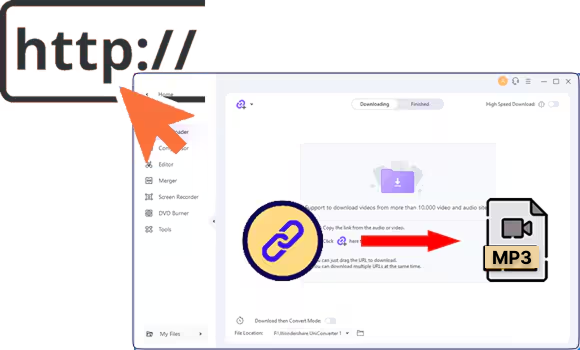

Many people want to download audio from any website for listening to music, saving podcasts, and storing educational lectures. Sometimes, internet connections are not reliable, and having files offline helps access audio files directly via devices. A practical method is needed to make sure the process stays simple and safe for everyone who wants to store audio easily.
Additionally, legal concerns and best practices must be considered when choosing which method suits your needs. In this guide, you’ll find out proven audio downloaders from websites and avoid common mistakes while keeping your actions safe and lawful.

Audio Downloader from Websites
In this article
- Part 1. Why Do People Download Audio from Websites?
- Part 2. Top Methods to Download Audio from Any Website
- Part 3. Choosing the Right Output Format & Quality
- Part 4. Is It Legal and Safe to Download Audio from Websites?
- Part 5. Comparison of Audio Downloaders From Websites
- Part 6. Troubleshooting: Why You Can’t Download Audio from Some Websites
- FAQs about Audio Download from Sites
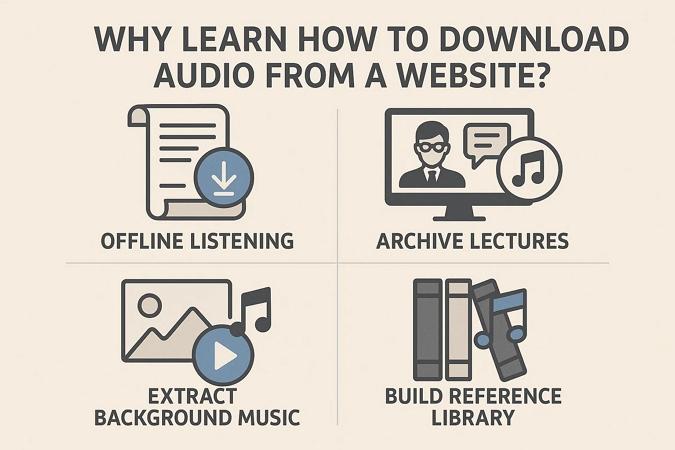
Part 1. Why Do People Download Audio from Websites?
Before we explore the top method, we’ll find out why users need to learn ways to extract sound from website pages and online resources.
- Offline Listening: Many users download audio files to listen to music, podcasts, and lectures at any time, when the internet is not available. This makes commuting and remote studies much convenient for daily routines.
- Archive Lectures: People often save lectures or interviews to make sure educational material is safe and easy to access whenever needed by students. Reliable archives are essential when online access might be removed or platforms go offline.
- Extract Background Music: Content creators and editors may want unique music for videos and podcasts when free music is hard to find. Many turn to download audio from website pages to unlock wider creative sound choices for every project.
- Build Reference Library: Many users collect rare tracks, sound effects, or spoken content to create a reference library for research and creative use. This habit helps academics, artists, and enthusiasts easily organize their audio resources for future needs.
- Avoid Buffering Delays: Downloading audio files helps prevent interruptions, data charges, and slow streaming on poor networks or during travel in low coverage areas. Smooth playback improves convenience and enjoyment for anyone who relies on reliable access each day.
Part 2. Top Methods to Download Audio from Any Website
If you’re searching for ways to download MP3 from site pages, here we’ll explore multiple methods that you can utilize to download.
Quick Guide: Best Way to Download Audio from a Website
Method 1 – Use a Dedicated Audio Downloader from Websites Tool
Next, let’s explore the best audio downloader tool by looking at both dedicated offline software and convenient online options. You will see how each type allows you to quickly and safely download audio from websites to meet your needs.
1. Wondershare UniConverter
While searching for a dedicated audio downloader from any website without accessing online tools, UniConverter stands out. The tool offers batch processing, so users can save many audio files at the same time without any hassle. Moreover, audio enthusiasts and professionals trust this tool because it makes downloading soundtracks, music, or lectures hassle-free.
You can easily extract audio from link to a video or online source, then convert it into any of over 1000 supported formats for any device. By using its edit feature, you can further trim audio and remove unwanted parts after recording. If the audio file is bigger, its Compressor can reduce the file size up to 10 times the original size.
Audio Downloader from Websites
Key Features
- Batch Audio Download: Multiple audio files can be downloaded and converted at once, speeding up your workflow and saving time for large projects.
- Smart Audio Metadata Editor: Organize downloaded audio by automatically fixing and adding metadata tags for hassle-free playback across all devices.
- High-Quality Format Conversion: Quickly transform downloaded audio into popular formats like MP3 without losing original sound quality.
- Integrated Audio Extractor: Extract sound from videos or websites to build a custom audio library for offline listening or creative edits.
- Built-In Audio Recorder: Users can capture system or microphone sounds and save online streams and meetings as personal audio files.
(Disclaimer: Our tool is intended for personal use only. Users are solely responsible for using this tool to save videos or audios, including compliance with platform's terms of service and copyright laws and regulations. We are not liable for any consequences resulting from users' violation of any laws or infringement of others' rights.)
A Step-by-Step Guide on Downloading Audio Files From Any Website
When you’ve decided to download MP3 from site page, follow the given steps below and get started instantly:
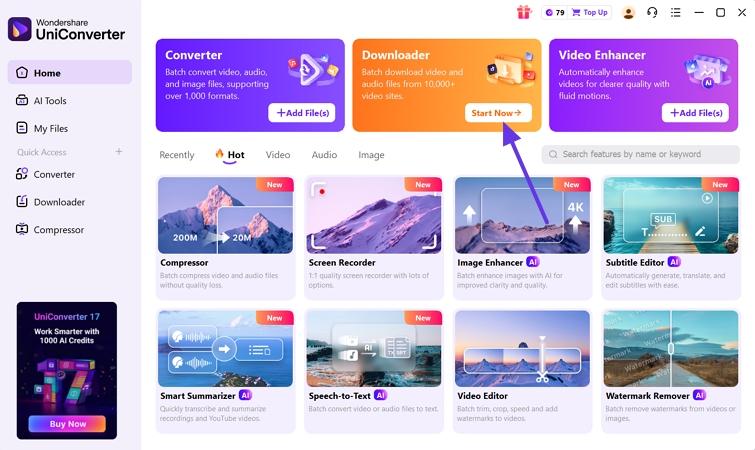
Step 1. Access Downloader Tool Across UniConverter
After you install and launch the tool, head to the “Downloader” tool on its home page and hit the “Start Now” button to proceed further.
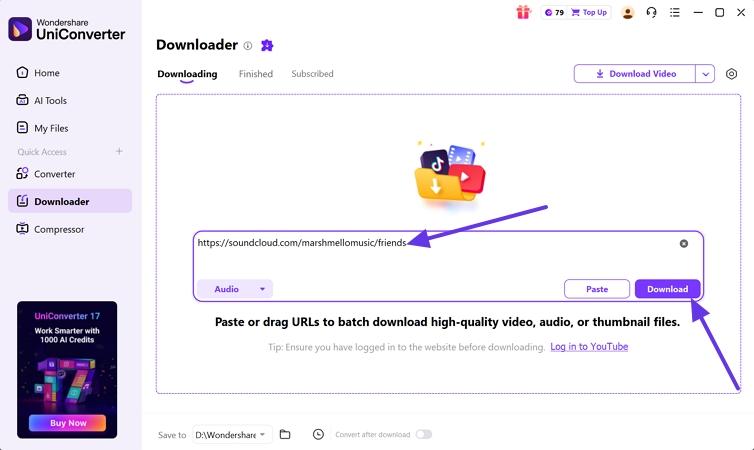
Step 2. Paste The Link To The Audio
In the following interface, paste the link to the website audio in the designated box and click on the “Download” button to start the download process.
Step 3. Open Downloaded Audio Location
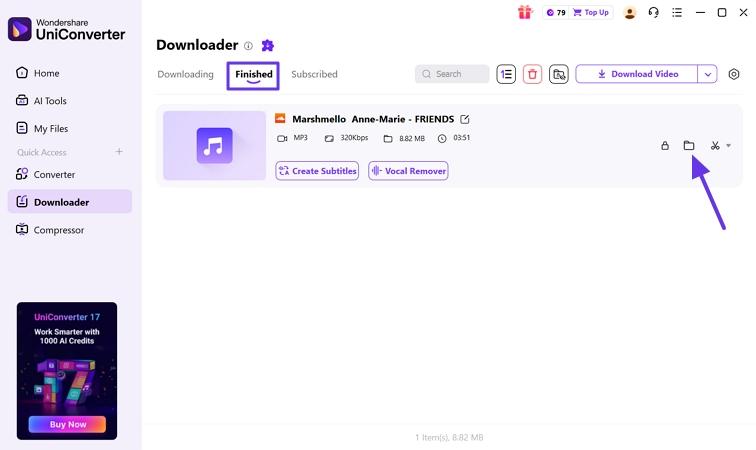
Once the audio file is downloaded, press the “Finished” tab to view the downloaded file. Next, hit the “Open File Location” icon to open the downloaded audio location and play the audio.
2. Save.Tube
This is a free online platform that makes it easy to extract audio from a link and download audio from all popular media sites. Save.Tube enables you to convert media site videos into MP3 audio files suitable for offline listening. Additionally, you can choose from different formats to suit your device needs or storage preferences.
How Do You Download Audio from a Website with Save.Tube?
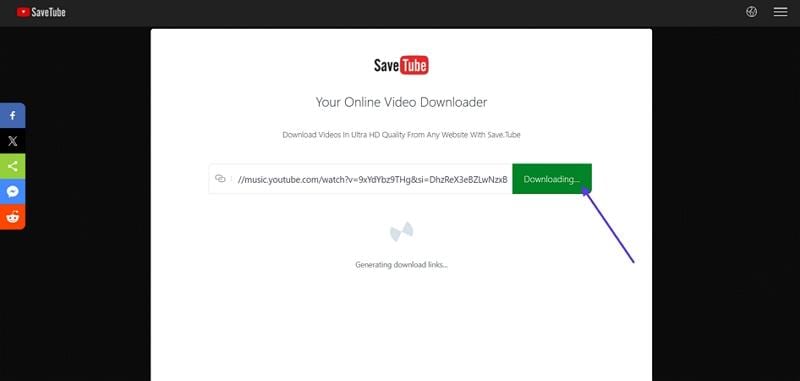
Step 1. On the main interface, paste the link to the audio in the designated URL box and hit the “Download” button to start searching.
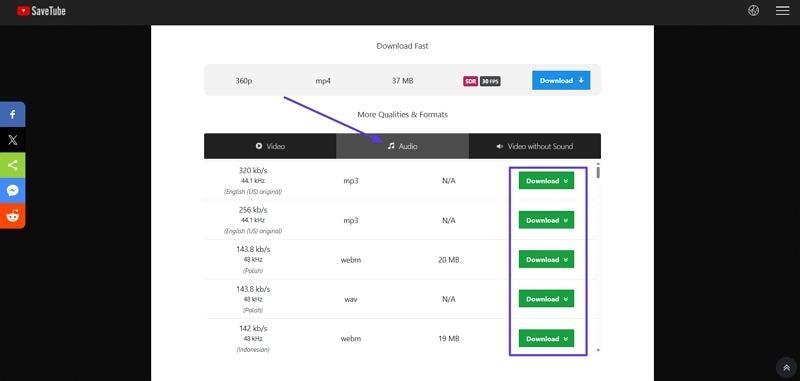
Step 2. Now, scroll down to see the results and hit the “Audio” tab to view audio file formats. Click on the “Download” button of the file format you want to download.
Method 2 – Browser Extension for Audio Extraction From Website
Now, let’s explore the best browser extension and how to use it to download audio from website Chrome and make saving sound even easier.
Audio Downloader Prime
This top browser extension is designed to download audio from websites directly using the Chrome browser. It adds a toolbar popup to make finding and downloading your chosen sound files simple for music, podcasts, or any other audio content. You can also customize the formats or file sizes detected, giving you more control over your downloads.
How to Download MP3 from Websites Using Audio Downloader Prime
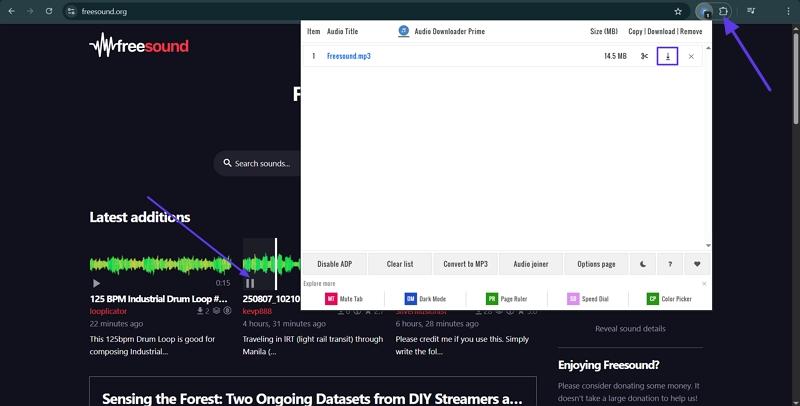
Instructions. First, add this extension to your browser and open any website that contains audio content. Next, play the audio and hit the “Extensions” icon in the top corner to open it. It will show the audio that is currently being played. Press the “Download” button to simply download it.
Method 3 – Use Browser Developer Tools / “Inspect Element” to Download Audio from Website
Anyone wanting to download audio from website using Inspect Element often prefers this method for better control and privacy. It allows capturing audio files directly through built-in browser options without installing extra software. This approach suits users who seek a straightforward and technical way to manage their audio downloads efficiently.
Download Audio From Website Using Browser Developer Tools
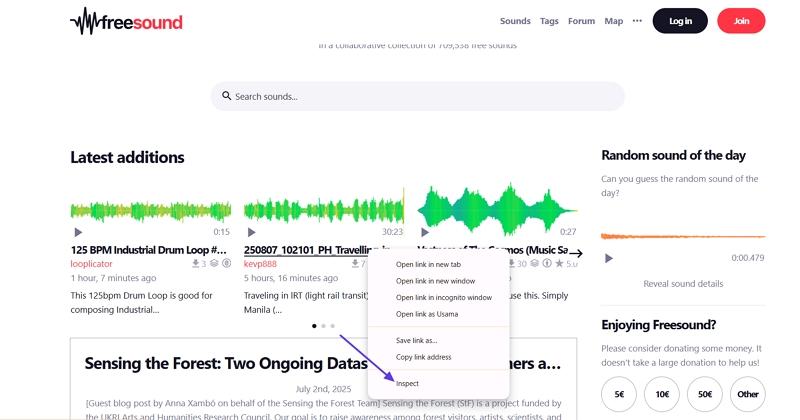
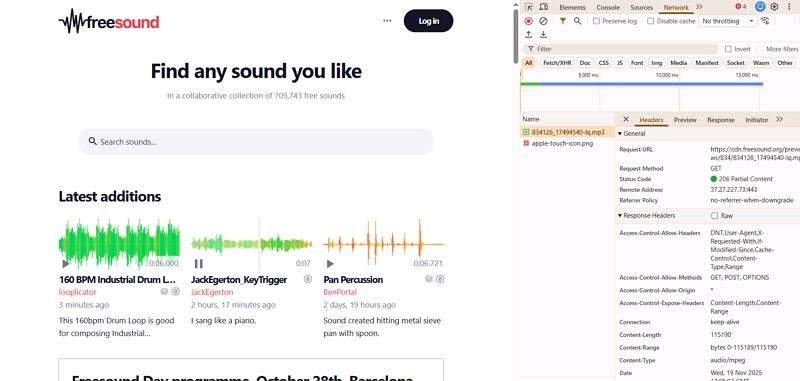
Step 1. First, play the audio and “Right Click” on the audio to hit the “Inspect” option from the context menu.
Step 2. Once you enter the Inpect window, click on the “Network” tab and search for the “.mp3” file in the search bar.
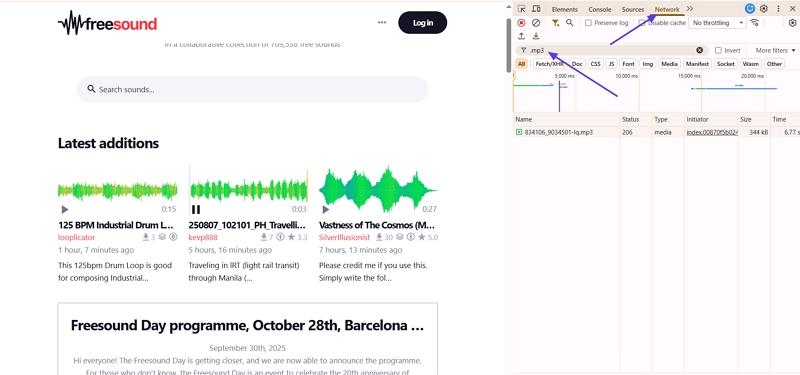
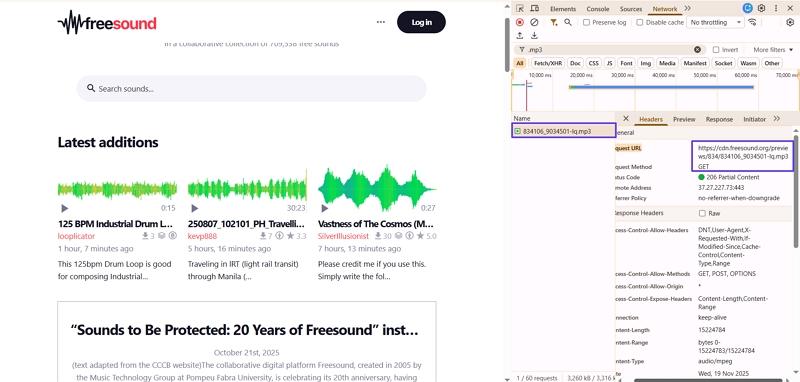
Step 3. Next, click on the “.mp3” file and copy the “Request URL”.
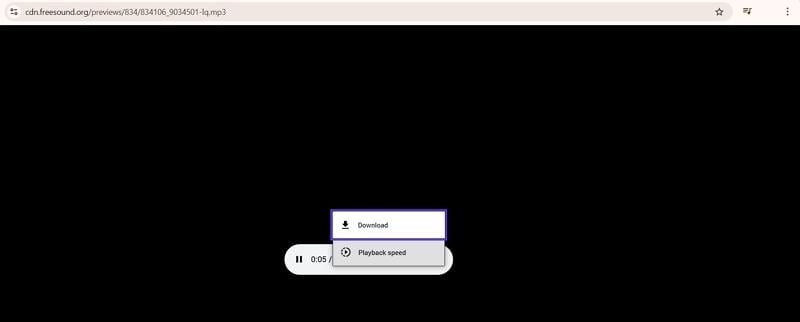
Step 4. After that, paste the URL in a new tab to play the audio. Next, press the “Three Dots” option and hit the “Download” button to download the audio file.
Method 4 – Extract Audio from Website via Recording
Have you tried all the methods mentioned above but still failed to pull audio from website? Here, you can use an audio and directly capture the audio played on the screen. Among all tools, UniConverter stands out due to its built-in screen recorder that captures high-quality audio from anything playing on your device.
Unlike other recorders, UniConverter allows you to save streaming sounds and music in your preferred format , supporting both system and microphone input. UniConverter’s screen recorder provides features for cropping, annotation, and automatic noise reduction for more professional-quality recordings in any environment.
Guide to Extract Audio from Link via Recorder in UniConverter
When you have everything ready to rip sound from website, follow the given steps to ensure a hassle-free process:
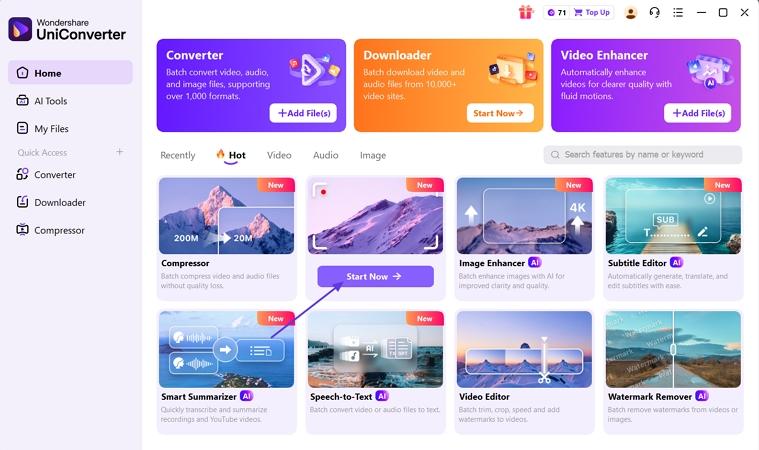
Step 1. Access Screen Recorder Tool
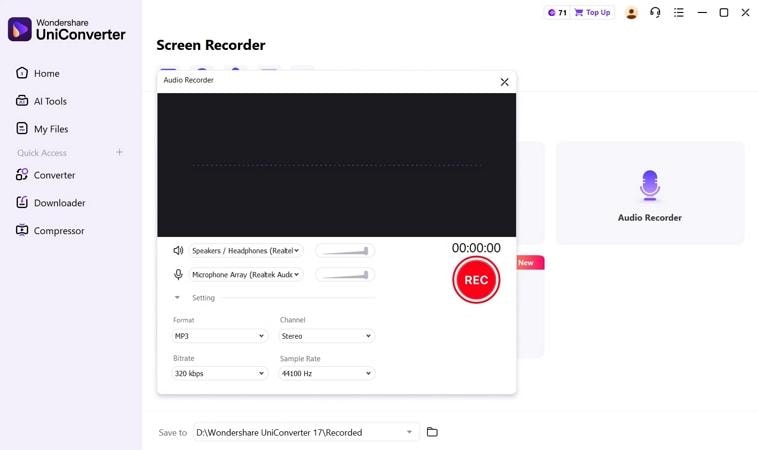
First, head towards the “Screen Recorder” tool and press the “Start Now” button to proceed further.
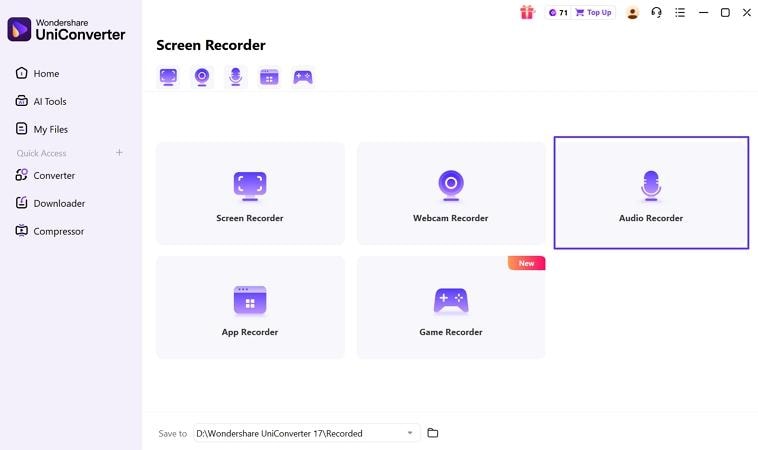
Step 2. Choose Audio Recorder From Given Tools
In the next interface, hit the “Audio Recorder” tool from the given tools.
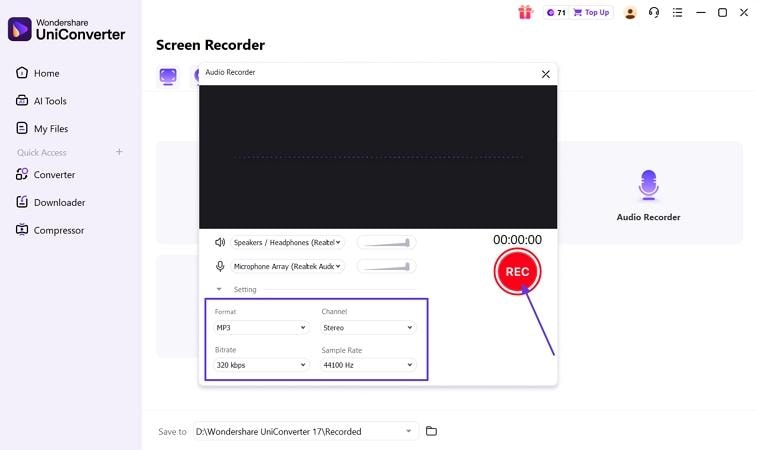
Step 3. Select Format and Start Recording
Next, you’ll see a pop-up window in which you need to set the “Format” and “Bitrate” settings. Click on the “REC” button to start the recording.
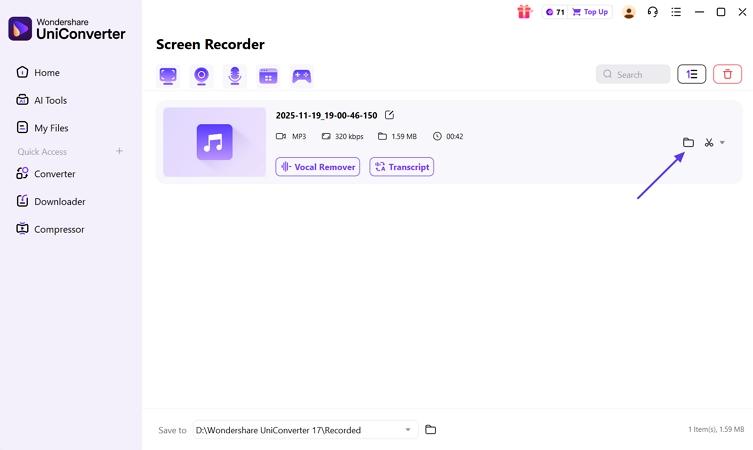
Step 4. Play Audio and Open Recorded File Location
Let the audio play and stop the recording when targeted audio part is successfully captured. Lastly, hit the “Open File Location” icon to check the recorded audio file.
Part 3. Choosing the Right Output Format & Quality
Selecting the right output format and quality is essential for anyone looking to download MP3 from web page because both file format and bitrate affect audio quality. If you want the best compatibility and manageable file size, let's discuss the audio formats to help you decide which one is perfect for you.
MP3 vs WAV vs M4A — Which to Use and Why
It is time to compare MP3, WAV, and M4A, and now to discover which of these works best with you.
| Format | Compression Type | Sample Rate/Bit Depth | Compatibility | Best Use Case |
| MP3 | Lossy | 48kHz/16-bit | Universal | Sharing, portable listening |
| WAV | Uncompressed | 192kHz/24-bit | Most devices | Archival, editing, professional use |
| M4A | Lossy/Lossless | 96kHz/24-bit | Apple, most modern devices | Streaming, high-quality storage |
How to Convert Downloaded Audio to Desired Format
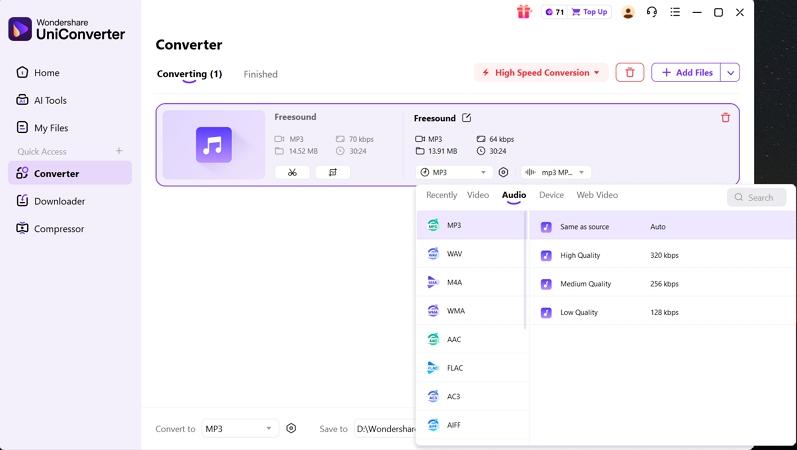
In case you want to convert the format of the downloaded audio, one of the sure ways to do it is with the help of UniConverter. This tool allows you to convert audio files between MP3 and a wide range of other formats without quality loss. UniConverter has bitrate and sample rate settings that allow you to adjust these settings to your desired recording settings.
You can also batch convert multiple audio files and organize them by format or metadata using UniConverter’s smart management tools. Try Wondershare UniConverter to streamline your audio conversion and maximize quality for every project.
Part 4. Is It Legal and Safe to Download Audio from Websites?
Before downloading audio, ask yourself, “is it legal to download audio from website?” Since permissions, copyright law, site rules, and your intended use all matter greatly. Some countries only allow personal use under fair use and stream ripping for private listening, while commercial use, altering files, or sharing may require explicit licensing and may differ regionally.
What’s Safe — Public domain, Creative Commons, Personal Use
Knowing what content you can download or use helps protect your rights and supports ethical audio sharing across all platforms.
- Public Domain Audio: Public domain audio files are not copyrighted and may be used in commercial and creative work freely.
- Creative Commons Audio: Tracks using Creative Commons licenses can be regularly downloaded and used personally or in education, but one must always comply with the license by giving credit.
- Personal Use Downloads: Audio downloaded to be used privately without sharing is deemed to be permissible. Just always review the site’s allowed usage and make sure the content is not explicitly protected.
What to Avoid — Protected Audio, Streaming-Only services
Let's review where and how you should never download audio from web, because risks are present for your account and your device.
- Copyrighted Audio: Downloading and sharing protected sound without permission may result in takedowns or legal penalties.
- Streaming-Only Platforms: Downloading audio from streaming services can breach terms and lead to account suspension and copyright warnings.
- Malware/Phishing: Untrustworthy downloads and invalid websites are dangerous to malware, privacy invasion, and personal data theft.
- Stream Ripping: Recording or converting streams intended for live play can violate service rules and local law.

Best Practice
The best practice for safe audio downloading is to always use reputable sites or tools and carefully check copyright information before saving files. Adhere to legal provisions that ensure respect for the content owners and the avoidance of legal problems.
Part 5. Comparison of Audio Downloaders From Websites
If you're going to opt for a tool to download audio from websites, let's compare each tool to help you choose the best option for your needs.
How We Tested Website Audio Download Methods
For this article, we examined practical ways to download audio from websites, including direct extraction methods, browser tools, and software-assisted solutions. We focused on methods that help users save audio efficiently without requiring advanced technical knowledge.
Our comparison considered detection success, audio quality, file format availability, workflow simplicity, and whether each method works across different types of websites. We also reviewed how clearly each option supports users when dealing with embedded players or streaming media.
Extraction Success
Checked whether each method can detect and save audio from common sites reliably.
Audio Quality
Compared saved file clarity, output consistency, and useful format support.
Workflow Simplicity
Looked at how easy the full process is from locating the source to exporting the final file.
| Tool | Best For | Free / Paid | Supported Platforms | Supported Formats | Handles Encrypted / Blob Streams | Batch Download | Ease of Use | Risks / Limitations |
| Wondershare UniConverter | Professionals, batch conversion | Free trial, paid | Windows, Mac | MP3, WAV, AAC, M4A+ | Yes | Yes | Easy, advanced | Needs install |
| SaveTube | Quick web downloads | Free | All browsers | MP3, WAV, WebM+ | No | No | Easy | Ads, limits on protected |
| Audio Downloader Prime | Chrome users | Free | Chrome browser | MP3, OGG | No | No | One-click | Not for YouTube |
| Inspect Element/Dev Tools | Technical users, direct links | Free | Any browser | Original format | Yes (if link exposed) | No | Difficult | Not beginner-friendly |
Our Recommendation Based on Your Needs
Having compared the best options for an audio extractor from link, here’s the recommendation tailored for different needs.
- Wondershare UniConverter supports batch downloads/conversions and works best for professionals needing advanced editing and format flexibility.
- SaveTube is suitable for quick audio extraction from URLs and casual users seeking fast downloads from major websites.
- Audio Downloader Prime provides easy, direct downloads from Chrome, and it is best suited if convenience and browser integration are important.
- Technical users comfortable with manual steps and browser features should consider Inspect Element or Dev Tools to directly download audio from websites when file links are exposed.
Part 6. Troubleshooting: Why You Can’t Download Audio from Some Websites
Sometimes, even with the best tools, users struggle to extract audio from web sources. This usually happens because of encrypted streams, blob URLs, dynamically generated segments, and DRM protection. Let's explore the common challenges and their solutions to help you successfully capture audio from any website.
Audio Appears But no Direct Download Link
Audio plays on a site but offers no traditional download button or visible file link. However, websites may load sound dynamically or hide the file’s real location through scripting. These techniques make it hard to access or save the audio like a standard MP3 or WAV. The problem can be solved by using an audio extractor from web, as explained in the guide above.
Audio is Split into Multiple Fragments or Streaming Segments
Some websites split audio into small streaming chunks like .ts or .aac files, which makes downloading difficult since the browser combines segments. To solve this, try a dedicated tool that can join the fragments or record the stream in real time. Use UniConverter to record the full stream as a single audio file and pull audio from website when downloading directly fails.
Audio Downloader from Websites
Site Actively Blocks Download/Uses DRM
Let’s look at why some sites make it difficult to extract audio from web, when digital rights tools are in place to protect content.
- DRM Protection: Digital rights management restricts saving audio files from websites and is designed to uphold copyright and secure content for owners.
- Blocked Downloads: Some sites use technical barriers to hide audio so people cannot access original files straight from the website.
- Legal Risks: Bypassing DRM or site restrictions can violate copyright law, exposing you to penalties or legal action if unauthorized copying or sharing occurs.
Conclusion
In summary, selecting an audio downloader from websites is crucial for building a reliable offline audio collection. Always verify file quality and legality before downloading or converting any audio file. Choose software that supports multiple formats and ensures privacy protection for safe downloads. However, if you want to sign up for a tool, Wondershare UniConverter is the ideal choice for your audio downloading needs.

