


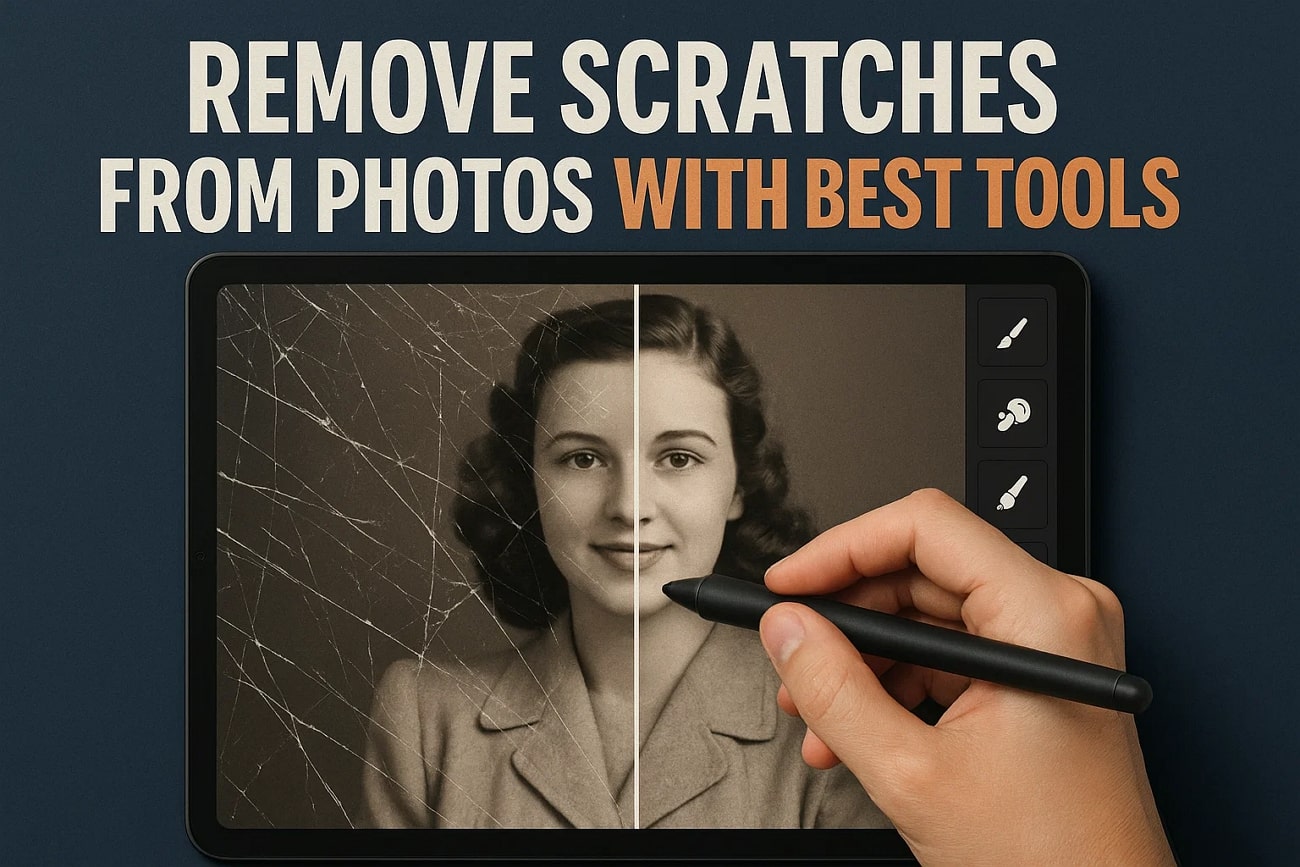
It can be a daunting task when you have to manually deal with thousands of scanned pictures that get scratched. Therefore, professionals and hobbyists look for efficient tools that can help them remove scratches from photo. These types of tools are equipped with advanced photo restoration AI that can reverse time and bring life back to these old, scratched-up images.
Though there are several AI photo scratch remover tools online, which one is the best? This article will help provide efficient scratch remover free online tools. Moreover, you can find multiple tips for capturing a scratch-free picture.
In this article
Part 1. Top 5 Free Tools to Remove Scratches from Photos 2025
In this part, you can find a list of some of the best photo scratch remover online free tools, arranged by rating, for you to find the right tool:
1. UniConverter
UniConverter is one of the most effective old photo scratch removers, allowing it to remove and automatically fix scratches and damage on pictures. In addition, it has the ability to maintain natural textures, facial features, and sharpen blurry sections, increasing color saturation and noise cancellation. You are also able to import various image formats, which means you can process them in batch.
Moreover, the users have an option to preview the final output with the original picture, then download it in high quality and resolution. You can even apply colorization to black-and-white photographs after restoring them to life with realistic colors.
Comprehensive Guide on How to Remove Scratches from Old Photos Using UniConverter
In the following, you can find the easy steps on how to remove scratches from images with this software:
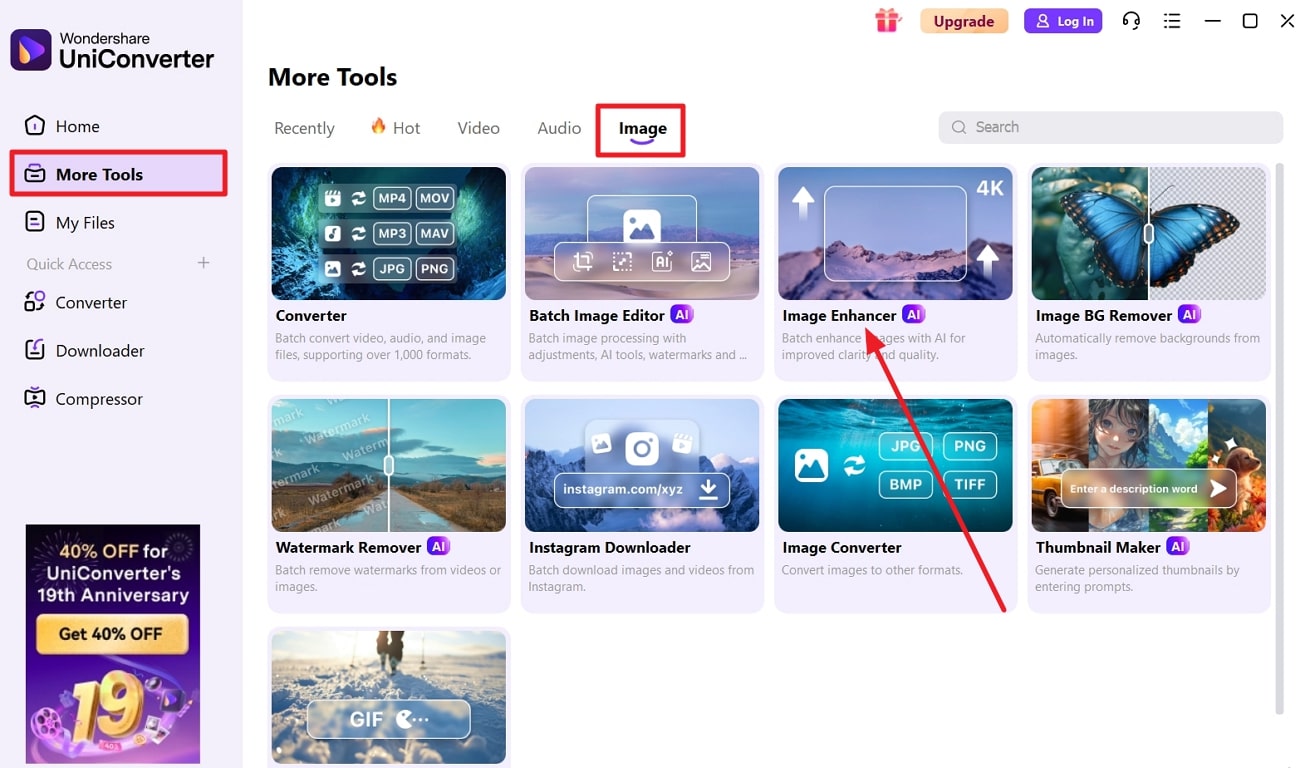
Step 1. Access Image Enhancer Feature and Import Image
Launch the software on your device, press the “More Tools” tab, and open the “Image” section. Now, click “+Add Files” within the “Image Enhancer” option, and import the old, scratched picture.
Step 2. Choose Photo Restoration Feature
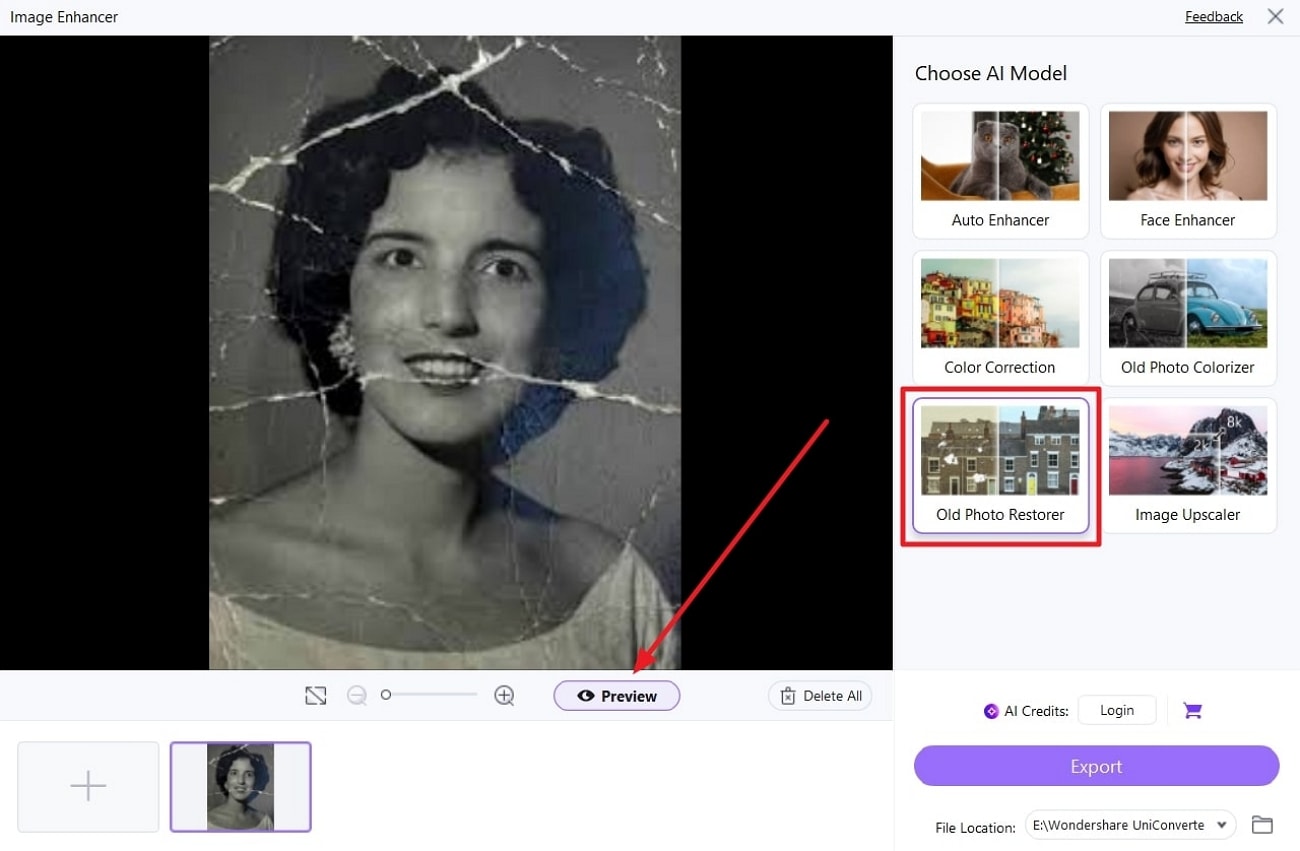
When the “Image Enhancer” window opens, select the “Old Photo Restorer” option under the “Choose AI Model” section, and hit “Preview.”
Step 3. Export the Final Result
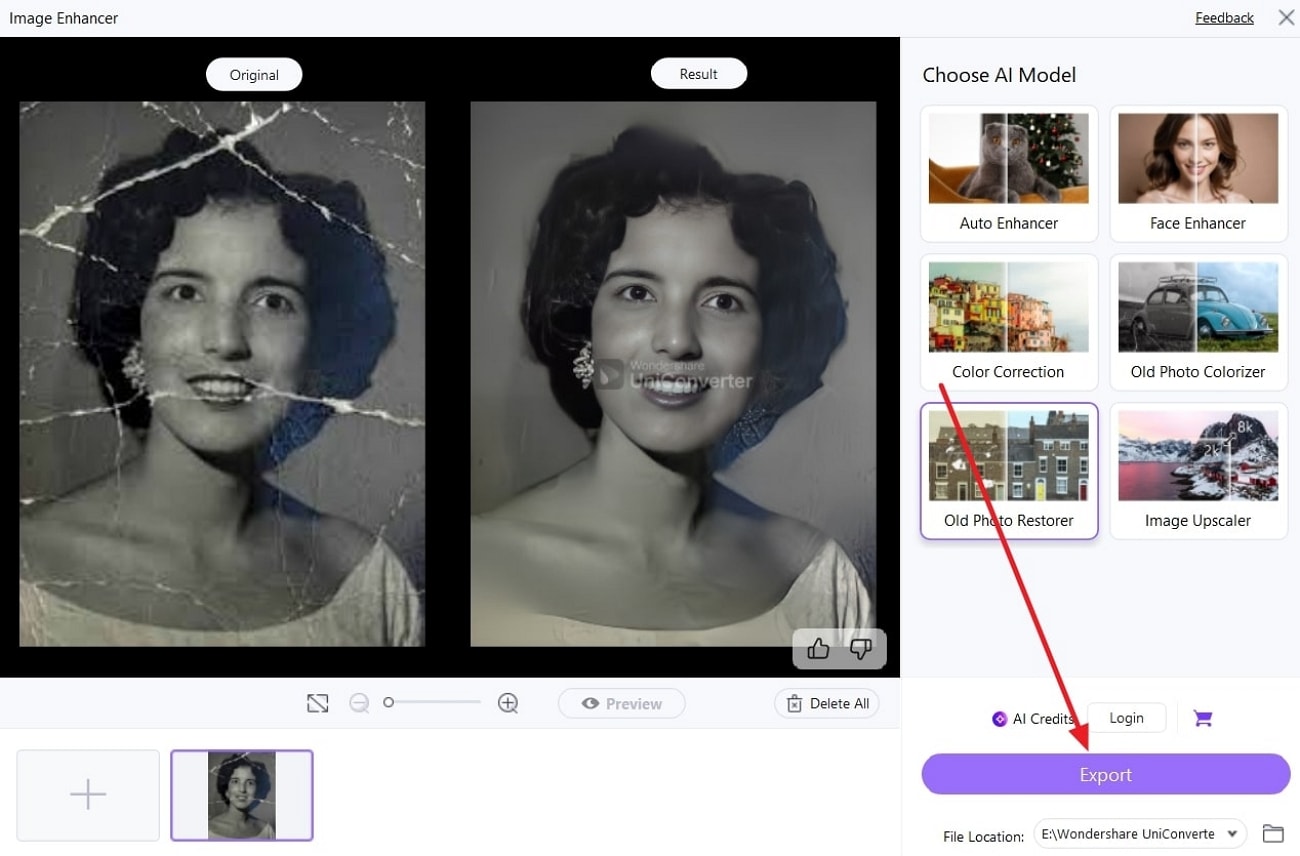
After the image is scratch-free, do a side-by-side comparison and when satisfied, hit the “Export” button.
Rating: 4.9/5
2. VanceAI Photo Restorer
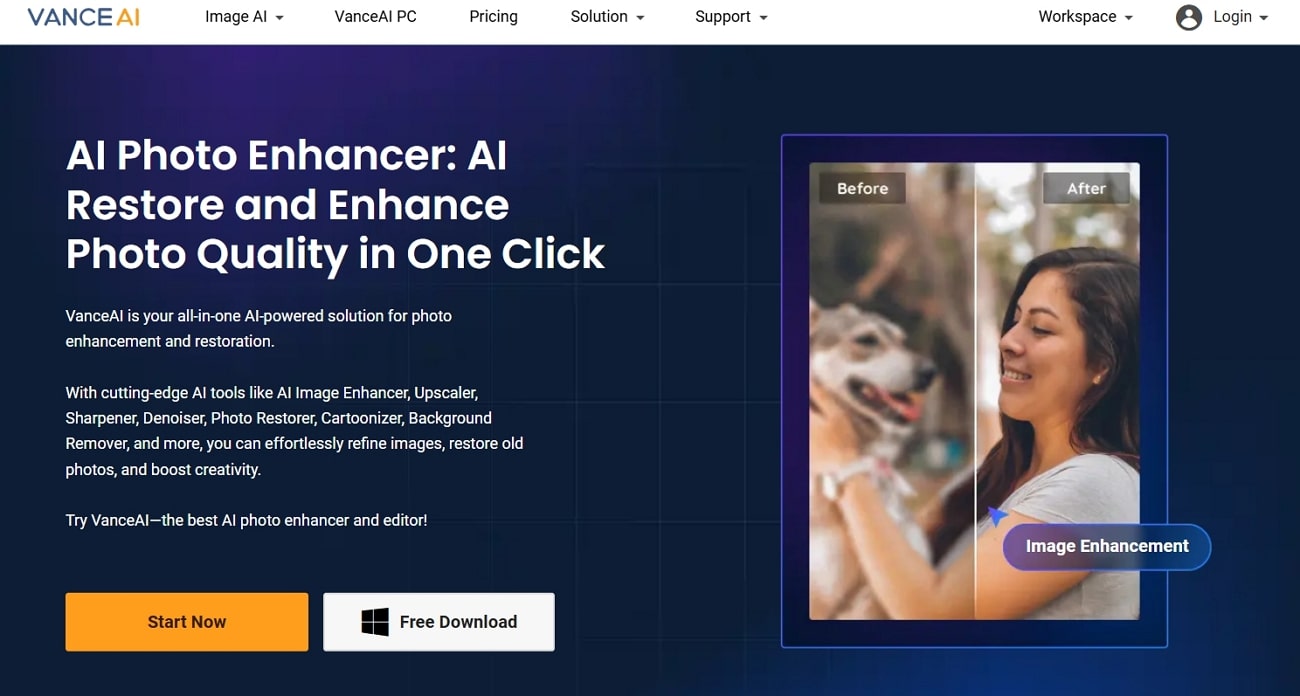
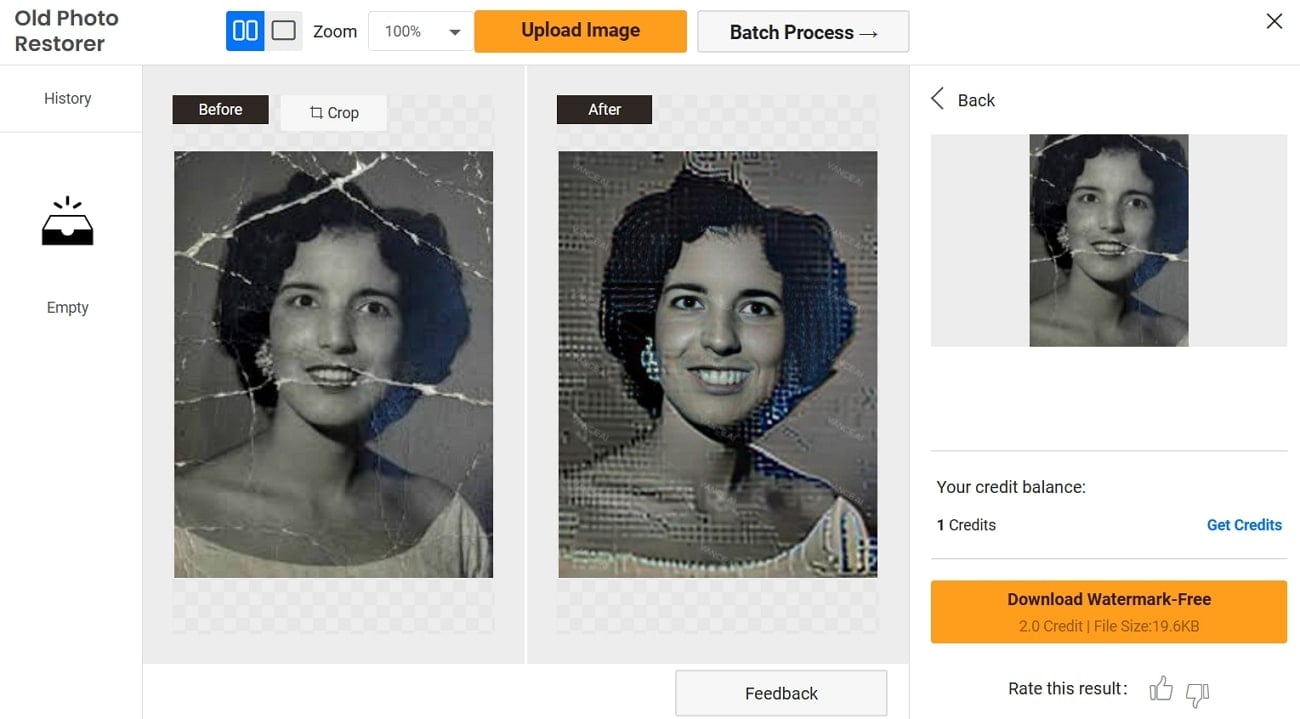
VanceAI Photo Restorer can be 100% automatic, fixing damages, like tears, scratches, and more, with its AI technology. This online photo scratch remover allows you to choose fully automatic or manual fixation options. Moreover, you can even enable face restoration, colorize B&W photo options, drag the denoiser scale from 0 to 100, or select auto denoising for maximum results.
Compatibility: Windows, Online.
Free Limits
- Allows free restoration of a limited number of photos daily.
- Provides automatic scratch removal, color correction, denoiser, and face enhancement.
- Watermark-free photos download in the free version.
- Can access unlimited editing, adjustment, and cropping options.
Rating: 4.3/5
3. Old Photo Restoration Online
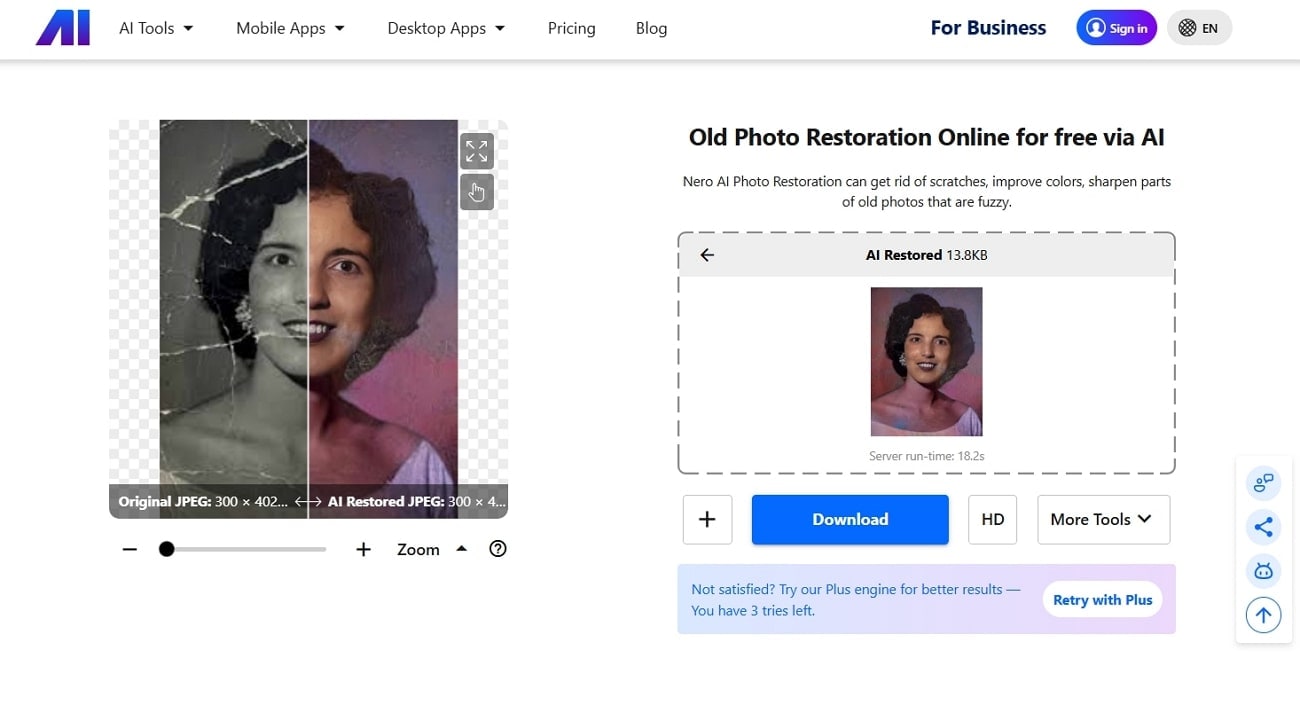
If you are looking for an easier and efficient image restoration, move towards this tool that is specialized to remove scratches from photo online. Its AI smartly detects any scratches, spots, and cracks within an image, and enhances them with vivid colors and details. Moreover, you can upload different formats, like JPG, TIFF, JIF, and more, and get the best colorized image.
Compatibility: Windows, macOS, Online, iOS, and Android
Free Limits
- Allows free restoration of a limited number of photos per day.
- Includes access to automatic scratch removal and colorization features for 10 credits.
- Basic photo enhancement tools with restrictions on 5 images of batch processing options.
- No watermark on restored images in the free tier.
Rating: 4.2/5
4. Imglarger
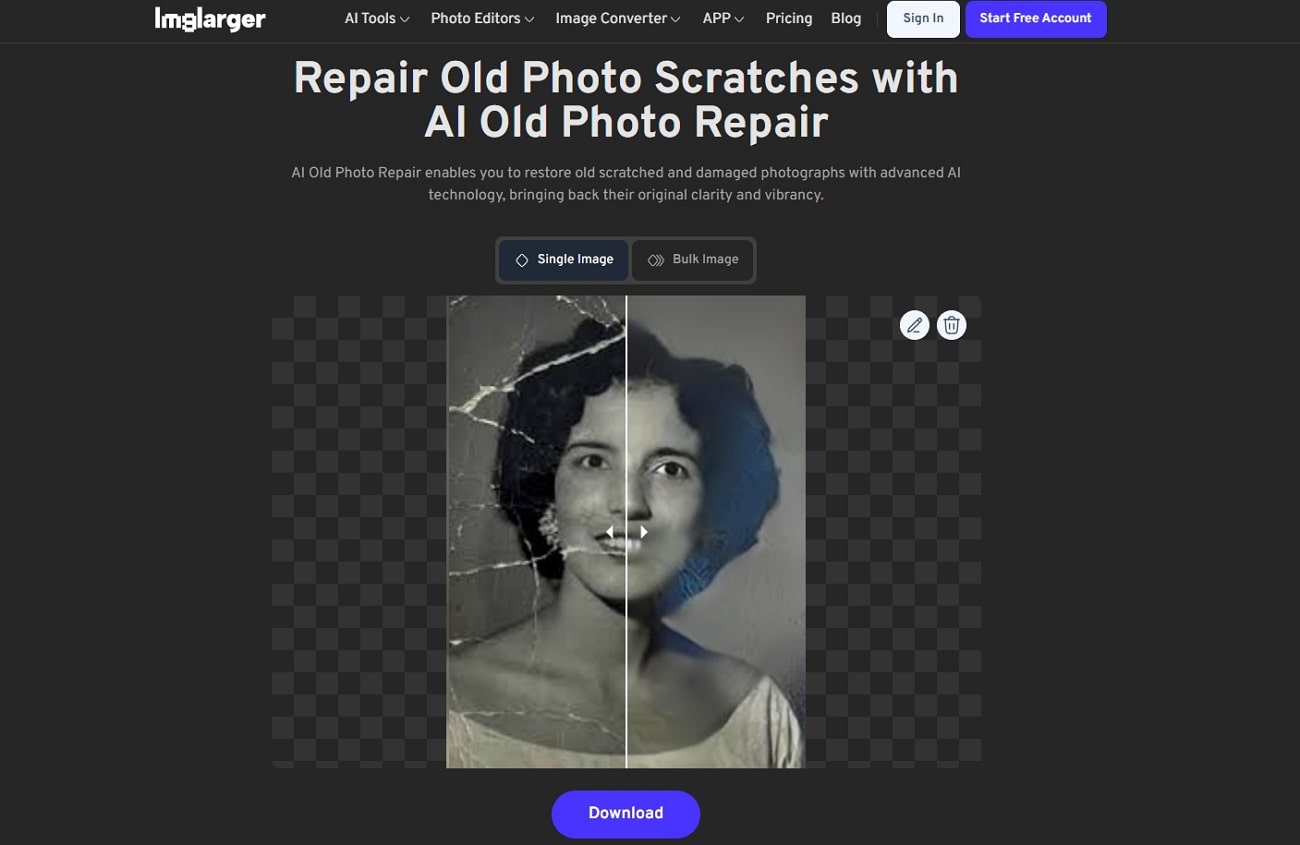
Users can turn their attention towards this tool that can remove scratches from old photos online free with advanced AI technology. This tool covers everything, whether it be fading colors, scratched pictures, or imperfections on the face. Besides, it can upscale photos to 8K without losing quality, thereby making it ideal for the restoration of cherished memories.

Compatibility: Online, iOS, and Android.
Free Limits
- Allows free use with no sign-up or restrictions to restore and enhance photos.
- Supports JPG, PNG, and WebP formats with a single processing option.
- Offers all AI features, free editors, and converters in the free trial.
- Provides background removal and basic image editing tools, along with restoration in the free tier.
Rating: 4.1/5
5. Imagecolorizer
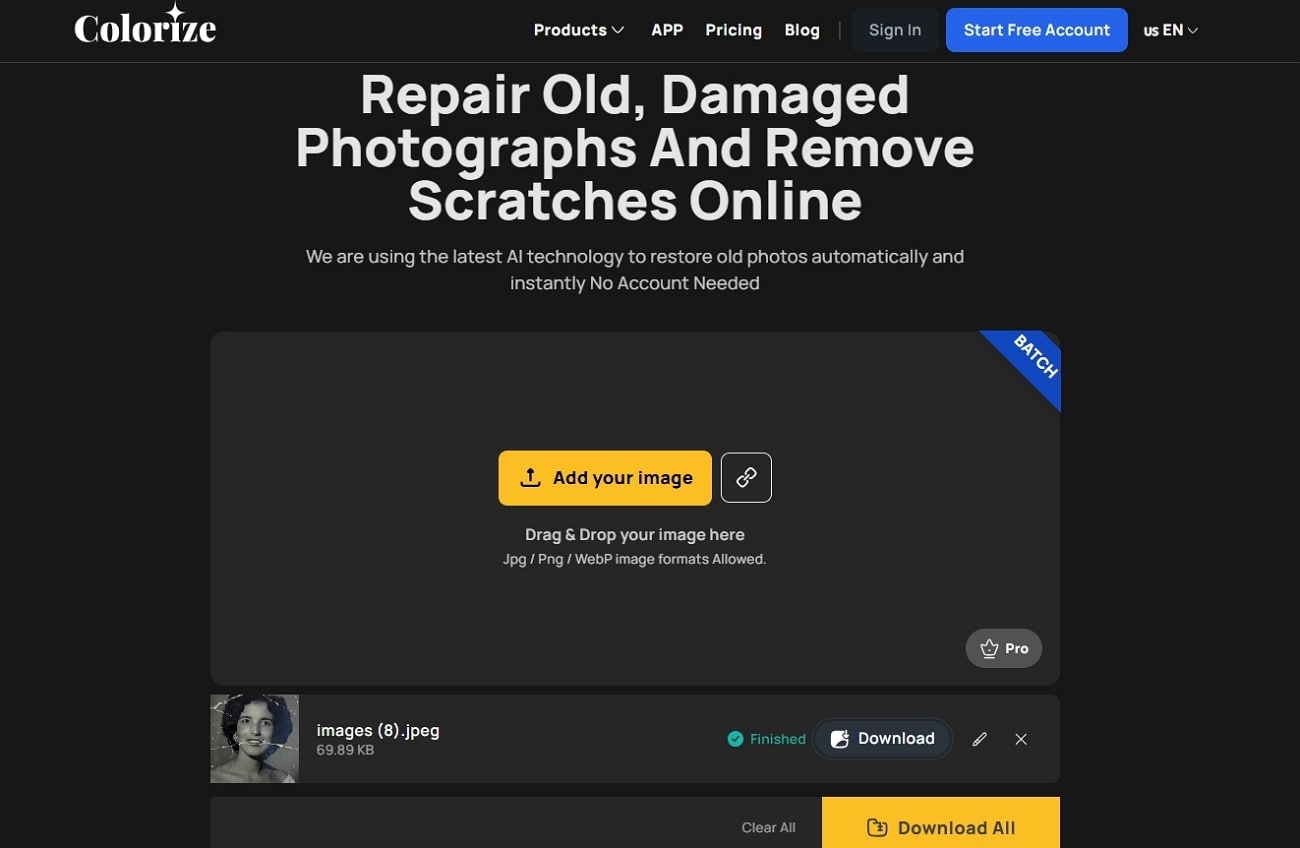
Another online photo scratch remover tool is ImageColorizer, which repairs and fixes without any prior training. Additionally, its AI can help enhance face clarity and bring out finer details, ensuring results. The tool can be used to color black and white images in natural and vibrant colors, and for simple photo editing features. You can sharpen the image by increasing it by 200% and still maintain the details and clear images.

Compatibility: Online, iOS, and Android.
Free Limits
- Supports JPG, PNG, and WebP image formats for free restoration.
- Offer up to 3000px image quality with full AI features accessibility.
- No hidden fees, licenses, or watermarks on restored images in the free version.
- Includes round-the-clock customer support for assistance.
Rating: 4/5
Part 2. Quick Comparison Table of Best 5 Photo Scratch Removers
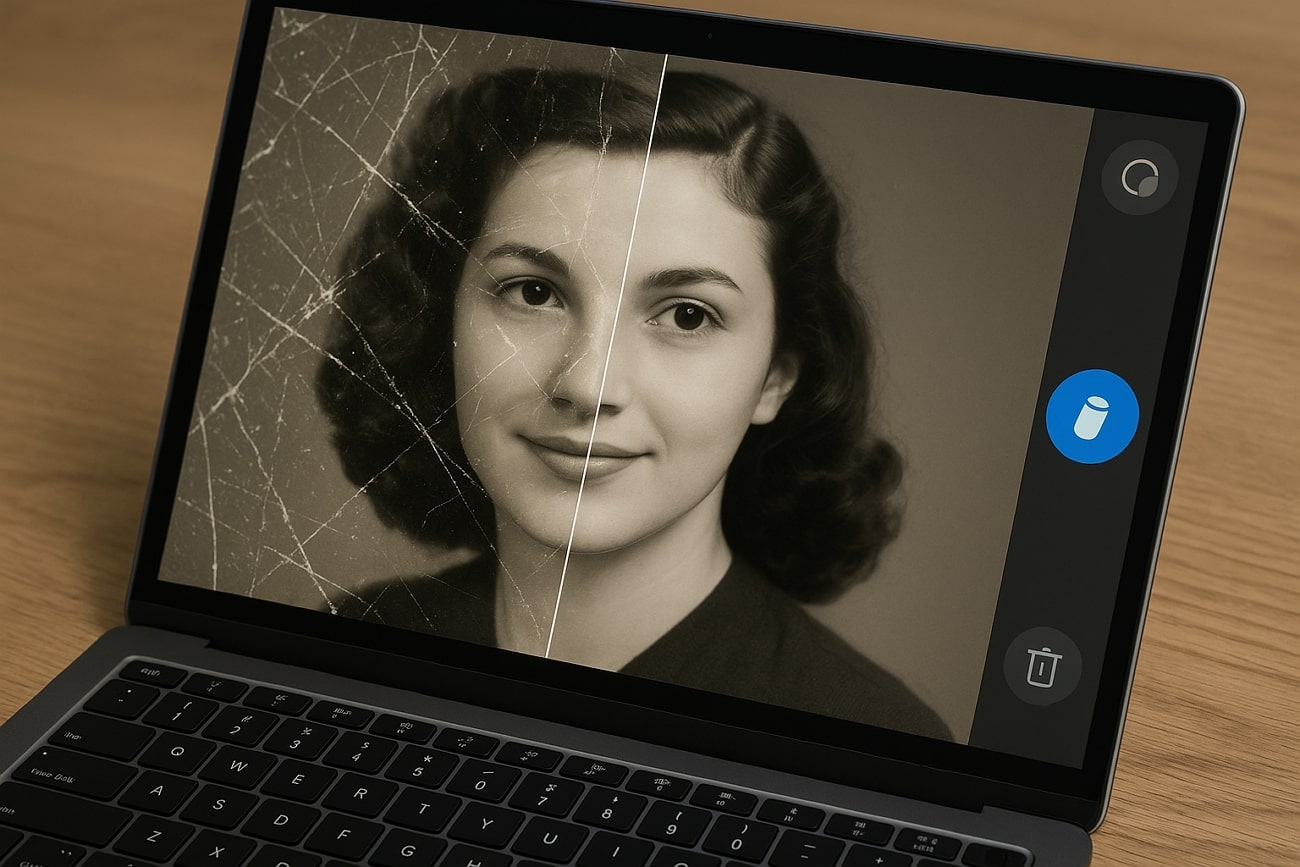
Now, let's go through the following easy-to-understand comparison table between the top 5 picture scratch remover tools:
| Tools | Processing Time (average) | Supported Export Formats | Batch Processing | Restoration Quality | Pricing Plans |
| Wondershare UniConverter | A few seconds | JPG, JPEG, PNG, BMP, and TIFF | ✓ | High | Perpetual Plan: $39.99Monthly Plan: $9.99/monthYearly Plan: $29.99/year |
| VanceAI | 20s | JPG, PNG, JPEG, and more | X | Very good | 100 credits: $4.95200 credits: $7.95500 credits: $12.951000 credits: $17.95 |
| AINero | 23 seconds | JPG, JPEG, PNG, BMP, WebP, JFIF, TIFF | ✓ | Good | Monthly Pro Pass: $24.99/monthYearly Pro Pass: $11.66/month |
| Imglarger | 25+ seconds | JPG, PNG, and WebP | ✓ | Average | Starter: $4.9/monthPremium: $9.9/monthBusiness: $19/month |
| ImageColorizer | 28+ seconds | JPG, PNG, and WebP | ✓ | Poor | Starter: $3.9/monthPremium: $6.9/monthBusiness: $9.9/month |

Easily Batch Remove Scratches from Photos
Part 3. Tips for How to Digitize Your Photo
You might think that digital tools can invent the missing pixels of a picture that a scan fails to capture. This is not so, and the scan can only capture the highest image detail, texture, and color depth with a high-quality scan at 300 dpi. Moreover, the higher the quality of the scan, the more natural the scratches of photos can be removed.
The Right Way to Scan
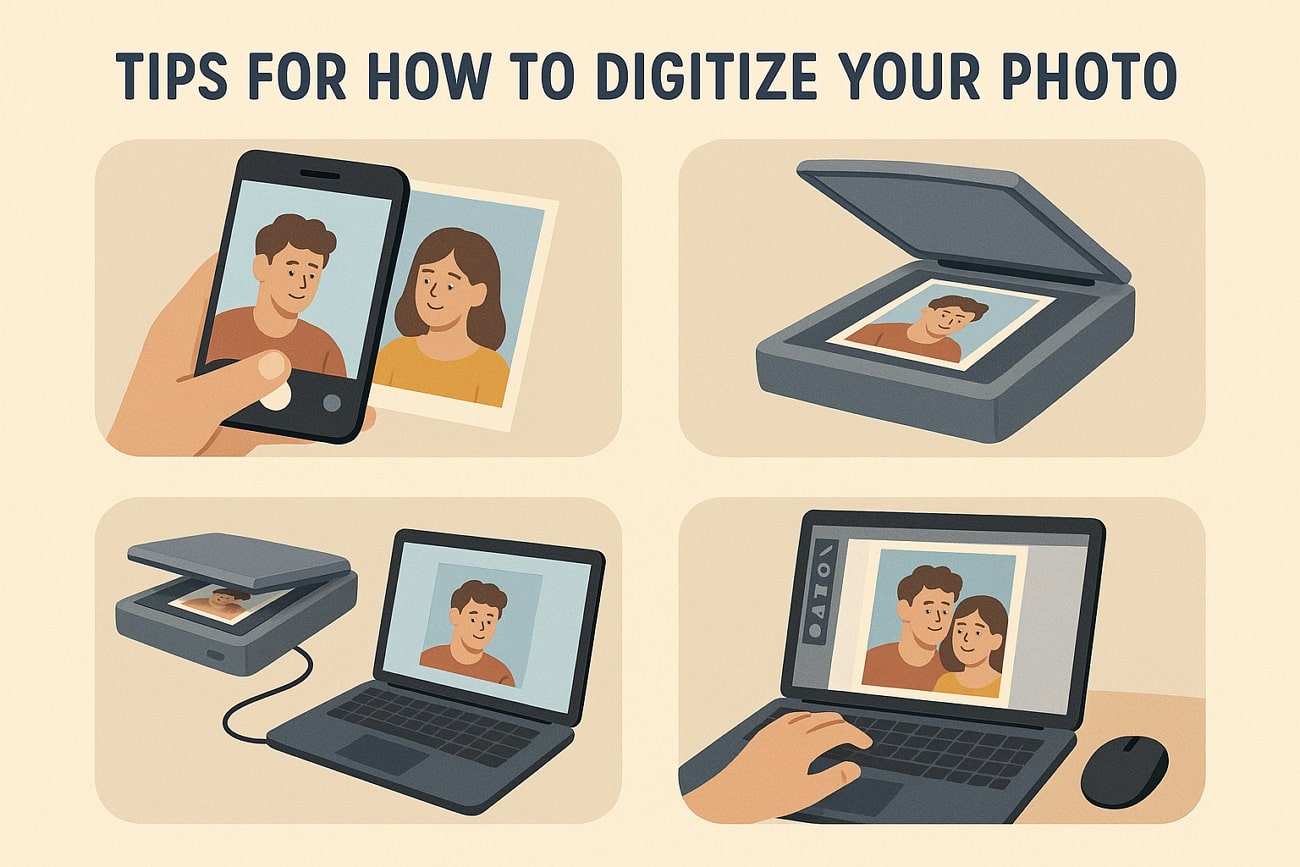
Now, let's look at the following ways on how you should take the scanning approach by understanding these points:
Scanning with a Flatbed Scanner: A flatbed scanner supports the photos flat on the scanner and therefore supports delicate originals such as old prints or Polaroids.
Resolution is Important: Scanning at a minimum of 600 DPI is the recommended resolution because it picks up fine details and texture of the photograph.
Clean the Scanner Glass: Before scanning a photo, always clean the scanner glass so that no dust or smudge can be left on the scanner and show up as spots on the photo.
File Format: TIFF files are the most suitable image files since they are lossless and ideal for restoring and preserving all the image data.
Alternative Option: If a flatbed scanner is not accessible, users can use their smartphone cameras to scan the image with good lighting and more.
Tips for Best Results
After learning how to scan an image, let's look at the following tips that can help ensure the digitized photos are high quality:
Shoot in a Well-Lit Area: You should use natural daylight or well-diffused lighting to shoot the photo, thus avoiding harsh direct light.
Place the Photo on a Flat Surface: Another tip is to lay the photo flat and steady on a neutral-colored background, like white or gray, to prevent distortion of the image.
Avoid Shadows and Glare: To minimize shadows, keep the camera lens parallel to the photo to reduce angled glare and get softer images.
Use a High-Resolution Camera App: It is advised to set your smartphone or camera to the highest resolution to get the best resolution images.
Post-Processing: After taking the shot, use an effective photo-editing software to crop, adjust colors, and remove scratches from pictures.
Part 4. Common Problems & Solutions When Removing Scratches from Photos
The following are some of the practical solutions that can help you avoid common pitfalls if you are trying to remove scratches from old photos online:
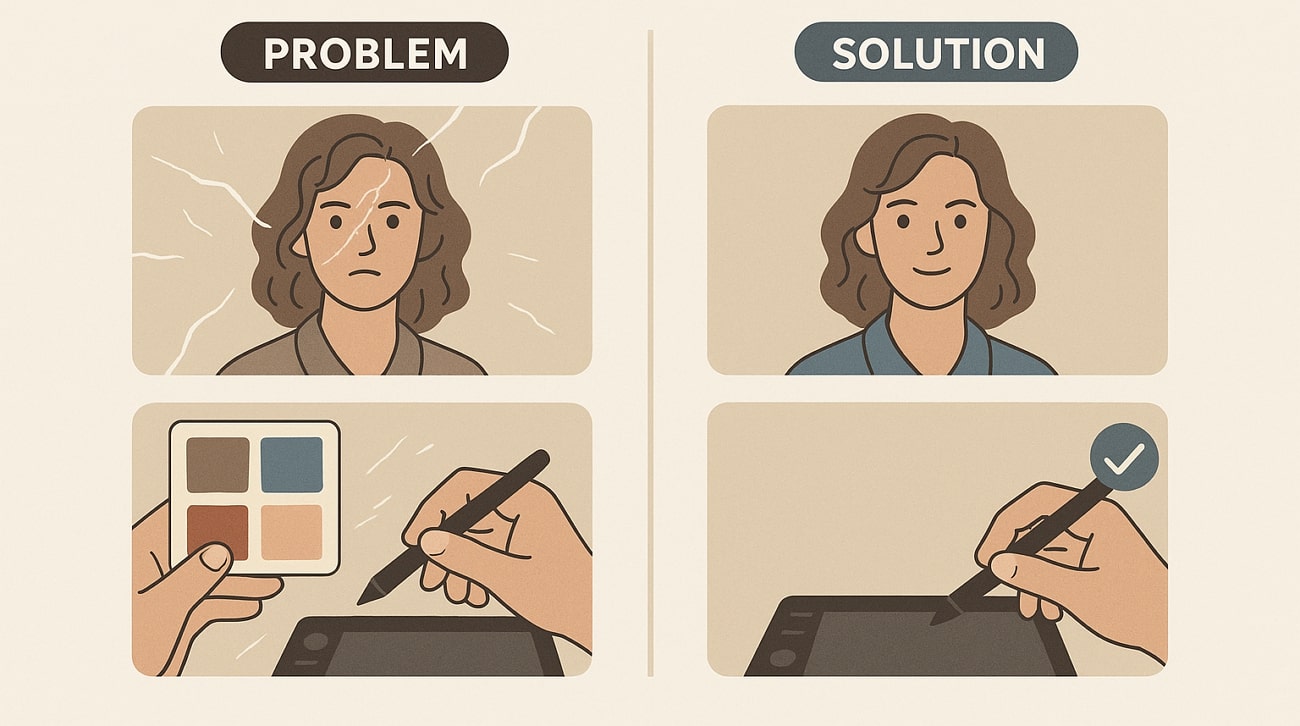
Problem: Blurry or Smudged Healed Area
In case of overusing the Healing Brush, it can blend the pixels too much, which results in losing photo texture and causing unnatural soft patches. Moreover, the protective grain or texture of the photo is lost in the process, making the repair visually obvious and unnatural.
Solution: The solution to this problem can be fixed by switching to the Clone Stamp Tool with a harder-edged brush. You can use it on the areas very close to the scratch for a texture and color match, which will, in turn, look natural and preserve details better.
Problem: Losing Important Details
If you use large brush sizes, you can erase fine features within an image, like eyelashes or fabric texture. Moreover, if you rely on automated fixes without doing any manual refinement, the AI can lose important details and elements, making the image appear artificial.
Solution: Users can try zooming in closely to the affected area and use a much smaller brush size to accurately remove scratches. Ensure to take your time to carefully remove scratches from photo online and rebuild textures with detail.
Problem: Color Mismatch
When you use sampling from differently lit or colored areas of the image, it causes patched sections to look unnatural, thus breaking the visual continuum. The images might look off due to the sudden color shift during the scanning or editing stages.
Solution: The Clone Stamp Tool can be used by the editor to sample colors on areas with nearly similar lighting conditions surrounding the scratch. Alternatively, a Hue/Saturation adjustment layer can be clipped, then the color balance can be adjusted until it matches the rest of the picture.
Conclusion
In the end, this article gave a clear picture of how fragile images are and how they can degenerate over the years. Furthermore, with the knowledge about different tips and issues, you can better understand where to fail and how to resolve them immediately. This article also provides users with various online tools to remove scratches from photos, of which UniConverter is the most recommended one.
Frequently Ask Questions
-
1. Are there watermark restrictions on free versions?
There are many free tools that allow you to download restored images without watermarks, such as UniConverter and Picsart. However, most tools add watermarks, and the watermark-free feature is limited to only premium users. -
2. What file formats do these tools support?
The most common formats, like JPEG, PNG, and TIFF, are widely supported by these online photo restoration tools. You should look for those tools that also support RAW files for better results. -
3. Which are the top free photo scratch removal tools in 2025?
For users and editors, the best tool that can remove scratches from a photo is Wondershare UniConverter, which offers AI technology. It seamlessly matches the surrounding areas to the scratched region and brings it to life with vivid colors. -
4. Is manual editing possible with free tools?
Some online tools, like Picsart and more, offer manual healing and cloning tools for you to edit precisely and accurately. With manual editing, you can achieve better, refined, and scratch-free images without any hassle.

