

Many turn to YouTube MP3 downloaders to save their videos for offline viewing, but most are filled with malware and annoying ads. These can raise privacy and legal concerns.
CnvMP3 promises to be a reliable YouTube downloader with its extended capabilities and ad-free interface. However, many users still ask, “Is CnvMP3 safe?” This guide answers it and helps you decide whether it’s the right tool for your video downloading needs, along with alternatives to consider.
YouTube to MP3 Converter
In this article
- Part 1. What is CnvMP3, and how does it work?
- Part 2.How do you use CnvMP3 to convert YouTube videos?
- Part 3. CnvMP3 Not Working? Common Issues and Solutions
- Part 4. Best CnvMP3 Alternatives for High-Quality Downloads
- Part 5. Legal and Ethical Considerations of Using CnvMP3
- FAQs About CnvMP3
- Conclusion: Is CnvMP3 Right for You?
Quick Guide: Best CnvMP3 Use Case by Risk Tolerance and Download Need
Part 1. What is CnvMP3, and how does it work?
Overview of CnvMP3 Features
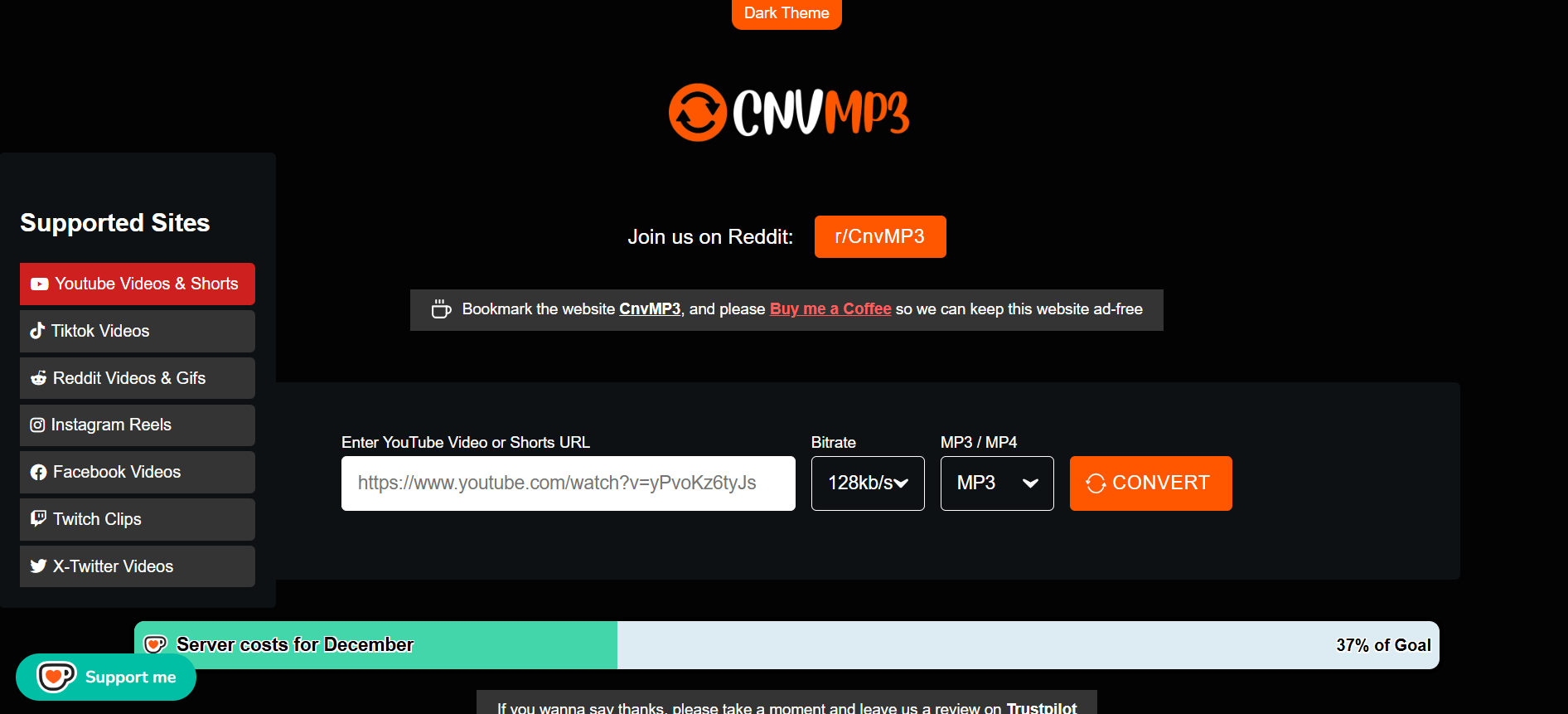
CnvMP3 is a free online tool that lets you download YouTube videos in MP4 or MP3 format and offers options for various bit rates and resolutions. It offers an ad-free experience and allows video downloads from other major platforms like Instagram, TikTok, Facebook, Twitter, Reddit, and Twitch.
Key Features That Set CnvMP3 Apart
CnvMP3, despite being free, has several handy features to offer, with a few standouts as follows:
- No Sign-up Required: Doesn’t require creating an account to download or convert your YouTube video.
- Ad-free Experience: Unlike many online apps, CnvMP3 is an ad-free YouTube converter.
- Multiple Format Support: Directly download videos in MP4 or convert them to MP3.
- Quality Options: Choose MP3 bit rates up to 320kbps, and MP4 videos in resolutions from 144p to 1080p.
- Multi-platform Compatibility: Download video and audio from YouTube, TikTok, Facebook, Instagram, Twitter, Reddit, and Twitch.
- Cross-Device Compatibility: Works on Windows, macOS, Android, and iOS devices.
CnvMP3 Audio Quality: What to Expect from Your Downloads
CnvMP3 promises an audio output with a bit rate between 96kbps and 320kbps. However, for YouTube video-to-audio conversion, the output stays around 128 kbps for free users and 256 kbps AAC for YouTube Premium users.
CnvMP3 Limitations You Should Know Before Using
CnvMP3 can be a decent option for video and audio downloads, but its limitations include no support for batch downloads, a lack of metadata, and occasional download errors. It also lacks advanced tools like playlist download support, audio trimming, and more.
Part 2. How do you use CnvMP3 to convert YouTube videos?
CnvMP3 converter has a simple and intuitive interface, and you must follow the steps to download or convert your YouTube videos:
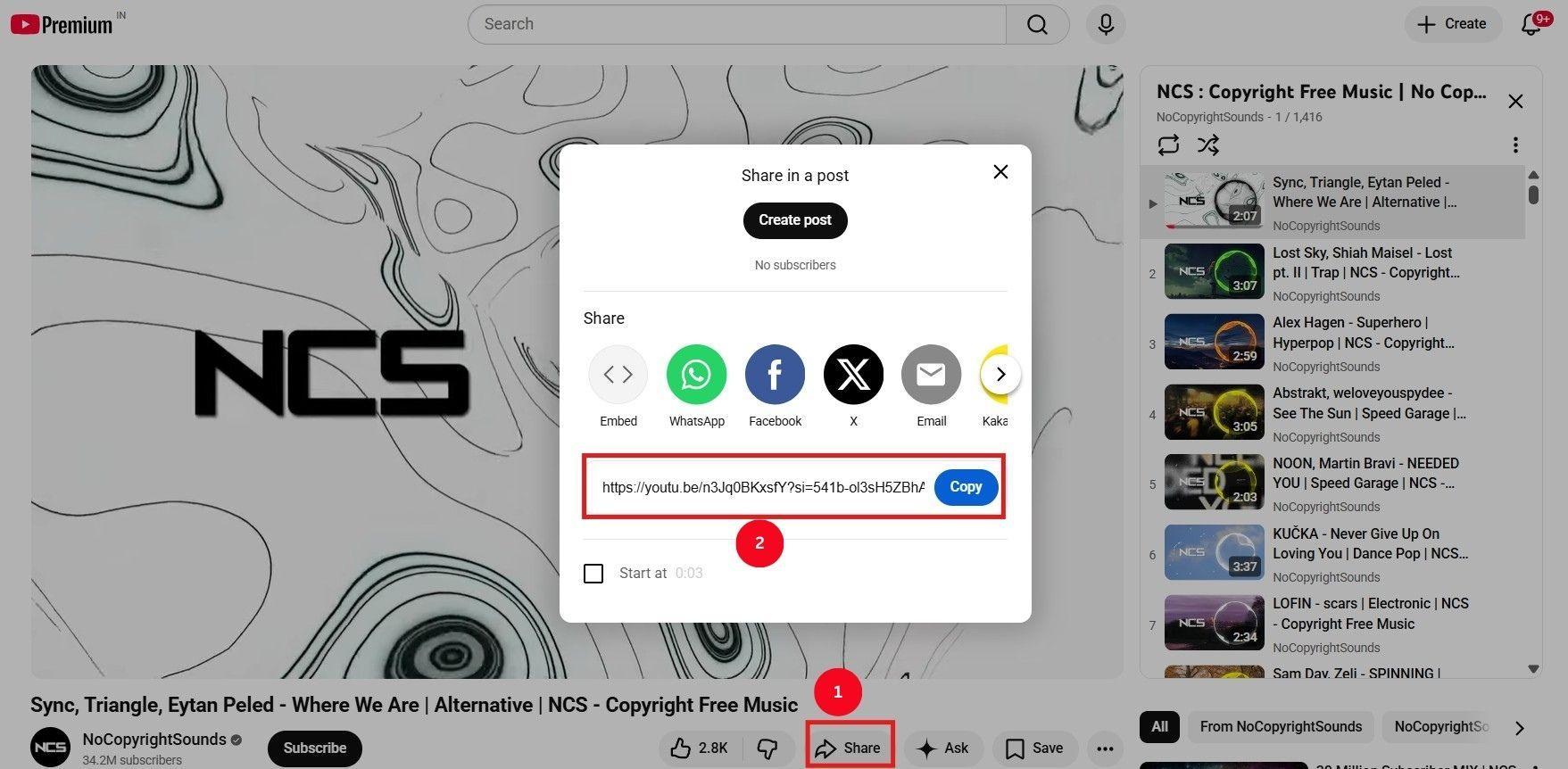
Step 1: Go to YouTube and play the video you want to download. Then, click Share > Copy Link to copy the video link.
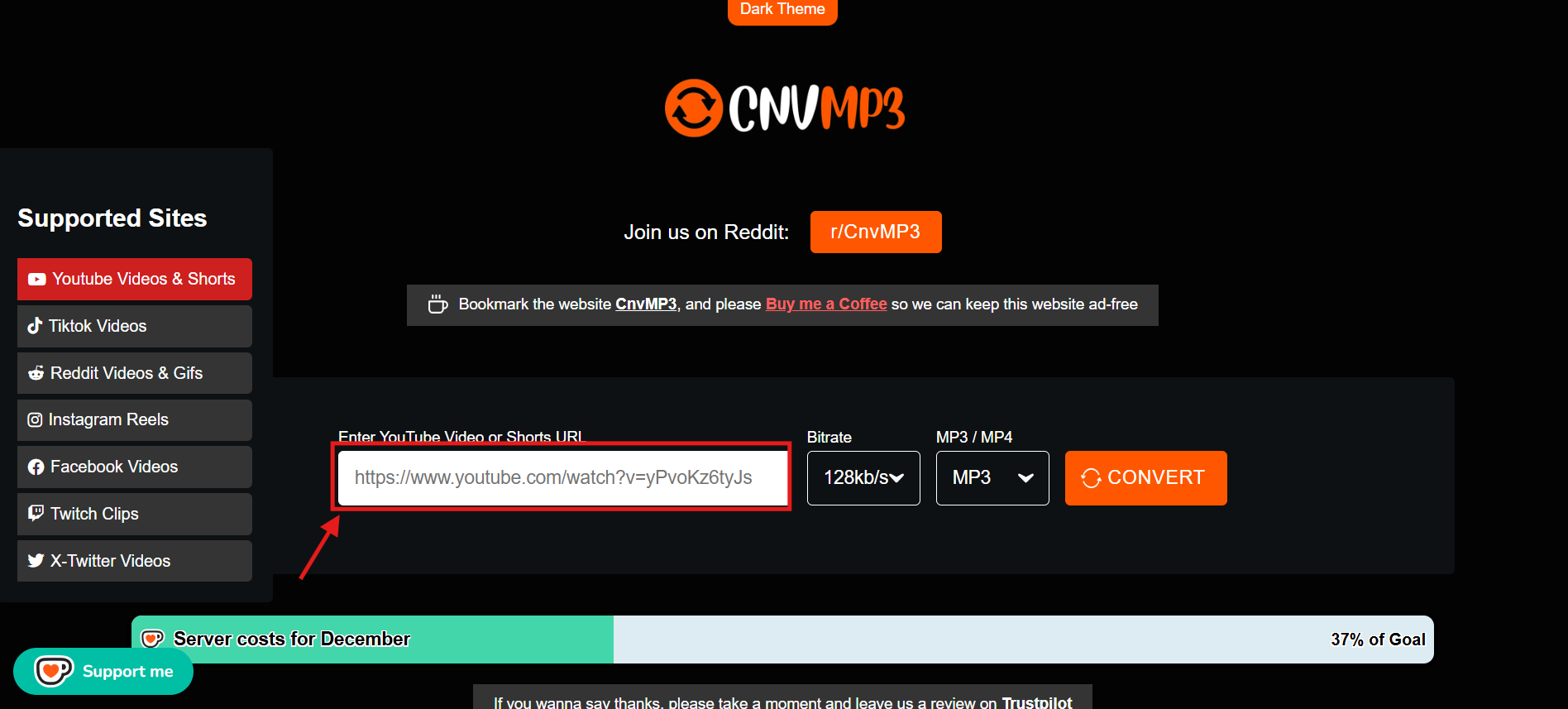
Step 2: Access CnvMP3.com on your browser and paste the link in the input box.
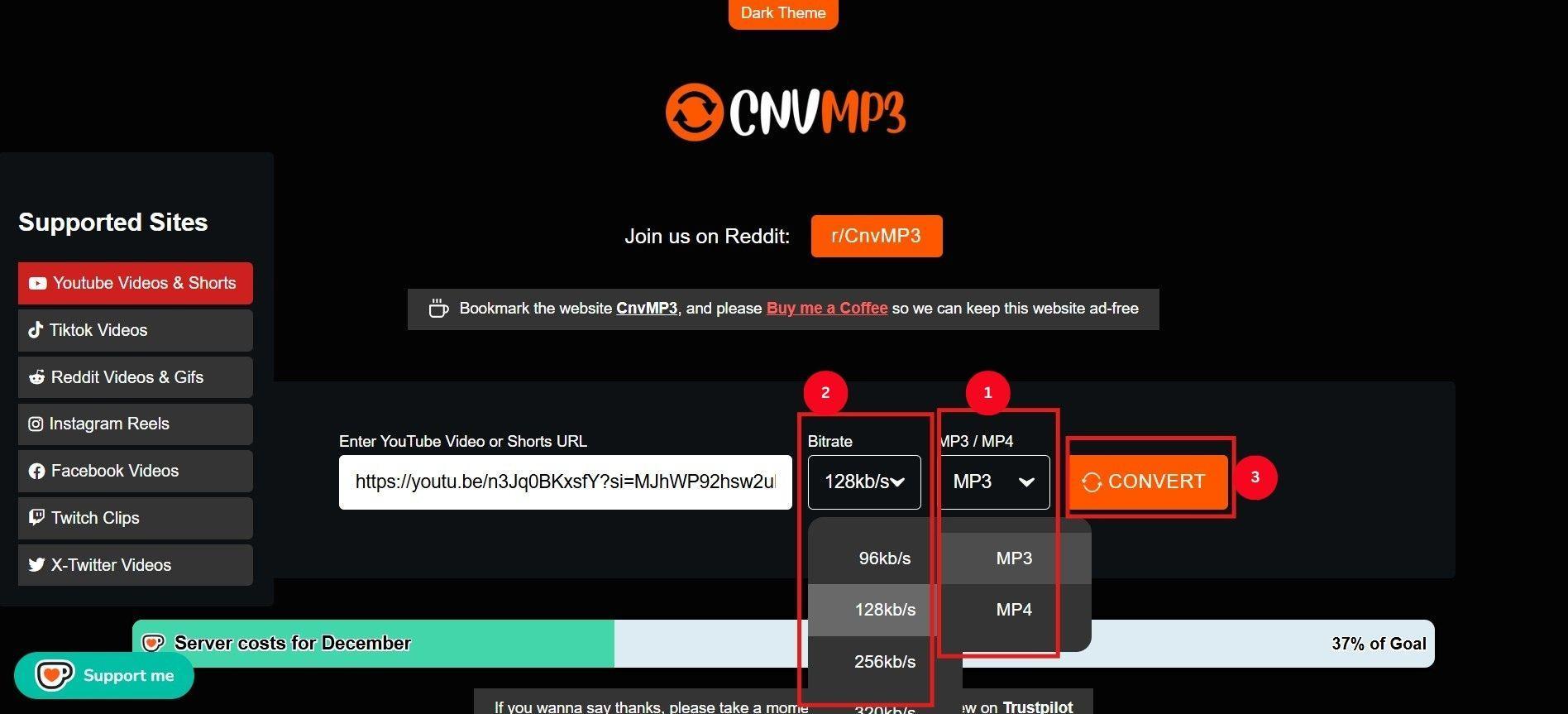
Step 3: Select the file format (MP3/MP4) and the audio bitrate (up to 320kbps) or video resolution (up to 1080p). Then, click Convert to save the video.
Part 3. CnvMP3 Not Working? Common Issues and Solutions
Troubleshooting "Error: Access Denied" Messages
If you see such error messages, these potential fixes should help:
- Clear Browser Cache/Cookies: Restrictive cookie settings can prevent the server from authenticating the user’s session, so clearing browser cookies or caches can resolve the problem.
- Disable Ad Blockers Temporarily: Ad blockers may mistakenly flag downloads as advertisements and interfere with them. Disabling them temporarily might help.
- Try a Different Browser: Incompatible browser settings for security protocols and cookie management may prevent downloads. Set the browser settings to the default or try a different browser.
- Check if VPN is interfering: VPN can slow downloads due to encryption, port blocking, or server issues. Turn off the VPN to see if the download works.
- Verify You’re Using the Official Site: Ensure the address bar shows “cnvmp3.com,” and the interface is simple with no ads.
Fixing "Conversion Failed" or "Secure Connection Failed" Errors
“Secure Connection Failed” or “Conversion Failed” messages often result from a server overload. In other words, CnvMP3's server's bandwidth capacity and computational resources are exceeded by a high volume of simultaneous download and conversion requests.
To avoid this, users must time their downloads strategically or use alternative services during peak periods.
Regional Restrictions and VPN Solutions
CnvMP3 is likely restricted in certain regions, such as Germany and India. If you’re from these locations, use a VPN and set the server to the US or UK.
Step 1: Select a VPN service that offers fast, reliable connections to multiple locations.
Step 2: Follow the prompts to set up a VPN and connect to the server of your desired location (UK or US).
Step 3: Go to CnvMP3 and try downloading your favorite video.
When CnvMP3 Reaches Video Length Limits
CnvMP3, although it says it allows video downloads for up to 180 minutes, won’t let you download videos longer than an hour. So, trim the video or split it into smaller segments to ensure successful downloads.
Step 1: Reduce the video resolution to 720p or 480p to speed up file processing.
Step 2: Use a YouTube trimming tool to create separate trimmed links. Each trimmed clip gets its own URL.
Step 3: Paste each URL in CnvMP3 and download them separately.
Part 4. Best CnvMP3 Alternatives for High-Quality Downloads
| Tool | Platform | Max Quality | Batch Download | Best For |
|---|---|---|---|---|
| Wondershare UniConverter | Windows / Mac | 320kbps / 1080p | Yes | Professional & bulk downloads |
| YTMP3 | Web | 192kbps / 720p | No | Quick single downloads |
| YTMate | Web | 320kbps / 1080p | No | Format flexibility |
| Tubly Downloader | Browser Extension | 320kbps / 8K | Limited | One-click downloads |
| Video DownloadHelper | Browser Extension | Variable | Limited | Multiple formats |
Desktop Software Alternatives (For Premium Quality)
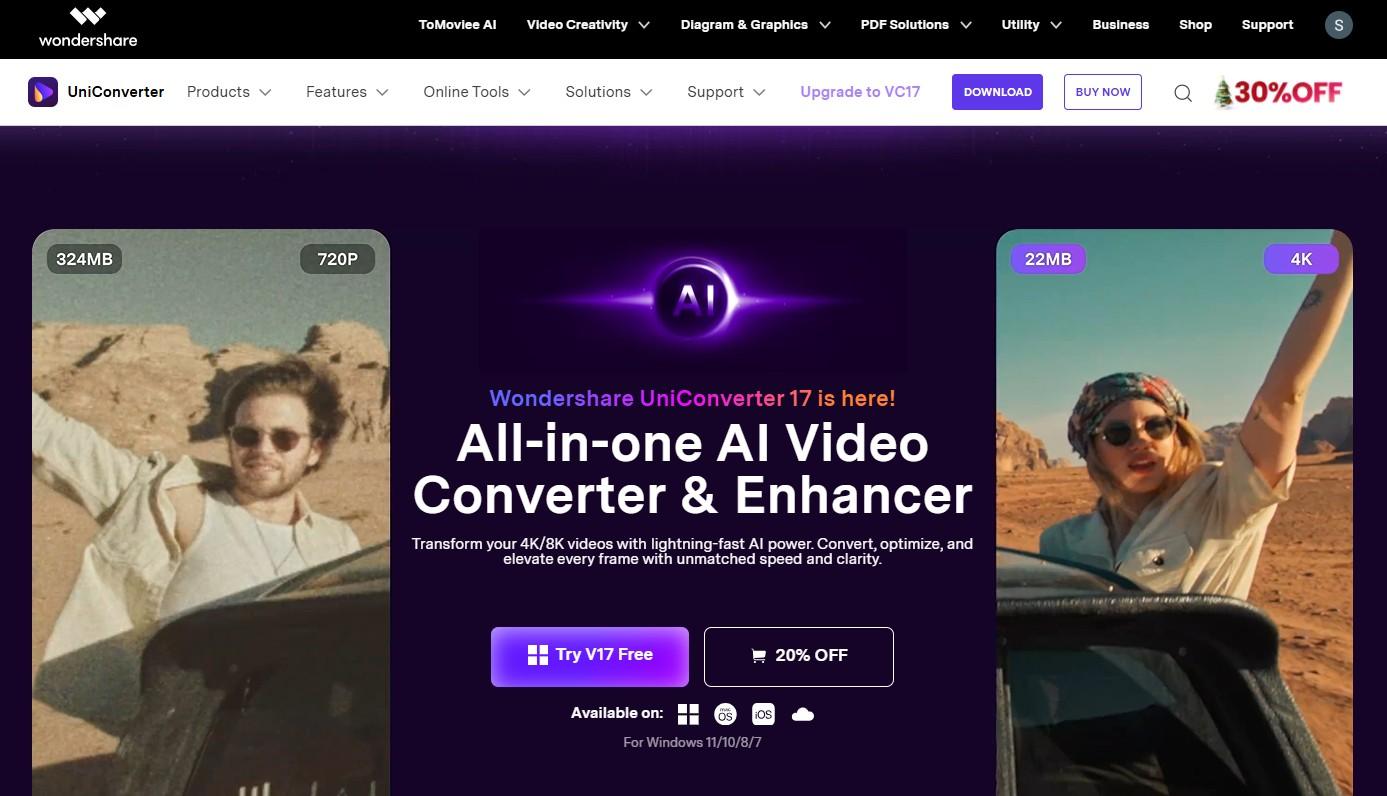
If you often encounter error messages such as “Conversion Failed” or “Access Denied” when converting YouTube videos or audio, consider using a powerful, versatile alternative like Wondershare UniConverter.
UniConverter is a 320kbps YouTube converter that supports batch saving from URLs, and you can choose the file format and quality. Furthermore, features like video editing, format conversion, and enhancement make it a better choice than CnvMP3.
Note: All resources and content mentioned in this article, are sourced from publicly available internet resources. This article aims to provide users with information and references and does not imply endorsement or promotion of any specific website or download method. We are not responsible for the legality, accuracy, completeness, or reliability of any third-party websites or resources.Before downloading or using any resources, please ensure compliance with applicable local laws and regulations. Unauthorized downloading or distribution of copyrighted content without the explicit permission of the copyright owner is prohibited. We are not liable for any legal issues or losses arising from the use of the resources mentioned in this article.If you are the copyright owner of any resources mentioned in this article and believe that your copyright has been infringed, please contact us for prompt resolution.
YouTube to MP3 Converter
Key Features of Wondershare UniConverter
- UniConverter can download and convert multiple videos at a time.
- The audio enhancer feature can help create crystal-clear quality audio.
- Noise remover removes background noise from audio in batches.
How to Download YouTube Video/Audio Using UniConverter
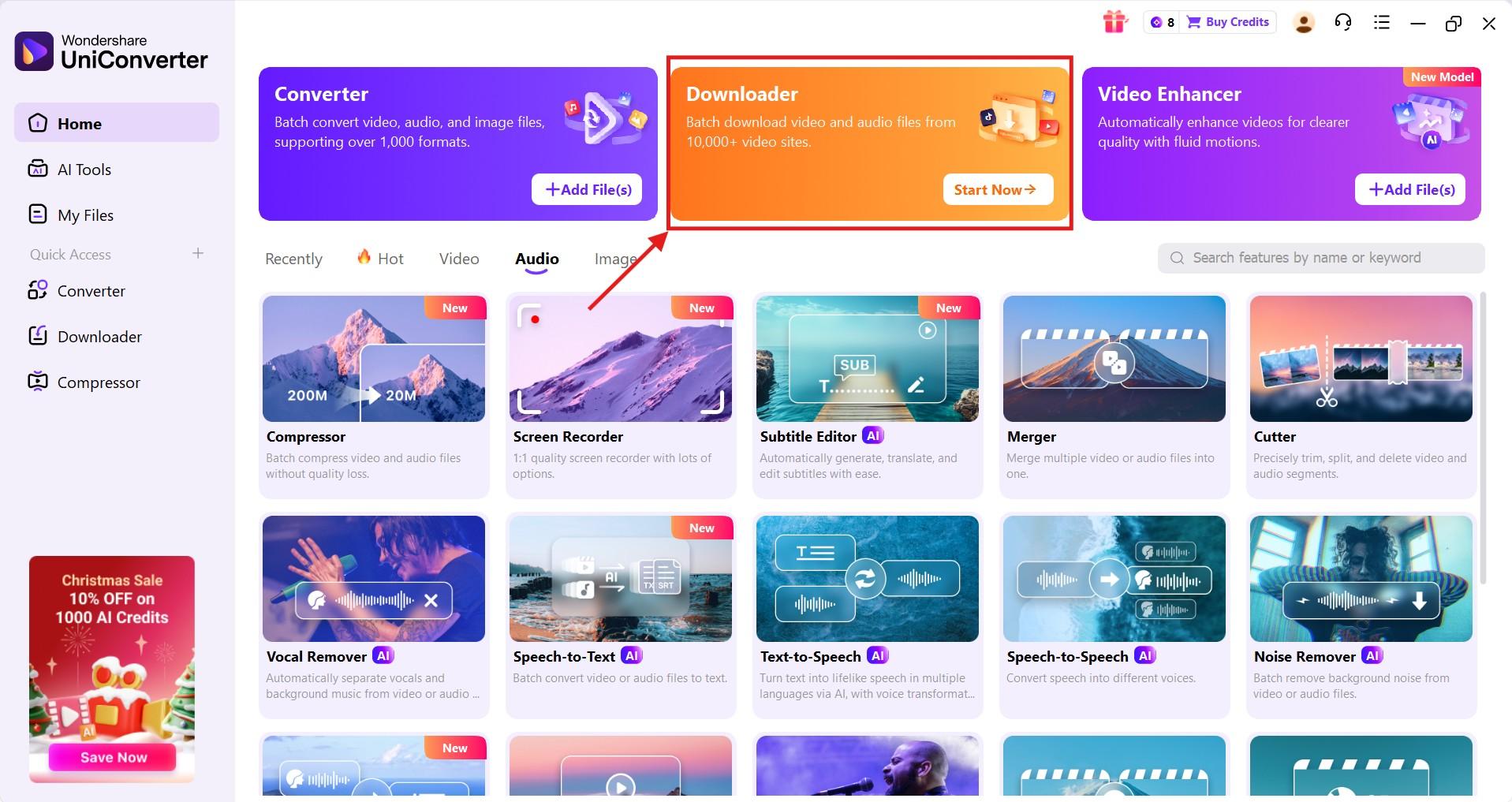
Step 1: Launch the tool and click the Downloader button at the top-right corner of the dashboard.
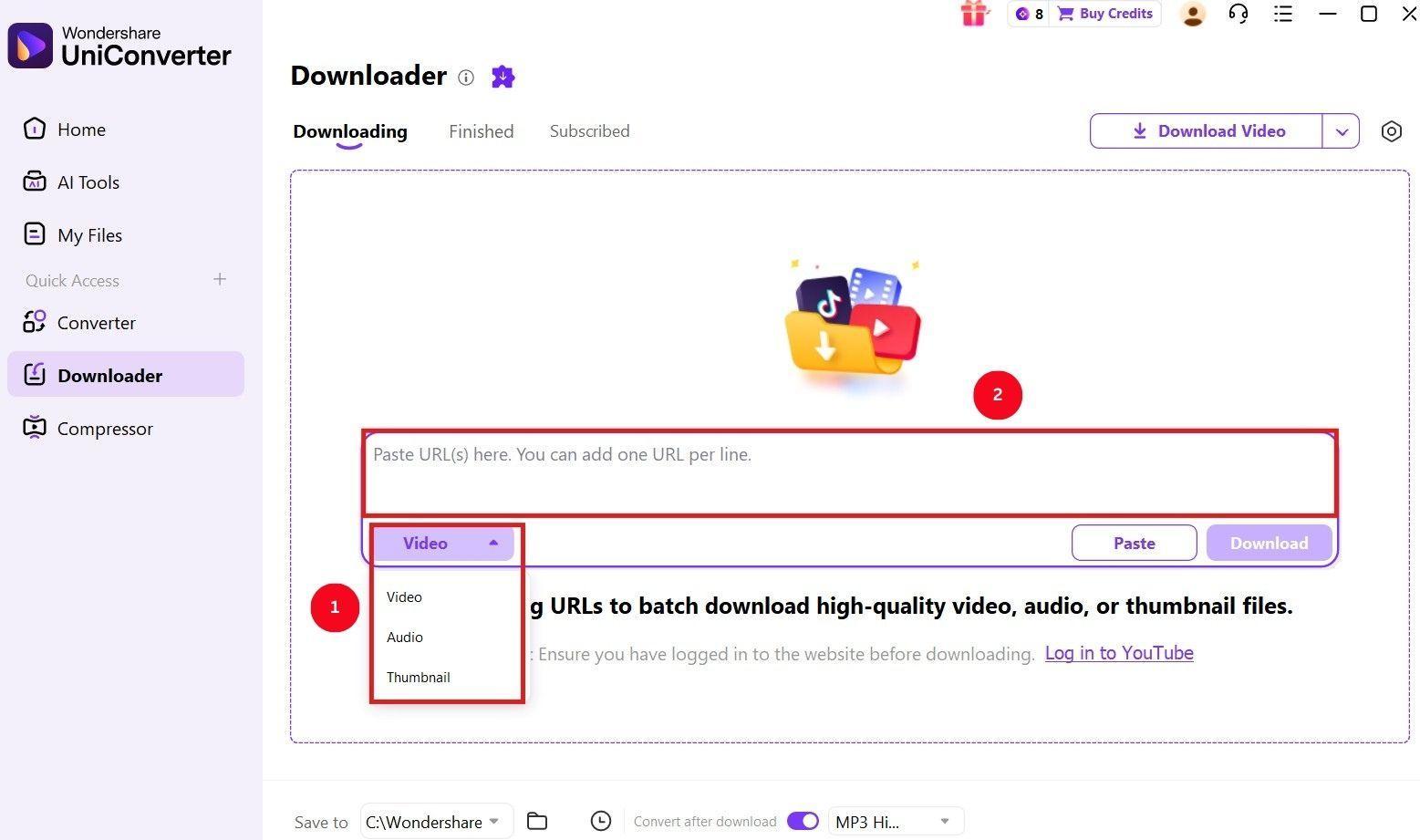
Step 2: In the input space, paste the video link, then select Video/Audio from the dropdown menu. Here, you can paste multiple links at once.
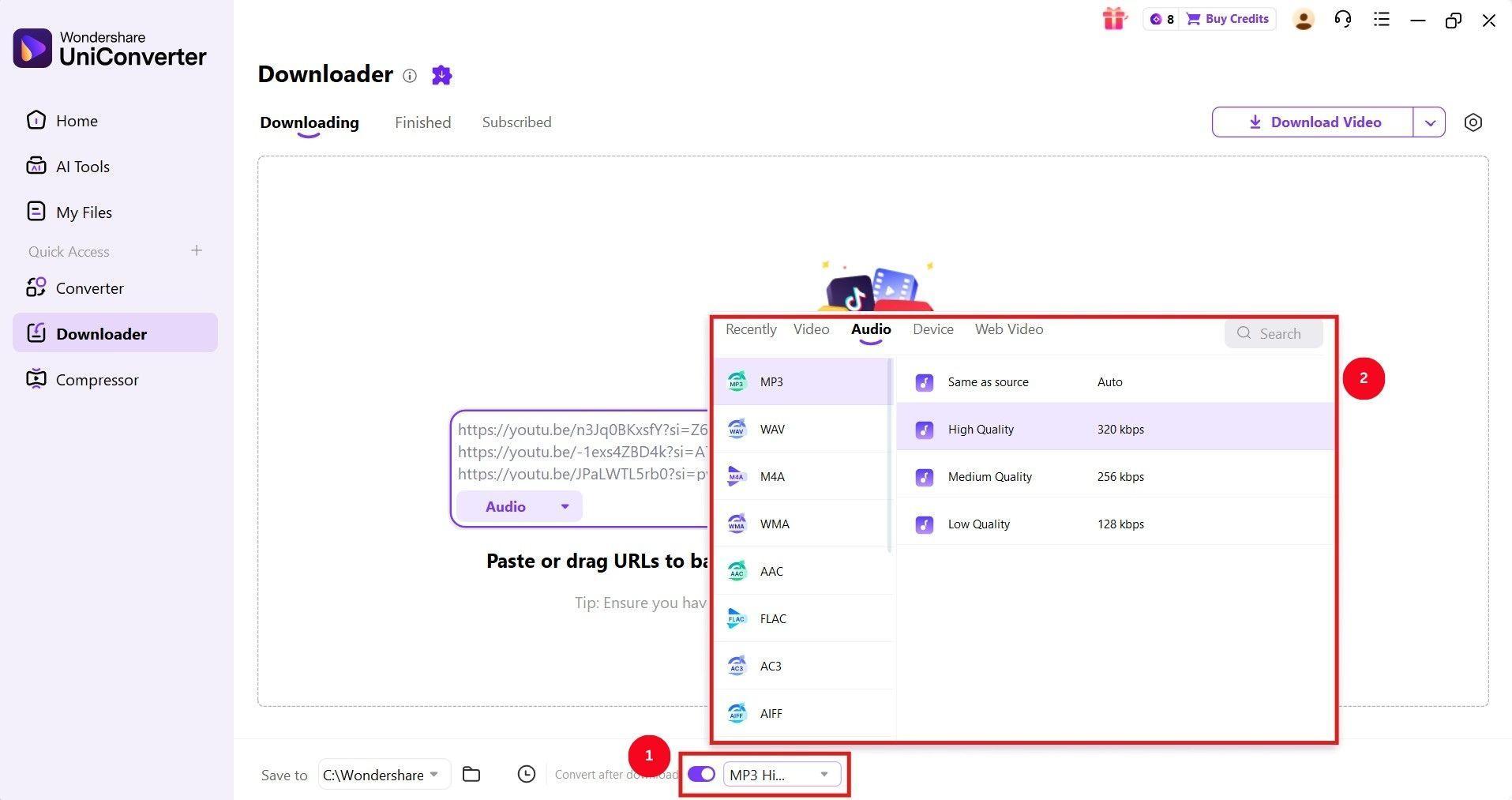
Step 3: Click the dropdown menu next to Convert after download, then select the audio/video quality and format.
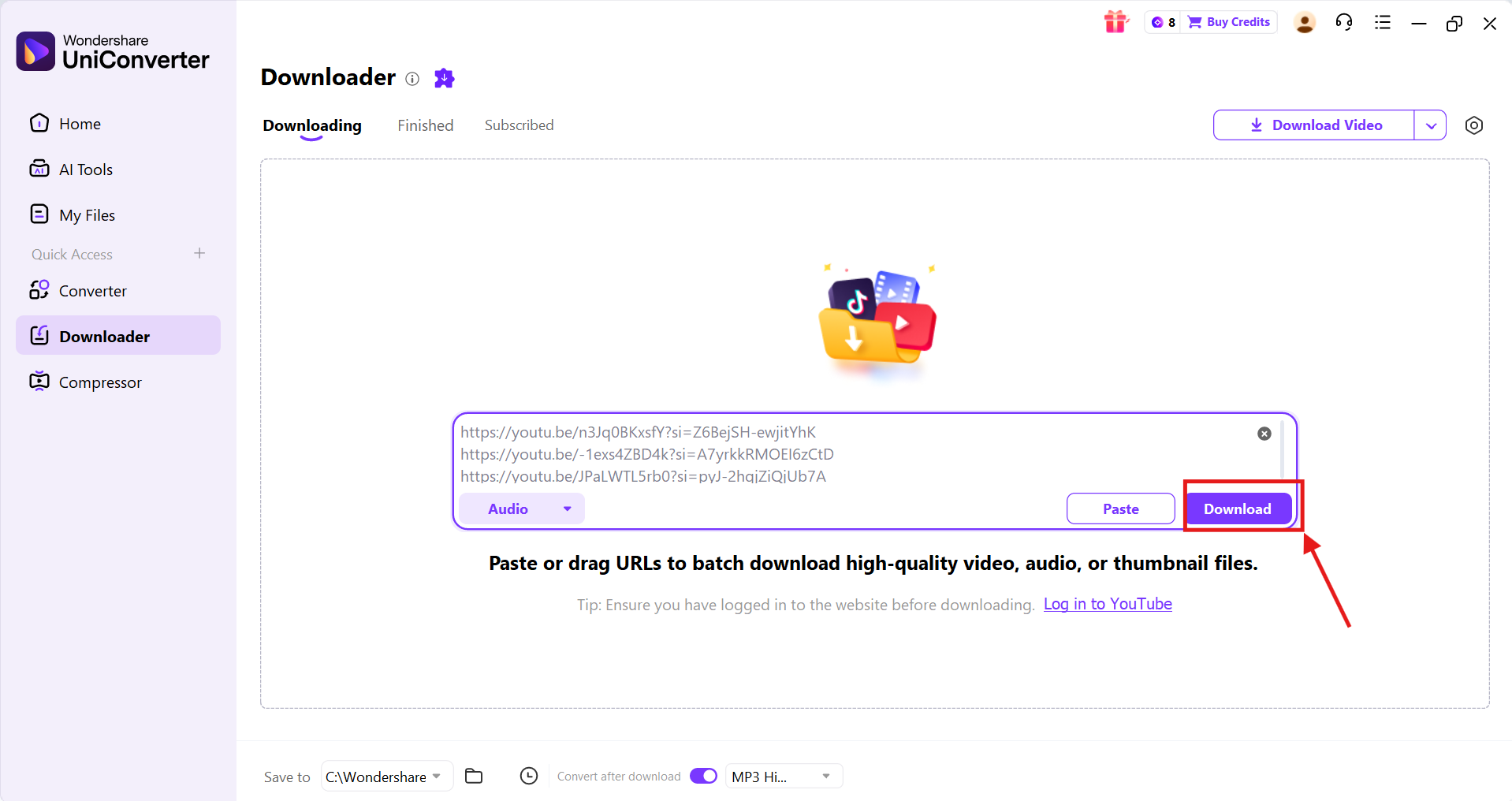
Step 4: Once done, click Download to start the download or conversion process.
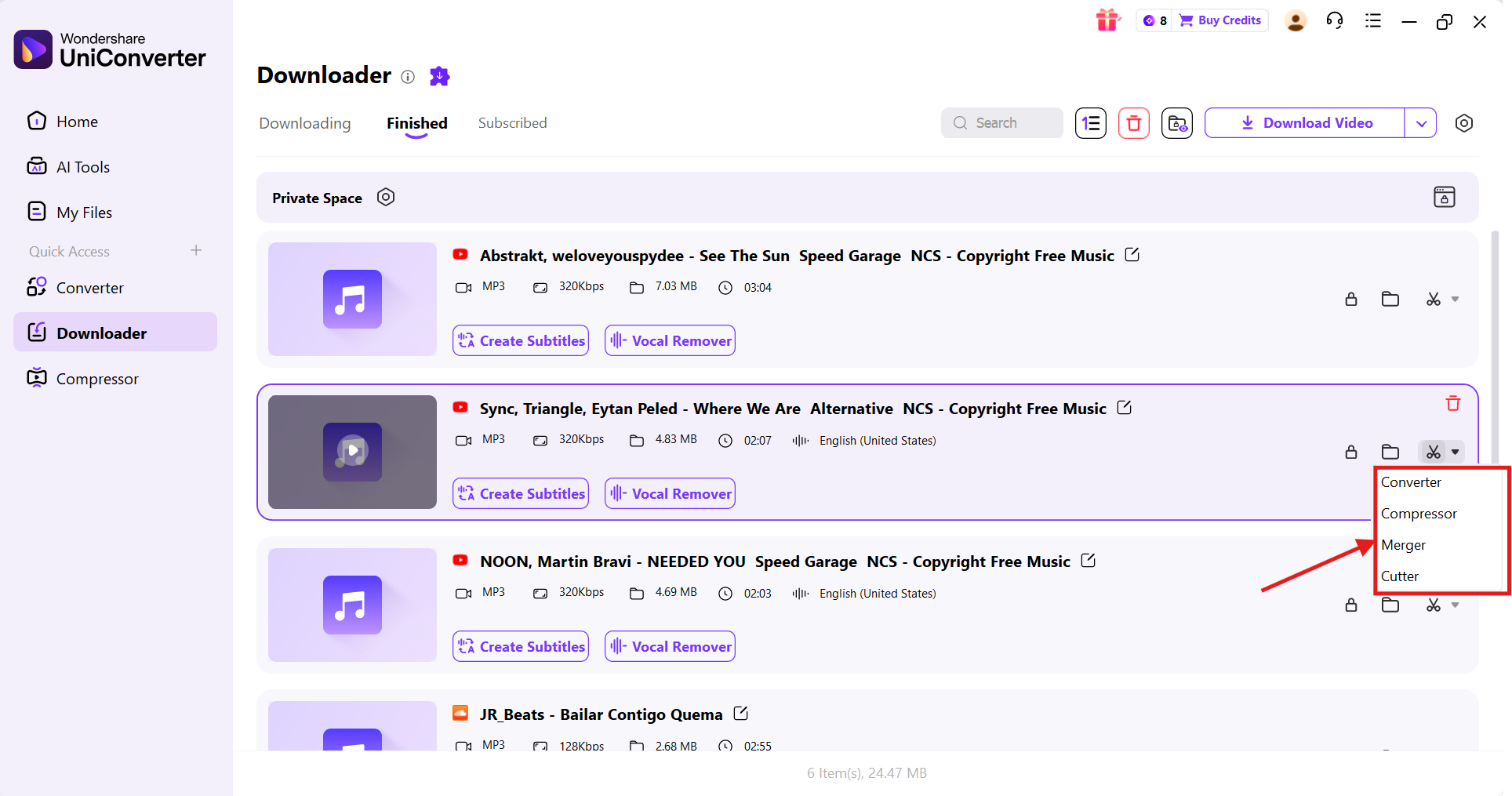
Step 5: You’ll be directed to a Finished tab in a new window that displays the finished downloads. Then, click the cut icon to convert, compress, cut, or merge the media file.
Free Online Alternatives to CnvMP3
YTMP3
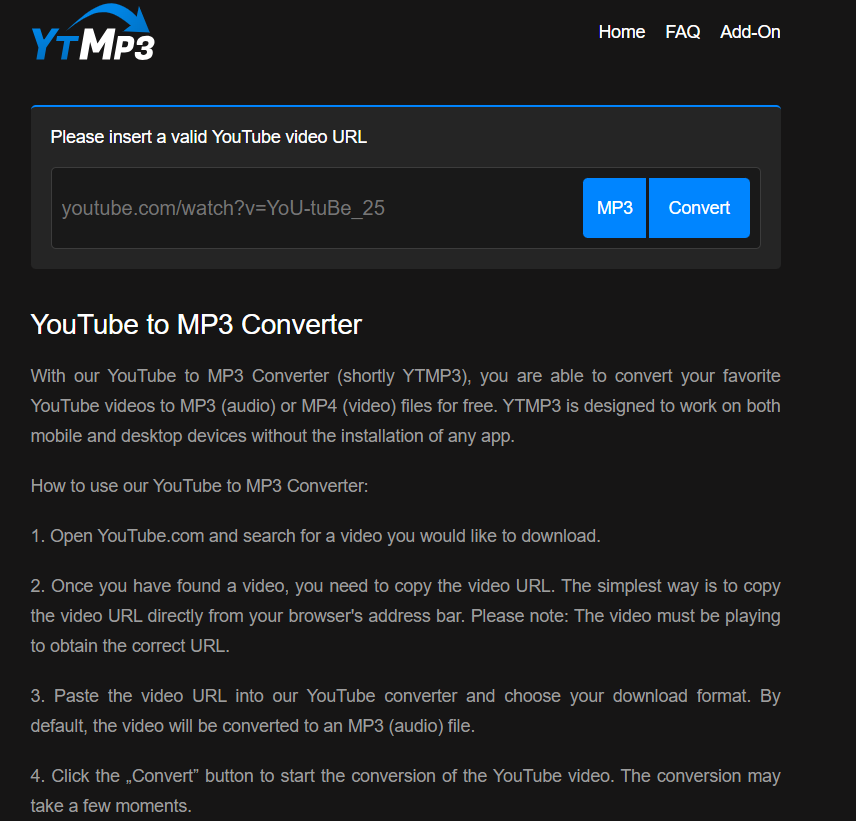
If you compare YTMP3 vs. CnvMP3, the similarities include a simple interface, no registration, and support for quick YouTube video downloads in MP3 or MP4. You won’t find many pop-up ads, and it works on desktops, laptops, tablets, and mobile devices.
YTMate
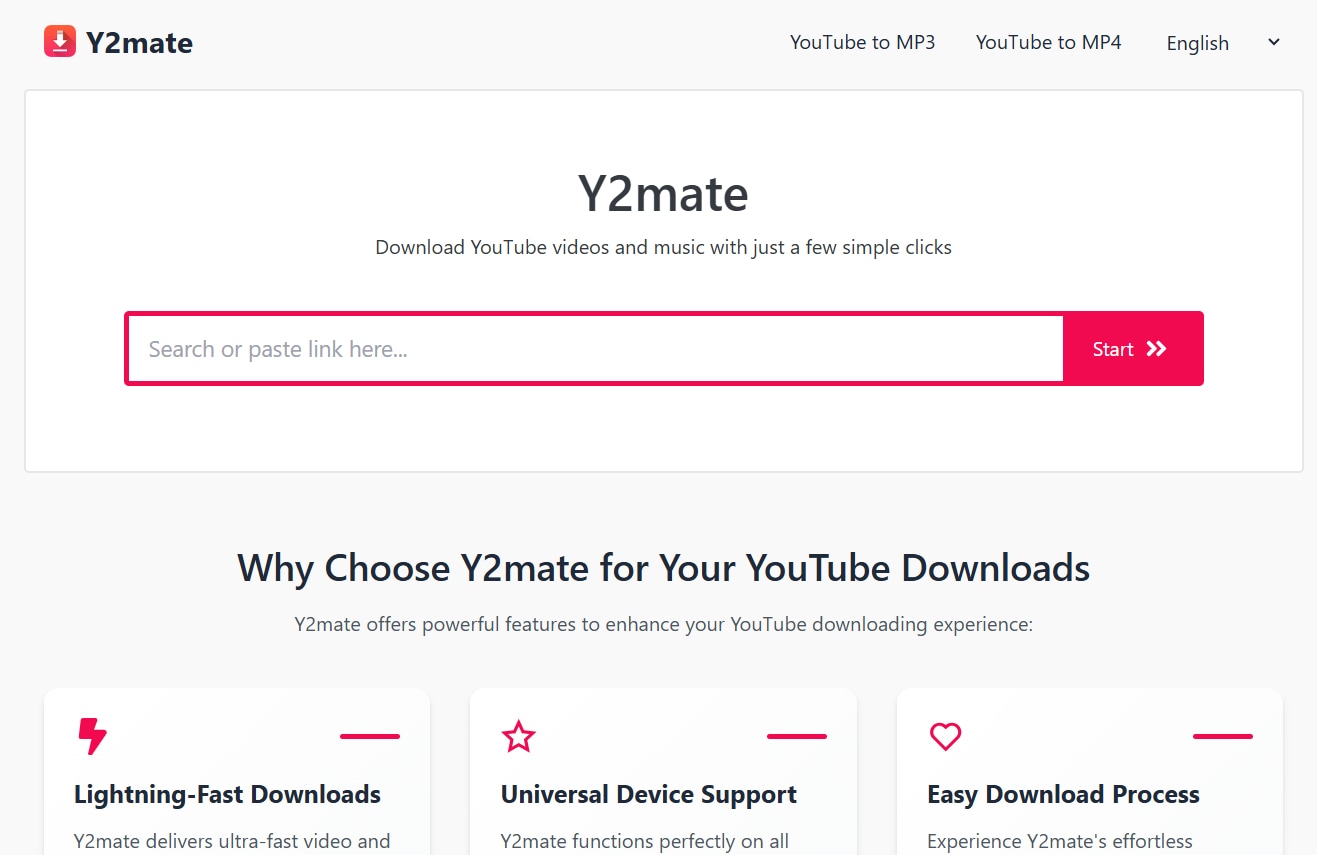
YTMate is another popular online downloader and converter that doesn’t require a sign-up, and supports multiple video (MP4, AVI, FLV, etc.) and audio (MP3, WAV, M4A, etc.) formats. Also, unlike YTMP3, it offers up to 1080p video resolution and a 320kbps audio bitrate, depending on the source.
Browser Extensions for YouTube to MP3 Conversion
Tubly Downloader
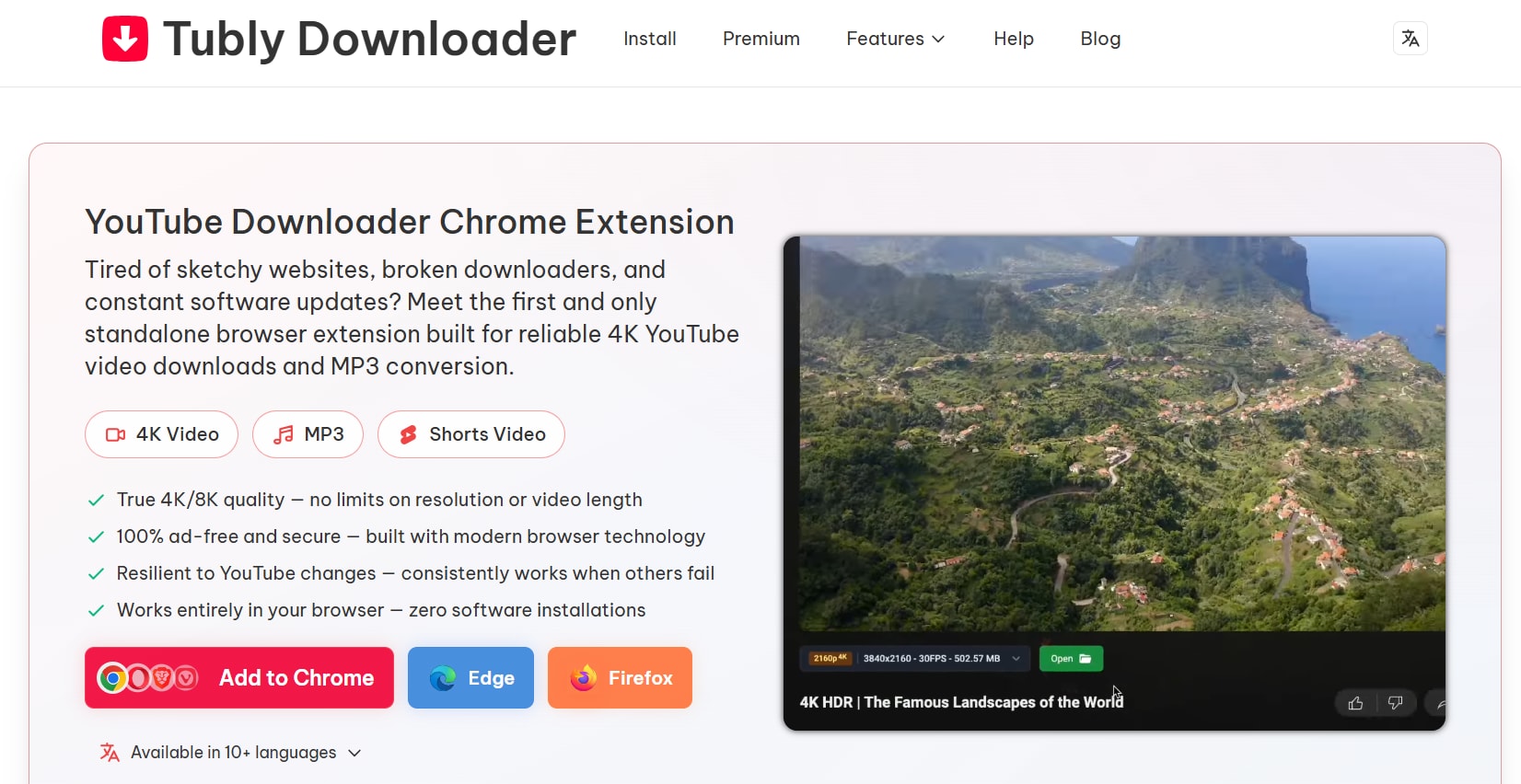
Tubly Downloader is a decent multi-browser extension that lets you easily download YouTube videos in high-quality MP4 (8K/4K) and MP3s (320kbps). The rendering speed is also high, but unlike many browser extensions, installing Tubly Downloader may take some time.
Video DownloadHelper
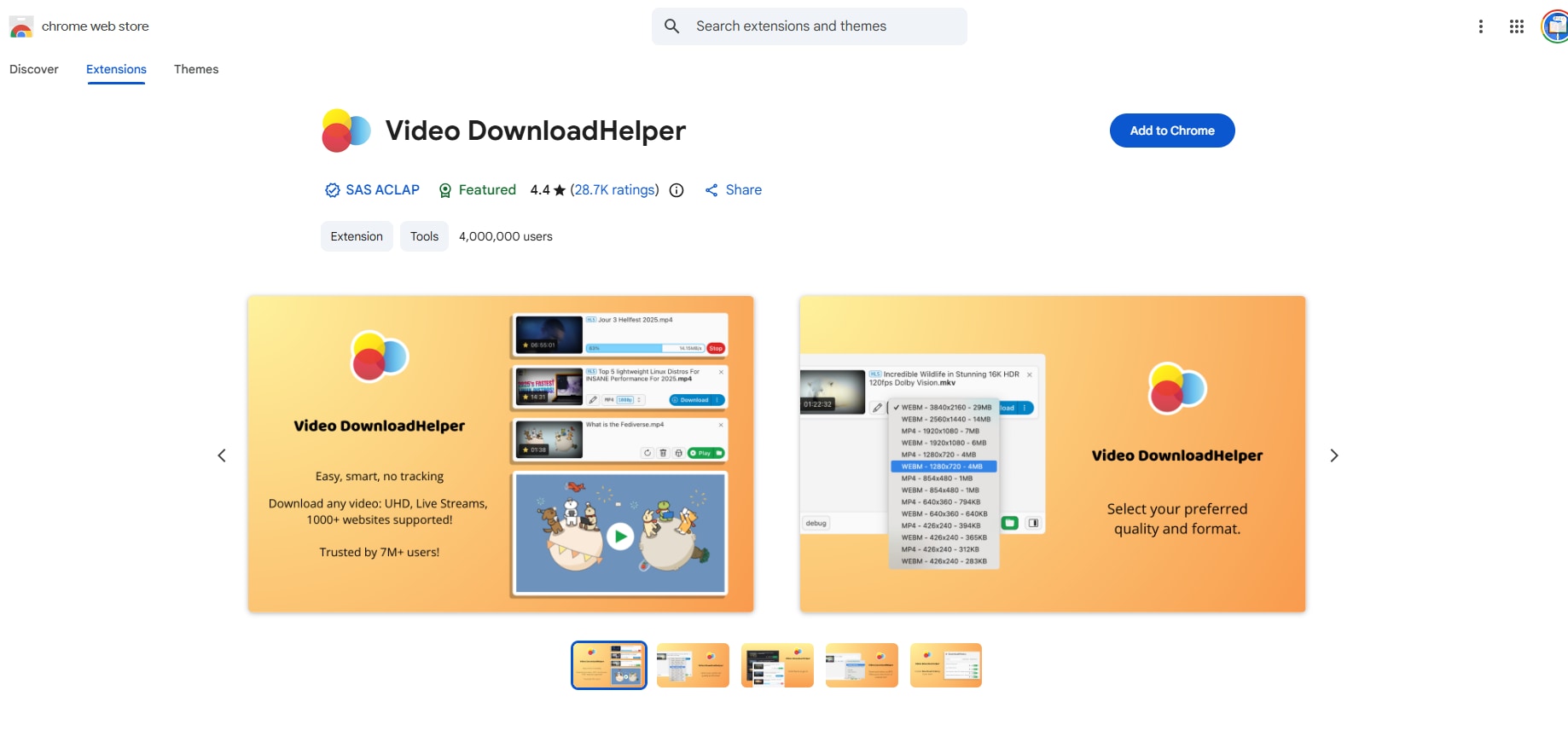
If you don’t want to be limited by file formats, the Video DownloadHelper can be a decent alternative to CnvMP3. Access the extension while playing a video, then download it in your desired quality and format. However, this YouTube to MP3 extension doesn’t let you choose the audio format.
Many prefer browser extensions over online tools as these provide a one-click download and conversion solution and are more convenient to use. However, installing them requires careful consideration, as they can pose safety risks if not downloaded from reputable sources.
Part 5. Legal and Ethical Considerations of Using CnvMP3
Is Using CnvMP3 Legal? Understanding Copyright Laws
CnvMP3 is a legal online platform, but whether it offers a safe YouTube to MP3 download remains unclear. Keep in mind that CnvMP3 only downloads the provided URL and doesn’t screen for copyright status.
Downloading copyrighted content for personal use is relatively safe, but using it commercially violates YouTube’s terms of service and breaks copyright laws in your jurisdiction. Every country enforces copyright differently, so you must research local regulations before using any tool.
Not only that, unauthorized use of content is discouraged out of respect for creators, as it deprives them of fair financial compensation.
YouTube's Terms of Service and Download Tools
YouTube’s Terms of Service explicitly mention that you aren’t allowed to access, reproduce, download, or distribute any content without prior written permission from YouTube and the creator. Violation of YouTube’s TOS can lead to a video ban and even account termination.
The most ethical way to download YouTube content is through a Premium subscription, as a portion of the fee goes to creators. This way, they’re fairly compensated for their work.
When It's Okay to Download YouTube Content
Downloading YouTube content is legal under the following scenarios:
- Public Domain Content: Many copyright-free films, clips, government content, or content creators’ videos are usable without anyone’s permission.
- Creative Commons License: It provides creators a standardized way to permit others to use their work.
- Your Own Uploaded Content: You can always download and upload your own work on YouTube restriction-free.
- Content with Explicit Download Permission: If the creator explicitly grants you permission (in writing or video description) to download and use their content, you can do so.
- Educational Fair Use: While downloading and using content for educational use is considered fair, it doesn’t make copying entire content permissible.
FAQs About CnvMP3
-
Is CnvMP3 completely free to use
Yes, CnvMP3 is a free online tool that converts YouTube videos to MP4 or MP3. It has an ad-free interface and relies on user donations to keep single-track conversions free. -
Do I need to create an account for CnvMP3
No, you don’t need to create an account on CnvMP3 to download or convert your YouTube videos. You can access the webpage on any of your devices and download the media file anonymously. -
What's the maximum video length for CnvMP3
CnvMP3’s notes mention support for up to 180 minutes of audio and video, but the actual limit is 60 minutes of video and 90 minutes of audio. You can compress or split the video, or use alternatives like Wondershare UniConverter. -
Can I convert YouTube playlists with CnvMP3
No, CnvMP3 only supports downloading individual media files from YouTube. If you want to download an entire playlist, try alternatives like Wondershare UniConverter. -
Why is my downloaded file lower quality than selected
YouTube prioritizes video over audio, so even if you set a higher quality, your downloaded audio might sound lower than expected. Consider using a downloader that supports higher-quality audio extraction and batch workflows. -
Does CnvMP3 work on mobile devices
Yes, CnvMP3 works on mobile devices via a browser, so you can download YouTube videos on the go. -
How long does conversion take with CnvMP3
CnvMP3 conversions are usually fast, taking a few seconds to up to a minute. Conversion time can increase if many simultaneous requests overload the server. -
What should I do if CnvMP3 is blocked in my country
If CnvMP3 is blocked in your country, you can use a VPN or a proxy server to change your location. Alternatively, a desktop tool like Wondershare UniConverter can be more stable for downloads and conversions.
Conclusion: Is CnvMP3 Right for You?
CnvMP3 proves to be a decent solution to download or convert your YouTube videos to MP3 and MP4 formats. Its strengths include a simple interface, no sign-ups, and support for higher video and audio quality. However, it’s limited to single downloads and is prone to errors.
If you want a reliable CnvMP3 alternative that offers high-quality batch downloads and advanced features such as video and audio trimming, cutting, or merging, use Wondershare UniConverter. Its high-speed download can process an entire playlist within seconds.

