

Remove shadow from photo—it's one of the most common fixes photographers face, with studies showing that over 65% of submitted photos to editing platforms require lighting correction, and unwanted shadows top the list. However, the exciting part is that in 2025, AI-powered tools will have made it incredibly simple to learn how to remove a shadow from a photo or use a smart shadow remover for photos in just seconds.
In this guide, you'll discover the best free methods to remove shadows from pictures and turn flawed shots into flawlessly lit masterpieces.
Table of Contents
Part 1. Best 5 Free Ways to Remove Shadow from Photos 2025
To ensure our review provides a genuinely fair and transparent comparison, we rigorously test each of the following shadow remover tools using the same sample image—a portrait featuring a distinct shadow across the subject's face and background.
This meticulous, controlled methodology enables us to evaluate several critical factors for any photographer impartially: the intuitive ease of use for both beginners and pros, the raw effectiveness of the AI in erasing unwanted darkness, and the realism and quality of the final output. Our goal is to give you a clear, unbiased look at what each platform can truly deliver:
1. UniConverter (AI-Powered Suite)
UniConverter by Wondershare is a comprehensive meida converter suite, but it also provides basic photo editing, including watermark remover to remove unwanted elements such as removing shadows from photos. It leverages simple AI-assisted tools for content-aware erasing, though its photo editing capabilities are more limited compared to dedicated image editors.

How to Remove Shadow with UniConverter:
Step 1: Launch the Watermark Remover and Add Your Image

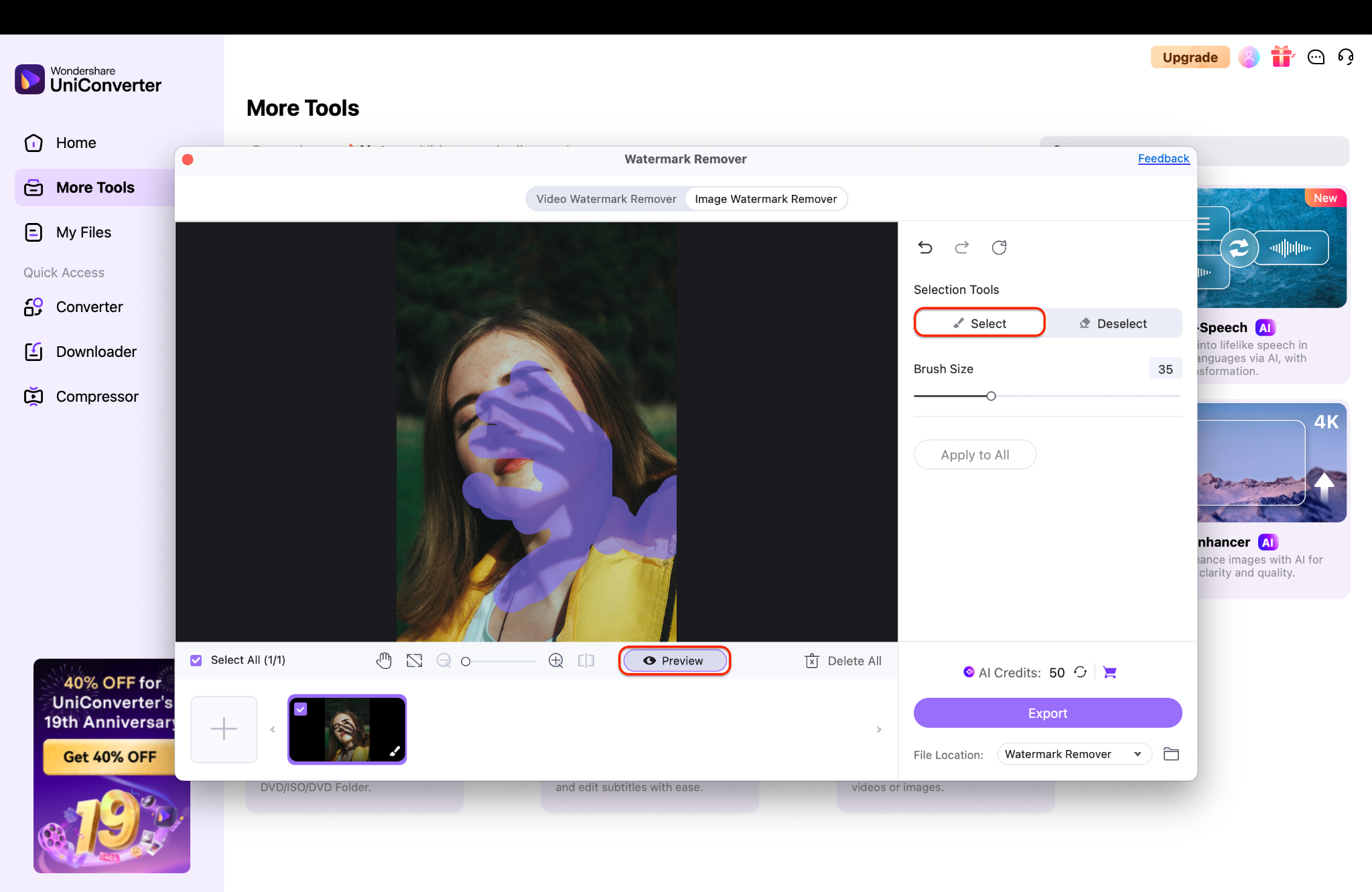
Step 2: Precisely Select the Shadow for AI Removal
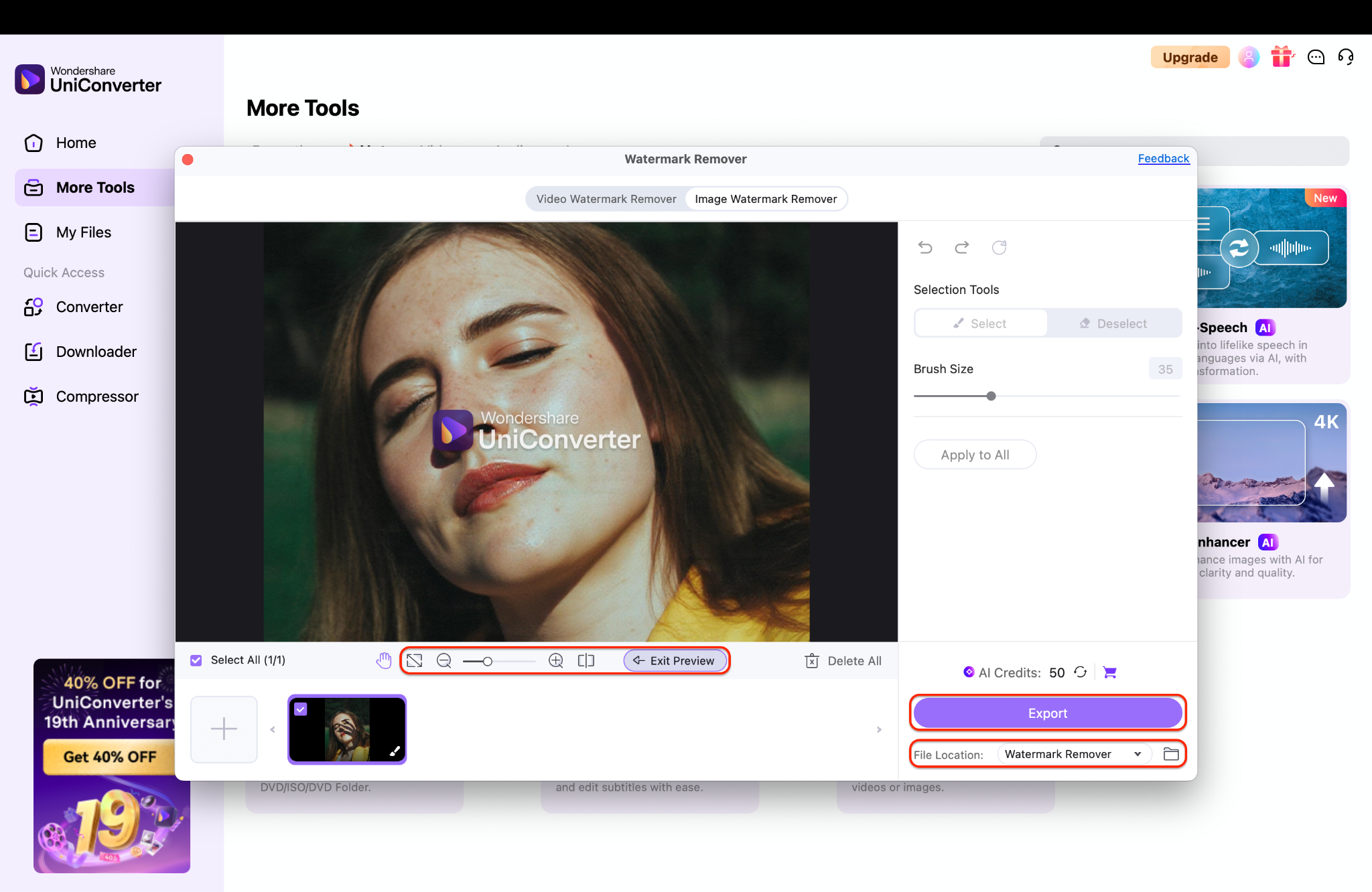
Step 3: Save Your Perfectly Edited Photo
Best For: Users who want a powerful, all-in-one desktop solution for various editing tasks, including high-quality shadow removal.
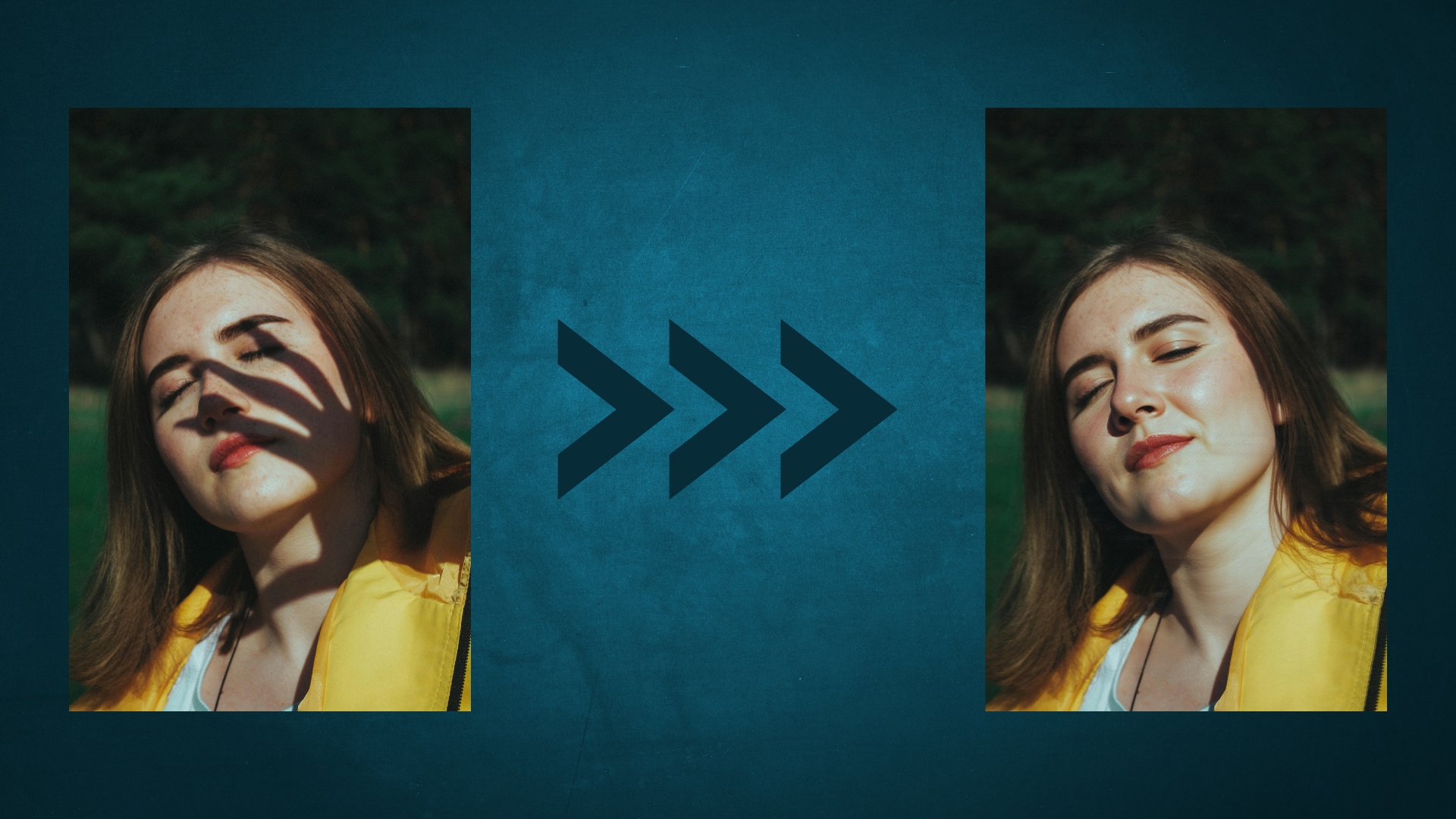
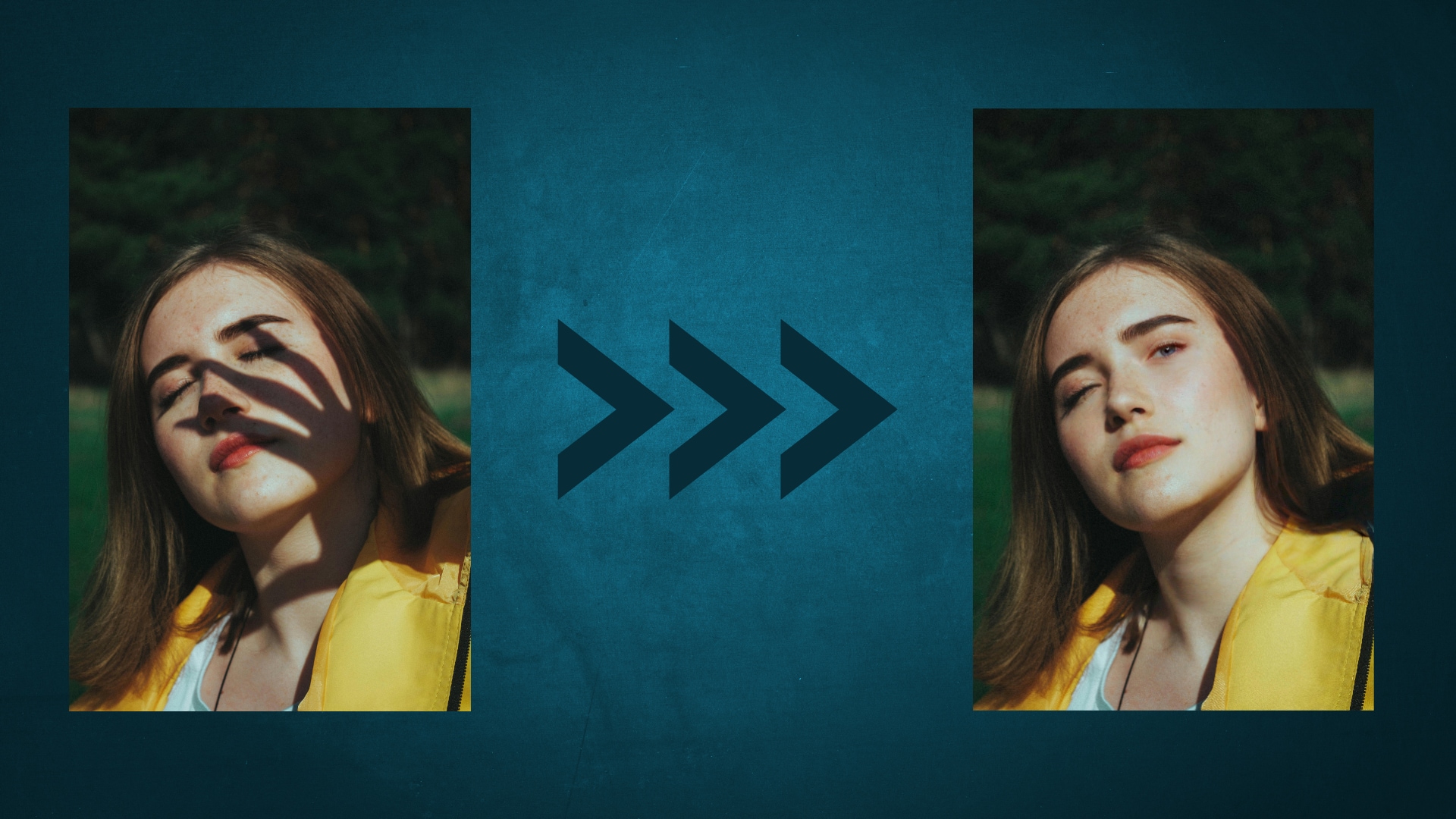
Result: UniConverter's AI handled the complex facial shadow brilliantly. It removed the darkness while perfectly preserving skin texture and tone, making the edit completely undetectable. The shadow on the face is erased cleanly, leaving no artifacts or blurry patches.
2. Fotor (Online AI Shadow Remover)
Fotor offers a freemium and user-friendly online photo shadow remover. Using AI, it detects harsh or unwanted shadows from photos and removes them almost instantly. Simply upload an image, use the shadow removal tool, and download the edited version. Fotor also enables further fine-tuning with exposure, highlights, and curve adjustments, making it a good solution for both quick fixes and more refined edits.
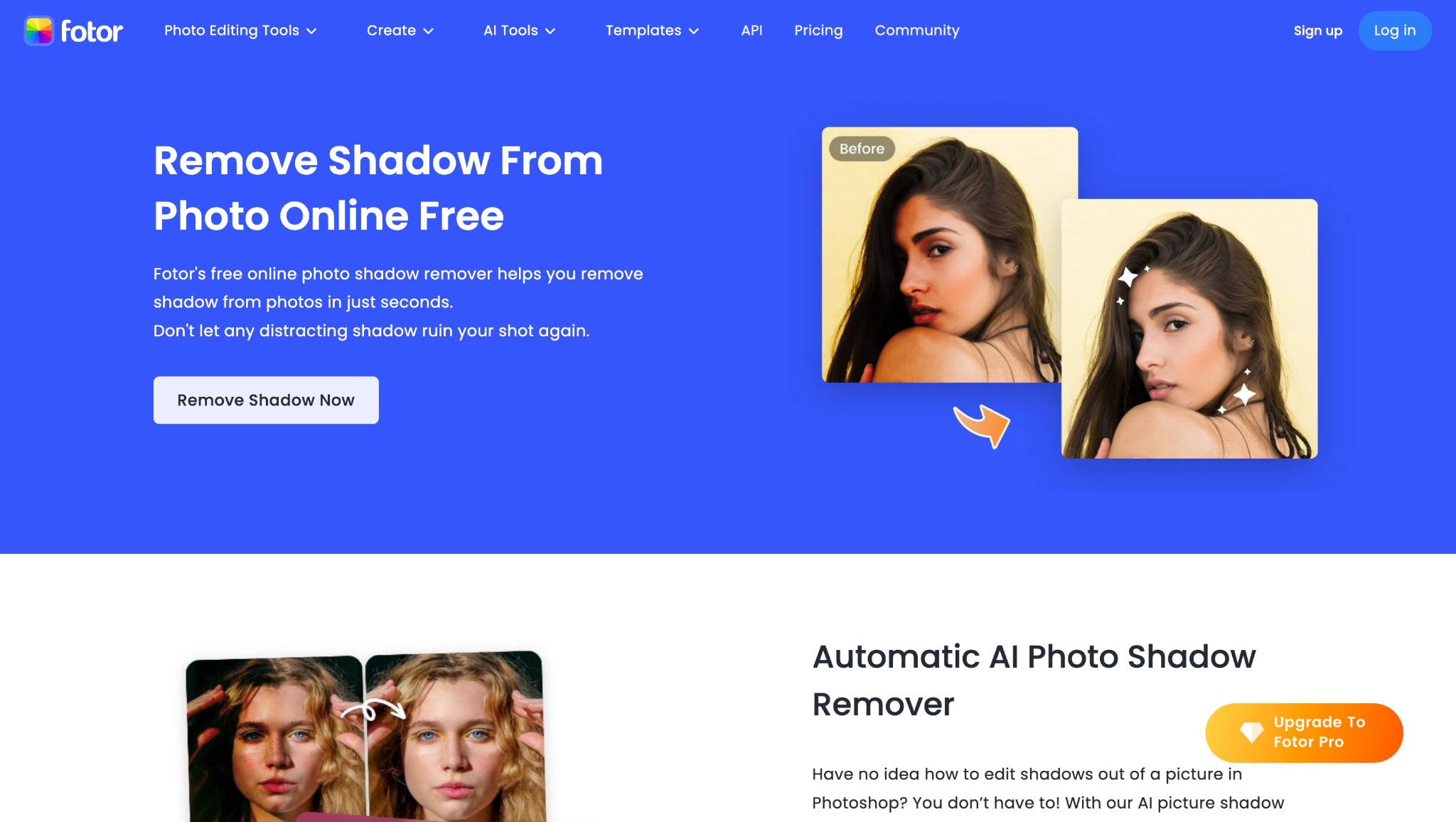
Best For: Users who want a robust online remove shadow from photo tool with additional editing capabilities.
3. PhotoAiD (Free One-Click Web Tool)
PhotoAiD provides a suite of free online photo editing tools, including a shadow remover. It works with a simple interface: upload an image, use the specialized shadow remover feature, and the tool erases visible shadows. It is optimized for photos that require specific cleaning, such as ID photos or other official documents, but can be used for general shadow removal as well.
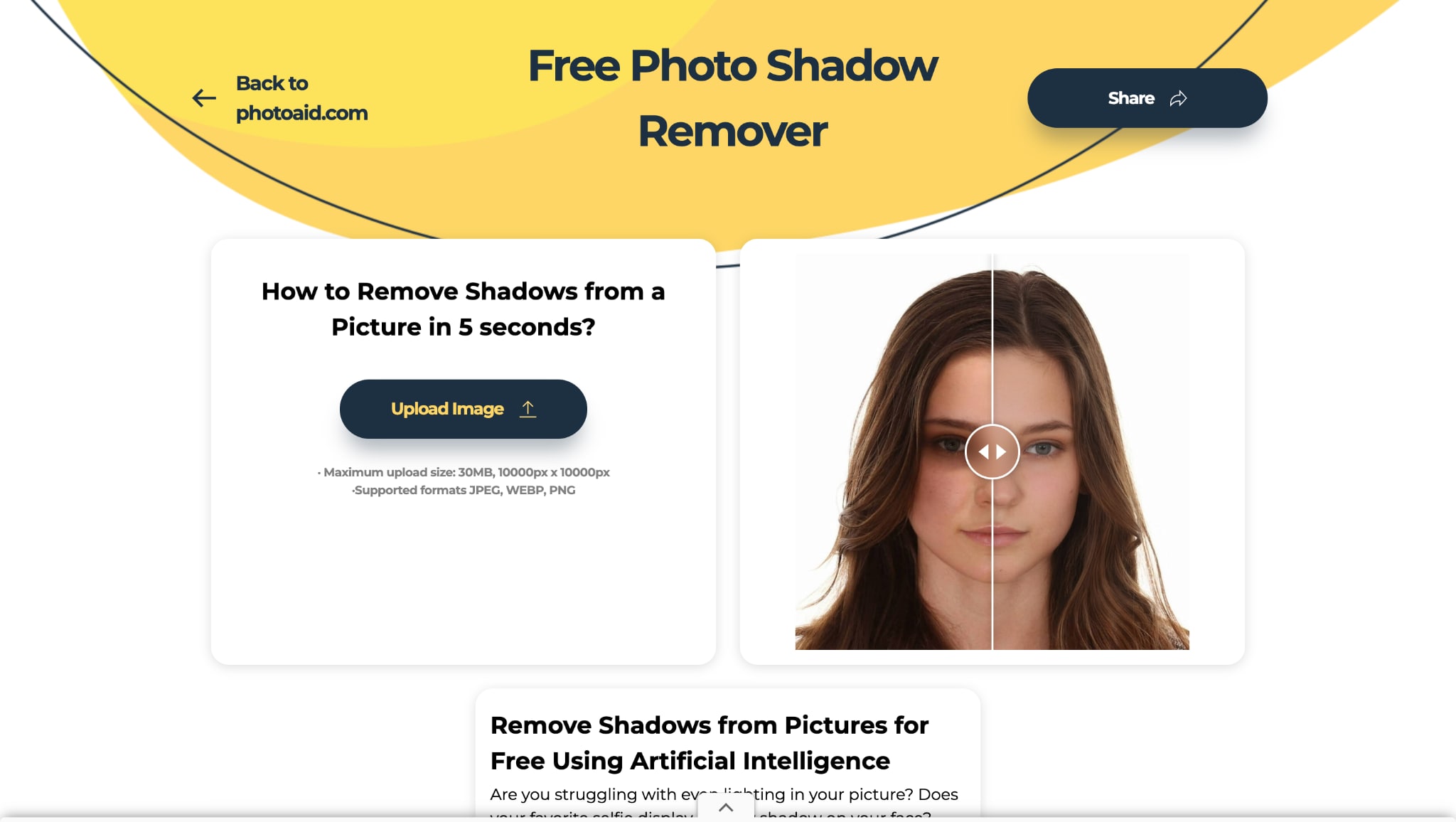
Best For: Absolute beginners or anyone who needs an instant fix for a simple shadow in a portrait.
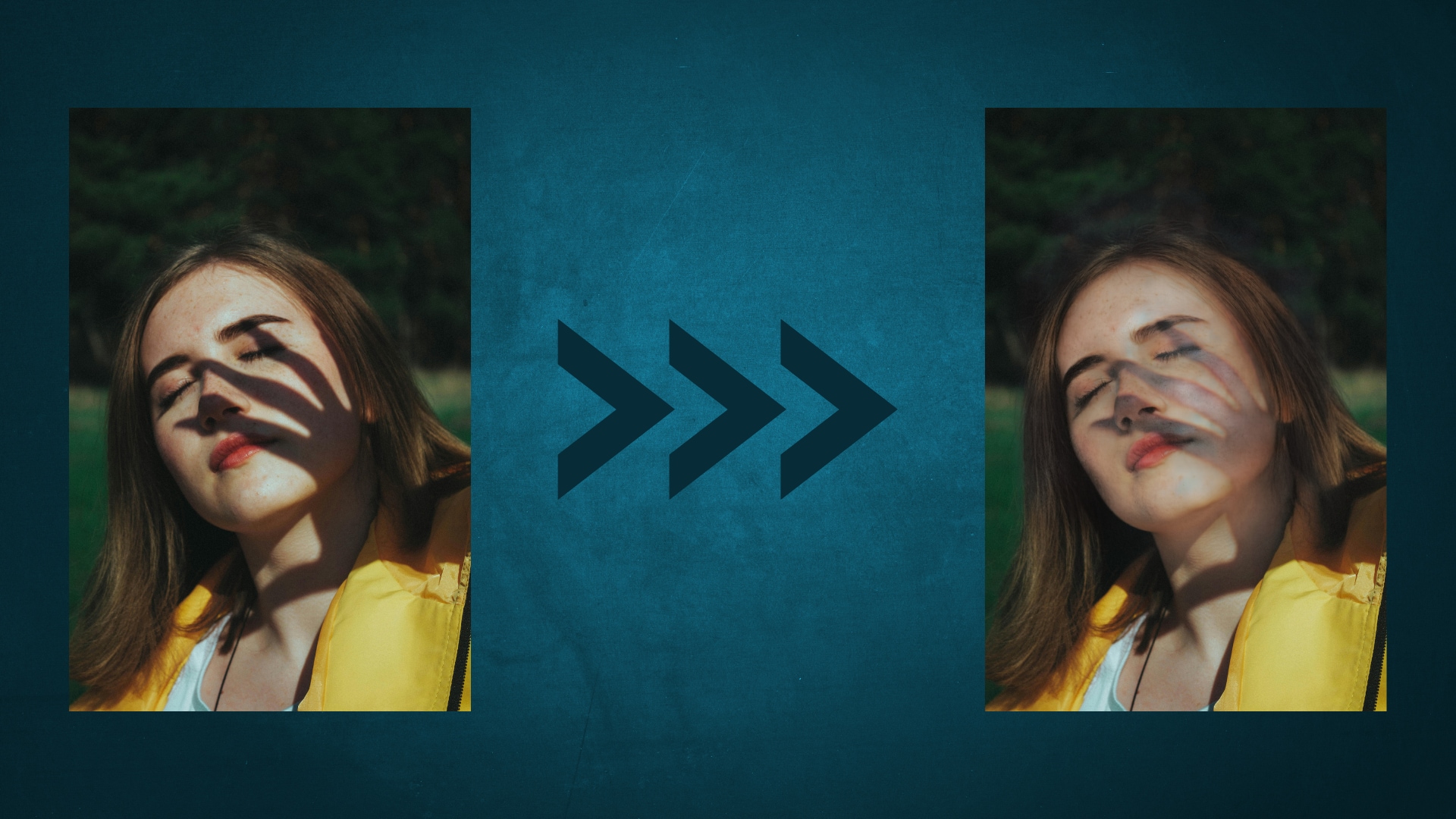
Result: The brush tool lightened parts of the shadow, but the blending appears uneven and patchy. The edited areas don't fully integrate with the natural skin tone, so the outcome feels less realistic and still shows noticeable traces of the shadow.

Easily Batch Restore Old Photos Without Shadows
4. Lightroom (Professional Desktop & Mobile Editing)
Adobe Lightroom is a professional photo editing software popular among photographers. While it doesn’t offer a single-click shadow remover, Lightroom lets users manually lift and remove shadows using advanced sliders (shadows, exposure, etc.) and local adjustment tools. This gives deep control for natural, high-quality results but requires some skill and attention to detail.
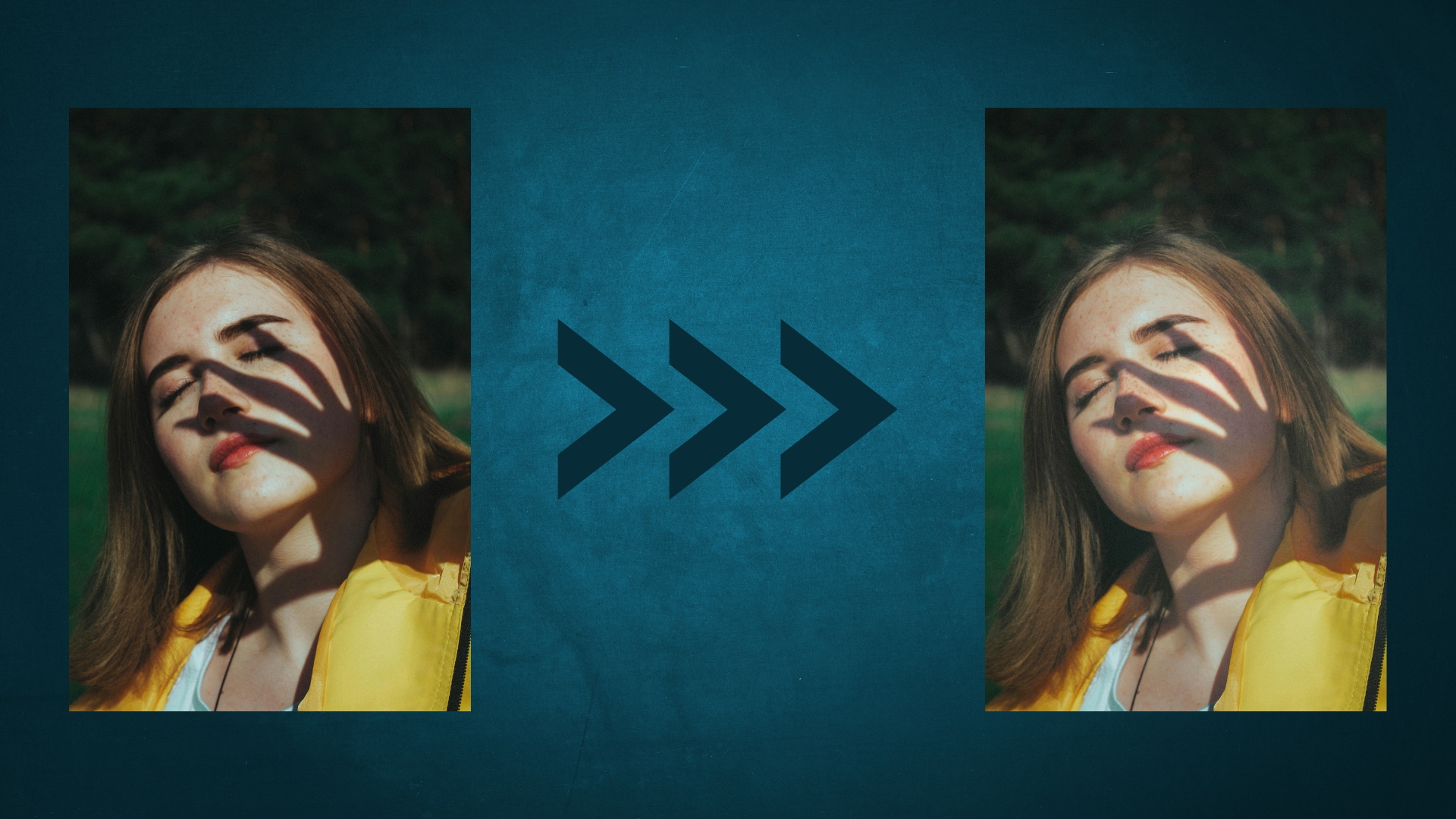
Best For: Photographers who want complete control and professional results, whether editing on desktop or mobile. Perfect if you're going to learn precisely how to remove a shadow in Lightroom and ensure the results look natural.
Result: Lightroom's Masking and Healing Brush effectively lightens facial shadows, with Exposure and Shadows adjustments blending seamlessly. Unlike many remove shadow from photo online free tools, it preserves detail, making it a reliable choice for long-term remove photo shadow online quality.
5. X-Design (Web-Based Precision Tool)
X-Design features a specialized AI-powered shadow remover. Upload a photo, use the brush to select the shadowed area, and the tool automatically erases the shadow for a natural look. It offers batch processing for multiple images, restores natural lighting, and improves image vibrancy. X-Design is designed to be simple and accessible for users at any skill level, making it excellent for product photos and portraits.
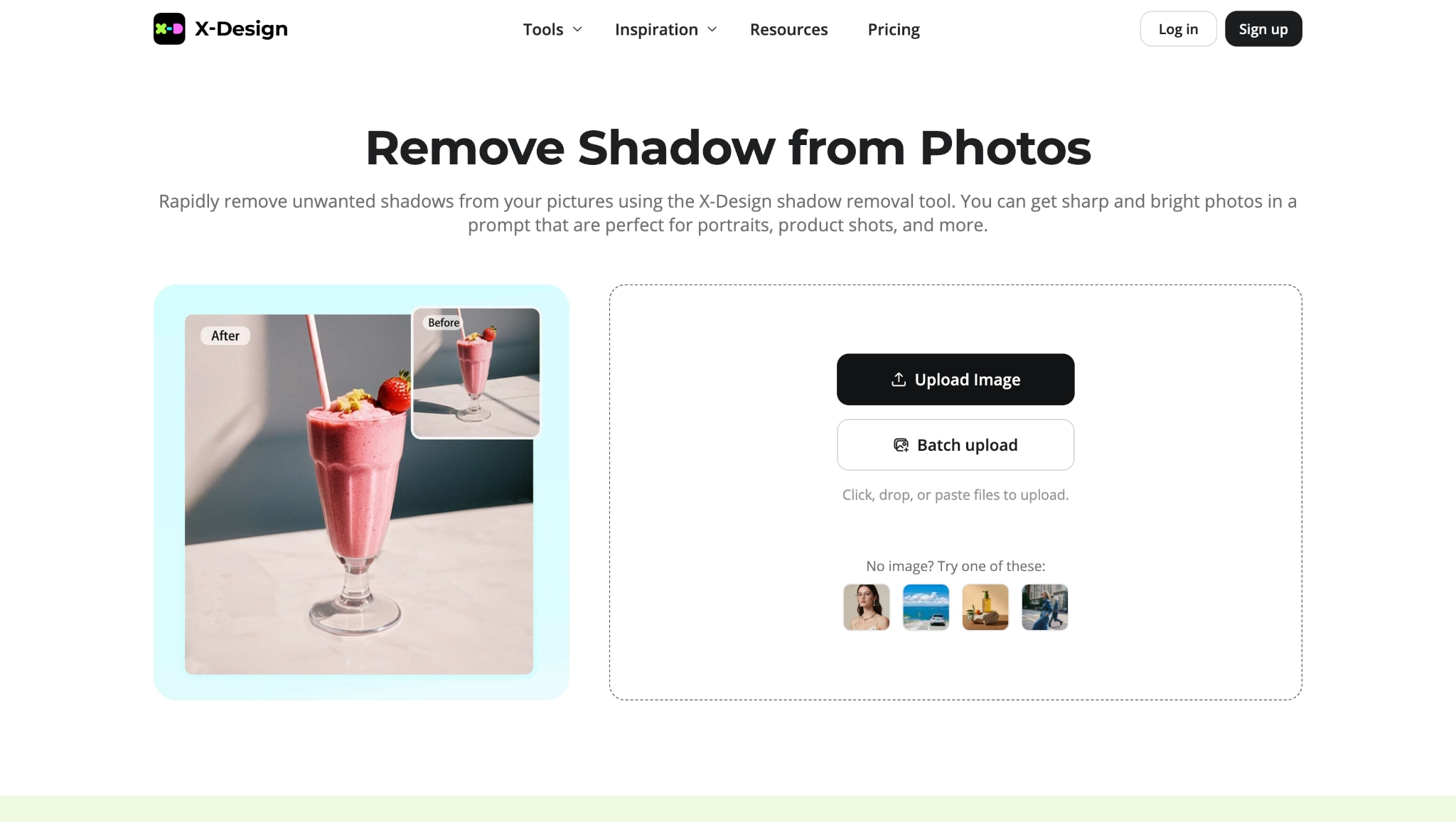
Best For: Users who need to remove specific shadows from a busy image and want more precision than a fully automatic tool provides.
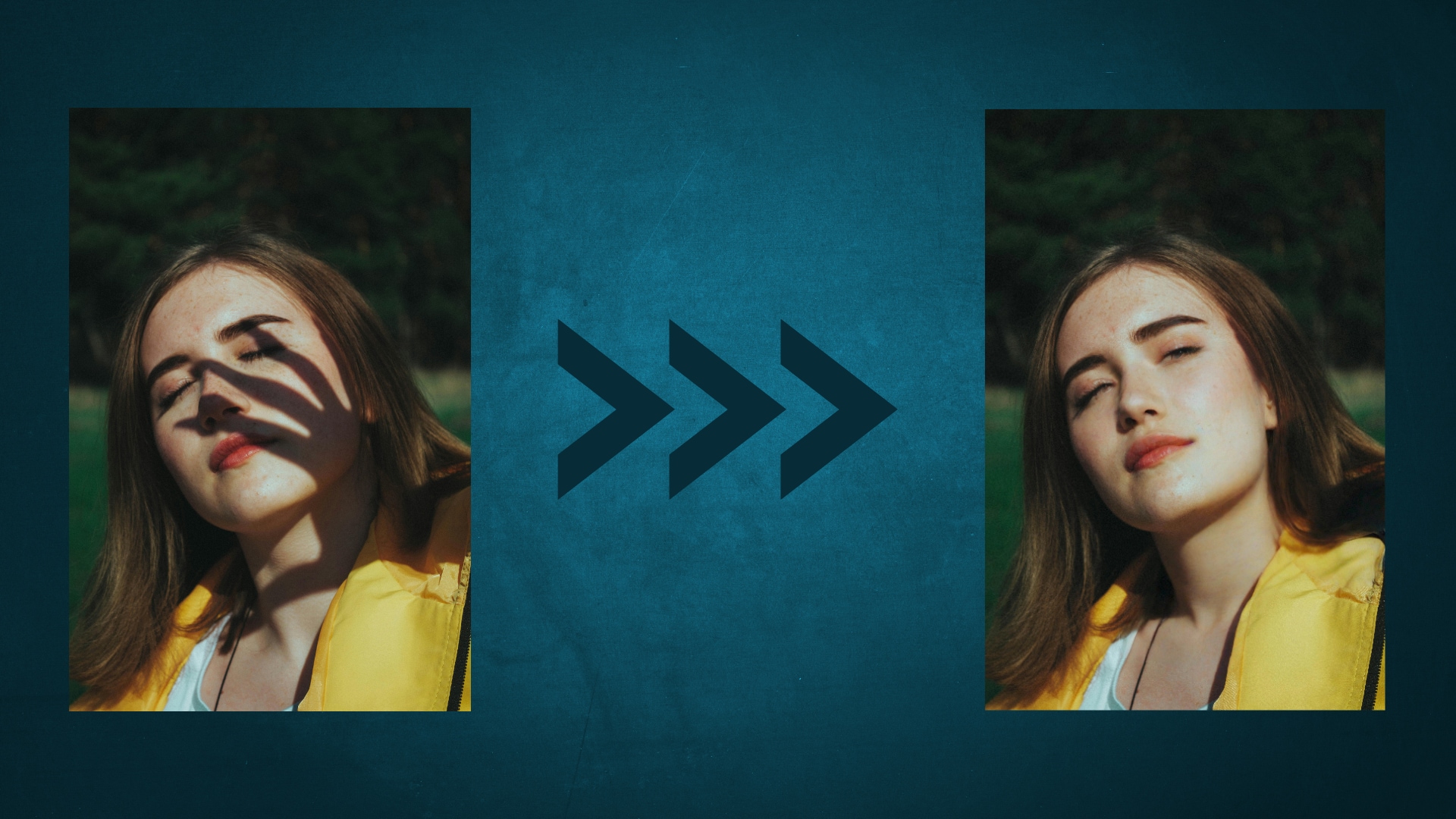
Result: By carefully brushing over the shadow, X-Design achieves a very clean removal. The blending handles seamlessly, preserving natural skin tones, and the final image looks bright, natural, and professional.
Part 2. Quick Comparison Table of Best 5 Free Shadow Removers for Photo
This at-a-glance table helps you quickly identify the best shadow remover for photos for your specific needs and workflow.
| Tool | Supported Devices |
Batch Process Support |
Ease of Use (Rating/10) |
Best For | Result Quality | Key Limitations |
| UniConverter | Windows, Mac, and iOS | Yes | 9.5 | Powerful all-in-one desktop editing | Excellent, seamless | Steeper learning curve for advanced features |
| Fotor | Web browser, Windows, Mac, iOS, and Android | No | 9.0 | Online power with manual control | Excellent | Free version has export limitations |
| PhotoAiD | Web browser, iOS, and Android | No | 8.5 | Instant one-click fixes | Very Good | No manual controls for complex edits |
| Lightroom | Windows, Mac, iOS, and Android | No | 8.0 | Advanced professional-grade pc and mobile editing | Excellent (with effort) | Manual effort required |
| X-Design | Web browser, iOS, and Android | No | 8.5 | Precise manual selection | Excellent | Manual brushing requires more time |
Part 3. Pro Tips for Natural Photo Shadow Removal Results
Knowing how to remove shadows in photos is half the battle; doing it naturally is the other. Here are expert tips to ensure your edits are completely invisible:
Work Precisely and Zoom In
Always use the smallest brush size necessary for the task at hand. Zoom in closely on the area you're editing to avoid affecting non-shadowed pixels. This prevents the dreaded "smudge" effect and ensures clean, sharp edges around your subject, which is crucial for learning how to remove shadow from picture effectively.
Embrace the Before-and-After Check
Constantly toggle the 'before' and 'after' view available in most tools. This is the best way to spot inconsistencies in texture, color, or lighting that your eye might otherwise miss after staring at the image for too long. Subtlety is the key to achieving a natural, untouched look.
Preserve Your Original and Layer Edits
Before you start, always save a copy of the original image. If your editor supports non-destructive editing (like Snapseed), use it. This allows you to experiment freely without fear of making irreversible mistakes and lets you fine-tune the opacity of your adjustments for a more natural blend, ensuring you never ruin an original file while trying to get rid of shadows in pictures.
Conclusion
In 2025, AI has revolutionized how we remove shadows from pictures, making professional-quality results accessible to everyone. Whether you need the quick fix of a web tool or the precision of a mobile editor, there's a perfect shadow remover for photos for every scenario. For those seeking the most powerful and versatile solution that handles even the most challenging jobs within a seamless workflow, UniConverter stands out as the top-tier choice.
Now that you know exactly how to remove a shadow from a photo, it's time to put that knowledge into action. Ready to achieve flawless, shadow-free results? Discover the advanced capabilities of UniConverter today and effortlessly transform your photos.
Easily Batch Restore Old Photos Without Shadows
FAQs
-
1. What is the easiest way to remove shadow from photos?
The easiest method is to use a dedicated AI shadow remover online, such as PhotoAiD. It typically requires just a single click after uploading your photo, making the process effortless for anyone wondering how to remove shadow from photo quickly. -
2. Can I remove shadows from a picture for free?
Yes, absolutely! As outlined in this article, numerous high-quality tools, such as PhotoAiD, Fotor, and Snapseed, offer powerful shadow removal capabilities completely free of charge. -
3. How do I remove a shadow in Photoshop?
Photoshop offers advanced tools for this task. A standard method is to use the 'Camera Raw Filter' with its 'Adjustment Brush'. You paint over the shadow area while 'Auto Mask' is checked, and then adjust sliders like Exposure, Brightness, and Temperature to match the surrounding area before blending the edges with the Healing Brush. -
4. Why does my edited area look blurry after shadow removal?
A blurry result often indicates that the AI struggled with a complex texture or that the brush size was too large. To achieve this, use a smaller brush for precision when applying your chosen shadow remover for photos. Alternatively, try a different tool or use a clone tool to manually sample and replicate nearby textures for a more seamless blend. -
5. Are there ways to prevent shadows when taking the photo?
Prevention is always best! To avoid harsh shadows, use soft, diffused lighting instead of direct flash or bright overhead lights. Shooting outdoors on a slightly overcast day or indoors using a softbox can help immensely. Positioning your subject away from direct, harsh light sources also minimizes strong, unflattering shadows.

