

Ever tried sharing an iPhone voice memo, only to run into that dreaded "unsupported file type" error or spend ages searching for a way to play it on a Windows laptop? It feels unnecessarily complicated, especially when all you need is a simple audio file that just works.
The solution is to convert your voice memo to MP3. MP3 is universally supported across devices and platforms, so you can play, edit, or share recordings without hassle. Here's exactly how to convert a voice memo to MP3 quickly, so you never have to wrestle with file formats again.
Voice Memo to MP3 Converter
In this article
- Part 1: What Is a Voice Memo and Why Convert It to MP3?
- Part 2: How to Convert Voice Memo to MP3 on iPhone?
- Part 3: How to Convert Voice Memo to MP3 on Mac?
- Part 4: How to Convert Voice Memo to MP3 on Windows?
- Part 5: How to Convert a Voice Memo to MP3 Online (Free & Fast)?
- FAQs About Voice Memo to MP3 Converter
Part 1: What Is a Voice Memo and Why Convert It to MP3?
A voice memo is one of the easiest ways to record quick thoughts, meetings, or reminders on your phone. Converting Voice momo to MP3 format is mainly for wide compatibility.
What Is a Voice Memo File?
A voice memo is an audio recording made on devices like iPhones, iPads, or other smartphones. When you record one, your device usually saves it in a default voice memo format, such as .m4a or .caf. These formats work well on Apple devices.
The problem starts when you try to share the file with someone who uses a different device or app. Some audio editors and online tools do not support .m4a or .caf files. This is why many people search for solutions like m4a to mp3 conversion.
You might also run into issues when importing these files into older software, social apps, or basic audio players. Turning the memo into an MP3 usually removes these compatibility hurdles and makes your life easier.
Why You Might Need the MP3 Format?
MP3 is the most universal audio format in the world. When you convert a voice memo for editing, it becomes easier to work with because almost every editing tool accepts MP3. It also reduces file size while maintaining good enough sound quality for everyday use.
MP3s also help when you want to upload a podcast file, submit classroom audio, or repurpose your memo for creative projects. If you need to share the file quickly with friends, teachers, or teammates, it is much smoother to export the voice memo as an MP3 so everyone can open it without issues.
Smaller size, wider compatibility, and better editing support make MP3 a practical choice for most people who use voice memos regularly.
Part 2: How to Convert Voice Memo to MP3 on iPhone?
Converting voice memos to MP3 on an iPhone is straightforward when you pick the right voice memo to MP3 converter app like UniConverter or GarageBand .
1. Wondershare UniConverter - Voice Memo to MP3 Online Converter
UniConverter online converter delivers fast, reliable voice memo to MP3 conversion directly on your iPhone without needing a computer. This trusted app lets you import voice memos, choose your preferred MP3 quality settings, and export with a single tap. The interface is intuitive even for first-time users, and built-in privacy protection keeps your recordings secure throughout the conversion process.
Voice Memo to MP3 Converter
How to Convert a Voice Memo to MP3 online with UniConverter
By following these simple steps, you can easily convert an iPhone voice memo to MP3 online:
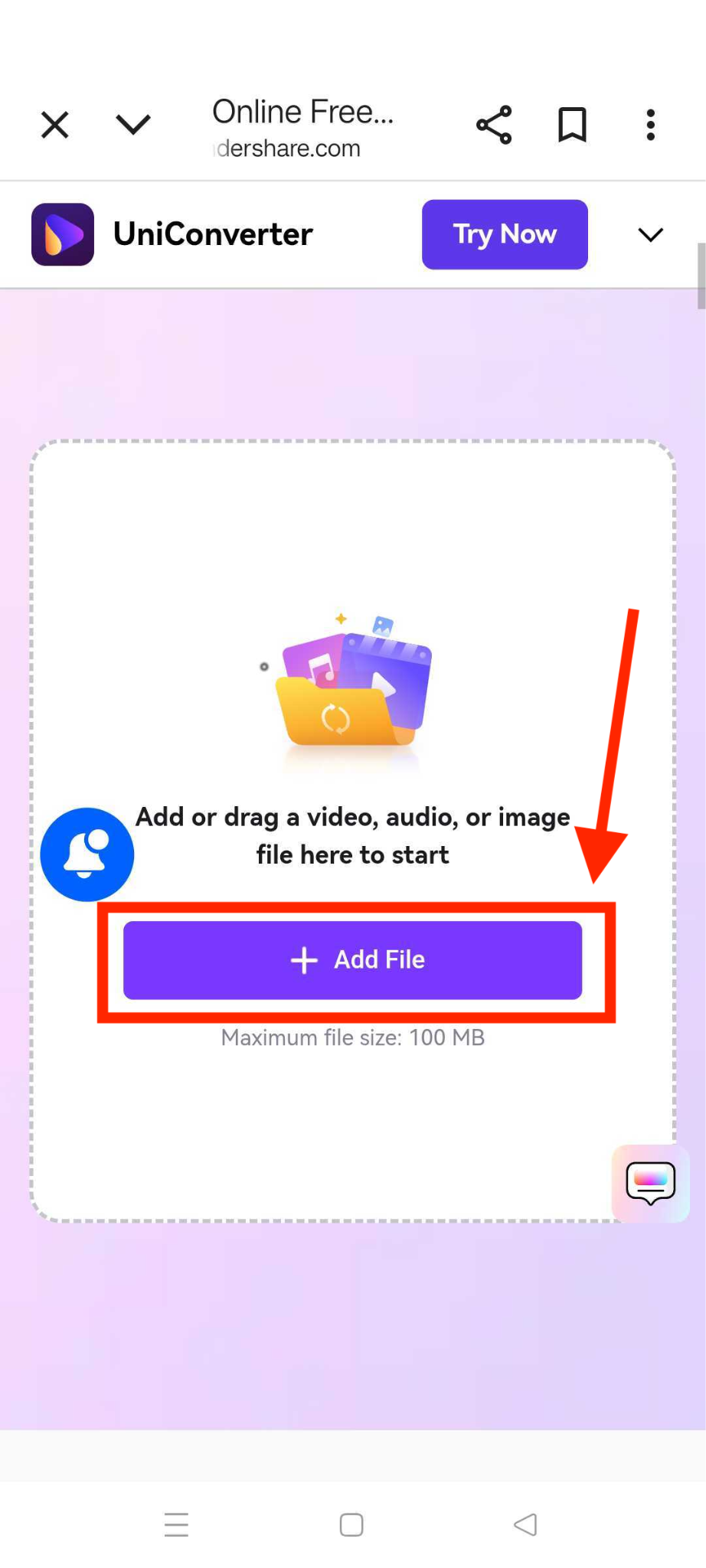
Step 1: Visit the "Video Converter Online" webpage and click "Add File" to upload your voice memo.
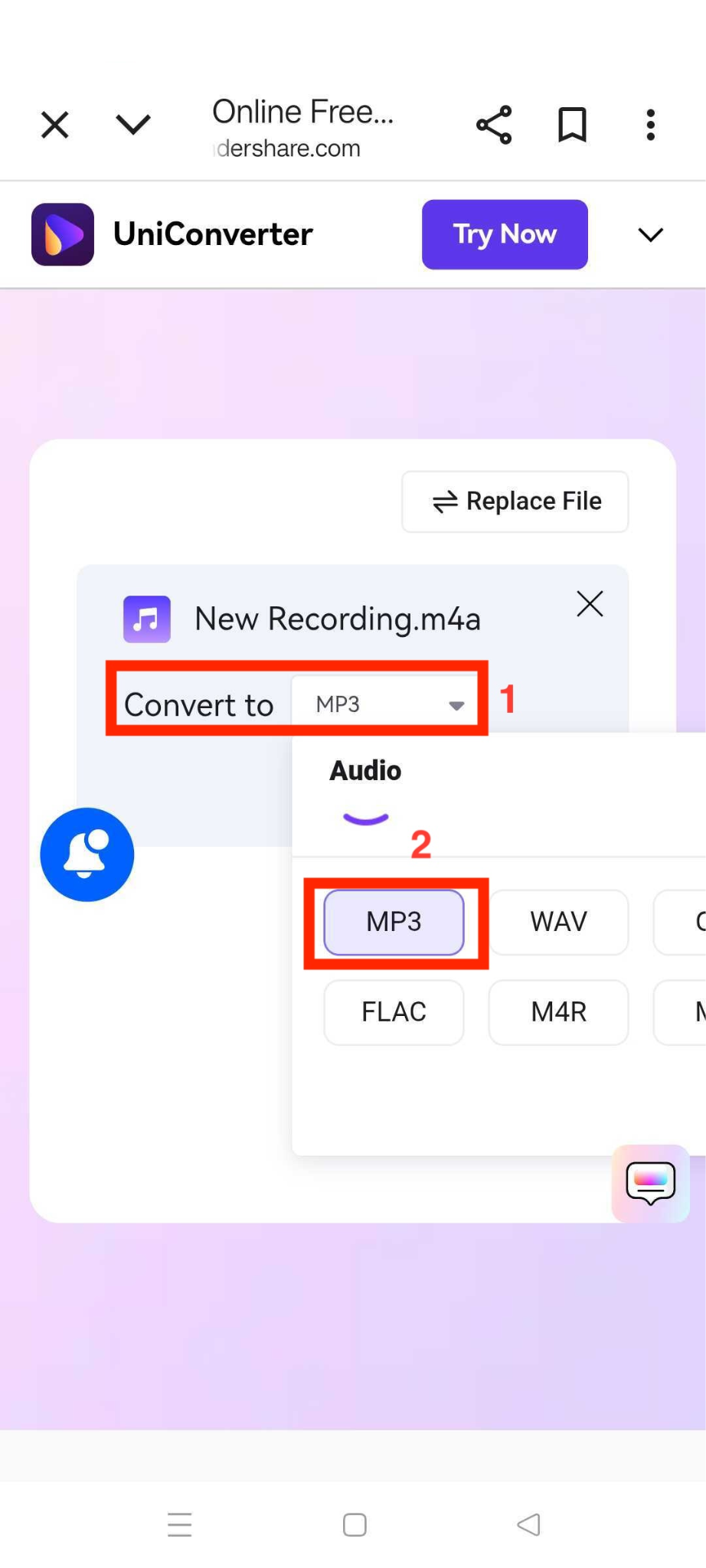
Step 2: Select MP3 format from the "Convert to" menu.
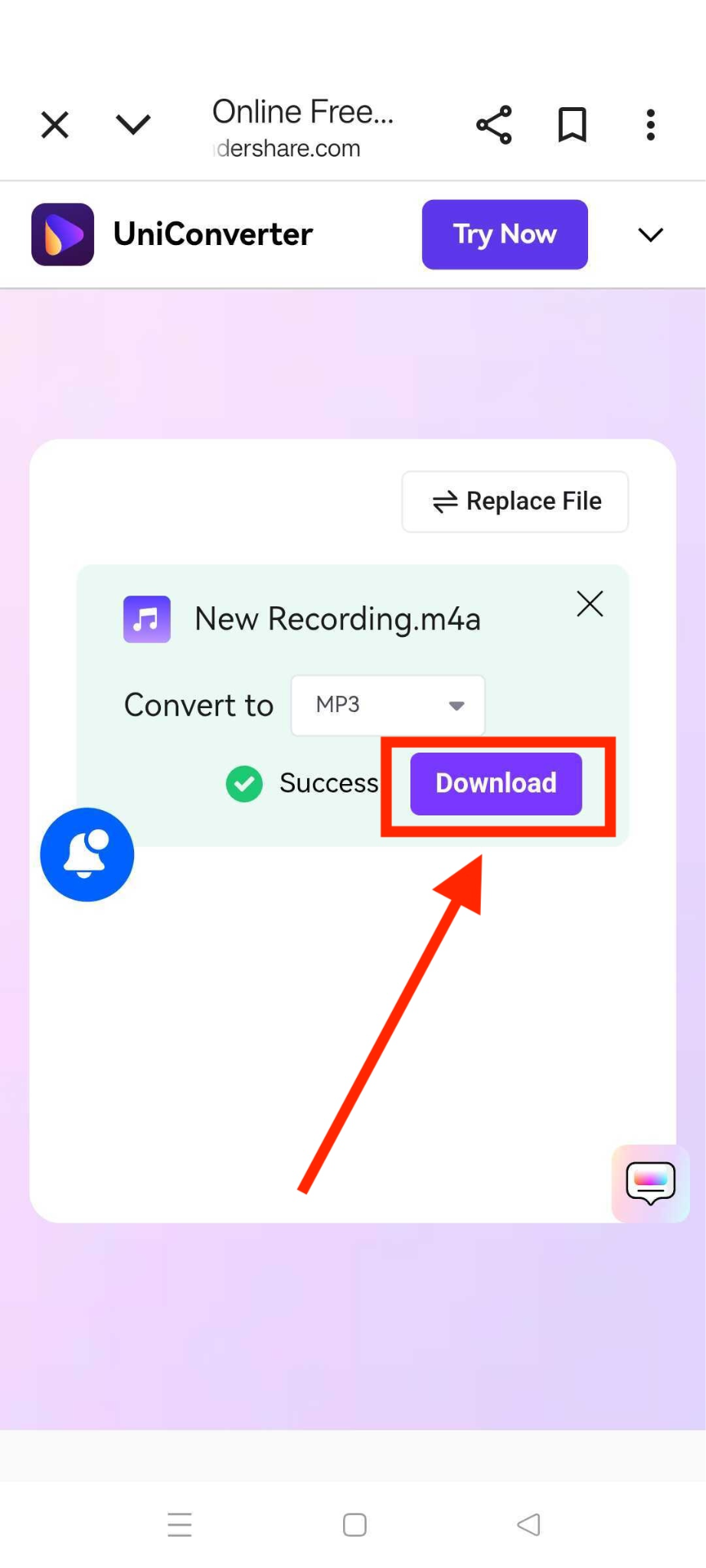
Step 3: Click "Download," and the voice memo will successfully download in MP3 format.
2. GarageBand
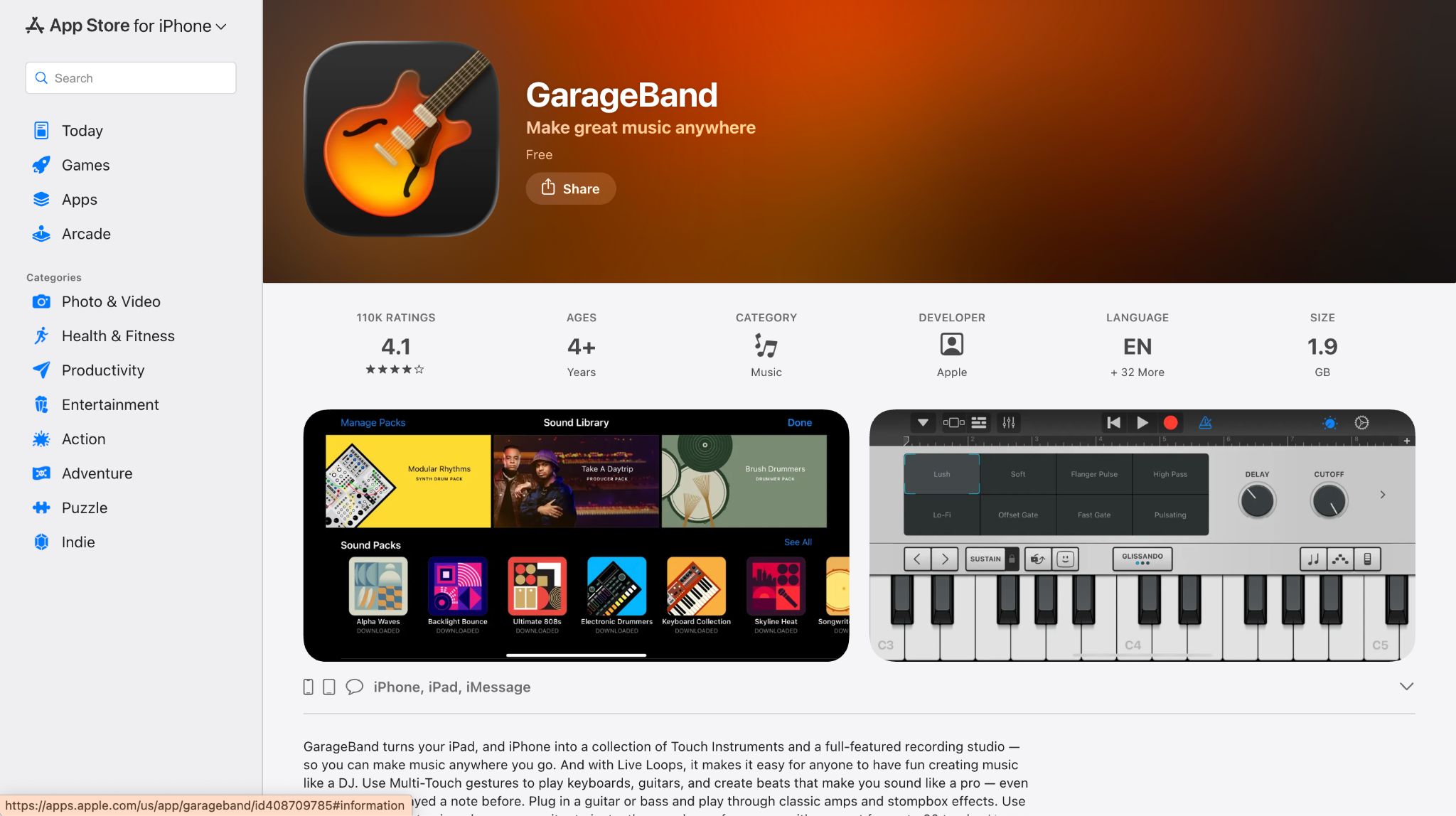
GarageBand offers more than just music creation; it lets you convert an iPhone voice memo to an MP3 by importing recordings, editing tracks, and exporting to various audio formats. This app is especially helpful for those who want to save voice memos as MP3s while preserving sound quality, making it perfect for both short clips and longer audio projects.
How to Save Voice Memo as MP3 with GarageBand
Follow this step-by-step guide to get an iPhone voice memo to MP3 easily:
Step 1: First, open GarageBand and create your project.
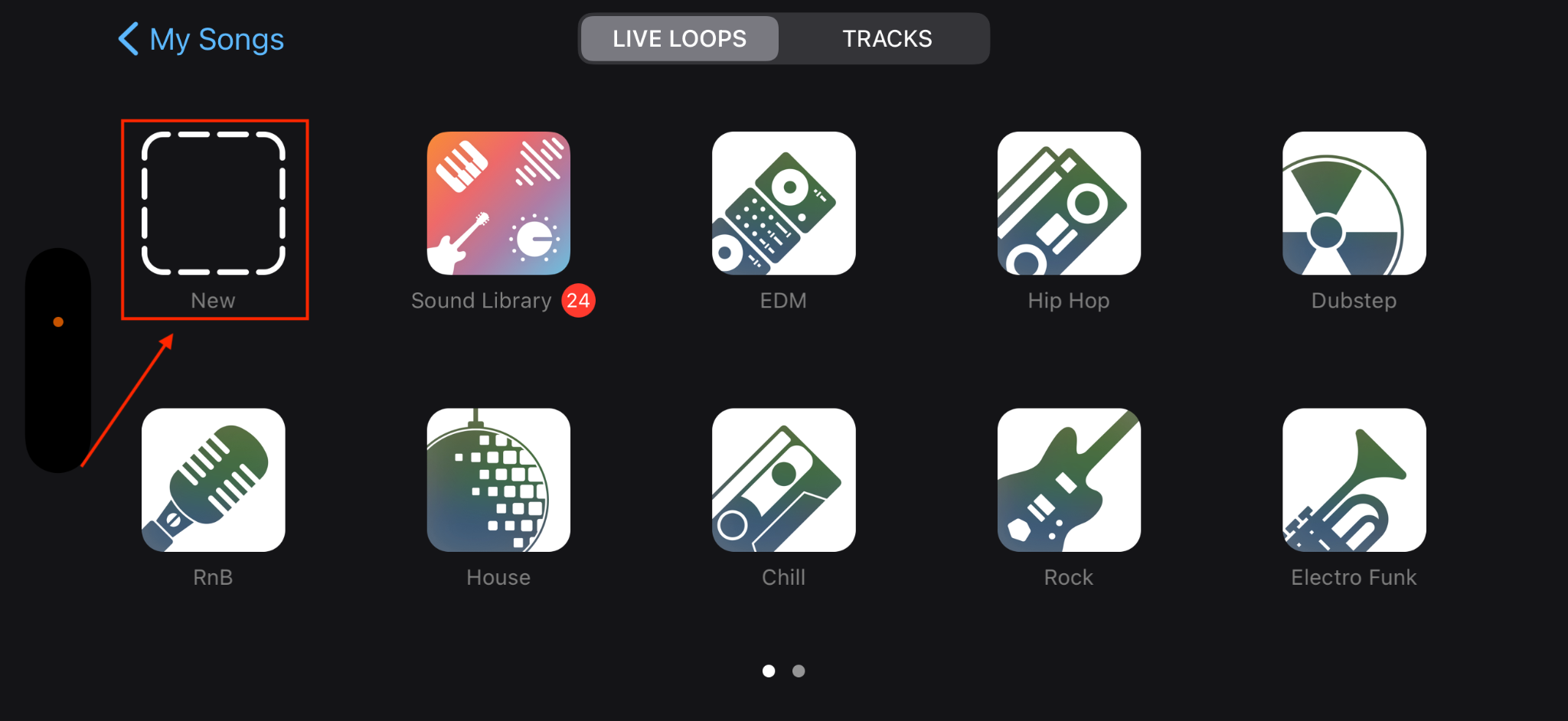
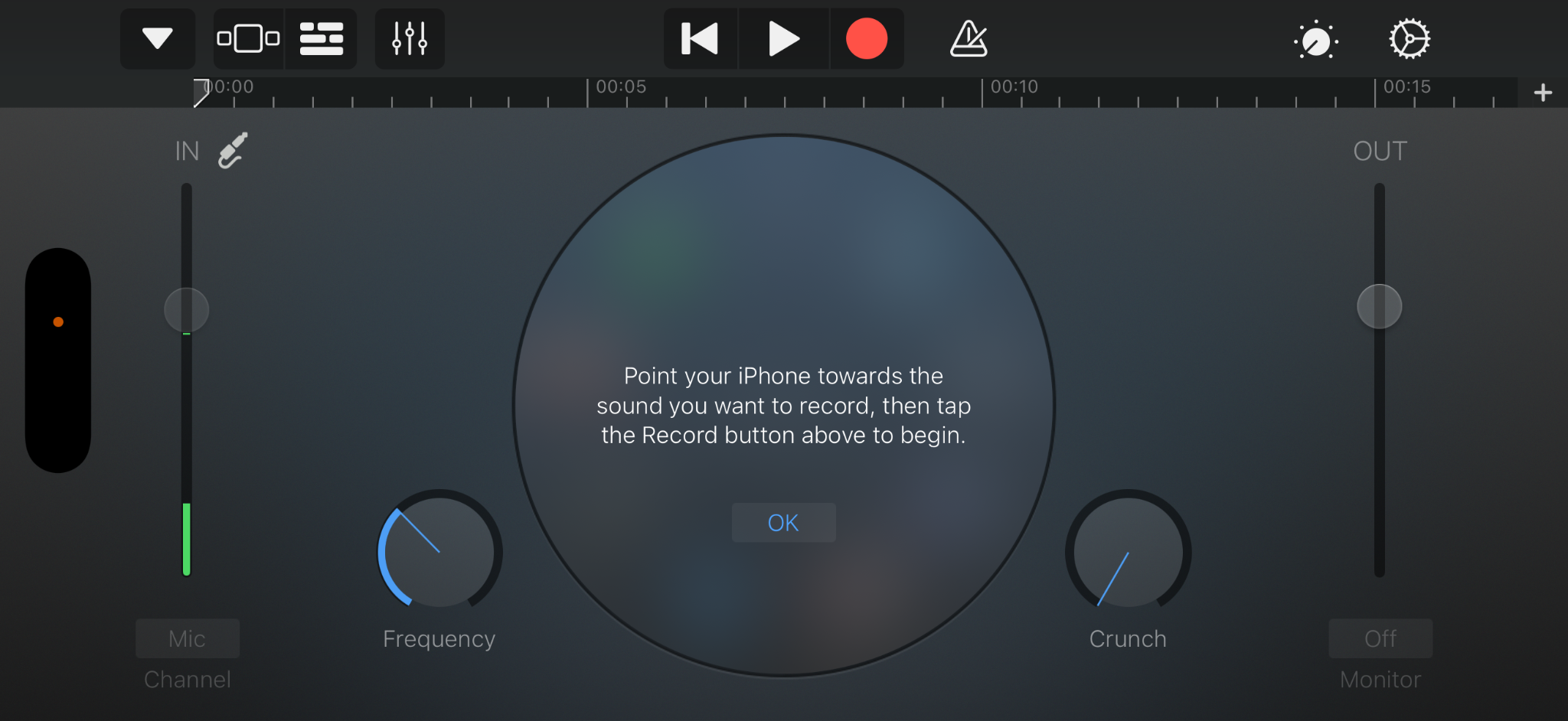
Step 2: Select Audio Recorded, then record your voice.
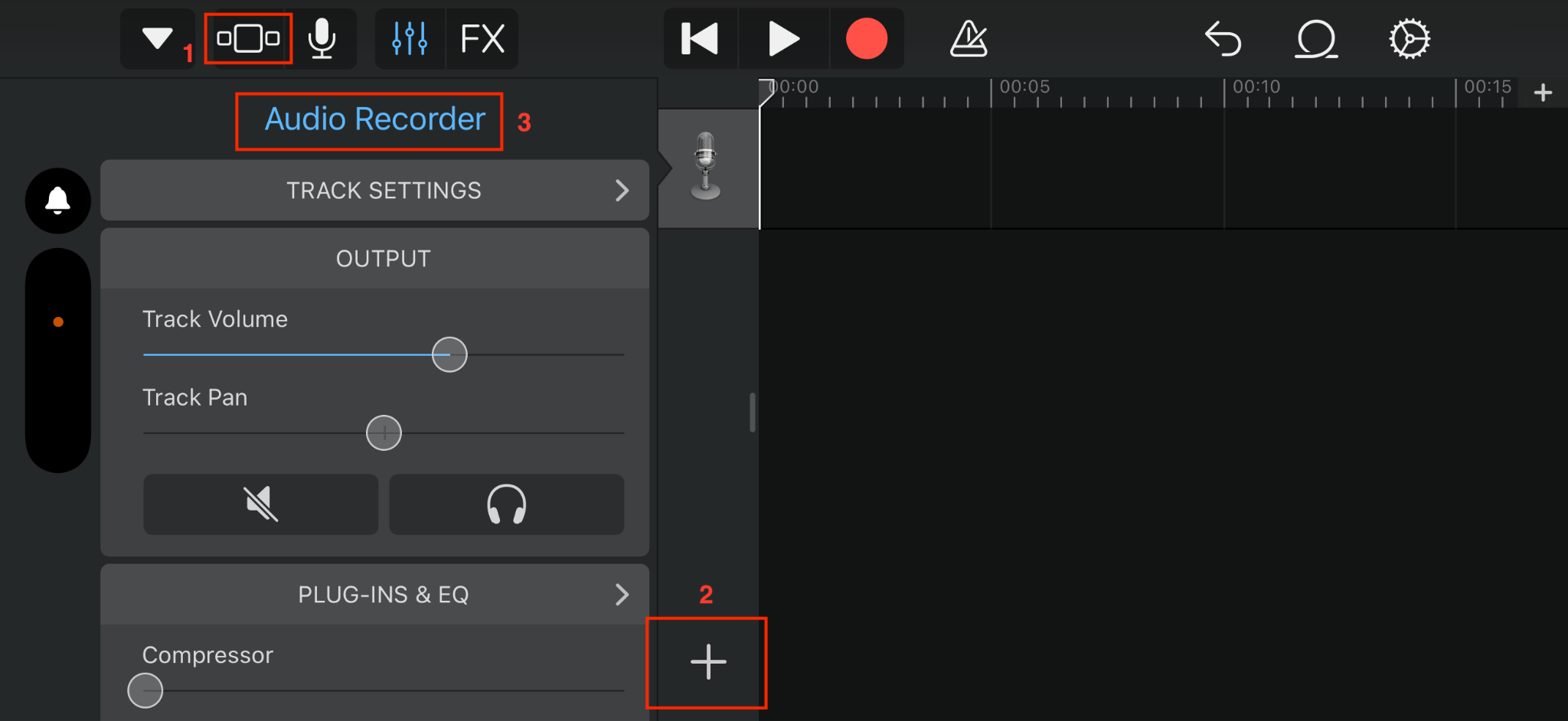
Step 3: Click the Track View button and then click the + sign. After that, click Section A to enable Automatic Audio Recorder.
Step 4: Click Loop Library, go to Files, and click Browse items from the File App.
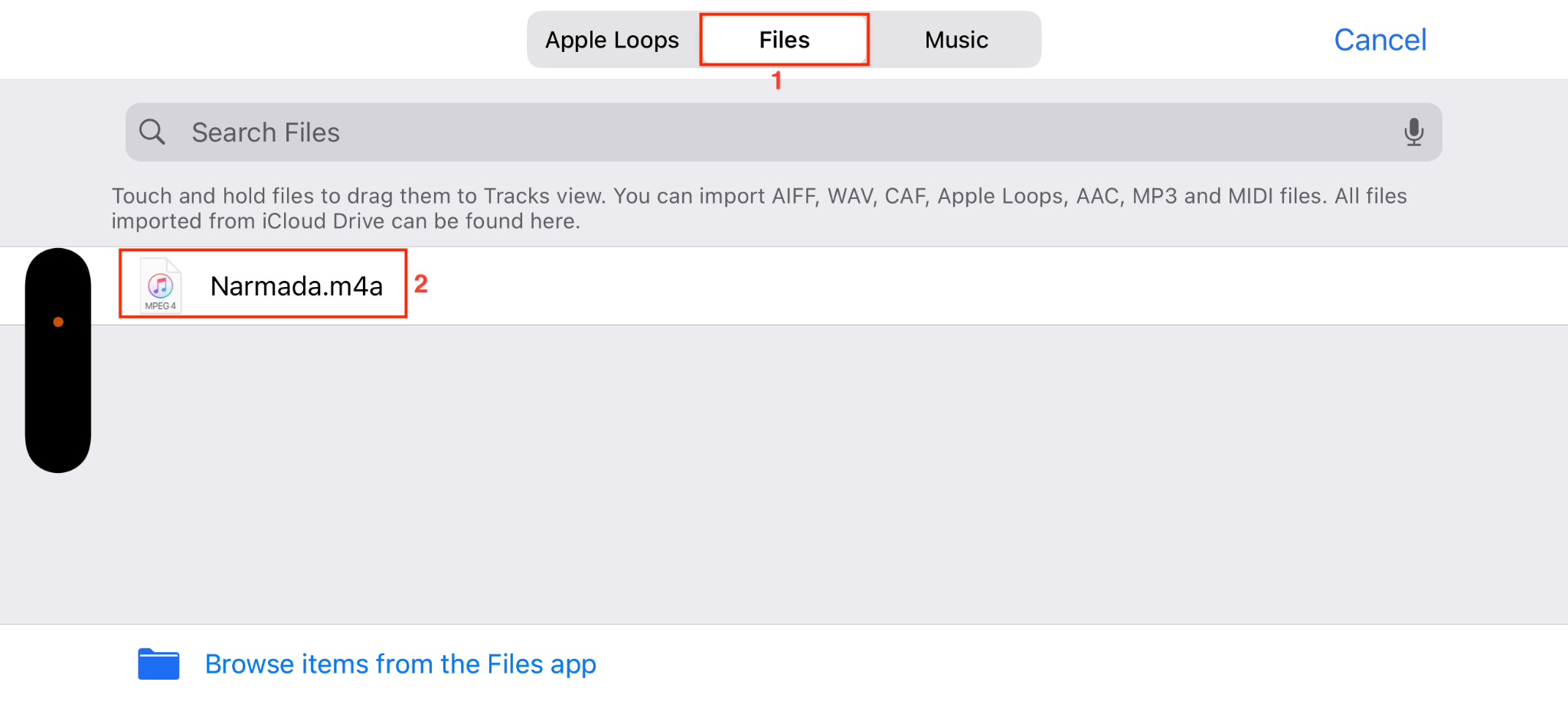
Step 5: Find your file and upload it to GarageBand or drag and drop it.
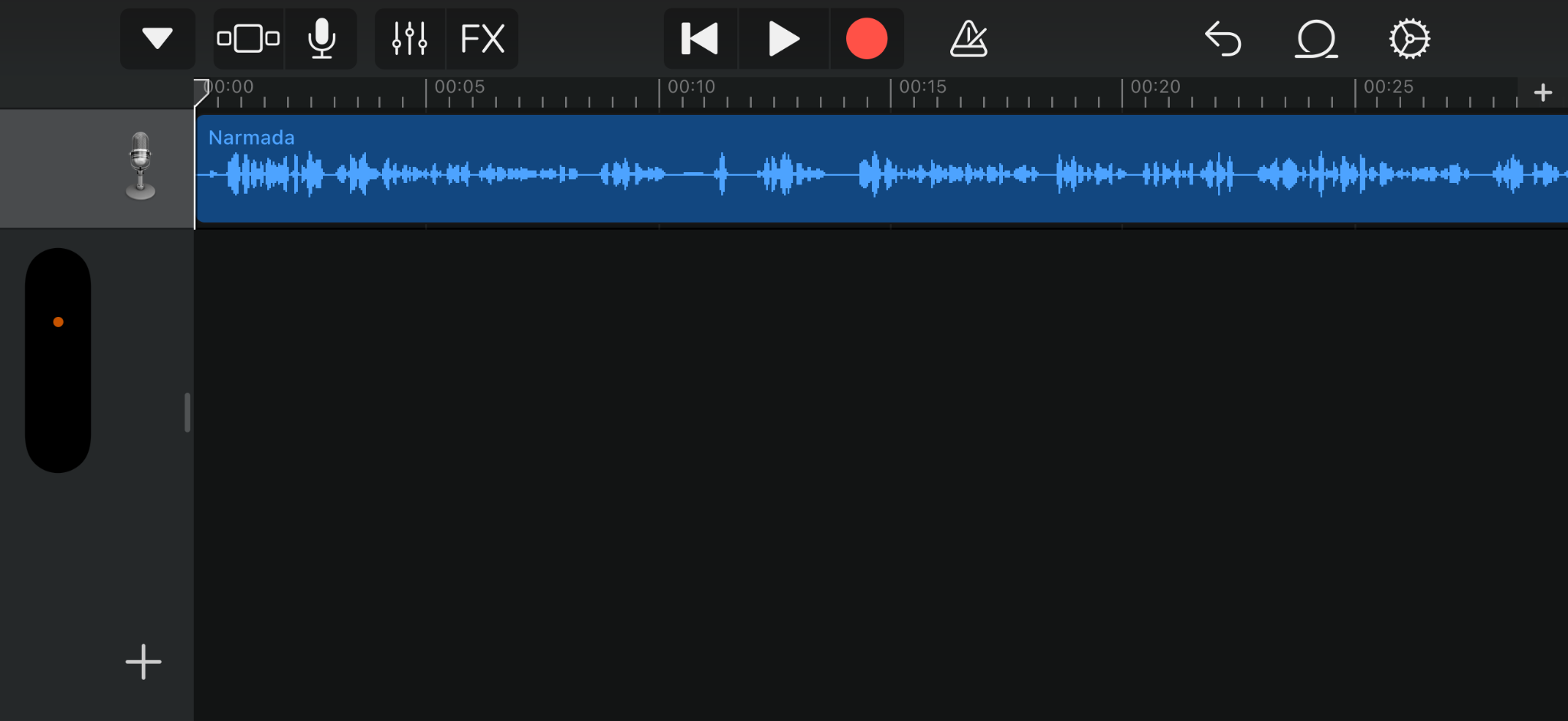
Note: You need a third-party tool to convert a voice memo to MP3. In this case, you can try online tools like Wondershare UniConverter. It will quickly convert your voice memo to an MP3 file in high quality.
Tip: Before converting, double-check that you're using a trusted app or website to keep your voice memos secure. Avoid tools that compress audio too much, since this can reduce clarity, especially for interviews, lectures, or important notes. Whenever possible, choose converters that offer adjustable MP3 quality settings and guarantee that your files aren't stored or shared after processing.
Part 3: How to Convert Voice Memo to MP3 on Mac?
If you've synced your iPhone voice memos to your Mac, you'll find several straightforward options to convert voice memo files to MP3 format. Mac's built-in tools and specialized software make the conversion process smooth and efficient.
1. Using Wondershare UniConverter (Recommended)
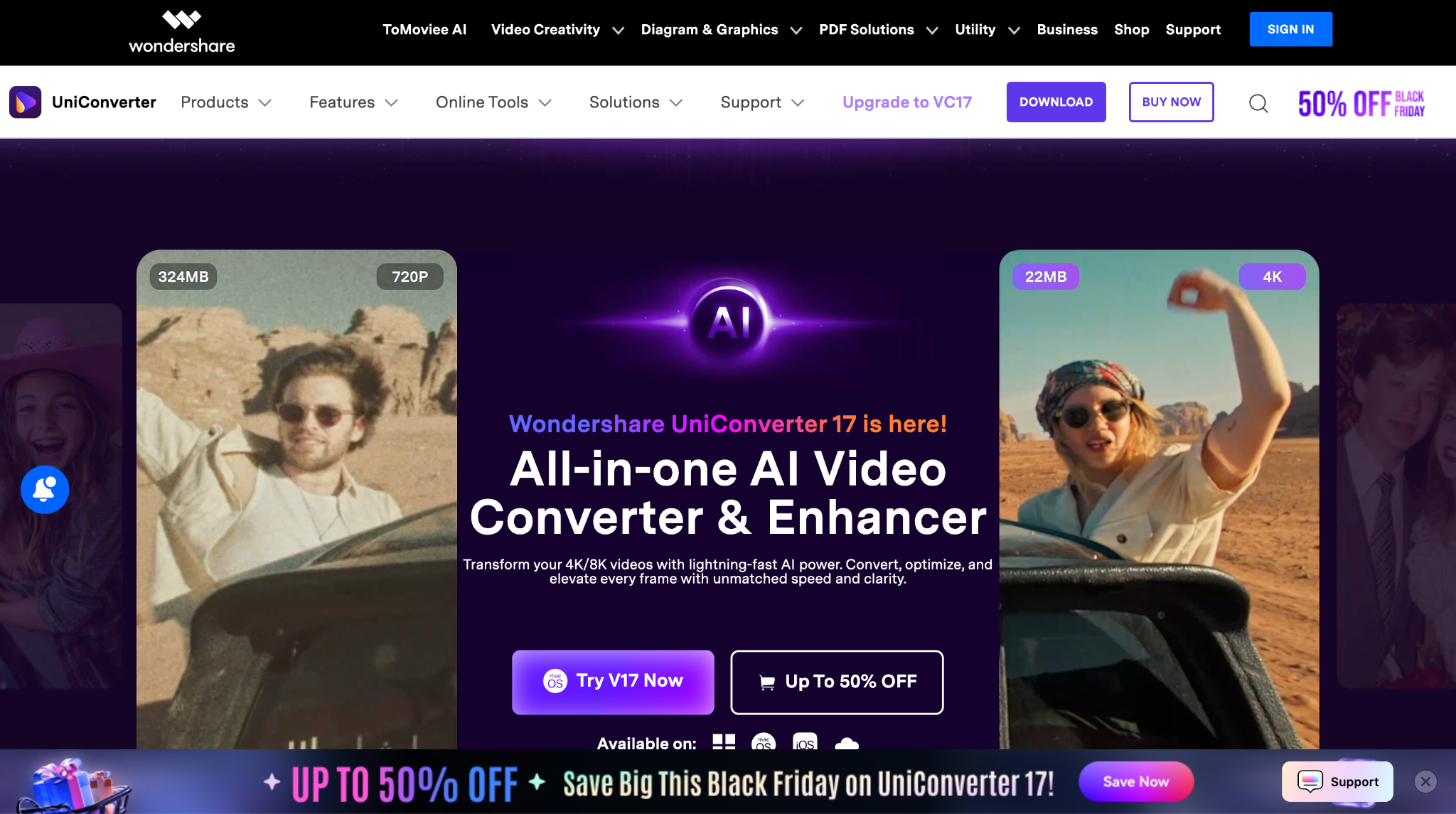
Wondershare UniConverter is more than just a basic voice memo to MP3 converter for Mac; it's an advanced media toolkit trusted for speed, rich format support, and seamless macOS integration. Powered by AI, UniConverter batch processes, trims, enhances, and transcribes audio up to 130X faster than most converters, with zero quality loss. You can convert voice memo files, including .m4a, .caf, and .wav, from any Apple device, ensuring smooth playback and editing across all platforms.
Voice Memo to MP3 Converter
Key Features
- Batch Conversion Capability: Convert multiple voice memos at once by dragging entire folders into UniConverter and exporting them all as MP3. Ideal for handling recordings from meetings, lectures, or long projects quickly.
- Audio Trimmer: With the audio trimmer, you can manually trim unwanted parts of your voice memos or use the smart trimmer to automatically remove silent segments. This helps you create cleaner, more professional audio clips.
- AI Audio Enhancer: With its AI audio enhancer, you can enhance audio quality with AI that removes background noise, balances volume, and sharpens speech. Perfect for improving recordings made in noisy environments.
- Speech-to-Text: It offers speech-to-text so you can transcribe voice memos into accurate text across 20+ languages with up to 95% precision. Batch transcription lets you convert multiple recordings into readable notes at once.
How to Convert Voice Memo to MP3 on Mac with UniConverter
Take these simple steps to get a batch of voice memos to MP3 on Mac
Step 1: Start UniConverter on Windows and head to the "Converter" section from the home interface.
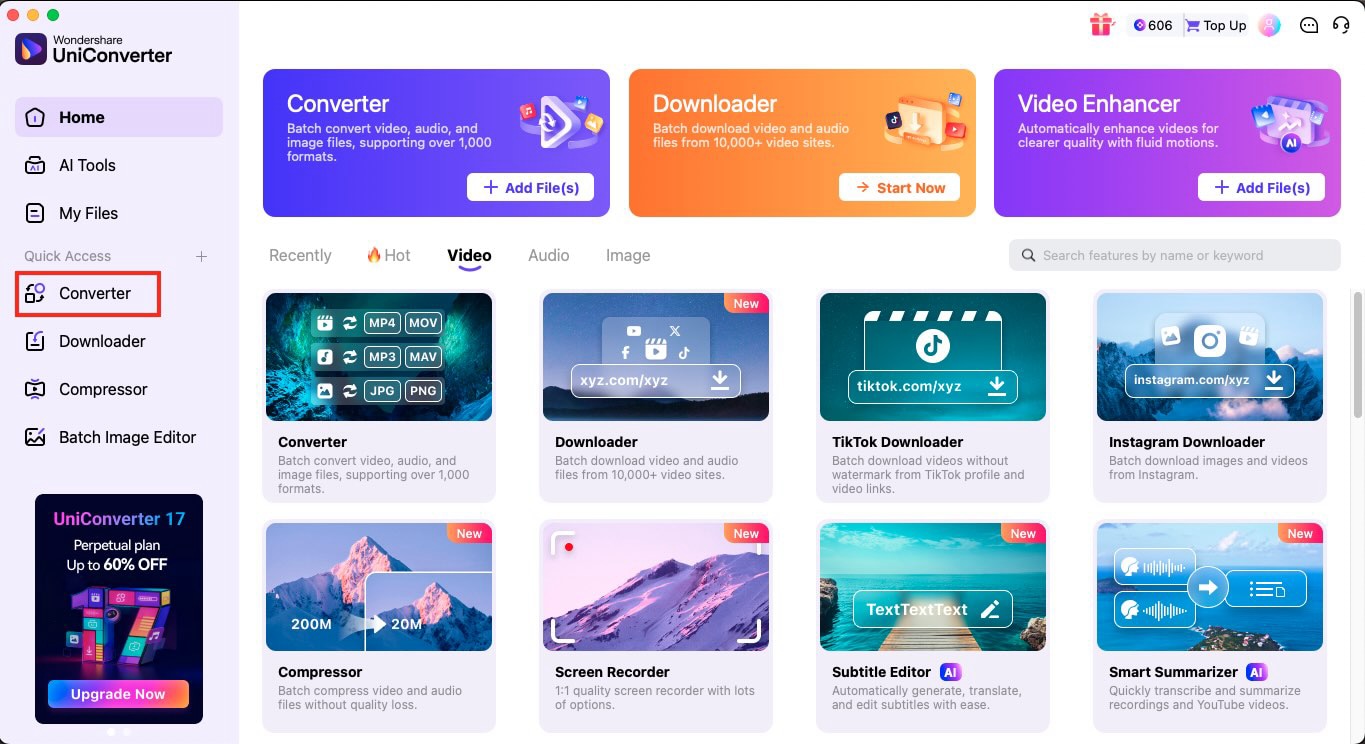
Step 2: Use "Add Files/Add Folder" to load the audio or video you want to convert, or simply drag and drop several files at once to use the batch feature.
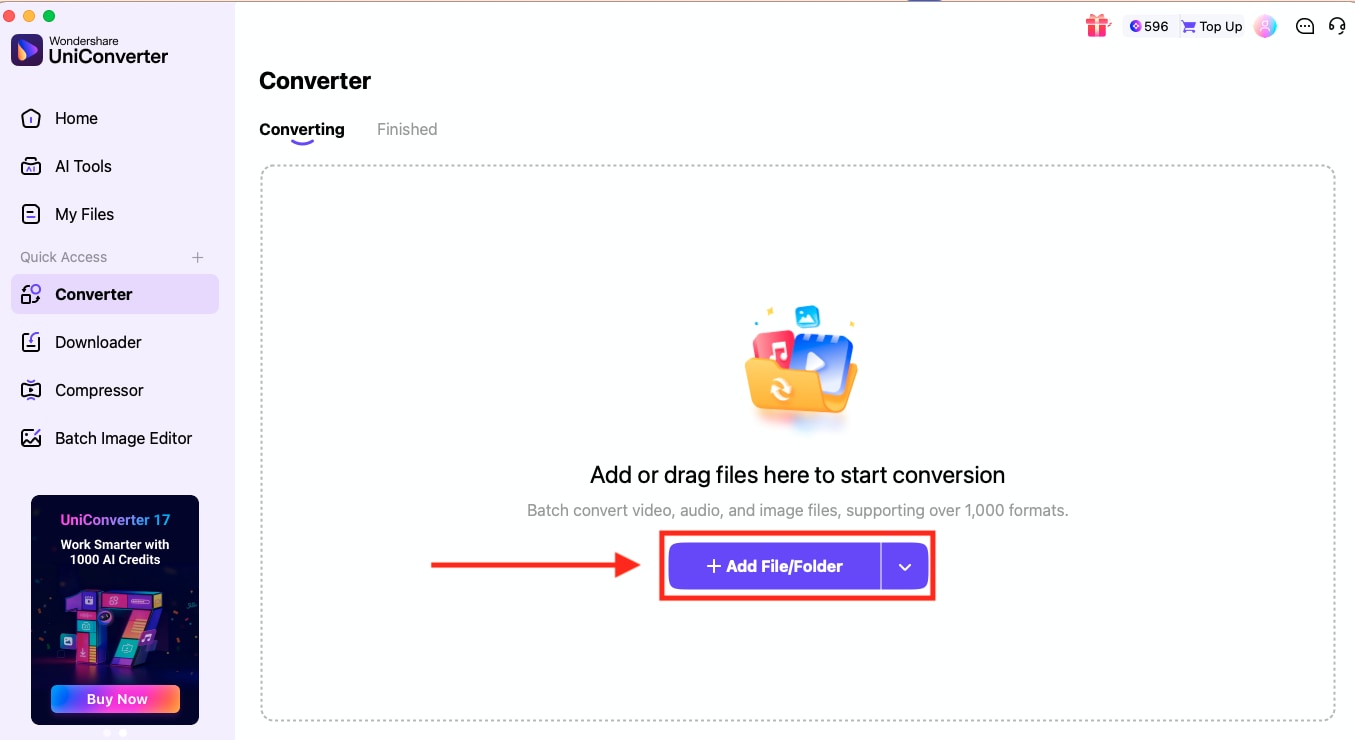
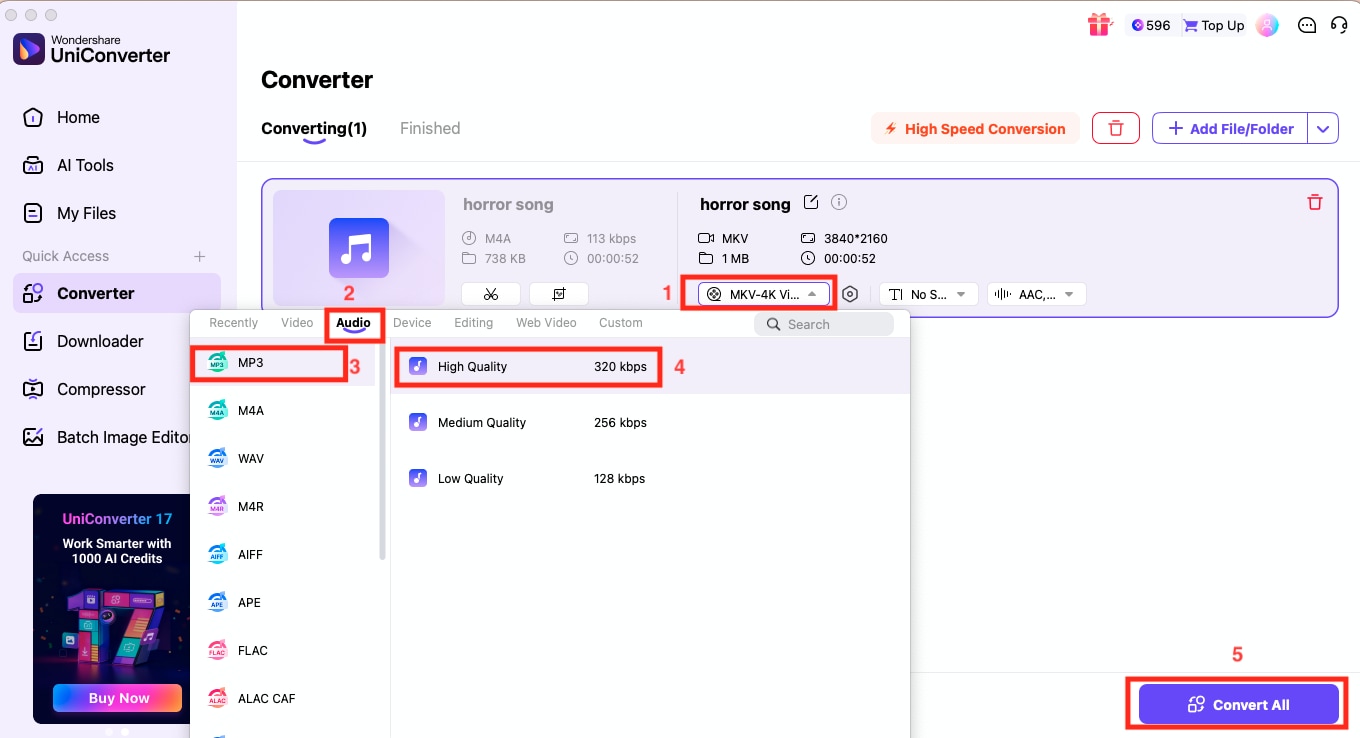
Step 3: Click the "Convert to" dropdown, open the Audio category, choose the format you want (MP3, WAV, or FLAC), and set the desired output quality. Select "Convert All" to run the conversion.
Benefits of Using UniConverter
- Batch Conversion: Process multiple voice memos simultaneously, saving significant time when converting entire folders of recordings. UniConverter handles dozens of files in a single operation, making it ideal for journalists, content creators, and professionals who work with large volumes of audio.
- Lossless Quality: UniConverter maintains original audio fidelity throughout the conversion process. Your voice memos retain all clarity and detail, ensuring no degradation in sound quality regardless of how many times you convert or edit them.
- Supports .m4a/.caf/.wav: Unlike some converters that only handle common formats, UniConverter works seamlessly with Apple-specific formats like M4A (the default iPhone voice memo format) and CAF (used by older iOS versions). It also supports WAV, FLAC, AAC, and 1000+ other audio and video formats.
Using Apple Music or iTunes for Voice Memo to MP3 Conversion
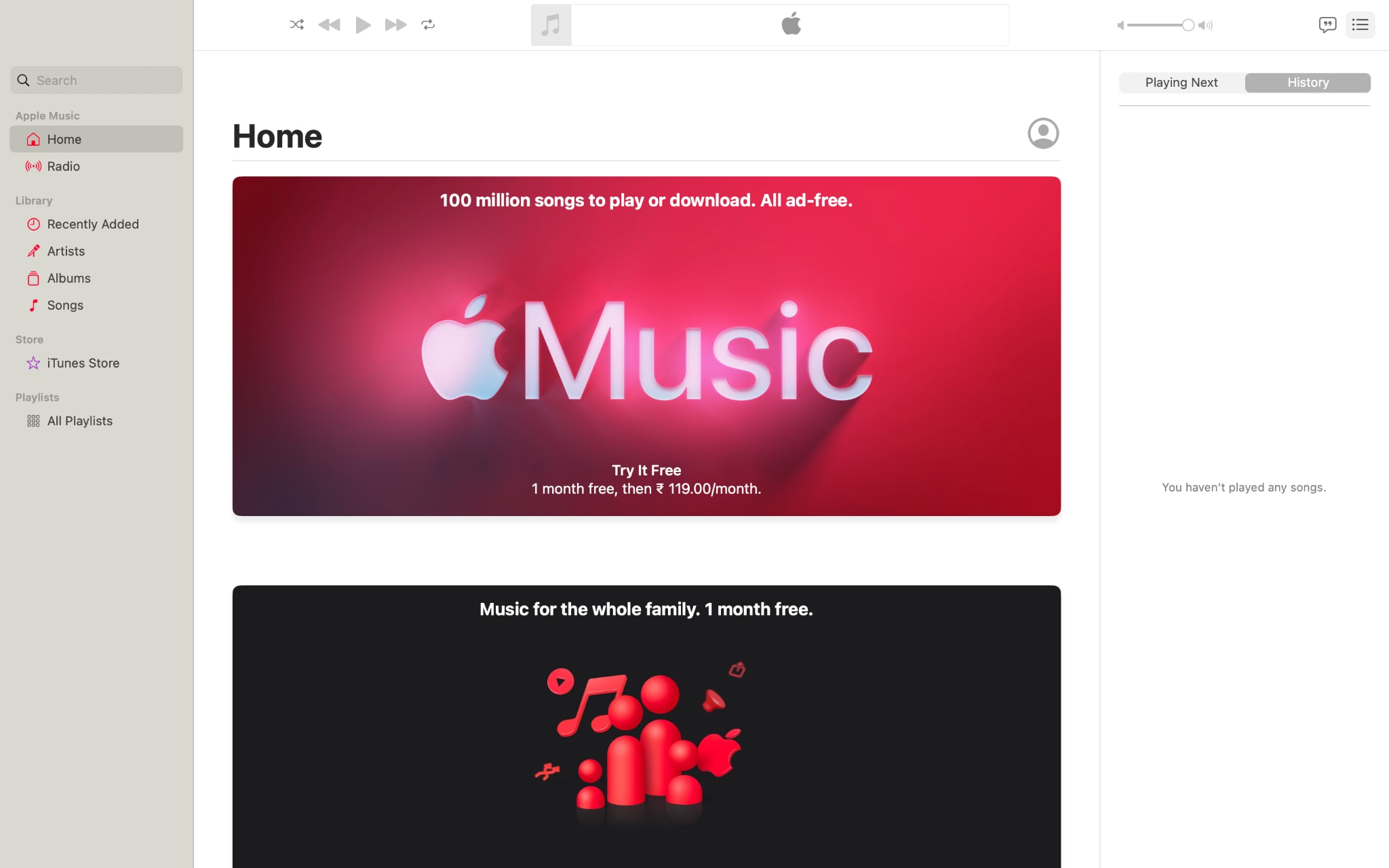
Apple Music (formerly iTunes on older macOS versions) provides a free, built-in method to convert a voice memo to an MP3 Mac without installing third-party software. This approach seamlessly integrates with your existing audio library and lets you customize quality settings to suit your needs.
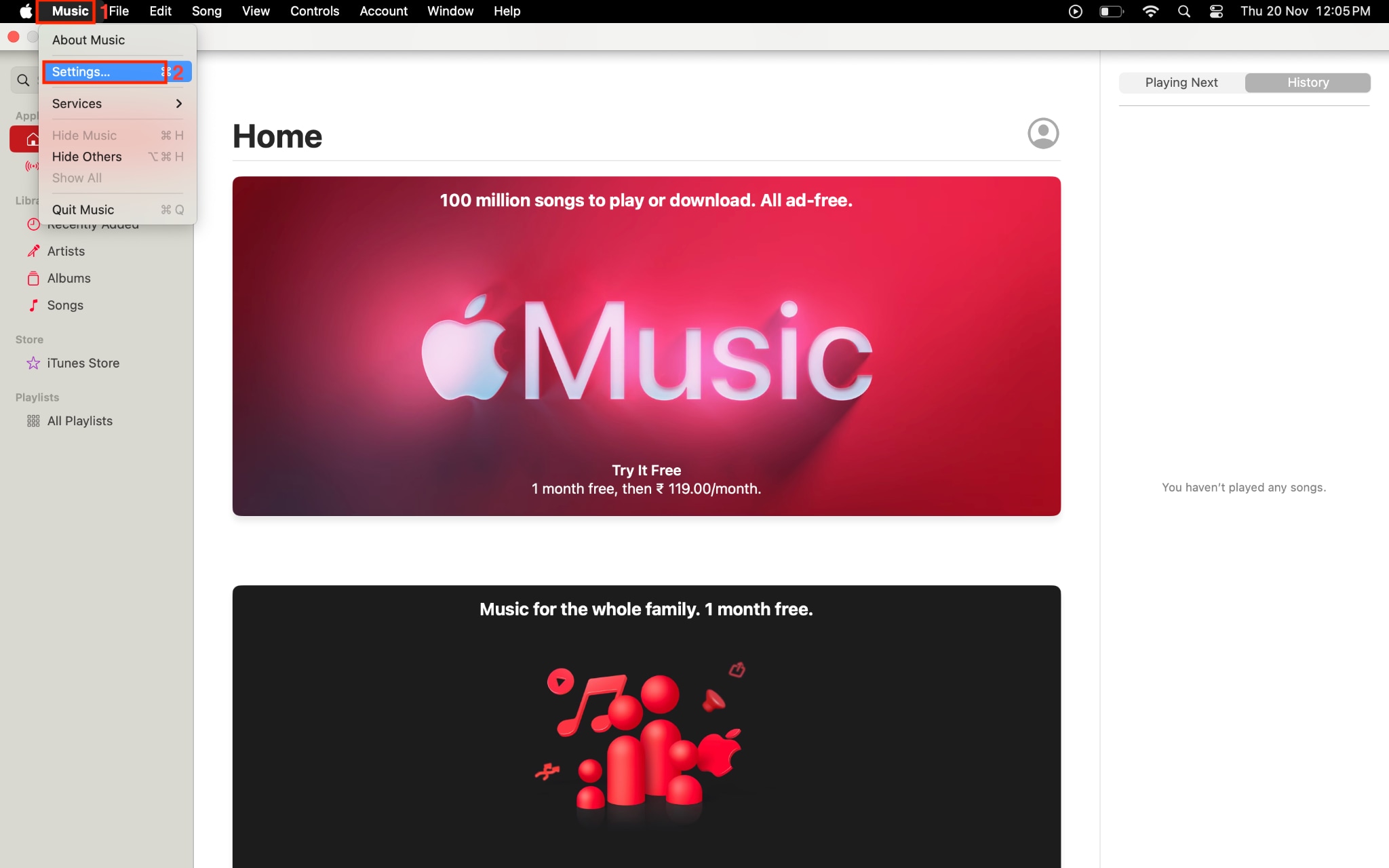
Step 1: Launch the Music app on your Mac. In the menu bar, click "Music," then select "Settings."
Step 2: Navigate to the "Files" tab, then click "Import Settings." In the "Import Using" dropdown menu, choose "MP3 Encoder." This tells the Music app to convert files to the MP3 format instead of the default AAC format.
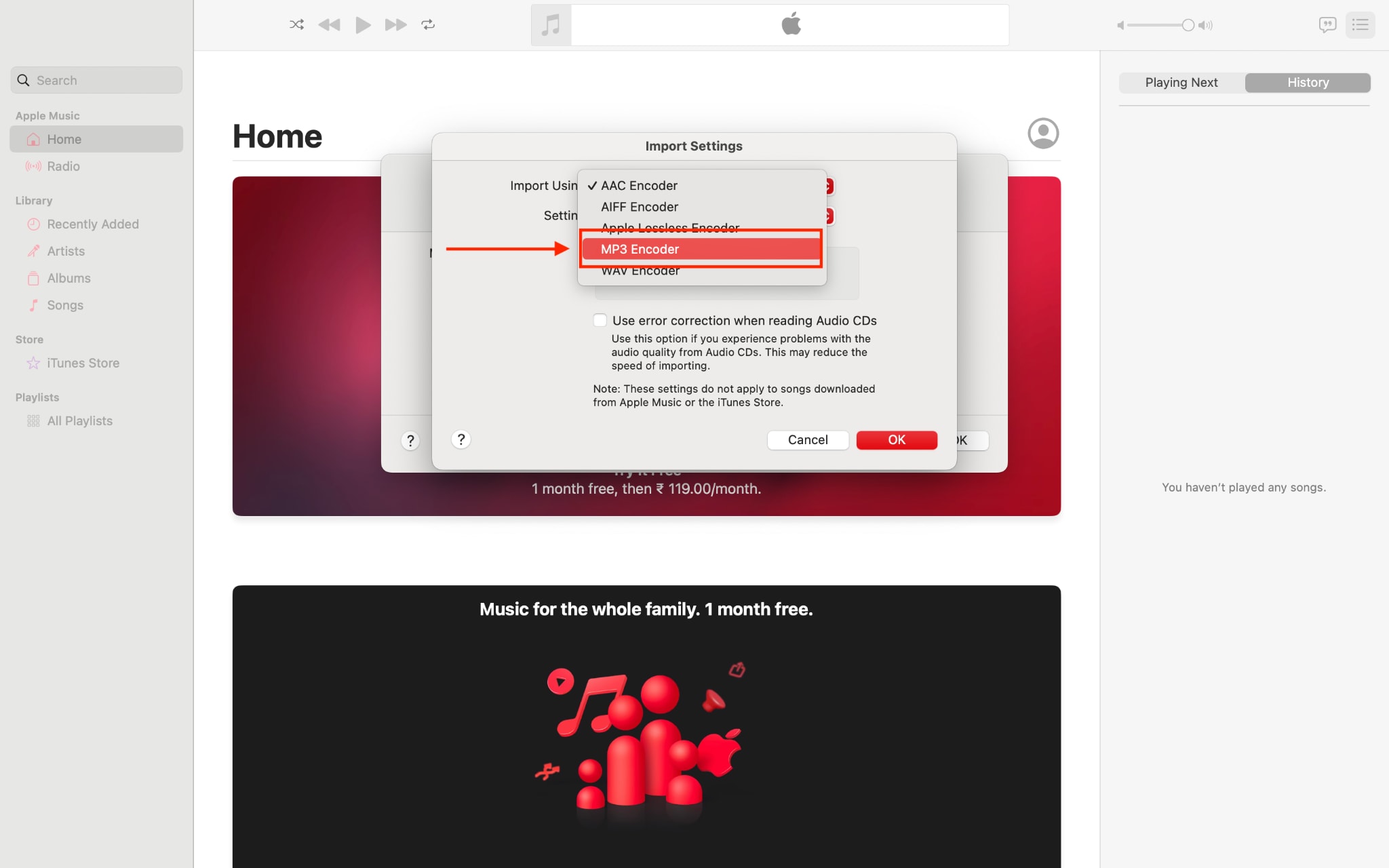
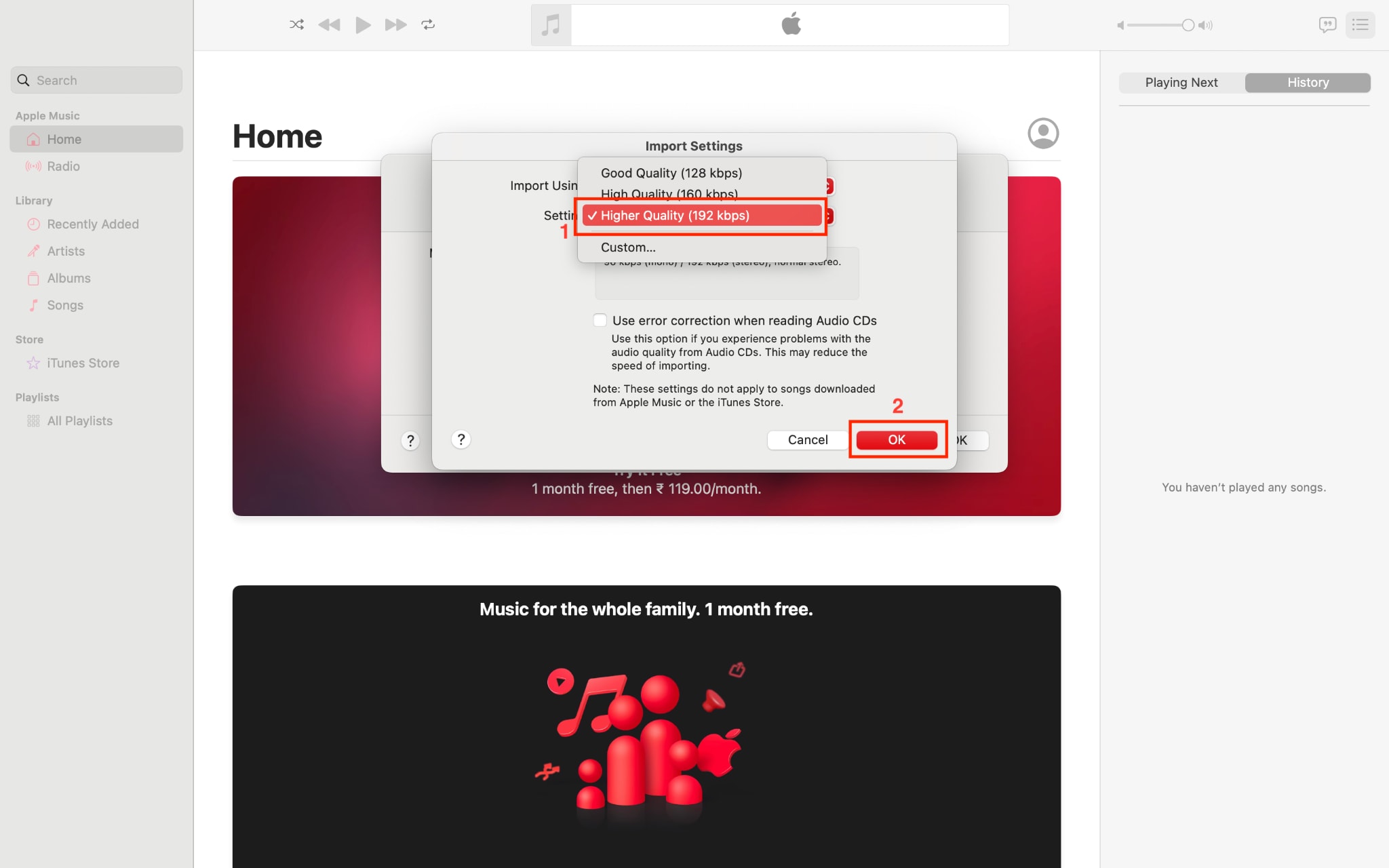
Step 3: You can also click "Import Settings" to customize your audio quality. Higher bitrates produce better sound but create larger files. Click "OK" twice to save your preferences.
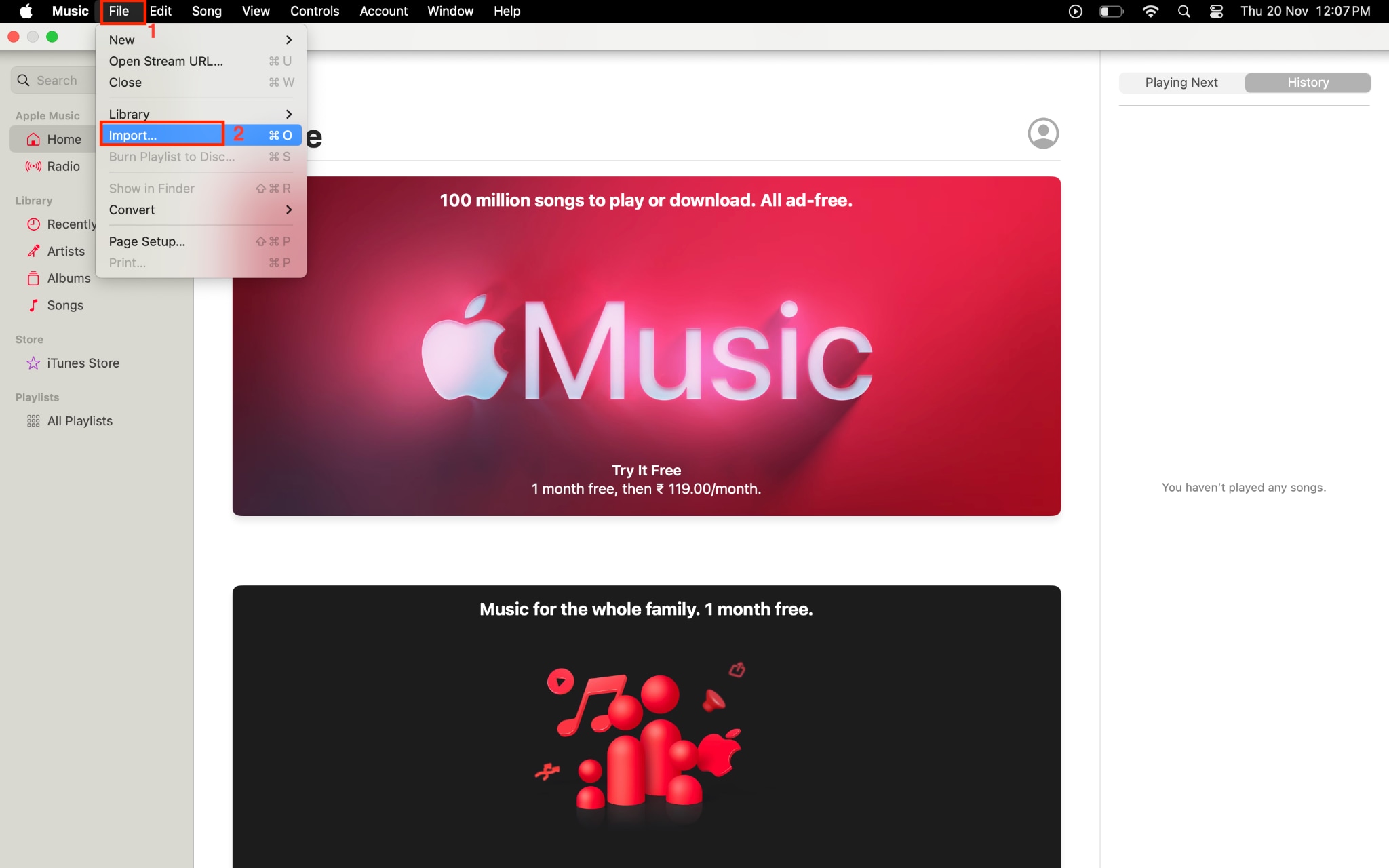
Step 4: To manually import a voice memo, click "File" in the menu bar, then select "Import." Browse to locate your voice memo file (usually in M4A format) and click "Open."
Step 5: Once imported, find your voice memo in the library under the "Songs" section. You can select multiple files at once if you need to convert several voice memos simultaneously.
With your file(s) selected, click "File" in the menu bar, hover over "Convert," then click "Create MP3 Version." The Apple Music MP3 encoder processes your files and creates MP3 copies alongside the originals.
Audio Quality Comparison
| Quality Setting | Bitrate | File Size (per minute) | Best For |
| Good Quality | 128 kbps | ~1 MB | Email attachments, quick sharing |
| High Quality | 192 kbps | ~1.5 MB | General listening, podcasts |
| Higher Quality | 256 kbps | ~2 MB | Professional recordings, archiving |
| Custom | Variable | Customizable | Advanced users with specific needs |
Part 4: How to Convert Voice Memo to MP3 on Windows?
If you've transferred your iPhone voice memos to a Windows PC, you'll want a quick way to convert them to MP3 so they play smoothly on any device. There are both free and feature-rich tools designed for this job. Let's cover the essentials to make your audio universally compatible.
Using Wondershare UniConverter for Windows
Wondershare UniConverter makes converting voice memos to MP3 on Windows, offering a user-friendly design and robust performance. As an all-in-one voice memo converter for PC, it provides super-fast batch conversion, drag-and-drop importing, and automatic format selection for MP3, WAV, and more. If you want to manage multiple files, trim recordings, or need seamless quality, this voice memo to MP3 desktop app is a standout choice for professionals, students, and creators.
Voice Memo to MP3 Converter
How to use Voice Memo Converter for PC
By following these steps, you can easily get a voice memo to MP3 on a desktop.
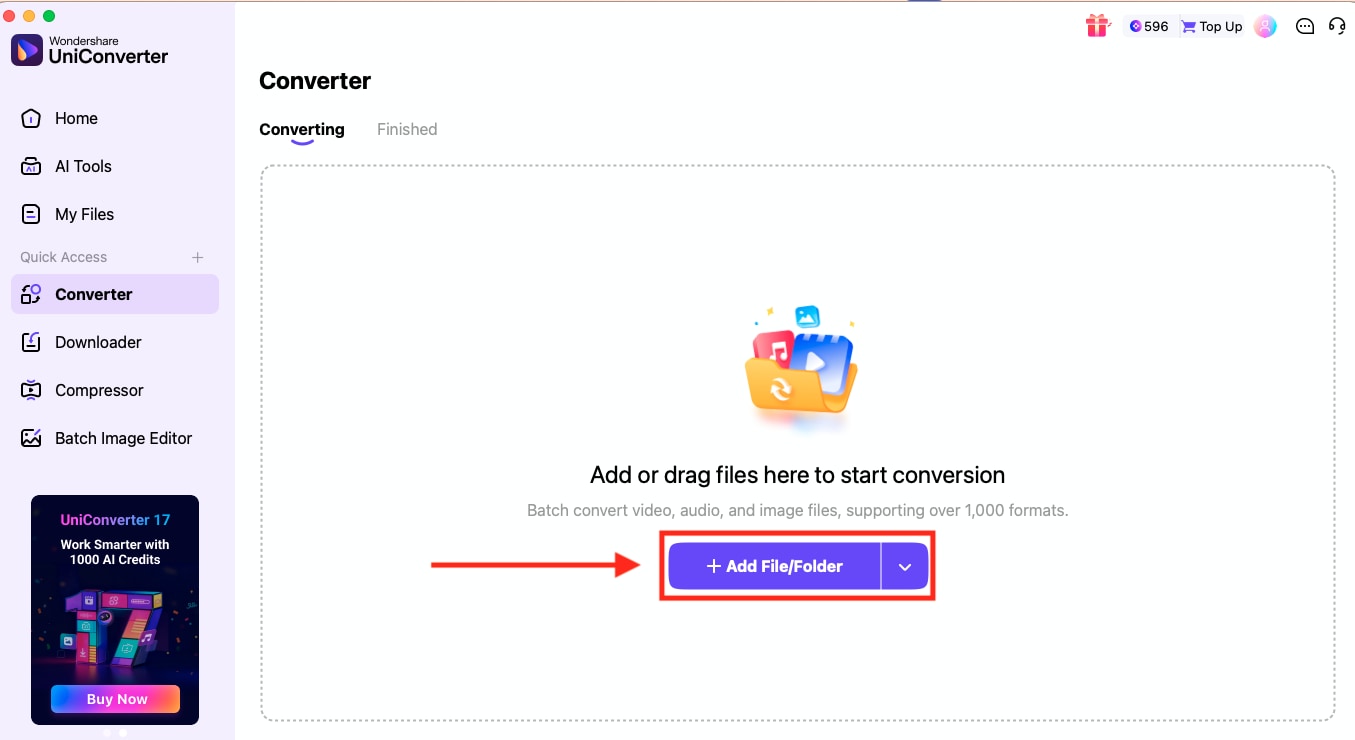
Step 1: Launch Wondershare UniConverter on your Windows computer, then select "Converter" from the main dashboard.
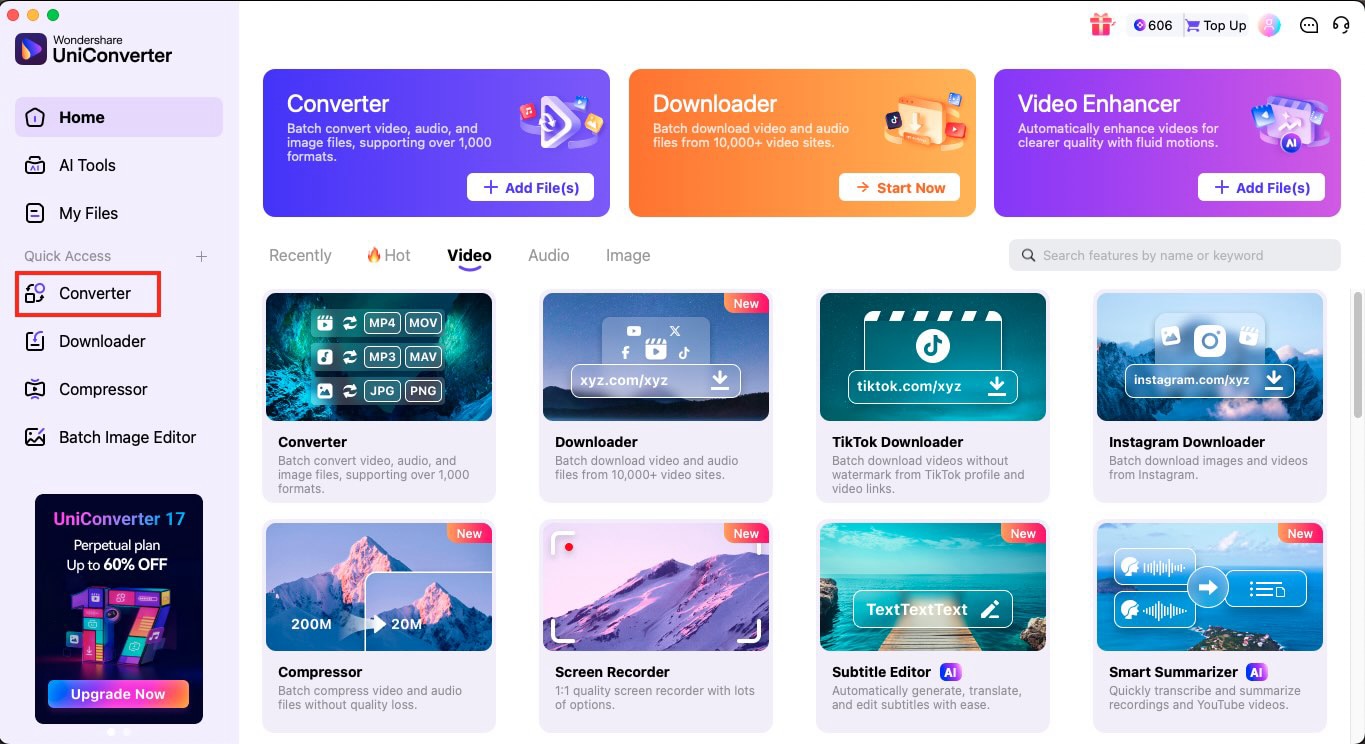
Step 2: Click "Add Files or Add Folder" to add your audio/video files, or drag and drop multiple items for fast batch importing.
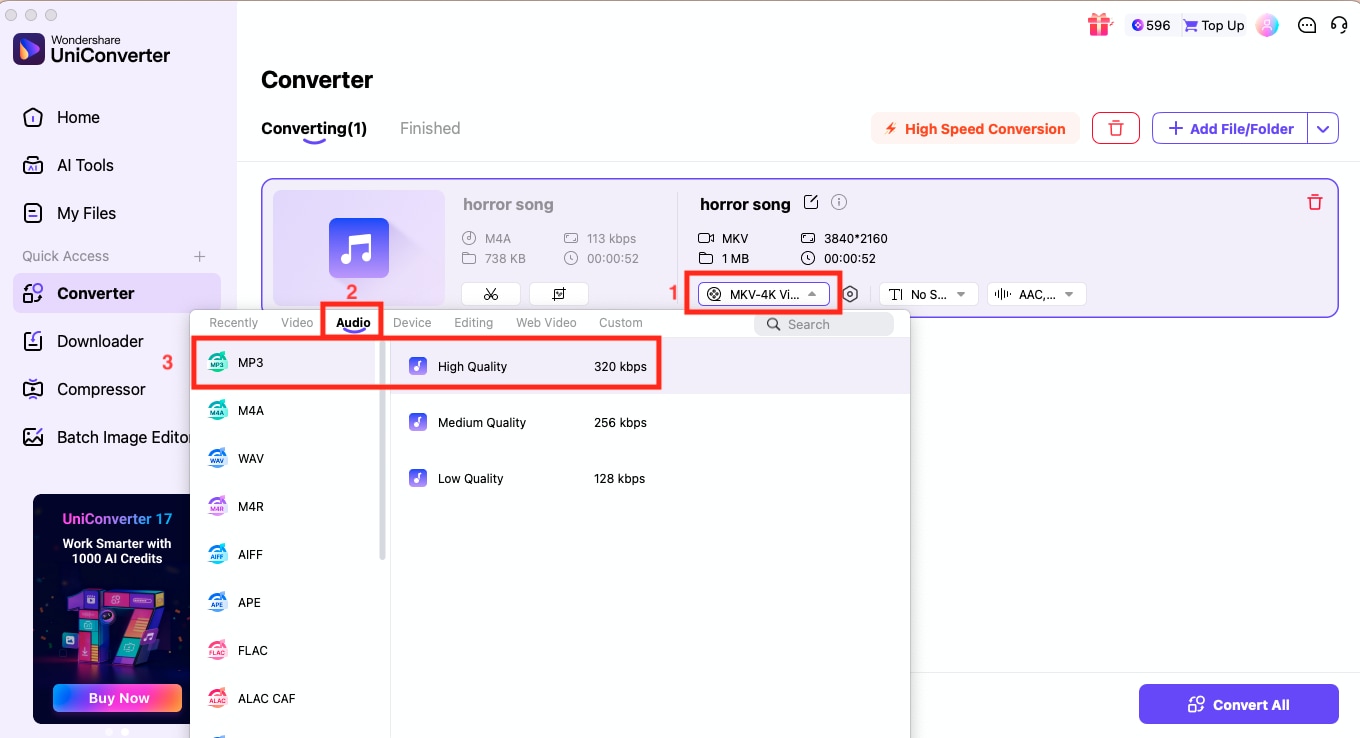
Step 3: Open the "Convert to" menu, switch to the Audio tab, and select your output format (MP3, WAV, FLAC) and the quality you prefer.
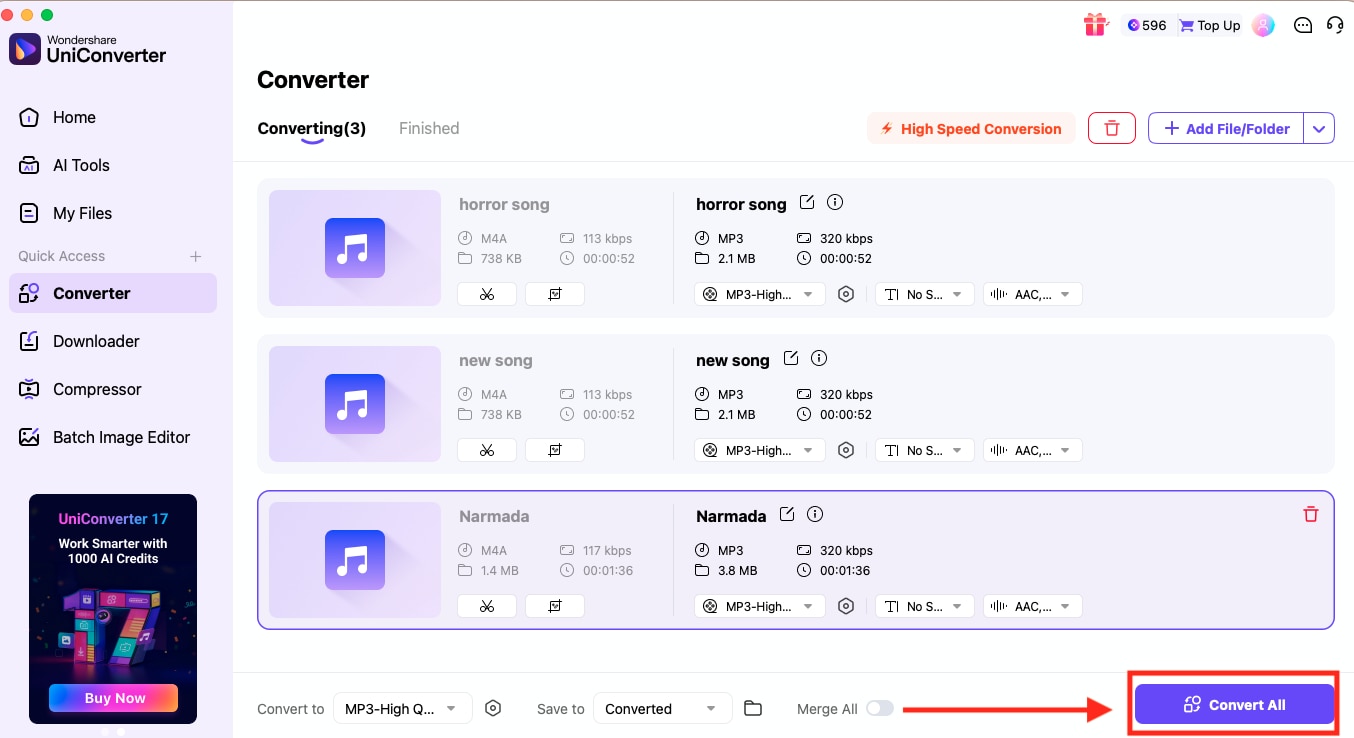
Step 4: Press "Convert All" to begin converting, then tap the folder icon next to File Location to quickly find your newly converted audio files.
VLC Media Player
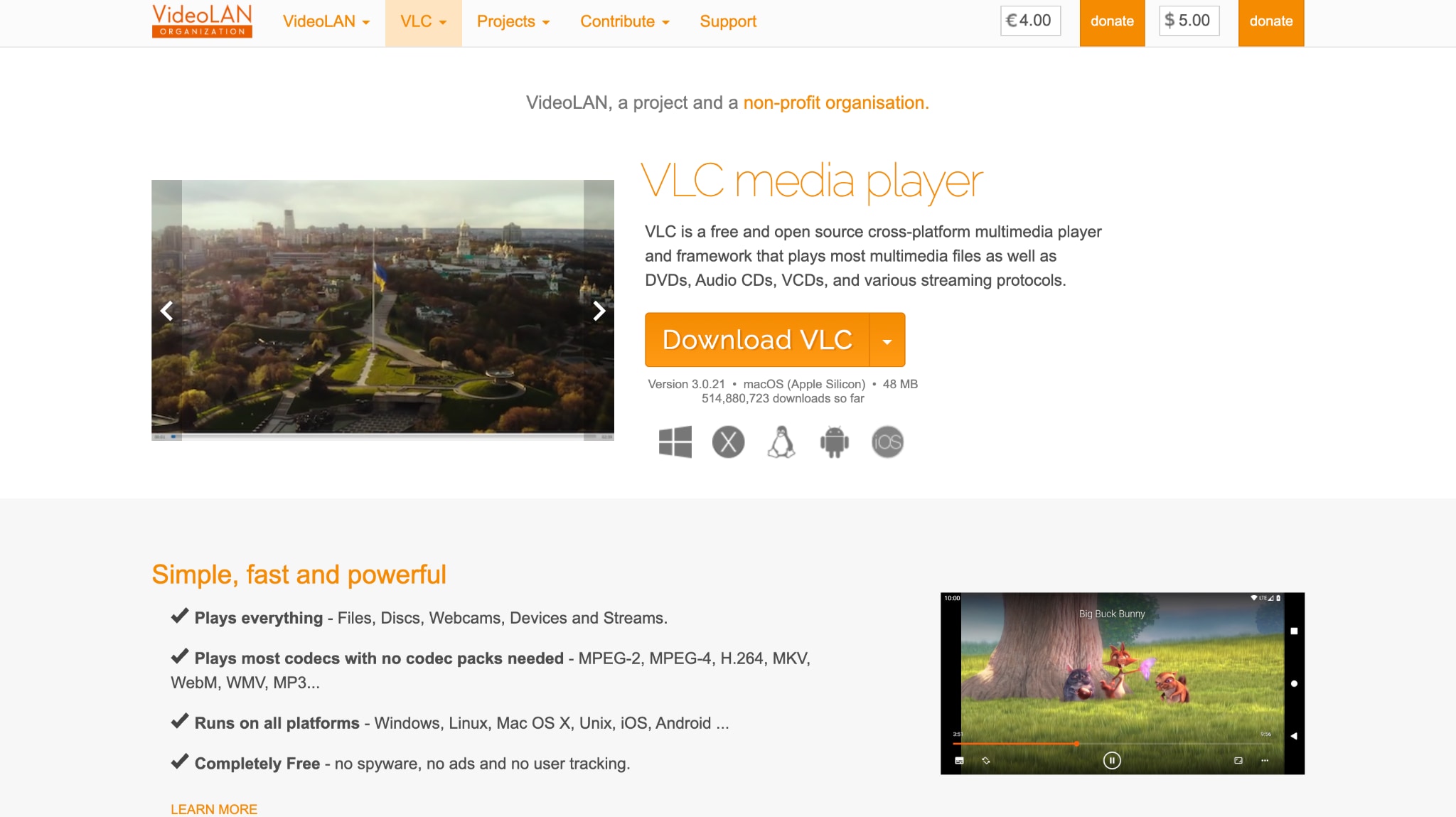
VLC Media Player is a free, open-source, and highly versatile tool ideal for converting voice memos on Windows. Beyond its simple playback capabilities, VLC supports a wide range of audio and video formats without requiring additional codecs, making it an excellent choice for anyone looking to quickly convert a voice memo to MP3. Its straightforward conversion feature lets you easily turn voice notes into MP3 files with minimal setup. VLC's reliability, cross-platform compatibility, and no-cost availability make it a popular voice note to MP3 converter for basic and occasional conversion needs.
How to Use VLC for Converting Voice Memo to MP3
Here is how you can easily convert a voice memo to MP3 with VLC
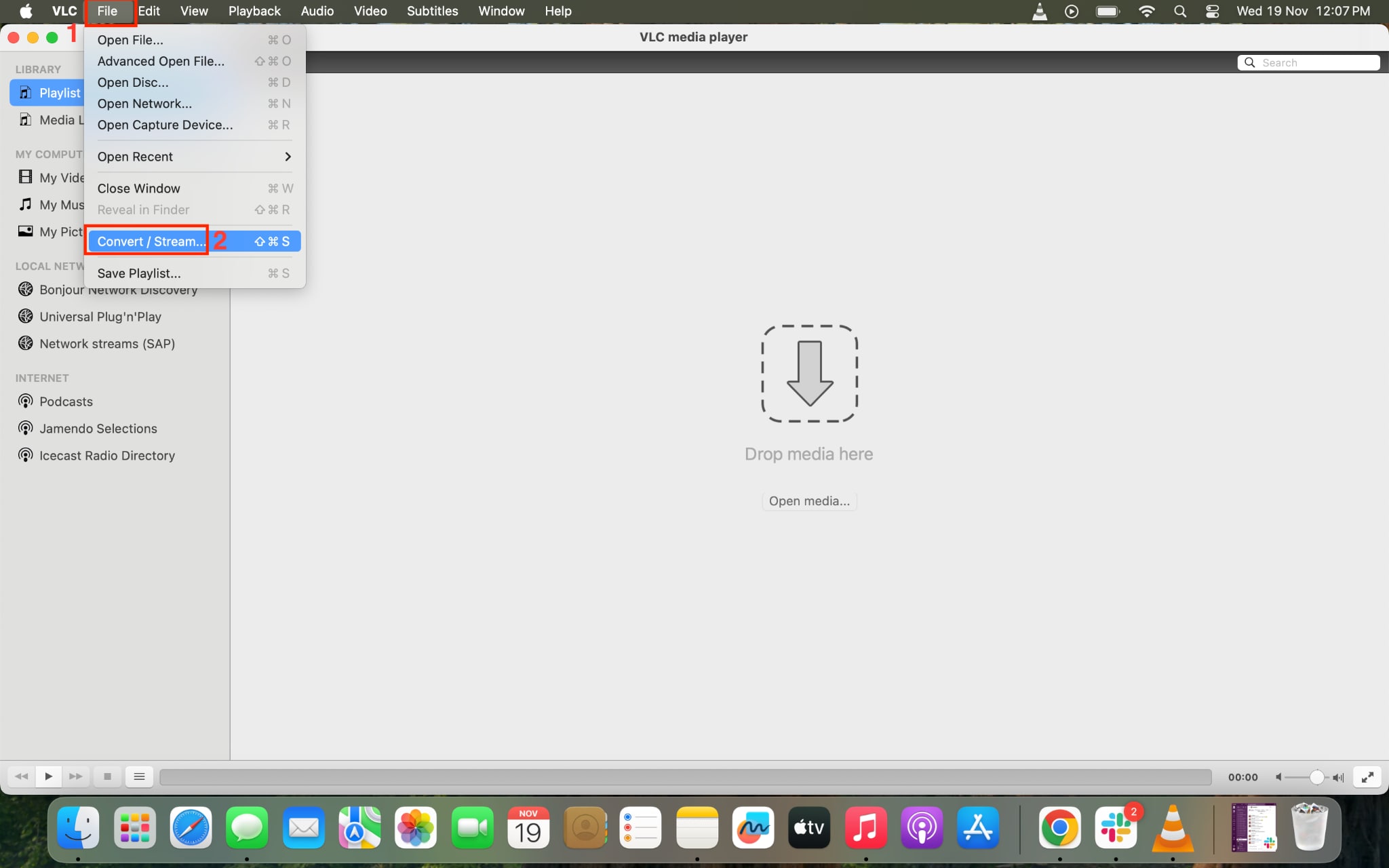
Step 1: Launch VLC on your desktop and click "File" on the menu bar, and select "Convert/Stream."
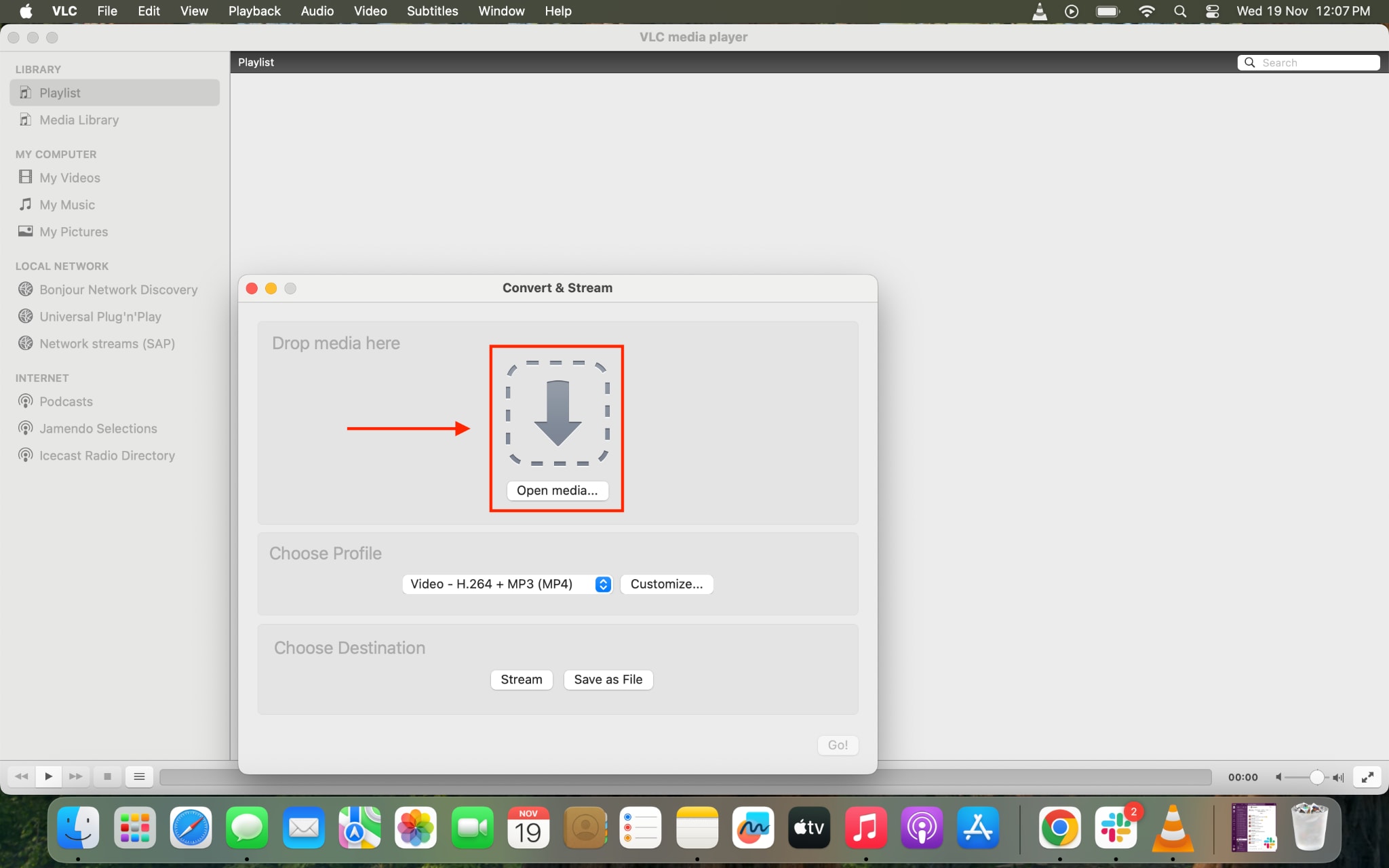
Step 2: Click on "Open Media" to upload a voice memo from your device.
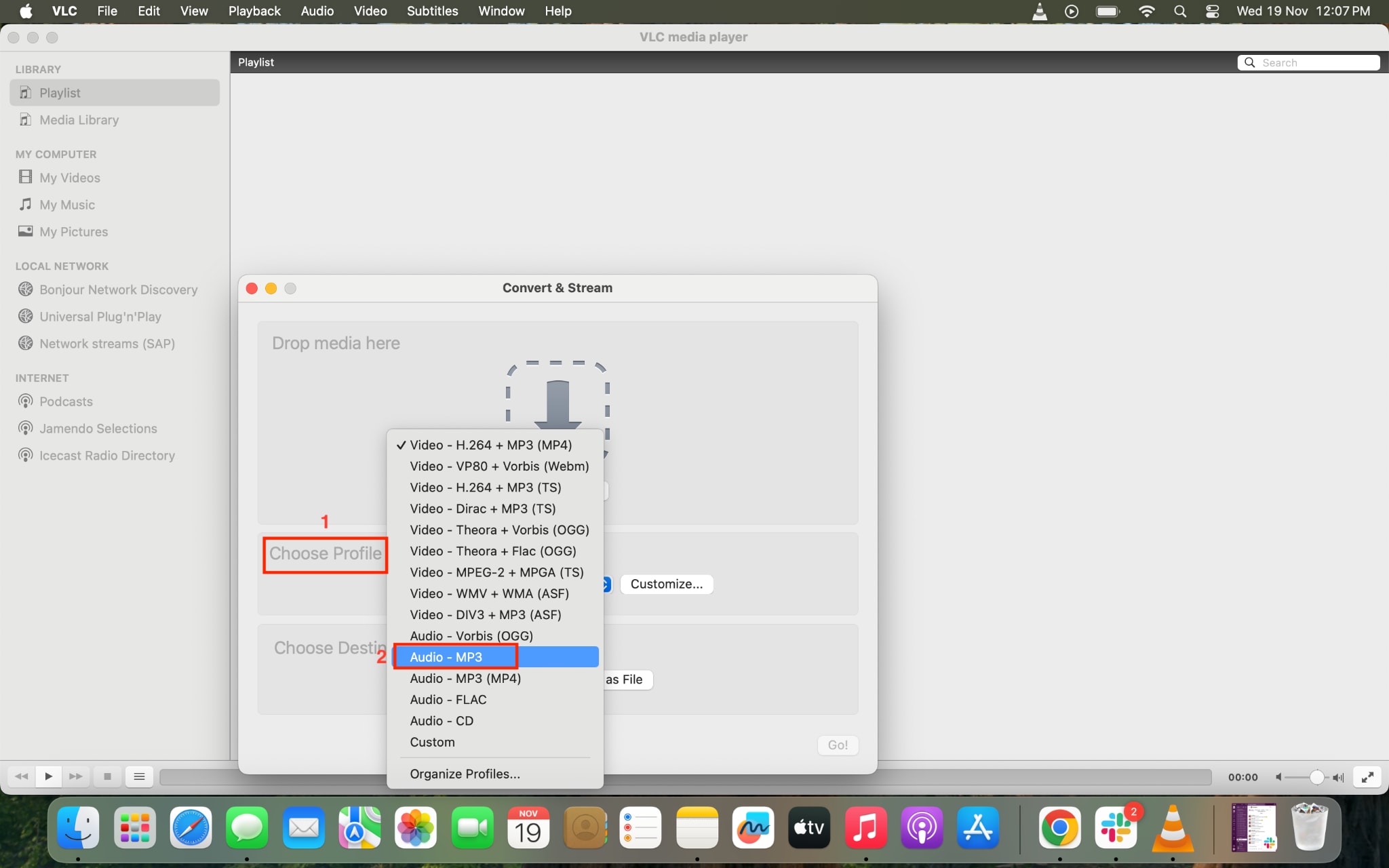
Step 3: From the "Choose Profile" menu, choose MP3 format, and you can also customize the audio file. Here you can customize codec, bitrate, channels, and samplerate.
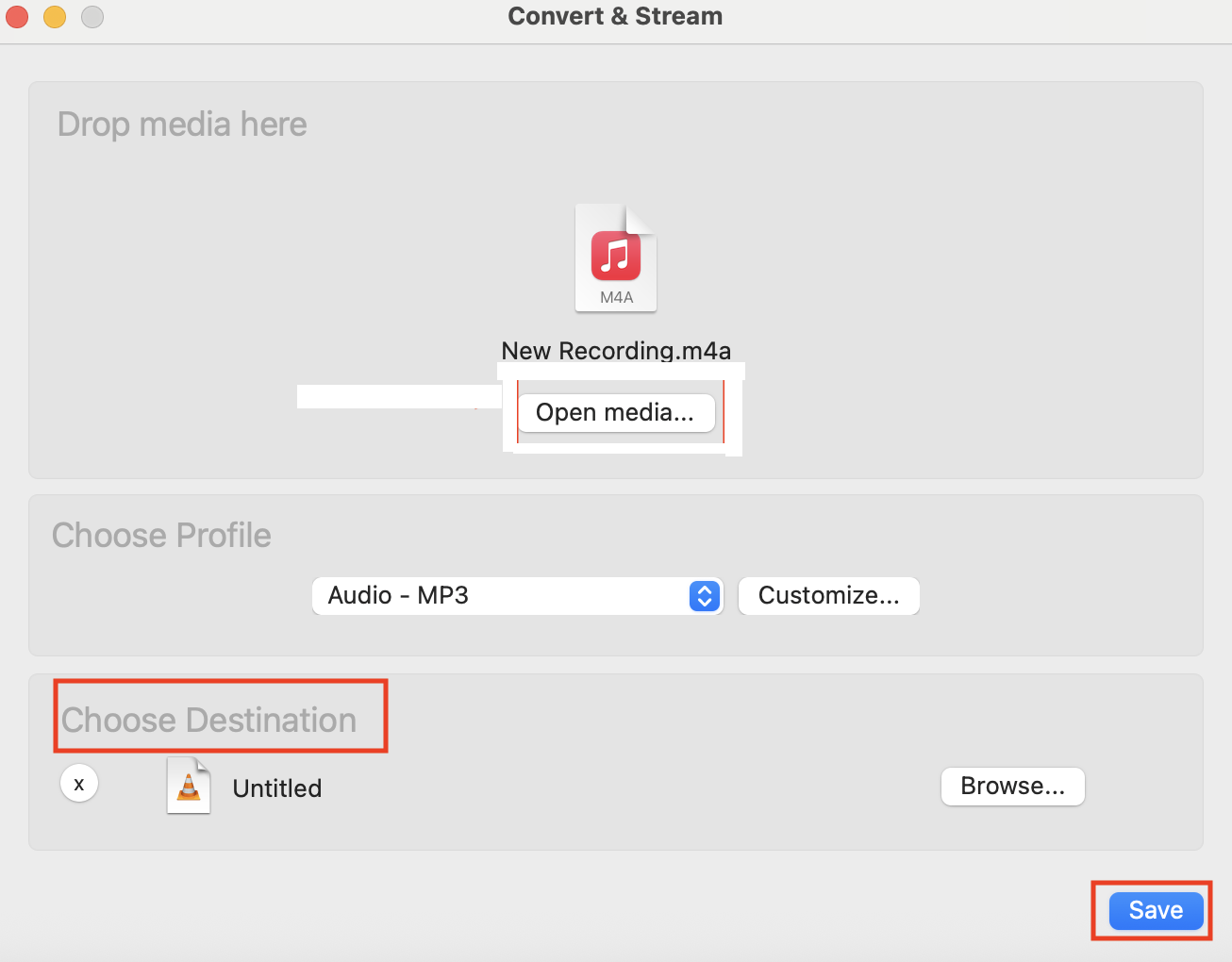
Step 4: Click "Choose Destination" to select the file location, then click "Save."
Part 5: How to Convert A Voice Memo to MP3 Online (Free & Fast)?
If you want to convert a voice memo to MP3 online for free and quickly, try UniConverter. Here is the step-by-step guide and online converters that make your conversion fast and easy:
Convert Voice Memo to MP3 Online (Using the Voice Memos App + Files App + Online Tool)
Converting your voice memo to MP3 online is perfect when you don't want to install software or need a quick solution on any device. Here's how to export your recording and transform it into a universally compatible MP3 format.
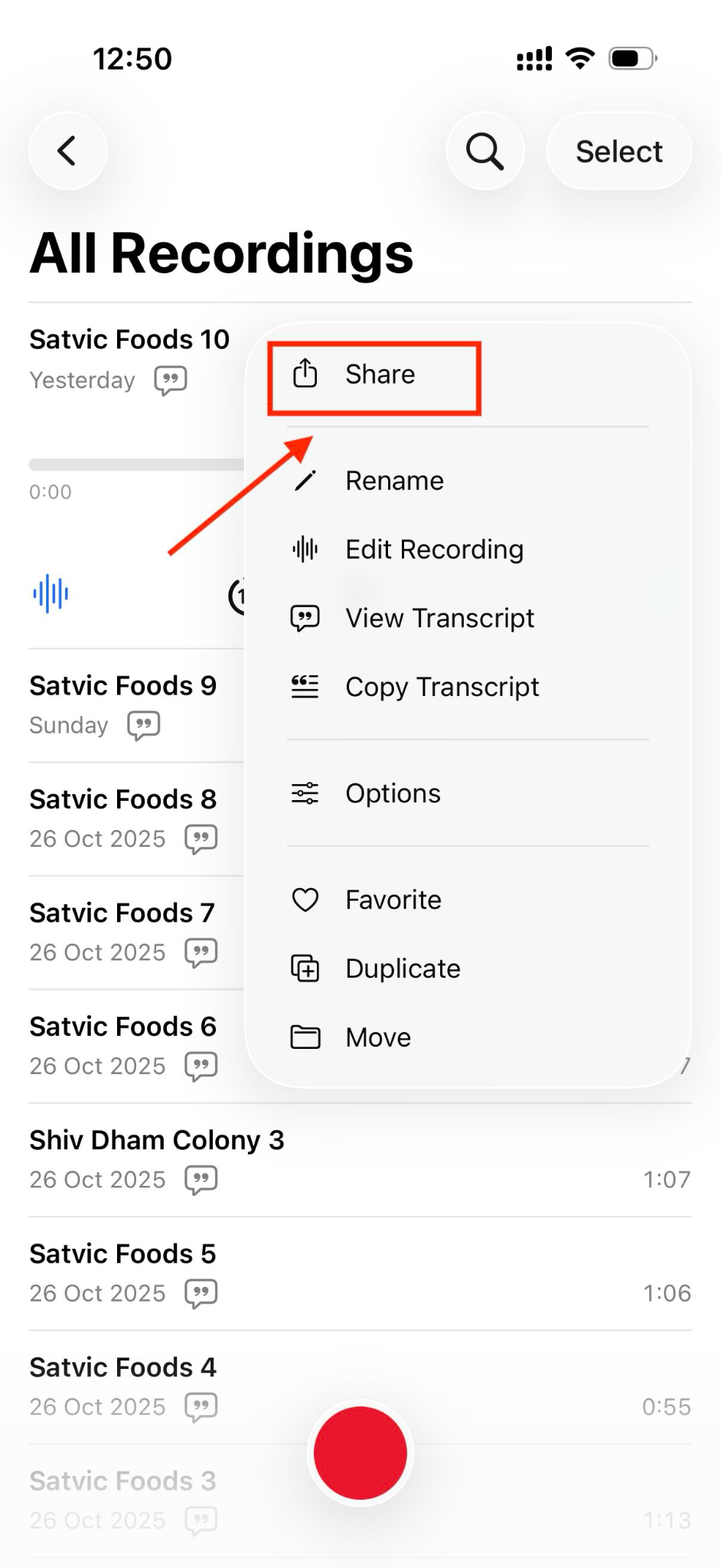
Step 1: Open the Voice Memos app on your iPhone and find the recording you want to convert. Tap the three dots next to the voice memo and select "Share." This exports your recording in its native M4A format to the Files app, where it's ready for conversion.
Understanding the M4A Format Limitation
When you save a voice memo, it's stored in M4A format by default, Apple's compressed audio codec. While M4A works fine on Apple devices, many Windows computers, older media players, and some online platforms don't recognize this format. This is why converting to MP3 matters: MP3 is universally accepted across all devices and platforms. Online converters bridge this gap by taking your M4A file and transforming it into MP3, making it compatible everywhere you need to share or use it.
UniConverter Online Converter
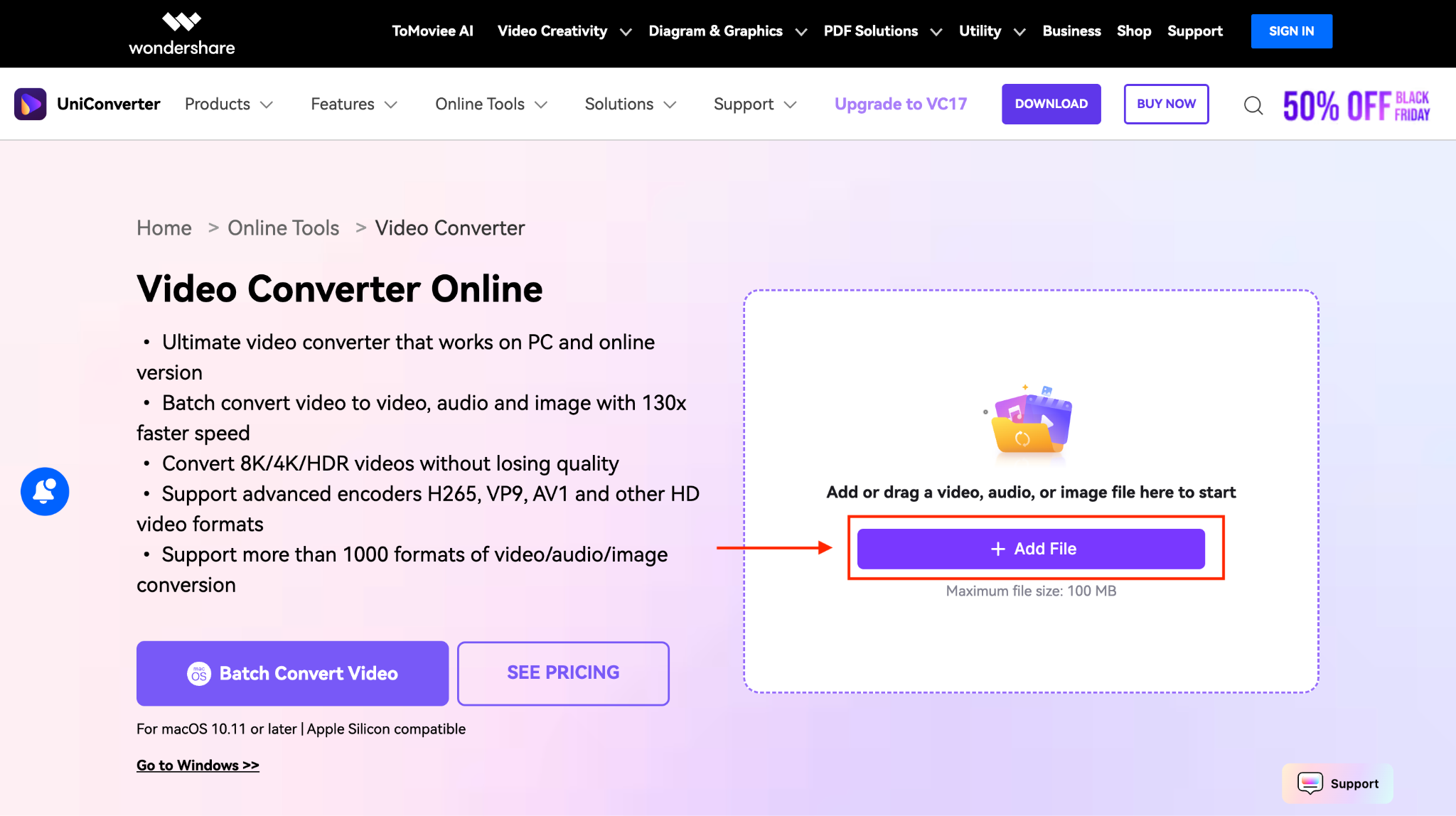
UniConverter's web-based voice memo to MP3 converter online free tool lets you convert M4A to MP3 instantly without downloading software. Simply upload your voice memo, choose MP3 as the output format, and download it within seconds. The free online version handles most conversion needs perfectly, while the premium desktop version offers batch processing and advanced editing for power users.
How to Convert Voice Memo to MP3 Online Using UniConverter
Here is how you can convert a voice memo to MP3 with an online tool
Step 1: Open your web browser and navigate to UniConverter's online audio converter tool. Click "Add File" to upload a voice memo.
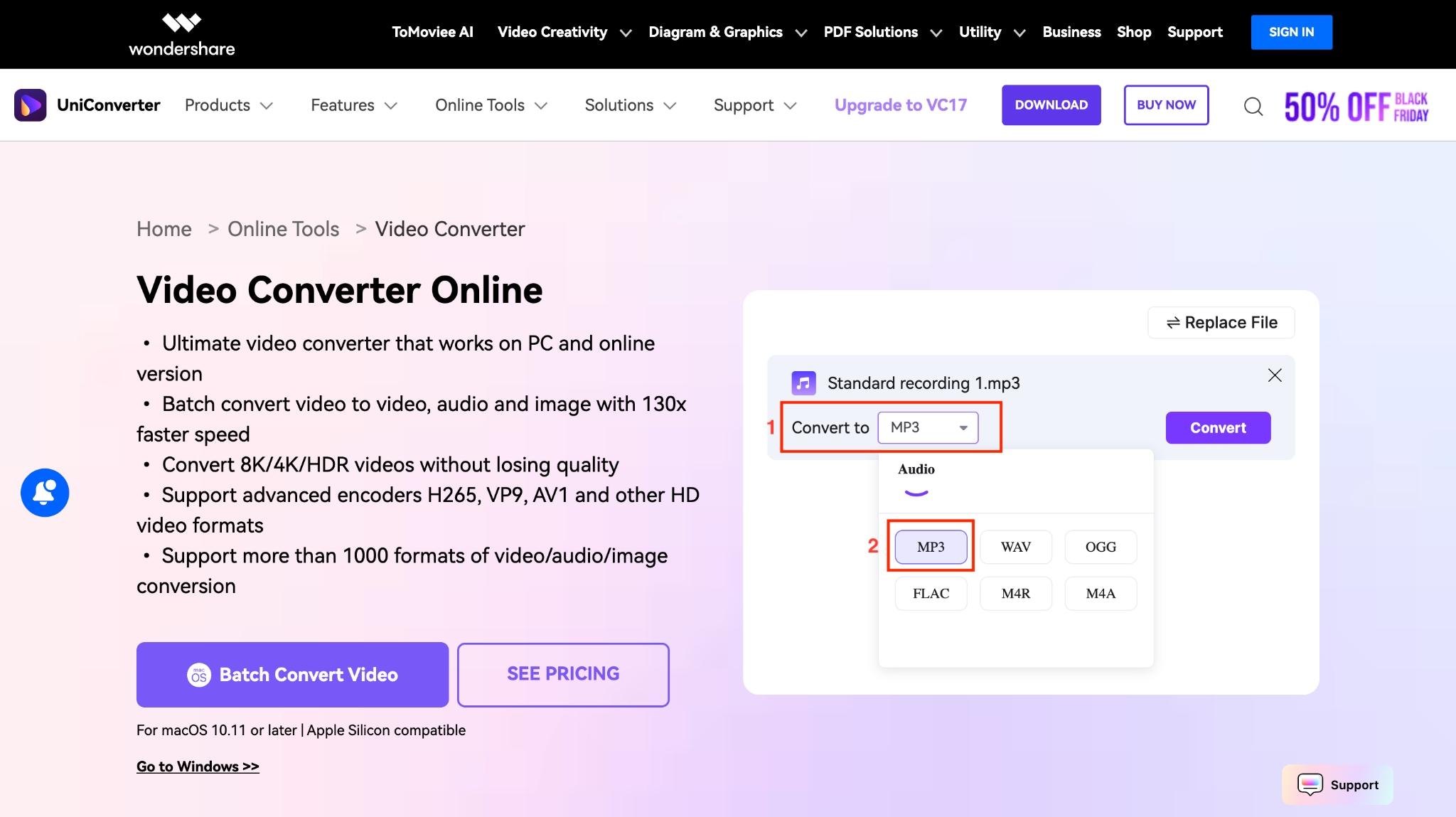
Step 2: After uploading the file, choose MP3 format from the "Convert to" menu.
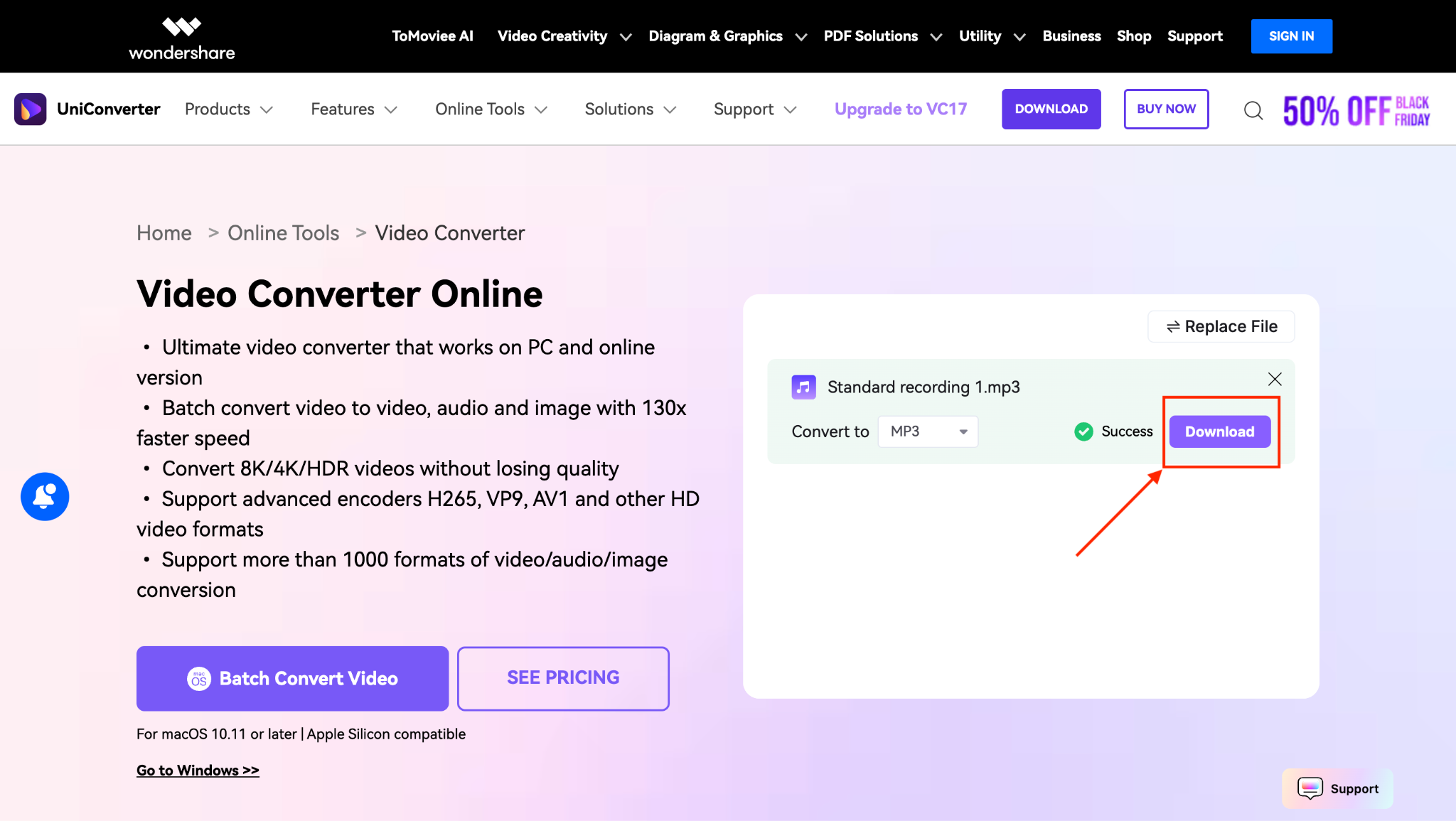
Step 3: Click the "Download" button to get a voice memo in MP3.
Why Choose UniConverter Online?
- Completely free with no file size restrictions on the web version
- No software installation required
- Works on Windows, Mac, and Linux
- Fast conversion powered by cloud processing
- Your files are automatically deleted after 24 hours
Zamzar
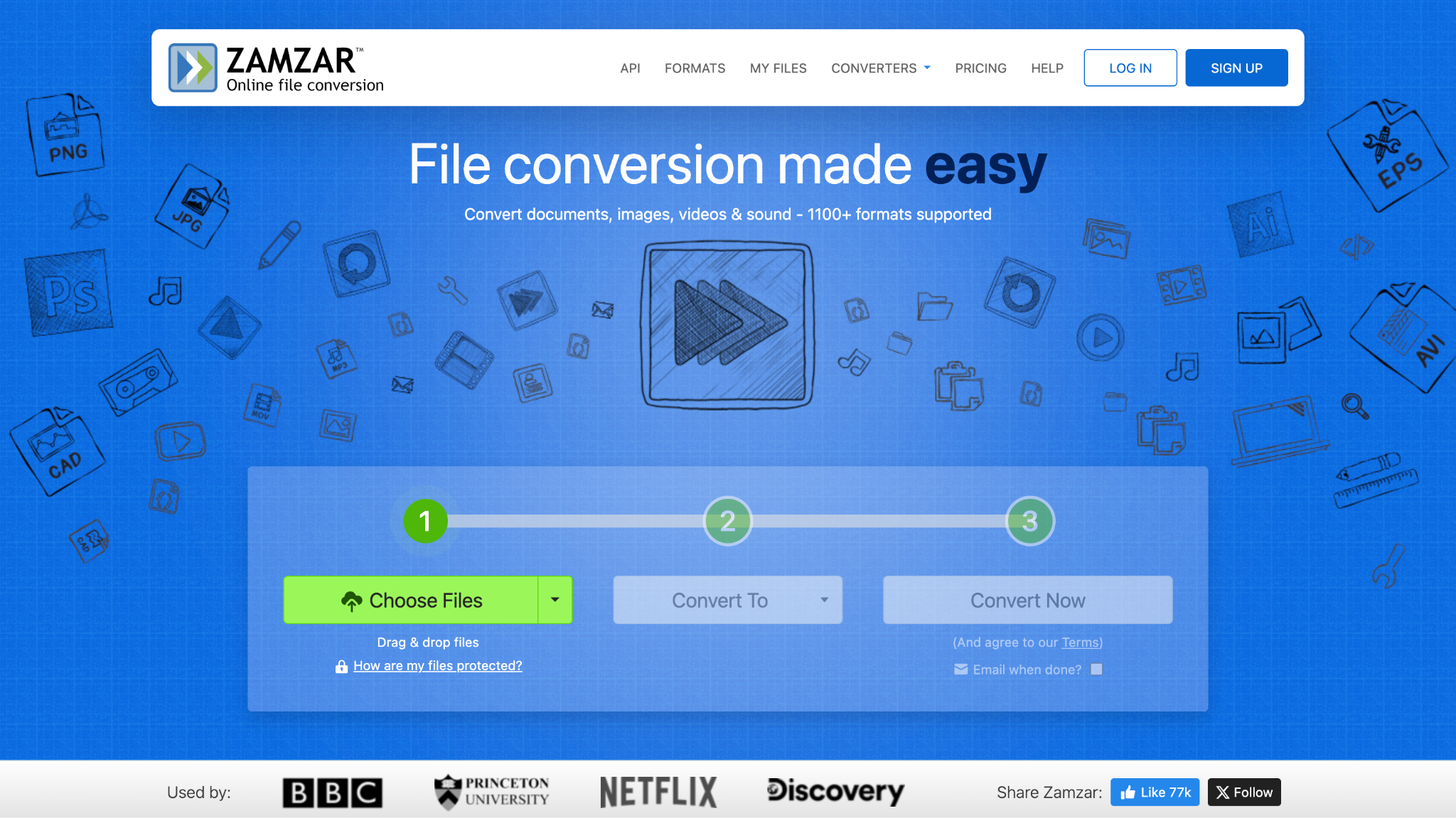
Zamzar has been a go-to voice memo to MP3 converter online free since 2006, supporting 1,200+ file formats. Upload voice memos, choose MP3 output, and receive your converted file via email or instant download. The platform emphasizes reliability and has converted billions of files, making it a trusted choice for anyone needing straightforward format conversion.
How to Convert Voice Memo to MP3 Using Zamzar
Here is how you can get a voice memo to MP3 online:
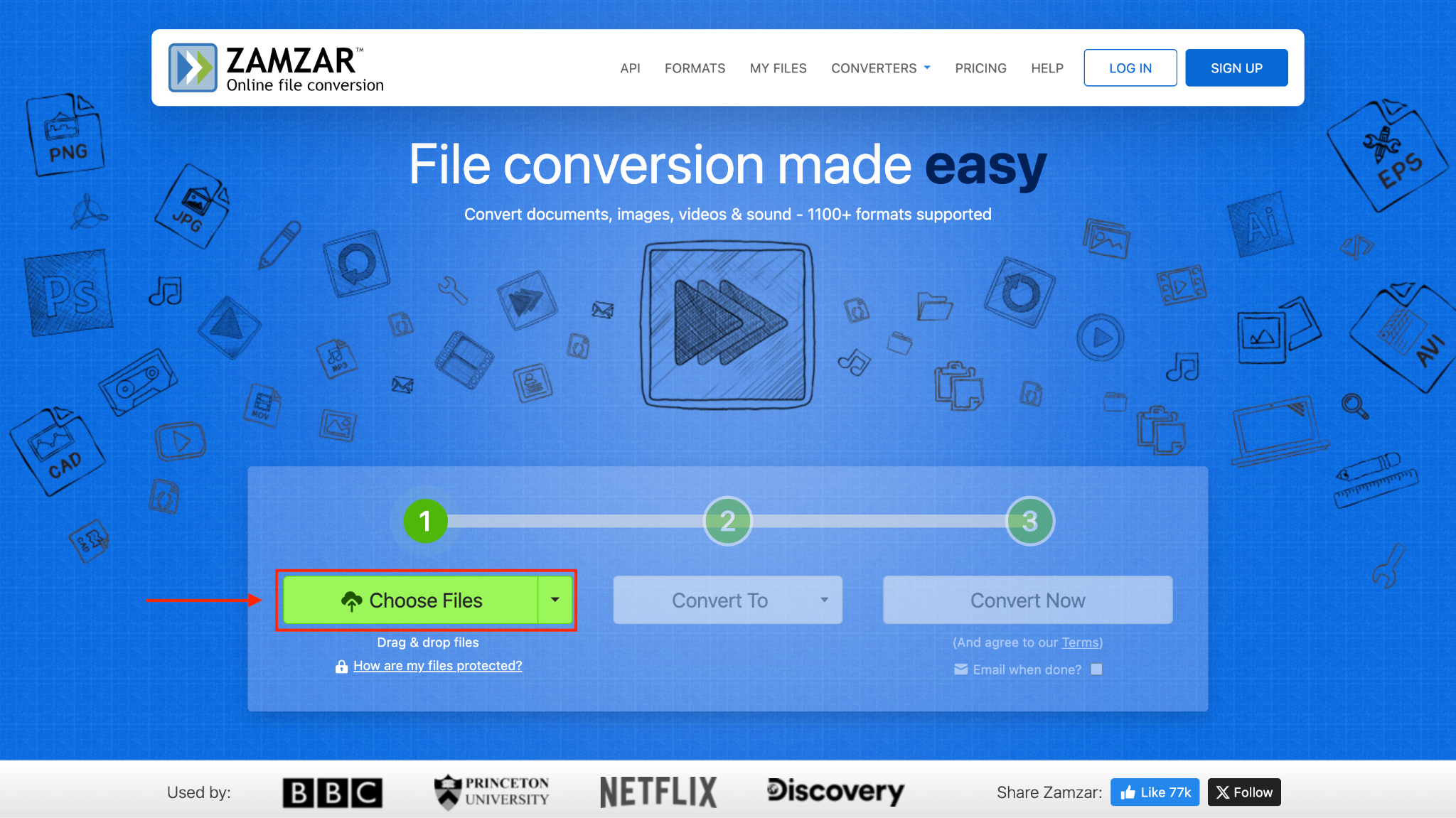
Step 1: Go to Zamzar's M4A to MP3 converter page. Click "Choose Files."
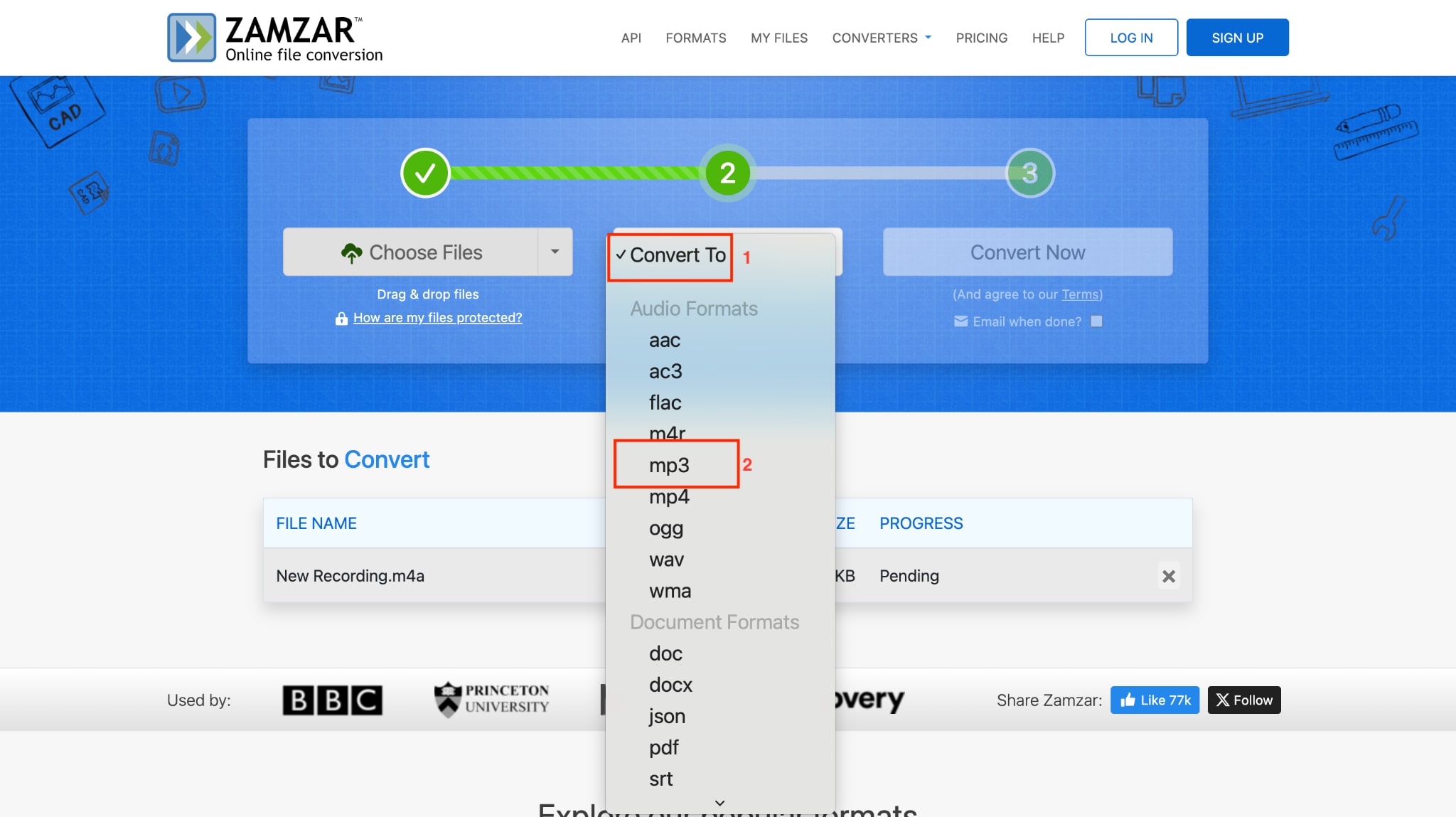
Step 2: After uploading the file, click the "Convert to" button, then choose MP3 from the dropdown menu.
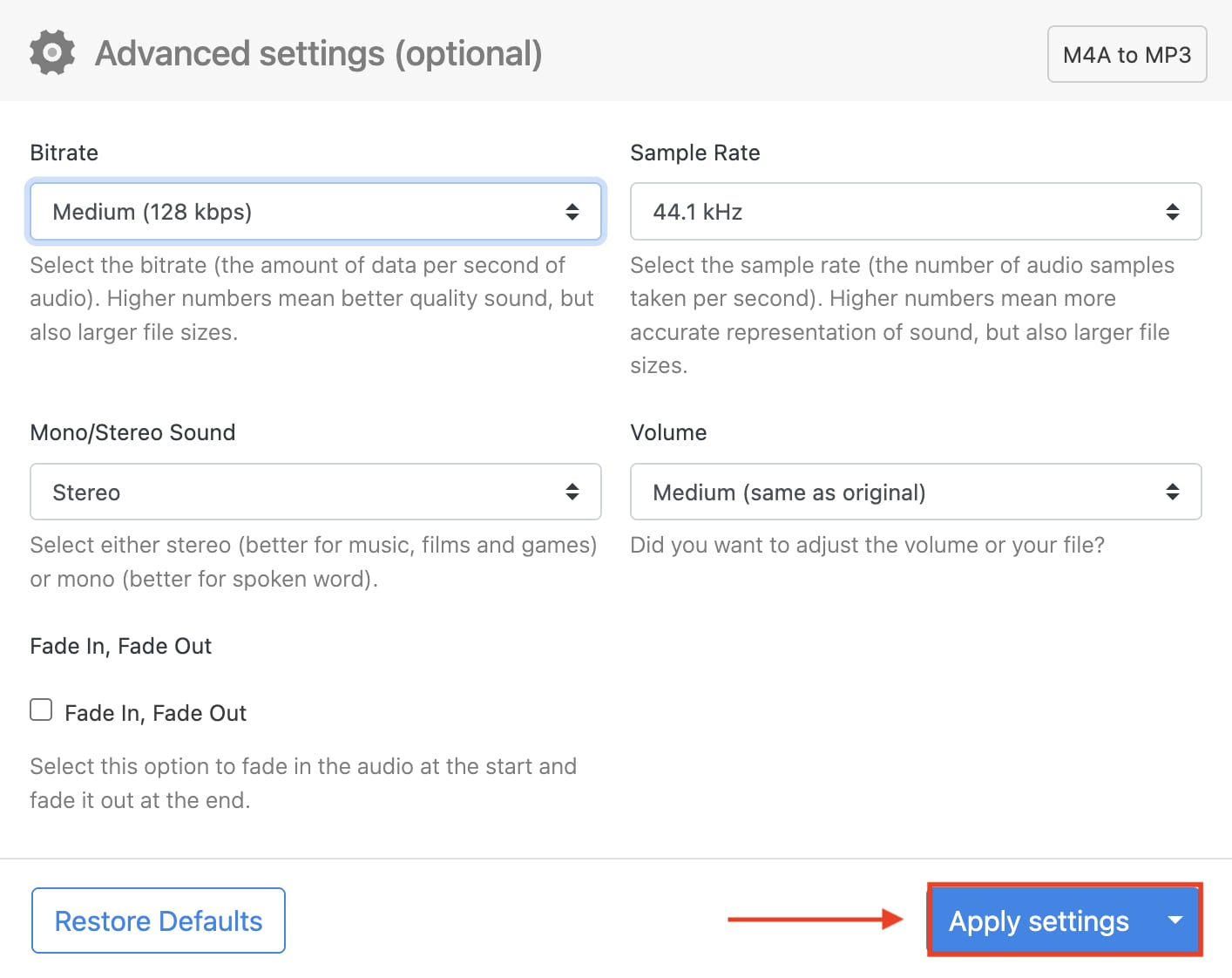
Step 3: After choosing the format, an "Advanced Settings" pop-up will appear. Adjust the settings and click the "Apply Settings" button.
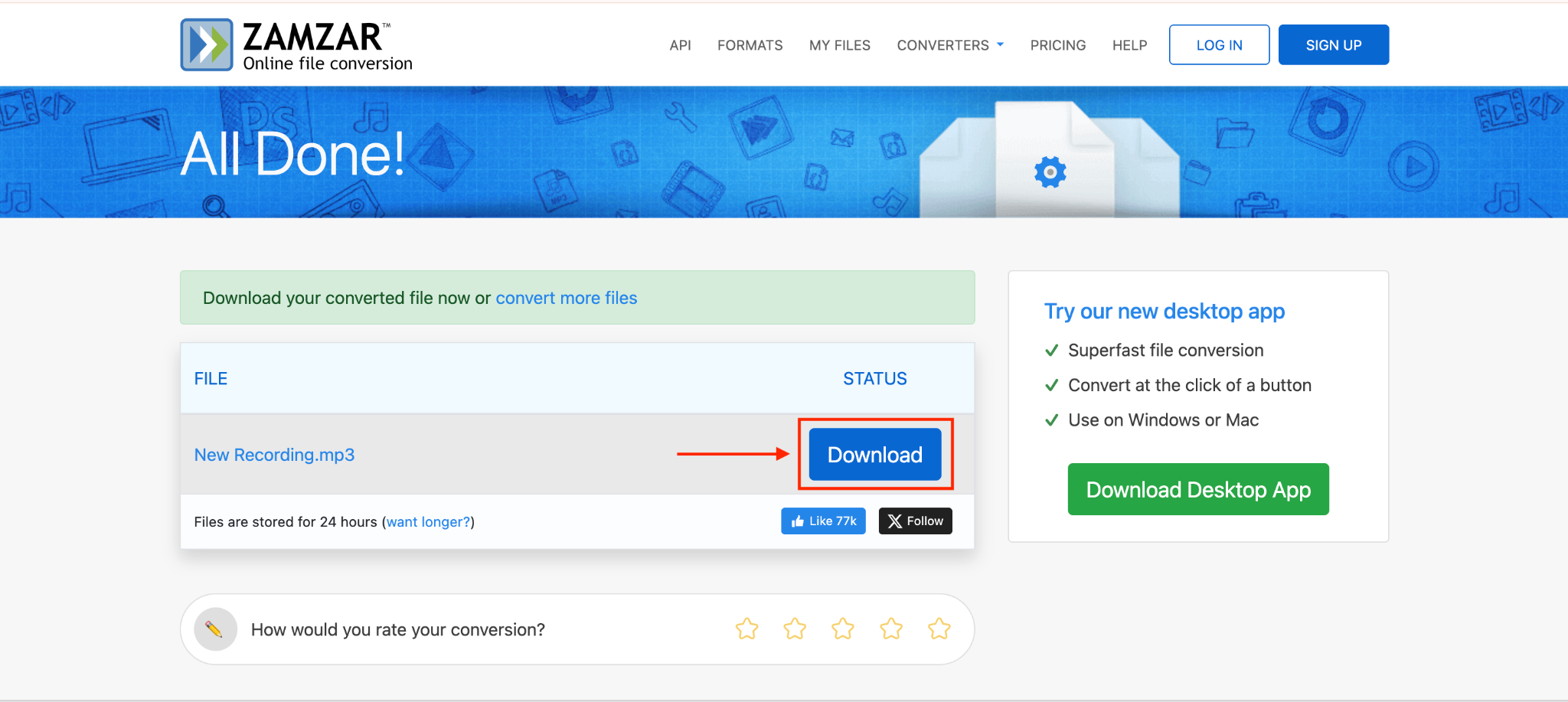
Step 4: Click the "Convert" button, and processing will take a few minutes. After processing, click "Download" to save the MP3 file.
Free Convert
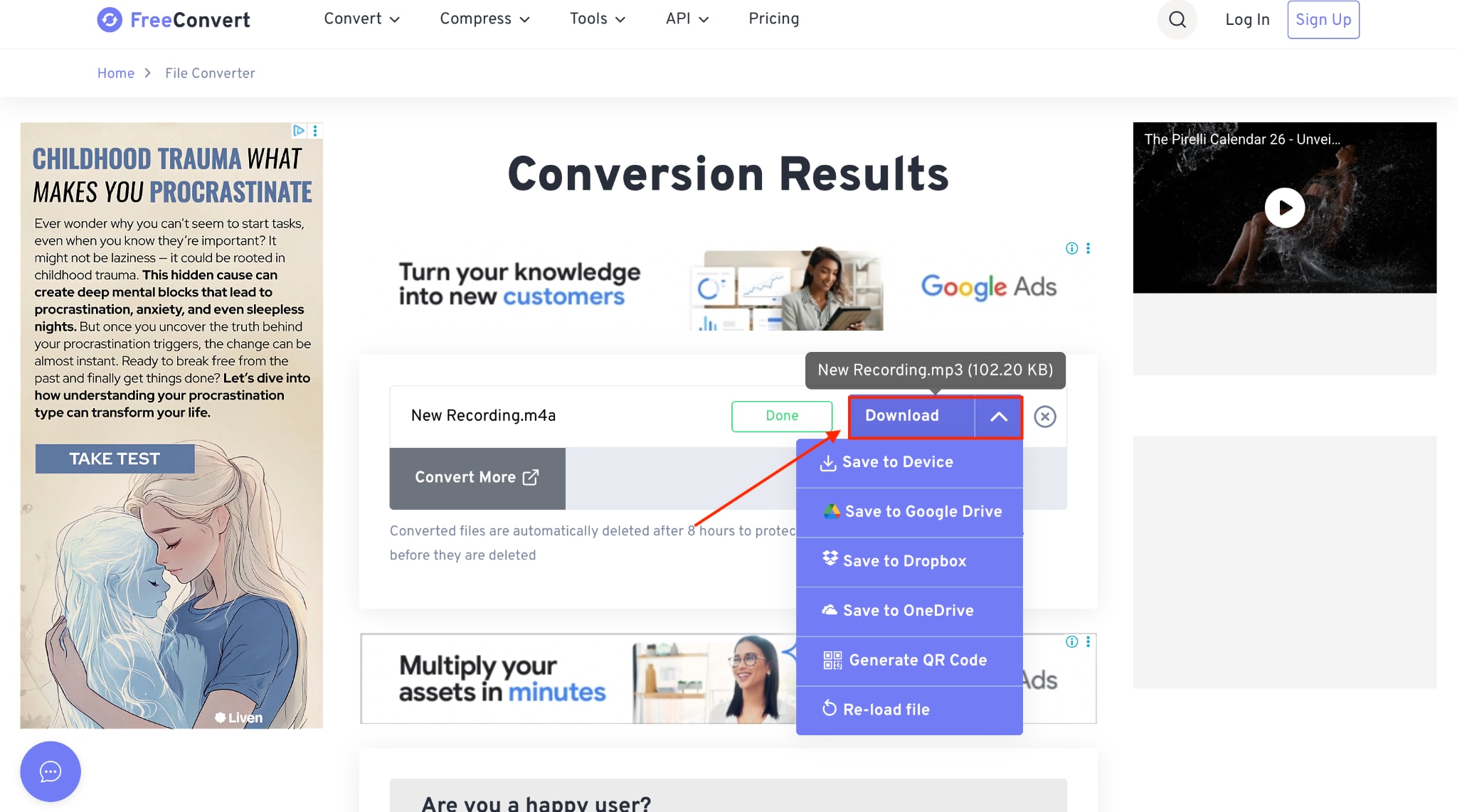
FreeConvert is a robust online file converter that supports over 1,500 formats, including M4A to MP3 conversions. This trusted platform works seamlessly on Windows, Mac, Linux, or any mobile device and supports all major browsers. FreeConvert uses 256-bit SSL encryption to ensure secure data transfer and automatically deletes your files after a few hours, prioritizing your privacy.
How to Convert Voice Memo to MP3 Using FreeConvert
Follow these steps to convert a voice memo to MP3 online quickly:
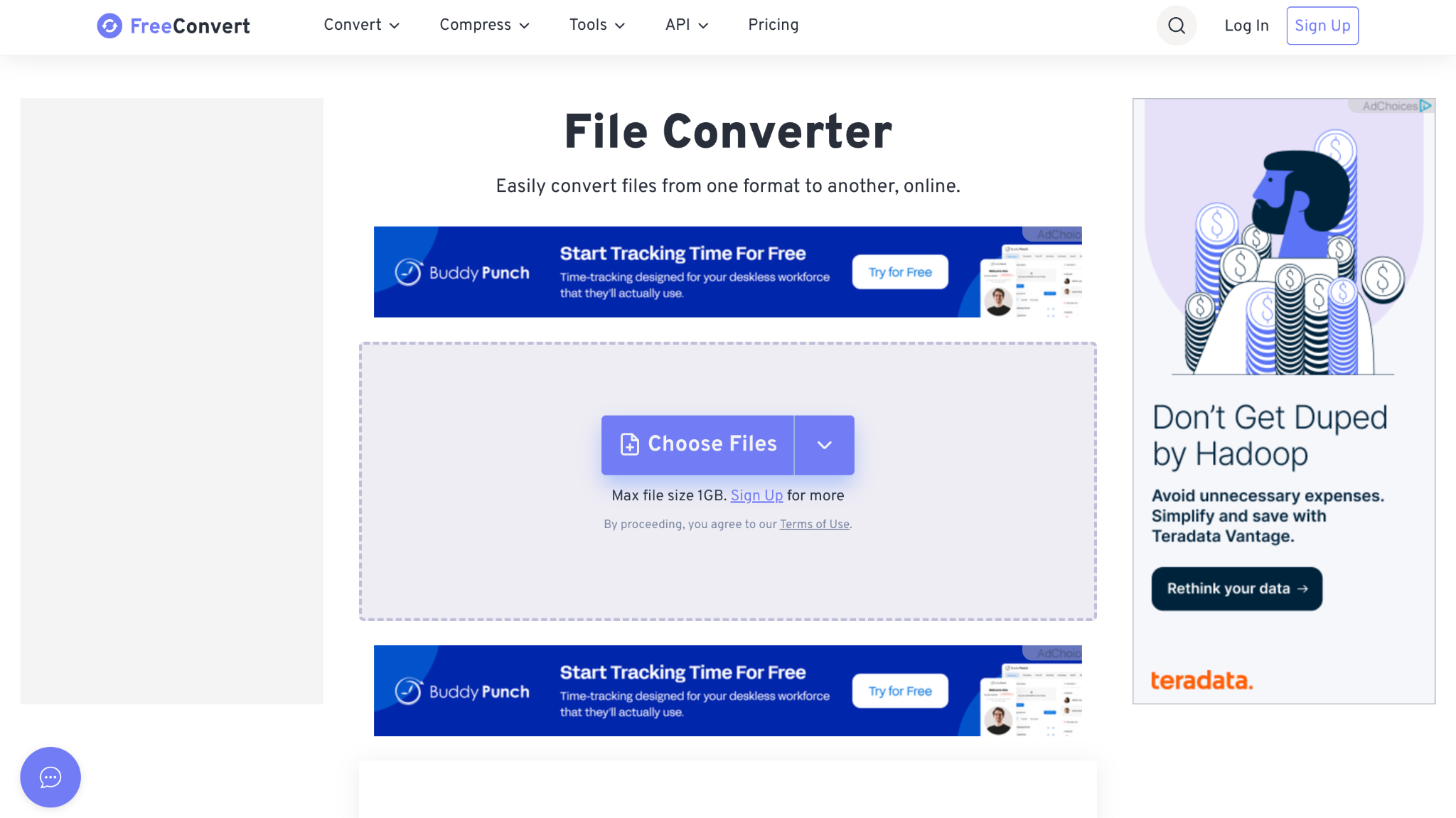
Step 1: Visit the official website and click "Choose File" to upload the voice memo.
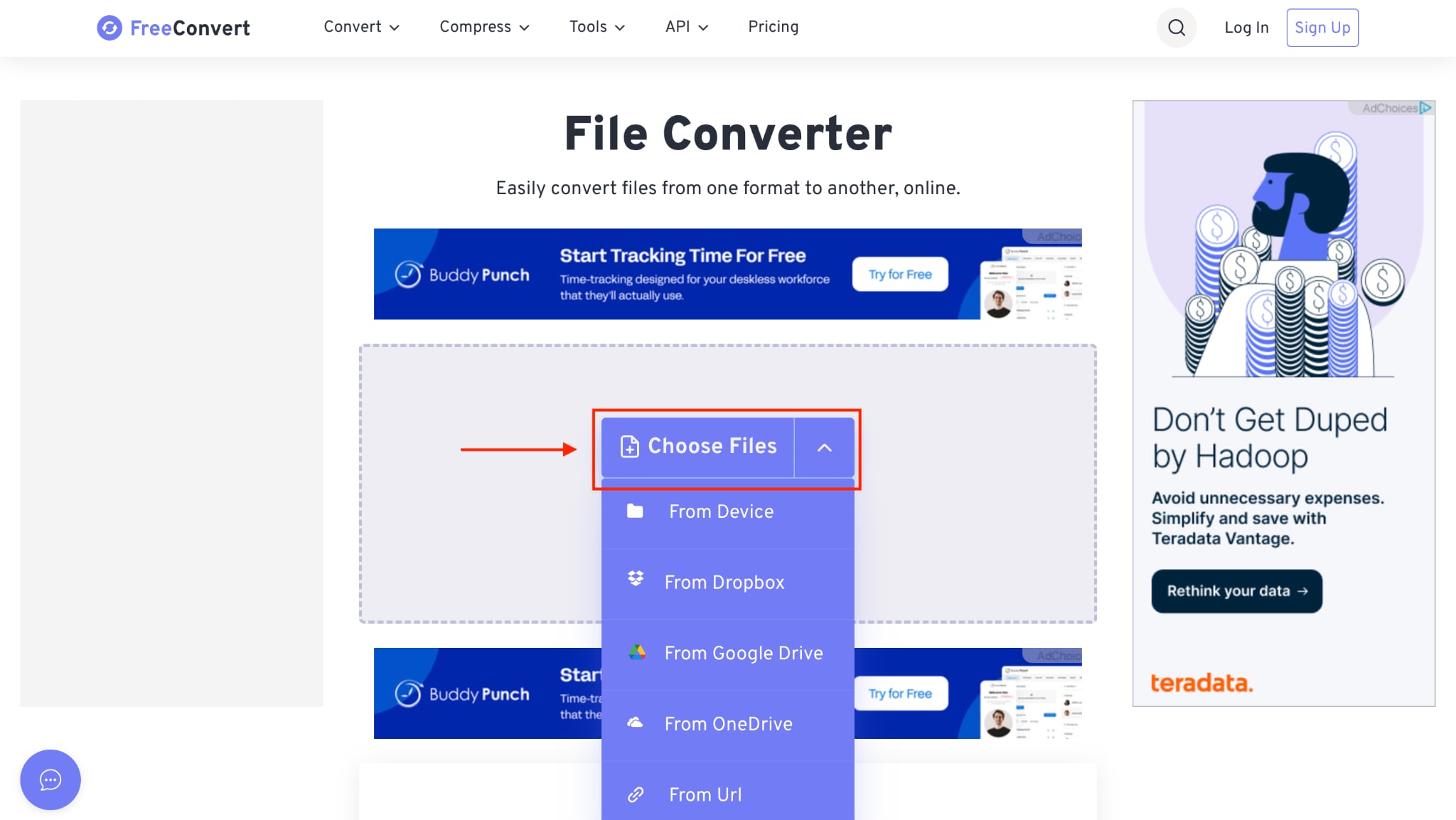
Step 2: Click "Output" and select MP3 from the dropdown menu.
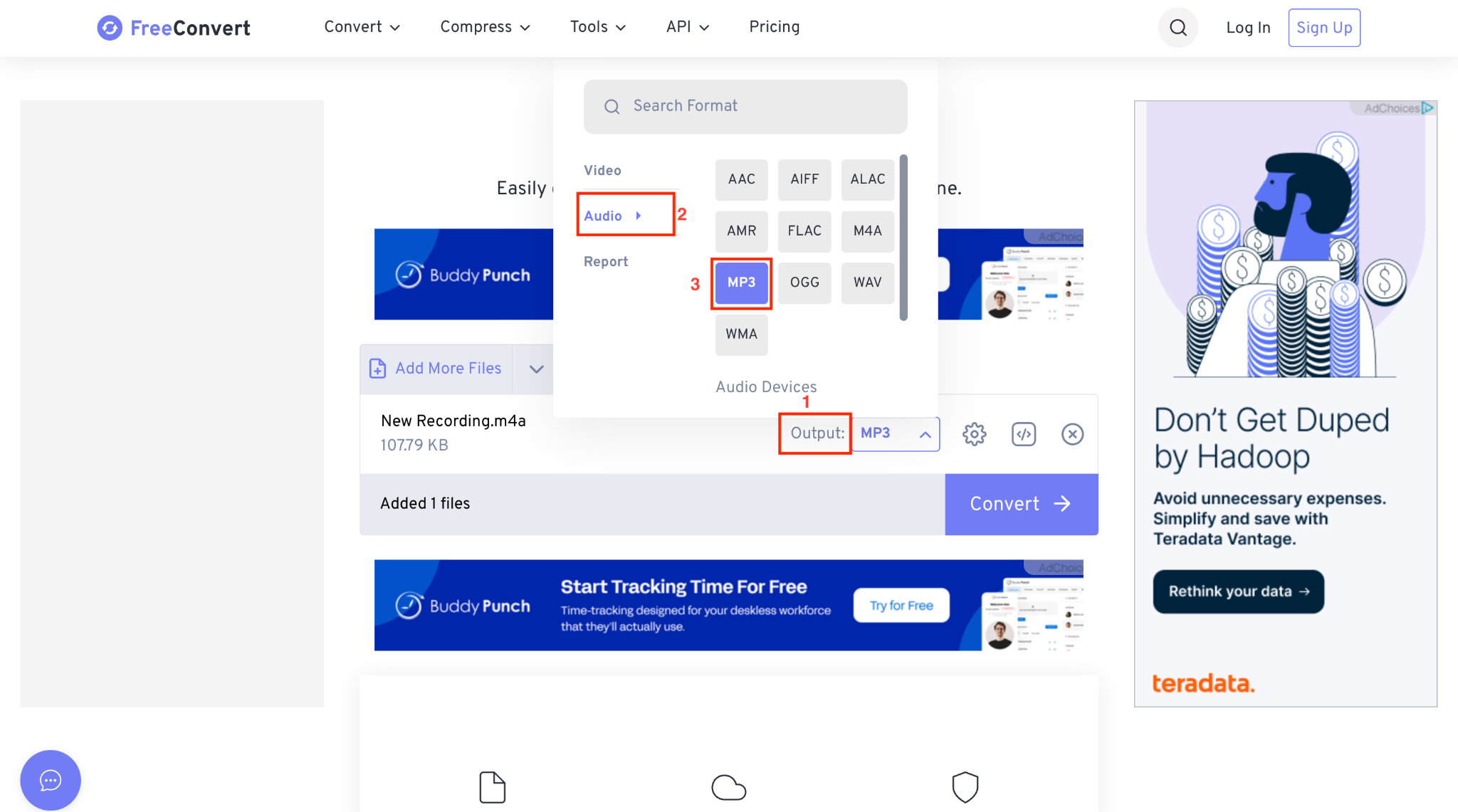
Step 3: Click on the "Download" button to save the audio in MP3 format.
Privacy and File Size Tips
When using any safe online voice memo converter, it's important to protect your recordings and ensure smooth uploads without errors.
- Avoid uploading sensitive or confidential recordings to online tools.
- Check if the tool deletes files automatically after conversion.
- Compress or trim long audio before uploading to avoid failures.
- Use secure networks (not public Wi-Fi) when handling personal voice notes.
- Prefer tools that support high-quality exports when you convert large voice memos.
For maximum safety and reliability, especially when handling big files, the desktop version of Wondershare UniConverter is a better choice. It keeps all your conversions offline, eliminates upload limits, and processes large or high-quality recordings much faster than browser tools, all while giving you full control over your private audio.
FAQs About Voice Memos to MP3 Converter
How Do I Convert Multiple Voice Memos to MP3 at Once?
If you need to convert multiple voice memos, look for tools that offer batch conversion, such as UniConverter. This web and desktop solution lets you convert multiple iPhone or Android voice memos to MP3s in a single click, saving you loads of time.
Why Is My Converted File Still .m4a?
If your file is still in .m4a format after conversion, it's likely the converter was set to export as M4A, or a step was missed in your settings. Always double-check the output settings and file extension to ensure the voice memo changes to MP3 as needed.
Can I Convert Voice Notes from Android to MP3?
Yes, you can convert voice notes from Android to MP3 by using UniConverter's web-based version. It supports most Android formats, making it a free MP3 converter for iPhone voice memos and Android recordings, ideal for cross-device compatibility.
What's the Best Free Voice Memo to MP3 Converter?
UniConverter stands out as a free MP3 converter for iPhone voice memos since its online tool is completely free, and the desktop version offers a free trial. It's reliable, handles batch files, and is trusted by many for quickly and securely converting recordings.
Final Thoughts
Converting voice memos to MP3 doesn't have to be confusing. Whether you prefer mobile apps, desktop software, or web tools, you can easily convert a voice memo to MP3 using the method that best fits your workflow. iPhone, Mac, Windows, and online solutions all offer quick ways to turn recordings into a universally compatible MP3 file. For the most reliable experience, especially with large or sensitive audio, try Wondershare UniConverter, the best voice memo to MP3 converter for fast, secure, high-quality results.

