


Large video files can be difficult to upload, share, or store, especially when size limits apply. If you want to know how to reduce video size in VLC, the good news is that VLC Media Player offers built-in tools for basic video compression on desktop platforms. By adjusting format, resolution, and codec settings, you can lower file size without installing extra software.
Which method should you choose? Use the named tool in this guide when you need its specific workflow or open settings; use a dedicated compressor when your main goal is a smaller file with clearer target-size, resolution, bitrate, and preview controls.
UniConverter Video Compressor is the UniConverter next step for readers who want those controls without turning the whole article into a product page. Preview the compressed file, then check final size, playback, subtitles/audio sync, and destination compatibility.
This guide provides a step-by-step explanation of how to compress videos in VLC, applicable to various devices.
In this article
Part 1: How to Compress Videos in VLC on Mac?
VLC Media Player compresses video files on Mac by converting them into smaller formats and adjusting codec settings. Although it is mainly a media player, VLC's video compression functions are useful for basic size reduction. Below is a step-by-step guide to help you do it easily.
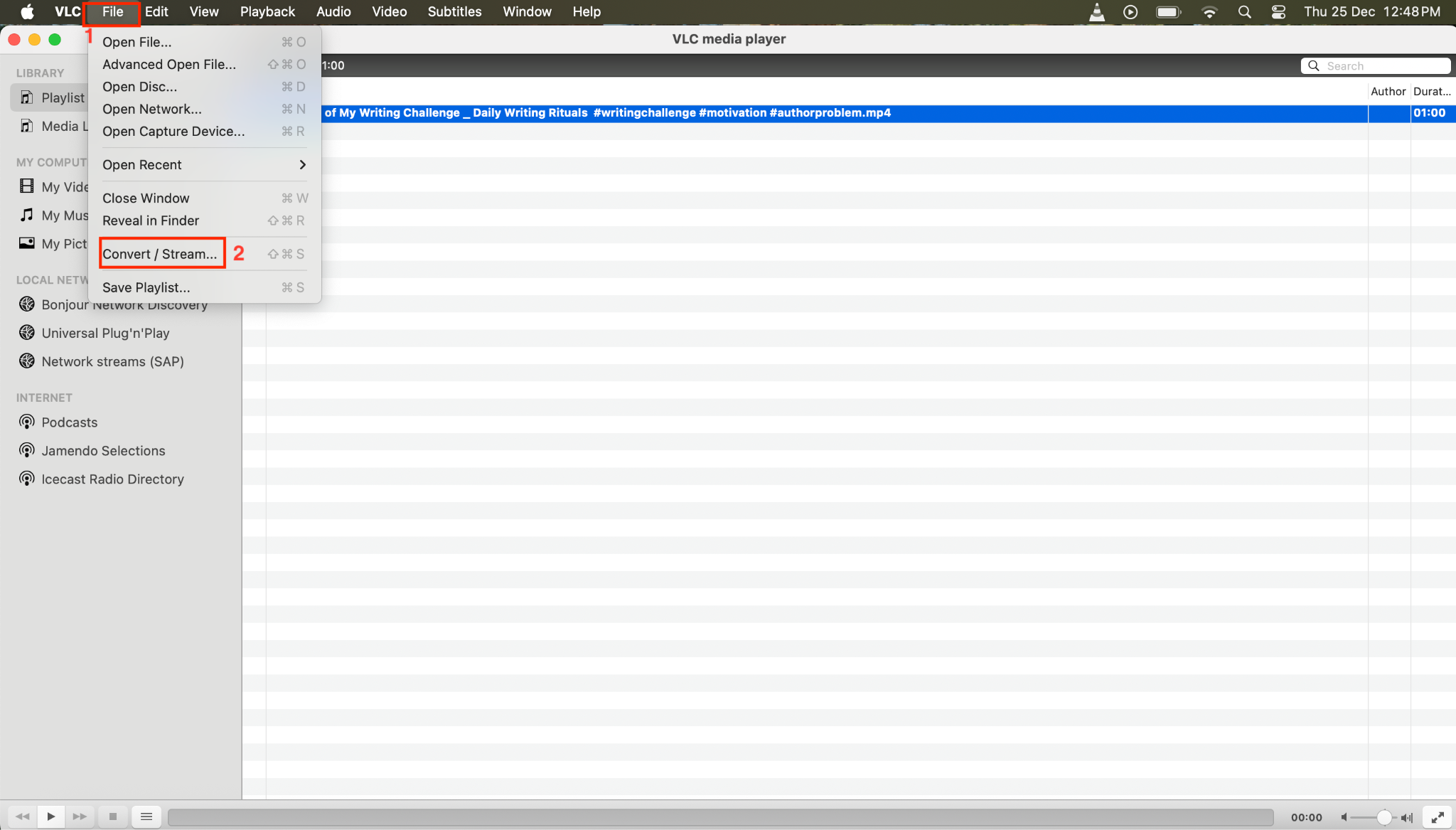
Step 1: Open VLC, navigate to Files, and choose Convert/Stream.
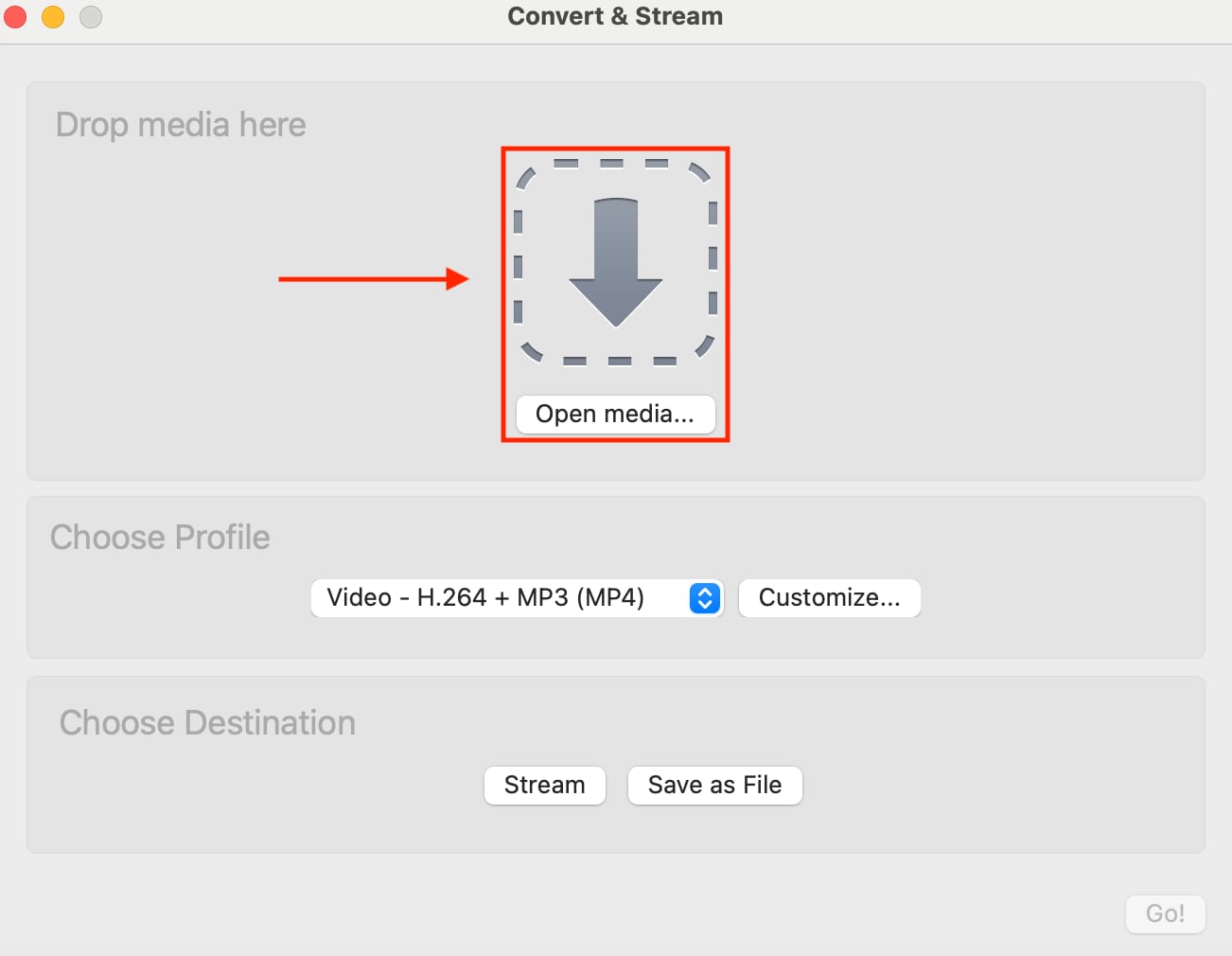
Step 2: Click on "Open Media" and upload the file.
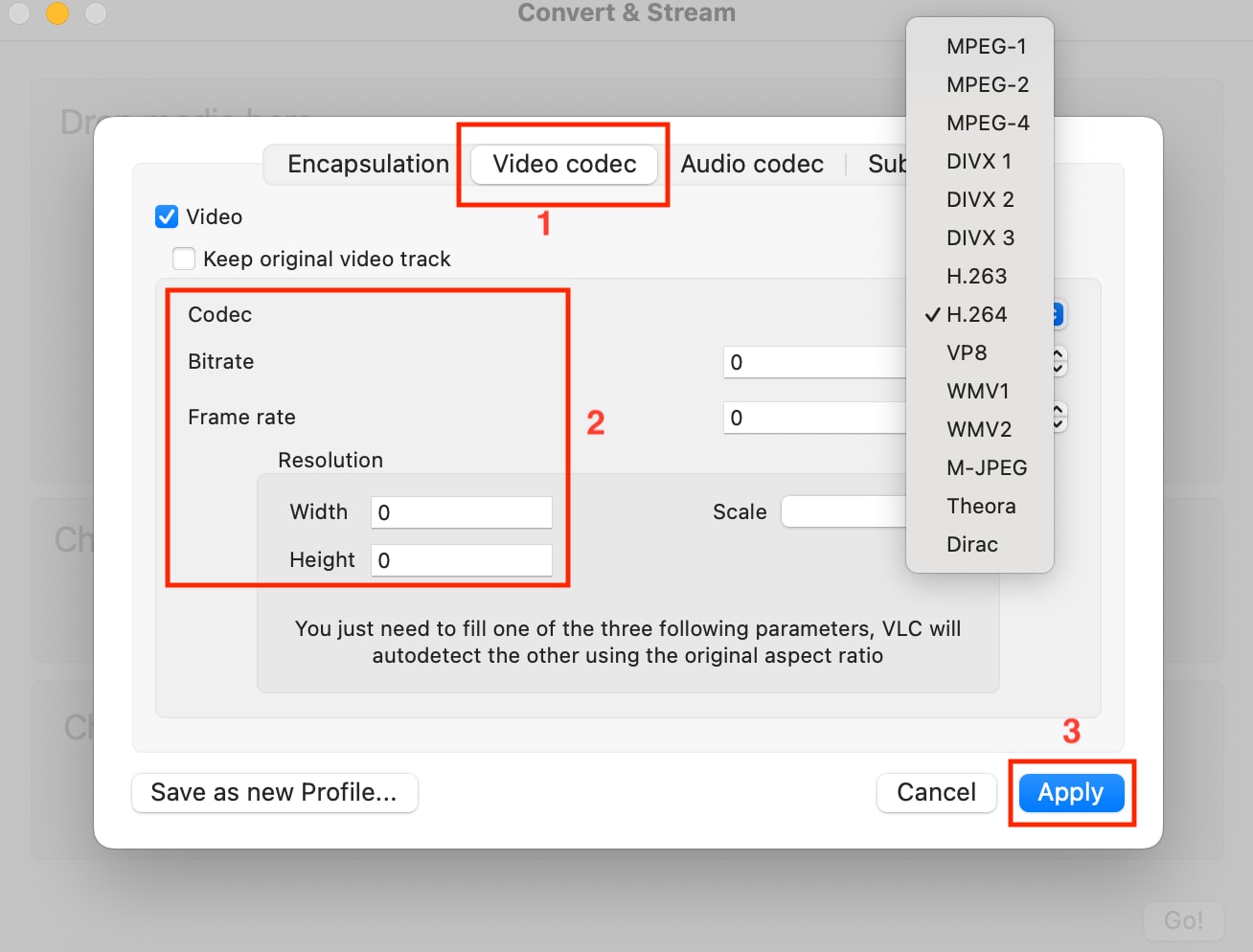
Step 3: Click "Customize," and here you can choose the format and adjust the video and audio codecs.
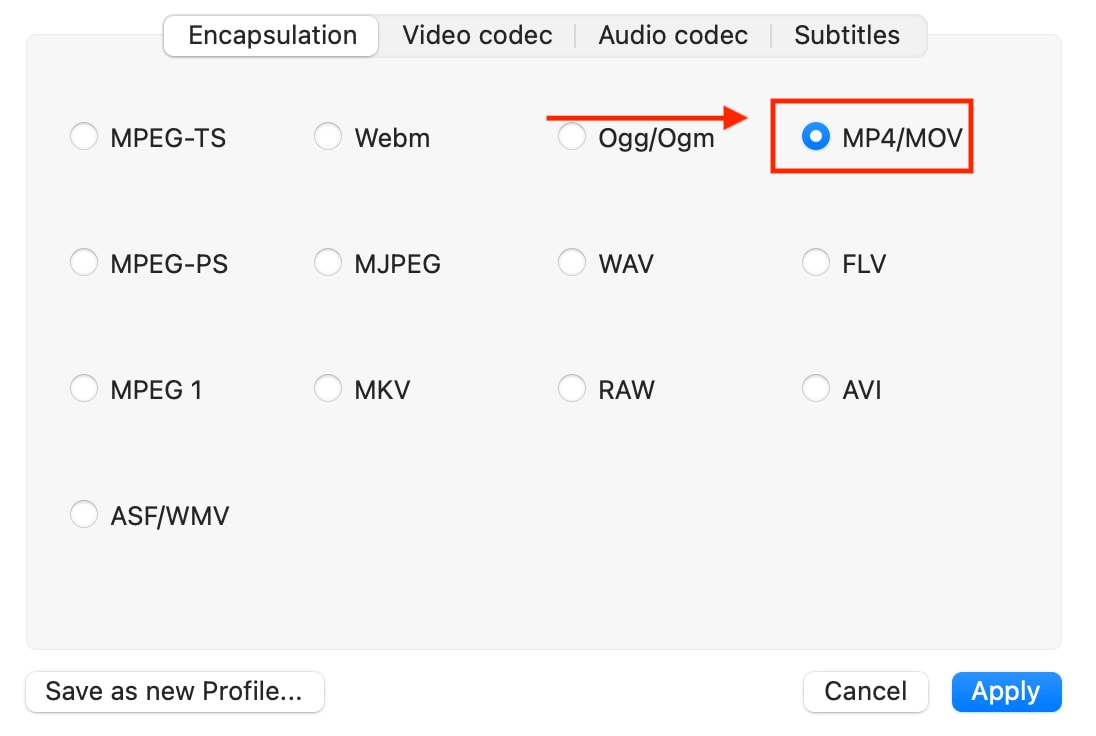
Step 4: Choose MP4, click Video Codec Tab, choose the codec, lower the resolution, and click "Apply."
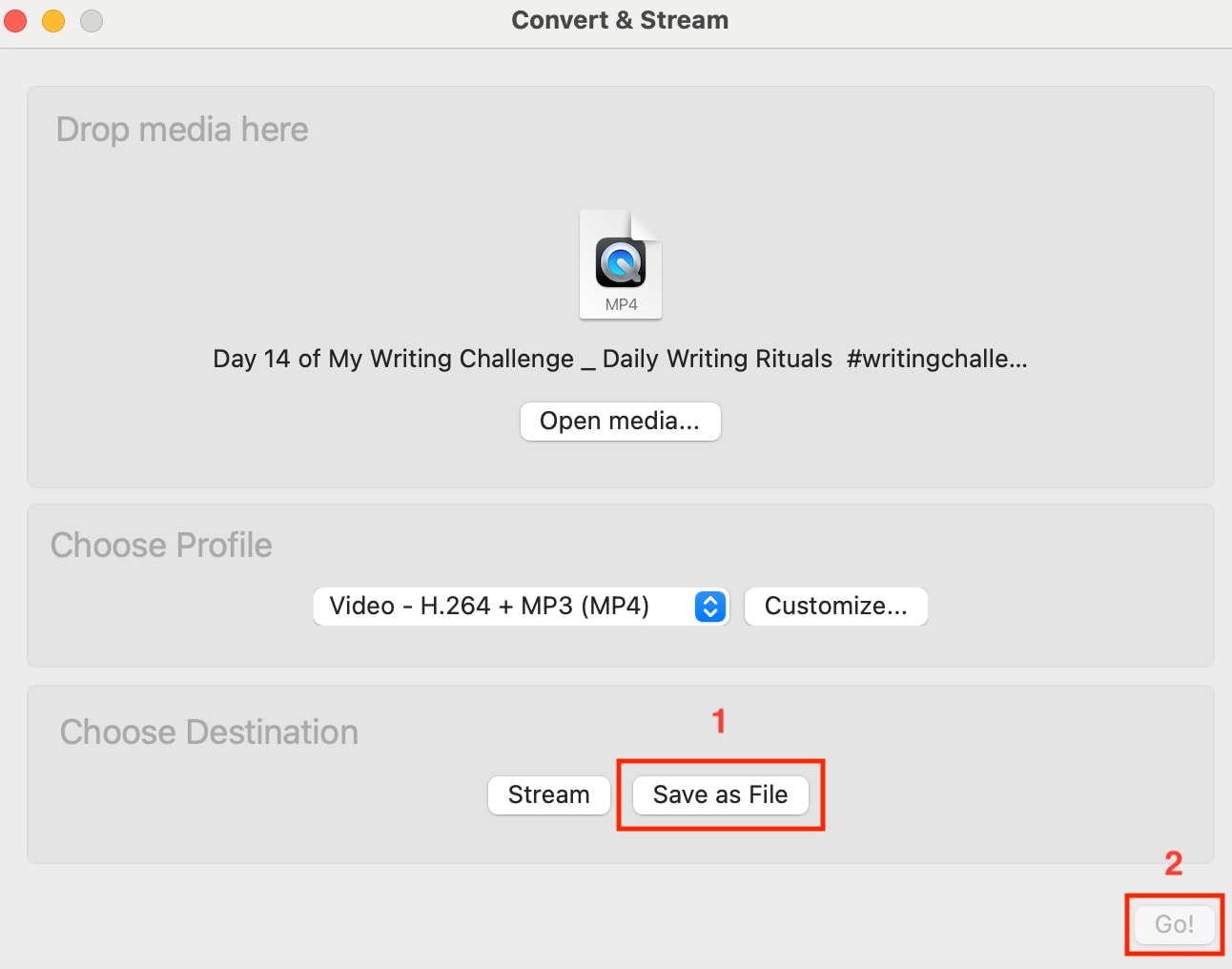
Step 5: Click "Save As File" and then click “Go” to get a reduced-size file.
Part 2. How to Compress Videos in VLC on Windows?
While VLC is widely known as a media player, it also comes with a built-in conversion feature that allows you to compress videos without installing additional software. Although its interface isn’t specifically designed for compression, you can still reduce file size by adjusting video format, resolution, and bitrate settings.
Follow the steps below to compress videos in VLC on Windows:
Step-by-Step Guide to Compress Video in VLC
Step 1. Open VLC and Access Convert Feature
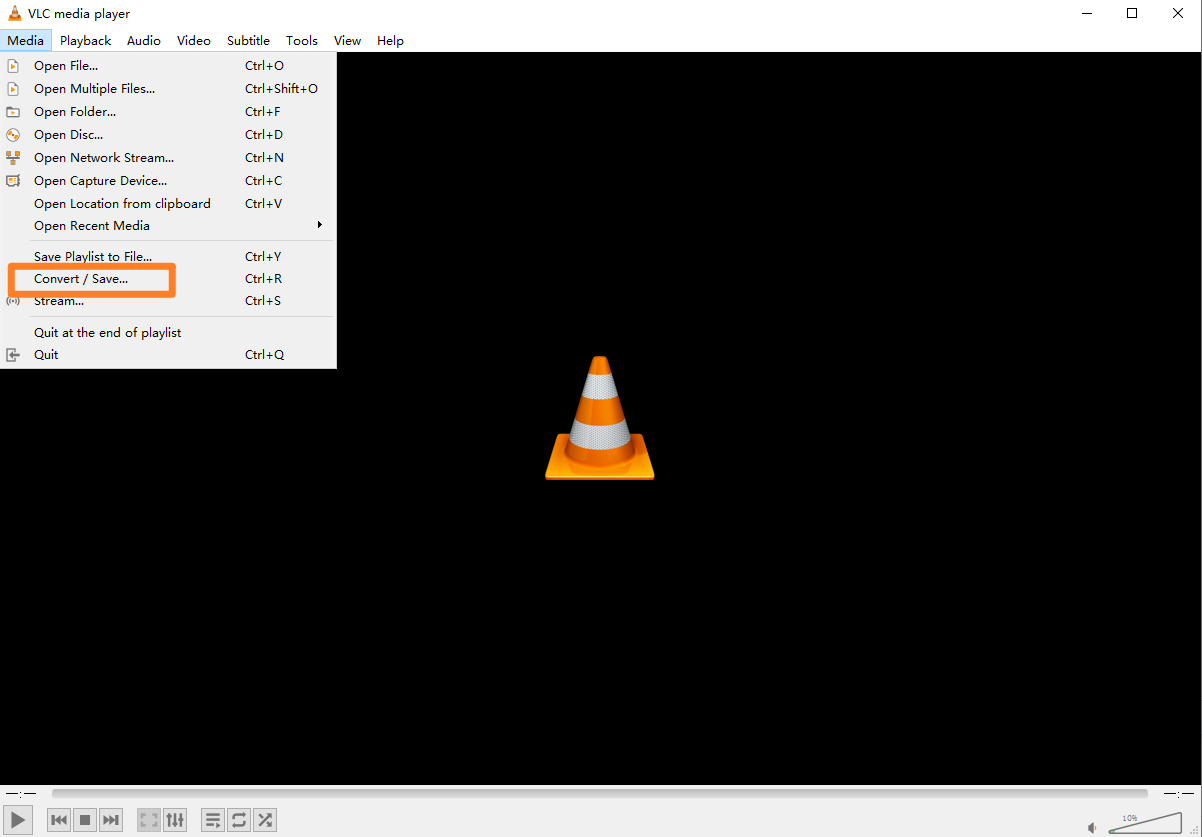
Launch VLC Media Player on your Windows PC. Click Media in the top menu, then select Convert/Save from the dropdown list.
Step 2. Add Your Video File
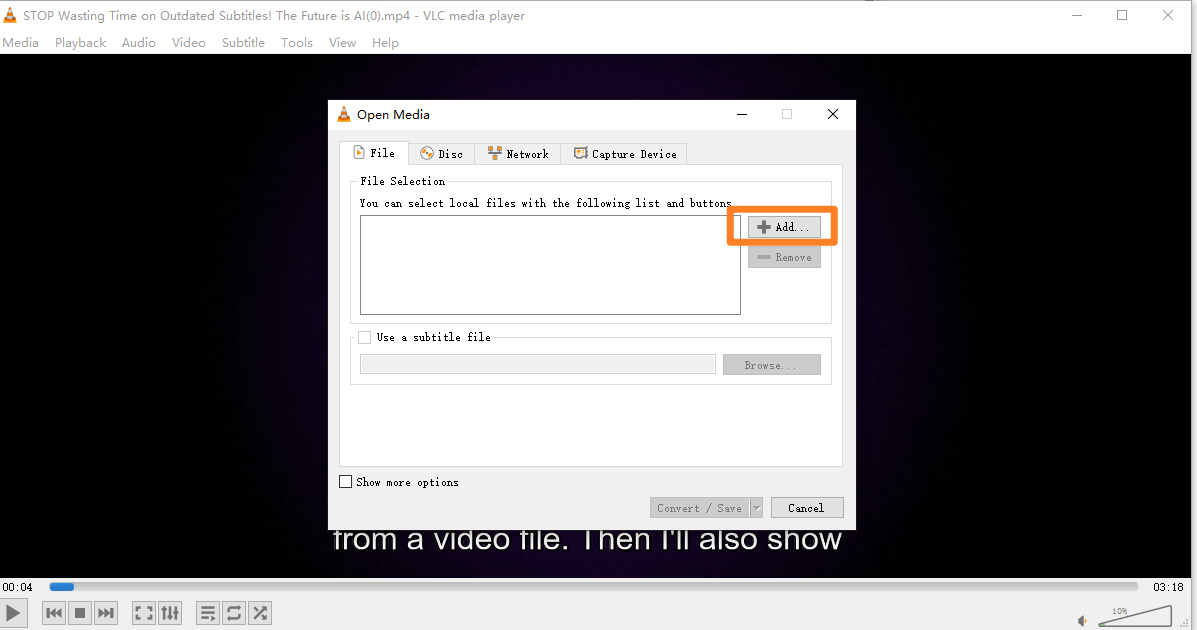
In the Open Media window, click the Add button to import the video you want to compress. After selecting the file, click Convert/Save at the bottom.
Step 3. Choose Output Format
In the Convert window, go to the Profile section and select a format like Video - H.264 + MP3 (MP4), which offers good compression efficiency.
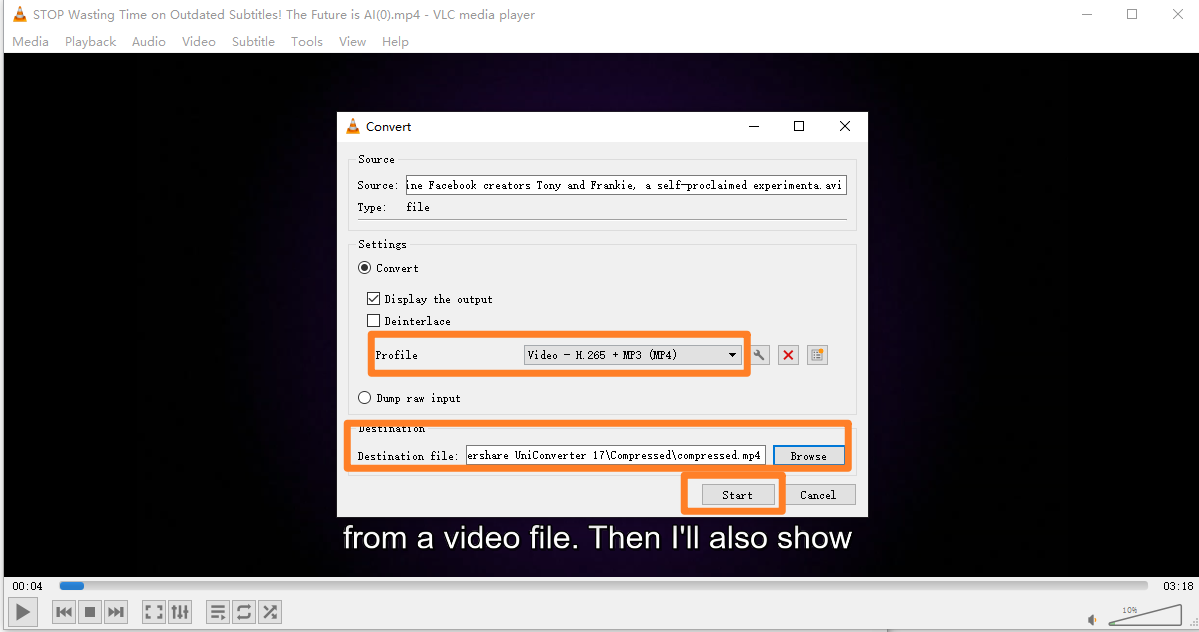
Step 4. Adjust Compression Settings (Optional but Recommended)
- Click the wrench (Edit Selected Profile) icon next to the profile.
- Under the Video codec tab, reduce the bitrate to lower the file size
- You can also decrease resolution under the Resolution section
- Adjust frame rate if needed
- Click Save after making changes.
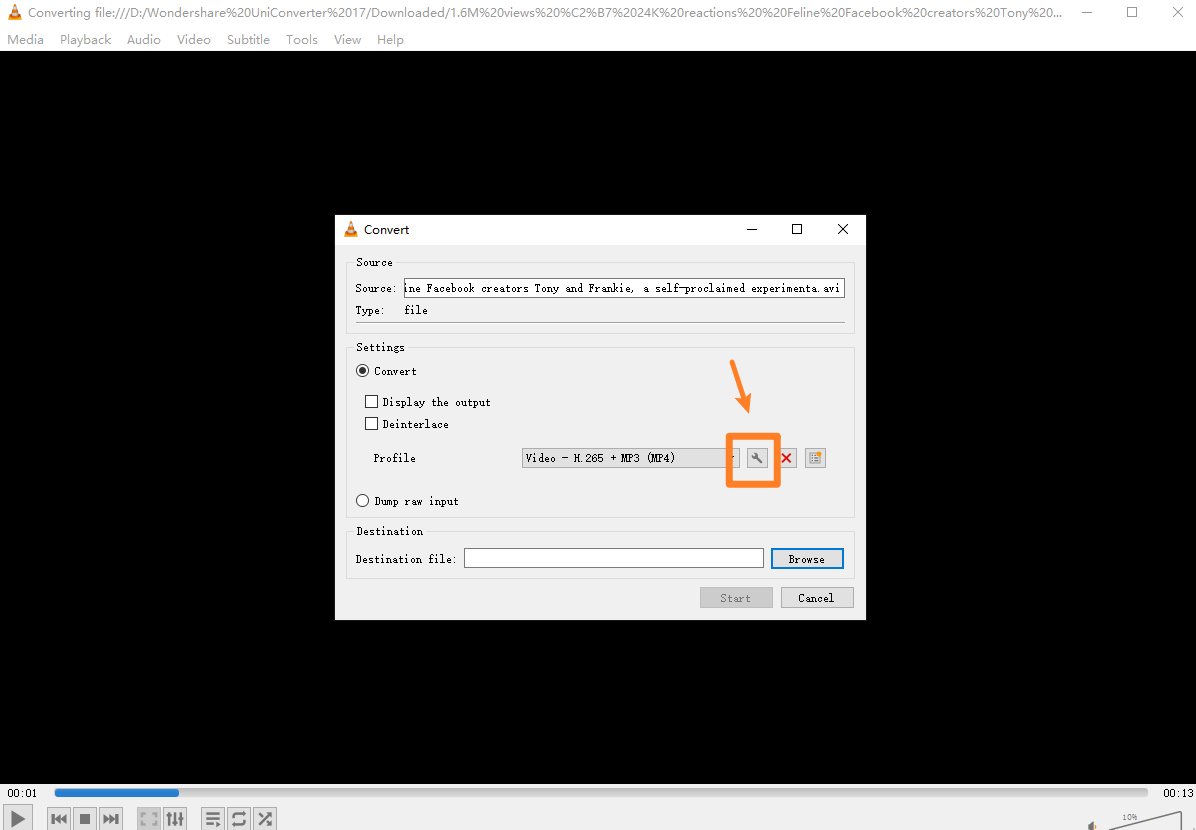
Step 5. Set Destination File
Click Browse to choose where to save the compressed video and rename the file.
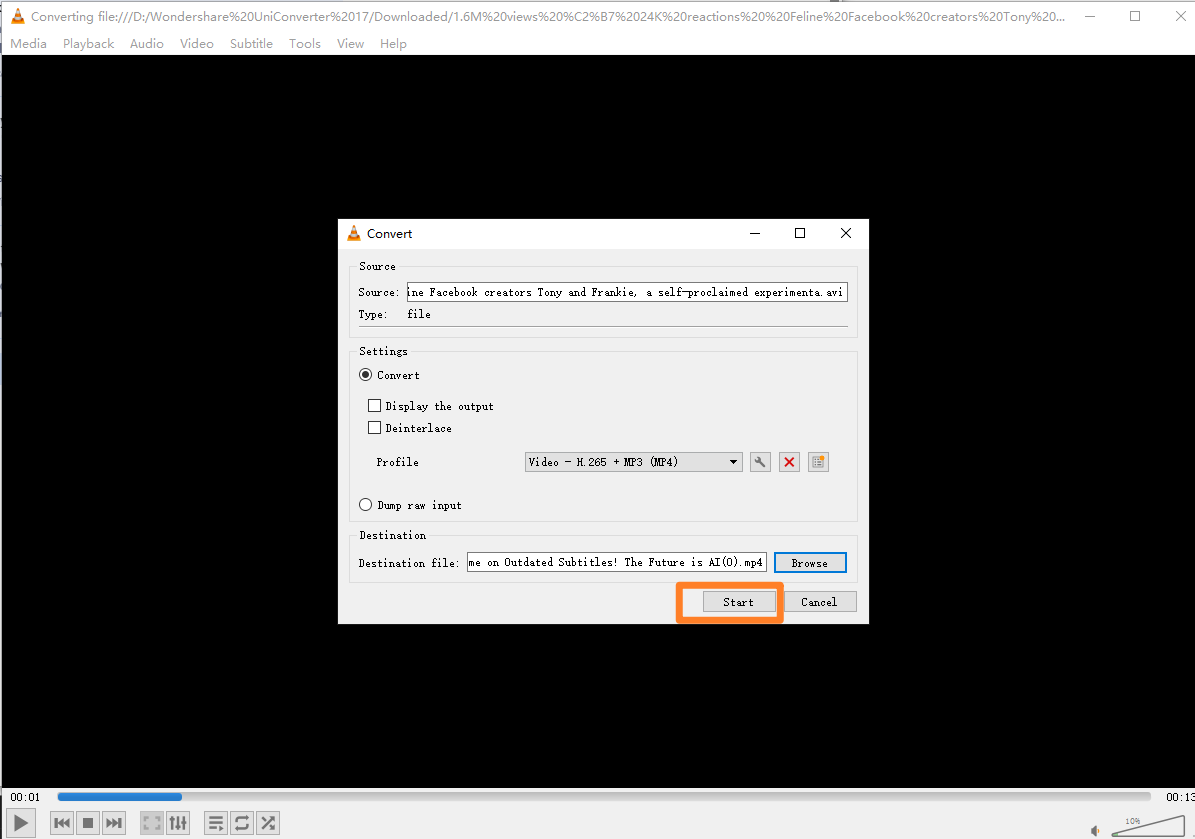
Step 6. Start Compression
Click Start to begin compressing your video. VLC will process the file and save it to your selected location.
Part 3: How to Compress Videos in VLC on Mobile?
While VLC Media Player is available on both Android and iOS, it is important to note that the mobile version does not include a built-in video compression or conversion feature. Unlike the desktop versions on Windows or Mac, VLC mobile apps are primarily designed for playback and basic media management, not for advanced processing tasks such as resizing, changing codecs, or reducing file size.
Therefore, if your goal is to reduce video size in VLC, you will need to transfer the video to a computer and use VLC's desktop "Convert/Save" or "Convert/Stream" functionality instead. Alternatively, if you require a more efficient solution, especially for batch compression, precise size control, or quality-preserving compression, a dedicated third-party tool such as Wondershare UniConverter offers a more practical and feature-rich approach compared to VLC mobile.
Part 4: Pros and Cons of Compressing Videos in VLC
Using VLC Media Player to compress videos can be a practical choice for users who want a free and reliable solution without installing specialized software. While the VLC player compresses video effectively on desktop platforms, it also has certain limitations that are important to understand before relying on it for regular or large-scale compression needs.
Part 5: Bonus: Super Easy Way to Batch Compress Videos at Lossless Quality

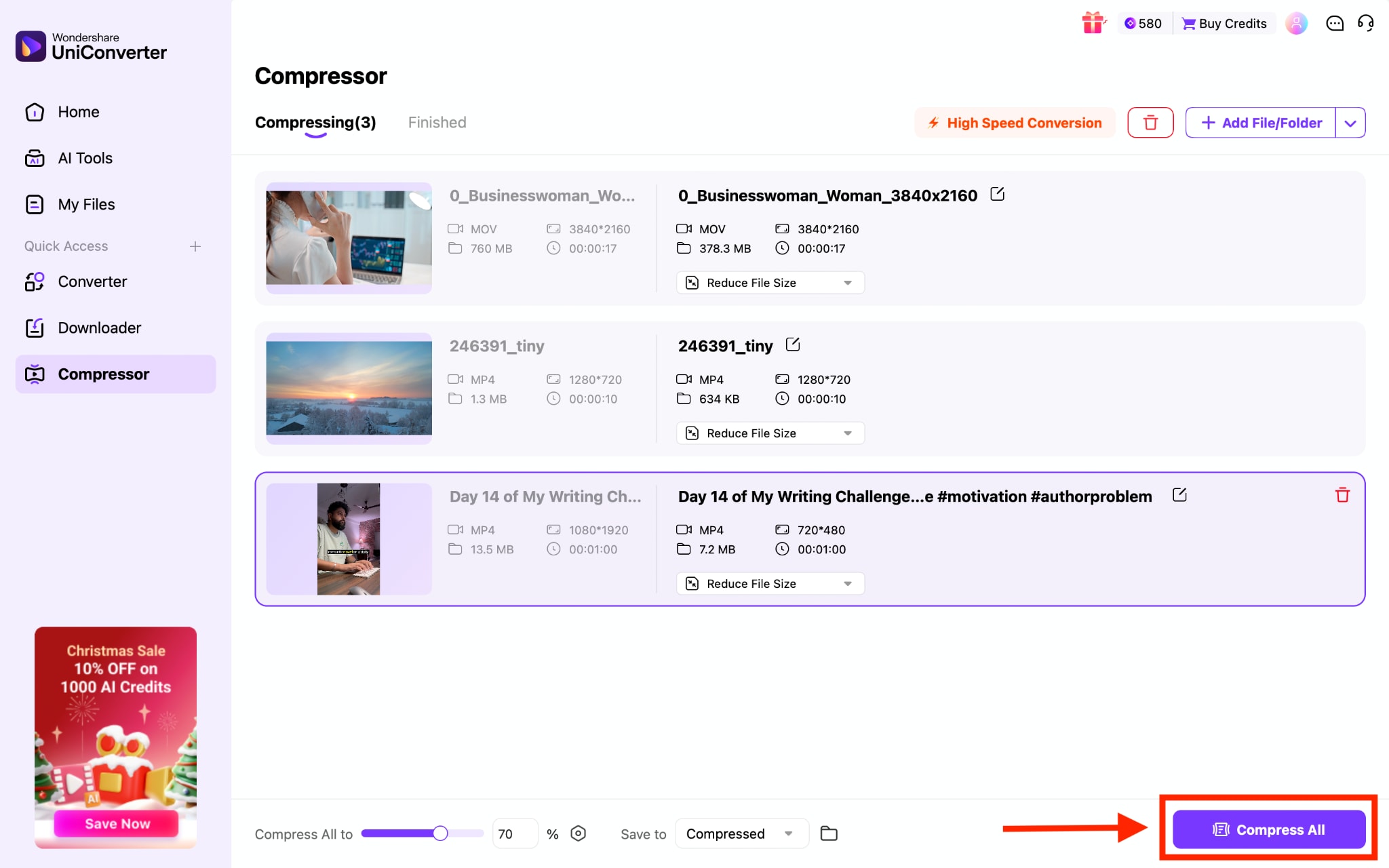
VLC compresses video files one at a time, which can be slow for multiple videos. For faster results and better quality control, a dedicated compressor like Wondershare UniConverter is more effective. Below is a step-by-step guide to efficiently batch-compressing videos. UniConverter’s Video Compressor offers precise control with real-time size estimation, making it more efficient than basic tools like VLC. Users can reduce video size by up to 90% while maintaining high visual quality using advanced encoding (H.264/H.265). It supports 1000+ formats, including MP4, MOV, and MKV, and allows customization of resolution (8K to 240p), bitrate, frame rate, and file size targets. Batch compression is also supported, enabling multiple files to be processed simultaneously. With GPU acceleration, UniConverter delivers up to 50X faster compression speed, making it ideal for large videos and professional workflows.
Step 1: On the UniConverter's desktop, click "Compressor."
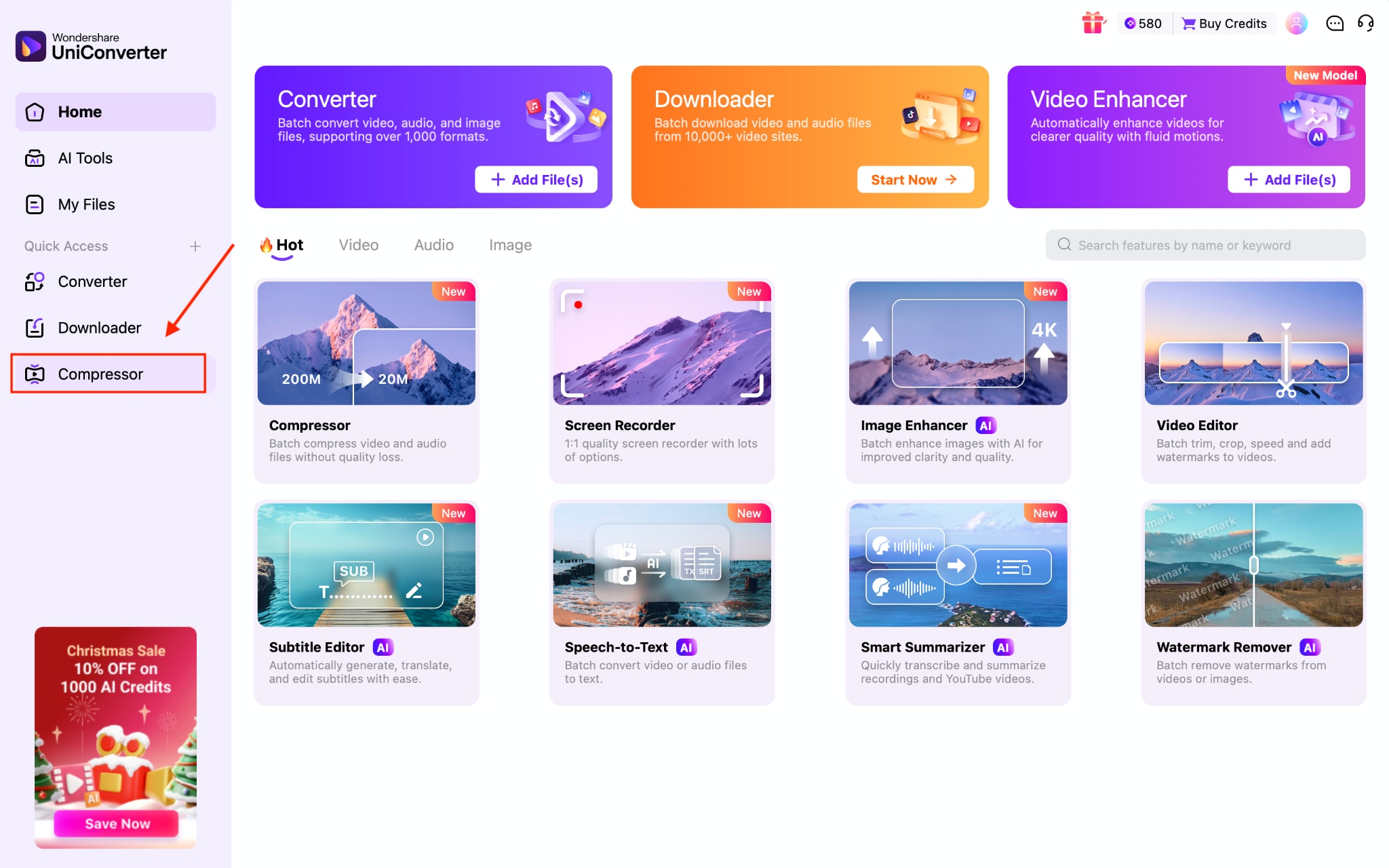
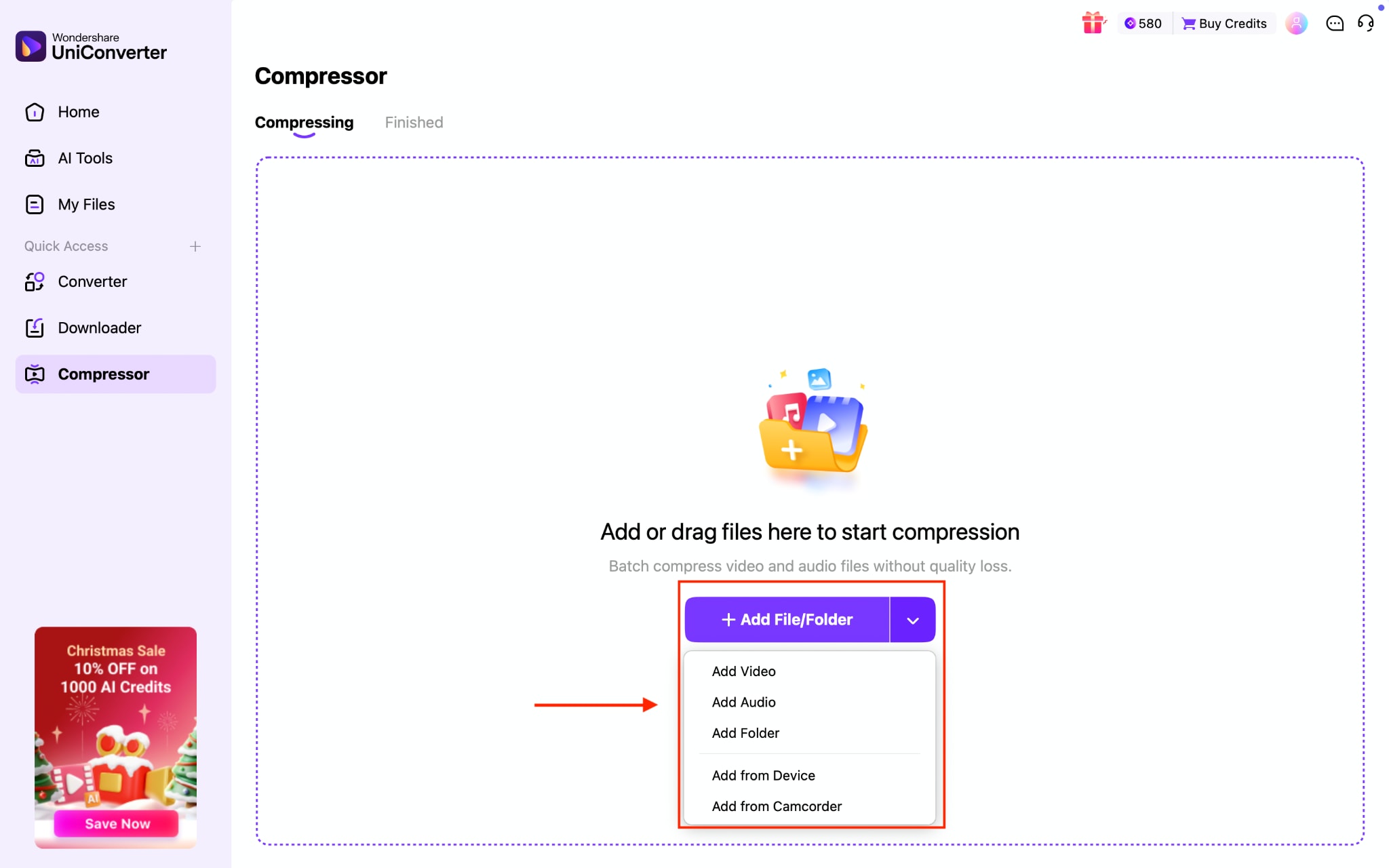
Step 2: Click the "Add File" option. You can upload video, audio, or a complete folder for batch processing.
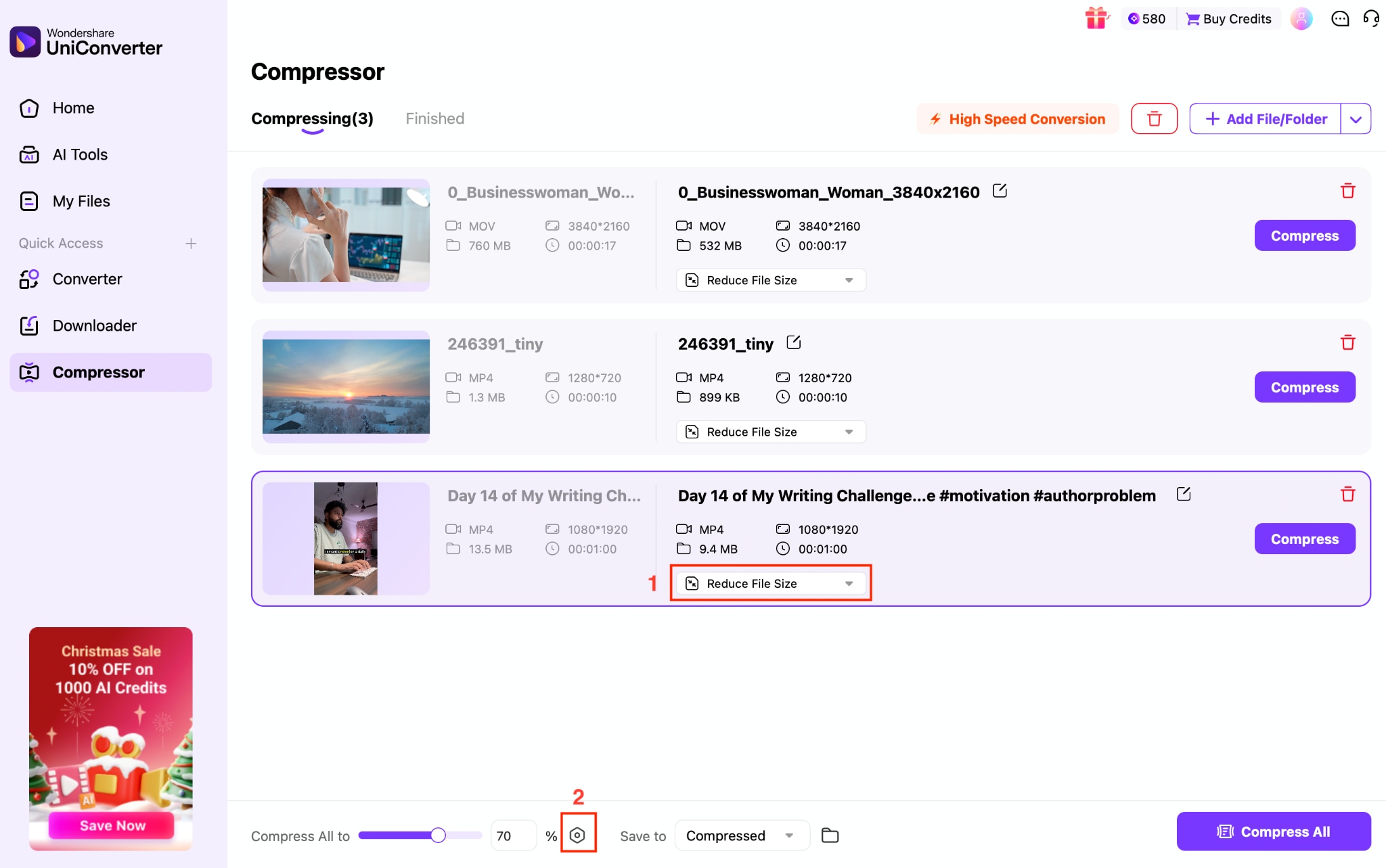
Step 3: After uploading the videos, you can reduce the size one by one by clicking the "Reduce File Size" option or the Settings icon at the bottom to apply the same file size to all three videos.
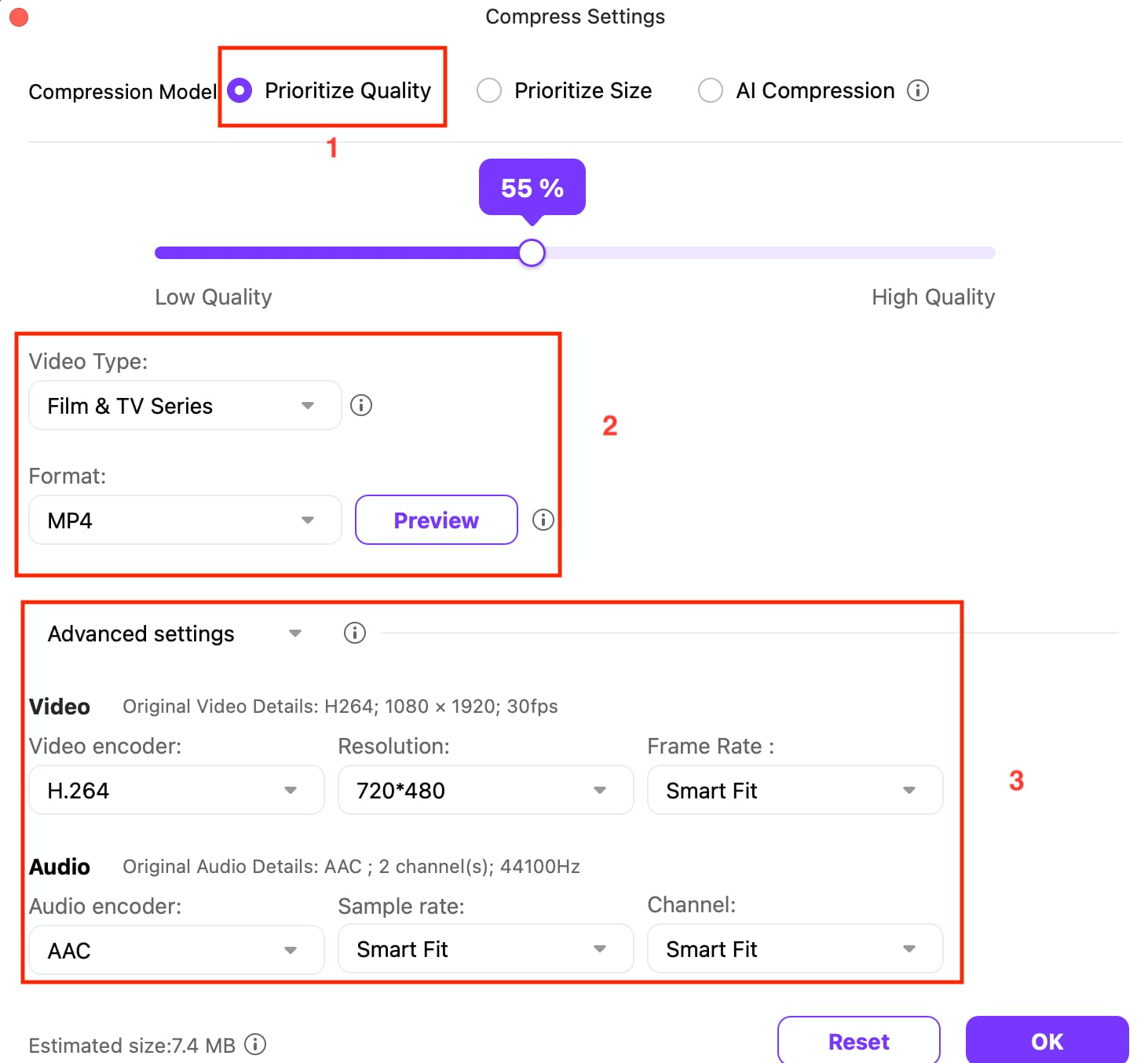
Step 4: In Compress Settings, you can choose from three compression models: Prioritize Quality, Prioritize Size, and AI Compression. Click the "Prioritize Quality" option, then choose the video type and format, and adjust advanced settings such as the video encoder, resolution, and more.
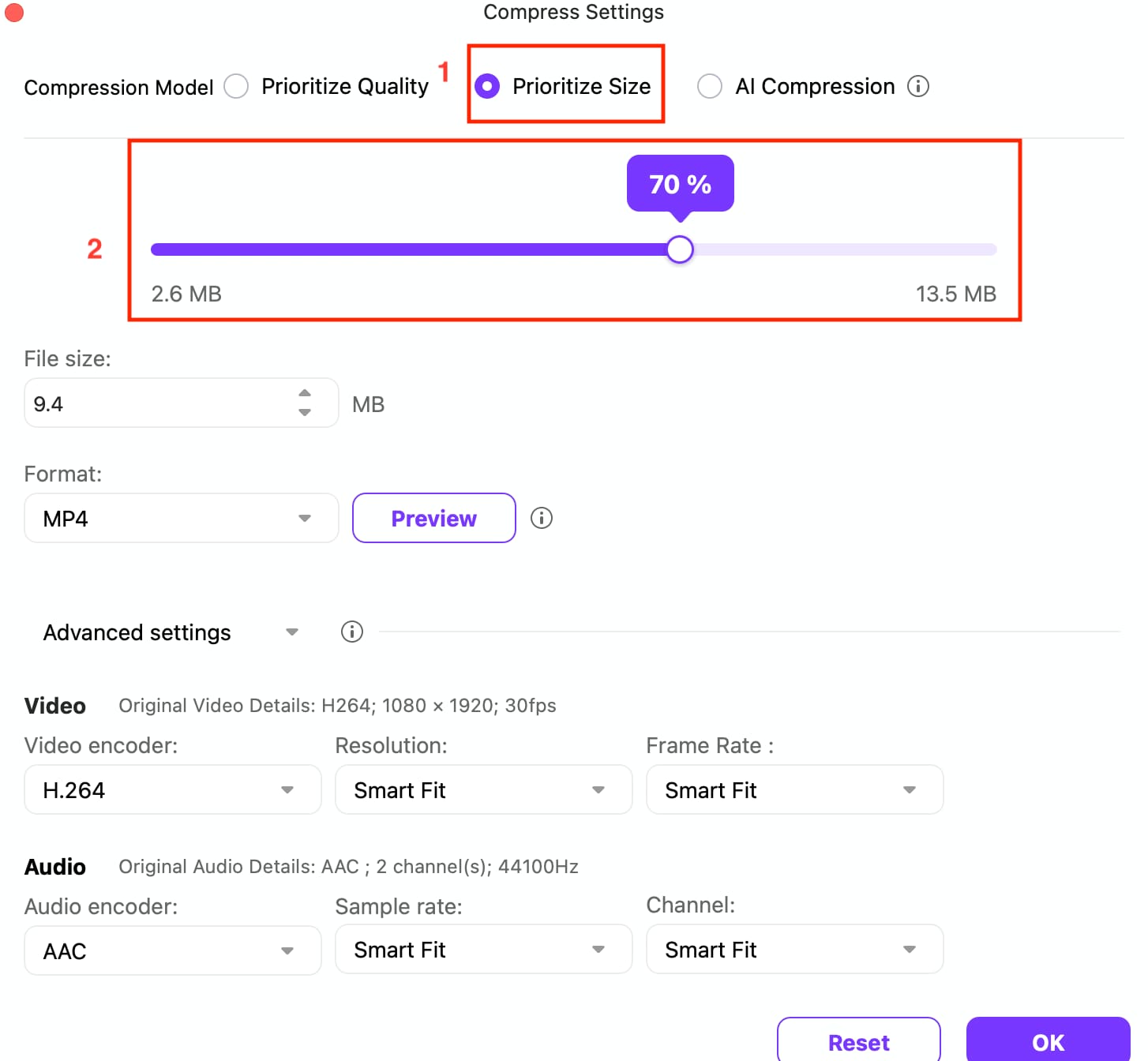
Step 5: If you simply want to prioritize file size, choose the "Prioritize Size" model and adjust the file size. You can manually enter the size limits or simply adjust the size bar to reduce the file size.
Step 6: Once done, click “Compress All” to save the compressed video.

Easy Video Compressor to Replace VLC
Conclusion
Reducing file size is essential when videos need to be shared quickly or stored efficiently. Learning how to reduce video size in VLC is helpful for users who want a free, desktop-based solution with basic compression controls. VLC works well for simple, one-off compression tasks, but it lacks advanced features like batch processing, precise size targeting, and guided presets.
If you frequently compress videos or need consistent quality at smaller sizes, a dedicated tool is a better choice. Wondershare UniConverter offers faster performance, batch compression, and smarter quality control, making it ideal for professional and everyday use.
Try Wondershare UniConverter today to see how it gives better results with batch conversion capabilities!
FAQs
-
1. How do I reduce video file size in VLC without losing quality?
You can reduce file size with minimal quality loss by choosing efficient codecs like H.264 or H.265 and lowering the bitrate gradually instead of drastically reducing resolution. However, VLC does not offer true lossless compression, so some quality trade-off is unavoidable. -
2. Why is my compressed video still large in VLC?
If the bitrate, resolution, or codec settings are not reduced enough, the output file may remain large. Using the same codec or keeping a high bitrate during conversion will limit how much the file size can be reduced. -
3. Does VLC support batch video compression?
No. VLC only allows one video to be processed at a time through the Convert/Save feature. For batch compression, dedicated tools with multi-file processing are more efficient. -
4. Which format is best for compressing videos in VLC?
MP4 with the H.264 codec is generally the best choice for balancing quality and file size. It offers good compression efficiency and wide compatibility across devices and platforms. -
5. Is VLC good for professional video compression?
VLC is suitable for basic compression tasks, but it lacks advanced features such as batch processing, precise size control, and optimization tools. Professional workflows often require more specialized video compression software.

