User Guide
How to use Wondershare UniConverter (originally Wondershare Video Converter
Ultimate)?
Learn the step-by-step guide below.

UniConverter User Guide
-
Get Started
-
Video Converter
- Convert DVD to Any Format | Wondershare UniConverter for Windows
- Add Media Files | Wondershare UniConverter for Windows
- Convert Video from Camcorder | Wondershare UniConverter for Windows
- Convert Videos for iPhone/iPad/Android Devices | Wondershare UniConverter for Windows
- Convert Videos for Social Network | Wondershare UniConverter for Windows
- Convert Videos from iOS & Android Devices | Wondershare UniConverter for Windows
- Convert Videos to Any Format | Wondershare UniConverter for Windows
- Convert Video to Audio | Wondershare UniConverter for Windows
- Mute Video | Wondershare UniConverter for Windows
- Add Audio to Video | Wondershare UniConverter for Windows
- Convert Multiple Video In Batches | Wondershare UniConverter for Windows
- Easily Convert 4K and 8K Videos | Wondershare UniConverter for Windows
- Convert Video to MP3 | Wondershare UniConverter for Windows
- Convert Video to GIF | Wondershare UniConverter for Windows
- Convert SDR Video to HDR | Wondershare UniConverter for Windows
- Convert Video to Image Sequence | Wondershare UniConverter for Windows
-
Audio Converter
-
Video Compressor
- How to Compress Videos | Wondershare UniConverter for Windows
- Video Compressor | How to Compress 4K and 8K Videos Without Quality Loss
- Video Compressor | How to Batch Compress Videos
-
Downloader
-
Screen Recorder
-
Merger
-
DVD Burner
-
Media Player
-
Video Editor
- Trim Video | Wondershare UniConverter for Windows
- Add Watermark | Wondershare UniConverter for Windows
- Crop Video | Wondershare UniConverter for Windows
- Apply Effect | Wondershare UniConverter for Windows
- Add Subtitle | Wondershare UniConverter for Windows
- Audio Track Volume | Wondershare UniConverter for Windows
- Auto Video Cutter | Wondershare UniConverter for Windows
-
Tools
- Image Converter | Wondershare UniConverter for Windows
- GIF Maker | Wondershare UniConverter for Windows
- Fix Video Metadata | Wondershare UniConverter for Windows
- CD Burner | Wondershare UniConverter for Windows
- Convert CD to MP3 | Wondershare UniConverter for Windows
- Convert Video to VR | Wondershare UniConverter for Windows
- Transfer Video/Audio Files to iOS Device | Wondershare UniConverter for Windows
- Transfer Video/Audio to Android Device | Wondershare UniConverter for Windows
- Subtitle Editor | Wondershare UniConverter for Windows
- How to Remove Subtitles, Watermarks & Objects | UniConverter for Windows
- Smart Trimmer | Wondershare UniConverter for Windows
- Background Remover | Wondershare UniConverter for Windows
- Auto Crop Video | Wondershare UniConverter
- AI Portrait | Wondershare UniConverter
- Intro & Outro | Wondershare UniConverter
- Vocal Remover | Wondershare UniConverter for Windows
- Noise Remover | Wondershare UniConverter for Windows
- Video Stabilization | Wondershare UniConverter for Windows
- How to Enhance Video Quality with AI | UniConverter for Windows
- AI Image Enhancer | Wondershare UniConverter for Windows
- AI Script Generator | Wondershare UniConverter for Windows
- Text To Speech | Wondershare UniConverter for Windows
- AI Subtitle Translator | Wondershare UniConverter for Windows
- AI Thumbnail Maker | Wondershare UniConverter for Windows
- Auto Highlight | Wondershare UniConverter for Windows
- Scene Detection | Wondershare UniConverter for Windows
- Remove Watermark | Wondershare UniConverter for Windows
- Voice Changer | Wondershare UniConverter for Windows
- AI Video Enhancer | Use AI Batch Image Enhancement
- Crop Image | Wondershare UniConverter for Windows
- Rotate Image | Wondershare UniConverter for Windows
- Resize Image | Wondershare UniConverter for Windows
- Image Edit | Wondershare UniConverter for Windows
- Anime Enhancement | Wondershare UniConverter for Windows
- How to Enhance Faces in Videos with AI | UniConverter for Windows
- Adjust Speed of TTS Audio | Wondershare UniConverter for Windows
- Voice Clone | Wondershare UniConverter for Windows
- Enable NVIDIA Acceleration | NVIDIA Graphics Driver Installation Tutorial on Win
- Smart Summarizer | Wondershare UniConverter for Windows
- How to Blur Faces and Moving Objects in Videos | UniConverter for Windows
- AI Media Agent | Wondershare UniConverter for Windows
FAQs
Video/Audio Solutions
How to Compress Videos and Reduce File Size
Wondershare UniConverter 18 helps you reduce video file size with flexible compression settings. You can compress videos by size ratio, maximum file size, or quality level, use AI Detail Preservation to help protect important visual details, and preserve compatible subtitle and audio tracks. Follow the steps below to compress videos on Windows.
How to Compress Video to Reduce Video Size - Wondershare UniConverter (Win) User Guide
Steps to compress videos using Wondershare UniConverter are listed below.
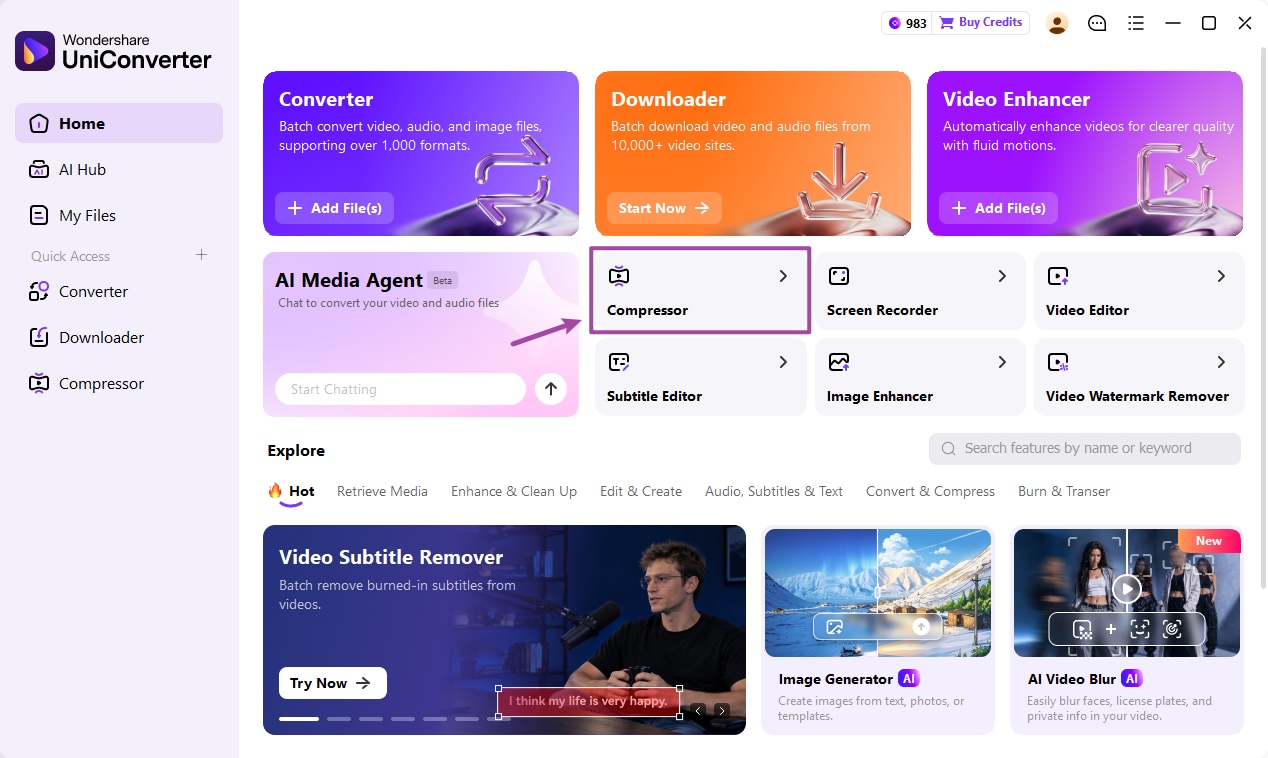
Step 1 Open Compressor.
Launch Wondershare UniConverter 18 on your Windows PC and select Compressor from the Home screen or the left navigation menu.
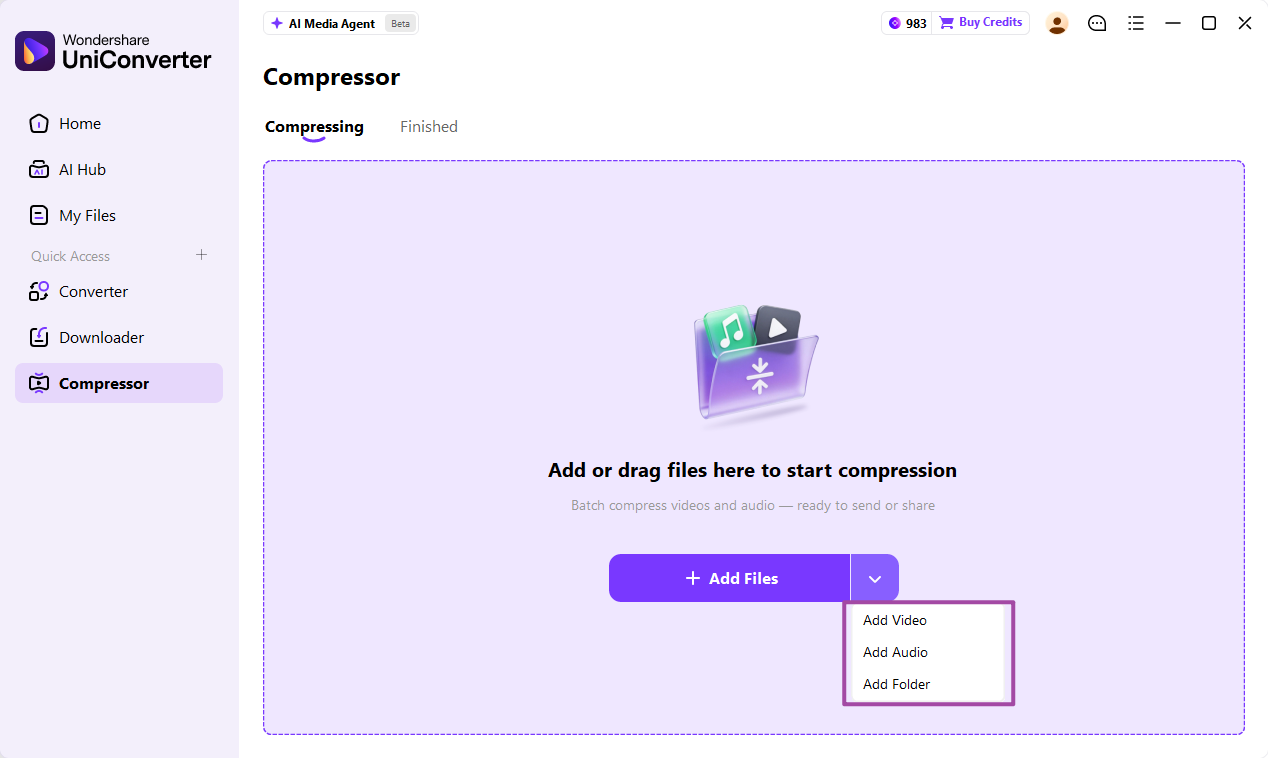
Step 2 Add videos to compress.
Click Add Files to import your videos, or open the drop-down menu to select Add Video, Add Audio, or Add Folder. You can also drag and drop files into the Compressor window.
Step 3 Choose compression settings.
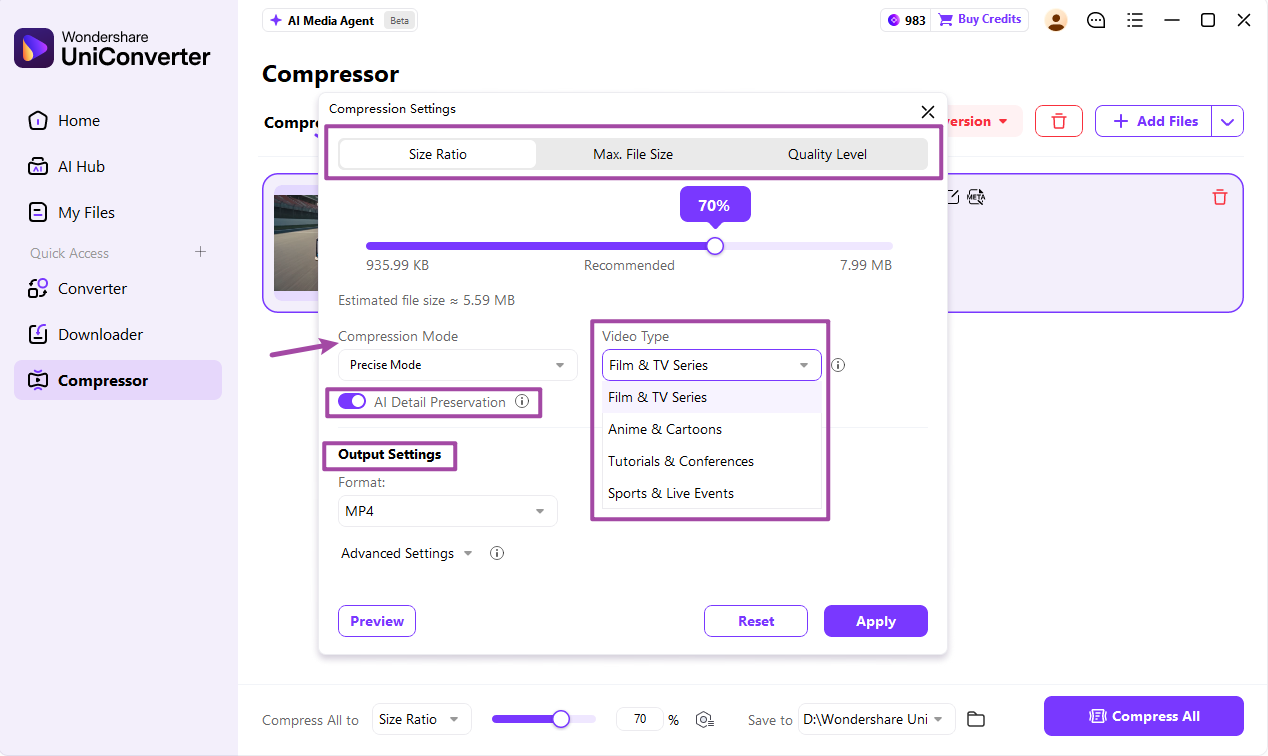
After adding your video, open Compression Settings. UniConverter 18 offers three compression goals: Size Ratio, Max. File Size, and Quality Level.
Choose Size Ratio to adjust the compression ratio with a slider. The estimated output file size is displayed below, helping you select a suitable balance between size and quality.
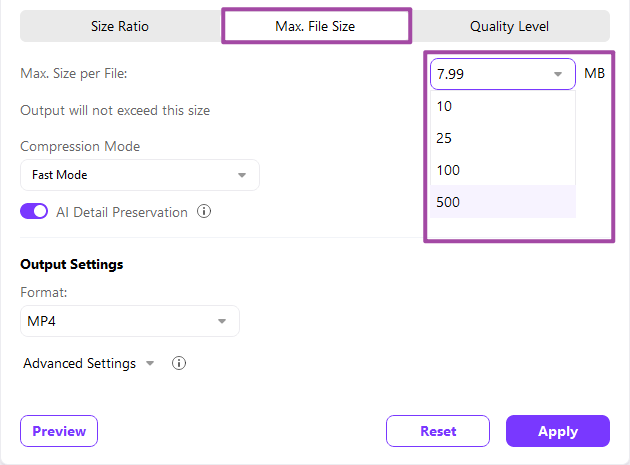
Choose Max. File Size to enter or select a maximum output size in MB. This is useful when preparing videos for upload limits or file size requirements.
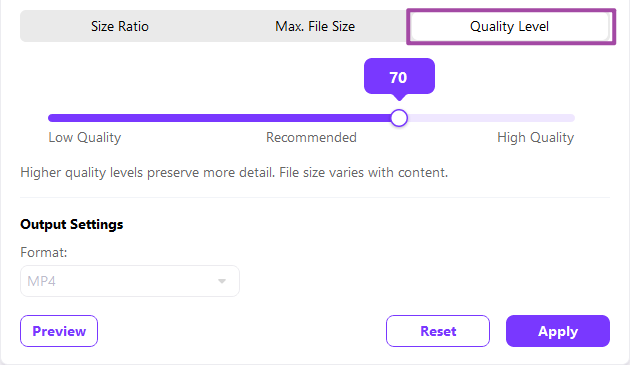
Choose Quality Level to adjust the slider between Low Quality and High Quality. Higher quality levels preserve more detail, while the final file size depends on the video content.
Next, select a Compression Mode. Fast Mode uses one-pass encoding for faster processing, while Precise Mode uses two-pass encoding for more accurate file size control. In Precise Mode, you can also choose a Video Type, such as Film & TV Series, Anime & Cartoons, Tutorials & Conferences, or Sports & Live Events, to adjust compression for different content.
To help preserve important subjects and visual details, enable AI Detail Preservation when available. This option helps reduce visible detail loss during compression. Availability depends on the selected compression settings and encoding conditions, and processing may take longer.
Under Output Settings, choose the output Format. UniConverter 18 supports preserving compatible subtitle and multiple audio tracks during compression. Track retention depends on the source file and selected output format; formats that do not support multiple tracks may not retain them separately.
Expand Advanced Settings to adjust available parameters, including Video Encoder, Resolution, Frame Rate, Audio Encoder, Channel, and Sample Rate.
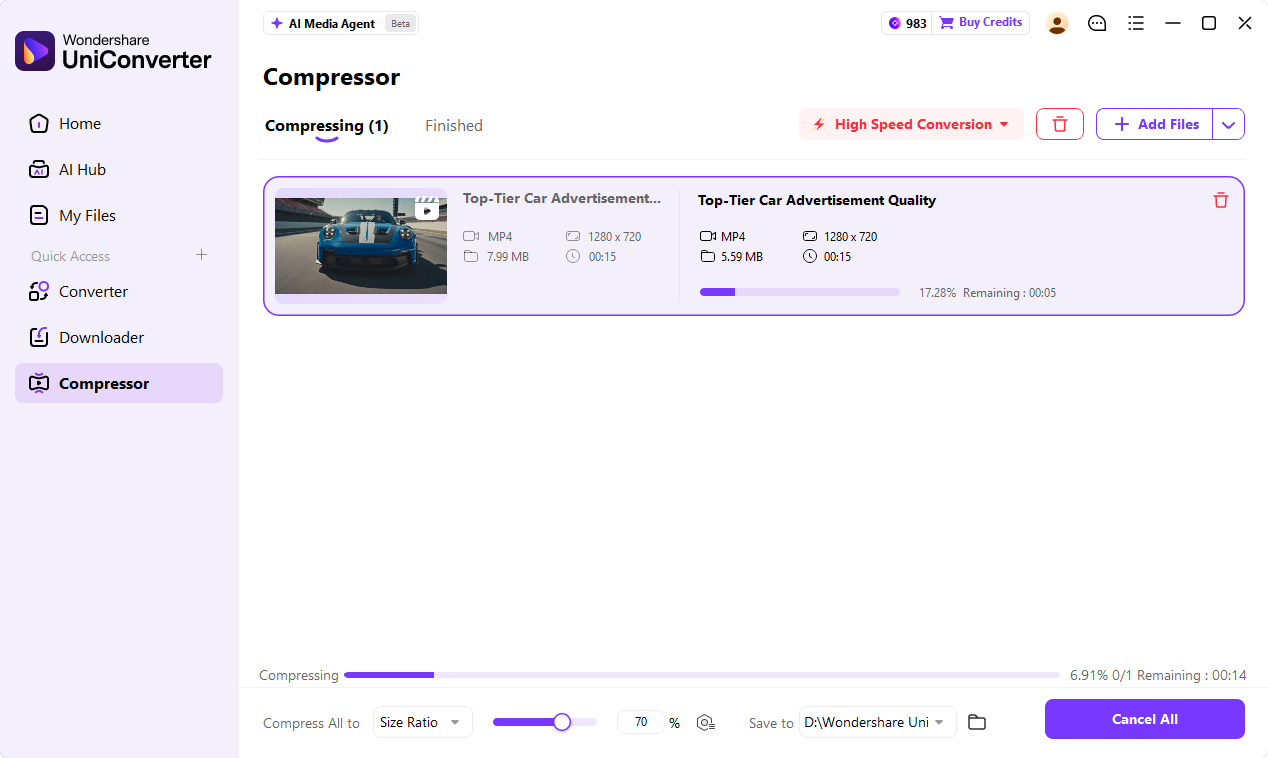
Click Preview to check the compressed video. Once you are satisfied with the settings, click Apply to confirm them.
Note: For multiple videos, you can use the batch compression controls at the bottom of the Compressor window to apply a common compression target.
Step 4 Compress videos and view the results.
Choose an output folder from Save to, then click Compress All to start compression. You can monitor the progress in the Compressing tab.
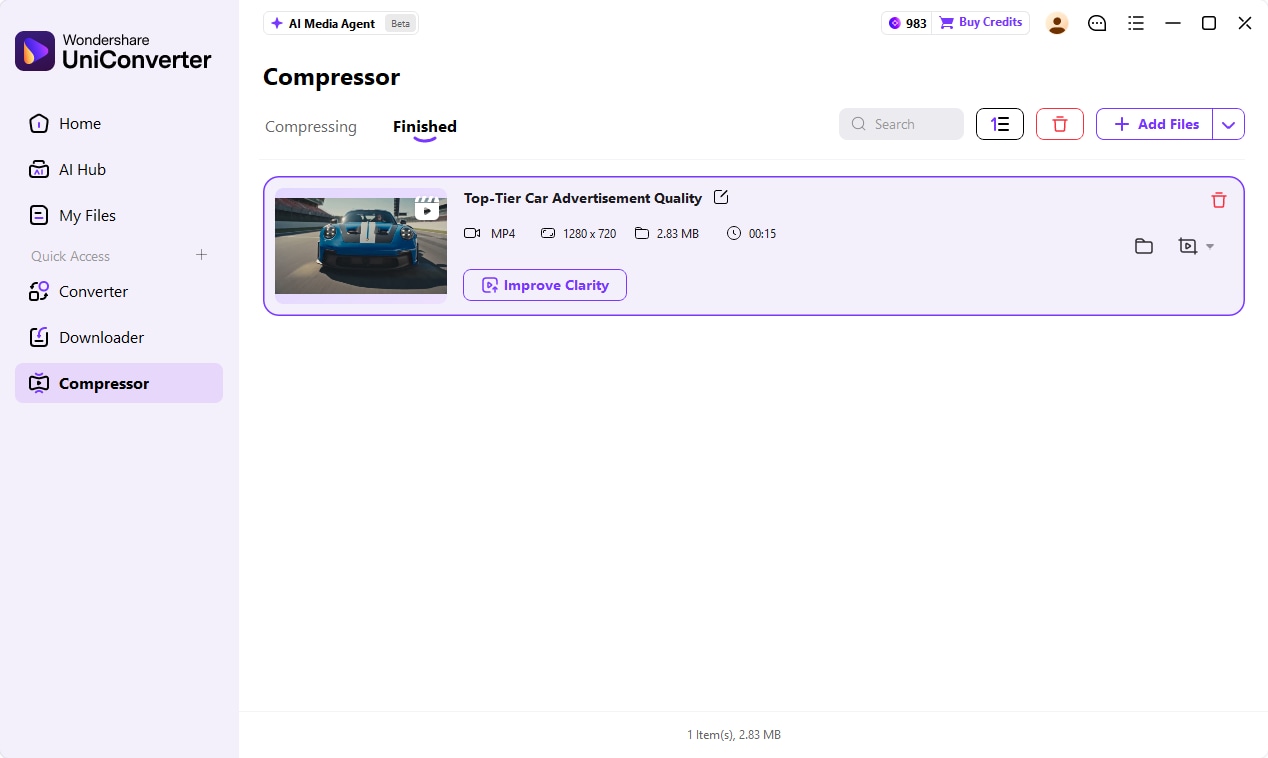
When compression is complete, open the Finished tab to check the output format and file size. Click the folder icon to open the saved file location.
Note: You can also compress multiple files through the Converter section by selecting an output format and adjusting supported settings such as resolution, bitrate, and frame rate.
 print
print