


Opening Facebook to check updates from friends only to face gray boxes, broken image icons, or endless loading circles can feel incredibly frustrating. If you are dealing with Facebook photos not loading, the problem usually stems from weak internet, corrupted cache files, VPN interference, or temporary Facebook server outages. Thankfully, you can identify the root cause and fix it step-by-step without losing any personal data or photos. Once the images finally load, managing them offline becomes the next task. If you want to save, convert, or organize them across different devices, desktop tools like Wondershare UniConverter help manage downloaded media efficiently.
Table of Contents
Part 1. Why Are My Facebook Photos Not Loading?
Understanding the cause behind Facebook photos not loading saves significant time during the troubleshooting process. Several different network and software factors play a role in rendering images correctly.
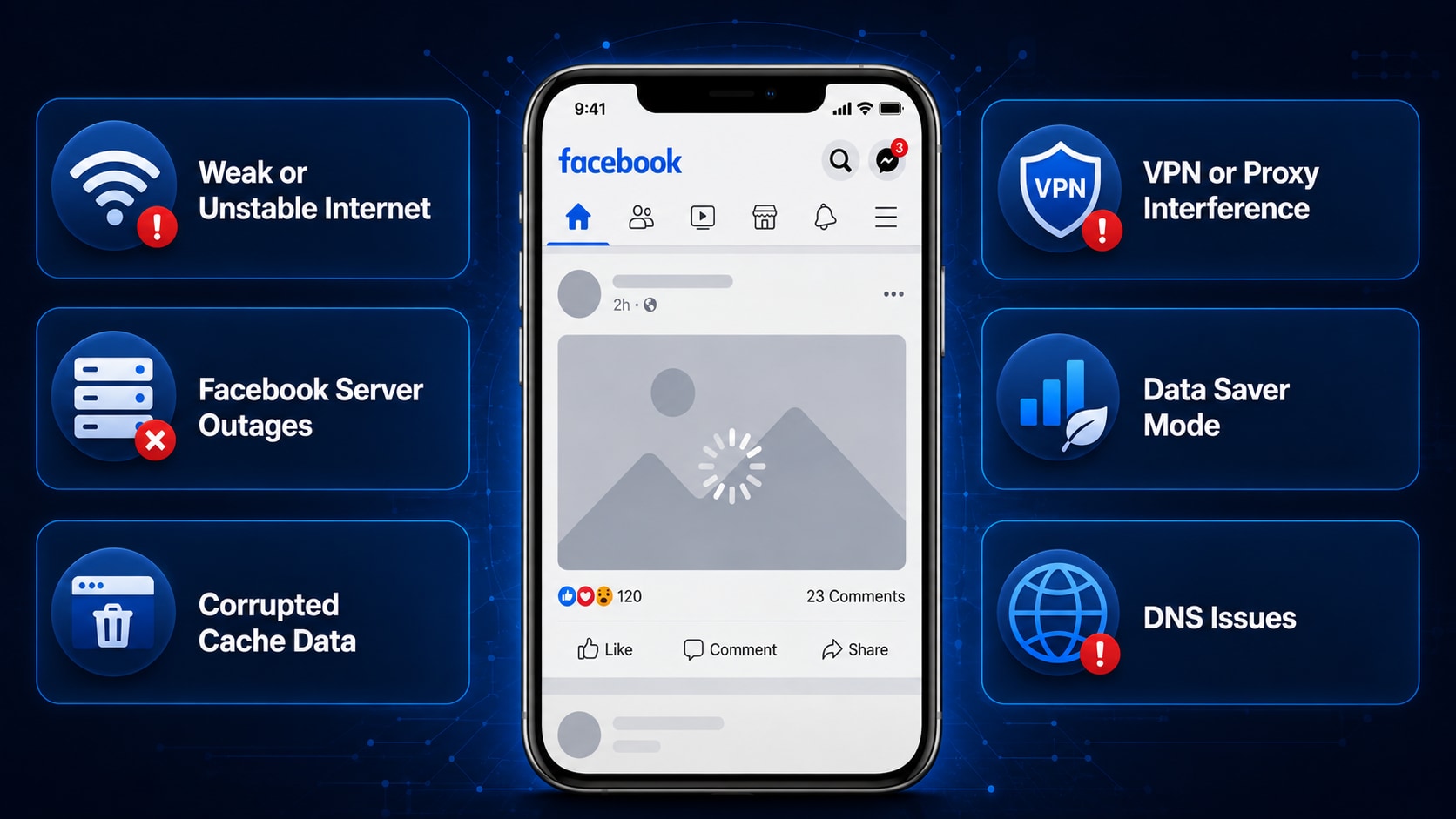
Weak or Unstable Internet: High latency prevents media retrieval. Applications often prioritize text data because it requires less bandwidth. When the connection struggles, text loads instantly while photos remain entirely blank.
Facebook Server Outages: Widespread backend crashes affect content delivery networks (CDNs). A CDN delivers media efficiently based on geographic location. When these servers fail, image rendering halts globally or regionally.
Corrupted Cache Data: Overloaded temporary files block new image data. Applications store small fragments of data to load familiar pages faster. However, corrupted cache files confuse the system, and your device fails to fetch fresh pictures.
VPN or Proxy Interference: Third-party networks inadvertently block Facebook's IP addresses. Security protocols sometimes mistake social media servers for malicious threats. This halts incoming image data entirely.
Data Saver Mode: Built-in OS settings actively stop media downloads to conserve bandwidth. This mode intentionally prevents heavy images from displaying to save cellular data costs. It acts as an artificial wall against large files.
DNS Issues: Faulty domain name servers fail to translate Facebook's image server requests. The browser simply cannot find the correct image address on the internet. A broken DNS acts like a faulty GPS for internet traffic.
Part 2. Quick Checks Before Trying Advanced Fixes
Before diving into technical steps, rule out basic glitches causing Facebook photos not loading. Simple adjustments often resolve the visual issues immediately.
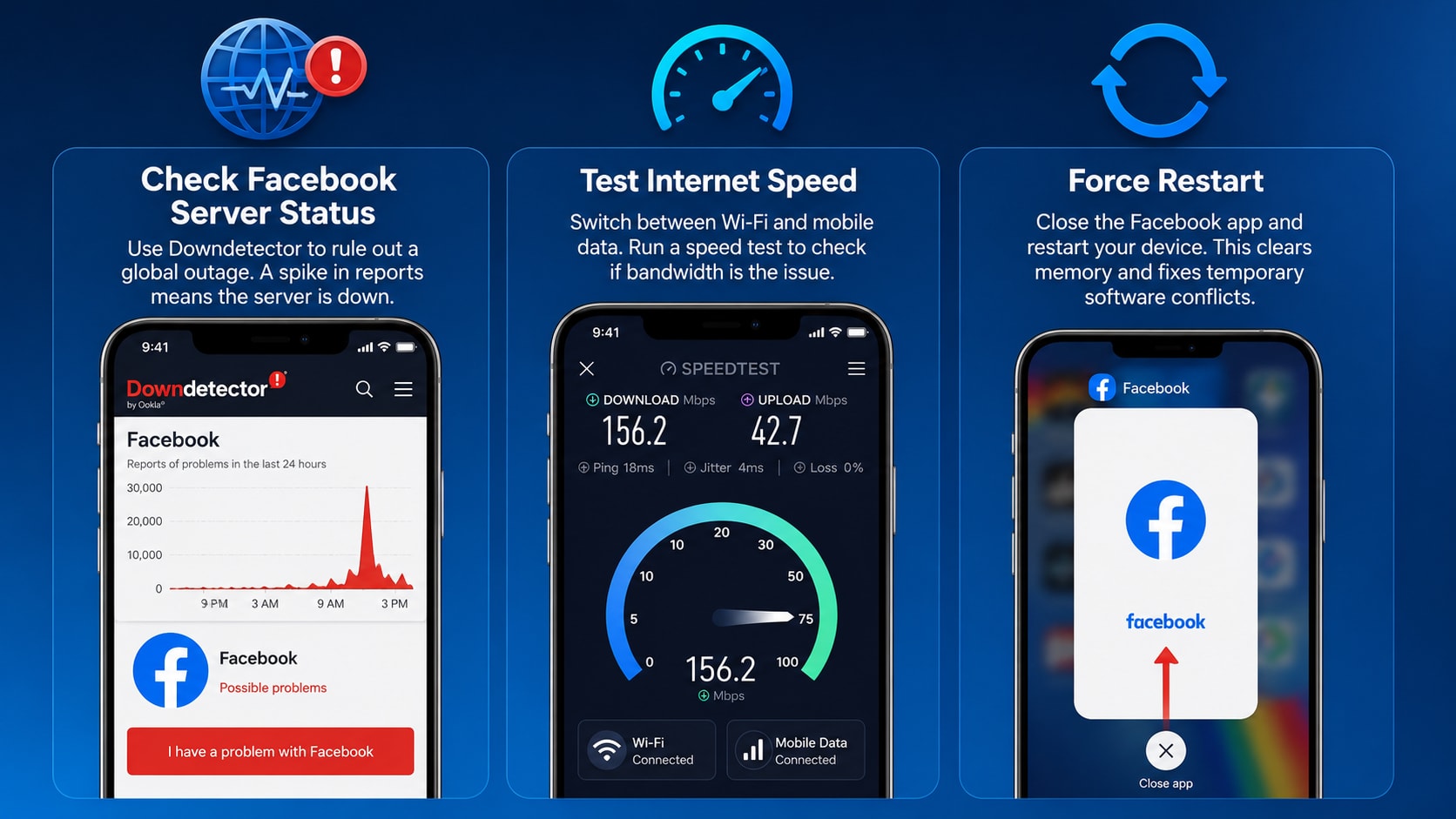
Check Facebook Server Status
Use Downdetector to rule out a global outage. Type "Facebook" in the search bar to see if other users are reporting similar issues. If the graph shows a massive spike in reports, the server is definitively down.
Test Internet Speed
Switch between Wi-Fi and mobile cellular data to isolate network issues. Running a quick speed test online confirms if bandwidth is the culprit. A fast network connection ensures media fetches correctly across all platforms.
Force Restart
Close the Facebook app entirely and restart the device. This clears active memory and establishes a fresh connection. Restarts eliminate temporary software background conflicts quickly.
Tip: When the problem is widespread (as confirmed by Downdetector), altering your device settings won't help. Waiting for Facebook to restore services is the fastest and only solution.
Part 3. 12 Proven Ways to Fix Facebook Photos Not Loading
When basic network checks do not solve the problem, a more targeted approach helps isolate the glitch. These twelve actionable steps address the most common software, network, and browser conflicts causing the Facebook photos not loading error.
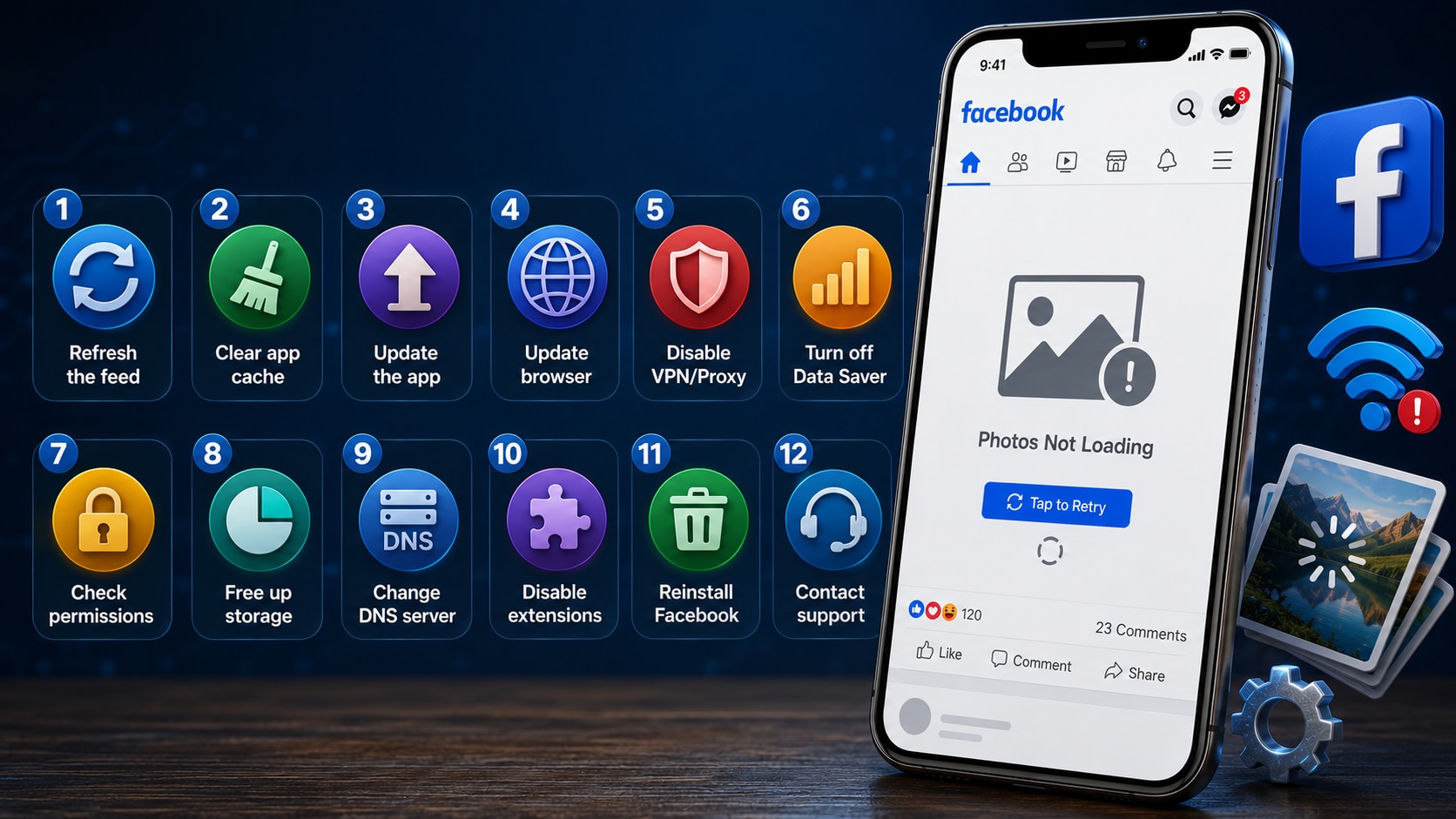
Refresh the Facebook Feed
Sometimes, a minor network drop interrupts the initial download. A simple pull-to-refresh on mobile forces the application to fetch new server requests immediately. On a desktop computer, pressing the F5 key quickly reloads the page, which often resolves temporary rendering hiccups in seconds.
Clear Facebook App Cache
Background temporary files accumulate over time and occasionally become corrupted. Clearing the app cache wipes these broken files, forcing a fresh media download directly from the servers. This action safely removes old data blocking new images without deleting any account login details.
Update the Facebook App
Outdated software frequently struggles with newer backend system changes. Installing the latest version patches known bugs causing image rendering failures. Developers release these updates specifically to keep the platform running smoothly and seamlessly across all mobile devices.
Update Your Browser
Desktop browsers rely heavily on their internal engines to display media correctly. Updating Chrome, Edge, or Safari ensures they fully support modern HTML5 elements and newer image compression formats. A modern, updated browser handles heavy visual content easily without crashing.
Disable VPN or Proxy
Virtual Private Networks often route traffic through servers that social media platforms flag as suspicious. Turning off the VPN removes artificial network bottlenecks that block incoming media servers. If the images appear right after disconnecting, the private network was likely the culprit.
Turn Off Data Saver Mode
Built-in network restrictions actively pause heavy image downloads to conserve mobile bandwidth. Turning off data saver mode allows the device to process high-resolution files freely. Checking both the in-app settings and the phone's main network menu ensures unrestricted media access.
Check Storage Permissions
Mobile applications require operating system-level rights to temporarily save files. Granting storage permissions ensures the platform can properly cache images on the local drive. Without this critical access, the software simply fails to display incoming visual media.
Free Up Device Storage
Phones running low on space struggle to process incoming visual data. Deleting old videos or unused applications clears up the working memory required to render graphics efficiently. Maintaining a little extra breathing room keeps all background applications running smoothly.
Flush DNS or Change DNS Server
Faulty domain name servers act like broken internet maps, failing to locate the correct image databases. Flushing the DNS or pointing the network to a reliable resolver, like Google DNS (8.8.8.8), establishes a highly stable connection. This technical tweak works exceptionally well for home Wi-Fi networks experiencing the Facebook photos not loading error.
Disable Browser Extensions Temporarily
Aggressive ad-blockers sometimes misidentify standard photos as promotional banners. Pausing these add-ons stops the browser from intentionally hiding visual content from the feed. Once identified, adding the website to the extension's whitelist provides a permanent fix for uninterrupted browsing.
Reinstall Facebook
When standard troubleshooting fails, corrupted core files might be the underlying issue. A clean installation wipes away deep-rooted bugs entirely. Downloading a fresh copy from the app store takes only a minute and provides a completely clean slate.
Contact Facebook Support
If everything else fails, the problem might trace back to an account-specific glitch. Submitting a ticket through the official Help Center alerts their technical team. They can investigate backend errors, server drops, or account restrictions causing the blackout.
Quick Reference: Problem, Cause & Solution Mapping
Use this troubleshooting matrix to match your specific visual symptom with the most effective fix.
| The Problem | Probable Cause | Recommended Solution |
| Blank boxes instead of images | Ad-blocker or strict privacy extension interference | Disable browser extensions temporarily |
| Endless loading circles on Wi-Fi | Network bottleneck or IP address block | Disable VPN or proxy networks |
| Black screens replacing pictures | Corrupted temporary background files | Clear the Facebook app cache |
| Photos load on Wi-Fi but fail on mobile data | Artificial bandwidth restrictions | Turn off Data Saver mode in settings |
| Broken image icons across all sites | Faulty domain mapping failing to find image servers | Flush DNS or change DNS to Google (8.8.8.8) |
| App crashes when opening an old album | Lack of operational memory to render graphics | Free up device storage |
| Gray squares appearing after an OS update | Software incompatibility with modern rendering | Update or reinstall the Facebook app |
Part 4. Fixing the Issue on Specific Devices
Different platforms require unique navigational steps to fix Facebook photos not loading. Follow the specific pathways below for your device.
On Android
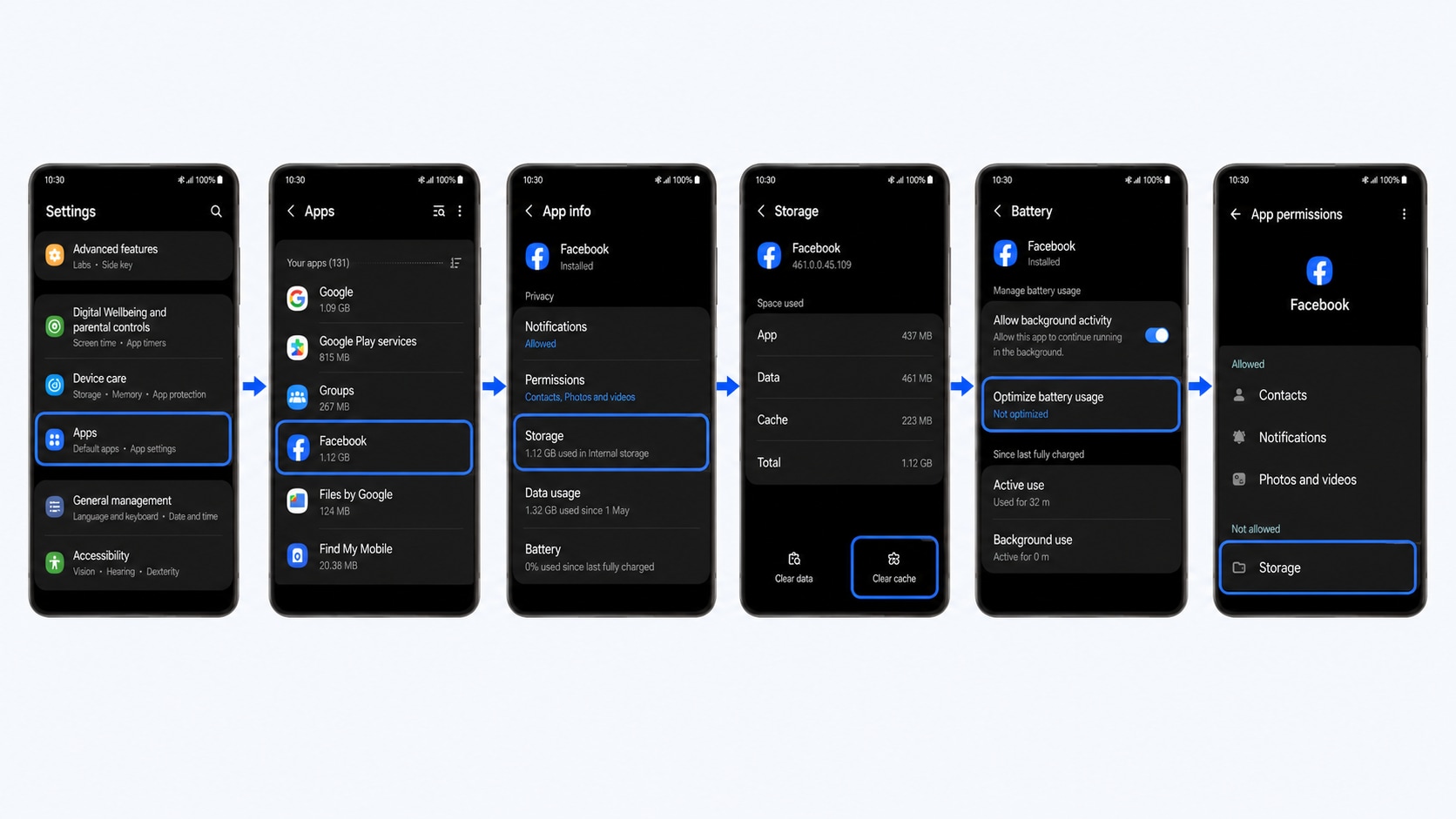
Android devices hold onto cache files tightly. To clear the Android app cache, navigate to Settings > Apps > Facebook > Storage, then tap "Clear Cache". Next, ensure the app runs smoothly by disabling Battery Optimization for Facebook in the battery settings menu. Finally, check your app permissions to allow Storage Permissions so images can render properly on the local drive.
On iPhone (iOS)
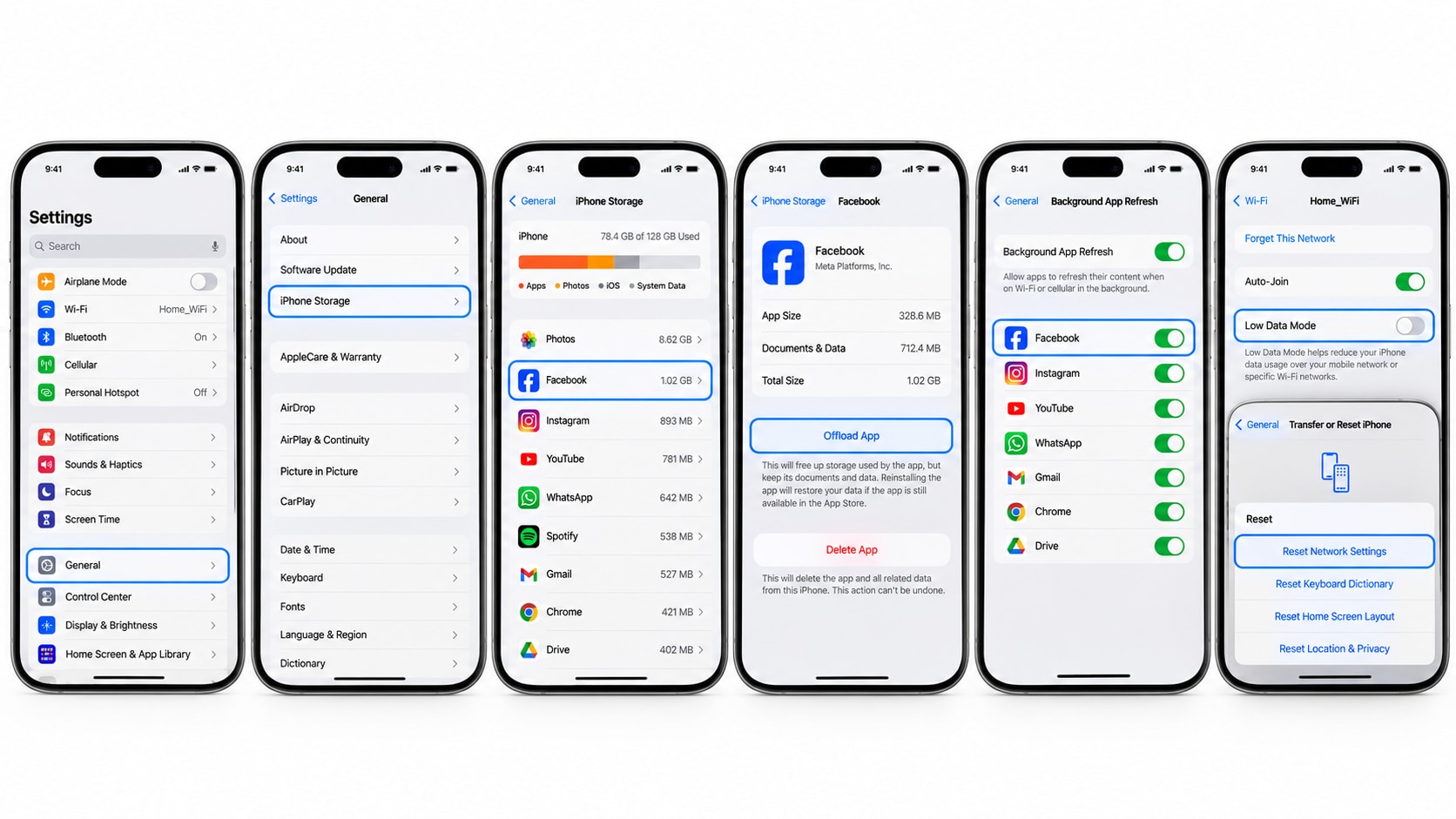
iOS manages application memory differently than Android. Start by offloading the app to keep your data while refreshing core system files. Go to Settings > General > iPhone Storage, tap Facebook, and select "Offload App". To ensure consistent loading, toggle Background App Refresh on in the general settings. If issues persist, disable Low Data Mode in your Wi-Fi settings or execute a Network Reset to clear cellular glitches.
On Chrome, Edge, Safari, & Firefox
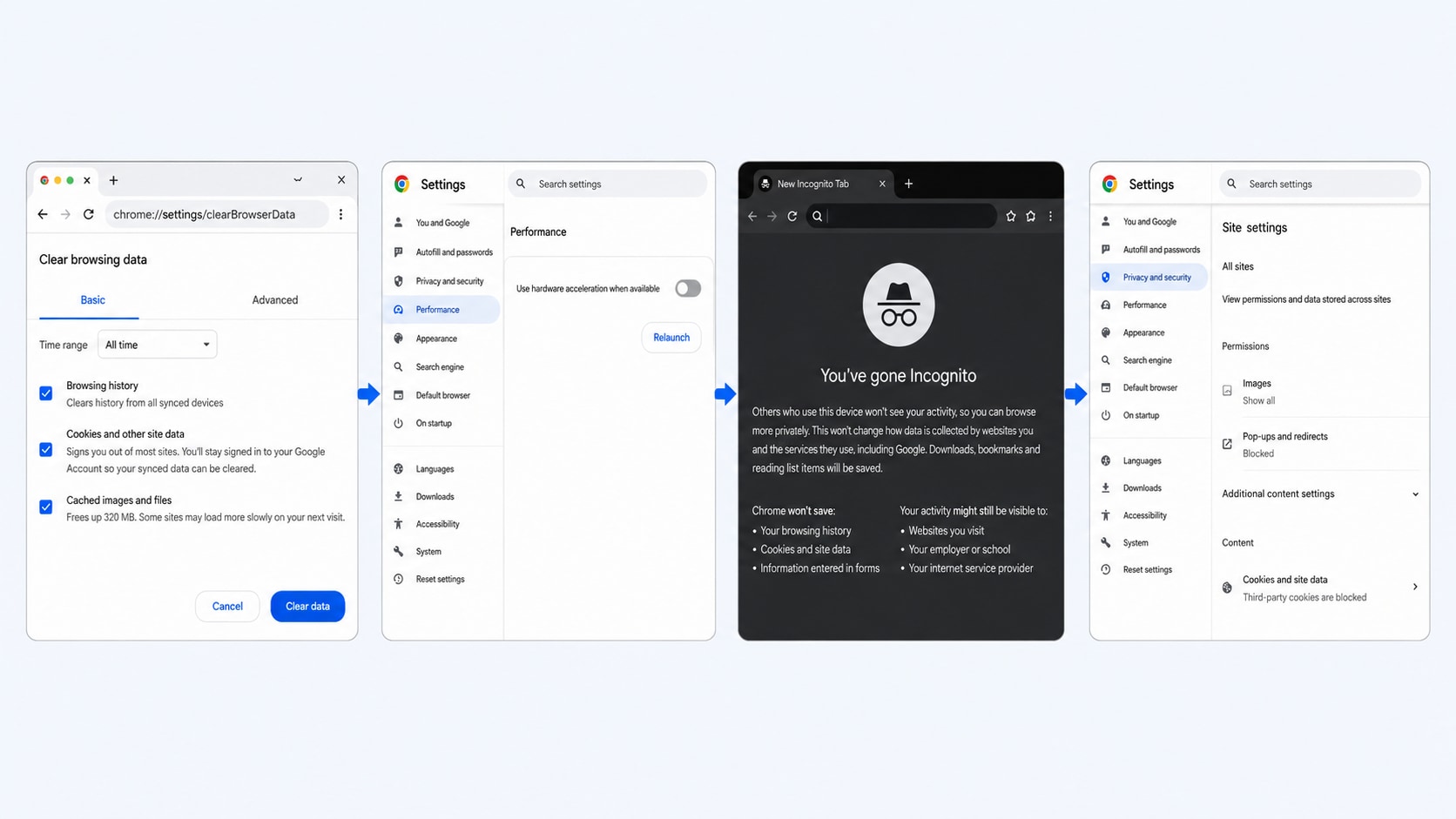
Desktop browsers rely heavily on smooth rendering engines. Begin by clearing browser cache and cookies directly from the privacy settings panel. If images look distorted, toggle off Hardware Acceleration in the browser's system menu. Testing in Incognito Mode helps identify if extensions cause the failure. Always check Site Permissions to ensure images are not blocked globally by strict browser rules.
Part 5. Prevent Facebook Image Loading Problems in the Future
Maintaining a healthy device prevents the Facebook photos not loading error from returning. A little routine maintenance goes a long way.
Keep apps and OS regularly updated: System updates contain critical patches. Running the latest software versions prevents rendering conflicts between older operating systems and modern application features.
Clear app and browser caches periodically: Regular cache clearing removes digital clutter. Making this a monthly habit stops corrupted temporary files from accumulating and blocking incoming media traffic.
Avoid unofficial or modified third-party Facebook wrappers: Third-party clients often struggle to connect with official content delivery networks. Sticking to the official application guarantees better stability and secure connections.
Maintain at least 10% free device storage at all times: Applications need operational headroom. Keeping free space ensures temporary media files can download, cache, and display properly without crashing the application.
Part 6. Organize and Convert Your Facebook Photos Efficiently
While network resets and cache clears often fix the Facebook photos not loading errors, format issues may remain once the images successfully download to your device. Whether you need to convert an entire album of downloaded pictures or shrink file sizes before re-uploading them, a desktop tool like Wondershare UniConverter proves incredibly helpful. It helps you seamlessly manage, optimize, and organize your local media library without requiring advanced technical skills.

All-in-One Multimedia Processing Tool

Useful Features:
Batch convert images to swap file formats quickly and efficiently.
Process standard image types including HEIC, JPG, PNG, and WEBP natively.
Apply lossless image compression to save storage space on your hard drive.
Use the AI image enhancer to clarify and fix low-quality downloads.
When It Becomes Useful:
Bypassing Facebook Compression: Facebook automatically shrinks large photo uploads, which often ruins their quality. You can compress high-resolution files manually beforehand to maintain better control over how they look online.
Fixing Annoying WEBP Files: Web browsers frequently save downloaded Facebook images as WEBP files. These specific files often refuse to open in older photo viewers or editing apps. You can batch-convert these stubborn WEBPs into universal JPGs for immediate use.
Restoring Older Memories: Photos uploaded to Facebook a decade ago look tiny and blurry on modern smartphone screens. You can use the AI enhancer to upscale and sharpen these low-resolution downloads. This breathes new life into your digital scrapbook before you print them.
Cross-Platform Viewing: Convert bulk albums of Apple HEIC photos into standard JPGs so Windows users can view them without error messages.
Cleaning Up Digital Clutter: Turn a messy folder of scattered social media downloads into a neatly organized, space-saving archive.
How to Convert and Optimize Facebook Photos (Step-by-Step)
Step 1: Upload Your Images to UniConverter
Open Wondershare UniConverter and click the large Converter module on the home screen. Click the "+ Add File(s)" button to browse and select your downloaded Facebook pictures. The software instantly imports your chosen media into the active conversion workspace.
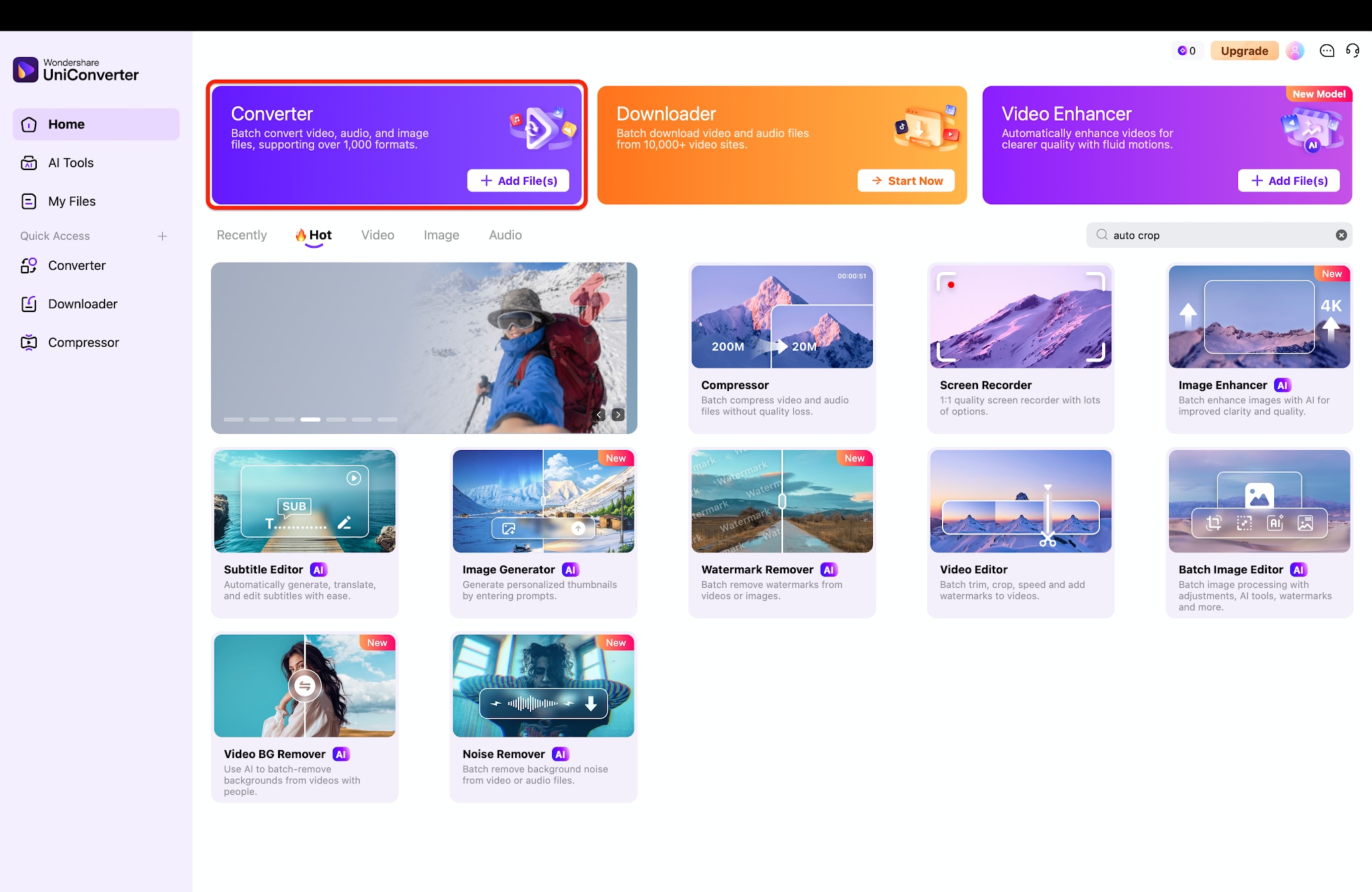
Pro Tip: Drag and drop an entire folder of photos directly into the interface to save time.
Step 2: Choose the Target Image Format
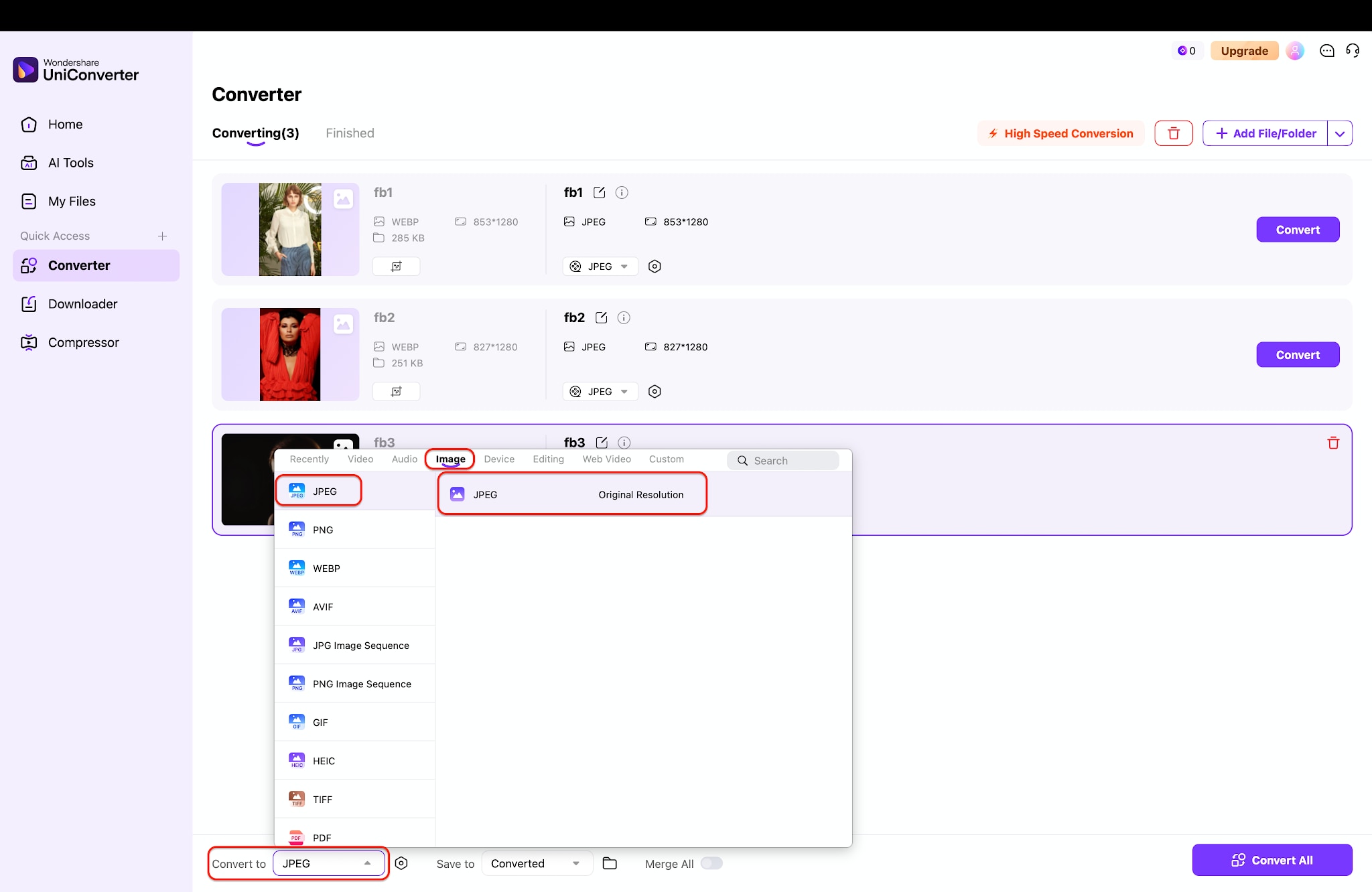
Look at the bottom of the interface to locate the "Convert to" drop-down menu. Select the Image tab and choose a universally compatible format like JPEG. Pick your desired output resolution to ensure your photos remain clear and crisp.
Step 3: Export and Save Your Converted Photos
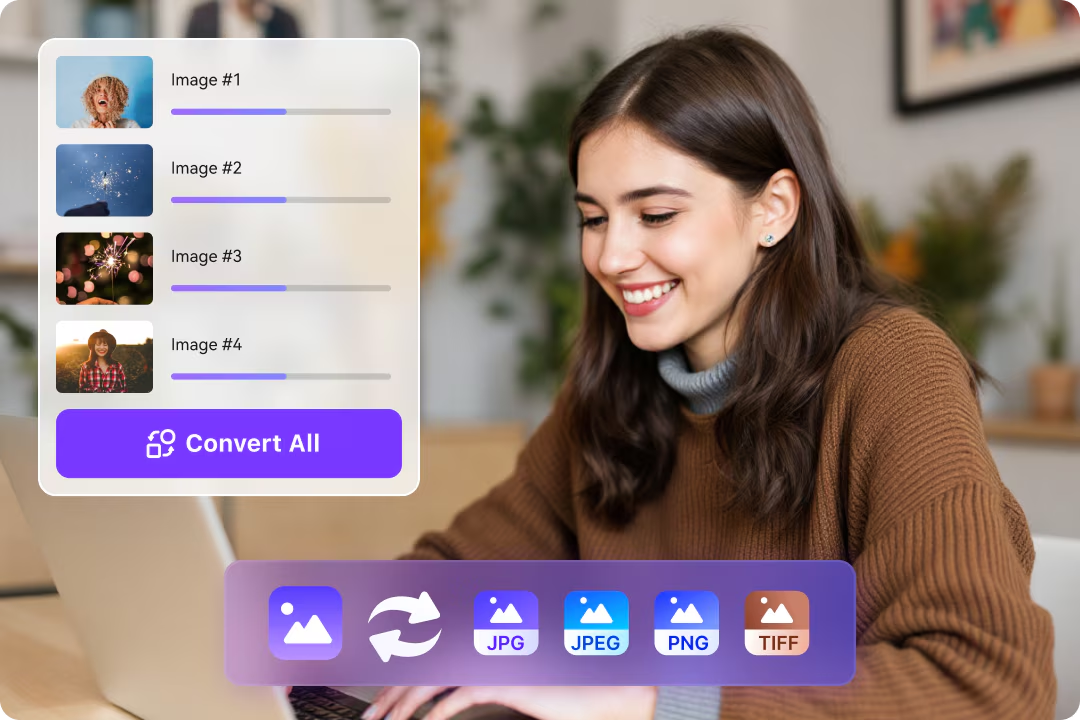
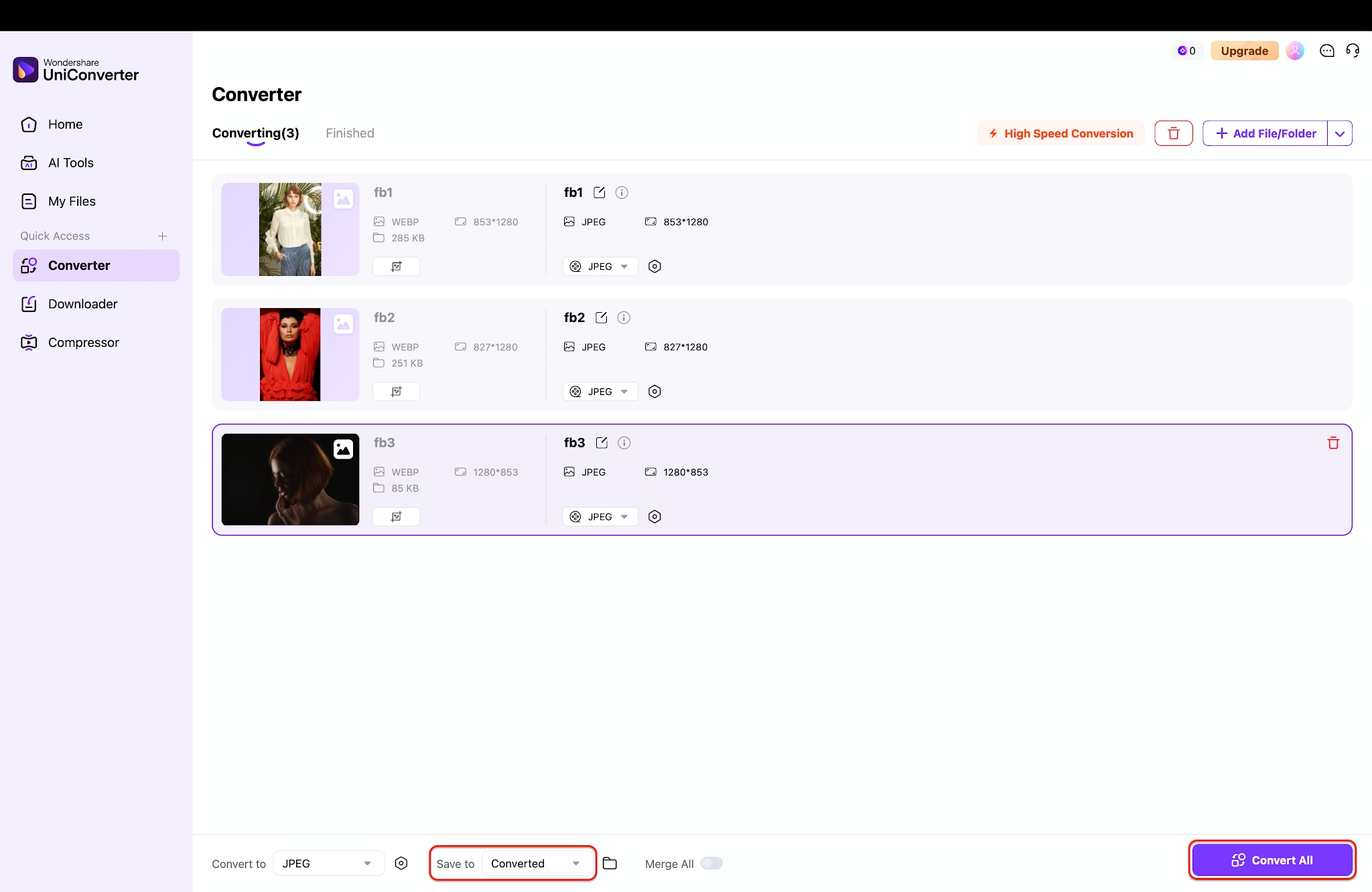
Navigate to the "Save to" menu to select a designated folder on your computer. Click the purple "Convert All" button to process your batch of images simultaneously. The application finishes the task quickly, leaving your optimized files ready for use.
Part 7. Conclusion
Resolving Facebook photos not loading usually comes down to basic network hygiene—switching Wi-Fi, clearing bloated caches, or turning off restrictive data-saving modes. Start with the simplest fixes first, and remember that if a global outage is to blame, patience is the only true fix. Once your network stabilizes and images appear, managing them offline becomes much easier. Using a reliable processing tool like Wondershare UniConverter ensures your downloads stay organized, optimized, and ready for future sharing.

