
What UniConverter Background Music Remover Can Do
Remove Background Music from Video MP4, MOV, MKV, and AVI
Remove background music from video files without rebuilding your whole project. UniConverter helps you strip BGM from MP4, MOV, MKV, AVI, and other video formats while keeping spoken words clear. It is useful when a client sends footage with placeholder music, or when you need clean dialogue for editing, subtitles, voiceovers, or social posts.
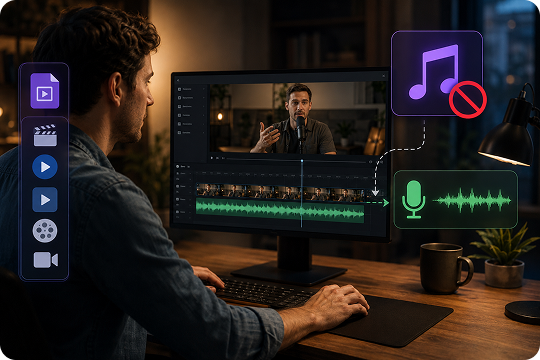
Remove Background Music from Audio and MP3 Files
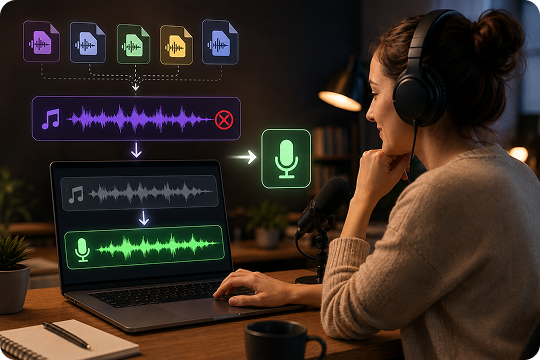
Use UniConverter as a music remover from audio when you need to clean songs, voice notes, podcasts, or MP3 files. The AI separates background music from speech, then lets you export a clearer voice track. You can process MP3, WAV, M4A, FLAC, AAC, and other audio formats for editing, teaching, transcription, or content reuse.
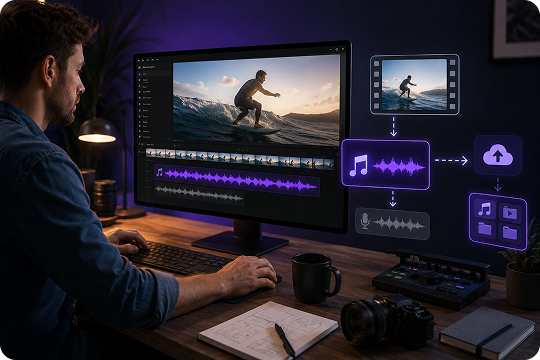
Extract Background Music from Video for Reuse
Need the music track instead of the voice? UniConverter can also work as a background music extractor for selected video files. You can separate audio elements, review the extracted background music, and reuse approved tracks in your editing workflow. This helps when you need to replace, archive, or manage music assets from video projects.
Remove BGM but Keep Voice with AI Precision
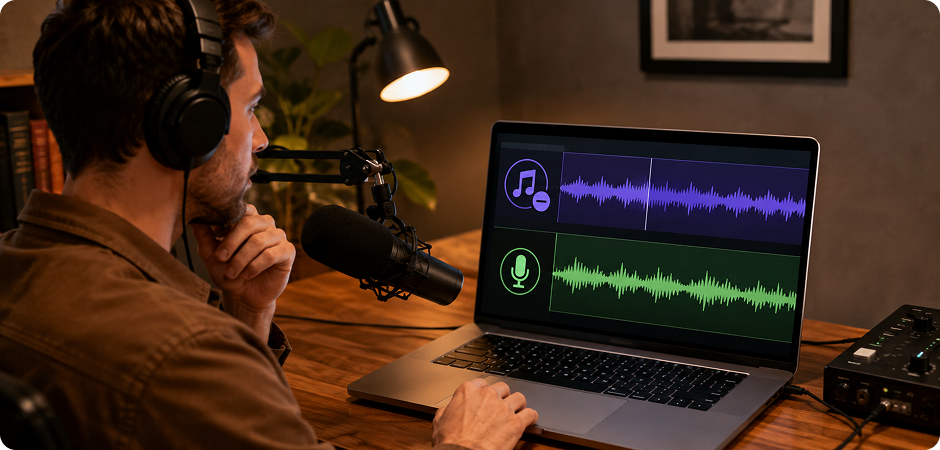
Remove BGM from video or audio while keeping the voice natural. UniConverter uses AI audio separation to identify speech and background music as different sound sources. This helps preserve interviews, narration, lectures, and dialogue. The result gives you a cleaner voice track for podcasts, course videos, subtitles, voiceovers, and post-production edits.

Online or Offline Processing for Privacy
Choose the online background music remover for quick files, or use UniConverter desktop for larger and more private tasks. Online processing is helpful for short clips and fast edits. Desktop processing gives you more format support, batch background music removal, and local control for sensitive recordings, long videos, podcasts, interviews, and work projects.

Who Uses UniConverter's Background Music Remover


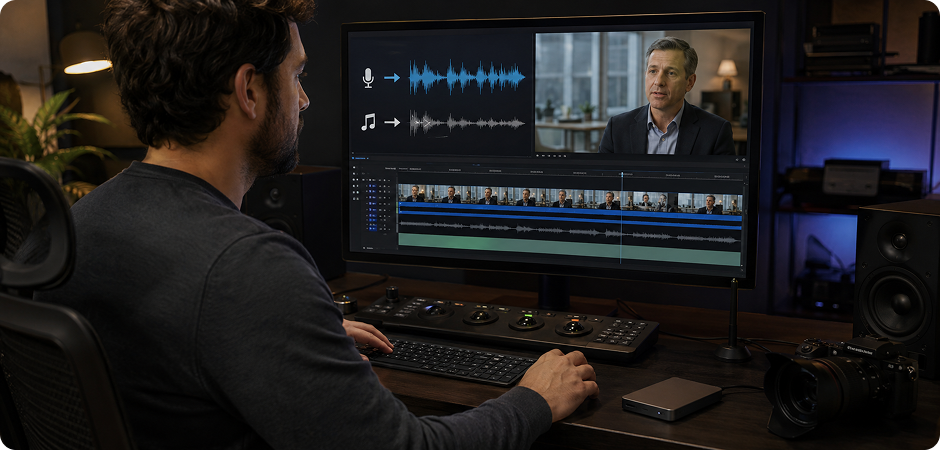

Remove Background Music from Video for YouTubers and Short-Form Creators
YouTubers, TikTok creators, and Instagram Reels editors often need to remove background music from video before republishing or re-editing content. UniConverter helps clean dialogue, replace licensed music, and prepare clips for new soundtracks. You can remove music from video but keep voice, then add royalty-free music, captions, or voiceover. This helps reduce editing time when you create tutorials, reaction clips, interviews, product videos, or short-form social content.
Remove Music from Audio for Podcasters and Interviewers
Podcasters and interviewers can use UniConverter to remove music from audio when speech is mixed with intro music, venue music, or background tracks. The AI background music remover helps separate dialogue from BGM, so you can export a clearer voice track for editing, transcription, or publishing. It is useful for remote interviews, live recordings, panel talks, and podcast episodes where speech clarity matters more than the original music bed.
Remove Background Music from Lectures and Course Videos
Educators can remove background music from video or audio lessons when music makes speech harder to hear. UniConverter helps create clearer lecture voiceovers, training videos, and online course materials. You can process MP4, MP3, WAV, or MOV files, then export cleaner audio for students. It is useful for recorded classes, screen tutorials, language lessons, webinar replays, and learning content that needs focused listening.
Remove Video Background Music for Client Edits
Video editors often receive draft footage with temporary music, mixed audio, or background songs that need replacement. UniConverter helps remove video background music while preserving dialogue for the next edit. You can clean client clips, isolate speech, and prepare audio for color grading, captioning, mixing, or soundtrack replacement. Desktop processing also supports larger files and batch workflows, which helps when you manage many assets in one project.
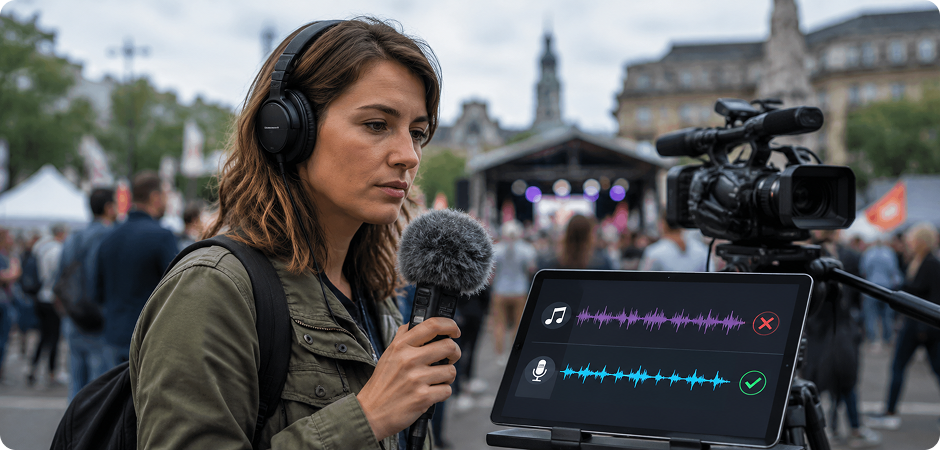
Remove BGM from Field Recordings for Journalists
Journalists can use UniConverter to remove BGM from field recordings, interviews, and reports that include unwanted background music. The AI music remover helps isolate voice from public spaces, events, or mixed media files. You can prepare clearer dialogue for review, transcription, and broadcast editing. This is useful for newsroom workflows, documentary interviews, event coverage, and location recordings where every spoken detail matters.
Use Background Music Extractor for Music Producers and DJs
Music producers and DJs can use UniConverter as a background music extractor to separate music elements from approved source files. It can support remix preparation, sample checking, and creative editing when you work with reference tracks. You can remove background music from audio, review separated stems, and continue editing in your DAW. It is helpful for demos, rehearsal recordings, mashup planning, and sound design workflows.
How to Remove Background Music from a Video or Audio in 3 Steps

Drag and drop your video or audio into UniConverter online or desktop. You can add MP4, MOV, MP3, WAV, M4A, and more.

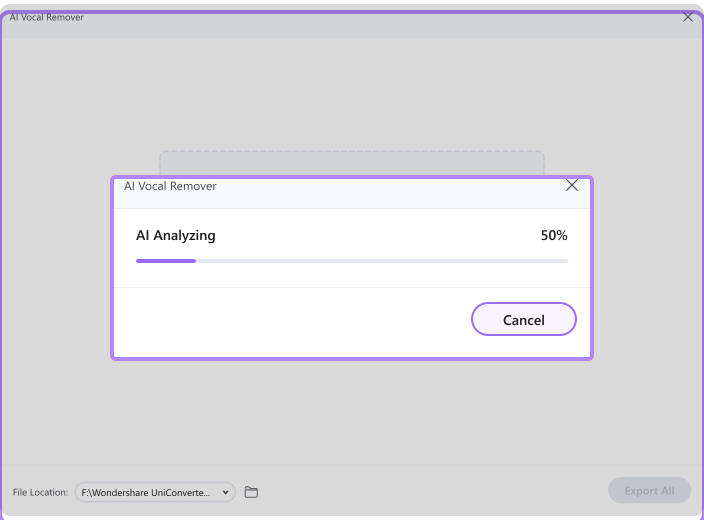
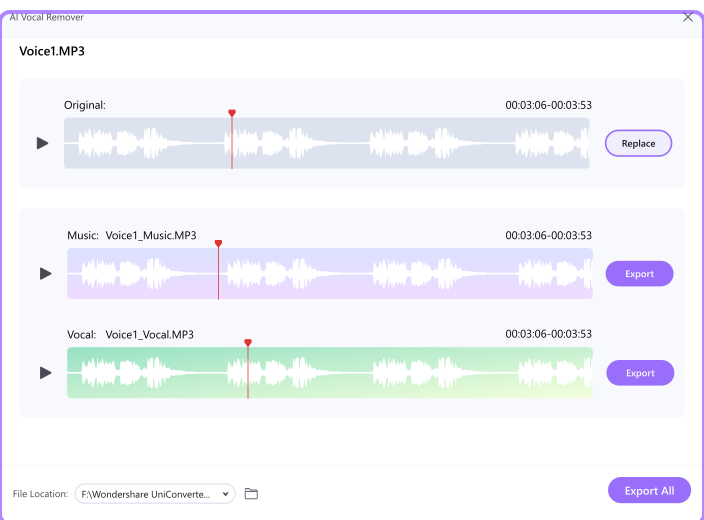
UniConverter analyzes the file and separates background music from voice in seconds.

Export your result as MP4, MP3, WAV, or another supported format. You can then edit, share, or reuse it in your project.

UniConverter Desktop vs. Online Background Music Remover — Which Is Right for You?
| Capability | Online Remover | Desktop Remover |
|---|---|---|
| Max file size | 50 MB | No practical limit for most local workflows |
| Batch processing | Not available | Supported |
| Formats | MP3, MP4 | MP3, M4A, WAV, OGG, FLAC, MP4, MOV, MKV, AVI |
| Offline and privacy control | Not available | Supported |
| Installation | None | One-time installation |
| Best for | Quick clips and simple edits | Long videos, podcasts, batch files, and sensitive projects |
Why Choose UniConverter Background Music Remover
UniConverter helps you remove background music from video and audio with AI source separation, broad format support, flexible online and desktop workflows, and secure media processing.
Supports 30+ Audio and Video Formats
UniConverter supports common audio and video formats in one workflow. You can remove background music from MP4, MOV, MKV, AVI, MP3, WAV, FLAC, M4A, AAC, and more. This helps you handle mixed media projects without converting files in separate tools first.
AI Source Separation Helps Preserve Voice
The AI background music remover separates sound sources, such as speech and music, before export. This helps preserve interviews, dialogue, narration, and voiceovers more naturally. You can use the cleaner voice track for editing, transcription, podcast cleanup, course videos, or social media clips.
No Watermark on Exported Output
UniConverter lets you export clean results without adding a watermark to your processed media. This is helpful when you need to remove background music from video online or on desktop, then share the final file with clients, students, teams, or audiences.
Free Trial and Flexible Workflow Options
You can start with the online music remover for fast tests and smaller clips. For longer videos, batch processing, or more formats, you can move to the desktop version. This gives you a flexible workflow for quick edits, regular content production, and private projects.
Works Across Web, Windows, and Mac
UniConverter supports different work habits and devices. Use the web version when you need quick access without installation. Use the Windows or Mac desktop app when you need local processing, larger file handling, more export options, and a stable editing workflow.
Designed for Secure Media Processing
Some files include private conversations, client footage, lessons, or business recordings. UniConverter desktop gives you local control when privacy matters. You can process sensitive audio and video files on your computer, manage outputs yourself, and keep your workflow simple and organized.
What Creators Say About
UniConverter Background Music Remover
Frequently Asked Questions About Removing Background Music
How do I remove background music from a video?
How do I remove background music from audio but keep the voice?
Is there a free background music remover online?
How do I remove background music from an MP3 file?
Does removing background music help avoid YouTube copyright strikes?
What is the difference between a background music remover and a vocal remover?
Can I remove BGM from large files or in batch?
Will the voice sound natural after the background music is removed?
More Than a Music Remover

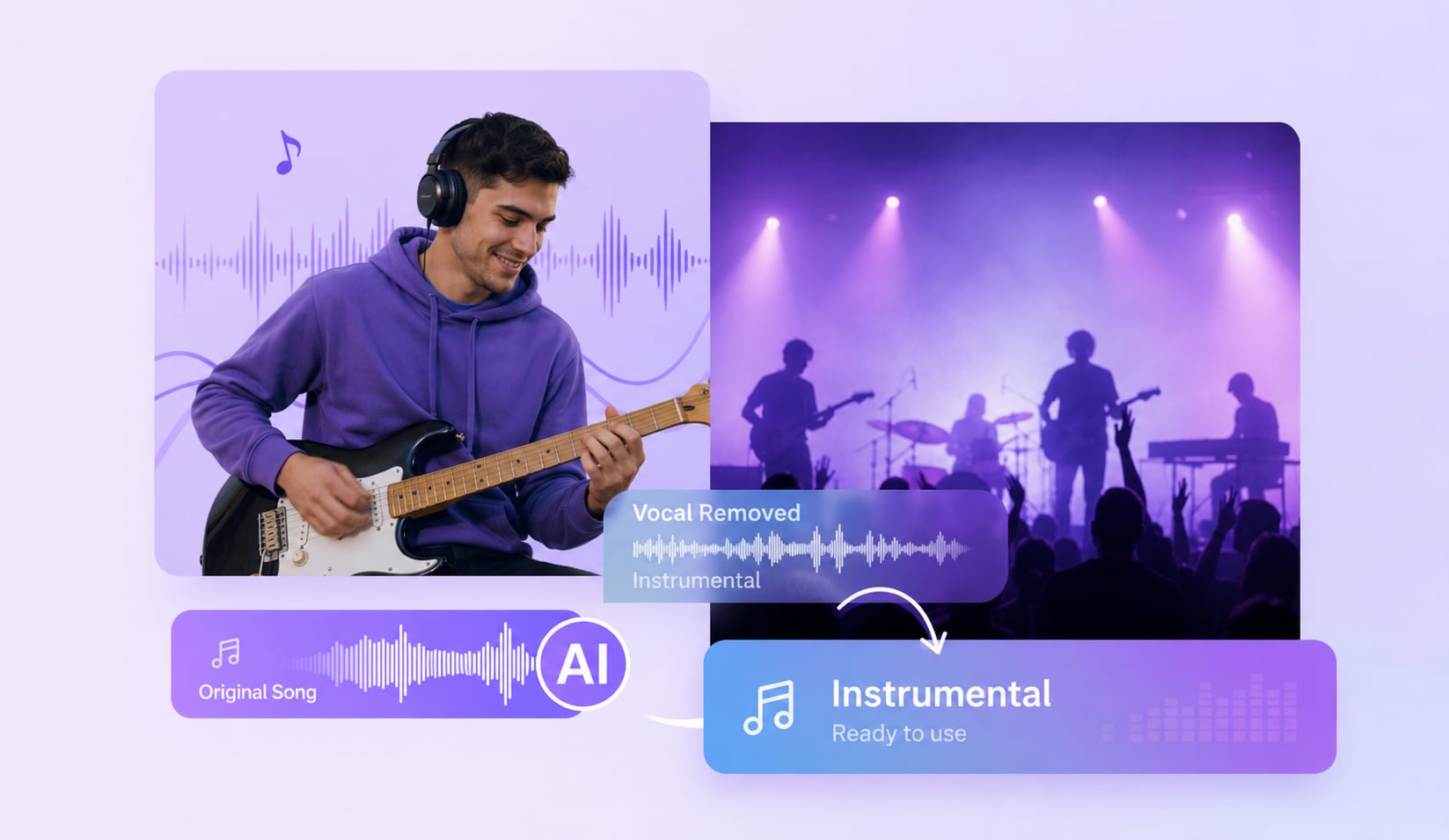



Explore More UniConverter Audio Tools
Keep improving your audio workflow with more UniConverter tools.



Ready to Remove Background Music from Any Video or Song?
Clean up your audio, keep voices clear, and prepare files for editing or sharing. Use UniConverter online for quick background music removal, or download the desktop app for larger files, batch tasks, and private projects.
