Extract Sound from Video for Podcasting & Content Repurposing
Download the latest version | Secure & verified
Get audio from video in seconds. Extract MP3, WAV, and FLAC from any video format with clean, reliable output. You can start online for free or use the desktop version for faster speed and batch work. No watermark. No signup. Just a simple way to turn your videos into high-quality audio.
 👥 4.8/5 from 50,000 reviews


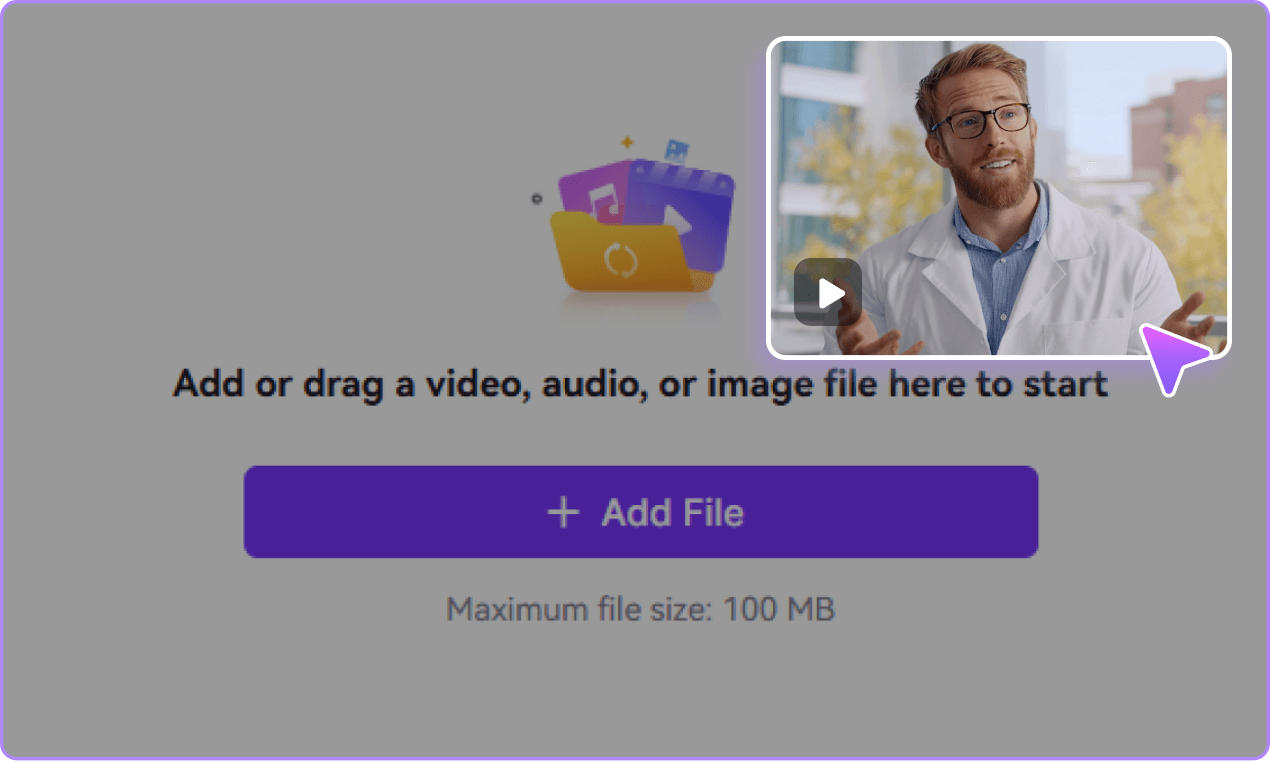
Click “Add File” or drag & drop your video into the upload area. For desktop users, you can upload multiple files in more than 1000 supported formats at one time.

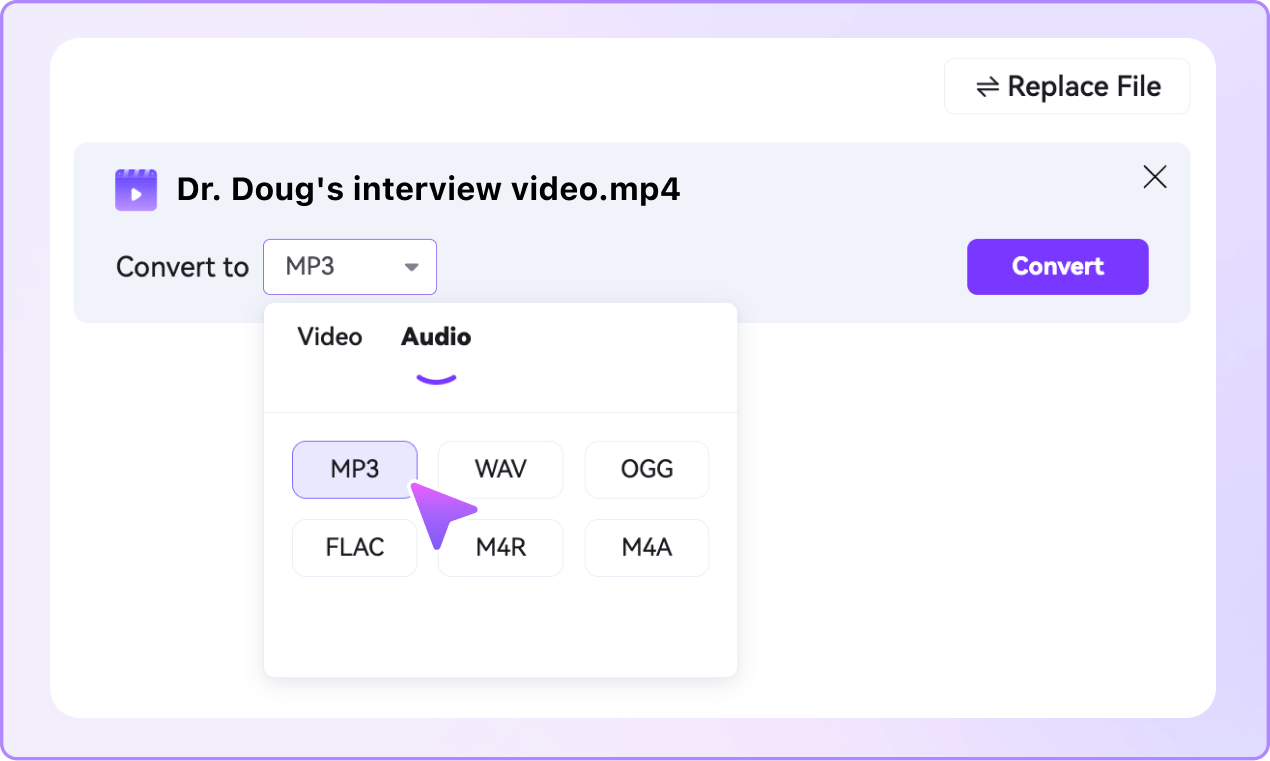
Select your desired output format: MP3, WAV, M4A, FLAC, etc. Adjust bitrate, sample rate, and channels for professional audio extraction in Desktop.

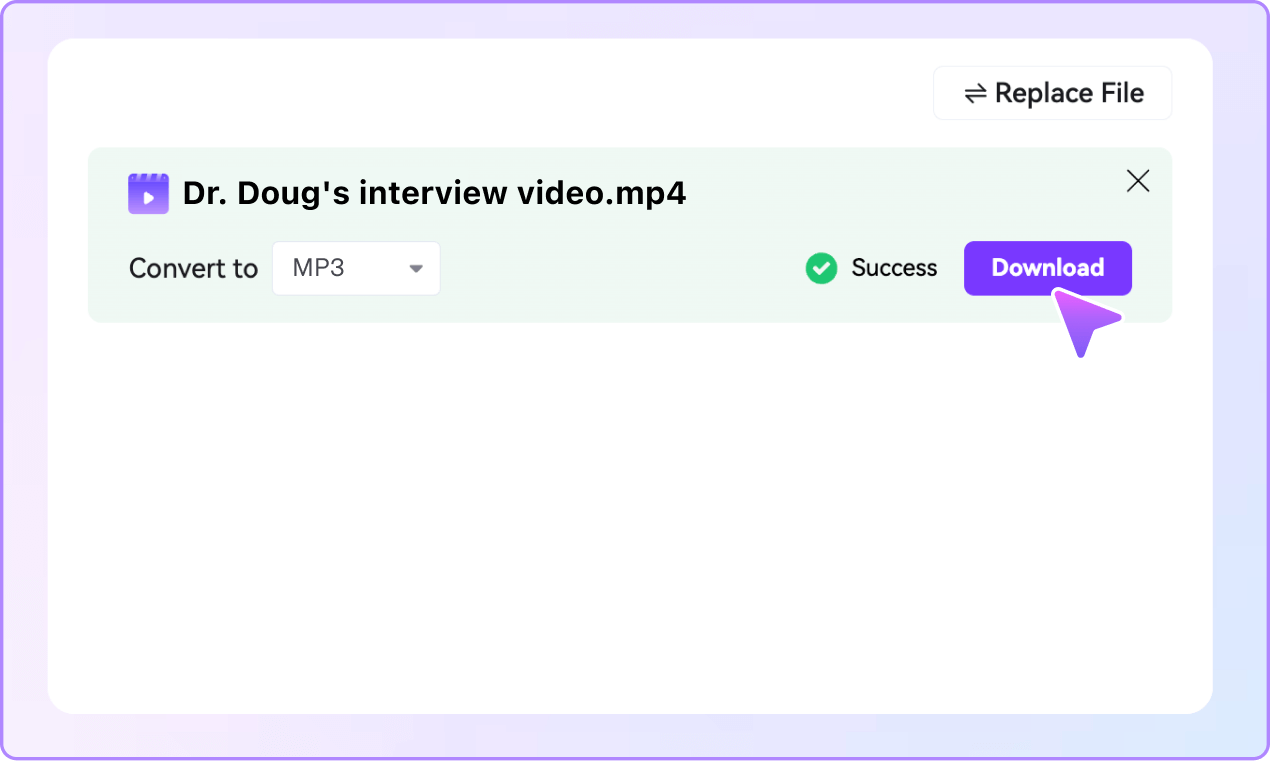
Click “Convert” to pull audio from video. Click “Download” to save audio from video to your device.
Unlike many basic audio extractor tools, UniConverter combines a free online audio extractor with a powerful desktop video to audio converter. You get speed, quality, and smart AI features in one place.
Extract audio from virtually any video file:
- Input: MP4, MOV, AVI, MKV, WMV, FLV, WEBM, 3GP, M4V, VOB, TS, and more.
- Output: MP3, WAV, FLAC, AAC, OGG, M4A, WMA, etc.
Check All Formats Supported >>
Whether you need to extract audio from an MP4 video or convert a rare format, UniConverter gives you
reliable and consistent results.

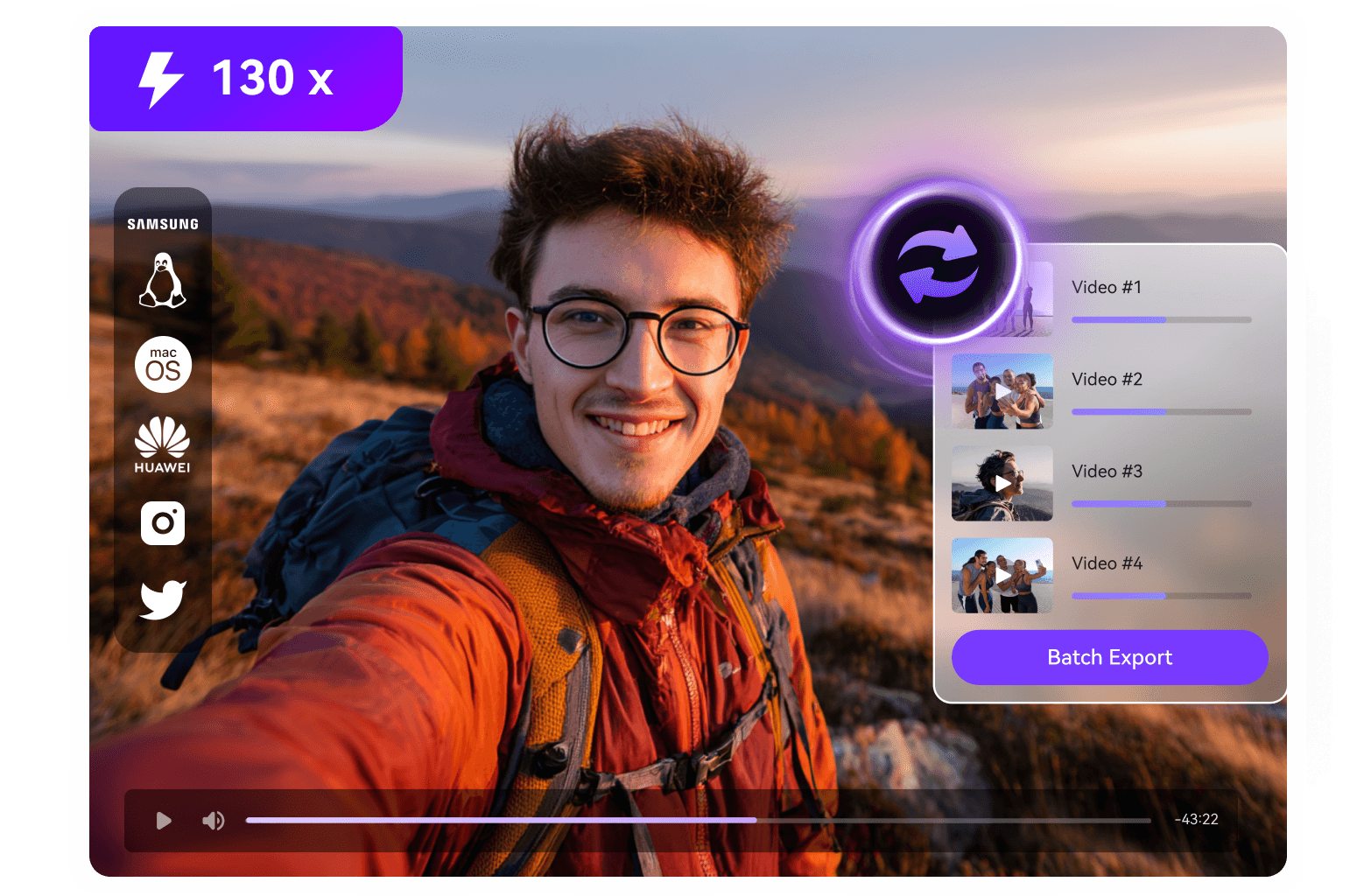
The desktop version uses GPU acceleration to rip audio from video up to 130X faster than standard tools. You can process long webinars, lectures, or livestream recordings without waiting. It also handles batch extraction from entire video folders and works smoothly with high-resolution 4K and 8K footage. This helps you convert more files in less time.
UniConverter goes beyond a basic audio extractor. The AI-powered enhancer removes background noise, balances volume, and improves clarity for spoken voices and music. You can trim unwanted sections, merge clips, and prepare audio for podcasts or production work. This makes it easier to extract voice from video or export clean sound for professional use.
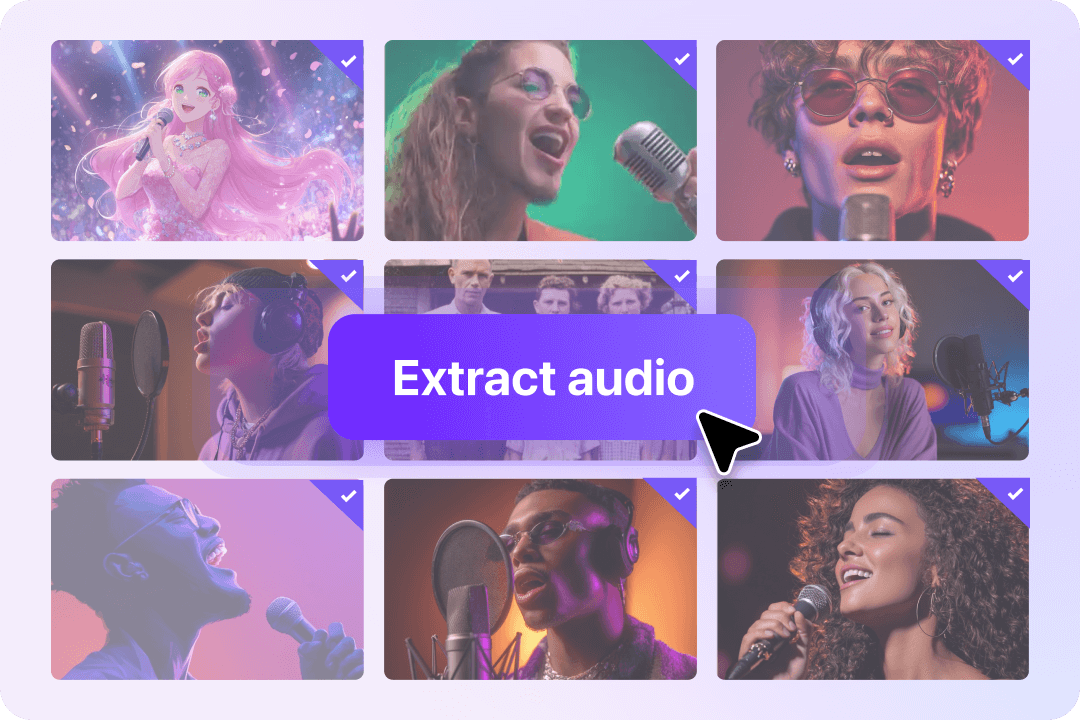
When you need to extract audio from multiple videos, UniConverter's batch processing saves significant time. You can load an entire folder, choose your preferred output format, and convert everything at once. This is especially useful for podcasters, educators, and teams who work with recurring content. It helps you stay organized and avoid repeating manual tasks.
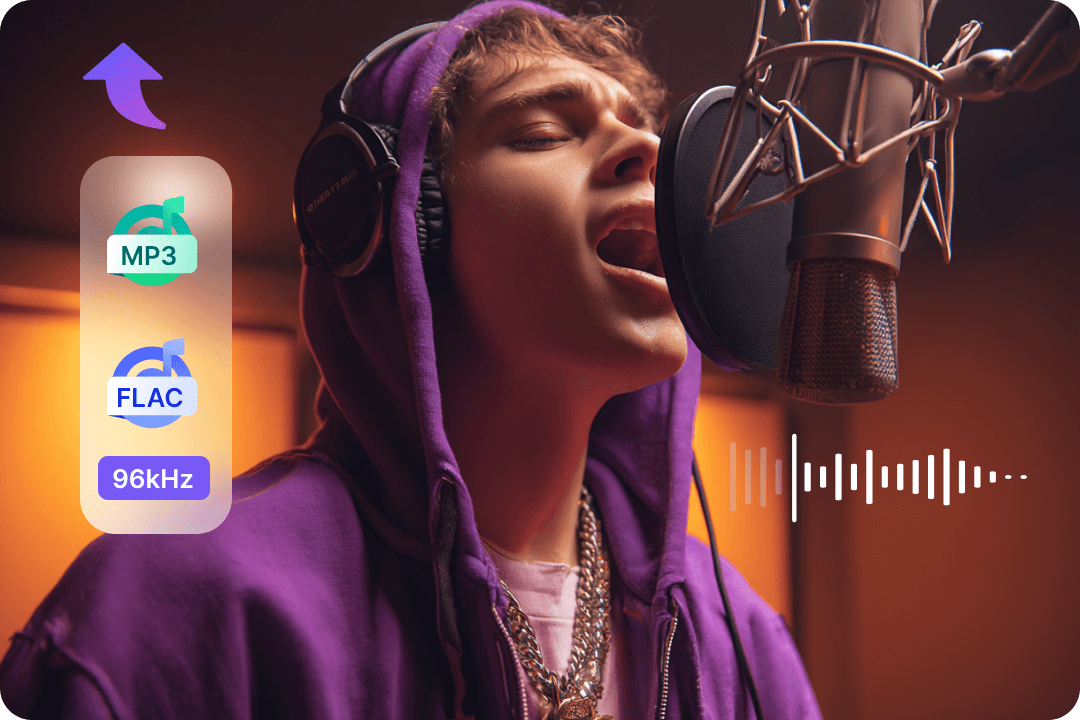
UniConverter preserves the original audio quality when you strip audio from video. You can export in lossless formats such as WAV or FLAC and choose sample rates up to 96kHz. This is ideal for sound designers, editors, and music creators who need clean, detailed audio. Your extracted files maintain clarity and stay ready for further editing.
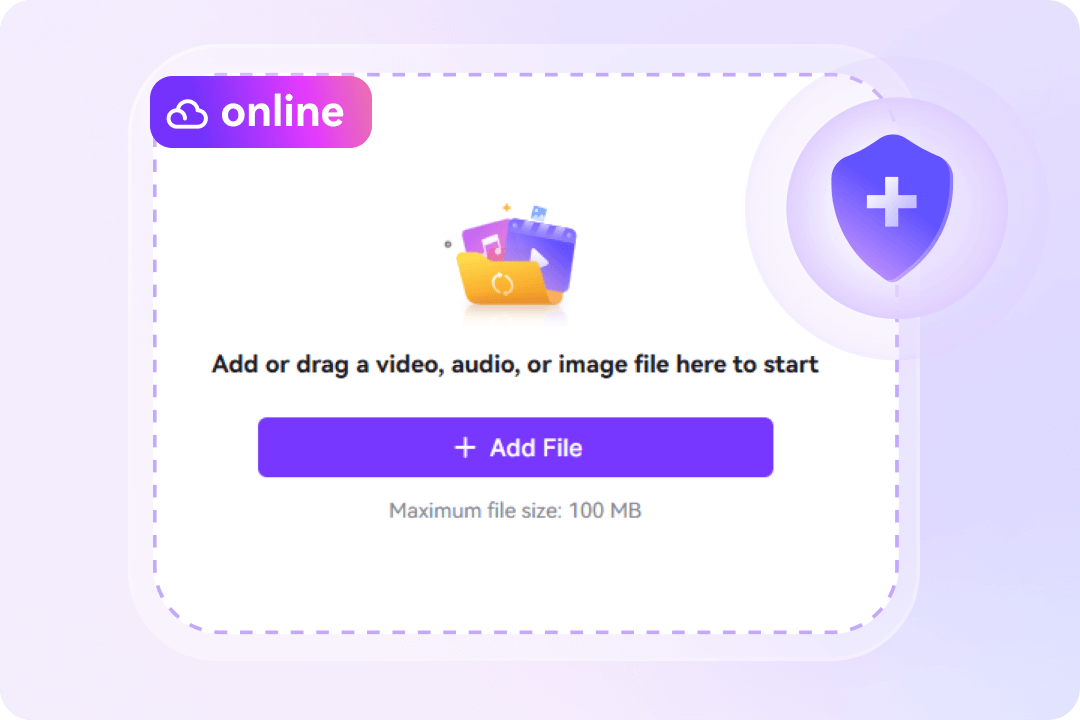
The online audio extractor is free to use and requires no registration. Your files are transmitted securely and automatically deleted after processing. You can extract audio from video online free in three simple steps or switch to the desktop version for advanced settings. Both options offer a smooth workflow and help you convert videos to audio with confidence.
UniConverter gives you two ways to extract audio from video: a free online audio extractor for quick, one-off tasks, and a powerful desktop video to audio converter for batch work and advanced control. Choose the best way to get audio from video based on your needs.
| Feature | UniConverter Online Converter | UniConverter Desktop |
|---|---|---|
| File Size Limit | Up to 100MB | Unlimited |
| Batch Processing | ❌ Single file | ✅ Multiple files |
| Processing Speed | Standard | 🚀 130X faster |
| Advanced Editing | ❌ Basic | ✅ Full features |
| Supported Formats | 20+ common formats | 1000+ formats |
| No Watermark | ✅ Yes | ✅ Yes |
| Price | Free forever | Free trial + Paid |
| Best For |
✓ Quick one-time conversions ✓ Small files under 100MB ✓ Casual users ✓ No installation needed |
✓ Large files & batch projects ✓ Professional users ✓ Regular audio extraction ✓ Advanced editing needs |
| Try Now | Try Free Online |
From content creators to students, many people need to get audio from video for different reasons. Here's how UniConverter helps in real-world scenarios.




With UniConverter, it’s easy to extract audio from video:
1. Upload your video (MP4, MOV, AVI, MKV, etc.).
2. Choose an output format like MP3, WAV, or FLAC.
3. Click Extract Audio and then download the file.
You can use the online audio extractor for quick tasks or the desktop video to audio converter for
batch processing and higher speed.
Yes. UniConverter offers a free online audio extractor that lets you extract audio from video free in your browser. For advanced features like AI enhancement, batch conversion, and more output formats, you can try the desktop version with a free trial.
To extract MP3 from video, upload your video to UniConverter, choose MP3 as the output format, and click Extract. This works for MP4, MOV, AVI, MKV, and other formats. MP3 is ideal when you want to download music from video or create ringtones.
Open UniConverter audio extractor online in Safari or Chrome, tap to upload a video from your Photos or Files app, choose MP3 or M4A, and tap Convert. Then you can save audio from video directly to your iPhone. Besides, you can use the iOS app UniConverter offers - Anismall to rip audio from video.
On Android, open UniConverter’s video to audio converter online free in your mobile browser, upload your video, select your preferred format, and extract. You can then download audio from video to your phone or cloud storage.

Get audio from video effortlessly with UniConverter. Meet all your needs for getting, editing, enjoying, and sharing.