

Nothing disrupts your social feed faster than a spinning loading wheel or a sudden black screen. It is incredibly frustrating when Facebook videos are not playing right when you want to watch an engaging clip. These playback errors often stem from simple browser conflicts, outdated app caches, or hidden smartphone settings. Fortunately, this guide covers eight community-tested troubleshooting fixes to help you restore your normal viewing experience immediately. We will also explore reliable alternative methods to download your favorite media, ensuring seamless offline playback so you never have to worry about network buffering again.
Table of Contents
Part 1. Why Are Facebook Videos Not Playing?
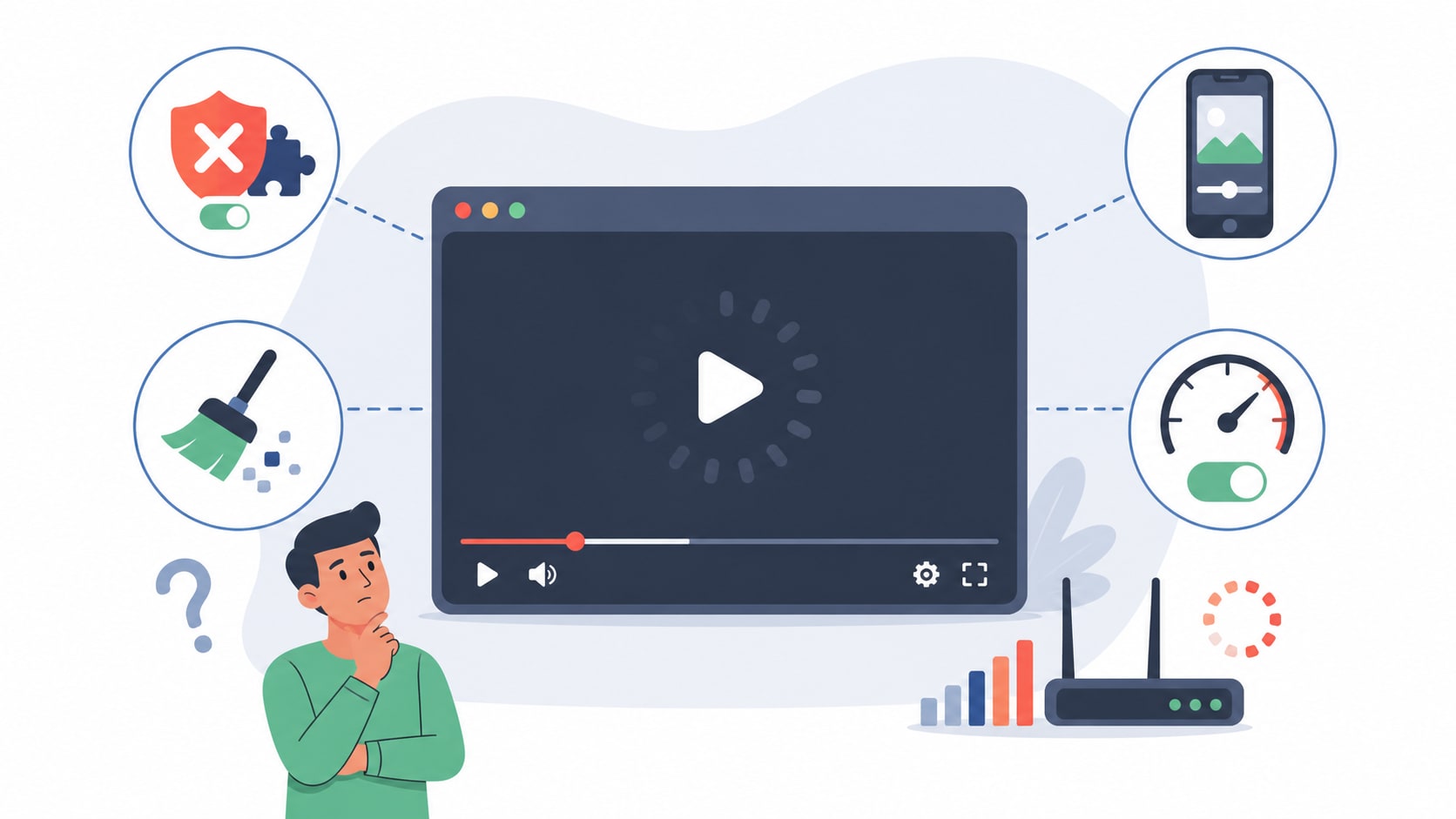
Understanding the root cause is the first step to solving video playback errors. Several technical factors can interrupt your viewing experience. By identifying the exact issue, you can apply the correct fix faster.
Here are the most common technical culprits:
Interference from ad-blocking extensions (e.g., uBlock Origin).
Corrupted browser or app cache data.
Conflicts with smartphone "Video Enhancer" display settings.
Throttled network speeds or active "Data Saver" modes.
Part 2. 8 Community-Tested Fixes for When Facebook Videos Are Not Playing
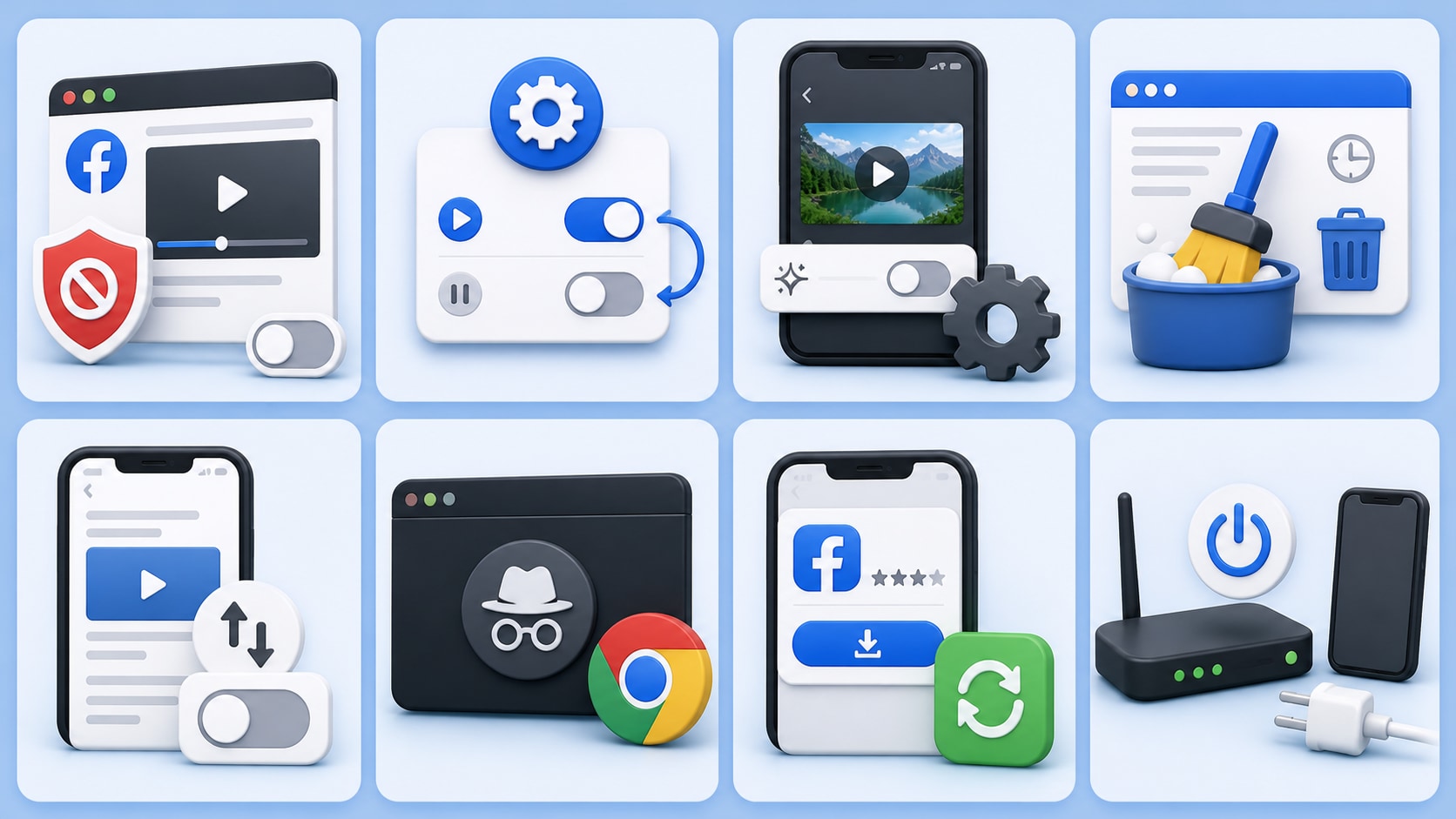
Fix 1. Disable Ad-Blockers and Refresh
Browser extensions like uBlock Origin or AdGuard aim to keep your feed clean. However, they often mistakenly block Facebook's video player scripts. This causes the media player to freeze or show a blank screen.
You can fix this by temporarily disabling your ad-blocker. Click the extension icon in your browser toolbar. Select the option to pause or turn it off for the current website. Refresh the page to see if the video plays normally.
Fix 2. Toggle Facebook's Autoplay Settings
Sometimes the platform's internal media player gets stuck. You can force the video player to reset using a proven user trick. This method is quick and works well on desktop browsers.
Go to your Facebook Video Settings. Find the "Autoplay" option and turn it ON. Immediately turn it back OFF. This simple toggle forces the platform to reload its media scripts.
Fix 3. Turn Off "Video Enhancer" (Android/OnePlus Users)
Built-in operating system features on certain Android devices can cause endless buffering. Tools like "Video Enhancer" attempt to artificially boost color and contrast. Unfortunately, they frequently conflict with Facebook's native player.
You need to turn off this feature to restore normal playback. Guide yourself to your phone's Display Settings. Locate the "Video Enhancer" or "Video Color Enhancer" option. Toggle the switch to the off position and restart your app.
Fix 4. Clear Your Browser or App Cache
Your browser or app stores temporary data to load pages faster. When this cache becomes corrupted, videos fail to render. Clearing this temporary data is a highly reliable fix.
For desktop users, open your Chrome or Safari settings. Navigate to privacy settings and clear your browsing data. For mobile users, navigate to your phone's app settings. Select Facebook, tap "Force Stop," and clear the application cache.
Fix 5. Disable "Data Saver" Mode
Facebook includes a "Data Saver" feature to help users on limited data plans. This setting compresses media heavily. Sometimes it compresses the video so much that it won't play at all.
You must ensure videos load at optimal resolutions. Open the Facebook app and navigate to the Settings menu. Tap on "Media" or "Media and Contacts." Uncheck the "Data Saver" box to allow high-quality playback.
Fix 6. Try Incognito Mode or a Different Browser
Browser cookies and outdated files can create silent conflicts. These conflicts prevent the media from streaming correctly. Using a private window is an easy way to rule out these issues.
Open an Incognito or Private browsing window. Log in to your account and try playing the video. If it works, you likely have a cookie conflict or an outdated browser version on your main window.
Fix 7. Update the Facebook App
Social media platforms constantly update their server protocols. Running outdated software can cause server-side playback errors. Your app simply loses the ability to communicate with the video host.
Open the Google Play Store or Apple App Store. Search for Facebook and check for any available updates. Installing the latest version ensures compatibility with the current video player infrastructure.
Fix 8. Restart Your Device and Router
When all else fails, a system reboot is your best option. Your device RAM can become cluttered over time. Furthermore, your router may assign a faulty IP address to your device.
This is the classic reboot method. Turn off your smartphone or computer completely. Unplug your internet router for thirty seconds. Plug it back in, turn on your device, and establish a fresh connection.
Part 3. Best Workaround: Download Facebook Videos for Offline Playback
If native playback keeps failing due to server issues, you need a permanent solution. Downloading the video locally guarantees uninterrupted viewing. It bypasses network throttling, app glitches, and browser conflicts completely. Here are four effective methods to save your media.
Method 1: Use a Dedicated Desktop Software (Recommended)
When you want a reliable and professional tool, Wondershare UniConverter is the premier, comprehensive solution. It bypasses platform glitches by allowing users to securely download Facebook videos in ultra-high quality. It features an Intelligent Mode for optimal format recognition. This ensures your files play perfectly on any device, even without an internet connection.


How it Works:
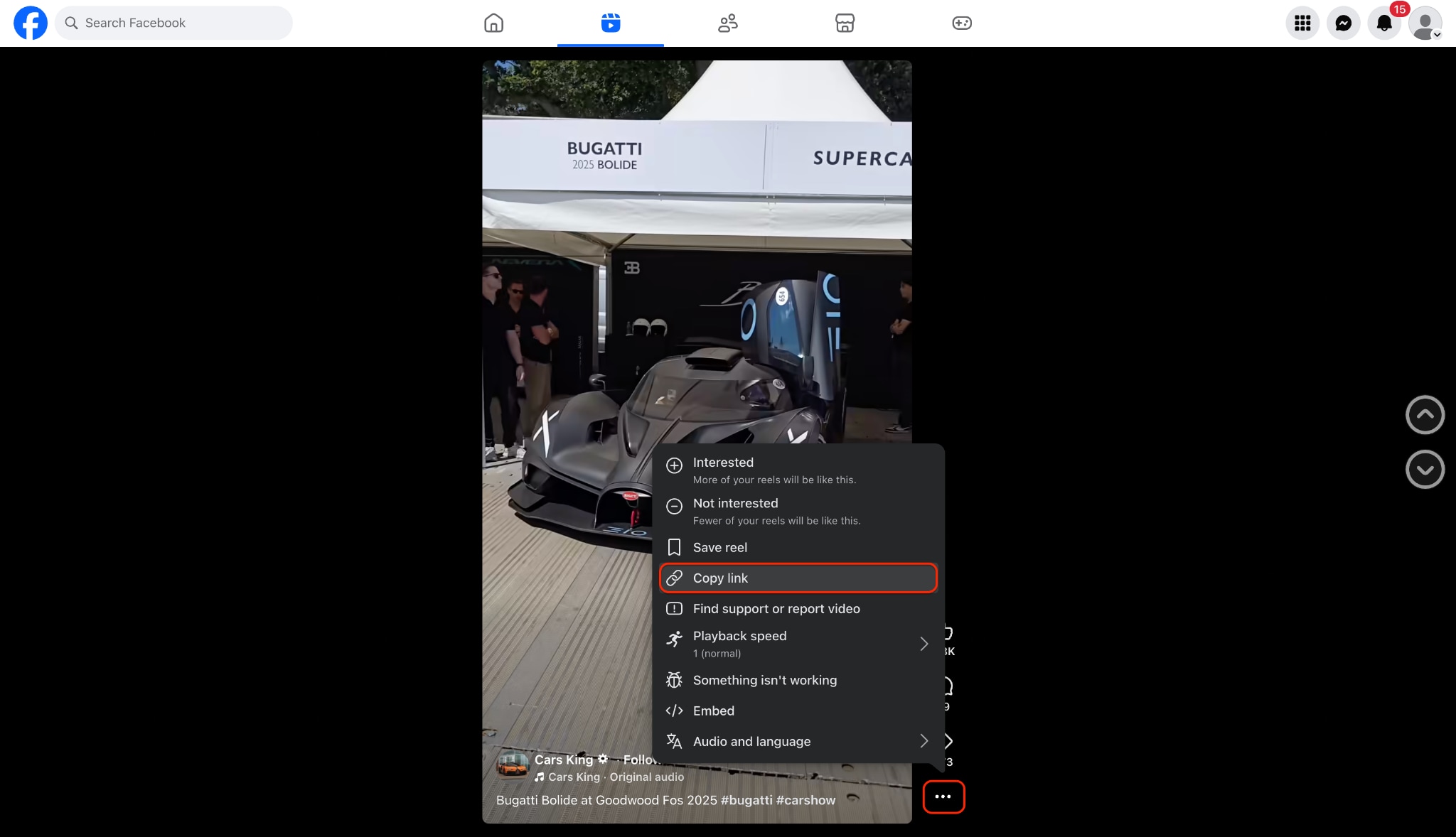
Step 1: Copy the Facebook Video Link
Step 2: Open the UniConverter Downloader
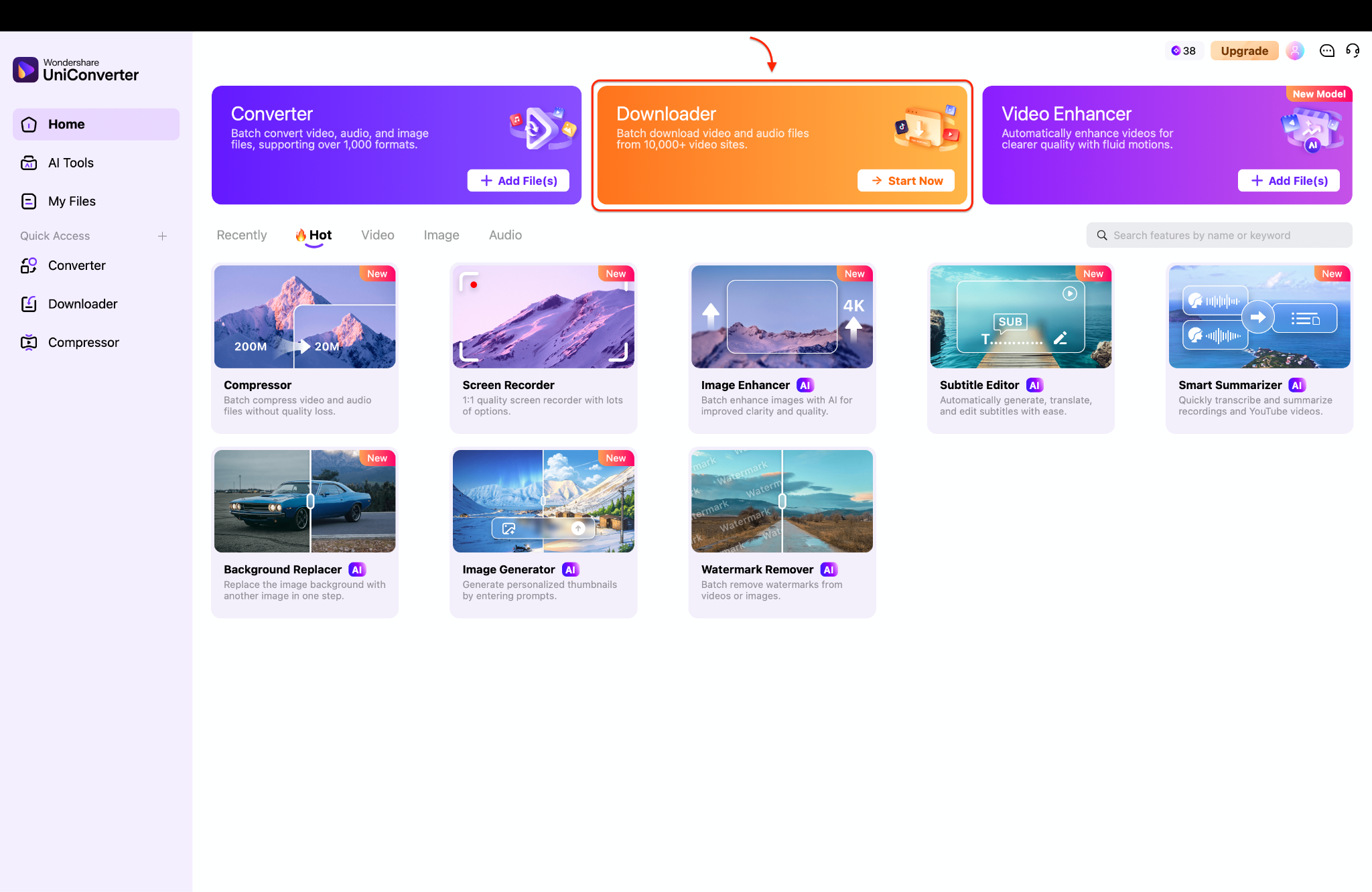
Pro Tip: When batch downloading, gather all your Facebook video links in a notepad file first, copy the entire list at once, and UniConverter will automatically detect and paste them for simultaneous processing.
Step 3: Download and Locate Your File
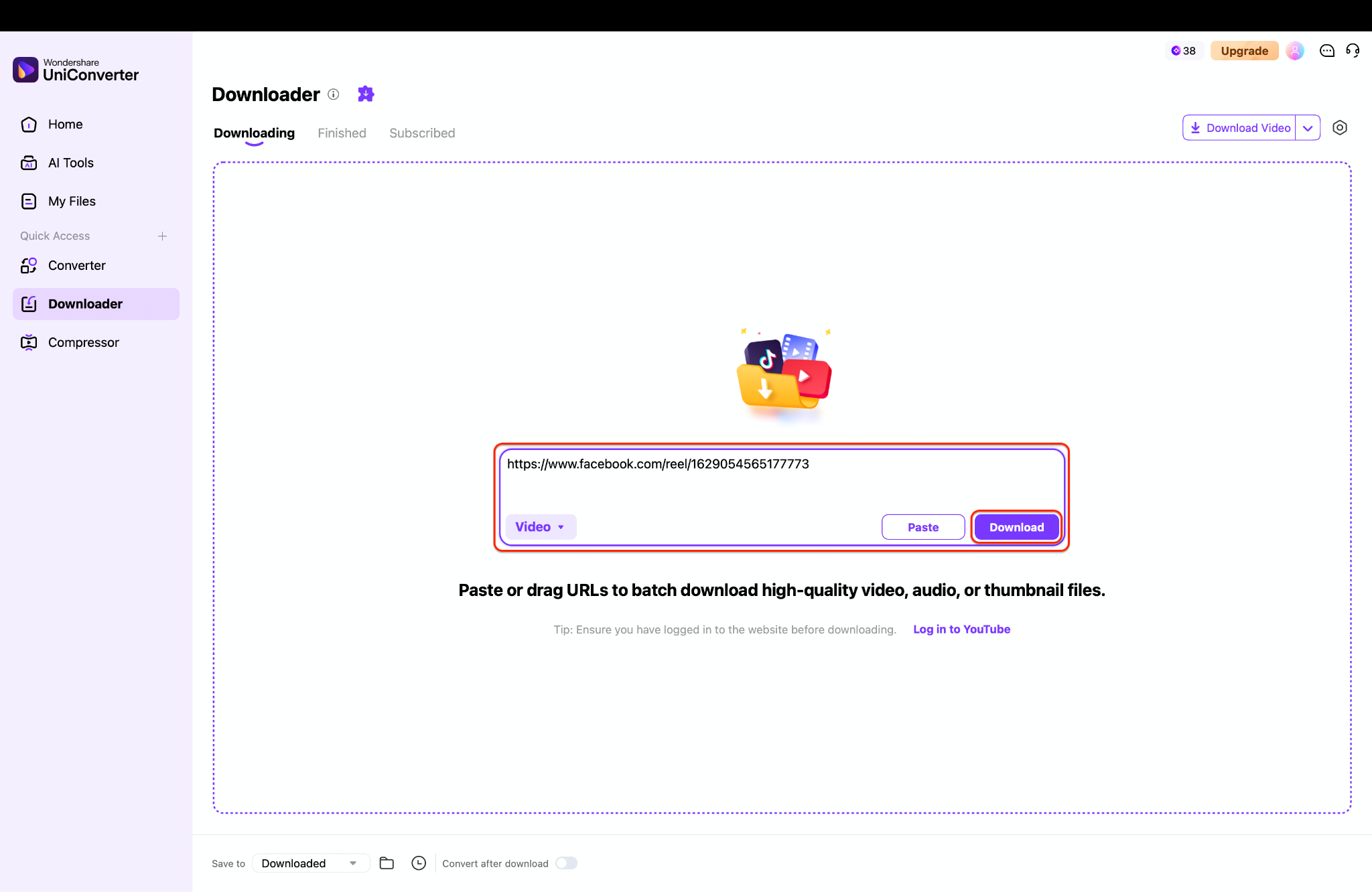
Method 2: Use a Dedicated Browser Extension
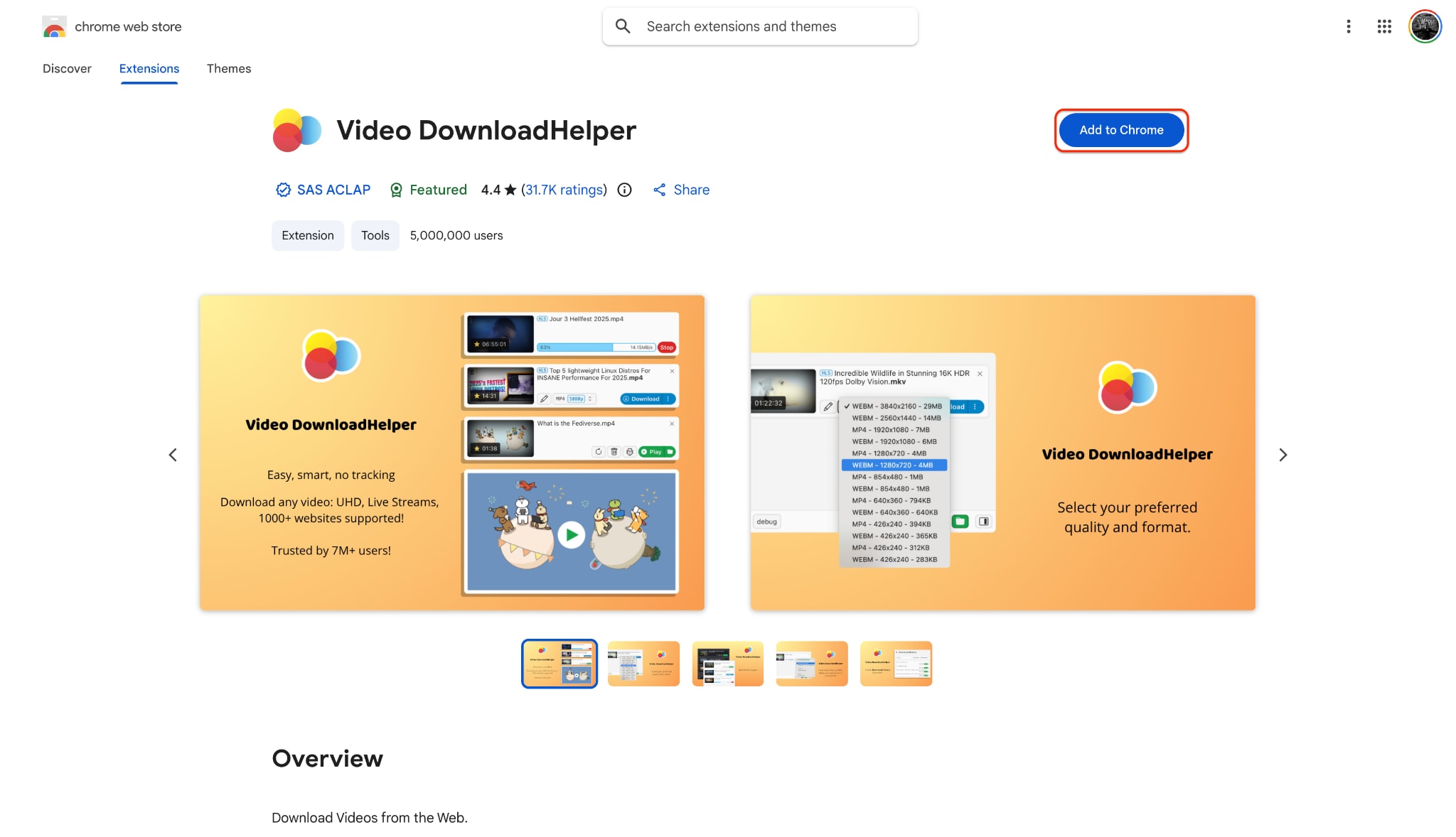
Browser extensions offer a quick way to save media without leaving your current tab. We highlight a dedicated extension, such as Video DownloadHelper, for this task. It is perfect for users who want to save videos while actively browsing their feed on Chrome or Firefox.
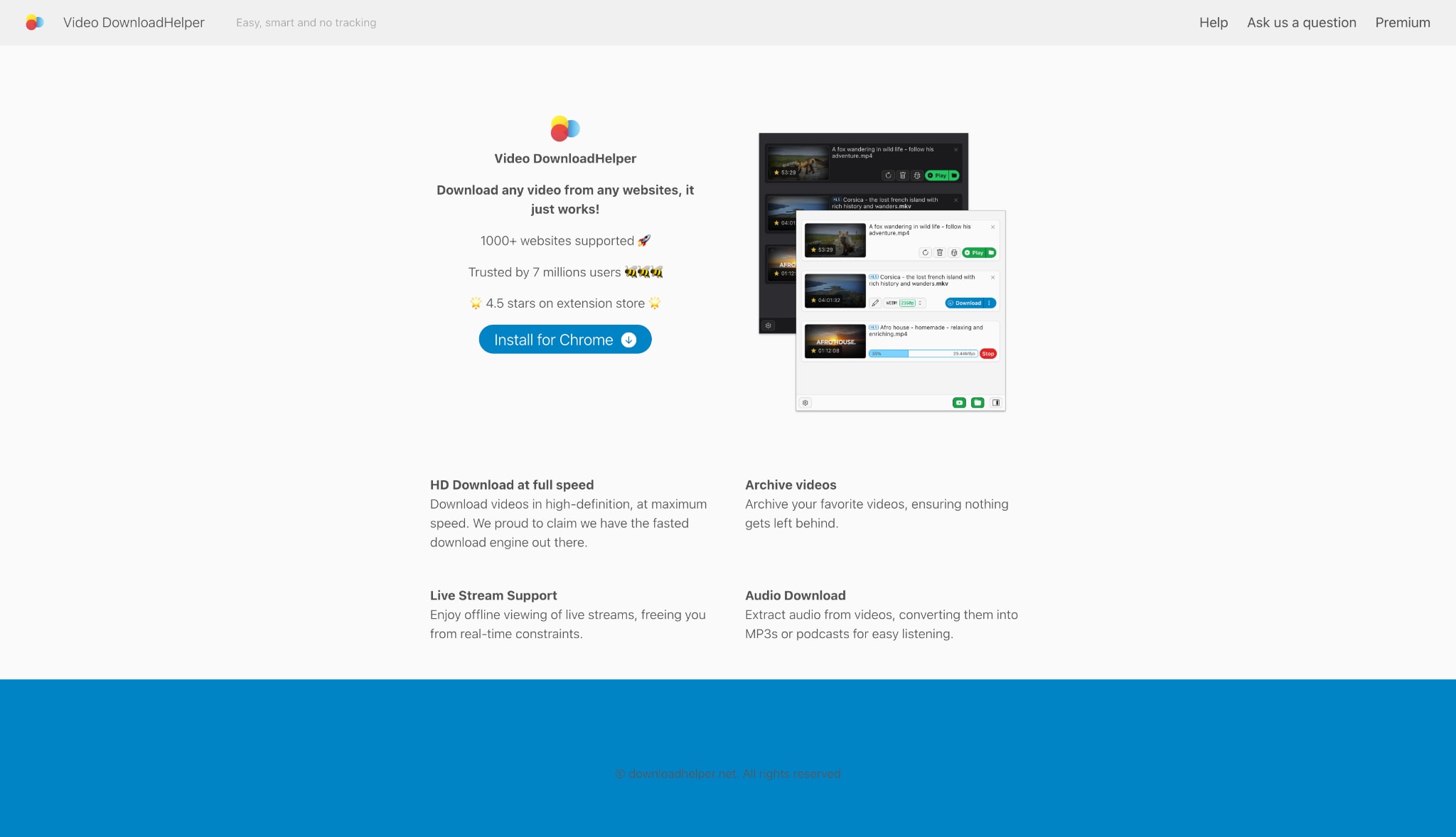
How it Works:
Step 1: Install from the Official Website
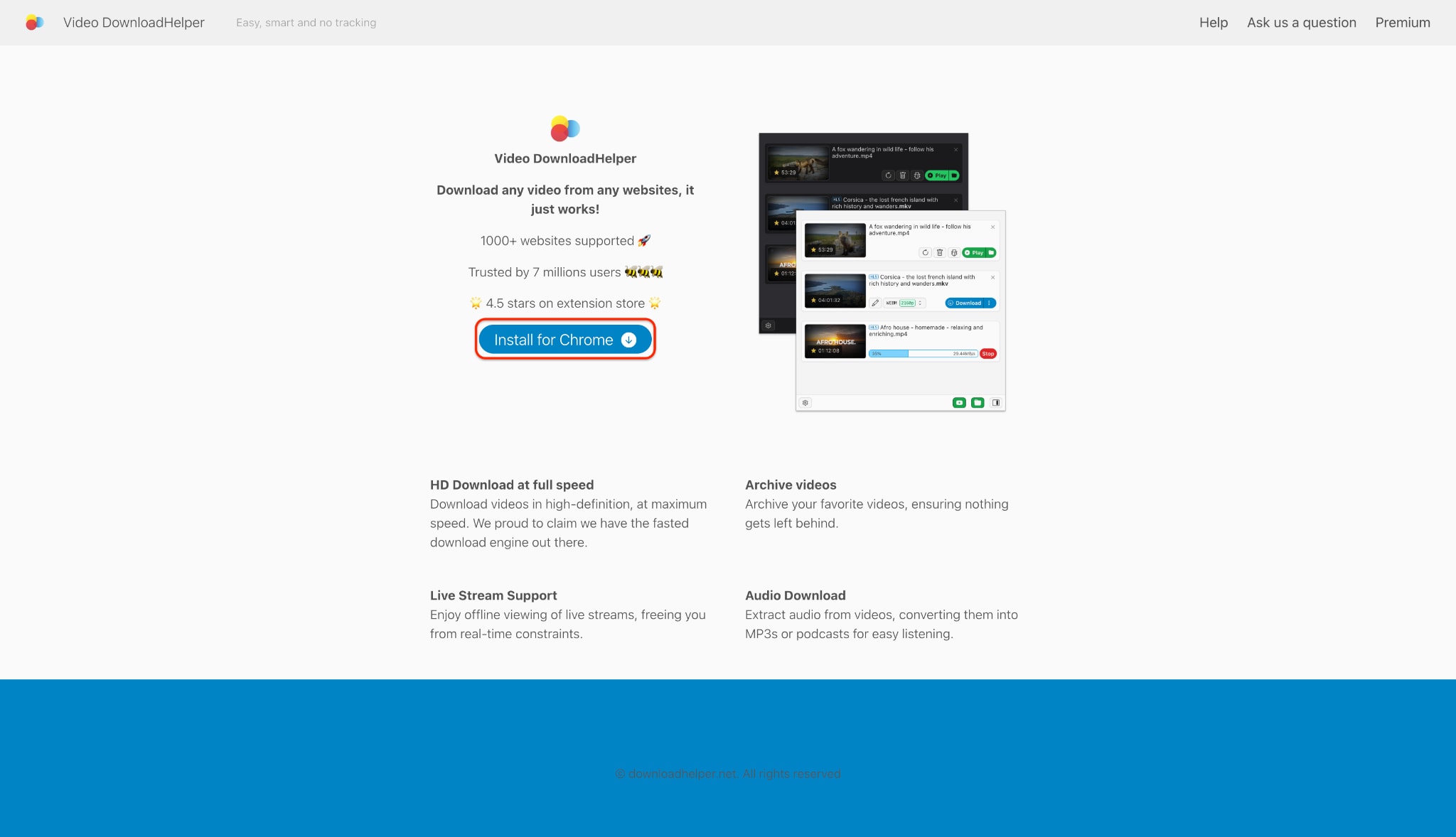
Step 2: Add and Pin the Extension
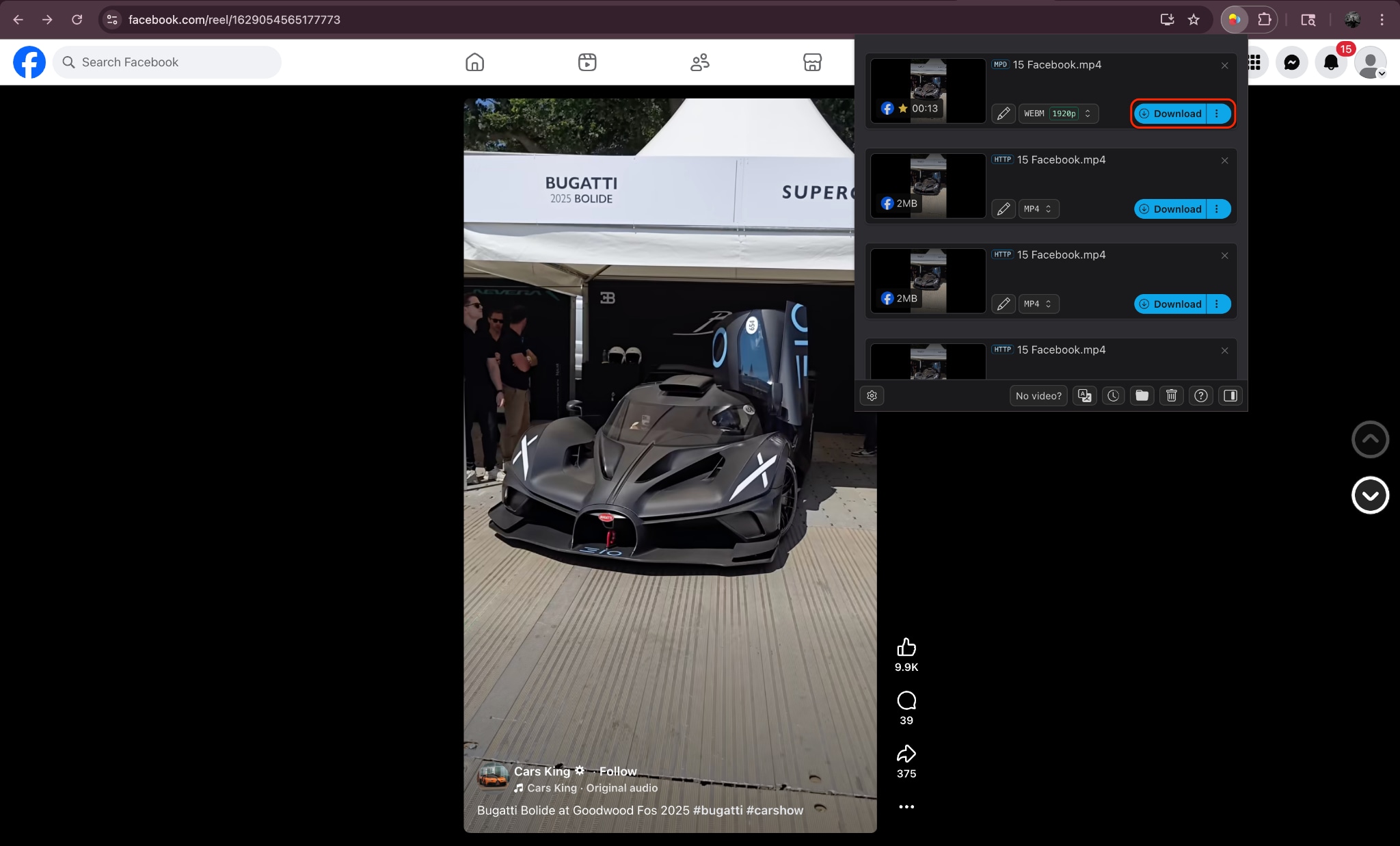
Step 3: Download Your Facebook Video
Method 3: Use a Dedicated App
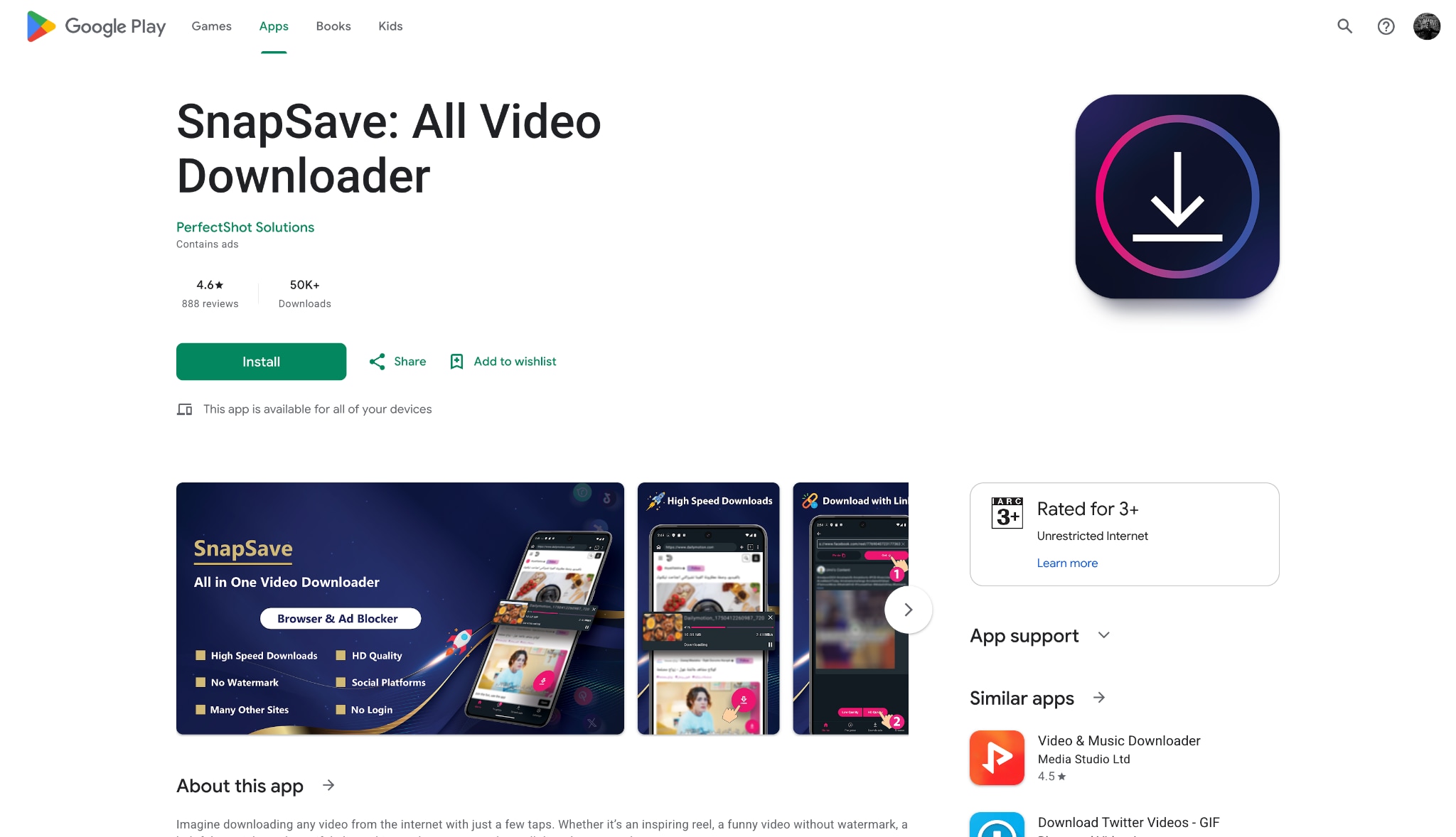
Mobile users often prefer keeping their workflows entirely on their smartphones. We suggest a reliable mobile app like SnapSave for this exact scenario. It helps users fix playback issues directly from their mobile devices. The app quickly processes your links and lets you download high-quality clips directly to your phone's gallery without a computer.
How it Works:
Step 1: Copy the Facebook Video Link
Open the Facebook app on your smartphone and navigate to the video or reel you want to save. Tap the "Share" button located beneath the video player, and then select the "Copy Link" option to save the URL to your clipboard.
Step 2: Paste the Link into SnapSave
Open the SnapSave app on your mobile device (or go to their website via your mobile browser). Tap the designated search or input box in the center of the screen and paste the copied Facebook link into it.
Step 3: Select Quality and Download
Tap the "Download" button next to the input box to allow the app to process your link. Once the video is ready, choose your preferred video resolution (such as 720p or 1080p HD) and tap the download option to save the file directly to your phone's camera roll.
Method 4: Online Tool
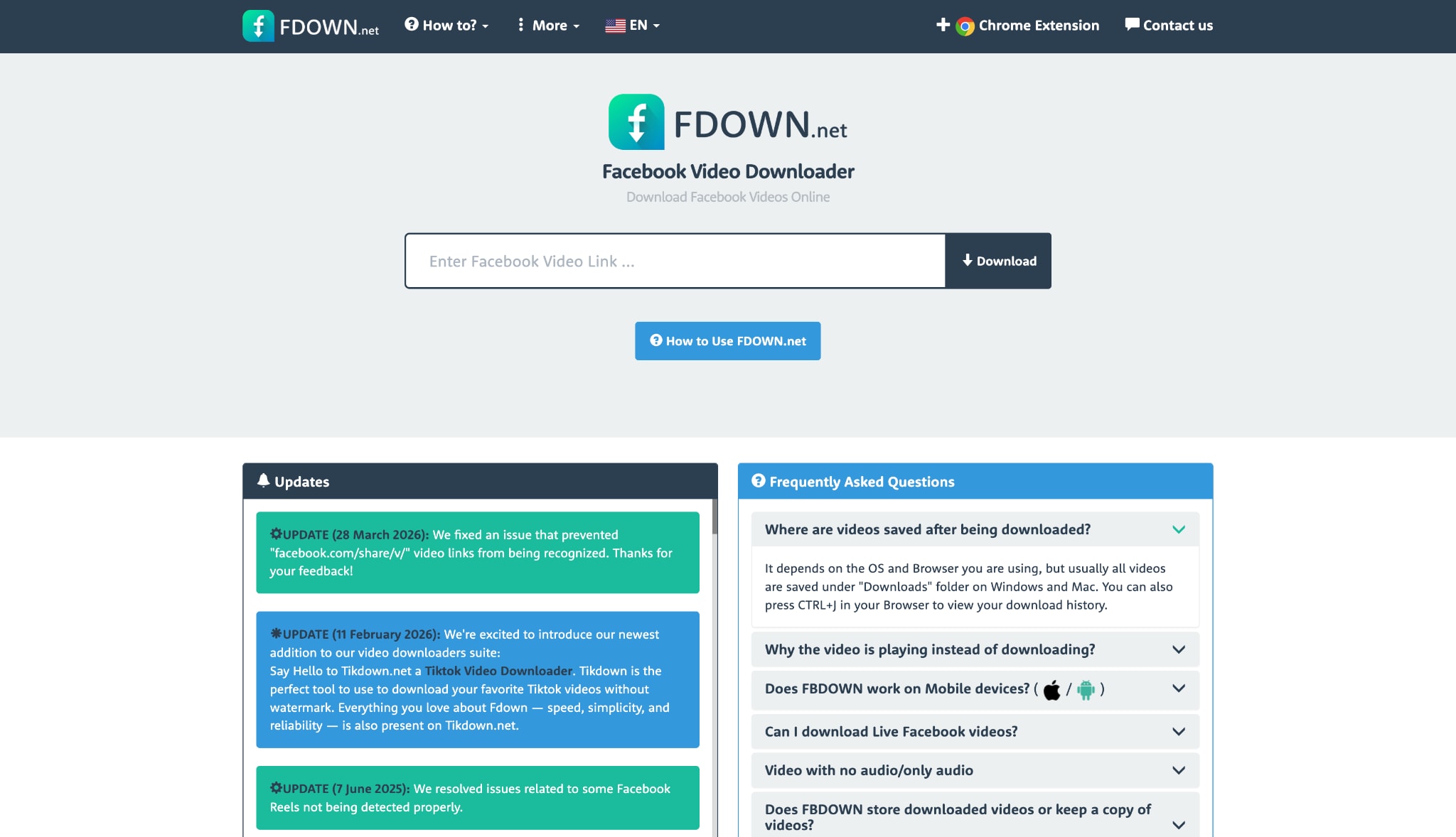
Sometimes you just need a quick download without committing to new software. We present a web-based downloader, like FDown.net, for occasional use. It is ideal for users who need a quick, no-installation solution on any device with a web browser.
How it Works:
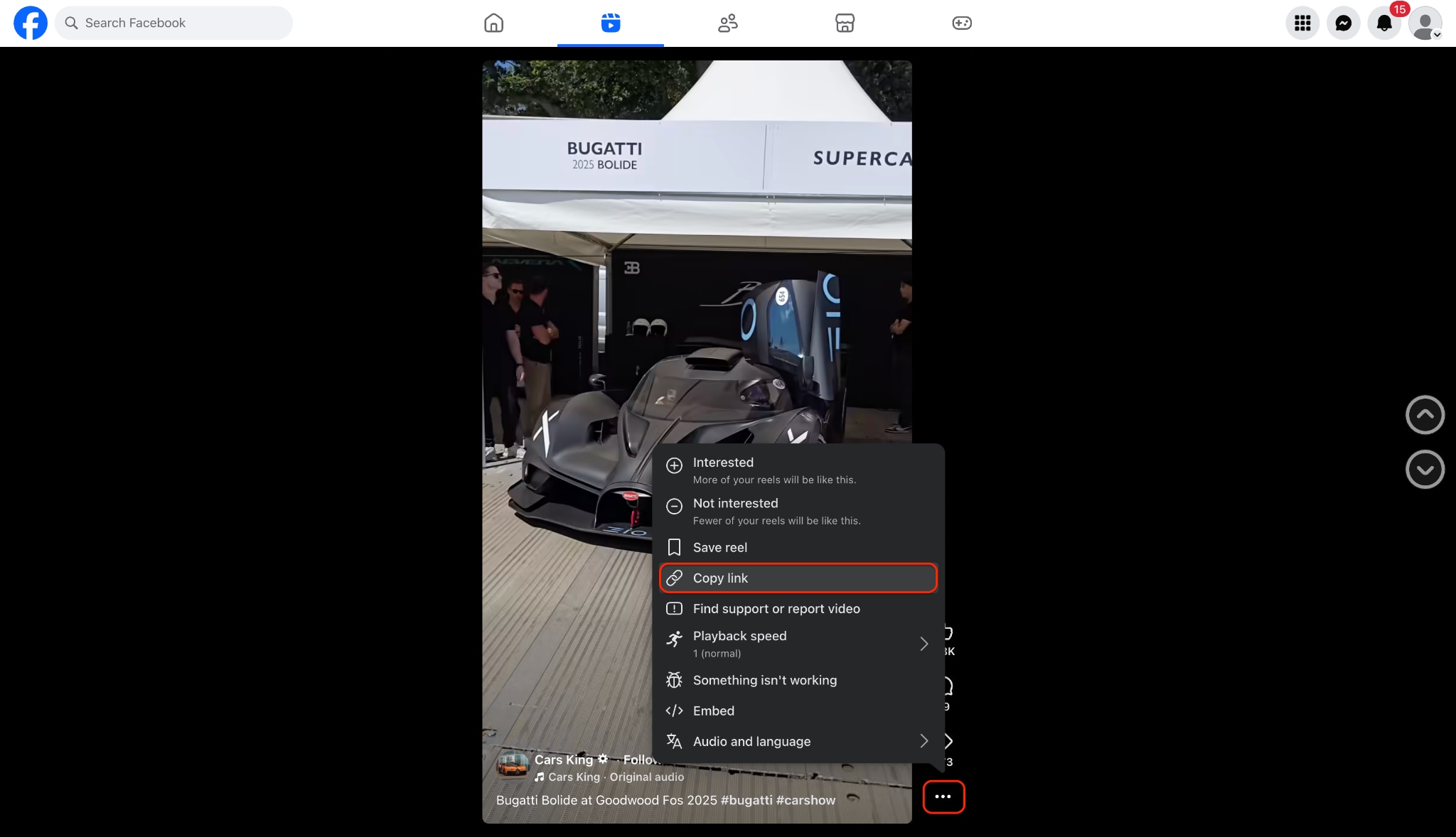
Step 1: Copy the Facebook Video Link
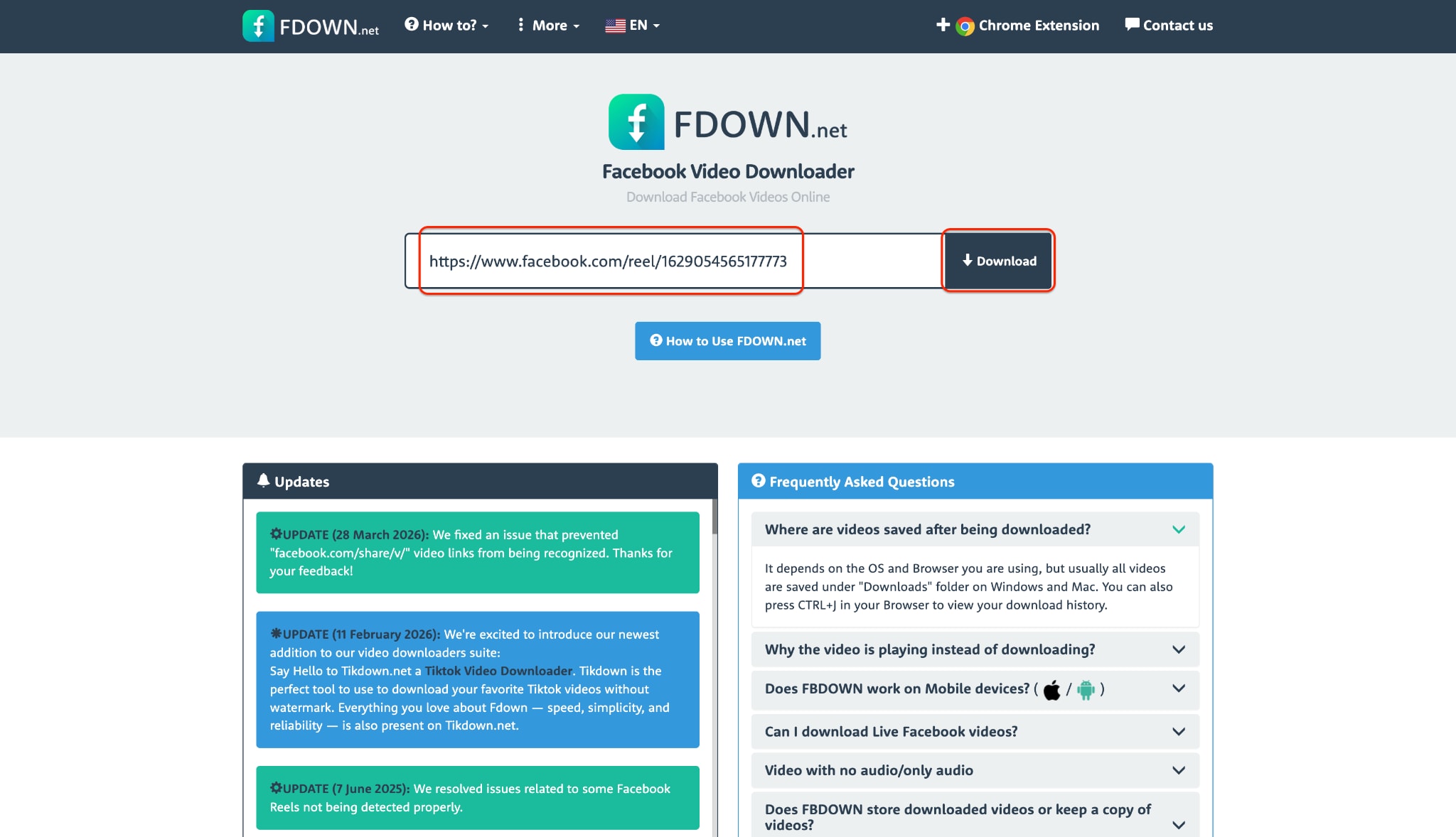
Step 2: Paste the Link into FDOWN.net
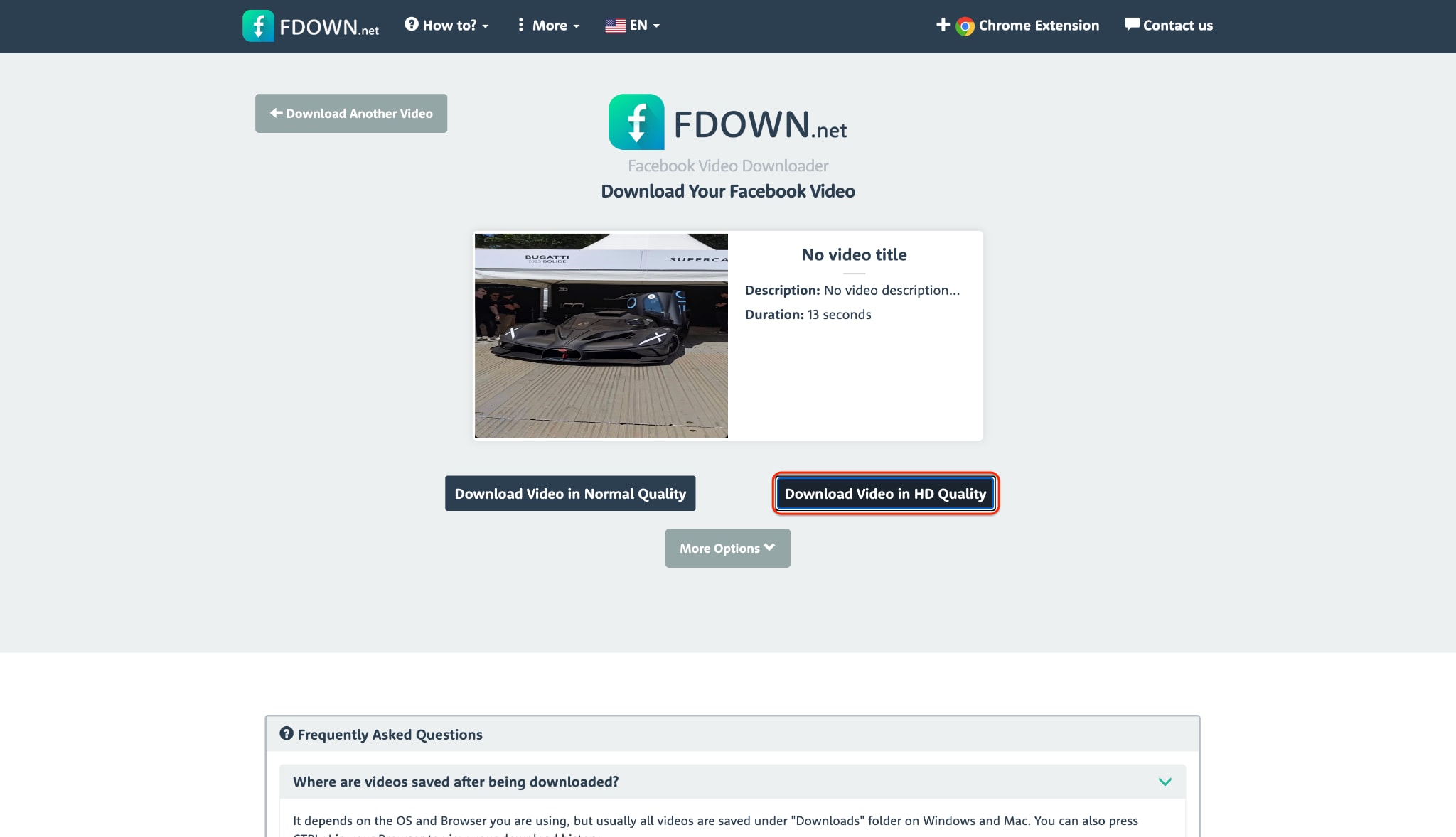
Step 3: Select the Quality Download Option
Conclusion
Troubleshooting when Facebook videos are not playing usually involves disabling ad-blockers, clearing caches, or adjusting in-app media settings. These quick fixes easily handle the most common playback errors. However, to bypass recurring platform glitches entirely, downloading content remains the most reliable method. We highly recommend using UniConverter for flawless, high-quality offline viewing. It helps you save media securely without hassle. Try this reliable tool today to build your offline library and enjoy your saved videos without any unwanted interruptions anytime.

