


Vimeo's screen recorder lets anyone capture a screen, a webcam, or both directly in a browser and share the clip via a single link, making it one of the simplest recording tools to find in 2026. The real question is whether its free plan still covers real work or whether the 30-minute cap, the watermark, and the paywalled AI tools push the value out of reach. This Vimeo Screen Recording review evaluates that directly.
This review breaks down how the recorder works, what the free plan actually limits, the current pricing, and where it falls short. You will see the features of the Vimeo screen recorder, a step-by-step recording walkthrough, and its pros and cons. You will also see four safe, free alternatives to help you decide whether Vimeo's screen recorder is worth it in 2026.
Table of Contents
Part 1. What Is Vimeo's Screen Recorder and How Does It Work?
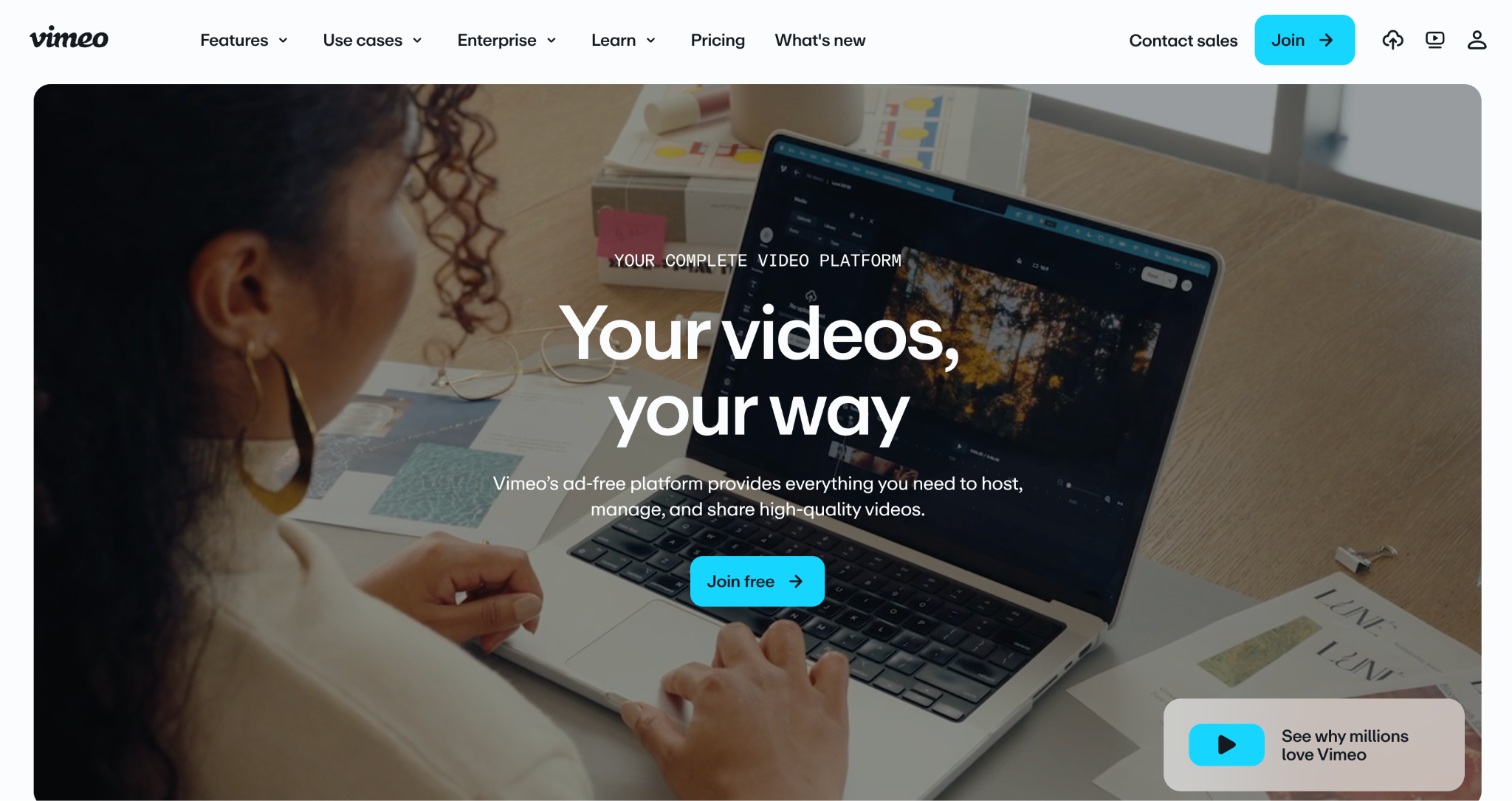
Vimeo's screen recorder is a browser-based recording tool, also built into the Vimeo mobile apps, that captures your screen, webcam, or both, and saves the clip straight to your Vimeo library. It works with no download. You open the recorder, allow camera and microphone access, choose what to capture, and click record. After which, the clip lands in your library with an instant shareable link.
During a session, the recorder captures the full screen, a single window, or a custom area and can add an in-picture webcam overlay. It records system audio and microphone audio together or separately, and free recordings are up to 720p, with downloads up to 1080p. Once recording stops, you can trim the clip, retake it, set its privacy, share the link, embed it, or pass it into Vimeo's editor for captions and GIFs.
Part 2. What Features Does Vimeo's Screen Recorder Offer?
Vimeo's screen recorder offers screen and webcam capture, basic trimming, instant sharing with privacy controls. On paid plans, it offers AI extras like a teleprompter and a script generator. The table below maps the main features to what they do and which plans include them.
| Feature | What it does | Availability |
| Screen and webcam capture | Records the full screen, a window, or a custom area, with a webcam picture-in-picture overlay | Free and paid |
| System and mic audio | Captures system sound and microphone together or separately | Free and paid |
| Trim and retake | Cuts the start and end, or re-records without leaving the tool | Free and paid |
| Instant sharing | Creates a Vimeo link with public, unlisted, or password privacy | Free and paid |
| Teleprompter and AI script | Scrolls a script on screen and drafts it with AI | Paid (Standard and up) |
| Text-based editor and GIF maker | Edits the recording by transcript and exports GIFs | Free editor, more on paid |
Beyond the basics, Vimeo adds review and collaboration tools so teammates can comment on recordings, engagement analytics that show how viewers watch, and direct sharing to Slack, Asana, and Figma. The recorder also connects to Vimeo's broader hosting, captioning, and translation tools, which set it apart from a standalone capture app.
Part 3. How to Use Vimeo to Screen Record [PC & Mac]?
To screen record using Vimeo, you need a free Vimeo account and a browser. Open the recorder, allow camera and microphone access, choose your screen or webcam, and click Record. Here are the steps in full.
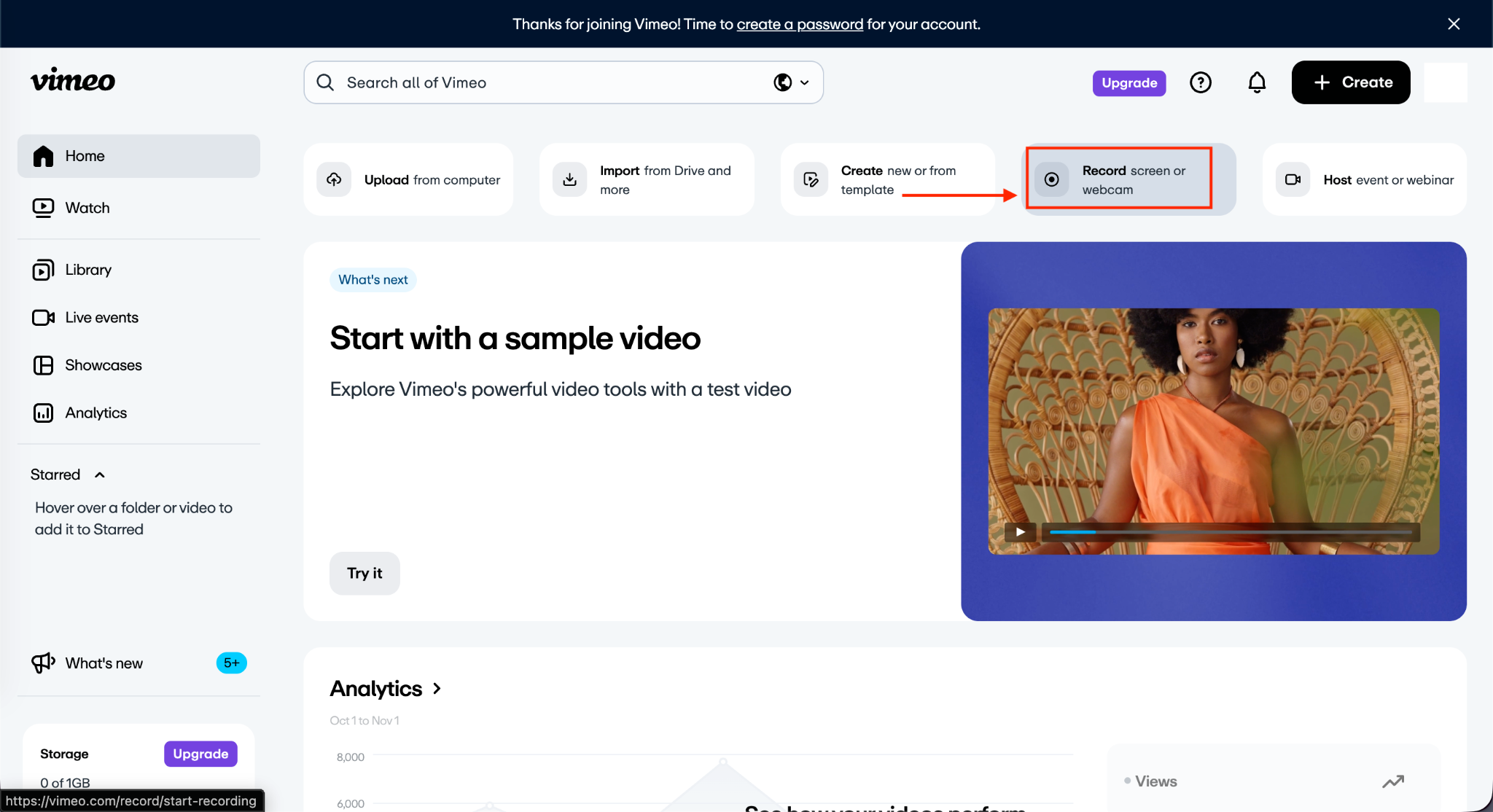
Step 1: Open the Vimeo recorder. From the Vimeo dashboard, click Record screen or webcam, or go to vimeo.com/record.
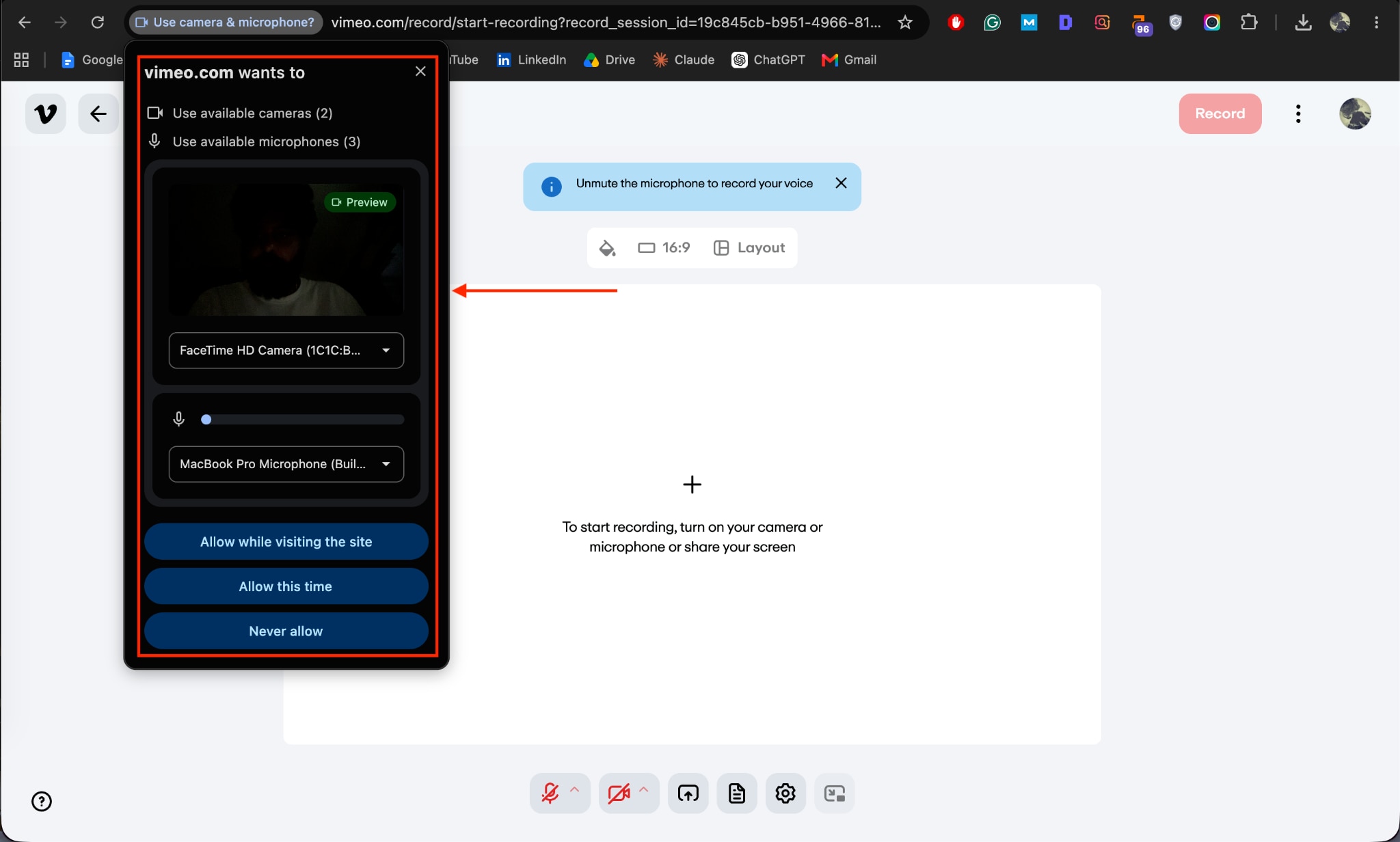
Step 2: Allow camera and microphone access. Approve the browser prompt, then select your camera and microphone, then set the 16:9 layout.
Step 3: Choose what to capture and start recording. Select screen, webcam, or both, frame the webcam overlay, then click Record. A countdown begins, and a timer tracks the session.
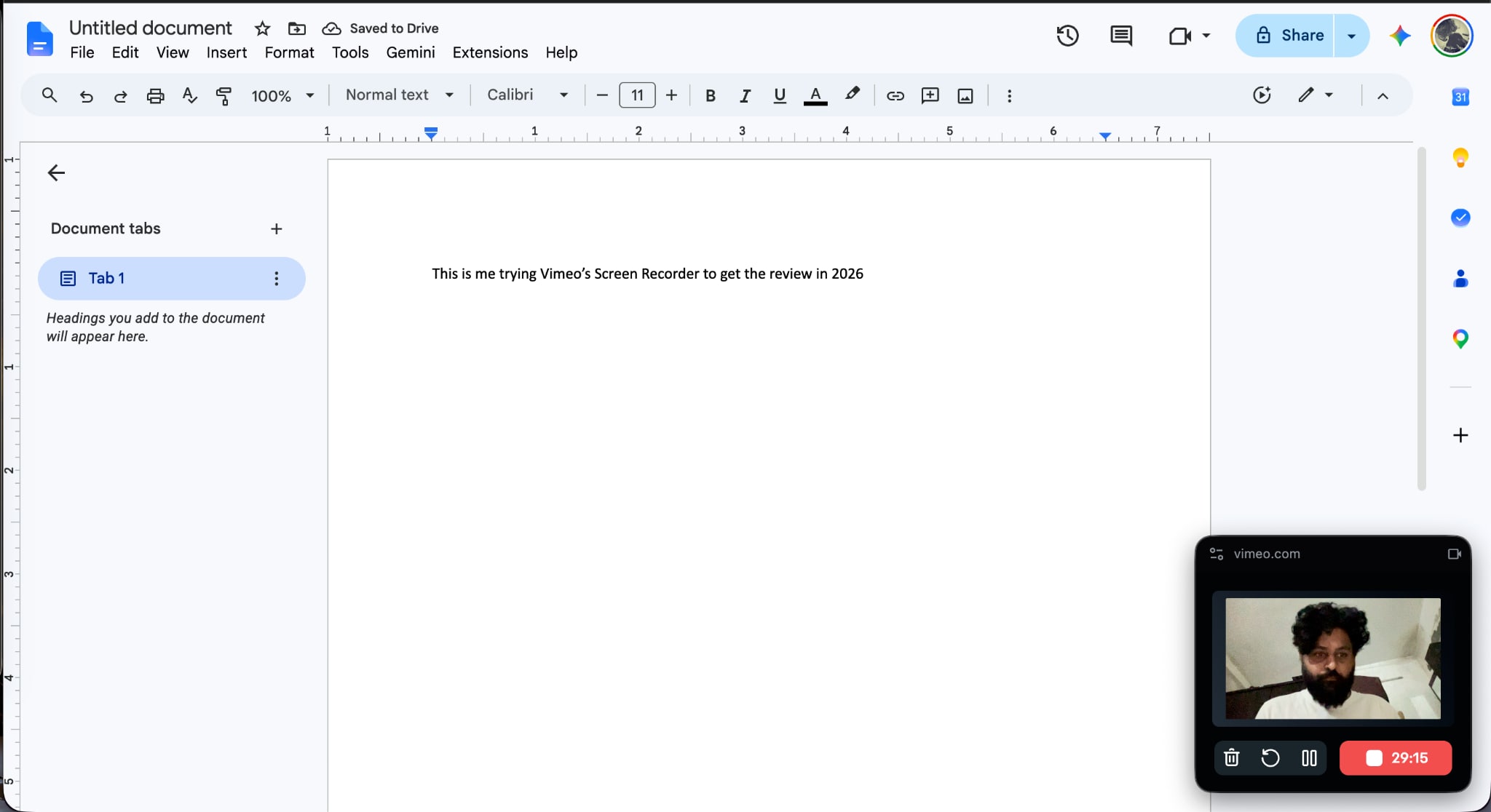
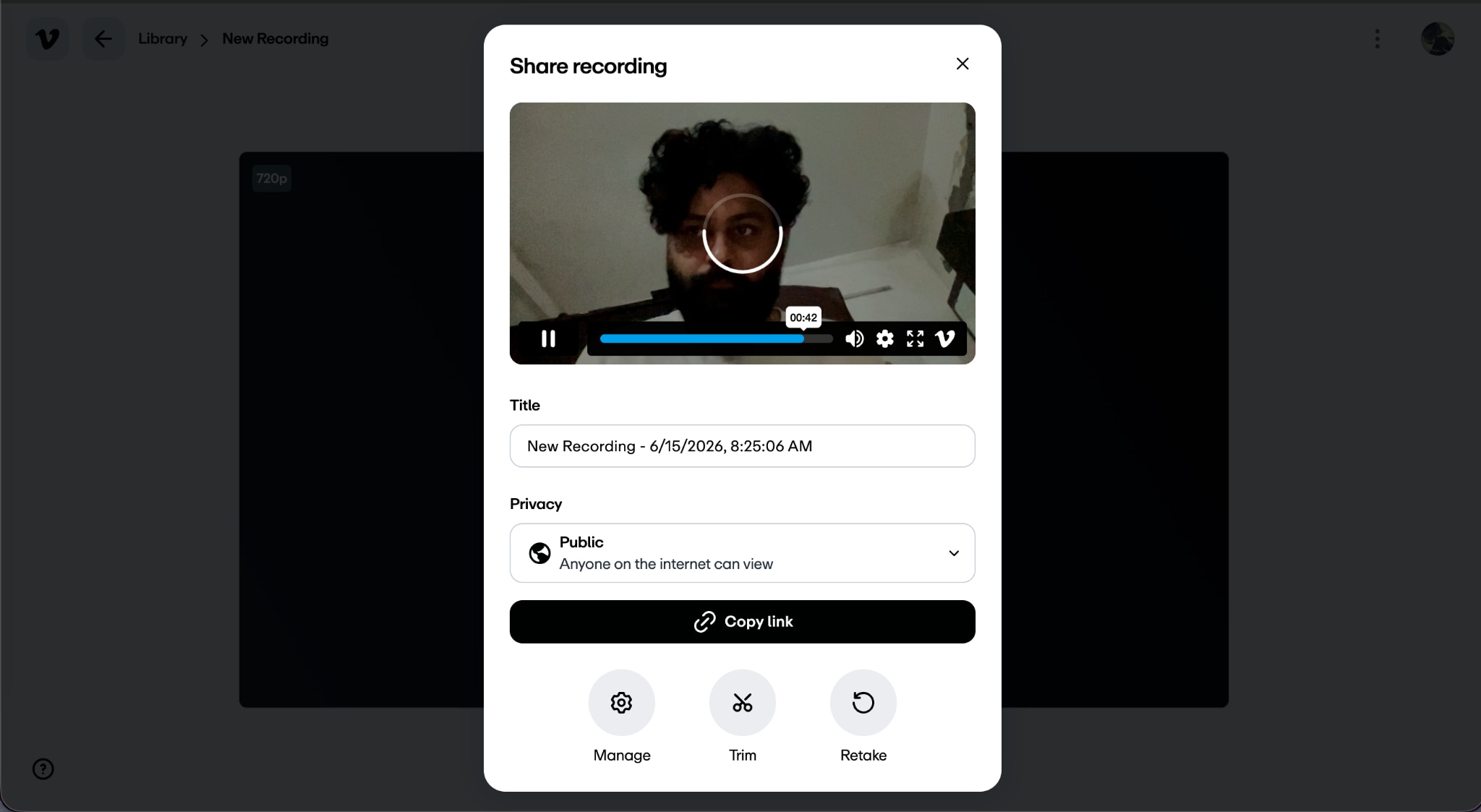
Step 4: Stop and review. Stop the recording, then trim, retake, or set a title and privacy in the Share recording panel.
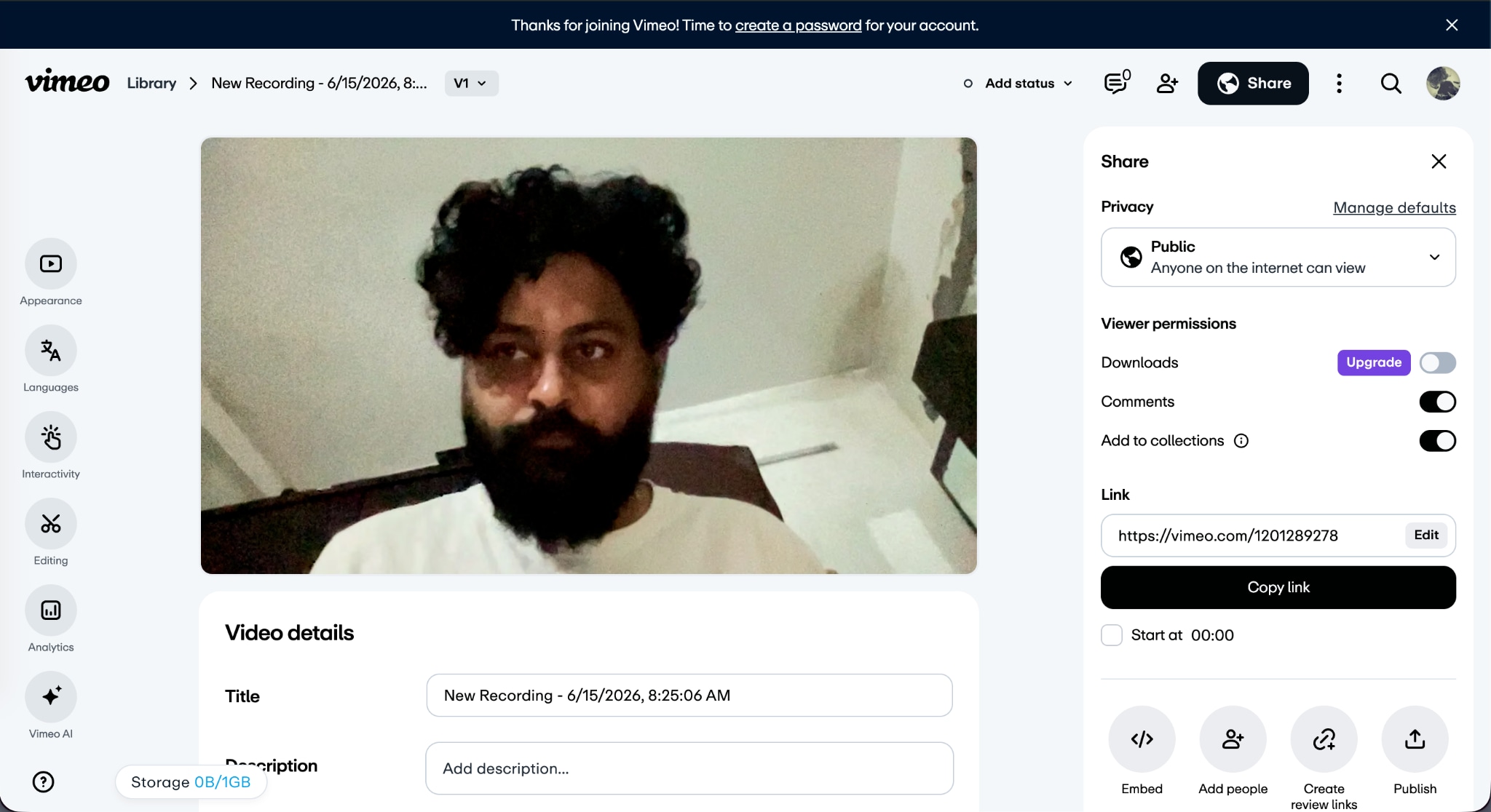
Step 5: Share or publish. Copy the Vimeo link, set privacy to public, unlisted, or password-protected, or embed it and add review links.
A quick legal note: screen recording is fine for your own content, meetings you have consent to record, and licensed material. However, capturing copyrighted video or other people without permission can break copyright and privacy laws. Record only what you have the right to capture and share.
Tips to Use Vimeo Screen Recording for Free
Vimeo's free plan includes the screen recorder, so a few habits keep the experience smooth without paying.
Keep each recording under the 30-minute free limit by splitting a long walkthrough into shorter clips.
Stay within the 1GB of free storage by downloading recordings you no longer need to host, then deleting them.
Expect a Vimeo watermark on free recordings, and frame the shot so it does not cover key content.
Download a recording as an MP4 if you plan to edit it elsewhere, since free quality tops out around 720p.
Pros & Cons of Using Vimeo Screen Recorder
On the plus side, the recorder is clean and easy to live with:
Vimeo Screen Recorder runs in the browser with no install, and security scans on the tool come back clean.
It creates an instant, shareable link with public, unlisted, or password-protected privacy settings.
It includes trim, captions, and a GIF maker, plus sharing to Slack, Asana, and Figma.
The drawbacks center on the free limits:
The free plan caps recordings at 30 minutes and storage at 1GB, and it adds a Vimeo watermark.
The teleprompter and AI script generator are paid-only features that start with the Standard plan.
Recording customization is limited, with little control over frame rate or capture region, and the paid tiers are not the cheapest.
Vimeo Screen Recording Pricing Explained
Vimeo's screen recorder is free to start, and screen recording is included on every plan, including Free, with paid tiers adding storage, watermark removal, and AI tools. Paid plans also extend each recording to 120 minutes.
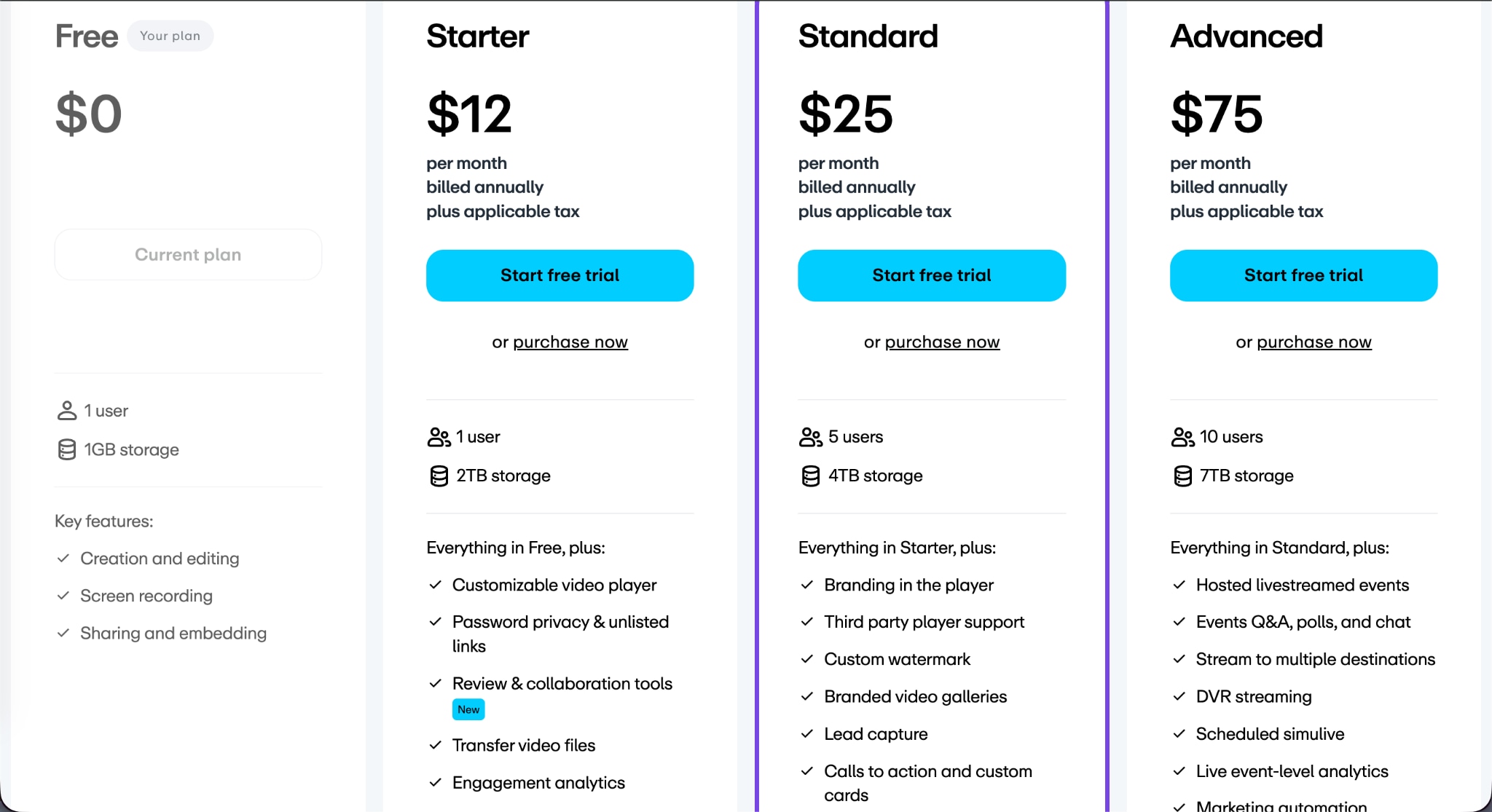
Free: $0, 1 user, 1GB storage, screen recording with a Vimeo watermark, and a 30-minute cap.
Starter: $12 per month, billed annually, 1 user, 2TB storage, removes the watermark.
Standard: $25 per month, billed annually, 5 users, 4TB storage, adds the AI teleprompter and text-based editing.
Advanced: $75 per month, billed annually, 10 users, 7TB storage, adds livestreamed events.
Enterprise: custom pricing for larger teams.
| Plan | Price (Billed Annually) | Users | Storage | Key Additions |
| Free | $0 | 1 user | Limited | Basic screen recording and video hosting features. |
| Starter | $12/month | 1 user | 2TB | Unlimited screen recording, customizable video player, password protection, review and collaboration tools, engagement analytics. |
| Standard | $25/month | 5 users | 4TB | Everything in Starter, plus branding in the player, custom watermark, branded video galleries, lead capture, and calls to action. |
| Advanced | $75/month | 10 users | 7TB | Everything in Standard, plus hosted livestreamed events, Q&A, polls, chat, simulive, DVR streaming, and live event analytics. |
| Enterprise | Custom pricing | Custom | Custom | Advanced AI capabilities, SSO and SCIM, advanced analytics, custom permissions, and dedicated support. |
Part 4: 4 Alternatives to Vimeo Screen Recorder that are Safe & Free
Here are four screen recorders that stand out as safe, free alternatives to Vimeo, each with its own way of capturing the screen.
Wondershare UniConverter
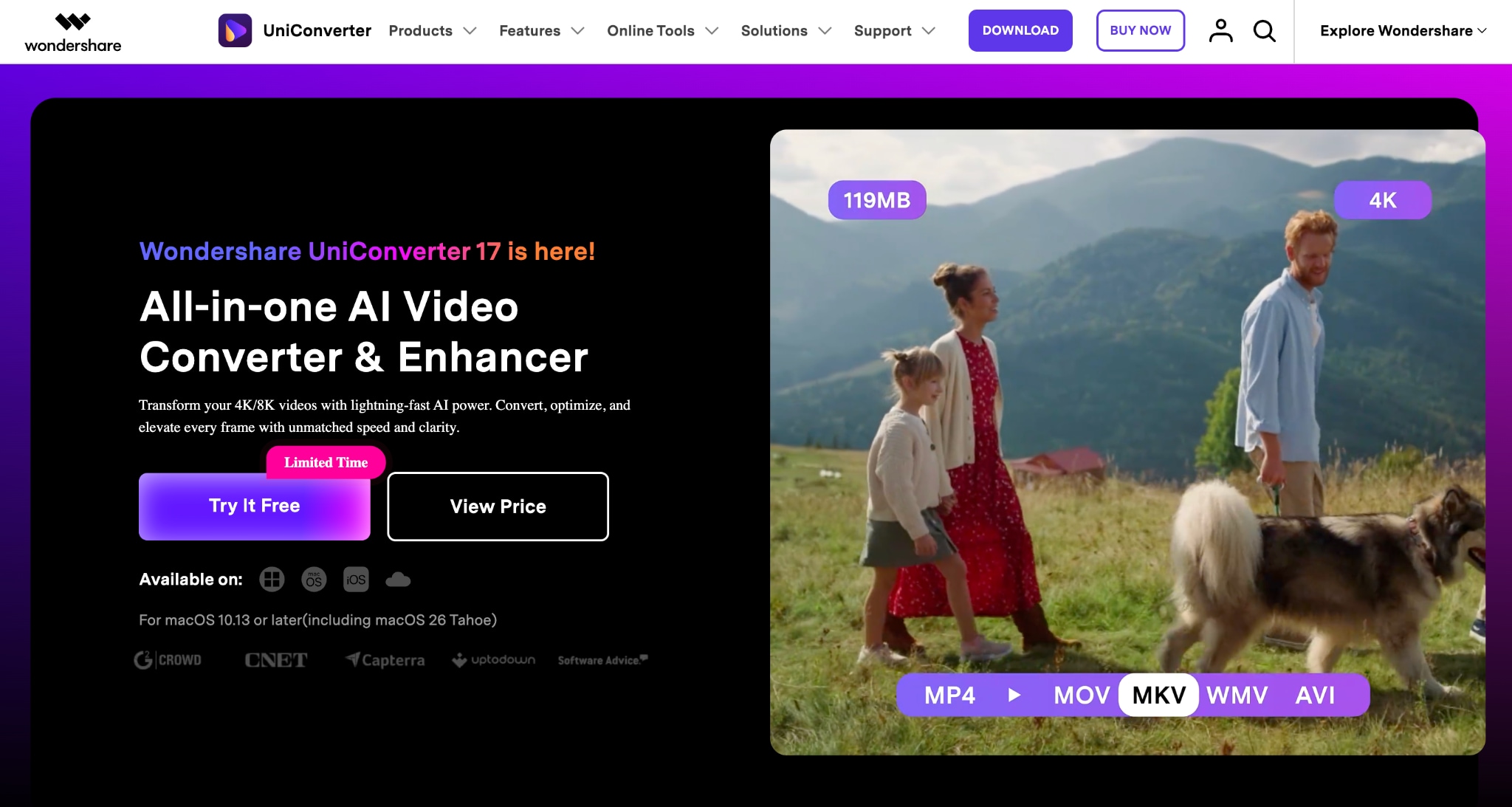

All-in-One Multimedia Processing Tool

Wondershare UniConverter is a desktop app for Windows and Mac with a built-in screen recorder that captures the screen, webcam, and audio in high resolution, with no watermark and no time limit. While Vimeo records in the browser and hosts the recordings on its own site, UniConverter records and saves locally, which is better suited to longer tutorials, gameplay, and meetings. A limited free trial is available, with paid plans from US$9.99 per month or a one-time US$39.99 license.
Key Features of Wondershare UniConverter
Records the screen, a specific app window, the webcam, and system or microphone audio simultaneously.
Captures up to 4K at 120 FPS on Windows, with the mouse cursor and an optional logo overlay.
Cleans up voiceovers with AI noise reduction and lets you set frame rate, bitrate, and format before recording.
Trims, annotates, and highlights key moments in the built-in editor after the recording.
Loom
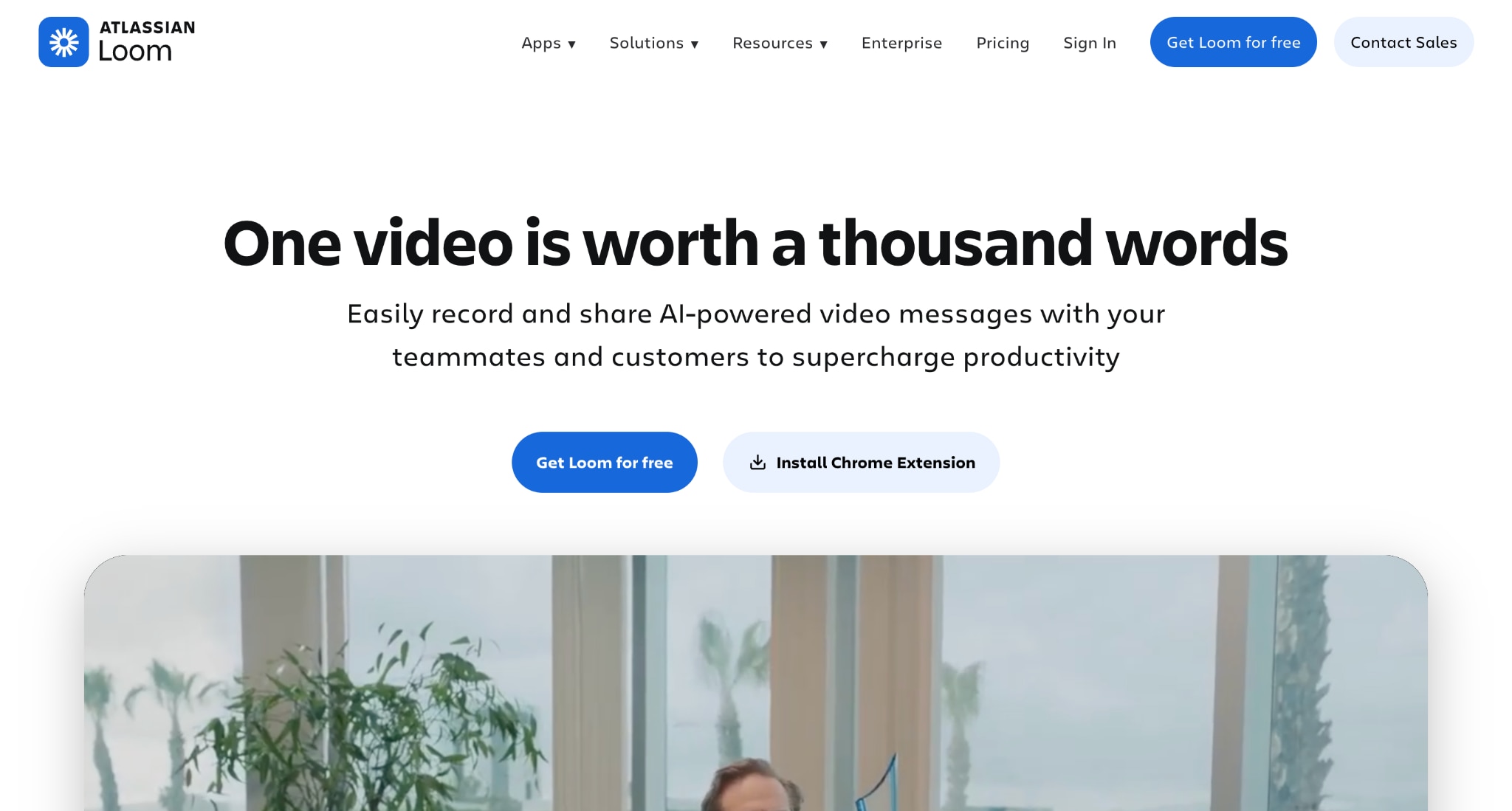
Loom is a cloud-based screen recorder built for quick asynchronous communication, capturing your screen with a webcam bubble and generating an instant shareable link. While Vimeo focuses on video hosting and collaboration inside its ecosystem, Loom is designed for fast team updates and feedback, making it a better fit for short internal messages and status updates. The free plan is limited to 25 videos with a five-minute cap per recording.
Key Features of Loom
Records screen, screen plus camera, or camera only, with a round webcam bubble.
Uploads automatically to the cloud and creates a shareable link the moment you stop.
Adds viewer analytics that show who watched and how far they got.
Limits the free plan to 25 videos of up to 5 minutes each, in 720p, with Loom branding.
ScreenApp
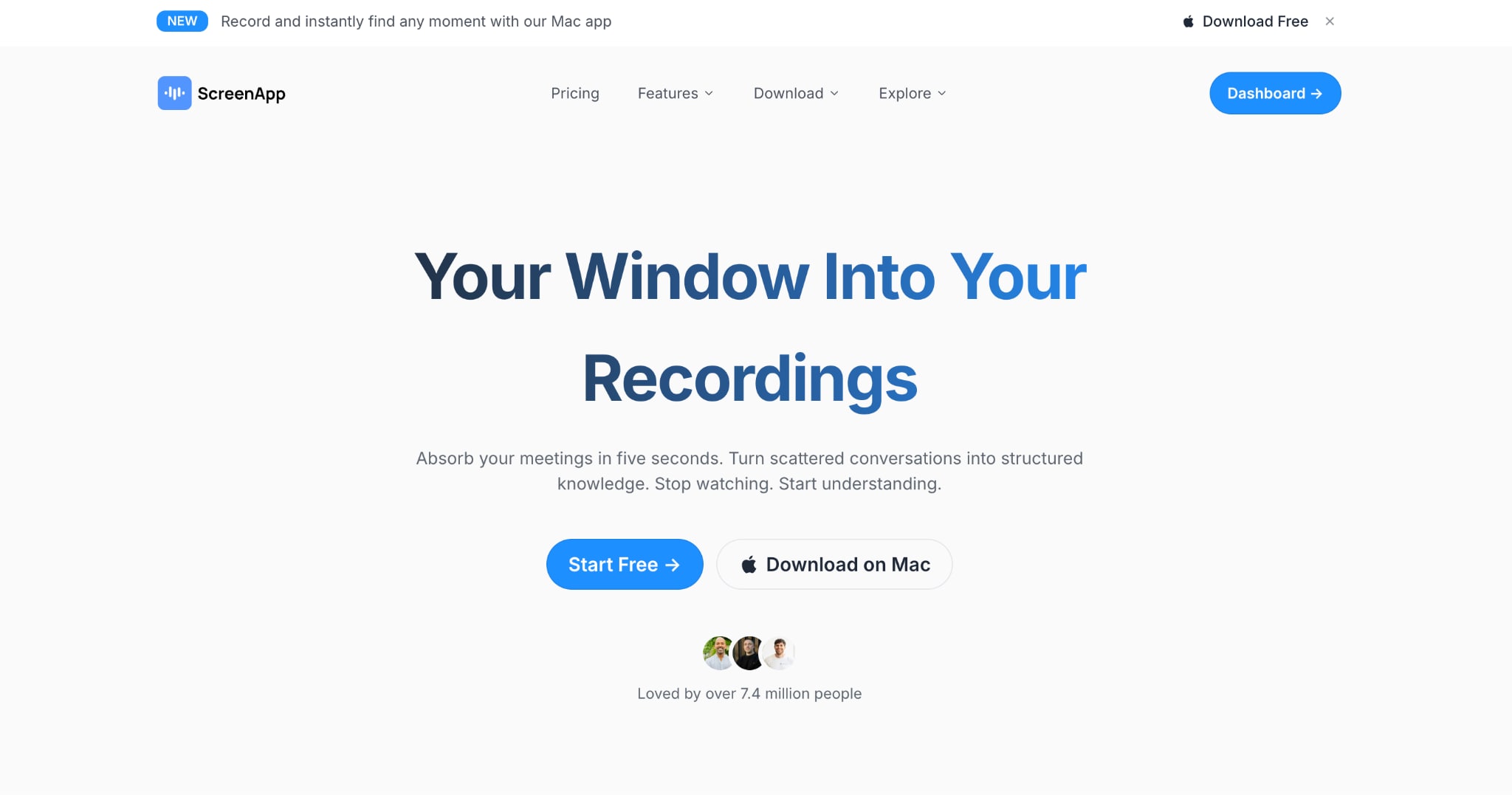
ScreenApp is a browser-based AI screen recorder that captures your screen, webcam, and audio without requiring an installation, then automatically transcribes and summarizes the recording. While Vimeo emphasizes video sharing and hosting, ScreenApp focuses on turning recordings into searchable notes and transcripts, making it a better choice for meetings, tutorials, and research sessions that need AI-generated summaries.
Key Features of ScreenApp
Records the screen, webcam, and system audio in the browser, with no watermark.
Generates a transcript and summary in more than 100 languages after each recording.
Adds timestamped chapters and action items for searchable notes.
Limits the free plan to one transcription and a few AI generations per month.
OBS Studio
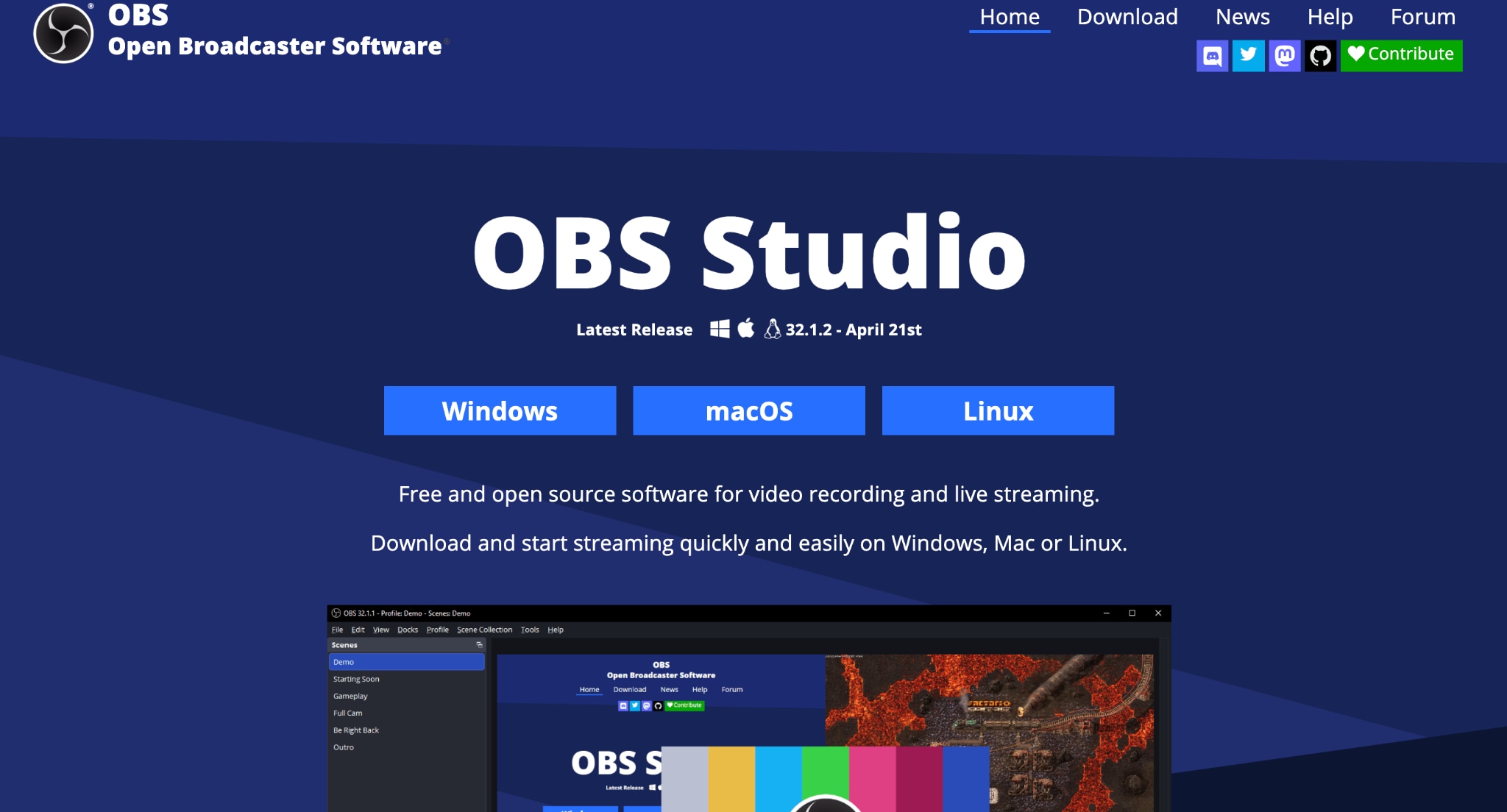
OBS Studio is a free, open-source screen recorder for Windows, Mac, and Linux that offers unlimited recording and complete control over video and audio sources. Where Vimeo prioritizes simplicity and instant sharing, OBS prioritizes flexibility and local recording, making it a better option for creators, streamers, and power users who need advanced recording controls without paying a subscription fee.
Key Features
Records unlimited length with no watermark and no cost.
Composes multiple screens, windows, cameras, and audio sources into scenes.
Saves recordings locally for privacy, with no cloud upload.
Streams to most platforms, though it lacks built-in transcription or a sharing link.
Part 5: Vimeo Screen Recorder vs. Alternatives: A Quick Comparison
Along with the Vimeo review, here is a quick comparison of Vimeo's alternatives to help you make the right choice as per your requirement:
| Tool | Type | Free recording limit | Watermark (free) | Best for |
| Vimeo | Browser | 30 min, 1GB storage | Yes | Quick shareable team and client clips |
| Wondershare UniConverter | Desktop | No time cap (trial limits) | No | Longer tutorials, gameplay, local files |
| Loom | Browser, desktop | 5 min, 25 videos | Yes | Fast async work messages |
| ScreenApp | Browser | Length and AI-credit caps | No | Recordings with searchable transcripts |
| OBS Studio | Desktop | Unlimited | No | Power users, streaming, multi-source |
Part 6: Why Choose UniConverter as a Vimeo Screen Recorder Alternative?
Choose Wondershare UniConverter over Vimeo when you need to record longer sessions, keep footage local, and skip the watermark, all without a per-seat subscription. As a desktop screen recorder, it removes the limitations of Vimeo's free plan. Five reasons stand out:
- UniConverter records with no time limit and no watermark, while Vimeo's free plan caps recordings at 30 minutes and adds a watermark to every recording.
- Recordings are saved locally on the computer rather than uploaded to a host, keeping client tutorials and internal demos off third-party servers.
- It captures the screen, webcam, and audio together at up to 4K and 120 FPS on Windows, where Vimeo's free recorder tops out around 720p.
- AI noise reduction cleans voiceovers during capture, and the built-in editor trims and annotates the clip right after, with no paid tier required.
- In addition to recording, UniConverter lets you edit video, audio, and images on a single platform.
Part 7:Is Vimeo's Screen Recorder Worth It in 2026?
From this Vimeo Screen Recording review, it is clear that its screen recorder is worth it for quick, shareable team and client recordings, and less so for longer or watermark-free work. It is clean, safe, and genuinely easy: open a browser, record, and share via a single link.
The free plan covers light use, while a 30-minute cap, 1GB of storage, a watermark, and paywalled AI tools limit heavier workflows. The paid tiers are not the cheapest around. For short recordings, it holds up well. For long-term, watermark-free, or local recording, a desktop tool such as Wondershare UniConverter or the free OBS Studio is better suited.

