You just bought a new SD card, and the label reads like a secret code: Class 10, US, V30, a2. You have no idea which number actually matters for your camera or phone. To make things worse, a global chip shortage driven by AI data centers has pushed 2026 memory card prices to a level nobody expected.
This guide breaks down SD card speed and shows how creators are using smart compression tools to fit more footage onto the cards they already own.
In this Article
- Part 1: What Does SD Card Speed Actually Mean
- Part 2: What Are the Different Flash Memory and SD Card Types
- Part 3: What SD Card Speed Do You Need for Your Device
- Part 4: Tips to Improve SD Card Speed Without Upgrading the Card
- Part 5: How Do You Format an SD Card the Right Way
- Part 6: How to Compress Video Files to Reduce SD Card Storage
- Conclusion
- FAQs
Part 1: What Does SD Card Speed Actually Mean
SD card speed measures how fast data moves in and out of the card. It covers two separate things: how fast the card writes new data (recording video or shooting bursts of photos) and how fast it reads data back (transferring files to your laptop).
An SD card with a high transfer speed is not automatically good for video. Video recording needs a steady, sustained write speed and not just a high peak number. That distinction is the entire reason the SD Association created multiple rating systems.
What do the Speed Class, UHS Speed Class, and Video Speed Class Ratings Mean
Speed Class, UHS Speed Class, and Video Speed Class guarantee a minimum sustained write speed, and each one belongs to a different generation of SD card technology. Here is what the symbol on your card actually promises you.
| Rating | Minimum Write Speed | What It's For |
| Class 2 | 2 MB/s | Standard-definition video |
| Class 4 | 4 MB/s | Entry-level HD recording |
| Class 6 | 6 MB/s | HD video recording |
| Class 10 | 10 MB/s | Full HD video, burst photo shooting |
| UHS Speed Class 1 (U1) | 10 MB/s | Full HD video on UHS-enabled devices |
| UHS Speed Class 3 (U3) | 30 MB/s | 4K video recording |
| Video Speed Class 6 (V6) | 6 MB/s | Basic HD video |
| Video Speed Class 30 (V30) | 30 MB/s | 4K video recording |
| Video Speed Class 60 (V60) | 60 MB/s | 4K/8K burst capture |
| Video Speed Class 90 (V90) | 90 MB/s | 8K video, professional cinema work |
A single card can carry more than one of these symbols at once. It is normal to see a card printed with "Class 10, U3, V30" because each rating comes from a different era of the standard.
How Much Speed Do You Actually Need for Photos, 4K, and 8K Video
Your actual speed requirement depends entirely on what you shoot and not on the fastest card you can afford. Here is a quick way to match your card to your real workload.
RAW photo bursts and full HD video run comfortably on a U1 or V10 card. Most smartphone photography falls into this bracket, so you rarely need to overspend here.
4K video usually needs at least a U3 or V30 card since many 4K recordings fall between 50 and 100 Mbps and require a sustained write speed to prevent dropped frames.
8K video and high frame rate 4K can push bitrates to 200–400+ Mbps, so you may need a V60 or V90 card to keep recording stable. Buying a faster card than your device requires usually wastes money unless you need faster file transfers or future compatibility.
Part 2: What Are the Different Flash Memory and SD Card Types
Every SD card stores data on NAND flash memory, and the type of NAND inside directly affects the card's speed, price, and lifespan. Manufacturers rarely print this detail on the box, but it explains why two cards with the same capacity can cost very differently.
NAND flash comes in four common types, each with a different number of data bits per memory cell.
| NAND Type | Bits Per Cell | Endurance | Best For |
| SLC (Single-Level Cell) | 1 bit | Highest, fastest | Industrial and professional cards |
| MLC (Multi-Level Cell) | 2 bits | High | Enterprise and high-endurance cards |
| TLC (Triple-Level Cell) | 3 bits | Moderate | Most consumer SD and microSD cards |
| QLC (Quad-Level Cell) | 4 bits | Lowest | Budget, high-capacity cards |
SLC stores one bit per cell, so it reads and writes the fastest and lasts the longest, but its low storage density makes it expensive at scale. TLC has become the industry default for consumer SD cards because it balances price and durability reasonably well.
Beyond NAND type, SD cards also differ by physical format and capacity ceiling. This table breaks down the main card families you will see on shelves in 2026.
| Card Type | Capacity Range | File System |
| SD / SDSC | Up to 2GB | FAT12/FAT16 |
| SDHC | 4GB to 32GB | FAT32 |
| SDXC | 32GB to 2TB | exFAT |
| SDUC | 2TB to 128TB | exFAT |
This is also why an older 2GB or 4GB card sometimes shows up as an "unsupported SD card" in a newer device. Legacy SD cards use FAT16 or FAT32, and some modern devices expect exFAT, so the mismatch triggers a compatibility error even though the card itself works fine.
Part 3: What SD Card Speed Do You Need for Your Device
The SD card speed you need depends on your device, the type of files you store, and the workload you put on the card. Buying the fastest card available does not always improve performance because your device has its own speed limitations.
For everyday smartphone storage, photos, and basic file transfers, a Class 10 or U1 card is usually enough. If you record high-resolution videos, shoot RAW photos, or use professional cameras, you need a card with higher sustained write speeds to prevent recording failures, lag, or corrupted files.
Here is a simple breakdown of the recommended SD card speed for different devices and tasks:
| Use Case | Recommended SD Card Speed |
| Smartphone photos and everyday storage | Class 10 or U1 |
| Dash cams and security cameras | U1 or U3 high-endurance card |
| DSLR and mirrorless photography | U3 or V30 |
| 4K vlogging and YouTube videos | V30 or V60 |
| 8K cinema and professional video | V90 |
| Gaming consoles and handheld devices | U3 |
Smartphones and tablets: A Class 10 or U1 microSD card is enough for everyday storage, apps, photos, and videos. Choose U3 if you regularly record 4K videos.
Dash cams and security cameras: Use high-endurance U1 or U3 cards because these devices continuously record and need cards designed for frequent writing.
DSLR and mirrorless cameras: A U3 or V30 card works well for RAW photos, burst shooting, and high-resolution image capture.
4K video creators: A V30 card is the minimum recommended speed for 4K recording. Choose V60 for higher frame rates or professional workflows.
8K video cameras: V90 cards are designed for 8K recording and other demanding video formats that require very high sustained write speeds.
Gaming devices: A U3-rated card helps games load faster and provides smoother performance when storing large game files.
How Much Do 2GB, 4GB, and 8GB Memory Cards Cost?
While 2GB, 4GB, and 8GB SD cards are no longer common, they're still widely used in older digital cameras, GPS devices, MP3 players, and other legacy hardware. Since these lower-capacity cards are produced in smaller quantities today, their prices depend more on availability than on storage size. As a result, a 2GB card can sometimes cost as much as or even more than a newer, higher-capacity model.
Here's what you can typically expect to pay:
2GB Memory Card Price: $9–$15
4GB Memory Card Price: $8–$16
8GB Memory Card Price: $11–$18
Note: These price ranges are based on listings from major US retailers and may change depending on the brand, seller, and whether the card includes extras like an SD adapter. If you're buying one of these older capacities, compare a few retailers before purchasing, as prices can vary significantly.
Part 4: Tips to Improve SD Card Speed Without Upgrading the Card
You can improve real-world SD card performance without spending a rupee on a new card. Small habits around how you use and maintain your card make a bigger difference than most people expect.
Format the card regularly: Over time, SD cards collect leftover file fragments, temporary data, and corrupted file structures. A proper format clears this clutter and helps the card maintain consistent read and write speeds. For cameras, it is often better to format the card inside the device rather than only deleting files manually.
Use a UHS-II card reader: Even a fast SD card can appear slow when connected through an outdated card reader. A UHS-II card reader allows compatible cards to transfer files much faster, especially when moving large 4K or 8K video files to your computer.
Delete files properly: Repeatedly moving, copying, and deleting files can create fragmented storage patterns that may reduce performance. Instead of constantly removing individual files, transfer your important data, back up the card, and perform a full format occasionally.
Avoid filling the card beyond 85%: Flash memory works best when some free space is available. When an SD card becomes almost full, the controller has fewer available blocks to manage, which can reduce write speeds and increase the chance of slow performance during recording.
Update the card firmware: Some manufacturers release firmware updates that improve compatibility, stability, and performance. Check the manufacturer's website occasionally to see if your SD card model has any available updates.
Use the correct bus mode: SD cards have different interfaces such as UHS-I and UHS-II. To achieve the advertised speed, your camera, card reader, and SD card must support the same standard. A UHS-II card in a UHS-I device will still work, but it will run at the slower UHS-I speed.
Let the card cool down: Long recording sessions, especially 4K and 8K video, generate heat inside the card. Excessive temperature can cause the card to reduce its speed temporarily to protect itself. Give the card time to cool between long shoots.
Buy from trusted brands: Counterfeit SD cards are common and often show fake capacity or speed ratings. A card that claims to offer high speeds but uses poor-quality flash memory can fail during important recordings. Always purchase from reliable sellers and verify the card using speed-testing tools.
Back up important files regularly: SD cards are convenient but are not designed as permanent storage. Regular backups protect your photos and videos if the card becomes corrupted, damaged, or reaches the end of its lifespan.
Use the right card for the job: A high-speed gaming card may not be ideal for a dash cam, and a basic storage card may fail during professional video recording. Choosing a card designed for your specific workload improves both speed and reliability.
Part 5: How Do You Format an SD Card the Right Way
Formatting your SD card correctly clears leftover file fragments, resets the file system, and fixes most "unsupported SD card" errors you run into after switching devices. Do this whenever you move a card between a camera, phone, and computer for the first time.
Step 1: Insert your SD card into your computer's built-in SD slot or using an external card reader.
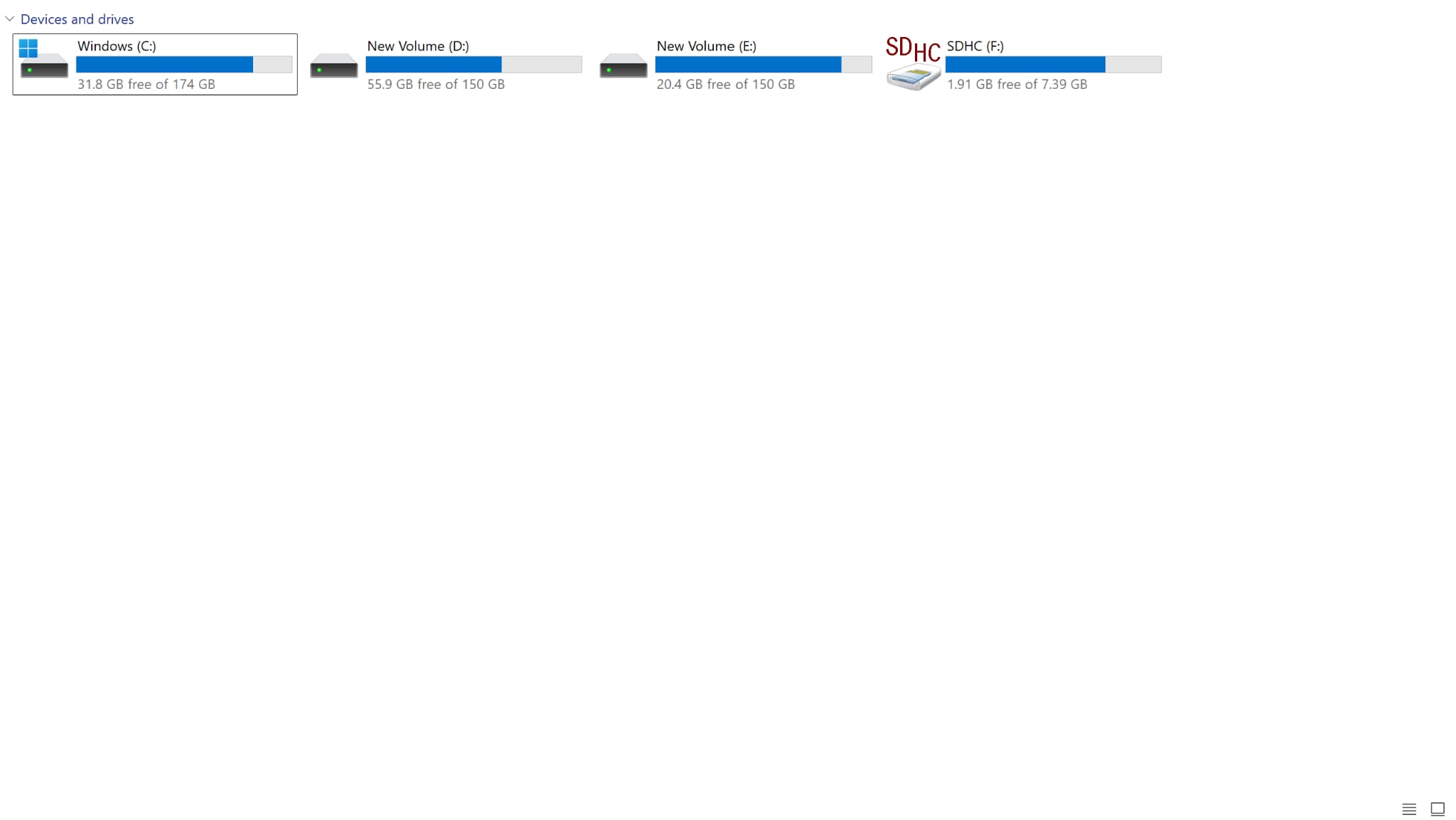
Step 2: Open "This PC" on your computer and find your card under "Devices and drives."
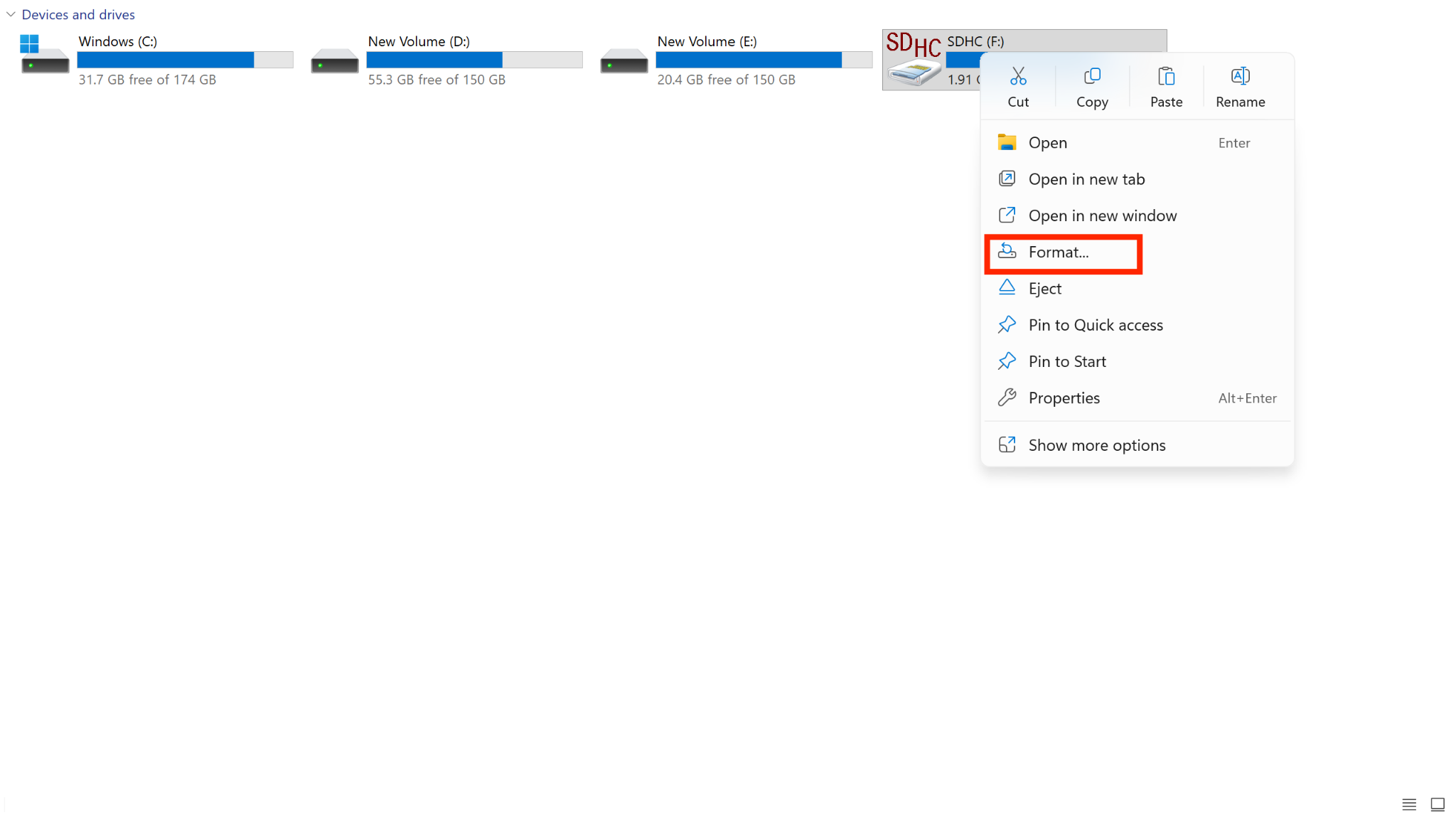
Step 3: Right-click on your card folder and select "Format."
Step 4: Choose the correct file system: FAT32 for cards under 32GB, exFAT for cards above 32GB.
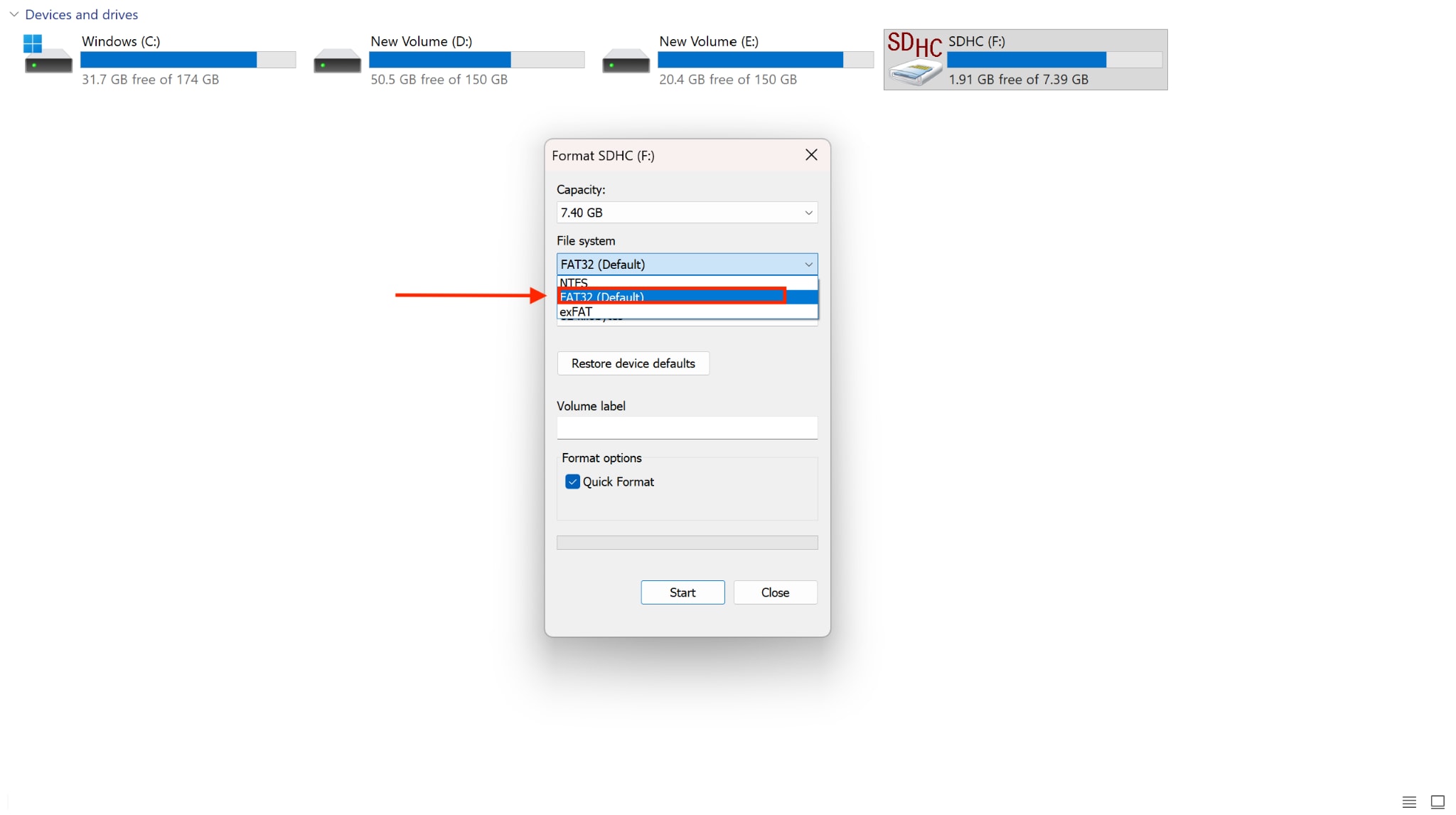
Step 5: Enable Quick Format for a faster process, or leave it unchecked for a deeper clean on an older card.
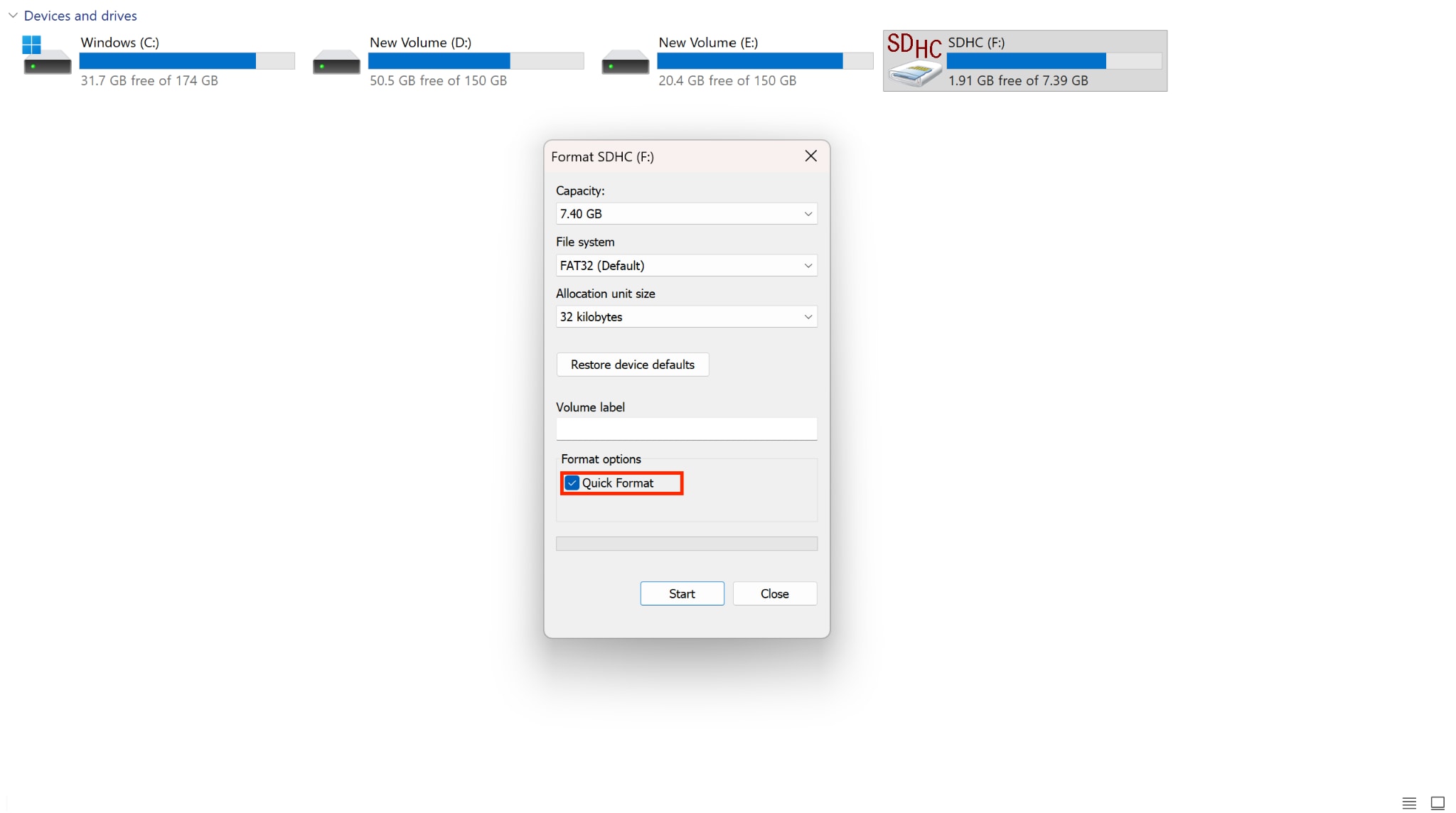
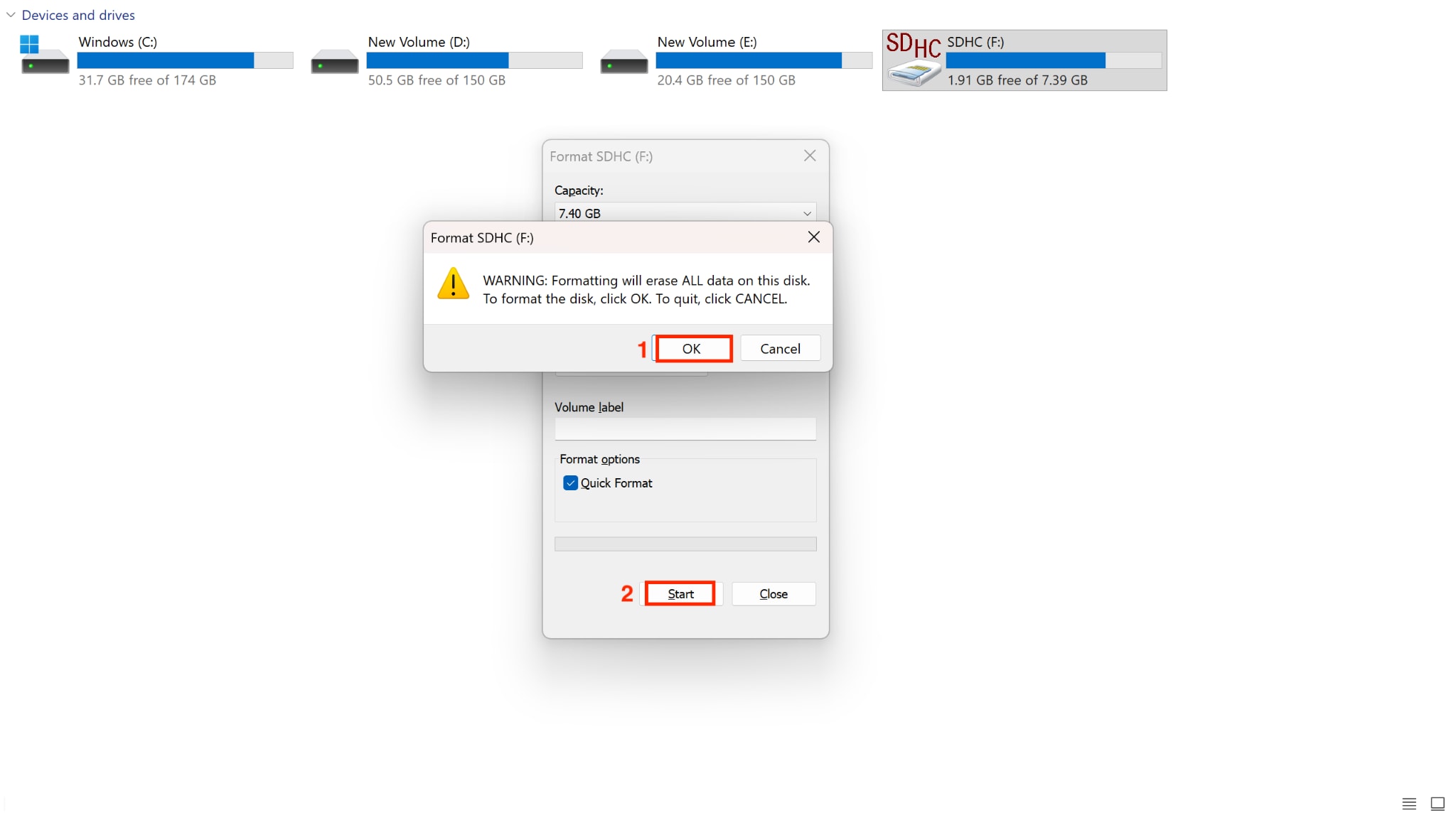
Step 6: Click Start and select OK in the warning message to start the formatting of your SD card.
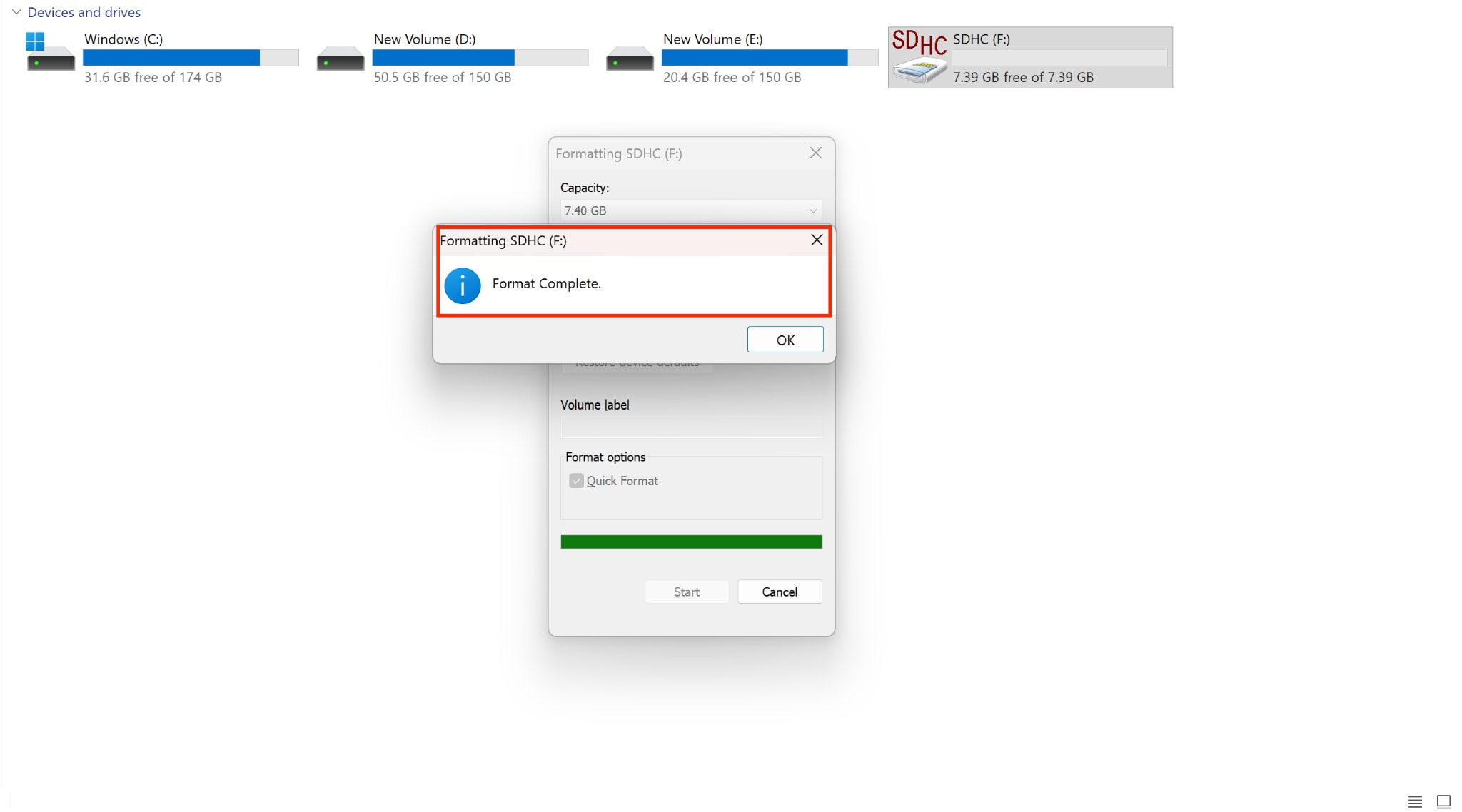
Step 7: You'll get a message once the card format is completed.
For a safer option, use the official SD Memory Card Formatter tool from the SD Association instead of your operating system's built-in formatter. It follows the exact SD specification and reduces the risk of a corrupted card later.
If your device still flags the card as unsupported after formatting, the cause is usually one of three things. The file system does not match what your device expects, the card has developed bad sectors from age, or you are using a cheap card reader that cannot handle the card's rated speed.
Try the card in a different reader before assuming it is faulty. A surprising number of "unsupported SD card" errors trace back to the reader and not the card itself.
Part 6: How to Compress Video Files to Reduce SD Card Storage
Compressing your footage is the fastest way to free up SD card space without buying a new card at inflated 2026 prices. Many content creators now lean on dedicated compression software rather than shooting at lower-quality settings.


All-in-One Multimedia Processing Tool

Wondershare UniConverter is a tool that compresses video and audio in minutes. It uses AI-assisted compression to reduce file size while preserving original video quality, so you do not have to choose between storage space and picture quality.
Here is how the compression process works in UniConverter:
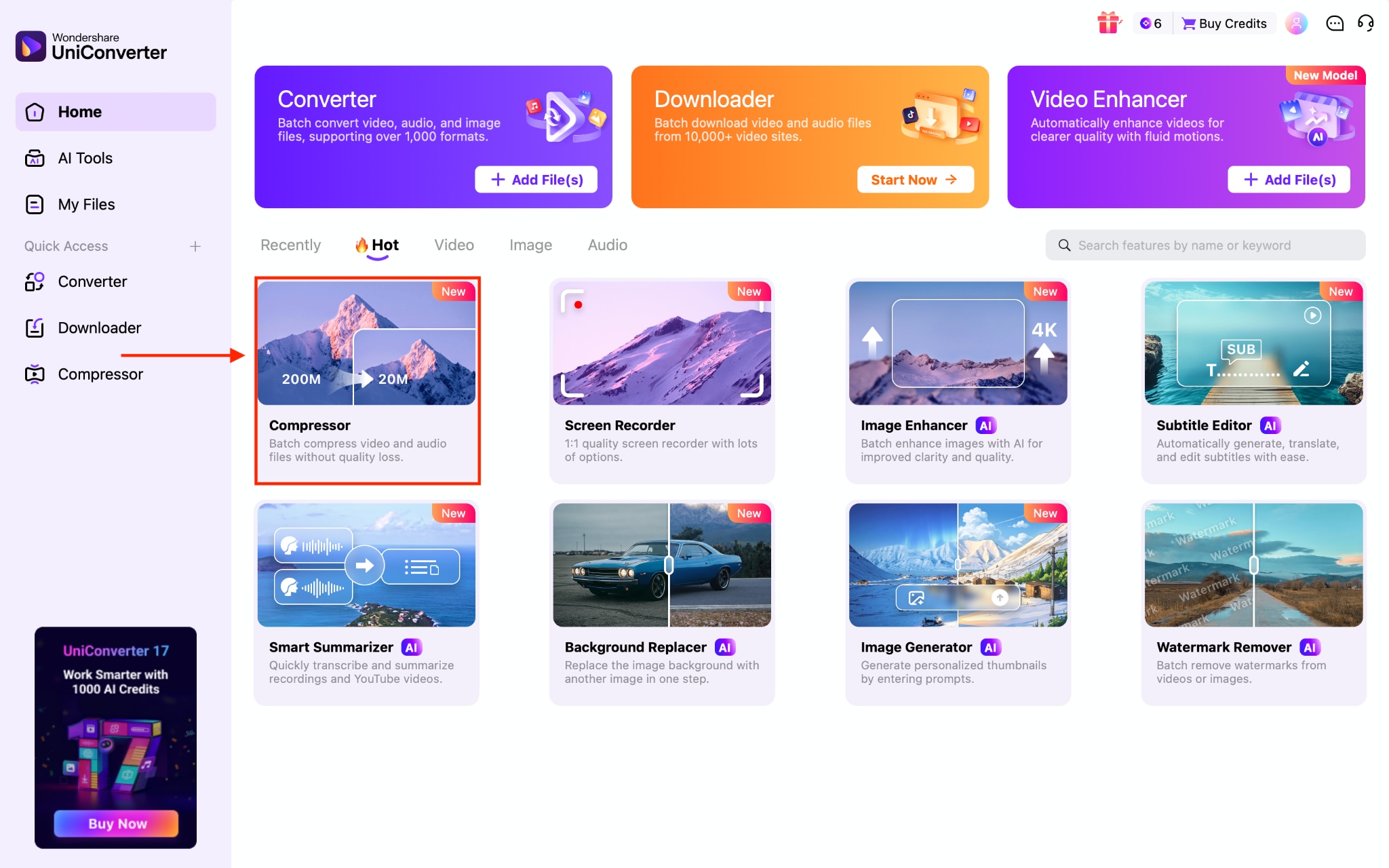
Step 1: On the Wondershare UniConverter dashboard, choose Compressor.
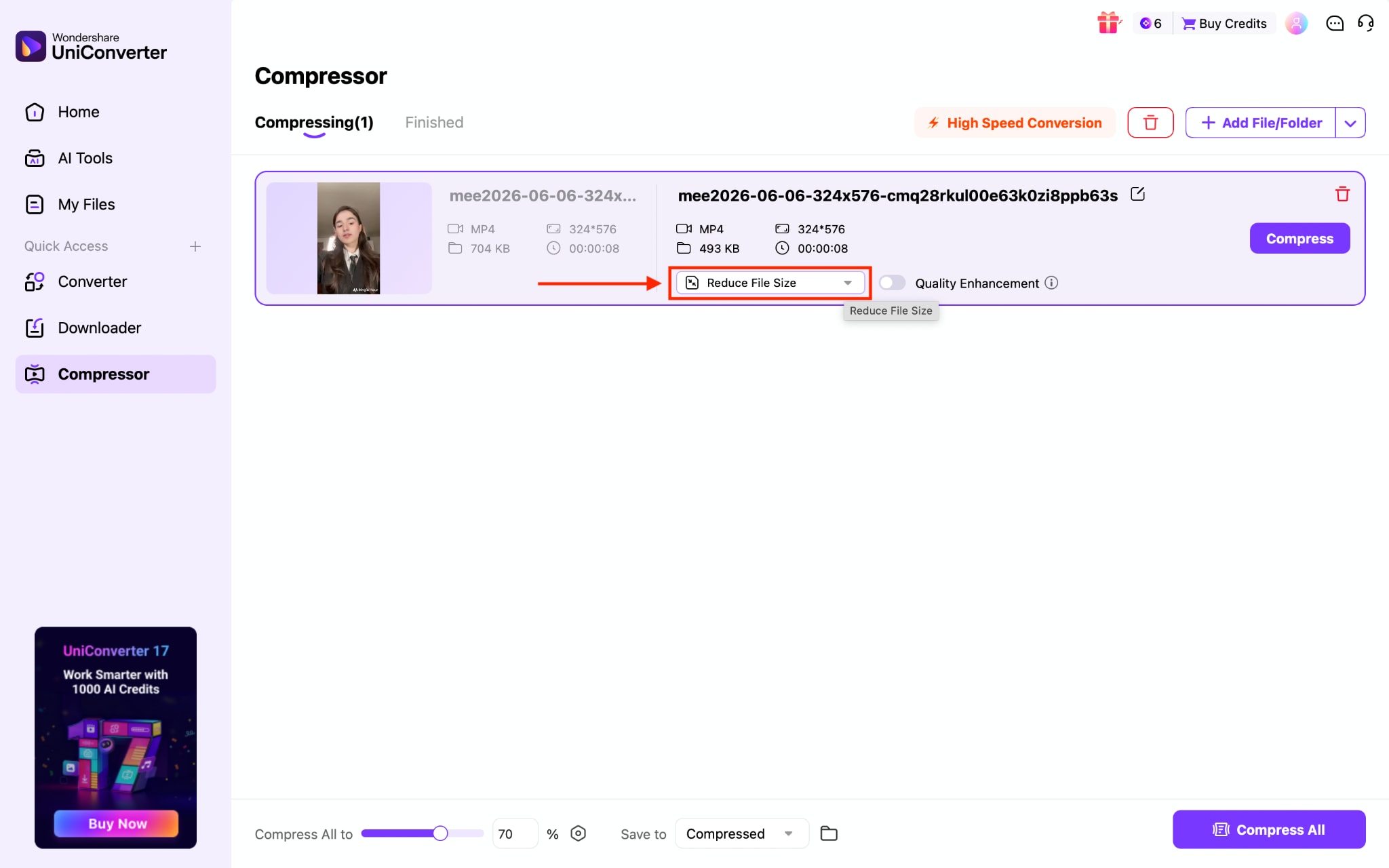
Step 2: Upload the video and click the Reduce file size option.
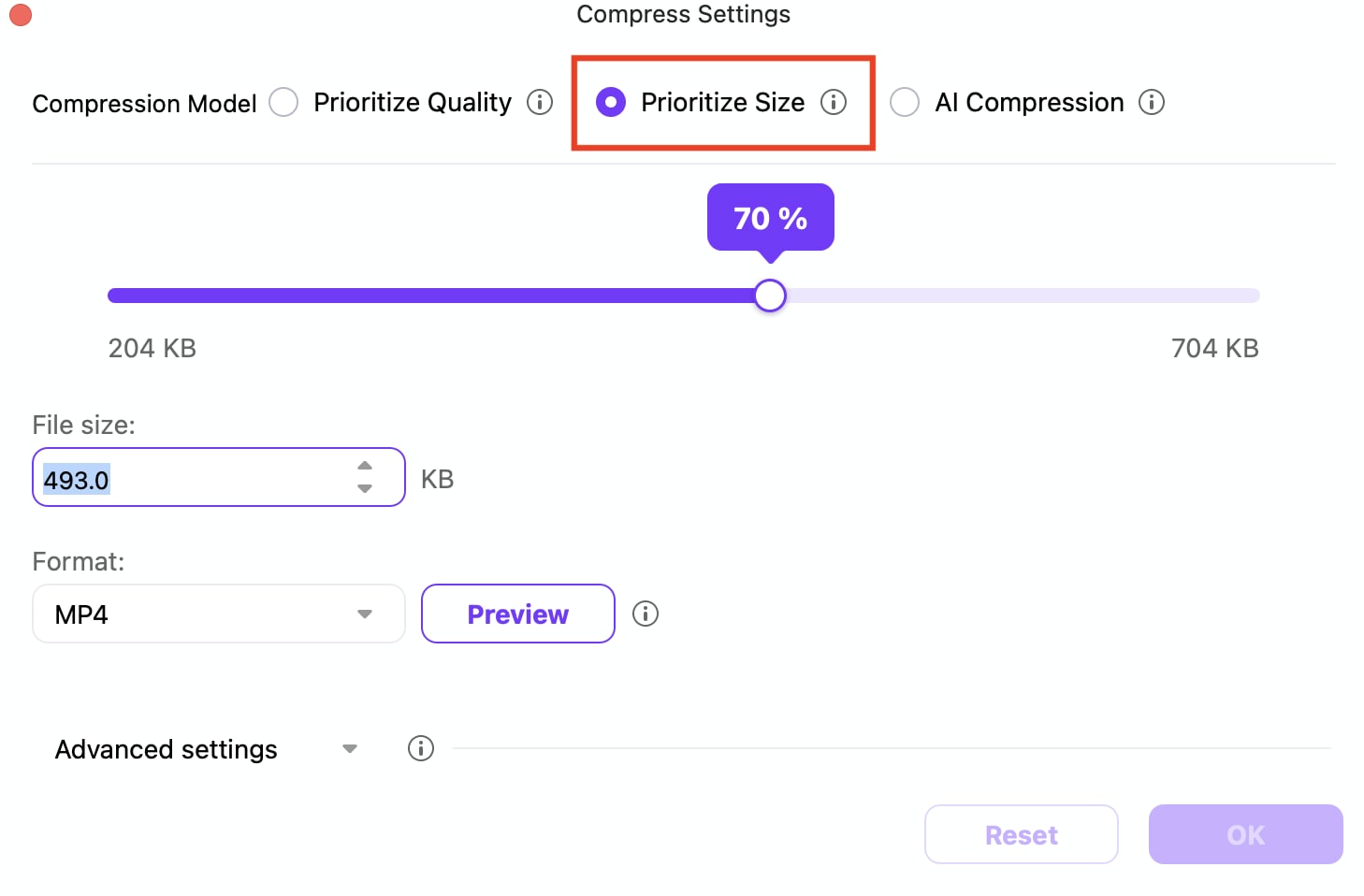
Step 3: In Compress Settings, you can compress file size in three ways: Prioritize Quality, Prioritize Size, and AI Compression. Navigate to Prioritize Size and adjust the size.
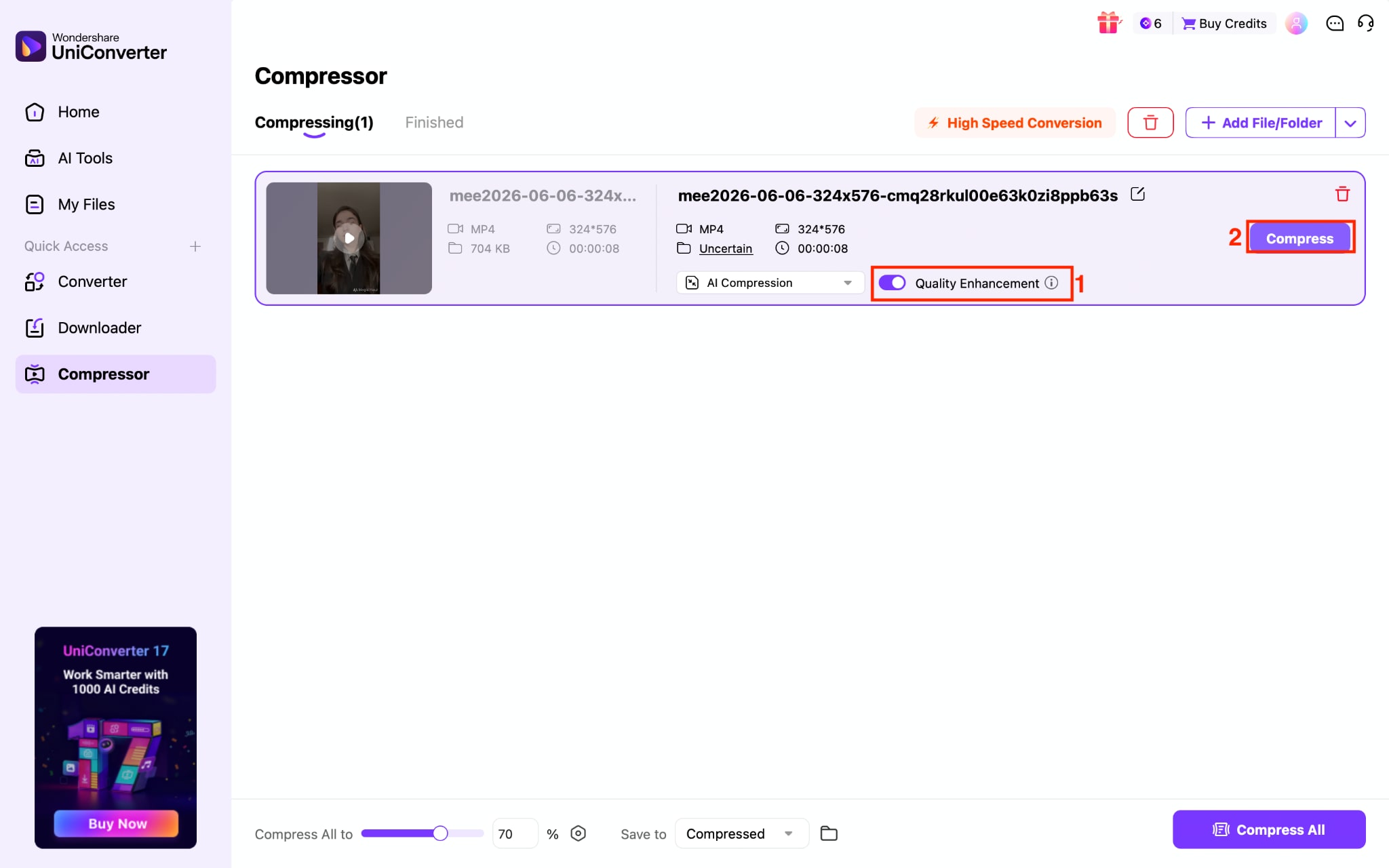
Step 4: Enable Quality Enhancement and tap the Compress button to start the process.
Conclusion
SD card speed ratings look confusing at first, but they boil down to one question: Does this card write fast enough for what you actually record? Match the rating to your device, format the card correctly, and lean on compression tools like Wondershare UniConverter to stretch every gigabyte further. That approach will save you money even as 2026 memory prices stay high.