


If you are comparing tools for tutorials, demos, or training videos, Camtasia is probably one of the first names you will see. It is widely used for screen capture and built-in editing, which makes it a familiar choice for educators, teams, and content creators.
At the same time, not every user needs the same workflow. Some people want something easier to learn, some care more about price, and others need a tool that fits better into everyday video tasks. That is why many users start looking for a Camtasia recorder alternative that feels more practical for their specific needs.
In this guide, we will look at what Camtasia does well, where it may feel limiting, and how it compares with other options for users who want a flexible tool to record and work with video more efficiently.
In this article
What Is Camtasia Recorder?
Camtasia recorder is a screen capture and video editing tool designed for users who want to create instructional videos, software demos, presentations, webinars, and online course materials. It combines screen recording with a built-in editing timeline, making it a popular choice for people who want to record their screen and polish the footage without switching between multiple tools.
As a piece of Camtasia screen recording software, it allows users to capture full screen, a custom area, webcam footage, microphone input, and system audio. This makes it useful for creators who need to explain workflows, show product features, or build tutorial-style content.
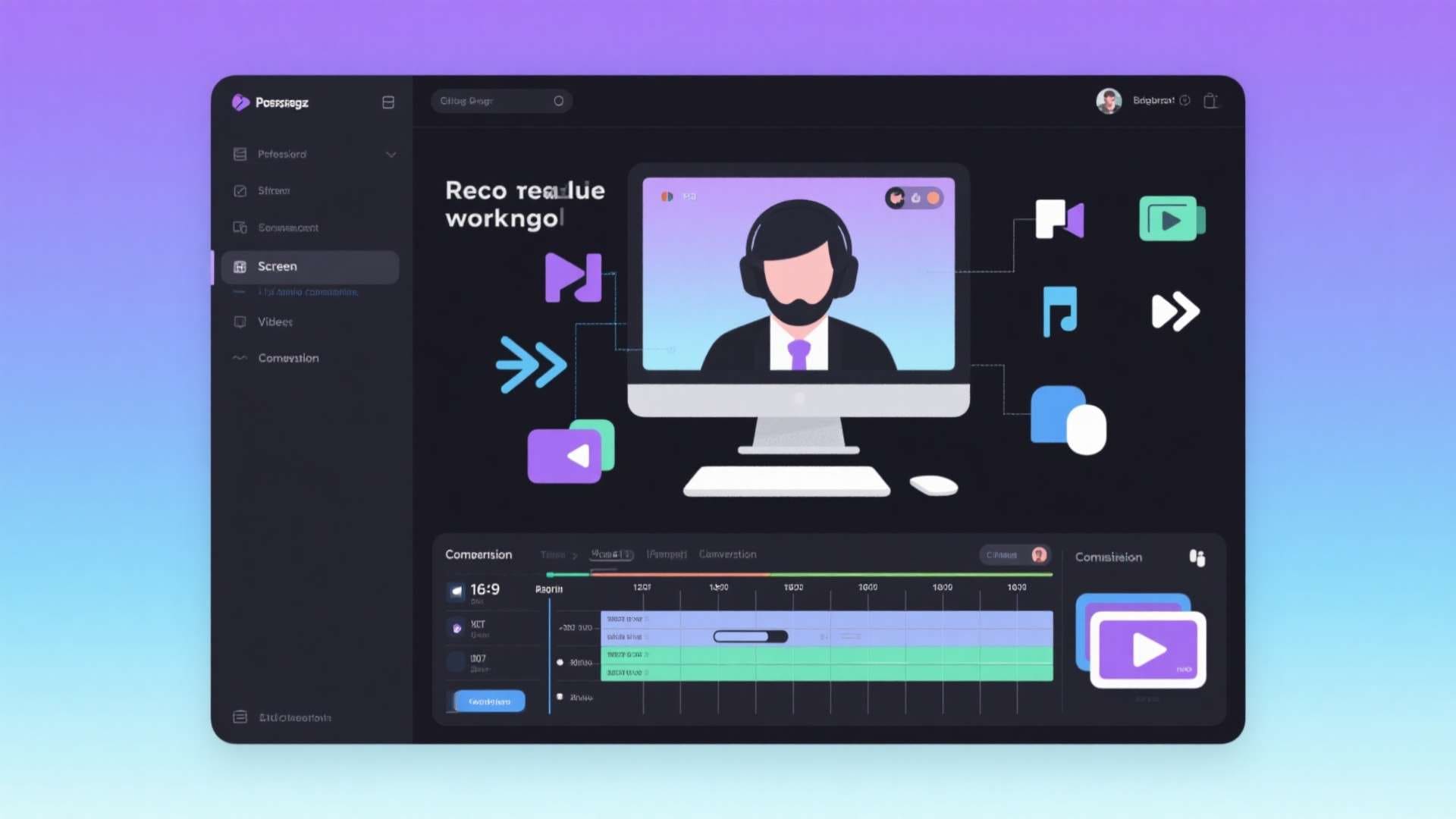
Key Features of Camtasia Screen Recording Software
One reason many users look for a Camtasia recorder review before buying is that the software promises both screen capture and editing in one workflow. Below are the main features that make it popular.
1. Flexible Screen Recording
Camtasia lets you record the full desktop, a selected window, or a custom screen area. This is useful for software tutorials, online classes, walkthroughs, and product demos.
2. Webcam and Audio Capture
You can record webcam video, microphone voiceover, and system sound at the same time. This makes it easier to create talking-head tutorials, training sessions, and reaction-style instructional videos.
3. Built-In Video Editing Timeline
Unlike basic recorders, Camtasia includes timeline editing tools. Users can trim clips, cut mistakes, rearrange scenes, and produce cleaner videos without exporting to another editing app.
4. Cursor Effects and Annotations
For tutorial creators, Camtasia offers visual aids such as cursor highlights, click animations, text callouts, arrows, and annotations. These features are especially useful when explaining software interfaces step by step.
5. Transitions and Presentation Effects
The software includes transitions, overlays, and motion effects that help make educational and presentation videos more polished and easier to follow.
6. Template-Based Production
For repeat workflows, Camtasia supports templates and reusable assets. This can save time for trainers, teachers, and teams creating similar content every week.
Pros and Cons of Camtasia Recorder
Before choosing any screen recording software for PC or Mac, users usually want a clear view of the practical strengths and limitations. Here is a cleaner breakdown of where Camtasia helps and where it may create friction.
Pros of Camtasia Recorder
- All-in-one workflow for tutorial creation: You can record, edit, annotate, and export in one place.
- Beginner-friendly layout: The interface is easier to learn than many advanced editing tools.
- Strong presentation features: Cursor effects, callouts, and transitions work well for training and educational videos.
- Good for structured screen demos: It is a solid fit for software walkthroughs, lessons, and explainer content.
Cons of Camtasia Recorder
- May feel too heavy for simple tasks: Users who only need quick screen capture may find the workflow more complex than necessary.
- Limited beyond recording and tutorial editing: It is not the strongest option for users who also need file conversion, compression, or AI media tools.
- Less efficient for multi-format workflows: If you regularly handle different video formats, sizes, and delivery platforms, extra tools may still be required.
- Not always the fastest route to output: Users focused on speed and lightweight media processing may want a more flexible all-in-one alternative.
Camtasia vs Other Screen Recording Software
Choosing the best screen recording software often comes down to your real workflow pain points. Some users need advanced tutorial editing. Others want faster exports, easier file compression, or support for multiple media tasks after recording. The comparison below focuses on these common needs instead of just listing features.
| Software | Best For | Main Pain Point It Solves | Where Users May Struggle | Editing Support | Extra Media Tools |
|---|---|---|---|---|---|
| Camtasia | Tutorials and training videos | Helps users record and edit instructional content in one place | Can feel too heavy if you only want fast recording and export | Strong for tutorial editing | Limited |
| OBS Studio | Streaming and advanced recording setups | Gives users deep control over capture and live production | Steeper learning curve and no built-in beginner editing workflow | Very limited in-app editing | No |
| Loom | Quick communication videos | Lets teams record and share short videos fast | Not ideal for polished long-form tutorial production | Basic | No |
| Bandicam | Lightweight screen capture | Useful when users want simple recording with low setup time | Limited post-production options for more complete workflows | Basic | No |
| Wondershare UniConverter | Screen recording plus media processing | Solves the need to record, convert, compress, and enhance in one workflow | Less tutorial-specific annotation depth than Camtasia | Practical and easy | Yes |
How We Test
- Tested screen recording for tutorials, demos, and presentations.
- Reviewed webcam, microphone, and system audio capture in real workflows.
- Compared editing ease, export efficiency, and post-recording flexibility.
- Focused on real pain points like file size, format compatibility, and the need for extra software.
Why Wondershare UniConverter Is a Better Alternative for More Flexible Video Workflows
While Camtasia screen recording software works well for tutorial-based video creation, many users today need more than just recording and timeline editing. They often need to resize videos for different platforms, convert file formats, compress large recordings for sharing, and improve overall video quality without opening several separate tools.
This is where Wondershare UniConverter stands out as a strong Camtasia alternative. Instead of focusing mainly on screen tutorials, UniConverter supports a wider multimedia workflow. You can record your screen, make quick edits, convert files into different formats, reduce file size, and even use AI-powered features to improve media more efficiently.
For content creators, marketers, educators, and business users, this broader functionality can save both time and storage space. It also reduces the need to rely on multiple programs just to finish one video project. If your workflow includes more than recording alone, UniConverter can be a more practical choice.


All-in-One Multimedia Processing Tool

How to Record Screen with UniConverter
If you decide that a broader workflow fits your needs better, using UniConverter is simple. It is especially useful for users who want to record screen and edit videos without jumping between multiple apps afterward.
How to Record Screen with UniConverter
UniConverter makes it easy to record your screen with flexible capture options and simple controls. Follow these four steps to start recording quickly.
Step 1: Open Screen Recorder
Launch UniConverter and go to the Home interface. Under the Video section, click Screen Recorder to enter the recording workspace.
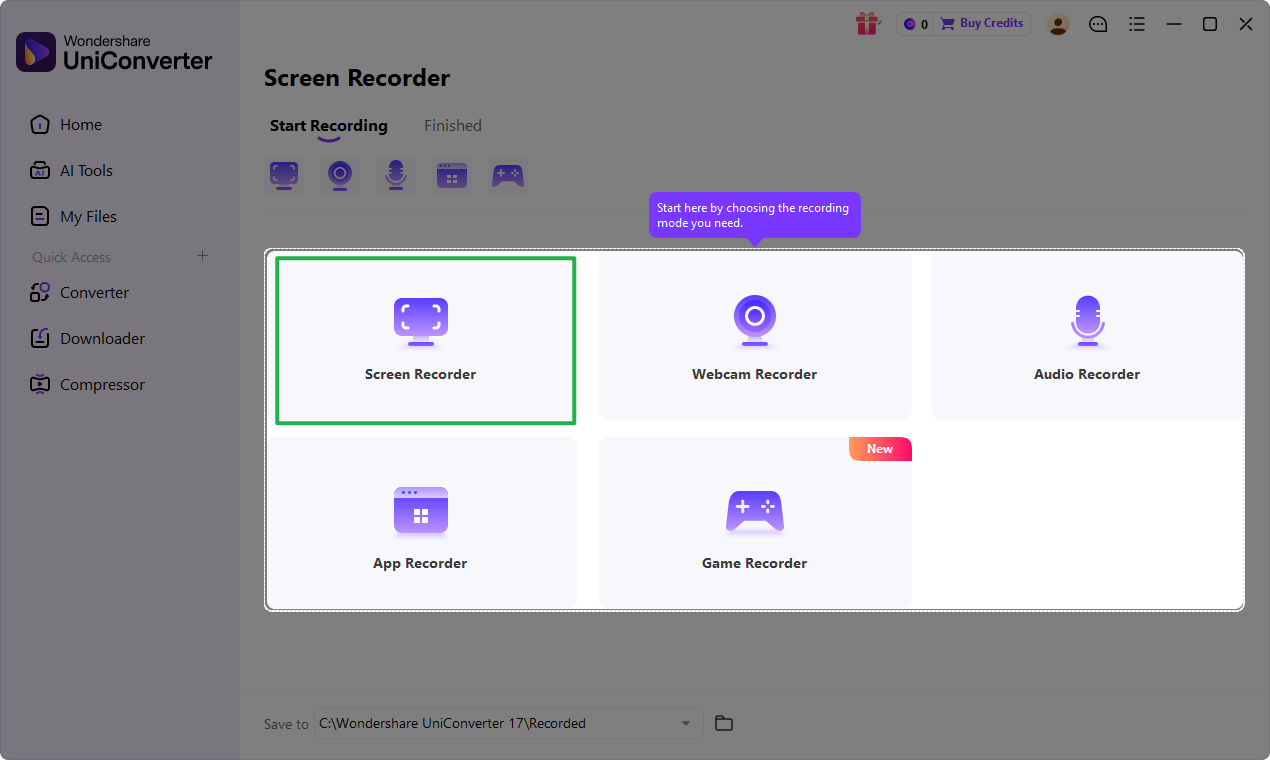
Step 2: Select the Recording Mode
Choose the recording mode based on your needs. UniConverter offers options such as Screen Recorder, Webcam Recorder, Audio Recorder, App Recorder, and Game Recorder. To capture your display, select Screen Recorder.
Step 3: Adjust the Recording Area and Audio Settings
Set the screen area you want to record by dragging the capture frame or entering a custom size. Then turn on or adjust options like microphone and system audio to match your recording needs.
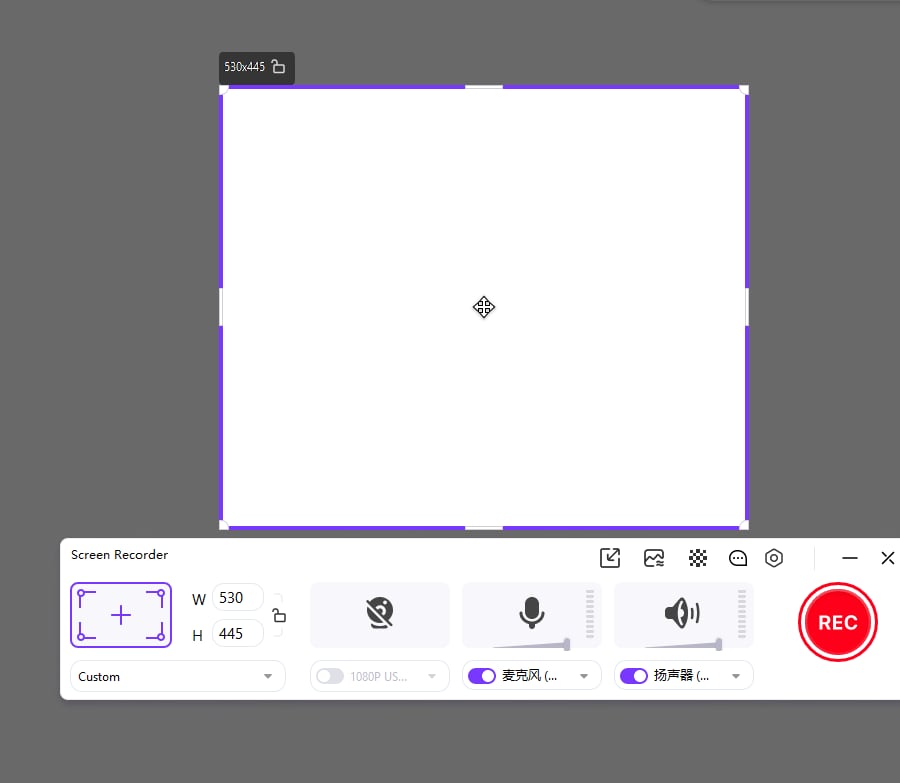
Step 4: Start and Control the Recording
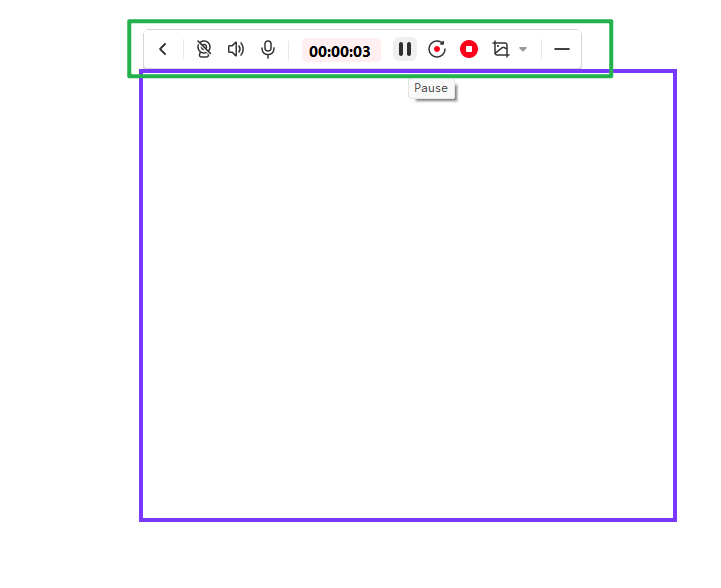
Click the red REC button to begin recording. During the session, use the floating toolbar to pause, resume, or stop recording. Once finished, the video will be saved automatically to your selected folder.
Conclusion
Camtasia recorder remains a solid option for users who focus on tutorial videos, training materials, and presentation-based content. Its recording tools, annotations, and editing timeline make it especially useful for educational workflows. However, users who need more than screen recording may eventually run into limitations.
If your workflow also includes video conversion, compression, format adjustment, and media enhancement, Wondershare UniConverter offers a more flexible all-in-one solution. For users looking for a practical Camtasia alternative that handles broader video tasks with less friction, UniConverter is a smart choice.

