


Niconico, also known as Nico Nico Douga, is one of Japan’s most popular video-sharing platforms. However, downloading videos directly from Niconico isn’t officially supported.
That’s why this guide is here—to show you the best ways to perform a Niconico video download, whether you want to save MP4 files for offline viewing or extract MP3 audio for listening on the go. We’ll walk you through four practical methods using desktop software, browser extensions, online tools, and mobile apps. Each technique includes simple step-by-step instructions (with screenshots) to help you batch download Niconico videos with ease.
Table of Contents
Part 1. How to Batch Download Niconico Videos as MP3 or MP4 Using UniConverter
Suppose you regularly enjoy Japanese content on Niconico (Nico Nico Douga) and want to keep your favorite videos offline. In that case,Wondershare UniConverter is one of the most efficient and reliable tools to batch download MP4 or MP3 files. It’s beneficial if you’re dealing with playlists, music compilations, anime, or fan-made content.
Wondershare UniConverter is a comprehensive AI-powered multimedia tool that supports downloading videos from major sites like NicoNico Douga. As a NicoNico video downloader, UniConverter allows users to easily specify video URLs and save them in popular formats such as MP4, MKV, and MOV. It offers batch downloading, video compression, subtitle integration, and supports high-quality downloads. Additional features include video conversion, editing, screen recording, merging files, DVD burning, GIF making, and background removal, making it highly versatile for content creators.
Unlike basic downloaders or extensions, UniConverter supports high-speed downloading with support for multiple formats, resolutions, and even audio-only extraction—all in one clean interface.
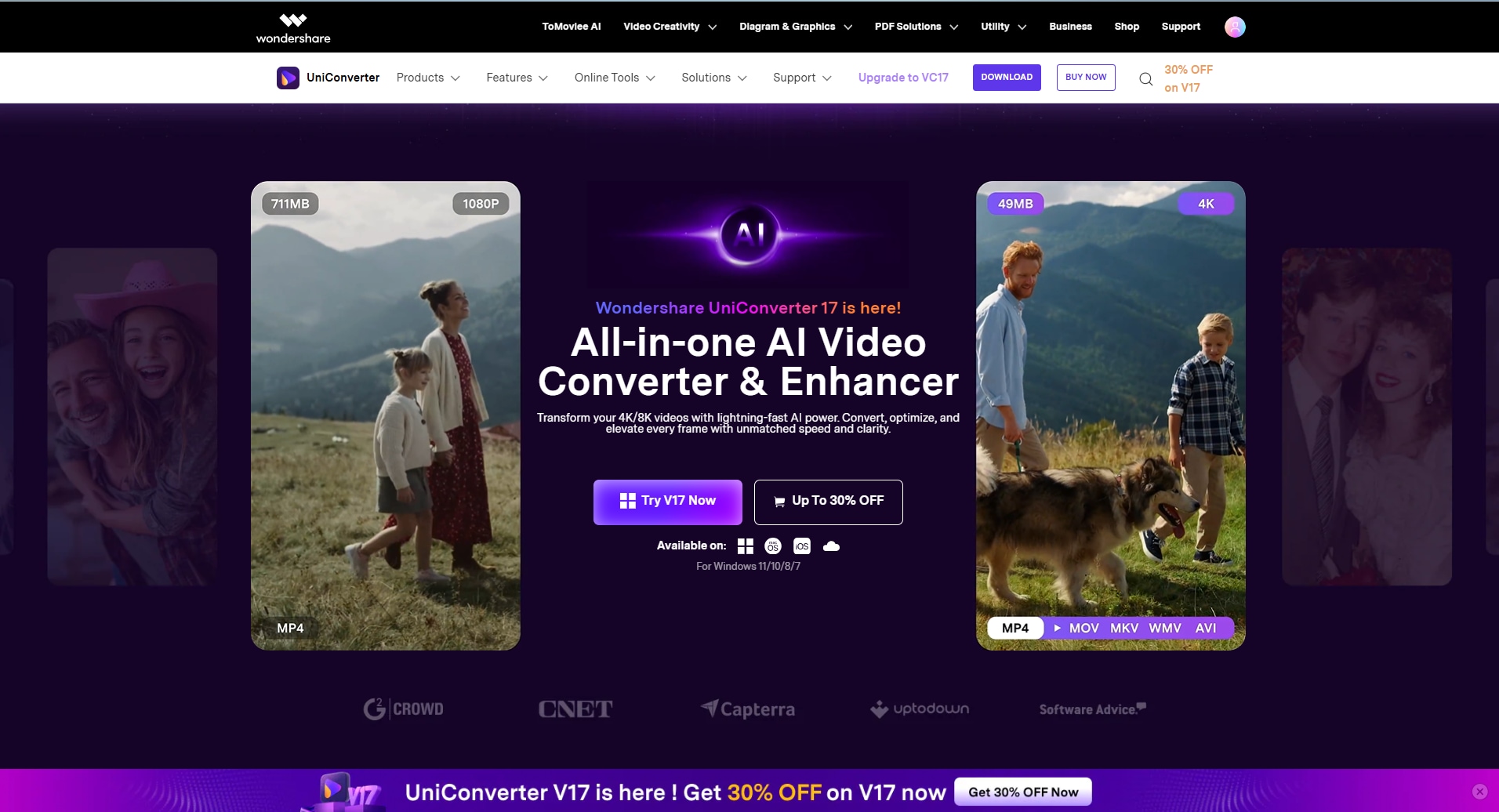
Key feature points of UniConverter as a NicoNico video downloader include:
- Download NicoNico and other online videos by URL, supporting batch downloads and playlist saving for efficiency.
- YouTube Chrome Extension integrated.
- Convert videos to and from over 1,000 formats (MP4, MKV, MOV, MP3, etc.), giving versatile output options.
- Built-in video editor for trimming, cropping, adding effects, translating subtitles, or merging multiple clips into one file.
- Fast download and conversion speeds with customizable settings for quality, format, and subtitles.
- Ability to compress large video files and record streaming or on-screen content; finished videos can be burned to DVD if needed.
Here comes a simple steps guide to illustrate how to easily batch download videos from NicoNico:
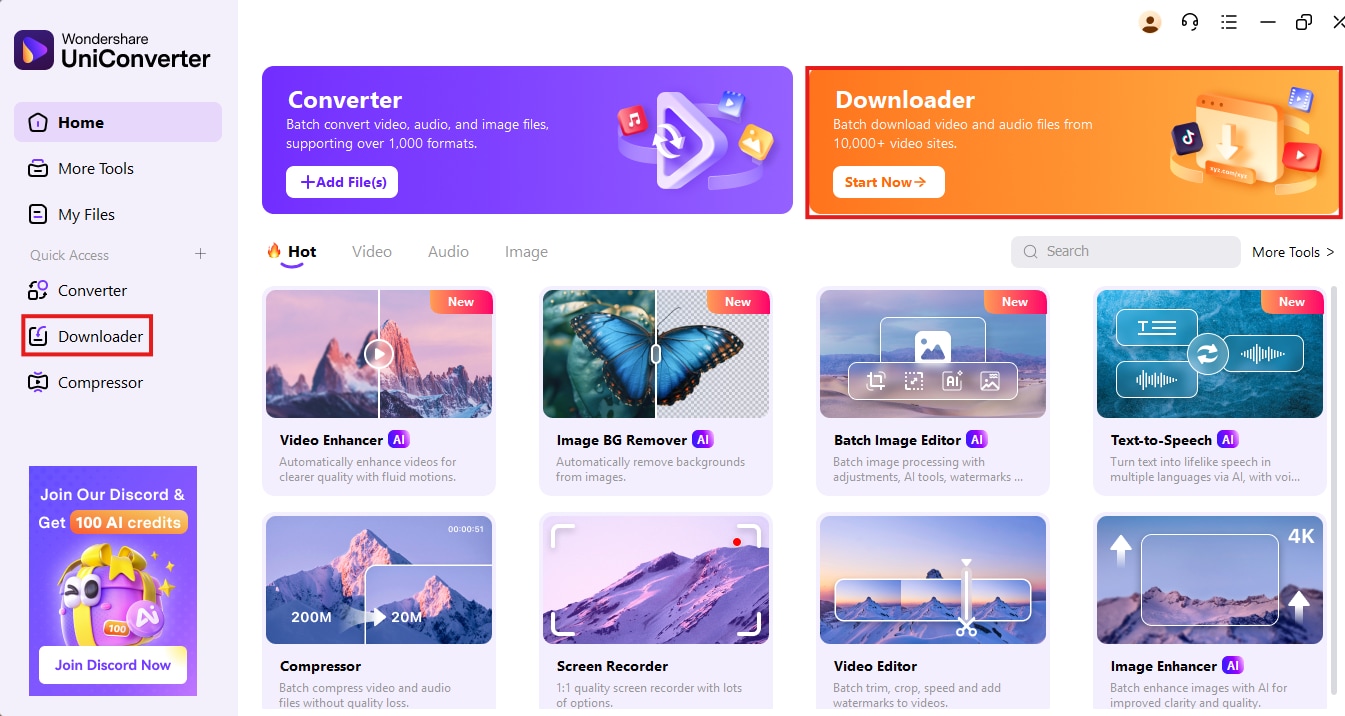
Step 1: Launch UniConverter and Access the Downloader
Open Wondershare UniConverter on your Windows or Mac. From the left sidebar, click on the Downloader tab to enter the video download workspace.
Step 2: Paste the Niconico Video Links
Open Niconico in your browser, log in to your account, and copy the video URLs you want to download. Go back to UniConverter and click + Paste URL(s). The tool will automatically detect multiple links for batch download.
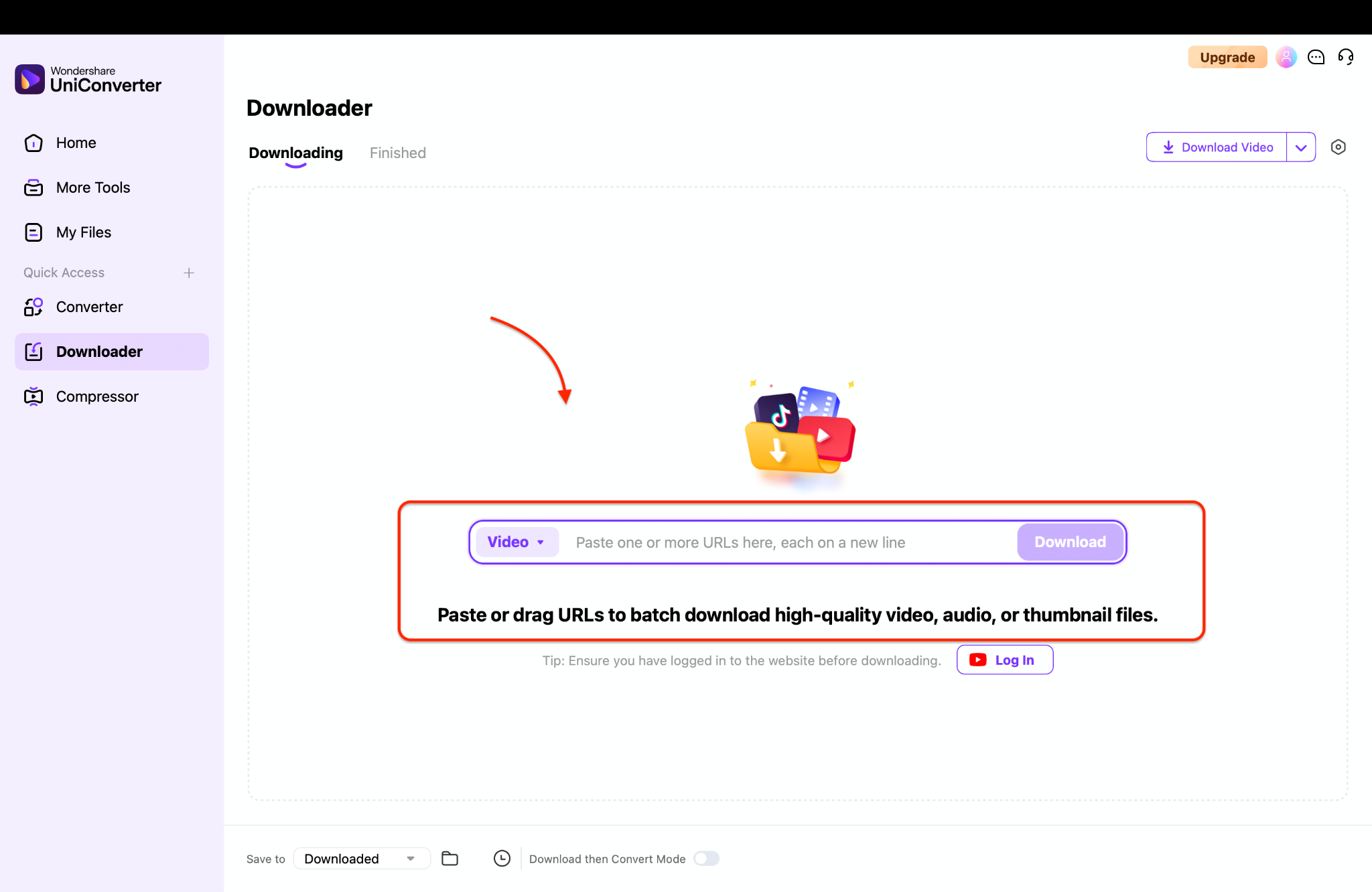
Pro Tip: You can paste multiple URLs at once to save time. Just make sure you’re copying each video’s direct link.
Step 3: Choose Format and Start Downloading
Once the links are processed, select your preferred format: MP4 for video or MP3 for audio. You can also select the resolution (such as 720p or 1080p) and choose your output folder. Click Download All, and UniConverter will begin downloading each file with fast and stable performance.
This method is ideal for creators, language learners, or fans who want a local library of Niconico content without the need for buffering or data limits.
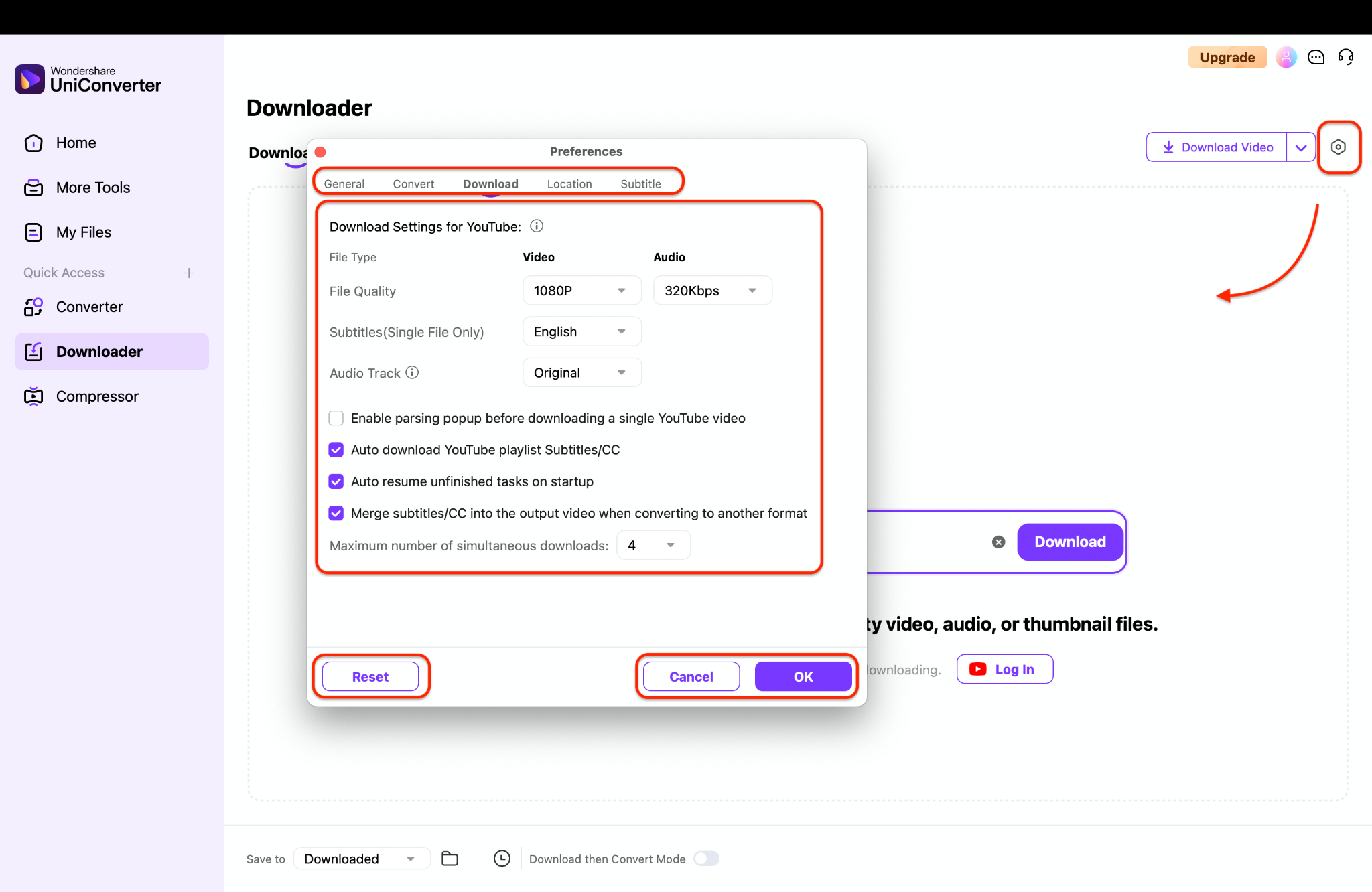
Bonus Tip: Use the built-in Download Then Convert feature to automatically convert your downloaded videos into different file types in one go.
Whether you're backing up your favorite anime clips or extracting voiceover audio for study, UniConverter offers the perfect Niconico video download experience—easy, fast, and professional.

Easy to Use iTube Niconico Video Downloader
Part 2. How to Download Niconico Videos with Web Extension
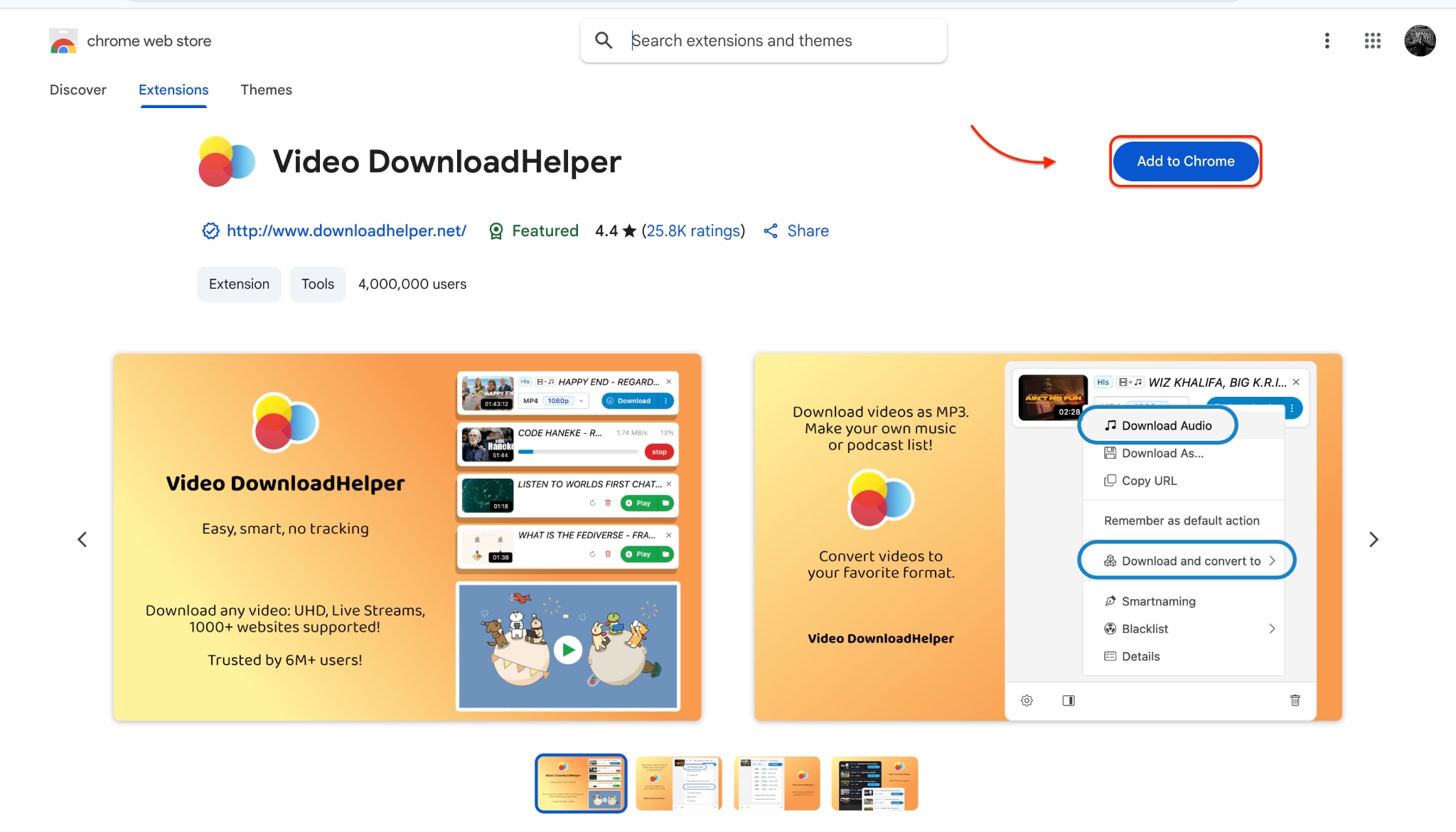
If you're looking for a faster, browser-based method to download a Niconico video, using a web extension is a great option. Extensions like Video DownloadHelper or CocoCut integrate directly into Chrome or Firefox, making it easy to grab videos without installing extra software. This method works well for casual users who want to download Nico Nico Douga online or save short clips directly in their browser.
These extensions are ideal for users who prefer lightweight tools that enable them to download NicoVideo MP4 or Nico videos in MP3 format without needing to navigate to third-party sites. Some even support resolution options like 480p, 720p, or Full HD, offering a flexible and hassle-free MP4 experience on Nicovideo.
Let's walk through the steps.
Step 1: Install and Set Up the Extension
Go to the Chrome Web Store or Firefox Add-ons and search for Video DownloadHelper or a similar tool. Click "Add to Chrome" or "Add to Firefox" and pin the extension to your toolbar. This step sets up your browser as a basic nico nico douga downloader.
Step 2: Play the Niconico Video in Your Browser
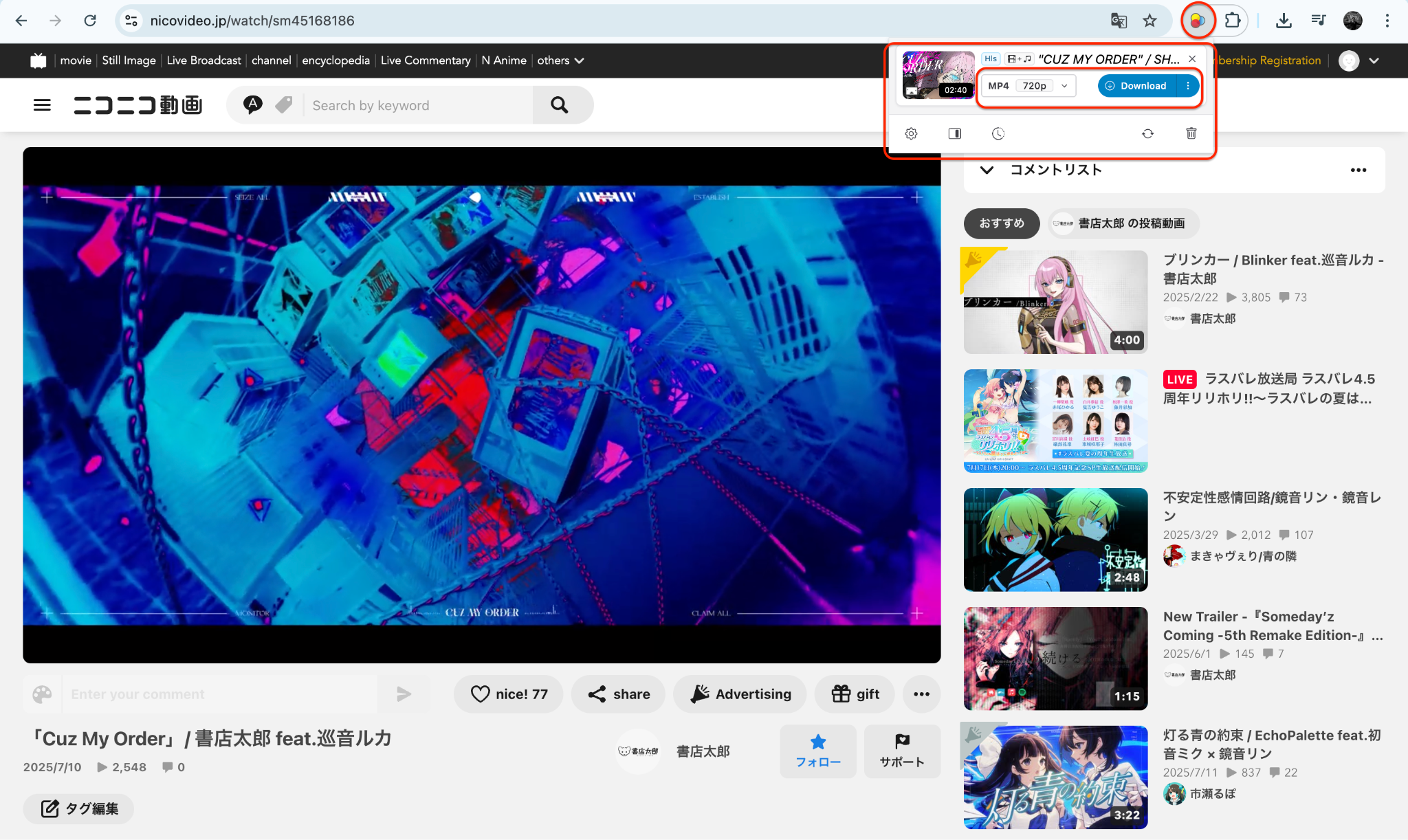
Open Niconico in your browser and play the video you want to download. As the video starts buffering, the extension icon will light up or animate, indicating that it has detected downloadable content. This method allows you to directly download niconico MP3 or niconico download MP4 as the video plays.
Step 3: Choose Format and Download
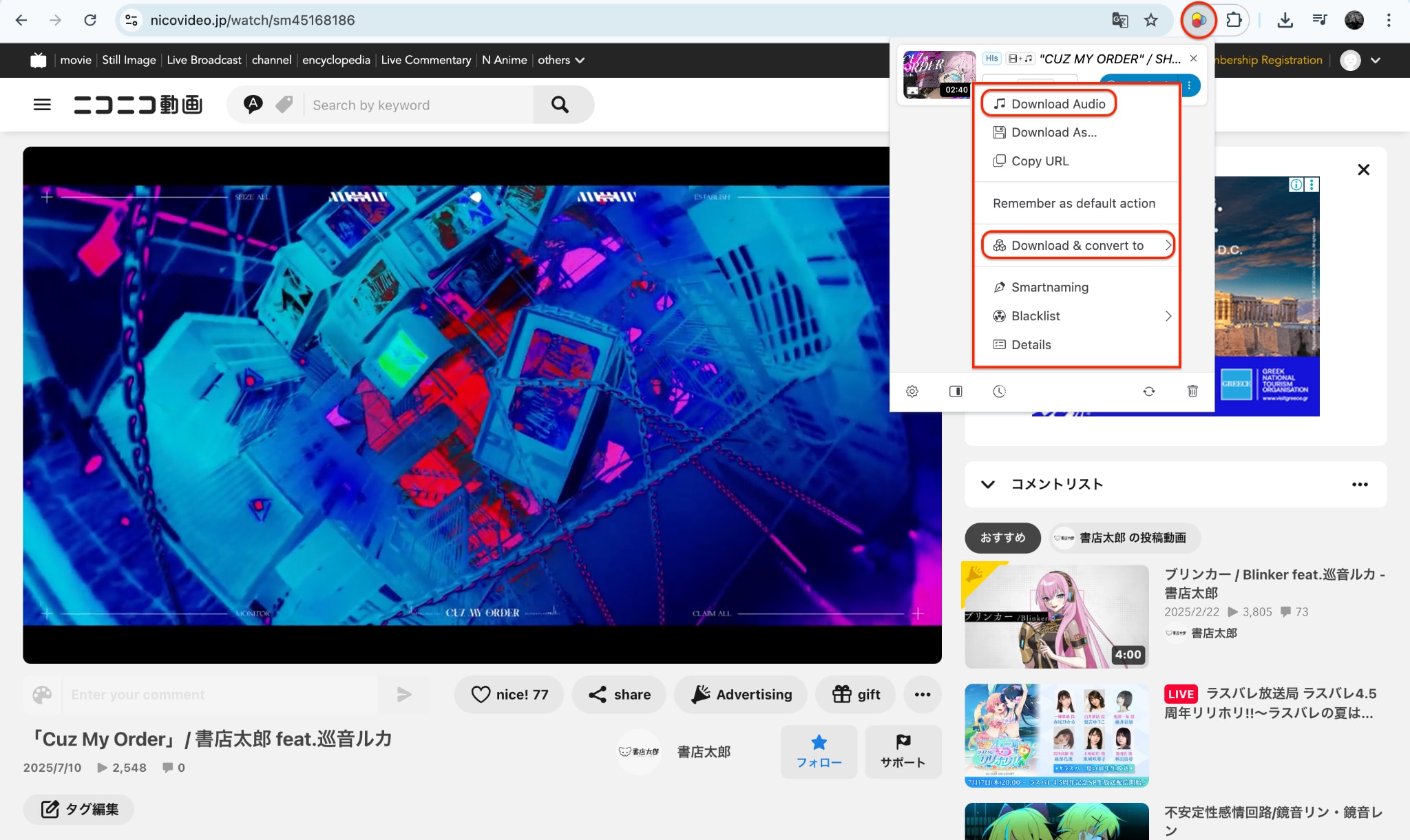
Click the extension icon and select your preferred file type—MP4 for video or MP3 for audio. You may also see different quality options. Confirm your selection, and the download will begin instantly to your device.
Part 3. How to Download Niconico Videos with Online Tool
If you want a quick and software-free way to handle Niconico video download tasks, using an online tool is an innovative and accessible choice. These web-based services allow you to download NicoVideo online by simply pasting a URL—no installation required. They're ideal for occasional users who don't want to commit to a full Nico Nico Douga downloader app.
Popular platforms like 9xbuddy, TubeOffline, or Downloader.la can extract videos directly from Niconico and convert them to MP4 or MP3 formats. With just a few clicks, you can download Nicovideo MP3 or even perform a nicovideo download MP4 without opening any other software.
Here's how to use them in three simple steps:
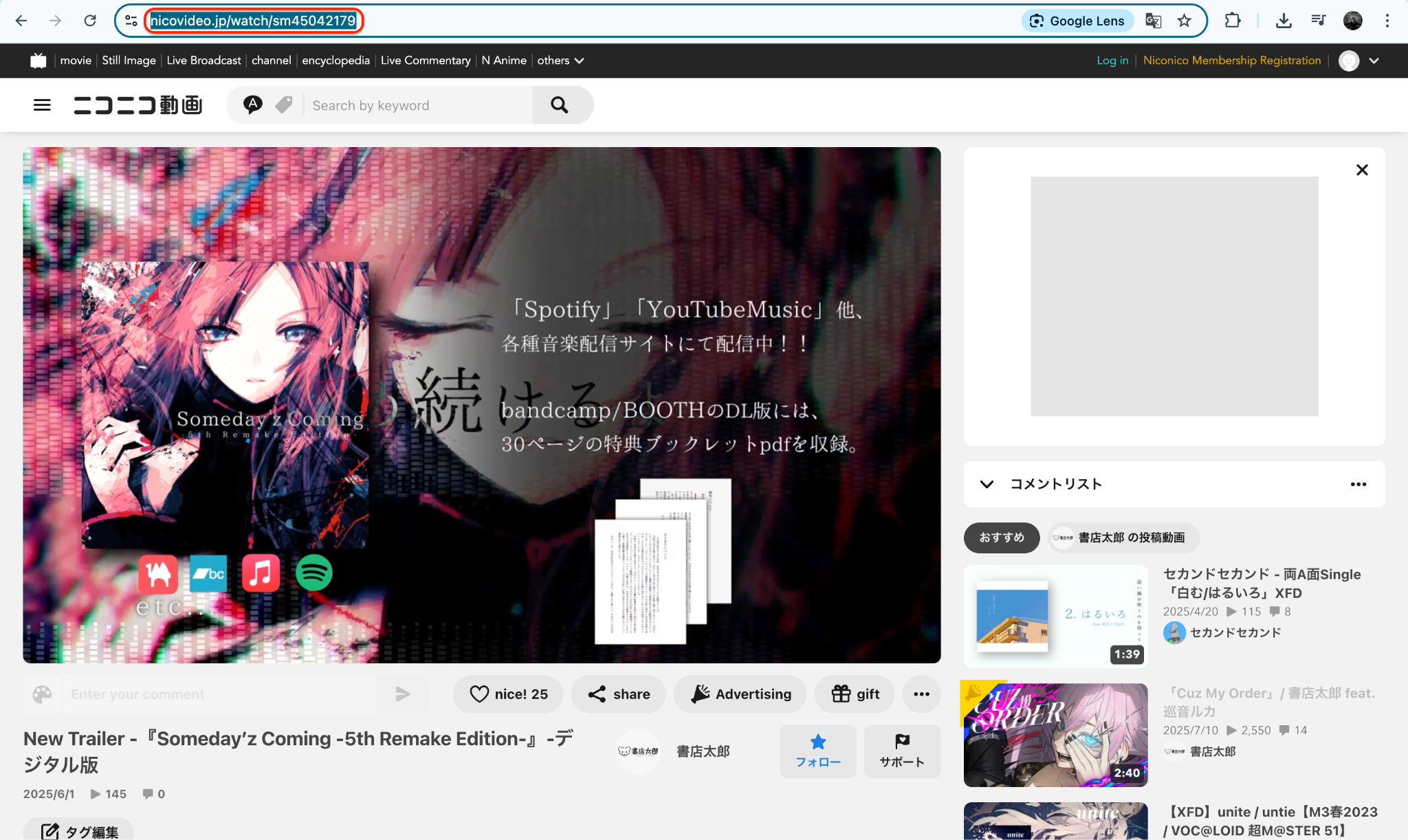
Step 1: Copy the Niconico Video Link
Step 2: Go to TubeOffline and Select Niconico
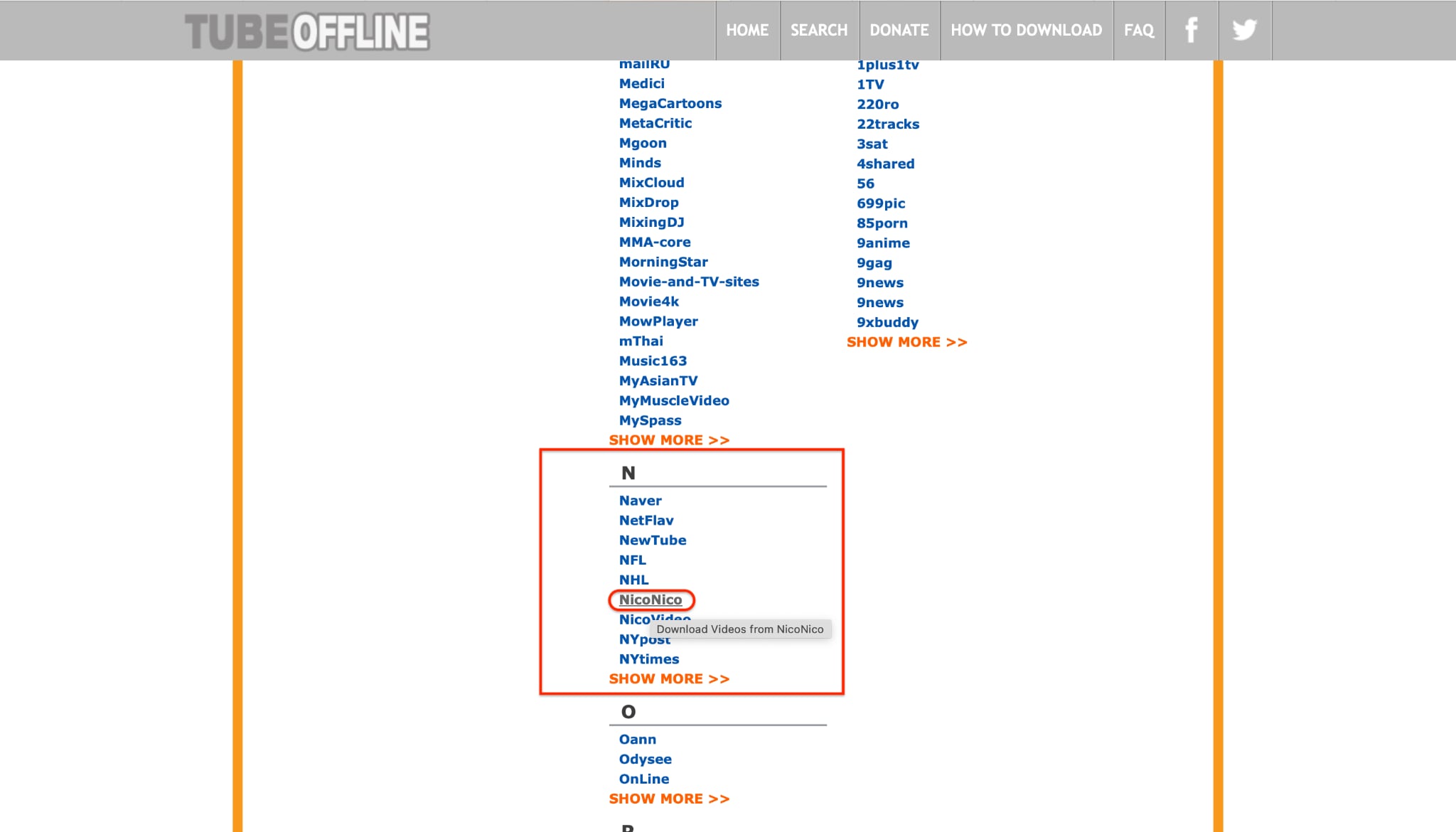
In a new browser tab, visit TubeOffline.com. Once on the homepage, scroll through the list of supported sites or use the search bar to find Niconico. Click on the Niconico icon or link to open the platform-specific download page.
Step 3: Paste the Link and Generate Download Options
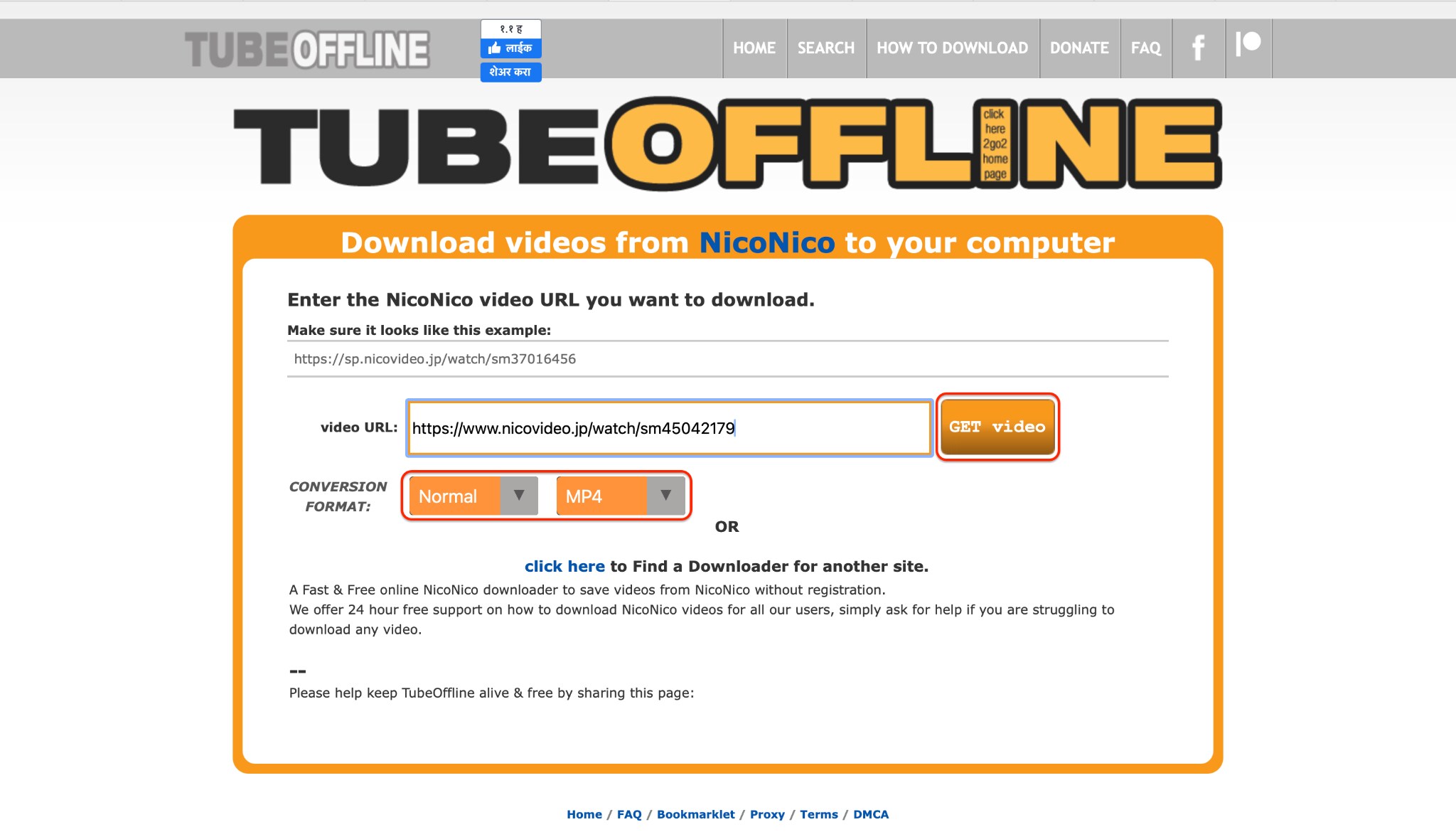
On the Niconico download page within TubeOffline, you'll see a white input field labeled something like "Enter video URL." Paste the Niconico video link you copied earlier into this box. Then, click on the Get Video button. TubeOffline will process the URL and fetch available download formats, such as MP4 or FLV, depending on the video.
Part 4. How to Download Niconico Videos with Mobile App
If you're someone who prefers downloading videos directly on your phone, a mobile app is your best bet for performing a smooth Niconico video download. Unlike desktop software or web tools, mobile apps give you freedom on the go—whether you're commuting, traveling, or simply not near your PC. They’re especially useful if you want to download Nicovideo MP3 or Niconico to MP4 straight to your device without using a browser.Apps like Advanced Download Manager (ADM) for Android or Documents by Readdle for iOS can be used to download from Niconico with a few extra steps. While these apps don’t have built-in support for Niconico, they work effectively when paired with video downloader websites or by capturing the video stream.
Let’s break it down into three simple steps:
Step 1: Install and Set Up ADM
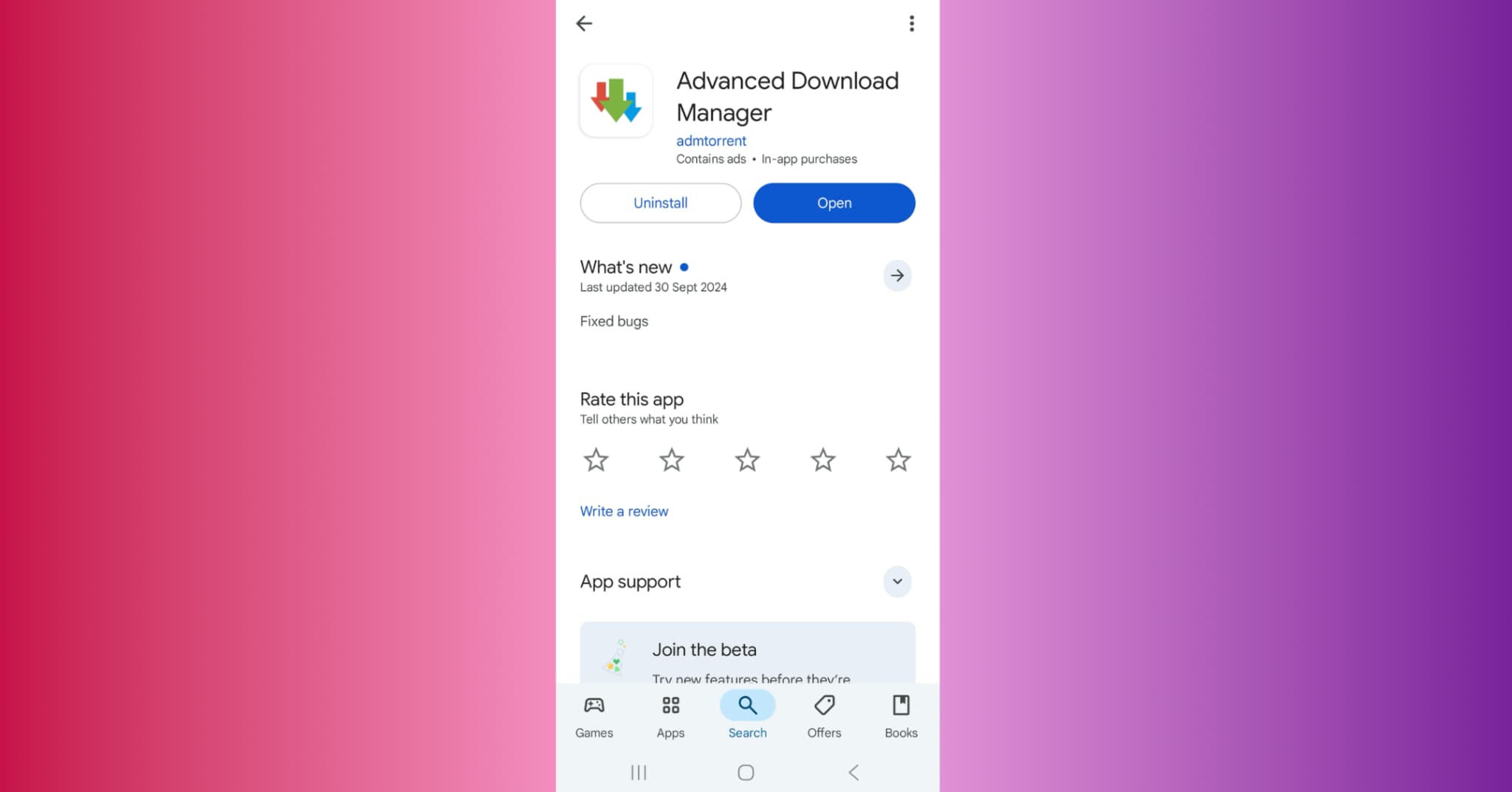
On your Android phone, open the Google Play Store and search for Advanced Download Manager (ADM). Tap on the app from the results and press Install to download it to your device. Once installed, launch ADM and grant the required storage and network permissions when prompted. These permissions are essential so ADM can save downloaded videos directly to your phone and manage files efficiently. Before proceeding, make sure your internet connection is stable to avoid interruptions during the download process.
Step 2: Copy the Niconico Video Link
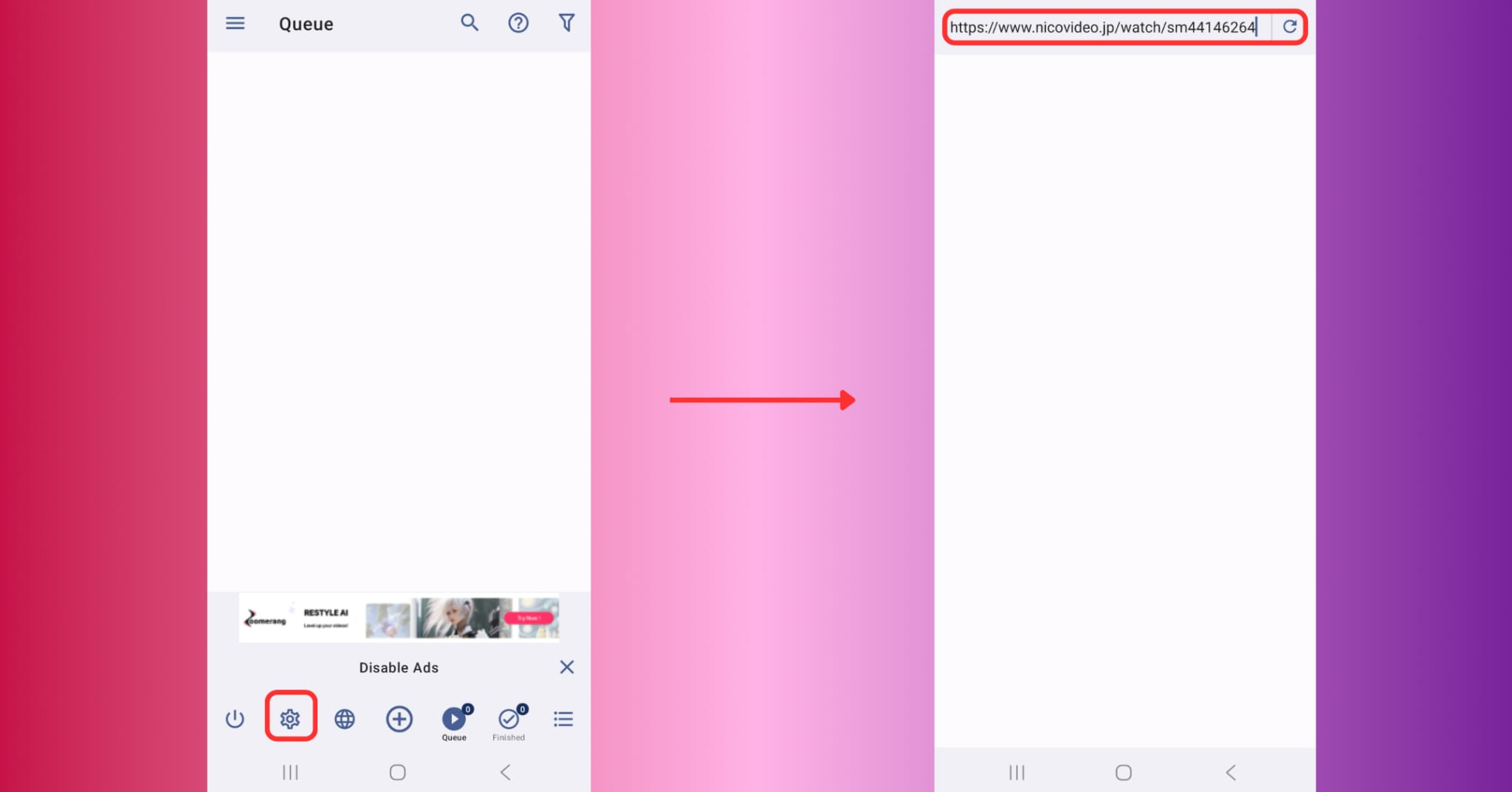
Open your preferred web browser and visit the official Niconico (Nico Nico Douga) website. Log in with your account if necessary, then search for and open the video you want to save. Once you’re on the video’s page, tap the browser’s address bar and copy the full URL of the video and paste it over the ADM’s URL space to ensure the entire link is copiedcorrectly, as this link is what ADM will use to fetch the video file, so double-check it. Keeping the link error-free ensures a smooth and successful download later.
Step 3: Add the Link in ADM and Start Downloading
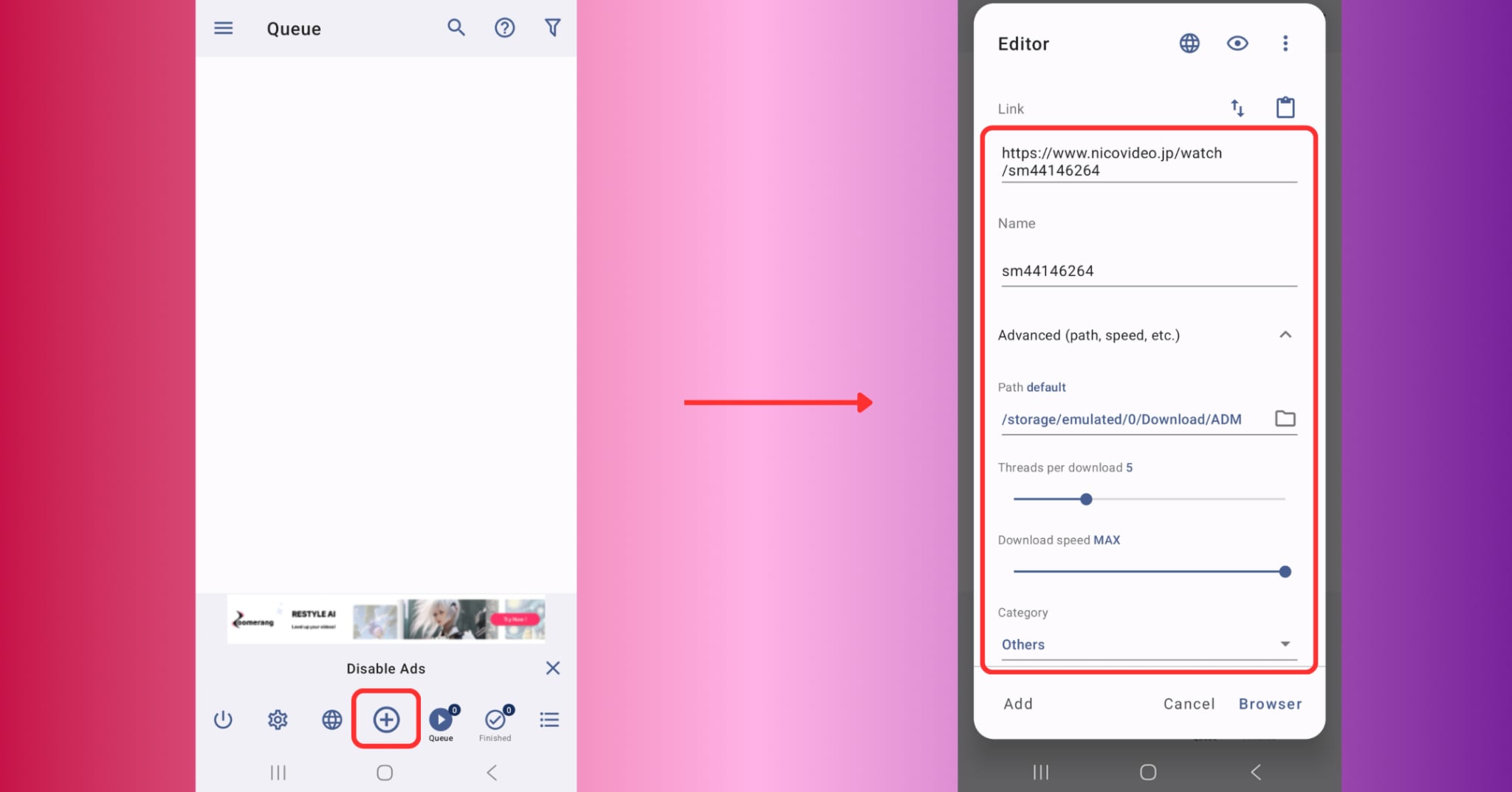
Launch the ADM app and tap on the “+” button (usually at the bottom) to add a new download task. In the pop-up window that appears, paste the copied Niconico video URL into the provided URL field. ADM will detect the video file and may display format and resolution options, such as MP4 or MP3 — choose your preference. You can also rename the file here for easy identification later. Finally, tap Start, and ADM will begin downloading the video, letting you monitor progress and manage your download directly in the app.
Conclusion
In today's digital landscape, downloading videos from Niconico no longer requires specialized technical knowledge or complex tools. Whether you're a casual viewer or a content curator, there's a method that suits your workflow—from browser extensions and mobile apps to online tools. However, for those who value speed, quality, batch processing, and customization, Wondershare UniConverter is the most robust solution.
It goes beyond simple downloads, offering features like subtitle integration, audio extraction, high-resolution conversion, and even DVD burning. Whether you need to download Nico Nico Douga MP3s, perform a Niconico to MP4 conversion, or batch download from Nico Nico Douga, UniConverter delivers professional-grade results with ease.
Ready to simplify your Niconico video downloads? Try UniConverter today and experience the all-in-one toolkit for effortless media conversion and management.
Easy to Use iTube Niconico Video Downloader
FAQs
-
1. Can I download multiple Niconico videos at once?
Yes, with UniConverter, you can batch download several videos simultaneously. Just paste multiple video URLs and choose your preferred output—MP4 or MP3—for instant, high-speed processing. -
2. What's the easiest method for downloading a single video from Niconico?
Using an online tool like Downloader.la or SaveMedia is the fastest way. You paste the link, choose the format, and download the video or audio. -
3. How do I extract audio only from Niconico videos?
UniConverter offers a dedicated audio extraction feature. It allows you to convert Nico Nico Douga videos directly to MP3 with crystal-clear sound, ideal for podcast listeners or music enthusiasts. -
4. Are there mobile-friendly methods for downloading Niconico videos?
Yes. Apps like ADM on Android or Documents by Readdle on iOS let you download videos on the go. They're perfect for light users who prefer flexibility over advanced features. -
5. Can I customize video output settings before downloading?
With UniConverter, yes. You can adjust resolution, codec, subtitle styles, and even apply AI enhancements before downloading. It's ideal for content creators or educators who need polished results.

