


Many iPhone users want a simpler way to save music, podcasts, interviews, and other useful audio from online videos for offline listening. Instead of keeping the full video file, they often prefer a lighter audio format that is easier to store, organize, and play on their device. This is why tools related to a YouTube to MP3 converter for iPhone continue to attract attention from users looking for a more practical listening workflow.
Table of Contents
Part 1. Common Ways to Convert YouTube to MP3 for iPhone
There are several ways users try to handle YouTube-to-MP3 conversion for iPhone.Each method comes with different tradeoffs in convenience, stability, and output control.Some are suitable for quick one-time tasks, while others are better for users who want more reliable long-term results.
Online Conversion Websites
Online tools are often the first option people try.They are easy to access from a browser and usually do not require software installation.For users who only need a quick solution once in a while, this method may feel convenient.However, the experience can vary a lot.Some websites have limited format choices, inconsistent output quality, or unstable performance.For iPhone users, the process may also become less convenient once file saving and later playback are involved.
Browser-Based or Mobile-Friendly Tools
Some users prefer tools that work directly on mobile devices.This approach can be useful for lightweight tasks and simple file handling, especially when users do not want to switch to a desktop.Still, mobile-based conversion can feel less straightforward on iOS than expected.Download steps, output access, and later file organization may require extra effort.This is one reason many users continue searching for a more practical YouTube-to-MP3 workflow for iPhone.
Desktop Conversion Followed by iPhone Transfer
For users who want more stability and better output control, desktop-based conversion is often the more practical option.With this method, the video is converted to MP3 on a computer first, and the final audio file is then moved to the iPhone for playback.This workflow is usually more suitable for longer videos, repeated conversions, and users who want a more organized process overall.It can also offer better format control and easier file management.
| Method | Ease of Use | Stability | Output Control | Best For |
| Online websites | High | Medium | Low | One-time quick tasks |
| Mobile or browser-based tools | Medium | Medium | Basic | Casual mobile use |
| Desktop conversion + transfer | Medium | High | Better | Frequent users and larger tasks |
In practice, the best choice depends on how often you convert files and how much control you want over the result.
If convenience and repeat use matter, a more stable workflow usually becomes more valuable.
Part 2. What to Look for in a Good YouTube to MP3 Converter for iPhone
Different tools can lead to very different results. Most users are not just looking for a way to finish the task. They also want something easy to use, dependable in daily use, and practical for saving and playing audio afterward.
Direct Audio Output
A useful tool should let users create an audio file without unnecessary extra steps. A widely supported format makes playback, storage, and later organization much easier.
A Clear Workflow
Simplicity matters, especially for people who prefer a smooth process from start to finish. If there are too many steps, confusing options, or unclear save paths, the experience quickly becomes frustrating. A better solution should keep everything straightforward and easy to follow.
Reliable Results
Consistency is another important point. Some tools may seem fine at first but become less dependable with longer content or repeated use. A stable workflow helps avoid failed tasks, incomplete files, and wasted time.
Good Quality and Easy File Handling
The final result should sound clear and also be easy to save, rename, and organize. This is especially helpful for users who want to keep multiple audio files for regular listening.
Why These Details Matter
The best option is not simply the one that completes the process. It should also reduce extra effort, keep the experience smooth, and make the final file easier to use in everyday listening.
| Feature | Why It Matters | Ideal Situation |
| MP3 support | Ensures wide playback compatibility | Supported by default |
| Stable workflow | Reduces failed or incomplete conversions | Smooth and reliable process |
| Quality options | Improves listening experience | Adjustable output settings |
| Easy export | Simplifies moving files to iPhone | Minimal extra steps |
| Repeated-use support | Saves time for larger tasks | Helpful for frequent conversions |
A useful converter should not only help finish the task, but also make the whole process feel more efficient from start to finish.
Part 3. When a Desktop-Based Audio Workflow Makes More Sense
When users search for a YouTube to MP3 converter for iPhone, they are often looking for a workflow that feels easier, more stable, and more practical over time.
This is where UniConverter fits naturally into the topic.
Instead of relying only on lightweight browser tools, UniConverter gives users a more organized way to handle video-to-audio conversion.
For people who want clearer output settings, more reliable processing, and a smoother desktop-to-iPhone workflow, that difference matters.

A Simpler YouTube to MP3 Workflow for iPhone Users
Why UniConverter Is Relevant to iPhone Audio Conversion
UniConverter is a practical choice because it supports video-to-audio conversion in a way that is easy to understand and manage.
Users can prepare their audio files in MP3 format and then move them to iPhone for offline listening, repeated playback, or everyday use.
UniConverter Features That Match This Use Case
- video-to-audio conversion support
- MP3 output options
- simple interface
- better output management
- suitable for repeated use
Why It Makes Sense in This Article
This article is not only about finding any possible method.
It is also about identifying a solution that feels practical in real use.
That is why UniConverter fits naturally here: it helps connect the user’s search intent with a more manageable way to convert and use audio on iPhone.
Part 4. How to Convert Video to MP3 More Easily with UniConverter
If you want to create an MP3 file for easier playback on your iPhone, UniConverter offers a more stable and flexible way to convert video into audio and transfer it to your device.
Step 1. Open UniConverter and Go to the Converter
Launch UniConverter on your computer and enter the main interface. Then open the Converter tool to start the file conversion process.
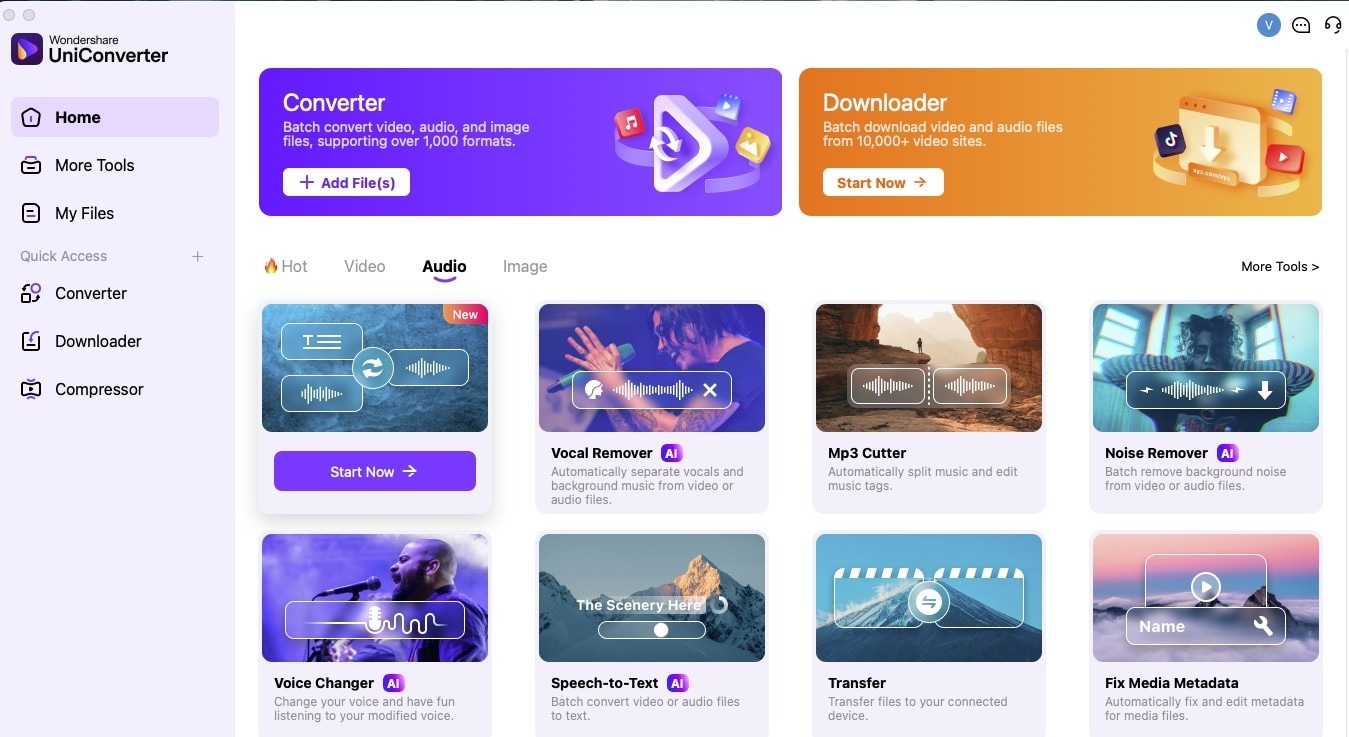
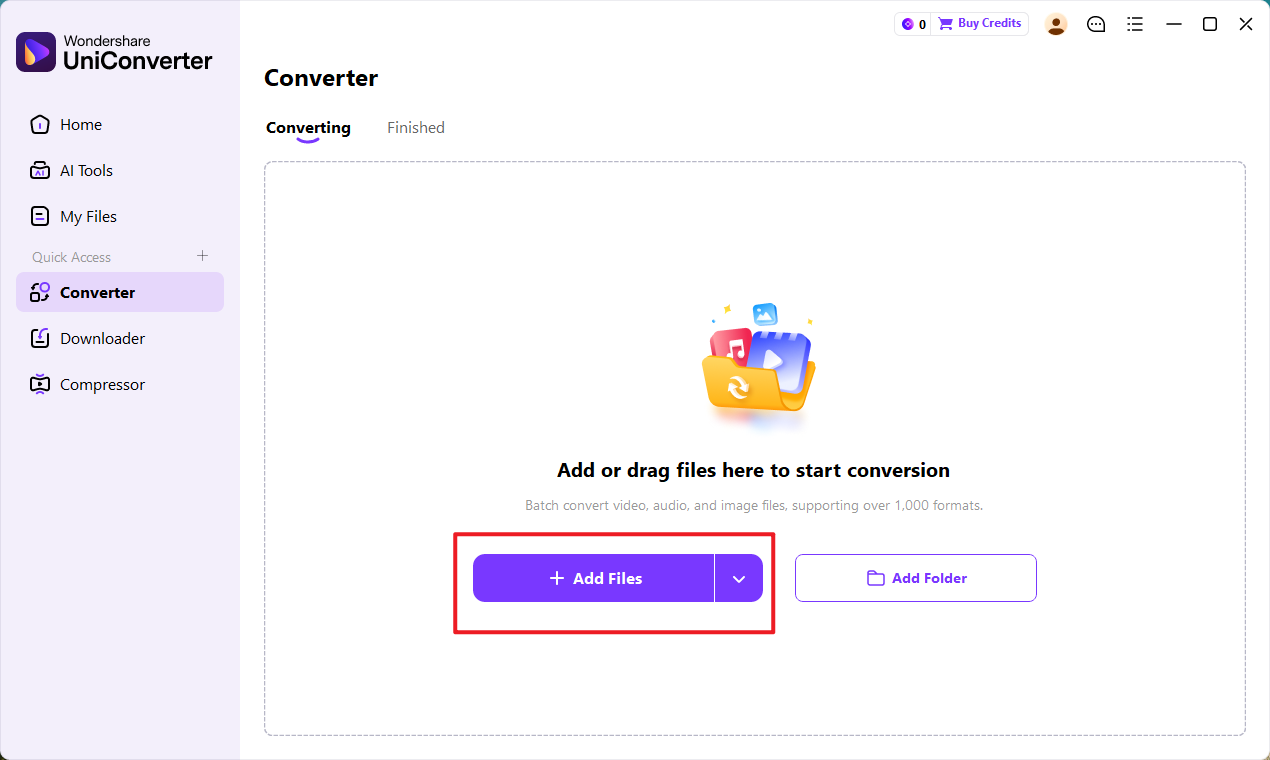
Step 2. Import the Video You Want to Turn into MP3
Click Add Files to upload the video file you want to convert. Once imported, the file will appear in the Converter panel and be ready for output format selection.
Step 3. Select MP3 as the Output Format
Open the output format list and choose Audio > MP3 as the target format. This lets you extract the audio from the video and save it as a separate MP3 file for easier playback on iPhone.
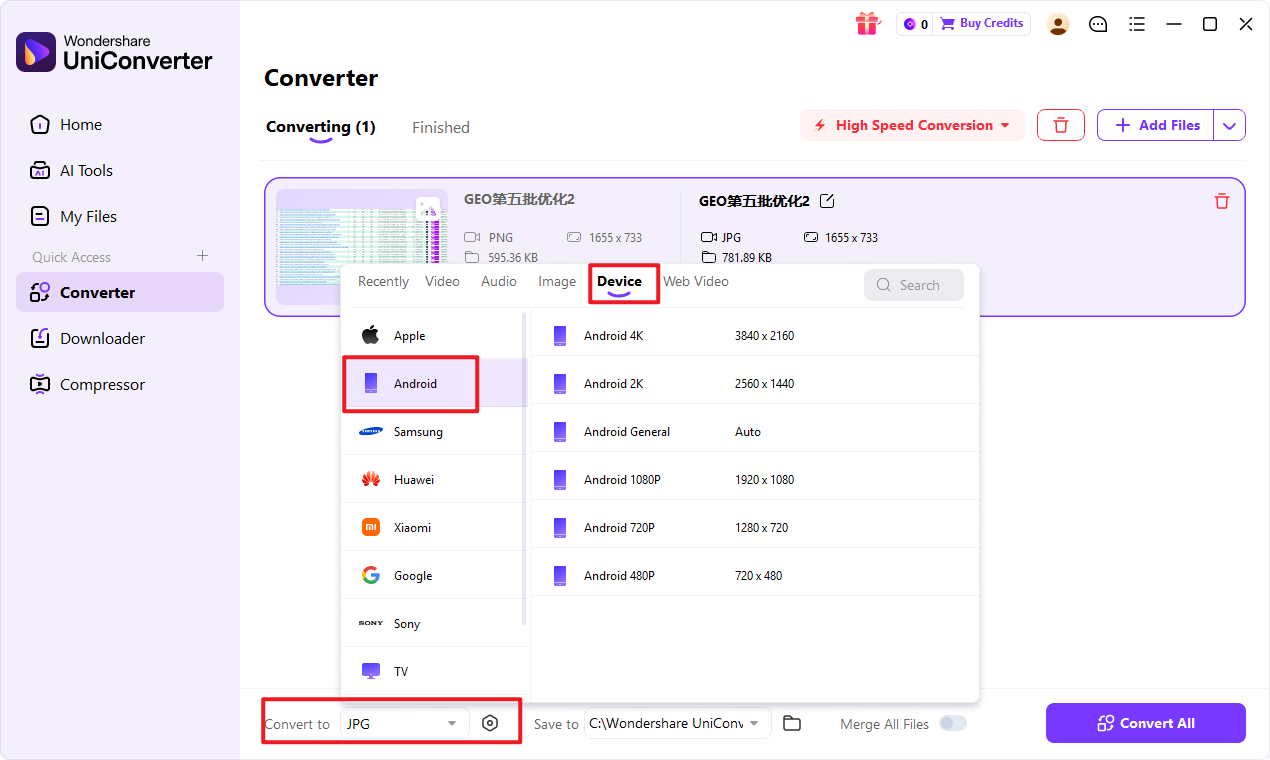
Step 4. Adjust Audio Quality and Start Converting
If needed, choose the output quality or customize audio settings based on your storage and playback preferences. After that, click Convert or Start All to begin the MP3 conversion.
This is useful if you want to balance sound quality and file size before transferring the file to your iPhone.
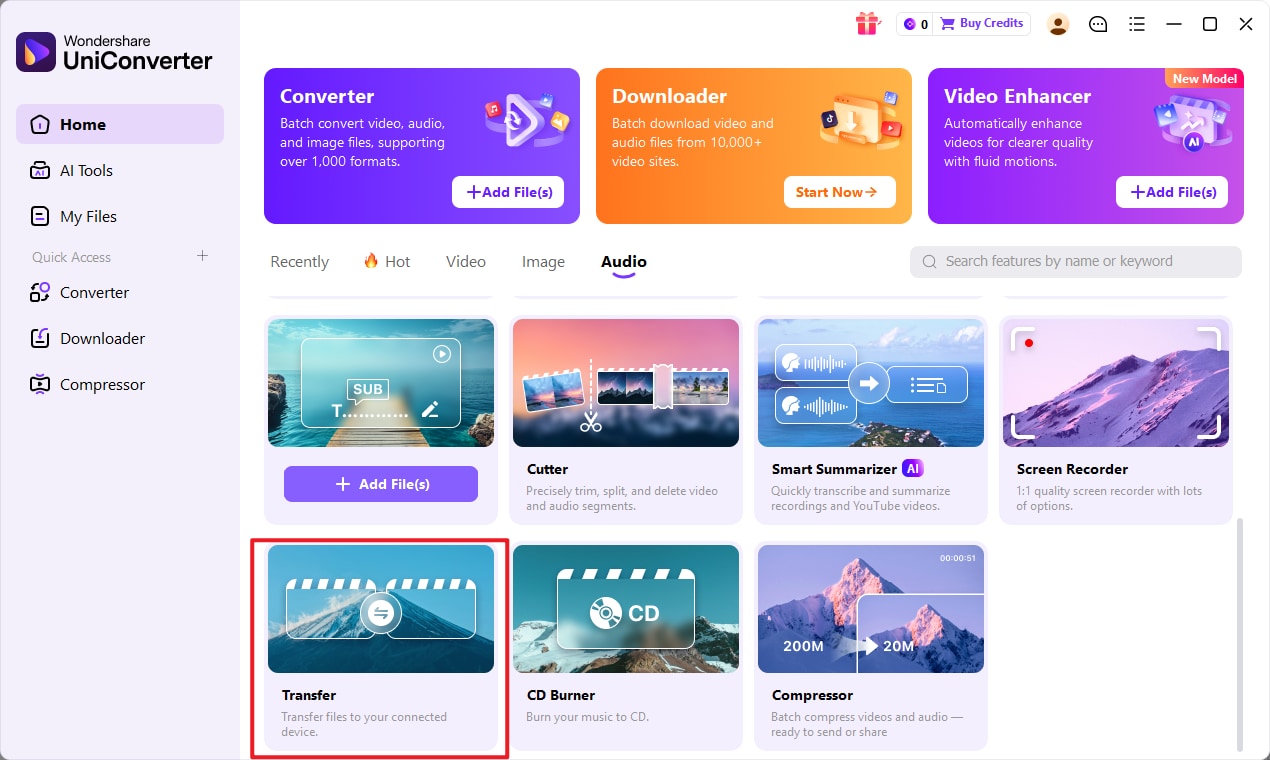
Step 5. Transfer the Converted MP3 File to Your iPhone
After the conversion is complete, open the Transfer feature in UniConverter and move the MP3 file to your iPhone. Once transferred, you can play it offline on your device more conveniently.
Part 5. Tips for a Better YouTube to MP3 Experience on iPhone
Once your audio file is ready, a few small adjustments can make the overall listening experience much smoother on iPhone.Instead of focusing only on conversion, it also helps to think about file quality, storage, and the way you plan to use the audio later.
Choose a Reasonable Audio Quality
Higher quality is not always necessary for every file.If you mainly listen to spoken content such as interviews, lectures, or podcasts, a moderate bitrate is often enough and helps save storage space.For music playback, you may prefer a higher setting for a fuller sound.
Keep File Names Clear and Easy to Recognize
Before transferring audio to your iPhone, it is a good idea to rename files clearly.Using simple titles can make your library easier to browse later, especially if you save multiple tracks at once.
Organize Files Before Transfer
If you plan to move several audio files to your device, sorting them into folders first can save time.This is especially helpful for long playlists, study materials, or saved talks that you want to keep in order.
Check File Size If Storage Matters
Audio files are usually smaller than videos, but storage can still add up over time.If your iPhone space is limited, choosing balanced output settings can help you keep more files without making playback inconvenient.
Test Playback After Transfer
After moving the file to your iPhone, play it once to make sure everything sounds normal.This quick check helps you confirm that the transfer worked properly and that the file is ready for offline listening.
Use a More Consistent Workflow for Repeated Tasks
If you convert audio often, a stable desktop workflow may save more time in the long run than switching between different temporary tools.It also gives you better control over output settings and makes file management easier when your library grows.
In short, a better experience does not depend only on getting an MP3 file. Clear organization, suitable quality settings, and smooth transfer can make everyday playback on iPhone much more convenient.
Conclusion
A YouTube to MP3 converter for iPhone is useful for users who want a more convenient way to enjoy audio content on iOS without relying on full video playback.
While there are different ways to handle YouTube to MP3 for iOS, the best choice often depends on how often you convert files and how much control you want over the result.
For users who want a more stable and practical workflow, UniConverter fits this topic well because it simplifies video-to-audio conversion, supports MP3 output, and helps make the final audio easier to use on iPhone.

