

Picture this: five job portals are open in five tabs, each wanting a passport photo in a different pixel size and KB limit. One form caps you at 20KB, another wants 350x450 pixels, and a third rejects anything without a plain white background. You don't know Photoshop, and you don't have hours to resize the same photo five times. This is exactly why students and freshers need to batch-edit photos before opening a resume template.
In this guide, you will get the top 5 tools to edit multiple photos and make them perfect for a job resume. Let's first know what batch photo editing is and when you need it.
In this Article
- Part 1: What Is Batch Photo Editing, and When Do You Need It
- Part 2: Why Job Applicants Rely on Batch Photo Editing for Job Applications
- Part 3: What Features Should Students Look for in a Batch Photo Editor
- Part 4: Best Batch Photo Editors to Edit Multiple Photos at Once
- Part 5: How to Batch Edit Resume and Application Photos Professionally
- Part 6: How to Choose the Right Passport-Size Photo for a Job Application
- Conclusion
- FAQs
Part 1: What Is Batch Photo Editing, and When Do You Need It
Batch photo editing means applying the same editor to a set of edits to many photos at once, instead of opening each image one by one. Crop resizing, compression, and background removal all happen in a single pass across your entire folder. Instead of manually adjusting one photo for SSC, another for a banking exam, and a third for your resume, you upload the full set and let the software apply the settings to all of them together.
You may need batch photo editing when you have to:
Apply for multiple jobs: Create resume-ready photos in different sizes and formats for company portals, job platforms, and professional profiles.
Prepare application photos: Resize and compress images according to the requirements of exam forms, internships, and recruitment applications.
Create professional profiles: Maintain the same high-quality photo across LinkedIn, job portals, and a resume maker for students.
Improve an existing photo: Remove distracting backgrounds, enhance image quality, or adjust dimensions before adding it to a resume for freshers.
Part 2: Why Job Applicants Rely on Batch Photo Editing for Job Applications
Most job applicants need the same photo in multiple formats.
A single job search often requires different photo specifications for resumes, LinkedIn, government exams, banking applications, and company career portals. Instead of manually resizing and compressing the same image multiple times, batch photo editing creates all required versions from a single high-quality photo.
This saves time, reduces upload errors, and helps applicants meet the image requirements of multiple platforms without repeatedly editing the same file.
The table below summarizes the most common photo specifications Indian job applicants encounter.
| Common Requirement | Typical Pixel Size | Typical File Size | Where It's Used |
| Resume profile photo | 300 × 300 px to 600 × 600 px | Under 1 MB | Resumes, professional profiles, job applications |
| LinkedIn profile photo | 400 × 400 px | Under 8 MB | LinkedIn and professional networking |
| Passport-style photo | 600 × 600 px or 2 × 2 inches | Usually under 1 MB | ID documents, official applications, background checks |
| College application photo | 300 × 300 px to 500 × 500 px | Depends on application requirements | University applications, student portals |
| Company career portal photo | Varies by employer requirements | Usually under 1–2 MB | Job applications and recruitment websites |
Photo requirements vary depending on the platform, so always check the latest upload guidelines before submitting an application. The benefit of batch photo editing remains the same: you can create multiple versions of one professional image for resumes, job portals, LinkedIn, and other platforms without repeating the editing process.
Part 3: What Features Should Students Look for in a Batch Photo Editor
The best batch photo editor for students and freshers should make it easy to prepare professional-looking photos for resumes, job portals, and application forms without requiring advanced editing skills. Since most beginners need to resize, compress, and adjust the same photo for different platforms, the right tool should offer features that solve these common upload challenges in a simple workflow.
Exact pixel resizing: A good batch photo editor should let you resize multiple images to specific pixel dimensions. This is useful when different job portals, internship applications, or exam forms ask for different photo dimensions, such as 200 × 230 pixels or 350 × 450 pixels.
File size compression: Many application platforms have strict file size limits, especially government exam portals and online recruitment forms. A useful batch photo editor should let you reduce image size in KB while maintaining enough quality so your photo remains clear and professional after uploading.
Background removal: Students and freshers often use phone photos that may have distracting backgrounds. A batch photo editor with background removal can help replace unwanted backgrounds with clean white or plain colors, making photos more suitable for resumes, job applications, and official forms.
Beginner-friendly interface: Most students do not have experience with advanced tools like Photoshop. A simple interface with easy-to-understand options lets beginners edit, enhance, and export professional-looking photos without spending hours learning complex editing techniques.
Multiple export formats: Different platforms may accept different image formats, so a good batch photo editor should support common options like JPG and PNG. This ensures that students can quickly create compatible files for resumes, LinkedIn profiles, job portals, and exam applications.
Part 4: Best Batch Photo Editors to Edit Multiple Photos at Once
Here are five tools that let students and freshers batch edit photos without any prior editing background, along with what each one does best for job applications.
Wondershare UniConverter

All-in-One Multimedia Processing Tool

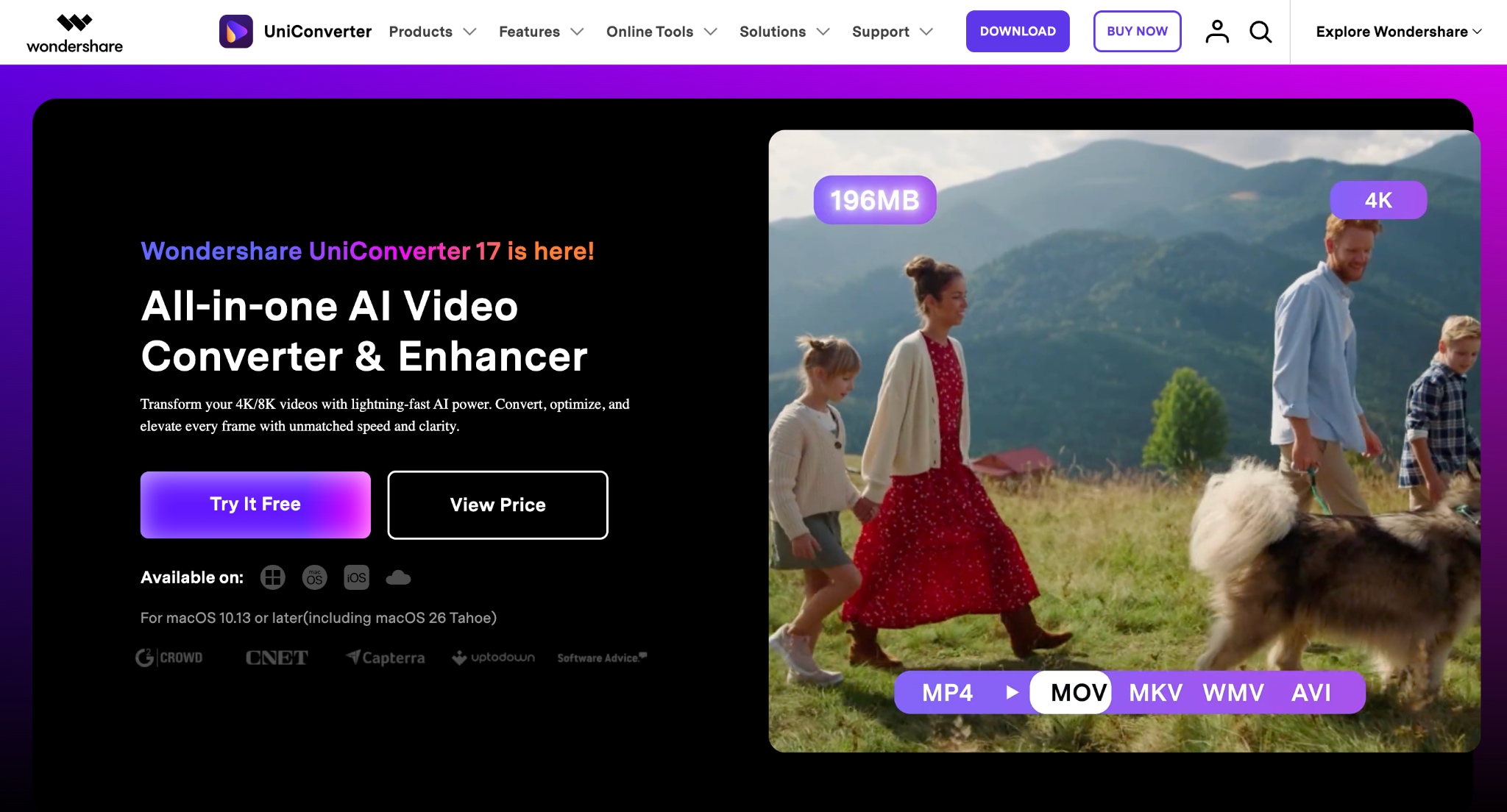
Wondershare UniConverter's batch editing lets you retouch, resize, and enhance an entire folder of photos in one click, so your resume photo, exam photo, and bank form photo can all be generated from the same original in a single pass. Beyond resizing, it includes batch background removal powered by an upgraded AI model, so you can remove a busy background and replace it with a plain white one across every photo you upload, exactly what most exam and job portals demand.
Key Features of Wondershare UniConverter
Batch resize and crop photos to exact pixel dimensions.
AI-powered batch background removal with white background replacement.
AI image enhancer with face retouching to improve blurry photos.
Convert images between JPG, PNG, and other formats in bulk.
Best For: Freshers who need one clear photo resized, cropped, and compressed to match several exam and job portal specifications at the same time, with no editing skills required.
Picsart
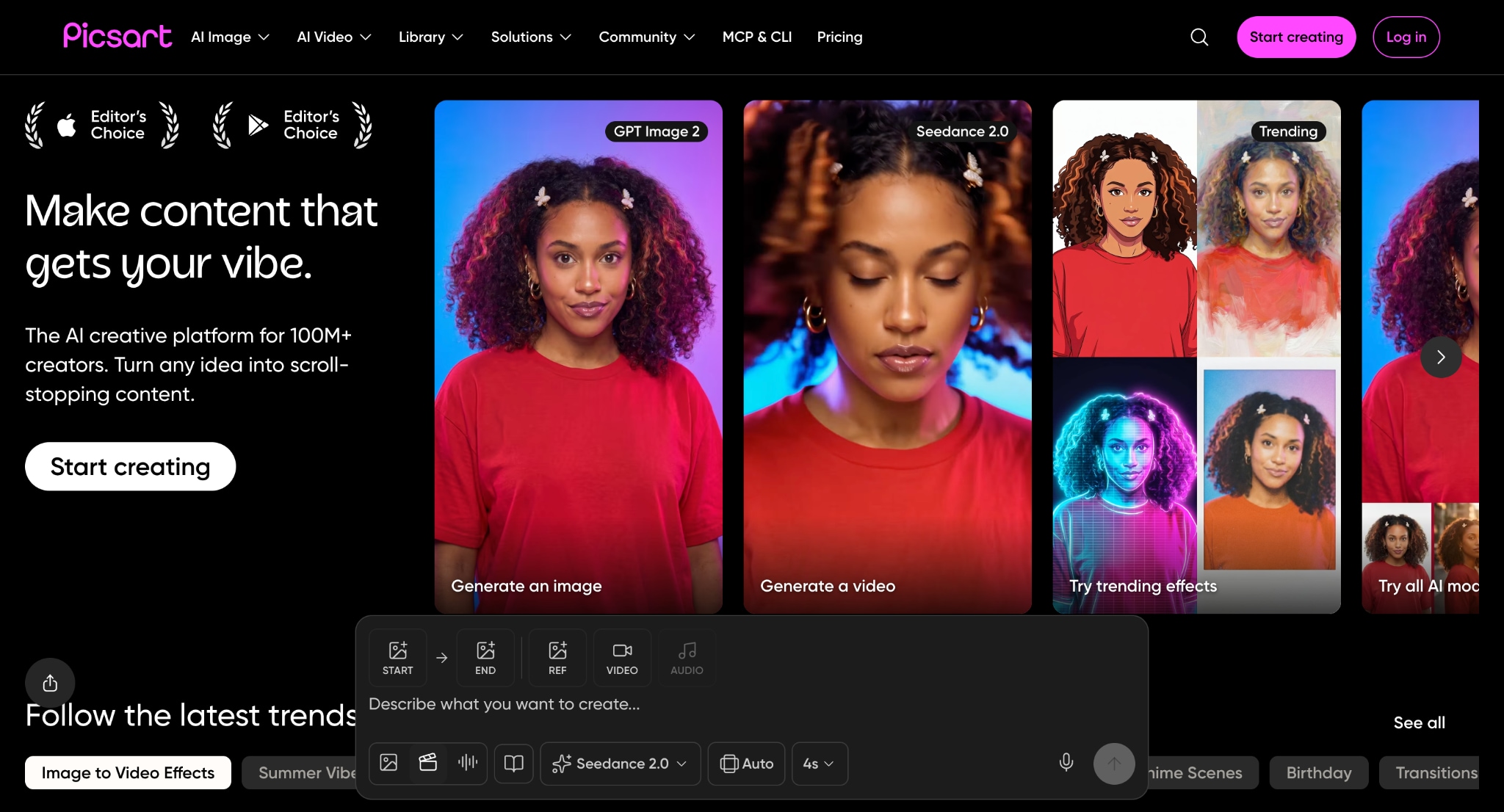
Picsart's Batch Editor lets you edit up to 50 photos at once, applying crop, resize, background removal, watermarking, and AI enhancement to the entire set in a single workflow. You can pick a predefined or custom crop size, and the tool lets you select or unselect individual photos in a batch, so a few photos can get a different treatment than the rest without starting a new session.
Key Features of Picsart
Batch edit up to 50 photos at once.
Crop, resize, remove backgrounds, and apply AI enhancements in one workflow.
Platform-specific resize presets for resumes, LinkedIn, and social profiles.
An AI upscaler to improve low-quality or pixelated selfies.
Best For: Students who want to batch edit photos for their resume and also prepare matching versions for LinkedIn or other social profiles in the same session.
Pixlr
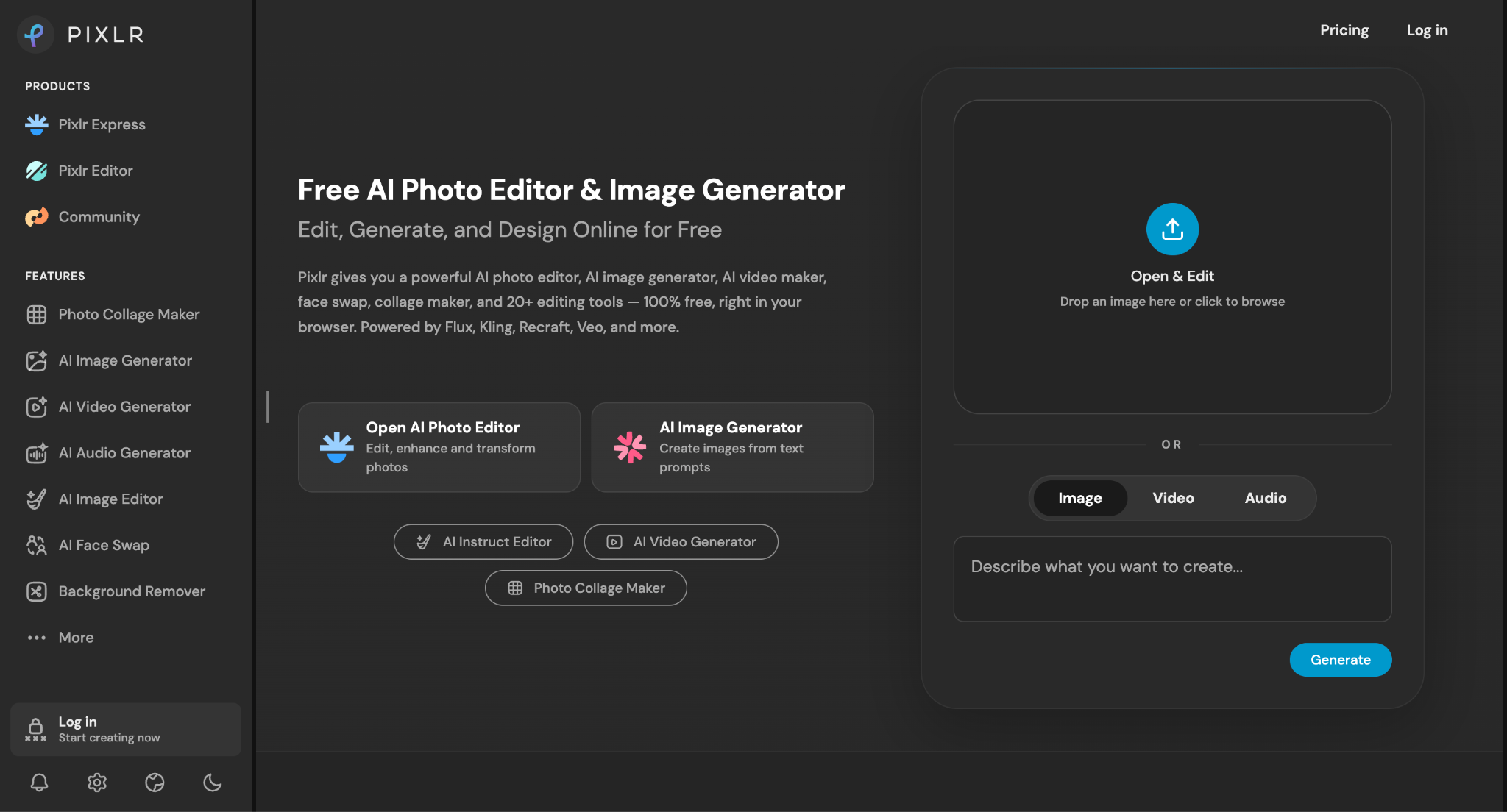
Pixlr's AI Batch Editor is free and browser-based, letting you edit multiple photos at once with tools like 17 preset crop ratios, resizing by exact height or width, and color and exposure adjustments. Once you're done, it exports the entire batch as a single ZIP file, so you get all resized versions in a single download instead of saving files one at a time.
Key Features of Pixlr
Free browser-based batch editor with support for up to 50 images.
Resize images and crop using 17 preset aspect ratios.
One-click auto-enhance for lighting and color correction.
Export the entire batch as JPG, PNG, or WebP in a single ZIP file.
Best for: Students on a tight budget who want a completely free way to batch edit photos without signing up for any paid plan.
BeFunky
BeFunky's Batch Processing tool is organized into three sections: a Classic Editor for crop, resize, and color correction, an AI Editor for enhancement, and a dedicated Background Remover. You can apply the same edit to your whole batch or select specific photos within it to treat differently, which is handy if one photo needs a background swap and another just needs resizing.
Key Features of BeFunky
Batch crop, resize, and apply color corrections to multiple photos.
AI background remover for clean, professional-looking images.
Apply edits to all photos or customize individual images within a batch.
Add watermarks and filters during batch processing.
Best for: Students who want more creative control while they batch edit photos, especially if a photo needs a background change rather than just a resize.
PhotoWorks
PhotoWorks is a downloadable program for Windows and Mac with a Batch Processing mode split into Enhancement, Tools, Effects, and Text & Frames categories. Its standout feature is Auto Correction, which studies each photo in the batch individually and applies a fix suited to that photo rather than one blanket setting for the whole set, and you can preview every change live before exporting.
Key Features of PhotoWorks
Auto-corrects color, lighting, and exposure for each photo individually.
Batch resize and watermark multiple images at once.
Live preview before exporting edited photos.
Desktop software is available for both Windows and Mac.
Best for: Users who prefer installing desktop software and want the program to automatically correct lighting and color across a set of photos without manual sliders.
Here is a quick overview of each batch photo editor so you can choose the right one:
| Tool | Batch Cap | Key Batch Tasks | Free or Paid | Platform |
| Wondershare UniConverter | No fixed limit stated | Resize, crop, background removal, AI enhance | Free trial, paid version | Web, Windows, Mac |
| Picsart | Up to 50 photos | Crop, resize, background removal, watermark, AI enhance | Free with paid upgrade | Web, iOS, Android |
| Pixlr | Up to 50 images | Crop (17 ratios), resize, color correction | Free | Web, mobile, desktop |
| BeFunky | Up to hundreds (Plus plan) | Resize, crop, background removal, filters, watermark | Free with Paid upgrade | Web |
| PhotoWorks | No fixed limit stated | Auto correction, color & exposure fix, resize, watermark | 5-day trial, paid plans | Windows, Mac |
Part 5: How to Batch Edit Resume and Application Photos Professionally
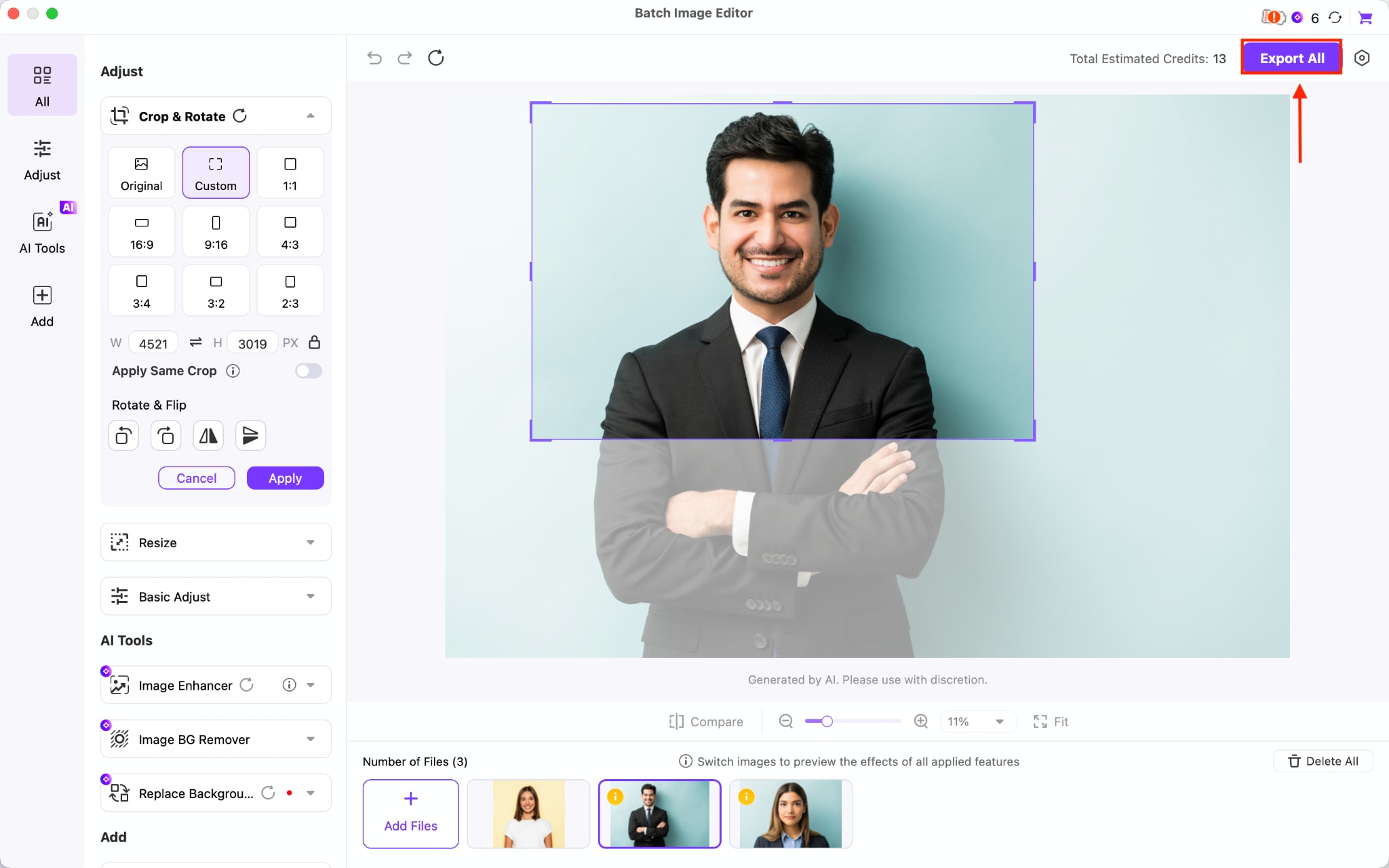
If you want to batch edit photos for a resume or need professional application photo edits, Wondershare UniConverter is the one tool that combines easy-to-use features with professional results. Here is how you can edit batch images to add to a resume for students with no experience:
Step 1: On the UniConverter dashboard, navigate to Image > Batch Image Editor.
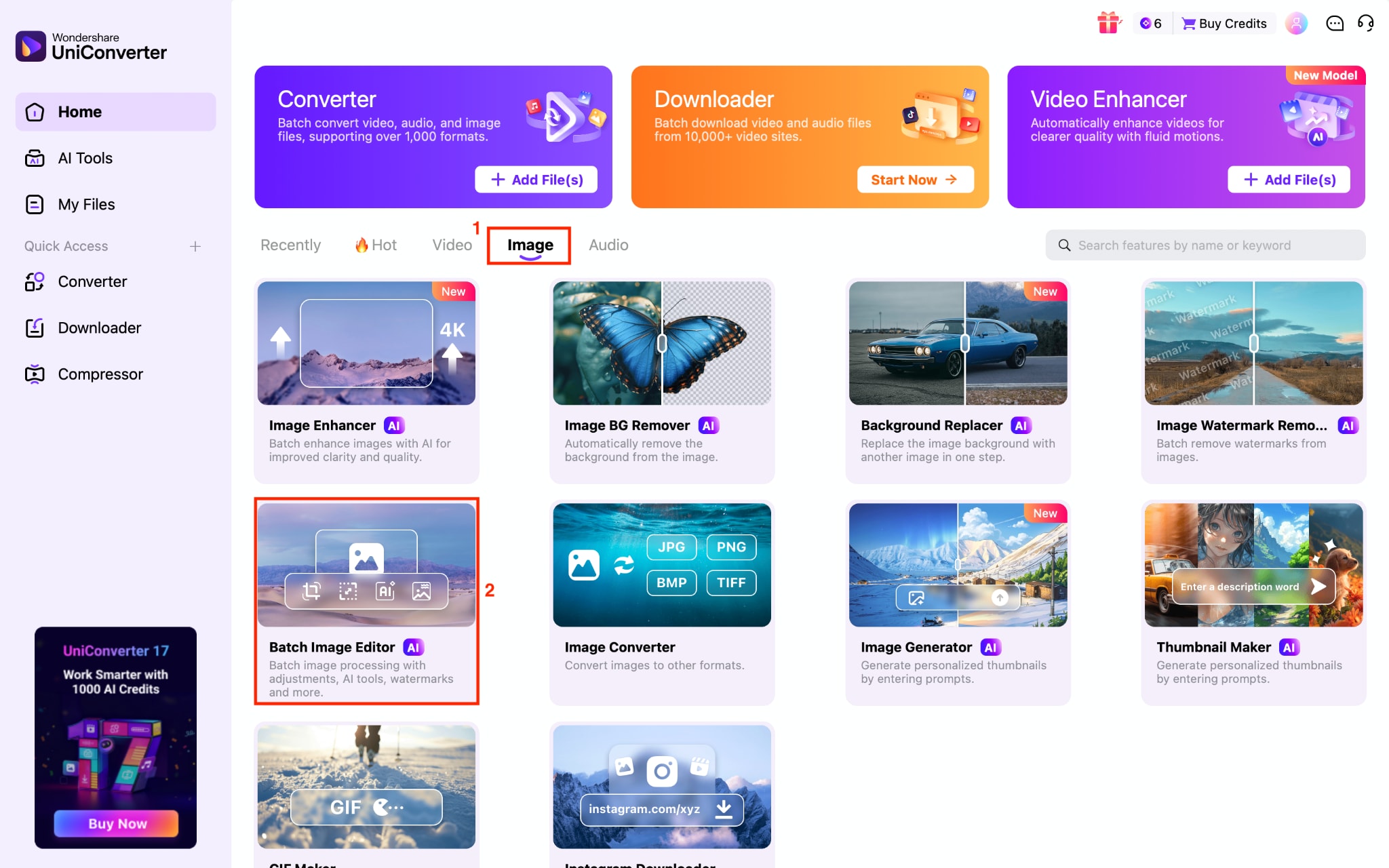
Step 2: Click the Add File option to add one picture, or you can upload the complete image folder.
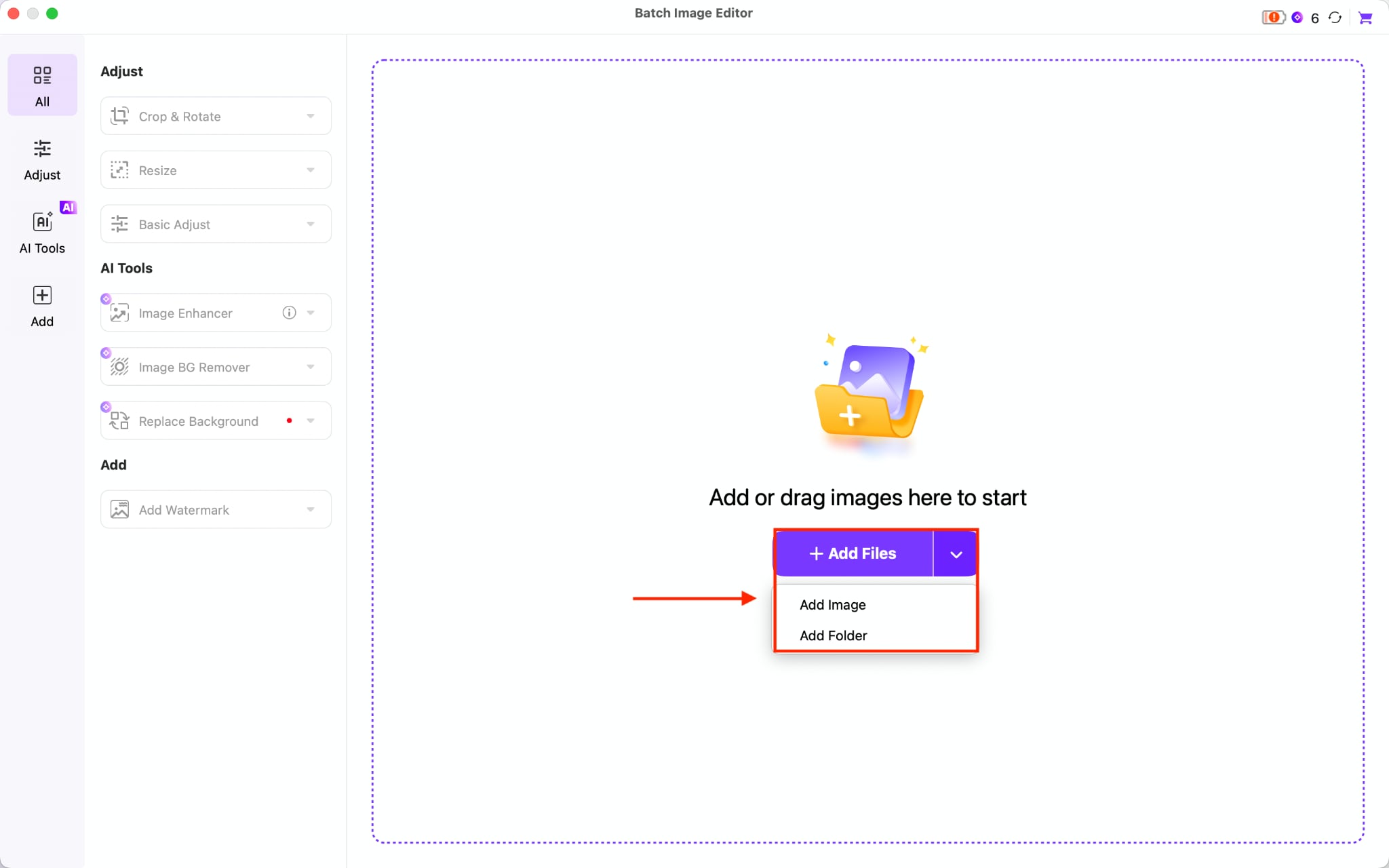
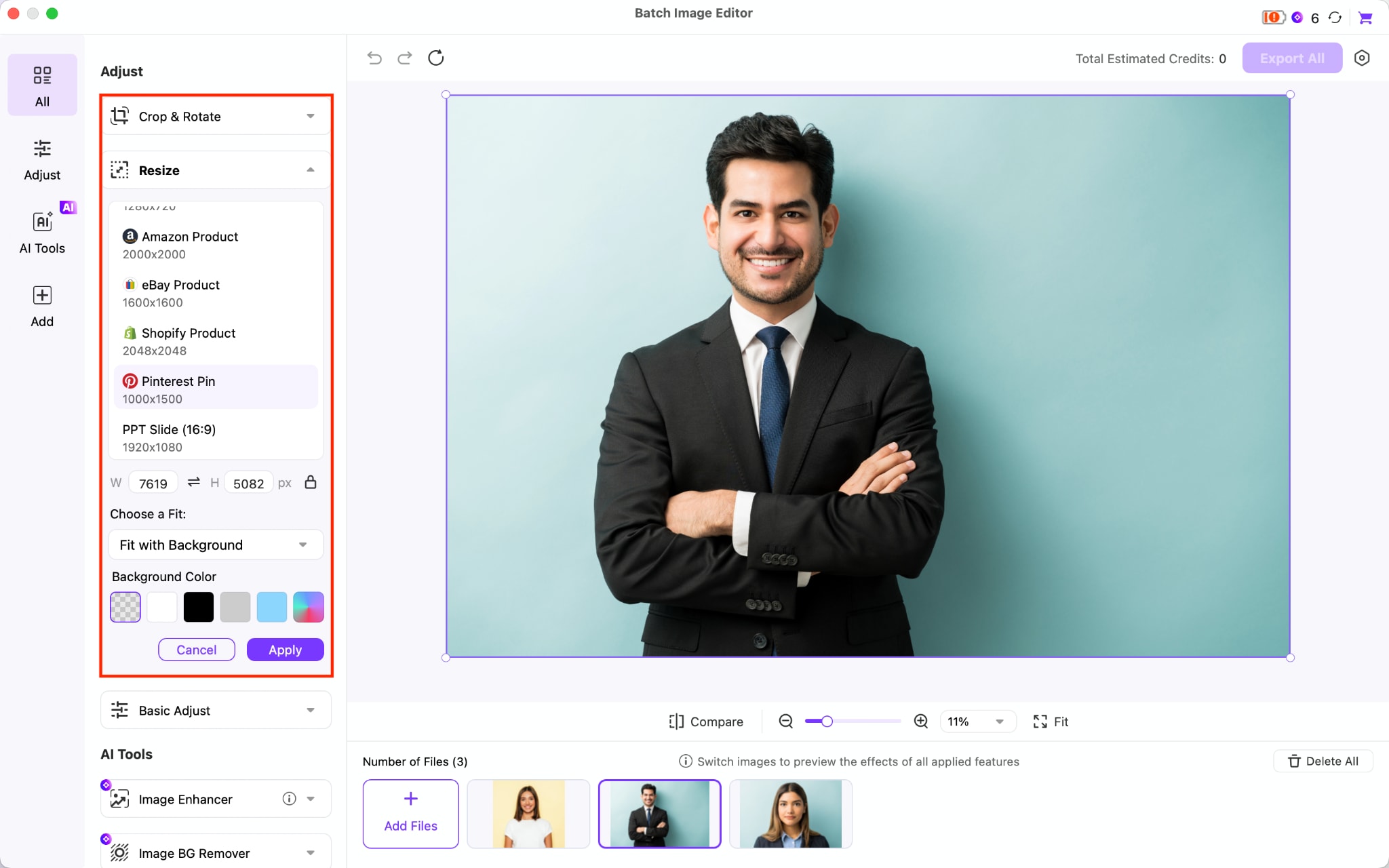
Step 3: You can crop, rotate, and resize the image as needed, and change the background color too.
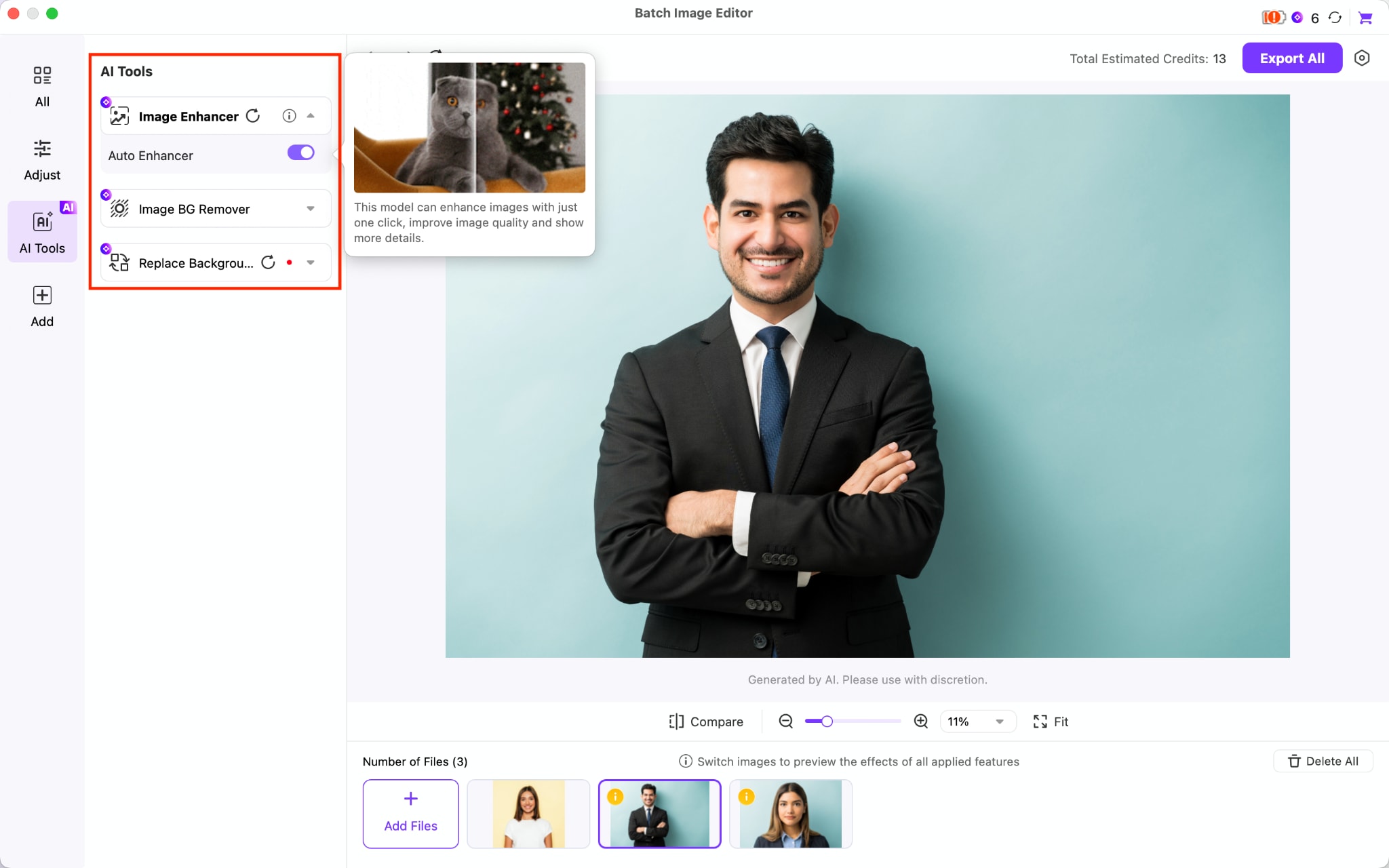
Step 4: If the image quality is low, enable the Auto Enhancer in the Image Enhancer tool.
Step 5: Click the Settings icon in the upper-right corner, select the folder where the image will be saved, and choose the correct format.
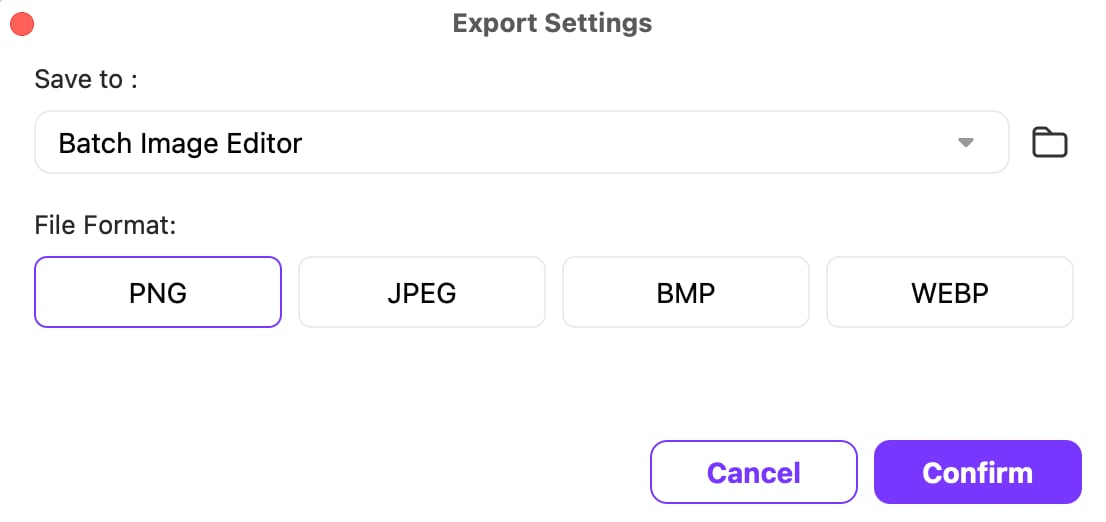
Step 6: Tap the Export All button to save the changes.
Part 6: How to Choose the Right Passport-Size Photo for a Job Application
Getting the photo itself right matters just as much as the software you use to batch edit photos afterward. A few rules apply across almost every job portal, exam form, and resume template.
Background: Stick to a plain white or very light background. Busy or colored backgrounds are the single most common reason photos get rejected on government and exam portals.
Framing: Your face should fill roughly 70-80% of the frame, looking straight into the camera with a neutral expression. Avoid tilted angles or side profiles, since most automated checks expect a front-facing crop.
Lighting and color: Natural daylight works better than indoor tungsten lighting, which often adds a yellow tint that can trip automated background checks on scanning software. Avoid heavy filters or beauty edits, as many portals flag or reject photos that appear altered.
Format and size: JPEG is accepted almost everywhere, while some tools default to PNG or WebP. Confirm the format before you batch-edit photos and export, so you don't have to redo the whole set for a single mismatched file type.
Consistency across forms: If you're preparing a resume for students with no experience, keep the same photo across your resume, LinkedIn, and application forms where possible. A consistent, professional photo across platforms builds a small but real sense of familiarity with recruiters who see your profile more than once.
Getting these basics right before you batch edit photos means fewer rejected uploads and less time spent redoing a crop you already got wrong once.
Conclusion
A professional photo can create a strong first impression when applying for jobs, internships, or academic opportunities. However, preparing images for different platforms can be time-consuming when each application requires specific sizes and formats.
Tools that help you batch edit photos make the process easier by allowing you to resize, crop, compress, and enhance multiple images at once. For students and freshers, beginner-friendly tools like Wondershare UniConverter can help create clean, professional photos for resumes, job portals, and online profiles without advanced editing skills.

