


Although Dirac codec was developed by the BBC as a powerful open-source alternative to H.264, it never became mainstream. Many broadcasters, archivists, and researchers experimented with it, often storing files in OGV or MXF containers. Today, however, playback compatibility is a major issue.
That’s why many professionals and archivists need to convert Dirac into widely supported formats like MP4, MOV, or MKV. Without conversion, playing, editing, or sharing Dirac files can be nearly impossible on modern devices.
In This Article
- Part 1: What is Dirac Codec and Its Use Cases
- Part 2: Why Convert Dirac Files and Common Challenges
- Part 3: Choosing the Best Dirac Converter Tool (Comparison Table)
- Part 4: Why Choose UniConverterfor Dirac Conversion (Step-by-Step Guide)
- Part 5: Pro Tips for the Best Dirac Conversion Results
- Part 6: The Future of Dirac Codec – Evolving or Obsolete?
- Conclusion
- FAQ
Part 1: What is Dirac Codec and Its Use Cases
Dirac is a wavelet-based video compression format, unlike H.264/HEVC which are block-based. This gives it scalable quality and flexible resolution support, from low-bitrate streams to HD and cinema-grade 4K/8K footage.
Key Features of Dirac:
- Royalty-free, open-source codec.
- Lossy and lossless compression modes.
- Flexible containers (OGV, MKV, MXF).
- Supports HD, 4K, and beyond.
Use Cases:
- Broadcasting: BBC used Dirac for testing digital TV and archives.
- Archiving: Ideal for professionals storing long-term collections.
- Research: Popular in academia due to its open design.
- Professional video workflows: Dirac Pro (an enhanced version) was used in some broadcast environments.
- However, mainstream platforms like YouTube, TikTok, or Instagram do not accept Dirac uploads, which is why conversion is necessary.
Part 2: Why Convert Dirac Files and Common Challenges
Although Dirac codec was once considered a promising open-source alternative, its practical use today is limited. Unlike formats such as H.264, HEVC, or AV1, the Dirac ecosystem never gained widespread hardware or software support. This creates major problems when you try to open or share a Dirac video.
For example, an OGV file from an old archive might play on only a few specialized players, while MXF files carrying Dirac often fail to load in Adobe Premiere or Final Cut. Researchers working with broadcast archives frequently discover they cannot directly upload Dirac footage to YouTube or share it on platforms like Zoom or Google Drive.
The main challenges when converting Dirac include:
- Limited software support: Only a handful of tools decode OGV/MXF with Dirac streams.
- Performance issues: Decoding wavelet-based video is CPU-heavy, so conversion without GPU support can be painfully slow.
- Audio mismatch: MXF containers sometimes use uncommon audio codecs, leading to playback with missing sound.
- File size variation: A conversion from lossless Dirac to lossy H.264 might shrink file size, but going the other way can inflate it unexpectedly.

Easy to Use Desktop Dirac Converter
Part 3: Choosing the Best Dirac Converter Tool
When selecting a Dirac converter, you need to balance compatibility, usability, and performance. Free command-line tools like FFmpeg can decode Dirac streams, but they require technical know-how. On the other hand, some commercial converters like HandBrake lack native Dirac support, requiring plugins or intermediate steps.
Key Considerations:
- Does the tool support OGV/MXF containers?
- Can it convert to modern formats (MP4, MOV, MKV)?
- Does it offer GPU acceleration for faster processing?
- Does it support batch workflows for archives?
Comparison Table:
| Tool | Platform | Dirac Support |
Batch Convert |
GPU Acceleration |
Output Formats |
Pricing |
| Win/Mac | Yes (OGV, MXF, MKV) | Yes | Yes | MP4, MOV, MKV, AVI, HEVC | Freemium | |
| FFmpeg | Win/Mac/Lin | Yes (CLI only) | Yes | Yes | Nearly any | Free |
| HandBrake | Win/Mac | No (requires FFmpeg plugin) | Yes | Yes | MP4, MKV | Free |
| CloudConvert | Online | No native Dirac | Yes | No | MP4, MOV, WebM | Paid |
Part 4: Why Choose UniConverterfor Dirac Conversion (Step-by-Step Guide)
Unlike many converters, UniConverter Desktop officially lists OGV and MXF support—the main containers where Dirac lives. UniConverter Desktop stands out because it directly supports OGV and MXF with Dirac streams, while also providing one-click export into formats suitable for editing (MOV ProRes), sharing (MP4 H.264), or archiving (MKV HEVC). This makes it one of the very few accessible tools for directly handling Dirac files.
Why UniConverter is Best for Dirac Conversion
- • Wide format support (MP4, MOV, AVI, HEVC, MKV).
- • GPU acceleration for up to 130x faster conversions.
- • Batch processing for large archives.
- • All-in-one workflow (convert, compress, add subtitles, burn to DVD).
- • Cross-platform (Windows/macOS).
How to Convert Dirac with UniConverterDesktop (Step Guide)
Step 1: Install and Open UniConverterDesktop.

Step 2: Add Dirac file (OGV, MXF, or MKV).

Step 3: Select Output Format (MP4 H.264 for universal playback, MOV ProRes for editing, HEVC for smaller size).

Step 4: Adjust settings (bitrate, resolution, enable GPU acceleration).

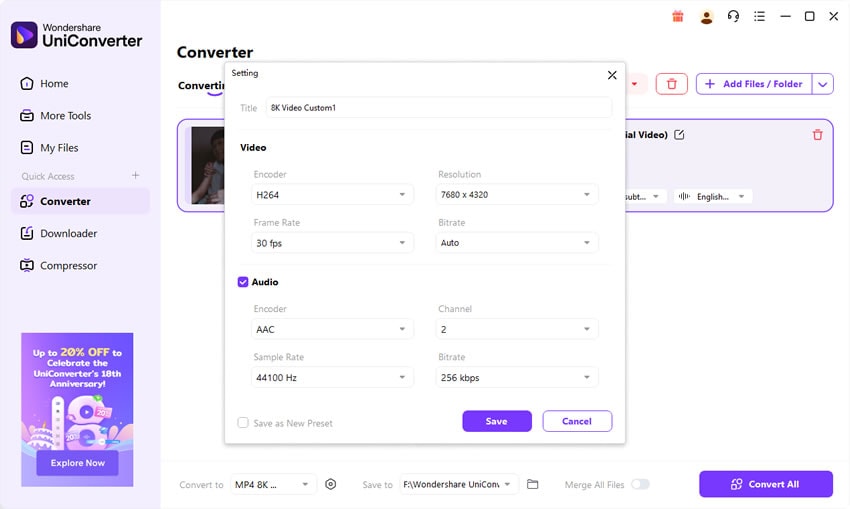
Step 5: Start Conversion and save your new file.

Part 5: Pro Tips for the Best Dirac Conversion Results
- Pick the right output codec:
MP4 (H.264) → best for everyday playback on all devices.
HEVC (H.265) → smaller file sizes with high quality, great for archiving.
MOV (ProRes) → perfect for video editing workflows.
- Avoid unnecessary downscaling:
Always keep the original resolution (1080p, 4K, etc.) unless you specifically need a smaller output.
- Enable GPU acceleration
Especially important for 4K/8K Dirac footage. Intel, NVIDIA, and AMD cards drastically speed up conversion.
- Check audio output
Use AAC for compatibility across platforms like YouTube or Zoom. For professional work, export WAV or PCM.
- Use batch processing
If handling archives, batch conversion can save hours by processing all files together.
- Keep a high-quality master
Always archive one version in ProRes or high-bitrate H.264. This ensures you have a reliable master for future conversions.
Easy to Use Desktop Dirac Converter
Part 6: The Future of Dirac Codec – Evolving or Obsolete?
Dirac was designed to be a royalty-free alternative to H.264, but its adoption lagged. Today, codecs like HEVC, VP9, and AV1 dominate consumer devices and streaming services.
Where Dirac Still Matters:
- Academic research projects.
- Broadcast archives stored in MXF/OGV.
- Specialized niche workflows where open codecs are required.
Why It Struggles:
- No mainstream hardware decoding.
- Limited software and platform support.
- Overshadowed by HEVC and AV1.
Possible Evolution:
- Dirac may remain a niche archival format.
- Its wavelet compression techniques could inspire future codec designs.
- But for general users, it’s more practical to convert Dirac to MP4, MOV, or MKV for long-term accessibility.
✅ For users, the safest option is to convert Dirac into mainstream formats to ensure future access.
Conclusion
Dirac remains an interesting open-source codec, but with limited compatibility. To make sure your OGV or MXF files remain usable, conversion is essential. UniConverter Desktop provides a fast, reliable, and professional-grade solution to convert Dirac into MP4, MOV, AVI, HEVC, and more—keeping your video library future-proof.
FAQs
-
1. Can UniConverterOnline convert Dirac files?
No. UniConverterOnline doesn’t support OGV or MXF, so you must use the UniConverterDesktop version. -
2. What’s the best format to convert Dirac into?
For everyday use → MP4 (H.264). For editing → MOV (ProRes). For smaller sizes → HEVC (H.265). -
3. Will conversion cause quality loss?
Lossy conversions may reduce quality slightly. Choose ProRes or high-bitrate H.264 for minimal loss. -
4. Why won’t my media player open a Dirac file?
Because most players don’t support Dirac decoding. Converting to MP4 or MKV fixes the issue. -
5. Can I batch convert a whole archive of Dirac files?
Yes. UniConverterDesktop allows batch processing, perfect for archivists and researchers.

