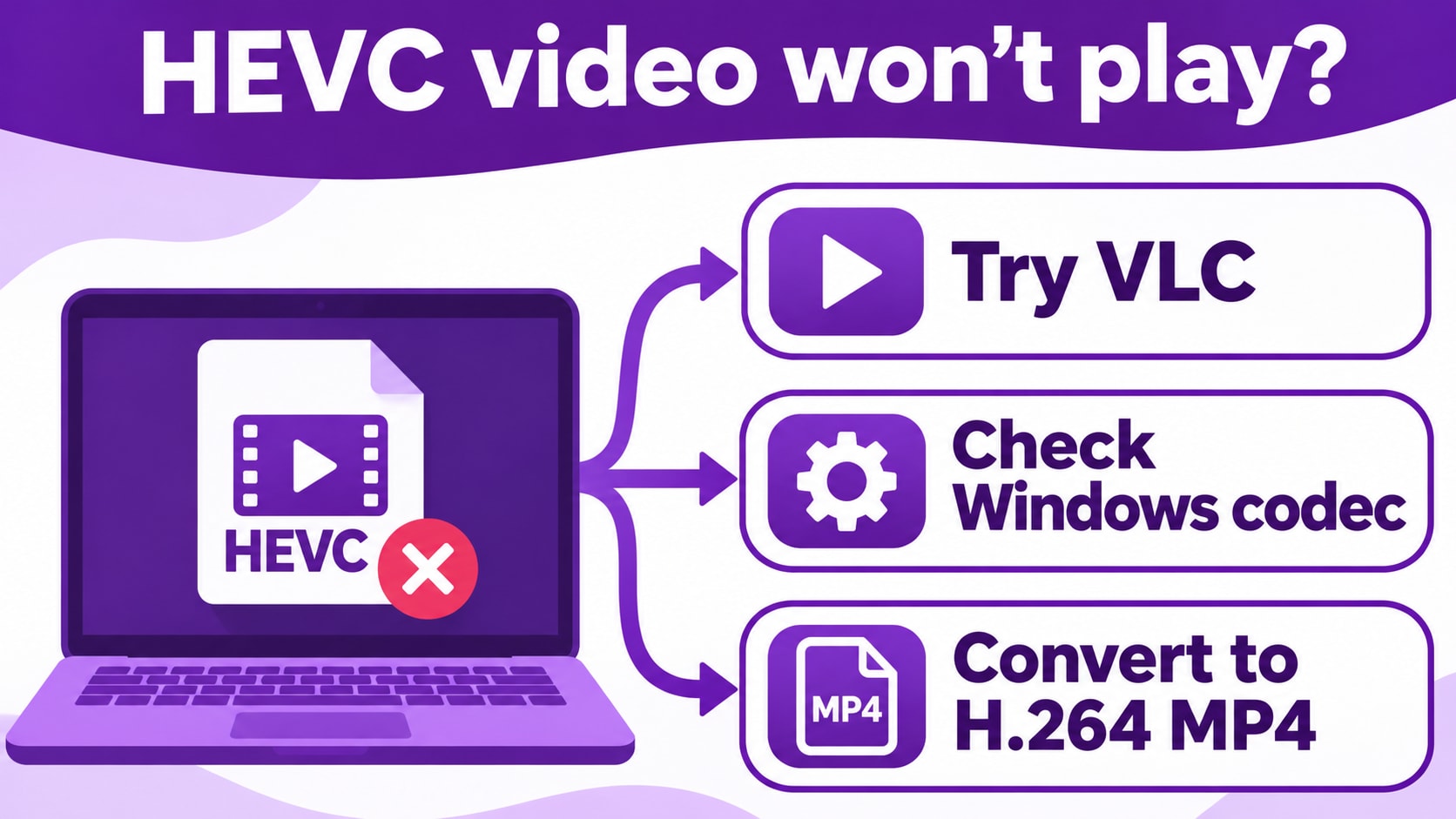
You have transferred phone videos to your computer, but double-clicking them gives an error or a black screen. A Microsoft Q&A user described this exact transfer problem. The post does not identify the player or error, so the quickest route is to separate a playback problem from an incomplete copy before changing the video.
Why Can't I Play an HEVC Video on My Computer?
HEVC, also called H.265, is a video codec. Your Windows player needs a way to decode it. Some apps include their own decoder; others use Windows components. A missing decoder is one explanation, but an incomplete transfer, unsupported audio or playback settings can also cause a failure.
| What happens? | Try this next |
|---|---|
| Plays on the phone and in VLC, but not in Windows Media Player | Check the Microsoft HEVC extension and reopen the Windows app. |
| Plays in VLC, but fails on another device or editor | Keep the original and test an H.264 MP4 copy in the target app. |
| Only one copy fails everywhere, but the phone original works | Copy it again, wait for the transfer to finish and compare file sizes. |
| Sound plays but the picture is black, or 4K stutters | Try another player, confirm the codec, and check relevant graphics updates. |
First check: play the original on the phone, then copy a short video again to the PC. If the original also fails on the phone, ask for another copy or check the source before installing software. Keep the original until the computer copy plays.
1. Play the Original HEVC Video in VLC
Best for: watching a local video now without converting it. VLC includes HEVC decoding, independent of the Windows extension.
- Install VLC from VideoLAN, then open it.
- Choose Media > Open File, select the copied video, and play it.
- Watch and listen for a few seconds. If it plays here but not in Media Player, move to the Windows extension below. If it fails in both, recopy the original and test another video.
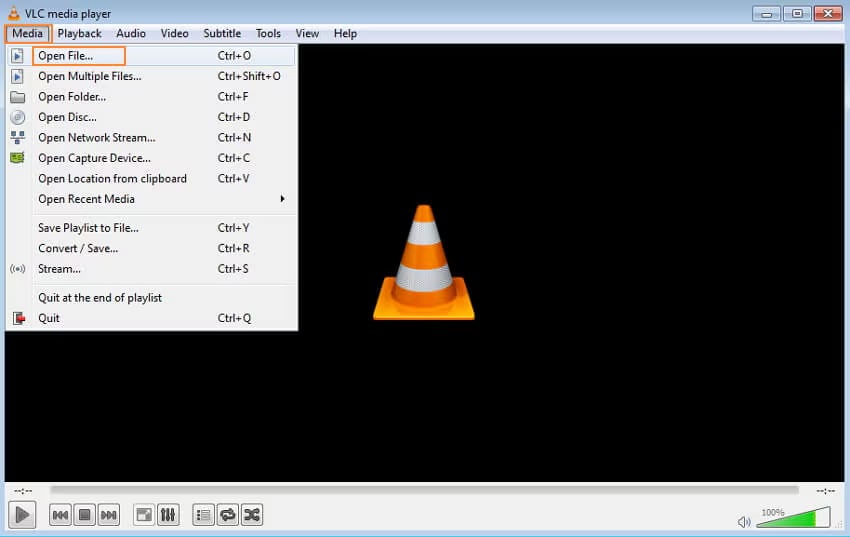
To inspect a file in VLC, open it and use Tools > Codec Information. Look at the video stream; HEVC/H.265 indicates the video codec. The MP4 or MOV suffix alone does not tell you which codec is inside.
2. Install HEVC Video Extensions for Windows Apps
Best for: opening compatible HEVC videos in Windows apps that use the system decoder. Microsoft lists HEVC Video Extensions as an option in its Media Player troubleshooting guide.
- Open Microsoft Store and search for HEVC Video Extensions. Check that the publisher is Microsoft Corporation.
- Review the price and device requirements shown for your account, then install the extension if you choose. Some computers may already include an applicable extension.
- Close and reopen Media Player or Photos and try the same file again. If the Store installation fails, check the account used for purchase and the Store’s download error.
If VLC plays the file but the Windows app still does not, repair the affected app under Settings > Apps > Installed apps > Media Player > Advanced options > Repair, when that option is available. Test again. An extension cannot repair a damaged file or guarantee support in every editor.
3. Convert HEVC to H.264 MP4 for Compatibility
Best for: sharing a phone video or opening it in a program that still cannot decode HEVC. Converting creates a new file; it does not add HEVC playback support to Windows. If you only need to watch once and VLC works, conversion is optional.
UniConverter’s desktop Converter supports HEVC input and H.264 output. Its format specifications list supported codecs. For a detailed codec-focused guide, see how to convert H.265 to H.264.
- Open Converter. Open Wondershare UniConverter on your Windows PC or Mac and select Converter on the home screen.
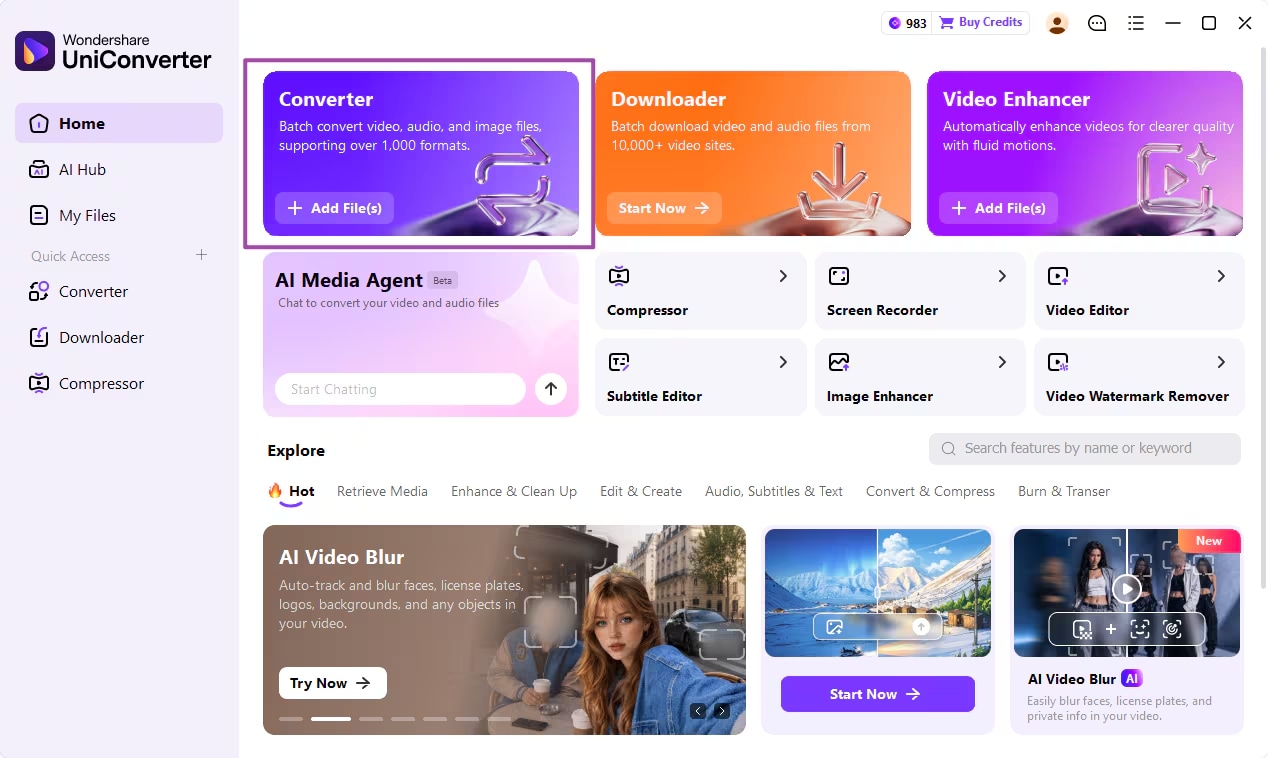
Open Converter in UniConverter 18 for Windows. Source: UniConverter Windows guide. - Add the original video. Select Add Files and import the HEVC video you copied from your phone. Keep the source file unchanged.
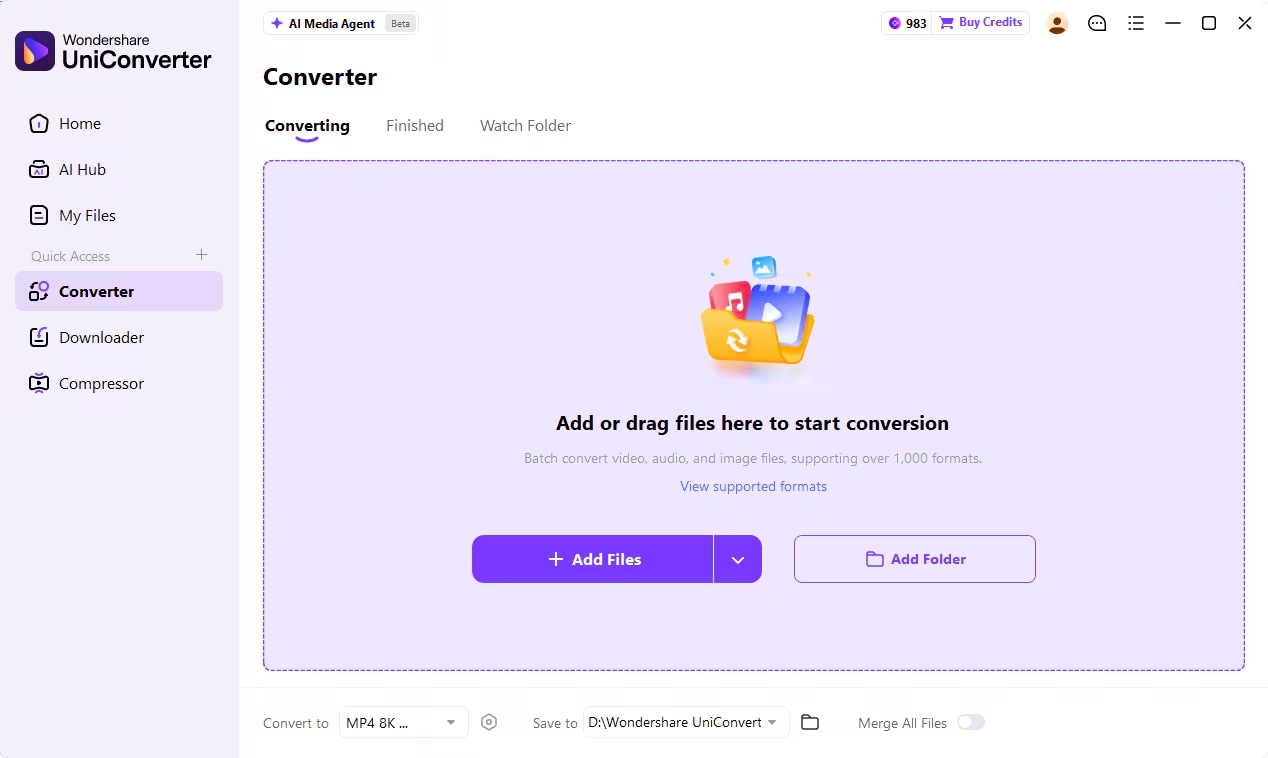
Import the video you copied from your phone. Source: UniConverter Windows guide. - Choose MP4 with H.264 video. Open Convert to, choose Video and MP4, then check the preset or settings to make sure the video codec is H.264, not HEVC. Choose AAC audio where available and appropriate.
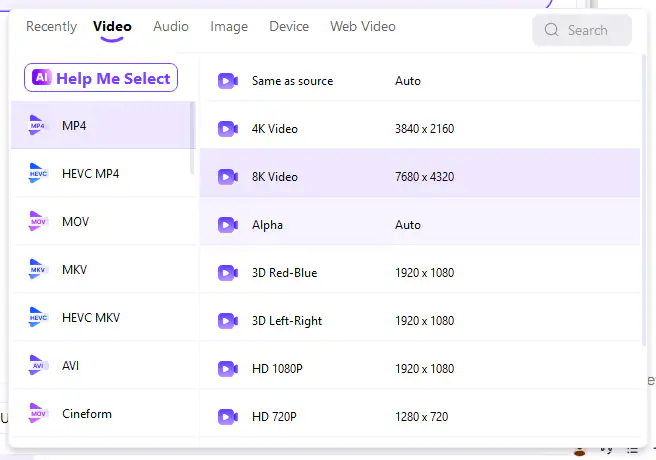
Open the output format menu; verify the codec in the available preset or settings. Source: UniConverter Windows guide. - Convert and check the result. Choose a save location, start conversion, then open the Finished tab. Play the new file in the app or on the device that failed before and check picture, sound and duration.
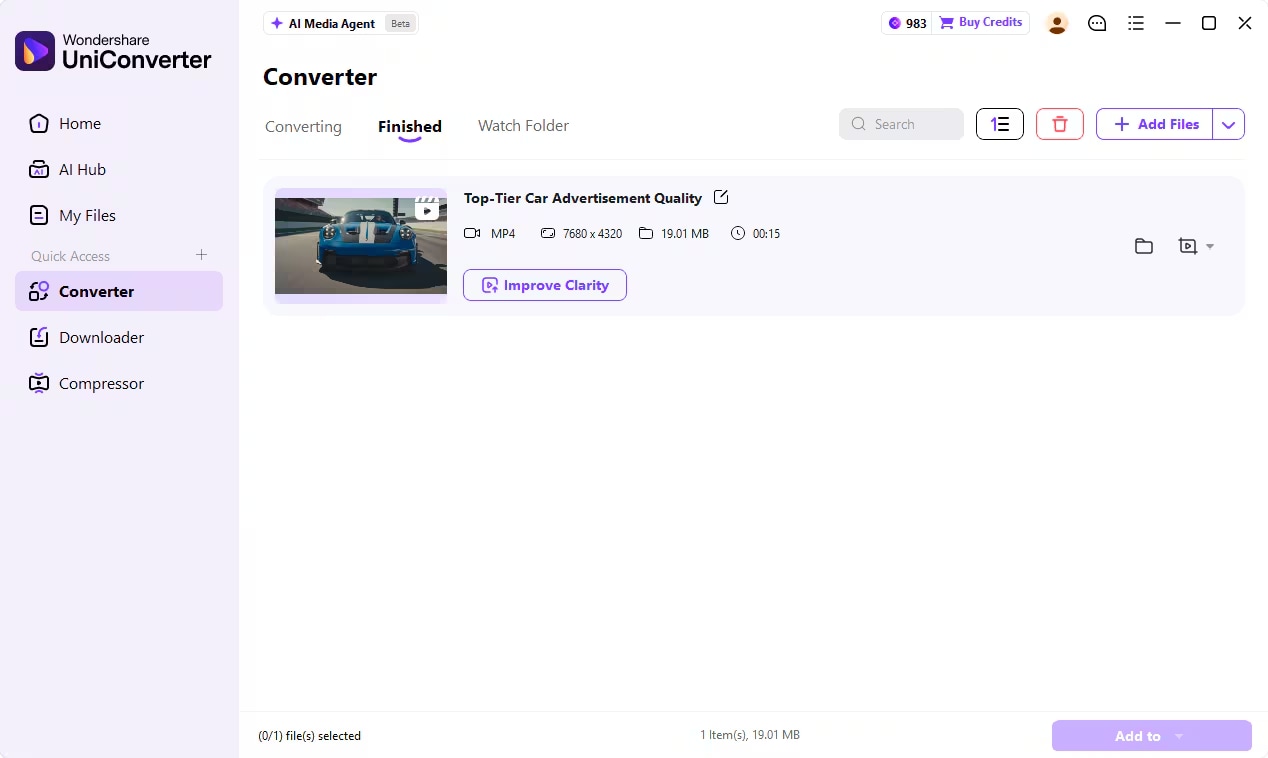
Open the converted file and compare it with your original. Source: UniConverter Windows guide.
Check before deleting anything: compare the original and the new file for audio, duration, resolution and visible detail. H.264 can produce a larger file. HDR, subtitles and multiple audio tracks may change during conversion, so test the specific result on the receiving device. If quality is unacceptable, try a higher-quality preset from the original.
4. Fix a Black Screen, Stuttering or a Failed Transfer
Sound without video
First test the same file in VLC and another HEVC clip. If the issue appears only in one app, check that app's codec support. If several videos fail or stutter, install applicable Windows and graphics-driver updates from Windows Update or the computer manufacturer, then retest. The problem is not necessarily the codec.
The video will not play in any player
Go back to the phone and play the original. Copy it again to a local folder, wait for the transfer to finish and compare the file size with the source where available. If the original no longer plays, request another copy or use your backup. Conversion is not a dependable repair for a damaged or incomplete source.
The file says MP4 but still will not play
MP4 is a container; it can hold HEVC video. Renaming a MOV or MP4 file does not change its codec. Inspect the video stream, then choose a compatible player or encode a new H.264 copy. For other formats, see how to fix a video codec not supported error.
5. Prevent the Same Problem with Future Phone Videos
If you regularly send clips to an older computer, check your phone’s camera format options before recording. A more compatible recording option can reduce future conversion work, but it does not change videos already recorded. Names, available resolutions and settings differ by phone; retain HEVC where its efficiency, HDR or device support matters. For broader troubleshooting, read what to do when a video cannot play.
Frequently Asked Questions
Why can't my computer play HEVC videos from my phone?
The Windows app may lack an HEVC decoder, or the file or transfer may have a problem. Test the original on your phone and try another player before choosing a fix.
Can VLC play HEVC without the Windows HEVC extension?
VLC has built-in HEVC decoding, so it can often play an HEVC file without adding the Windows extension. Test your particular file; VLC can still encounter unsupported streams or damaged files.
Is HEVC the same as MP4?
No. HEVC, also called H.265, is a video codec; MP4 is a container. An MP4 file can contain HEVC or H.264 video.
Will converting HEVC to H.264 make my video smaller?
Not necessarily. The result depends on the encoding settings and content; H.264 often needs more data for comparable visual quality. Compare the output and keep the original.
What if I hear audio but see a black screen?
Try the same file in another player and confirm the video codec. If several HEVC files fail, check the app's decoder support and graphics updates; if only one fails, copy it again from the phone.