


Seeing the error “video codec not supported” can be very frustrating when you are trying to play an important video on your phone or computer. Unsupported codec errors happen because different videos are compressed using different codecs, like H.265, HEVC, or VP9, that are incompatible on different devices or media players.
In this article, you will understand what the codec not supported error means and how to rectify it by converting the video to compatible formats. You’ll also learn practical steps and preventive measures to avoid similar playback issues in the future.
In this article
Part 1. What Does “Video Codec Not Supported” Mean?
The Video Codec Not Supported error appears when your device or media player cannot decode the video’s compression method. This usually happens when the video was encoded using a codec your system does not recognize, preventing the file from playing properly, even though it may not be corrupted.
To understand this better, it is important to know the difference between a codec and a video format. A codec compresses and decompresses the video data, while a format like MP4 or MKV acts as a container. So even if your device supports the format, you can still encounter the Video Codec Not Supported error if the internal codec is incompatible.
Part 2. Why Does the “Video Codec Not Supported” Error Occur?
The Video Codec Not Supported error usually appears when your device or media player cannot interpret the video’s compression standard. This can happen due to compatibility gaps between the codec used in the file and the decoding capabilities of your device, app, or operating system.
In most cases, the issue is caused by unsupported modern codecs like H.265 (HEVC), AV1, or VP9 on older or entry-level devices. It can also occur if your media player is outdated, limited to basic codecs such as H.264, or if the video file is corrupted or incomplete due to an interrupted download or transfer.
Part 3. How to Fix “Video Codec Not Supported” Error With Ease?
To fix the video codec not supported error, you have to convert the video to a different compatible format. With Wondershare UniConverter, you can convert video files easily without the need for technical expertise. The batch processing option in Wondershare UniConverter lets you convert multiple files simultaneously on both your desktop and mobile device. You can choose the codec format based on your compatibility requirements. UniConverter supports dozens of common or lesser-seen video or audio codecs like MPEG, AV1, FLV , VP9, etc.
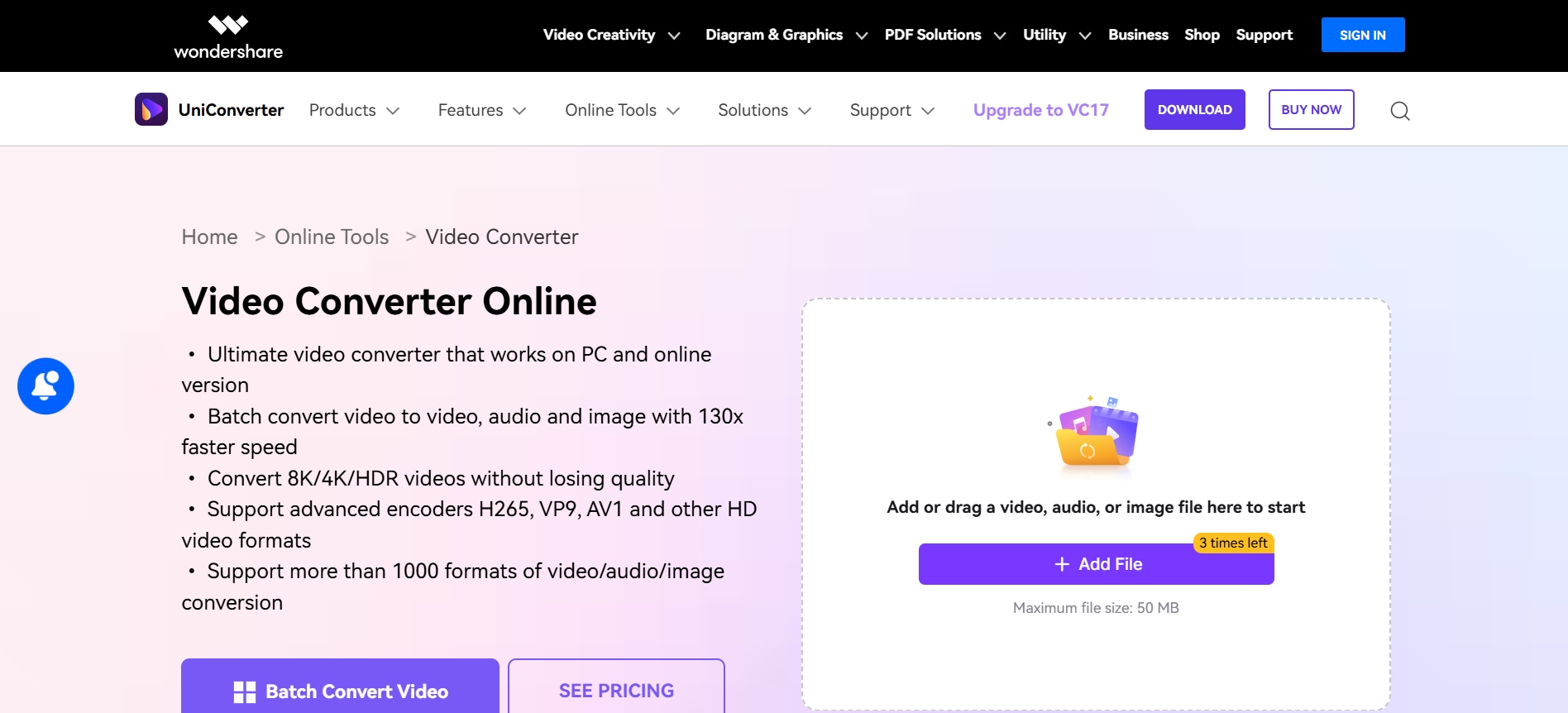
Key Features of Wondershare UniConverter
Compress Video: With the video compressor feature, you can compress the video file, making it easy to share files across devices.
Convert Video: You can convert video files into multiple formats like MOV, MKV, WebP, and others as per your device requirements.
Remove Vocal: The advanced vocal remover functionality lets you remove audio and other unwanted sounds from your video.
Trim Video: You can also use the smart video trim tool to cut the video into short sections.
How to Fix The Video Codec Not Supported Error Using Wondershare UniConverter?
You can use Wondershare UniConverter to convert the video into different codec formats as per your device or media player requirements by following these steps:
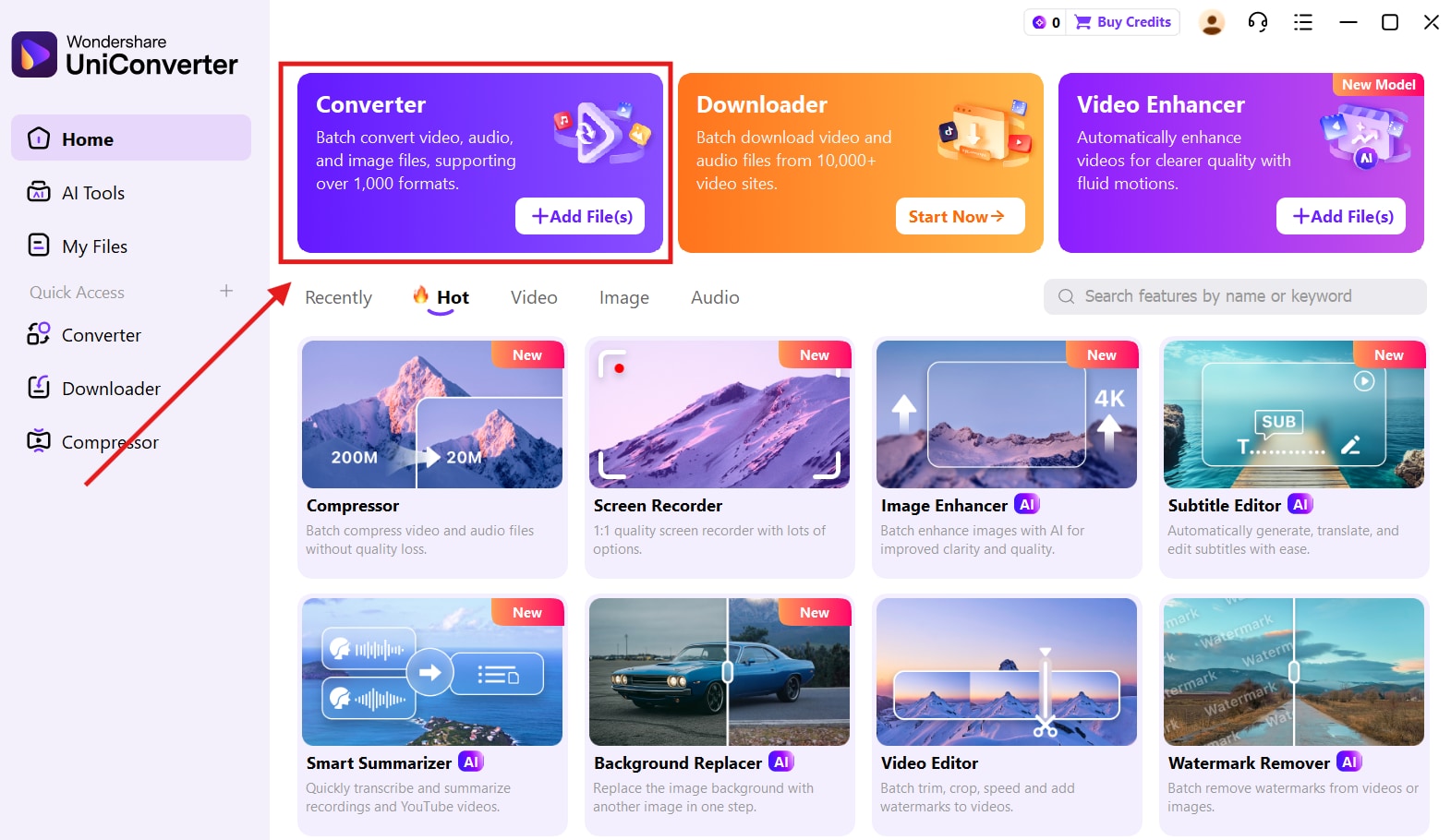
Step 1. Launch UniConverter
On your Wondershare UniConverter dashboard, click on the “Converter” option.
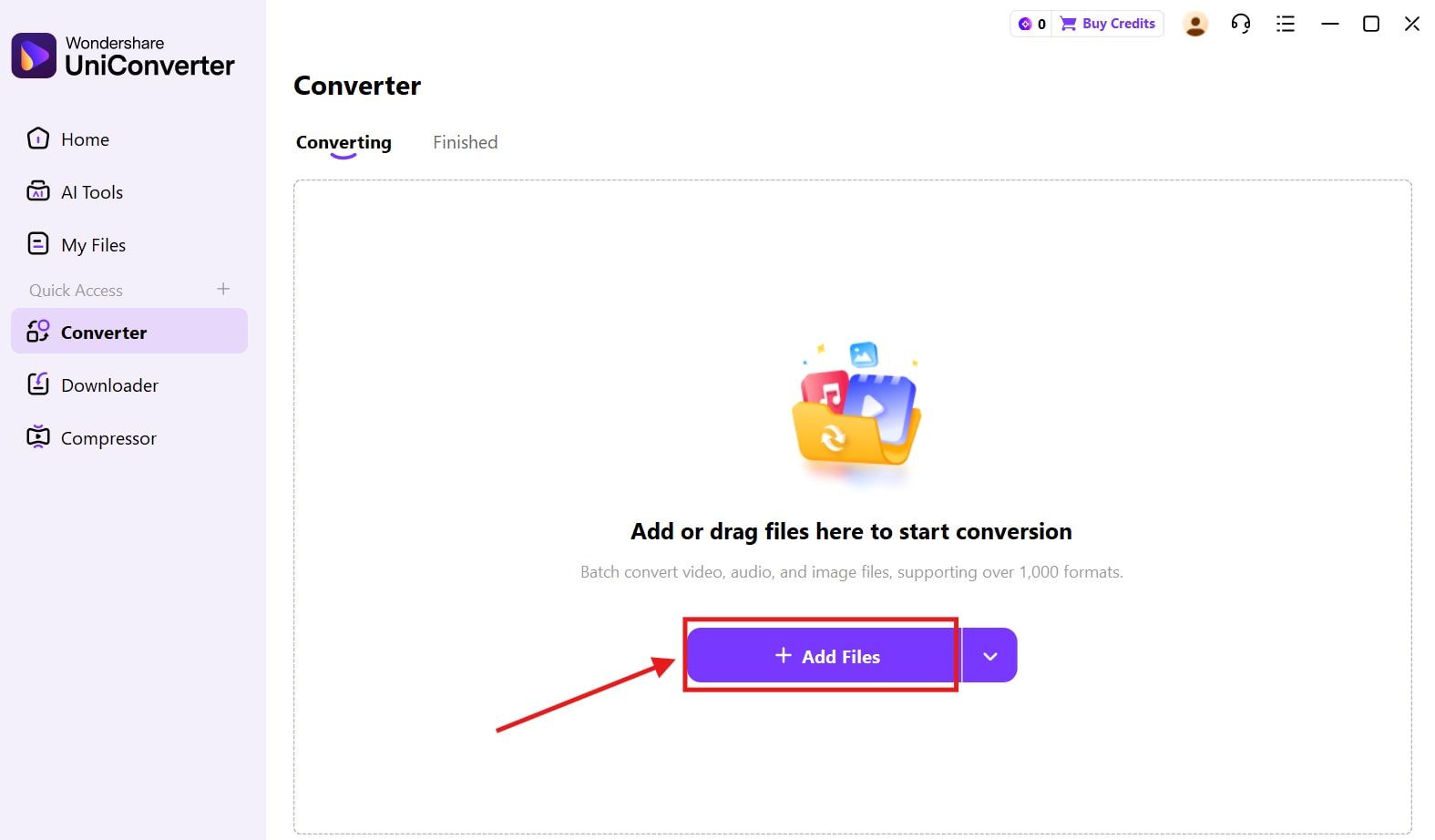
Step 2. Add Files
Click on “Add Files” to upload the unsupported video file.
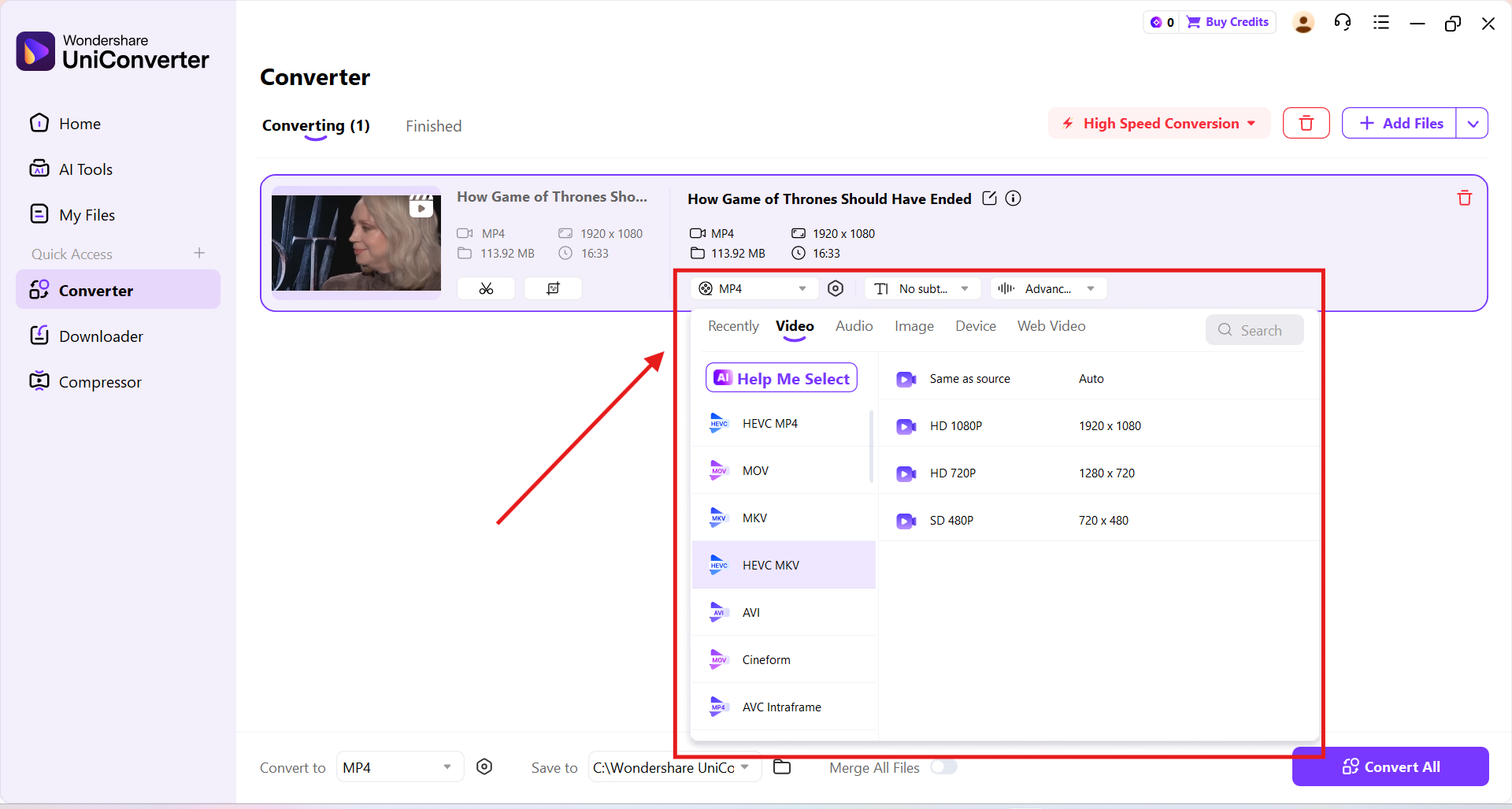
Step 3. Choose Output Codec Format
Click on the video format drop-down menu, navigate to the video, and choose the format.
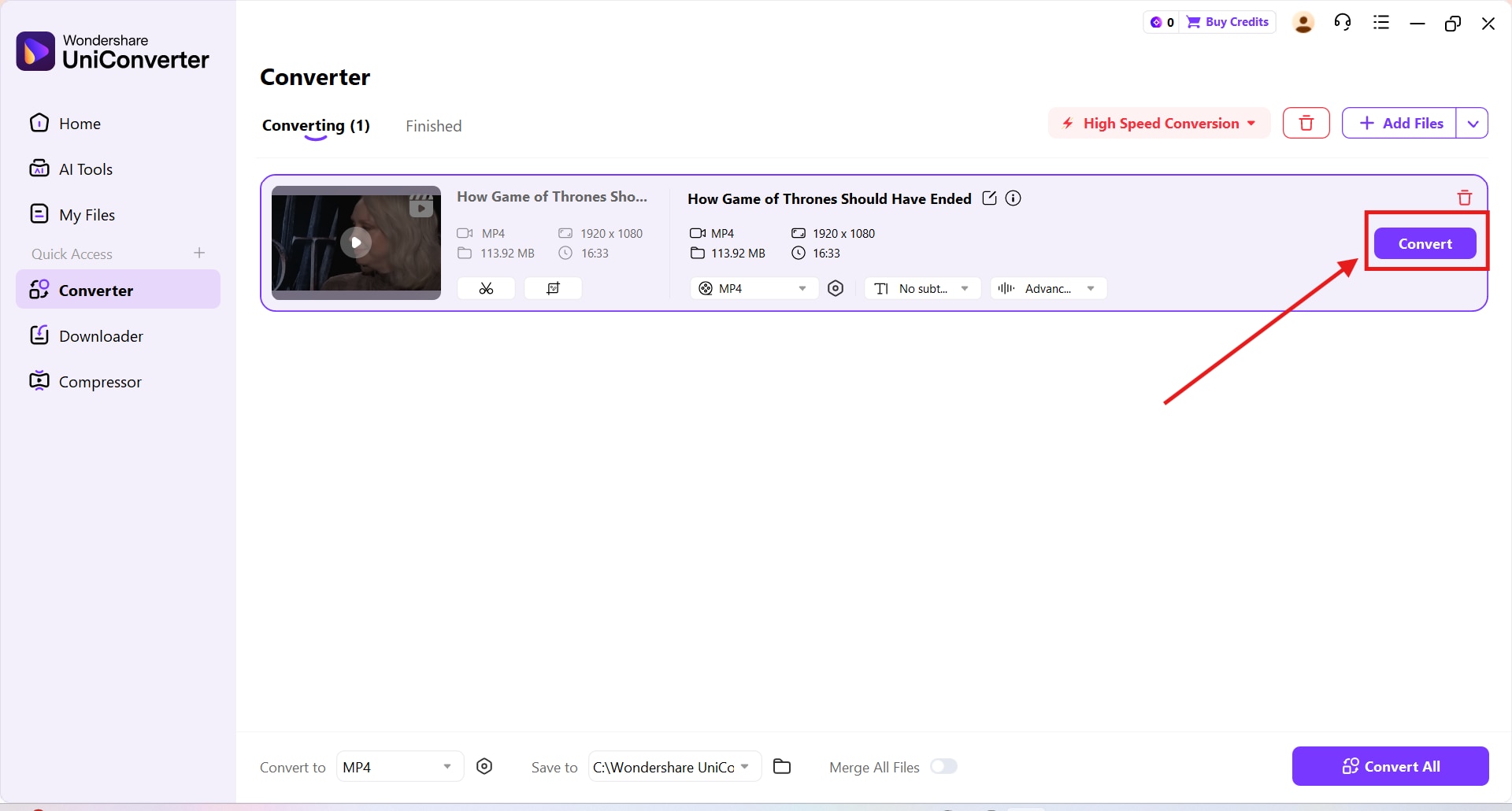
Step 4. Convert Videos
Click on the “Convert” button. The converted video will be saved to your device that will play without any error message.

Video Codec Converter for Better Compatibility
Other Ways to Fix the Video Codec Not Supported Error
You can use VLC Media Player or MX Player if you do not wish to convert the video file.
Use VLC Media Player (Converter) or MX Player (Alternative Playback method)
With VLC Media Player, you can convert and play unsupported video files with ease. Follow the steps below to repair the codec issue on your file by converting it to a compatible format on your desktop.
Step 1. Launch VLC
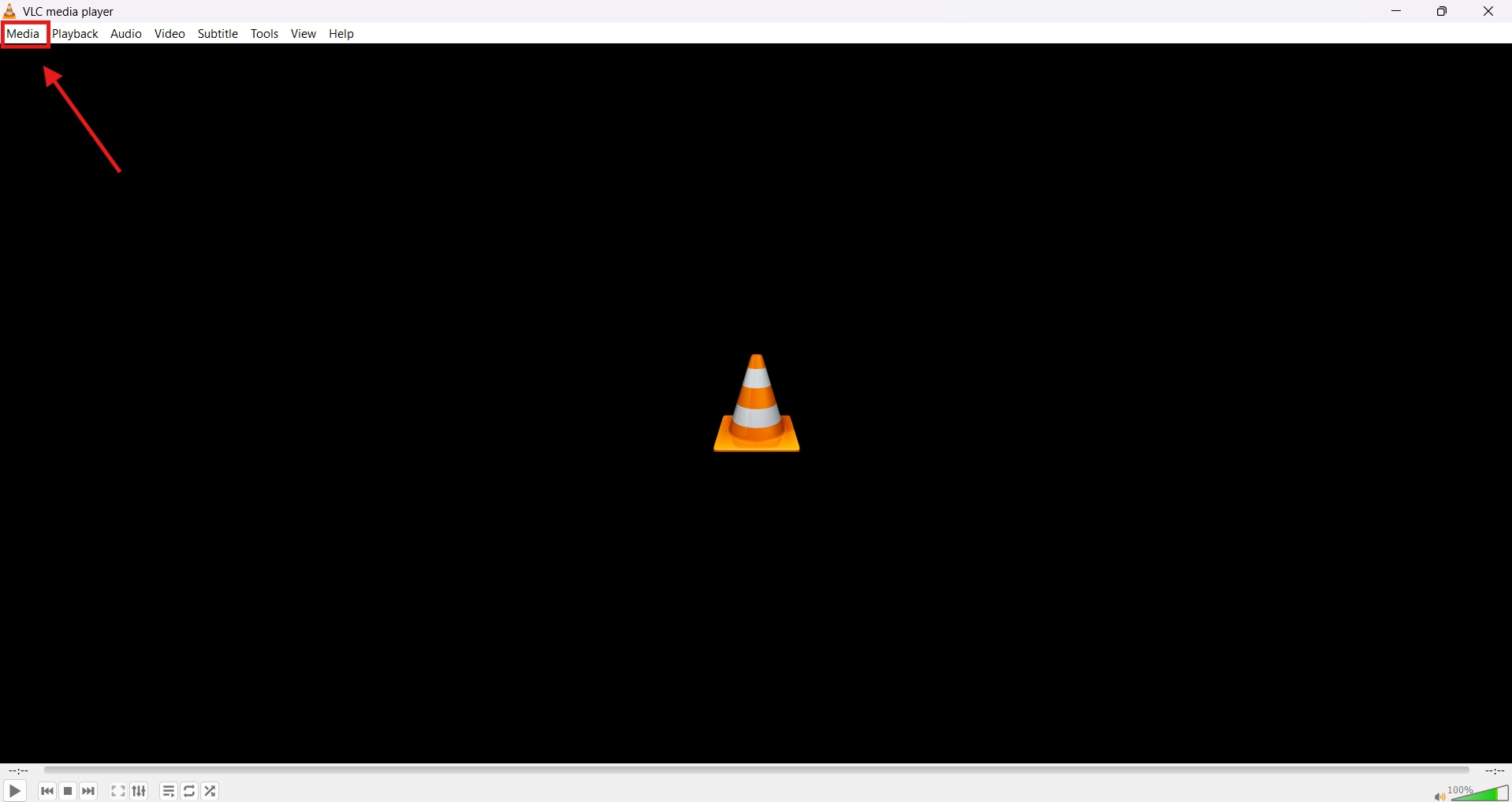
Launch the latest version of VLC Media Player on your device and click on the “Media” button on the top left in the menu bar.
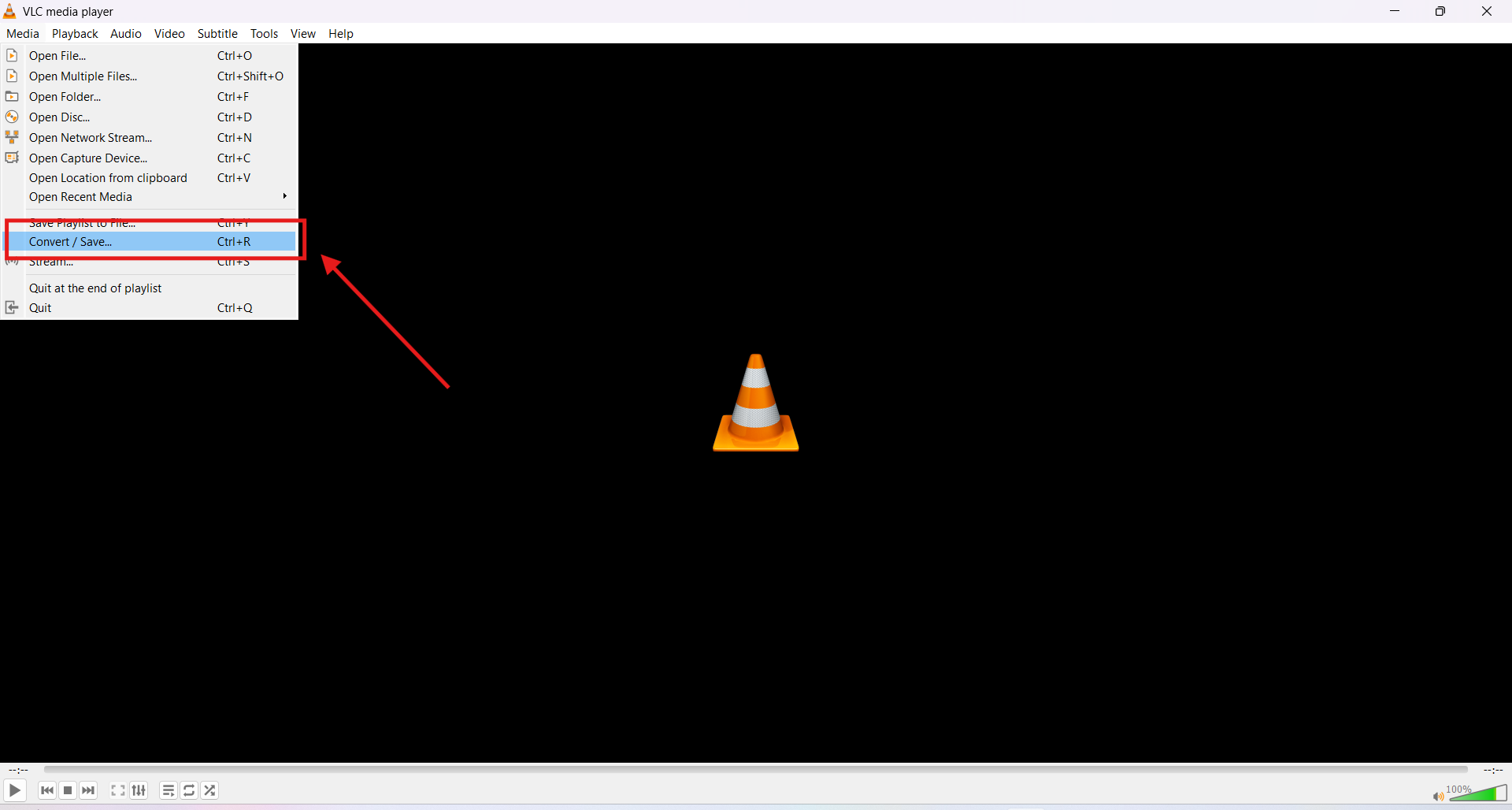
Step 2. Click to Convert
Click on the “Convert/Save” option.
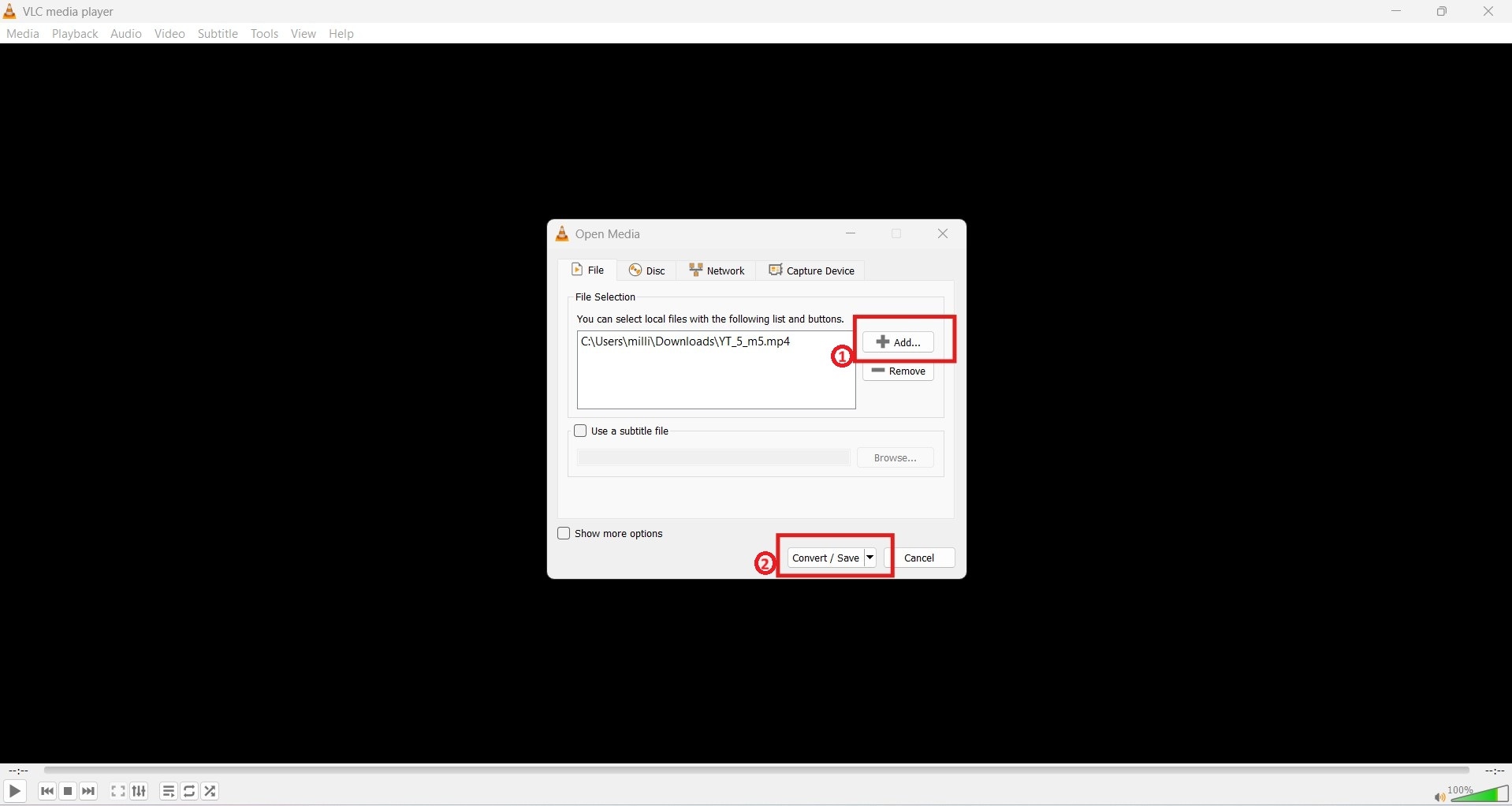
Step 3. Add Video Files
Use the “Add” icon to upload the video file, and then click on the “Convert/Save” button.
Step 4. Choose Codec Settings
Choose the compatible codec format as per your requirement from the drop-down menu.
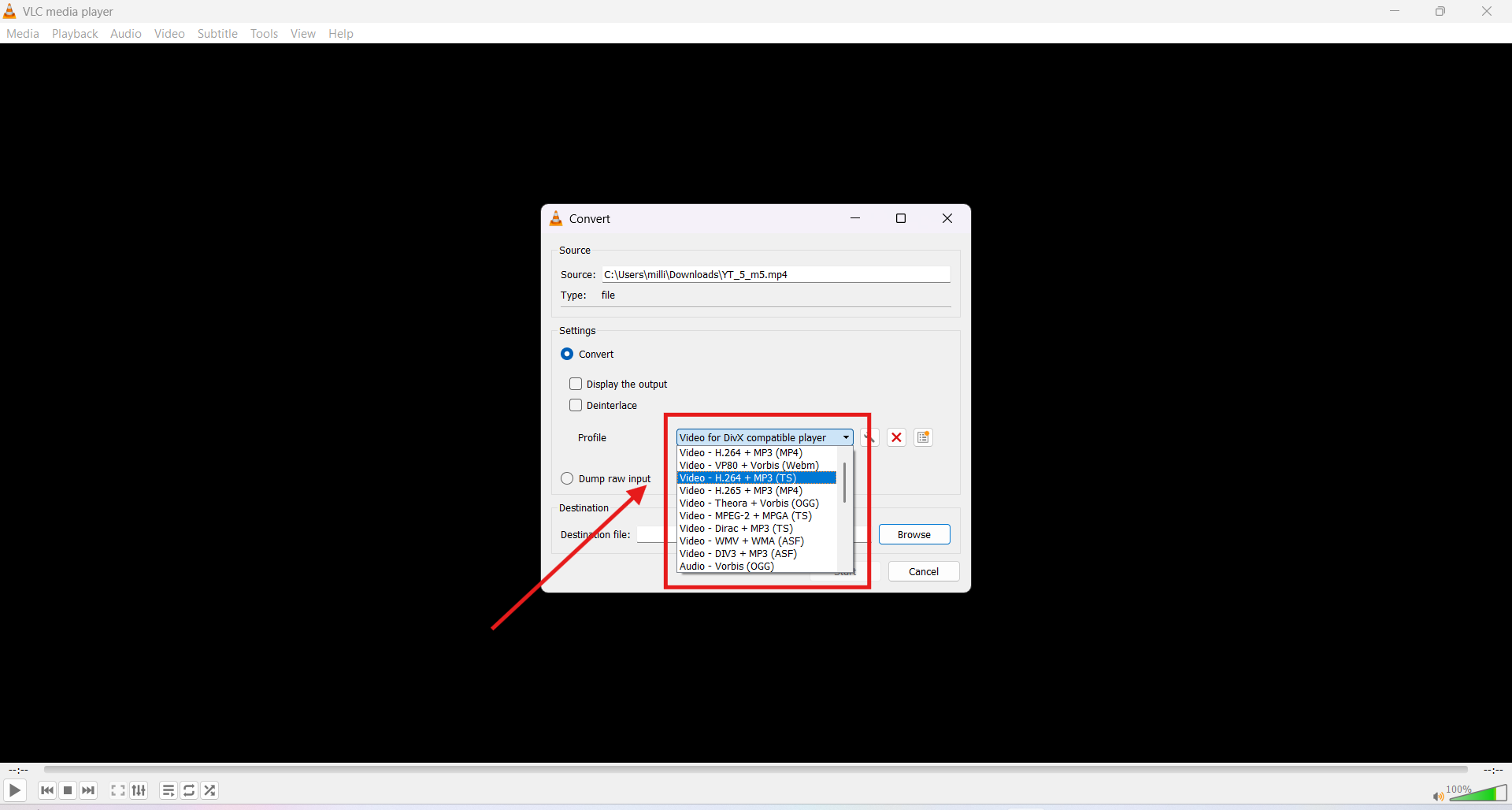
Step 5. Click to Convert
Click on the “Start” button.
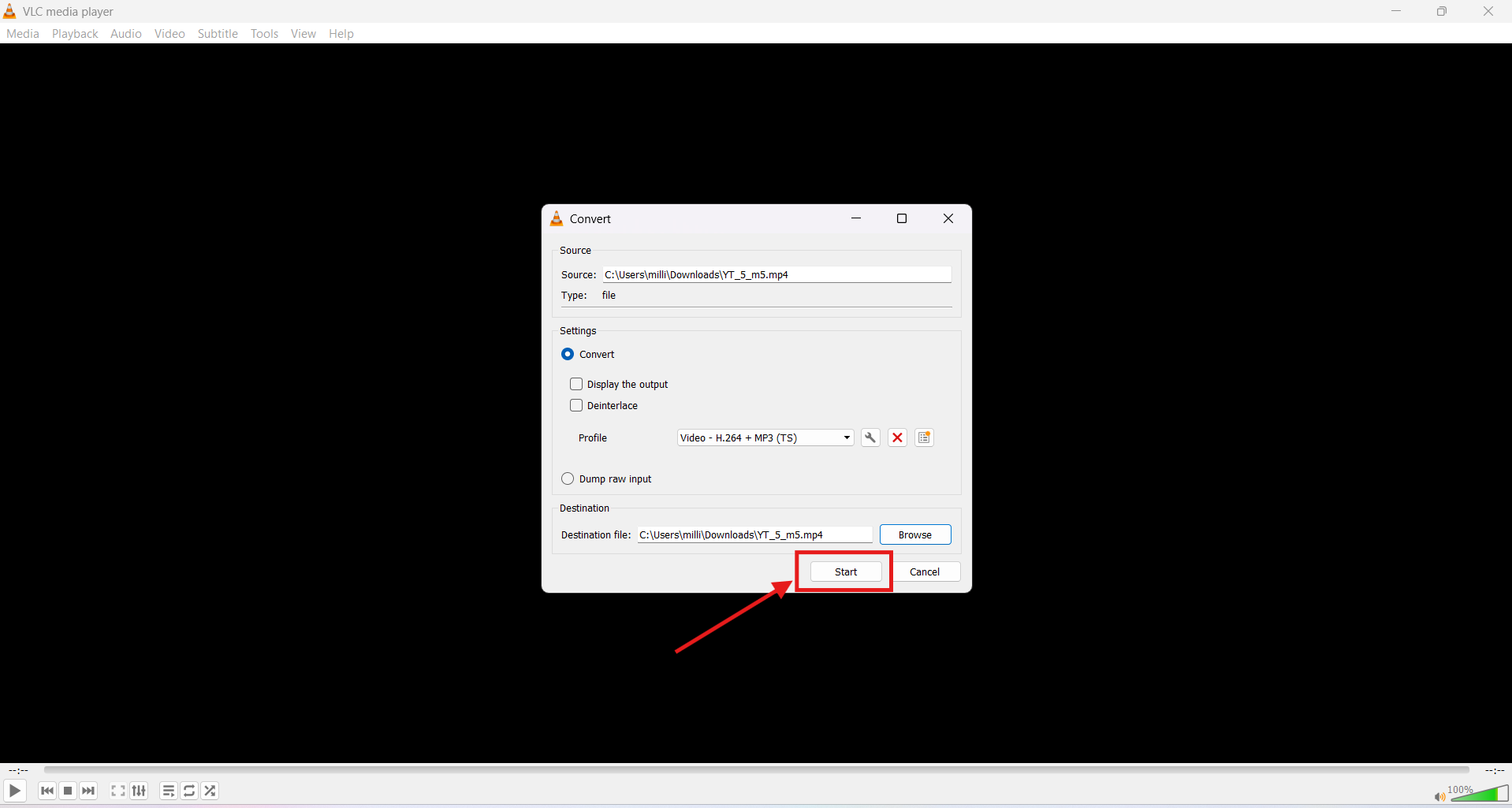
MX Player is a backup media player for your mobile device. Although MX Player does not convert the video file, it supports different codec options, thereby helping you play corrupt video files with ease.
Update the Media Player and Device Software
Updating your media player or device software is often the quickest way to fix the video codec not supported error. On a Windows PC, make sure you install the latest version of your media player from its official website or through the Microsoft Store to ensure full codec compatibility.
If the issue appears on a mobile device, check for pending operating system updates, as newer OS versions frequently add support for modern video codecs and improve playback stability.
Download the Required Video or Audio Codec
If you are facing the video codec not supported error, you may need to manually install the required video or audio codec, especially when using older versions of Windows Media Player or playing AVI and MKV files with uncommon encoding standards.
It is also important to identify whether the issue is video- or audio-related: a black screen or playback error indicates a missing video codec, while video playing without sound points to an audio codec problem. In such cases, you can either install the appropriate codec pack or convert the file to widely supported formats like H.264 for video and AAC or MP3 for audio to ensure compatibility.
Part 4. How to Prevent Video Codec Not Supported Errors in the Future?
To prevent the Video Codec Not Supported error in the future, focus on compatibility-first settings and safe file handling practices. Most playback failures are avoidable if you export videos in widely supported formats, use reliable media players, and avoid corrupted or partially downloaded files.
Use Universal Video Settings: Export videos in MP4 format with H.264 for video and AAC for audio, as these are supported by most devices and media players.
Keep Resolution and Bitrate Balanced: Stick to 1080p or lower with a moderate bitrate and 30 fps to ensure smoother playback on older or entry-level devices.
Choose Players with Built-in Codec Support: Choose reliable players like VLC Media Player or MX Player that handle a wider range of codecs without requiring manual installation.
Avoid Incomplete or Suspicious Downloads: Always download videos from trusted sources and ensure the file is fully transferred before playing it.
Do not Manually Change File Extensions: Renaming a file from .mkv to .mp4 does not convert the codec and can trigger playback errors.
Conclusion
The video codec not supported error may seem confusing and technical; however, you can simply solve the issue by decoding the video’s compression format. Codec error issues mostly happen because of compatibility limitations, outdated software, or unsupported codecs. You can avoid codec errors by sticking to universal video settings, keeping your software updated, and downloading video files only from trusted sources.
Further, with tools like Wondershare UniConverter, you can convert unsupported video files into compatible codec formats as per your device requirements with minimal technical expertise. Try Wondershare UniConverter today and see how a simple conversion can resolve the "video codec not supported” error!
FAQs
-
1. Why is the video codec not supported on Samsung phones?
This error usually appears when a video uses a codec that the Samsung device or its default media player does not support. For example, older Samsung phones may struggle with newer codecs such as H.265/HEVC or certain AVI encodings even if the container format is MP4. -
2. What causes a “video codec not supported” error?
This error commonly occurs due to unsupported codecs or outdated media players. Other possible causes include incomplete downloads, corrupted video files, or hardware limitations on older devices. -
3. Why can’t my Samsung phone play certain videos?
Your Samsung phone may not play some videos because the codec used to encode the video is incompatible with the device’s built-in media player. Updating the player or converting the file to a supported format can often resolve the issue. -
4. Can VLC play unsupported video codecs?
Yes. VLC Media Player supports a wide range of audio and video codecs, including HEVC and VP9. It also includes built-in decoding libraries, allowing many unsupported files to play without installing additional codec packs. -
5. Is it safe to download video codecs?
Downloading codec packs is generally safe if you use reputable and official websites. Avoid suspicious sources, as they may contain malware or bundled software.

