
UniConverter
UniConverter Online Free
Converter video, audio & image free
Free Try

H265 to H264 Converter Online Free

Convert H.265/HEVC-encoded video to H.264/AVC online for free with no signup or login. For larger local files, repeated jobs, batch conversion, GPU acceleration, or more output control, use UniConverter Desktop.

Need to convert multiple or larger H.265 videos? UniConverter Desktop adds:

  • Batch conversion for multiple H.265/HEVC videos
  • GPU acceleration with up to 130× faster conversion
  • Support for 1,000+ video, audio, and image formats
  • More control over codec, resolution, bitrate, and frame rate
Platforms
Windows macOS Online
4.7/5 Rated on Trustpilot
Independent review and software platforms: G2 Crowd, CNET, Capterra, Uptodown, Software Advice, and Trustpilot
120+Countries
7M+Satisfied Users
1.4M+Subscribers
21M+Downloads

How to Convert H265 to H264

Upload an H.265 or HEVC video
Step 1

Add your H.265/HEVC video

For a quick online conversion, upload one video encoded with H.265/HEVC. In UniConverter Desktop, add one or multiple local videos when you need larger-file processing, repeated jobs, or batch conversion.

Choose H.264 or AVC as the output codec
Step 2

Choose H.264/AVC as the output

Select H264 as the output option in the online converter. In UniConverter Desktop, choose an H.264/AVC output profile and adjust available settings such as resolution, bitrate, frame rate, or container when your workflow requires more control.

Download the H.264 or AVC converted video
Step 3

Convert and save the H.264 video

Start the conversion and save the H.264/AVC-encoded result. In UniConverter Desktop, process multiple local videos in one queue and save the converted files to your chosen output folder.

H265 vs H264: HEVC and AVC Compared

H.265 (HEVC) and H.264 (AVC) are video compression codecs, not container formats like MP4 or MOV. A video can stay in the same container while its video codec changes from H.265 to H.264.

H.265 / HEVC
H.264 / AVC
Codec Type Video compression codec Video compression codec
Also Known As HEVC (High Efficiency Video Coding) AVC (Advanced Video Coding)
Standard ITU-T H.265 / ISO/IEC 23008-2 ITU-T H.264 / ISO/IEC 14496-10
First Edition 2013 2003
Compression Efficiency Higher efficiency; often delivers similar visual quality at a lower bitrate Lower efficiency than H.265, but widely supported and easier to play across older workflows
Compatibility Common on newer devices and services, but some older players, editors, and hardware may not support it Very broad support across players, editors, devices, browsers, and publishing workflows
Typical Containers MP4, MOV, MKV, TS MP4, MOV, MKV, AVI, TS
Best Fit Efficient storage, high-resolution video, and modern delivery workflows Broad playback, editing, sharing, and cross-device compatibility

Why Use UniConverter to Convert H265 to H264

Free Online H265 to H264 Conversion

Convert a single H.265/HEVC video to H.264/AVC in your browser with no signup or login. Use the online option for a quick one-off task and switch to Desktop when the job becomes larger or repeatable.

HEVC to AVC Codec Conversion

H.265 is also known as HEVC, while H.264 is also known as AVC. UniConverter lets you move from the newer HEVC codec to the more widely compatible AVC codec without confusing the codec with the MP4, MOV, or MKV container that may hold the video.

Broader Playback Compatibility

H.264/AVC is widely supported across media players, editors, devices, and publishing workflows. Convert from H.265 when the original HEVC video does not play, edit, or upload reliably in the destination you need.

GPU-Accelerated Desktop Conversion

Use UniConverter Desktop for larger local videos and repeated conversion jobs. GPU acceleration can speed up supported conversion workflows by up to 130× compared with standard processing.

Batch Convert Multiple H265 Videos

Add multiple H.265/HEVC videos to one Desktop queue and convert them to H.264/AVC with consistent output settings. This is better suited to folders, long recordings, and repeated workflows than a one-off browser conversion.

Flexible Output Settings and 1000+ Formats

Beyond H265 to H264 conversion, UniConverter supports 1000+ video, audio, and image formats. On Desktop, you can also review available output options such as codec, resolution, bitrate, and frame rate to fit the target device or workflow.

FAQs About Converting H265 to H264

Yes. H.265 is commonly called HEVC (High Efficiency Video Coding), while H.264 is commonly called AVC (Advanced Video Coding). A H265 to H264 conversion is therefore also an HEVC to AVC codec conversion.
The main reason is compatibility. H.265 is more compression-efficient, but H.264 is still more widely supported by older devices, media players, editors, browsers, and publishing workflows. Converting to H.264 can make an HEVC video easier to play, edit, upload, or share.
Re-encoding can introduce some quality loss, especially if the output bitrate is too low. Because H.264 is generally less compression-efficient than H.265, an H.264 file may need a higher bitrate—and can be larger—to maintain similar visual quality. Review the result and adjust output settings when quality matters.
Yes. Use the online H265 to H264 converter for a quick one-off browser task with no signup or login. For larger local videos, repeated jobs, batch conversion, GPU acceleration, or more output control, use UniConverter Desktop.
Yes. UniConverter Desktop supports adding multiple H.265/HEVC videos to a conversion queue and processing them in batch with consistent H.264/AVC output settings. Use the online converter for quick single-file tasks.

“Wondershare Video Converter is hands down one of the best tools I’ve added to my creative toolkit. It’s fast, easy to use, and incredibly powerful. Whether I need to convert large video files into different formats, compress them without losing quality, or even edit and trim clips, this software handles it all with ease.”

— TG

“I have been using Wondershare UniConverter for many years. It has been one of the best ways to download, screen capture and convert videos. It has been my go to for video download and conversion.”

— Alan Horner

“Wondershare has so many assets, not just for downloading media. You can convert to other formats. You can create GIFs and clean up videos. There are way too many assets you can use with WonderShare UniConverter that it's a MUST for any video editor or graphics designer. It's worth every penny.”

— P.rajotte

“Simple to use, music, pic, video, all can edit or convert, Make my work faster and easy”

— gyn

“Over the years, Wondershare Uniconverter has really transformed into a powerhouse of tools. You can download, convert, crop, compress, enhance the quality, remove the background and do ton of other useful ops. We can do it for Video, Audio, and images, either individually or in batches.”

— Sura Mukkavilli

“Wondershare UniConverter has completely exceeded my expectations! The software is incredibly fast, easy to use, and supports a wide range of file formats. I was able to convert large videos in just minutes without losing quality. The interface is clean and intuitive, making it beginner-friendly while still offering advanced features for power users. ”

— CHEUNG SIN LIM

“Wondershare Video Converter is hands down one of the best tools I’ve added to my creative toolkit. It’s fast, easy to use, and incredibly powerful. Whether I need to convert large video files into different formats, compress them without losing quality, or even edit and trim clips, this software handles it all with ease.”

— TG

“I have been using Wondershare UniConverter for many years. It has been one of the best ways to download, screen capture and convert videos. It has been my go to for video download and conversion.”

— Alan Horner

What Users Say About UniConverter

These customer comments describe UniConverter as a broader multimedia product and are not claims about this specific format pair.

★ ★ ★ ★ ★
Rated 4.7/5

Convert H265 to H264 for Wider Compatibility
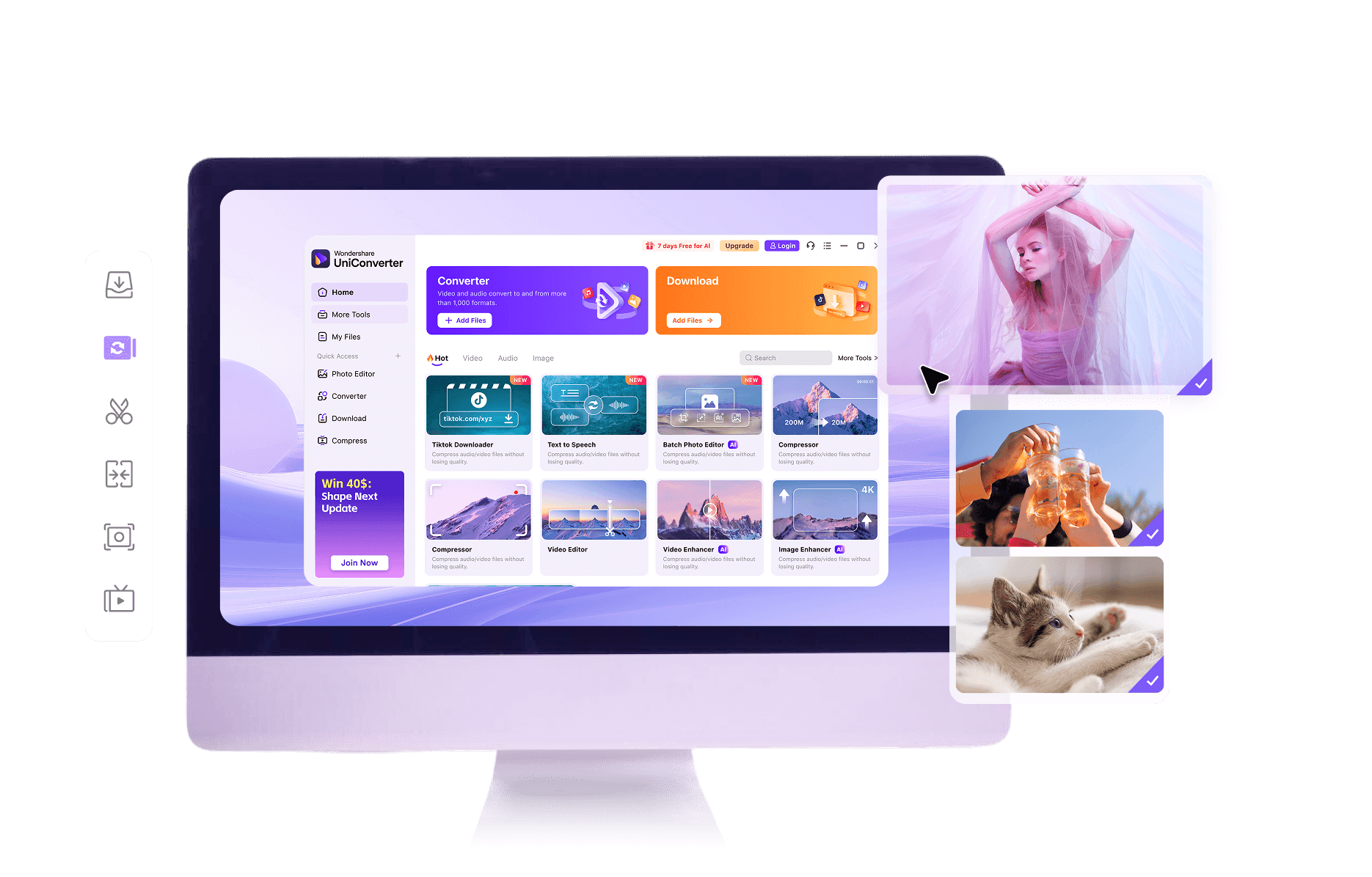
Convert one H.265/HEVC video online for a quick H.264/AVC result, or use UniConverter Desktop for multiple files, larger local jobs, batch conversion, GPU acceleration, and more output control.
UniConverter H265 to H264 converter for HEVC to AVC video conversion


