Need to change video aspect ratios? Wondershare UniConverter lets you adjust one clip or apply the 4:3 aspect-ratio setting to a batch. Add your videos, preview the framing, and export the prepared files together.
Need a 4:3 resolution for an older display, retro footage, a presentation, or a new video project? Use the chart to find a matching width and height, then choose how the original picture should fit. Changing frame shape and changing pixel dimensions are separate decisions.
In this article
4:3 Resolution Chart: Common Pixel Sizes
A 4:3 frame is wider than it is tall, with a width-to-height ratio of 4:3, or approximately 1.33:1. The following 4:3 resolutions list uses square-pixel width and height. Every row is mathematically exact: width × 3 = height × 4.
| Resolution (width × height) | Pixels | Common label or context |
|---|---|---|
| 160 × 120 | 19,200 | Small 4:3 frame |
| 256 × 192 | 49,152 | Small 4:3 frame |
| 320 × 240 | 76,800 | QVGA |
| 384 × 288 | 110,592 | Small 4:3 frame |
| 400 × 300 | 120,000 | 4:3 frame |
| 512 × 384 | 196,608 | 4:3 frame |
| 640 × 480 | 307,200 | VGA |
| 768 × 576 | 442,368 | 4:3 frame |
| 800 × 600 | 480,000 | SVGA |
| 960 × 720 | 691,200 | 720 pixels high |
| 1,024 × 768 | 786,432 | XGA |
| 1,152 × 864 | 995,328 | 4:3 frame |
| 1,280 × 960 | 1,228,800 | 4:3 frame |
| 1,400 × 1,050 | 1,470,000 | 4:3 frame |
| 1,440 × 1,080 | 1,555,200 | 1080 pixels high; square pixels |
| 1,600 × 1,200 | 1,920,000 | UXGA |
| 1,792 × 1,344 | 2,408,448 | 4:3 frame |
| 1,856 × 1,392 | 2,583,552 | 4:3 frame |
| 1,920 × 1,440 | 2,764,800 | 1440 pixels high |
| 2,048 × 1,536 | 3,145,728 | QXGA |
| 2,304 × 1,728 | 3,981,312 | 4:3 frame |
| 2,560 × 1,920 | 4,915,200 | 4:3 frame |
| 2,880 × 2,160 | 6,220,800 | 2160 pixels high; 4:3 |
| 3,200 × 2,400 | 7,680,000 | 4:3 frame |
| 3,840 × 2,880 | 11,059,200 | 3840-pixel-wide 4:3 frame |
| 4,096 × 3,072 | 12,582,912 | 4096-pixel-wide 4:3 frame |
| 5,120 × 3,840 | 19,660,800 | 4:3 frame |
| 6,400 × 4,800 | 30,720,000 | 4:3 frame |
| 7,680 × 5,760 | 44,236,800 | 4:3 frame |
| 8,192 × 6,144 | 50,331,648 | 4:3 frame |
The chart includes both common and less common sizes. A mathematically valid 4 by 3 resolution is not automatically supported by every screen, encoder, camera, or export preset. Check the actual device and destination before choosing a custom size.
How to Calculate a 4:3 Resolution
For a square-pixel frame, use width × 3 = height × 4. With 1024 × 768, both sides equal 3072, so the dimensions are exactly 4:3.
- Find the height: width × 3 ÷ 4. For a width of 1600, the matching height is 1200.
- Find the width: height × 4 ÷ 3. For a height of 1080, the matching width is 1440.
- Choose whole-pixel dimensions: use 4 × n for width and 3 × n for height, where n is a positive whole number.
For a practical 4:3 screen resolution, start with the display's native dimensions. For a video, check both the frame and the intended platform. For example, 1280 × 1024 is 5:4, not 4:3. Its 4:3 neighbor at the same width is 1280 × 960.
Older video formats: the calculation above assumes square pixels. Some formats store non-square pixels; their displayed aspect ratio can differ from the stored width ÷ height. For example, a 1440 × 1080 frame is 4:3 with square pixels, but some formats use non-square pixels to display it as 16:9. For example, 720 × 480 and 720 × 576 footage may be displayed as 4:3 or 16:9 depending on its pixel aspect ratio and metadata. Check the file's display aspect ratio as well as its pixel dimensions.
What Are 4:3 720p, 1080p, and High-Resolution Sizes?
Labels such as 720p and 1080p describe vertical line counts; the aspect ratio determines the corresponding width. When the output is square-pixel 4:3, the width is height × 4 ÷ 3.
| Height | Exact 4:3 dimensions | Comparison |
|---|---|---|
| 720 pixels | 960 × 720 | 16:9 at the same height is 1280 × 720 |
| 1080 pixels | 1440 × 1080 | 16:9 at the same height is 1920 × 1080 |
| 1440 pixels | 1920 × 1440 | 16:9 at the same height is 2560 × 1440 |
| 2160 pixels | 2880 × 2160 | 16:9 4K UHD is 3840 × 2160 |
What about 4:3 4K resolution? The term 4K is used in more than one way. A custom frame of 4096 × 3072 is exactly 4:3 and about 4096 pixels wide. 2880 × 2160 is 4:3 with the same height as 4K UHD. Neither is the standard 3840 × 2160 4K UHD frame, which is 16:9. Specify the dimensions rather than relying on the “4K” label alone.
4:3 vs. 16:9: Which Aspect Ratio Fits?
| Question | 4:3 | 16:9 |
|---|---|---|
| Frame shape | 4 units wide by 3 high; about 1.33:1 | 16 units wide by 9 high; about 1.78:1 |
| Example at 1080 pixels high | 1440 × 1080 with square pixels | 1920 × 1080 with square pixels |
| Common contexts | Classic video, older monitors, some cameras and presentations | Widescreen video, many monitors, and HDTV |
| Best first decision | Preserve original framing or meet a 4:3 requirement | Match a widescreen deliverable or display |
For common widescreen sizes, see our 16:9 resolution guide and pixel chart.
A 4:3 frame is not inherently lower quality than a 16:9 frame. Its sharpness depends on source detail, pixel dimensions, scaling, compression, and display conditions. For a closer look at changing the frame in an editor, see how to change the aspect ratio in iMovie.
What Happens When You Fit 4:3 Video on a 16:9 Screen?
If a player fits the full 4:3 image inside a 16:9 frame without stretching or cropping, the unused space appears at the left and right. At a height of 1080 pixels, a 4:3 image is 1440 pixels wide. Inside a 1920 × 1080 frame, the remaining 480 pixels can be split into 240 pixels on each side.

If you are uploading to YouTube, its official aspect-ratio guidance recommends avoiding black bars added directly to the file: the player adapts to the video and device.
Which 4:3 Video or Monitor Resolution Should You Use?
| Use case | Starting point | Check before exporting |
|---|---|---|
| Older monitor or projector | Its native resolution, often a size such as 1024 × 768 | The actual display specifications |
| Existing 4:3 source at 1080 pixels high | 1440 × 1080 for square-pixel output | Source display aspect ratio and the target format |
| Smaller 4:3 video | 640 × 480 or 960 × 720 | Whether on-screen text and details remain readable |
| High-resolution 4:3 project | A source-appropriate 4:3 size such as 2880 × 2160 | Available presets, source detail, storage, and device compatibility |
Choose a size that matches your source and delivery needs. A larger export adds pixels but cannot guarantee the recovery of detail absent from the original. To compare tools for changing pixel dimensions, see our video resolution converter guide.
4:3 Resolutions for Gaming: Stretched vs. Black Bars
Some players choose a 4:3 gaming resolution for older games or for a different look in games such as Counter-Strike 2. Examples include 1024 × 768, 1280 × 960, and 1440 × 1080. The available options depend on the game, display, and graphics settings.
| Display choice on a 16:9 monitor | What you see | Consideration |
|---|---|---|
| Preserve 4:3 with black bars | The game image keeps its proportions, with space on the left and right. | The image does not fill the full screen. |
| Stretch 4:3 to fill | The image fills the screen horizontally. | Characters and objects appear wider because the image is stretched. |
Choose the resolution in the game when supported, then check the display or graphics-driver scaling options. Names and availability vary by hardware and display mode. A lower resolution may affect frame rate, but any improvement depends on the game and your hardware. UniConverter edits a recorded video; it does not change a game's live display settings.
How to Change One or Multiple Videos to 4:3
When a video is not already 4:3, first decide whether to crop it or fit the whole picture within a 4:3 frame. Wondershare UniConverter's desktop Video Editor supports both a single-file workflow and a batch workflow: add multiple clips, apply the 4:3 aspect-ratio setting to the batch, preview the results, and export the prepared files together.
Why use the batch workflow? A series of product clips, training recordings, or archive files can share one target ratio without rebuilding the queue for every video. The supplied UniConverter 18 Windows interface shows up to 20 videos in the Video Editor list. Review different source shapes individually before export so that faces, captions, and important edges remain visible.
Choose Crop or Fit Before You Start
| Method | What happens | Trade-off |
|---|---|---|
| Crop to fill | A 16:9 source fills the 4:3 frame | Some image is removed from the left and right |
| Fit the entire source | All of the widescreen image stays visible | Space appears above and below the 4:3 image area |
| Stretch | The source is forced into the new shape | Objects and faces can look distorted |

Example: Cropping a square-pixel 1920 × 1080 video to a centered 4:3 frame at the same height leaves 1440 × 1080. That removes 480 pixels of width in total, or 240 from each side when centered. Reframe if an important subject sits near an edge.
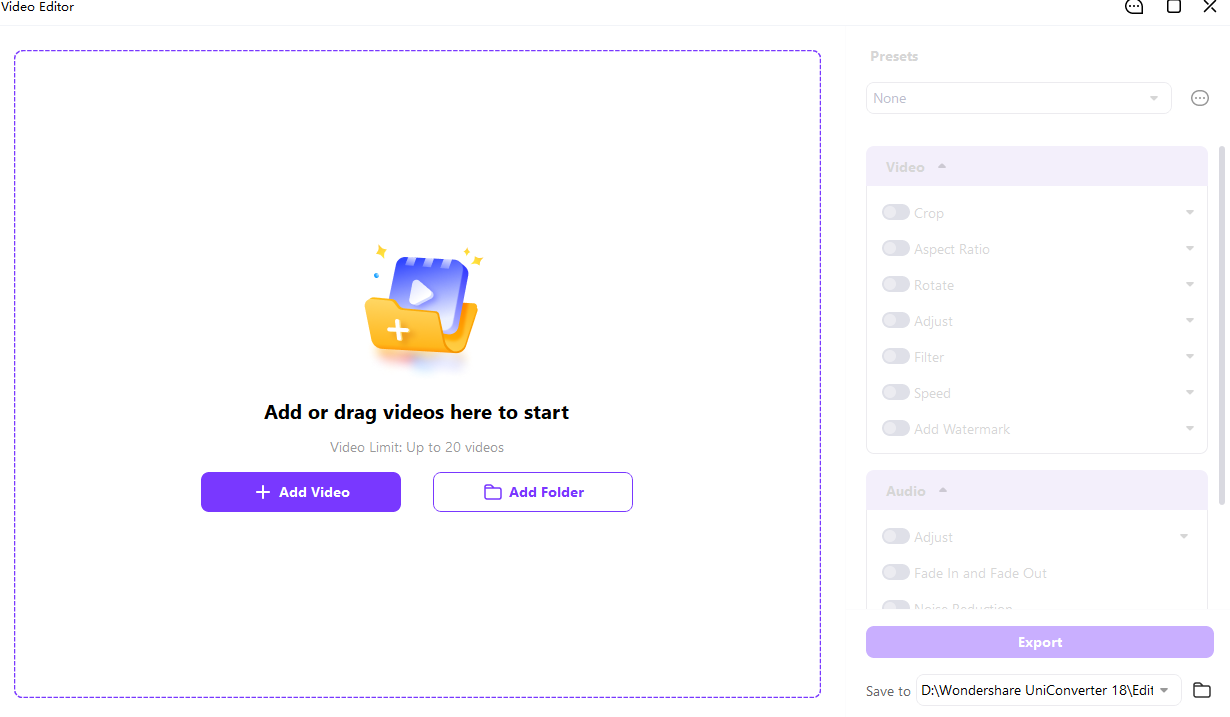
Step 1. Open Video Editor and Add Your Files
Open Video Editor in UniConverter for desktop. Choose Add Video for one or more local clips, or Add Folder to add a folder. For one video, add a single file; for a series, keep multiple clips in the same queue.
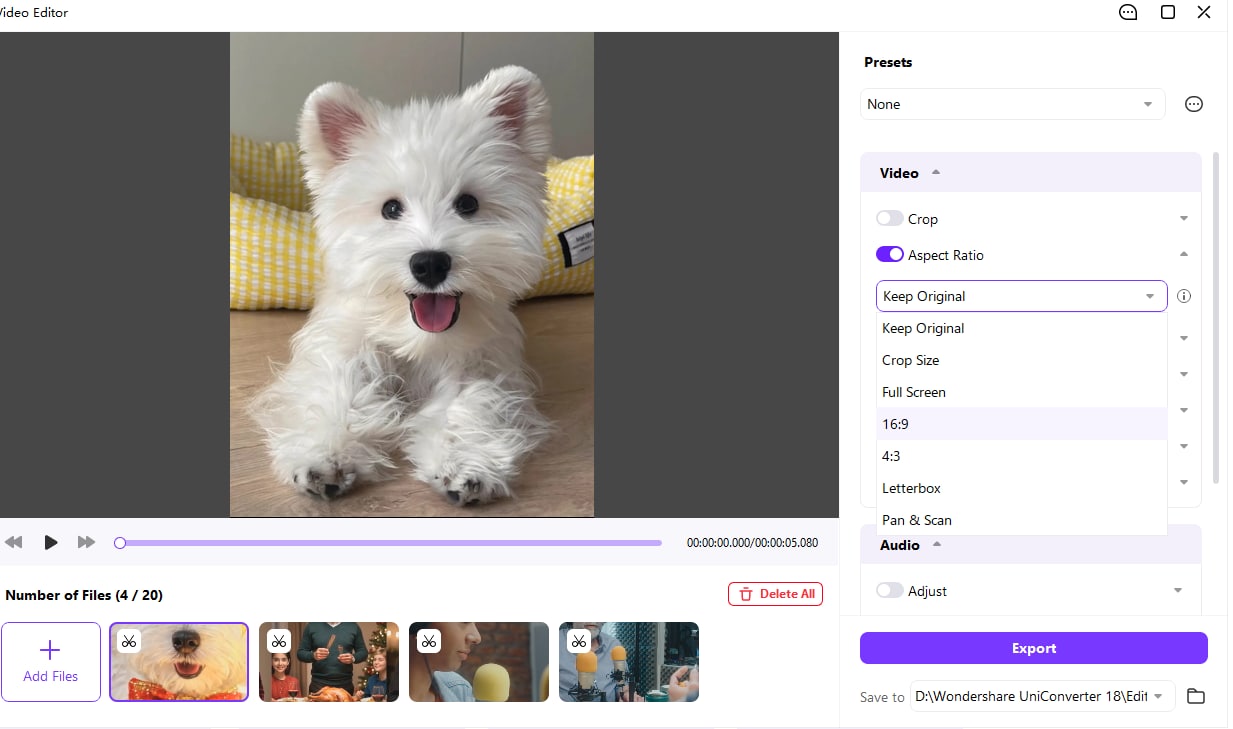
Step 2. Select the 4:3 Aspect Ratio
Select a clip, enable Aspect Ratio, and open the dropdown. Choose 4:3. Check the preview to see how the source fits; use the available crop controls when the composition needs adjustment.
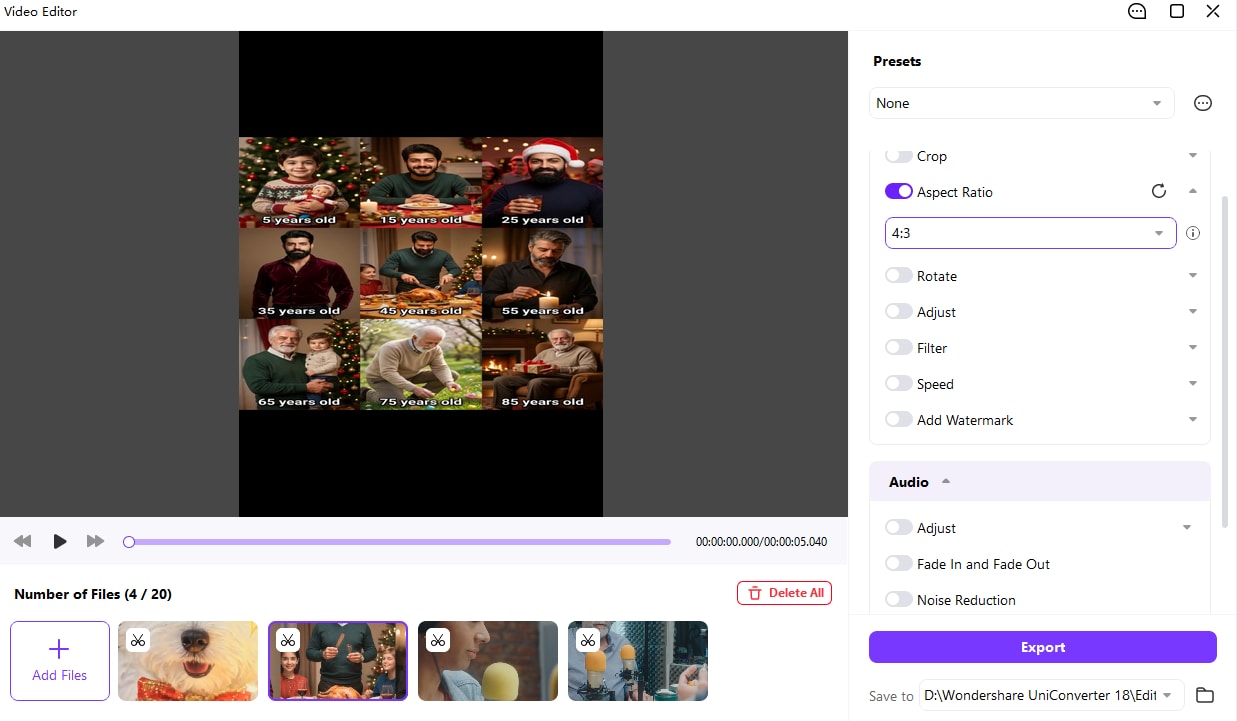
Step 3. Apply 4:3 to the Batch and Preview
If you added several videos, apply the 4:3 aspect-ratio setting to all in the Video Editor workflow. Then select thumbnails and check the actual results. Applying a shared target ratio does not guarantee that a single crop position will suit every source: a portrait clip, a widescreen interview, and a screen recording may each frame differently.
- Check that faces, products, and captions are not cut off.
- Review movement as well as the first frame.
- Look for stretching, unwanted bars, or clipped text.
Step 4. Choose the Output Folder and Export
Use Save to to choose the output location, then select Export and review the available export options. Export the prepared clip or collection. Keep your original files for future widescreen edits and verify the result before sharing.
Step 5. Set Pixel Dimensions When Needed
Choosing 4:3 changes the target shape; it does not automatically mean an output of 1440 × 1080 or any other specific pixel size. Check the export settings and finished file properties. If a separate format or resolution conversion is needed, UniConverter's Video Converter guide describes choosing available output presets. For several files, see the batch video converter.
For a detailed cropping workflow, see how to crop a video in UniConverter. If you have 4K footage and need a smaller widescreen delivery copy, our 4K to 1080p guide covers resolution choices. Recheck the aspect ratio after conversion.
Troubleshooting: Why Does My 4:3 Video Look Wrong?
| Problem | Likely reason | What to check |
|---|---|---|
| People look too wide or too narrow | The picture was stretched to a different shape | Restore the original and use crop or fit; preview proportions |
| Black bars appear | The picture and display have different ratios, or bars were encoded | Check the player and destination; preserve the full frame when the bars are expected |
| Important edges are missing | The image was cropped to fill the target | Reposition the crop or fit the full source |
| Stored dimensions appear 4:3 but the video displays wider | The file may use non-square pixels or display-aspect metadata | Inspect display ratio and pixel aspect ratio as well as dimensions |
| The exported frame is 4:3 but remains blurry | The source, scaling, or compression may limit detail | Review the source and output settings; do not expect ratio changes alone to sharpen it |
If the file is too large for its destination after editing, prepare a separate copy with the video compressor, then check the final dimensions and visual quality.
FAQs About 4:3 Resolutions
-
What are common 4:3 resolutions?
Common square-pixel 4:3 sizes include 640 × 480, 800 × 600, 1024 × 768, 1280 × 960, 1440 × 1080, and 1600 × 1200. Each reduces to a 4:3 width-to-height ratio.
-
What is the 4:3 equivalent of 1080p?
At a height of 1080 pixels, an exact square-pixel 4:3 frame is 1440 × 1080. Some video formats store non-square pixels, so check the displayed aspect ratio too.
-
Is 1280 × 1024 4:3?
No. It simplifies to 5:4. For an exact 4:3 frame that is 1280 pixels wide, use a height of 960 pixels.
-
What is a 4:3 resolution at 2160p?
2880 × 2160 is an exact 4:3 frame with a height of 2160 pixels. Standard 4K UHD, 3840 × 2160, is 16:9.
-
Can I make a 4:3 video from 16:9 without distortion?
Yes. Crop the sides to fill a 4:3 frame, or fit the full widescreen picture inside it with space above and below. Cropping removes some content; fitting retains it.
-
Can UniConverter change multiple videos to 4:3?
Yes. Add videos to desktop Video Editor and apply the 4:3 aspect-ratio setting to the batch. The shown Windows interface has a queue of up to 20 videos. Preview the clips, then export the prepared files.
-
Does 4:3 mean lower video quality?
No. 4:3 describes shape. Detail depends on the source, pixel dimensions, processing, compression, and display, not on the ratio by itself.
Use the 4:3 resolution chart to choose suitable dimensions, then preview how your original footage fits. For a collection of clips, open UniConverter's batch video workflow to prepare and export videos together.