Looking for the right 16:9 resolution for a video, presentation, or monitor? Start with the pixel chart below. Then check whether you need to change the frame's shape, the number of pixels, or both. These choices affect the final picture in different ways.
In this article
16:9 Resolution List: Common Pixel Sizes
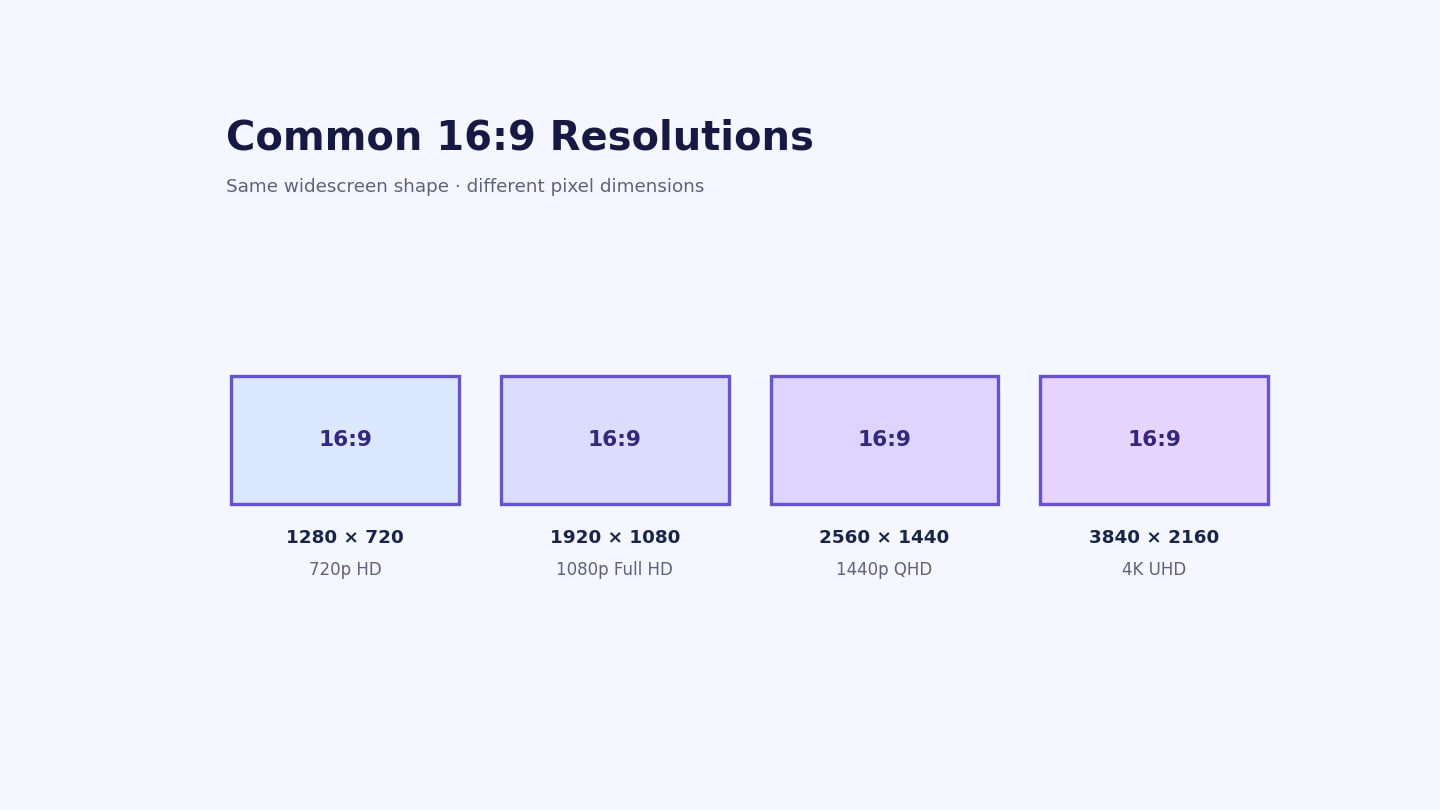
The following 16:9 resolution chart lists exact width-by-height dimensions for square pixels. All entries satisfy width ÷ height = 16 ÷ 9.
| Resolution (width × height) | Common name or description | Total pixels | Exact 16:9? |
|---|---|---|---|
| 7,680 × 4,320 | 8K UHD / 4320p | 33,177,600 | Yes |
| 5,120 × 2,880 | 5K 16:9 | 14,745,600 | Yes |
| 4,096 × 2,304 | 16:9 pixel size | 9,437,184 | Yes |
| 3,840 × 2,160 | 4K UHD / 2160p | 8,294,400 | Yes |
| 3,200 × 1,800 | QHD+ / 1800p | 5,760,000 | Yes |
| 2,880 × 1,620 | 16:9 pixel size | 4,665,600 | Yes |
| 2,560 × 1,440 | QHD / 1440p | 3,686,400 | Yes |
| 2,304 × 1,296 | 16:9 pixel size | 2,985,984 | Yes |
| 2,176 × 1,224 | 16:9 pixel size | 2,663,424 | Yes |
| 2,048 × 1,152 | QWXGA | 2,359,296 | Yes |
| 1,920 × 1,080 | Full HD / 1080p | 2,073,600 | Yes |
| 1,600 × 900 | 900p | 1,440,000 | Yes |
| 1,360 × 765 | Exact 16:9 size | 1,040,400 | Yes |
| 1,280 × 720 | HD / 720p | 921,600 | Yes |
| 1,024 × 576 | 576p widescreen | 589,824 | Yes |
| 960 × 540 | qHD / 540p | 518,400 | Yes |
| 640 × 360 | 360p | 230,400 | Yes |
| 256 × 144 | Small video preview | 36,864 | Yes |
| 160 × 90 | Small 16:9 image | 14,400 | Yes |
Common near-16:9 sizes: Some widely used display and video dimensions are rounded to whole pixels. They are useful in practice even though they do not satisfy the ratio exactly.
| Approximate size | Typical description | Exact 16:9? |
|---|---|---|
| 1366 × 768 | Common laptop display | No, approximately 1.779:1 |
| 854 × 480 | 480p widescreen video | No, approximately 1.779:1 |
| 426 × 240 | 240p widescreen video | No, approximately 1.775:1 |
For example, YouTube's video resolution guidance lists 854 × 480 and 426 × 240 for its default widescreen format. The actual frame shape can be treated as approximately 16:9 for practical use.
16:9 Aspect Ratio vs. Resolution: What Is the Difference?
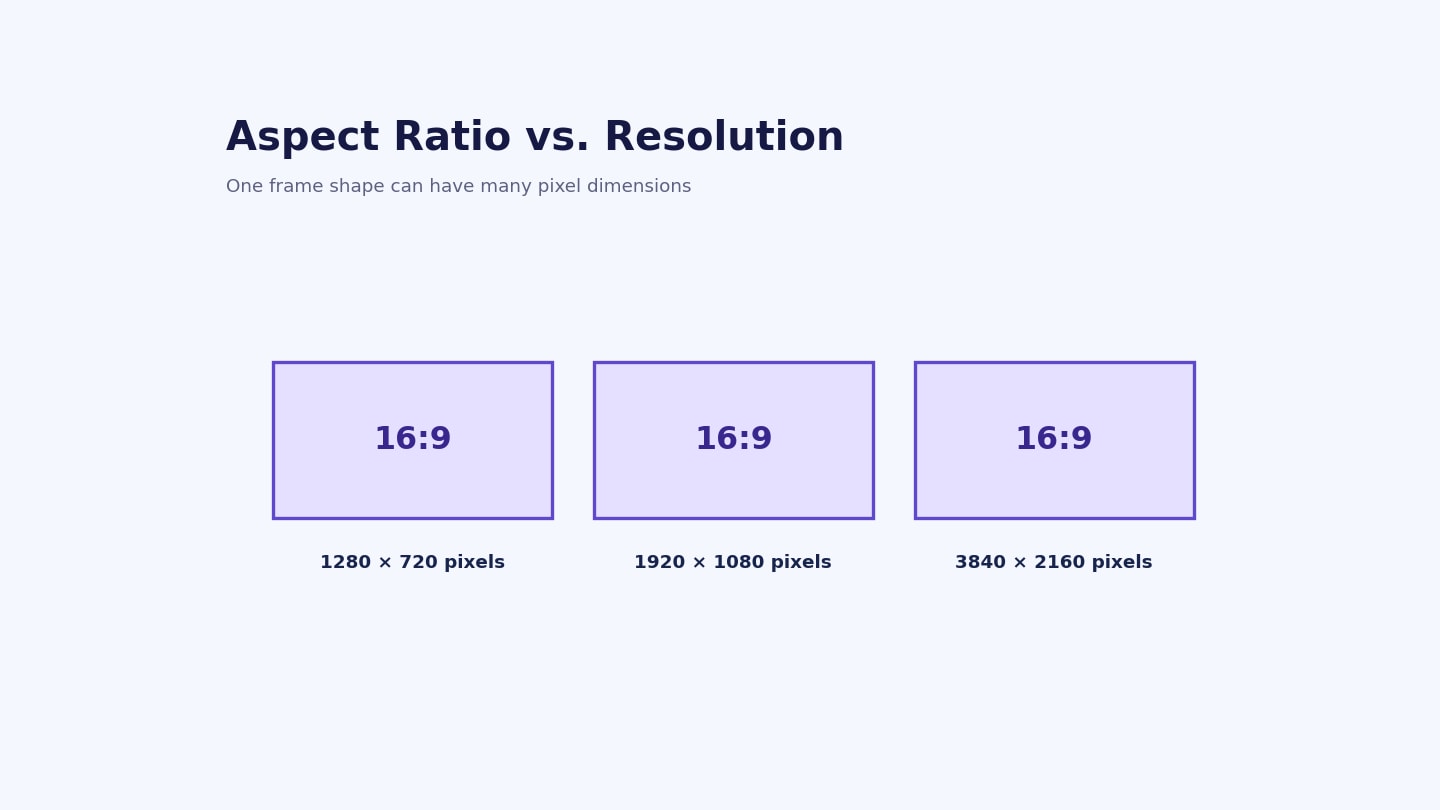
The 16:9 aspect ratio describes the width of a rectangular frame relative to its height. A frame is 16 units wide for every 9 units tall, or about 1.78 times as wide as it is high. Resolution gives the actual pixel dimensions, such as 1920 × 1080.
| Measurement | What it describes | Example |
|---|---|---|
| Aspect ratio | Frame shape | 16:9 landscape |
| Resolution | Width and height in pixels | 1920 × 1080 |
| Orientation | Whether the frame is horizontal or vertical | 1920 × 1080 landscape vs. 1080 × 1920 portrait |
For example, 1280 × 720 and 3840 × 2160 are both 16:9, but the latter has more pixels. Choosing a higher output resolution alone does not recover detail that was never captured in the source.
How to Check or Calculate 16:9 Resolution Pixels
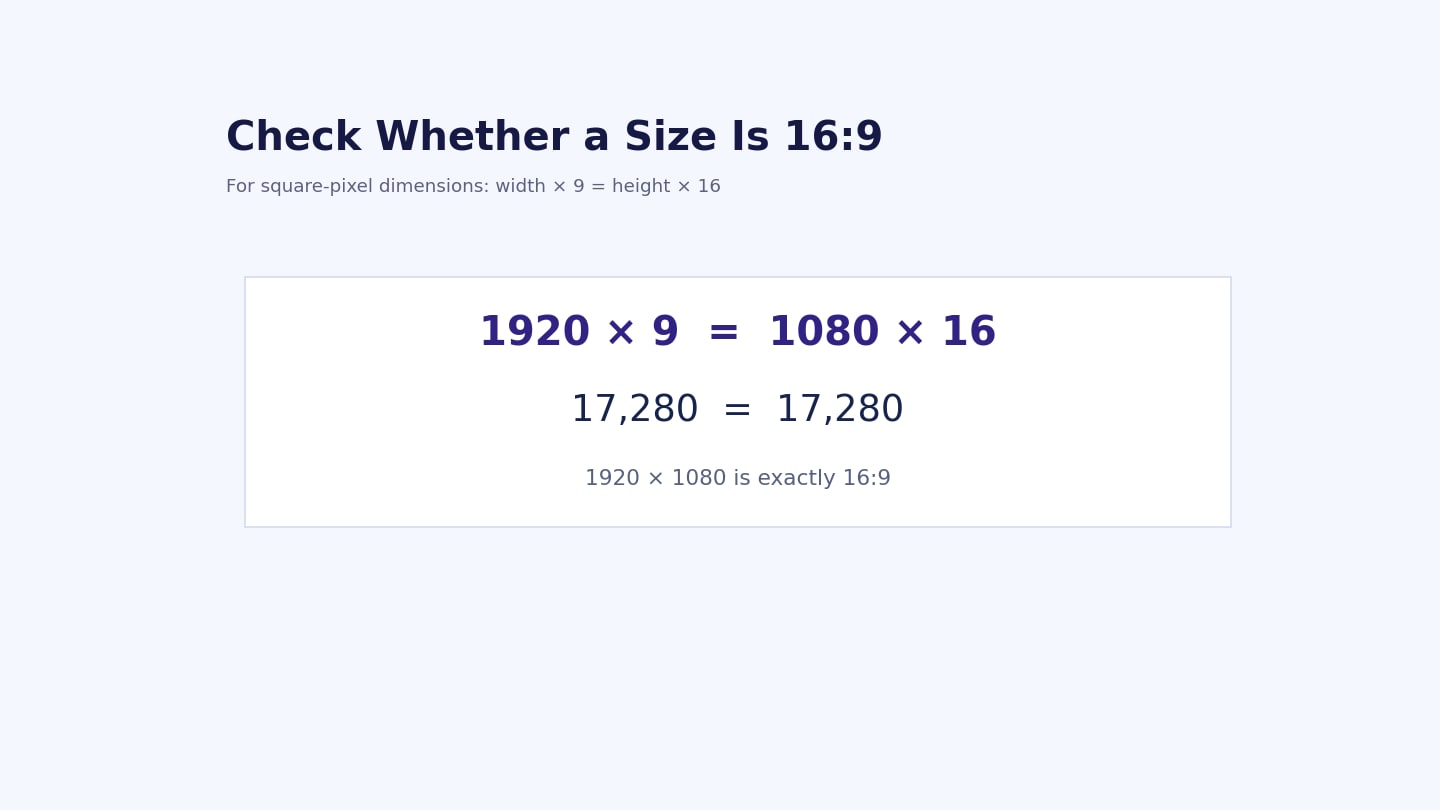
For an ordinary square-pixel file, check whether width × 9 = height × 16. For 1920 × 1080, both sides equal 17,280, so the frame is exactly 16:9. Some older video formats use non-square pixels; in those cases, the displayed aspect ratio may differ from the simple pixel-dimension calculation.
- Starting with width: height = width × 9 ÷ 16. For a width of 1920 pixels, the height is 1080 pixels.
- Starting with height: width = height × 16 ÷ 9. For a height of 720 pixels, the width is 1280 pixels.
- Need whole pixels? Use 16 × n by 9 × n, where n is a positive whole number. For example, n = 120 gives 1920 × 1080.
Why is 1366 × 768 only approximate? At a height of 768, an exact 16:9 width would be 1365⅓ pixels. A display must use whole pixels, so 1366 × 768 is a practical near-match.
16:9 vs. 4:3, 16:10, 21:9, and 9:16
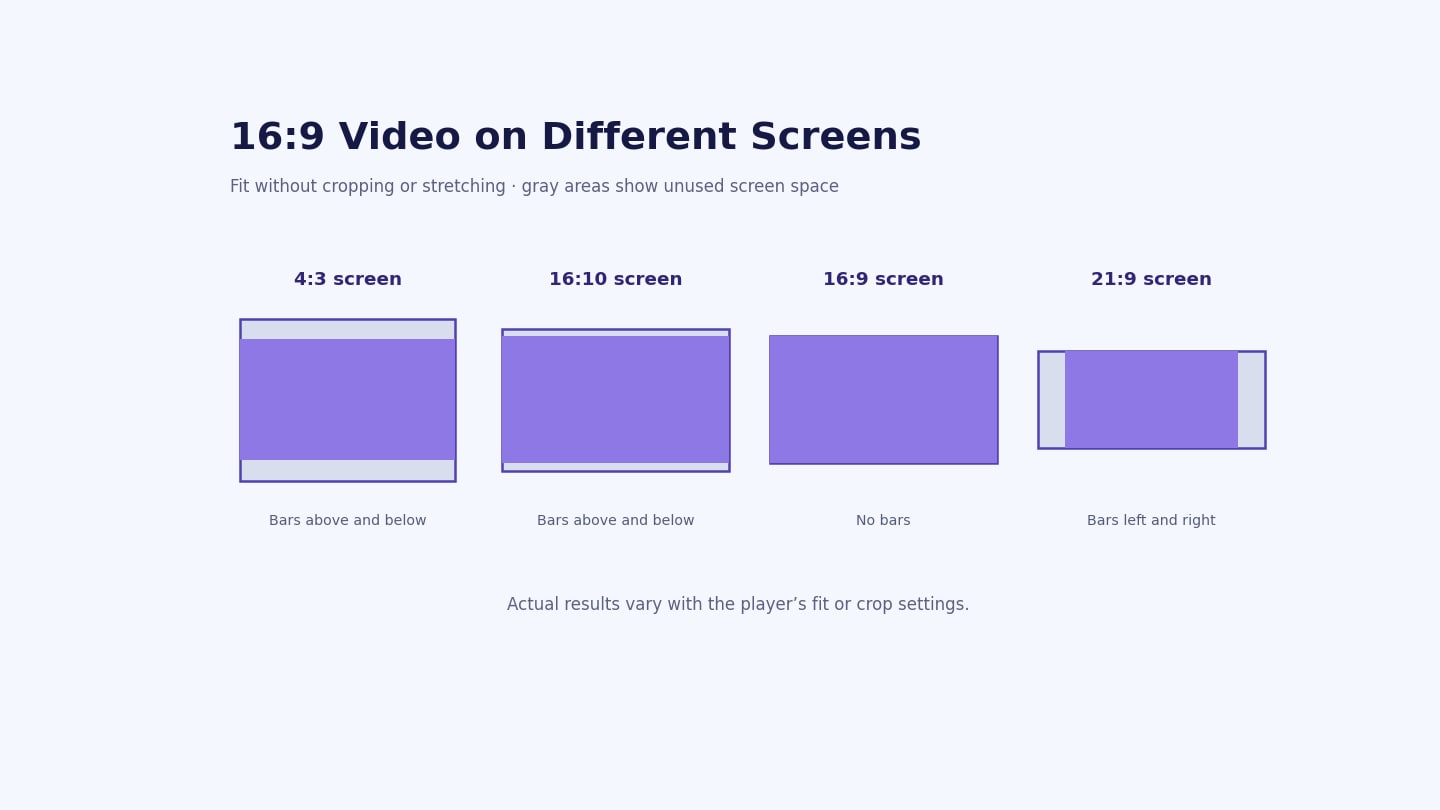
Different aspect ratios describe different frame shapes. The following comparison assumes 16:9 footage is fitted inside each screen without stretching or cropping.
| Screen ratio | Frame shape and example | 16:9 video fitted on the screen |
|---|---|---|
| 4:3 | Near-square; 1440 × 1080 | Bars above and below |
| 16:10 | Widescreen, slightly taller; 1920 × 1200 | Bars above and below |
| 16:9 | Widescreen; 1920 × 1080 | Fills the frame |
| 21:9 | Ultrawide; 2560 × 1080 is a common near-21:9 example | Bars at the left and right |
| 9:16 | Portrait; 1080 × 1920 | Space above and below when fitted without rotation |
To prepare a horizontal clip for a vertical social post, see how to resize a video for TikTok. For a different editor, our guide explains how to change the aspect ratio in iMovie.
Which 16:9 Screen or Video Resolution Should You Choose?
A 16:9 monitor resolution is normally the display's native pixel grid. For an existing monitor, use its native resolution when available. For a new video export, start with the original footage and the requirements of the destination rather than choosing the largest number by default.
| Your situation | Practical starting point | What to check |
|---|---|---|
| Standard widescreen presentation or video | 1920 × 1080 | Source clarity and the destination's requirements |
| Smaller HD file | 1280 × 720 | Whether text and small details remain legible |
| 4K UHD footage and delivery | 3840 × 2160 | Source quality, storage, and device support |
| Existing monitor | Its native display resolution | Operating-system display settings |
| Vertical social video | Check the destination first | Many vertical formats use 9:16, not 16:9 |
4K UHD vs. DCI 4K: 3840 × 2160 is exactly 16:9. The cinema-oriented 4096 × 2160 container has a different width-to-height ratio, so not every resolution called “4K” is exactly 16:9. Also, 2560 × 1440 is best labeled QHD or 1440p to avoid ambiguity around “2K.” If your source is already 4K but your project needs a smaller frame, follow our guide to converting 4K video to 1080p.
How to Change One or Multiple Videos to 16:9
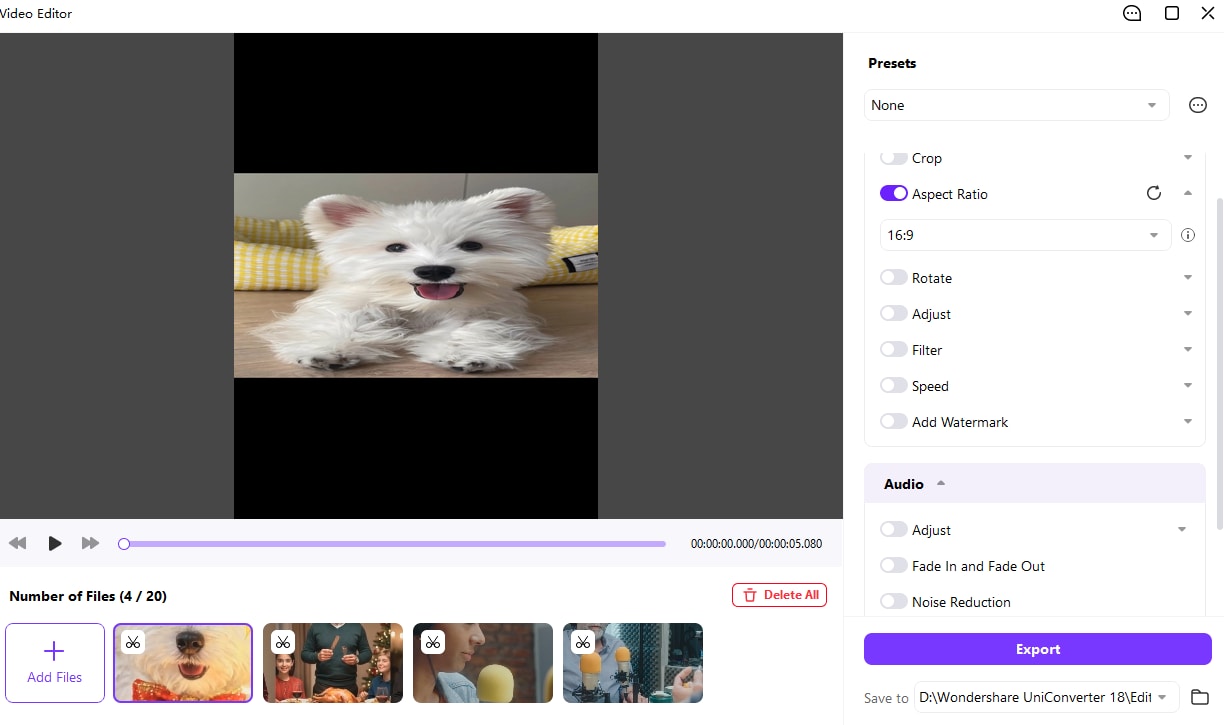
If your video is already widescreen, you may only need to choose a suitable output resolution. If it is square, vertical, or 4:3, first decide how the image should fit a 16:9 frame. UniConverter's desktop Video Editor supports one video as well as a batch: add multiple files, apply the 16:9 aspect-ratio setting to all of them, preview the result, and export the prepared videos together. This is useful for a series of product clips, lessons, or recordings that need a consistent widescreen layout.
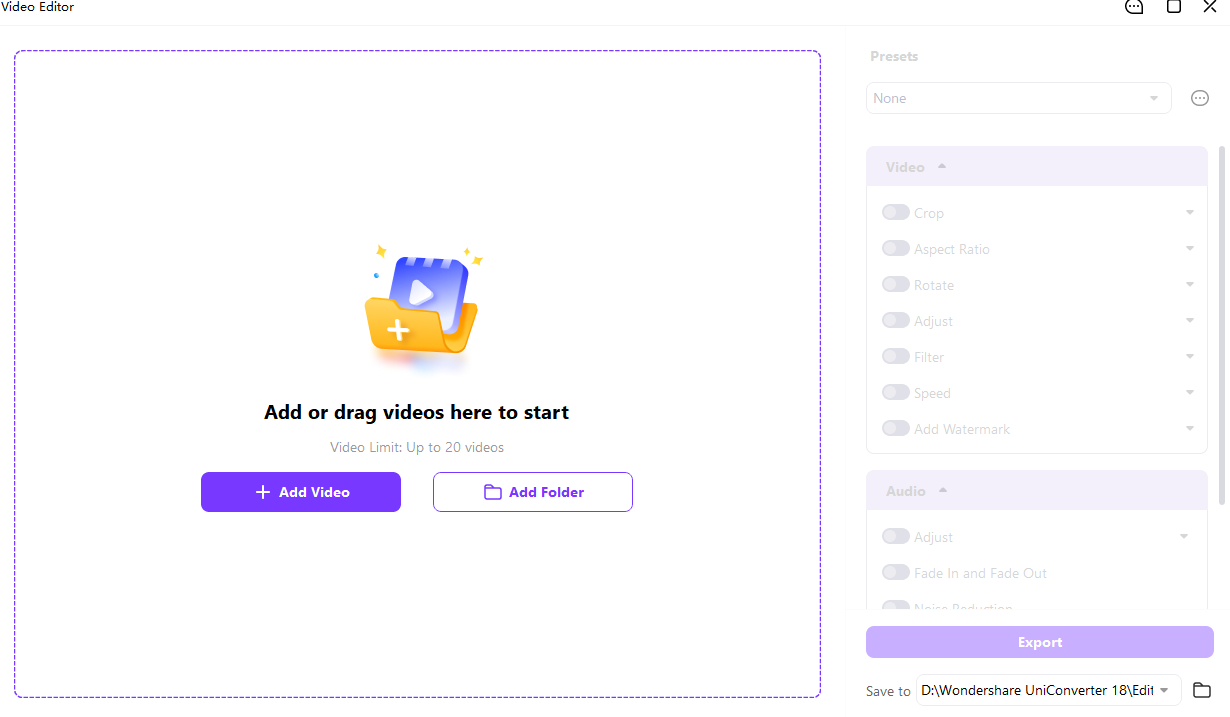
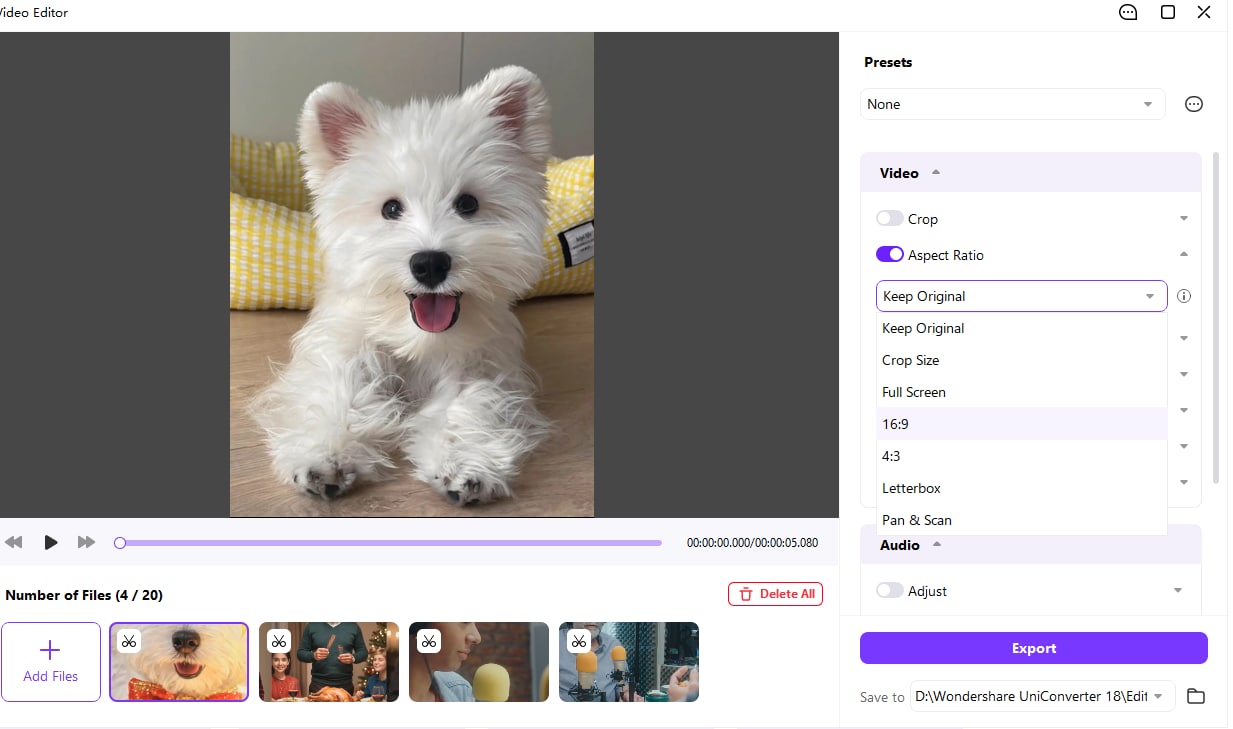
The interface you use may differ by version. UniConverter screen shown below displays a queue limit of up to 20 videos, plus Add Video, Add Folder, and an Aspect Ratio menu with a 16:9 option.
Choose How the Original Picture Fits
| Approach | Result | Trade-off |
|---|---|---|
| Crop to fill | The picture fills the 16:9 frame | Some of the original image is removed |
| Fit with padding | The entire original frame remains visible | Empty bars may appear around it |
| Stretch | The original is forced to fill the new shape | People and objects can look distorted |
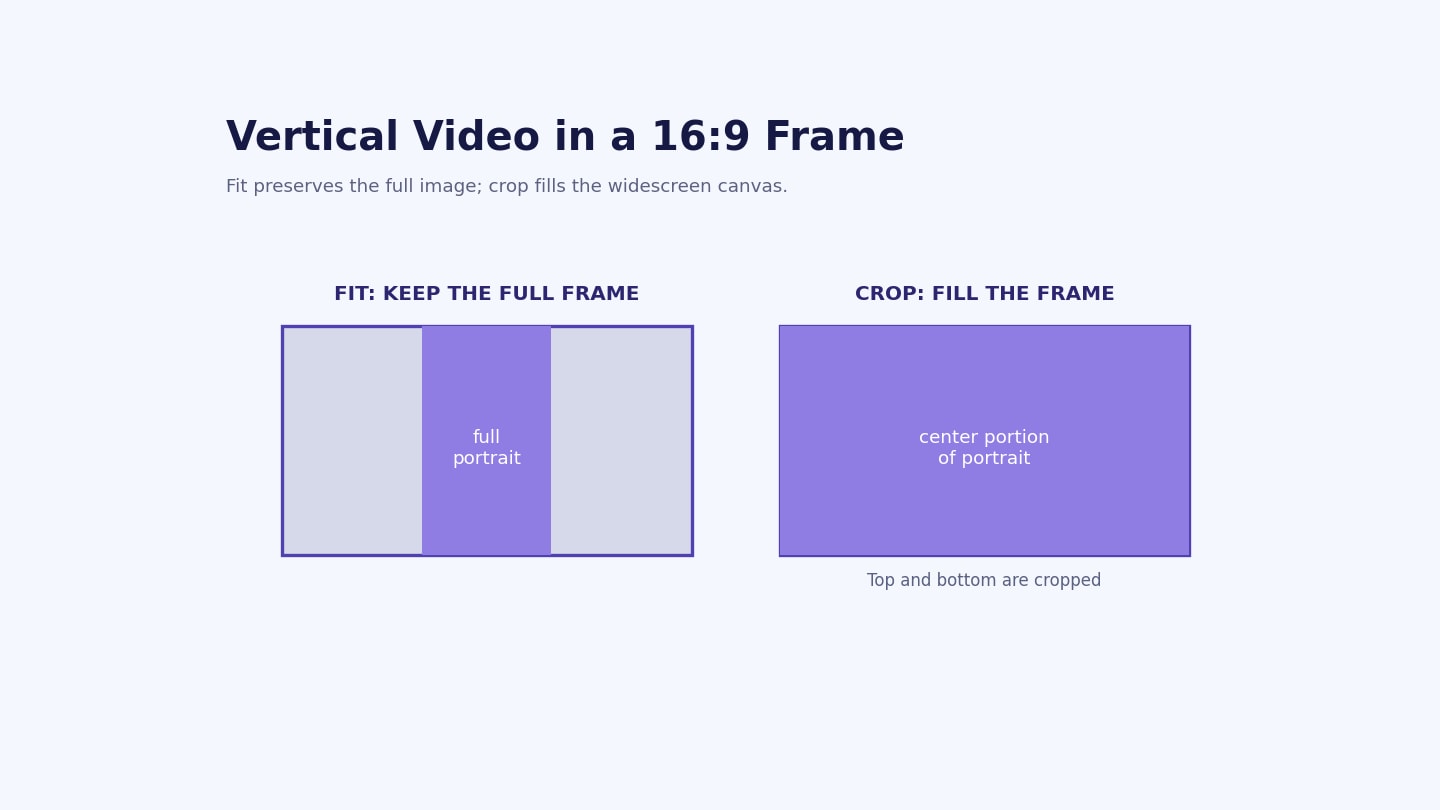
For example, a square video can fit inside a 16:9 frame with bars on the sides. Filling the frame instead requires cropping part of the square image. Preview the subject and any on-screen text before deciding.
Step 1. Add One Video or a Folder
Open Video Editor in UniConverter for desktop. Click Add Video to choose one or more files, or Add Folder to select a folder. The shown interface allows up to 20 videos in the list. For a single video, simply add one file.
Step 2. Select a Clip and Choose 16:9
Select a video in the file list. Turn on Aspect Ratio, open the dropdown, and choose 16:9. Check the preview for stretched subjects, missing edges, or unwanted bars. Use the available crop controls when you need to adjust the framing; the best crop depends on the source.
Step 3. Apply the 16:9 Setting to All Videos
For a batch, apply the selected 16:9 aspect-ratio setting to all videos in the queue. You can therefore prepare one clip or standardize the ratio across several clips in one workflow. Then select thumbnails and preview the result: mixed portrait, square, and landscape sources may need different framing even when they share the same target ratio.
- Keep faces, products, captions, and important screen content inside the frame.
- Review the beginning and other important moments where the subject moves.
- Keep a separate original if you may need another aspect ratio later.
Step 4. Choose the Save Location and Export
Use Save to to choose an output folder. Click Export, review the available export options, and export the prepared video or videos. For a batch, check a selection of finished files—especially clips with different original shapes—to make sure that the picture, text, and proportions look right.
Screenshot to insert: UniConverter Video Editor's actual multi-video export screen, showing the selected export scope and destination.
Step 5. Set the Pixel Resolution When Needed
Choosing 16:9 sets the intended frame shape; it does not by itself specify 1920 × 1080 or 3840 × 2160. If you need a particular pixel size, check the available export settings and the finished file's properties. For a separate conversion step, UniConverter's Video Converter guide describes choosing an available output format and resolution preset. For multiple files with the same format and size requirements, use the batch video converter, then check the exported dimensions.
Screenshot to insert: the actual Converter output-format and resolution-preset menu.
Check Your 16:9 Video Before Sharing
Open a finished file and inspect its width and height in your player or file properties. Check that the subject looks natural, the important edges remain visible, and any padding is intentional. For a batch, sample files from different source orientations and review every important clip rather than assuming that one preview represents the whole queue.
If the exported size is correct but the picture still looks soft, the cause may be the original footage, compression, or scaling. Upscaling adds pixels; it does not guarantee that lost detail can be recovered. If the destination has a file-size limit, compress a delivery copy and check the result again.
FAQs About 16:9 Resolutions
-
What resolution is 16:9?
16:9 can describe many resolutions. Common square-pixel examples include 1280 × 720, 1920 × 1080, 2560 × 1440, and 3840 × 2160. Each has a width-to-height ratio of 16:9.
-
Is 1920 × 1080 the same as 16:9?
1920 × 1080 is a 16:9 resolution, commonly called 1080p Full HD. However, 16:9 also includes other pixel sizes, such as 1280 × 720 and 3840 × 2160.
-
Is 1366 × 768 a 16:9 display resolution?
It is commonly grouped with 16:9 displays, but its pixel dimensions are only approximately 16:9. If you need exact whole-pixel dimensions, choose a size such as 1280 × 720 or 1600 × 900 instead.
-
Is 1080 × 1920 a 16:9 resolution?
No. With square pixels, 1080 × 1920 is 9:16, the vertical counterpart of 1920 × 1080. Both contain the same number of pixels, but their orientations differ.
-
Does changing a video to 16:9 improve its quality?
Changing the ratio changes the frame shape. It does not automatically improve sharpness. Cropping can remove parts of the image, while stretching can distort it.
-
Can I change multiple videos to 16:9 at once?
Yes. Add multiple videos to UniConverter's desktop Video Editor and apply the 16:9 setting to the whole batch. The Windows interface shown supports up to 20 videos in the queue. Preview the clips before exporting, especially when the sources have different shapes.
-
What 16:9 resolution should I choose for YouTube?
For a widescreen video, 1920 × 1080 is a practical Full HD option; 3840 × 2160 is a 4K UHD option when your source and delivery needs justify it. YouTube adapts its player to different video shapes and recommends avoiding baked-in black bars. Check the current platform guidance before exporting.
-
How do I convert 4:3 video to 16:9 without distortion?
Fit the full 4:3 image inside a 16:9 frame with side padding, or crop the top and bottom to fill the wider frame. Preview the result before exporting; stretching changes the apparent shape of objects.
Use the chart to choose a 16:9 resolution, check the original video, and review each finished file before sharing. When several clips need the same widescreen destination, prepare them together in UniConverter Video Editor and apply the 16:9 setting across the batch. Preview the framing of each source before export.