


Adobe Premiere Pro is the professional video editing tool in 2026, but its steep learning curve and subscription-only pricing make it a poor fit for every creator. If you need multicam editing, precise color grading, and a motion graphics pipeline for film or broadcast work, it's worth the cost. If you mainly create social media videos, YouTube content, or also want to get other tools like compression, conversions, and captions, paying a monthly fee for power you will rarely use.
This Adobe Premiere Pro review breaks down what it does well, its cost, and five alternatives worth considering if the pricing and complexity are the pain points.
Part 1: What Is Adobe Premiere Pro and Who Is It For?
Adobe Premiere Pro is Adobe's professional nonlinear video editor for film, TV, and the web, used to cut everything from YouTube videos to Oscar-winning features. It runs on Windows and Mac as part of Adobe Creative Cloud, with deep integrations with After Effects, Audition, and Frame.io.
Adobe Premiere Pro fits professional editors, agencies, and serious creators who need precise control, multicam color grading, and a pipeline into motion graphics. For a casual creator making short social clips, the depth and the monthly fee usually run past what the work requires, which is where the alternatives come in.
Part 2: How Much Does Adobe Premiere Pro Cost in 2026?
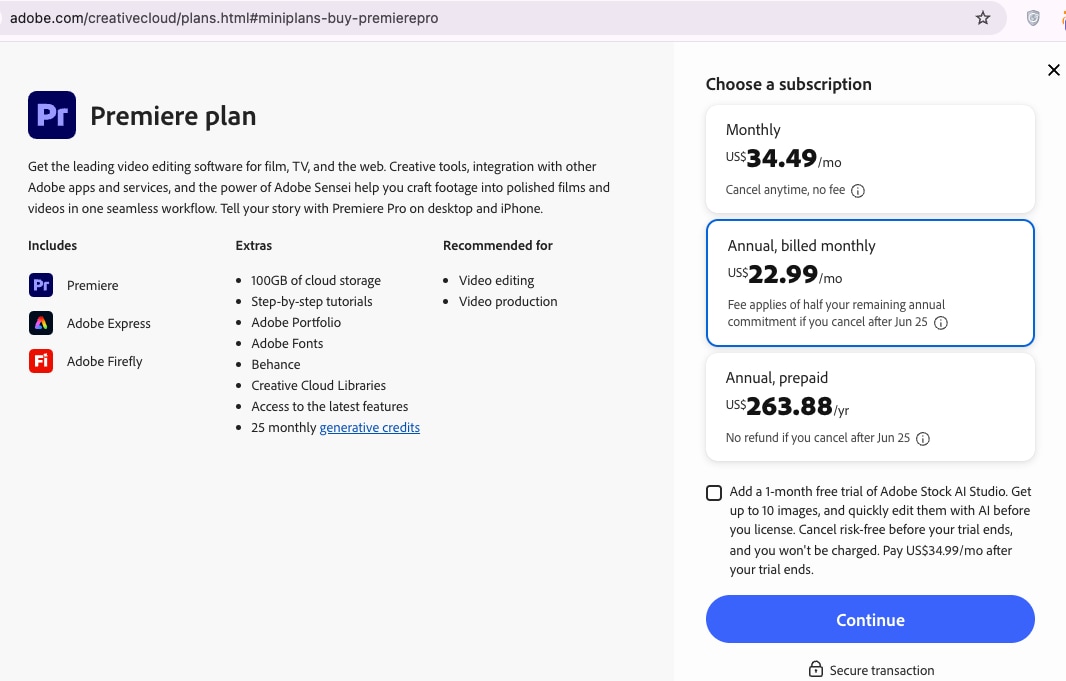
Adobe sells Premiere Pro as a single-app subscription with no permanent license option. The single app costs US$22.99 per month on the annual plan billed monthly, US$34.49 per month on the month-to-month plan, or US$263.88 prepaid for a full year. Every tier includes Premiere, Adobe Express, Adobe Firefly, 100GB of cloud storage, Adobe Fonts, and 25 monthly generative credits. A separate Creative Cloud All Apps plan adds After Effects, Photoshop, and the rest of the suite at a higher price.
| Adobe Premiere Pro Plan | Price | What's Included | Best for |
| Annual, billed monthly | US$22.99/mo | Premiere, Adobe Express, Firefly, 100GB cloud, Adobe Fonts, 25 generative credits/mo | Most editors commit for a year |
| Monthly | US$34.49/mo | Same inclusions as the annual plan | Short projects, cancel anytime |
| Annual, prepaid | US$263.88/yr | Same inclusions, paid once upfront | The lowest yearly cost |
Part 3: What Are Adobe Premiere Pro's Standout Features?
Premiere Pro carries a deep feature set, and a handful of tools explain why it stays the professional standard. These are the ones that do the most work day to day.
Timeline editing
Premiere's multi-track timeline is where the work happens. Editors stack video and audio across unlimited tracks, trim with ripple and rolling edits, nest sequences, and keyframe any property for precise motion and audio control. The timeline reads most professional formats natively, including 10-bit 4:2:2 and ProRes, and the 2026 release runs natively on Windows on ARM while accelerating playback on the latest NVIDIA GPUs.
Multicam
Multicam editing syncs footage from several cameras by timecode, audio, or markers, then lets an editor switch angles live during playback. For interviews, events, and music videos shot from multiple positions, this turns hours of manual syncing into a single setup, with every angle still available for fine cuts later.
Color grading
The Lumetri Color panel covers primary and secondary grading, color wheels, curves, HSL keys, and LUTs, with scopes for accurate readings. Auto Tone Map maps HDR and Log footage to a consistent look without manual LUT juggling, which keeps mixed-source projects even. The depth here extends to broadcast and film work, not just quick social color correction.
AI tools like Text-Based Editing and Enhanced Speech
Premiere's AI tools run on Adobe Firefly and train without using a user's media, keeping them safe for commercial use. Text-Based Editing transcribes a clip and lets an editor cut by deleting words from the transcript, with a one-pass bulk removal of filler words. Enhance Speech cleans noisy dialogue to near-studio clarity, now processed locally on the GPU, and Generative Extend adds a few frames to the start or end of a clip to fix timing. Media Intelligence searches visuals, transcripts, and metadata across terabytes of footage in seconds.
Integration with After Effects
Dynamic Link connects Premiere to After Effects, so a composition opens, updates, and renders between the two apps with no file export in between. For motion graphics, titles, and visual effects, this pipeline is a core reason studios standardize on Adobe, and it extends to Audition for audio and Frame.io for review and approval.
Part 4: How Do You Get Started with Adobe Premiere Pro?
Premiere Pro looks dense, yet a first edit comes down to four moves: start a project, import footage, build a timeline, and open the effects. Here is the path from a blank screen to a working edit.
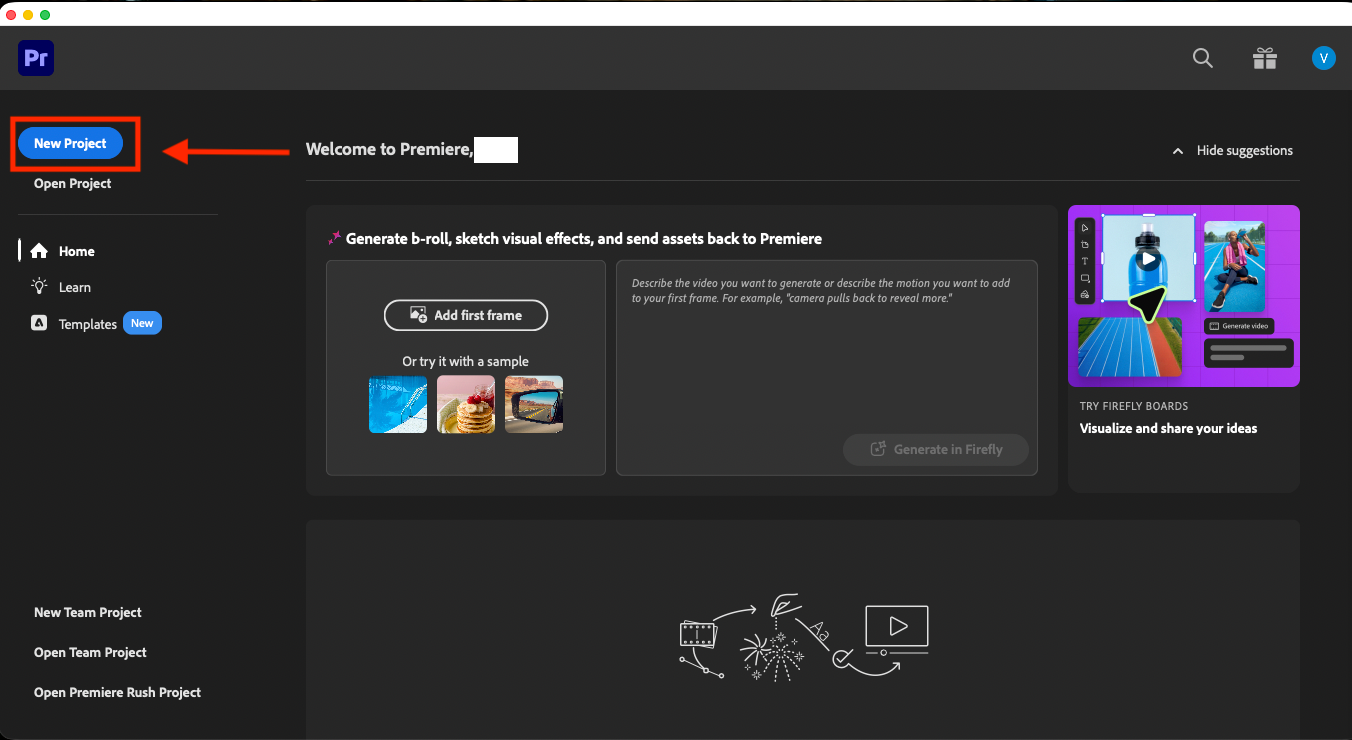
Step 1: Open Premiere and click New Project on the Home screen, then name the project and pick a save location.
Step 2: Choose File > Import, or press Cmd or Ctrl + I, then select the clips to bring into the project.
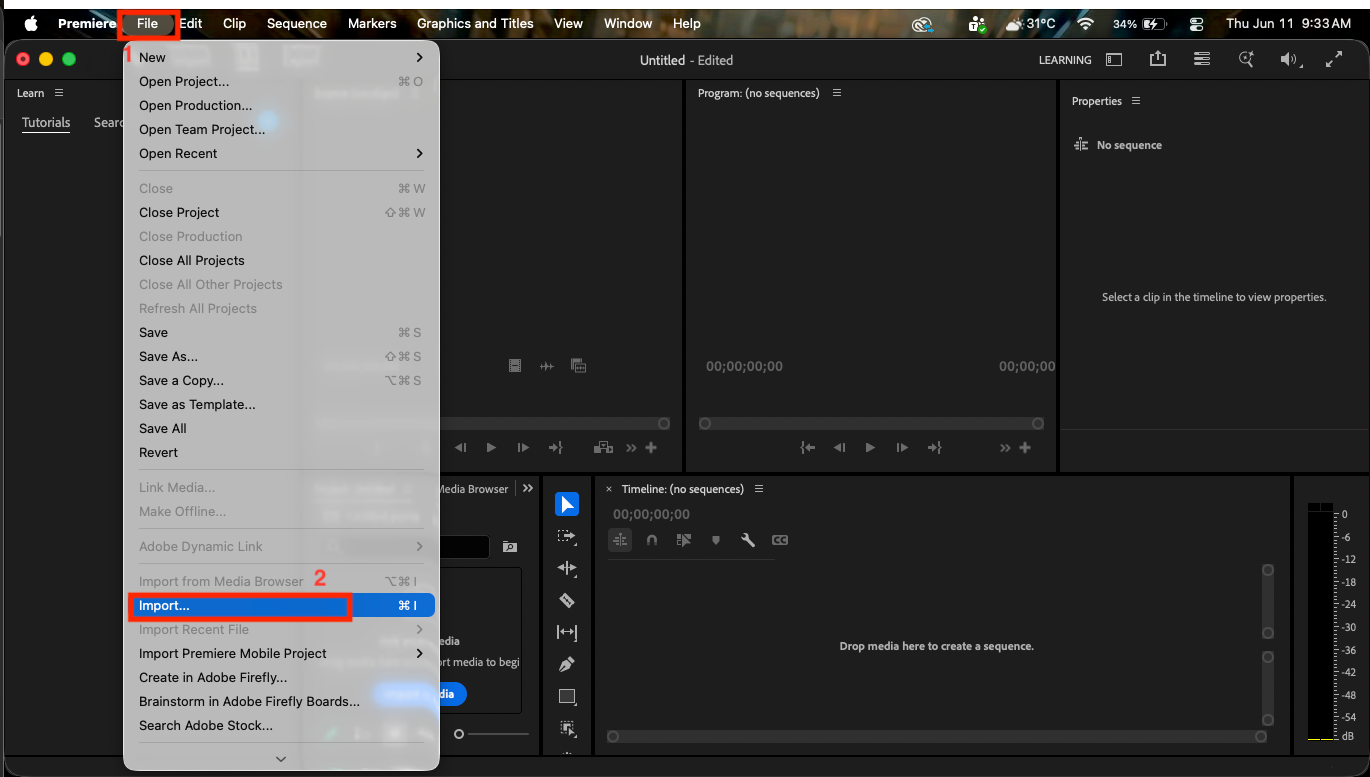
Step 3: Drag a clip from the project panel onto the timeline to create a sequence, with video on the V tracks and audio on the A tracks below.
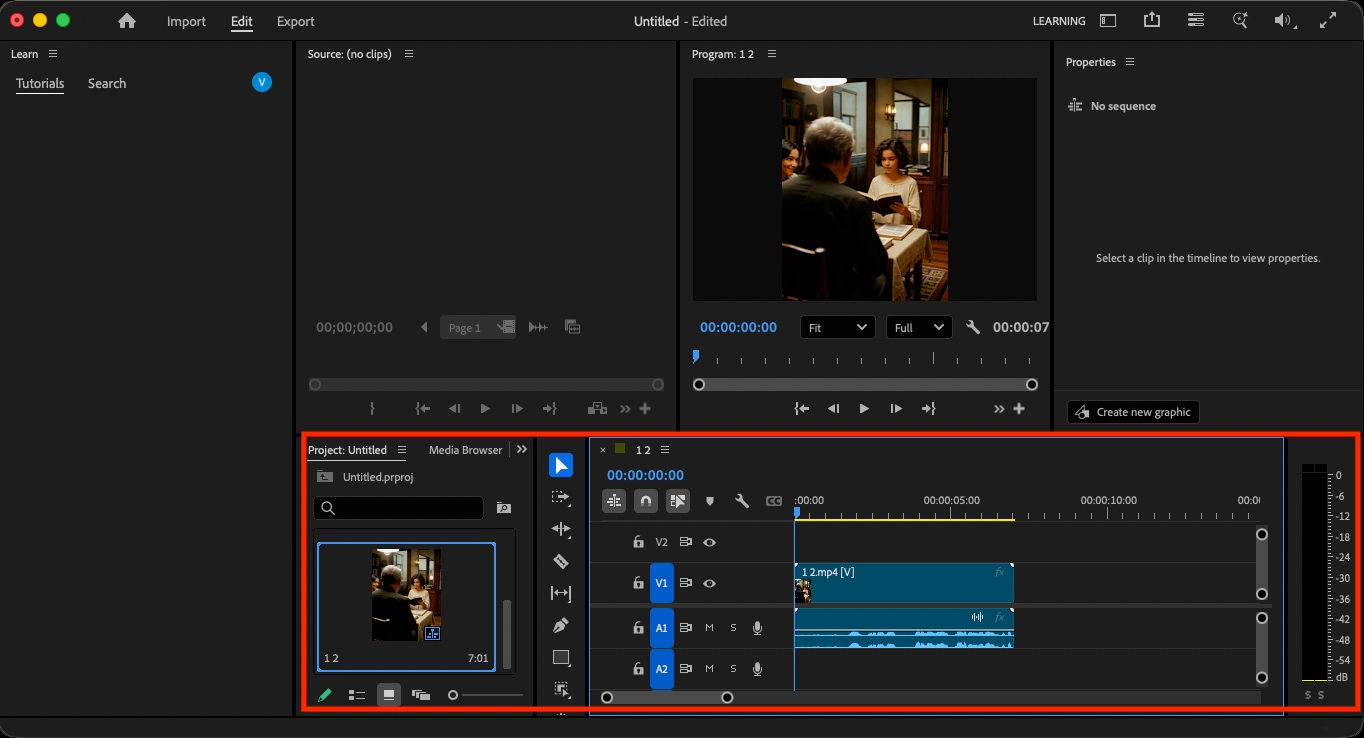
Step 4: Choose Window, then Effects to open the panel where transitions, color tools, and stabilization live.
How Do You Stabilize Video in Adobe Premiere Pro?
Shaky footage is one of the most common fixes editors reach for, and Adobe Premiere Pro stabilizes video with the built-in Warp Stabilizer effect. Five steps smooth out a handheld clip.
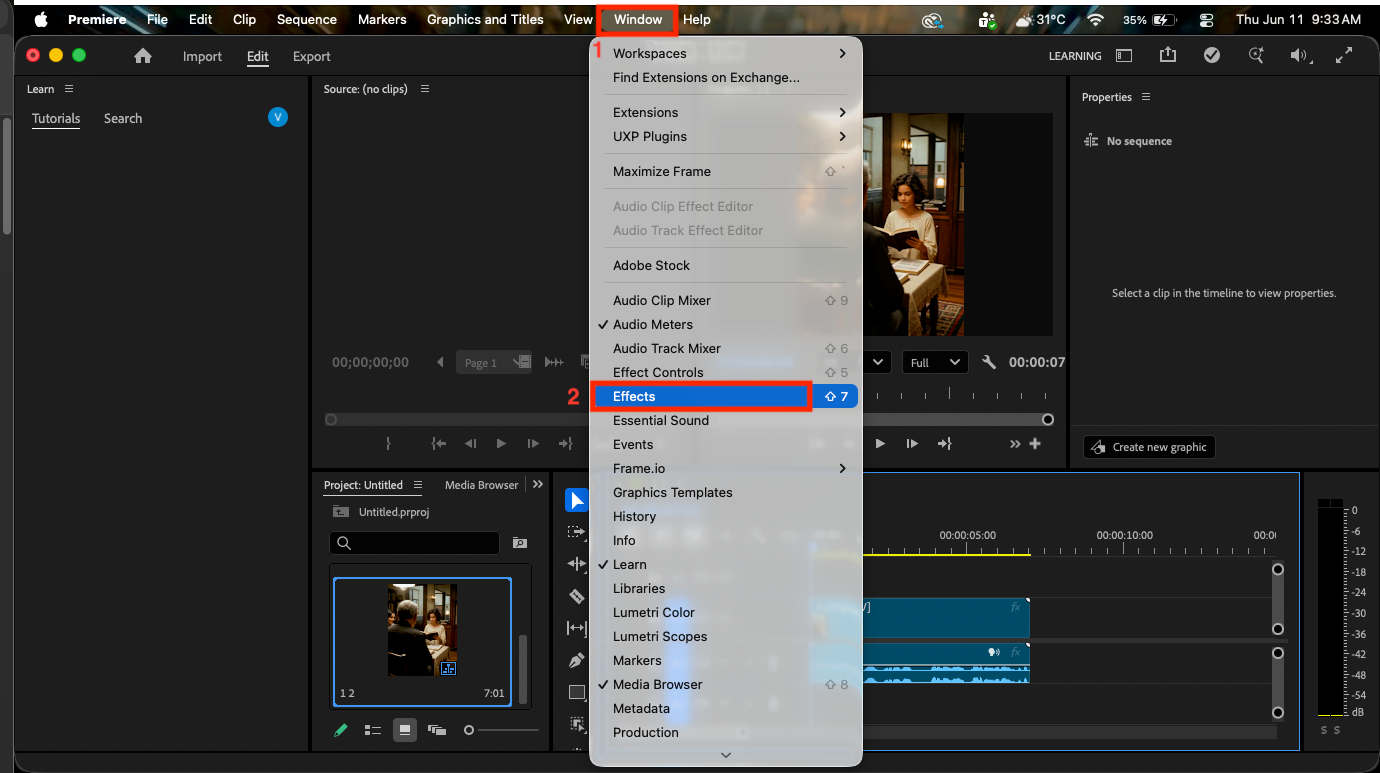
Step 1: Choose Window > Effects to open the Effects browser.
Step 2: Type warp into the search box, then open Video Effects, then Distort to reveal the Warp Stabilizer effect.
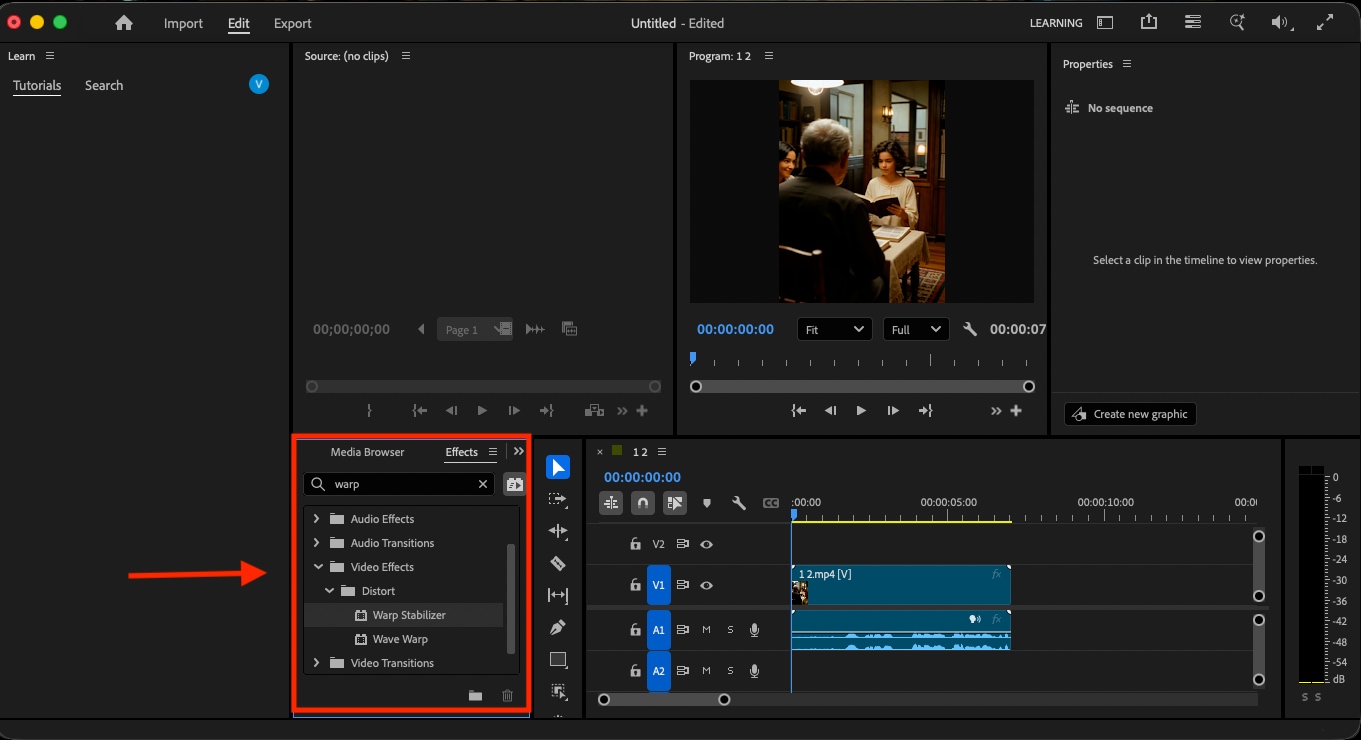
Step 3: Drag Warp Stabilizer directly onto the shaky clip in the timeline.
Step 4: A blue banner labeled "Analyzing" appears in the background, and the clip stabilizes automatically once the analysis finishes.
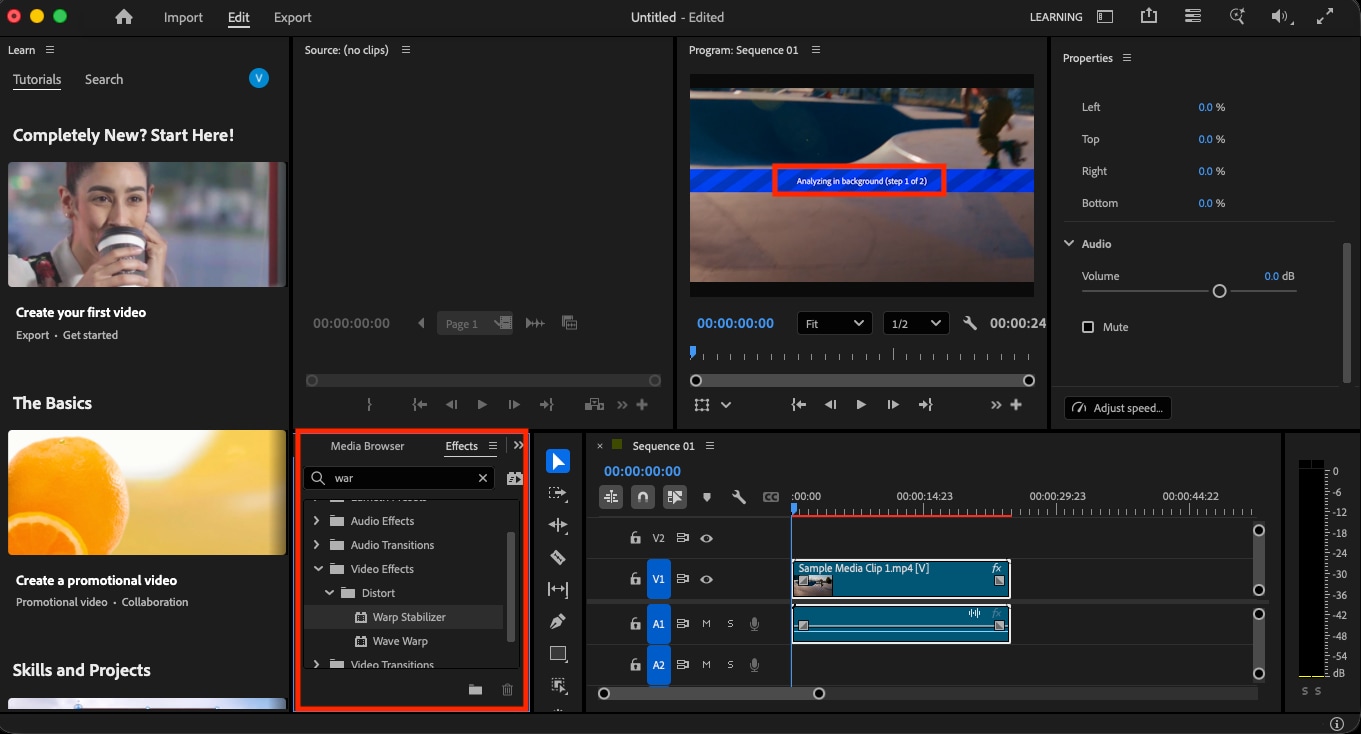
Step 5: Open Effect Controls and adjust Smoothness, or switch the method to Position if the footage warps too much.
Part 5: 5 Adobe Premiere Pro Alternatives
Premiere Pro is built for professional finishing, while its subscription and learning curve push many creators toward simpler or cheaper tools. Among these five alternatives, each covers a different need, starting with the most flexible all-rounder.
Wondershare UniConverter
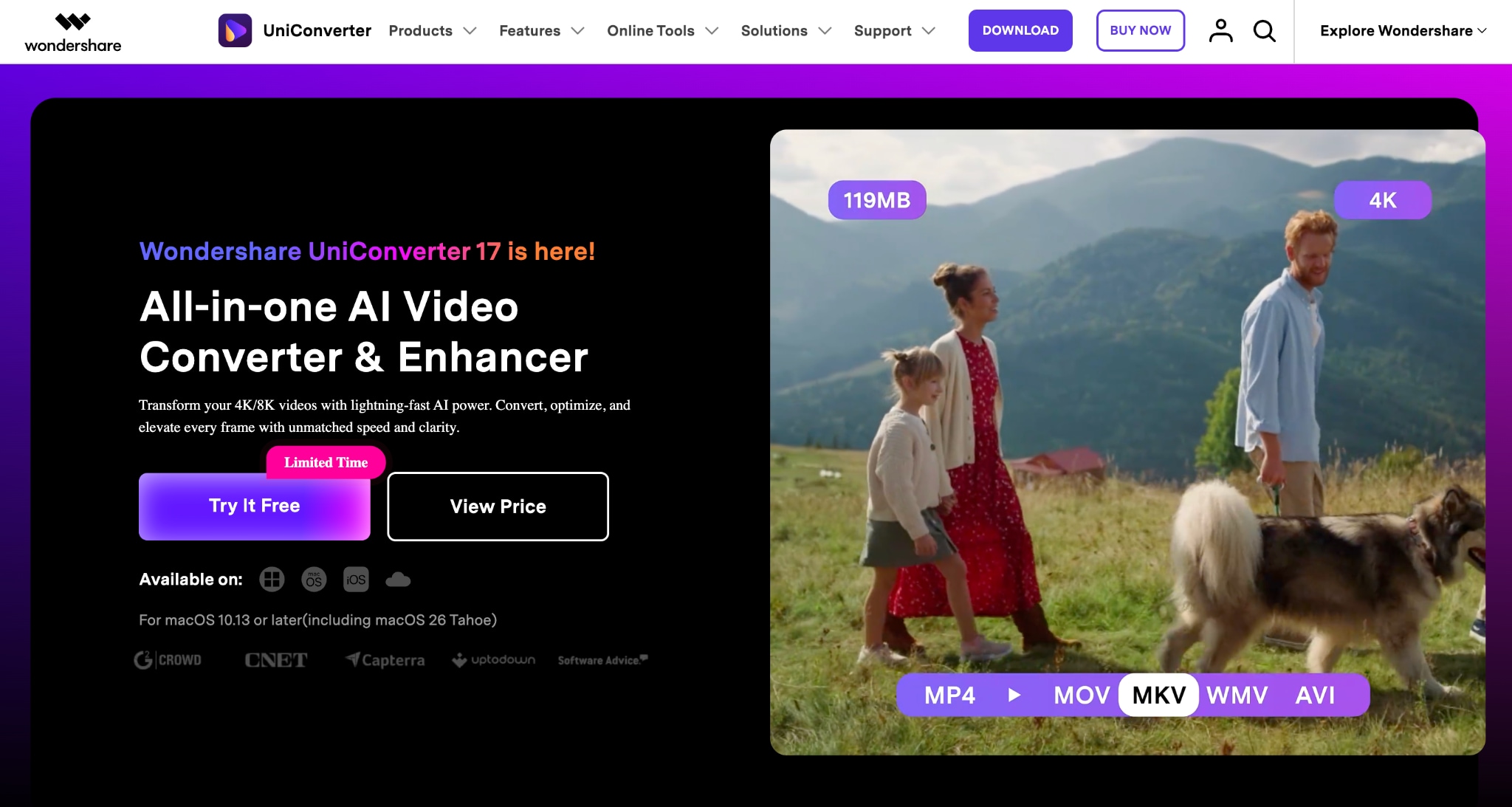

All-in-One Multimedia Processing Tool

If Adobe's monthly subscription and steep learning curve are the two things pushing you away, UniConverter solves both. You get AI-powered compression, conversion, enhancement, and subtitle generation in one place, with a one-time license option and no panels to learn. It is the practical pick for YouTubers, educators, and marketers who want clean, polished output without managing a full professional edit suite.
Key Features
Converts footage across 1,000+ formats with AI that automatically recommends the best format for your use case, at speeds up to 130x faster than standard conversion.
Compresses video files by up to 90% with AI that automatically selects the best compression mode, freeing up storage without noticeable quality loss.
Records screen, app windows, online meetings, and streaming video up to 4K at 120 FPS with 320 kbps audio, all without a separate recording tool.
Generates and translates subtitles in 145+ languages with fully editable bilingual captions, plus a Video Summarizer that condenses long content into accurate recaps.
DaVinci Resolve
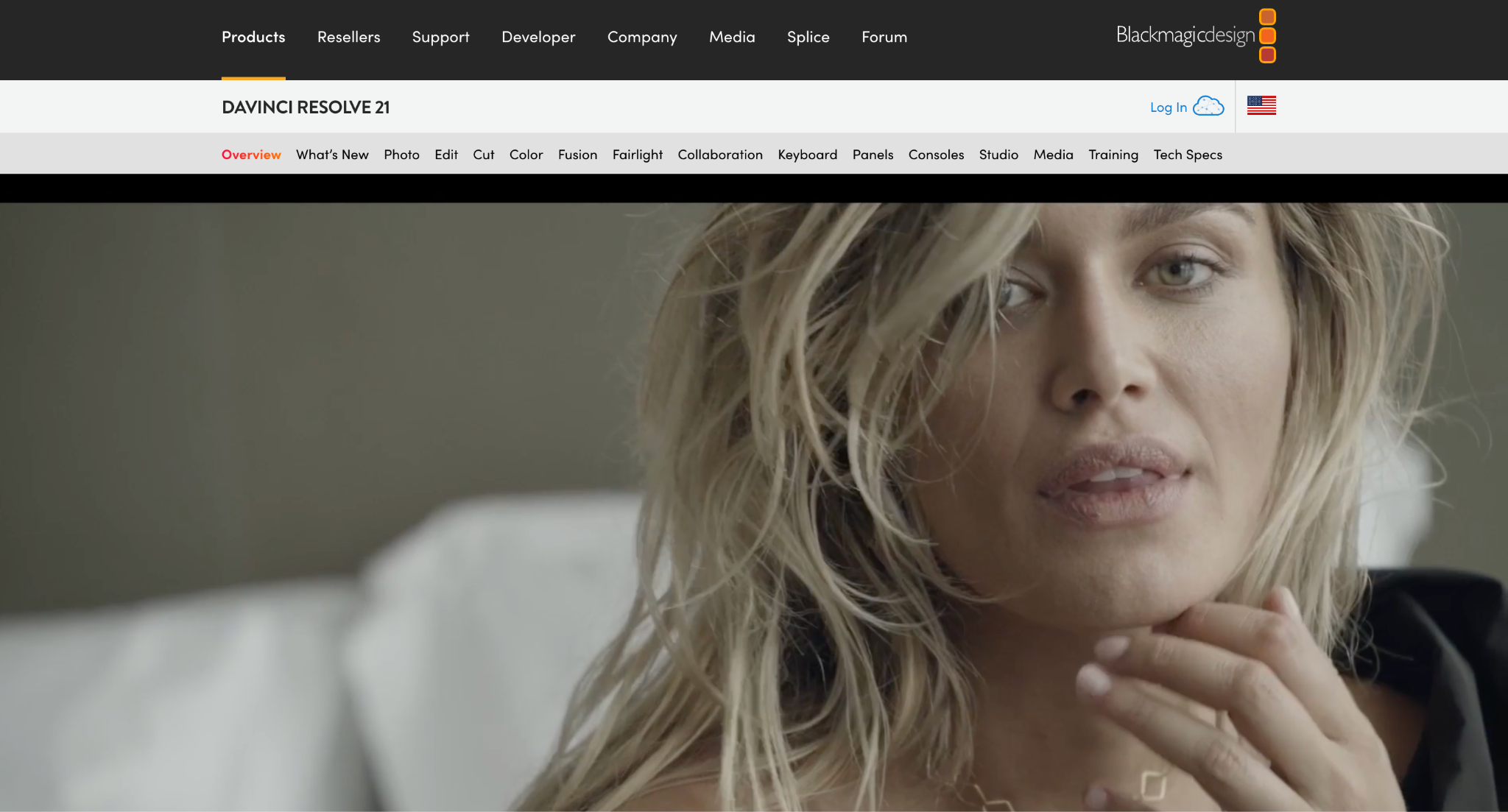
While Adobe charges you every month and never converts to ownership, DaVinci Resolve's free version gives you professional editing and industry-standard color grading at no cost, with no watermark or time limit. The Studio license is a single one-time payment. If color accuracy and professional finishing matter, but a recurring fee does not fit your budget, this is the closest like-for-like Premiere alternative available.
Key Features
Combines editing, color grading, motion graphics, and audio post-production in one unified workspace across six dedicated pages.
Delivers film-level color grading controls used in feature film and broadcast production.
Handles 4K and 8K footage smoothly with no gating in the free version, even in core editing tools.
Adds AI-powered SuperScale upscaling and advanced noise reduction through the DaVinci Neural Engine in Studio.
Final Cut Pro
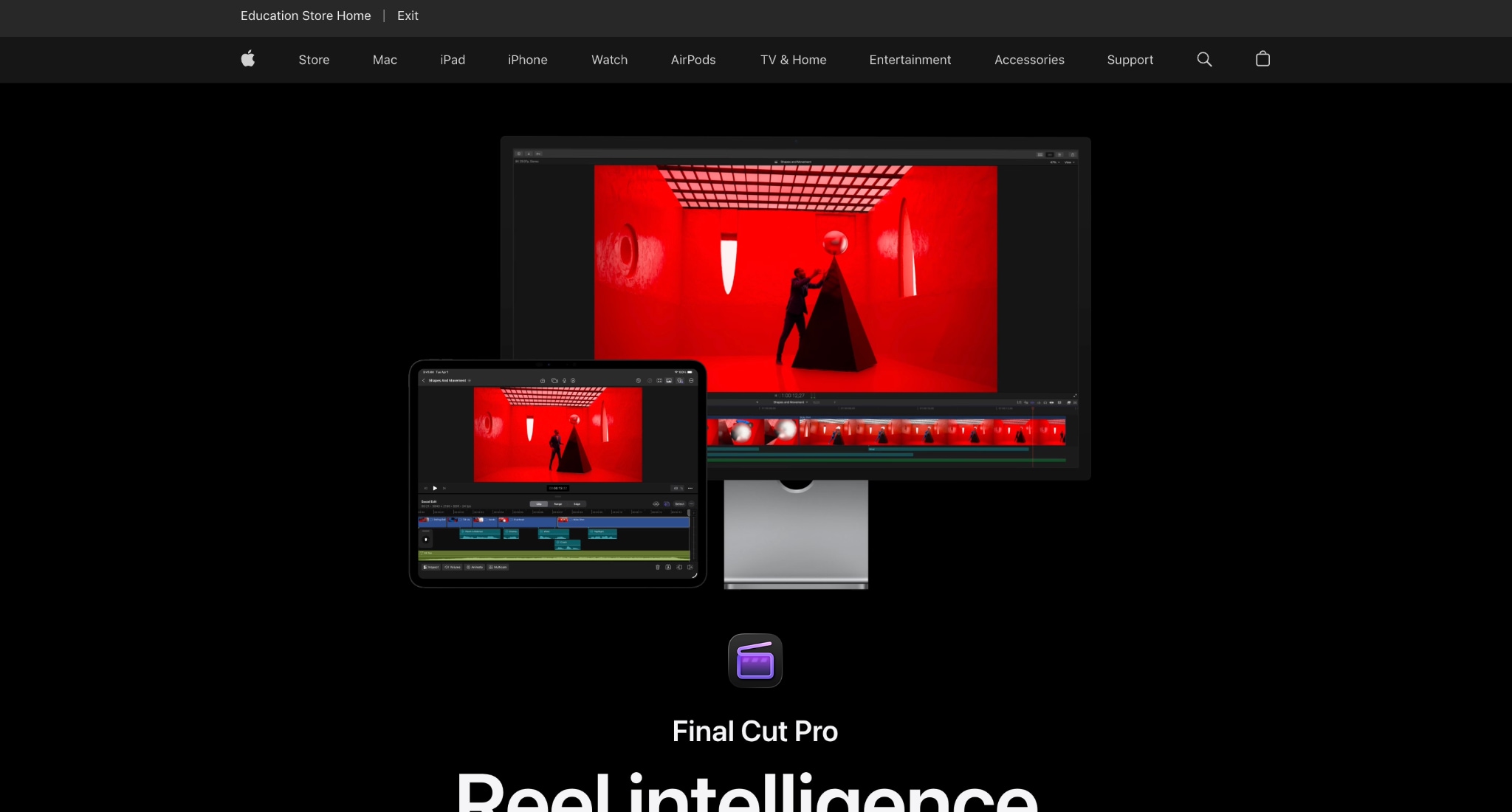
For Mac users, Final Cut Pro is the obvious exit from Adobe's subscription model. You pay once, own it outright, and get a faster, cleaner editing experience optimized for Apple Silicon. The magnetic timeline and M-series chip performance mean noticeably quicker exports and smoother playback compared to what Premiere delivers on the same hardware.
Key Features
Uses a magnetic timeline that automatically reflows clips, paired with Compound Clips and Auditions for comparing alternate takes.
Tracks subjects automatically with Magnetic Mask and lets you search footage by transcript or visual content.
Supports multicam editing and advanced color grading with ProRes RAW across Mac and iPad.
Runs natively on Apple Silicon for fast playback and export on M-series chips.
CapCut
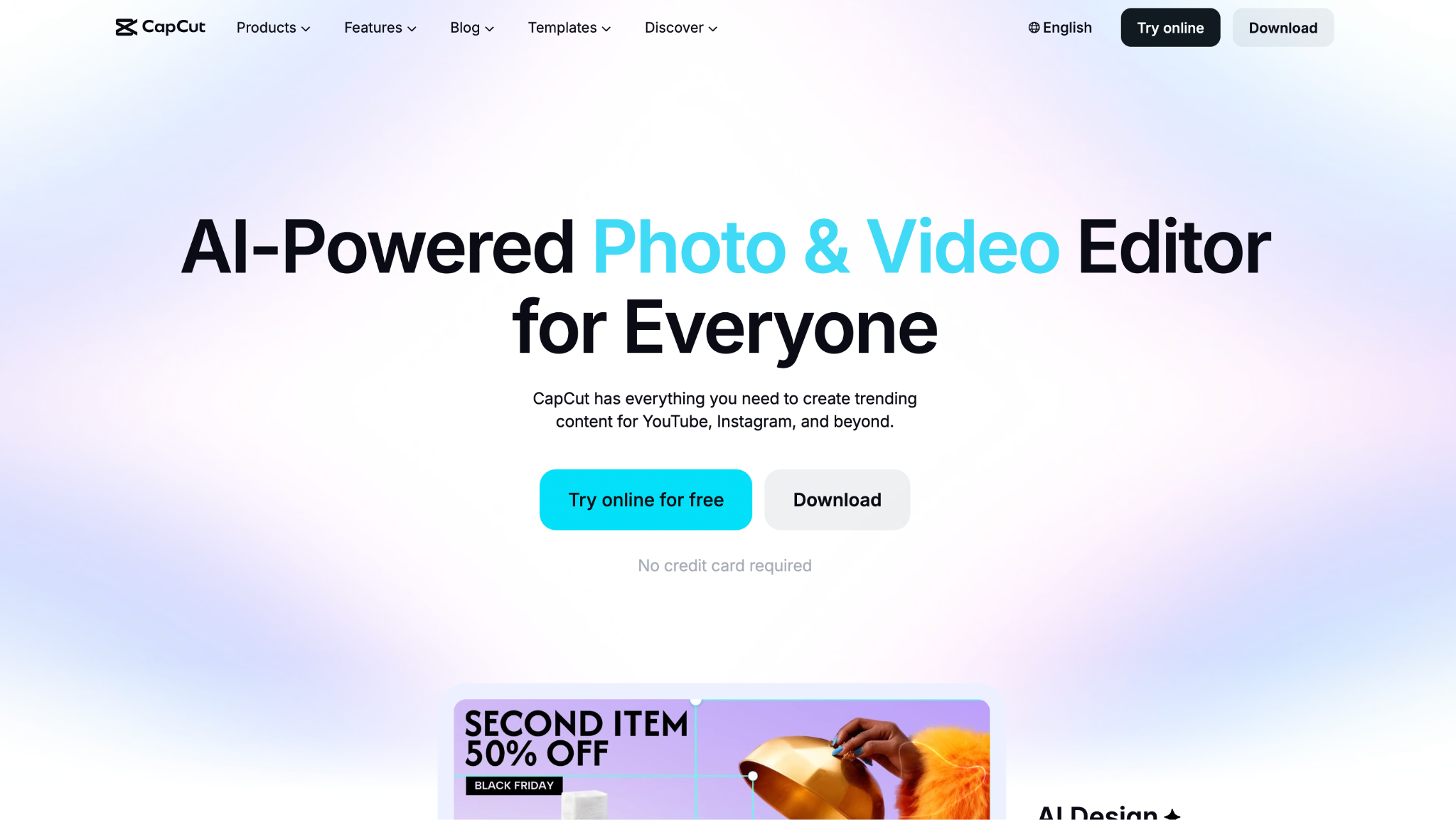
Adobe Premiere Pro is built for finishing. CapCut is built for publishing fast. If your output is TikToks, Reels, and YouTube Shorts, CapCut gets you from raw footage to posted video in minutes, mostly for free, without learning a single panel. The trade-offs are real, though: ByteDance ownership raises privacy concerns, the best AI features are moving behind a paywall, and the app is permanently banned in India.
Key Features
Assembles raw footage into a captioned, color-corrected cut automatically with AI Auto-Edit.
Generates captions in 100+ languages instantly, covering sound-off viewing across TikTok and Reels.
Includes background removal, 4K upscaling, and AI avatars through Magic Studio.
Offers a generous free tier, with watermark-free 4K exports available only on paid plans.
Filmora
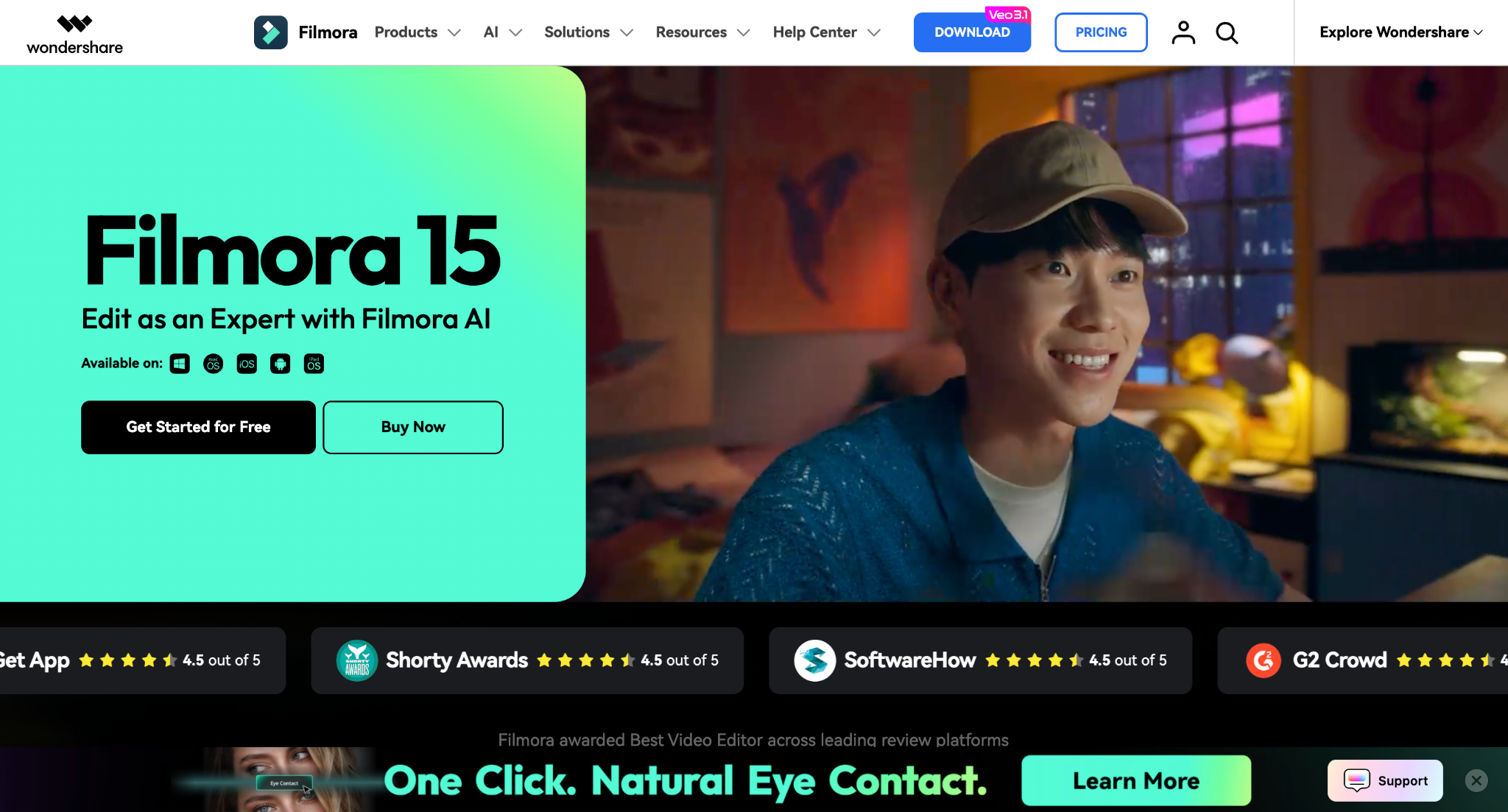
Filmora occupies the space Adobe ignores: creators who want a real timeline with AI tools but find Premiere genuinely overwhelming. You get multi-track editing, an AI Copilot, and audio tools like voice cloning and beat-sync at a fraction of Adobe's price. It is the right fit if you want more control than CapCut but far less complexity than Premiere.
Key Features
Supports multi-track editing with up to 10 audio tracks and no clip-length limit on the timeline.
Includes an AI Copilot editing assistant, smart cutout, and auto-reframe for vertical formats.
Covers audio with text-to-speech, voice cloning, beat-sync, and AI music generation.
Delivers fast output through effect packs, templates, and titles built for social and YouTube.
Part 6: Adobe Premiere Pro vs. Alternatives: A Quick Comparison
This table lines up Adobe Premiere Pro against the five alternatives on the points that decide most choices:
| Tool | Best for | Runs on | Pricing model | Watch-out |
| Adobe Premiere Pro | Pro finishing and motion pipeline | Windows, Mac | Subscription only | Steep curve, recurring cost |
| Wondershare UniConverter | AI media toolkit and conversion | Windows, Mac | One-time or plan | Need strong hardware |
| DaVinci Resolve | Pro editing and color | Windows, Mac, Linux | Free or one-time Studio | Steep learning curve |
| Final Cut Pro | Pro editing on Apple | Mac, iPad | One-time or subscription | Mac and iPad only |
| CapCut | Short-form social | Web, desktop, mobile | Free or subscription | ByteDance privacy, banned in India |
| Filmora | Beginner-friendly editing | Windows, Mac | Free or plan | AI runs on a credit system |
Part 7: Why Choose UniConverter as an Adobe Premiere Pro Alternative?
Premiere Pro rewards editors who invest months in learning it and keep paying every month they use it. For creators who want clean output without cost, the math changes. Wondershare UniConverter delivers a different value: an AI media toolkit that runs with no subscription lock-in and no steep curve. Here are the five reasons that make UniConverter a practical alternative to Premiere Pro:
No subscription lock-in: Premiere Pro sells only as a recurring subscription that starts at US$22.99 per month and never converts to ownership. UniConverter offers a one-time perpetual license option, so the cost stops once it is paid.
No learning curve: Premiere's panels take weeks to learn. UniConverter runs each job, from conversion to compression to upscaling, through a guided Unified AI Tools Hub that a first-time user can follow in minutes.
AI that does the heavy lifting: AI Smart Compression cuts file size by up to 90% with no visible quality loss, and the AI Video Enhancer upscales footage to 4K or 8K with frame rates up to 240 FPS.
Subtitles and reach in one pass: UniConverter generates editable bilingual captions in 145+ languages and condenses long videos with a Smart Summarizer, work that Premiere spreads across several tools.
One app, 1,000+ formats: Conversion, compression, recording, enhancement, and subtitles live in a single app across more than 1,000 formats with GPU acceleration up to 130x faster, with no Creative Cloud ecosystem to manage.
Part8:Is Adobe Premiere Pro Worth It in 2026?
In this Adobe Premiere Pro review, one thing is clear: it remains the right tool for editors who need a professional multicam, color grading, and motion graphics pipeline, and who use it daily enough to justify a subscription that never converts to ownership. If that describes your workflow, Adobe Premiere Pro is worth it.
If it does not, you are paying for depth you will not use. Creators focused on compression, conversion, upscaling, and subtitles get the same output quality from lighter tools at a fraction of the cost, without spending weeks on a learning curve.
Wondershare UniConverter is worth a look if you fall into that second group. You can use a free trial and run it against your actual workload before committing to anything.

