

The VP3 codec was once an important part of early internet video history. However, as formats evolved, VP3 quickly became obsolete, replaced by Theora and later codecs like VP8, VP9, and AV1. Today, users often find themselves with legacy VP3 files that cannot be played on modern devices, editors, or streaming platforms.
If you’ve discovered old archives, CD-ROM media, or training videos encoded in VP3, you’ll likely face compatibility issues. Converting VP3 codec into MP4 (H.264), AVI, or HEVC ensures smooth playback, editing flexibility, and long-term preservation. This guide explores everything about VP3 conversion — history, challenges, tools, why UniConverter is the best solution, pro tips, and the codec’s future relevance.
In this article
- What is VP3 Codec and Why Convert VP3 Codec
- Common Challenges in VP3 Codec Conversion
- Choosing the Best Tool to Convert VP3 Codec
- Why Choose UniConverter for VP3 Codec Conversion (Step-by-Step Guide)
- Pro Tips for the Best VP3 Codec Conversion Results
- The Future of VP3 Codec – Obsolete but Historically Important
- Conclusion
- FAQs
Part 1: What is VP3 Codec and Why Convert VP3 Codec
VP3 is a video compression format developed by On2 Technologies in the late 1990s. It was designed as an alternative to MPEG-4, using block-based transform coding and motion compensation. Unlike proprietary codecs, VP3 gained significance when On2 open-sourced it in 2001, allowing the Xiph.Org Foundation to build Theora from its base.
Key Features of VP3 Codec:
- Open-source legacy – first major royalty-free codec in its era.
- Web-focused design – aimed at delivering video efficiently over dial-up and early broadband.
- Theora successor – laid groundwork for Ogg Theora, an early competitor to H.264.
Why Convert VP3 Codec Today:
- Obsolete support – most media players, editors, and browsers no longer recognize VP3.
- Limited hardware decoding – no GPU acceleration available for VP3 playback.
- Archival risk – preserving old VP3 files requires conversion to modern codecs.
- Editing compatibility – professional editors like Premiere Pro or Final Cut Pro won’t accept VP3 inputs.
Converting VP3 codec into formats like MP4 (H.264), HEVC, or VP9 ensures your files remain accessible and usable across devices and platforms.
Part 2: Common Challenges in VP3 Codec Conversion
Converting VP3 codec files is rarely as straightforward as dragging a video into a converter and hitting export. Since VP3 is a legacy codec from the late 1990s, it was never designed with today’s wide range of devices and workflows in mind. That means modern users often run into compatibility barriers the moment they try to play or process an old VP3 video. For archivists, educators, or businesses restoring historical training material, these difficulties can be frustrating and time-consuming.
While the idea of “just converting VP3 to MP4” sounds simple, the process often comes with hurdles:
- Playback issues – many default players cannot decode VP3 without extra plugins.
- Outdated containers – VP3 is often embedded in AVI or Ogg containers, which complicates extraction.
- Slow software decoding – VP3 files can stutter during playback on modern systems.
- Audio mismatches – legacy VP3 videos often use unusual audio codecs (e.g., Vorbis or PCM) that desync after conversion.
- Quality preservation – re-encoding VP3 files can result in blocky artifacts if not converted with high-quality settings.
Common Conversion Targets for VP3:
- MP4 (H.264) – most compatible for playback and sharing.
- AVI – preserves original structure for archival.
- HEVC (H.265) – reduces file size while maintaining quality.
- VP9/AV1 – modern open-source alternatives for streaming.
Part 3: Choosing the Best Tool to Convert VP3 Codec
Not all media converters are equipped to handle legacy formats, and VP3 is a prime example. Since the codec is outdated and largely unsupported in modern software, you need to be selective about which tool you use. A poor choice may result in failed conversions, unstable software, or files that appear to work but suffer from quality degradation. The ideal VP3 converter should balance compatibility, speed, and flexibility, while remaining accessible to users of different skill levels. When selecting a VP3 converter, consider the following factors:
- VP3 Compatibility – not all converters natively support VP3 decoding.
- Batch Processing – important for multiple legacy files.
- GPU Acceleration – speeds up conversion drastically.
- Output Flexibility – ability to choose MP4, AVI, MOV, or HEVC.
- Ease of Use – user-friendly interface for both professionals and beginners.
Popular VP3 Conversion Tools Compared
|
Tool |
Platform |
VP3 Support |
Batch Convert |
GPU Acceleration |
Output Formats |
Pricing |
|
Windows/Mac/Online |
Yes for Desktop |
Yes for Desktop |
Yes for Desktop |
MP4, AVI, MOV, HEVC, MKV for Online 30+ for Desktop |
Freemium |
|
|
Desktop |
Yes |
Yes |
Yes |
Almost any |
Free |
|
|
Desktop |
Limited |
Yes |
Yes |
MP4, MKV |
Free |
|
|
Online |
Limited |
Yes |
No |
MP4, MOV, AVI |
Paid |
UniConverter stands out as the best VP3 codec converter, offering GPU acceleration, widest format support, and both online/desktop versions.
Part 4: Why Choose UniConverter for VP3 Codec Conversion (Step-by-Step Guide)
When it comes to legacy codecs like VP3, not every tool is designed to handle them gracefully. Some may crash, others may not detect the codec at all, and a few may deliver poor-quality results. UniConverter avoids these pitfalls by combining a robust decoding engine with a user-friendly workflow, making it the go-to choice for anyone looking to future-proof their VP3 files. Before jumping into steps, let’s understand why UniConverter is superior for VP3 conversion.
Why UniConverter is the Best VP3 Codec Converter
- Wide Format Support – Convert VP3 to MP4, MOV, AVI, HEVC, MKV, ProRes, and more.
- GPU Acceleration – Up to 130x faster conversion, even with HD or archival videos.
- Flexible Settings – Adjust bitrate, resolution, and codecs for your needs.
- All-in-One Workflow – Convert, compress, add subtitles, and even burn to DVD.
- Cross-Platform – Works on Windows and macOS with cloud sync.
- Freemium Access – Use online for small files, desktop for batch workflows.
How to Convert VP3 Codec with UniConverter Desktop
Step 1: Install and Launch UniConverter Desktop
Download UniConverter Desktop and install it. Launch the program after setup.

Step 2: Import VP3 Files
Click Add Files or drag-and-drop VP3 videos directly. UniConverter automatically detects VP3 codec inside AVI/Ogg containers.

Step 3: Choose Output Format
Select MP4 (H.264) for universal use, HEVC for efficient storage, or MOV/AVI for archival.

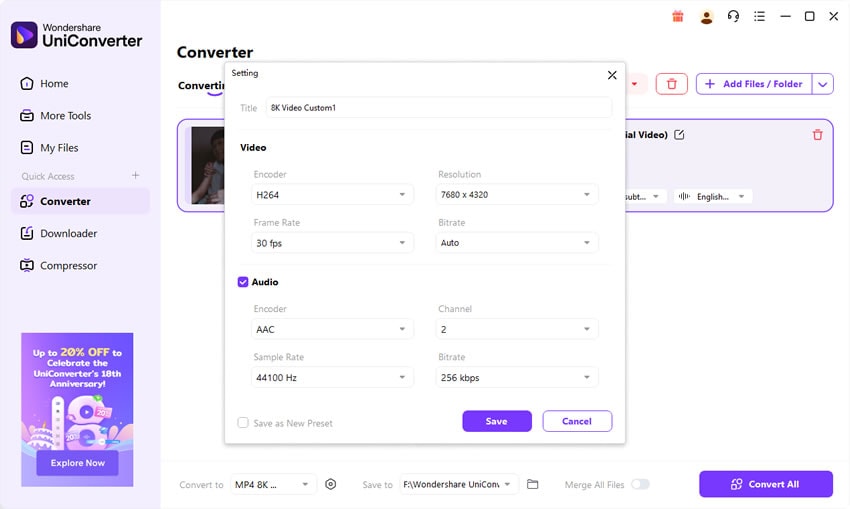
Step 4: Customize Settings
Fine-tune resolution, bitrate, or frame rate. Enable NVIDIA GPU acceleration for faster processing.

Step 5: Start Conversion
Click Convert and wait for the process to complete. Access your newly converted MP4/AVI/HEVC files in the chosen folder.


VP3 Codec Converter – Reliable Desktop Tool

Part 5: Pro Tips for the Best VP3 Codec Conversion Results
Converting VP3 is more than just clicking “convert.” Because it’s a fragile, lossy codec, every decision you make during the process affects the final quality and usability of your video. The wrong settings could double your file size unnecessarily, strip away detail, or render the file unusable on your target device. To achieve professional-level results, follow these strategies:
- Choose MP4 (H.264) for everyday playback – compatible with all devices.
- Use HEVC for archival – save space without sacrificing quality.
- Preserve original resolution – avoid unnecessary downscaling that reduces clarity.
- Set bitrate carefully – too low causes pixelation; too high wastes storage.
- Convert audio to AAC or MP3 – ensures compatibility with modern players.
- Batch process multiple VP3 files – saves time when handling large archives.
- Keep a high-quality master copy – store one ProRes or high-bitrate file for future use.
- Enable GPU acceleration – crucial for faster conversion of longer VP3 videos.
Example: A researcher digitizing old VP3 training videos should convert to MP4 (H.264) for playback, but also keep a HEVC archival copy to balance storage efficiency and quality.
Part 6: The Future of VP3 Codec – Obsolete but Historically Important
Although VP3 is obsolete today, its story is a fascinating part of digital video history. It symbolizes the beginning of the royalty-free video movement, proving that open standards could compete with heavily patented codecs like MPEG-4. Without VP3, successors like Theora, VP8, and VP9 might never have gained traction, and today’s industry standard AV1 might not exist.
VP3’s Legacy
Although VP3 is obsolete today, its story is a fascinating part of digital video history. It symbolizes the beginning of the royalty-free video movement, proving that open standards could compete with heavily patented codecs like MPEG-4. Without VP3, successors like Theora, VP8, and VP9 might never have gained traction, and today’s industry standard AV1 might not exist.
Current Status
VP3’s usefulness now is limited to historical and archival contexts. No modern streaming service, editing suite, or hardware player supports it. Even open-source platforms that once embraced Theora have since moved on. As a result, conversion is the only viable path for anyone who wants to preserve VP3-encoded content for future use.
Will VP3 Evolve?
Ultimately, VP3 won’t evolve further. Its legacy already lives on in AV1, which carries the same open ethos but with vastly superior efficiency and adoption. Unlike VP8 → VP9 → AV1, VP3 is frozen in history. Its evolution already happened through Theora, but that too is obsolete now. The best way forward for VP3 content is preservation through conversion — ensuring that these digital relics can still be appreciated, even as the codec itself fades into history.
Bottom line: VP3 codec is an important historical artifact, but for modern workflows, conversion is a must.
Conclusion
VP3 codec holds a unique place in the history of online video but is no longer practical today. Converting VP3 codec files to MP4, AVI, or HEVC ensures compatibility, efficiency, and long-term accessibility.
For users, UniConverter Desktop stands out as the most reliable VP3 converter — offering fast GPU acceleration, wide format support, batch processing, and professional-grade output settings.
FAQs
-
Q1: What format should I convert VP3 codec to for maximum compatibility?
A: Convert VP3 to MP4 (H.264) for universal playback on all devices and platforms. -
Q2: Why does my VP3 conversion lose quality?
A: This usually happens if bitrate is set too low or resolution was altered. Use high-quality or constant-quality mode in UniConverter. -
Q3: Can VLC Media Player play VP3 codec directly?
A: Some older builds of VLC may support VP3, but modern versions struggle. Conversion is recommended. -
Q4: Is VP3 the same as Theora?
A: No. Theora was derived from VP3, but they are separate codecs. Theora extended VP3’s capabilities for open-source video streaming. -
Q5: Does UniConverter support batch conversion of VP3 codec?
A: Yes. UniConverter Desktop allows you to process multiple VP3 files at once with GPU acceleration, saving hours of manual work.

