


Raw Video is the gold standard for filmmakers, cinematographers, and post-production experts. It captures every detail from the camera sensor, allowing unmatched freedom in color grading, exposure adjustment, and visual effects. However, this quality comes at a price: huge file sizes, limited playback support, and heavy editing demands. Many platforms, from YouTube to mobile devices, simply cannot handle Raw Video directly. That’s why converting Raw Video into more manageable formats like MP4, MOV, or ProRes is essential for smooth workflows.
In this guide, you’ll learn what Raw Video really is, why conversion is necessary, which tools are best, and how UniConverter Media Converter Desktop makes the process faster, easier, and more reliable than any alternative.
In this article
- What is Raw Video and Its Container Formats?
- Why Convert Raw Video and the Challenges Involved
- Choosing the Best Raw Video Converter Tool
- Why Choose UniConverter for Raw Video Conversion (Step-by-Step Guide)
- Pro Tips for the Best Raw Video Conversion Results
- The Future of Raw Video – Evolving or Niche?
- Conclusion
- FAQs
Part 1: What is Raw Video and Its Container Formats?
Raw Video refers to uncompressed or lightly compressed video data recorded directly from a camera sensor. Unlike H.264 or HEVC, which apply heavy compression, Raw preserves nearly all original sensor information—making it perfect for post-production but extremely large in size.
Common Raw Video Formats and Containers
- CinemaDNG (.dng / .cinemadng) – Frame-based raw format developed by Adobe, used by Blackmagic and some indie cameras.
- RED R3D (.r3d) – Proprietary format for RED Digital Cinema cameras, designed for professional cinema workflows.
- ARRIRAW (.ari / .mxf) – ARRI’s industry-standard format, often wrapped in MXF.
- Blackmagic RAW (.braw) – Highly efficient compressed raw from Blackmagic Design.
- Canon Cinema RAW Light (.crm) – A lighter Raw format in MXF containers for Canon C-series cameras.
- Sony RAW & X-OCN (.mxf) – Used in Sony VENICE, F5/F55 and wrapped in MXF.
- ProRes RAW (.mov) – Apple’s format combining Raw flexibility with MOV playback compatibility.
- Image Sequence RAW (DPX, TIFF, EXR) – Frame-by-frame storage often used in VFX pipelines.
👉 In short: MOV and MXF are the most common wrappers, while proprietary extensions (.r3d, .braw, .crm, etc.) dominate specific ecosystems.
Part 2: Why Convert Raw Video and the Challenges Involved
Raw Video is an incredible format, but its very strengths can also make it unwieldy. While it captures every possible detail from the sensor, this uncompressed or lightly compressed nature means playback and editing are often impractical without conversion. Many editors find themselves frustrated when their timeline lags, freezes, or outright rejects Raw footage, especially on machines without high-end GPUs. The truth is, Raw Video was never designed for universal compatibility—it was created to preserve quality for professional workflows.
Why Convert Raw Video?
- Compatibility – Most devices (TVs, smartphones, tablets) cannot decode Raw.
- Editing Efficiency – Heavy Raw footage may cause lags in Adobe Premiere, DaVinci Resolve, or Final Cut.
- Sharing – Platforms like YouTube, Instagram, or Zoom require MP4 H.264/HEVC.
- Storage – Raw files eat terabytes quickly; conversion to HEVC/ProRes saves space.

UniConverter Raw Video Converter Desktop
Part 3: Choosing the Best Raw Video Converter Tool (With Comparison Table)
The process of selecting a Raw Video converter isn’t as simple as grabbing the first free tool online. For instance, an online converter might work perfectly for MP4 but instantly reject a RED R3D file. That’s why professionals need to evaluate their tools carefully, balancing compatibility, speed, and quality. A good converter not only supports a wide range of Raw formats but also offers batch processing and GPU acceleration to save valuable time.
Key Factors to Consider
- Raw Input Support (R3D, BRAW, ARRIRAW, etc.).
- Batch Conversion – Handle multiple files at once.
- GPU Acceleration – Essential for 4K/8K Raw.
- Customizable Output – ProRes, MP4, HEVC, DNxHD.
- Cross-Platform Stability – Works reliably on Windows & Mac.
| Tool | Platform | Raw Video Support | Batch Convert | GPU Acceleration | Output Formats | Pricing |
| UniConverter | Windows/Mac | Yes (R3D, BRAW, DNG, ARRIRAW, ProRes RAW) | ✔ | ✔ (Intel, NVIDIA, AMD) | MP4, MOV, HEVC, ProRes, DNxHD, MKV | Freemium |
| HandBrake | Windows/Mac/Linux | Limited (via FFmpeg plugins) | ✔ | Partial | MP4, MKV | Free |
| FFmpeg | Windows/Mac/Linux | Yes (all, but requires command line) | ✔ | ✔ | Almost any | Free (open source) |
| DaVinci Resolve | Windows/Mac/Linux | Yes (BRAW, R3D, ARRIRAW native) | ✔ | ✔ | ProRes, DNxHD, MP4, MOV | Paid/Free (limited) |
| Online Tools | Browser-based | ❌ (Raw too large) | ❌ | ❌ | Limited | Mostly Paid |
Part 4: Why Choose UniConverter for Raw Video Conversion (Step-by-Step Guide)
Converting Raw Video is not a beginner-friendly task, but that’s exactly where UniConverter Media Converter Desktop shines. While many tools either fail to recognize formats like BRAW or R3D, or bury key functions under complex menus, UniConverter offers a clear interface and seamless performance. It combines professional-grade features like ProRes/DNxHD export with user-friendly workflows that even beginners can grasp. For professionals, this means less time fiddling with settings and more time actually editing or delivering content.
Why UniConverter is the Best for Raw Video
- Wide Format Support – R3D, BRAW, ARRIRAW, DNG, ProRes RAW → Convert to MP4, MOV, HEVC, ProRes, DNxHD.
- 130x Faster – GPU acceleration for 4K/8K workflows.
- Editing-Friendly Outputs – Export directly to ProRes or DNxHD for Final Cut and Premiere.
- All-in-One Workflow – Convert, compress, edit, add subtitles, burn to DVD.
- Cross-Platform – Works on Windows & macOS.
How to Convert Raw with UniConverter Desktop Version
Step 1: Install and Open UniConverter
Download UniConverter Media Converter Desktop and install it on your system, then launch the program.

Step 2: Import Raw Files
Add R3D, BRAW, or ARRIRAW clips by clicking “Add Files” or drag-and-drop into the main window.

Step 3: Choose Output Format
Select MP4, MOV, HEVC, or ProRes depending on your editing or sharing needs.

Step 4: Adjust Settings and Enable Acceleration
Set resolution, bitrate, and enable NVIDIA GPU acceleration for faster results.

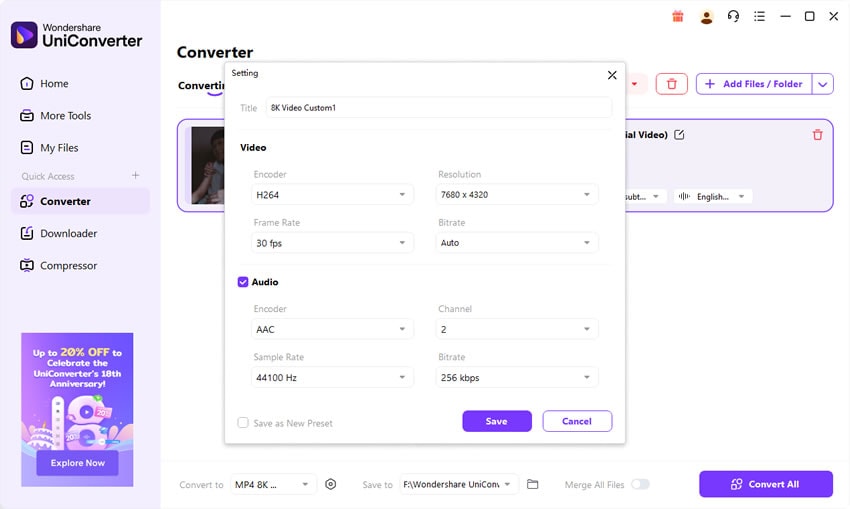
Step 5: Start Conversion and Save
Click Convert, wait for the process, and then open the output folder to access your converted video.

UniConverter Raw Video Converter Desktop
Part 5: Pro Tips for the Best Raw Video Conversion Results
-
Converting Raw Video can feel daunting because of the large file sizes and unique codecs, but following a few smart practices ensures you get the most out of your footage. The first thing to consider is your end goal. If you’re preparing clips for everyday viewing or uploading to social media, MP4 with H.264 or HEVC is the most practical option since it guarantees universal compatibility. For professional editing, however, ProRes or DNxHD is far superior because these codecs are optimized for smooth timelines in Premiere, Final Cut, or DaVinci Resolve. Archival workflows often benefit from MKV because it can hold high-bitrate content securely for long-term storage.
Choose the Right Output Format
- MP4 (H.264/HEVC) → Best for playback and sharing.
- ProRes/DNxHD → Smooth editing workflows.
- MKV → Reliable long-term storage.
Maintain Resolution and Bitrate
Keeping native 4K/8K ensures no unnecessary quality loss. Downscaling should only be used when storage is limited or when a delivery platform requires it. Likewise, bitrate settings need balance—too low creates pixelation, too high wastes storage.
Audio and Workflow Optimization
For maximum compatibility, convert audio to AAC. For editing, WAV or PCM is more robust. Don’t overlook batch conversion and GPU acceleration, both of which save huge amounts of time. Finally, always keep a master copy of your Raw in ProRes or DNxHD to future-proof your project.
Part 6: The Future of Raw Video – Evolving or Niche?
Raw Video has long been the gold standard for high-end filmmaking, prized for its ability to preserve every bit of sensor data. Its strengths are clear: unparalleled flexibility in post-production, support for HDR workflows, and scalability to ultra-high resolutions like 8K. These advantages make it indispensable in cinema, broadcast television, and advanced VFX pipelines. However, the format also has significant drawbacks. Raw footage requires massive storage capacity, puts heavy strain on hardware, and lacks universal playback support. This means that while it’s a dream for professionals, it’s far too unwieldy for casual users.
Current Strengths of Raw Video
- Preserves full sensor data for HDR and VFX.
- Handles ultra-high resolutions (4K–8K and beyond).
- Widely supported in cinema cameras (RED, ARRI, Blackmagic, Canon, Sony).
Ongoing Challenges
- File sizes remain massive and storage-hungry.
- Hardware requirements are steep for editing.
- Streaming platforms favor compressed formats.
Future Outlook
Raw Video will continue as a professional capture standard, but it won’t become mainstream for everyday use. Compressed codecs like H.264, HEVC, and AV1 will dominate consumer delivery. As a result, conversion remains essential. Tools like VC Media Converter Desktop act as the bridge, letting creators capture in Raw but deliver in usable, efficient formats.
Conclusion
Raw Video gives unmatched creative freedom—but without conversion, it’s impractical for editing, playback, or sharing. Whether you’re a filmmaker handling RED or ARRI footage, or a creator experimenting with ProRes RAW, UniConverter Media Converter Desktop is the most efficient solution. With GPU acceleration, batch support, and wide format compatibility, it transforms Raw into practical, high-quality formats for every workflow.
FAQs
-
1. What’s the best format to convert Raw Video into?
For editing, MOV (ProRes or DNxHD) is ideal. For playback or sharing, MP4 H.264/HEVC is the safest. -
2. Why are Raw files so large?
Because they store near-complete sensor data without heavy compression, preserving every pixel and color detail. -
3. Can online converters handle Raw Video?
No. Raw files are too large (often 50–200GB) and require desktop tools like VC. -
4. Does converting Raw lower quality?
If you choose high-bitrate outputs (ProRes, HEVC), quality loss is minimal. Always keep a Raw master copy. -
5. Which Raw formats does UniConverter support?
VC Desktop supports R3D, BRAW, ARRIRAW, CinemaDNG, ProRes RAW, Canon CRM, and Sony RAW/X-OCN.

