


Cinepak, introduced in the early 1990s, was one of the first video codecs to make multimedia CD-ROMs and early computer games possible. While groundbreaking at the time, Cinepak converter has since become obsolete. Today, most devices and software cannot play Cinepak videos without compatibility issues. Users looking to preserve old media collections, digitize legacy educational content, or re-use archival footage often face frustration when Cinepak videos fail to play smoothly.
This is where a Cinepak Converter becomes essential. With the right tool, you can convert Cinepak-encoded files into modern formats like MP4, MOV, or AVI—ensuring easy playback, editing, and long-term storage.
In This Article
- What is Cinepak Codec and Why Convert Cinepak Files
- Cinepak Conversion Challenges and Solutions
- How to Choose the Best Cinepak Converter Tool (With Comparison Table)
- Why Choose UniConverter for Cinepak Conversion (Step-by-Step Guide)
- Pro Tips for the Best Cinepak Conversion Results
- The Future of Cinepak Codec – Obsolete or Still Relevant?
- Conclusion & FAQ
Part 1: What is Cinepak Codec and Why Convert Cinepak Files
Understanding Cinepak Codec
Cinepak was developed by SuperMac Technologies in 1991 and quickly became one of the earliest compression standards to enable full-motion video playback on consumer-grade PCs and Macs. It was widely adopted in CD-ROMs, early educational software, and video games. Unlike today’s codecs that rely on advanced mathematical models, Cinepak used vector quantization (VQ)—a process that compresses video by dividing frames into small blocks and referencing a dictionary of patterns. The key advantage was low processing requirements, which made it possible for 66–100 MHz CPUs to decode video without additional hardware.
Common Use Cases of Cinepak (in the Past)
- CD-ROM Titles: Educational discs, encyclopedias, and corporate training modules.
- PC and Mac Games: Full-motion cutscenes and intros during the early 1990s gaming boom.
- Early Multimedia Experiments: Interactive kiosk displays, demo reels, and promotional CDs.
Why Conversion is Necessary Today
Despite its historical significance, Cinepak is now a legacy codec. Most modern players (like VLC, QuickTime, or Windows Media Player) have dropped or minimized support. Cinepak videos suffer from blocky compression artifacts, large file sizes, and poor compatibility with editing software. Conversion is necessary for:
- Playback Compatibility: Ensuring Cinepak videos run on Windows 11, macOS Ventura, iOS, Android, and smart TVs.
- Editing Accessibility: Allowing import into Adobe Premiere, DaVinci Resolve, or Final Cut.
- Archival Preservation: Migrating legacy media into sustainable formats for long-term storage.
- Sharing & Distribution: Uploading converted videos to YouTube, social media, or cloud services.
- In short: Cinepak is part of video history, but to keep that history alive, we need conversion.
Part 2: Cinepak Conversion Challenges and Solutions
Key Difficulties in Converting Cinepak Files
- Obsolete Codec Support: Few modern converters recognize Cinepak by default. Many free tools fail to decode properly.
- Playback Errors: Some Cinepak files are embedded in AVI or MOV containers that crash or play incorrectly.
- Quality Loss: Cinepak’s original compression already degraded quality. Re-encoding can worsen this if not handled properly.
- Large File Sizes: Early compression was inefficient. Files converted poorly may become unnecessarily larger.
- Audio Incompatibility: Legacy audio codecs used alongside Cinepak may fail to sync or convert.
Solutions to Cinepak Conversion Problems
- Choose a Modern Converter: Use UniConverter, which supports Cinepak as an input and re-encodes smoothly into H.264, HEVC, or ProRes.
- Select the Right Output: Convert Cinepak to MP4 (H.264) for everyday playback, MOV (ProRes) for editing, or MKV for archiving.
- Maintain Resolution: Avoid unnecessary scaling; keep the original resolution to minimize visual degradation.
- Audio Conversion: Re-encode audio tracks to AAC or MP3 for universal support.
- Batch Processing: If you have multiple old CD-ROMs or videos, use batch conversion in UniConverter Desktop to save time.

Fast & Reliable Cinepak Converter
Part 3: How to Choose the Best Cinepak Converter Tool (With Comparison Table)
Converting Cinepak files requires more than just a simple conversion utility—it demands a thoughtful look at what features matter most depending on your goals. If you are an archivist working with hundreds of legacy CD-ROMs, you’ll want batch processing and robust codec recognition. If you are an editor preparing Cinepak videos for creative projects, then compatibility with ProRes or DNxHD becomes critical. Everyday users looking to simply watch old clips again may prioritize speed, ease of use, and MP4 compatibility above all else. Following is the list and popular tools we sorted and recommend by most users.
Considerations When Selecting a Converter
- Cinepak Input Support: Many converters ignore legacy codecs. Check if Cinepak decoding is supported.
- Speed & GPU Acceleration: Cinepak files may be bulky; acceleration ensures quick turnaround.
- Batch Conversion: Essential for users with entire CD-ROM libraries.
- Output Formats: Must include MP4, MOV, AVI, MKV, and editing codecs like ProRes.
- Ease of Use: Intuitive interface for non-technical users.
Popular Tools Compared
|
Tool |
Platform |
Cinepak Support |
Batch Conversion |
GPU Acceleration |
Output Formats |
Pricing |
|
Windows/Mac |
Yes |
Yes |
Yes |
MP4, MOV, AVI, MKV, ProRes |
Freemium |
|
|
Windows/Mac |
Limited* |
Yes |
Yes |
MP4, MKV |
Free |
|
|
Windows/Mac/Linux |
Yes (manual) |
Yes |
Yes |
Almost Any |
Free (advanced) |
|
|
Online |
No direct Cinepak |
Limited |
No |
MP4, MOV, WebM |
Paid |
*HandBrake requires Cinepak file re-wrapping and does not decode reliably.
Verdict: UniConverter is the most reliable choice, balancing user-friendliness with robust Cinepak support.
Part 4: Why Choose UniConverter for Cinepak Conversion (Step-by-Step Guide)
When it comes to Cinepak, UniConverter can be a specialist’s choice. It bridges the gap between outdated formats and today’s playback and editing ecosystems. Converting Cinepak files can be challenging, but UniConverter is built to make the process simple and reliable. While many free tools struggle with outdated codecs, UniConverter automatically recognizes Cinepak streams inside AVI or MOV containers and prepares them for modern re-encoding without errors or sync issues.

Why UniConverter is a Great Choice for Cinepak Conversion
- Wide Format Support – Convert Cinepak into MP4, MOV, AVI, HEVC, ProRes, CineForm, and more.
- High-Speed Conversion – Up to 130x faster with NVIDIA GPU acceleration.
- Batch Conversion – Process multiple legacy files at once.
- All-in-One Workflow – Convert, compress, add subtitles, edit, and even burn to DVD.
- Desktop Power – Designed for Windows and macOS with full codec support.
How to Convert Cinepak with UniConverter
Step 1: Install and Open UniConverter
Download and install UniConverter. Launch the program after setup. Ensure your PC meets requirements: Windows 7 or later, >750MHz CPU, 256MB RAM.

Step 2: Import Cinepak Files
Click Add Files or drag-and-drop your Cinepak AVI/MOV into the software. Multiple files can be added at once.

Step 3: Choose Output Format
Select MP4 (H.264) for general use, MOV (ProRes) for editing, or MKV for archiving. For smaller files, HEVC (H.265) is recommended.

Step 4: Adjust Settings and Enable Acceleration
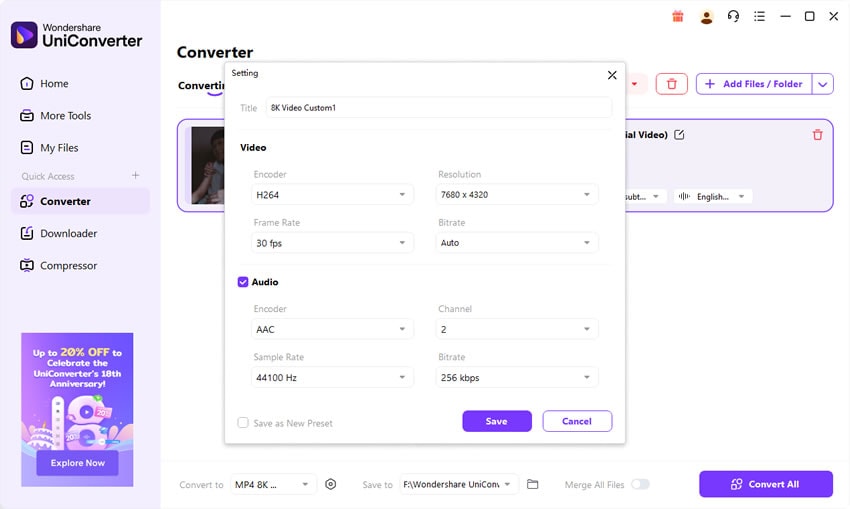
If needed, open the settings panel to fine-tune bitrate, resolution, and frame rate. Keeping the original resolution is usually best for maintaining quality. You can also enable GPU acceleration through Intel, NVIDIA, or AMD graphics for faster processing.

Step 5: Start Conversion and Save Files
Choose the folder where you want to save your converted videos, then click Convert. The program will process the Cinepak files and save them in your chosen format. When complete, open the folder to access your new MP4, MOV, HEVC, or MKV videos.

Fast & Reliable Cinepak Converter – UniConverter
Part 5: Pro Tips for the Best Cinepak Conversion Results
Armed with a basic understanding of the codec, you are now ready to elevate your footage from standard to stunning. Achieving optimal results requires more than just hitting export; it demands a strategic approach to preparation and settings. By applying these professional techniques, you can significantly enhance visual fidelity while maintaining efficient compression. The following pro tips will guide you through the nuances of the process, ensuring your final video looks its absolute best.
Tips for the Best Cinepak Conversion Results
- Choose the Right Format for Purpose:
- MP4 (H.264): Best for universal playback.
- MOV (ProRes): Best for editing workflows.
- MKV: Best for long-term archival.
- Keep Original Resolution: Cinepak videos often max out at 320x240 or 640x480. Upscaling won’t add detail, so keep original size.
- Use Constant Quality Mode: Prevents unnecessary bitrate fluctuations and preserves as much detail as possible.
- Convert Audio Properly: Many Cinepak files use outdated audio codecs. Re-encode to AAC for compatibility or WAV for editing.
- Batch Convert Collections: Old CD-ROMs often contain dozens of short clips. Use UniConverter’s batch conversion to process entire folders.
- Archive in Two Formats: Keep one high-quality version (ProRes or DNxHD) and one practical version (MP4 H.264) for playback.
- Enable Hardware Acceleration: Modern GPUs drastically cut down conversion times, even on legacy footage.
- Check Before Uploading: YouTube, Facebook, and TikTok require MP4 H.264 + AAC audio. Always export in platform-ready settings.
Part 6: The Future of Cinepak Codec – Obsolete or Still Relevant?
Status of Cinepak Today
Cinepak has been officially obsolete for decades. It is no longer supported by mainstream players or hardware. However, it remains present in archival collections, old games, and CD-ROM titles that enthusiasts still explore.
Why Cinepak Still Matters
- Historical Significance: Cinepak enabled multimedia’s early growth.
- Archival Collections: Many museums, libraries, and enthusiasts preserve Cinepak videos.
- Compatibility Testing: Software historians and archivists rely on conversion for accessibility.
Cinepak’s Future
It will not evolve into a modern codec. Unlike APV or AV1, Cinepak has no successor. Its only path forward is conversion into modern formats. For users, this means:
- Convert Cinepak videos now to avoid future incompatibility.
- Store high-quality digital copies for preservation.
- Ensure multiple format outputs (e.g., MP4 for viewing, ProRes for editing).
Conclusion
Cinepak was revolutionary in its time but is now a relic of early digital video. To preserve your old files and make them usable today, you need a Cinepak Converter. UniConverter stands out as the best solution—balancing ease of use, robust Cinepak support, and lightning-fast performance. Whether you’re archiving game footage, digitizing CD-ROMs, or preparing educational materials, UniConverter ensures your Cinepak videos live on in modern formats.
FAQ
-
Q1: What’s the best format to convert Cinepak videos into?
MP4 (H.264) is the most universal, ensuring playback on almost any device. For editing, MOV (ProRes) is recommended. -
Q2: Why does my Cinepak video look blocky even after conversion?
Cinepak’s compression was inherently blocky. Conversion preserves quality but cannot fully remove these artifacts. Upscaling tools can help slightly. -
Q3: Can I batch convert multiple Cinepak files at once?
Yes. UniConverter supports batch conversion, letting you process entire CD-ROM libraries in one go. -
Q4: Does converting Cinepak increase file size?
It can, depending on output codec. Cinepak was inefficient, so converting to H.264 or HEVC may reduce size, but converting to ProRes will increase it for better editing performance. -
Q5: Is Cinepak still supported by VLC or QuickTime?
Some versions of VLC may play Cinepak, but compatibility is inconsistent. QuickTime dropped reliable support years ago. Conversion is the safest option.

