


Whether bringing holiday group shots to life, sharing event highlights on social media, or spicing up messaging threads, turning a Live Photo into a GIF helps. While figuring out how to export GIFs from Live Photos, users often face other challenges including preserving quality and making quick conversions across different devices.
In this article, we have narrowed down 5 easy methods to turn Live Photos into GIFs, regardless of the device you’re using. Continue reading this article to discover how to transform your ordinary images into GIFs for future use.
In this article
- Why Convert Live Photos to GIFs
- Method 1: Convert Live Photos to GIFs with Built-In Shortcut
- Method 2: Convert Live Photos to GIFs with a Third-Party App
- Method 3: Convert Live Photos to GIFs with an Online Tool
- Method 4: Convert Live Photos to GIFs with macOS Photos App
- Method 5: Easily Batch Convert Live Photos to GIFs on PC with Professional Software
- Conclusion
- FAQs
Part 1. Why Convert Live Photos to GIFs
Before you convert a Live Photo to a GIF, we will discuss why you need to turn your images into GIFs in the first place:
Better Compatibility: Live Photos are only compatible with the Apple ecosystem, so turning them into GIFs will make them widely accessible across all devices and applications.
Live Photos Record Movement: Live Photos records 1.5 seconds of movement and sound, thus it can be converted into a GIF, removing the audio that is unneeded in it.
Diverse Editing: GIFs can be widely edited in editing software and applications in comparison to Live Photos. Users can add filters, text, or create a meme out of the GIF.
Easier to Share Across Platforms: Live Photos are not widely supported by different platforms, leading users to consider converting them to GIFs for easy sharing.
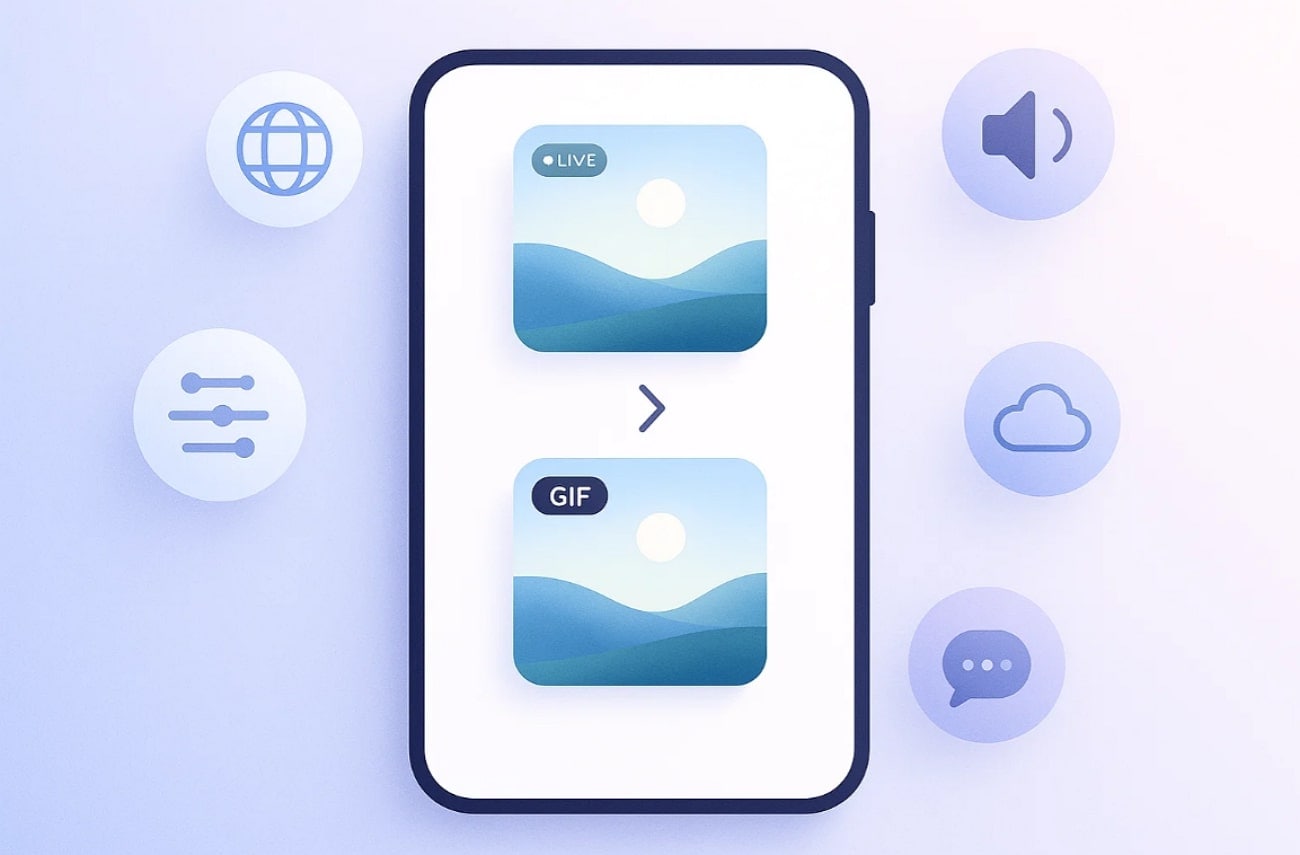
Part 2. Method 1: Convert Live Photos to GIFs with Built-In Shortcut
If you don’t like the hassle of downloading a third-party app, you can convert Live Photos to GIFs with its built-in method. Users take a live image with their iPhone camera and navigate to the Shortcuts app to access the GIF maker. The foremost advantage of this method is that conversions happen directly on the device, so let's dive into a detailed step-by-step guide to know how this method works:
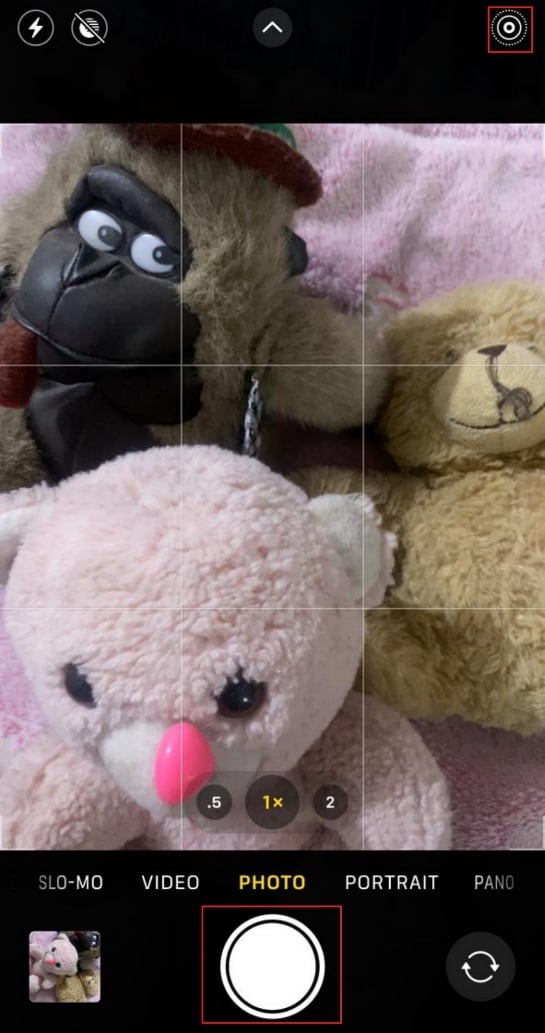
Step 1. Open your iPhone camera and take an image; however, at this point, make sure the “Live Photo” icon is enabled on the top right of the screen.
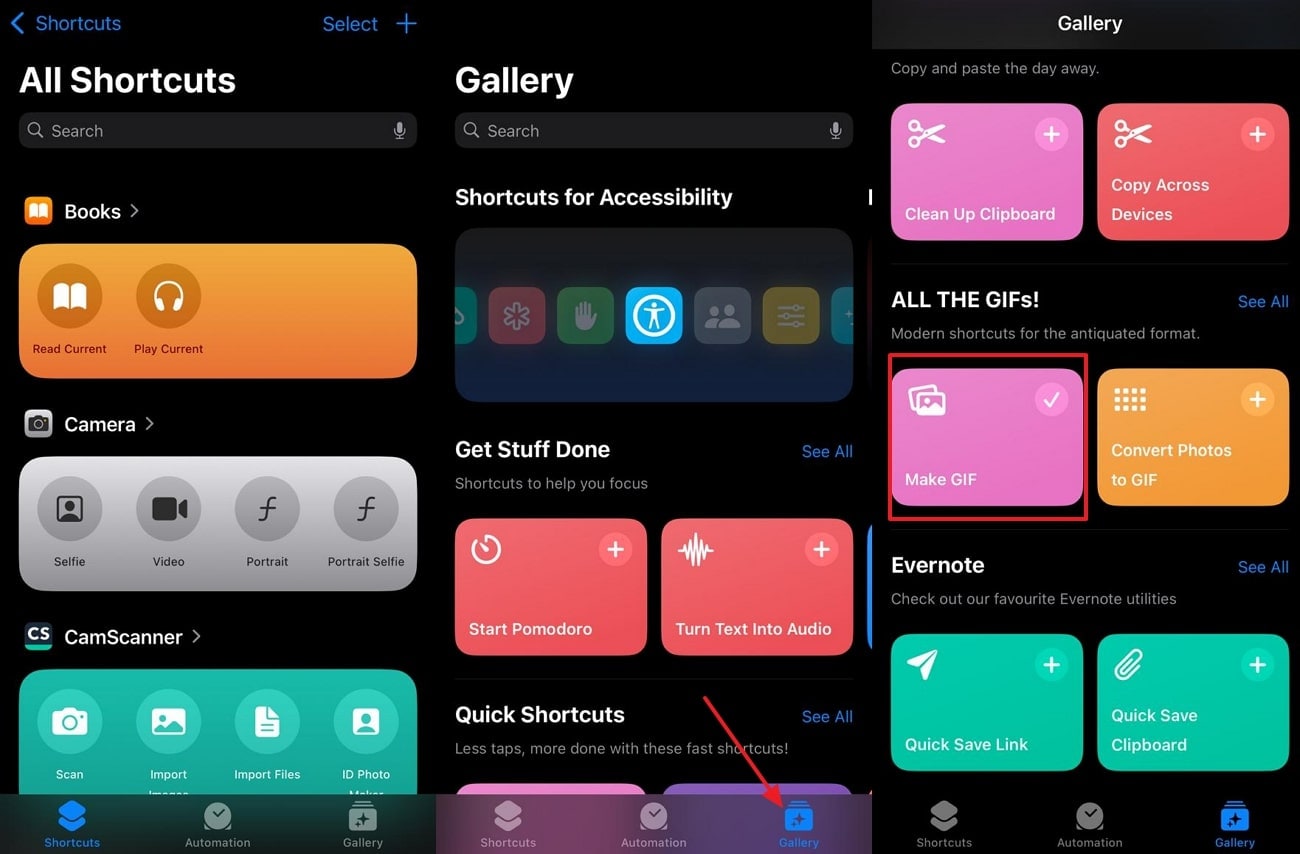
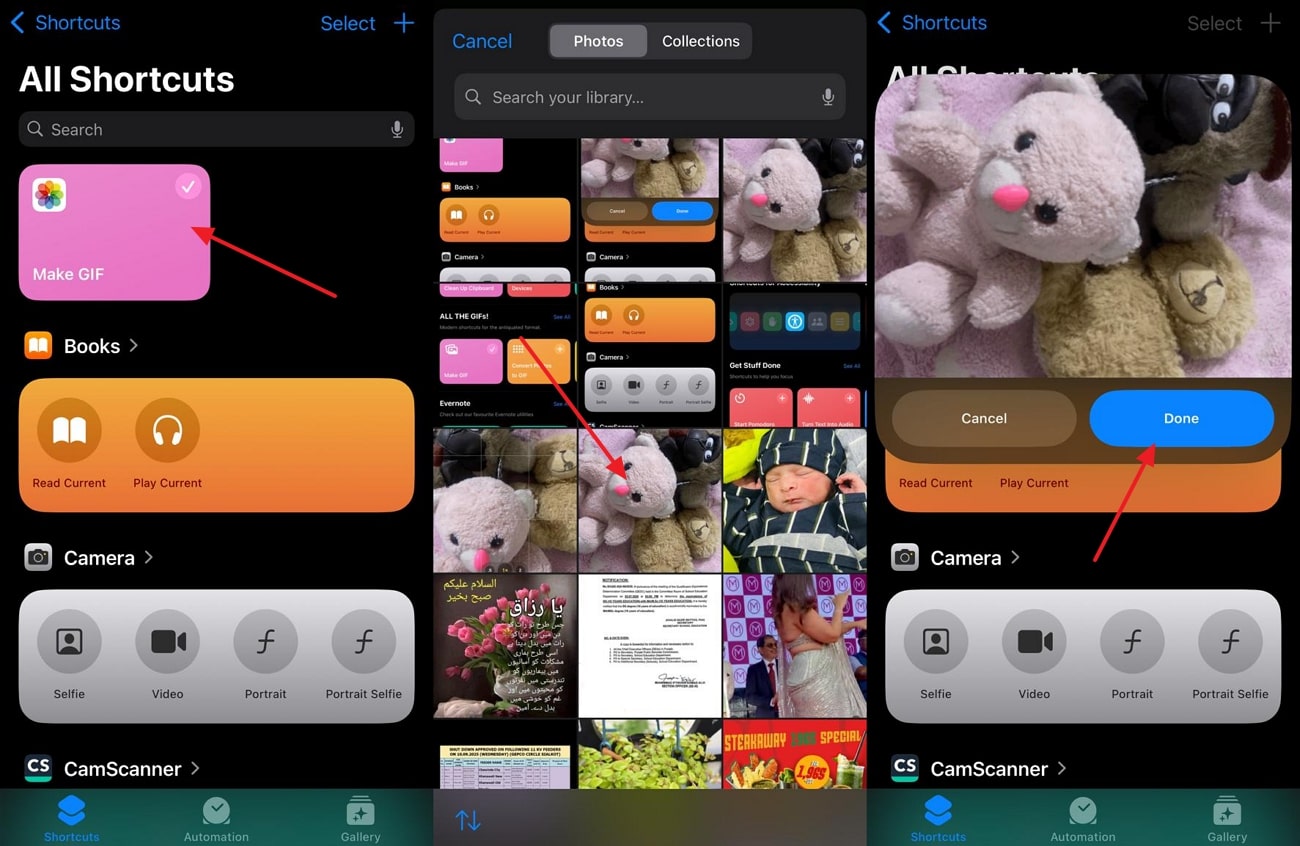
Step 2. After taking an image, go to the Shortcuts app, tap on the “Gallery” icon available at the bottom right of the screen. Search for “Make a GIF” and tap on the “+” icon to add it into your Shortcuts.
Step 3. After adding the shortcut, tap the “Make a GIF” tab and select the desired Live Photo from your device. Upon picking an image, it will transform your live image into a GIF in seconds, which you can automatically save on your iPhone with the “Done” button.

Easy to Use Batch MOV to MP4 Converter
Part 3. Method 2: Convert Live Photos to GIFs with a Third-Party App
If you are not getting satisfactory results with the iPhone's built-in GIF maker, consider using a third-party app like GIPHY. Using GIPHY, you can instantly take an image or upload an older one to transform it. In its Live Photo to GIF process, it provides the options of adding a filter or text. This app also allows you to remix already uploaded GIFs, so let's go through its stepwise process:
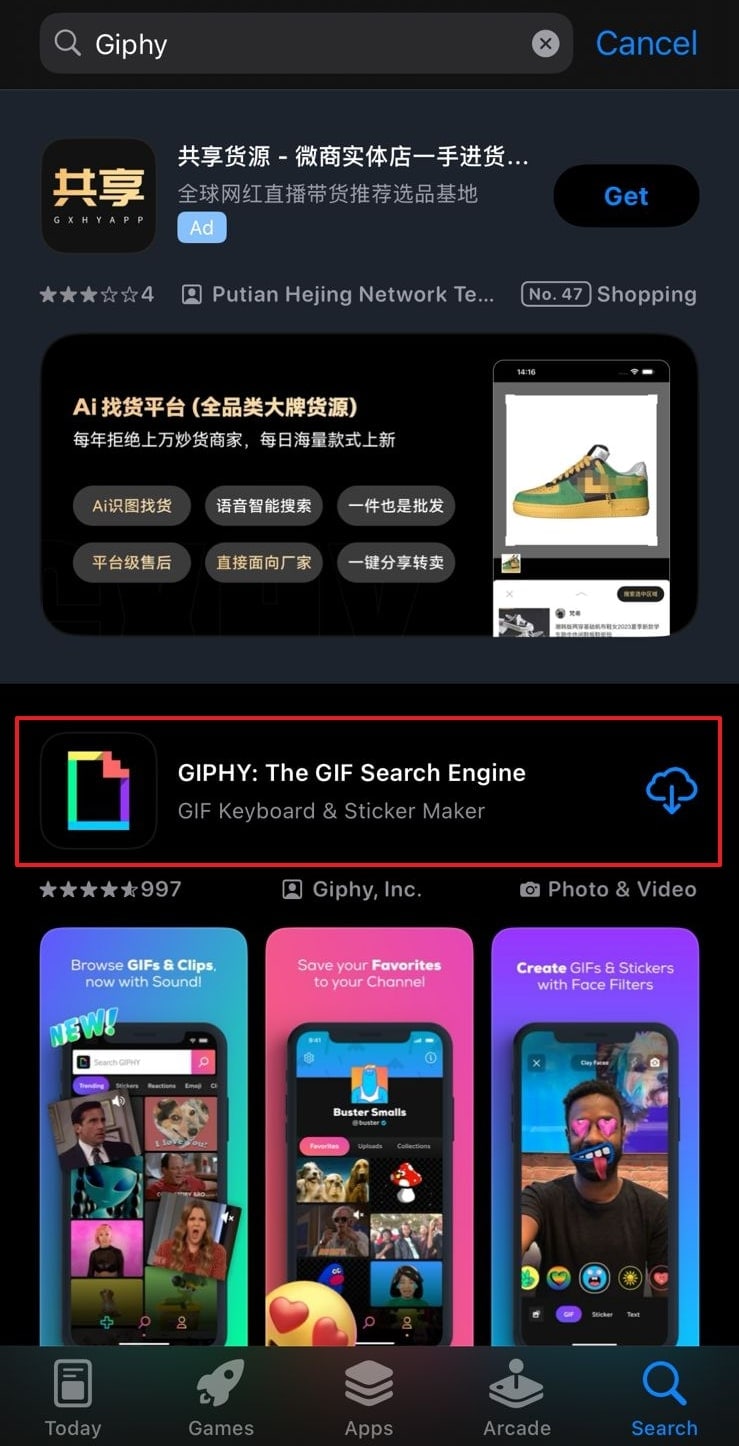
Step 1. Go to the App Store, search for “GIPHY,” and tap on the “Download” icon to add it to your device’s app list.
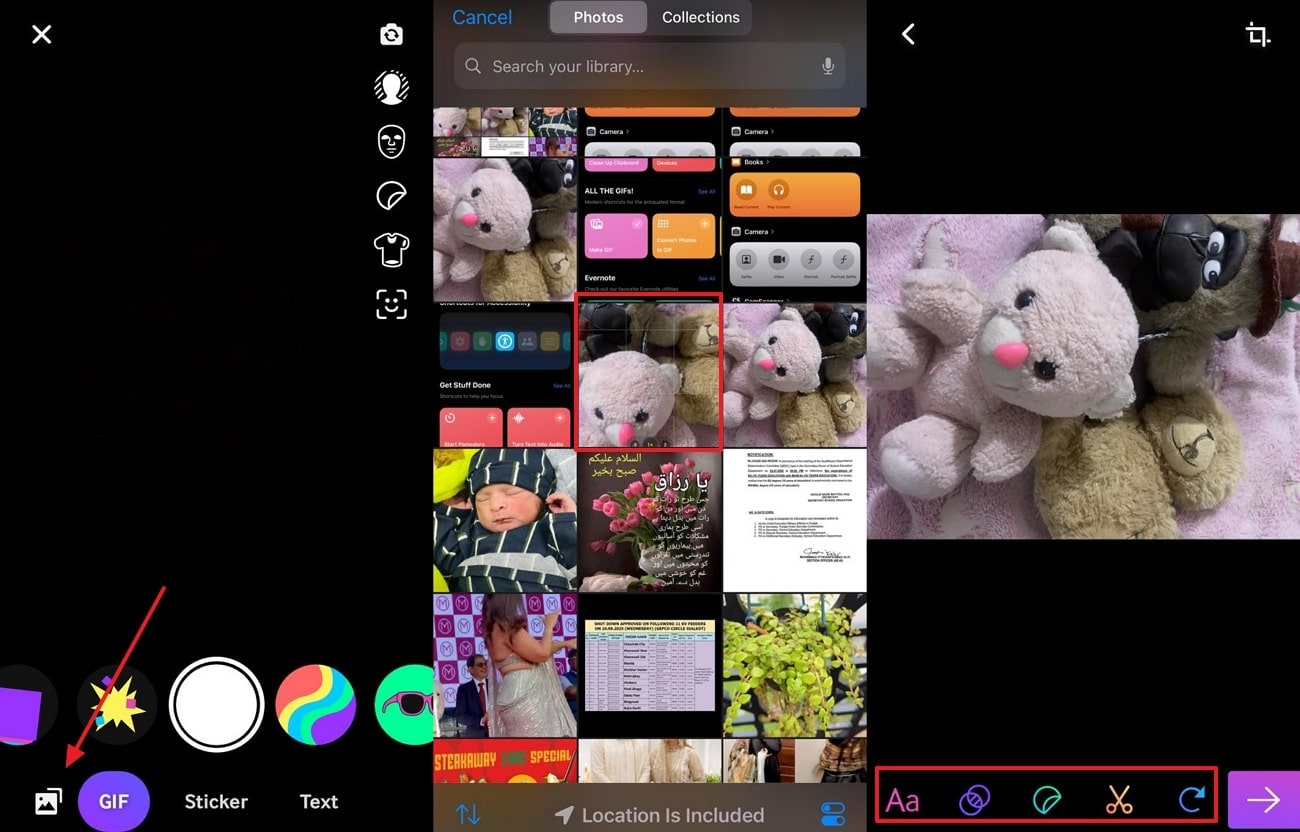
Step 2. Upon entering the tool, tap the “+” icon, then select the “Gallery” icon and select the desired Live Photo. Make further edits and tap on the “Arrow” button available at the bottom right to get the transformation process started.
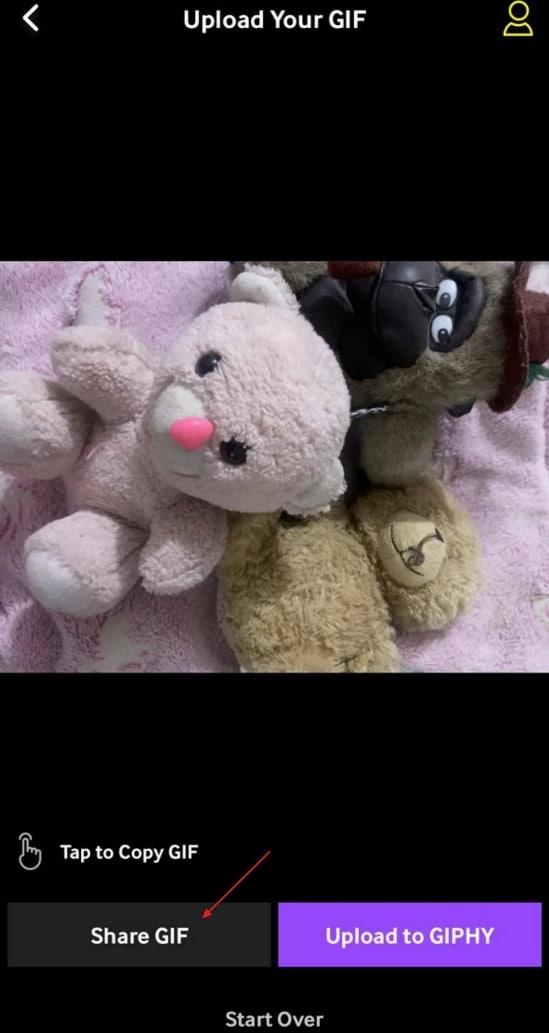
Step 3. Once the GIF is generated, you can share it directly by selecting "Share GIF." You can also consider using the "Upload to GIPHY" option to add your creation in the community to let other people use it.
Part 4. Method 3: Convert Live Photos to GIFs with an Online Tool
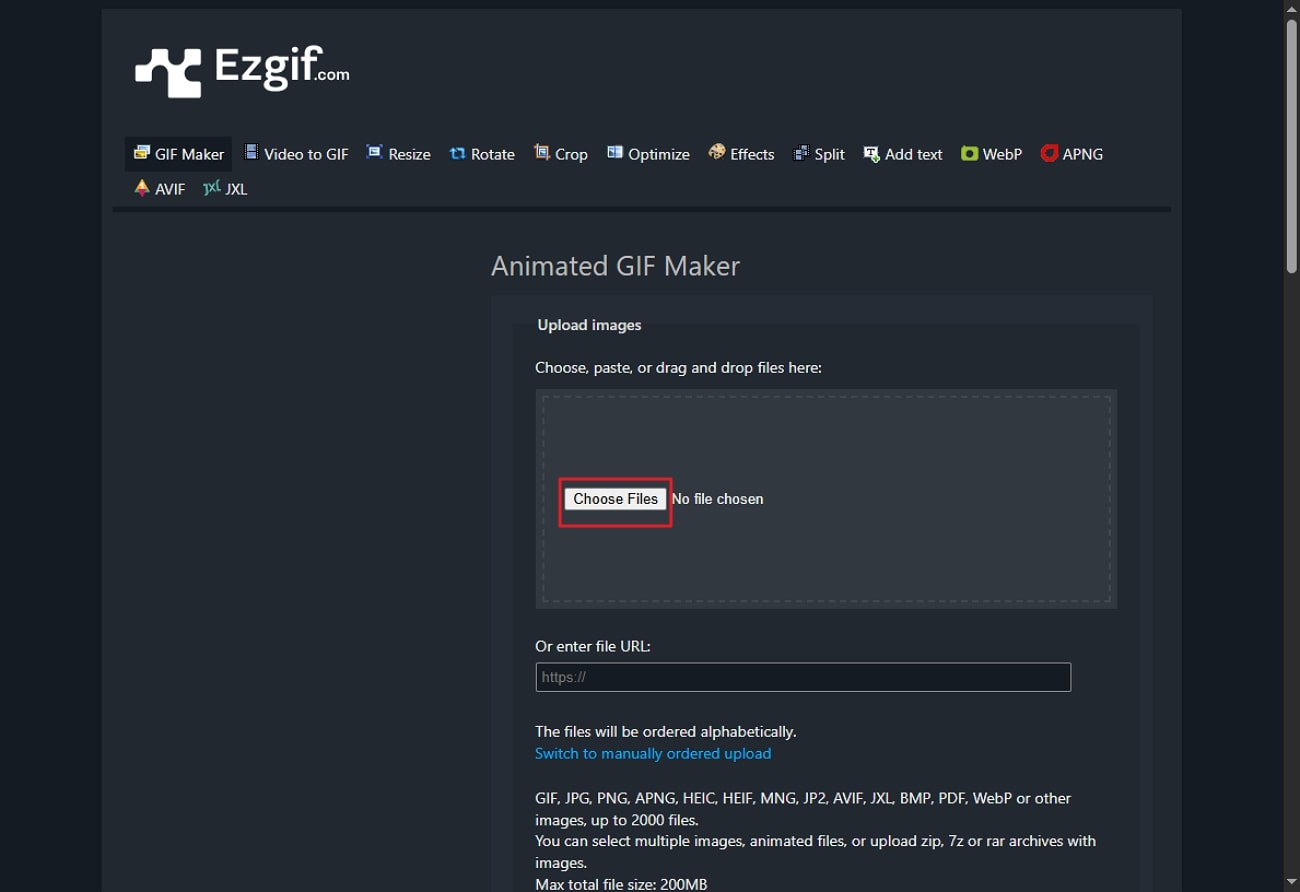
If you have no storage in your device to download a third-party app, you can opt for a web-based tool to turn a Live Photo into a GIF. Users can pick EzGIF, which offers broad accessibility and flexible editing options. This online tool gives the ability to select the desired number of frames and loop options for your GIF. Have a look at how users can convert their Live Photos to GIFs with EzGIF online tool:
Step 1. Begin by accessing the web-based tool and clicking the “Choose Files” to insert your desired image.
Step 2. After inserting a live image, tap the “Upload files!” button located at the end of the interface to initiate GIF conversion.

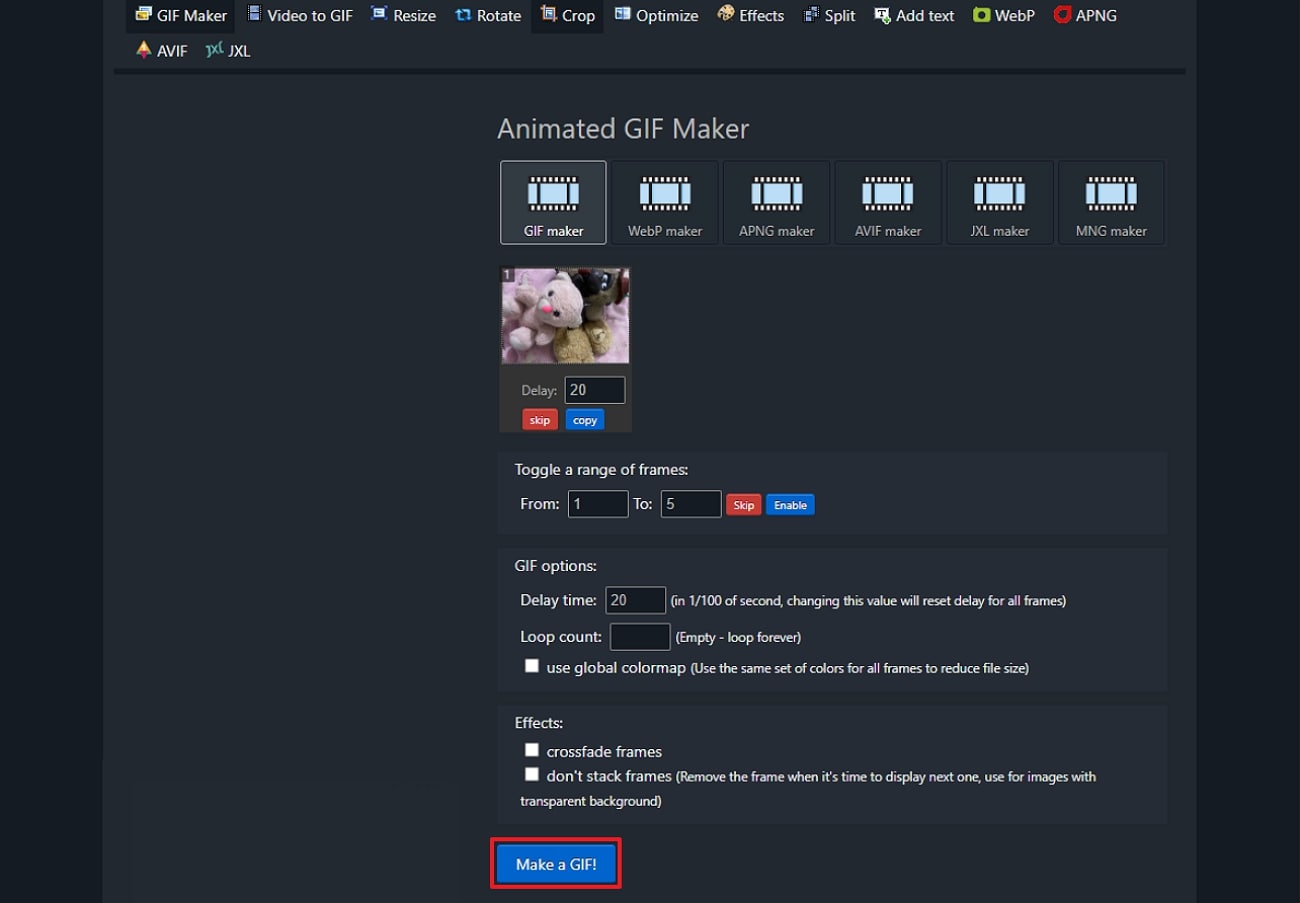
Step 3. Here, select all the desired settings for your to-be-generated GIF and hit “Make a GIF.”
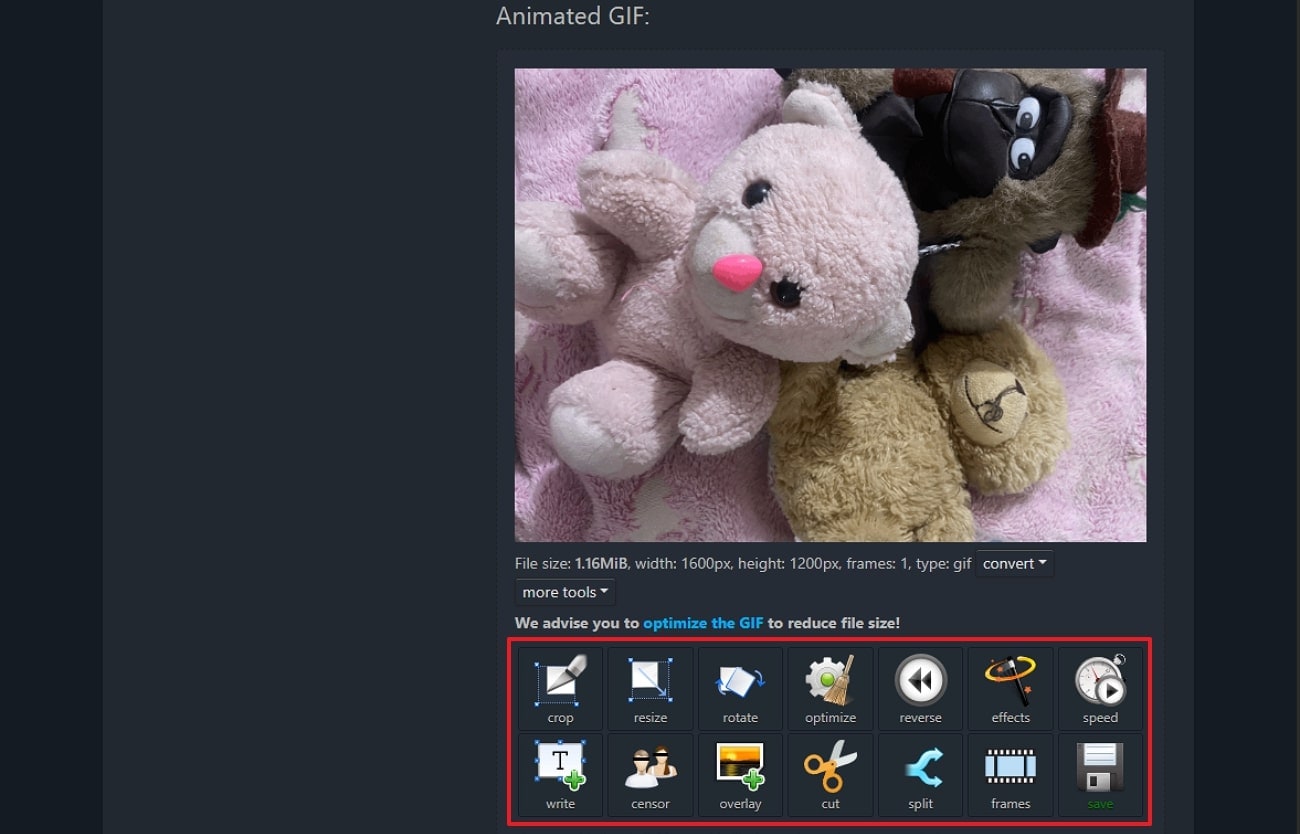
Step 4. After a while, an animated GIF will appear, which can be further edited or saved on your device.
Easy to Use Batch MOV to MP4 Converter
Part 5. Method 4: Convert Live Photos to GIFs with macOS Photos App
Using the macOS Photos app to convert Live Photos to GIFs is ideal for users who want a seamless, privacy-focused interface. As this method works directly within macOS, there is no need to download extra software or access online platforms. It ensures that all personal photos remain secure and private as the entire process happens locally.
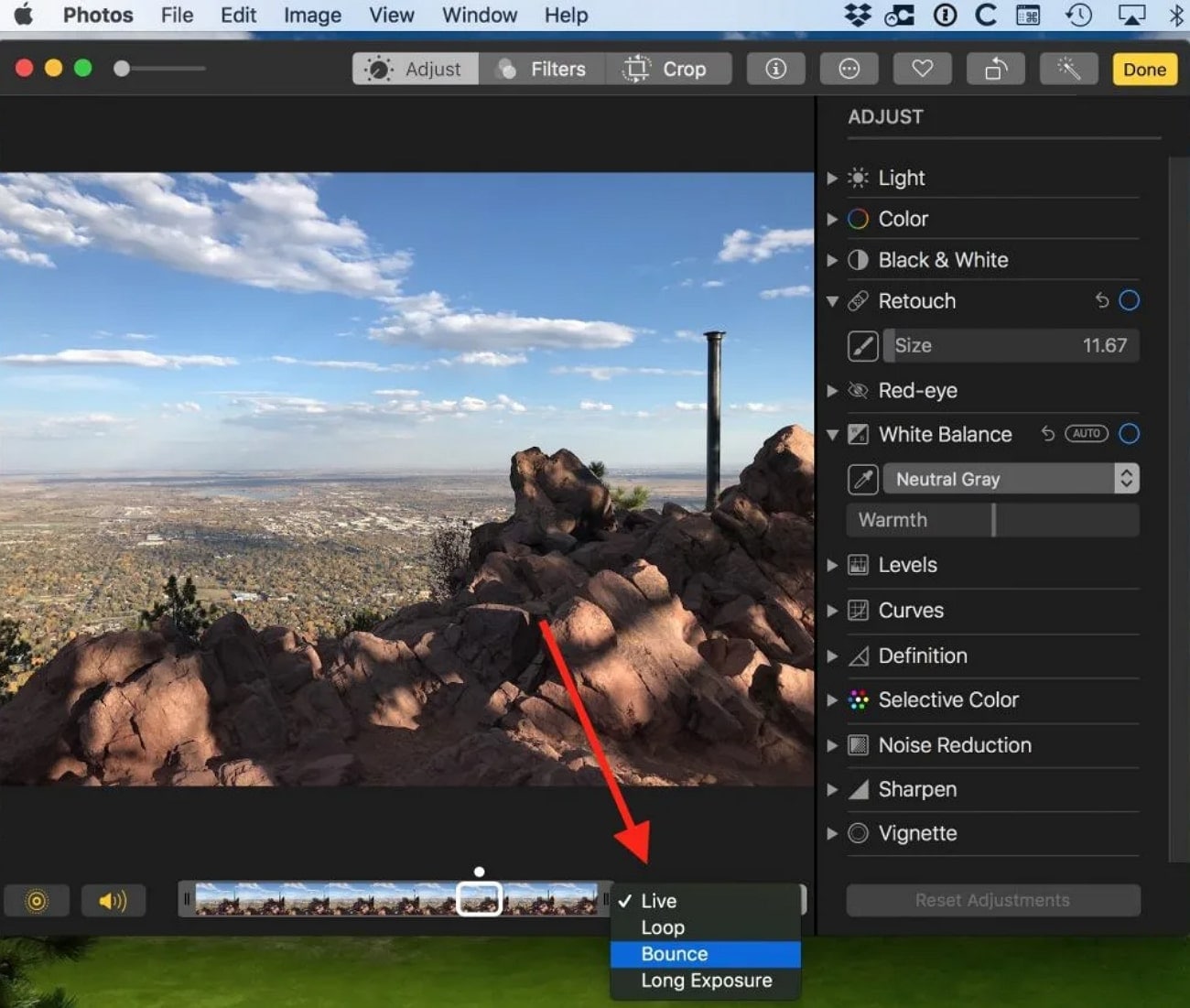
Step 1. Initiate by navigating to the "Photos" app, open the desired Live Photo from the library, and click on the “Edit” button.
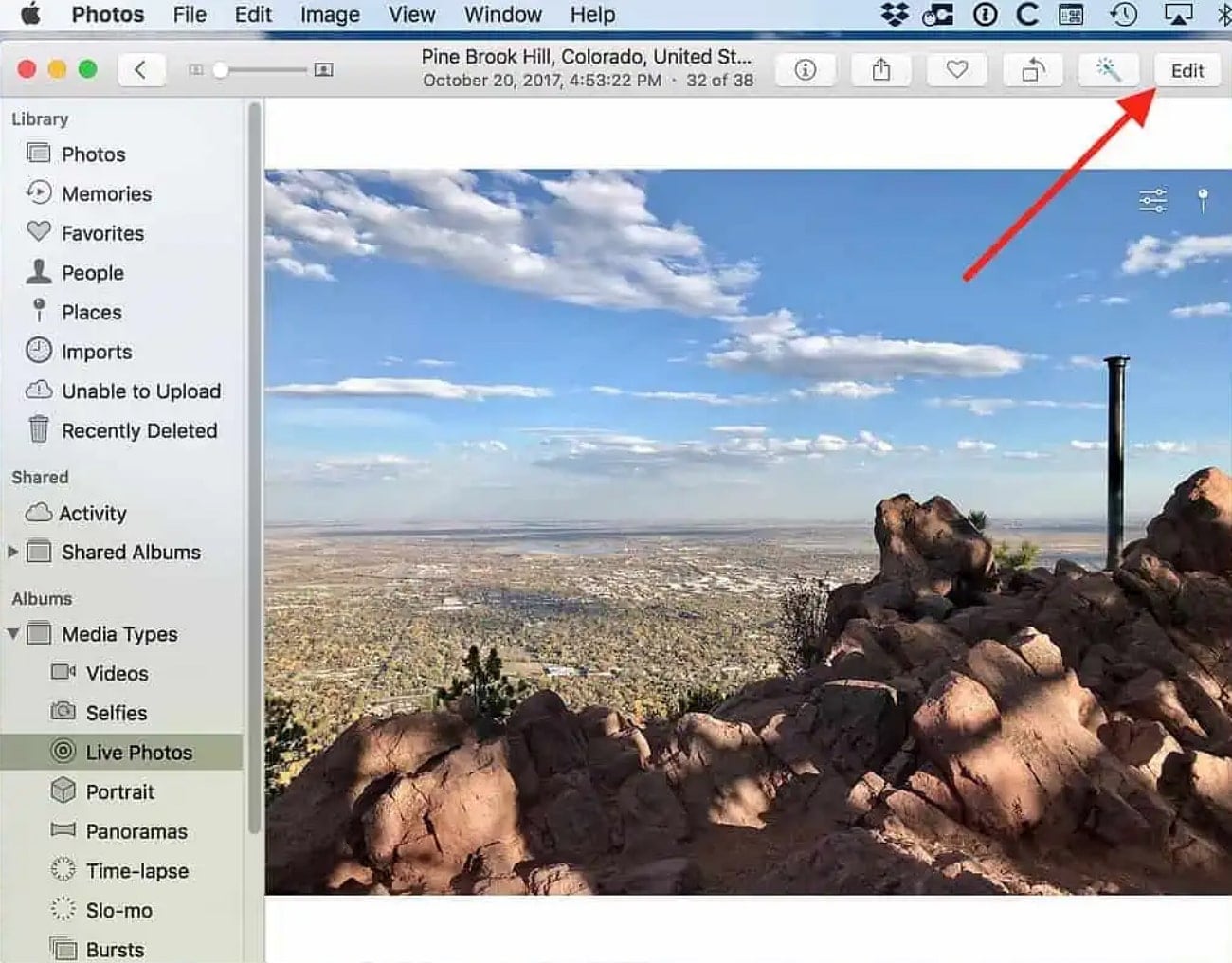
Step 2. Look out for the “Live” button at the bottom and choose “Bounce” out of the options within the drop-down.
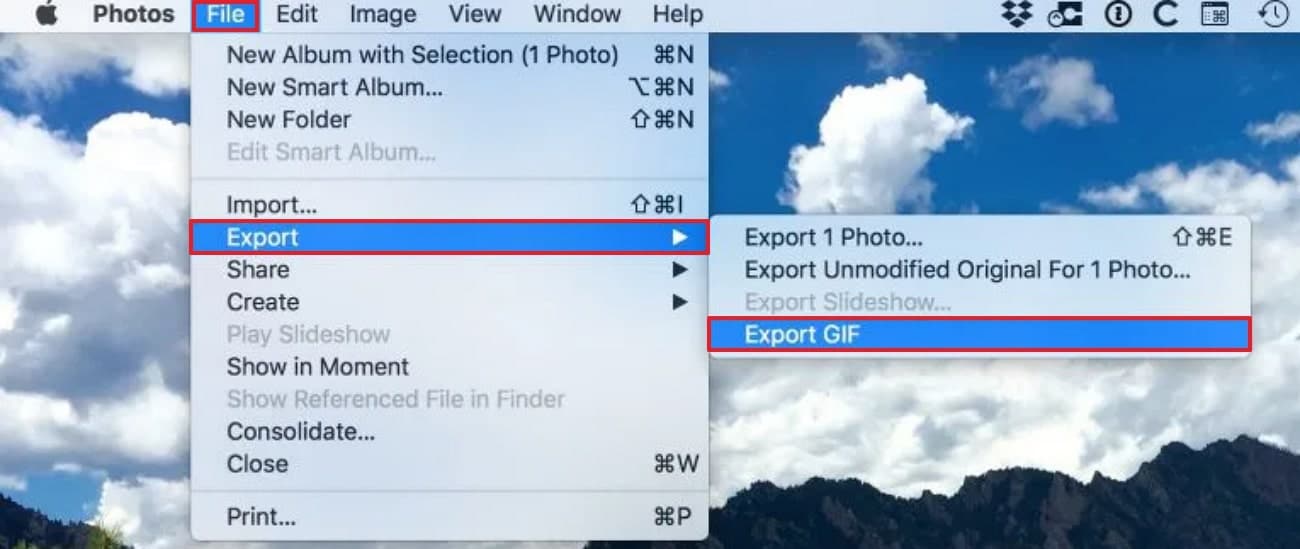
Step 3. At the end, tap on the "File" menu, click on "Export", and select the "Export GIF" option to get it saved in GIF format.
Part 6. Method 5: Easily Batch Convert Live Photos to GIFs on PC with Professional Software
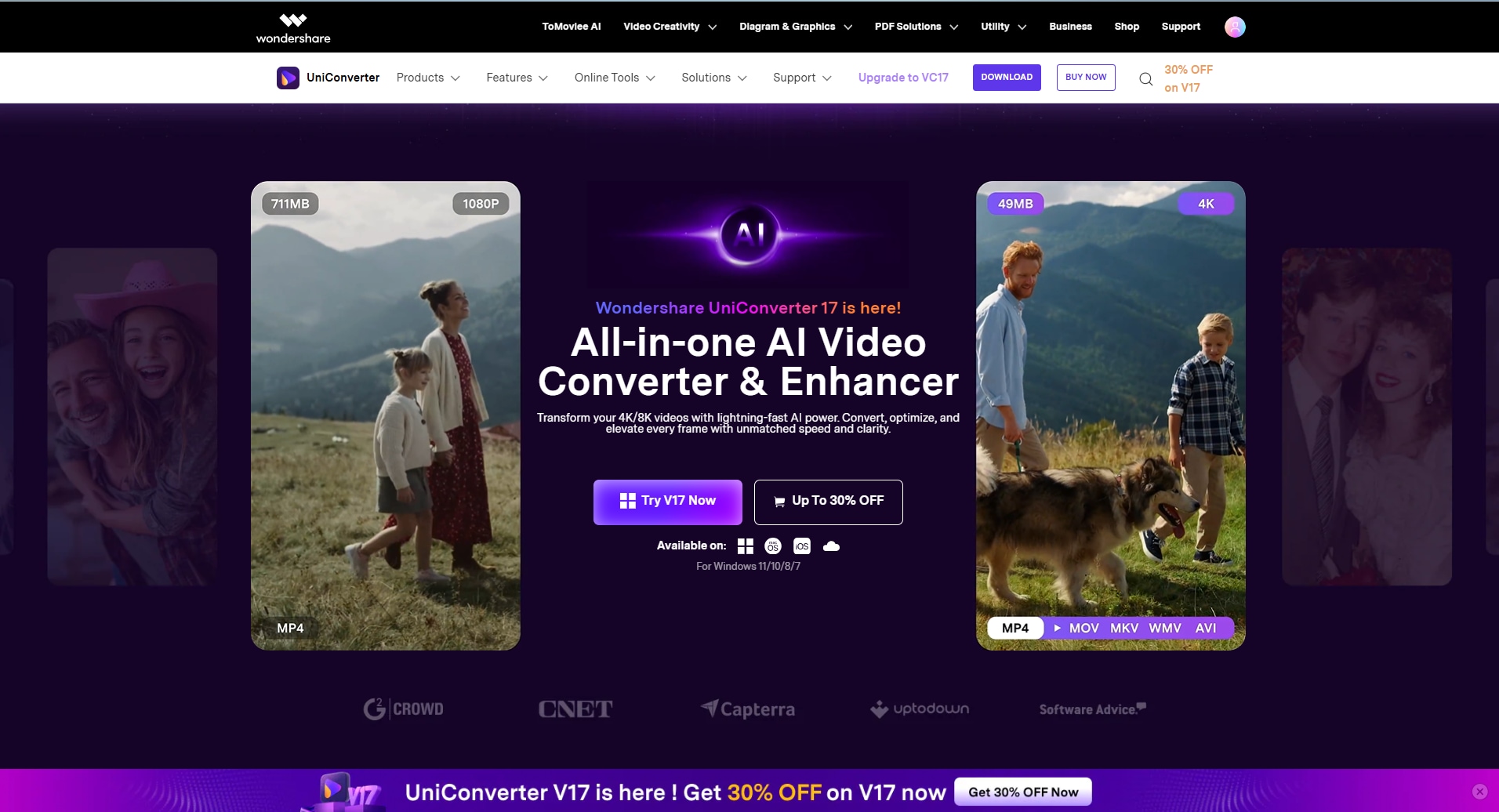
After exploring the above-discussed methods, you might’ve observed lack of professional approach in converting Live Photos to GIF. If you seek a software that makes a Live Photo into a GIF with a defined workflow, we recommend using Wondershare UniConverter. While it comes with a Live Photo conversion facility, you can also consider using it for other conversion purposes.
The dedicated and diverse operability of UniConverter allows users to make image, audio, and video conversions, all in the same platform. Not only this, but the tool also ensures quality control when converting Live Photos to GIFs.
Key Features
Multiple Format Support: This tool allows you to upload almost every type of file format, including Live Photos, JPG, PNG, BMP, and other popular photo formats.
Batch Processing: To save you plenty of time, it lets you utilize it batch processing facility to convert multiple Live Photos at once.
Fast Conversation Speed: Being a practical and efficient solution, it generates quick results even for large batches.
Wide Compatibility: UniConverter-generated GIFs can be easily used in major social platforms, messaging apps, and websites.
How to Convert Live Photos to GIF Using UniConverter
Now, if you are eager to learn how to turn a Live Photo into a GIF, we have provided you with the following guide:
Step 1. Launch the UniConverter Tool and Select the Converter Tool
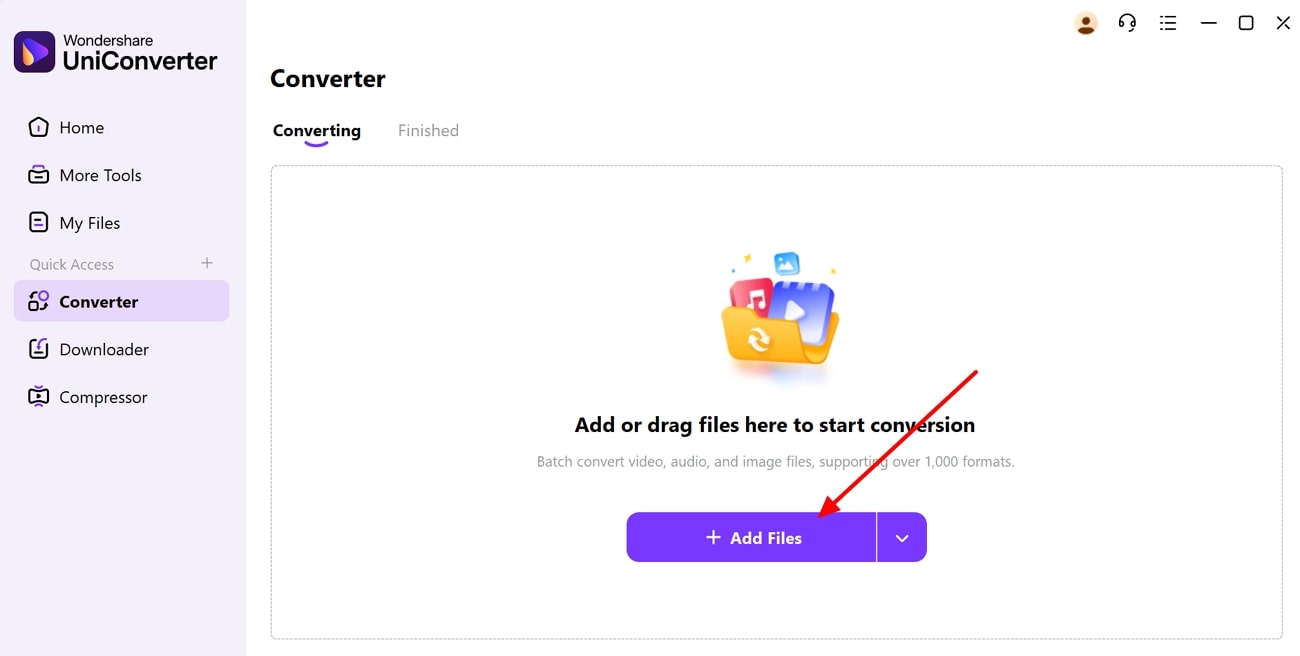
As you enter the tool, click on the “+Add Files” button in the “Converter” tab to enter the editing interface.

Step 2. Select the Desired Output Format for Your Image
Here, add your desired Live Photo from the device by clicking on the “+Add Files” button.
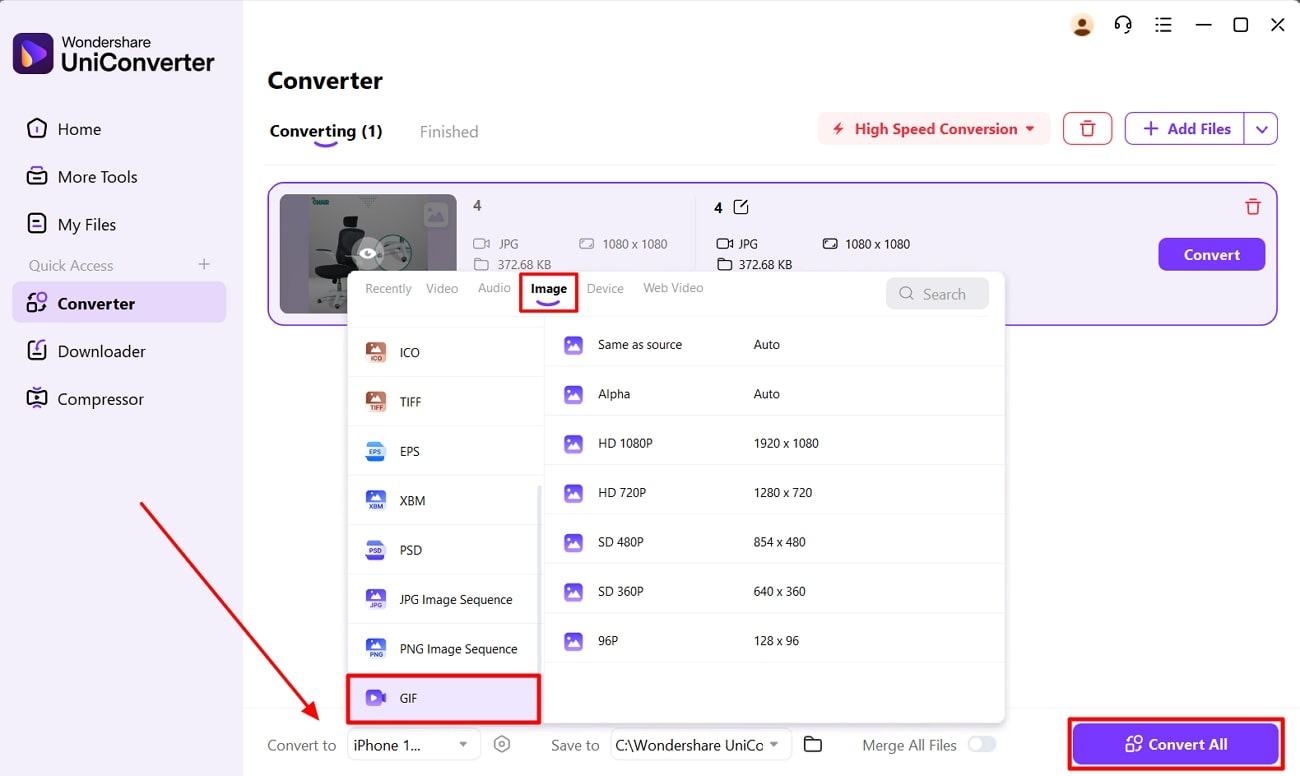
Step 3. Choose the Desired Settings and Click Create GIFs
Choose your desired format, i.e. “GIF” from the “Image” section and continue to tap on “Convert All” to initiate Live Photo conversion.
Conclusion
Summing up, in this article, we have gathered some effective methods to learn how to turn a Live Photo into a GIF. We have covered detailed stepwsie guides along with their strengths and weaknesses. However, we recommend using UniConverter, which provides a dedicated batch conversion system for easy Live Photo to GIF execution.
Frequently Asked Questions
-
1. What is a Live Photo, and what is the difference between it and a GIF?
Live Photos is a 1.5-second moving image that can be used only in the Apple ecosystem. GIF, on the contrary, is a silent animated looping image that is compatible with nearly all devices and applications. -
2. How do I convert Live Photos on devices other than iPhone?
You can have a look at the Photos app in macOS, in case you are not using an iPhone. It provides a simple procedure of converting Live Photos to GIFs. Conversely, you can opt for online tools and third-party apps if you are not an Apple ecosystem user. -
3. Are there free online tools for converting Live Photos to GIFs?
Yes, there are numerous tools available for converting Live Photos to GIF with easy steps. Among them, UniConverter provides a dedicated Live Photo to GIF conversion facility for batch operations. -
4. Does converting a Live Photo to a GIF reduce image quality?
It completely depends on the tool you are using for turning your Live Photo into a GIF. Thus, you should opt for a tool that ensures quality after conversion, such as UniConverter.

