


Capturing moments with Live Photos is fun, but sharing them outside Apple's world can get tricky, especially if you want your memories to play on any device or fill your social media feed. It's time to turn a live photo into a video.
This simple step guide lets you share, edit, and preserve the action and emotion behind your favorite shots, so your best moments are not stuck inside your camera roll.
In this article
- Why Convert Live Photo to Video?
- How to Convert Live Photo to Video with Built-In iPhone Photo?
- How to Convert a Live Photo to a Video on a Mac
- How to Convert Live Photo to Video with an Online Converter
- How to Convert Live Photo to Video on iPhone with a Third-Party App
- How to Convert Live Photo to Video Within Social Media
- Bonus: How to Easily Batch Convert Live Photo to Video
- Conclusion
- FAQs
Part 1. Why Convert Live Photo to Video?
Before diving into the methods, let's understand why you might need to turn a live photo into a video:
Universal Sharing: Converting Live photos into videos lets you post seamlessly on Instagram, Twitter, Facebook Feed, and TikTok. These platforms do not support live photos, so video ensures your memories can be widely shared without compatibility issues.
Cross-Platform Compatibility: Live photos only work well within Apple's ecosystem, but converting them into video ensures universal playback. Whether it's Android devices, Windows PCs, or smart TVs, your friends and family can easily view the content without format limitations.
Editing Flexibility: Standard video formats unlock the way to creative freedom. You can import the converted clips into video editing tools like iMovie, CapCut, or Premiere Pro, where you can trim, add filters, music, effects, or text overlays for polished storytelling.
Preservation: Unlike live photos, which may face compatibility issues in the future due to Apple's ecosystem changes, video files are standard and future-proof. Saving as video ensures your memories remain easily accessible and shareable for years to come.

Super Easy to Use Live Photos to Video Converter
Part 2. How to Convert Live Photo to Video with Built-In iPhone Photo?
The easiest way to turn a live photo into a video is to use your iPhone's built-in Photos app. This method works on iOS 13 and later versions. Here is how to turn a live photo into a video on iPhone:
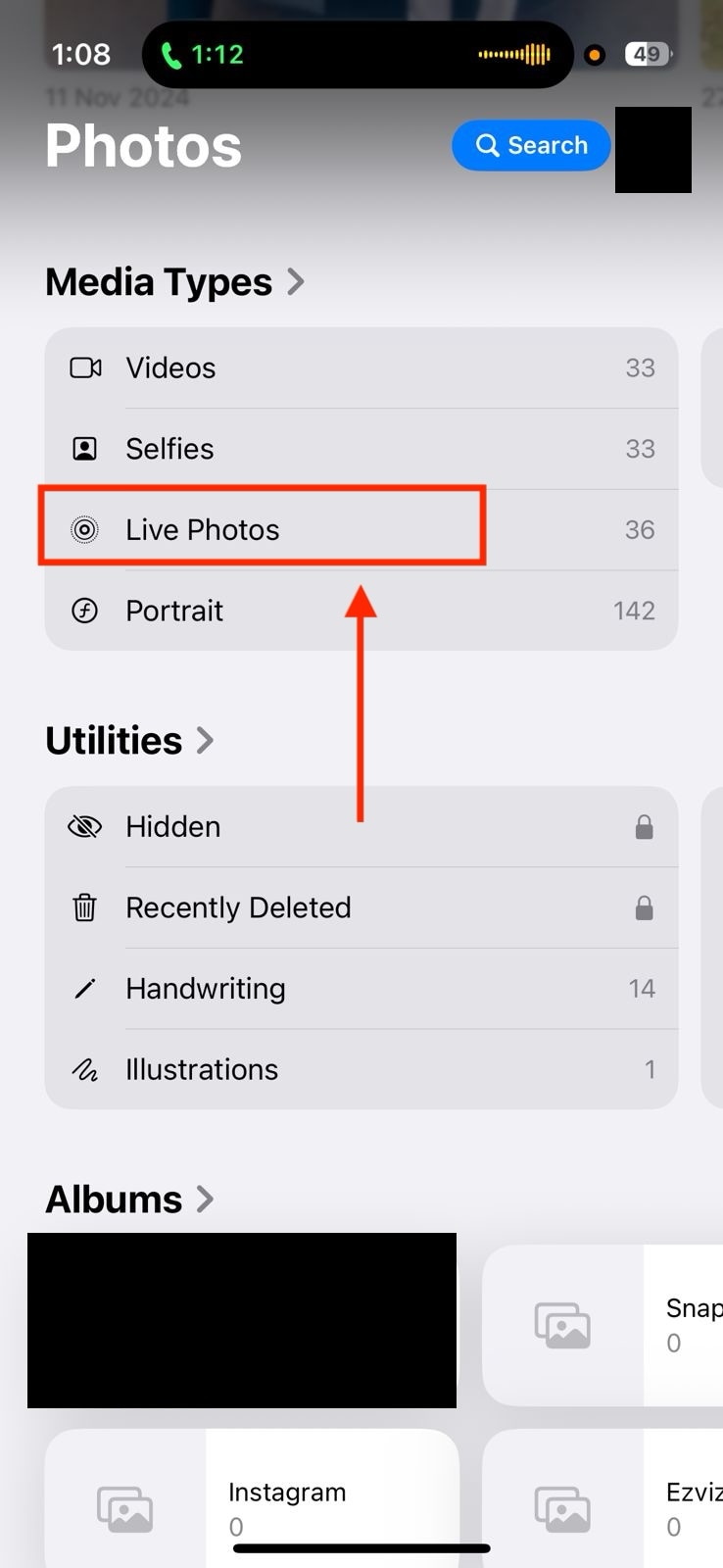
Step 1: Open the Photos app on your iPhone and navigate to your Live Photos album by swiping up and tapping "Live Photos" under Media Types.
Step 2: Select the live photo you want to convert by tapping on it to open it fully. Tap the three dots or More button in the upper-right corner of the screen. Scroll down and select "Save as Video" from the options menu.
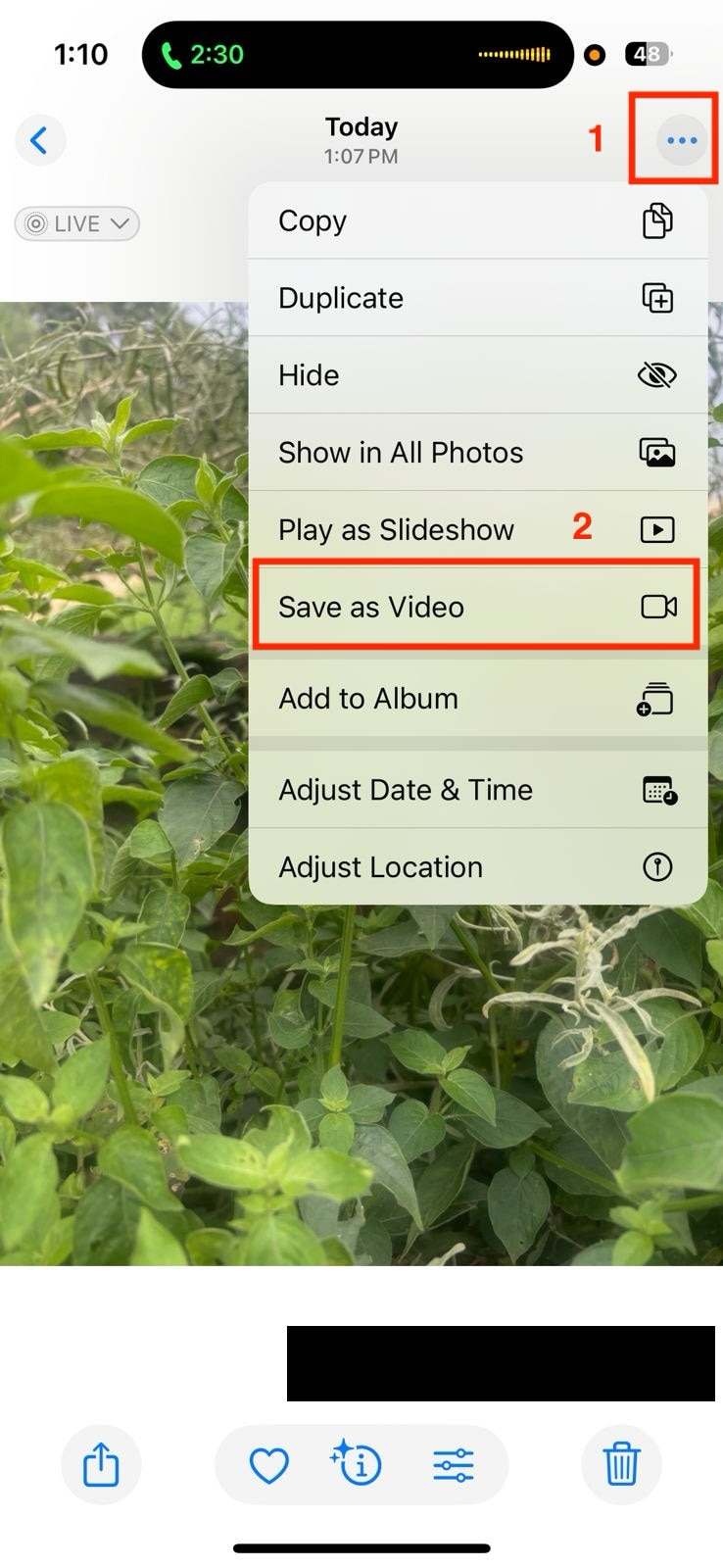
Step 3: Find your new video in the "Recently Saved" album. The original live photo remains in the Live Photos album.
Part 3. How to Convert a Live Photo to a Video on a Mac
How to turn live photos into videos on Mac becomes slightly different on iPhone but equally but simply:
Step 1: Open the Photos app on your Mac and locate the live photo you want to turn into a video.
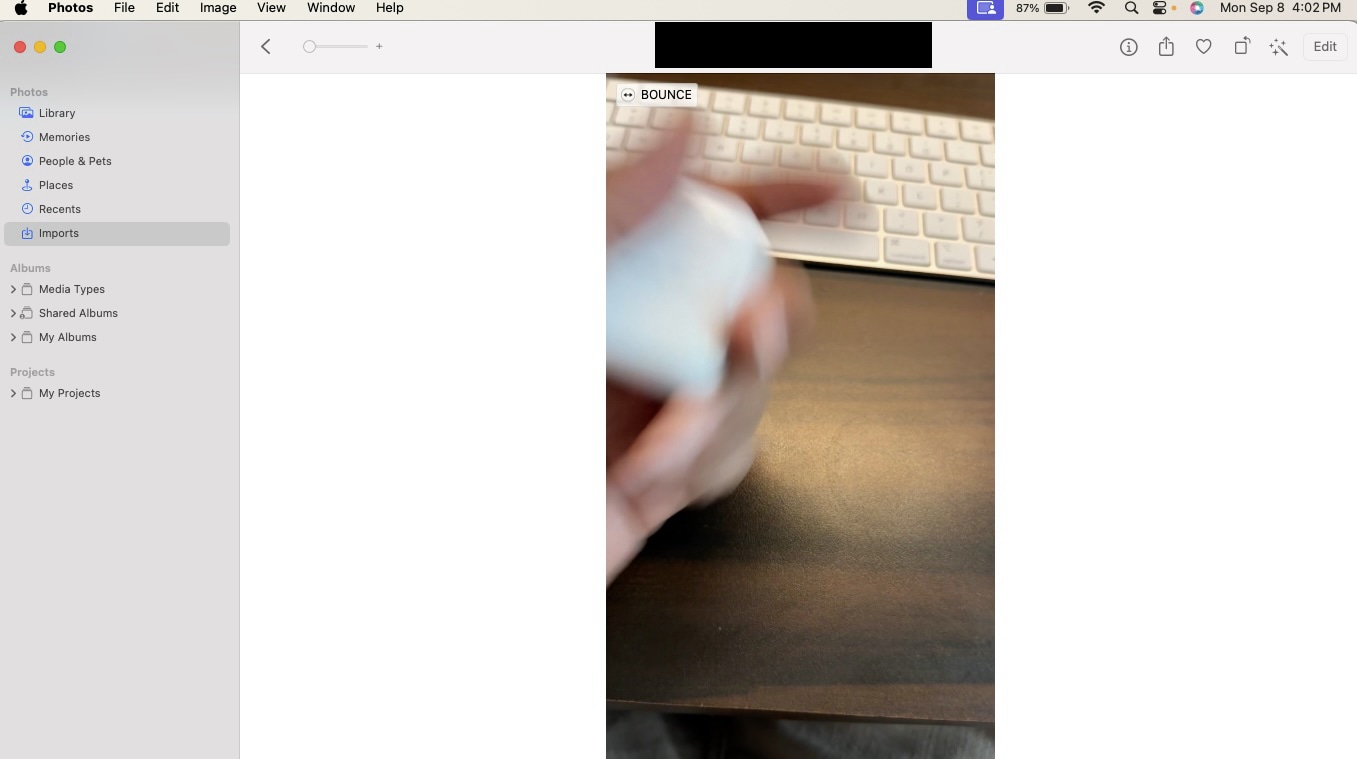
Step 2: Right-click on the live photo and select it. Choose "File> Export> Export Video" from the menu. Choose the quality of video.
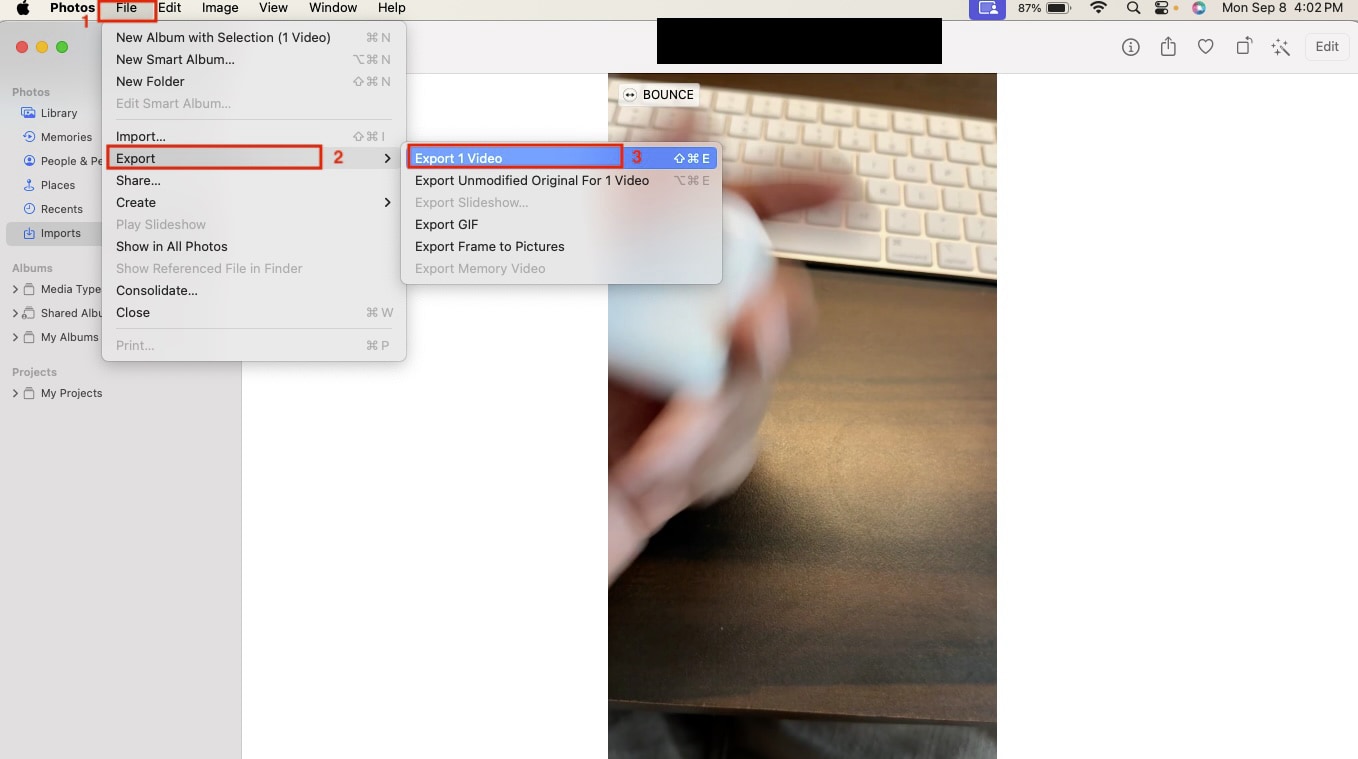
Step 3: Select your destination folder and video quality, and click "Export."
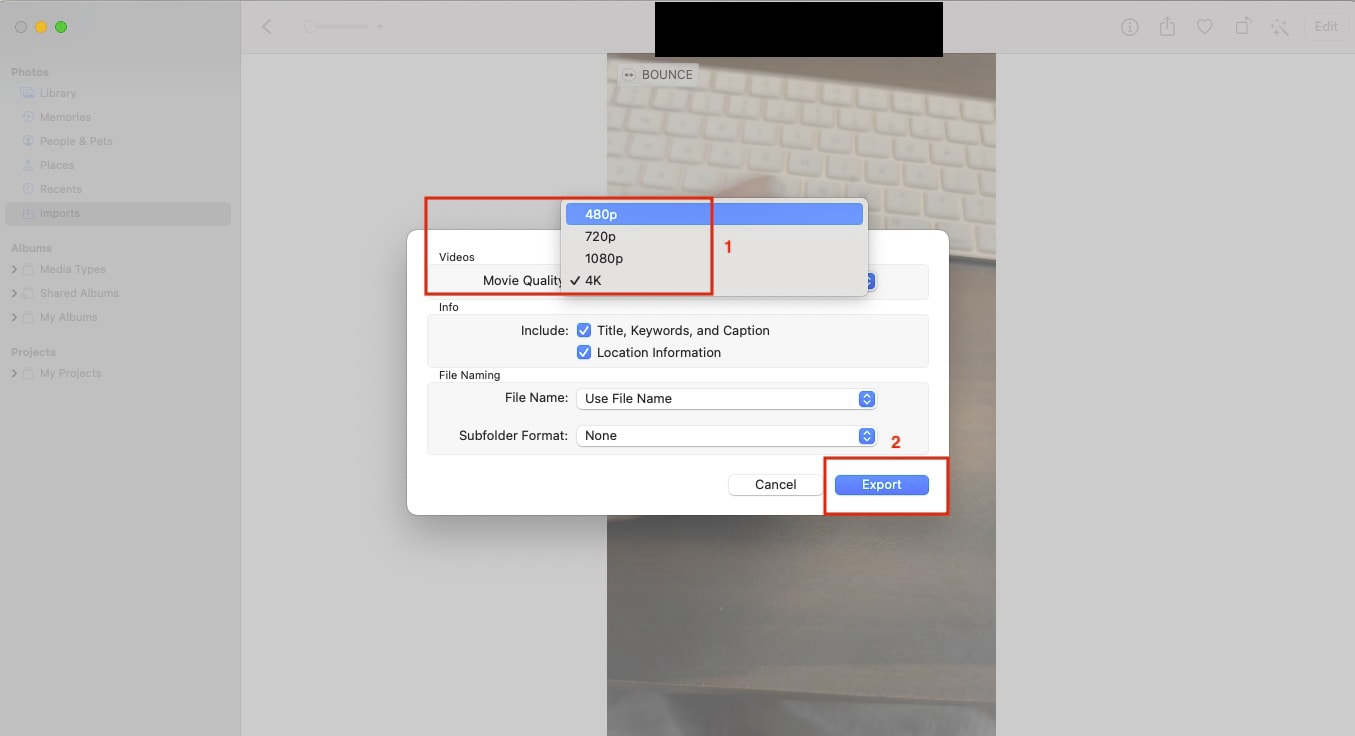
This process creates two files: a high-resolution JPEG image (the still photo) and a MOV file (the 3-second video clip). You can use the MOV file as your converted video.
Part 4. How to Convert Live Photo to Video with an Online Converter
Canva's image-to-video converter lets you transform your photos into lively videos with just a few clicks, no editing experience needed. You can weave your pictures into a story, add music and transitions, and download your creation as a high-quality video. It works smoothly on desktop and mobile, so sharing is a breeze.
How to Turn a Live Photo into a Video Using Canva
Take these simple steps to turn a live photo into a video:
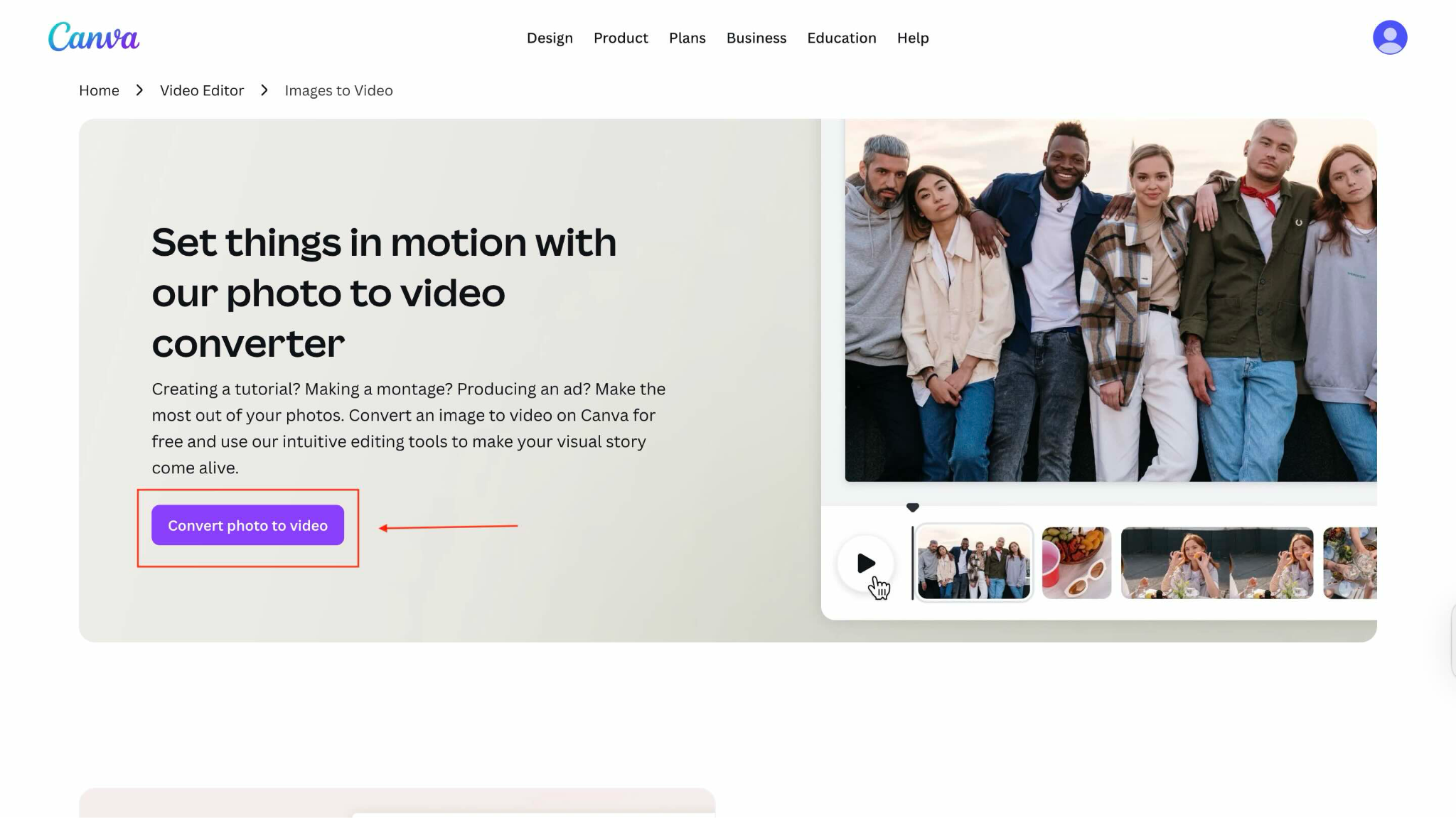
Step 1: On the image-to-video converter page of Canva, click "Convert Photo to Video."
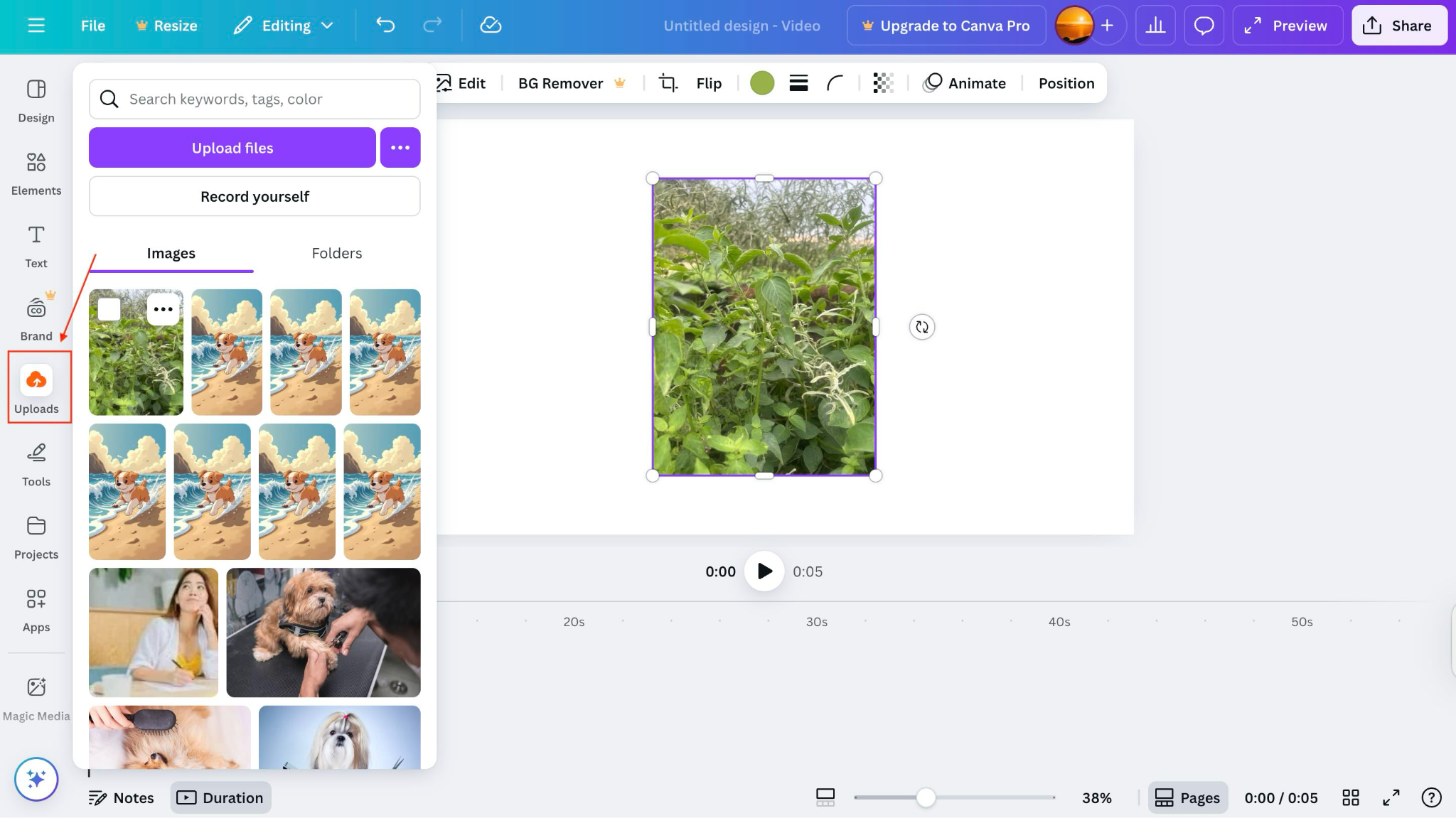
Step 2: Click "Uploads" and upload the live photo to Canva.
Step 3: It will automatically create the video; you can add different audio, a page, or increase the duration of the video.
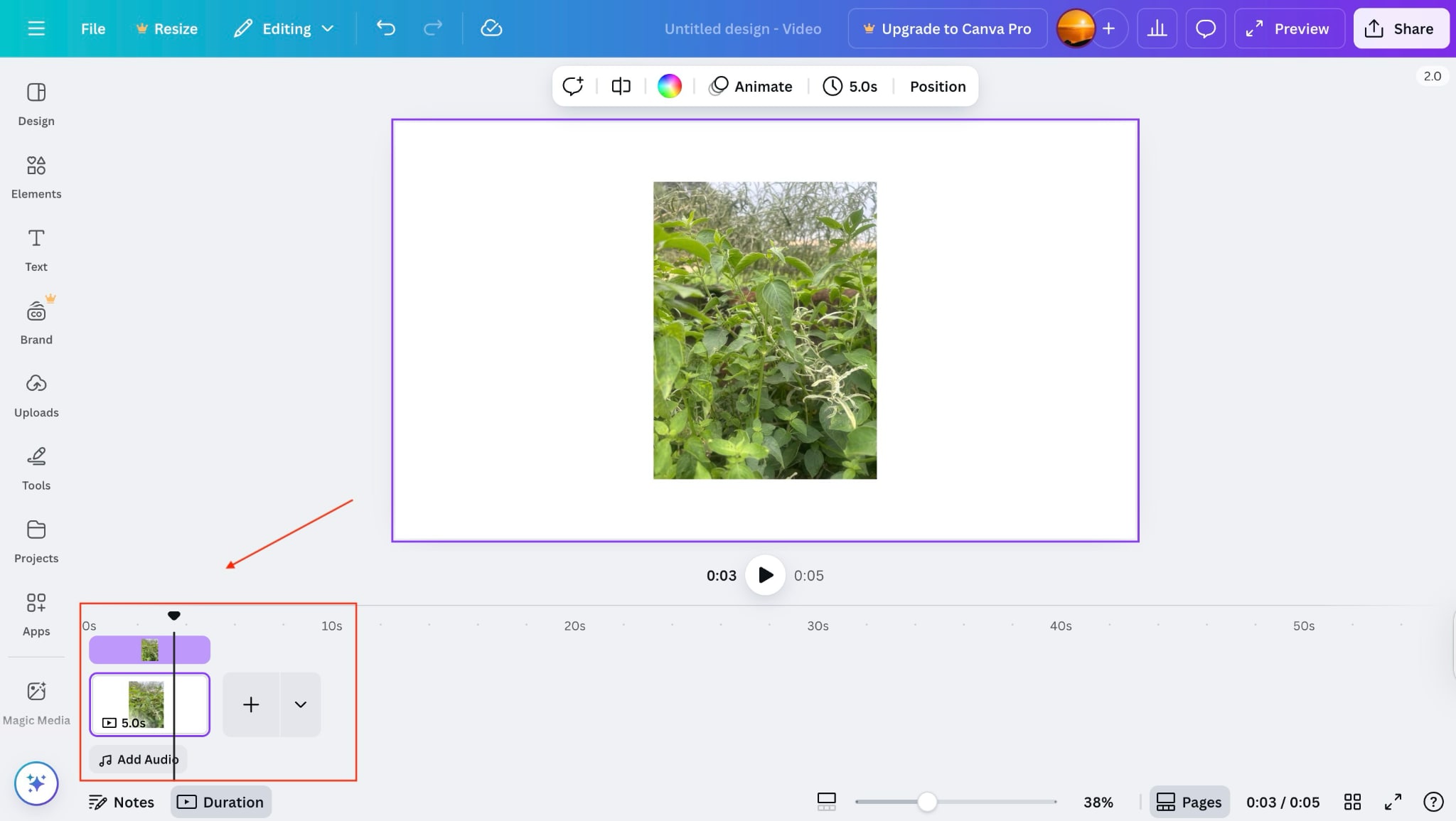
Note: Canva does not convert live images to video with their original audio. While you can add background music or sound effects, the original voice or sound from your live photo will not be preserved in the final video
Part 5. How to Convert Live Photo to Video on iPhone with a Third-Party App
The Lively app makes turning everyday photos into dynamic videos super easy. You can merge photos, string clips together, or even create playful grids. Just pick your type, select your photos, and share directly to your camera roll or social media. Simple, intuitive, and perfect for quick creativity.
How to turn a live photo into a video using Lively
Take these simple steps to learn how to turn a live photo into a video:
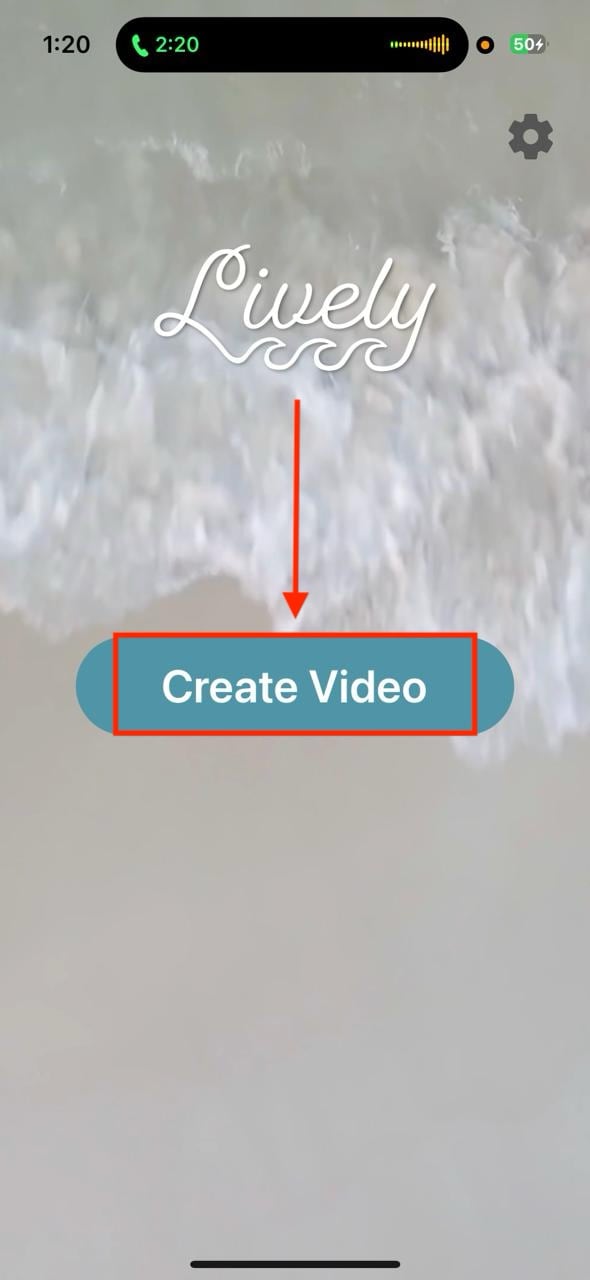
Step 1: Go to the App Store and download the app. On the homepage, click the "Create Video" button.
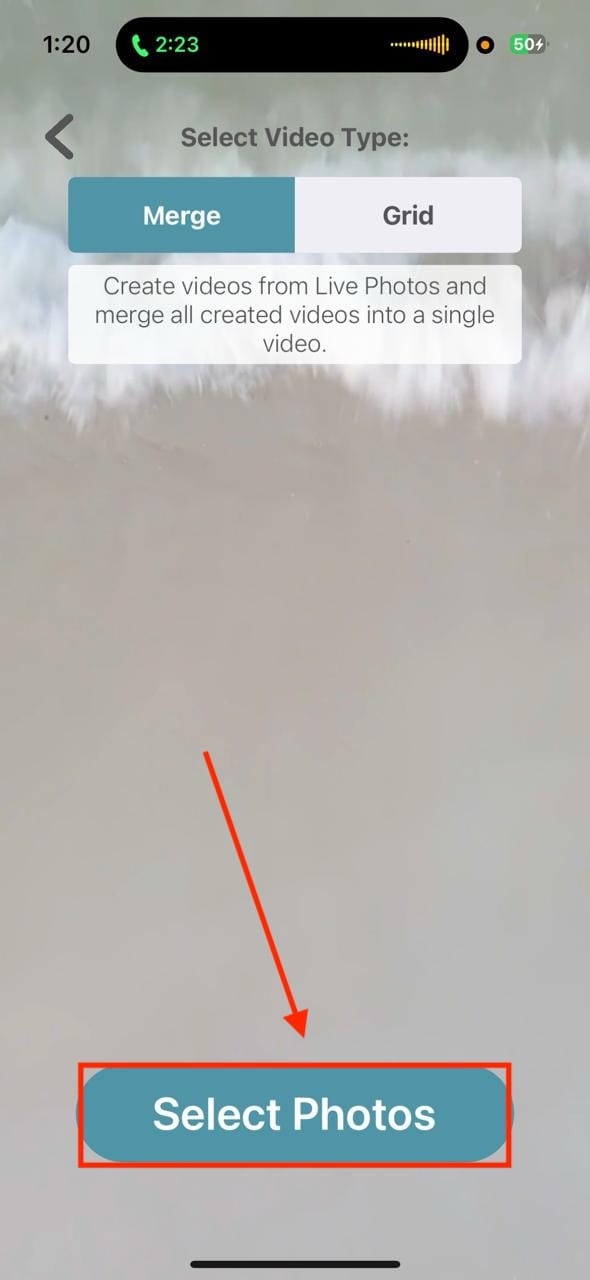
Step 2: Now, click the "Select Photos" option.
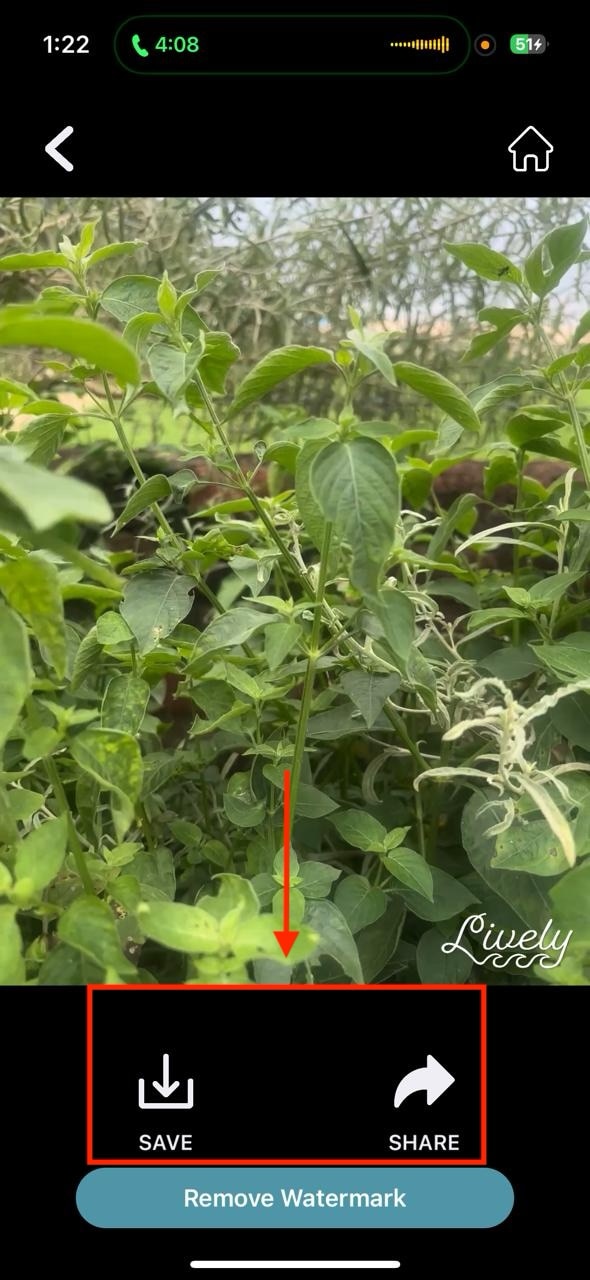
Step 3: After a few seconds, click the "Save" button or "Share" as per your requirements.
Super Easy to Use Live Photos to Video Converter
Part 6. How to Convert Live Photo to Video Within Social Media
Instagram and Facebook turn a live photo into a video with their Boomerang feature. You need to choose a live photo, and the rest will be done automatically.
How to Turn a Live Photo into a Video on Instagram
Here is how to convert a live photo to a video with Instagram:
Step 1: Open Instagram, swipe left, and choose a live photo.
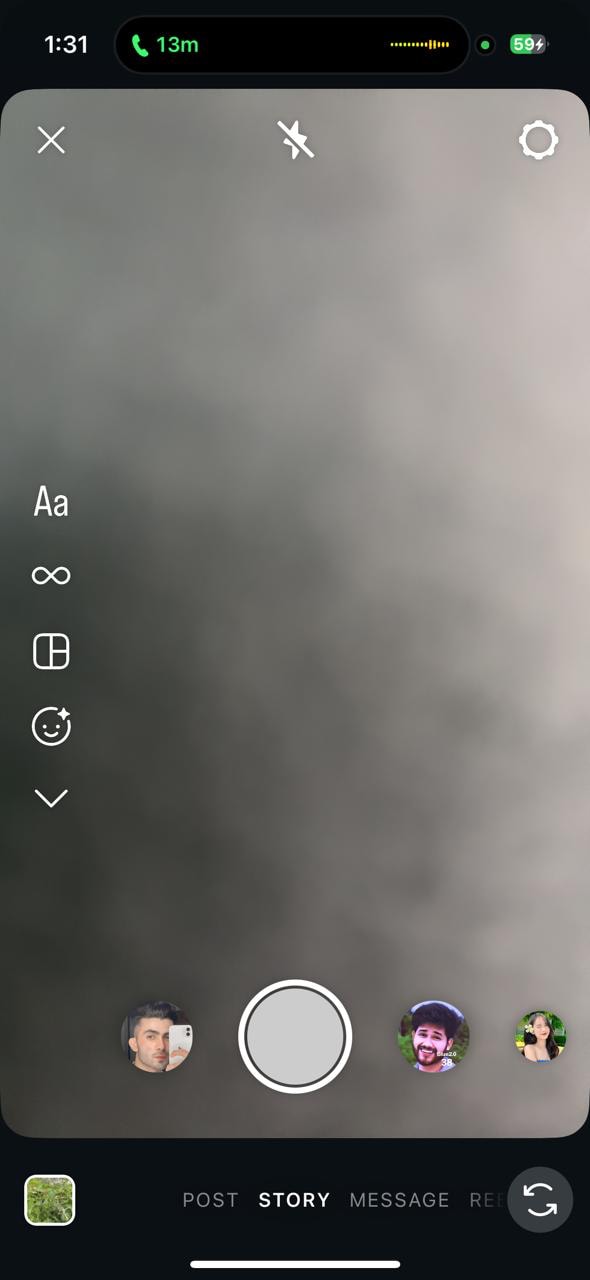
Step 2: After uploading the photo, click the "Boomerang" sign.
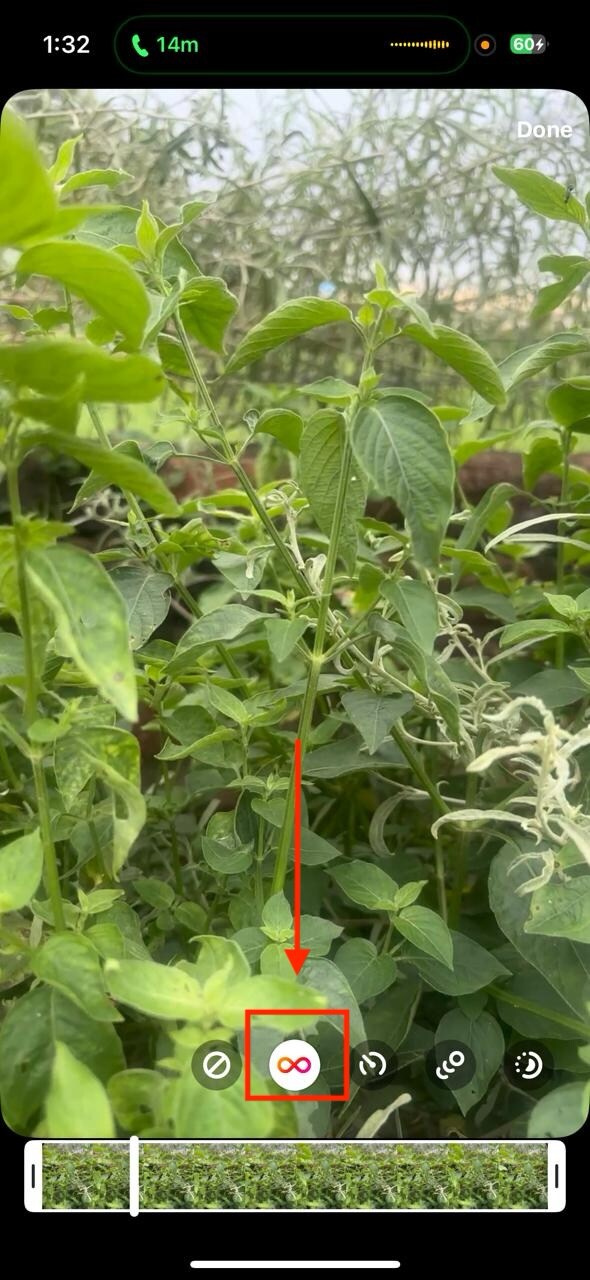
Step 3: Your video is ready and you can add it to the story.
How to Convert a Live Photo to Video with Facebook
Take these simple steps to turn a live photo into a video using Facebook:
Step 1: Open Facebook and click the "Create Story" button, and click the "Boomerang" button.
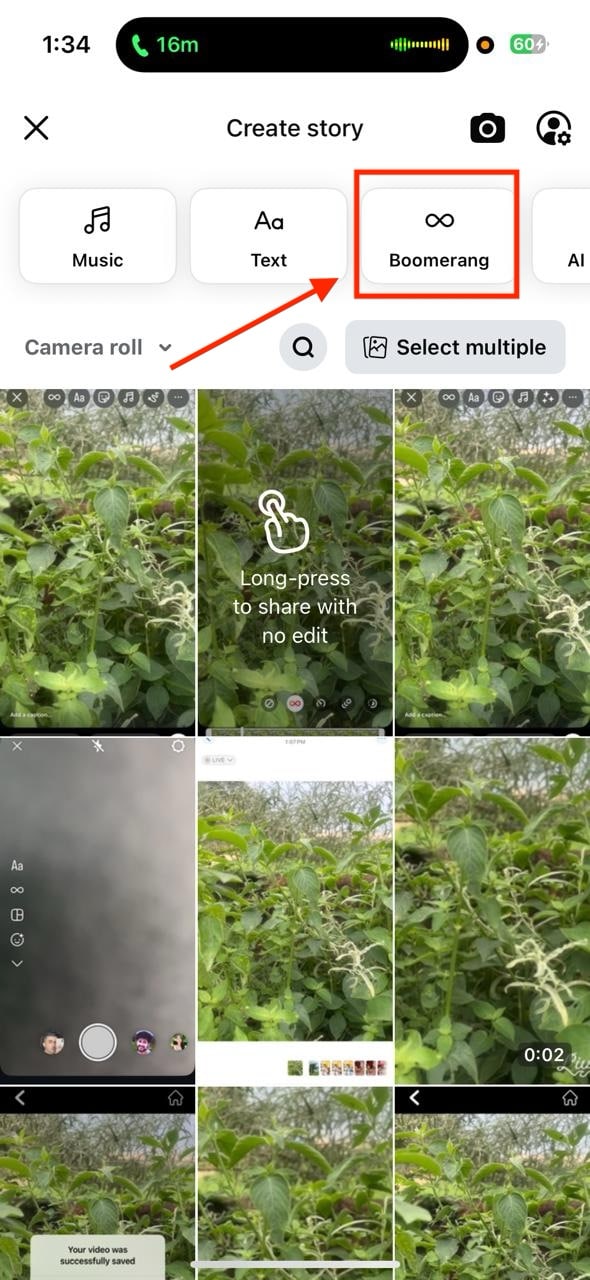
Step 2: Click on the lower left corner to choose a live photo.
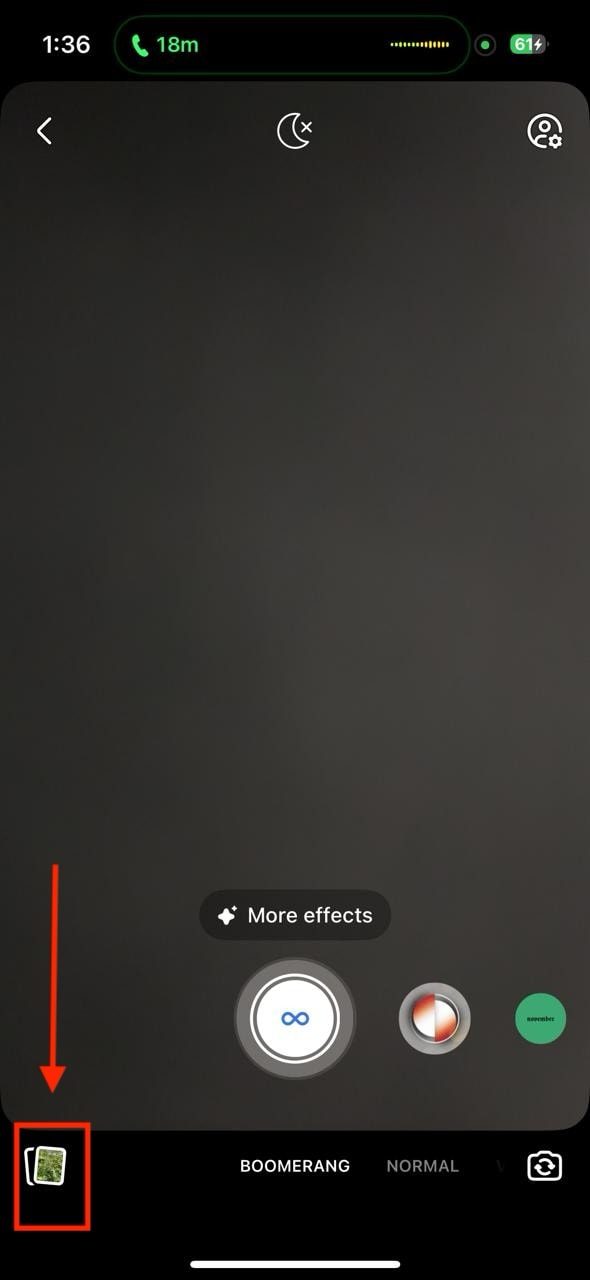
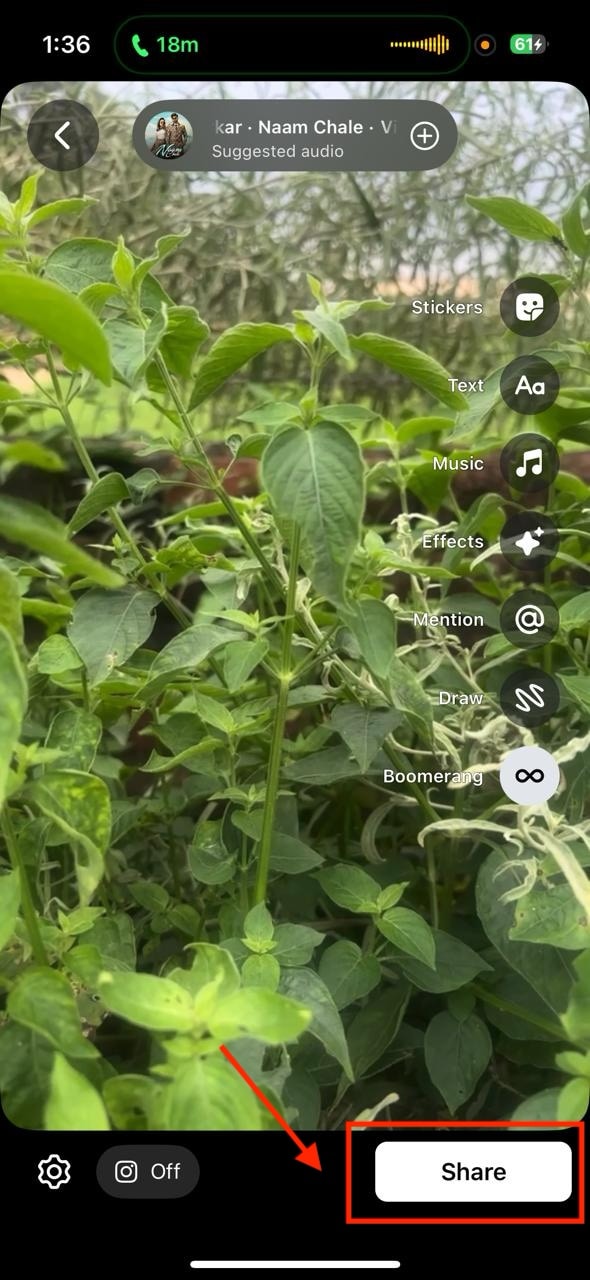
Step 3: The Boomerang process will take a few minutes to complete. Click "Share," and the video will be uploaded to your story.
Part 7. Bonus: How to Easily Batch Convert Live Photo to Video
Wondershare UniConverter solves the live photo sharing problems effortlessly—turning Live Photos into smooth, high-quality MP4 or MOV videos without losing motion or sound. Ideal for social media sharing, storytelling, or creating animated memories, it preserves every vivid moment in seamless playback. Convert, edit, and export your Live Photos easily for professional or personal projects—all within one intuitive tool.
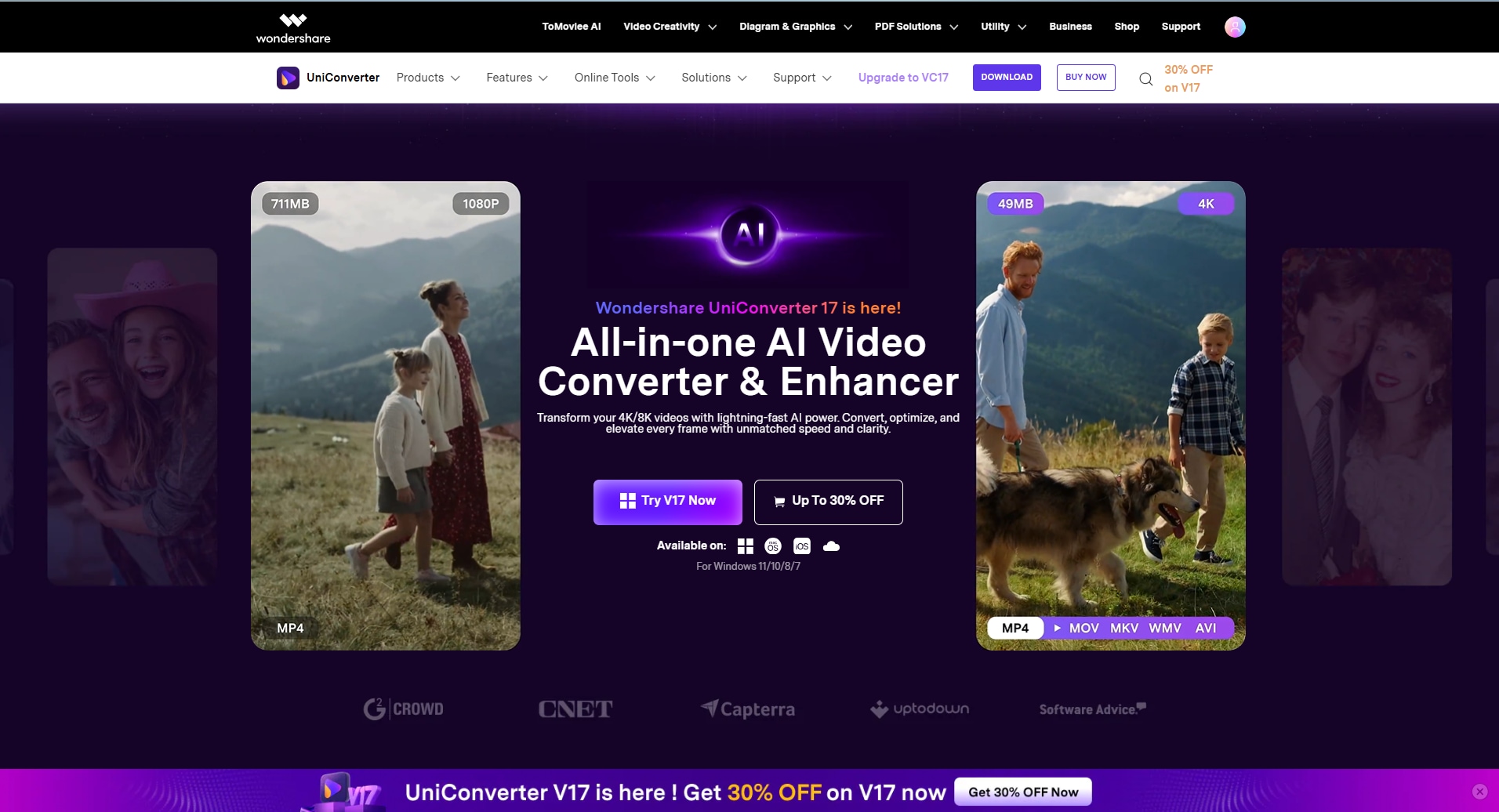
Feature Points of UniConverter
- 130× Faster Speed – Powered by full GPU acceleration including Intel, NVIDIA, AMD, and Apple Silicon (M1–M4) chips for ultra-fast processing.
- Lossless Conversion – Convert videos without quality loss, keeping original resolution, frame rate, and color fidelity.
- Widest Format Support – Handles 1000+ video, audio, and image formats, including MP4, MOV, MKV, AVI, HEVC, and ProRes.
- Batch Conversion – Process multiple Live Photos or videos at once with unified output settings for efficiency.
- Smart Format Recommendation – AI analyzes your content and suggests the best output format and codec for each platform
How to Turn a Live Photo into a Video in Batch
Here is how to convert a live photo to a video with Instagram:
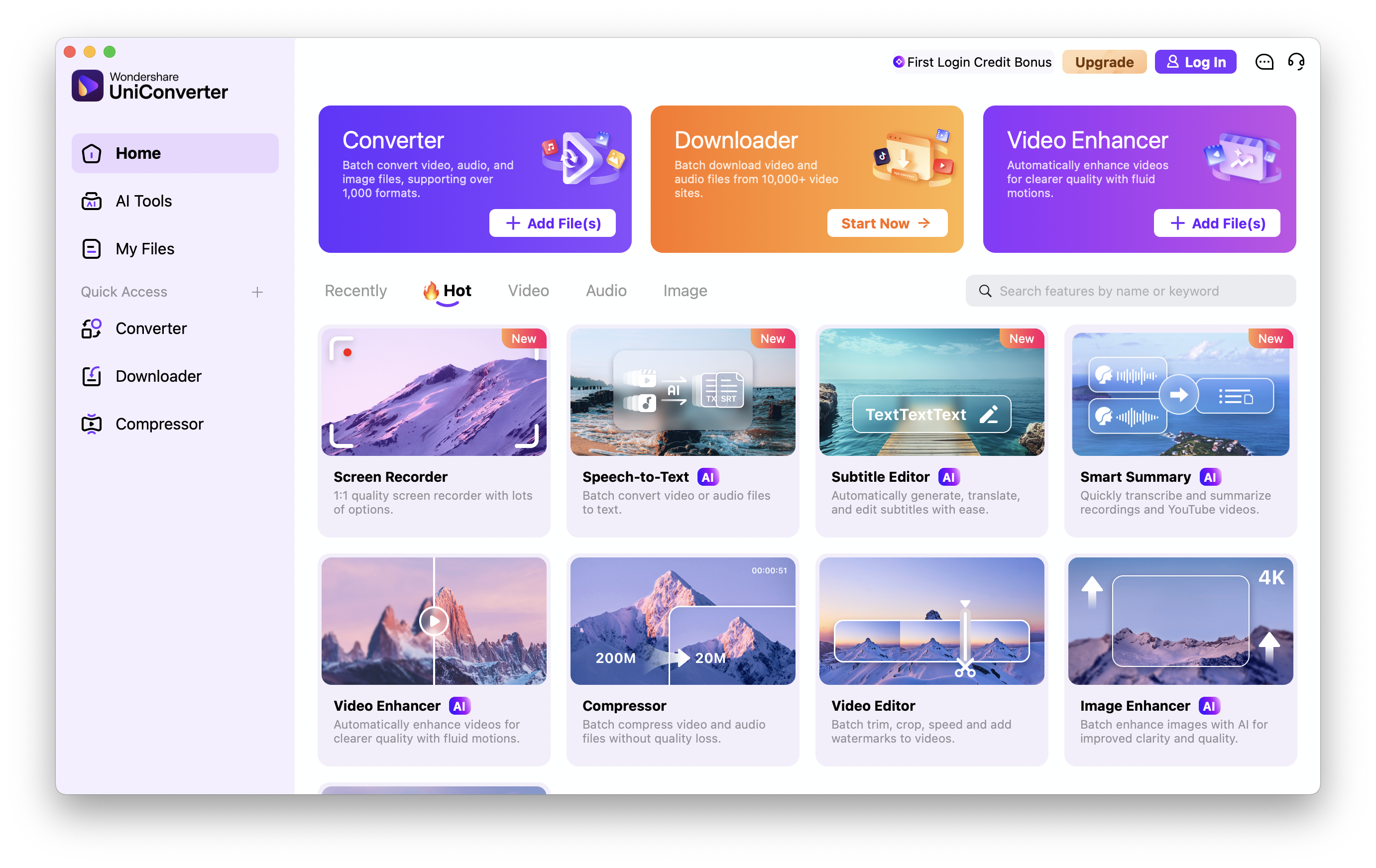
Step 1: Open UniConverter and click 'Converter' to upload live photos.
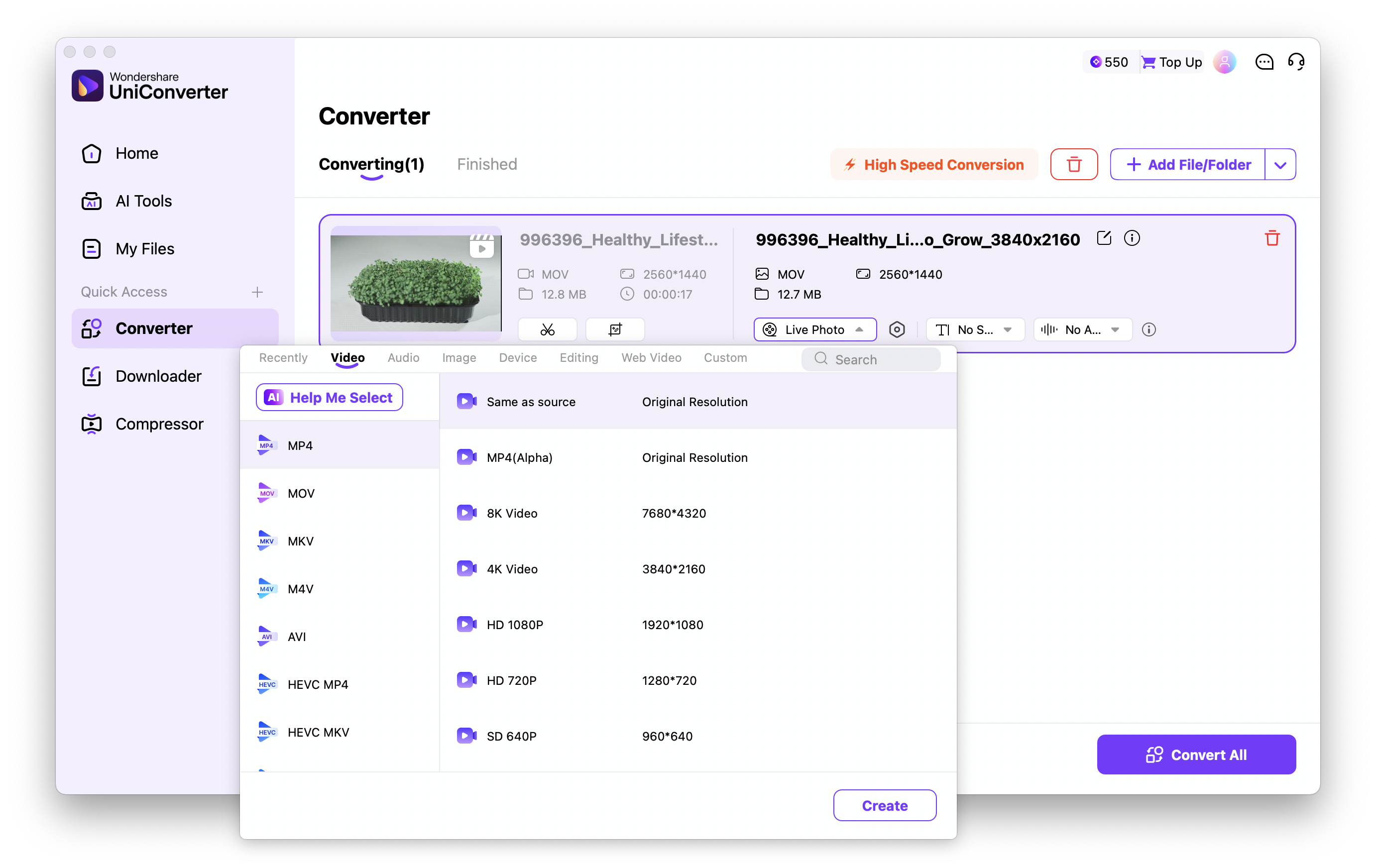
Step 2: After uploading live photos, choose the target video format you need.
Step 3: Export and save converted videos.
Conclusion
Converting a live photo to video has never been easier with these five proven methods. Whether you prefer the built-in iPhone Photos app for quick conversions, online tools like Flixier for advanced editing, or third-party apps like Lively for professional results, you now have multiple solutions to make your Live Photos universally shareable. Choose the method that best fits your needs and start sharing your memories across all platforms and devices.
FAQs
-
1. Can I convert a Live Photo to a video on Android devices?
No, you cannot convert a Live Photo to a video directly on Android devices. Android does not natively support Apple's Live Photo format. You'll need to transfer the Live Photo to an iPhone or use online converters that can handle the format. -
2. Will converting a Live Photo to video reduce the quality?
No. When using built-in iPhone methods or high-quality third-party apps like Lively, the video quality remains high with minimal compression. -
3. How long are videos created from Live Photos?
Live Photos capture about 3 seconds of content (1.5 seconds before and after the shutter press). Converted videos are typically 3 seconds long. -
4. Do converted videos include sound?
Yes, videos converted from Live Photos retain the original audio captured during the Live Photo creation. -
5. Is it free to convert a Live Photo to a video?
Yes. Using the iPhone's built-in Photos app is completely free. Some online tools and third-party apps provide free versions with basic features, while premium versions offer additional editing capabilities.

