


Have you ever come across a hilarious GIF or a beautiful animation and wished you could set it as your iPhone wallpaper or share it as a Live Photo? It can be frustrating when your favorite GIFs don’t quite fit with your device’s features or can’t be used the way you want.
That’s where the idea of converting a GIF into a Live Photo comes in handy. Whether you want to personalize your lock screen, surprise a friend with a quirky wallpaper, or simply give new life to your favorite GIFs, knowing how to make this switch saves you the hassle of trial and error.
In this guide, we’ll walk you through five easy and practical methods—ranging from quick iPhone shortcuts to professional PC converters and even simple online tools—so you can transform any GIF into a Live Photo effortlessly, no matter what device you’re using.
In this article
- Why Convert GIF to Live Photos
- Method 1: Convert GIF to Live Photo with iPhone Shortcut
- Method 2: Convert GIF to Live Photo with Dedicated Third Party Mobile App
- Method 3: Convert GIF to Live Photo in Batch With Professional PC Converter
- Method 4: Convert GIF to Live Photo on iPhone with Google Photos
- Method 5: Convert GIF to Live Photo with Online Converter
- Conclusion
- FAQs
Key Takeaways
[Wallpaper Compatibility] Converting GIFs to Live Photos solves iPhone limitations, enabling animated wallpapers and smoother playback on iOS devices.
[Quick Mobile Solutions] Tools like intoLive and Google Photos offer easy conversion on iPhone, but may include ads or limited editing features.
[No-Install Options] Online tools like LivePhoto.video provide fast browser-based conversion, though they depend on internet and lack advanced controls.
[Professional Workflow] Wondershare UniConverter enables high-quality batch conversion with better control over resolution and motion, ideal for users needing efficiency and precision.
Part 1: Why Convert GIF to Live Photos
Define the Apple output before converting
GIF-to-Live-Photo results are device-specific and require clarity about whether the goal is a true Live Photo package, a video wallpaper, or a GIF export. Check the target iPhone or iPad workflow and the app’s required video duration, orientation, frame rate, and audio behavior. A GIF-to-video conversion is not automatically a valid Live Photo until the target app accepts the resulting package.
When it fails: If the result appears as a still image, check the Live Photo pairing, duration, orientation, and import method; changing the file extension will not create the required package.
Define the Apple output before converting: Check the target iPhone or iPad workflow and the app’s required video duration, orientation, frame rate, and audio behavior. A GIF-to-video conversion is not automatically a valid Live Photo until the target app accepts the resulting package.
Turning GIFs into Live Photos unlocks new ways to enjoy and use your favorite animated moments. Here’s why many iPhone users prefer making the switch:
To Set Animated GIFs as iPhone Wallpaper
iPhones do not natively support GIFs as live wallpapers. The Live Photo format (.livephoto) is the only way to set an animated wallpaper. With Live Photos, you can bring your lock or home screen to life, giving your device a unique, personal touch. This also allows you to revisit fun or memorable GIF moments every time you unlock your phone.
Enhanced Sharing and Messaging on iOS
Live Photos usually offer higher quality playback compared to GIFs, making them more appealing when shared with friends and family. Unlike GIFs, they integrate seamlessly into Apple’s iMessage, Photos app, and AirDrop. This ensures smoother playback without pixelation, while also maintaining the original detail and clarity. The result is a far richer sharing experience across Apple devices.
Creative and Social Media Projects
Since Live Photos can be exported as (.MOV) files, they give you greater control over editing, trimming, or using clips in creative projects. This format makes it easier to repurpose your favorite GIFs for short reels, TikTok edits, or Instagram stories. You can also add music, filters, or effects to enhance the final output. In short, Live Photos expand creative possibilities far beyond what GIFs can offer.
Extra Benefits of Converting GIFs to Live Photos
Better Storage Efficiency
While GIFs endlessly loop and can become heavy in file size, Live Photos store short animations more efficiently. This means you can keep multiple animated clips without filling up your phone storage too quickly.
Smoother Playback
GIFs often appear choppy due to frame limitations, but Live Photos capture real motion with fluid transitions. This results in a more natural and realistic animation, perfect for wallpapers or personal moments.
Seamless Integration with iOS Features
Live Photos connect effortlessly with Apple’s ecosystem, allowing you to use them in memories, photo edits, and even third-party apps. This native support gives them a clear edge over GIFs in terms of versatility.
GIF vs Live Photo: Quick Comparison
| Feature / Use Case | GIF | Live Photo (.livephoto / .mov) |
| Primary Use | Quick loops, memes, online sharing | Animated wallpapers, personal clips |
| Shown on iPhone | Plays in browser or apps only | Native iOS Photos & Wallpapers |
| Wallpaper Usage | Not supported | Supported as lock/home screen |
| Quality | Compressed, lower quality | Higher quality, smooth playback |
| Device Compatibility | Works across most devices | Optimized for iOS/macOS ecosystem |
Part 2: Method 1: Convert GIF to Live Photo with iPhone Shortcut
Here’s a clear step-by-step guide to help users convert a GIF into a Live Photo using only the built-in Shortcuts app on iPhone (no third-party app needed):
1. Open the Shortcuts app
- Tap the Shortcuts app or search for it in Spotlight.
- If not installed, download from the App Store.
2. Create a new shortcut
- Tap + in My Shortcuts.
- Name it clearly (e.g., GIF → Live Photo).
- Tap ••• to open details:
- Change icon/color for easy recognition.
- Enable Show in Share Sheet to run from Photos.
- Optionally add to Home Screen or Siri for quick access.
3. Add “Get Photos” action
- Tap Add Action → Get Photos.
Configure:
- Album: Ask Each Time (or Recents for default).
- Media Types: Videos (required).
- Select Multiple: Off for single file.
- Limit / Sort: Limit = 1, Sort by Date Descending (optional).
⚠️ Important: Ensure output type matches the next action (video).
4. Add “Convert Video to Live Photo”
- Tap Add Action → Convert Video to Live Photo (or “Make Live Photo”).
- Optionally adjust parameters (trim length, repeats, audio).
- Add Quick Look to preview, then Save to Photo Album (Recents or custom album).
5. Save and tweak the shortcut
- Tap Done to save.
- To edit later: tap ••• → i to rename, change icon, enable Share Sheet, or set input prompts.
6. Run the shortcut
- Tap the shortcut and select your video.
- After conversion, open Photos and check the saved Live Photo animates.
Quick notes about GIFs (common source of confusion)
- Short version: The Shortcuts Convert Video to Live Photo action needs a video. If you start with an animated GIF file, convert it to a video first (or use an app that directly exports Live Photos). Popular apps like intoLive let you import GIFs/videos, trim, repeat, and export a Live Photo.
- Alternatives: The GIPHY app can export a GIF as a Live Photo (if you already have the GIF there), or you can run a small Shortcut that converts GIF → Video and then feed that into your new shortcut.
Troubleshooting tip:
- If the Live Photo doesn’t animate on the lock screen, re-open Photos and confirm the file type is Live Photo (try long-pressing it there). Also ensure you selected the Live Photo option when setting the wallpaper and that Shortcuts had permission to access and save photos.
- If a GIF is very long or very large the shortcut might trim it or take longer to convert; for tricky GIFs you can shorten them first in Photos or a short video editor and try again.

Easy to Use GIF to Live Photo Converter
Part 3: Method 2: Convert GIF to Live Photo with Dedicated Third Party Mobile App
For iPhone users, converting GIFs into Live Photos can make your lock screen more dynamic and personalized. While the built-in Shortcuts method works, using a dedicated app can simplify the process and add extra editing features. One of the most popular apps for this purpose is intoLive.
intoLive
intoLive is a user-friendly iOS app designed to transform GIFs, videos, and photos into high-quality Live Photos. The app allows you to trim GIFs, adjust playback speed, apply filters, and choose cover frames, giving you control over how your Live Photo looks. It saves your creations directly to the Photos app, ready to be set as animated wallpapers. Whether you want to convert a single GIF or multiple files, intoLive makes the process fast and easy, while its regular updates ensure compatibility with the latest iOS versions.
Step by step guide to use intoLive to convert GIF to Live photos:
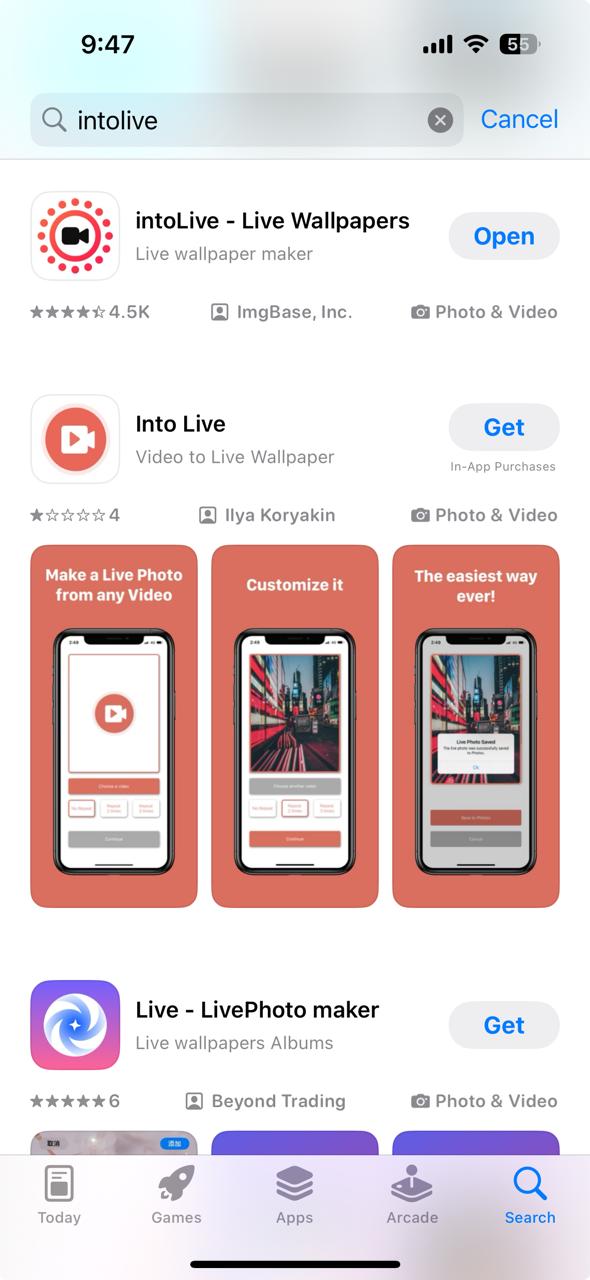
Step 1: Download, Install, and Launch intoLive
Begin by opening the App Store on your iPhone and searching for intoLive. Tap Get to install the app. Once installed, open the app and grant it permission to access your Photos library.
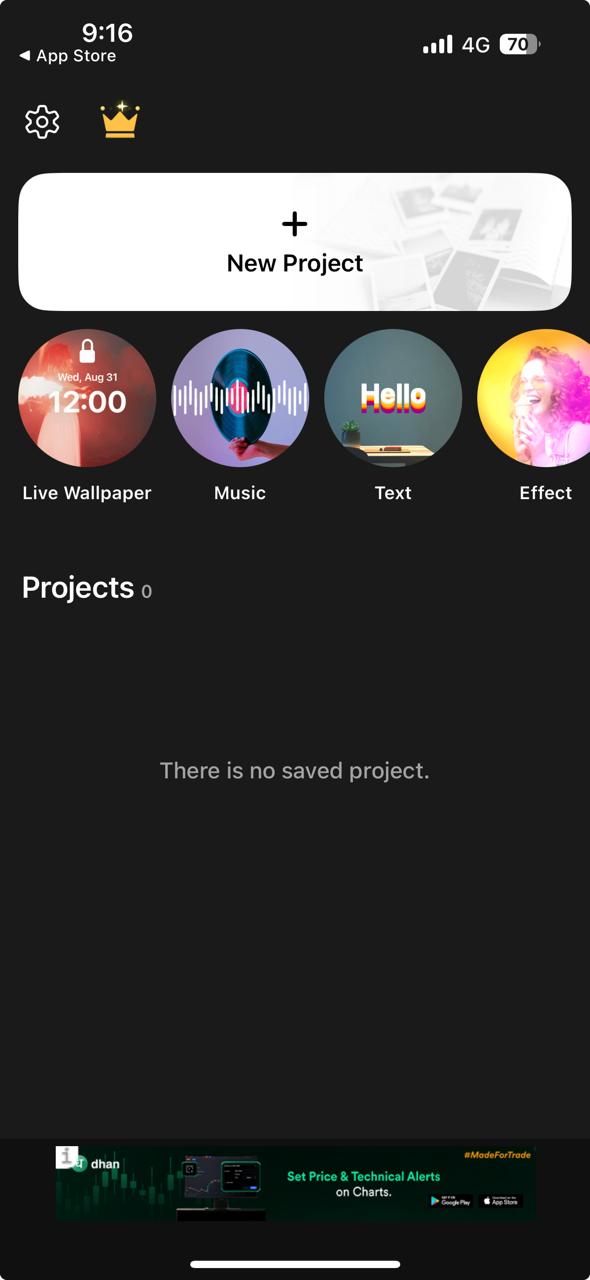
Step 2: Select and Edit Your GIF
Tap the Gallery button to browse your Photos library and choose the GIF you want to convert. Once selected, intoLive offers several optional editing tools. You can trim the GIF to shorten its length, or choose a cover frame that will appear as the first image of your Live Photo.
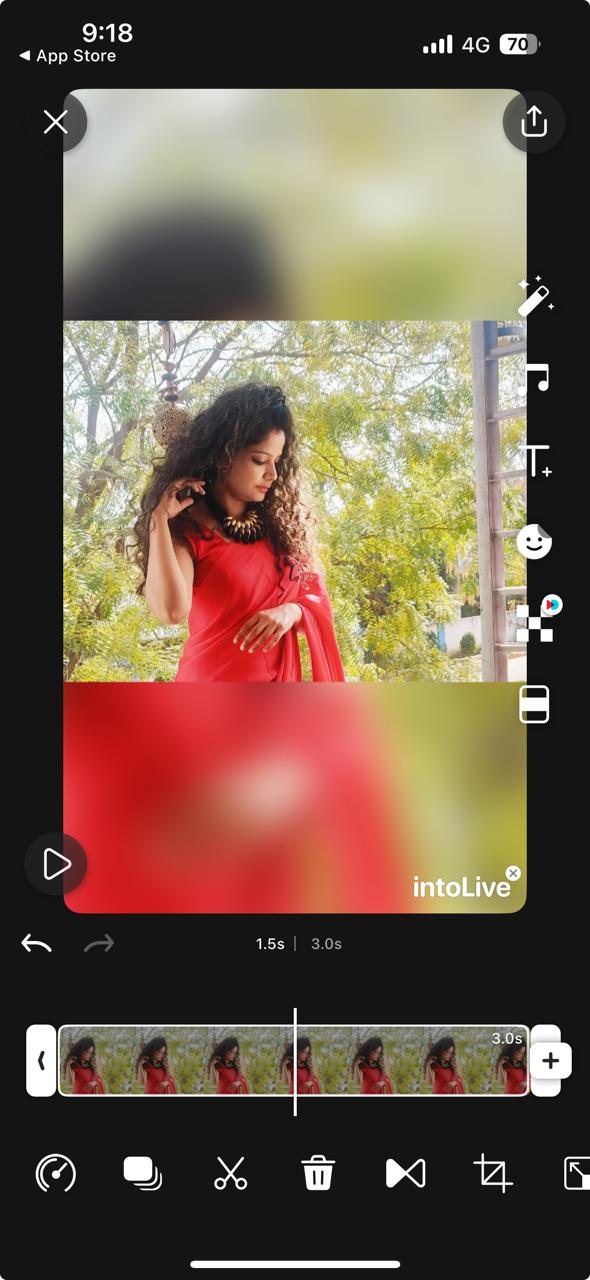
Step 3: Convert the GIF to a Live Photo
After editing, tap the Make button to start converting your GIF into a Live Photo. The app processes each frame of the GIF and transforms it into a format compatible with iOS Live Photos. Once the process is complete, you will receive a confirmation that your Live Photo has been successfully created and is ready to be saved.
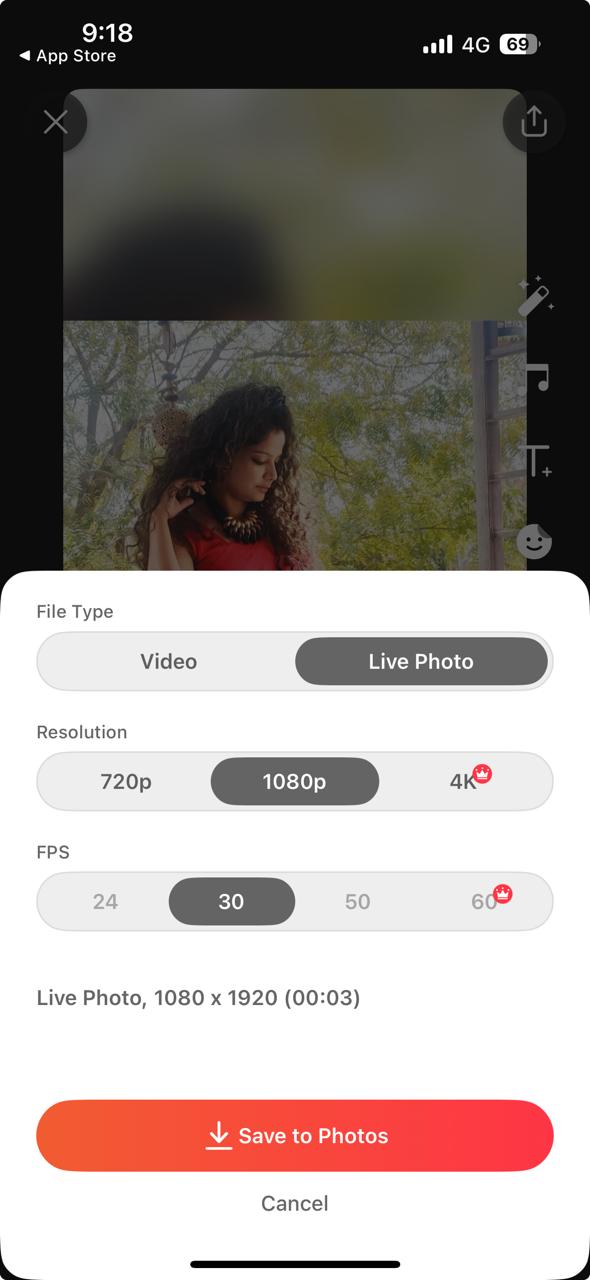
Step 4: Save and Set as Wallpaper
Tap Save Live Photo to add your newly created Live Photo to the Photos app. Open Photos, locate the Live Photo, tap the Share icon, and select Use as Wallpaper. Tap Set Lock Screen. You can disable Perspective Zoom if you prefer a static background effect on the Home Screen.
Part 4: Method 3: Convert GIF to Live Photo in Batch With Professional PC Converter
For users who need to convert multiple GIFs into Live Photos quickly and efficiently, using Wondershare UniConverter, a professional desktop video converter, is the best solution:
Wondershare UniConverter
Uniconverter is a powerful PC and Mac software designed to handle a wide variety of multimedia conversion tasks, including batch conversion of GIFs into Live Photos. It allows you to process multiple files simultaneously, saving significant time compared to doing conversions one by one on your iPhone. UniConverter also offers advanced options such as adjusting resolution, frame rate, and output format, ensuring that the resulting Live Photos are high-quality and optimized for iOS devices.
Step-by-Step Guide to Convert GIFs to Live Photos Using Wondershare UniConverter:
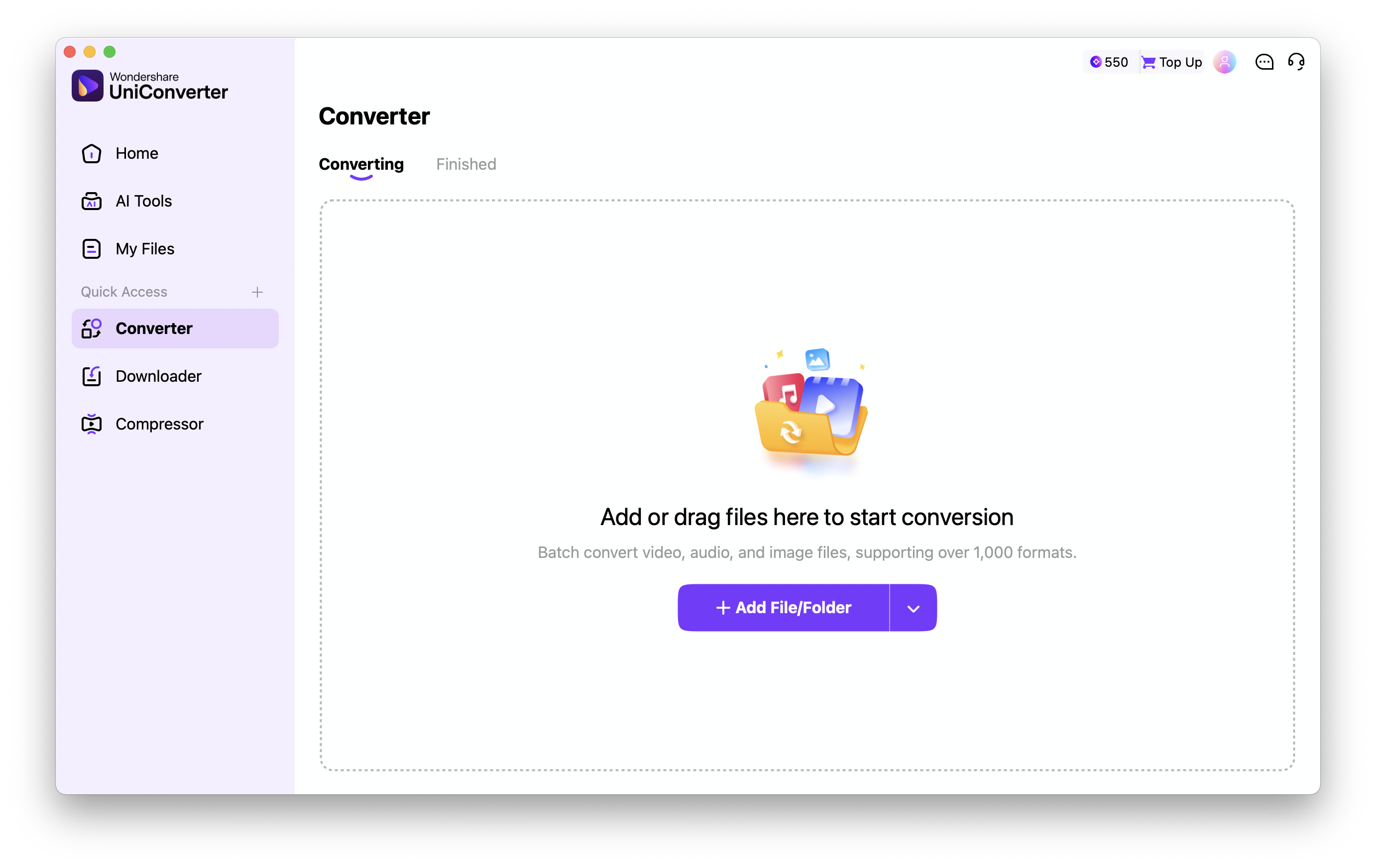
Step 1: Upload a GIF File
Start by uploading the GIF you’d like to turn into a Live Photo. Click on the “Upload File” button to browse and select it from your computer, or simply drag and drop the file into the upload area. Your GIF can be a fun animation, a creative loop, or any motion clip you want to bring to life.
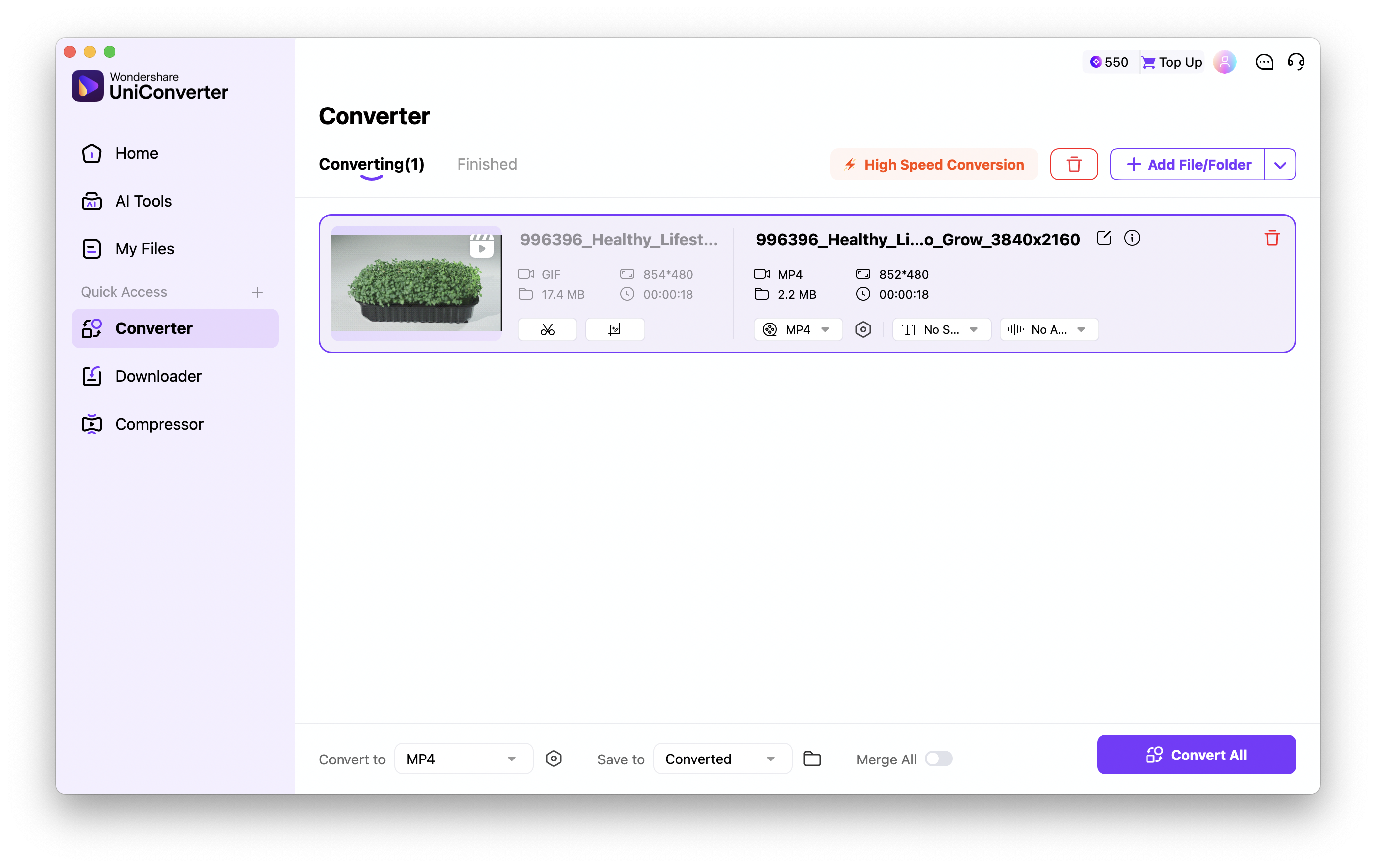
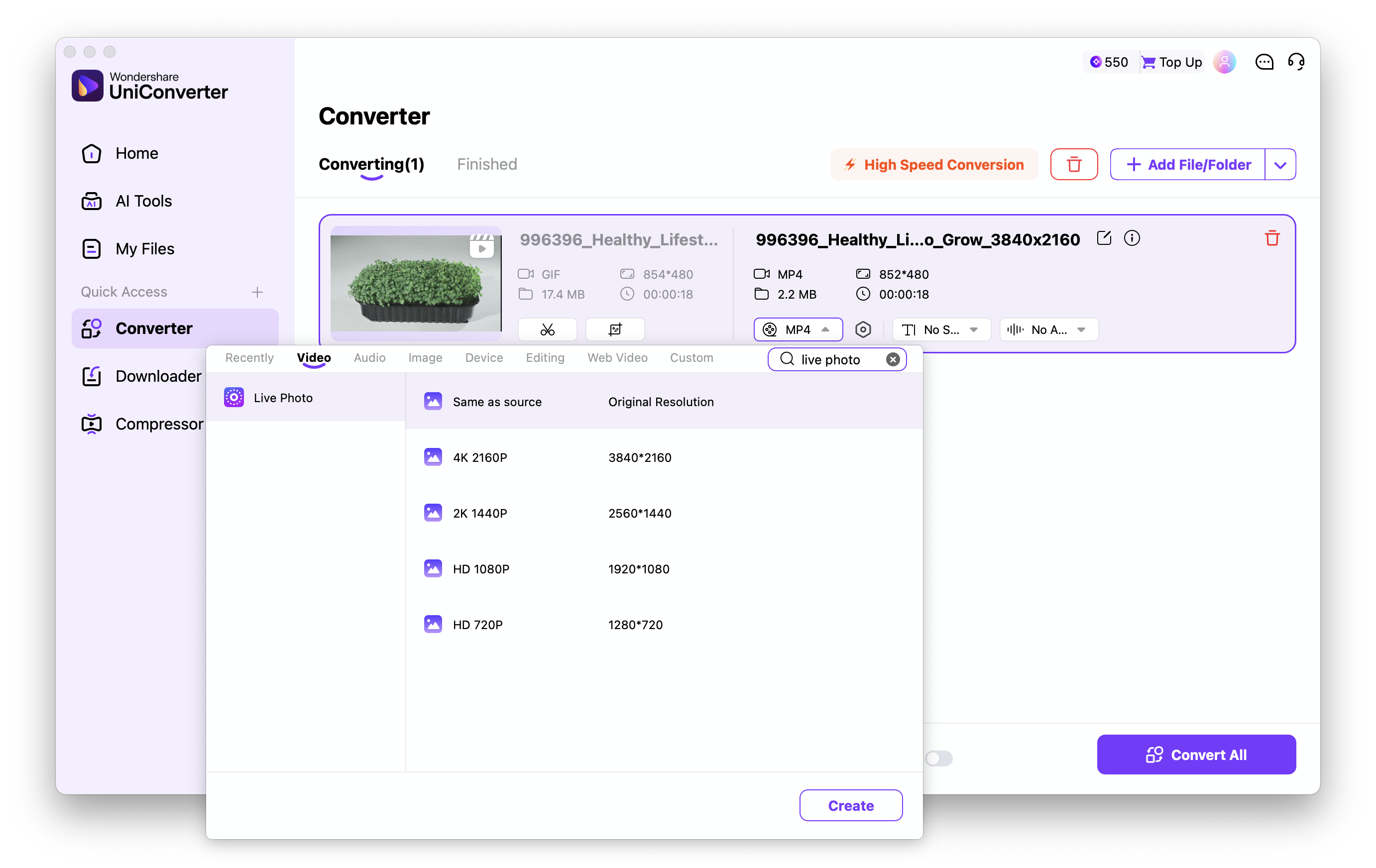
Step 2: Choose Format and Convert
Once your GIF is uploaded, select the output format as MOV, since this format supports smooth playback and animation required for Live Photos. After choosing MOV, tap on the “Convert” button. The conversion tool will quickly process the GIF and turn it into a high-quality MOV file with ultra-fast speed, preserving every frame of motion and visual detail.
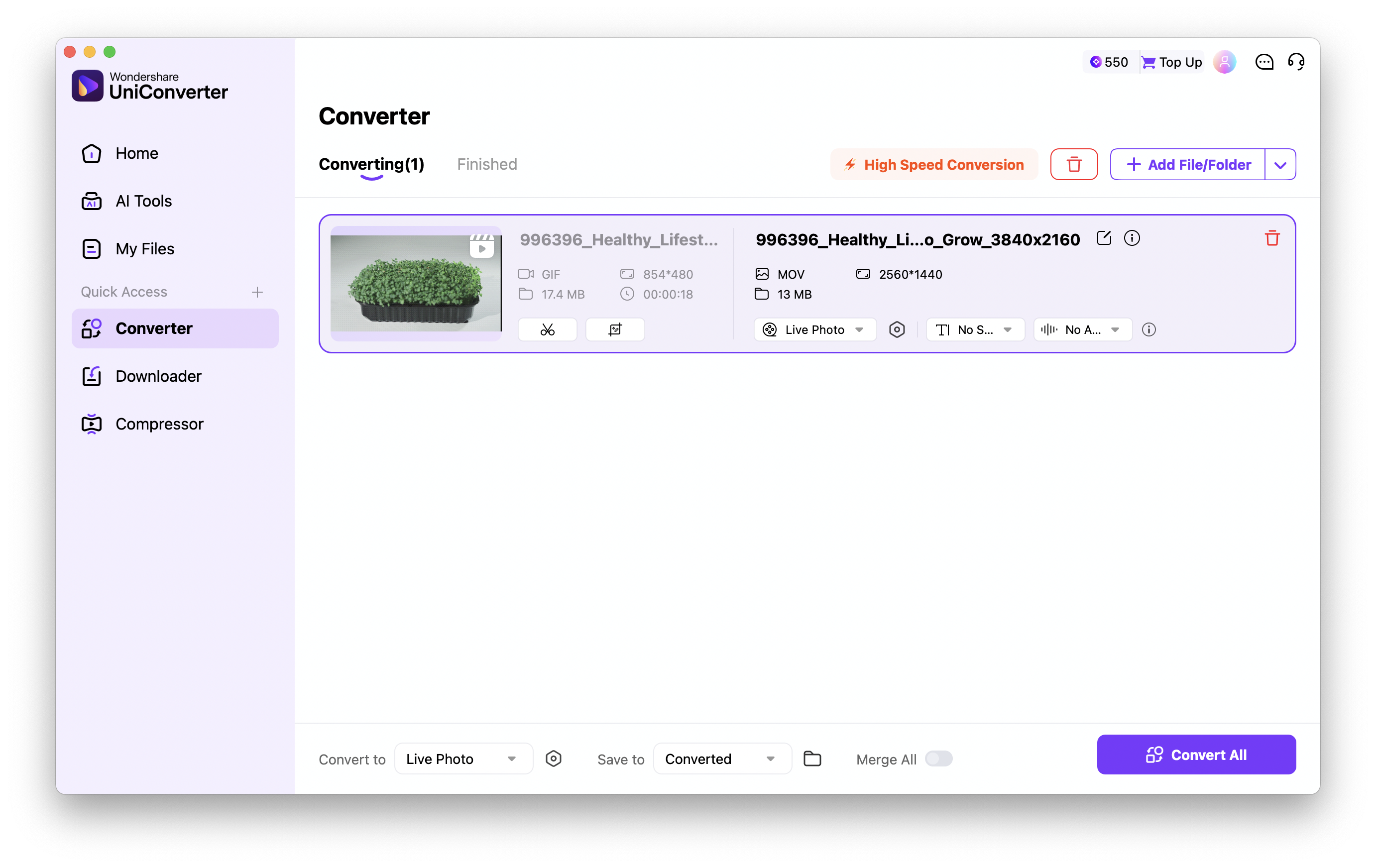
Step 3: Download the Converted Video
When the conversion is complete, click on the “Download” button to save your newly converted MOV file to your device. This converted file can now be used as a Live Photo-style animation — perfect for backgrounds, presentations, or digital art projects that showcase motion in a realistic, looped format.
Easy to Use GIF to Live Photo Converter
Part 5: Method 4: Convert GIF to Live Photo on iPhone with Google Photos
Google Photos
For iPhone users who frequently use cloud services, Google Photos offers an easy way to convert GIFs into Live Photos without needing additional apps. While primarily a photo backup and organization tool, Google Photos supports GIF playback and provides a simple method to save GIFs as Live Photos directly to your iPhone. This method is especially convenient if your GIFs are already backed up to Google Photos or shared via the platform. It allows you to manage your media across devices while quickly creating Live Photos for your lock screen.
Step-by-Step Guide to Convert GIFs to Live Photos Using Google Photos
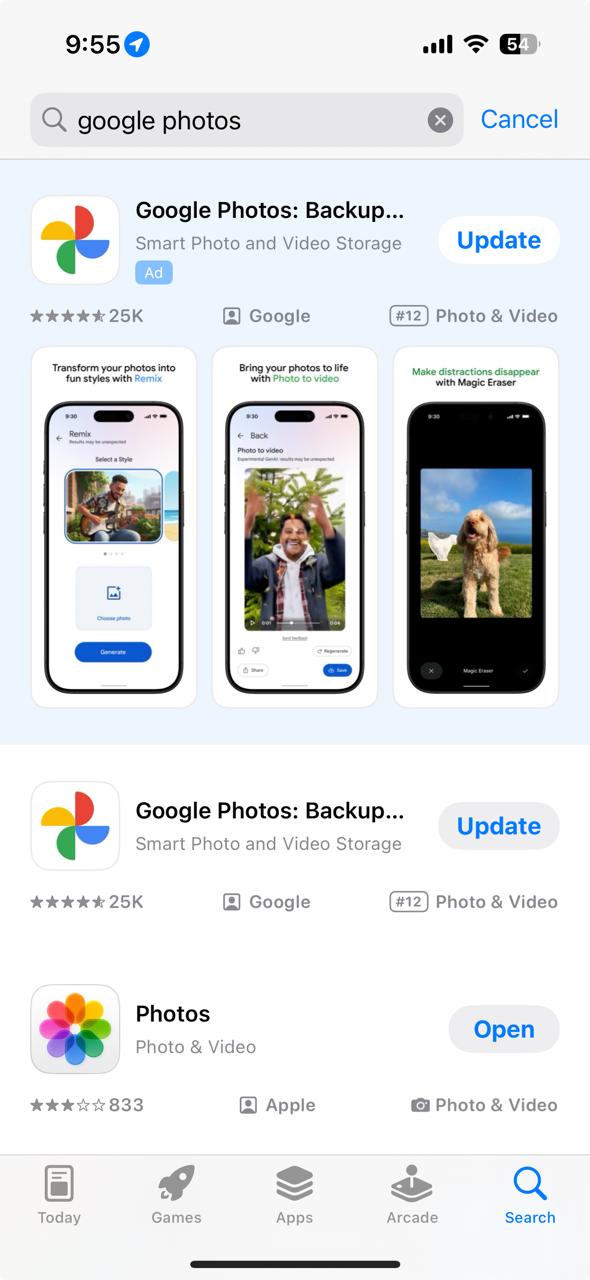
Step 1: Open Google Photos and Locate Your GIF
Launch the Google Photos app on your iPhone and sign in with your Google account if needed. Browse your photo library or search for the GIF you want to convert. Ensure the GIF is fully loaded and playable within Google Photos before proceeding.
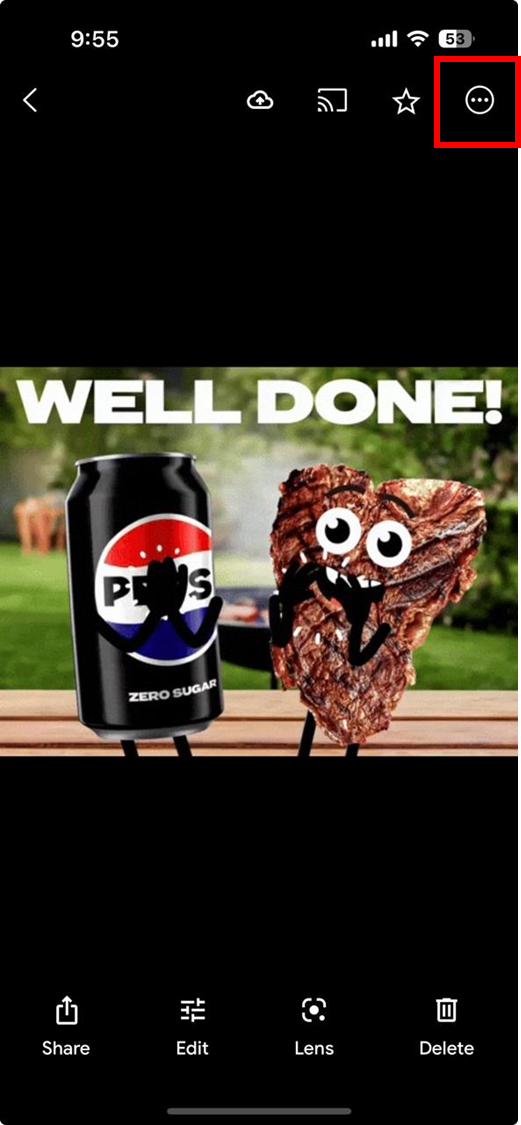
Step 2: Save the GIF as a Live Photo
Tap on the GIF to open it in full view. Tap the three-dot menu (More options) in the top-right corner, then select Export or Save as device copy. On iOS, this automatically converts the GIF into a Live Photo and saves it to your Photos app.
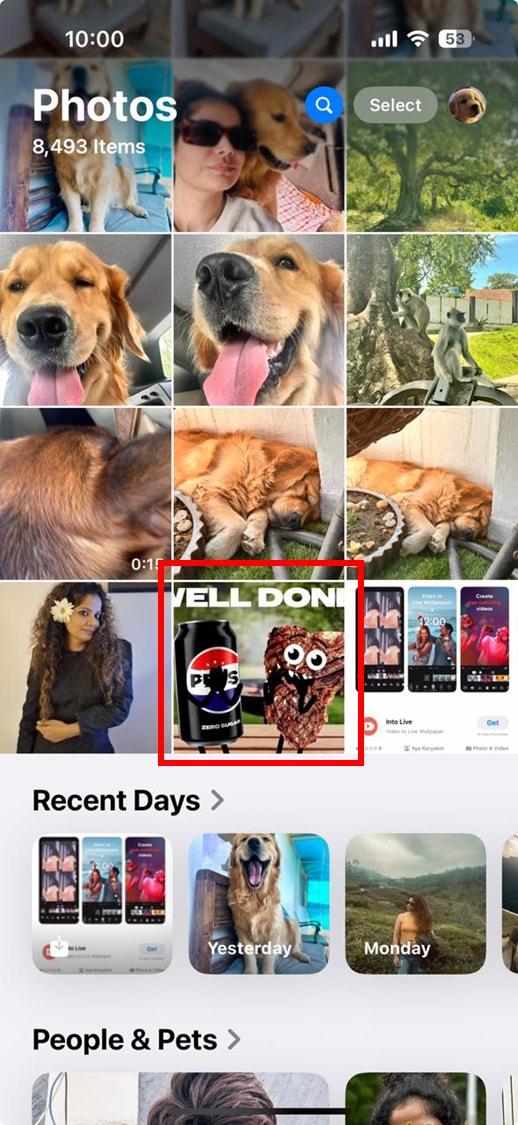
Step 3: Verify the Live Photo
Open the Photos app and locate the newly saved Live Photo. Long-press the image to confirm it animates like the original GIF. This ensures the conversion process preserves the animation correctly.
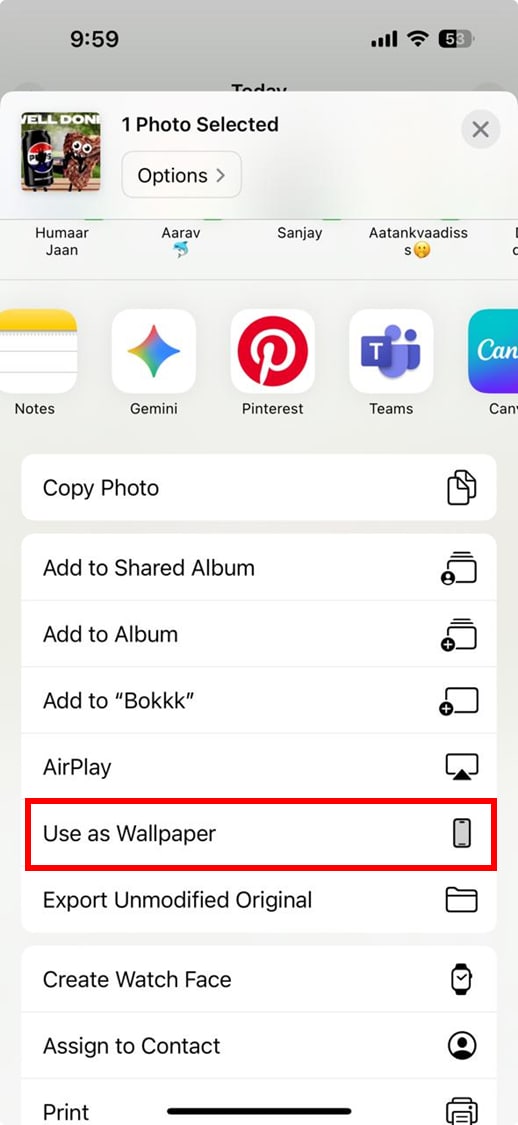
Step 4: Set the Live Photo as Wallpaper
Tap the Live Photo, then select the Share icon and choose Use as Wallpaper. Make sure the Live Photo option is enabled, adjust its position and scale if needed, and tap Set Lock Screen. Your Live Photo will now animate on your lock screen whenever you wake your phone and long-press the image.
Easy to Use GIF to Live Photo Converter
Part 6: Method 5: Convert GIF to Live Photo with Online Converter
For iPhone users who prefer not to install additional apps, using an online converter is a convenient way to convert GIFs into Live Photos. One such online converter is LivePhoto.video:
LivePhoto.video
For iPhone users seeking a seamless, browser-based solution to convert GIFs into Live Photos, LivePhoto.video offers a straightforward and efficient tool. This online platform allows you to transform your favorite GIFs into dynamic Live Photos without the need for additional software installations. Ideal for users who prefer a quick and hassle-free conversion process, LivePhoto.video supports various input formats and provides a user-friendly interface.
Step-by-Step Guide to Convert GIFs to Live Photos Using LivePhoto.video
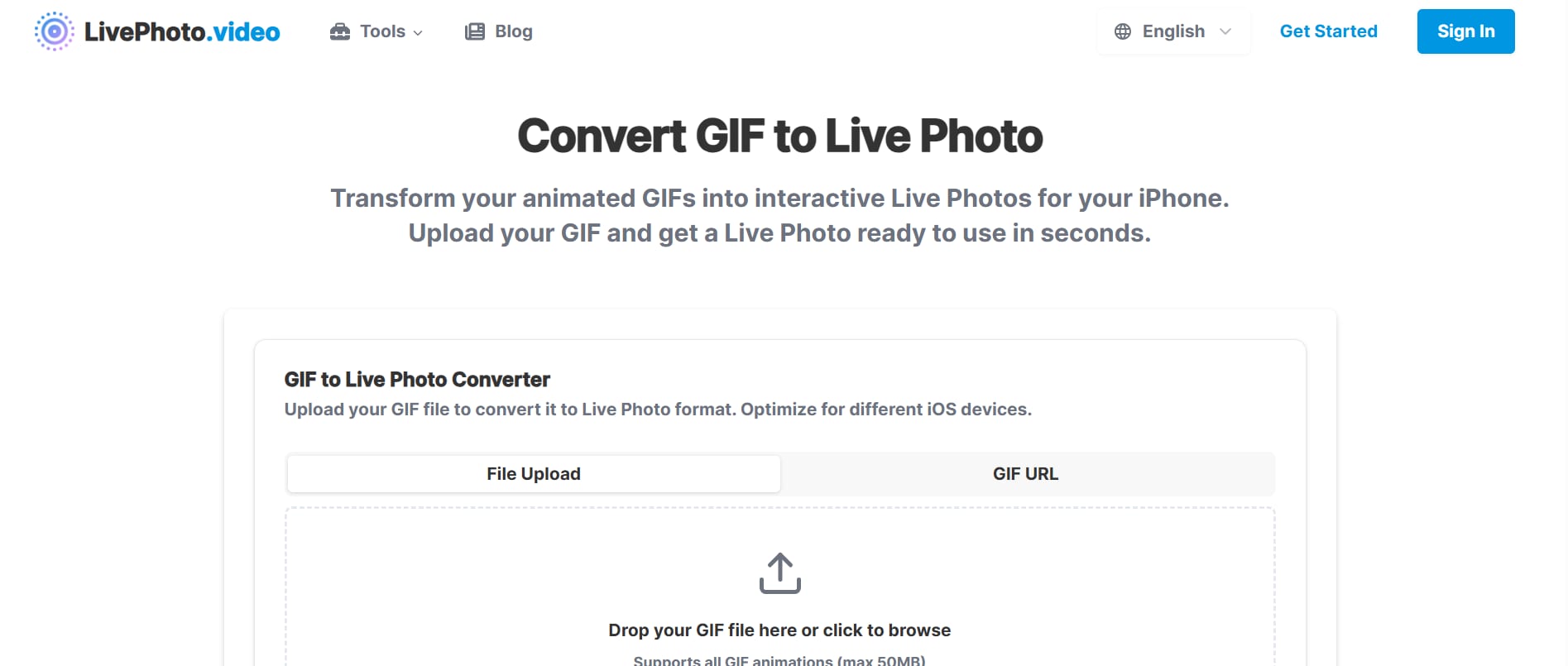
Step 1: Upload Your GIF
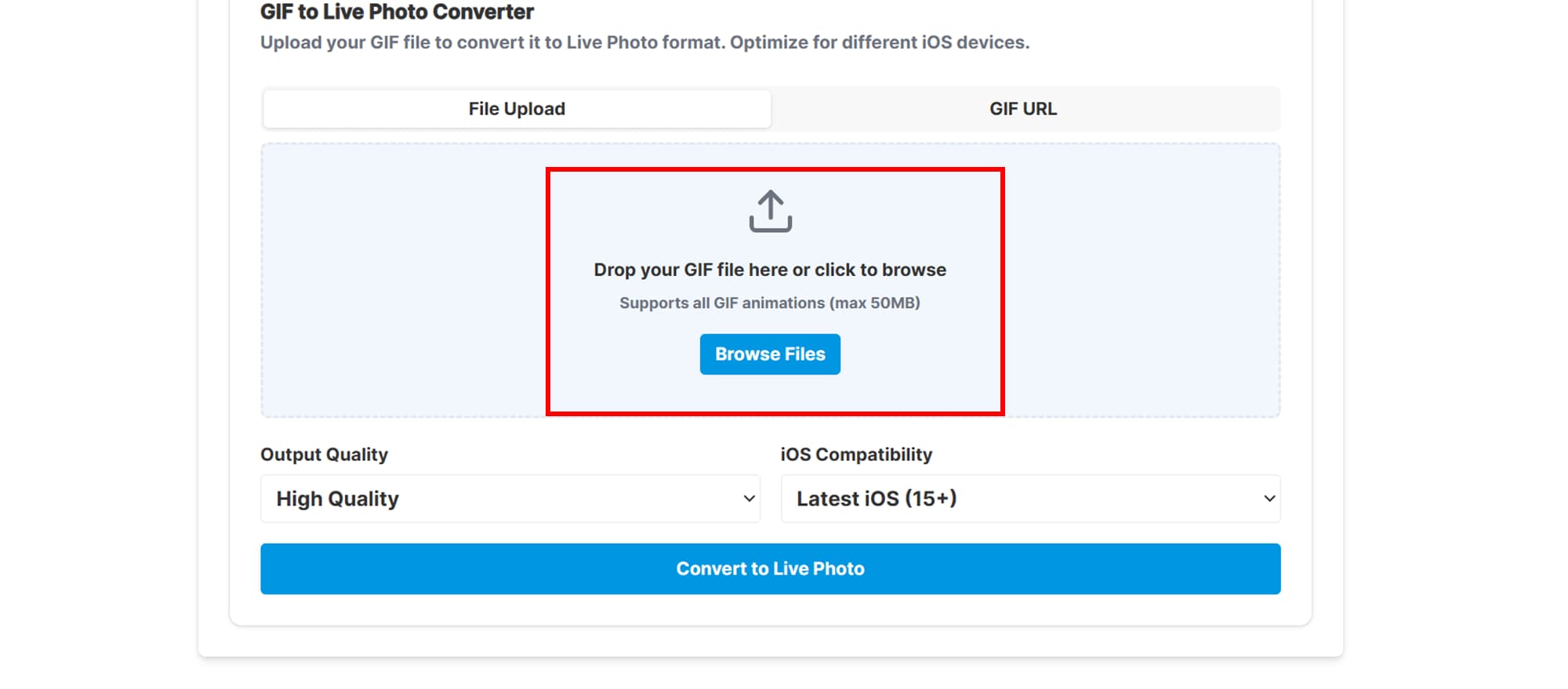
Open your browser and navigate to the LivePhoto.video GIF to Live Photo Converter. Click the Choose File button to select a GIF from your device, or paste a GIF URL if it’s hosted online.
Step 2: Convert and Download
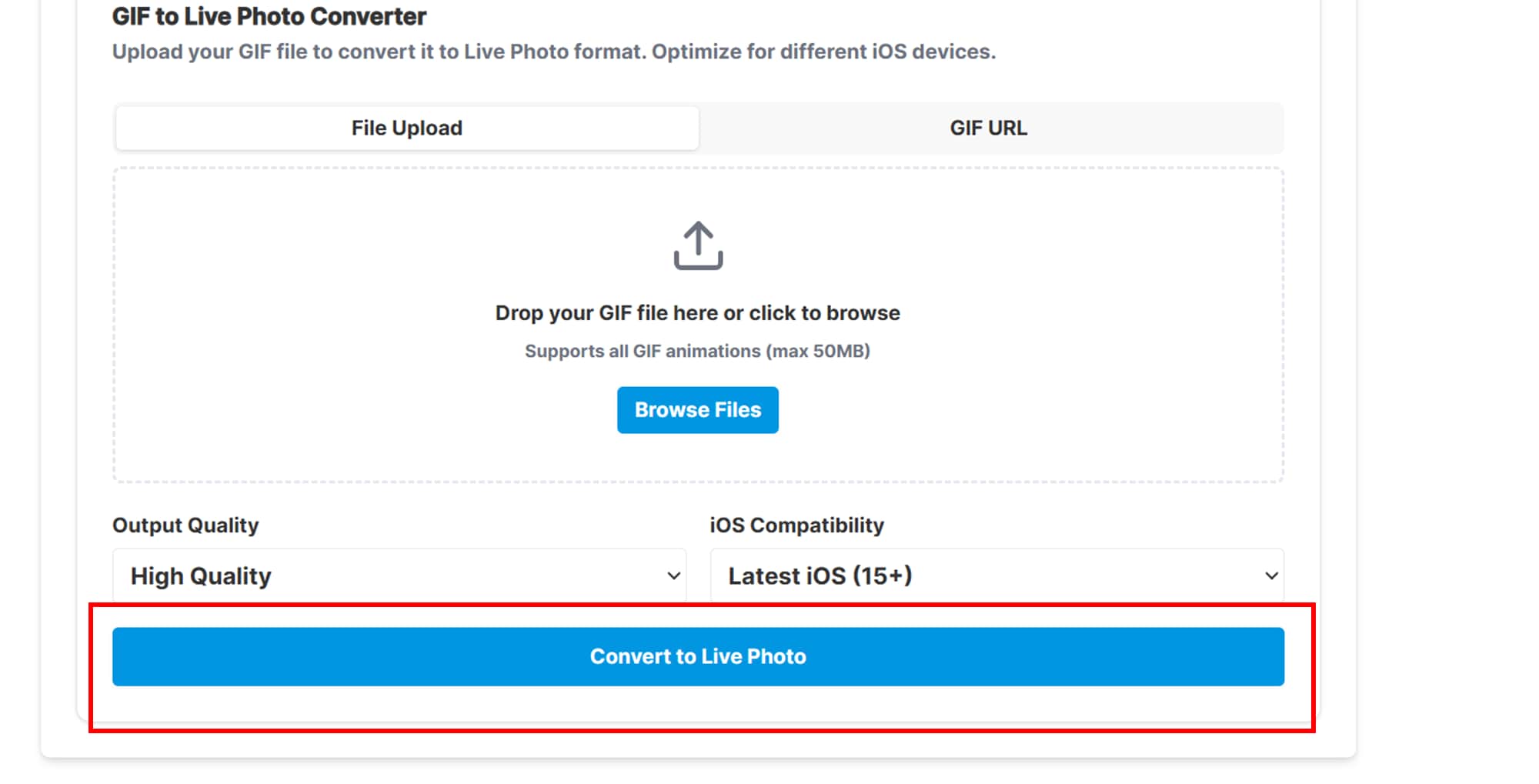
After uploading your GIF, you can adjust optional settings such as output quality and duration to optimize how the Live Photo will look on your iPhone. Once ready, click the Convert button. Once finished, click Download to save the Live Photo to your device. You now have a ready-to-use Live Photo that preserves the original animation.
Step 3: Transfer and Set as Wallpaper
Transfer the downloaded Live Photo to your iPhone using AirDrop, iCloud Drive, or email. Open the Photos app on your iPhone, locate the Live Photo, and tap the Share icon. Select Use as Wallpaper, make sure the Live Photo option is enabled, and adjust the image position and scale as desired. Finally, tap Set Lock Screen.
How We Tested GIF to Live Photo Converters
For this guide, we evaluated GIF to Live Photo converters based on conversion smoothness, iPhone compatibility, image quality retention, and how practical each method is for wallpapers, sharing, and everyday iOS use.
Conversion Smoothness
We checked whether each tool turns animated GIFs into Live Photos with fluid motion rather than choppy playback or broken frame pacing.
iPhone Compatibility
We compared how well the output works inside the Photos app, lock screen settings, and other common iOS sharing or wallpaper scenarios.
Quality Retention
We reviewed whether the converted file preserves clarity, color, and motion detail well enough for personal use without looking overly compressed.
Ease of Workflow
We also considered how quickly users can complete the process across mobile apps, desktop tools, or online converters without unnecessary extra steps.
This page gives extra weight to iOS compatibility and smooth visual output, since users converting GIFs to Live Photos usually want a result that works cleanly on iPhone and is ready to use right away.
Conclusion
Converting a GIF into a Live Photo on your iPhone is easier than ever thanks to a variety of tools and methods. Whether you prefer using the built-in Shortcuts app for a quick solution, intoLive for seamless in-app editing, Google Photos for a cloud-based approach, an online converter like Vondy for instant browser-based conversion, or Wondershare UniConverter for professional batch processing on PC, there’s a method to suit every need.
FAQs
-
1. Can I convert a GIF from social media directly into a Live Photo?
Yes, but you’ll first need to save the GIF to your iPhone or computer before using a conversion tool. Direct conversion from social media apps isn’t supported. Once saved, you can use any of the methods mentioned in this guide to turn it into a Live Photo. -
2. Do Live Photos created from GIFs take up more storage space?
Typically, yes. Live Photos contain multiple frames like a mini video, so they are larger than standard images and may consume more storage. Consider managing your storage or deleting unnecessary GIFs to prevent your device from filling up quickly. -
3. Are there limitations on GIF length for conversion?
Most tools allow GIFs of several seconds, but very long or high-resolution GIFs may fail or require trimming to ensure smooth conversion. Shorter GIFs usually produce smoother Live Photos with better playback quality. -
4. Will converting a GIF to a Live Photo affect its animation quality?
High-quality converters like or intoLive preserve most of the original GIF’s frames, but some online tools may slightly reduce clarity or smoothness. Using professional or dedicated apps is recommended to maintain the best visual quality. -
5. Can I use a converted Live Photo in other apps besides wallpaper?
Yes, Live Photos can be shared via Messages, iMessage, or social apps that support the Live Photo format, not just as wallpapers. You can also use them in slideshows, photo albums, or as part of multimedia projects on your device.
Frequently Asked Questions
Is a GIF the same as a Live Photo?
No. A GIF is an animation format; a Live Photo uses a device-specific photo-and-motion workflow.
Why does the converted file not animate?
The target app may require a paired photo and video or a specific import path, not just a converted video file.

