


Free Cam Screen Recorder has long been one of the few genuinely free screen recording tools that don't put a watermark on your videos or impose recording limits. Developed by iSpring, it is designed primarily for tutorials, training videos, and e-learning content, combining a simple screen recorder with a built-in audio editor.
The question in 2026 is whether Free Cam still feels competitive. Its free version lacks webcam recording, exports only in WMV format, and remains exclusive to Windows, limitations that may push some creators toward more modern alternatives.
This Free Cam Screen Recorder review takes a closer look at its features, real-world limitations, pricing, and Pro upgrade, as well as three alternatives that may be a better fit for your recording needs.
Table of Contents
Part 1: What Is Free Cam and What Can It Do?
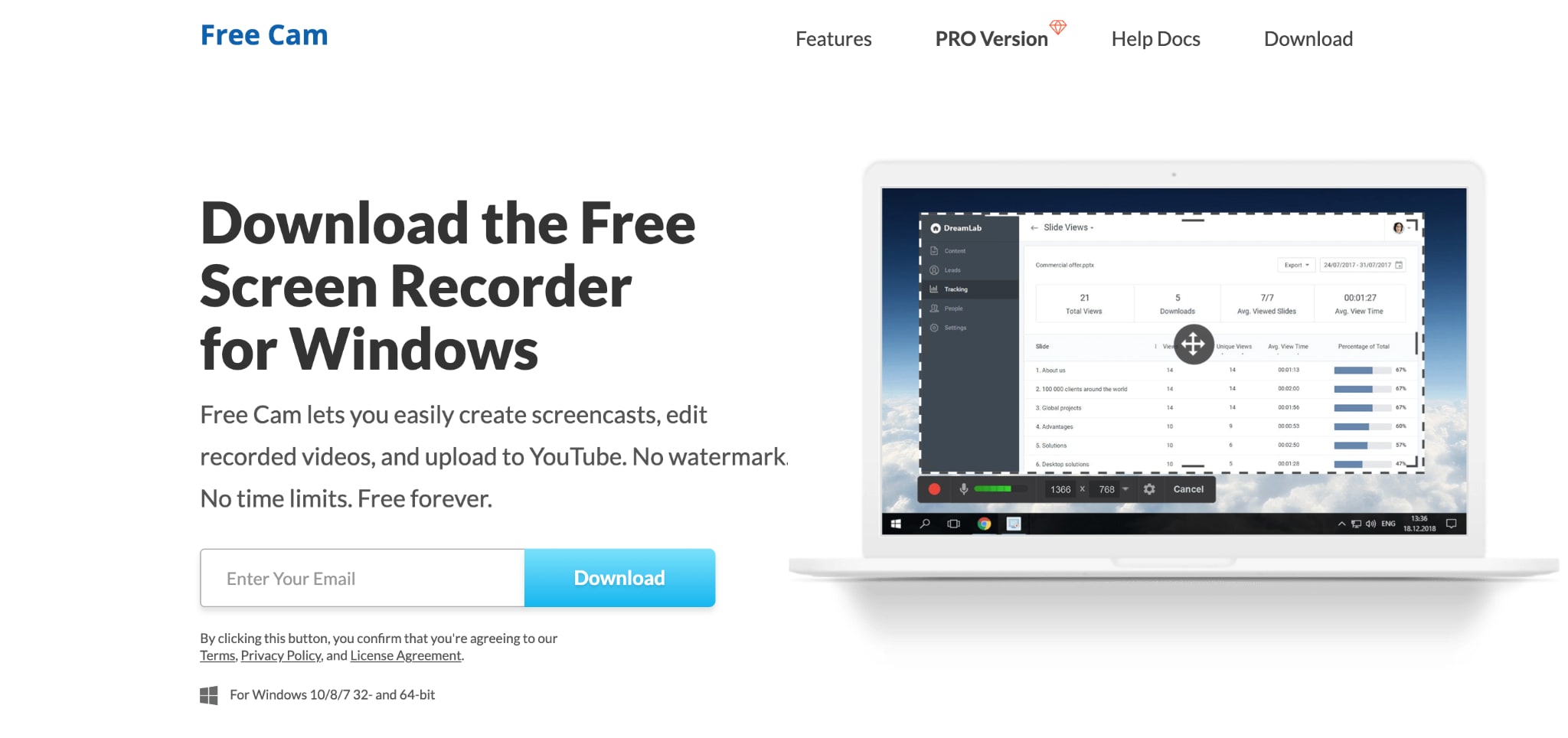
Free Cam is a free screen recorder for Windows, made by iSpring, that captures your screen with audio and includes a built-in editor with no watermark and no time limit. It records the full screen, a selected area, or a single window, adds a microphone voiceover and system sounds, highlights the mouse cursor, and saves the result as a 720p WMV video you can keep locally or upload straight to YouTube.
Built for video lessons and e-learning, Free Cam keeps the workflow simple. Its editor trims clips, removes background noise, and adjusts volume with fade-in and fade-out, and the app stays lightweight so it does not strain older machines. More than a million people use it. The free version captures only the screen and audio, with no webcam recording.
Free Cam Screen Recorder Key Features for Beginners & Professionals
Free Cam keeps its feature set small and focused on clean screencasts, which is what makes it approachable for beginners and quick for professionals. The table below covers what each main feature does.
| Feature | What it does |
| Select a recording area | Captures the entire screen, a selected area, or a single window |
| Record your voiceover | Adds narration from your microphone |
| Record system sounds | Captures program audio or background music |
| Highlight your mouse | Emphasizes the cursor and adds mouse-click sounds |
| Built-in editor | Trims clips, removes background noise, and adjusts volume with fades |
| Save and share | Exports a 720p WMV file or uploads directly to YouTube |
Free Cam vs. iSpring Cam Pro: What's Free & What You Pay For
Free Cam covers screen recording, voiceover, and basic editing at no cost, while iSpring Cam Pro adds webcam recording, multi-track editing, MP4 export, and LMS publishing for $227 per year. The free version is enough for plain screencasts, and the Pro upgrade targets polished training videos.
| Feature | Free Cam | iSpring Cam Pro |
| Screen recording, voiceover, system audio | Yes | Yes |
| Highlight mouse cursor | Yes | Yes |
| Built-in trimming and audio editing | Yes | Yes |
| Webcam recording | No | Yes |
| Multi-track timeline editing | No | Yes |
| Insert shapes, pictures, and text | No | Yes |
| Transition effects | No | Yes |
| Export format | WMV (720p) | MP4 |
| Direct publishing to LMS or cloud | No | Yes |
| Price | Free | $227/year |
Part 2: How Do You Use Free Cam to Record Your Screen?
Follow this simple step-by-step guide to record your screen with Free Cam:
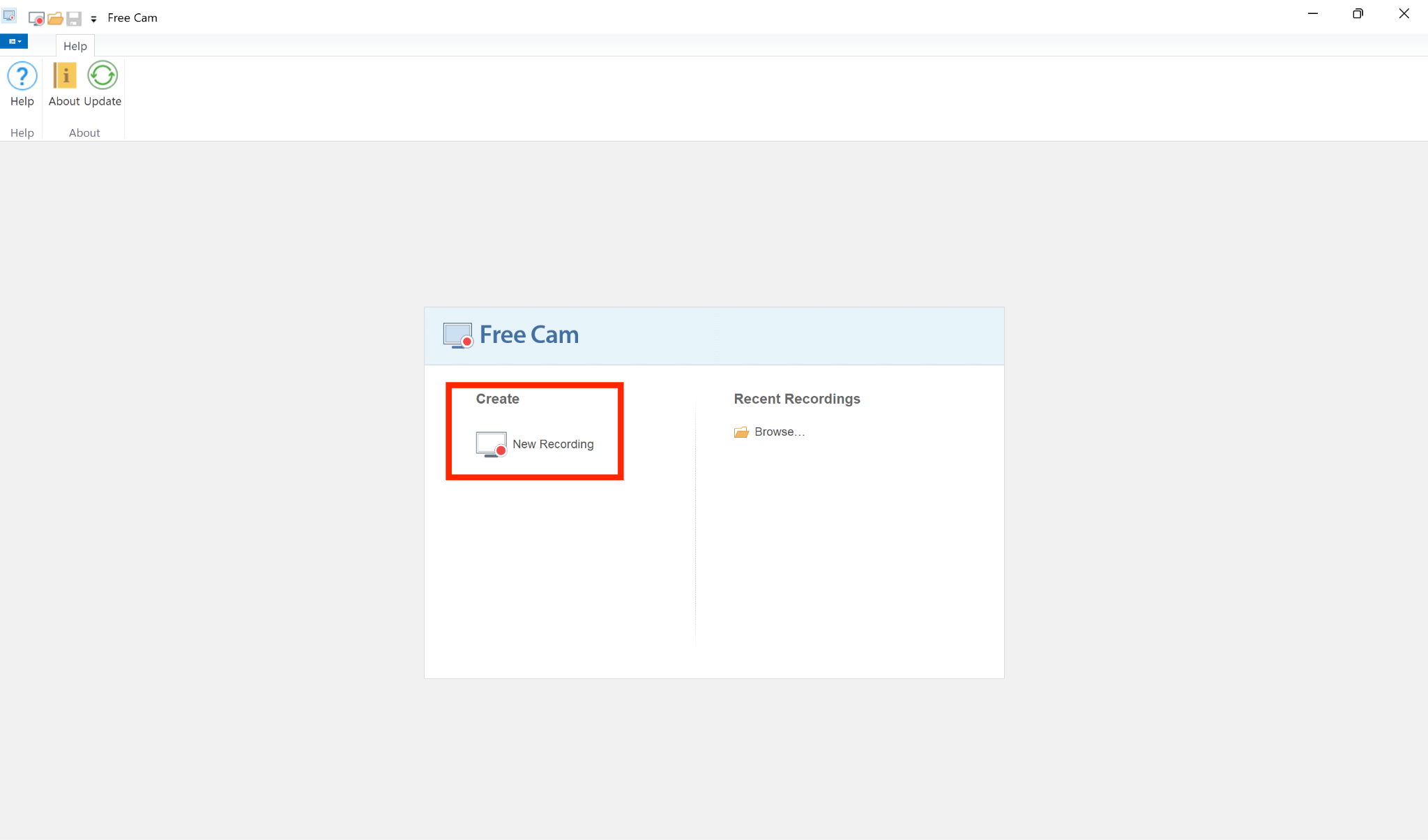
Step 1: Open Free Cam and click on "New Recording" to open the recorder.
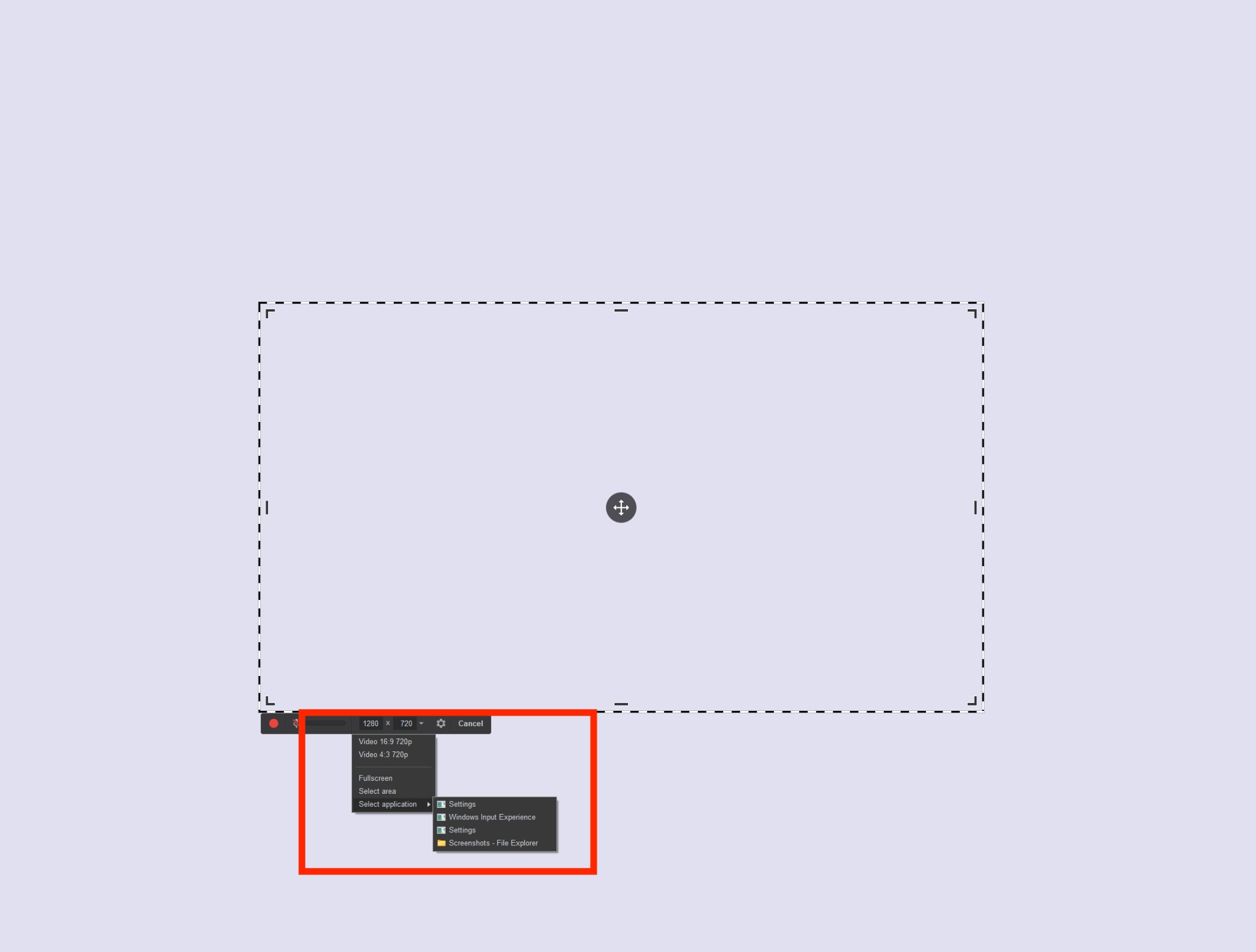
Step 2: Drag the corners to record a specific area, or from the drop-down, choose a single application for recording, or "Fullscreen" to capture the entire screen.
Step 3: Click the Settings icon on the bar to enable the microphone and system sound, adjust mic volume, or configure shortcut keys. You can also turn on the microphone from the bar.
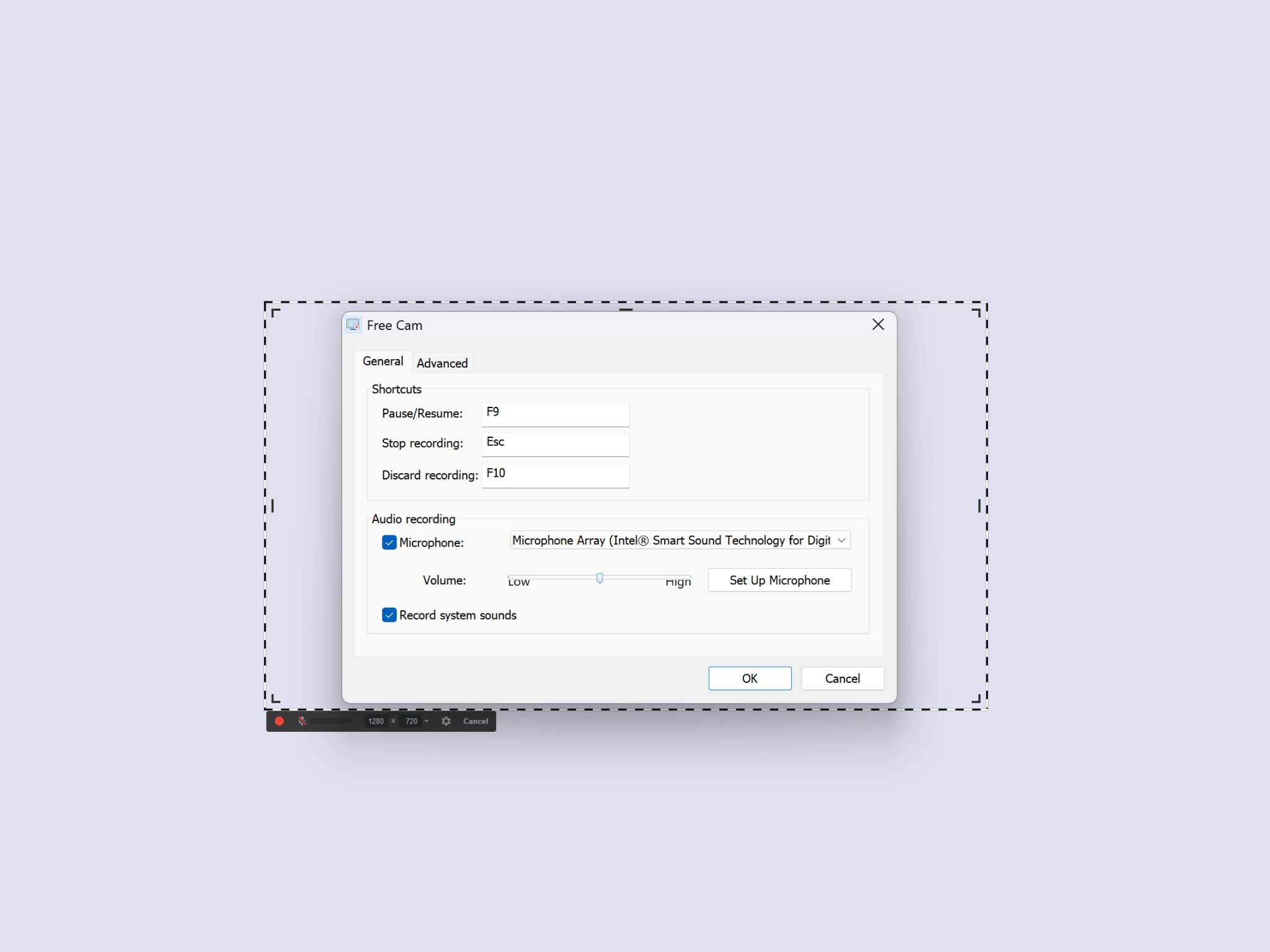
Step 4: Once done, click the red Record button, and Free Cam will start capturing your selected area after a short countdown (of 3 seconds).
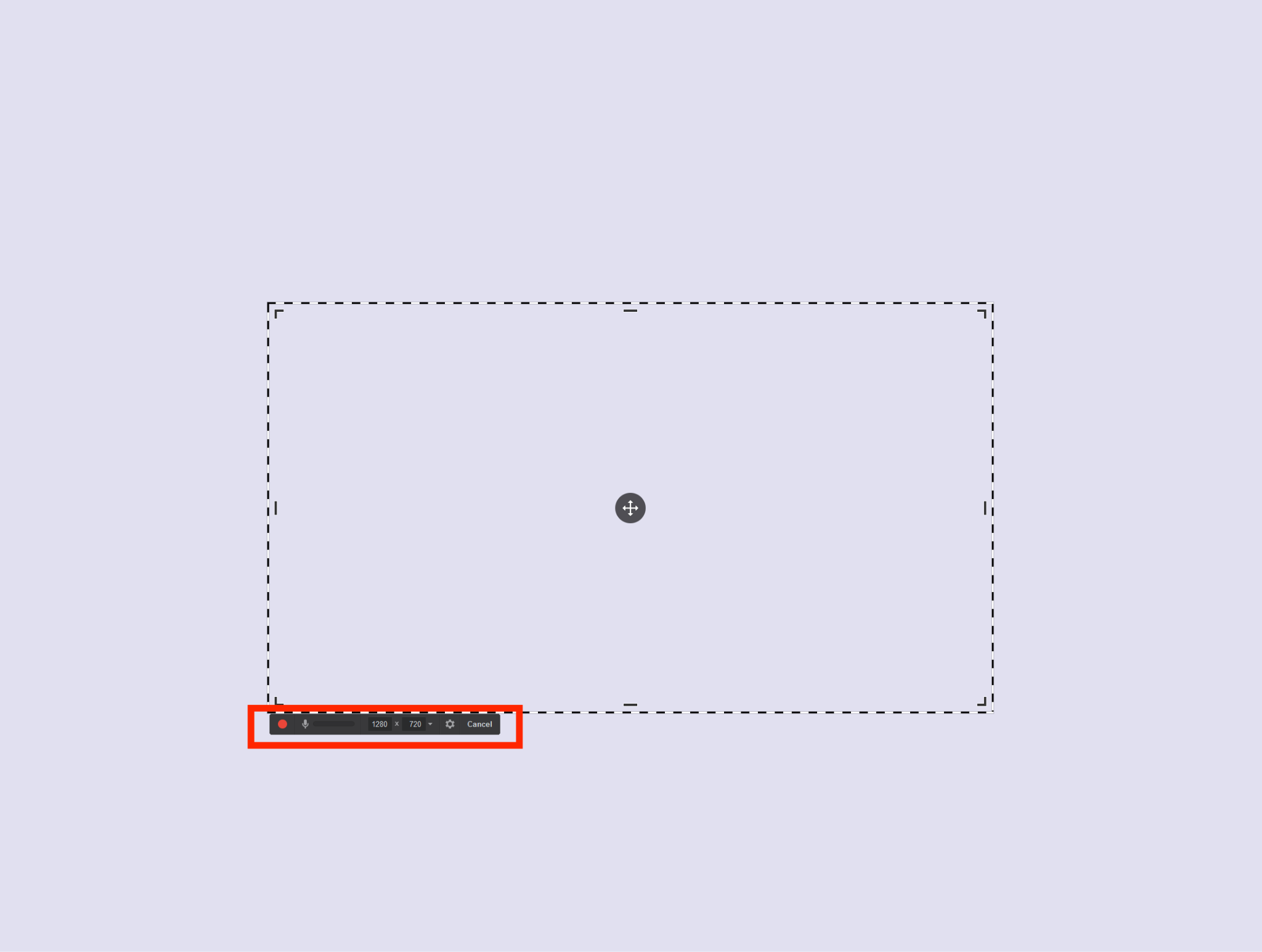
Step 5: Use the on-screen bar to pause or stop the recording. Once stopped, you will be redirected to Free Cam's home screen with the recorded video.
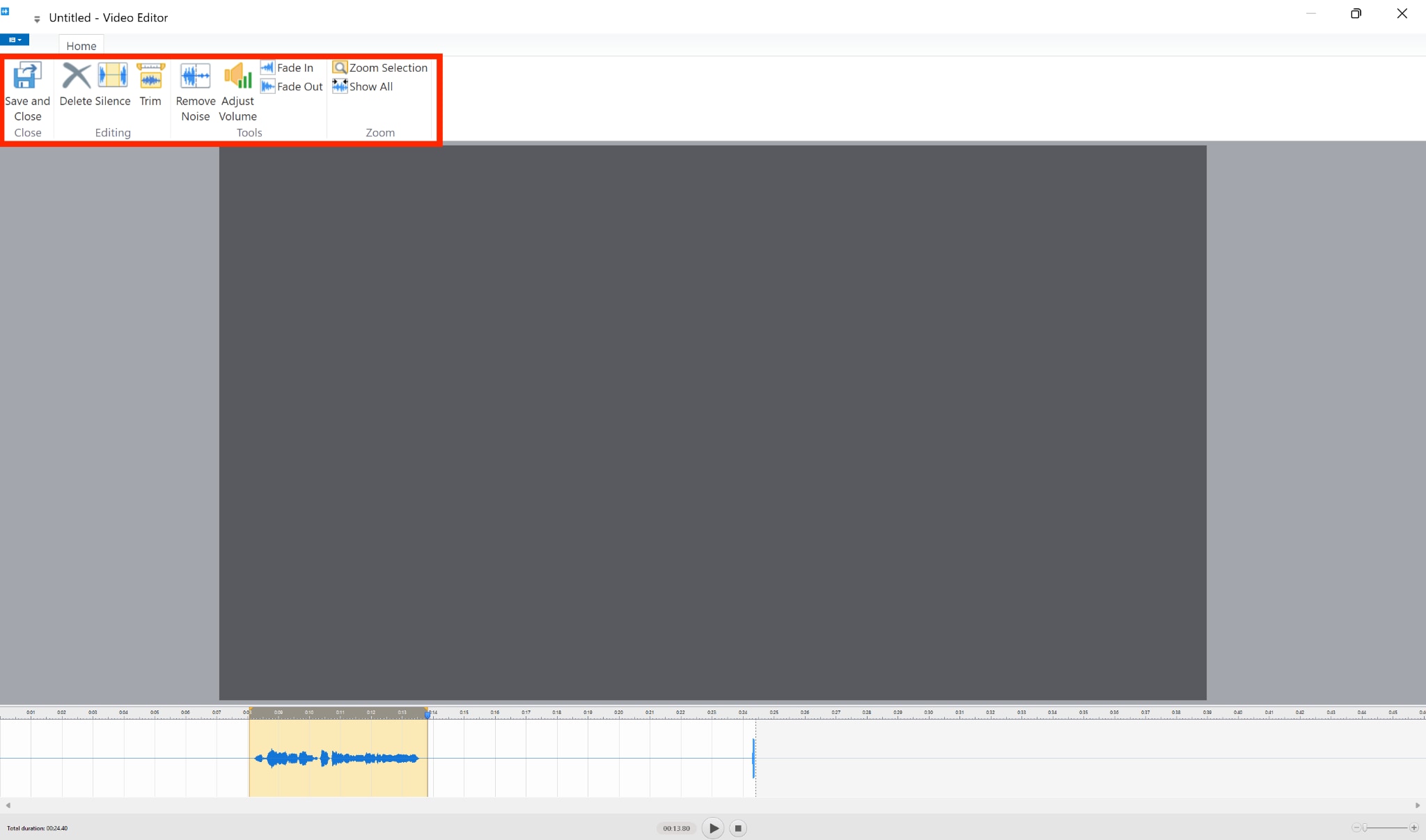
Step 6: Click on "Edit" on the top-left to open the built-in video editor and trim unwanted parts, remove noise, or adjust volume. Click on "Save and Close" after making your changes.
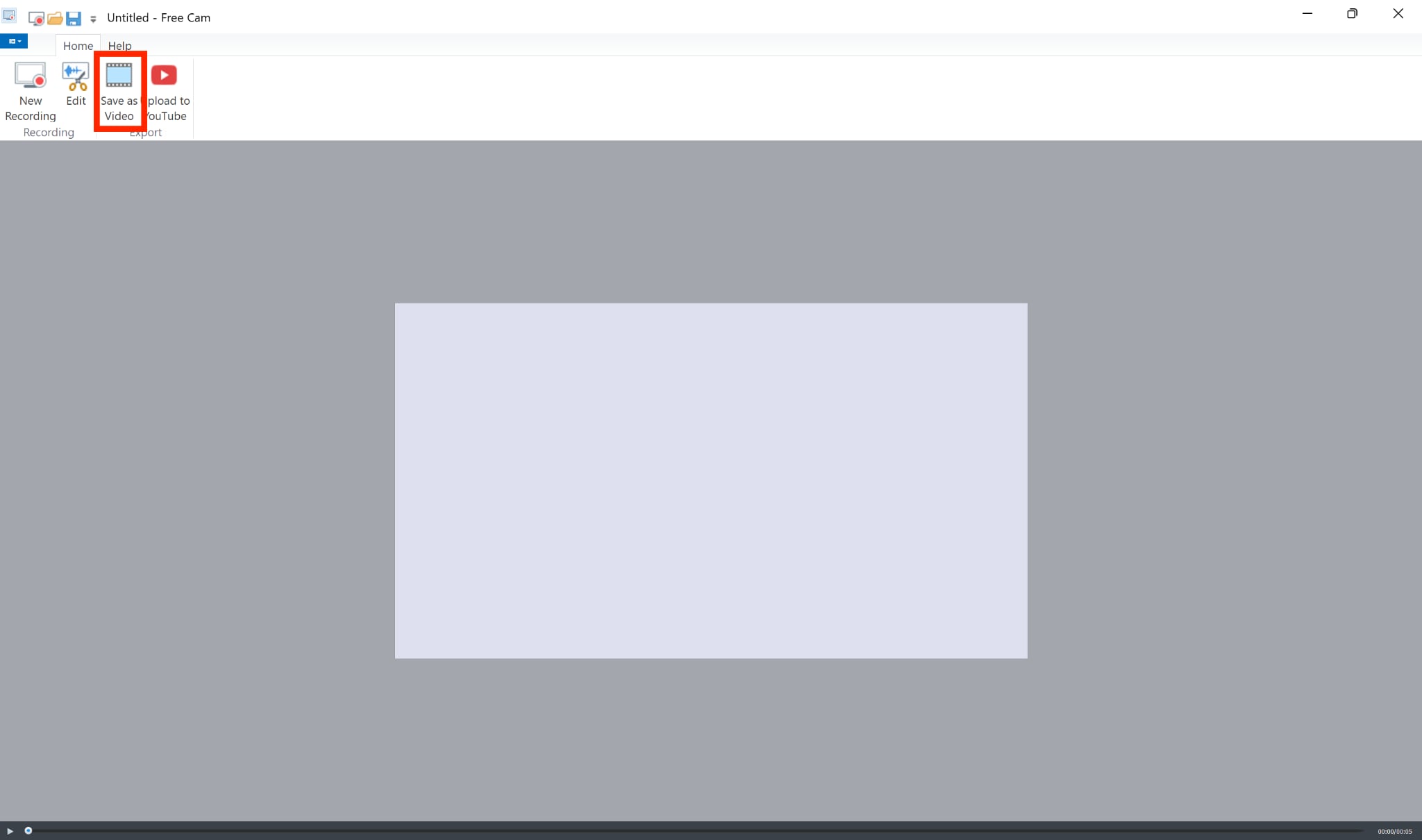
Step 7: Click on "Save as Video" to export the video recording to your Windows device.
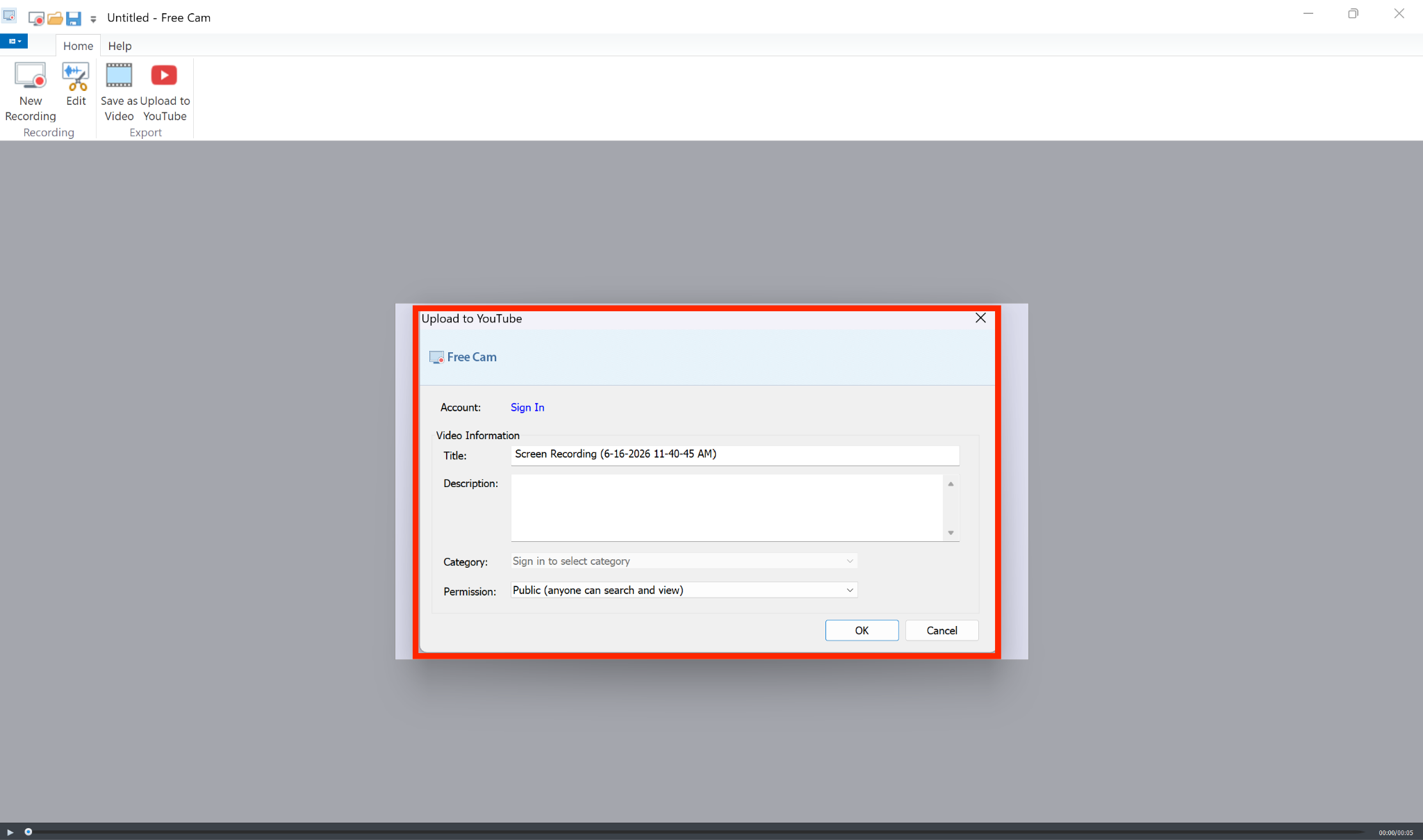
Step 8: You can upload the video directly to YouTube by selecting the "Upload to YouTube" option. This requires signing in to your YouTube account and adding the video information (title, description, category, permission).
Tips to Use Free Cam to Record Your Screen
A few habits get the most out of Free Cam's free version and work around its limits:
Plan to export in WMV, then convert to MP4 afterward with a free converter if you need wider compatibility.
Set your audio carefully before recording, since the free version handles sound simply and can drift out of sync on long clips.
Use the mouse highlight and click sounds to guide viewers through each step of a tutorial.
Remove background noise in the built-in editor before exporting, rather than re-recording the whole clip.
For a webcam overlay or MP4 output, plan ahead, since both require the paid Pro upgrade or a different tool.
Part 3: What Are the 3 Best Free Cam Alternatives in 2026?
The three best Free Cam alternatives in 2026 are Wondershare UniConverter for flexible recording and export, OBS Studio for unlimited free capture, and Camtasia for recording and polished editing. Each one fixes a different Free Cam limit, from webcam support to export formats.
Wondershare UniConverter

All-in-One Multimedia Processing Tool

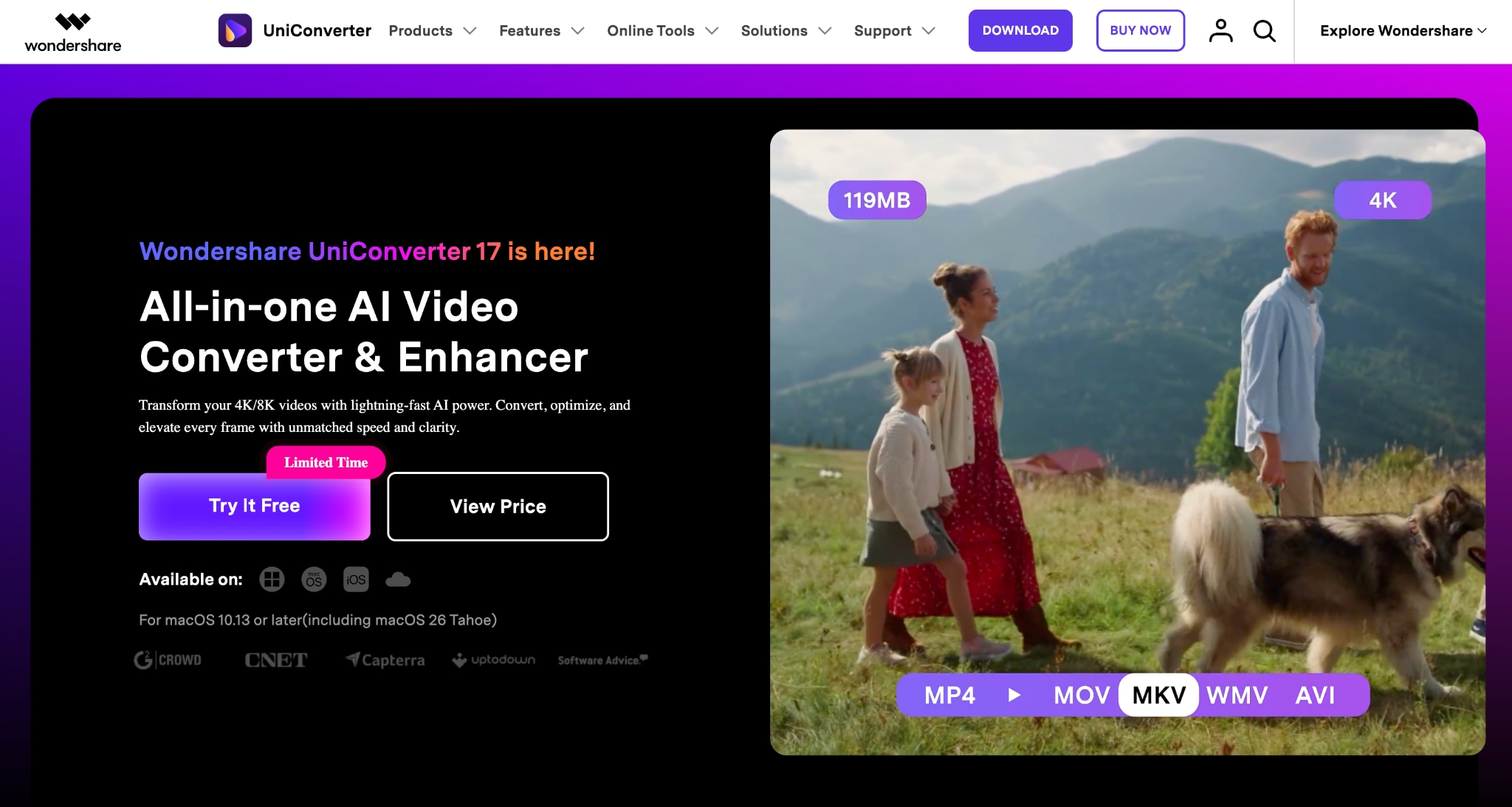
Wondershare UniConverter is a better fit than Free Cam if you need a recorder that feels just as simple but removes most of Free Cam's biggest restrictions. Unlike Free Cam, it records your screen and webcam together, exports directly to MP4, and works on both Windows and Mac. It also includes features such as scheduled recording and AI-powered audio cleanup, making it more useful for tutorials, meetings, and content creation.
Key Features of Wondershare UniConverter
Records the screen, webcam, and audio simultaneously, unlike the free version of Free Cam.
Exports directly to MP4, MOV, AVI, and other common formats, rather than being limited to WMV.
Supports up to 4K recording and high frame rates for smoother tutorials and gameplay captures.
Includes AI noise reduction, annotations, and a built-in editor for quick post-production edits.
OBS Studio
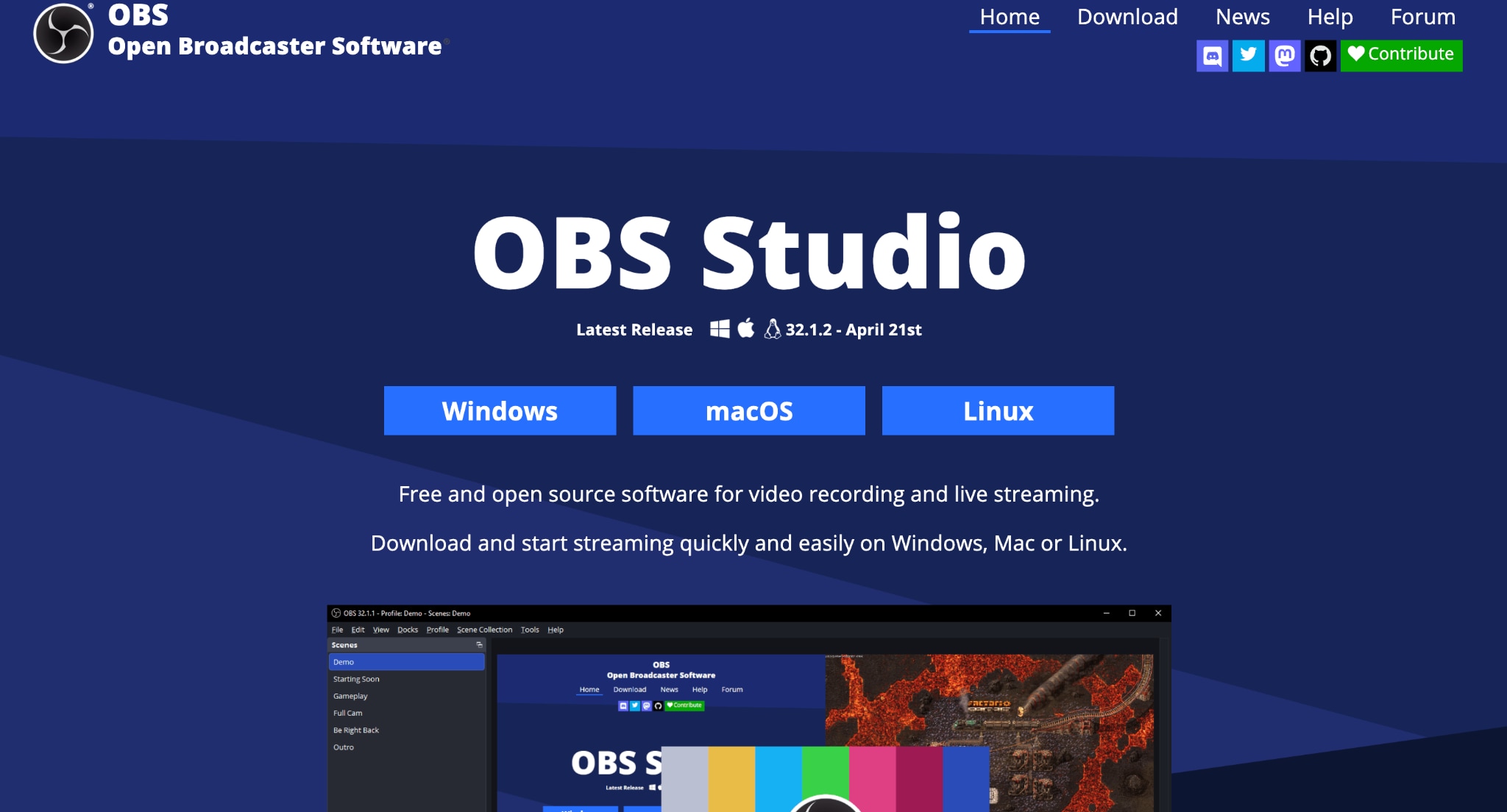
OBS Studio is one of the best free alternatives if you've outgrown Free Cam and want complete control over your recordings. It has a steeper learning curve, but it removes nearly all the limitations that Free Cam's free version imposes. You can record multiple sources, add webcam overlays, and export to modern formats for free.
Key Features of OBS Studio
Records unlimited screen, webcam, and audio sources with no watermark or recording limits.
Exports to MP4, MKV, and other formats, avoiding Free Cam's WMV-only workflow.
Supports scenes and source layers, making it easy to combine screens, webcams, images, and overlays.
Offers advanced audio controls, hotkeys, and recording settings for professional workflows.
Camtasia
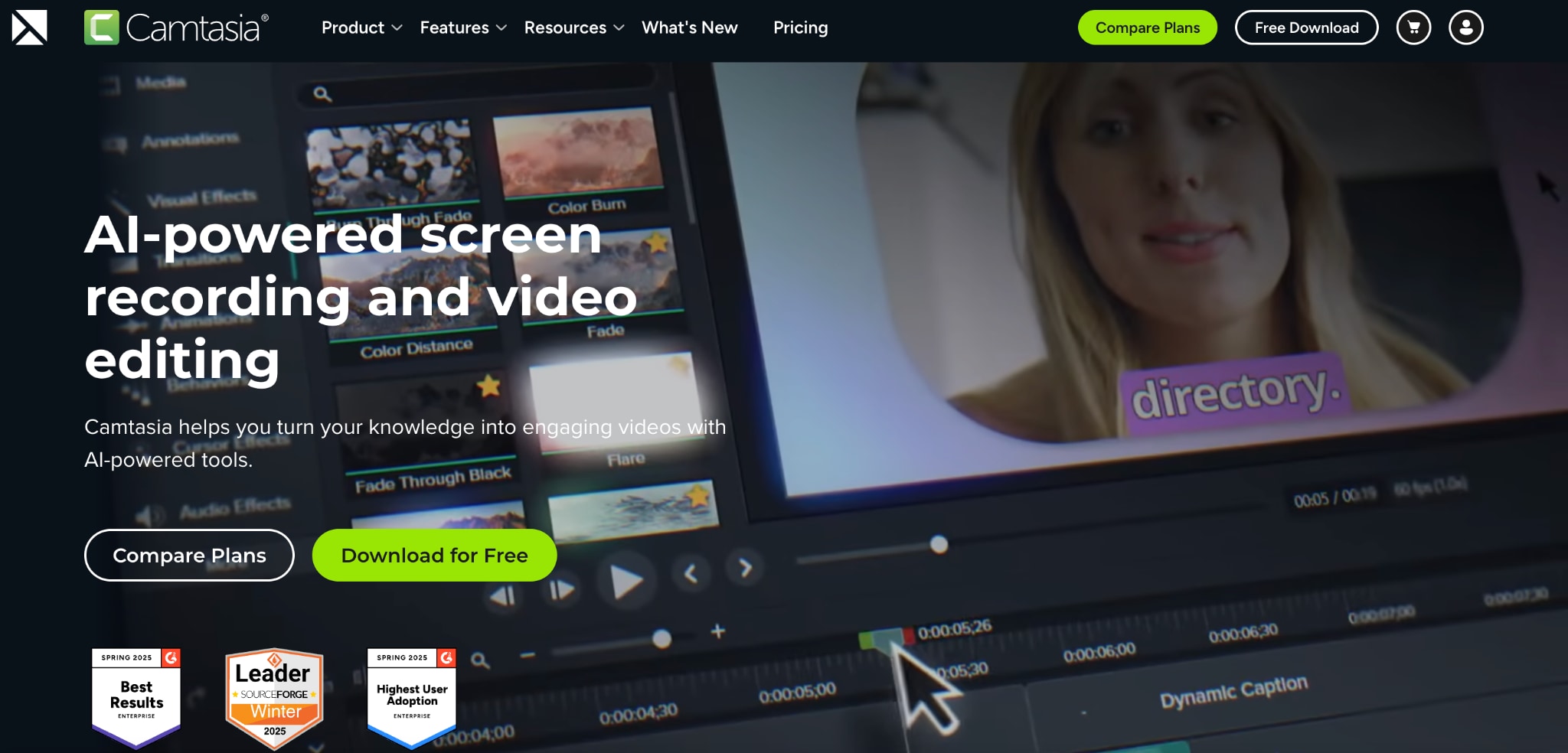
Camtasia, from TechSmith, is a paid screen recorder and editor for Windows and Mac, built for the same video-lesson and tutorial work as Free Cam but with far deeper editing. It records the screen, webcam, and audio, then edits in a timeline with callouts, zoom, and captions. Camtasia’s pricing starts around US$179.88 per year, with a 14-day free trial.
Key Features of Camtasia
Records the screen, webcam, and system audio at up to 4K and 60 FPS.
Edits in a timeline with callouts, cursor effects, transitions, and captions.
Adds quizzes and SCORM export for e-learning, with direct publishing to YouTube and Vimeo.
Exports to MP4 and other formats, with a watermark only on the free trial.
Part 4: Free Cam Screen Recorder vs. Alternatives: A Quick Comparison
The table below compares Free Cam with three alternatives that solve those limitations in different ways, whether you need a completely free recorder, cross-platform support, or more advanced editing tools.
| Tool | Platform | Webcam | Export | Cost |
| Free Cam | Windows only | No | WMV (720p) | Free |
| Wondershare UniConverter | Windows, Mac | Yes | MP4 and more | From US$9.99/mo or US$39.99 once |
| OBS Studio | Windows, Mac, Linux | Yes | MP4, MKV, more | Free |
| Camtasia | Windows, Mac | Yes | MP4 and more | From US$179.88/year |
Part 5: Why Choose UniConverter as a Free Cam Screen Recorder Alternative?
Free Cam gets the basics right. It records your screen for free, adds simple audio editing, and doesn't put a watermark on your videos. The limitations become apparent once your recordings go beyond simple tutorials. If you need a webcam overlay, want to edit in MP4 without converting files afterward, or work across both Windows and Mac, you'll quickly run into Free Cam's boundaries.
That is where Wondershare UniConverter makes sense. Instead of adding complexity like OBS Studio or charging enterprise-level pricing like iSpring Cam Pro, it keeps the recording process straightforward while solving the biggest frustrations Free Cam users usually encounter.
Five things make Wondershare UniConverter a practical upgrade:
Record your screen and webcam together: Free Cam's free version can only capture the screen, while UniConverter supports picture-in-picture webcam recording for tutorials, presentations, and online courses.
Skip the WMV conversion step: UniConverter saves recordings directly in MP4 and other widely supported formats, so your videos are ready for YouTube, social media, or editing software immediately.
Get cleaner audio without extra tools: Its AI noise reduction removes background noise and improves voice clarity, especially helpful for lessons, demos, and meeting recordings.
Handle more recording scenarios: Features such as scheduled recording, application-only capture on Mac, real-time annotations, and multi-monitor recording make it more flexible than Free Cam's basic recorder.
Use the same recorder on Windows and Mac: If you work across multiple devices or collaborate with people on different platforms, UniConverter's cross-platform support removes one of Free Cam's biggest restrictions.
For users who like Free Cam's simplicity but need a recorder that can grow with their workflow, UniConverter feels less like a replacement and more like Free Cam with its biggest limitations removed.
Part 6:Is Free Cam Worth It in 2026?
Free Cam is still a solid choice if you need a simple, no-cost screen recorder for Windows. It delivers on its promise of unlimited recording with no watermark and works well for basic tutorials and training videos.
Free Cam’s limitations become obvious when you need webcam recording, MP4 export, or support beyond Windows. In those cases, Wondershare UniConverter is an easy upgrade, offering those features while keeping the recording experience simple and beginner-friendly.
For basic screencasts, Free Cam still holds up. For anything more demanding, you'll likely outgrow it quickly.

