


Ever wished you could bring your favorite videos to life on your iPhone screen? Converting MP4 to live photo lets you do exactly that. Instead of a still image, you can turn short MP4 clips into moving, touch-responsive memories—perfect for Lock Screen wallpapers or dynamic moments in your Photos library. Whether you're capturing a quick laugh, a scenic travel shot, or your pet's playful move, live photos make every frame feel alive.
In this guide, we'll explore the best ways to turn MP4 files into live photos—using professional desktop software, easy iPhone apps, and free online tools—so you can keep your memories in motion anytime, anywhere.
Table of Contents
Part 1. Benefits of Converting an MP4 to a live photo
The world of mobile photography continues to evolve, and converting MP4 files to live photos has become a highly sought-after skill among iPhone users. This comprehensive 2025 guide provides multiple methods and essential tips to help you seamlessly convert MP4 to live photo on both your computer and iPhone. By turning a standard video clip into a live photo, you can unlock a new level of personalization and dynamic sharing on your Apple devices.
Converting an MP4 to live photo offers several appealing advantages that merge the best features of videos and stills. A live photo is fundamentally a 3-second (or less) video clip accompanied by a static 'key' photo. Transforming an existing MP4 to live photo allows you to:
Set a video as your iPhone Lock Screen wallpaper.
This is one of the most popular reasons to convert MP4 to live photo. Using a live photo as a wallpaper adds a dynamic element to your Lock Screen that animates when you press and hold the screen (on older iOS versions) or wakes the screen (on newer iOS versions).
Preserve a special moment in a more immersive format than a static image.
The inclusion of motion and sound in a live photo means you're capturing the atmosphere of a moment, not just a snapshot. This dynamic format enhances emotional recall.
Share a dynamic "photo" with friends and family.
live photos can be easily shared via iMessage and viewed on other Apple devices, adding a playful or expressive touch that a simple image lacks. They're also often smaller than the original full video clip, making them easier to send.
Integrate short video clips seamlessly into your Photos library.
live photos live within your regular photo album, making them easy to manage, back up, and categorize alongside your still pictures, without being buried in your separate video folder.
Part 2. Method 1: Using Professional Batch Process Software (for Mac)
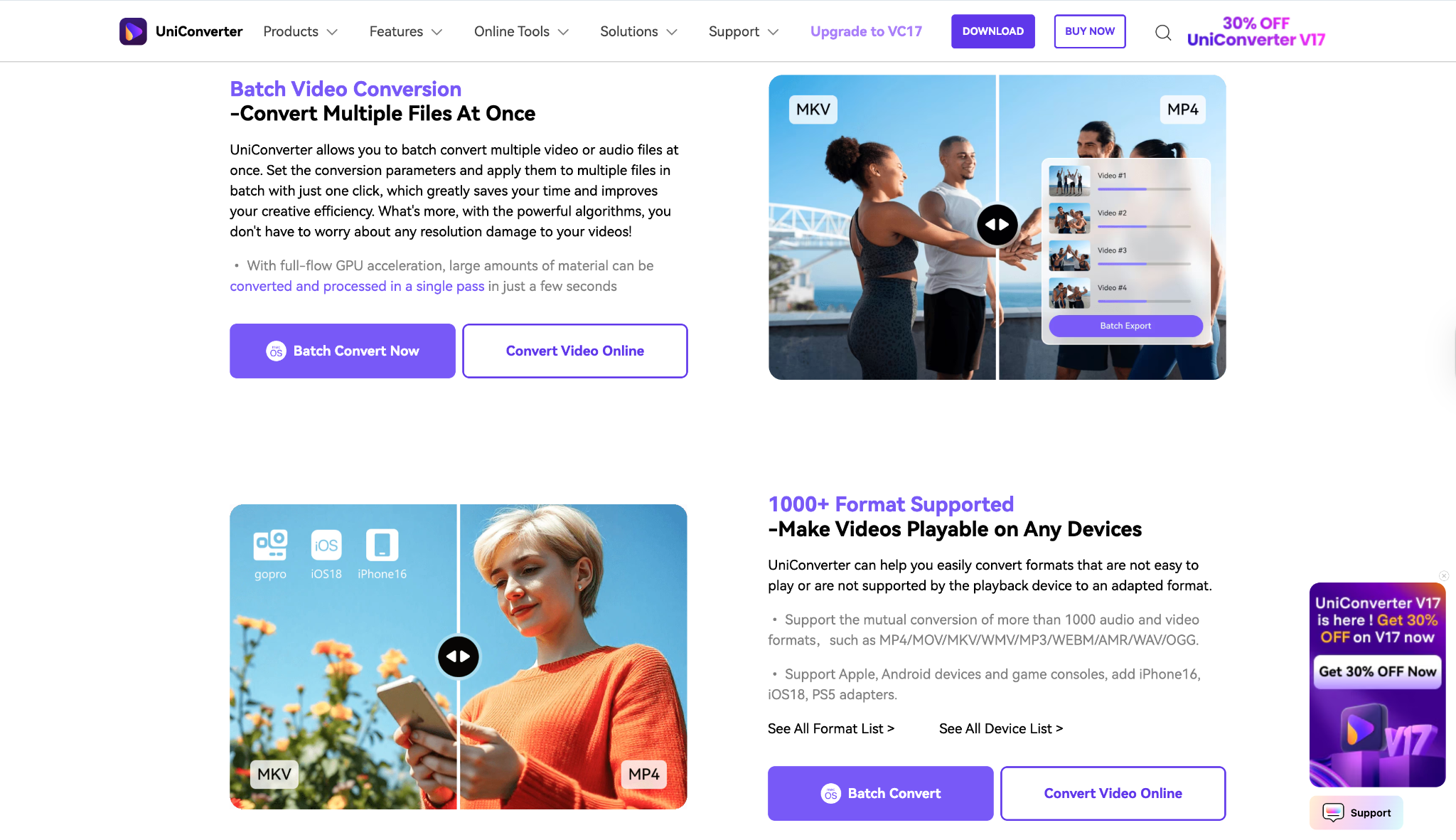
Wondershare UniConverter is a powerful all-in-one media toolkit that converts MP4 videos into Live Photos quickly and efficiently. With its user-friendly interface and advanced processing engine, it supports batch conversions, high-resolution outputs, and a wide range of formats. UniConverter offers fast conversion speeds, versatile editing tools for trimming and effects, and secure, ad-free operation. This makes it ideal for users seeking professional-quality Live Photos with flexibility and ease, whether on Windows or macOS platforms.
Safety Review: 4/5
Starting Price: Subscription plans begin around $9.99/month and $29.99/year, and a Perpetual License is typically around $39.99 (prices are approximate and subject to change).
Best For: For Mac users who frequently handle video files and need batch processing, professional desktop software such as Wondershare UniConverter offers a reliable, feature-rich solution for converting MP4 to live photo.
Step-by-Step Guide of Uniconverter:
Ready to turn your MP4 clip into a moving live photo on your Mac? Follow these quick steps using Wondershare UniConverter to create and transfer your live photo effortlessly:
Step 1: Upload your MP4 videos
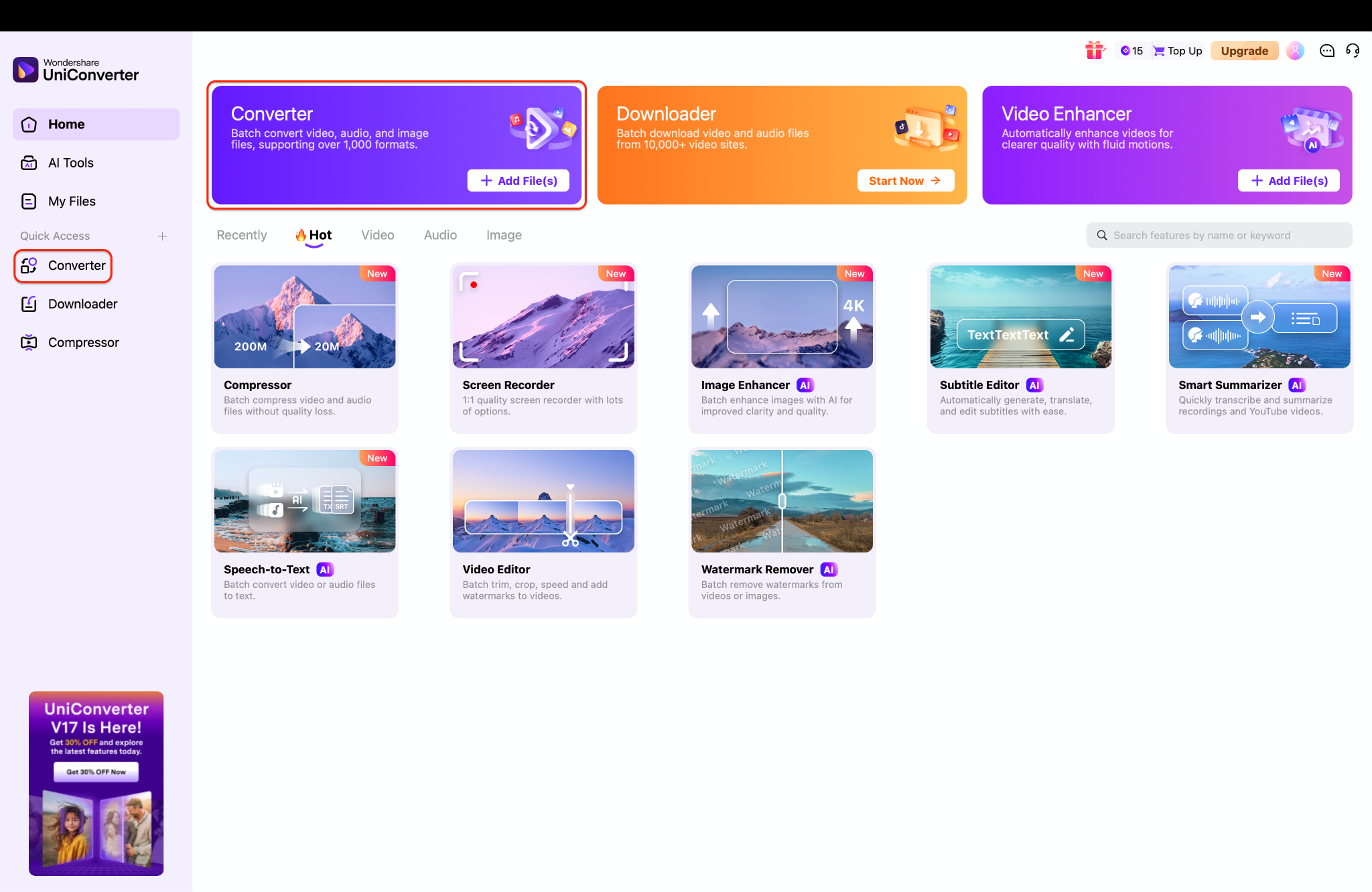
Step 2: Choose live photo as the output format
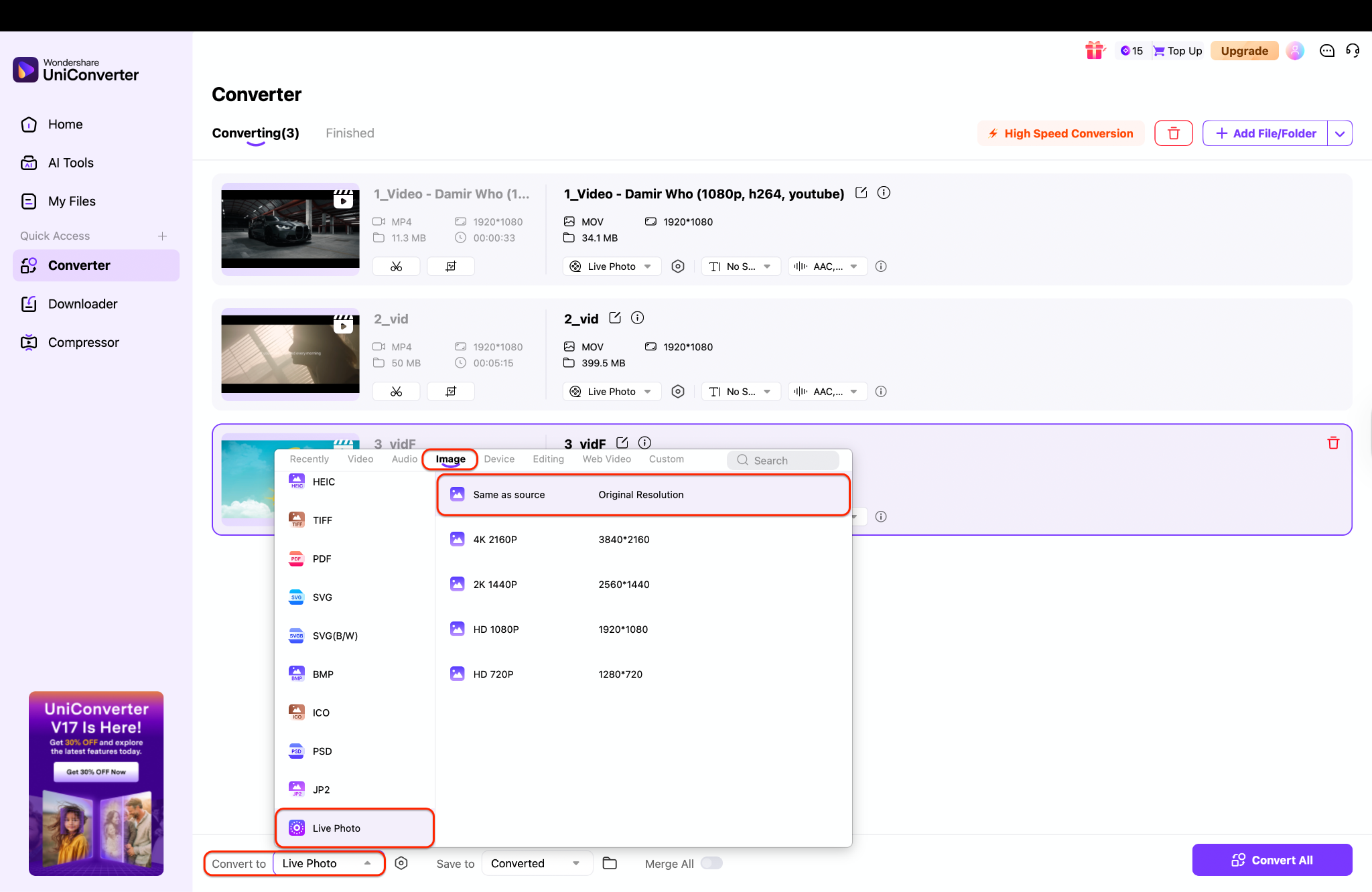
Note: In my case, I wanted to convert my videos into live photos, so I selected the 'Convert to' option at the bottom. However, if you'd like to convert any specific video to a different format, simply click the output format box next to that particular video and choose your preferred format.
Step 3: Start conversion and save your live photos


Easy to Use MP4 to Live Photo Converter
Part 3. Method 2: Using a Dedicated App (Easiest for iPhone)
intoLive is a user-friendly app that effortlessly converts MP4 videos into high-quality Live Photos for iPhone. Designed for customization, it allows trimming, adjusting speed, and adding filters before generating the final Live Photo. You can then set it as a dynamic lock screen or share it easily. With support for various video formats and intuitive editing tools, intoLive makes creating personalized animated wallpapers simple, fast, and fun for anyone wanting to bring motion to their device background.
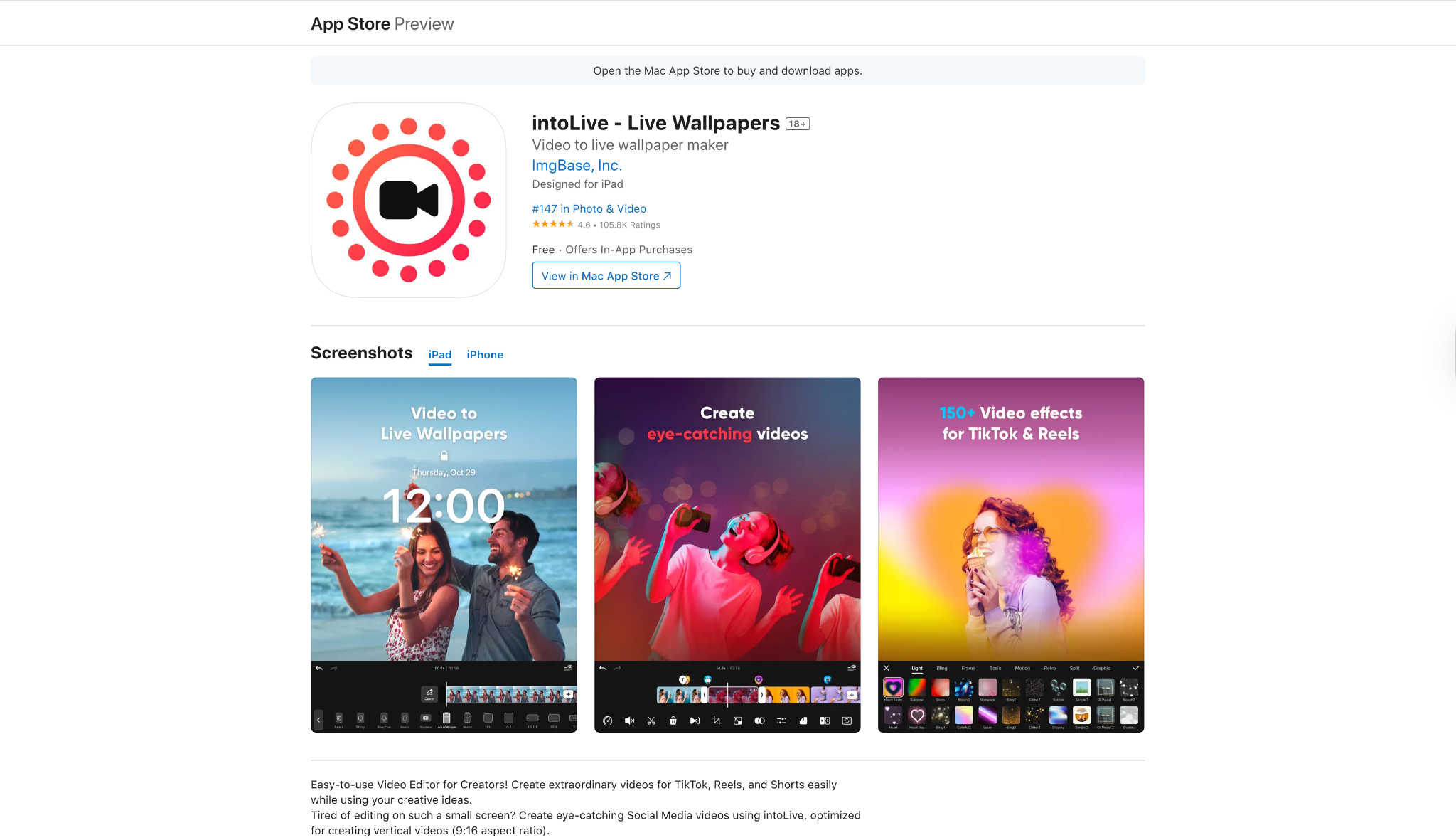
Safety Review: 5/5 (Highly popular and well-reviewed app on the App Store)
Starting Price: Free to download with basic features; in-app purchases or a pro subscription are required for full features (e.g., unlimited length, no ads).
Best For: For users who primarily rely on their iPhone and want the simplest, most direct way to convert MP4 to live photo without a computer, a dedicated iOS app is the best choice.
Steps Guide to Convert MP4 to live photo:
If you prefer doing everything directly on your iPhone, the intoLive app makes it quick and effortless. Here's how you can turn any MP4 video into a live photo right from your camera roll:
Step 1: Install and open intoLive
Download the intoLive app from the App Store and open it once installed. Grant access to your Photos library so the app can detect your saved videos. Choose the MP4 video you want to convert into a live photo from your camera roll.
Step 2: Trim and customize your clip
Use the bottom slider to trim your video down to 1–3 seconds for best results. You can also apply filters, adjust playback speed, or mute audio if needed. Please take a quick preview to ensure it looks exactly how you want.
Step 3: Create and set up your live photo
Tap Make (or Share) and choose how many times you want the clip to loop before saving. Once processed, tap Save live photo to export it to your Photos app. Finally, go to Settings → Wallpaper → Add New Wallpaper, pick your new live photo, and set it as your iPhone wallpaper.
Part 4. Method 3: Using a Free Online Converter
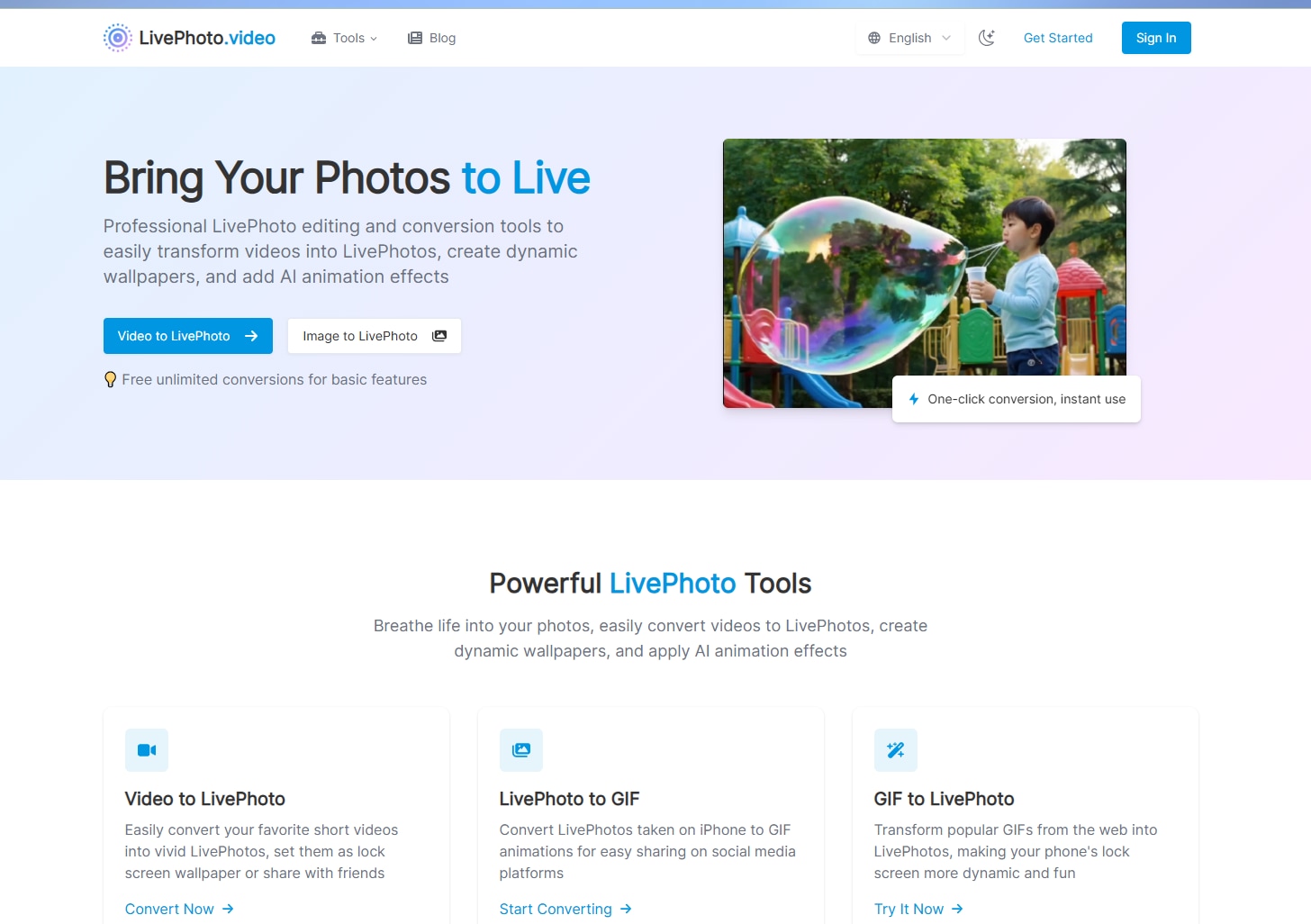
LivePhoto.video is a professional online tool that converts MP4 videos into vibrant Live Photos, perfect for dynamic iPhone wallpapers or sharing. It offers features like cropping, size adjustment, and AI animation effects to enhance your photos. Users benefit from free unlimited basic conversions, quick one-click processing, and support for multiple video formats, making it accessible and easy to use for adding motion to memories and personalized lock screens.
Safety Review: 3/5 (Standard risk for free online file conversion services)
Starting Price: Free (Basic conversion), but with limited using times.
Best for: For users who want to convert MP4 to live photo online without downloading any software or mobile apps, a free online conversion tool is a convenient solution.
Steps Guide to Convert MP4 to live photo Online:
If you don't want to install any software, you can easily convert your MP4 video using the Wondershare UniConverter Online Tool. Follow these simple steps to turn your clip into a live photo right from your browser:
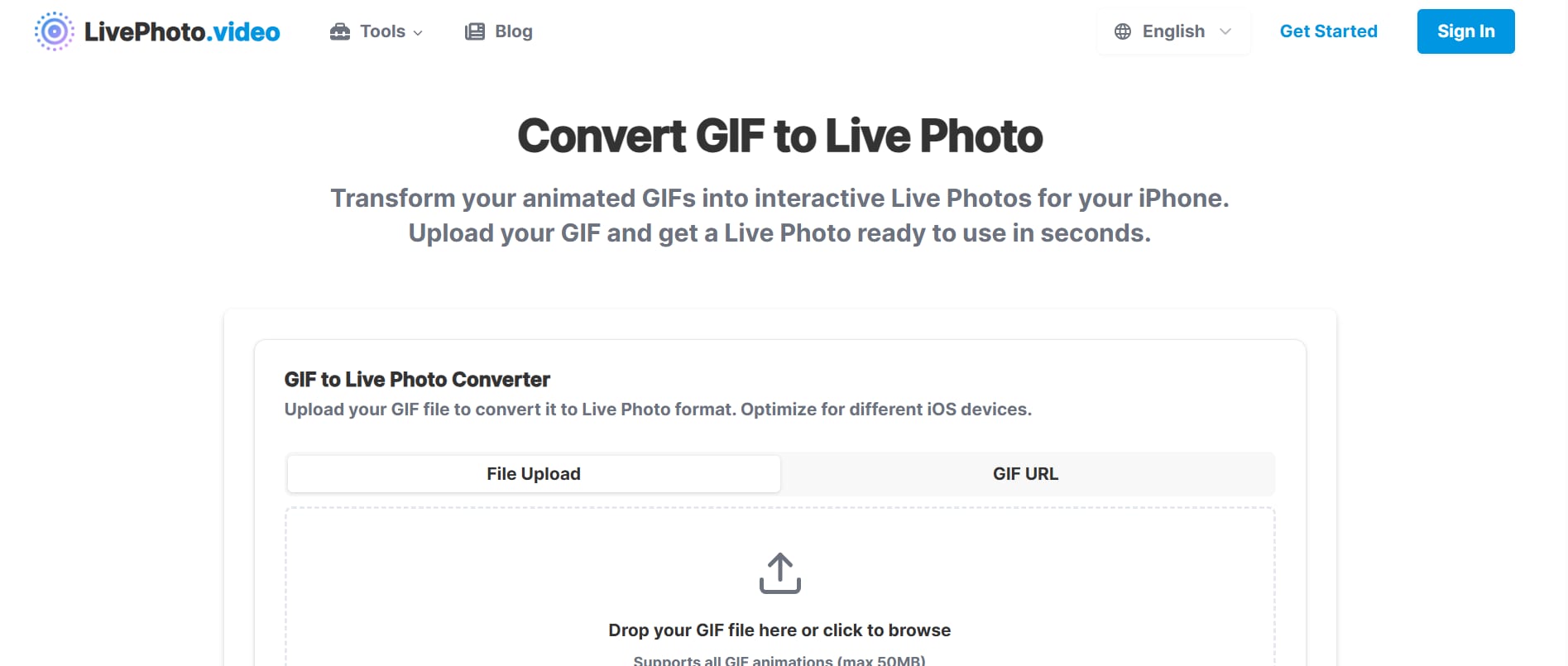
Step 1: Upload a video file
Upload your MP4 video to LivePhoto.video using the upload interface.
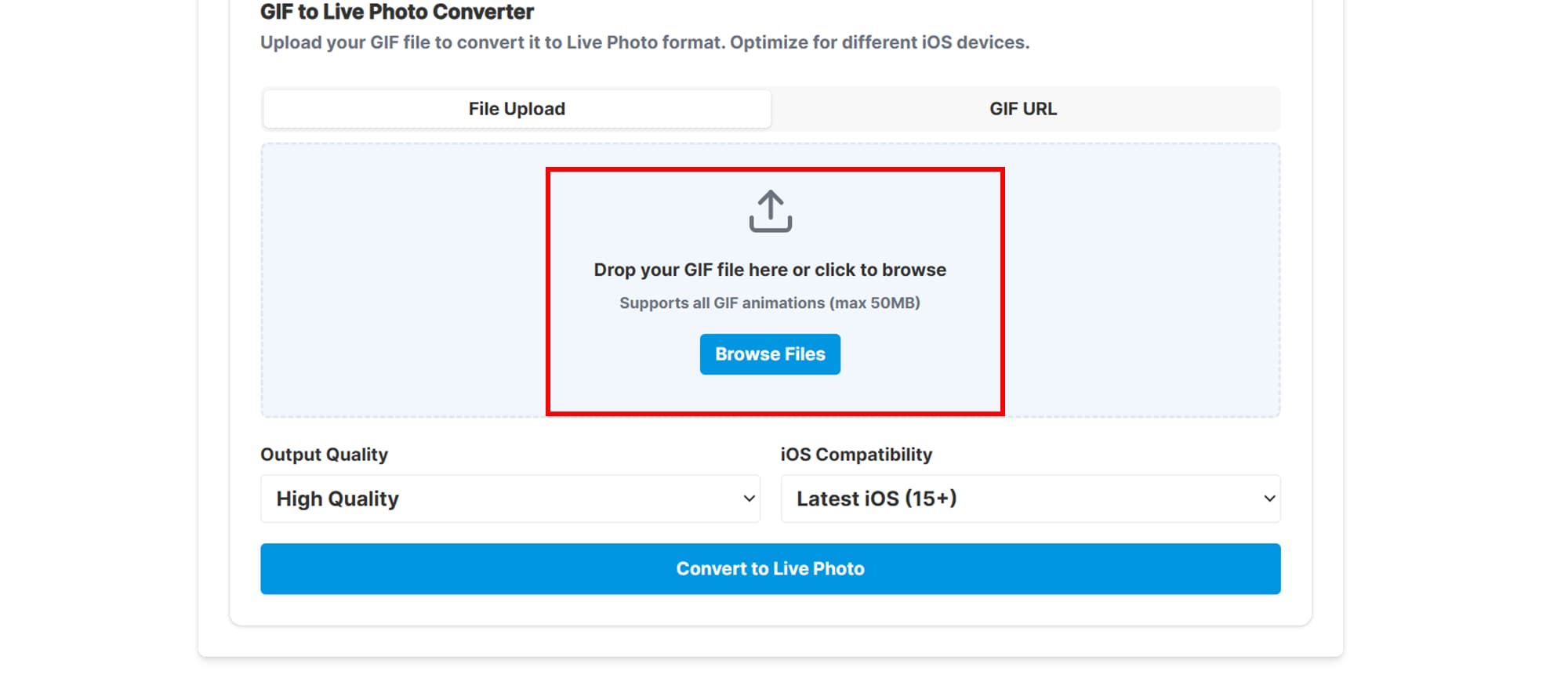
Step 2: Choose format and convert
Trim, crop, or adjust the video as needed for optimal Live Photo dimensions.
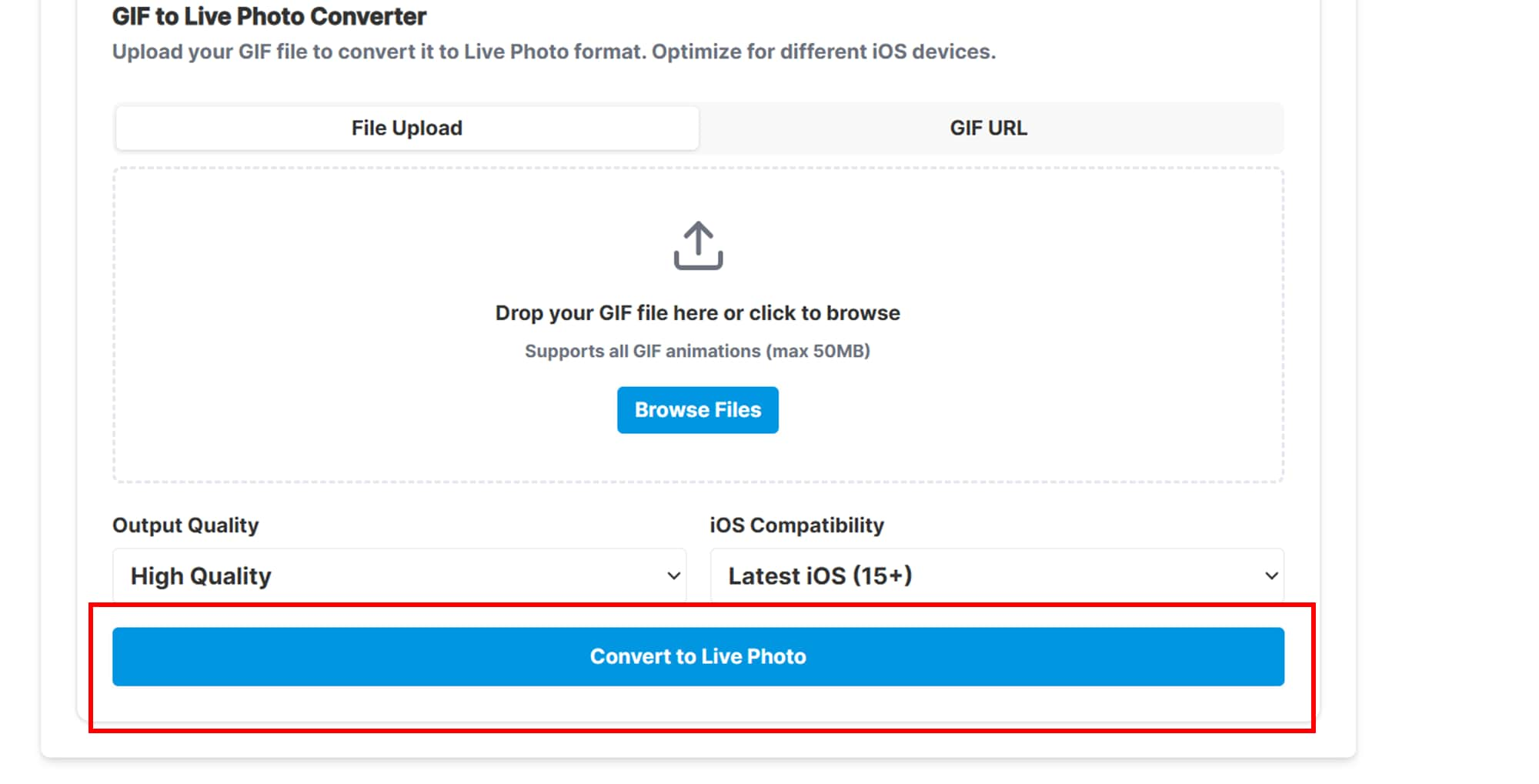
Step 3: Download the converted video
Click convert, then download your Live Photo file to import and set on your iPhone.
Part 5. Key Considerations Before You Convert
Before you convert MP4 to live photo, keeping a few technical factors in mind will ensure the best possible result, especially if your goal is to set the new live photo as an iPhone lock screen wallpaper. These considerations are crucial regardless of whether you convert MP4 to live photo online or use a dedicated application.
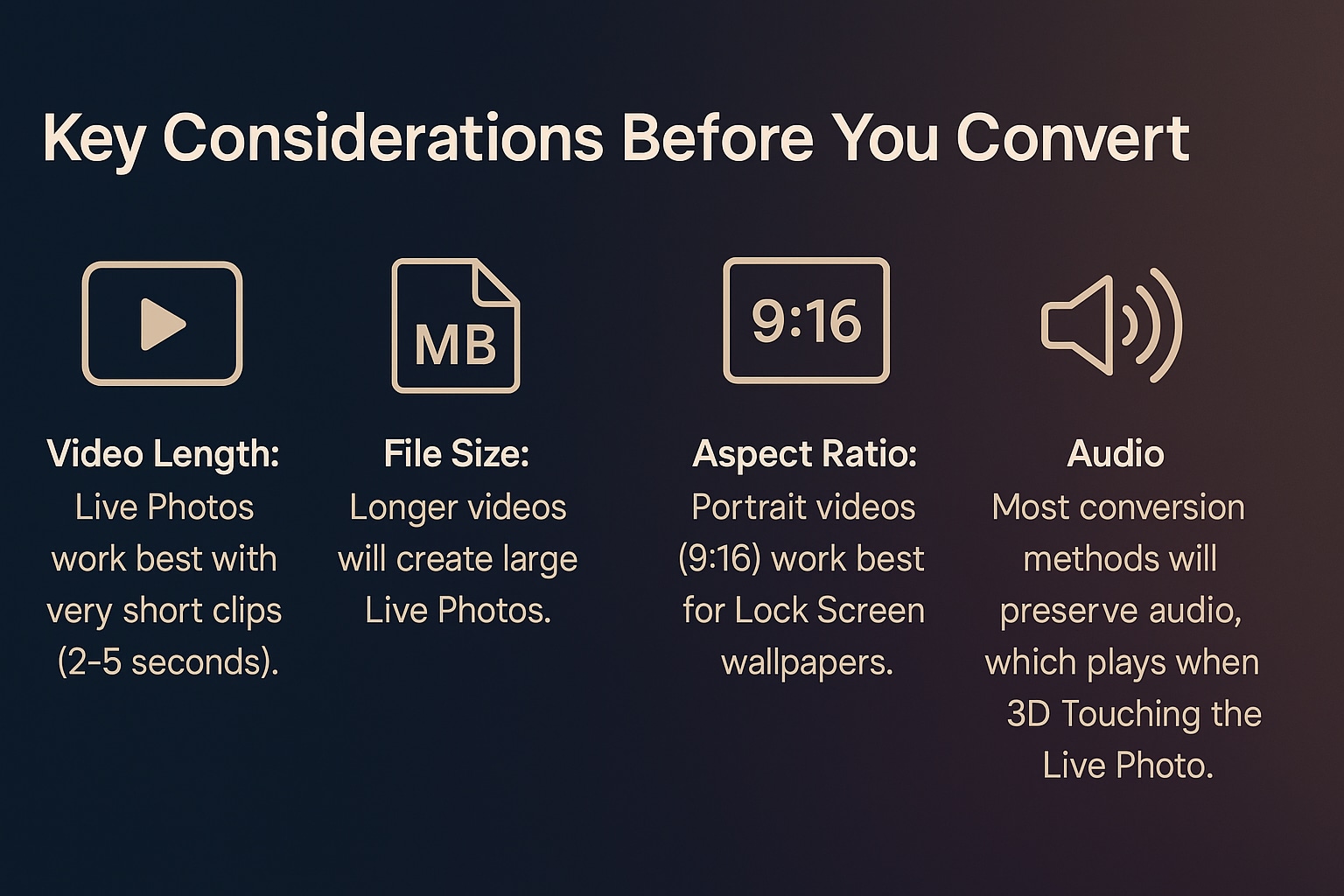
Video Length: live photos are intended for very short clips. They work best with content that is between 2 and 5 seconds long. Clips longer than this may not be supported by conversion tools or may not animate correctly when set as a lock screen wallpaper.
File Size: Even a short video clip can create a large live photo file. Longer videos will create large live photos, which can consume significant storage space and take longer to transfer or share. Keep your source video trim for efficiency.
Aspect Ratio: For optimal use as a lock screen, the live photo should be a portrait video (9:16 or similar vertical ratio). Videos shot in landscape (16:9) will appear small on the lock screen or require cropping, which may cut out essential elements you want to preserve.
Audio: Most robust conversion methods, including professional software and high-quality apps, will preserve the audio from the original MP4. This audio plays when you interact with the live photo, adding another layer of depth to the moment you captured. Ensure the audio quality is good during the source MP4-to-live photo conversion.
Conclusion
We have explored three robust methods for converting MP4 files to live photos, enabling you to transform short video clips into dynamic, animated memories on your iPhone. Whether your goal is to set a custom iPhone lock screen wallpaper or share a more expressive "photo," you now have the tools to do so. For quick conversions, dedicated mobile apps are ideal. However, for Mac users demanding high-quality, ultra-fast batch conversion and a complete set of editing features, professional software is the clear winner.
Easy to Use MP4 to Live Photo Converter
FAQs
-
1. What happens if I try to convert a long MP4 video (like 10 seconds) into a live photo?
Since an actual live photo format only supports a short duration (typically 1 to 5 seconds), most conversion tools will automatically prompt you to trim the MP4 down to the required length. If you skip trimming, the converter will usually only use the first few seconds of the video, ignoring the rest. For Mac users, Wondershare UniConverter's built-in editor lets you trim with precision before conversion, ensuring you capture the best part of your clip. -
2. Can I use the batch conversion feature to turn multiple MP4s into live photos at once?
Yes, batch conversion is a significant benefit of using professional desktop software over most mobile apps or online converters. Wondershare UniConverter is designed explicitly for high-speed batch processing. You can load several MP4 files into the program, select the live photo output format for all of them, and start the convert MP4 to live photo process in one click, saving significant time compared to converting each video individually. -
3. How do I ensure my converted live photo is high-quality and free of watermarks?
To guarantee the highest quality and an output free of watermarks, using a paid desktop application is highly recommended. The professional-grade encoders in Wondershare UniConverter offer lossless or near-lossless conversion, preserving the original resolution and audio quality of the MP4. Free online tools and basic apps, by contrast, often impose watermarks or compress the output file significantly. -
4. Can a live photo be used as my Home Screen wallpaper on an iPhone?
No. live photos are designed and restricted by Apple to function only as your Lock Screen wallpaper. While the static "key photo" from the live photo will appear on your Home Screen if you set it as a pair, the animation feature will only play when you press and hold the screen (on older iOS versions) or wake the Lock Screen (on iOS 17 and later). -
5. Is it necessary to preserve the audio when I convert MP4 to live photo?
Preserving the audio is optional but recommended, as sound adds to the immersive experience. live photos retain the audio from the short clip, which plays whenever the animation is triggered on the Lock Screen or in the Photos app. If the original MP4 has irrelevant or noisy audio, most conversion apps and programs will give you an option to mute the clip before you convert the MP4 to live photo

