Looking for a Shutter Encoder download, wondering whether the program is safe, or trying to convert a video? This guide covers what it does, how to check a download, and how its workflow compares with UniConverter.
In this guide
What Is Shutter Encoder?
Shutter Encoder is a desktop media converter developed for video workflows. It uses FFmpeg for encoding and includes controls for converting, rewrapping, trimming, subtitles, and other media tasks. Its public GitHub project lists batch queues and presets among its features.
| Question | Quick answer |
|---|---|
| Cost | Free and open source; donations are accepted |
| Systems | Windows, macOS, and Linux; check the official site for the correct build |
| Typical uses | Video and audio conversion, editing-related codecs, rewrapping, and media processing |
| Batch processing | Yes; a file list and render queue are available |
| Best starting point | Its official website and documentation |
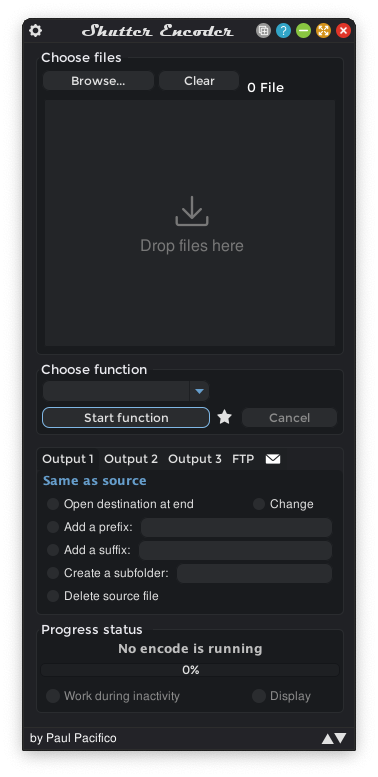
Many users appreciate its detailed output settings, but a long function list can take time to learn. For another format-selection workflow, see the UniConverter video conversion guide.
Is Shutter Encoder Safe to Use?
Shutter Encoder is a legitimate open-source project with a public source repository and an official download site. That transparency is useful, but it does not prove that every installer, mirror, or future release is free from risk. We have not independently scanned the installer for this guide.
For a safer Shutter Encoder download, start at shutterencoder.com, select the appropriate operating system, and check the version and publisher details presented by your system. Avoid unexpected bundled installers or look-alike domains.
Why Might Windows or macOS Show a Warning?
A warning can relate to signing, app reputation, a specific component, or a security detection. The developer's FAQ discusses certain operating-system warnings, while release notes show fixes can change between versions. Do not assume every warning is a false positive or disable system protection.
- Confirm where the file came from and whether it matches the official release.
- Read the exact warning and check the publisher and version information.
- If antivirus identifies a threat, do not run the file. Update your security software and consult the vendor or developer.
- Where a trusted publisher provides a checksum, compare it with the file you received; a checksum alone does not establish safety if its source is untrusted.
How to Download Shutter Encoder for Windows or Mac
- Visit the official Shutter Encoder website and open its Downloads section.
- Choose the build for Windows, macOS, or Linux. On Mac, check whether your machine uses Apple silicon or Intel before choosing a build if separate options are listed.
- Review the version and system requirements. A portable build may be available for some systems.
- Follow the installer or official instructions and review any system warning before proceeding.
Download choices and availability can change, so verify them on the official page instead of relying on an old version number.
How to Use Shutter Encoder to Convert a Video
The exact interface can differ by version. This basic workflow converts a file; the codec and container should match the requirements of your destination.
- Add your video: open Shutter Encoder and add or drag the source file into the file list.
- Choose a function: open Choose function and select an appropriate output codec, such as H.264 when supported by the destination.
- Review settings: choose the output container, destination, bitrate, and other available options as needed.
- Start processing: select Start function, then play the finished file to check picture, sound, and compatibility.
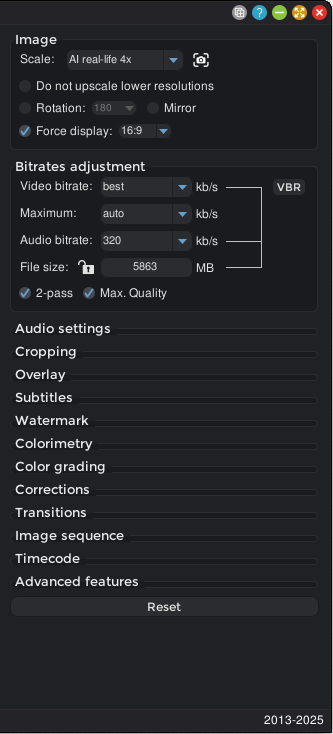
Need a batch? Add multiple files and review the selected function and output destination. For different processing jobs, consult the official render queue documentation. Transcoding generally changes the encoded video; do not assume every conversion is lossless.
Shutter Encoder Features, Pros, and Limitations
| Strength | What to consider |
|---|---|
| Free and open source | Its layout and numerous options may take time to learn. |
| Supports common and professional encoding workflows | Codec and container availability depend on the selected function and build. |
| Provides batch processing, presets, and a render queue | Review shared settings and output destinations before processing a large set. |
| Includes cutting, rewrapping, and subtitle tools | Not every operation avoids re-encoding; verify the chosen function. |
Shutter Encoder vs. UniConverter: Which Should You Choose?
Both applications can convert media and process multiple files. Shutter Encoder is free and offers extensive encoding controls. Wondershare UniConverter is a commercial desktop toolkit that also brings conversion, compression, subtitles, and AI enhancement together. Check current plan details and feature limits before purchase.
| Need | Shutter Encoder | Wondershare UniConverter |
|---|---|---|
| Price | Free and open source; donations accepted | Commercial product; free and paid features may differ |
| Desktop systems | Windows, macOS, Linux | Windows and macOS |
| Batch conversion | File list and render queue | Add files or folders and use the batch conversion workflow |
| Encoding control | Wide range of functions and settings | Format presets and available output settings |
| Additional tools | Cutting, rewrapping, subtitles, and media analysis | Compression, Subtitle Editor, and AI enhancement tools |
Choose Shutter Encoder if a free, configurable encoding workflow fits your needs. Consider UniConverter if you want a format-preset workflow alongside tools such as subtitle generation or video enhancement. For related tasks, see the batch video converter and video compression guide.
Why Choose UniConverter as a Shutter Encoder Alternative?
Wondershare UniConverter is a practical Shutter Encoder alternative when you want to convert or compress videos and also need subtitles or AI enhancement in the same desktop toolkit. Shutter Encoder remains a free option with detailed encoding controls and its own batch queue. UniConverter is a commercial product; access to some features, exports, or AI tools may depend on your plan or available credits.
1. Convert One Video or a Batch with a Shared Format
Have a folder of recordings to deliver in MP4? Open Converter, add individual files or a folder, select an available Convert to preset, and use Convert All. Review clips with different input dimensions or audio tracks before processing, and play the output afterward. You can also convert a single clip. See the batch video converter for the complete workflow.
2. Compress Videos for Sharing
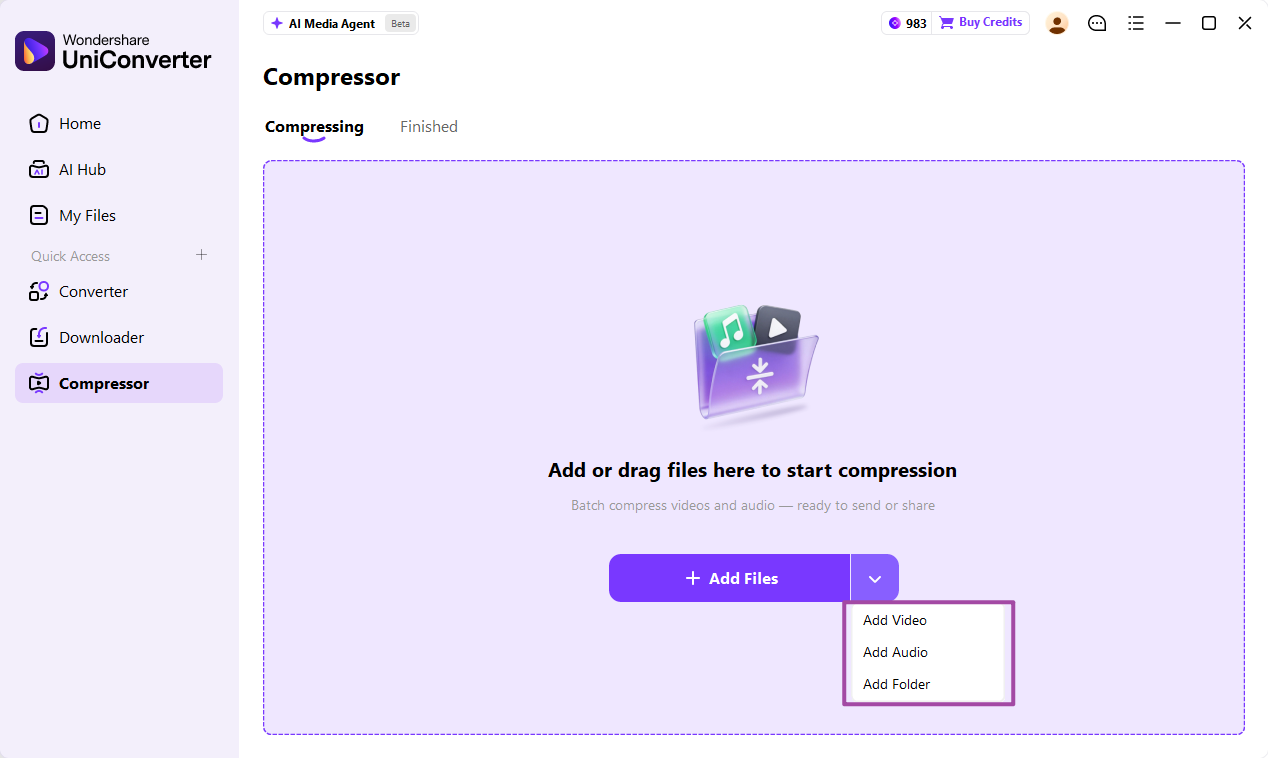
If a video is too large to send or upload, open UniConverter's Compressor, add your file, and choose an available compression target. For a set of files, the desktop compressor provides batch controls. Preview a representative result and check readability and audio before sharing: reducing file size can affect quality. Follow the video compressor guide for settings.
3. Create, Translate, or Import Subtitles
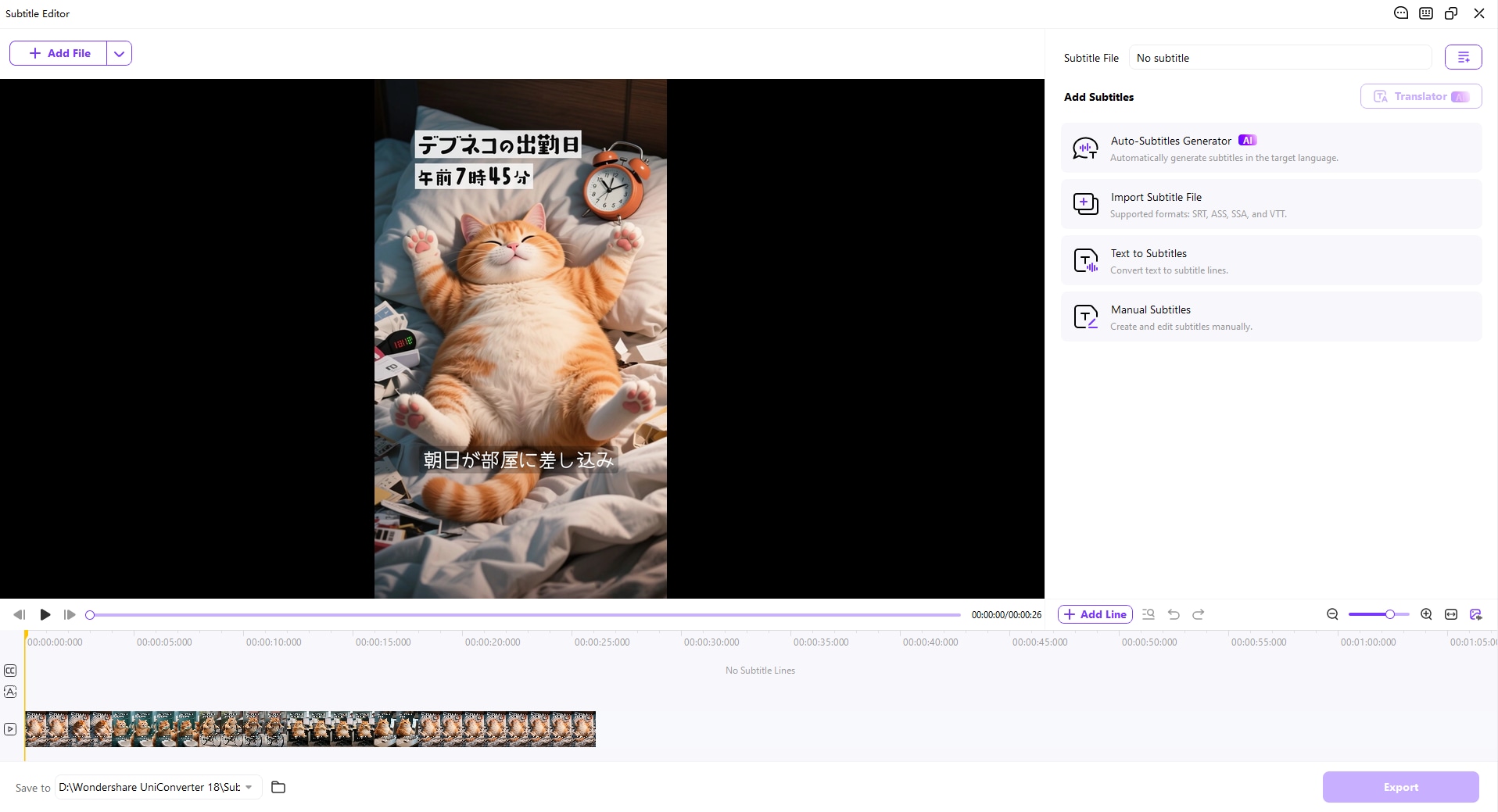
When your own or an authorized video needs captions, open Subtitle Editor and add the file. Choose Import Subtitle File for an existing subtitle file, or use Auto-Subtitles Generator to create captions from the audio. Select the source and translated languages when needed, and review names, timing, and translation before export. The example interface supports SRT, ASS, SSA, and VTT import.
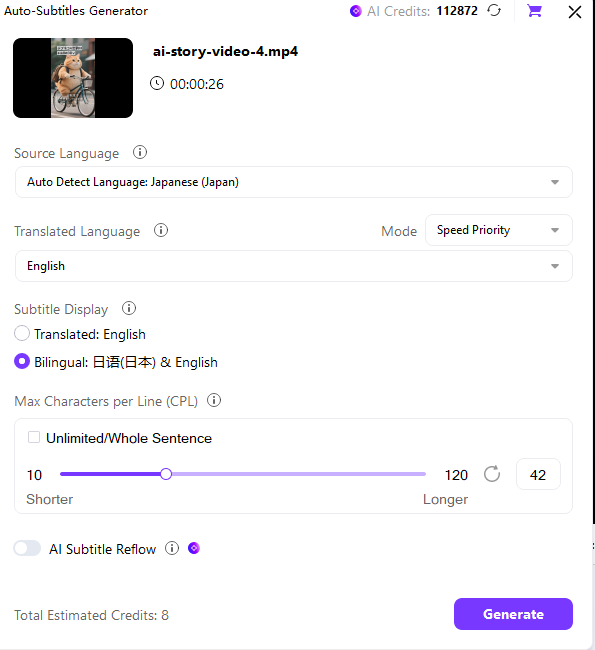
For bilingual subtitles, choose the available bilingual display option in the generator and check the estimated AI credit cost before starting. The AI subtitle translation guide explains the workflow.
4. Enhance Footage Before Delivery
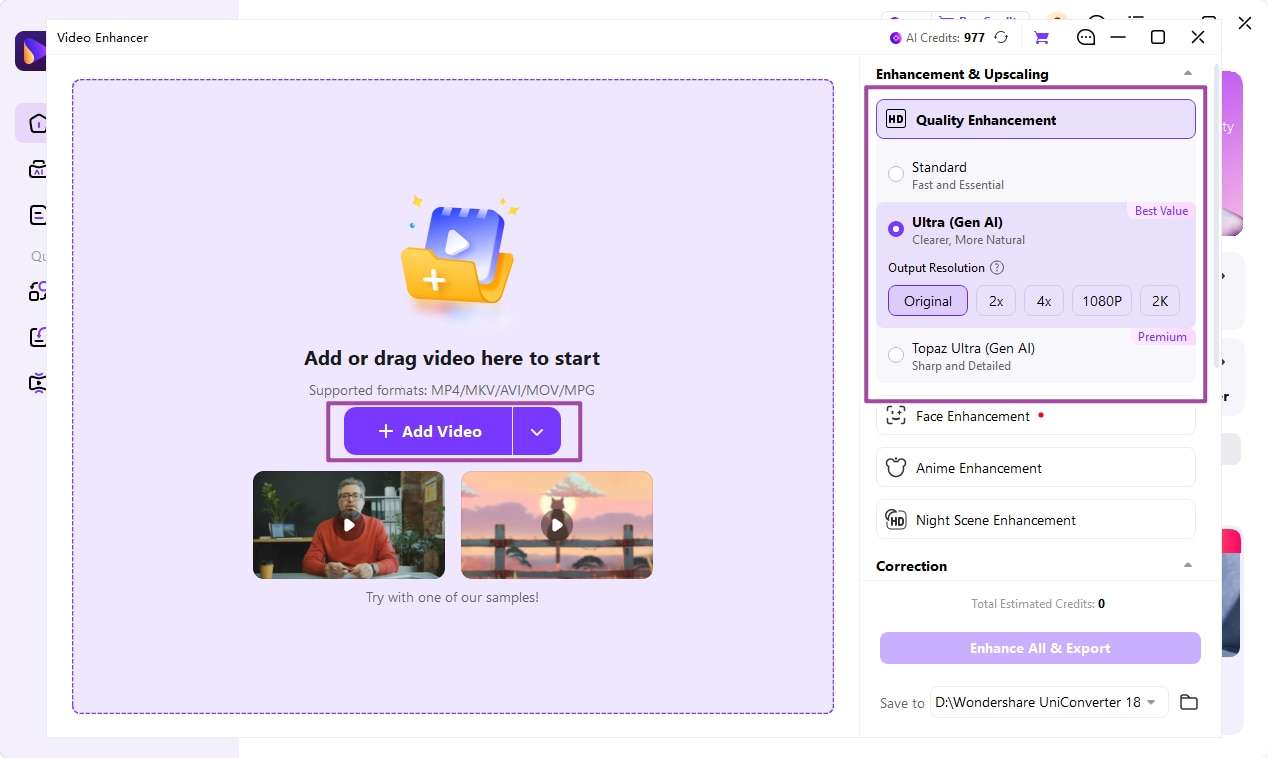
For a low-resolution or unclear source, open Video Enhancer, add the video, and choose an available enhancement option suited to the issue. Preview and compare the result before export; enhancement does not guarantee that original detail can be recovered, and processing time and credits can vary. See the AI Video Enhancer guide.
Which should you choose? Keep Shutter Encoder if its free, configurable encoding or specialist workflow already suits your project. Consider UniConverter if you want to combine conversion, compression, subtitles, and enhancement in a single desktop toolkit. Both programs support processing multiple videos.
How to Convert One or Multiple Videos with UniConverter
Use the desktop Converter to prepare one clip or a collection. The following Windows steps reflect the official batch conversion guide; labels may vary by version.
Step 1. Open Converter
Launch UniConverter and select Converter from Home or Quick Access.
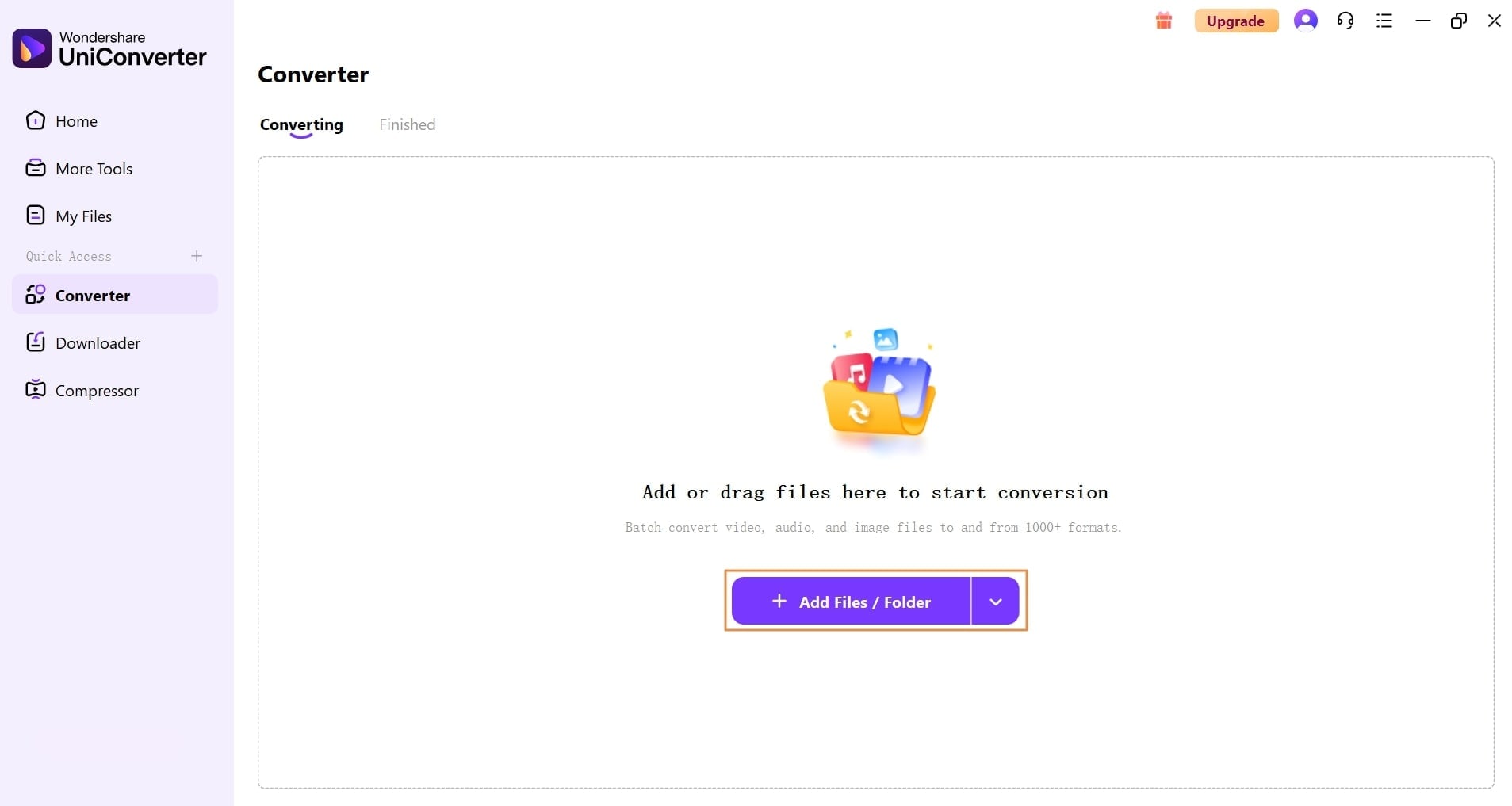
Step 2. Add One Video or Multiple Files
Select Add Files/Folder or drag files into the Converter. Add a single video for an individual conversion, or select several files or a folder for a batch.
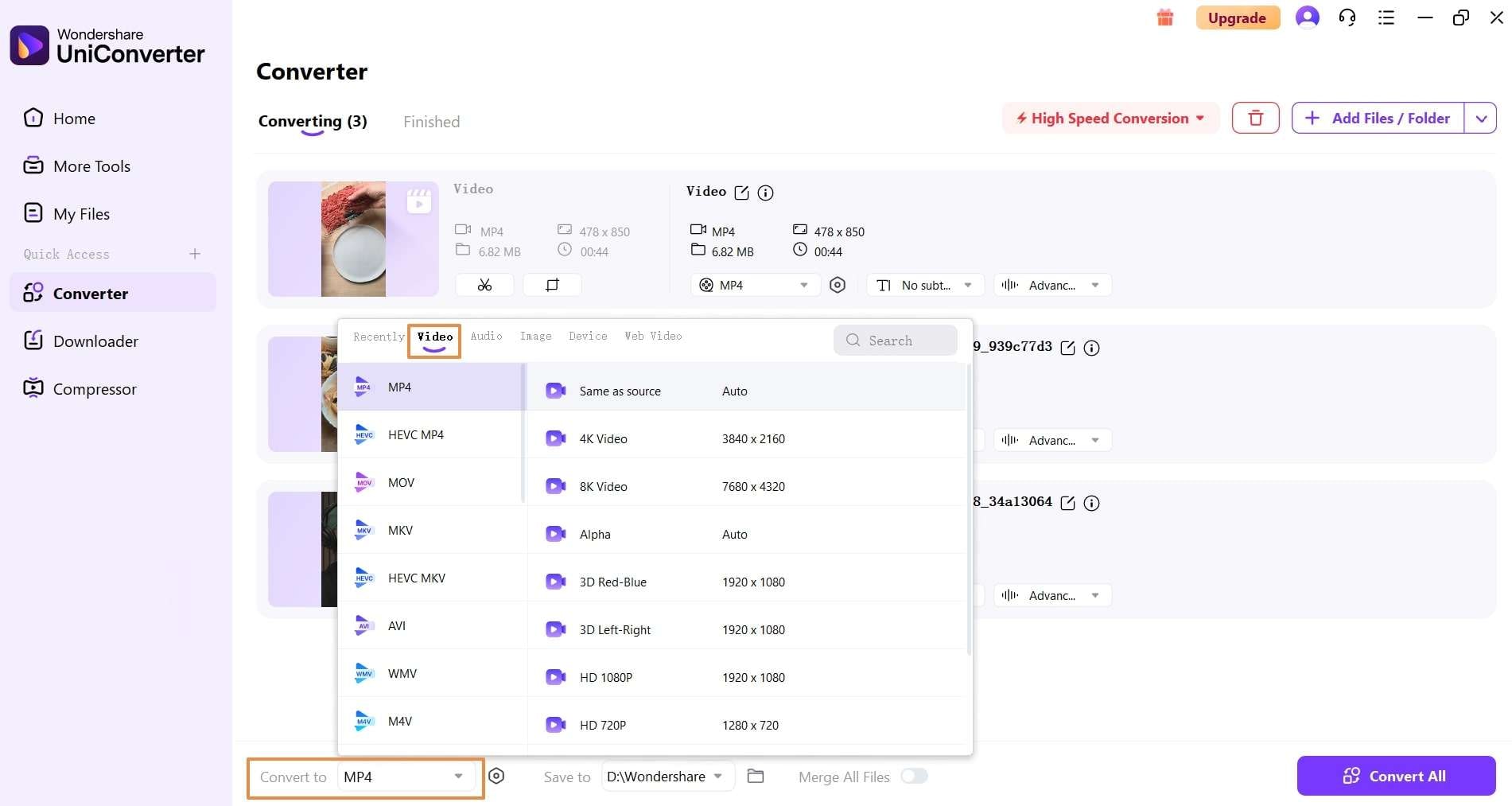
Step 3. Choose the Output Format
Open Convert to, choose a format and an available preset, then review resolution, codec, and other settings as needed. For multiple files, choose the common output format if the batch uses the same destination settings.
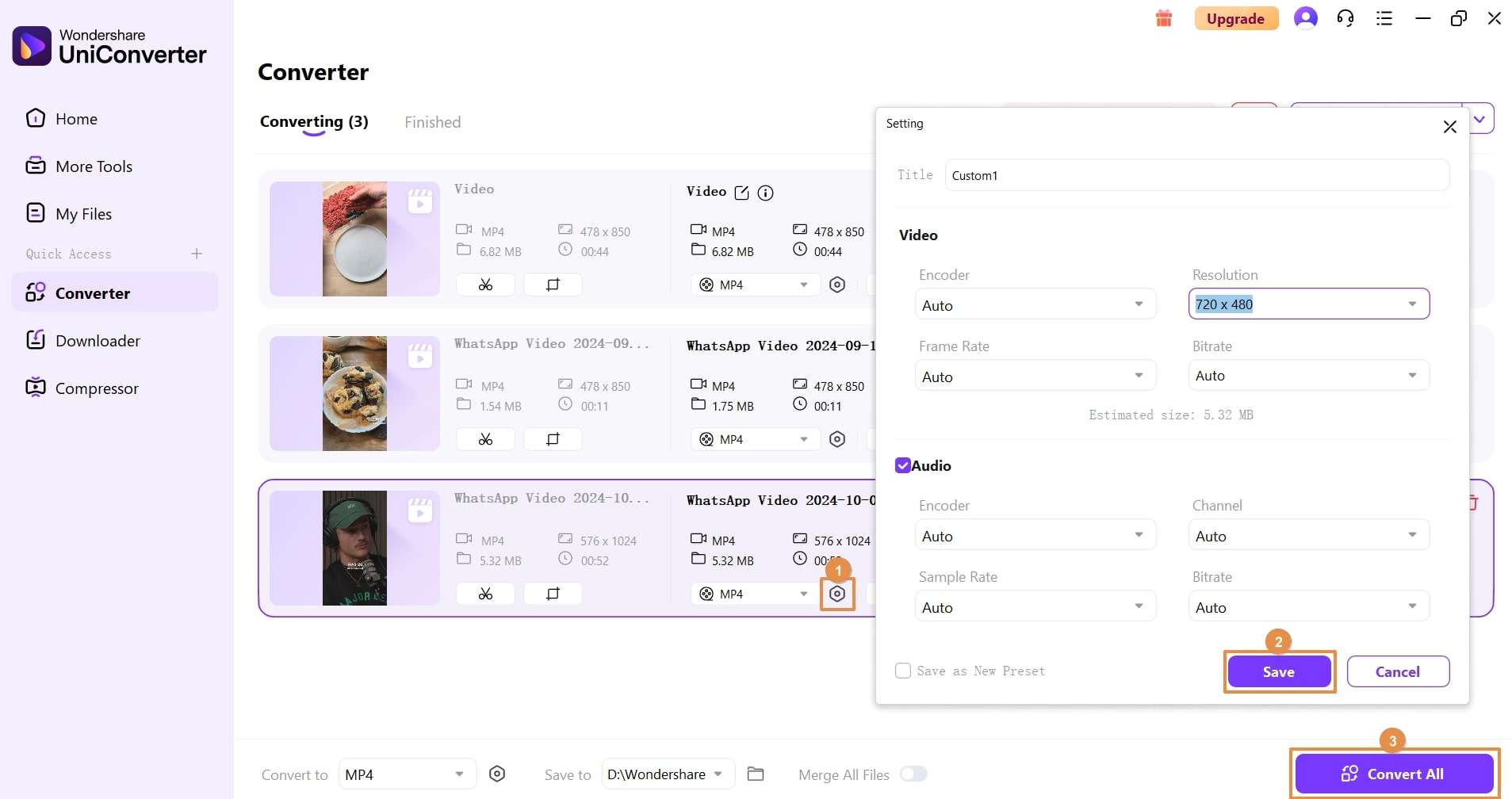
Step 4. Convert and Check the Results
Choose a save location and start conversion: use the file's convert control for one item or Convert All for the batch. Open the finished files and check that the video, audio, and subtitles you need are present. Keep the originals until you have verified the results.
FAQs About Shutter Encoder
-
Is Shutter Encoder free?
Yes. Shutter Encoder is free and open source. It accepts donations; check the official website for current details.
-
Is Shutter Encoder safe to download?
Use the official Shutter Encoder website, check the source and version, and investigate any security warning. No download can be guaranteed risk-free.
-
Does Shutter Encoder work on Mac and Windows?
Yes. The official project provides versions for Windows, macOS, and Linux. Choose the build for your computer and check the current system requirements.
-
Can Shutter Encoder convert multiple videos?
Yes. Shutter Encoder supports processing multiple files and provides a render queue for configured tasks.
-
Can I use UniConverter as a Shutter Encoder alternative?
Yes. UniConverter can convert and compress local videos and supports batch conversion. Compare supported formats, platform, and pricing before choosing.
-
Does Shutter Encoder use GPU acceleration?
Shutter Encoder supports hardware acceleration for certain tasks, codecs, and compatible hardware. Available options depend on the system and settings.
Shutter Encoder is a capable free option for detailed media workflows. If your projects also call for conversion, compression, and other editing tools in one application, explore Wondershare UniConverter.