

If you're researching Wondershare UniConverter 17, this guide covers its main features, update history, Windows and Mac support, and licensing. You'll also find a side-by-side comparison of UniConverter 17 and the latest UniConverter 18, highlighting what V18 adds and which capabilities were already available in V17.
In this guide
What Is Wondershare UniConverter 17?
Wondershare UniConverter 17 is a Windows and Mac application that brings high-speed media conversion and AI-assisted media improvement into one desktop workspace. Its core promise is broader than format conversion: import or acquire media, convert it, improve its quality, compress it, record new material, create supporting assets, and prepare the result for publishing without moving between a long list of single-purpose apps.
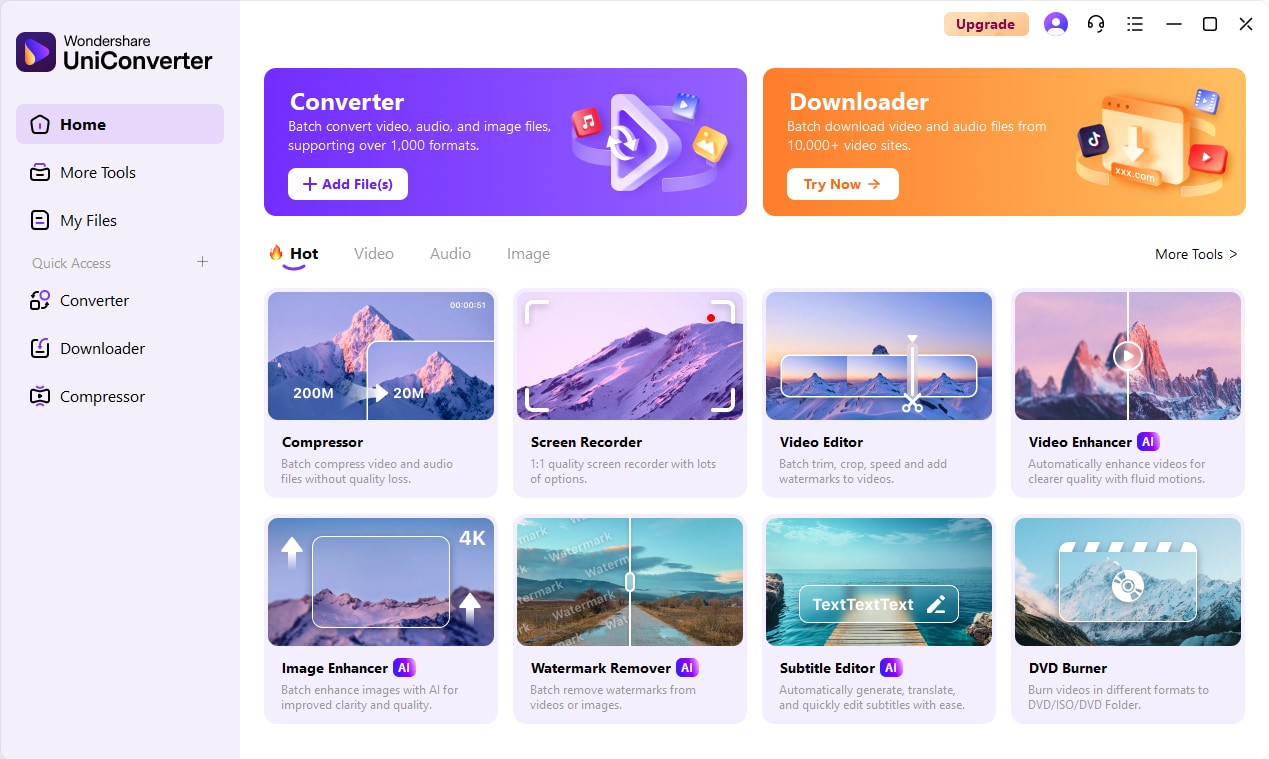 Wondershare UniConverter 17 places core media tools, recent tasks, and AI features in one searchable home workspace.
How the product position changed
UniConverter began as a format-conversion utility, then grew into a complete video toolbox. UniConverter 15 strengthened GPU-accelerated conversion and introduced a broader range of AI media tools. UniConverter 16 built on that foundation with faster conversion, professional-format support, and more efficient batch processing. V17 shifted the focus toward AI-assisted creation and enhancement across the media workflow, connecting conversion, enhancement, compression, recording, subtitles, summaries, cleanup, and image generation more closely.
The result serves creators who need reusable footage, video enthusiasts managing a local library, educators preparing lessons, and small teams producing training or marketing content. For the latest product positioning and upgrades, visit the UniConverter 18 product page.
Main Features of Wondershare UniConverter 17
Wondershare UniConverter 17 receives regular point updates, so the most useful way to understand it is by capability rather than by version number. The following groups combine the major functions introduced or expanded across V17.0 to V17.6.
1. AI-assisted conversion and high-quality compression
The UniConverter video converter supports more than 1,000 video, audio, and image formats according to Wondershare, including 4K, 8K, HDR, H.265/HEVC, AV1, ProRes-related workflows, WebP animation, and device presets. The conversion speeds up to 130 times faster, although actual performance varies with the source codec, output settings, GPU, storage, and computer configuration.
UniConverter 17 adds an AI format recommendation panel that suggests a suitable output for smaller files, broader compatibility, editing, HDR, or other scenarios. It also adds finer CBR/VBR and constant/variable-frame-rate control, improved HDR and professional codec handling, batch handoff to enhancement or compression, metadata preservation, chapter handling, and an optional Keep Timecode setting.
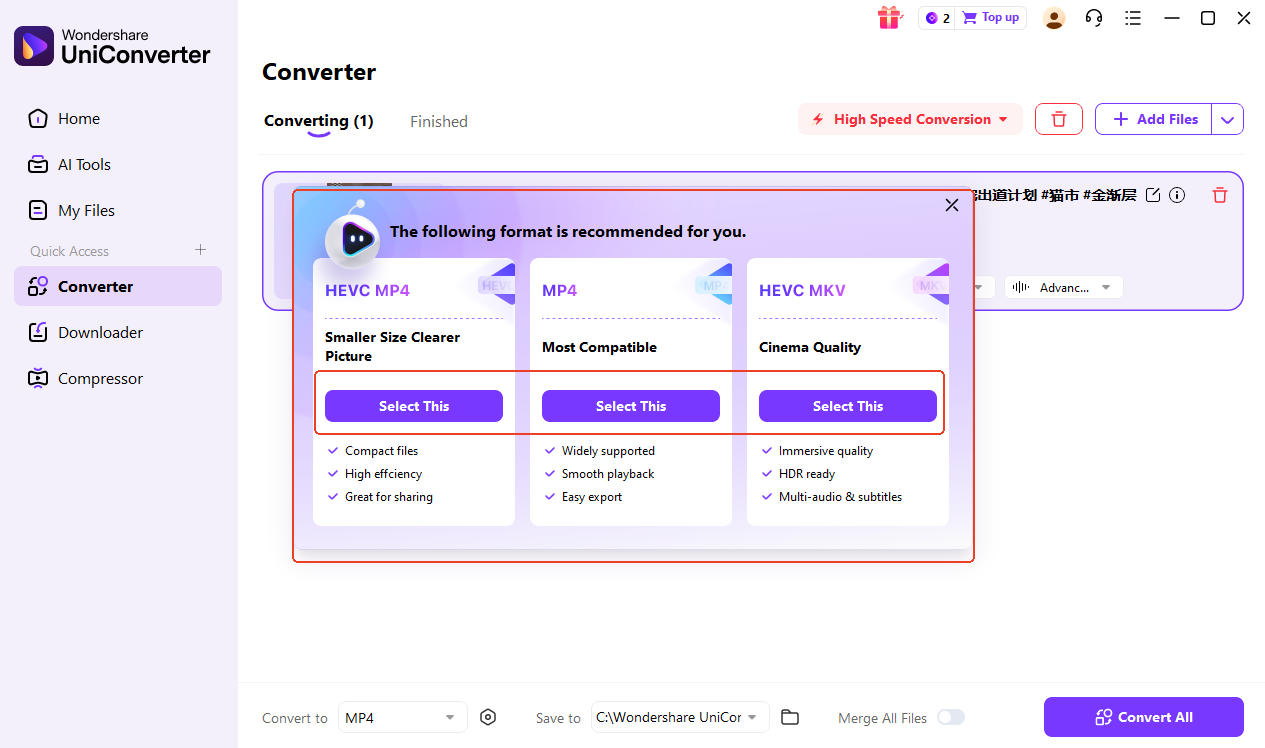 The format recommendation panel explains why a format suits file size, compatibility, editing, or quality requirements.
The video compressor includes a quality-priority mode that selects settings for films, animation, tutorials, meetings, sports, and performance footage. Later V17 updates add GPU acceleration to quality-priority compression and optional quality enhancement, helping users reduce file size while keeping the output appropriate for the content.
2. Batch downloading, subscriptions, live capture, and recording
The downloader can process individual URLs, playlists, and complete YouTube channels. It can subscribe to supported YouTube channels or playlists, check daily or weekly while the app is running, and download new items automatically. UniConverter 17 also expands live-stream downloading across supported services such as YouTube Live, Twitch, Facebook Live, TikTok Live, Kick, Trovo, Niconico, and Dailymotion. Availability can change when a platform modifies its service, and users remain responsible for permissions and copyright compliance.
Recording covers screens, applications, games, webcams, microphones, and system audio. V17 adds game recording, microphone noise reduction, mouse effects, camera mirroring, CBR/VBR controls, variable-frame-rate recording, and hardware-assisted options on compatible systems. Users can capture up to 4K at 120 FPS with audio up to 320 kbps, subject to hardware and source limitations.
3. Specialized AI video and image enhancement
The AI Video Enhancer has evolved from general restoration into a model-based enhancement workspace. Wondershare UniConverter 17 covers quality restoration, generative upscaling, face and anime enhancement, denoising, color improvement, frame interpolation, night-scene enhancement, video stabilization, motion-blur repair, and de-flicker processing. Output choices depend on the selected model and can include proportional 2x or 4x scaling, 1080p, 2K, 4K, or 8K workflows.
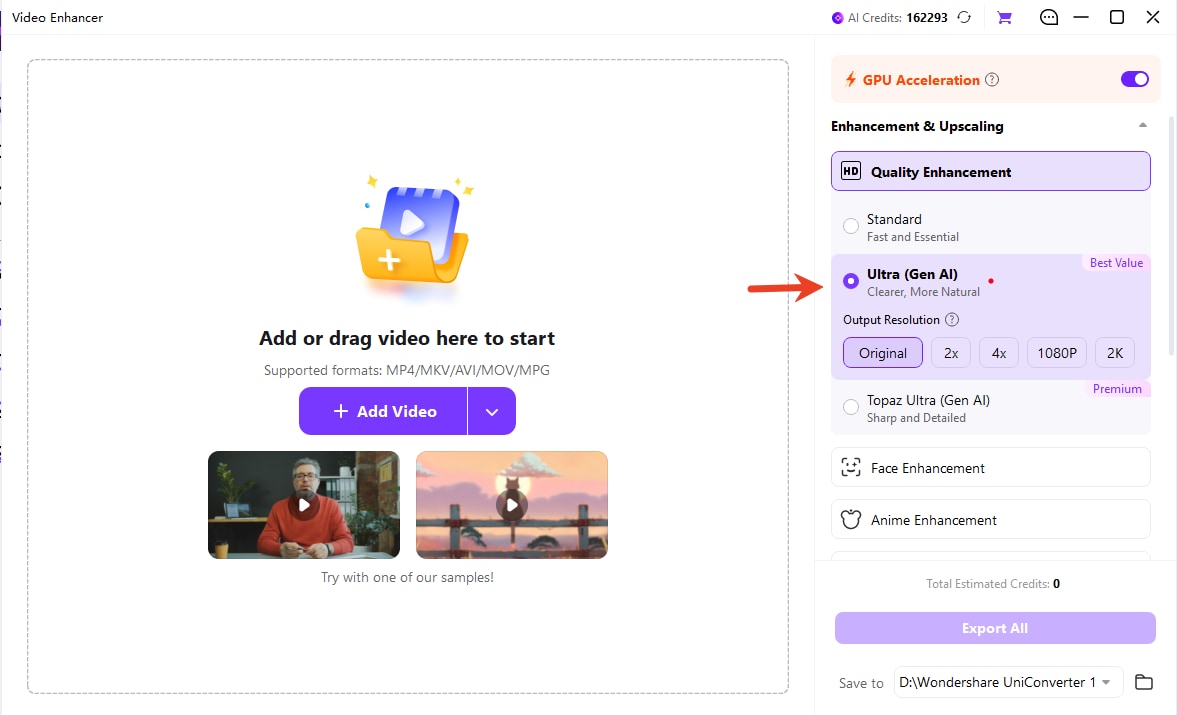 UniConverter 17 groups standard, generative, face, and anime enhancement models in a task-based panel.
AI image enhancement follows the same scenario-led approach. Available workflows include automatic diagnosis and repair, gentle or detail-focused enhancement, denoising, old-photo restoration and colorization, image straightening, face-focused recovery, and multi-model processing. Generative models can reconstruct detail, so users should preview important faces, text, logos, and archival material before export.
4. Subtitles, transcription, summaries, and voice tools
UniConverter 17 expands automatic subtitles and AI speech-to-text from 91 to 145 languages. It can generate editable bilingual captions, improve line breaks with AI Subtitle Reflow, search and replace subtitle text, adjust each language track, and export a video or a separate subtitle file.
Smart Summarizer accepts a local video or audio file and supported YouTube URLs. It transcribes speech, separates speakers, lets users correct the transcript, and creates a general summary, meeting notes, or study notes in a selected language. The result can be edited and exported as Markdown, making the feature useful for lectures, interviews, webinars, and long-form creator content.
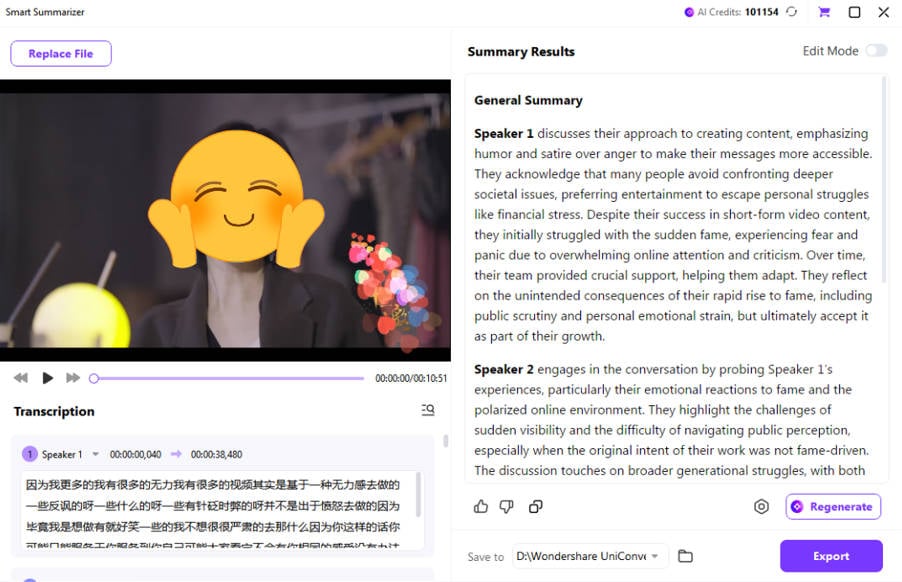 Smart Summarizer keeps the source preview, speaker-aware transcript, and editable summary in one workspace.
Audio tools include text-to-speech, speech-to-speech, vocal removal, and noise reduction. Recent V17 updates add supported voice tags for emotions, pauses, and performance cues, plus a revised denoising workflow for dialogue, meetings, lessons, and recorded content.
5. AI image generation and visual cleanup
UniConverter 17 adds an Image Generator for text-to-image and image-guided generation. It includes templates for practical assets such as YouTube thumbnails and supports model selection, aspect-ratio controls, output-resolution choices, generation history, and selective AI repainting. The model list can change as Wondershare updates availability and cost.
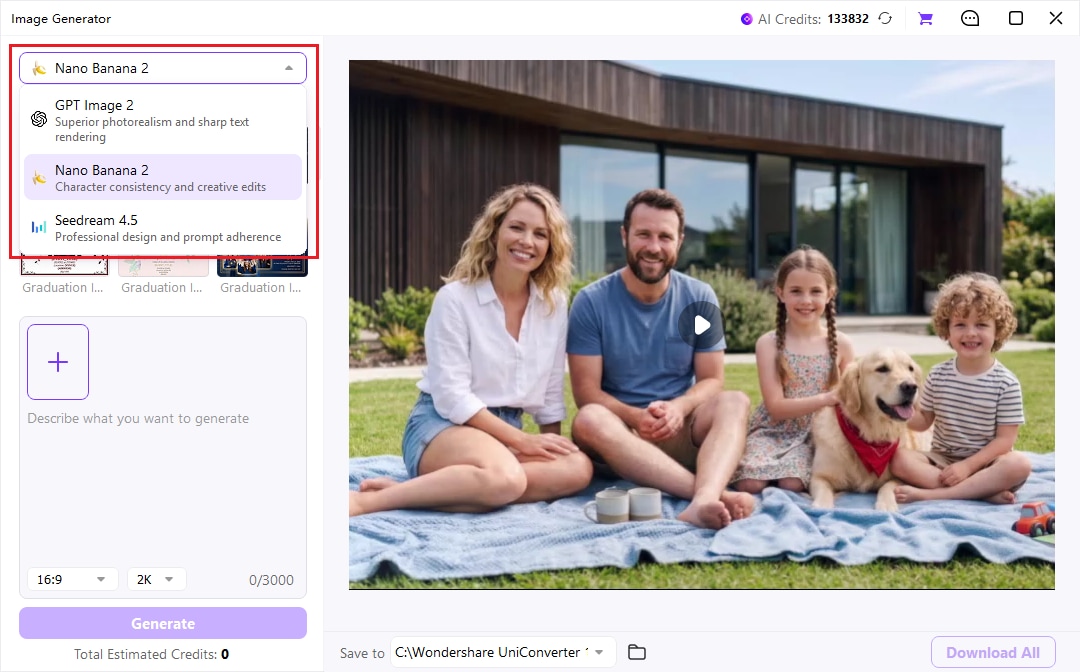 The Image Generator supports multiple AI models for quick ideas, reference-guided creation, and detailed visual design.
Cleanup tools cover image and video watermark removal, background removal and replacement, dynamic object removal, image repair, and higher-resolution batch background replacement. Generative removal models can rebuild the erased area, while motion tracking helps follow objects that change position across a video.
6. AI video blur and privacy-oriented editing
V17.6 introduces a dedicated AI Video Blur workflow. It can detect faces, track a selected moving object, and apply blur or mosaic effects without manually drawing keyframes for every frame. It can also invert the selection to blur the background. Face detection and tracking run locally according to the supplied product documentation, which makes the workflow particularly relevant to interviews, street footage, dashcam video, meetings, and training material.
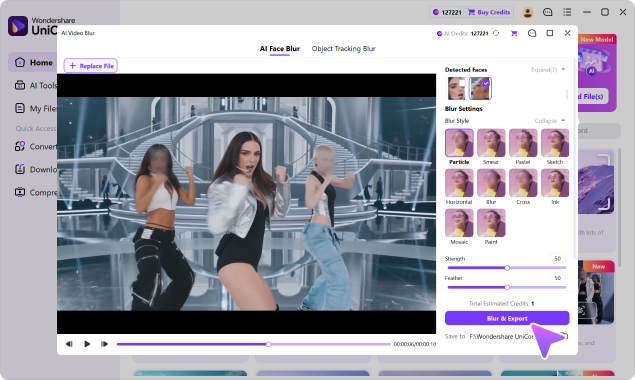 AI Video Blur detects faces or follows a selected object, with adjustable blur style, strength, feathering, and opacity.
7. Media organization for longer workflows
Professional and library-management improvements include batch metadata search and editing, artwork changes, compatible metadata preservation during conversion or compression, chapter-marker retention, automatic splitting by embedded chapters, and optional source timecode retention. These functions reduce repeated cleanup when users prepare albums, audiobooks, recorded programs, course libraries, or long videos with navigation points.

Discover What UniConverter 18 Adds
V17 Update History and Release Cadence
UniConverter 17 received regular updates after its October 2025 launch, including the V17.6.0 release documented in August 2026. The history below describes the V17 release cycle, which preceded the October 15, 2026 launch of UniConverter 18. Updates had arrived roughly every few weeks to one month, with smaller releases in between; that historical pattern is not a promise of future V17 updates.
| Release phase | Main direction | Representative additions |
|---|---|---|
| V17 launch | AI across the core workflow | New home and search, AI format recommendations, YouTube channel and live downloads, game recording, bilingual subtitles, Smart Summarizer, quality-priority compression, chapter support |
| Early V17 updates | Higher-quality output and control | Generative video enhancement, 145-language speech and subtitle coverage, CBR/VBR and VFR controls, improved face enhancement, multi-model image restoration, broader live-stream support |
| V17.2 to V17.3 | More scenario-specific AI | Color enhancement, de-flicker, advanced photo repair, image background replacement, AI Image Generator, detailed image upscaling, variable-frame-rate compression |
| V17.4 series | Generative editing and media organization | Motion-tracked object removal, motion-blur repair, upgraded stabilization, selective image repainting, model switching, TTS voice tags, metadata preservation, split by chapters, Keep Timecode |
| V17.6.0 | Automated diagnosis and privacy | AI Video Blur, AI Auto Fix for images, photo straightening, upgraded generative face enhancement, and AI Brush selection for image cleanup |
Windows and Mac System Support
UniConverter 17 was released for Windows and Mac. The baseline requirements below were cited for the V17-era product; consult the official technical specifications before installing the current UniConverter 18 release, as requirements and feature support can change between versions.
| Requirement | Windows | Mac |
|---|---|---|
| Operating system | Windows 11, 10, 8, 7, or Vista | macOS 10.13 or later, including macOS 26 Tahoe |
| Processor | Intel or AMD CPU above 750 MHz | Apple silicon or Intel processor |
| Free disk space | 100 MB or more for the application baseline | 100 MB or more for the application baseline |
| RAM | 256 MB or more | 512 MB or more |
Those figures describe the broad application baseline, not a comfortable specification for demanding AI work. 4K/8K conversion, generative enhancement, high-frame-rate recording, and batch processing benefit from substantially more RAM, free storage, and a compatible GPU. Some features have narrower requirements. For example, the V17.6 release notes specify Windows 7 or later and macOS 12 or later for AI Video Blur. Cloud AI tools also require an internet connection and sufficient credits.
UniConverter 17 vs UniConverter 18: What's New?
Released on October 15, 2026, UniConverter 18 builds on V17 with faster supported conversion, more predictable compression, and automated local batch processing. The comparison below focuses on what changed from UniConverter 17 to UniConverter 18, while distinguishing new features from existing V17 capabilities.
| Area | UniConverter 17 | UniConverter 18 (Latest) |
|---|---|---|
| Product focus | AI-powered processing, creation, understanding, and cleanup in one toolkit | Faster, higher-fidelity processing with smarter enhancement, task-focused tools, and automated batch delivery |
| Home & navigation | Searchable tools, an AI Tools hub, and stronger handoffs between tasks | More scenario-focused navigation that helps users choose tools by the media result they need |
| Video conversion | Adds AI format recommendations, bitrate/frame-rate controls, and supported metadata, chapter, and timecode retention | GPU-accelerated HDR processing up to 90% faster than V17 in supported workflows; original audio passthrough and compatible metadata/track retention |
| Video compression | Quality-priority options and more advanced compression controls | Choose compression ratio, target file size, or quality level; improved size estimates and support for retaining compatible subtitles and multiple audio tracks |
| Batch processing | Expanded batch tools and cross-module processing options | New Watch Folder for automatic conversion of incoming files, plus adjustable CPU usage for balancing throughput and foreground work |
| AI video enhancement | Broader standard and generative models for faces, animation, low-light footage, stabilization, interpolation, and motion repair | Improved generative face enhancement and frame interpolation, with faster generative processing in supported tests |
| AI image enhancement | Generative detail restoration and AI Auto Fix, introduced by V17.6.0 | Retains AI Auto Fix and adds refinements to the scenario-led repair and enhancement experience; AI Auto Fix is not exclusive to V18 |
| Downloading & recording | YouTube channel subscriptions, wider live-stream support, game recording, and expanded extensions | Adds supported YouTube chapter, authorized personal-content, and M3U8 downloading options; retains V17's recording and download tools |
| Subtitles & creation | 145-language subtitle/speech workflows, bilingual captions, Smart Summarizer, and AI Image Generator | Retains the V17 creation and speech toolkit while improving the broader media-processing experience |
| Removal & privacy | Generative object removal, motion tracking, Smart Brush, and AI Video Blur (available by V17.6.0) | New precise burned-in subtitle removal, upgraded watermark/object removal, and refined automatic face and selected-region tracking blur |
| AI Media Agent | Not available | New AI Media Agent (Beta) helps configure and run supported local conversion and compression jobs using natural-language instructions |
Important: AI Video Blur, AI Auto Fix, and Smart Brush were already included in the later V17 release cycle. V18 develops these experiences further rather than introducing all three from scratch.
Should you upgrade from UniConverter 17 to 18?
- Consider V18 if your work involves frequent 4K/8K or HDR conversions, and you want faster supported GPU processing or original-audio passthrough.
- Consider V18 if you need repeatable local batch conversion with Watch Folder, target-size compression, or AI Media Agent (Beta).
- Consider V18 if you regularly remove embedded subtitles, clean up challenging video, or work with moving privacy-sensitive elements.
- V17 may still meet your needs if your current conversion, enhancement, downloading, and AI workflow already produces the results you need.
Features and processing speeds vary by file, hardware, operating system, model, and output format. If you own a perpetual V17 license, check the applicable upgrade terms rather than assuming a new major release is included. For features, current plans, and downloads, see the latest V18 release information above.
UniConverter 17 vs Other Media Tools
The best choice depends on whether you want a broad desktop workflow or a specialist application. The UniConverter row below describes the V17 feature set covered in this article; UniConverter 18 is now the latest version. This is a positioning comparison, not a claim that one tool wins every quality or speed test.
| Product | Best fit | Current strength | Consider before choosing |
|---|---|---|---|
| Wondershare UniConverter 17 | Creators, educators, video enthusiasts, and small teams that want one workflow | Conversion, compression, downloading, recording, batch editing, AI enhancement, subtitles, summaries, image tools, cleanup, and media organization in one application | Many cloud AI functions use credits, and some capabilities differ between Windows and Mac |
| Topaz Video | Specialist video restoration and enhancement | Dedicated model selection for upscaling, denoising, stabilization, frame interpolation, slow motion, and SDR-to-HDR work | Its focus is enhancement rather than a complete convert-download-record-publish workflow |
| Movavi Video Converter | Users prioritizing straightforward conversion and lightweight editing | High-speed conversion, 180+ formats, batch processing, compression, basic editing, and AI upscaling | It offers a narrower AI creation and media-understanding toolset than UniConverter 17 |
| VideoProc Converter AI | Users who want GPU-accelerated conversion plus a broad utility set | Conversion, compression, editing, downloading, recording, and AI video, image, and audio enhancement | Compare individual model output, supported formats, download compatibility, licensing, and hardware performance with your own files |
For any of these products, a small real-world test is more useful than a headline specification. Use the same difficult source clips, output settings, and hardware, then compare visual quality, processing time, file size, metadata retention, and workflow steps.
Free Trial, Licenses, and AI Credits
UniConverter 17 offered a limited free trial and paid licenses when it was the current release. Following the October 2026 launch, the official UniConverter 18 page presents the latest release and plan options, including yearly access, a V18 perpetual license, and an AI-credits option. An existing perpetual V17 license generally covers the purchased V17 major version and its eligible V17.x updates; it does not automatically entitle the owner to V18. Active subscription upgrade rights depend on the purchased plan.
For current V18 features and upgrade choices, review the Windows plans and Mac plans. Prices, included AI credits, trial limits, promotions, and renewal terms may vary.
Explore UniConverter 18 Before You Choose a Plan
Frequently Asked Questions
-
1. What is Wondershare UniConverter 17?
Wondershare UniConverter 17 is the previous major release of Wondershare’s Windows and Mac media toolkit. It covers conversion, compression, downloading, recording, AI enhancement, subtitles, video summaries, image generation, cleanup, and media organization. -
2. Is UniConverter 17 the latest version?
No. Wondershare UniConverter 18 was released on October 15, 2026 and is now the latest major version. Visit the official UniConverter 18 page for the latest features, plans, and downloads. -
3. When was UniConverter 17 released?
UniConverter 17 launched in October 2025. Its later updates include the V17.6.0 release documented in August 2026. -
4. What is new in UniConverter 18 compared with 17?
UniConverter 18 adds faster GPU-accelerated HDR conversion in supported workflows, original audio passthrough, target-size compression, Watch Folder automation, AI Media Agent (Beta), and precise burned-in subtitle removal. It also refines AI enhancement, watermark removal, and privacy blur. AI Auto Fix and AI Video Blur were already present by V17.6.0. -
5. Does UniConverter 17 work on Windows and Mac?
Yes. UniConverter 17 was released for both Windows and macOS. Hardware, OS, GPU, and feature requirements vary. Check the current official technical specifications before installing UniConverter 18. -
6. What is the biggest difference between UniConverter 17 and V16?
UniConverter 17 builds on V16 with AI format recommendations, a wider range of generative enhancement models, Smart Summarizer, bilingual caption workflows, AI image generation, metadata and chapter controls, and advanced object removal and privacy tools. -
7. Is Wondershare UniConverter 17 free?
UniConverter 17 offered a limited free trial. Wondershare now offers the current UniConverter 18 download and plan options on its official product page; paid terms and trial limits depend on the current offer. -
8. Do UniConverter AI tools use credits?
Many cloud-based AI tools consume credits. The number of credits depends on the tool, model, media length, and export settings. Check the current V18 plans for included credits and additional options. -
9. How often was UniConverter 17 updated?
During its active major-release cycle, V17 received feature releases roughly every few weeks to one month, with smaller fixes in between. V18 is now the current major version. -
10. How can I upgrade from UniConverter 17 to UniConverter 18?
Review the official UniConverter 18 page and the terms of your existing plan. Perpetual V17 licenses do not automatically include a new major version; eligible subscription upgrades depend on the active plan.

