


In the competitive landscape of short-form video content, creators are constantly seeking ways to maintain high volume without burning out. Revid AI has emerged as a potential game-changer, promising to automate the "content treadmill" for TikTok, YouTube Shorts, and Instagram Reels. Whether you are a social media creator running faceless channels, a solopreneur turning blogs into video assets, or an agency managing multiple accounts, the need for speed is paramount.
But does Revid AI deliver on its promise of viral automation? This Revid AI review dives deep into the platform's capabilities, from its "Script-to-Post" workflow to its viral templates. We analyze its features, pricing, and user feedback to help you decide if it is the right tool to scale your content strategy in 2026.
In this article
- What Is Revid AI? Origin & Mission
- Feature List of Revid AI: Templates & Generation Tools
- Revid AI Pros, Cons, and Pricing Analysis
- Users Real Comments on Revid AI
- Quick Comparison: Revid AI vs. Alternatives
- Steps Guide: How to Create a Video in Revid AI
- Bonus: How to Enhance Realistic Revid AI Generated Videos
- Conclusion
- FAQ
Part 1. What is Revid AI? Origin & Mission
Origin & Founder
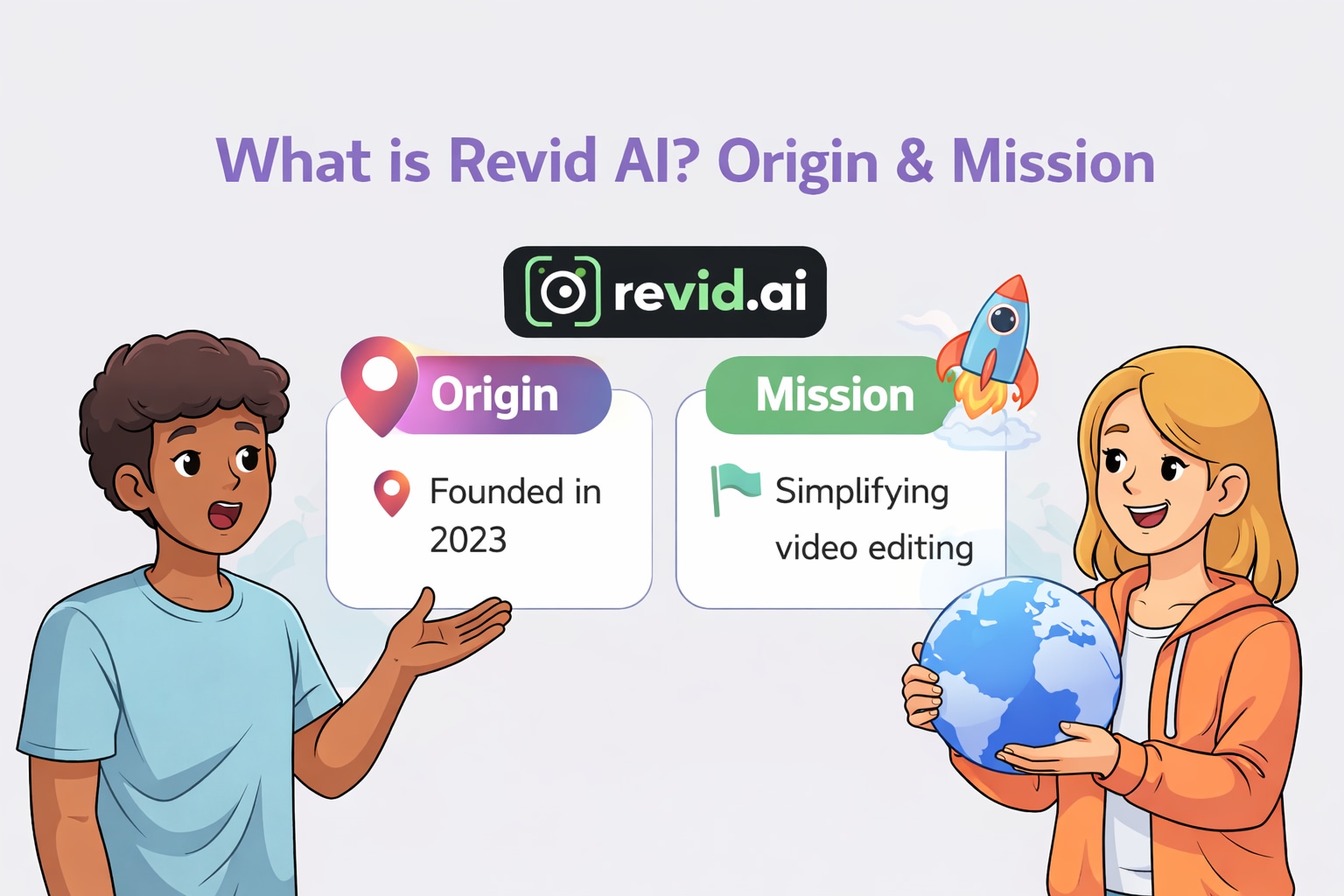
Revid AI is a rapidly growing player in the generative video space, based in Paris, France. It was founded by serial entrepreneur Thibault Louis-Lucas (known as "Tibo"), who previously co-founded successful tools like Tweet Hunter and Taplio. The platform evolved from a previous tool called Typeframes, which focused on simple text-to-video animations. Rebranded to Revid AI, it pivoted with a distinct mission: helping creators mass-produce "viral" short-form content. It has gained popularity among "faceless channel" creators for its ability to automate the tedious parts of video editing—captions, stock matching, and voiceovers.
Part 2. Feature List of Revid AI: Templates & Generation Tools
Revid offers a suite of tools specifically designed to keep up with the "content treadmill" of daily posting.
Video Templates Library
Revid's library is categorized by use-case and popularity, with thousands of pre-made formats available for immediate use:
- Platform-Specific Viral Formats: Extensive collections optimized for specific algorithms, including "TikTok video" (2693+ templates), "Youtube shorts" (2099+ templates), and "Instagram reels" (1841+ templates).
- Core Content Categories: High-volume categories for "Text to video" (6292+ templates) and general "Viral video" (4207+ templates) designed to maximize engagement.
- Storytelling & Narrative: Specialized templates for "Storytelling" (1825+ templates) and "Ai storytelling" to help creators build narrative arcs rather than just clips.
- Niche Themes: Targeted templates for specific industries including "Faith" (535+ videos), "Mental health" (515+ videos), "History" (408+ videos), and "Gaming" (326+ videos).
Video Generation
Revid provides distinct AI engines for different creation workflows:
- AI TikTok Video Generator: Instantly turns text prompts into trendy, viral-style TikTok videos "in a snap."
- "Brainrot" Content Generators: Includes "PDF to Brainrot" and "Text to Brainrot" features that convert documents or text into the fast-paced, scrollable visual style currently popular on social media.
- AI Talking Avatar: Generates lifelike talking avatars from text input in seconds, eliminating the need for on-camera talent.
- AI Movie Maker: A higher-fidelity tool designed to create "studio-quality videos from text" without physical filming.
Music Generation
Tools designed to synchronize audio with visuals automatically:
- AI Music Video Generator: Turns any song into a beat-synced music video in minutes. Users can upload files or paste links (e.g., Spotify, Suno), and the AI generates motion and visuals synced to the track.
- AI Lyrics Video Generator: Automatically transforms song lyrics into a complete, animated music video.
- Instrumental Music Visualizer: Specifically tailored to transform instrumental tracks into engaging video content.
Video Editing and Schedule Tools
Built-in features to manage the post-production and publishing workflow:
- Publish and Schedule Your Videos: Allows users to automatically publish and schedule content directly to social media platforms from the dashboard.
- Add Caption to Video: Automatically generates subtitles in 100+ languages, a critical feature for social media retention.
- AI Video Editing Suite: A comprehensive suite that includes AI-powered trimming to automatically detect scenes, a drag-and-drop timeline editor for easy B-roll swapping, and dynamic transitions to keep viewer retention high.
Part 3. Revid AI Pros, Cons, and Pricing Analysis
Based on personal experience using the tool for short-form content creation, here is an honest breakdown.
Pros:
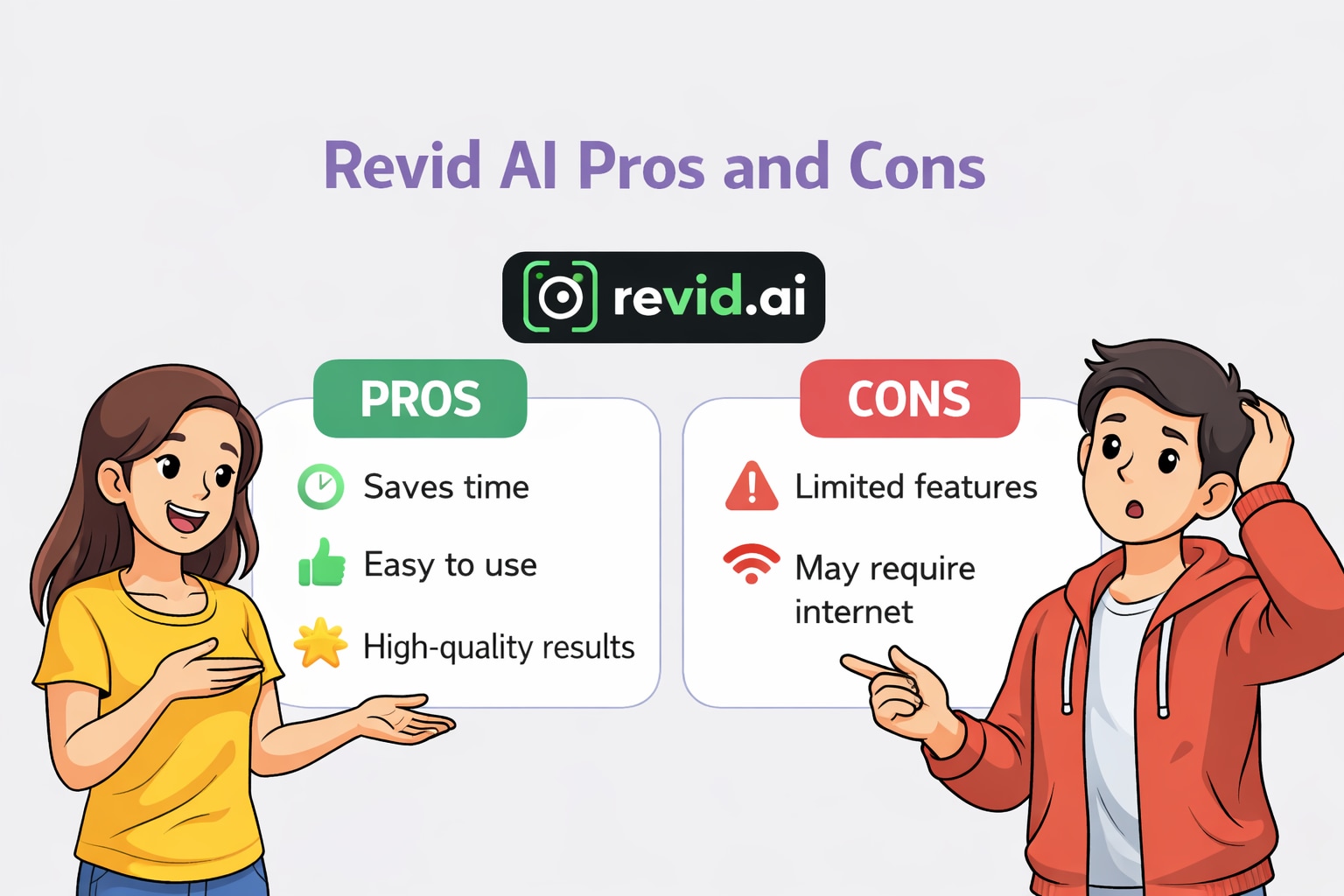
- Speed to Publish: You can genuinely go from a raw idea to a downloadable MP4 in under 10 minutes.
- "Hook" Optimization: The AI is trained on viral data, so it suggests headlines and intro text that are click-worthy.
- Scroll-Stopping Captions: The auto-captions look native to TikTok/Reels (colorful, animated) without needing manual keyframing.
- Browser-Based: No heavy software to install; renders happen in the cloud.
- Faceless Friendly: You don't need to be on camera or record your own voice.
Cons:
- Generic Stock Footage: Sometimes the AI picks stock clips that are loosely related or repetitive (e.g., a "business" keyword always showing a handshake).
- Credit System: The "credits" model can be confusing; high-resolution exports burn credits faster than you might expect.
- Limited Fine-Tuning: If you want very specific transitions or complex masking, you will hit a wall compared to CapCut or Premiere.
Pricing Overview:
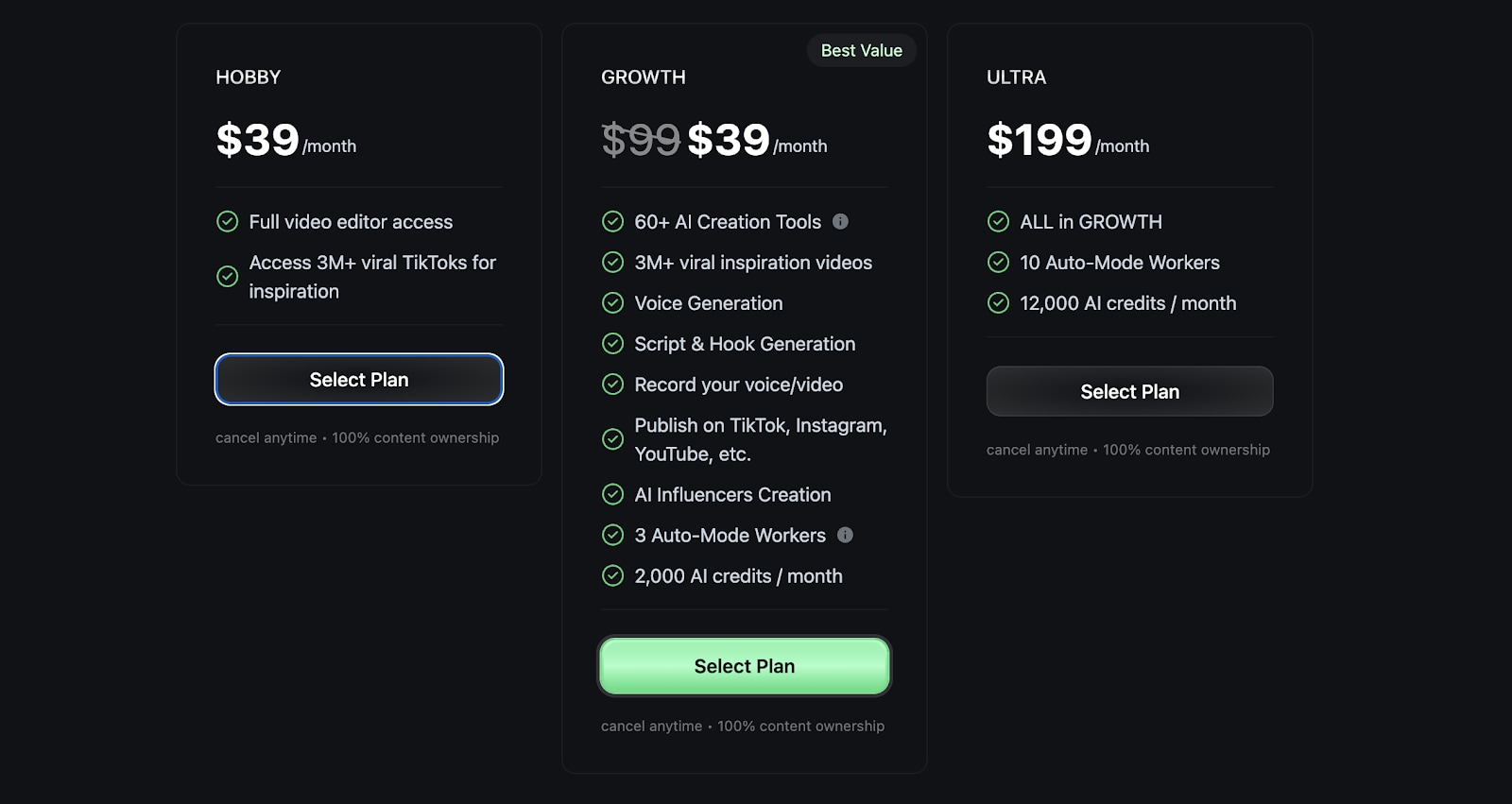
Hobby: ~$39/month (Good for solo creators starting out).
Growth: ~$99/month (For serious creators needing higher volume). (Note: This plan is available with $39/month for the limited time)
Ultra: ~$199/month (Agency level).
Part 4. Users Real Comments on Revid AI
Positive Reviews
"The platform is incredibly intuitive... Videos are created in minutes, which is a game-changer for maintaining consistency... Revid AI shines for creators who want to rapidly prototype ideas or maintain a steady stream of content without heavy lifting." —Reddit User on r/AI Tool Testing
"This is a game changer for producing awesome quick content for social media. I personally love the ability to create your own custom moving avatars for videos. It's amazing." —Peter Estevez on Trustpilot
"The fact that I can upload a song, and a video is generated from the words is phenomenal. I haven't gotten into it that much, but just from song to video, I've created almost 10 videos in a few days." —Derrick Hall on Trustpilot
"This is seriously one of the best apps I have ever used. I have been able to create lyric-videos for my music... The quality is unbelievable." —Maithyoo Vandenberg on Trustpilot
Negative Reviews
"Uh it's ALL AI slop that's how... My guess is Remotion, it's what powers most of these AI tools for video editing (and also why they all look basic)." —Reddit User on r/VideoEditing
"Honestly these are pretty standard transitions in any sort of transition template pack. Plus a little parallax on the photos. You'd get better and faster results without ai for these effects." —Reddit User on r/VideoEditing
Part 5. Quick Comparison: Revid AI vs. Alternatives
AI Models & Features
Revid AI: Built specifically for viral retention. It combines an AI script generator, voice cloning, and a unique "hook generator" designed to grab attention in the first 3 seconds. It also includes basic talking avatars but prioritizes script-to-visual flow.
Market Alternatives: Most competitors specialize in one silo. Avatar-Centric Tools (e.g.,Synthesia, HeyGen ) focus entirely on hyper-realistic human avatars. General Editors (e.g.,InVideo,CapCut) focus on timeline flexibility and stock libraries without the specific "viral hook" training.
Generation Type Options
Revid AI: Short-Form First. It is optimized for vertical (9:16) content—TikToks, Reels, and Shorts.() Its engine is designed to turn text, URLs, or audio into fast-paced clips instantly.
Market Alternatives: The industry standard is often Horizontal (16:9) first. Corporate tools focus on slide-deck style presentations, while general editors require you to manually resize or crop footage to fit vertical screens.
Length of Video
- Revid AI: Strictly Short-Form (60–90s). The engine struggles with long durations because it is engineered for high-paced retention (fast cuts, active captions).
- Market Alternatives: Highly Variable. Repurposing tools (e.g.,Pictory, OpusClip ) are built to digest hour-long webinars. Corporate avatar tools are designed for 10–20 minute training modules. Traditional editors have no length limits but require manual editing for longer projects.
Video Template Diversity
- Revid AI: Trend-Driven.() The library is full of "social native" styles—product showcases, "brainrot" split-screens, meme formats, and fast-typography intros.
- Market Alternatives: Generic & Corporate. Most alternatives offer "safe" business templates (ads, explainer slides, intros) that look professional but often lack the edgy, fast-paced aesthetic required to go viral on TikTok or Reels.
Starting Price
- Revid AI: Mid-Range (~$39/mo). It positions itself as a specialized automation tool rather than a cheap editor.
- Market Alternatives: Broad Range. General editors (e.g.,InVideo, Canva ) often start cheaper (~$15–$20/mo) for basic features. Specialized AI tools (especially those with high-end avatars) often start similarly to Revid or higher for enterprise features.
Ease of Use
- Revid AI: "One-Click" Automation. Designed for users who want to skip the editing process entirely. You input a script, and it handles the pacing, captions, and b-roll automatically.
- Market Alternatives: Moderate Learning Curve. Most competitors are "Assisted Editors"—they give you AI tools, but you still need to manage a timeline, adjust scene lengths manually, and scrub through footage to get a polished result.
Best For
Revid AI: Faceless Channels & Volume Creators. Perfect for solopreneurs, affiliate marketers, and creators who need to post 1–3 times daily without filming.
Market Alternatives:
- Corporate Tools: Best for L&D teams and HR training.
- Repurposing Tools: Best for podcasters turning long episodes into clips.
- General Editors: Best for businesses needing full creative control over every pixel.
Part 6. Steps Guide: How to Create a Video in Revid AI
Follow the mentioned three simple steps:
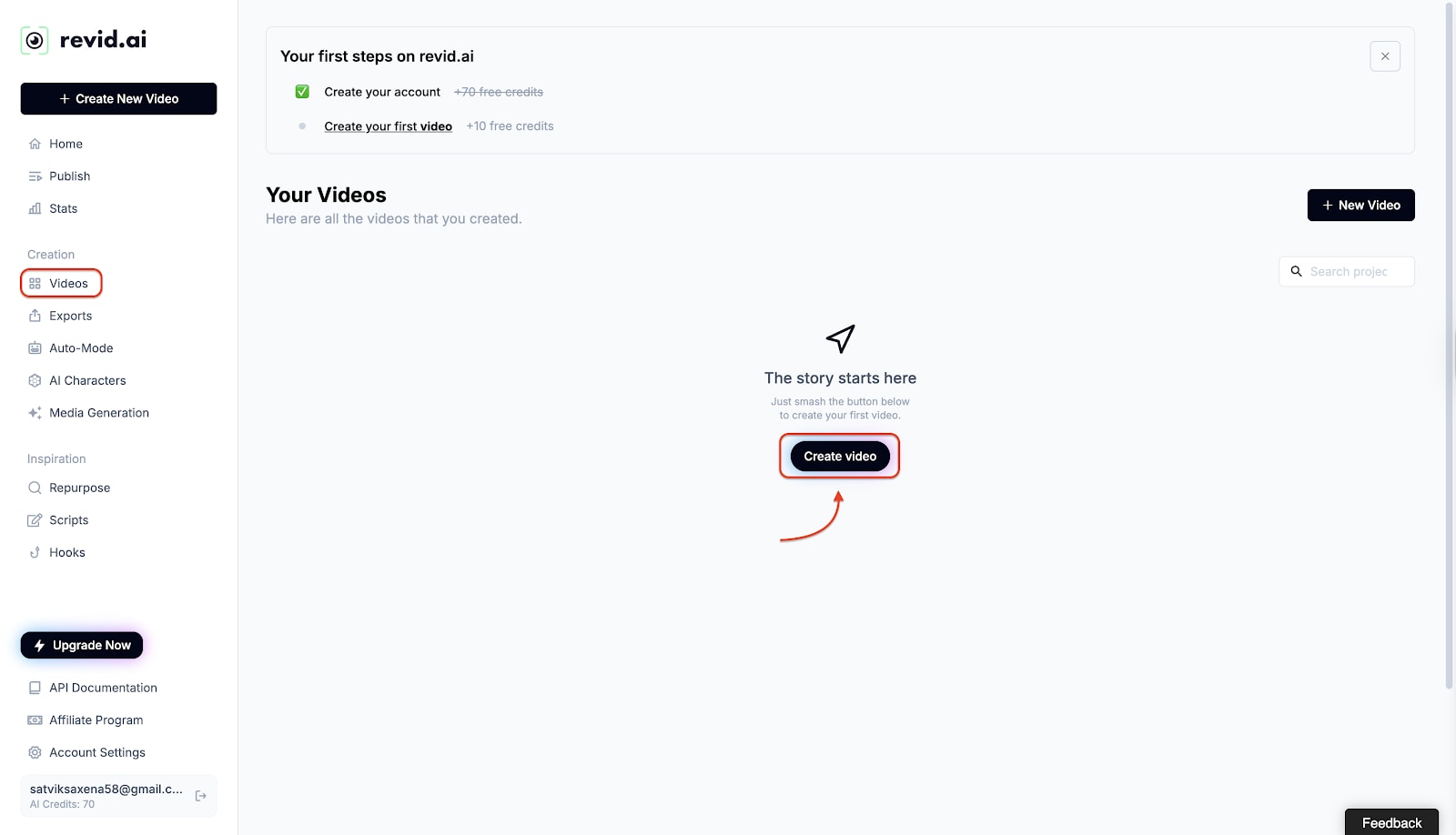
Step 1: Start from the Dashboard
Log in to your account to access the main home dashboard. Click the black "Create video" button located in the center of the screen under the text "The story starts here." This will instantly open the new project creation menu.
Step 2: Choose Tool & Format
Select "Script to Video" from the top list of tools to turn your text into content. Next, pick the "Portrait (9:16)" format on the right side of the screen. This vertical aspect ratio is ideal for mobile platforms like TikTok, YouTube Shorts, or Instagram Reels.
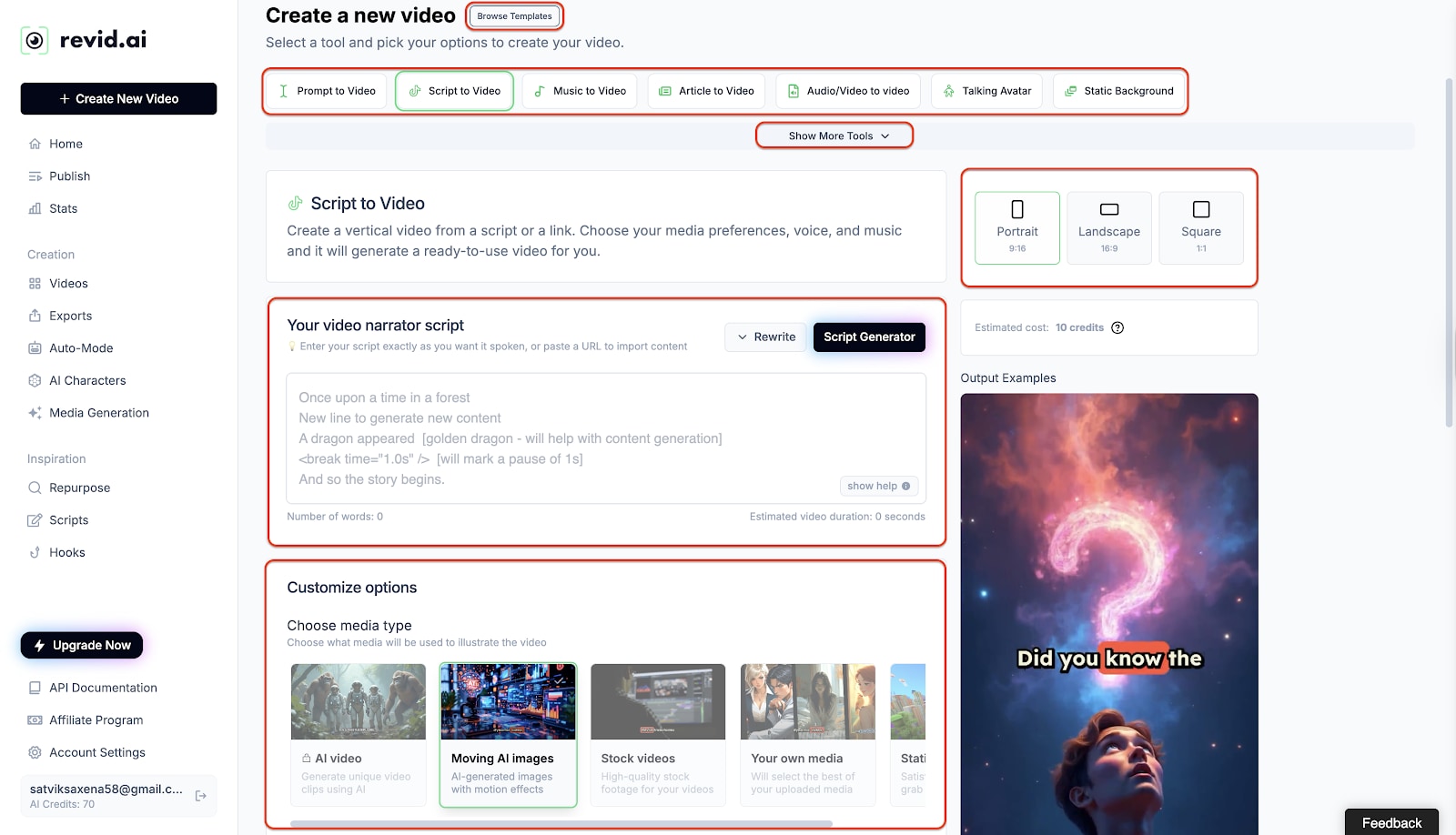
Pro Tip: Instead of starting from scratch, click the "Browse Templates" button at the top. Pick a template you love, and it will redirect you to the editor with that style pre-loaded. Now, simply fill in your script, and the output video will automatically look exactly like the template you selected.
Step 3: Configure Script & Advanced Settings
Type your narration into the script box and select "Stock videos" or "AI Video" to define the visual style. To make your video professional, click the "Advanced options" dropdown menu to access powerful engagement tools.
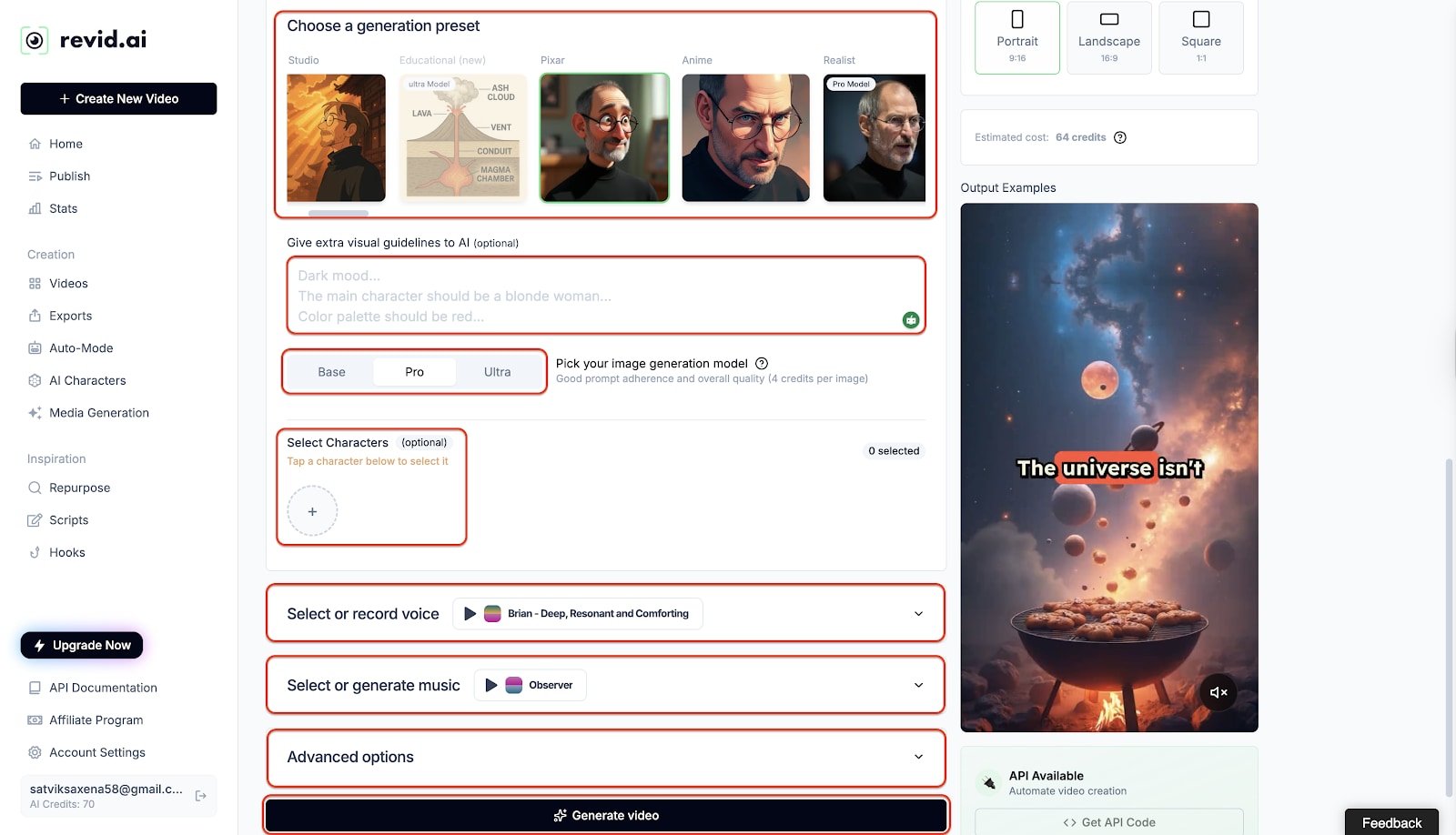
Pro Tip: Open Advanced Options to instantly elevate your content with viral caption presets (like "Hormozi"), expressive voiceovers, auto-generated sound effects, and fast-paced editing controls for maximum viewer retention.
Step 4: Generate & Access Project
Scroll down to select a visual style (like "Realist") and a voice, then click the "Generate video" button. Once the AI finishes processing, your new clip will appear on the "Your Videos" project screen. You can now click the "Edit" button on the video thumbnail to open it for final touches.
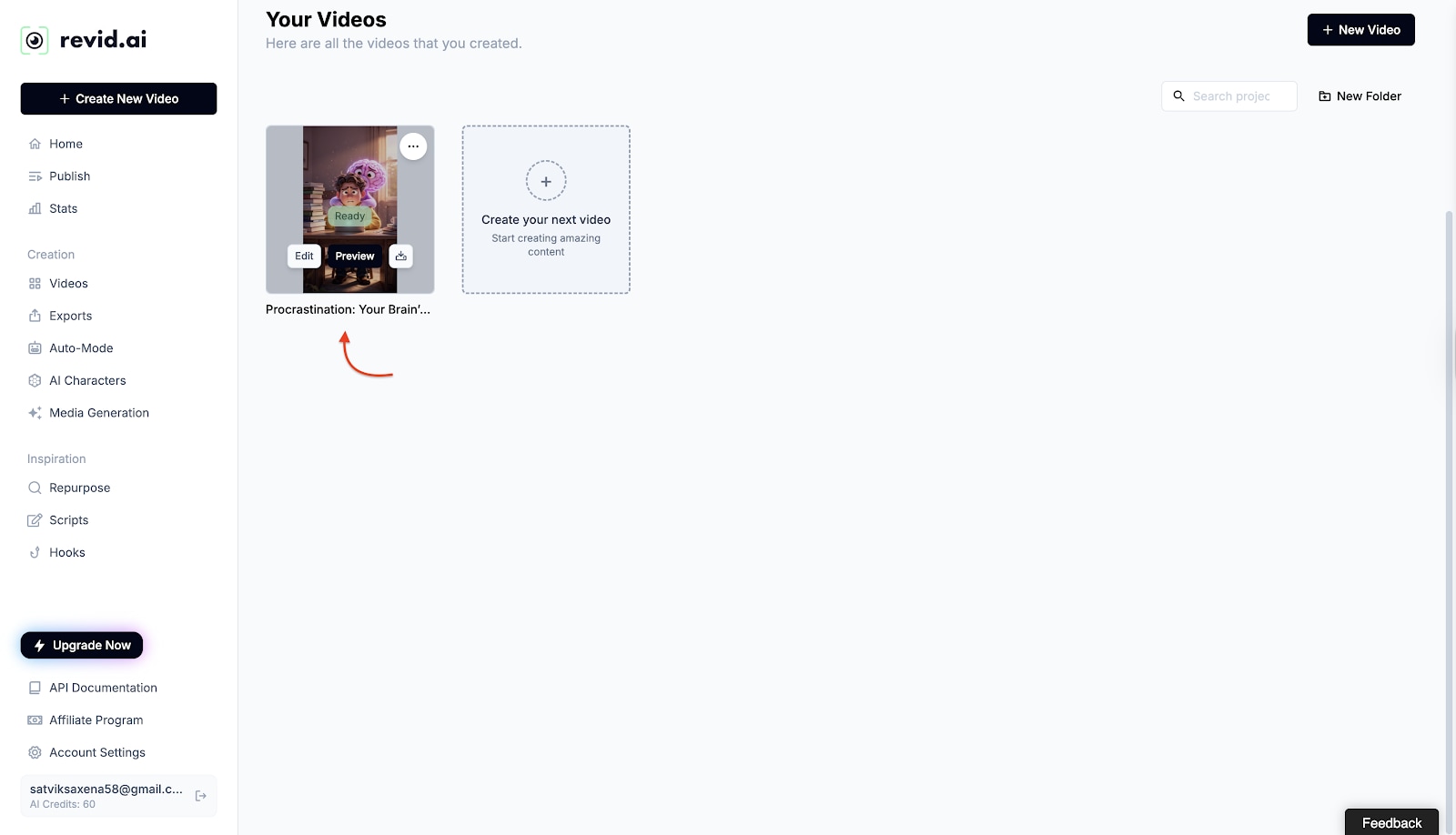
Step 5: Final Polish & Export
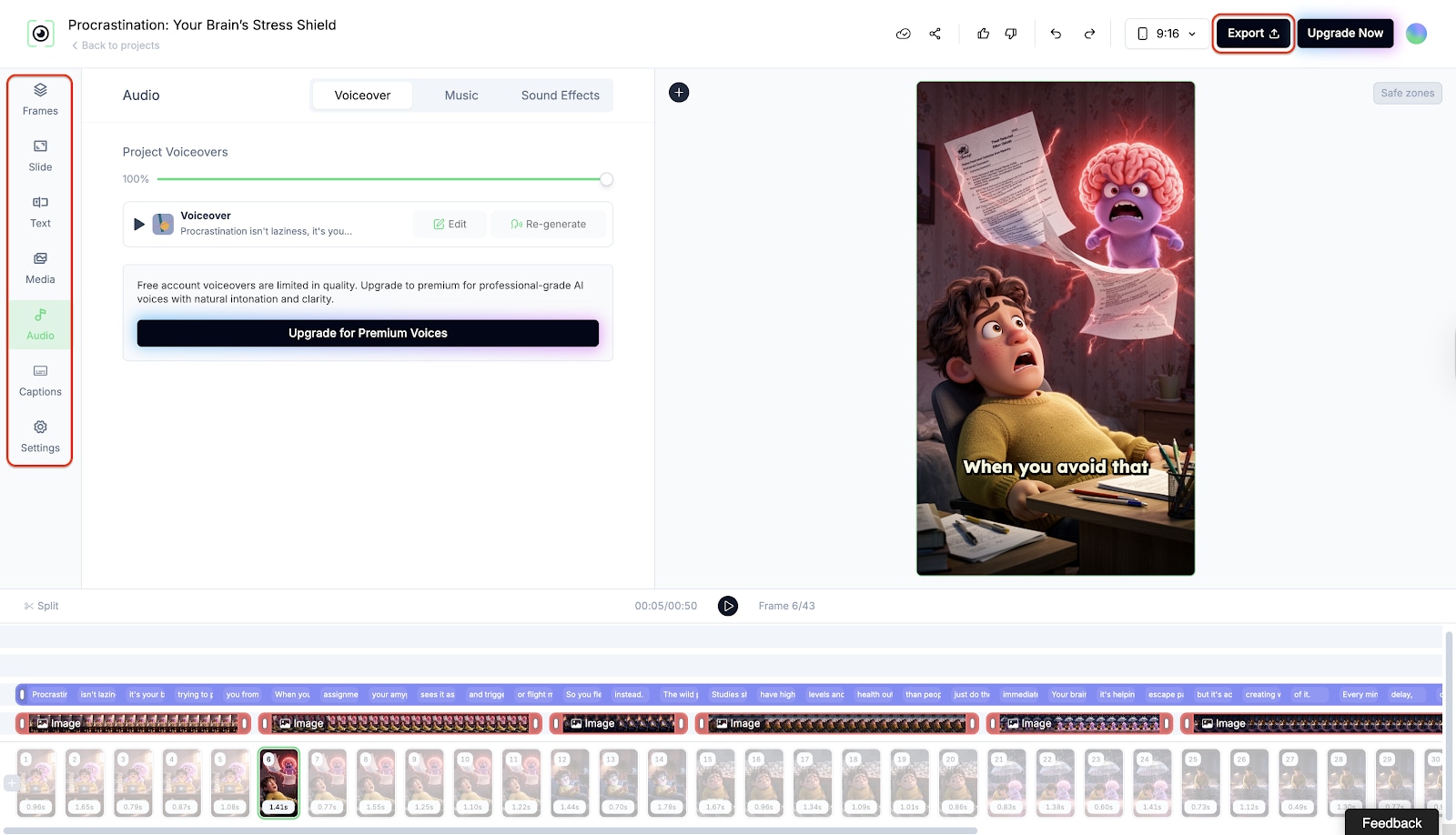
Inside the editor, you can tweak the text, swap out background clips, or adjust the timing. Use the timeline at the bottom to refine every scene until it looks perfect. Finally, click the "Export" button in the top right corner to download your video.
Part 7. Bonus: How to Enhance Realistic Revid AI Generated Videos
Sometimes AI-generated stock footage can look grainy, or the resolution drops during export. You can use Wondershare UniConverter to polish the final file.
What is UniConverter? Wondershare UniConverter is a versatile, all-in-one video toolbox designed to refine and perfect digital media. While Revid AI handles creation, UniConverter specializes in post-production, offering a suite of professional-grade tools to fix common AI generation issues like low resolution or visual noise. It serves as an essential bridge between raw AI output and broadcast-ready content, ensuring your videos look sharp on any device without requiring complex technical skills.
Key Enhancement Features:
- AI Video Enhancer: Automatically upcsale low-res footage up to 4K clarity and removes the digital graininess often found in AI-generated clips.
- Universal Format Support: Converts videos to over 1,000 formats (like MP4, MOV, HEVC) to ensure perfect compatibility across all social platforms.
- Lossless Compression: Significantly reduces file sizes for faster uploading to TikTok or Instagram without sacrificing visual quality.
- Smart Editing Tools: Features intuitive options to trim, crop, or remove watermarks , giving your content a polished, professional final touch.
How to Enhance:
Step 1: Open AI Video Enhancer
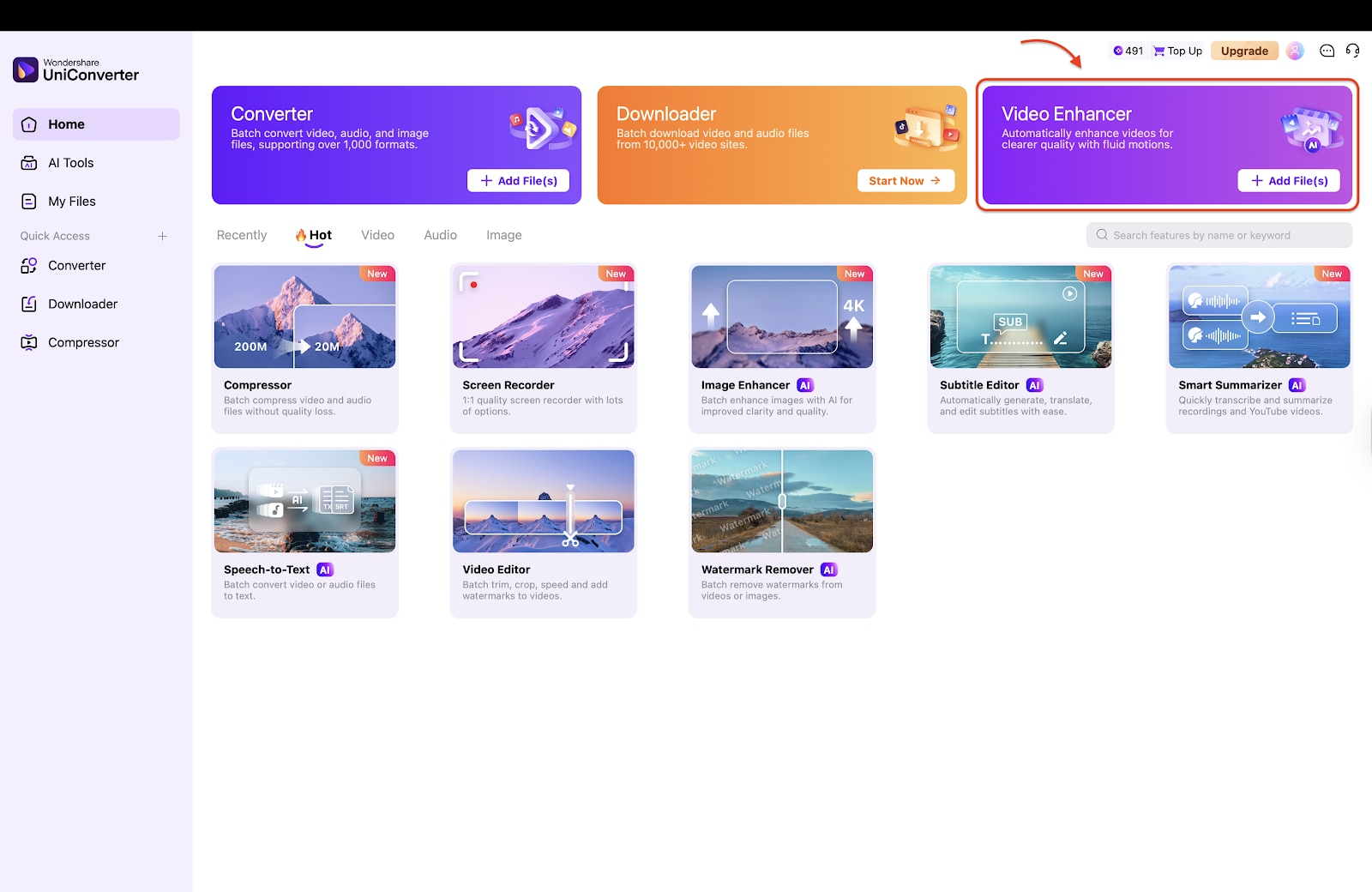
Launch Wondershare UniConverter on your desktop and navigate to the "Tools" tab on the left-hand menu. Look for the "AI Video Enhancer" option under the "AI Lab" section, which is specialized for fixing grainy or low-resolution AI footage. Click on it to open the enhancement
Workspace.
Step 2: Add Your Revid Video
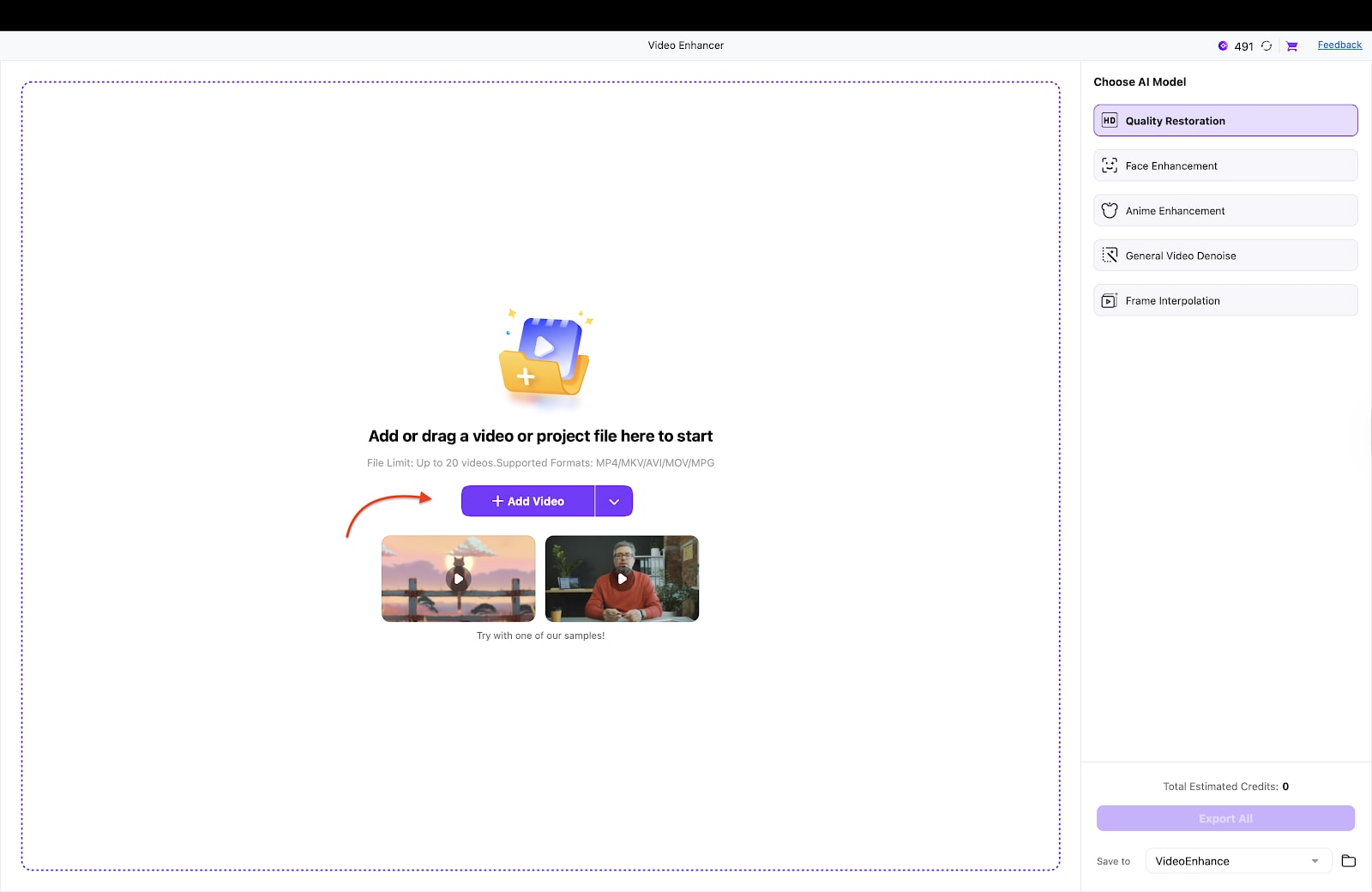
Inside the Enhancer window, you will see a prompt to import your media. Click the "+ Add Video" button or simply drag and drop your exported Revid AI MP4 file directly into the interface. This creates a queue for your video, preparing it for the high-definition upscaling process.
Step 3: Choose Enhancement Model
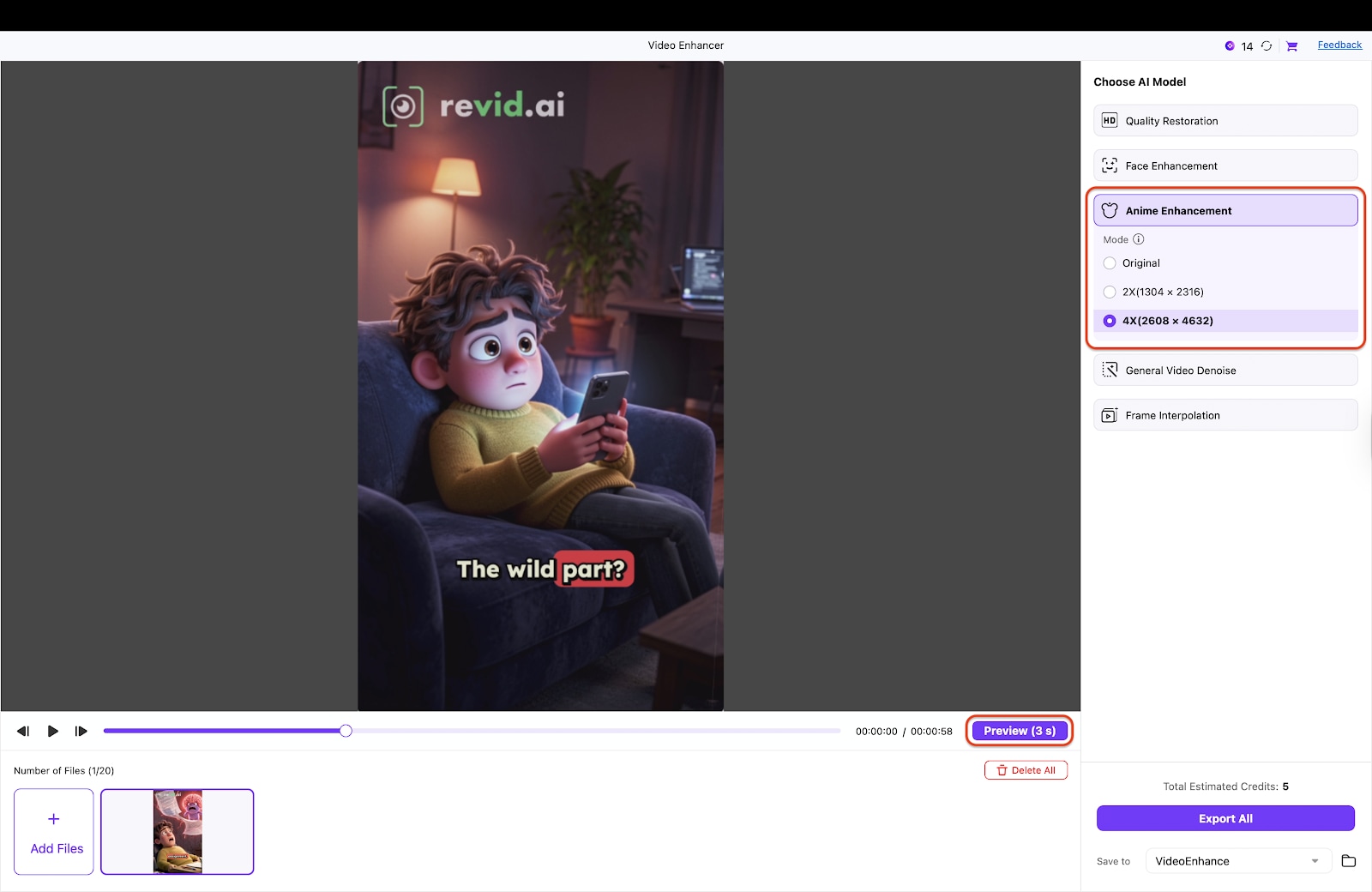
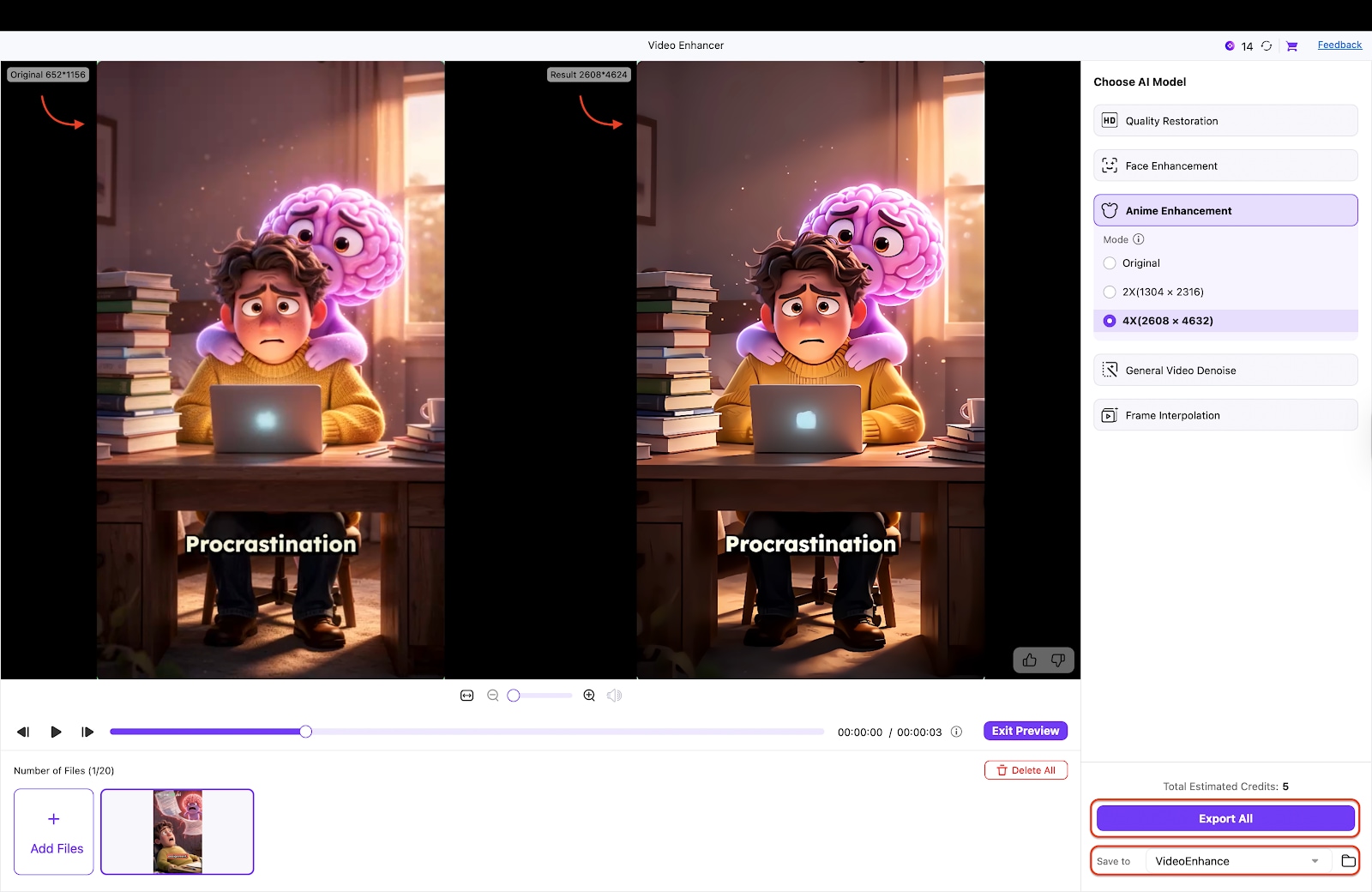
On the settings panel, select the "Anime Enhancement" model. Since many Revid AI templates use stylized 3D or 2D aesthetics (like the "Pixar" or "Anime" presets), this model is optimized to clean up lines and colors without over-smoothing. Next, choose your desired resolution multiplier, such as "2X or 4X" to transform your standard social media clip into a crisp, high-definition video.
Pro Tip: If your Revid AI video feels stuttery or "robotic," switch to the "Frame Interpolation" model. This will artificially generate new frames to convert a choppy 24fps clip into a buttery-smooth 60fps video!
Step 4: Preview and Export
Click the "Preview" button to render a short 5-second clip and compare it with the original using the side-by-side slider. Once you are satisfied with the sharpness and clarity, hit the "Export All" button to save the enhanced, broadcast-quality video to your local drive.

Enhance AI-Generated Videos to 4K
Part 8. Conclusion
In this Revid AI review, you have explored the ins and outs of Revid AI, ranging from its viral-ready templates to its automated script-to-video features. While generative platforms like Revid offer incredible speed for creators chasing high-volume output, they often come with trade-offs like generic stock footage and occasional drops in resolution. Each tool has its place in the creator economy, but relying solely on AI automation can sometimes result in content that lacks that final professional shine.
If you are looking to elevate your content beyond the standard AI look, Wondershare UniConverter stands out as the superior choice for post-production and quality control. You can transform raw AI clips into high-definition masterpieces—without the technical headaches. Stop settling for pixelated uploads; try Wondershare UniConverter today to polish your viral hits!
FAQs
-
1. Can I use Revid AI for long-form YouTube videos?
Revid AI is primarily optimized for short-form content such as YouTube Shorts, Instagram Reels, and TikTok videos, typically in the 60–90 second range. While you can technically stitch multiple clips together, it is not designed for producing long-form videos like 10-minute video essays. -
2. Does Revid AI own the copyright to the videos I generate?
In most cases, users retain commercial rights to videos generated under paid plans. However, licensing terms—especially for stock assets or AI-generated visuals—can change, so it’s important to review Revid AI’s latest Terms of Service to confirm current ownership and usage rights. -
3. Is there a free trial for Revid AI?
Yes. Revid AI usually offers a limited free trial with a fixed number of credits, allowing users to test video generation quality. Free exports may include watermarks or resolution limits until you upgrade to a paid plan. -
4. Can I upload my own voiceover to Revid AI?
Yes. Revid AI allows you to upload your own pre-recorded voiceover files through the Audio or Advanced Settings section, giving you full control if you prefer not to use built-in AI voices.

