

For 4K animation video download, you need the right tool that supports the best resolution. It can get tricky at times when you are trying to use a third-party platform that does not provide you with a clear workflow. You are left struggling to search for the right tool to save your video offline. The frustration further increases when the downloaded video does not match your clarity requirements.
In this article, we will walk you through the different tools available for downloading 4K animation videos on your PC, online, and mobile devices. Additionally, you will understand what true 4K is, and the different animation video formats. You do not need in-depth technical knowledge to download animation videos. All you need to do is understand the basic details of different videos and have the right 4K video downloading tool.
Part 1. What Counts as a Real 4K Animation Video? (Avoid Fake 4K)
A real 4K animation video should have a resolution of 3840 x 2160 pixels. Such videos have to be created in this resolution right from the start. Videos that are created in 1080p or 2K cannot be stretched or converted to become true 4K videos. A true 4K video will have characterized sharp lines, fine details, and clean color transitions.
It is important to understand the difference between a true 4K video and a video labelled as 4K. Many platforms and individuals label converted videos as 4K. This results in poor visual quality and large download files without the real benefits. The following sections will help you understand what a real 4K animation video is and how to identify them.
Difference between 4K vs. 2K vs. 1080p in Animation Videos
4K animation generally refers to a resolution of 3840 x 2160 pixels. This is 4 times the pixel count of 1080p. 2K animation videos have a resolution of 2560 x 1440 pixels, while 1080p videos have a resolution of 1920 x 1080 pixels. With higher resolutions, videos have sharp lines, clean textures, and smooth gradients. This difference in resolution is typically noticeable in animation videos that have detailed artwork.
Why 4K Animation Looks Different Than 4K Live-Action?
4K animation video looks cleaner and different because it is digitally created. Unlike 4K live-action videos, there is no camera noise or lens blur in animation videos. This makes the 4K animation videos look sharp, clear, and more consistent. This is the reason why upscaled and converted videos look misleading. Videos that are labelled as 4K do not provide you with real details.
What are the Key Spec You Should Check Before Downloading?
Before downloading, check for the resolution to confirm it is true 4K with 3840 x 2160 pixels. Verify the codes of the video that has to be H.264 or H.265 as per the latest video compression standards. The FPS (frames per second) gives you an understanding of the smooth playback of the video. Additionally, check the bitrate of the video which indicates the visual clarity at higher resolutions.
Part 2. Understanding Different 4K Animation Video Download Formats (Best Format for 4K Anime/Animation)
For 4K animation video download, look for the format, codec, and your device compatibility. You will have to choose the right video format before downloading the animated video. It is not just enough to check the video resolution, but you should have a complete understanding of the technical information surrounding the video. This will help you avoid playback issues and unnecessary time wasted in multiple re-downloads.
What are the Common Formats for Animation Videos?
The most common formats for animation videos include MP4, MKV, MOV, and WebM. Different video formats have different applications based on the device and application. A basic overview of the different formats is as follows:
MP4 is the most widely supported format that works well across different platforms and devices.
MKV is suitable for videos that require support for multiple audio tracks and subtitles. This format is highly favored for anime releases.
MOV is typically used in a professional editing workflow, especially on MacOS.
WebM is highly suitable for web streaming. However, this format is not suitable for offline use on different media players.
What is the Best Codec for 4K Animation?
H.264 and H.265 provide the best compression for 4K animation videos. A codec defines the technology that compresses and decompresses video files. A quick overview of the different codecs is as follows:
H.264 provides strong compatibility and smooth playback on most devices. This format is best when you want to transfer the file across different devices offline.
H.265 or HEVC offers better compression for 4K animation videos. This helps in smaller file sizes with uncompromised visual quality. However, certain old devices may struggle with HEVC playback.
What is the Best Format for Different Devices?
The most popular format is MP4 across both PC and mobile devices. The most suitable option is H.264 or H.265 codec format. For your PC, MOV or MKV is a more suitable option as it provides you with the flexibility to edit the video as well. When it comes to mobile devices, the HEVC-based MP4 version is suitable because of the storage conditions.
2K vs. 4K Anime Videos Comparison
4K anime videos are basically 2 times better than 2K videos when it comes to a straightforward comparison against each other. Understanding the typical nuances between these two formats will help you make the right choice before downloading a video. The table below will help you understand the difference between 2K and 4K anime videos:
| Feature | 2K animation anime video | 4K animation anime video |
| Visual clarity | Sharp on most screens | Best and maximum details on large display screens |
| File size | Small | Large |
| Bandwidth needs | Moderate | High |
| Best use case | Best suited for mobile devices and casual viewing on big screen sizes | Best suited for large screen viewing and in-depth editing. |
Part 3. What is the Procedure for 4K Animation Video Download?
You need the right tool for downloading 4K animation videos. The choice of your tool has a direct impact on the quality, resolution, and video playback functionalities. This section will provide you with reliable options to download videos across different platforms and devices.
How to Download 4K Animation Videos on PC (Windows & Mac)?
To download 4K animation videos on PC, you should use a reliable desktop tool that can manage and download large-sized 4K videos stably and with ease. The most common tools that you can use include Wondershare UniConverter, 4K Video Downloader, and ClipGrab.
Wondershare UniConverter
UniConverter allows you to download high-resolution animation videos and save them in the format you want. It works seamlessly with large video files across multiple platforms. Additionally, you can make edits in the video, like cut, convert, burn, compress, and remove watermarks in the downloaded videos.
You can use UniConverter with minimal technical expertise. This is because you can choose the video format you want with simple clicks. It also offers a batch download option that lets you download multiple videos at the same time without compromising the quality of the video.
Key Features
Support downloading video in 4K resolution without compromising the video quality.
Convert videos into different formats as per your requirement.
You can download videos from more than 10,000 websites and platforms.
Batch download and conversion lets you download and convert multiple video files simultaneously.

All-in-One Multimedia Processing Tool

How to Use Wondershare UniConverter for 4K Animation Video Download
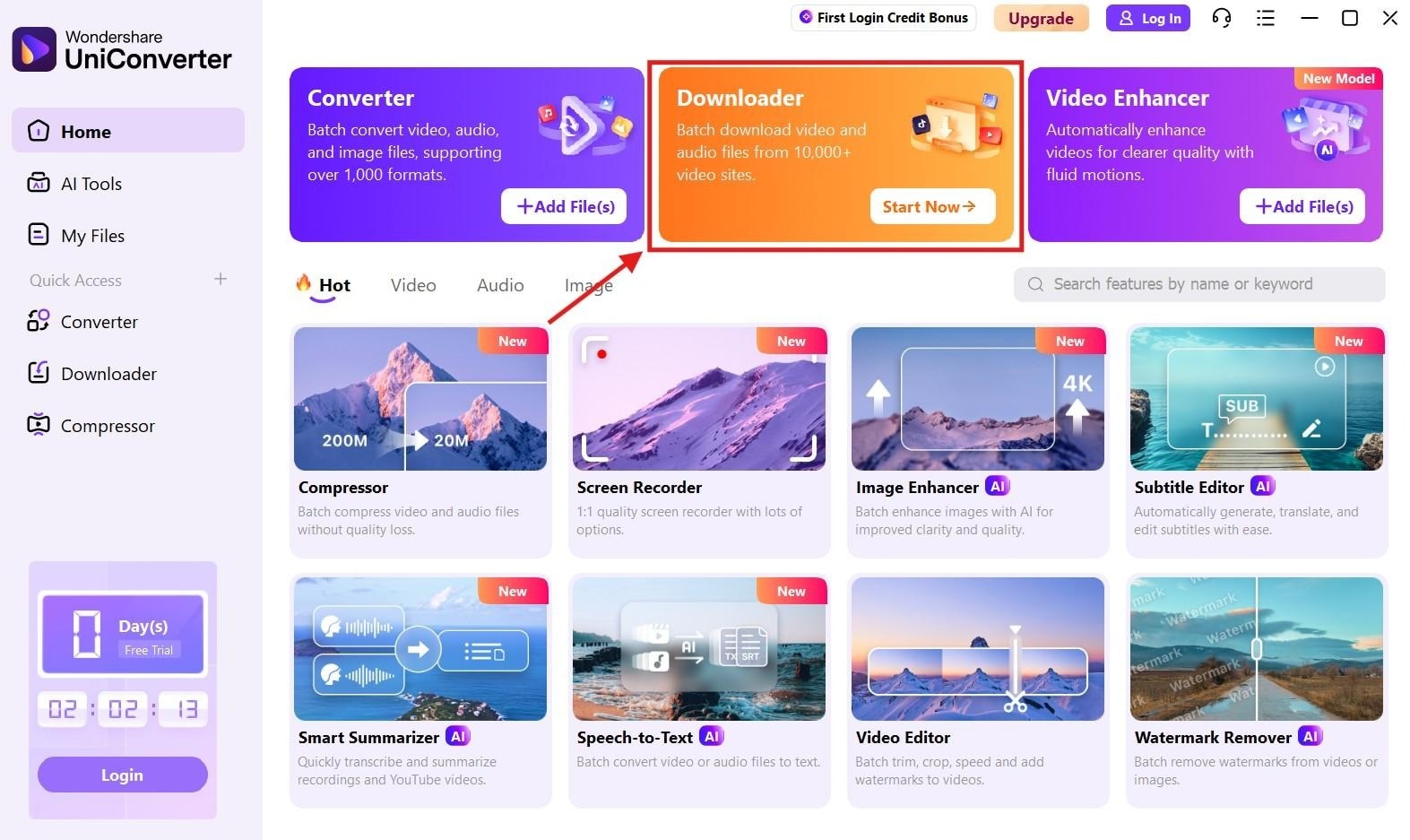
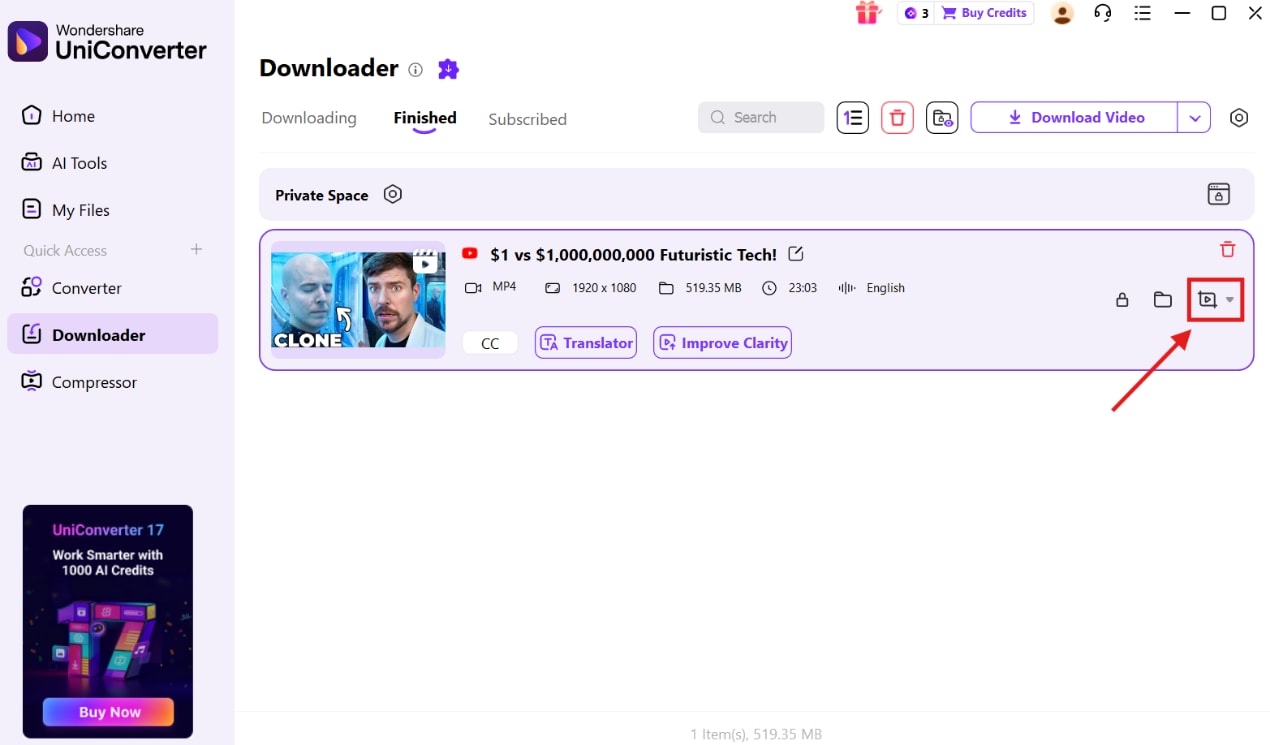
Step 1. On the Wondershare UniConverter, click on the “Downloader.” This option is also available on the left-hand menu.
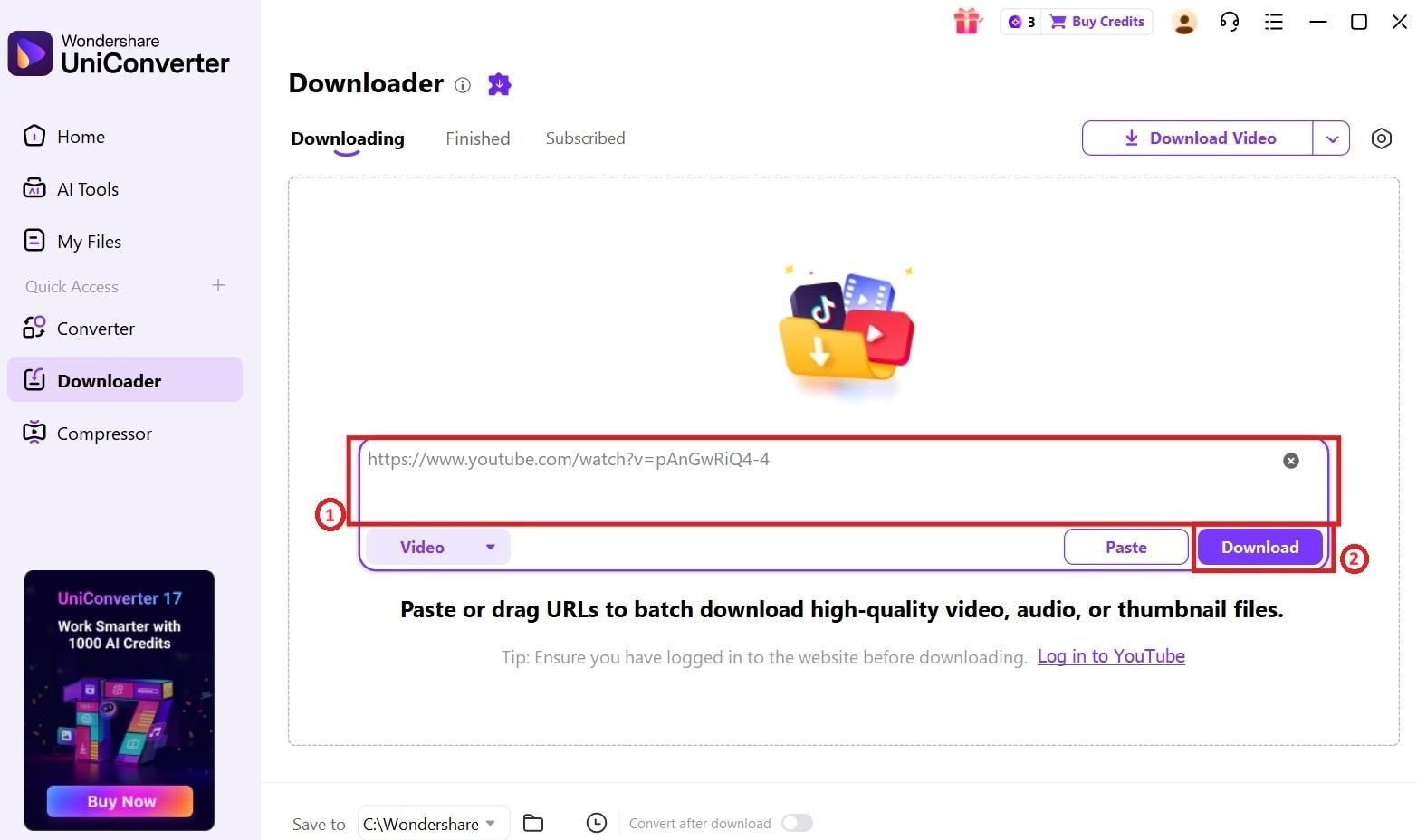
Step 2. Paste the link of the 4K animation video you wish to download. You can also paste multiple links here for batch download. Click on the “Download” button.
Step 3. Once the videos have been downloaded, you can click on the “More options” button if you want to perform any advanced edits on the video. This includes cuts, trims, compression, and removing any watermarks.
4K Video Downloader
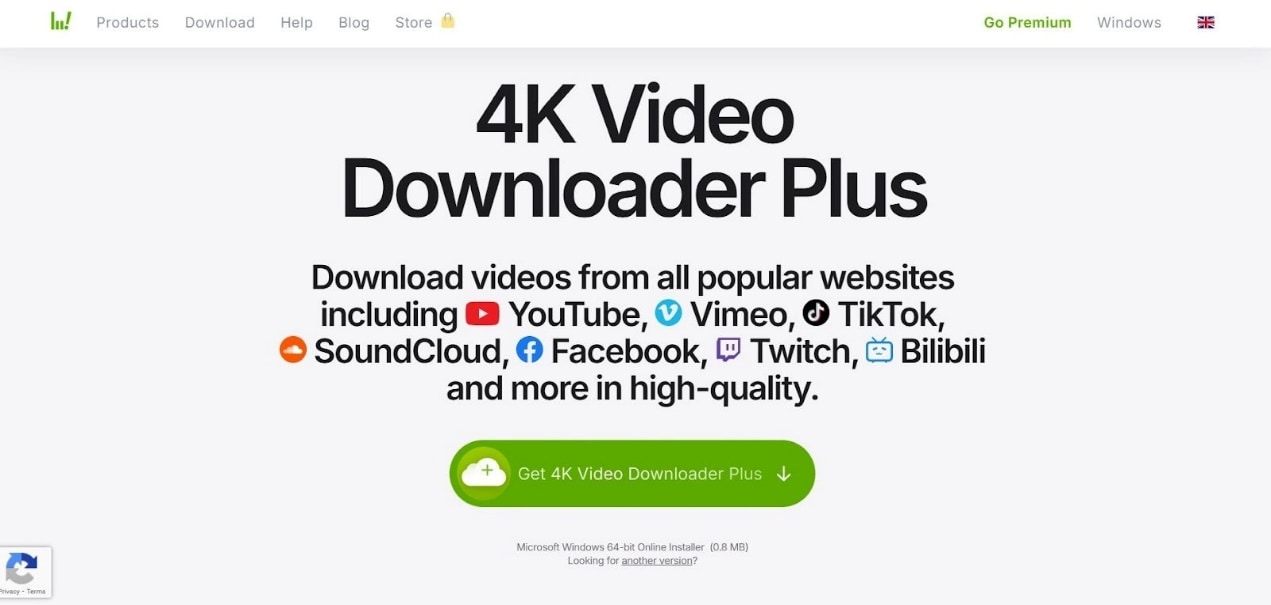
4K Video Downloader is another desktop tool that allows you to download high-resolution animation videos. It works on both Windows and MacOS, typically suited for single-video downloads. Although 4K Video Downloader works stably, it does not provide you with multiple options for converting videos to different formats, like MKV and WebP.
Key Features
Supports 4K animation video download without compromising the quality.
You can extract audio and subtitles for the downloaded video.
Works smoothly on your PC without major hiccups.
ClipGrab
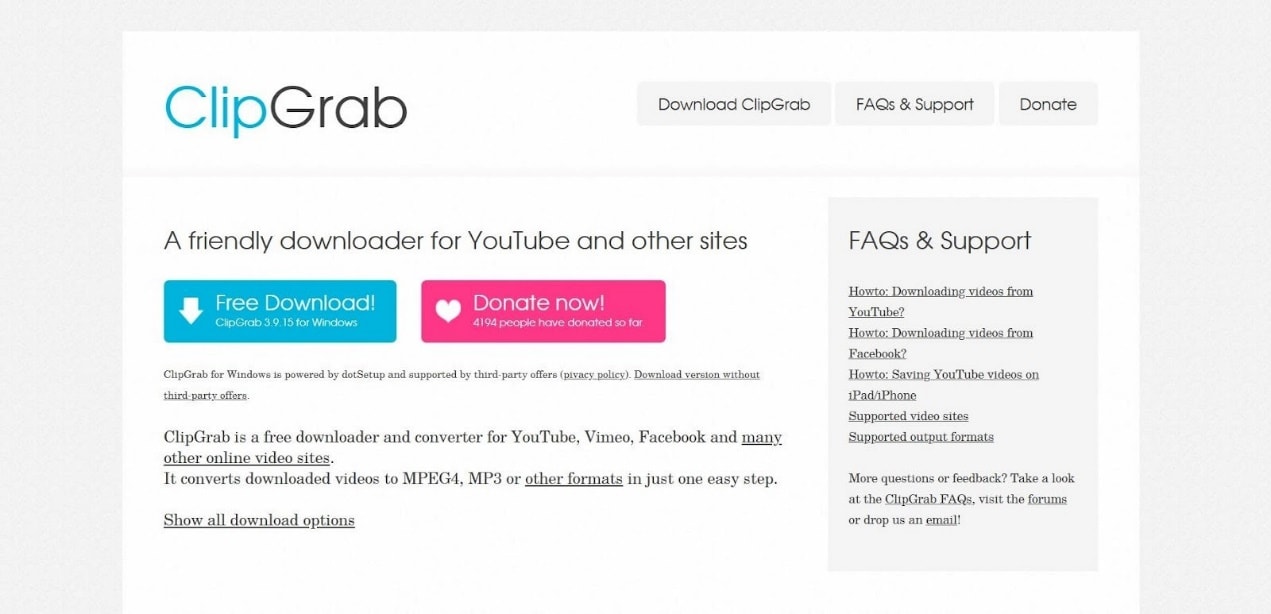
ClipGrab is a free desktop application that lets you download 4K videos from various platforms and websites. It is a versatile choice if you are looking for a tool to download animation videos without a premium subscription. However, ClipGrab does not help you differentiate between a true 4K video and an upscaled video. It also does not have any editing tools to convert or modify the downloaded video.
Key Features
ClipGrab lets you download videos from multiple platforms and websites.
The workflow is simple and suitable for non-technical users.
Has basic functionalities to edit the downloaded videos.
How to Download 4K Animation Videos Online
You can download 4K animation videos online without installing a separate software. However, you must note here that not all online downloaders support downloading true 4K videos. The most reliable browser tools for downloading 4K animation videos are SaveFrom.net, Keepvid, and VEED.io.
SaveFrom.net
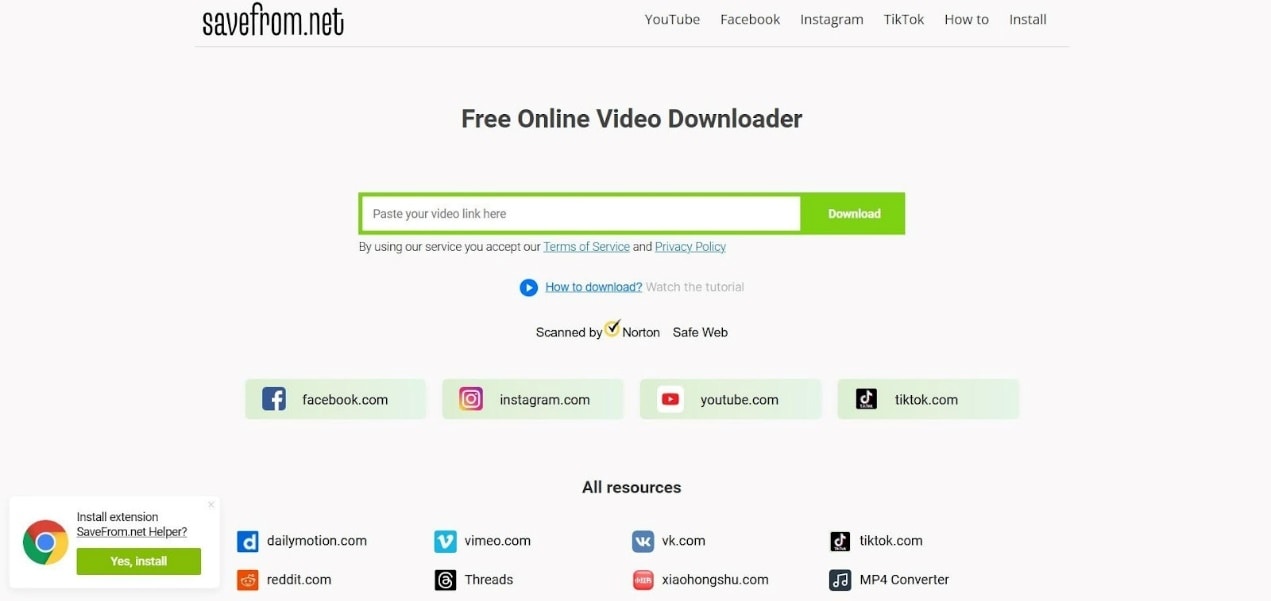
SaveFrom.net is a web browser-based tool that lets you download high-resolution true 4K animated videos without software installation and setup. You can choose from the available video format options provided before downloading the video file from the link. However, there is no built-in converter and you will have to look for other options.
Key Features
You can download 4K Animated videos online from multiple platforms and websites.
The platform shows the available format options before downloading the video.
You can download videos without signup or creating an account.
How to Use SaveFrom.net for 4K Animation Video Download
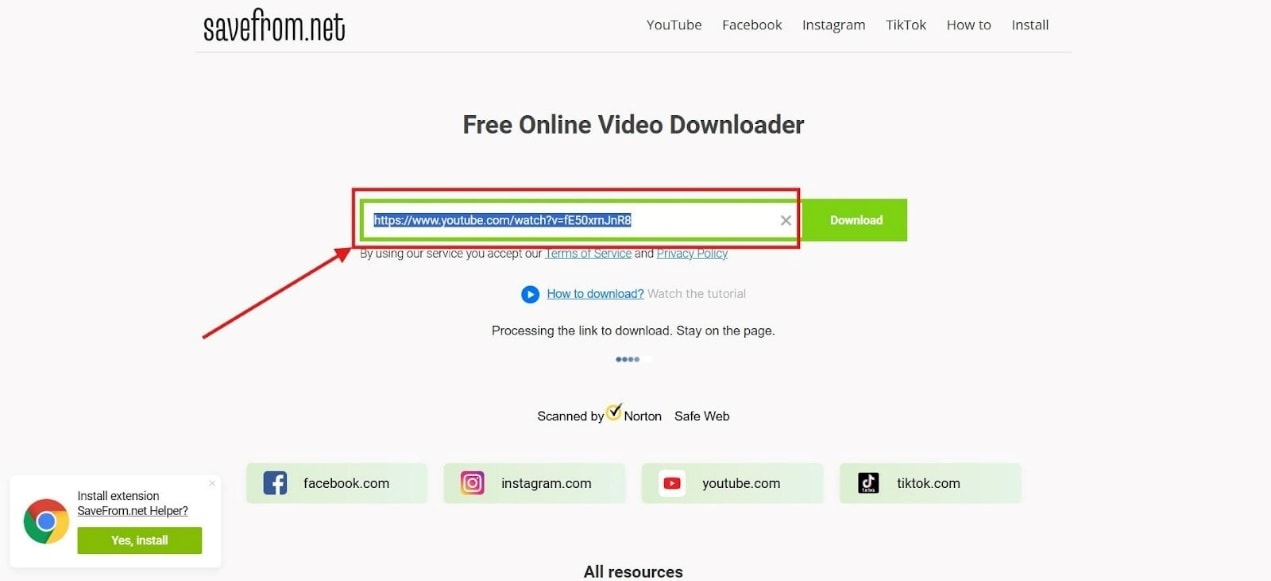
Step 1. Open SaveFrom.net on your browser, and paste the video in the input space.
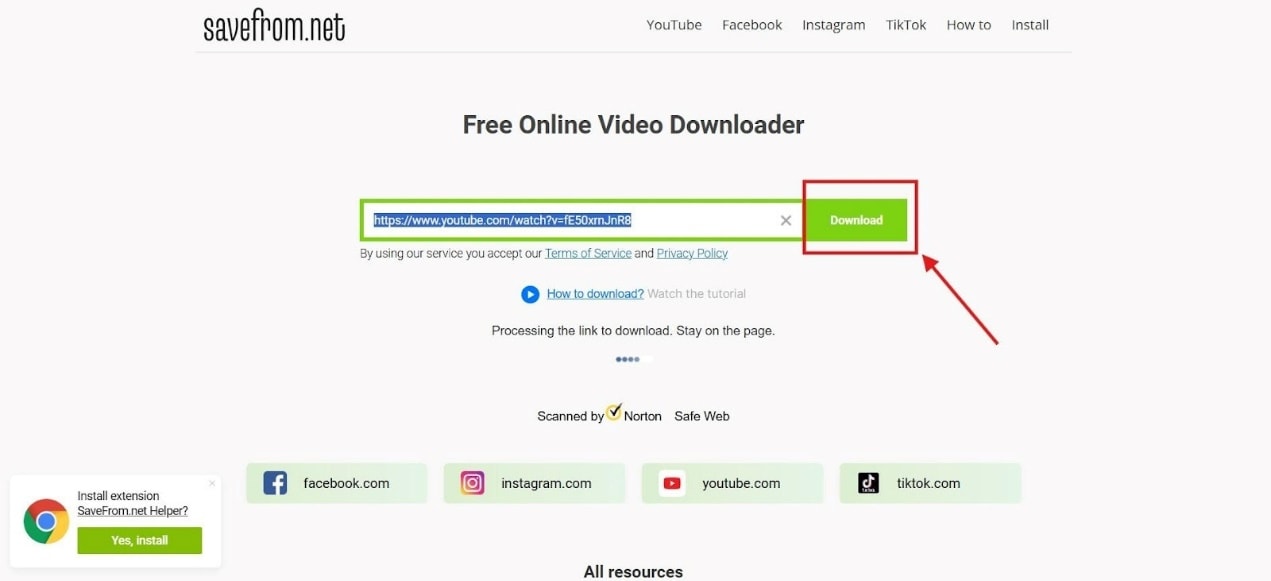
Step 2. Click on the “Download” button.
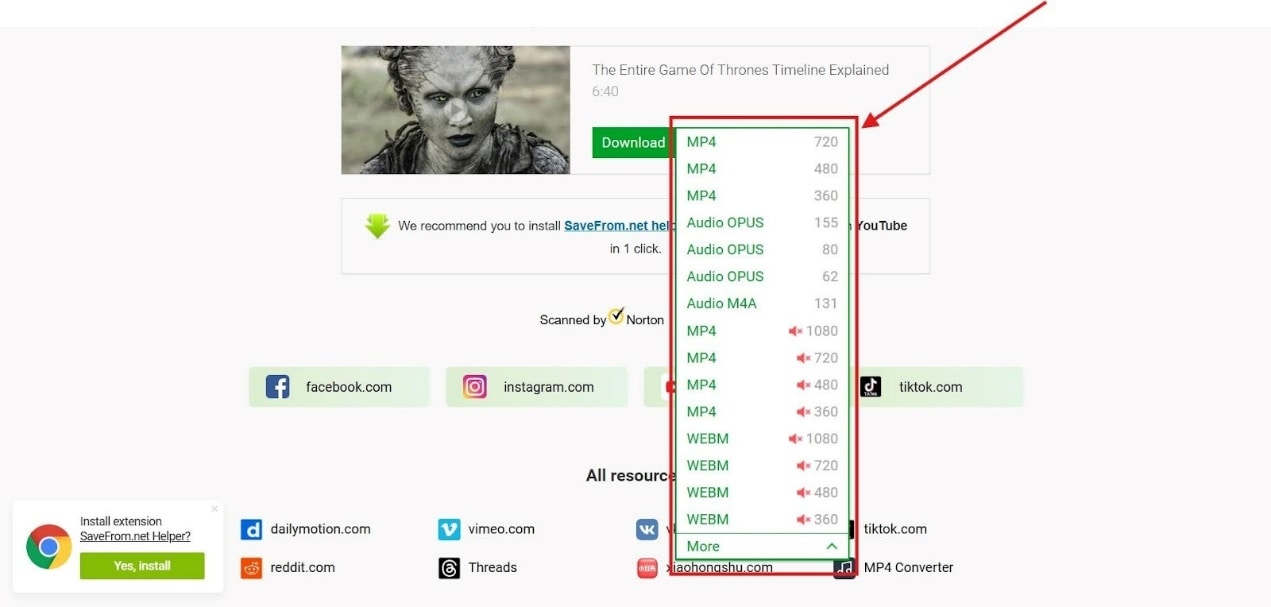
Step 3. Choose the video format you wish to download the video in.
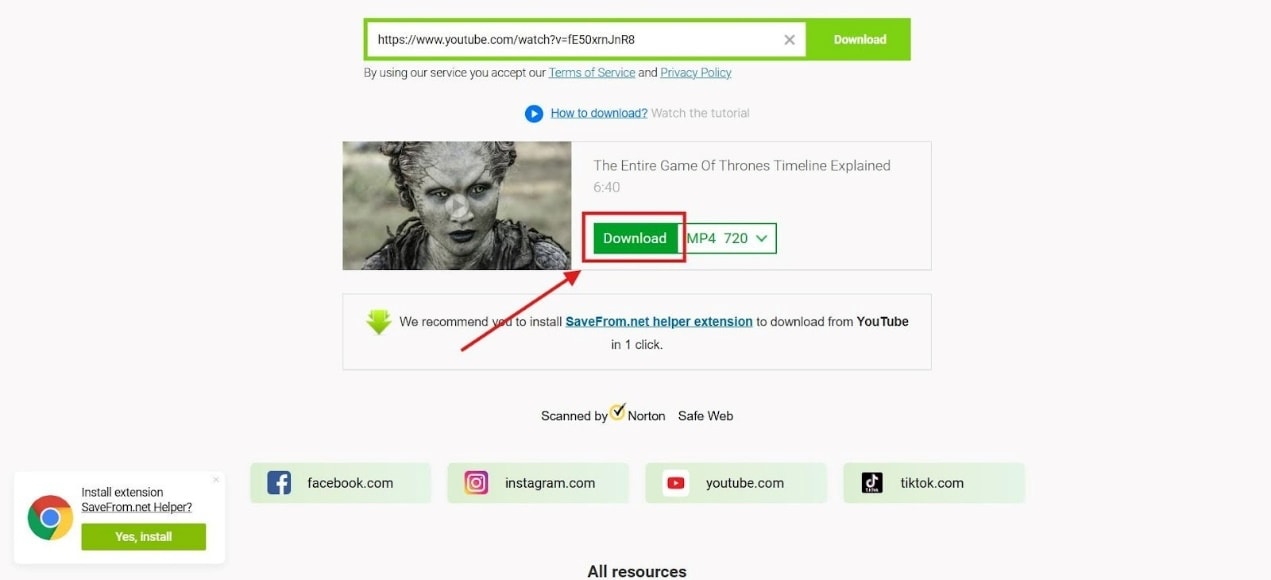
Step 4. Then click on the “Download” button to save the video to your system.
Keepvid
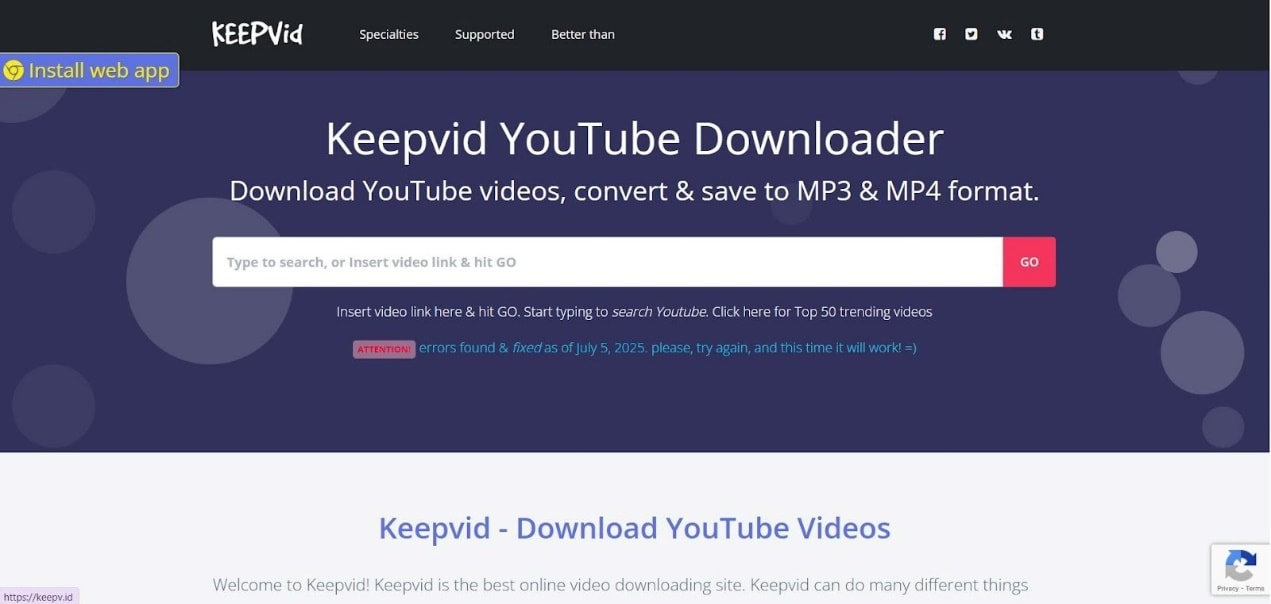
Keepvid works seamlessly across different devices and browsers. When it comes to large video files, the download process is not interrupted due to minor network variations. It has a simple interface that helps you download videos without technical complexity. However, ads and pop-ups are distracting and result in accidental clicks.
Key Features
Supports downloading videos from multiple platforms.
No need to install software on your system.
Works across different devices and operating systems.
VEED.io
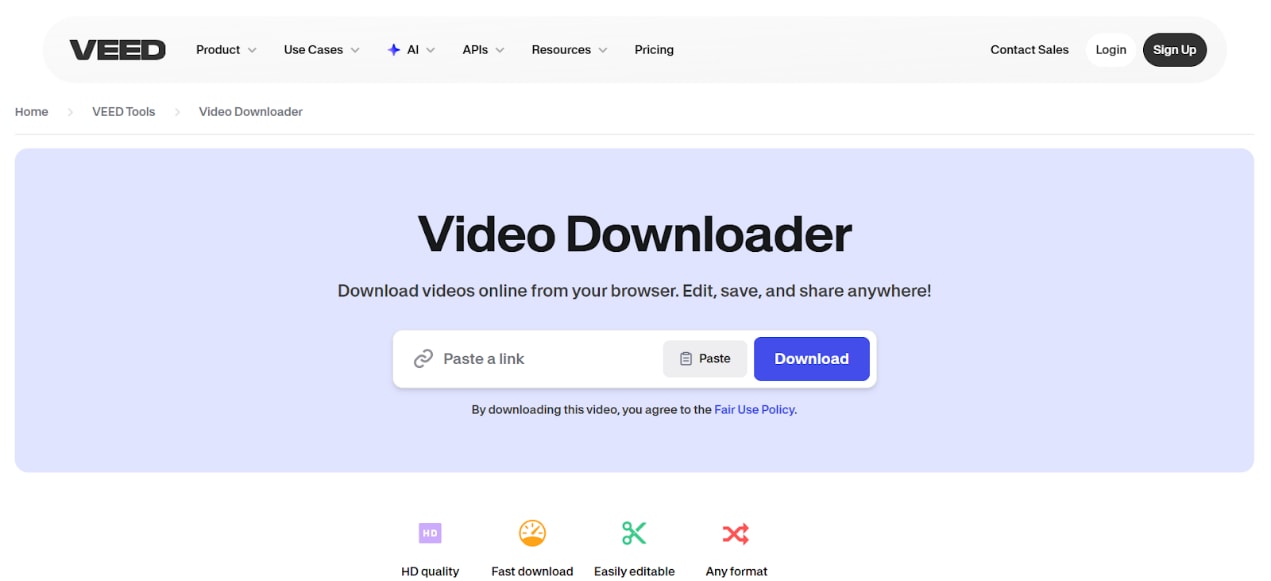
Veed.io is a web browser-based video downloader platform that lets you download videos with ease without compromising on the video quality. Further, you can convert videos to different formats like MP4, MKV, or MOV on this platform. However, the slow performance of the platform while downloading video files is a major drawback.
Key Features
Built-in conversion option for converting video to multiple formats.
Supports pasting video links from multiple websites and platforms.
Works completely on the browser.
How to Download Animation Videos on Android and iOS?
To download animation videos on Android and iOS devices, you can choose from a host of different tools available. This includes Documents by Readdle, Video Downloader, and Snappea.
Documents by Readdle (iOS)
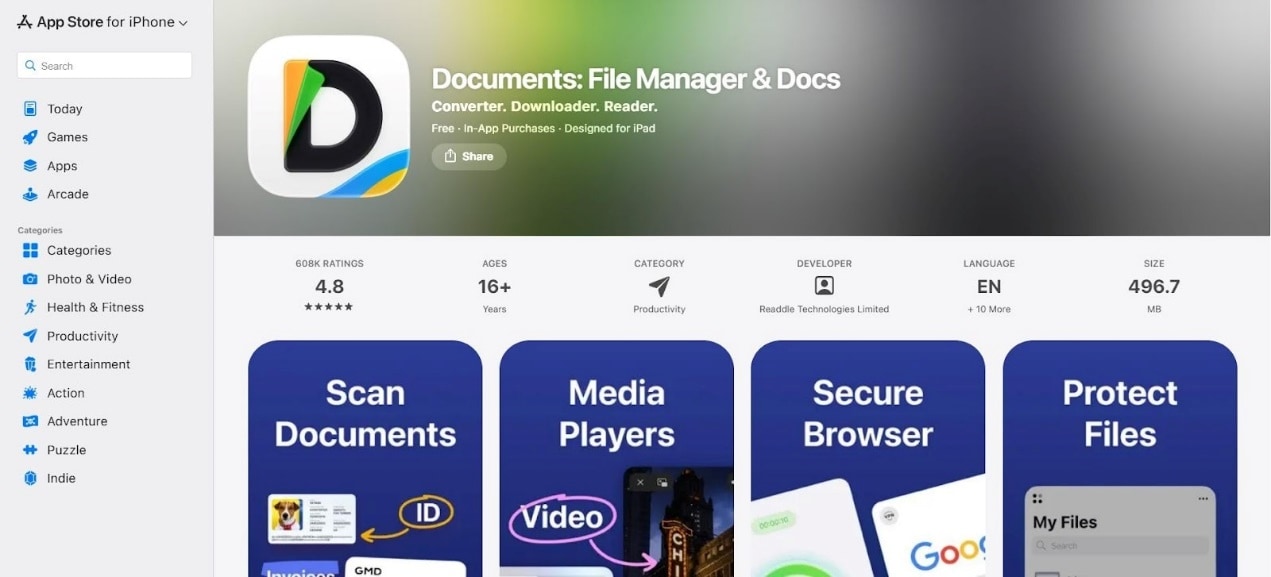
Documents by Readdle is a file manager cum video downloader for your iPhone. You can download and manage high-resolution 4K animated videos all within the same interface. This is an advantage, given the fact that Apple does not let third-party apps customize the file management system on their devices. The only downside is the number of manual steps to install the app and then download your video.
Key Features
The built-in browser helps you choose the video you want to download with ease.
The app is compatible with downloading videos from multiple platforms.
Supports download folder management.
How to Use Documents by Readdle for 4K Animation Video Download
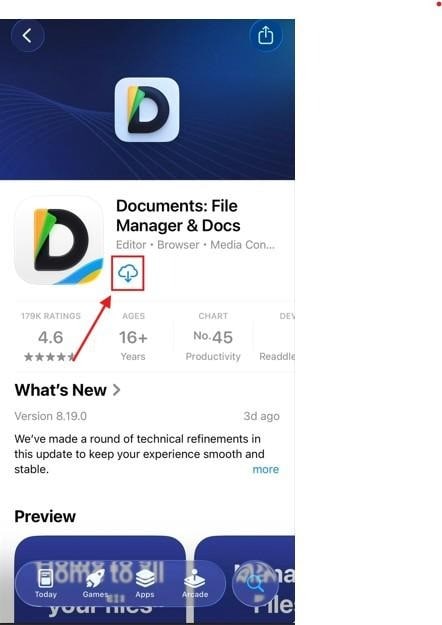
Step 1. Install the Documents App from the App Store.
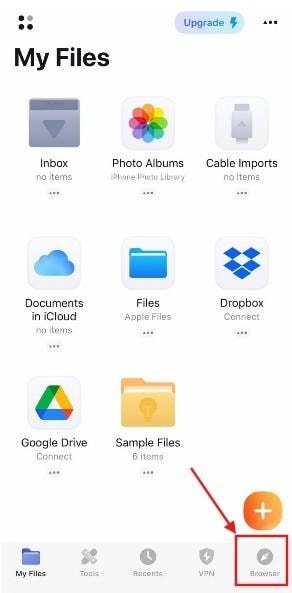
Step 2. Launch the Documents App and click on the “Bowser” icon on the bottom right of your screen.
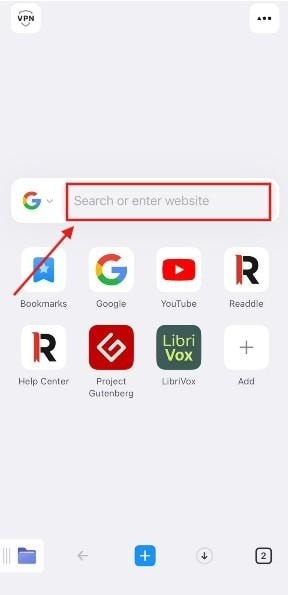
Step 3. Navigate to the website from which you want to download the video.
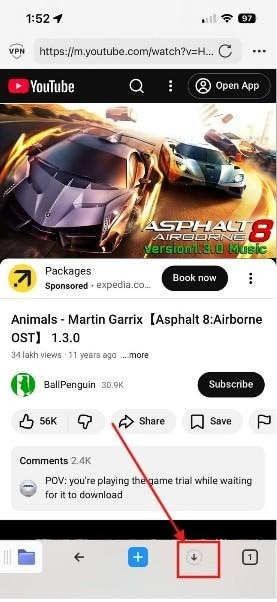
Step 4. Click on the “Download” icon to save the video to your device.
Video Downloader (Android)
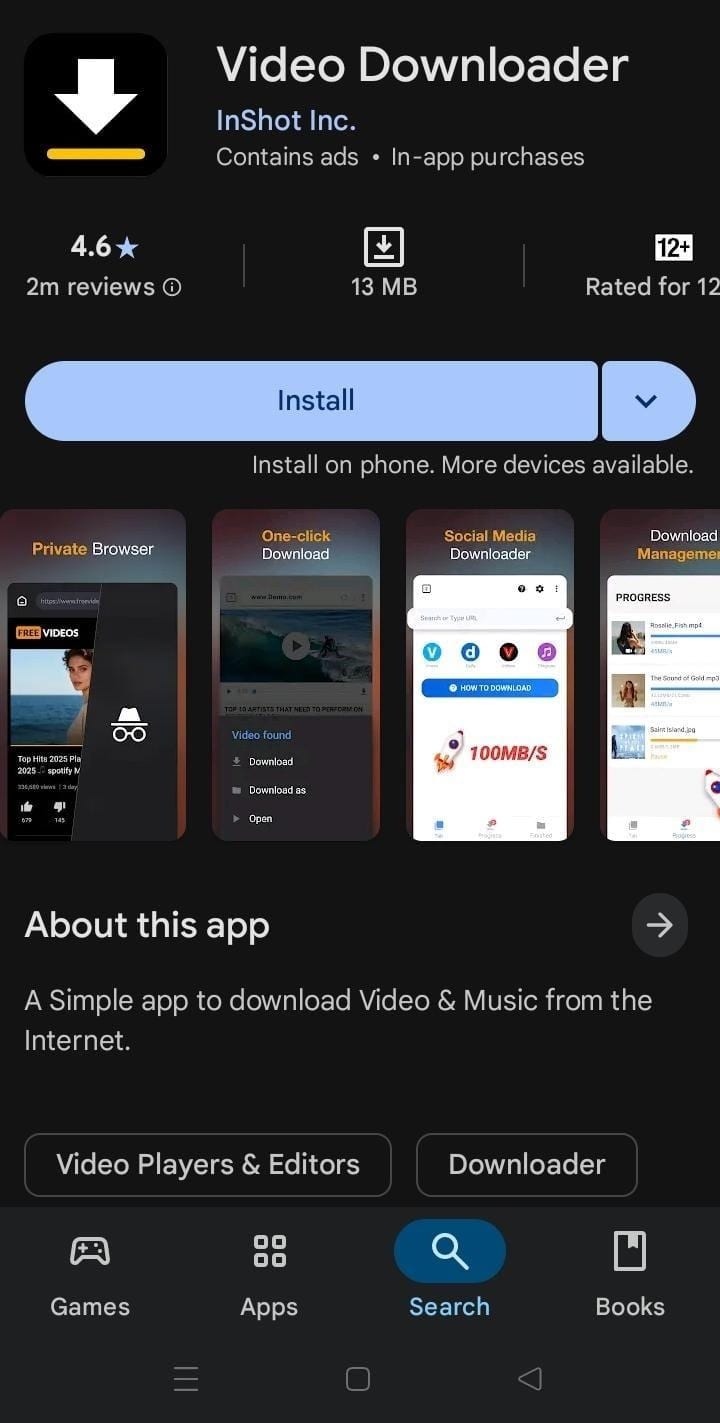
Video Downloader is a highly popular video downloader app for Android users that lets you download videos in different formats. It does not compromise the video quality during download, and ensures steady video download even on mobile networks. However, the app is available only for Android platforms and not for iOS users.
Key Features
You just have to paste video links to download high-resolution videos.
The app lets you choose the video format before downloading.
With batch downloading, you can download multiple video files simultaneously.
Snappea (Android & iOS Browser)

Snappea is a browser-based video downloader for your mobile. This platform works seamlessly on both Android and iOS platforms. It lets you choose the resolution of the video before downloading, therefore, ensuring compatibility with your mobile device. However, ads and pop-ups are distracting and affect the workflow.
Key Features
The platform is completely browser-based without the need for installation.
Works on both Android and iOS.
Allows high-resolution download in multiple formats.
Part 4. What is the Best Method for 4K Animation Video Download? (Quick Comparison Table)
The best method for downloading high-resolution 4K animation video depends on the device you are using. The table below will help you choose the right tool as per your requirements.
| Tool | Platform Supported | Max Resolution Supported | Speed | Format Support | Audio Support | Best For |
| Wondershare UniConverter | Windows, MacOS | Up to 4K high-resolution video | Fast | MP4, MOV, MKV, AVI | Yes | Best all-in-one video downloader and converter |
| 4K Video Downloader | Windows, MacOS | Up to 4K | Moderate | MP4, MKV, 3GP | Yes | Single high-resolution download |
| ClipGrab | Windows, MacOS | Up to HD based on the video availability | Moderate | MP4, WMV, OGG | Yes | Free, simple downloads |
| SaveFrom.net | Browser | Up to 4K (as per availability) | Moderate | MP4 | Yes (via conversion) | Quick online downloads + convert |
| Keepvid | Browser | Up to 4K or 1080p as per video availability | Quick | MP4 | Yes | Quick browser download |
| VEED.io | Browser | Up to 2K as per video availability | Quick | MP4 | Yes | Browser paste download |
| Documents by Readdle | iOS | Up to 4K | Depends on the network | Depends on the video file | Yes | iOS app download |
| Video Downloader | Android | Up to 4K | Varies | MP4 | Yes | Android app download |
| Snappea | Mobile browser | Up to 4K | Quick | MP4 | Yes | Simple browser download for mobile devices |
Part 5: Common Issues in 4K Animation Video Downloads (And Fixes)
When it comes to 4K animation video downloads, you may face issues like resolution drops and audio sync problems. You can overcome these issues by following the quick fixes mentioned in this section. The most common issues are as follows:
Video Not Downloading in 4K Resolution
The downloaded file is not in 4K format. Instead, the downloaded video is limited to 720p or 1080p.
Fix:
Make sure the original video offers 4K format.
Avoid browser tools that limit the video resolution.
Use an advanced desktop tool like Wondershare UniConverter that lets you select 4K high-resolution video.
Audio is Out of Sync
The video quality is correct. However, the audio is out of sync, missing, or delayed.
Fix:
Choose MP4 or MKV format instead of downloading in WebM.
Avoid tools that download audio and video separately.
Use tools that merge audio tracks automatically.
File Size is Extremely Large
The downloaded 4K video is extremely large and takes up a lot of storage space.
Fix:
Use H.265/HEVC compression format whenever possible.
Avoid uncompressed MOV formats.
Use UniConverter to compress the video after downloading without compromising the video quality.
Downloaded Video File is not Playing Mobile or TV
The downloaded video file does not play on certain devices, like TVs or mobiles.
Fix:
Convert the video to MP4 format for extended support across multiple devices.
Avoid niche codecs that are not supported by smart TVs or mobiles.
Test playback compatibility and specifications before downloading videos.
Conclusion
When it comes to 4K animation video downloads, it is about identifying and choosing true 4K videos. This means you have to check the video specs, format, and codecs precisely that matches with your requirements. You should also use the right tool for reliable downloads without compromising the video quality. For consistent results, having a desktop app is the most dependable solution. With Wondershare, you can download true 4K animation videos without compromising the quality. Try it out today!

